Direkt zum Inhalt

Copilot in PowerPoint: From Blank Slide to Polished Deck in Minutes

Copilot in PowerPoint helps you create polished, professional slides in less time by turning your ideas into ready-to-present content. With a few words, you can design, summarize, and refine your presentations.
1. Dez. 2025  · 15 Min. Lesezeit

You open PowerPoint and stare at the blank slides. The deadline’s close, and all your ideas are spread across notes, emails, and half-finished documents. You know what you want to say, but don't know how.

Copilot in PowerPoint helps you do exactly that. You can tell it what kind of presentation you need, and it builds the slides for you. It can take a Word file, meeting notes, or even a few sentences and turn them into a clear, organized deck. You can also ask it to rewrite text, simplify long sections, or suggest visuals.

Let’s see how you can do all this.

Getting Started with Copilot in PowerPoint

Let's learn what Copilot is and how to set it up.

What is Copilot in PowerPoint?

Microsoft Copilot is an AI assistant inside PowerPoint. It can draft slides from a prompt or a document, rewrite text, create speaker notes, and suggest layouts. You stay in control and can accept or edit every change.

Copilot in PowerPoint

You’ll find Copilot on the left panel of your screen. You can either create a presentation from scratch or give a document to make a presentation.

It connects to Microsoft Graph, which lets it access files and data you already have permission to use, such as documents in OneDrive or SharePoint. This means it can pull details from your existing content without leaving PowerPoint.

When you enter a prompt, your request goes to Microsoft’s secure cloud. The AI processes it, drafts it based on your input and context, and sends it back in seconds.

You’ll see the results right in PowerPoint. Then, you can review, edit, or refine further until the slides match what you need, all without switching apps.

Licensing and system requirements

To use Copilot in PowerPoint, you need a Microsoft 365 plan that includes Copilot:

Once you subscribe to the plan, sign in with your licensed account. Open PowerPoint and then create a new presentation or open one saved in OneDrive or SharePoint. Click the Copilot icon in the toolbar and start using it. 

Note: Recently, Microsoft has made Copilot chat available for free in the Microsoft 365 PowerPoint desktop app. The free version can create presentation slides directly in PowerPoint, summarize your presentation, and generate ideas. However, you can’t access the files in SharePoint, OneDrive, or Outlook.

Troubleshooting tips

Sometimes, the Copilot button doesn't show up or doesn’t work as expected. In such cases, you can try the following:  

  • Copilot button missing: Update PowerPoint, restart, and confirm your account has a valid Copilot license.
  • Access denied: Make sure you’re signed in with the correct work or school account.
  • Blocked by policy: Ask your IT admin to confirm Copilot is allowed in your organization’s settings.
  • Limited web features: Clear your browser cache, try a private window, or switch to another supported browser.

Once Copilot is active, it will appear as a small icon or side panel in PowerPoint, ready to help you build and edit slides.

Supported file types and data access

Copilot works with the most common file types you already use in PowerPoint and Microsoft 365, such as:

  • Existing PowerPoint presentations (.pptx) for editing, summarizing, or redesigning slides
  • Word documents (.docx) for turning written content into slide decks
  • PDFs (.pdf) for summaries or draft slides, though results can vary depending on the layout
  • Text files (.txt) or copied content for quick outlines or short notes
  • Images (.png, .jpg) to add visuals 

I should say that Copilot works within your Microsoft 365 environment. It only uses the files and data you already have permission to open. If you don’t have access to a file, Copilot can’t read or use it. For work accounts, your company’s admin controls, like audit and compliance settings, stay active; for personal accounts with Copilot Pro, it uses files saved in your OneDrive or open on your device.

Core Capabilities: Creating and Managing Presentations

Let's see what you can do with Copilot in PowerPoint. 

Creating presentations from natural language prompts

You can create a full presentation just by telling Copilot what you want. All you have to do is describe your idea in plain language, and Copilot builds it for you:

  • Open PowerPoint and make sure you’re signed in with the account that has Copilot access.
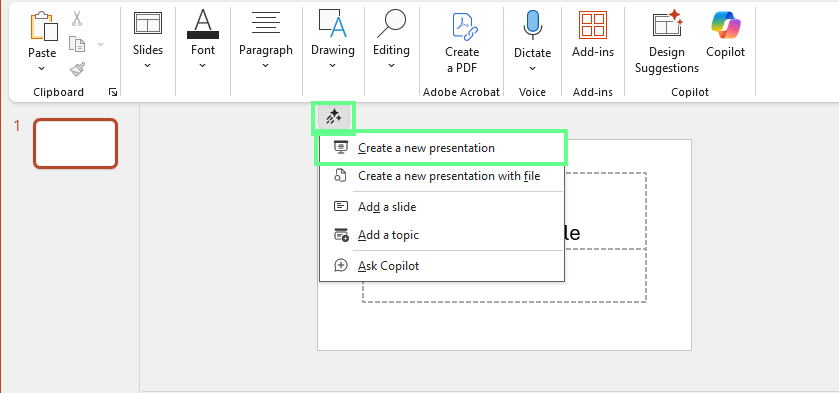
  • At the top of the screen, there is a Copilot button. Click it, then select Create a new presentation.

Create a new presentation in Copilot PowerPoint

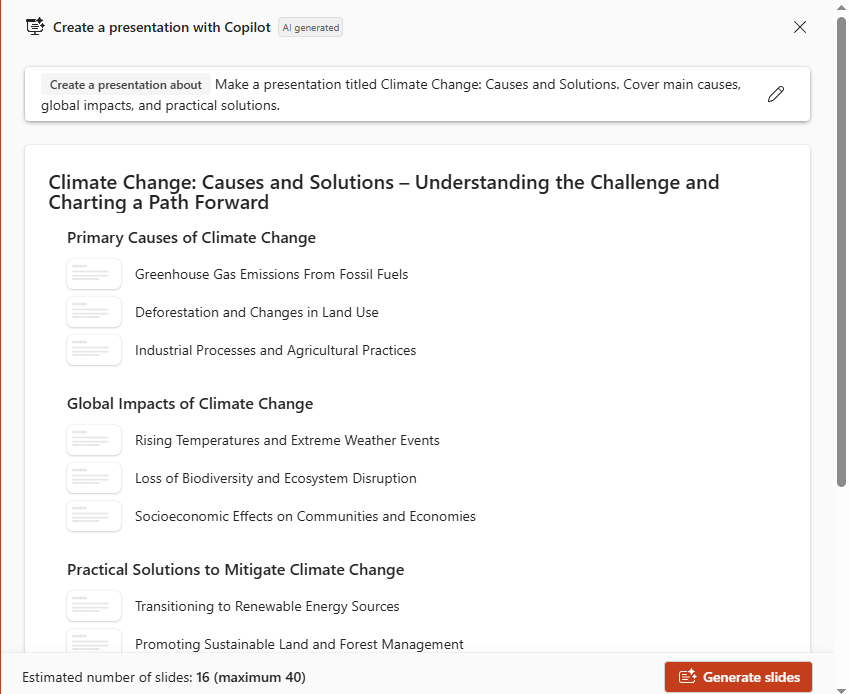
  • A window will appear. In the text box, type your prompt. For example, you can write “Make a presentation titled Climate Change: Causes and Solutions. Cover main causes, global impacts and solutions.”
  • Give it a moment while Copilot creates an outline. Then, click Generate slides

Generate Slides with Copilot PowerPoint

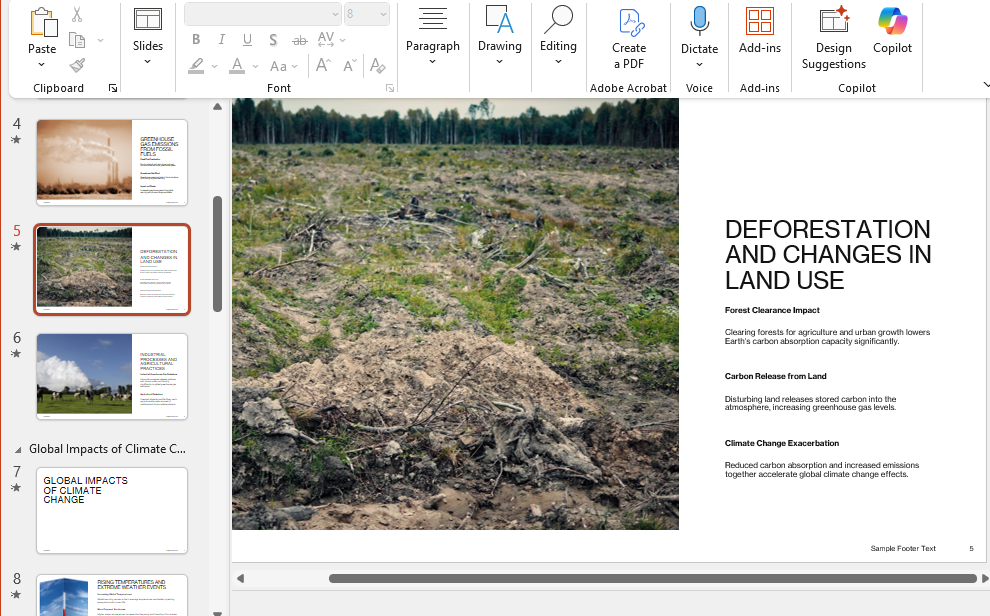
  • Once the slides are ready, go through them one by one. You can type commands like “Add a summary slide,” “Make this part shorter,” or “Add more visuals.”
  • Tweak the slides if you want to change layouts, add your logo, or rewrite a few lines if needed.

PowerPoint Copilot creates a whole presentation with a single prompt

To get the best results, follow these tips: 

  • Be clear and specific in your prompt. 
  • Mention how many slides you want, who the audience is, and what tone you prefer. 
  • Guide the structure by saying something like, “Start with an introduction, then list challenges, solutions, and a conclusion.”

What's great about Copilot in PowerPoint versus other AI presentation tools is that other tools create slides outside of PowerPoint, and then you have to export them. Copilot does everything right inside the app, using your existing files, data, and templates. You can build, edit, and polish your presentation without switching platforms or losing formatting.

Transforming documents into presentations

You can also create presentation slides using your existing files, such as Word documents or PDFs. This saves a lot of time, especially when you already have written content that needs to be presented visually:

  • Click the Copilot button at the top, then select Create a new presentation from file.
  • It will show all the files, such as Word, Excel, and PDF, that are present on Outlook (with the same account). Choose any file you want to use (can reference five files at a time).
  • Copilot will read the content, extract the main points, and organize them into slides.
  • When it’s done, review the slides, check the flow, and apply your preferred design or theme.

If your presentation needs a logo, photos, or icons, keep those images in the same folder or in your OneDrive. Give them clear names, like “logo.png”. This helps Copilot identify and use them correctly. 

Summarizing and simplifying complex presentations

Let’s say you already have a 30 or 40-slide presentation and need a quick summary or a version that’s easier to present. Copilot can handle that too. It can condense long decks, rewrite complex slides, and extract the key takeaways:

  • Open your presentation in PowerPoint.
  • From the ribbon, click the Copilot button. This will open the Copilot panel on the right side. 
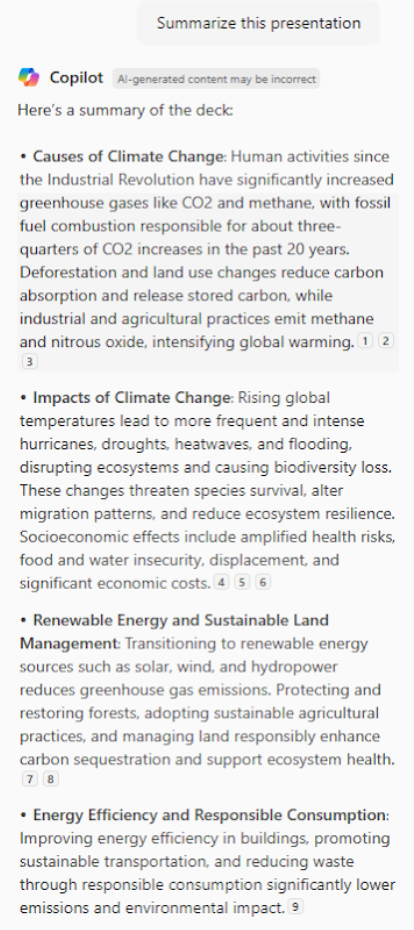
  • Type something like “Summarize this presentation.”
  • In a few moments, Copilot will create a summary slide or a short outline showing the main points.

Summarizing a presentation using Copilot in PowerPoint

If you want to simplify a specific slide:

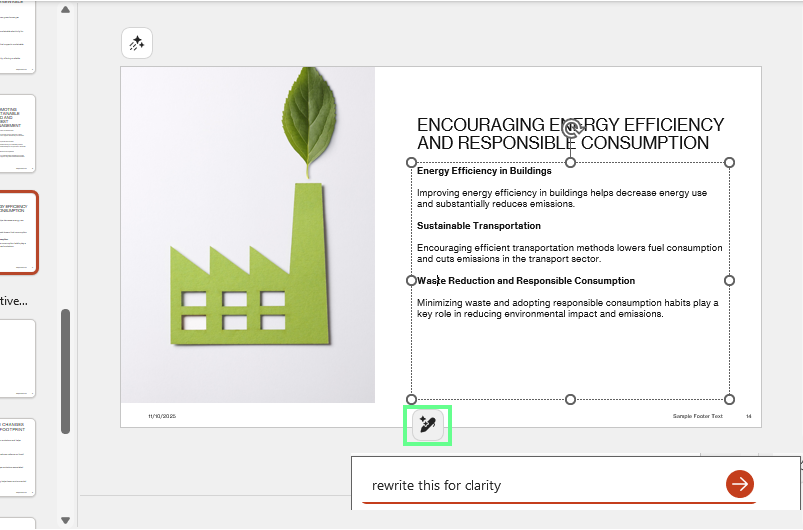
  • Select that slide’s text, click on the pen icon, and enter your prompt, like "simplify this slide" or "rewrite this for clarity". It will shorten sentences, adjust bullet points, and rephrase text to make it easier to read and present.

Rewrite a single slide with a prompt in PowerPoint Copilot

Organizing and analyzing your presentation

Once you’ve created your slides, Copilot can help you make sure everything flows smoothly. It looks at the order of your slides, the logic behind your content, and even points out sections that might be repetitive or unclear:

  • Open your presentation. 
  • Click the Copilot button.
  • Type a command like “Check the order of my slides and suggest a more logical flow.”

Copilot will scan through the presentation and tell you if any slides feel out of place, lack context, or go into too much detail compared to the rest.

Advanced Features and Customization Capabilities

Copilot in PowerPoint is not limited to basic features. It can do much more than that. 

Intelligent image integration and generation

With Copilot, you can find and add the right images to your slides without leaving PowerPoint. You can use stock photos, AI-generated images, or visuals from your company’s library:

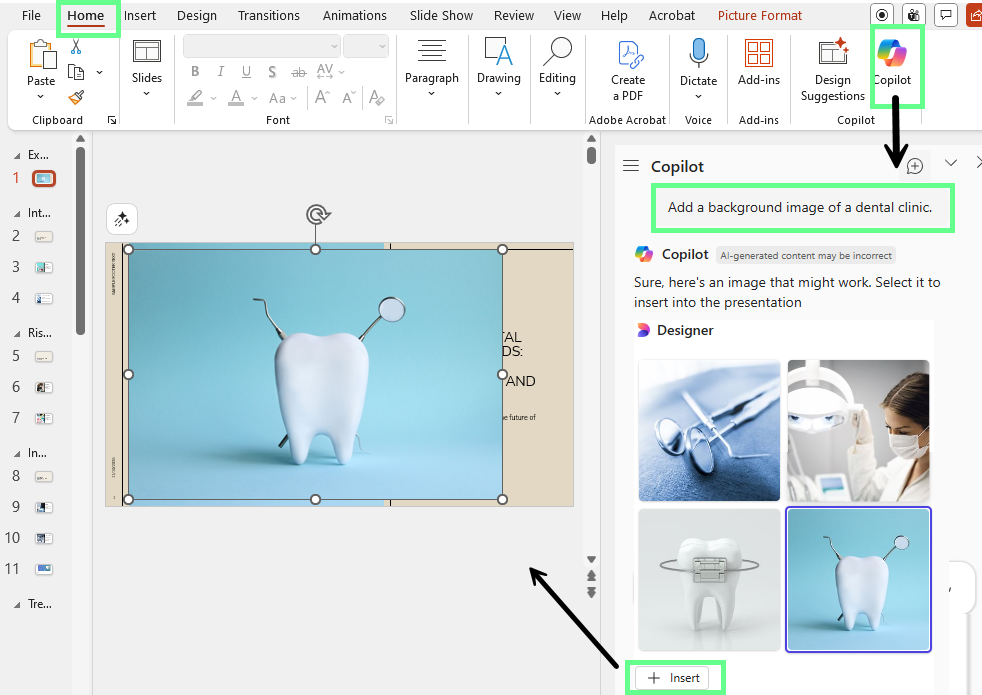
  • Click on the Copilot icon in the Home tab.
  • Write your prompt like "Add a photo of a smiling customer in a dental clinic." 
  • Copilot will pull suitable images from Microsoft Stock or your organization’s approved image sources.
  • It will give you some options. Review and choose the one that you like and click Insert.

Insert the image to the slide with PowerPoint Copilot

If your organization has its own media library, Copilot will prioritize those assets when connected to SharePoint or OneDrive for Business.

Here are a few tips to get better visuals:

  • Use simple, specific image prompts.
  • Stick to your organization’s brand colors or imagery style.
  • Use the Design Ideas panel afterward to check how the image fits with text and layout.

Organizational branding and template optimization

Every organization has its own colors, fonts, and layouts. Copilot works best when these are already applied, so it can match the right tone and structure.

To make sure your slides follow brand rules:

  • Open PowerPoint and go to File > New.
  • Choose your organization’s branded template.
  • Once it’s open, launch Copilot and start creating content. It will automatically use the template's logo placement, color palette, and layout styles.

For admins or template owners:

  • Keep your brand template stored in SharePoint or OneDrive for Business so everyone’s Copilot can access it.
  • Include clear slide masters with placeholders for titles, content, and visuals.
  • Test Copilot prompts on your template to confirm that headings and colors appear as expected.

To maintain your brand consistency:

  • Avoid manually changing fonts or instead, use the theme controls in the Design tab.
  • Review the slides once Copilot finishes generating content to ensure no off-brand visuals were added.
  • Keep one version of your corporate template up to date so Copilot always uses the latest design rules.

Speaker notes, slide translation, and multi-format adaptation

Copilot also helps with the details that support how you deliver your presentation. For example, you can: 

  • Create speaker notes for yourself
  • Open your completed presentation
  • Ask Copilot to write a one-minute script for each slide in a confident, conversational tone.

Copilot will read your slide content and turn short bullet points into natural sentences. Only you can see these notes while speaking, while the audience sees your slides. 

Another thing you can do is translate slides into another language. Just type, for example, "Translate this presentation into Spanish." Copilot keeps your design and formatting intact while rewriting all text in the new language. But review the translation for accuracy and tone before sharing.

With that, Copilot can quickly reshape your slides into materials you can share or print outside of PowerPoint. You can ask it to convert your presentation to Word or OneNote when you need a written version or handouts. It automatically adjusts layouts, resizes pages, and reformats design elements so the content fits neatly in its new format.

Design and visual enhancement suggestions

Once your presentation is complete, Copilot suggests clean, professional slide layouts. To use design suggestions:

  • Click a slide that you want to change.
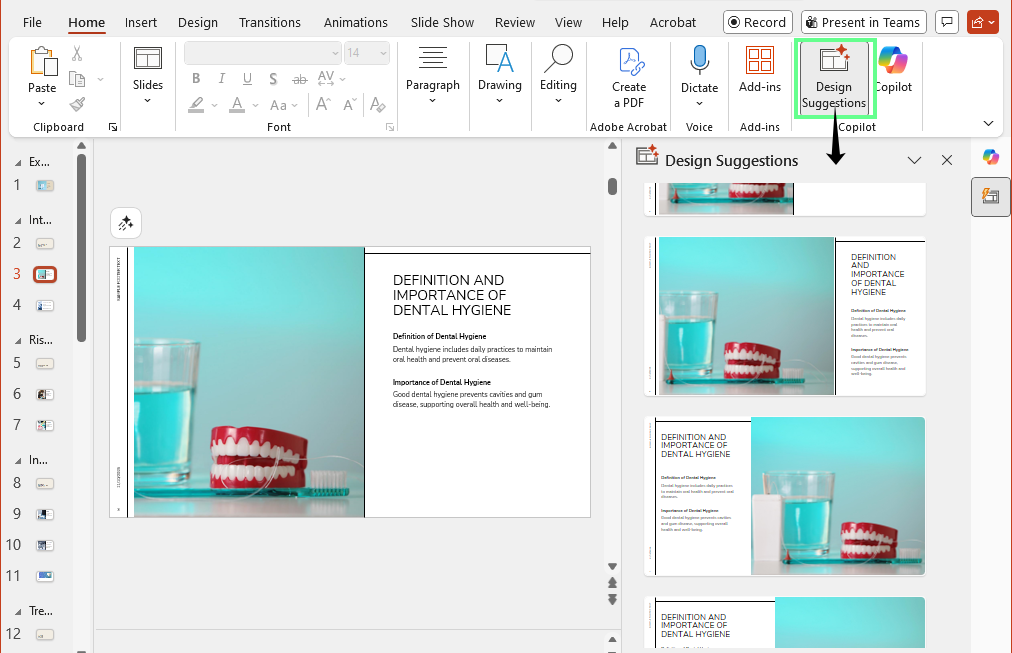
  • In the Home tab, click on Design Suggestions (next to the Copilot button)  
  • PowerPoint will show layout ideas with better spacing, fonts, and image placement on the left panel.
  • Click on the design you want to apply to your slide. 

Design suggestions in PowerPoint

Here are a few tips for stronger visuals:

  • Keep one main idea per slide.
  • Use consistent icons and image styles.
  • Limit text to short phrases or bullets.
  • Let Copilot simplify dense content before applying visual design.

Responsible AI, Privacy, and Security Considerations

Copilot follows Microsoft’s long-standing privacy and security commitments within Microsoft 365. 

Data privacy and enterprise data protection

It works within your Microsoft 365 environment, combining three parts: the AI model, your data from Microsoft Graph, and everyday apps like Word, Excel, and PowerPoint.

It only uses information you already have access to, such as your own documents, emails, or chats, to create results that are relevant to you.

All data stays inside your organization’s Microsoft 365 environment. Prompts, responses, and connected data aren’t shared outside or used to train foundation models. 

In fact, Copilot runs on Azure OpenAI Service, so your data is processed securely and never sent to OpenAI’s public systems. This allows admins to monitor Copilot activity through Microsoft Purview, apply data retention policies, or delete interaction histories when needed. These tools give complete control and visibility over how Copilot is used.

Content safety and responsible AI safeguards

Copilot has robust built-in protections to ensure its generated content remains safe and appropriate. Every input and output goes through filters that detect and block harmful material, including hate speech, violence, explicit content, and self-harm.

It also protects against prompt injection attacks, where someone might try to bypass safety rules. Proprietary classifiers review each request before it reaches the model to prevent misuse or data exposure.

Copilot follows Microsoft’s Responsible AI Standard, built on fairness, transparency, and accountability. Each feature is reviewed by engineers, researchers, and policy experts to reduce bias and improve reliability.

But we as users also share responsibility. 

Since Copilot is a productivity tool, not a decision-maker, you should do the following:

  • Review AI-generated text, numbers, and visuals before sharing
  • Avoid adding private or customer data unless necessary and compliant
  • Make sure outputs match your company’s policies and factual standards

Integration with Microsoft 365 and Organizational Workflows

Besides PowerPoint, Copilot works smoothly with the rest of Microsoft 365. It connects your files, apps, and communication tools so you can create, edit, and share presentations without switching between platforms.

Integration across Microsoft 365 applications

I've mentioned this already. Copilot can pull information and context from apps like Word, Outlook, Teams, and OneNote. Here’s how this helps in real workflows:

  • You can ask Copilot in PowerPoint to create slides based on a Word document you’ve written.
  • It can summarize meeting notes from Teams or use them to build a project update deck.
  • You can pull key points from an Outlook email thread and turn them into a presentation outline.
  • When you’re in Teams, Copilot can summarize a presentation in real time or prepare a recap for participants.

Because all these apps connect through Microsoft Graph, Copilot understands the context. It knows which files, messages, and notes you can access and use them to give you accurate results. This saves time and keeps your workflow consistent across the Microsoft 365 suite.

Using Copilot with organizational templates and design assets

If your organization already has branded templates or design assets, Copilot can use them to make sure every presentation looks consistent and professional.

Here’s how you can do this: 

  • Open your company’s PowerPoint template from SharePoint or OneDrive.
  • Start Copilot within that file.
  • When you ask Copilot to create or edit slides, it automatically uses the colors, fonts, and layouts from your brand template.

You can also store your company’s logos, images, and icons in shared folders or libraries. When Copilot builds a new presentation, it can pull these assets directly, so you don’t have to upload them each time.

Mobile access and remote presentations

Copilot isn’t limited to desktop apps. It also works on PowerPoint web and mobile devices through the Microsoft 365 app. So even if you only have a phone or tablet with you, you can:

  • Open a presentation from OneDrive or SharePoint.
  • Use Copilot to make quick text edits, rewrite slides, or add summaries.
  • Join a Teams meeting and present directly from your mobile device.
  • Ask Copilot to create talking notes or summarize slides during the call.

For smooth remote presentations:

  • Make sure your files are stored in OneDrive or SharePoint so Copilot can access them.
  • Use Presenter View to see your notes and Copilot-generated talking points privately.
  • Keep your mobile app updated for the latest Copilot improvements and language support.

With these features, you can manage and deliver presentations anywhere, at your desk, in a meeting, or on the move.

Best Practices

If you want better results, here are a few tips to follow: 

Write effective prompts for better results

Copilot works best when your instructions are clear and specific. The more context you give, the better it understands what you want.

Here is some of what makes a good prompt:

  • Be direct about the goal. 
  • Mention the tone or purpose.
  • Include details about the structure.

If you are not sure how to write effective prompts, check out our Prompt Engineering course. 

Prepare source documents ahead of time

If you use Copilot to create slides from existing files, you should prepare well-structured documents so Copilot can extract the right points and produce slides that follow a logical flow.

Follow these tips:

  • Use proper headings and subheadings in Word or OneNote. Copilot uses them to build slide titles and sections.
  • Keep paragraphs short and use bullet points for key details.
  • Label images, charts, or tables clearly so Copilot knows how to use them.
  • Place visuals near the related text.
  • Make sure the file is stored in OneDrive or SharePoint so Copilot can access it.

Refine and review workflows

Copilot gives you a strong first draft, but a human should also review it for the final presentation.

Here's how you can refine your slides after the Copilot draft:

  • Read through each slide for accuracy and clarity.
  • Ask the Copilot to adjust specific parts. For example, "make slide 3 more concise" or "rewrite slide 5 in a more persuasive tone."
  • Add your own notes, visuals, or examples that match your message.
  • Review the whole flow to make sure it tells a clear story from start to finish.

Enhance design after draft

Once your content looks good, focus on making it engaging. Here’s what you can do to enhance your design:

  • Use Designer Suggestions to get layout suggestions that balance text and visuals.
  • Avoid overcrowding. Keep one key idea per slide.
  • Check color contrast for readability.
  • Add icons or images that match your topic and tone.
  • Use Animations or Transitions lightly to keep the flow smooth.
  • Review Accessibility Checker under the Review tab to make sure everyone can view your slides easily.

Final Thoughts 

AI is changing the way we create and share ideas, and Copilot in PowerPoint makes that simple. It helps you plan, design, and polish presentations faster, so you can focus on telling your story rather than staring at blank slides.

Now that you know how it works, take some time to explore it. Try building a few decks, experiment with different prompts, and see how the results change when you add more detail or context. 


Laiba Siddiqui's photo
Author
Laiba Siddiqui
LinkedIn
Twitter

I'm a content strategist who loves simplifying complex topics. I’ve helped companies like Splunk, Hackernoon, and Tiiny Host create engaging and informative content for their audiences.

FAQs

Can I use Copilot when PowerPoint is offline?

No. Copilot requires cloud processing, so it needs an internet connection to generate or rewrite content. Basic PowerPoint features continue to work offline.

Is there a way to train Copilot on my past presentations?

Copilot learns context through Microsoft Graph, not by training on your files, but by referencing past decks stored in OneDrive, which helps it align tone and format.

How frequently does Microsoft update Copilot features in PowerPoint?

Copilot receives regular feature updates through Microsoft 365. However, enterprise updates may follow different release cycles depending on admin settings.

Can Copilot generate slide quizzes from the whole presentation?

Yes. You can prompt it with “In the last slide, create a quiz for students out of this whole presentation,” and it will create a multiple-choice quiz.

Themen

Learn with DataCamp

Kurs

Künstliche Intelligenz verstehen

2 Std.
353.4K
Dieser Einführungskurs stellt grundlegende KI-Konzepte vor, zum Beispiel maschinelles Lernen, Deep Learning, NLP, generative KI und mehr.
Siehe DetailsRight Arrow
Kurs starten
Mehr anzeigenRight Arrow
Verwandt

Der Blog

Copilot in Excel: A Full Review With Real Examples

Learn how to use Copilot in Excel to analyze data, automate formulas, and generate insights using natural language—all within your spreadsheet.
Josef Waples's photo

Josef Waples

10 Min.

Lernprogramm

Copilot in Word: A Step-by-Step Tutorial with Real Examples

Master Microsoft Word’s AI assistant, from setup to drafting, editing, summarizing, formatting, and prompt strategies.
Laiba Siddiqui's photo

Laiba Siddiqui

Lernprogramm

Excel Copilot: A Tutorial with Examples

Learn step-by-step how to activate Copilot in Excel, use AI prompts to analyze, visualize, and automate your data, and apply ready-made examples to real-world spreadsheet tasks.
Laiba Siddiqui's photo

Laiba Siddiqui

Lernprogramm

Copilot App Builder: Create Apps and Workflows in Microsoft 365

Discover how to create custom apps, automate repetitive tasks, and build intelligent agents using natural language in Microsoft 365 Copilot. This tutorial walks through App Builder, Workflows, and Copilot Studio with real examples you can implement today.
Khalid Abdelaty's photo

Khalid Abdelaty

Lernprogramm

How to Use Tableau Einstein Copilot

Learn how Tableau Einstein Copilot enhances efficiency using AI-powered features for conversational exploration, recommended questions, and guided calculations.
Eugenia Anello's photo

Eugenia Anello

Lernprogramm

How to Use Power BI Copilot in Microsoft Fabric

Explore how Power BI Copilot works. Learn about its features, pricing, and practical applications.
Laiba Siddiqui's photo

Laiba Siddiqui

Mehr anzeigenMehr anzeigen