Curso
Introducción a los modelos Claude
3 h
14.3K
Many developers start using Claude Code the same way: paste a task, let it run, and review the diff. That works for small changes, but anything touching multiple files starts to break down.
Each unguided decision Claude makes might be correct most of the time, which sounds fine until you compound it: For example, if you assume 80% accuracy per decision, across a feature with 20 decision points, 0.8^20 drops your odds to about 1%.
Plan Mode changes the math by adding a read-only phase. You force Claude to read the codebase, surface questions, and produce a plan you review before a single file gets touched.
This tutorial walks through that workflow using a messy FastAPI blog API as a running example, covering the Explore-Plan-Execute loop, plan editing with Ctrl+G, and scaling to larger refactors with Agent Teams.
Our Claude Code best practices tutorial covers the compounding error problem in more depth, and the Claude Code 2.1 guide walks you through installation and features if you need help with setup.
For more information on the models behind Claude Code, check out our guides to Claude Sonnet 4.6 and Opus 4.6, or take our Introduction to Claude Models course.
Plan Mode locks Claude into read-only operations. It can read files, search the codebase, and ask you questions, but any attempt to write files, edit code, or run shell commands gets refused. Try asking it to "just make this one quick fix" while in Plan Mode, and it won't budge.
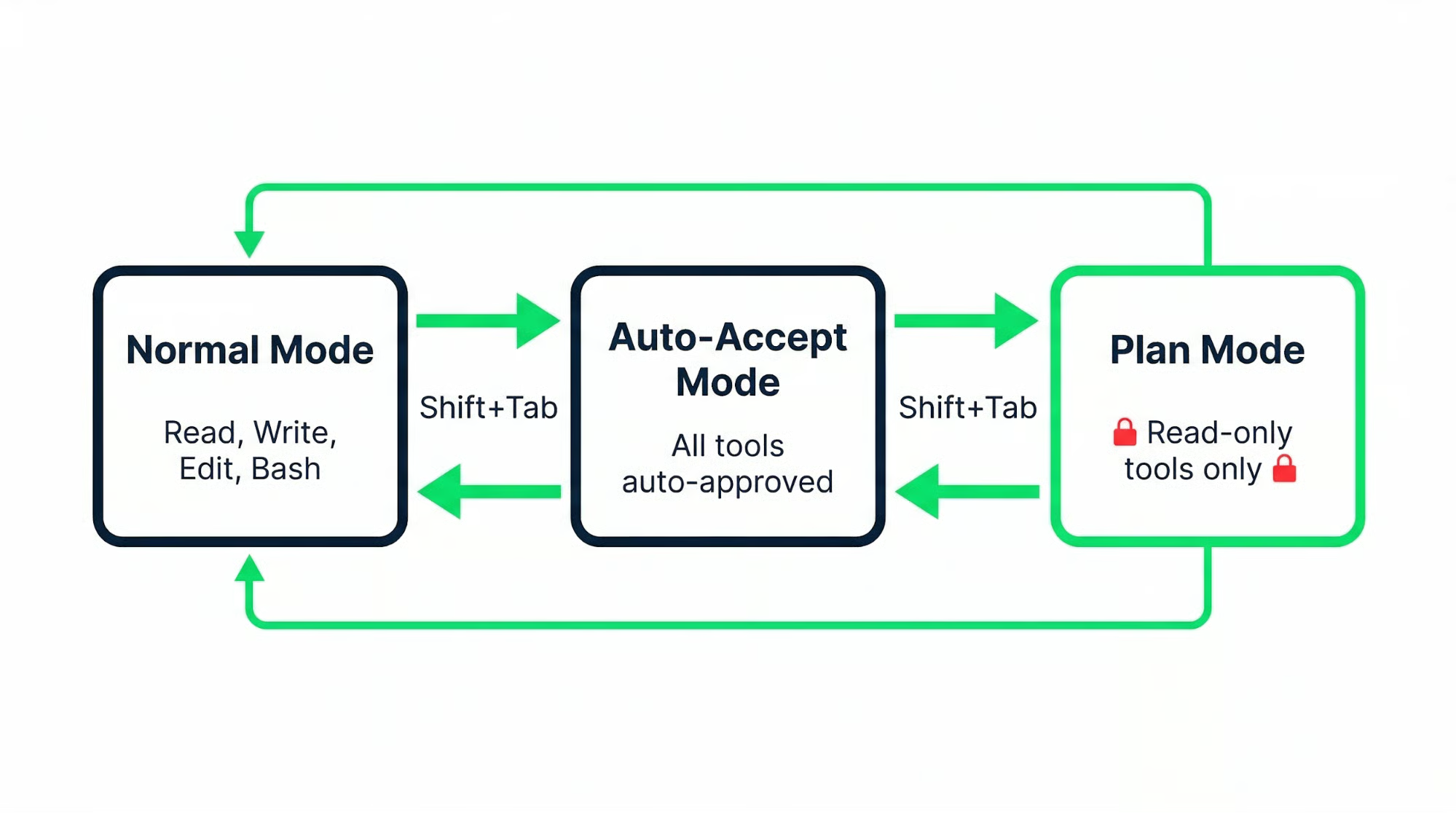
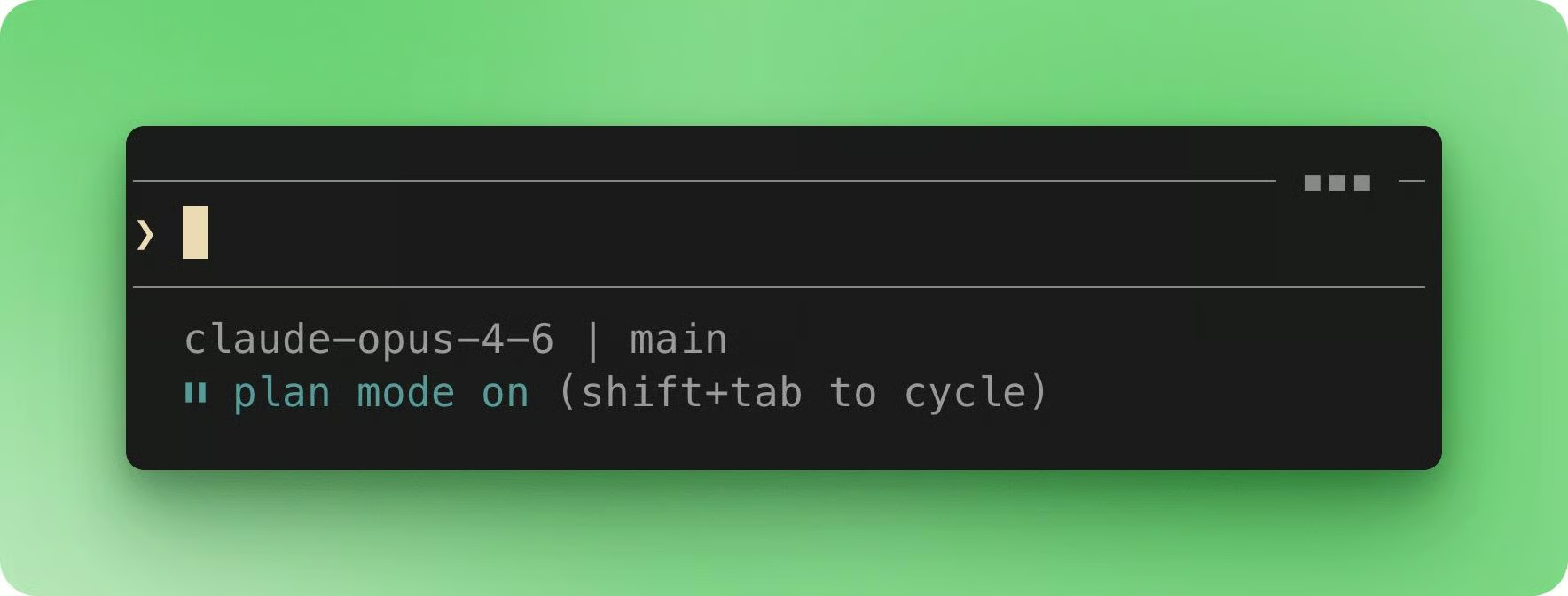
You can activate it in four ways:
Shift+Tab twice in the input field cycles through Normal, Auto-Accept, and Plan Mode
The /plan command enters Plan Mode until you switch modes again
The --permission-mode plan CLI flag starts a new session in Plan Mode
A settings.json entry under permissions.defaultMode sets Plan Mode as your permanent default
Once Claude finishes generating a plan, it saves the result as a markdown file in ~/.claude/plans/ with a randomly generated name (like dreamy-orbiting-quokka.md).
The file is a reviewable contract: it persists across sessions, survives both /clear and context compaction, and nothing gets implemented until you approve it. Note that while the plan file itself persists, Claude can sometimes lose track of it after context compaction unless you prompt it to re-read the plan.
If you want plans stored inside your project for version control, set plansDirectory in settings.json to a project-relative path like ./plans.
Project-relative plans open up workflows that ~/.claude/plans/ can't support:
For long-running refactors or multi-session work, a version-controlled plan file gives you more control than Ctrl+G alone.
To see how the three phases work together, we'll refactor a fastapi-blog-api repo. It doesn’t include any tests and has three files that each do too much:
main.py: all routes, inline auth checks, hardcoded config, email sending
models.py: ORM models, Pydantic schemas, query functions, seed data
utils.py: password hashing, JWT tokens, S3 uploads, markdown rendering, caching, rate limiting, CSV export
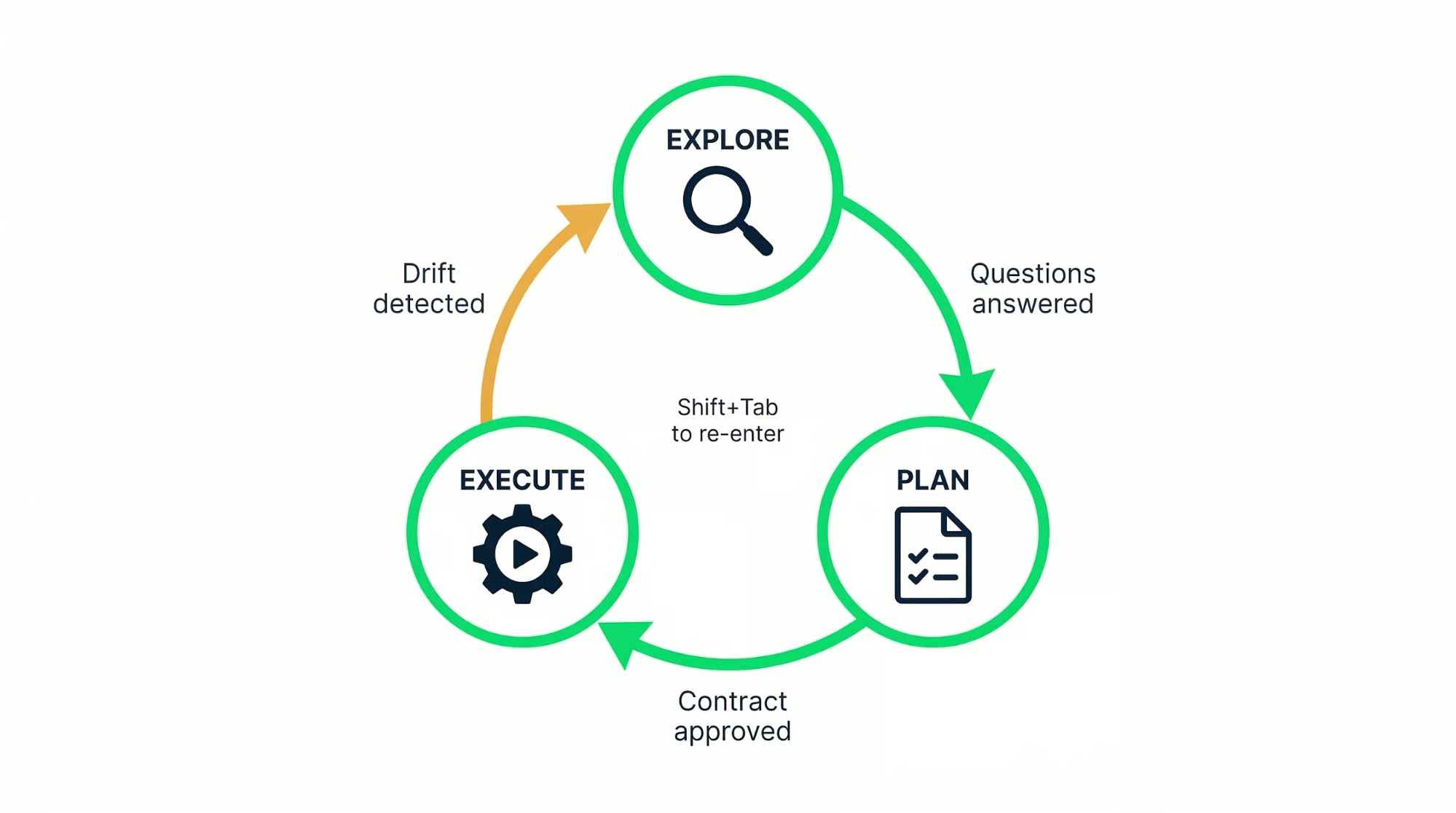
Start the task in Plan Mode (clone the GitHub repo locally first). The opening prompt should tell Claude what you want and direct it to read the relevant files:
I want to refactor this FastAPI blog API into a clean module structure with proper separation of concerns and full test coverage. Read through main.py, models.py, and utils.py first. Map out which functions belong together, flag any shared state or circular dependency risks, and identify what needs testing most.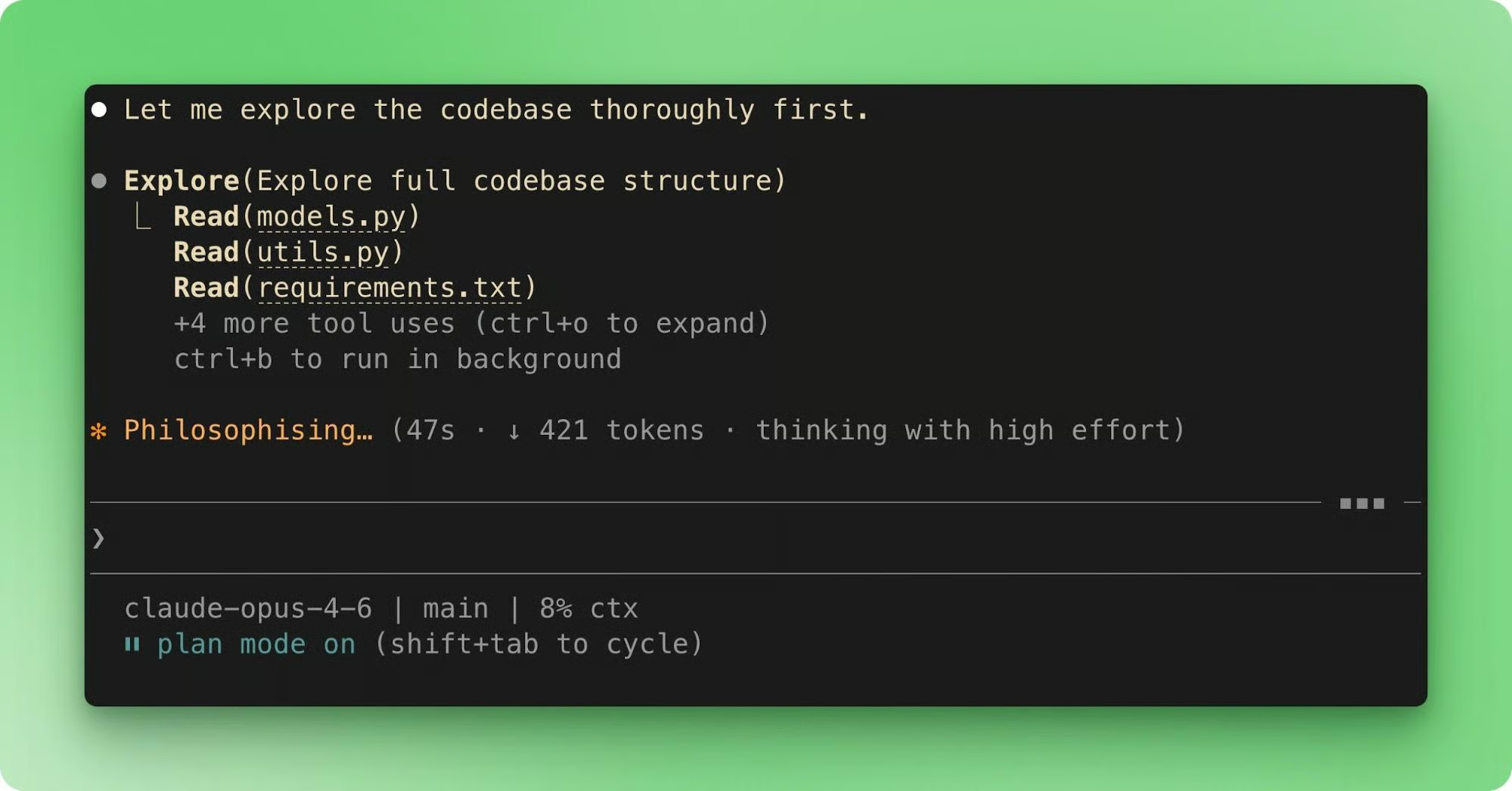
Claude delegates codebase research to a built-in subagent restricted to read-only tools. It read all three files, traced the imports between them, and used AskUserQuestion to surface ambiguities.
The questions covered a few high-level decisions:
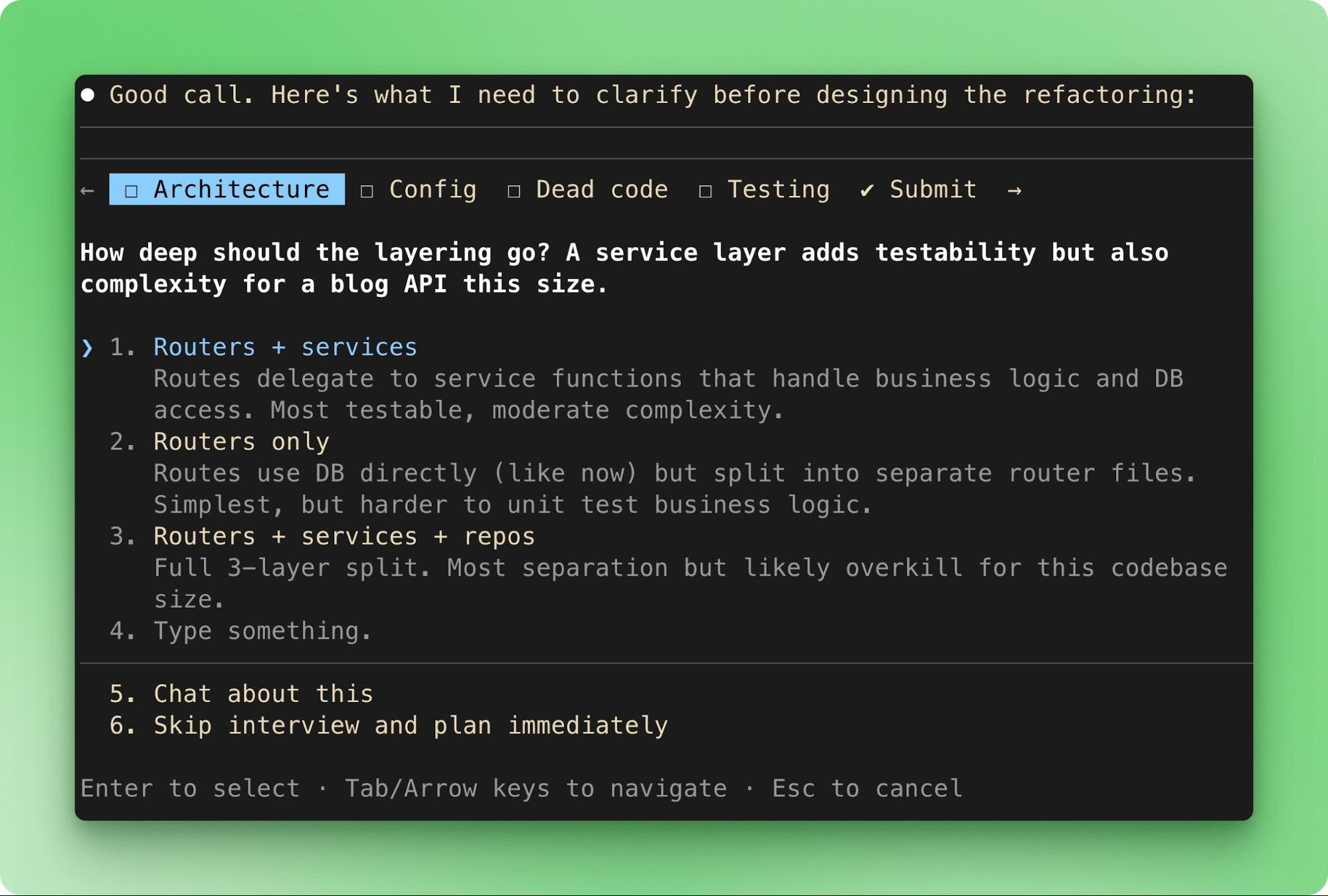
Those questions matter. The architecture question alone would have been a coin flip without human input. Claude defaults to whatever pattern it has seen most often in the training data, which, for FastAPI, is usually a flat router structure. Answering "use a service layer" here saved an entire round of re-refactoring later.
If you have a reference project that matches your target architecture, include a link to it in your prompt. Claude produces better plans when it has a working example to draw from rather than abstract descriptions.
One thing to check before accepting any plan: do Claude's questions reference specific functions and line-level details, or just file names? If it asks about "the auth system" but never mentions verify_jwt_token or the middleware chain in main.py, it skimmed the files rather than reading them. Push it to read more carefully before moving to Phase 2.
After you answer Claude's questions, it generates a plan automatically. No separate prompt is needed. The plan gets saved to ~/.claude/plans/ and includes:
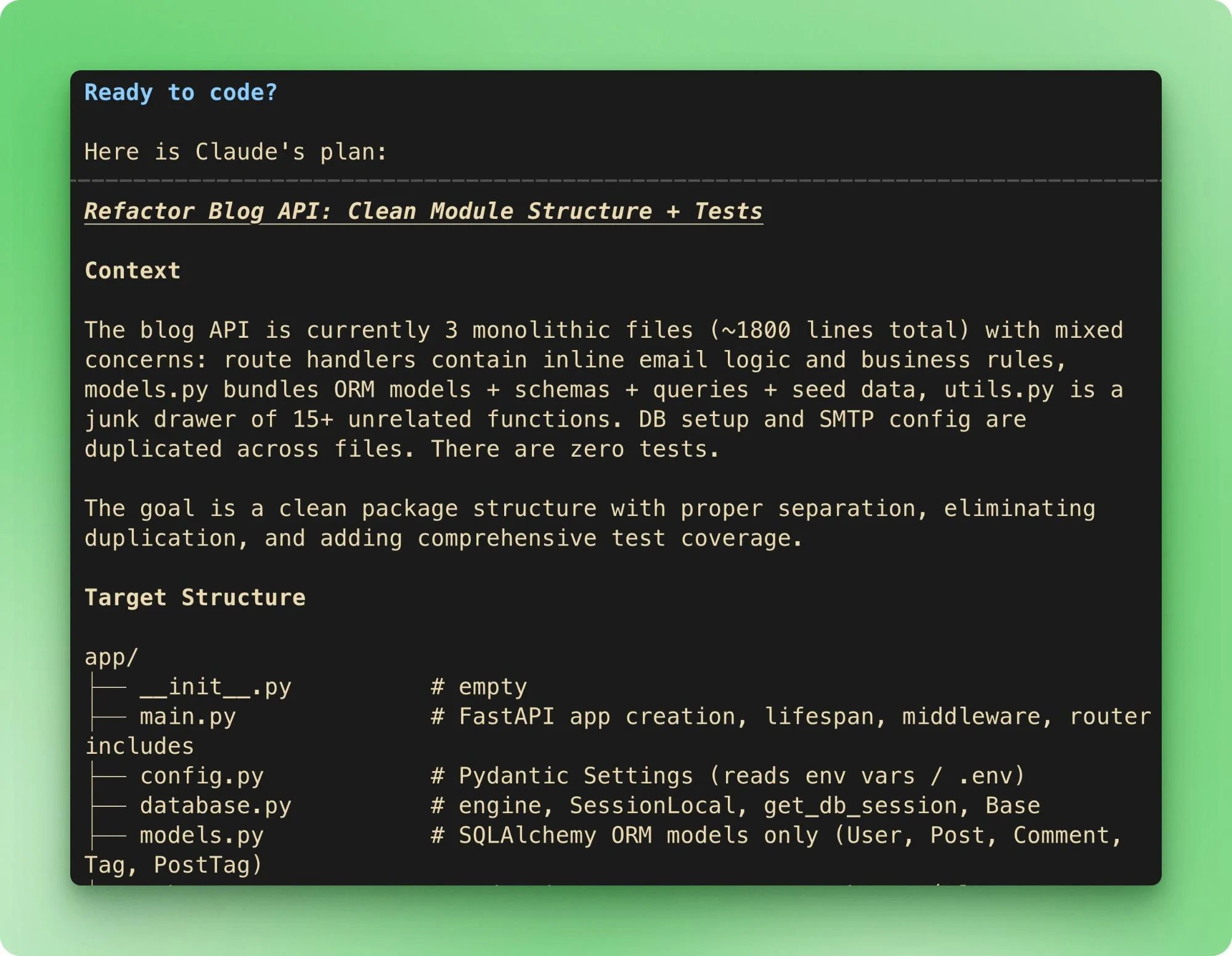
Before choosing how to proceed, press Ctrl+G to open the plan in your default text editor (set by $EDITOR). Alternatively, use /plan open to open the active plan file directly.
Plan Mode pays for itself at this step. You can annotate steps with inline notes, delete steps you disagree with, reorder operations, and save. Claude picks up every edit when you return to the terminal.
For the blog API plan, annotations might look like:
## Step 3: Extract auth module
Move JWT validation and password hashing to auth/
> NOTE: extract auth middleware BEFORE splitting routes,
> otherwise the route files will import from utils.py
> and we'll have to update imports twice

## Step 5: Database layer
Create a repository pattern for database operations
> NOTE: keep the SQLAlchemy session factory in a shared
> db.py, don't put it in models.py
For complex plans, one Ctrl+G pass might not be enough. Annotate, come back, tell Claude "address all annotations in the plan, don't implement yet," review the revised version, and Ctrl+G again. Each round of annotation removes ambiguity that would otherwise become a wrong implementation decision.
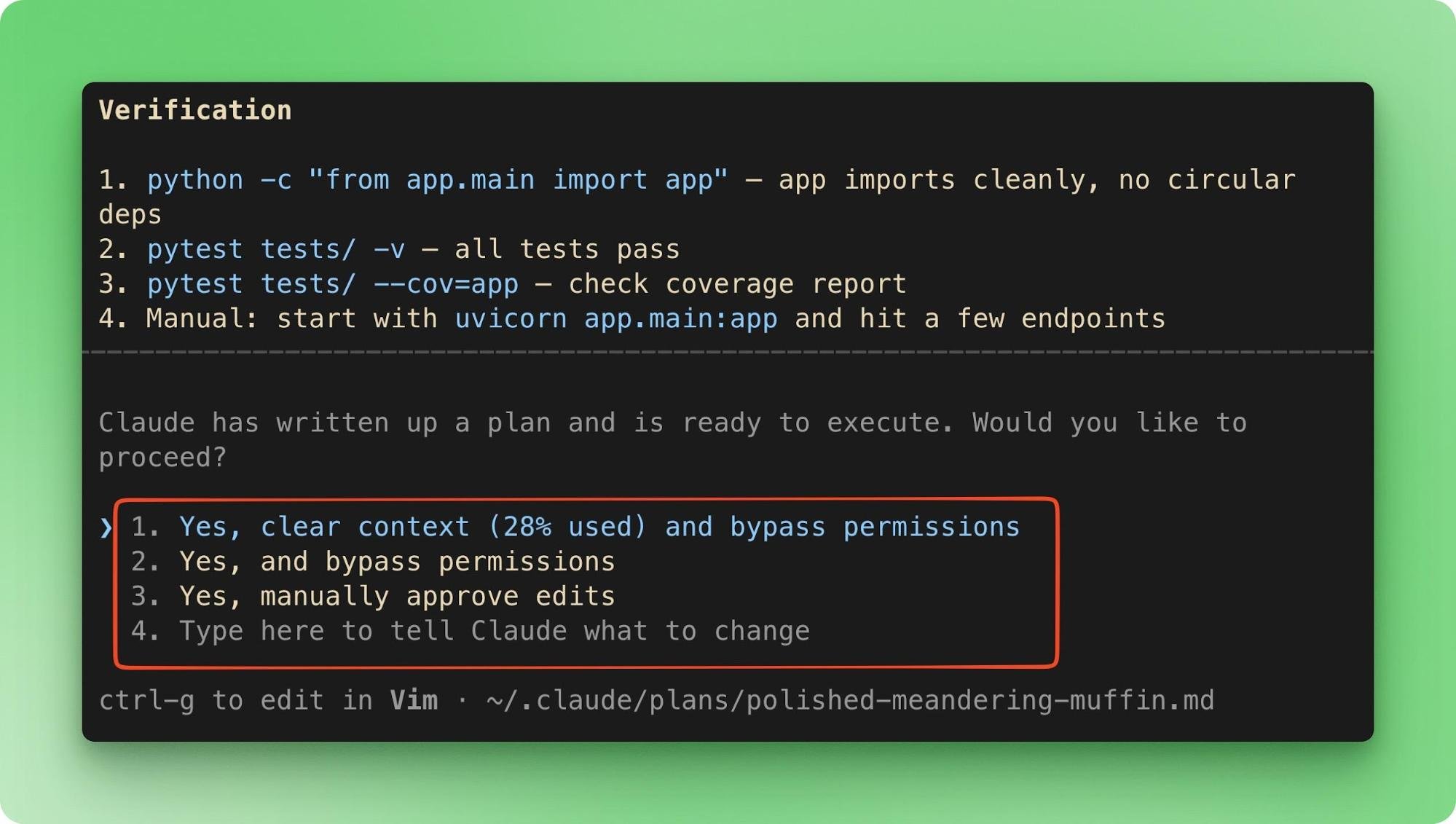
Once the contract looks right, Claude offers a few options:
Pick based on how much context you've built up. If you're deep into a long session, clearing gives Claude a fresh window to execute with.
Pick a work option, and Claude starts implementing step by step. It works through each step and stops when it needs manual intervention (like interactive auth in the terminal) or when the entire plan is complete.
Watch for drift. The plan said to extract auth into its own module first, but Claude might start pulling routes and auth logic out at the same time because it sees a shortcut. That kind of move is how you end up with a half-migrated codebase where some imports point to the old location and others to the new one.
Other drift signals:
When drift happens, Shift+Tab back into Plan Mode. Claude reads the current file state, produces a revised plan for the remaining steps, and you review it before continuing. This isn't an emergency measure. Most multi-file refactors go through 2-3 plan revisions before they're done.
For refactors that won't fit in a single session, break the work into sequential plans rather than one large one. Finish auth extraction under its own plan, then start a fresh session and plan for route splitting.
Use /rename to label each session (e.g., "blog-api-auth-extraction") so you can pick up where you left off with /resume. Smaller plans keep the context window focused and give you a natural checkpoint between phases.
Now that we have gone through the whole process once, let’s take a look at a few best practices to make sure you’re making the most of Plan Mode.
Not every task needs a plan. Single-line fixes, typo corrections, and isolated function updates are faster without the planning overhead. The same goes for mechanical changes, such as renaming a variable across a file.
A good heuristic: if the change touches three or more files, or you can't describe the full change in a single sentence, plan first. Three files is roughly where compounding errors start to bite, because each file adds its own set of decisions Claude has to get right.
Tasks that always benefit from Plan Mode:
A structured-looking plan isn't always a good one. With current Claude Code versions, hallucinated file references and vague "update as needed" steps are rare. The problem you're more likely to run into is a plan that puts all implementation steps first and tacks on "add tests" at the end.
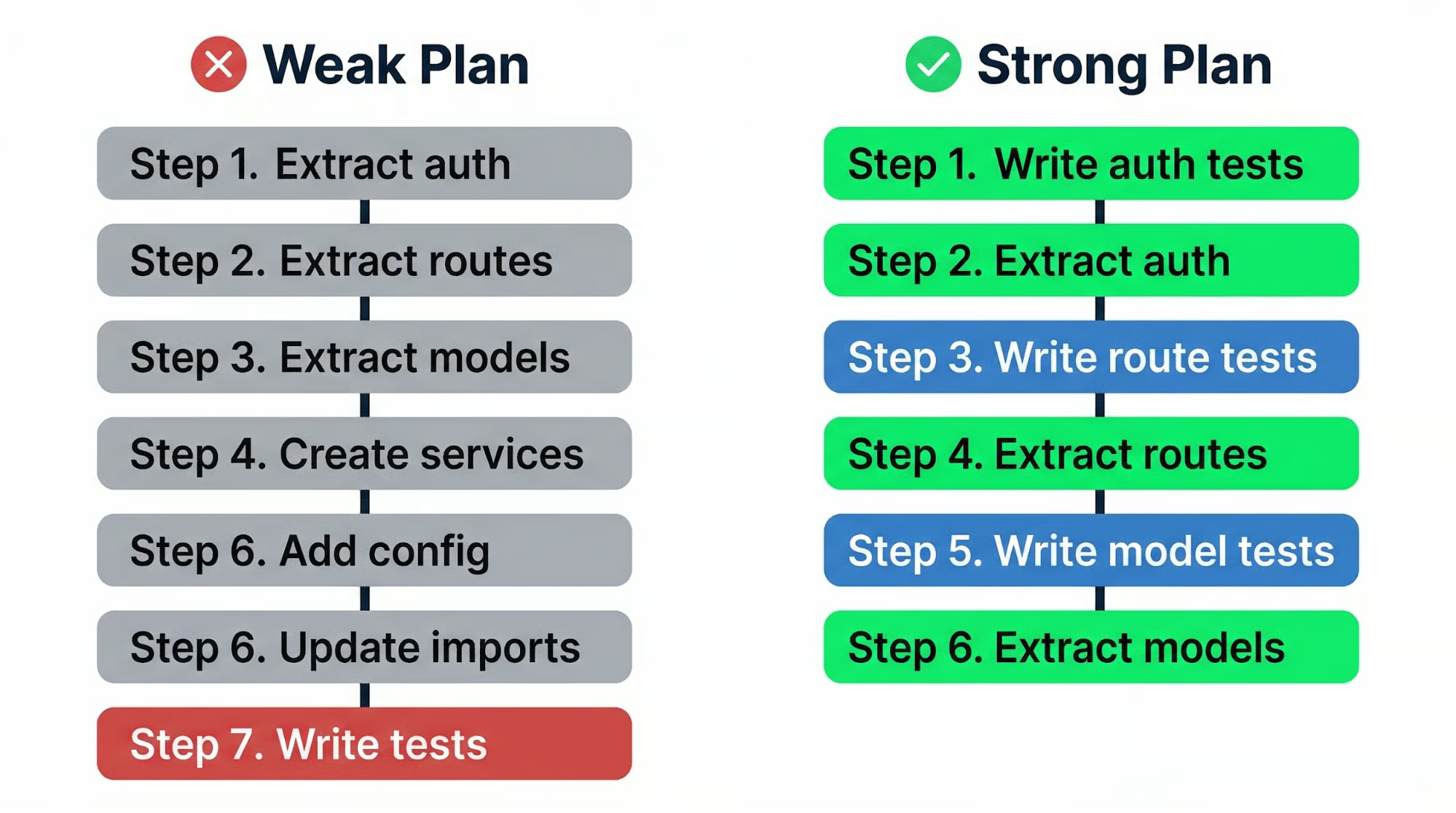
Plans structured that way produce worse results than you'd expect. Without tests during implementation, Claude has no way to verify its own work mid-session. For the blog API refactoring, a plan that says "Steps 1-6: extract all modules, Step 7: write tests" means six steps of code with no feedback loop.
A stronger plan uses test-driven development (TDD) and interleaves testing with implementation: write tests for auth/ before extracting the auth functions, confirm they pass, then write tests for posts/ before pulling out routes. Each passing test gives Claude a clear signal that the refactoring is on track.
Adding TDD conventions to your project's CLAUDE.md makes Claude include test steps by default. Claude Code Hooks can automate this kind of enforcement by running validation scripts that check plan quality before approving execution.
Plans that touch seven or more files start to lose quality because the context window fills up during execution. The blog API refactoring hits this threshold once you count routes, models, services, config, tests, and a new directory structure.
Agent Teams is an experimental feature that distributes this kind of work across multiple Claude Code instances. One session acts as the team lead while teammates each get their own independent context window.
For the blog API, you could split into three teammates: one handling route extraction, one handling the database and model layer, and one owning test coverage. The lead assigns tasks, teammates claim and complete them, and blocked tasks (like "update imports" depending on "extract modules") auto-unblock when dependencies finish.
The same split works across repositories: if your API depends on a shared library, one teammate can refactor the library while another updates the API's consumption of it.
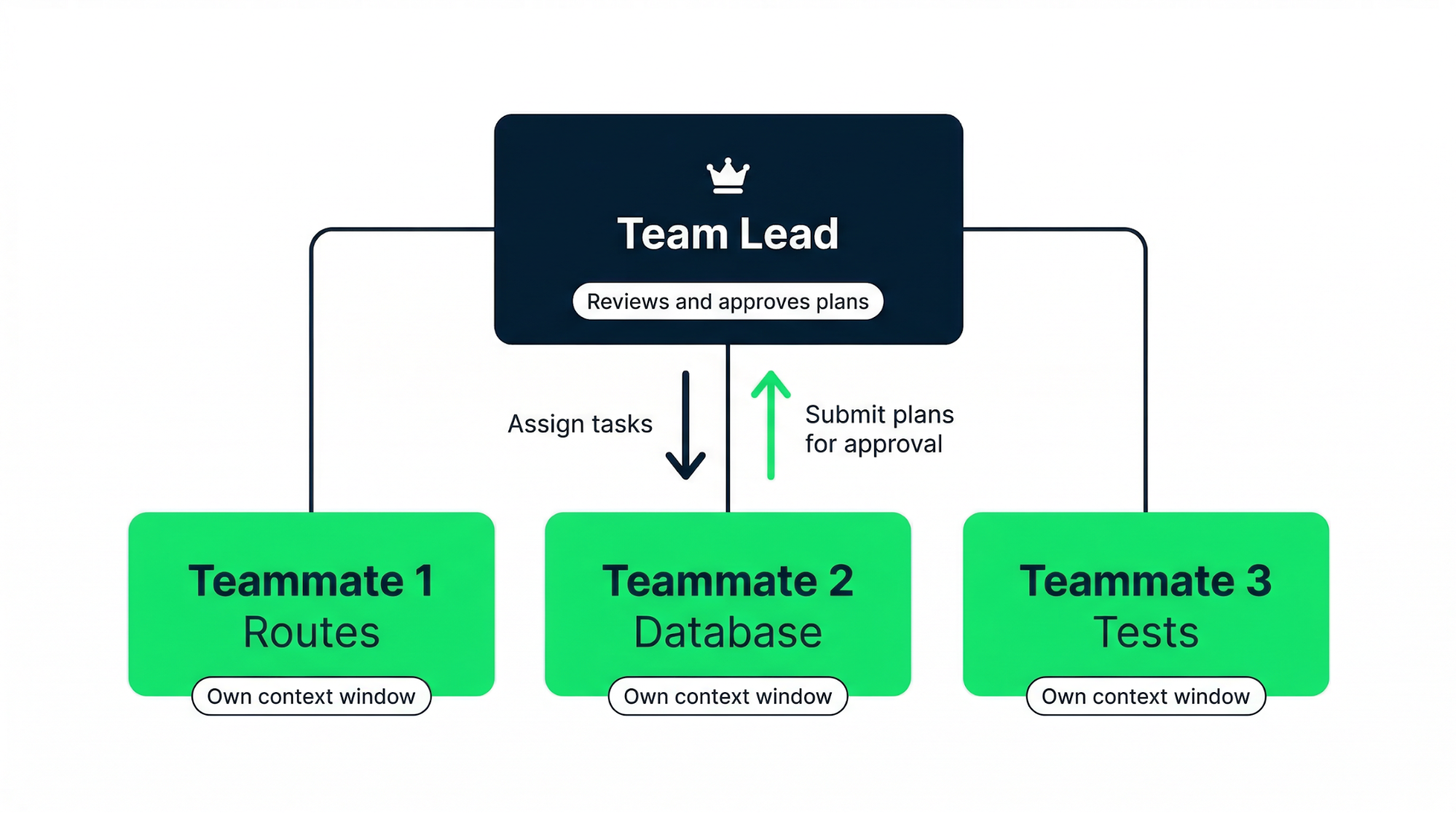
The best setup for Plan Mode is to require plan approval for teammates. Tell the lead: "Spawn three teammates for the blog API refactoring. Require plan approval before they make any changes."
You can shape the lead's judgment by giving it criteria: "only approve plans that include test coverage" or "reject plans that modify the database schema directly." Activate Agent Teams by adding "CLAUDE_CODE_EXPERIMENTAL_AGENT_TEAMS": "1" to your settings.json env block.
For simpler parallelization without the experimental flag, git worktrees let you run separate Plan Mode sessions on different branches, each working through its own plan independently.
If a long-running session undergoes context compaction, have teammates explicitly reopen and re-read their plan files to avoid drift.
The Claude Code plugins tutorial covers additional patterns for managing multi-phase work.
Plan Mode's value comes down to one thing: review before execution. Every round of annotation you add, every question Claude asks instead of guessing, removes a decision that would have come out wrong.
Start with your next multi-file change, force Claude to plan first, and edit that plan with Ctrl+G before granting write access. For CLAUDE.md configuration, context management, and hook-based guardrails, the best practices tutorial picks up where this one leaves off.
For a broader picture of AI-assisted coding, I recommend checking out our AI for Software Engineering skill track, which teaches you foundational concepts and gives you hands-on experience in similar tools like GitHub Copilot, Windsurf, or Replit.
AI Courses
Curso
programa
programa
Tutorial
Aashi Dutt
10 min
Tutorial
Aashi Dutt
12 min
Tutorial
Bexruz (Bex) Tuychiev
15 min
Tutorial
Abid Ali Awan
8 min
Tutorial
François Aubry
8 min
code-along
Aimée Gott