
Cours
Introduction aux agents d’IA
1 h 30 min
138.5K
Google Opal est le tout dernier créateur d’applications d’IA sans code de Google, conçu pour aider chacun à créer des applications interactives en langage naturel plutôt qu’avec de la programmation classique. En misant sur la simplicité, la visualisation et un développement pensé pour l’IA, Opal vise à rendre la création d’applications accessible aux débutants tout en proposant des workflows puissants pour les utilisateurs avancés.
Dans ce guide, je vous présente Google Opal depuis les bases et vous propose un tutoriel détaillé et pratique pour créer vos propres applications sans écrire une seule ligne de code.
Si vous souhaitez en savoir plus sur la création d’outils d’IA avec les produits Google, je vous recommande de consulter le cours Building AI Agents with Google ADK.
Google Opal est un créateur d’applications d’IA sans code, encore expérimental, qui permet à toute personne de concevoir des applications interactives avec du langage naturel et des workflows visuels. C’est idéal pour les débutants, les utilisateurs métiers, les enseignants et les makers qui souhaitent créer rapidement des outils dopés à l’IA sans écrire de code.
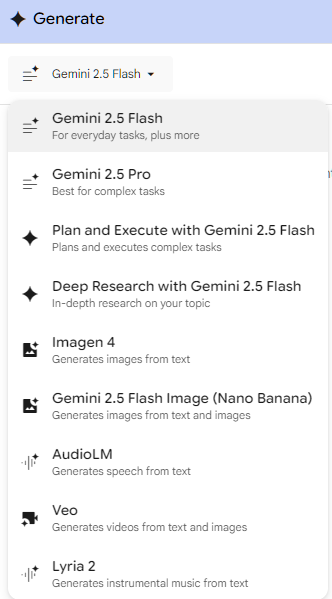
Opal s’appuie sur plusieurs modèles d’IA de Google, dont Gemini, Imagen et Veo 3.
Il se distingue du nouveau Google Antigravity, un environnement de développement avancé centré sur les agents (ADE) qui permet aux développeurs d’utiliser des agents d’IA pour planifier et implémenter des fonctionnalités.
Google Opal repose sur une idée centrale : rendre le développement d’applications conversationnel et visuellement intuitif. Cette section détaille ses concepts clés, la structure de la plateforme et son rôle stratégique dans l’écosystème sans code orienté IA.
Google présente Opal comme un créateur de mini‑applications sans code. De nombreux développeurs y voient une plateforme de vibe coding, où l’on construit des applications en exprimant son intention en langage naturel, la plateforme traduisant ensuite cette intention en workflow opérationnel.
Au lieu d’écrire du code, vous décrivez le « vibe » de ce que votre application doit faire, et Opal assemble pour vous la logique, les étapes et l’interface.
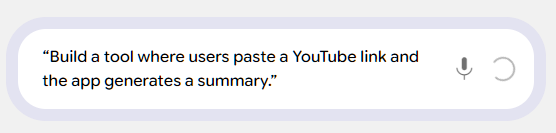
Par rapport au codage traditionnel, la grande différence tient au développement centré sur le langage naturel. Vous tapez des instructions comme « Créez un outil qui résume des vidéos YouTube », et Opal génère un éditeur de workflow visuel.
Vous utilisez ensuite cet éditeur pour ajuster les étapes selon vos besoins. De nombreuses fonctions s’appuient sur des outils d’IA pour générer et prendre en charge l’architecture.
Parmi les fonctionnalités de base d’Opal :
Opal convertit vos instructions écrites en un graphe de workflow composé d’étapes distinctes. L’éditeur visuel expose ces étapes générées sous forme de nœuds et de connecteurs.
Les composants architecturaux clés incluent :
Sans atteindre tout à fait le niveau de l’IA agentique, où le programme peut prendre des décisions complètes en votre nom, Opal suit un schéma similaire : il utilise des modèles d’IA dans des nœuds pour aider les utilisateurs à créer des applications qui traitent et génèrent de l’information.
Sans compétences en code requises, Opal s’adresse aux non‑développeurs et aux équipes pluridisciplinaires. Il comble le fossé entre profils techniques et parties prenantes non techniques, notamment :
Le mouvement sans code a évolué des simples éditeurs de sites en glisser‑déposer vers de véritables plateformes d’automatisation et de workflows visuels. Le « vibe coding » représente l’étape suivante : utiliser un langage conversationnel pour produire une logique applicative exécutable.
Google Opal se positionne stratégiquement face à :
La différence d’Opal : des workflows natifs IA, un développement en langage naturel et une génération rapide d’applications interactives.
Dans cette section, je vous aide à accéder à Opal, à configurer votre compte et à comprendre les principaux éléments de l’interface.
À ce jour, Opal est encore en bêta/aperçu public. La disponibilité peut varier selon les régions, mais il est accessible dans 160 pays. Il est actuellement gratuit (en novembre 2025) et de nouvelles fonctionnalités sont déployées progressivement. Pour y accéder, il vous suffit d’un compte Google et d’un navigateur moderne comme Firefox, Chrome, Edge ou Safari.
L’accès à Opal est aussi simple que pour les autres produits Google :
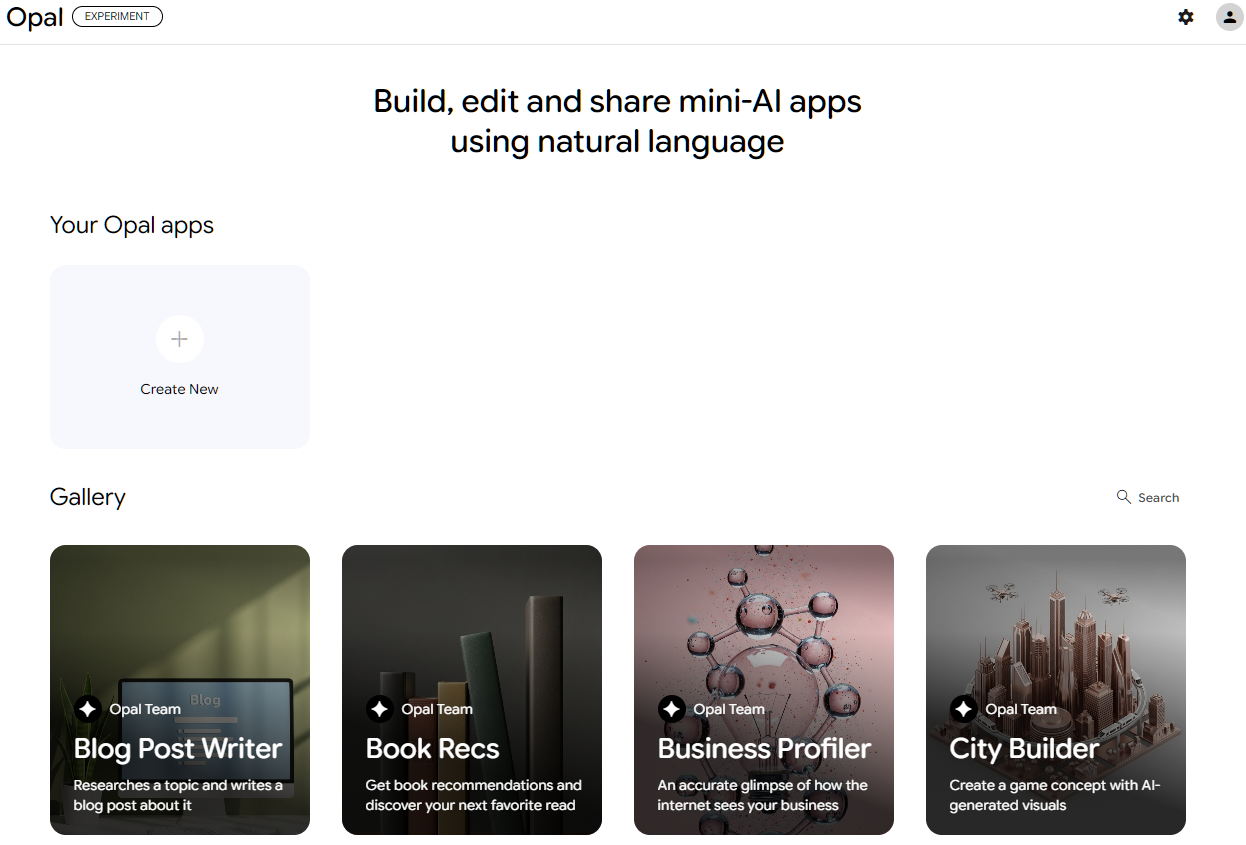
L’interface d’Opal est assez simple. Regardons le tableau de bord. Vous verrez une section Your Opal Apps. C’est ici que nous créerons bientôt de nouvelles applications. Une galerie d’idées est également disponible pour démarrer.
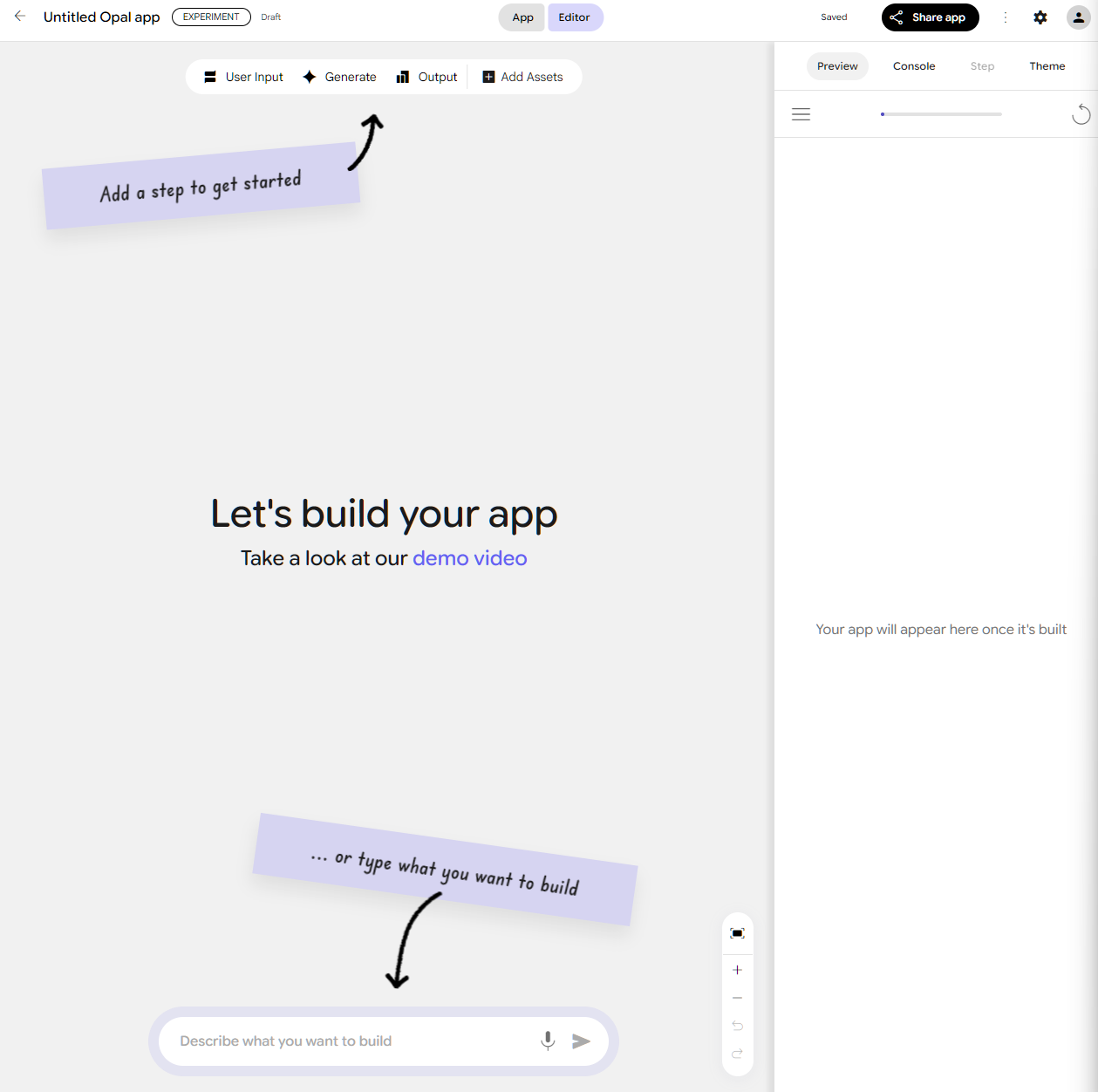
Pour l’instant, cliquez sur « Create New » pour découvrir l’interface. Vous verrez que vous pouvez cliquer manuellement sur des étapes comme User Input, Generate ou Output. Elles ont des fonctions différentes que nous détaillerons.
Enfin, un champ de texte en bas vous permet d’indiquer à Opal ce que vous voulez construire, et il le construira pour vous. Dans la barre latérale se trouvent quelques outils utiles qui s’adaptent en fonction des blocs.
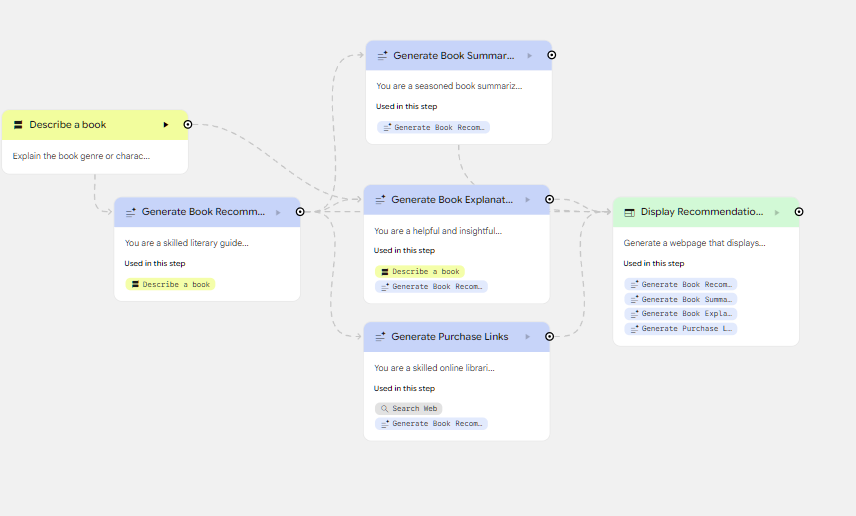
Chaque workflow Opal se compose de :
Vous remarquerez qu’il n’existe pas de méthode stricte pour intégrer de la logique ou des conditionnels. Vous utiliserez plutôt d’autres étapes et entrées pour alimenter vos nœuds generate, qui exploiteront ces informations pour contextualiser les autres étapes.
Veillez à construire votre workflow de gauche à droite et à nommer vos étapes pour éviter toute confusion lors des références en aval. Évitez également les dépendances circulaires qui pourraient entraîner des boucles infinies. En cas de doute, demandez à Opal de vous aider à corriger votre application.
Dans cette section, je vous guide pas à pas pour créer de vraies applications en combinant langage naturel et workflows visuels.
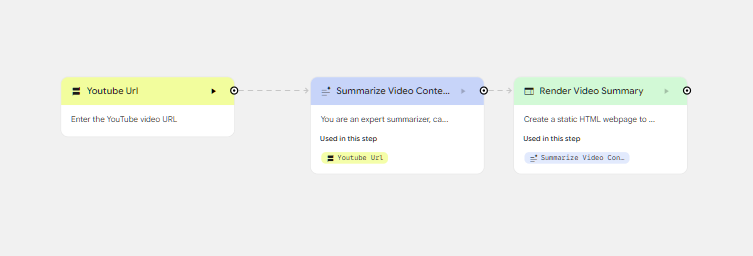
Vous pouvez prévisualiser instantanément en cliquant sur Preview dans la barre latérale droite.
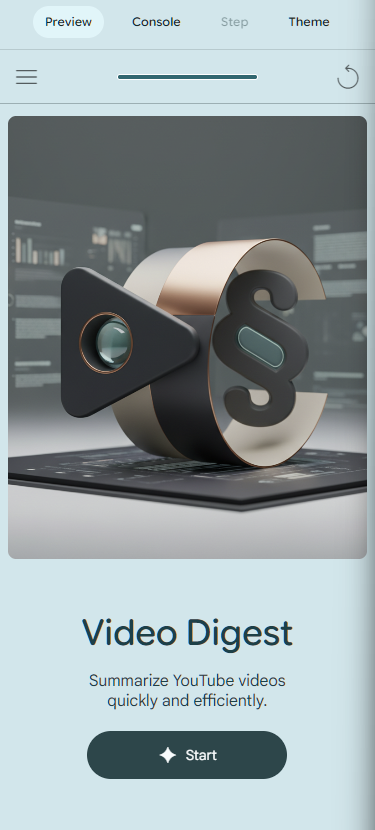
Cliquez sur Start et saisissez la vidéo YouTube de votre choix. Par exemple, j’ai soumis une vidéo sur des changements à l’aéroport DFW, et j’ai obtenu un résumé concis de la vidéo.
Plutôt que de partir de zéro, vous pouvez choisir l’une des applications existantes dans la galerie et la remixer selon vos besoins. La galerie propose déjà des idées pour des articles de blog, des recommandations de livres, l’apprentissage avec YouTube, des « spelling bees » et la recherche produit.
Remixons quelque chose de simple, comme une playlist générée.
Generated Playlist dans la galerie.Remix pour créer automatiquement une copie.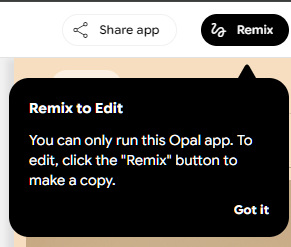

Laissez Opal faire sa magie et créer votre playlist. À ce stade, il ne peut pas générer un lien Spotify unique vers une playlist complète, mais il récupérera quelques titres pour vous.
Pour un contrôle plus fin, au lieu de n’utiliser que des invites, agissez directement sur les nœuds. Comme vous le voyez, Opal gère des workflows multi‑étapes. Par exemple, en plus d’afficher la playlist, vous pouvez vouloir enregistrer les liens dans un tableur. Cliquez sur le nœud de sortie et sélectionnez « Save to Google Sheets ».
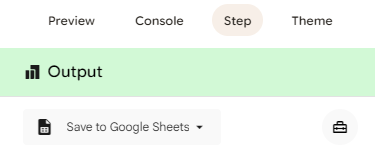
Vous pouvez ensuite ajouter une invite comme « Je veux que ce tableur enregistre la liste des liens Spotify avec les colonnes titre du morceau et artiste » pour préciser la description.
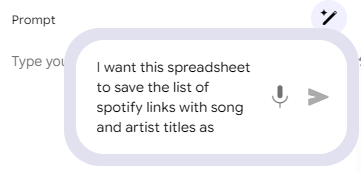
Reliez ensuite les nœuds Fetch Spotify Links à ce nouveau nœud de sortie. Puis connectez le nœud Generate au nœud « Display Playlist ».
Ouvrez le nœud « Display Playlist » et ajoutez une invite : « afficher le lien Google Sheet à la fin de la playlist ». Au final, votre nouveau workflow devrait ressembler à ceci :
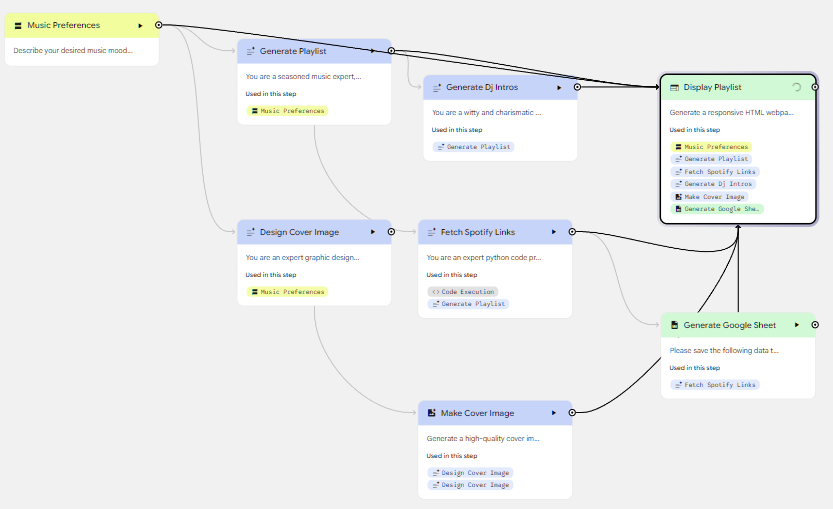
Désormais, les données seront enregistrées dans un tableur et ce tableur sera affiché dans l’application. Continuez d’expérimenter jusqu’à obtenir exactement le comportement souhaité !
Il existe plusieurs façons d’amener Opal à faire ce que vous voulez.
Bien qu’Opal soit pensé pour la simplicité, maîtriser des notions comme la référence d’étapes, le traitement intermédiaire et l’optimisation des workflows permet de créer des applications nettement plus puissantes.
Dans Opal, chaque étape peut référencer la sortie d’une étape précédente avec le symbole @.
Par exemple, vous pouvez indiquer à une étape : « Utiliser l’entrée de @music_preferences », ce qui dit à Opal de prendre la sortie de l’étape music_preferences et de l’injecter dans l’étape de synthèse. Pour ce faire, tapez « @ » : un menu contextuel s’affiche pour sélectionner l’élément souhaité.
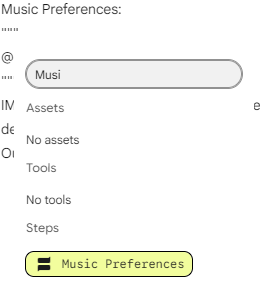
Ce mécanisme s’appelle chaînage dynamique : chaque étape récupère automatiquement les résultats antérieurs et construit dessus. Le chaînage dynamique permet à Opal de créer des workflows qui évoluent au fil du temps à mesure que les données circulent d’une opération à l’autre.
Les workflows multi‑étapes reposent largement sur des étapes intermédiaires, qui décomposent les tâches complexes en éléments plus gérables. Plutôt que d’envoyer un gros bloc de données dans une seule étape, vous pouvez d’abord extraire le texte, puis le nettoyer, l’analyser et enfin produire une sortie affinée.
Cette approche améliore la précision, simplifie le débogage et rend les workflows plus lisibles. Ces workflows par étapes sont plus faciles à interpréter pour Opal et donnent souvent des résultats plus réguliers.
À mesure que vos workflows grossissent, quelques bonnes pratiques peuvent nettement améliorer les performances. Regrouper des petites étapes réduit souvent la latence globale en minimisant les changements de contexte entre opérations.
De même, des invites bien conçues fonctionnent généralement mieux que des instructions trop fragmentées, ou au contraire trop longues et complexes.
Des noms d’étapes clairs facilitent aussi la maintenance, surtout lorsque vous référencez des sorties sur plusieurs niveaux. Enfin, le panneau de débogage d’Opal fournit des avertissements utiles et des informations sur le comportement des étapes, ce qui facilite l’identification des goulets d’étranglement avant publication.
Cette section présente les types d’entrées pris en charge par Opal et quand les utiliser. Que vous collectiez du texte, des fichiers ou de la vidéo, chaque option d’entrée ouvre la voie à des workflows plus interactifs ou plus riches en données.
Les champs texte sont le moyen le plus courant de collecter des informations dans Opal. Ils servent souvent de porte d’entrée vers l’application. Vous pouvez utiliser une question ouverte, interprétée par le LLM.
Vous pouvez aussi multiplier des entrées ciblées pour fournir davantage de contexte au LLM et les chaîner afin d’améliorer la qualité des sorties.
Pour les applications basées sur des fichiers, Opal accepte les dépôts de PDF, documents, images, fichiers audio et autres médias riches. Les fichiers peuvent être traités directement dans le workflow ou stockés dans Google Drive pour plus de flexibilité.
Vous pouvez ainsi créer des analyseurs de documents, des extracteurs de formulaires ou des applis de transcription audio.
Les capacités vidéo d’Opal incluent la prise en charge des URL YouTube, des enregistrements webcam et du dépôt de fichiers vidéo. Ces entrées permettent des applications d’analyse vidéo ou des plateformes d’annotation pédagogique.
Comme la vidéo est souvent volumineuse et complexe, les workflows correspondants s’appuient généralement sur plusieurs étapes intermédiaires : extraction de transcription, analyse d’images clés ou synthèse.
La zone de dessin permet aux utilisateurs d’esquisser des schémas, d’annoter des images ou de créer des commentaires rapides directement dans l’appli. C’est utile pour des outils de brainstorming, des systèmes de feedback visuel ou des activités pédagogiques. L’intégration à Google Drive facilite le dépôt de documents et soutient des workflows collaboratifs pour réviser, annoter ou traiter des contenus partagés.
Le système de sortie d’Opal détermine comment l’information est affichée aux utilisateurs et comment les résultats peuvent être exportés vers des outils externes. Vous pouvez créer une mise en page manuelle via des invites « de code » ou laisser Gemini proposer automatiquement une mise en page. Vous pouvez également enregistrer du contenu vers votre Google Drive, comme Docs, Slides et Sheets.
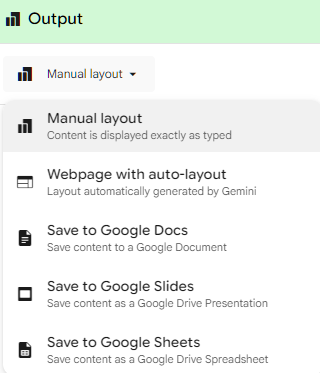
Opal prend en charge un large éventail de formats de sortie, du texte brut au texte enrichi, en passant par les médias intégrés et des pages web interactives complètes. Vous pouvez vous appuyer sur l’auto‑layout pour structurer automatiquement l’affichage ou passer en mise en page manuelle pour un contrôle plus fin. Cette flexibilité permet de créer aussi bien un outil textuel simple qu’une mini‑application pleinement interactive.
Les applications Opal peuvent exporter leurs résultats directement dans Google Docs, Sheets ou Slides. Cela permet, par exemple, de générer des rapports structurés, de transformer des données extraites en feuilles de calcul, ou de créer automatiquement des présentations à partir de contenus résumés. Cette intégration rend Opal particulièrement utile pour les équipes qui travaillent déjà intensivement dans l’écosystème de productivité de Google.
Opal propose des options pour personnaliser les couleurs, les polices et les instructions de mise en page via des descriptions en langage naturel. Décrivez l’esthétique visuelle souhaitée, et Opal appliquera ces préférences. Vous n’avez pas besoin de connaître le design graphique ou le CSS pour obtenir de superbes interfaces !
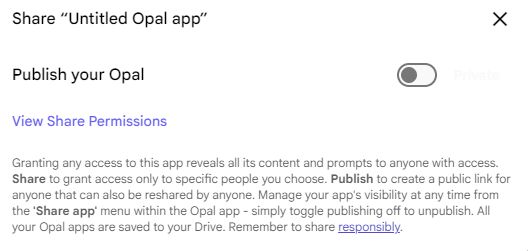
Une fois votre application prête, Opal facilite la publication via une simple URL partageable. Les contrôles d’accès vous permettent de rendre l’application publique, privée ou restreinte à votre domaine. Les applis sont automatiquement optimisées pour le mobile, et Opal conserve l’historique des versions pour suivre les mises à jour ou revenir en arrière si nécessaire. Il vous suffit de cliquer sur le bouton « Share » pour permettre à d’autres d’utiliser votre application.
Opal est polyvalent, quels que soient les secteurs et scénarios, ce qui en fait un outil utile pour les créateurs, les équipes métiers, les enseignants et les analystes. La plateforme est particulièrement performante lorsque le texte, les documents ou des workflows structurés sont au cœur du besoin.
Les équipes marketing peuvent créer avec Opal des outils tels que :
Ces outils sont d’autant plus efficaces que vous fournissez des invites, des matériaux et du contexte.
La capacité à prototyper et déployer rapidement des workflows de contenu propulsés par l’IA fait d’Opal un atout pour les environnements marketing au rythme soutenu.
Chercheurs et enseignants tirent parti d’outils comme :
La capacité d’Opal à traiter des PDF, des vidéos et des contenus saisis par les utilisateurs permet des applications riches dans l’enseignement et la formation.
La flexibilité d’Opal couvre un large éventail de workflows spécialisés, des traitements de documents juridiques aux outils de planification créative. Des utilisateurs ont aussi construit des applications de niche comme des générateurs de recettes, des suivis d’entraînement ou des checklists de conformité. La seule limite : votre capacité à générer des idées et à les inscrire dans le périmètre de votre organisation.
Pour plus d’inspiration, consultez ces 10 meilleurs projets d’agents IA pour alimenter votre réflexion.
Comprendre comment Opal se compare aux autres solutions permet de clarifier sa place dans l’écosystème plus large des outils d’IA et du sans code.
Lovable met l’accent sur des workflows orientés développeurs et la génération de code, tandis que Bubble propose un éditeur visuel puissant mais non natif IA. Opal se positionne comme un créateur de workflows IA‑first, combinant langage naturel et interface visuelle, pour abaisser la barrière à l’entrée. D’autres plateformes sans code focalisent sur des agents ou des intégrations IA spécifiques. Opal vous permet de travailler dans l’écosystème Google et prend en charge nombre de connexions d’infrastructure.
n8n excelle dans l’automatisation de systèmes complexes, les intégrations étendues et l’orchestration de données sophistiquée. Zapier, de son côté, se concentre sur des workflows événementiels simples via des intégrations vers d’autres outils d’IA et bases de données.
Opal, en revanche, se concentre sur la création d’applications, la génération d’interfaces et la logique pilotée par l’IA. n8n est idéal pour les cas à forte automatisation, tandis qu’Opal convient mieux à la construction d’applications IA interactives.
Replit s’adresse aux programmeurs qui veulent écrire du code et déployer des projets full‑stack afin de partager ces bases de code avec d’autres développeurs. Opal est conçu pour les équipes souhaitant concevoir des outils via des invites en langage naturel et ne sachant pas coder.
Choisissez Opal pour le prototypage rapide ou les applis fortement axées IA. Choisissez Replit lorsque vous avez besoin de logique personnalisée, d’API avancées ou de la flexibilité d’autres langages de programmation. Je recommande le cours Vibe Coding with Replit pour en savoir plus.
Le tableau ci‑dessous compare Google Opal à quelques autres outils du marché :
|
Fonctionnalité / domaine clé |
Google Opal |
Lovable |
Bubble |
Autres outils sans code IA |
n8n |
Zapier |
Replit |
|
Objectif principal |
Créateur de workflows IA‑first pour concevoir applis et interfaces en langage naturel |
Génération de code assistée par IA, orientée développeurs |
Créateur d’applications visuel sans code |
Souvent centré sur des agents spécifiques ou des intégrations IA limitées |
Automatisation complexe et orchestration de données |
Automatisation de workflows déclenchés par événements |
Plateforme de code full‑stack pour programmeurs |
|
Atout principal |
Logique pilotée par l’IA + génération d’UI dans l’écosystème Google |
Très efficace pour générer et modifier du code |
Éditeur visuel puissant, écosystème établi |
Mise en place rapide d’agents IA, workflows simples |
Grande profondeur d’intégration, logique d’automatisation flexible |
Simplicité + vaste bibliothèque d’intégrations |
Flexibilité totale avec code, API et environnements |
|
Niveau de compétence utilisateur |
Débutants et non‑développeurs |
Développeurs ou profils techniques |
Utilisateurs non techniques à l’aise avec les éditeurs visuels |
Variable ; souvent adapté aux débutants |
Intermédiaire–avancé |
Débutant–intermédiaire |
Développeurs |
|
Natif IA ? |
Oui — conception IA‑first |
Oui — mais focalisé sur la génération de code |
Non — IA ajoutée par‑dessus |
Partiellement — souvent spécifique IA mais limité |
Pas natif IA, nécessite des intégrations |
Pas natif IA |
Non — basé sur le code plutôt que IA‑first |
|
Focus workflow |
Création d’applications et d’interfaces IA interactives |
Transformer des invites en bases de code opérationnelles |
Conception d’applis web via UI en glisser‑déposer |
Création d’agents IA dédiés |
Workflows d’automatisation au niveau système |
Automatisations déclencheur‑action |
Workflows de développement full‑stack |
|
Meilleurs cas d’usage |
Prototypage rapide d’applis IA dans les produits Google |
Coder sans écrire de code, workflows développeurs |
Créer visuellement des applis de type SaaS |
Automatisation légère de tâches IA |
Automatisation d’entreprise, logique backend |
Automatisation simple de workflows |
Logique personnalisée, API avancées, déploiement bout‑en‑bout |
|
Limites |
Stade précoce ; limites de complexité ; dépendant de l’écosystème Google |
Nécessite des connaissances en code pour affiner |
Pas natif IA ; peut devenir complexe à l’échelle |
Souvent limité à des charges de travail étroites |
Non conçu pour créer des UI ou applis IA |
Profondeur logique limitée |
Nécessite une expertise en code |
|
Tarification |
Gratuit pendant la bêta |
Formules payantes (variables) |
Formules payantes (variables) |
Le plus souvent freemium |
Freemium avec offres payantes |
Freemium avec paliers payants |
Freemium + options payantes |
Opal est actuellement gratuit durant sa période bêta. Un coût sera à terme associé au service. Sa gratuité en fait aujourd’hui une solution à forte valeur pour le prototypage rapide. Cela s’accompagne de limites de complexité, mais découvrir la plateforme en avant‑première vaut l’investissement.
Même si Opal est puissant et accessible, il est important d’en connaître les limites, notamment compte tenu de son statut bêta et de sa philosophie de conception épurée.
Pendant la bêta, Opal propose un ensemble restreint d’intégrations, centré sur les modèles Gemini et Imagen de Google. À ce stade, Opal ne propose que des workflows simples, avec des embranchements basiques et sans conditionnels.
C’est un choix assumé : à mesure que le produit évolue, attendez‑vous à davantage de contrôles de modèles et à un nombre accru de connecteurs d’automatisation. Des outils comme n8n et Zapier offrent aujourd’hui des contrôles beaucoup plus fins et sophistiqués pour des besoins spécifiques.
Les organisations qui adoptent Opal doivent cadrer la gouvernance autour de la confidentialité des données, des autorisations et du contrôle des accès. Comme avec tout outil sans code, il existe un risque de « shadow IT », lorsque des employés créent des outils sans supervision formelle, ce qui peut exposer des informations sensibles. Il convient de définir des règles strictes et de limiter l’accès à
En tant que plateforme expérimentale, Opal peut occasionnellement présenter des bogues ou des évolutions rapides de ses fonctionnalités. Le rythme des mises à jour laisse toutefois entrevoir une feuille de route riche : nouveaux types d’entrées, plus de modèles, des workflows améliorés et des intégrations plus profondes.
Suivez les blogs de développement de Google et la page Opal overview pour être informé des changements.
Les workflows efficaces démarrent souvent par un prototype en langage naturel, affiné ensuite via l’éditeur visuel. Des workflows modulaires favorisent la clarté, tandis que des noms d’étapes explicites facilitent les références. Testez fréquemment et évitez les invites trop longues pour gagner en stabilité. Enfin, les modèles de la galerie d’Opal constituent d’excellents points de départ.
Google Opal représente une avancée majeure pour démocratiser le développement d’applications d’IA. En alliant interfaces en langage naturel, workflows visuels et exécution cloud‑native, Opal permet à toute l’organisation de créer des applications puissantes et interactives sans écrire de code.
Que vous prototypiez des idées, automatisiez des tâches ou enseigniez des concepts d’IA, Opal offre un environnement rapide et intuitif pour transformer des idées en logiciels opérationnels.
Pour en savoir plus sur le vibe‑coding et le développement fondé sur l’IA, je vous recommande ces ressources :
Les meilleurs cours DataCamp
Cours
Cours
Cours
blog
Kurtis Pykes
9 min
blog
blog
Zoumana Keita
15 min
Tutoriel
Tutoriel
Adel Nehme
3 min
Tutoriel
Mark Pedigo
10 min