
Kurs
Einführung in KI-Agenten
1 Std. 30 Min.
137.1K
Google Opal ist Googles neuester No-Code-KI-App-Builder. Damit können alle interaktive Anwendungen mit natürlicher Sprache statt klassischem Programmieren erstellen. Mit Fokus auf Einfachheit, Visualisierung und KI-native Entwicklung macht Opal App-Erstellung auch für Einsteiger zugänglich – und bietet zugleich leistungsfähige Workflows für Fortgeschrittene.
In diesem Guide stelle ich dir Google Opal von Grund auf vor und zeige dir in einem ausführlichen, praxisnahen Tutorial, wie du ohne eine einzige Codezeile deine eigenen Anwendungen baust.
Wenn du mehr darüber lernen willst, wie man KI-Tools mit Google-Produkten baut, empfehle ich den Kurs Building AI Agents with Google ADK.
Google Opal ist ein experimenteller No-Code-KI-App-Builder, mit dem jede:r interaktive Anwendungen via natürlicher Sprache und visuelle Workflows erstellen kann – ideal für Einsteiger, Business-User, Lehrende und Maker, die schnell KI-gestützte Tools ohne Code bauen möchten.
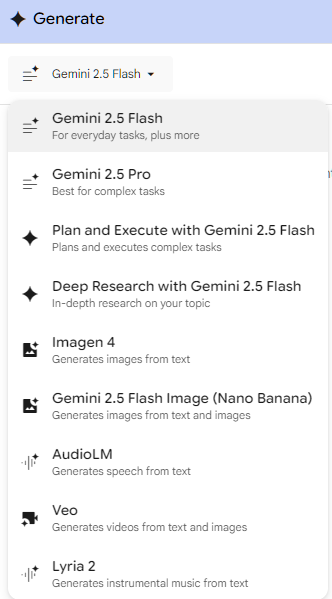
Opal wird von verschiedenen KI-Modellen von Google angetrieben, darunter Gemini, Imagen und Veo 3.
Es unterscheidet sich vom neuen Google Antigravity – einer fortgeschrittenen, agent-first Entwicklungsumgebung (ADE), in der Entwickler:innen KI-Agenten verwenden, um Features zu planen und umzusetzen.
Google Opal folgt einem Leitgedanken: App-Entwicklung soll dialogorientiert und visuell intuitiv sein. Dieser Abschnitt erklärt die Grundkonzepte, die Plattformstruktur und die strategische Rolle im No-Code-KI-Ökosystem.
Google beschreibt Opal als No-Code-Mini-App-Builder. Viele Entwickler sehen es als vibe coding-Plattform: Du beschreibst deine Absicht in natürlicher Sprache, und die Plattform übersetzt sie in einen funktionsfähigen Workflow.
Statt Code zu schreiben, beschreibst du den „Vibe“ dessen, was deine App tun soll – und Opal setzt für dich Logik, Schritte und Oberfläche zusammen.
Wichtige Unterschiede zur traditionellen Entwicklung sind die starke Ausrichtung auf natürliche Sprache. Du gibst Anweisungen ein wie „Erstelle ein Tool, das YouTube-Videos zusammenfasst“, und Opal erzeugt dafür einen visuellen Workflow-Editor.
Anschließend passt du die Schritte im Editor an deine Bedürfnisse an. Viele Funktionen setzen KI-Tools ein, um Architektur und Logik zu erzeugen und zu unterstützen.
Zu den Kernfunktionen von Opal gehören:
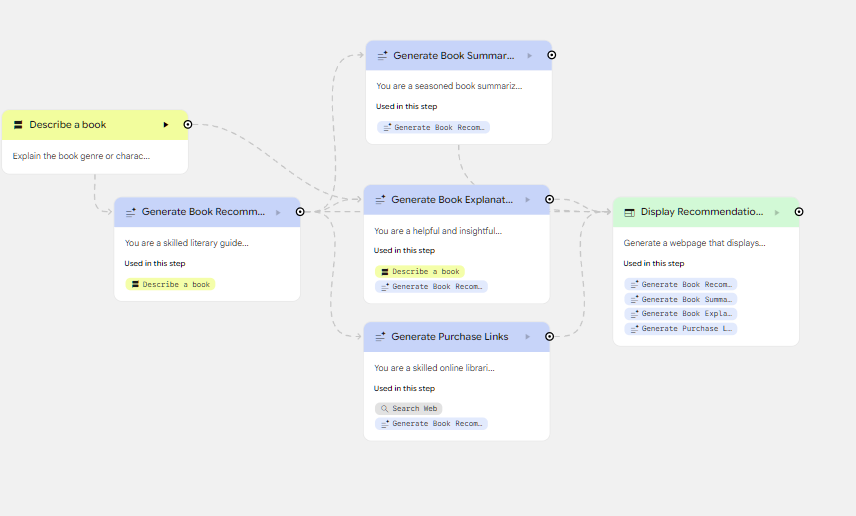
Opal übersetzt deine Anweisungen in einen Workflow-Graphen aus einzelnen Schritten. Im visuellen Editor erscheinen diese Schritte als Knoten und Verbindungen.
Wichtige Architekturkomponenten sind:
Auch wenn es nicht ganz agentischer KI entspricht, bei der Programme vollständig eigenständig Entscheidungen treffen, folgt es einem ähnlichen Muster: KI-Modelle in Knoten helfen, Apps zu erstellen, die Informationen verarbeiten und generieren.
Da keine Programmierkenntnisse nötig sind, ist Opal für Nicht-Entwickler:innen und funktionsübergreifende Teams gebaut. Es schlägt die Brücke zwischen technischen Entwickler:innen und nicht-technischen Stakeholdern, etwa:
Die No-Code-Bewegung ist von einfachen Drag-and-Drop-Website-Baukästen zu umfangreichen Visual-Automation- und Workflow-Plattformen gereift. „Vibe Coding“ ist der nächste Schritt: Menschen formulieren in Umgangssprache – und erhalten ausführbare Anwendungslogik.
Google Opal positioniert sich strategisch gegenüber:
Opals Alleinstellungsmerkmal ist die kompromisslose Ausrichtung auf KI-native Workflows, natürliche Sprachentwicklung und schnelle, interaktive App-Generierung.
In diesem Abschnitt zeige ich dir, wie du Opal aufrufst, deinen Account einrichtest und die wichtigsten Interface-Bereiche verstehst.
Opal befindet sich aktuell in der Beta/öffentlichen Vorschau. Die Verfügbarkeit variiert je nach Region, es ist jedoch in 160 Ländern verfügbar. Derzeit ist es kostenlos (Stand: November 2025), neue Funktionen werden schrittweise ausgerollt. Du brauchst nur ein Google-Konto und einen modernen Browser wie Firefox, Chrome, Edge oder Safari.
Der Zugriff ist so einfach wie bei anderen Google-Produkten:
Die Opal-Oberfläche ist ziemlich selbsterklärend. Werfen wir einen Blick aufs Dashboard. Du siehst einen Bereich Your Opal Apps. Hier erstellen wir gleich neue Apps. Außerdem gibt es eine Ideengalerie zum Einstieg.
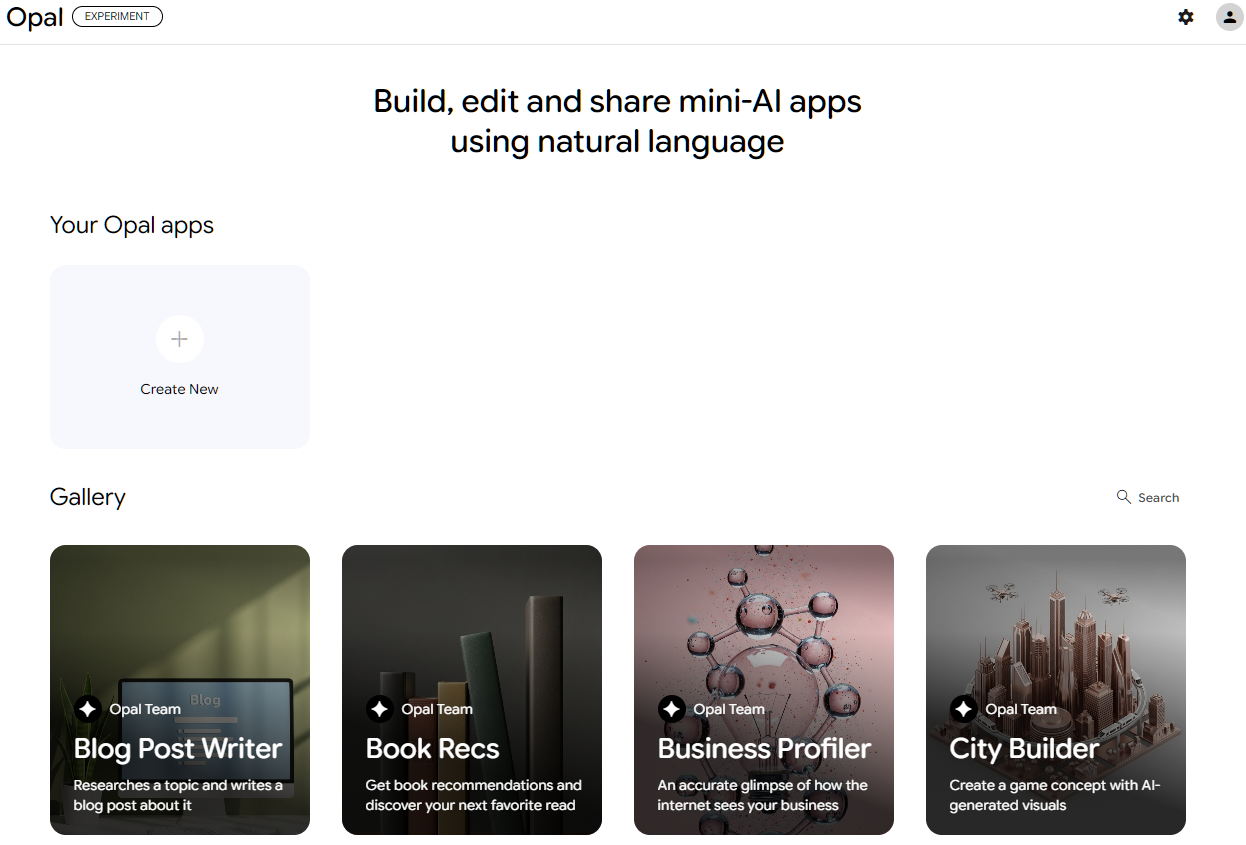
Klicke jetzt auf „Create New“ und sieh dir das Interface an. Du kannst Schritte wie User Input, Generate oder Output manuell hinzufügen. Diese erfüllen unterschiedliche Funktionen, die wir gleich behandeln.
Unten findest du ein Textfeld, in das du Opal beschreibst, was gebaut werden soll – und Opal setzt es für dich um. In der seitlichen Navigation gibt es hilfreiche Tools, die je nach Block Kontext wechseln.
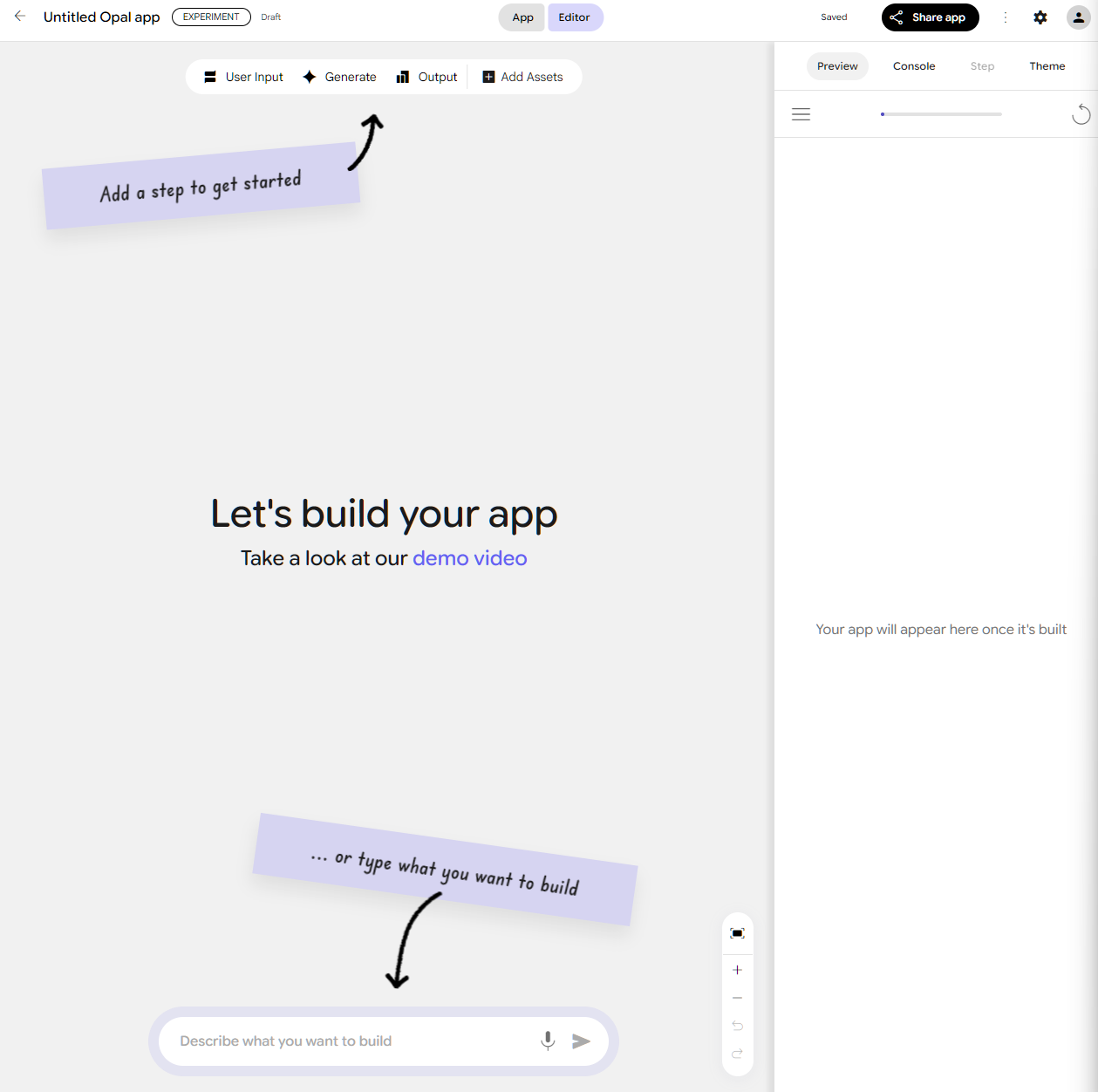
Jeder Opal-Workflow besteht aus:
Du wirst feststellen, dass es keinen strengen Mechanismus für Logik oder Verzweigungen gibt. Stattdessen fütterst du deine generate-Knoten mit Informationen aus anderen Schritten und Eingaben, um nachgelagerte Schritte zu kontextualisieren.
Baue deinen Workflow von links nach rechts und benenne Schritte eindeutig, um Verwechslungen bei Referenzen zu vermeiden. Vermeide außerdem Zirkelschlüsse, die zu Endlosschleifen führen. Im Zweifel bitte Opal, dir beim Beheben zu helfen.
In diesem Abschnitt bauen wir echte Apps – mit natürlicher Sprache und mit visuellen Workflows.
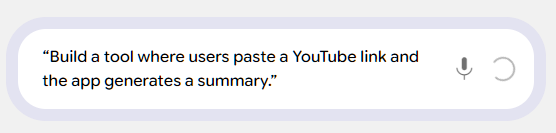
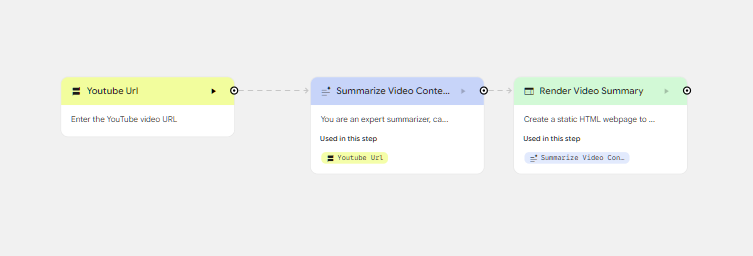
Du kannst sofort über die rechte Seitenleiste auf Preview klicken, um die Vorschau zu öffnen.
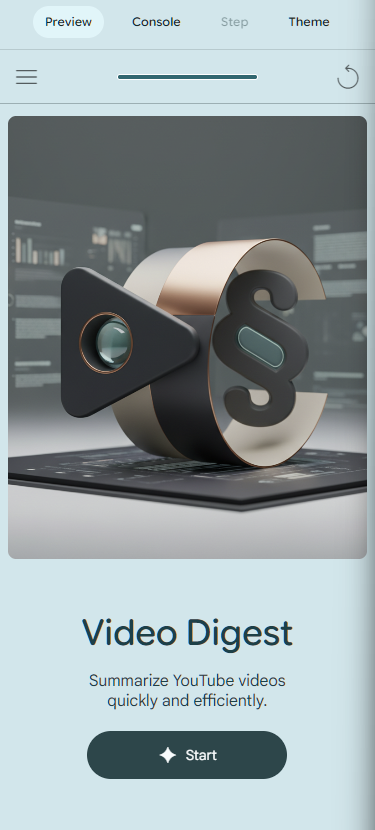
Klicke auf Start und gib ein YouTube-Video deiner Wahl ein. Ich habe z. B. ein Video zu Änderungen am Flughafen DFW übermittelt – Opal lieferte mir eine prägnante Textzusammenfassung.
Statt bei Null zu starten, kannst du eine bestehende App aus der Galerie nehmen und für deine Zwecke remixen. Es gibt bereits eine ordentliche Auswahl, etwa für Blogposts, Buchempfehlungen, Lernen mit YouTube, Spelling Bees und Produktrecherche.
Lass uns etwas Einfaches remixen – eine generierte Playlist.
Generated Playlist.Remix, um automatisch eine Kopie zu erstellen.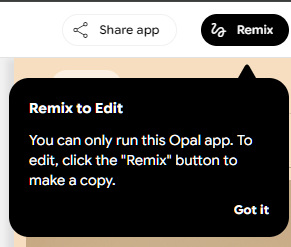

Sieh zu, wie Opal die Playlist zusammenstellt. Aktuell kann keine einzelne, echte Spotify-Playlist erzeugt werden, aber Opal liefert dir mehrere passende Songs.
Für mehr Feintuning nutze statt Prompts die Knoten oben. Opal kann mehrstufige Workflows verarbeiten. Vielleicht willst du die Links zusätzlich in einer Tabelle speichern. Klicke auf den Output-Knoten und wähle „Save to Google Sheets“.
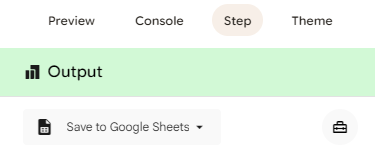
Gib dann z. B. an: „Die Tabelle soll die Spotify-Links mit Song- und Artist-Titel als Spalten speichern“ – das hilft bei der Beschreibung.
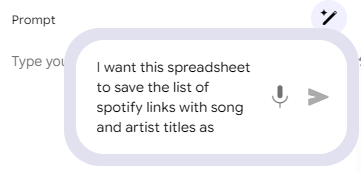
Verbinde anschließend die Fetch Spotify Links-Knoten mit diesem neuen Output-Knoten. Verbinde dann den Generate-Knoten mit dem Knoten „Display Playlist“.
Öffne „Display Playlist“ und ergänze den Prompt: „Zeige den Google-Sheet-Link am Ende der Playlist an.“ Am Ende sollte dein Workflow ungefähr so aussehen:
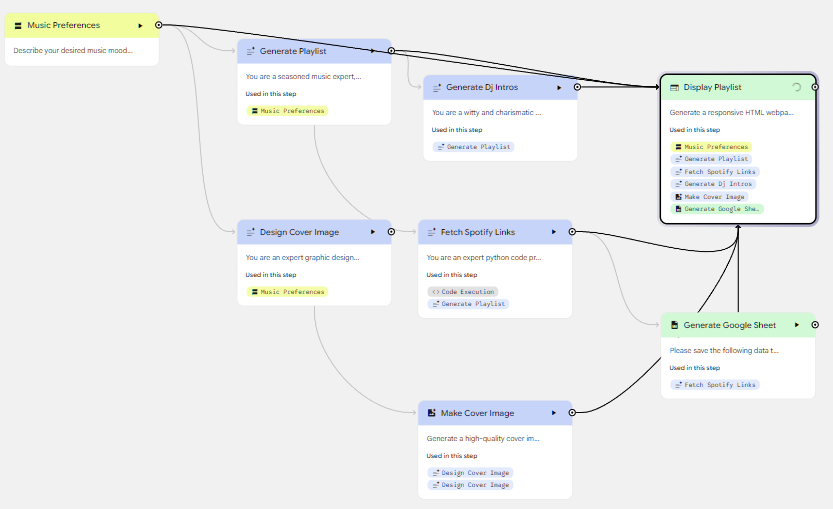
Jetzt werden die Daten als Tabelle gespeichert und in der App angezeigt. Probiere weiter aus, bis die App genau das tut, was du willst!
Es gibt mehrere Wege, Opal zu präzisen Ergebnissen zu führen.
Obwohl Opal auf Einfachheit ausgelegt ist, kannst du mit Konzepten wie Schritt-Referenzierung, Zwischenverarbeitung und Workflow-Optimierung deutlich leistungsfähigere Anwendungen bauen.
In Opal kann jeder Schritt die Ausgabe eines vorherigen Schritts mit dem @-Symbol referenzieren.
Beispiel: „Verwende die Eingabe von @music_preferences“ weist Opal an, die Ausgabe des Schritts music_preferences in den Zusammenfassungsschritt einzuspeisen. Tippe dafür „@“, um ein Kontextmenü mit Auswahl zu öffnen.
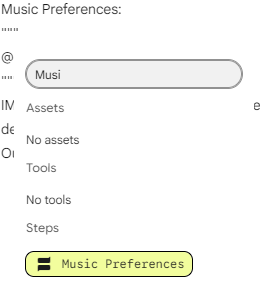
Dieser Mechanismus heißt dynamisches Chaining: Jeder Schritt greift automatisch frühere Ergebnisse auf und baut darauf auf. So entstehen Workflows, die sich mit dem Datenfluss von Operation zu Operation weiterentwickeln.
Mehrstufige Workflows setzen stark auf Zwischenschritte, um komplexe Aufgaben in handhabbare Teile zu zerlegen. Statt einen großen Datenblock in einen einzigen Schritt zu schicken, extrahierst du z. B. erst Text, bereinigst ihn, analysierst ihn und erzeugst dann ein verfeinertes Ergebnis.
Das erhöht die Genauigkeit, vereinfacht das Debugging und macht Workflows leichter nachvollziehbar. Solche gestuften Workflows werden von Opal besser interpretiert und liefern oft konsistentere Resultate.
Mit wachsender Komplexität steigern ein paar Best Practices die Performance deutlich. Das Zusammenfassen kleinerer Schritte reduziert Latenzen, weil weniger Kontextwechsel nötig sind.
Ebenso liefern gut formulierte Prompts in der Regel bessere Ergebnisse als sehr kurze, fragmentierte oder überlange, komplizierte Anweisungen.
Klar benannte Schritte erleichtern die Wartung, besonders wenn du Ausgaben über mehrere Stufen referenzierst. Schließlich liefert Opals Debug-Panel hilfreiche Hinweise und Warnungen zum Verhalten einzelner Schritte – ideal, um Engpässe vor der Veröffentlichung zu beheben.
Dieser Abschnitt erklärt die unterstützten Eingabetypen von Opal und wann du welche nutzt. Ob Text, Dateien oder Video – jede Eingabeoption eröffnet neue Möglichkeiten für interaktive oder datenreiche Workflows.
Texteingaben sind die gängigste Methode, Informationen in Opal zu sammeln – oft als Einstieg in die App. Du kannst eine offene Frage verwenden, die vom LLM interpretiert wird.
Alternativ nutzt du mehrere spezifische Eingaben, um einem LLM Kontext zu geben und per Chaining die Qualität der Ausgaben zu erhöhen.
Für dateibasierte Anwendungen unterstützt Opal Uploads von PDFs, Dokumenten, Bildern, Audiodateien und anderen Medien. Dateien können direkt im Workflow verarbeitet oder für mehr Flexibilität in Google Drive abgelegt werden.
So baust du Tools wie Dokumentenanalysen, Formular-Extractor oder Audio-Transkription.
Opal unterstützt YouTube-URLs, Webcam-Aufnahmen und Video-Uploads. Damit lassen sich z. B. Videoanalyse-Tools oder edukative Annotierungsplattformen umsetzen.
Da Videodaten groß und komplex sind, nutzen entsprechende Workflows oft mehrere Zwischenschritte wie Transkriptextraktion, Frame-Analyse oder Zusammenfassung.
Das Zeichenpad ermöglicht Skizzen, Markups oder schnelle Anmerkungen direkt in der App – nützlich für Brainstorming-Tools, visuelles Feedback oder Lernszenarien. Die Integration mit Google Drive erlaubt nahtlose Dokument-Uploads und unterstützt kollaborative Workflows, in denen Teams Materialien prüfen, annotieren oder verarbeiten.
Opals Ausgabesystem steuert, wie Informationen angezeigt und Ergebnisse in externe Tools exportiert werden. Du kannst ein Layout manuell per Prompt-Anweisungen definieren oder es automatisch von Gemini entwerfen lassen. Inhalte lassen sich außerdem in deinem Google Drive speichern – etwa in Docs, Slides und Sheets.
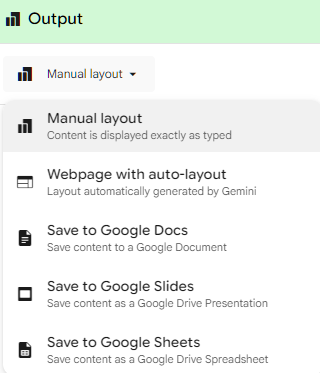
Opal unterstützt zahlreiche Ausgabeformate: Plain Text, formatierten Rich Text, eingebettete Medien bis hin zu interaktiven Webseiten. Du kannst dich auf Auto-Layout verlassen oder manuell steuern – je nachdem, wie viel Kontrolle du brauchst. So entstehen von einfachen Text-Tools bis zu vollwertigen Mini-Apps vielfältige Lösungen.
Opal-Apps können Ergebnisse direkt in Google Docs, Sheets oder Slides exportieren. So lassen sich z. B. strukturierte Reports generieren, extrahierte Daten in Tabellenblätter überführen oder Foliensätze aus Zusammenfassungen automatisch erstellen. Durch die Workspace-Integration ist Opal besonders wertvoll für Teams, die ohnehin im Google-Produktivitätsökosystem arbeiten.
Opal erlaubt es, Farben, Schriften und Layouts per natürlicher Sprache zu beschreiben. Du beschreibst die gewünschte Ästhetik – Opal setzt das Styling um. Du brauchst kein Grafikdesign oder CSS, um schön gestaltete Apps zu erhalten!
Sobald deine App steht, genügt eine teilbare URL zur Veröffentlichung. Über Zugriffsrechte machst du die App öffentlich, privat oder nur innerhalb deiner Domain verfügbar. Apps sind automatisch für Mobilgeräte optimiert, und Opal führt eine Versionshistorie, damit du Änderungen nachverfolgen oder zurückrollen kannst. Klicke einfach auf „Share“, um anderen den Zugriff zu geben.
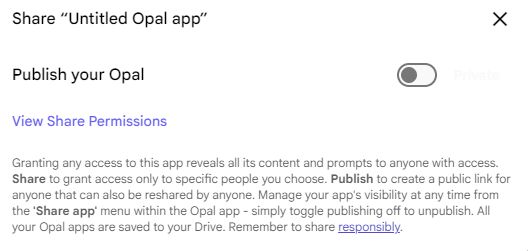
Opal ist vielseitig über Branchen und Anwendungsfälle hinweg – nützlich für Creator, Business-Teams, Lehrende und Analyst:innen. Besonders stark ist die Plattform, wenn Text, Dokumente oder strukturierte Workflows im Mittelpunkt stehen.
Marketing-Teams können mit Opal zum Beispiel bauen:
Diese Tools funktionieren am besten, wenn du klare Prompts, Materialien und Kontext lieferst.
Durch schnelles Prototyping und die Bereitstellung KI-gestützter Content-Workflows ist Opal ideal für dynamische Marketing-Setups.
Forschende und Lehrende profitieren von Tools wie:
Da Opal PDFs, Videos und nutzergenerierten Text verarbeiten kann, eignet es sich hervorragend für akademische Anwendungen und Trainings.
Dank Flexibilität unterstützt Opal vielfältige Spezial-Workflows – von juristischen Dokumentprozessen bis zu Kreativ-Planungstools. Nutzer:innen haben auch Nischen-Apps gebaut wie Rezeptgeneratoren, Fitness-Tracker oder Compliance-Checklisten. Die Grenze ist im Grunde deine Ideenfindung – und was in den Rahmen deiner Organisation passt.
Für mehr Inspiration sieh dir diese Top 10 AI Agent Projects an.
Der Vergleich mit anderen Plattformen zeigt, wo Opal im Ökosystem aus KI- und No-Code-Tools seinen Platz hat.
Lovable konzentriert sich stärker auf entwicklerzentrierte Workflows und Codegenerierung, während Bubble zwar einen mächtigen visuellen Editor bietet, aber nicht KI-native ist. Opal positioniert sich als KI-first Workflow-Builder mit natürlicher Sprache und visueller Oberfläche – und senkt so die Einstiegshürde für Einsteiger. Andere No-Code-KI-Plattformen fokussieren oft spezifische Agents oder Integrationen. Opal lässt dich im Google-Ökosystem arbeiten und übernimmt viel Verbindungs-Overhead.
n8n glänzt bei komplexer Systemautomatisierung, großen Integrationen und anspruchsvoller Datenorchestrierung. Zapier fokussiert einfache, ereignisgesteuerte Workflows über Integrationen mit KI-Tools und Datenbanken.
Opal hingegen dreht sich um App-Erstellung, UI-Generierung und KI-getriebene Logik. n8n ist ideal für Automationslastiges, Opal besser für interaktive KI-Anwendungen.
Replit ist für Programmierende gedacht, die Code schreiben und Full-Stack-Projekte deployen – inkl. Austausch des Codebase mit anderen. Opal richtet sich an Teams, die Tools mit natürlichen Sprachprompts entwickeln wollen und nicht coden können.
Wähle Opal für schnelles Prototyping oder KI-lastige Apps. Wähle Replit, wenn du individuelle Logik, fortgeschrittene APIs oder flexible Programmiersprachen brauchst. Ich empfehle diesen Vibe Coding with Replit Kurs für mehr Infos.
In der folgenden Tabelle siehst du, wie Google Opal im Vergleich zu anderen Tools abschneidet:
|
Feature / Fokus |
Google Opal |
Lovable |
Bubble |
Andere No-Code-KI-Tools |
n8n |
Zapier |
Replit |
|
Hauptzweck |
KI-first Workflow-Builder für Apps und Interfaces per natürlicher Sprache |
Entwicklerzentrierte KI-gestützte Codegenerierung |
Visueller No-Code-App-Builder |
Oft auf spezifische Agents oder enge KI-Integrationen fokussiert |
Komplexe Automatisierung und Datenorchestrierung |
Ereignisgesteuerte Workflow-Automatisierung |
Full-Stack-Coding-Plattform für Programmierende |
|
Kernstärke |
KI-getriebene Logik + UI-Generierung im Google-Ökosystem |
Stark in Codeerzeugung und -anpassung |
Mächtiger visueller Editor, etabliertes Ökosystem |
Schnelles Agent-Setup, einfache Workflows |
Große Integrationsvielfalt, flexible Automationslogik |
Einfache Nutzung + große Integrationsbibliothek |
Vollflexibel mit Code, APIs und Umgebungen |
|
Niveau der Nutzenden |
Einsteiger und Nicht-Entwickler |
Entwickler oder technische Nutzer |
Nicht-technische Nutzer mit Erfahrung in visuellen Editoren |
Variiert; oft einsteigerfreundlich |
Fortgeschritten |
Einsteiger–Fortgeschrittene |
Entwickler |
|
KI-native? |
Ja — KI-first Design |
Ja — aber mit Fokus auf Codegenerierung |
Nein — KI nachträglich aufgesetzt |
Teilweise — oft KI-spezifisch, aber begrenzt |
Nicht KI-native, erfordert Integrationen |
Nicht KI-native |
Nein — codebasiert statt KI-first |
|
Workflow-Fokus |
Interaktive KI-Apps und Interfaces bauen |
Prompts in lauffähige Codebasen übersetzen |
Web-Apps per Drag-and-Drop designen |
Single-Purpose-KI-Agents erstellen |
Systemweite Automations-Workflows |
Trigger-Action-Automationen |
Full-Stack-Entwicklungs-Workflows |
|
Beste Einsatzfälle |
Schnelles KI-App-Prototyping innerhalb von Google-Produkten |
„Coding ohne Code“, Entwickler-Workflows |
SaaS-ähnliche Apps visuell bauen |
Leichte KI-Task-Automatisierung |
Enterprise-Automation, Backend-Logik |
Einfache Workflow-Automation |
Individuelle Logik, fortgeschrittene APIs, End-to-End-Deployment |
|
Einschränkungen |
Noch frühe Phase; Grenzen bei Komplexität; abhängig vom Google-Ökosystem |
Benötigt Coding-Wissen zur Verfeinerung |
Nicht KI-native; kann im großen Maßstab komplex werden |
Oft auf enge Workloads begrenzt |
Nicht zum Erstellen von UIs oder KI-Apps gedacht |
Begrenzte Logiktiefe |
Erfordert Coding-Expertise |
|
Preise |
Kostenlos während der Beta |
Kostenpflichtige Stufen (variabel) |
Kostenpflichtige Stufen (variabel) |
Meist Freemium |
Freemium mit kostenpflichtigen Plänen |
Freemium mit kostenpflichtigen Stufen |
Freemium + kostenpflichtige Upgrades |
Opal ist aktuell in der Beta kostenlos. Später wird es kostenpflichtig. Gerade deshalb ist es für schnelles Prototyping sehr attraktiv. Es gibt Grenzen bei der Komplexität, aber ein früher Blick auf die Plattform lohnt sich.
So leistungsfähig und zugänglich Opal ist, solltest du die Grenzen kennen – insbesondere wegen des Beta-Status und der bewusst einfachen Designphilosophie.
Während der Beta bietet Opal eine begrenzte Zahl an Integrationen mit Fokus auf Googles Gemini- und Imagen-Modelle. Aktuell ermöglicht Opal eher gradlinige Workflows mit einfacher Verzweigung und ohne echte Konditionallogik.
Das ist bewusst so. Mit der Weiterentwicklung sind mehr Modell-Optionen und zusätzliche Automations-Connectoren zu erwarten. Tools wie n8n und Zapier bieten derzeit deutlich komplexere, spezialisierte Steuerungen.
Organisationen, die Opal einführen, sollten Governance rund um Datenschutz, Nutzerrechte und Zugriffskontrolle beachten. Wie bei jedem No-Code-Tool besteht das Risiko von „Shadow IT“, wenn Mitarbeitende ohne formale Kontrolle Tools bauen – potenziell riskant für sensible Informationen. Strikte Richtlinien und beschränkter Zugriff auf
Als experimentelle Plattform kann Opal gelegentlich Bugs haben oder Features schnell ändern. Das Tempo der Updates deutet jedoch auf eine wachsende Roadmap hin – mit neuen Eingabetypen, mehr Modell-Optionen, besseren Workflows und tieferen Integrationen.
Behalte Googles Entwicklerblogs und die Opal-Übersicht im Blick.
Effektive Opal-Workflows starten oft mit einem Prototyp per natürlicher Sprache und werden anschließend im visuellen Editor verfeinert. Modulartige Workflows schaffen Klarheit, klare Schrittnamen erleichtern Referenzen. Häufig testen und zu lange Prompts vermeiden erhöht die Stabilität. Und: Templates aus der Galerie sind hervorragende Startpunkte.
Google Opal ist ein großer Schritt, um die Entwicklung von KI-Anwendungen zu demokratisieren. Durch natürliche Sprachinterfaces, visuelle Workflows und cloudnative Ausführung befähigt Opal ganze Organisationen, leistungsstarke, interaktive Apps ohne Code zu bauen.
Ob du Ideen prototypst, Aufgaben automatisierst oder KI-Konzepte vermittelst – Opal bietet eine schnelle, intuitive Umgebung, um Ideen in funktionierende Software zu verwandeln.
Für mehr zu Vibe Coding und KI-basierter Entwicklung empfehle ich diese Ressourcen:
Top DataCamp Courses
Kurs
Kurs
Kurs
Blog
Blog
Hesam Sheikh Hassani
15 Min.
Tutorial
Mark Pedigo
10 Min.
Tutorial
Matt Crabtree
5 Min.
Tutorial
Sejal Jaiswal
9 Min.


