
Program
Dasar-Dasar Excel
16 Hr
Saat bekerja di Excel, angka terkadang tersimpan sebagai teks. Ini sering terjadi ketika mengimpor data dari halaman web, basis data, PDF, atau file teks. Anda dapat mengenalinya saat melihat angka rata kiri di sel, rumus tidak menghitung dengan benar, atau muncul segitiga hijau kecil di sudut sel.
Jika tidak diperbaiki, angka yang tersimpan sebagai teks dapat menimbulkan masalah, seperti kesalahan pada rumus SUM(), PivotTable yang tidak akurat, dan bagan yang rusak. Masalah ini dapat mengurangi akurasi laporan dan memperlambat pemrosesan data. Jika Anda perlu menyegarkan kembali keterampilan Excel, saya merekomendasikan mengikuti kursus Data Preparation in Excel kami untuk mempelajari cara membersihkan dan menyiapkan data dari berbagai sumber.
Saya telah menyebutkan bagaimana Anda dapat mengenali saat masalah 'angka tersimpan sebagai teks' terjadi. Berikut beberapa cara mudah untuk memastikan jika Excel berperilaku aneh:
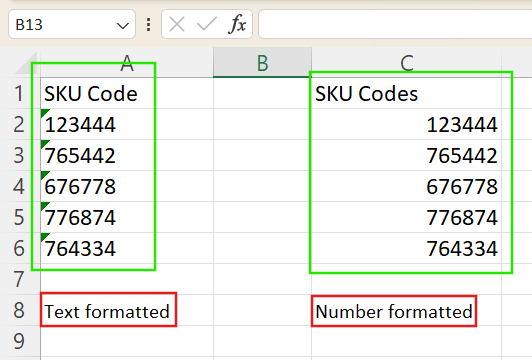
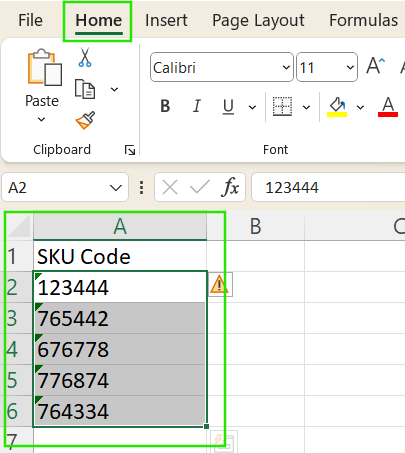
Angka berformat teks rata kiri di Excel. Gambar oleh Penulis.
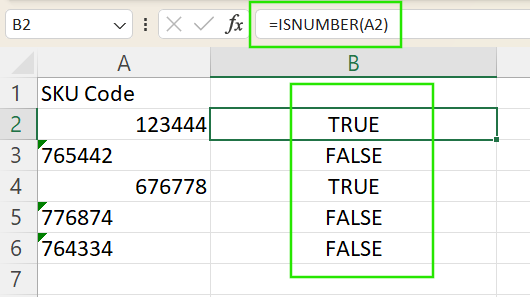
ISNUMBER() untuk memverifikasi. Misalnya, memasukkan =ISNUMBER(A2) akan mengembalikan TRUE jika nilai di A2 memang angka dan FALSE jika berupa teks.
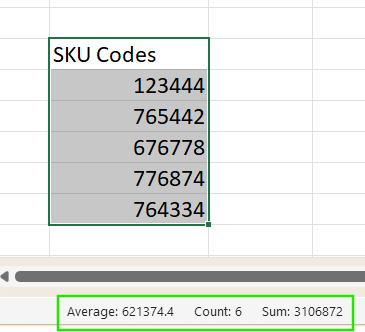
SUM, AVERAGE, dan COUNT ditampilkan otomatis. Jika pilihan mencakup angka yang tersimpan sebagai teks, hanya COUNT yang mungkin muncul, yang merupakan tanda pasti adanya masalah data.
Saya merekomendasikan tutorial kami tentang Cara Membersihkan Data di Excel untuk mempelajari berbagai teknik pembersihan data di Excel, termasuk menghapus duplikasi, menangani nilai hilang, dan menjaga konsistensi pemformatan.
Sekarang setelah Anda melihat masalahnya, mari kita cari solusinya. Excel menawarkan beberapa metode untuk mengubah angka berformat teks menjadi nilai numerik sejati. Memilih pendekatan yang tepat bergantung pada bagaimana data Anda disusun dan masalah spesifik yang Anda hadapi. Di bawah ini adalah teknik umum, masing-masing dengan langkah-langkah dan tips praktis.
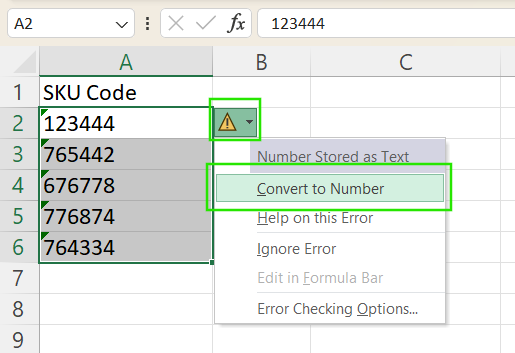
Jika Excel mendeteksi angka yang tersimpan sebagai teks, segitiga hijau kecil akan muncul di sudut sel. Untuk memperbaikinya:
Metode ini cepat tetapi hanya berfungsi ketika Excel mengenali masalah secara otomatis.
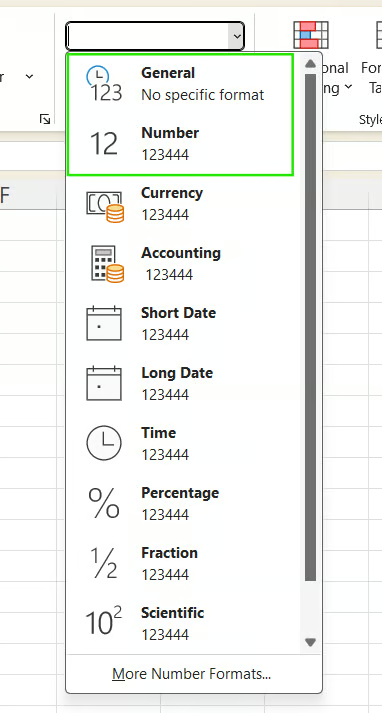
Anda dapat mengubah format sel secara manual untuk mengonversi teks ke angka dengan langkah-langkah berikut:
Metode ini paling baik digunakan sebelum memasukkan data. Jika angka sudah tersimpan sebagai teks, sekadar mengubah format mungkin tidak mengonversinya, dan Anda mungkin perlu menggunakan metode tambahan untuk memaksa perubahan.
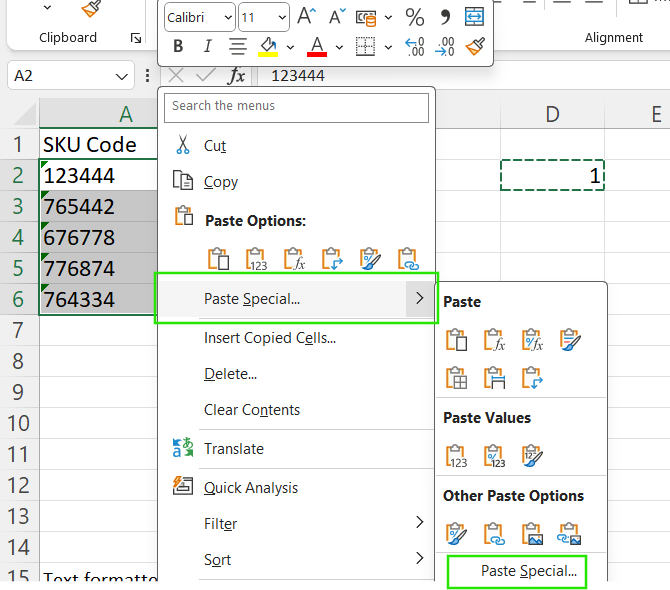
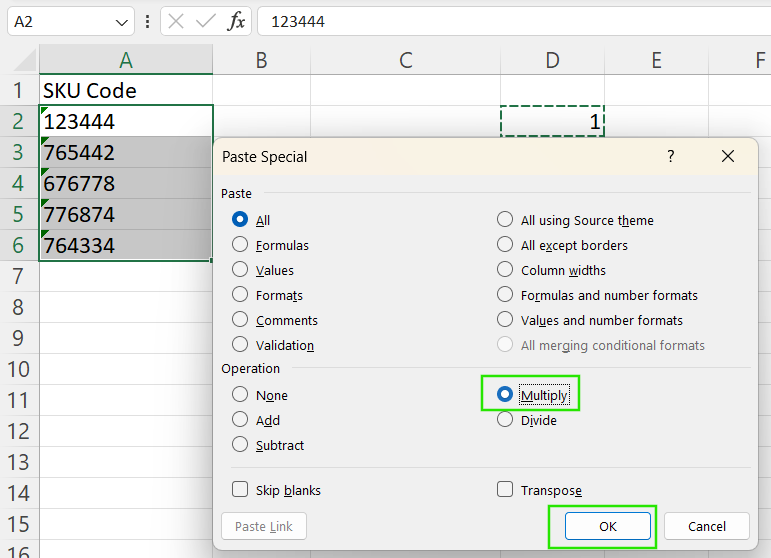
Metode Paste Special secara andal memaksa Excel memperlakukan teks sebagai angka. Untuk menerapkan metode ini:
1 di sel kosong mana pun.
Operasi ini mengalikan setiap sel dengan 1, mengonversi teks menjadi angka, karena mengalikan dengan 1 mempertahankan nilai asli sambil memaksa Excel mengevaluasi ulang isi sel.
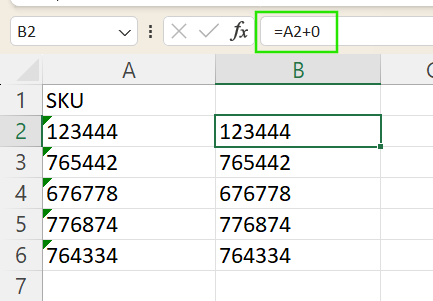
Metode ini mirip dengan yang sebelumnya. Alih-alih perkalian, kita bisa menggunakan penjumlahan.
=A2+0 di kolom baru untuk mengonversi teks ke angka.
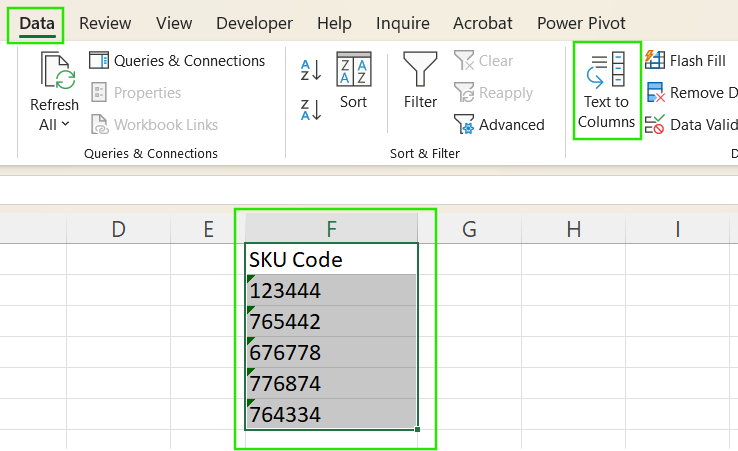
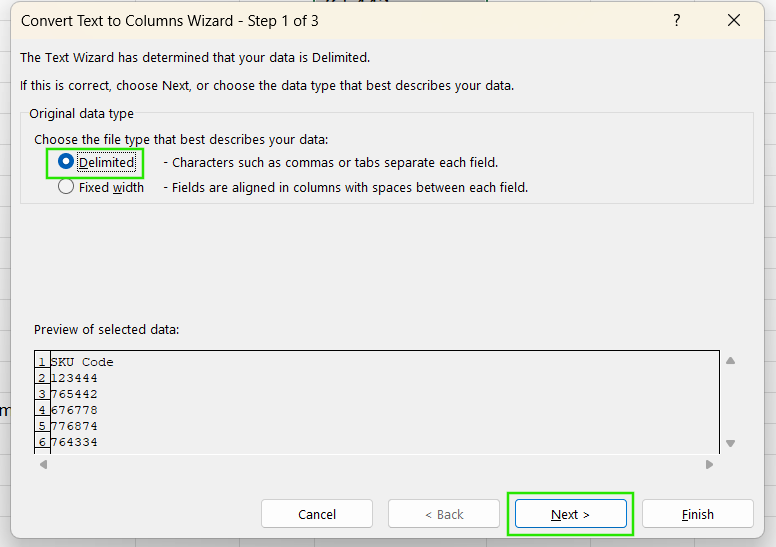
Alat Text to Columns dapat mengatur ulang format saat metode lain gagal. Metode ini mem-parsing ulang nilai dan mengonversinya menjadi angka bahkan tanpa membagi data.
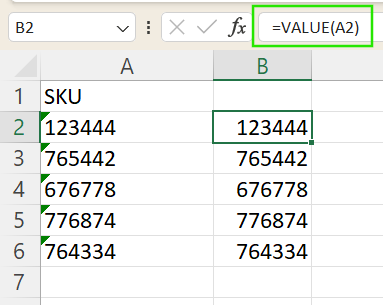
Fungsi VALUE() mengonversi teks menjadi angka menggunakan rumus:
=VALUE(A2).
Fungsi VALUE() juga dapat menangani tanggal dan waktu berformat teks.
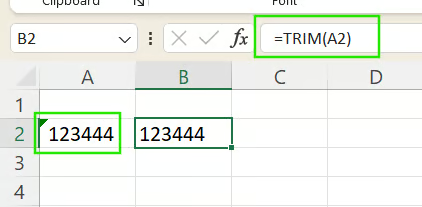
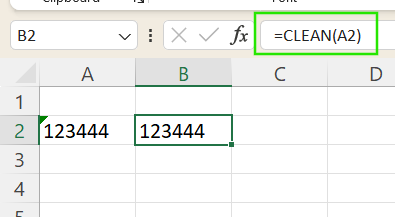
Metode konversi standar di Excel terkadang gagal karena masalah tersembunyi seperti spasi tak terlihat, karakter noncetak, atau pemformatan yang tidak biasa, terutama pada data yang diimpor dari PDF, halaman web, atau setelah membagi sel. Masalah umum termasuk spasi di awal atau akhir, non-breaking space, atau simbol tersembunyi yang mencegah Excel mengenali nilai sebagai angka, meskipun tampilannya terlihat benar.
Untuk mengatasi kasus yang membandel ini, Excel menyediakan fungsi pembersihan berikut:
Lihat tutorial kami Cara Menghapus Spasi di Excel untuk mempelajari berbagai metode menghapus spasi, dan kiat menangani karakter khusus di data Anda.
=UNICODE(LEFT(A2, 1)) untuk memeriksa kode karakter dari karakter pertama di sebuah sel.Lihat tutorial kami Cara Mengekstrak Angka dari String di Excel untuk memahami cara memisahkan teks dari angka guna membersihkan data Anda.
Saat menangani angka yang tersimpan sebagai teks di Excel, selalu mulai dengan memeriksa apakah masalahnya sekadar pemformatan atau benar-benar penyimpanan sebagai teks. Mulailah dengan solusi termudah, seperti menggunakan Pemeriksaan Kesalahan atau mengubah format sel, lalu beralih ke rumus atau perbaikan manual jika diperlukan untuk kasus yang lebih membandel. Untuk data yang berasal dari sumber eksternal seperti web, PDF, atau basis data, pastikan untuk membersihkannya secara menyeluruh menggunakan alat seperti TRIM() dan CLEAN() agar konversi akurat dan perhitungan andal.
Saya menyarankan mengikuti kursus Data Analysis in Excel kami untuk terus melatih keterampilan Anda dan jalur keterampilan Excel Fundamentals kami untuk mempelajari teknik pembersihan data lanjutan dan fungsi yang tersedia di versi Excel terbaru.
Pelajari Excel bersama DataCamp
Program
Kursus
Kursus
blogs
David Woods
13 mnt
blogs
Javier Canales Luna
14 mnt
blogs
Hugo Bowne-Anderson
13 mnt
blogs
Dario Radečić
15 mnt