
course
Introduktion till GCP
2 timmar
7.8K
Cloud adoption can feel like stepping into a financial fog. One minute you're excited about scaling your application with virtually unlimited resources; the next, you're staring at an unexpectedly large bill. Google Cloud Platform (GCP), like other major clouds, uses variable, usage-based pricing that rewards smart planning but can rack up high costs for unplanned deployments.
Many teams learn this lesson the hard way, deploying infrastructure first and discovering true costs only after the invoice arrives. The good news? You don't have to. The GCP Pricing Calculator empowers you to model costs accurately before provisioning a single or multiple resources, turning unpredictable cloud spend into strategic, forecastable budgets.
In this comprehensive guide, I will walk you through the interface mechanics of the calculator, proven techniques for estimating core services like Compute Engine, Cloud Storage, networking, and managed databases, and several ways to simulate discounts such as Committed Use Discounts (CUDs) and Spot VMs.
For those just starting their journey into cloud economics and GCP in particular, I recommend taking our Understanding Cloud Computing and Introduction to GCP courses as first steps before diving into specific pricing models.
The Google Cloud ecosystem is vast, spanning hundreds of services with unique billing metrics. The GCP Pricing Calculator is the primary translation layer between technical architecture and financial forecasting, and allows teams to simulate costs without spending a dime.
At its core, the GCP Pricing Calculator translates the following metrics into projected currency costs (monthly or hourly breakdowns):
You build an estimate by adding products from a comprehensive catalog of GCP services (covering Compute, Storage, Databases, Networking, AI/ML, Analytics, and 100+ others), configuring usage details, and watching the total update live.
The modern, unified interface (the standard version today) offers a clean, category-organized sidebar for adding services, grouping items for clarity, cloning configurations for comparisons, and exporting results.
If you sign in with a Google account, you can link your billing account. This applies any negotiated/contract pricing your organization has, saves estimates for later edits, and enables easy sharing via unique URLs.
That being said, a login is not required for basic public list-price modeling.
Many teams rely on "napkin math" or static spreadsheets to estimate costs, often applying a simple formula: Price per Hour × 24 hours × 30 days. This method fails because it ignores hidden costs.
The calculator addresses all of this with precision: it applies real pricing, surfaces hidden fees early, simulates discounts where eligible, and lets you duplicate estimates for side-by-side what-ifs.
One major upside is that it enables you to do an accurate total cost of ownership (TCO) analysis before commitments. This way, you can avoid financial surprises.
To understand the broader ecosystem of these services, our guide to the Google Cloud Platform (GCP) provides excellent context.
Before you start building estimates in the GCP Pricing Calculator, it's important to understand the main variables that drive your bill. GCP's pay-as-you-go model is flexible but layered:
Getting these right in your inputs ensures your modeled costs reflect reality rather than optimistic assumptions.
This section covers the biggest levers, compute pricing models, storage classes, and networking variables, so you can make informed choices when configuring services.
The way you purchase virtual machine time in Compute Engine (GCE) is the fastest way to save (or lose) money.
Most beginners start with On-Demand pricing, which is the most flexible but also the most expensive. It is effectively the rack rate for cloud power.
If you have workloads that can be interrupted, such as batch processing or temporary testing environments, you should look at Spot VMs. These offer discounts that can be between ~60% and 91% compared to on-demand rates, depending on region, machine type, and current pricing.
Additional options are Sustained Use Discounts (SUDs) and Committed Use Discounts (CUDs). SUDs are automatic bill credits you get when certain VMs run for a large portion of the month. CUDs are similar, but require you to commit to a fixed level of usage or spend for 1 or 3 years in exchange for deeper, contract-based discounts.
One important note for SUDs is that they are only available for long-running general-purpose machine types such as N1, N2, N2D, and C2, but are inapplicable to E2 or newer C3/C4 families.
|
Pricing Model |
Description & Key Features |
Ideal Workloads / Use Cases |
Discount / Cost Details |
|
On-Demand |
The default, pay-as-you-go model with per-second billing and a 1-minute minimum. |
Beginners, unpredictable workloads. |
"Rack rate" — the most flexible, but also the most expensive. |
|
Spot VMs |
Interruptible instances that can be preempted with 30 seconds' notice. |
Fault-tolerant tasks, batch processing, temporary testing environments, ML workloads. |
Deeply discounted, often offering about 60% to 91% off on-demand rates (varies by region/machine). |
|
Sustained Use Discounts (SUDs) |
Automatic, tiered discounts for consistent, long-running instances |
Consistent, long-running workloads on older generation instances. |
Up to 30% off. |
|
Committed Use Discounts (CUDs) |
Contract-based billing requiring a 1- or 3-year commitment. |
Predictable, structured, and long-term usage. |
Significant savings, 20-70% off for resource-based commitments, depending on product, family, and term. |
Finally, never ignore Region Selection. Cloud costs are not a global flat rate, and certain resources are cheaper in one Google Cloud region than in another region. The calculator allows you to toggle these regions to see the exact delta. For further details on GCE pricing, visit the Google Cloud documentation.
While compute gets the most attention, storage and networking are often the silent drivers of budget overruns. Choosing a storage class is a balancing act between the cost of keeping data and the cost of accessing it.
Standard Storage is for data you use every day. Nearline, Coldline, and Archive classes are much cheaper for monthly storage but hit you with high retrieval fees if you touch the data too often. I once saw a project's cost double because the team put frequently accessed logs into Coldline storage, triggering massive "Class B" operation fees.
Then there is the concept of Data Egress. Moving data into Google’s network is generally free, but moving it out (to the internet or even to another cloud provider) incurs egress charges that can weigh quite heavily depending on volume, region, and pricing tier. This is often the most difficult variable to predict, yet it’s the most important to model in your estimate.
You also need to account for Inter-region data transfer. If your web server is in us-east1 and your database is in us-west1, you are paying for every megabyte that travels between them. To keep costs low, always try to keep your services communicating within the same geographic zone whenever possible.
Once you grasp these drivers, you can begin to navigate the calculator interface with a much clearer strategy.
The current Google Cloud Pricing Calculator is much more intuitive than the legacy version, but there is still a learning curve to building a complex estimate stack.
You can access the calculator via its public URL, but I highly recommend logging in with your Google Cloud account. This is especially important if your company has negotiated specific contract pricing that differs from the public list prices.
The tool is fully web-based (no installation needed) and updates pricing in real time. Start simple: add one service, configure it, then layer on more.
Once the calculator loads (signed in or not), look at the top area of the estimate panel (often near the large Cost Details).
Click the currency dropdown (commonly labeled with the current code like "USD" or shown next to the total), and select your preferred option (e.g., USD, EUR, INR, or GBP). The entire estimate updates instantly to reflect local rates/exchange.
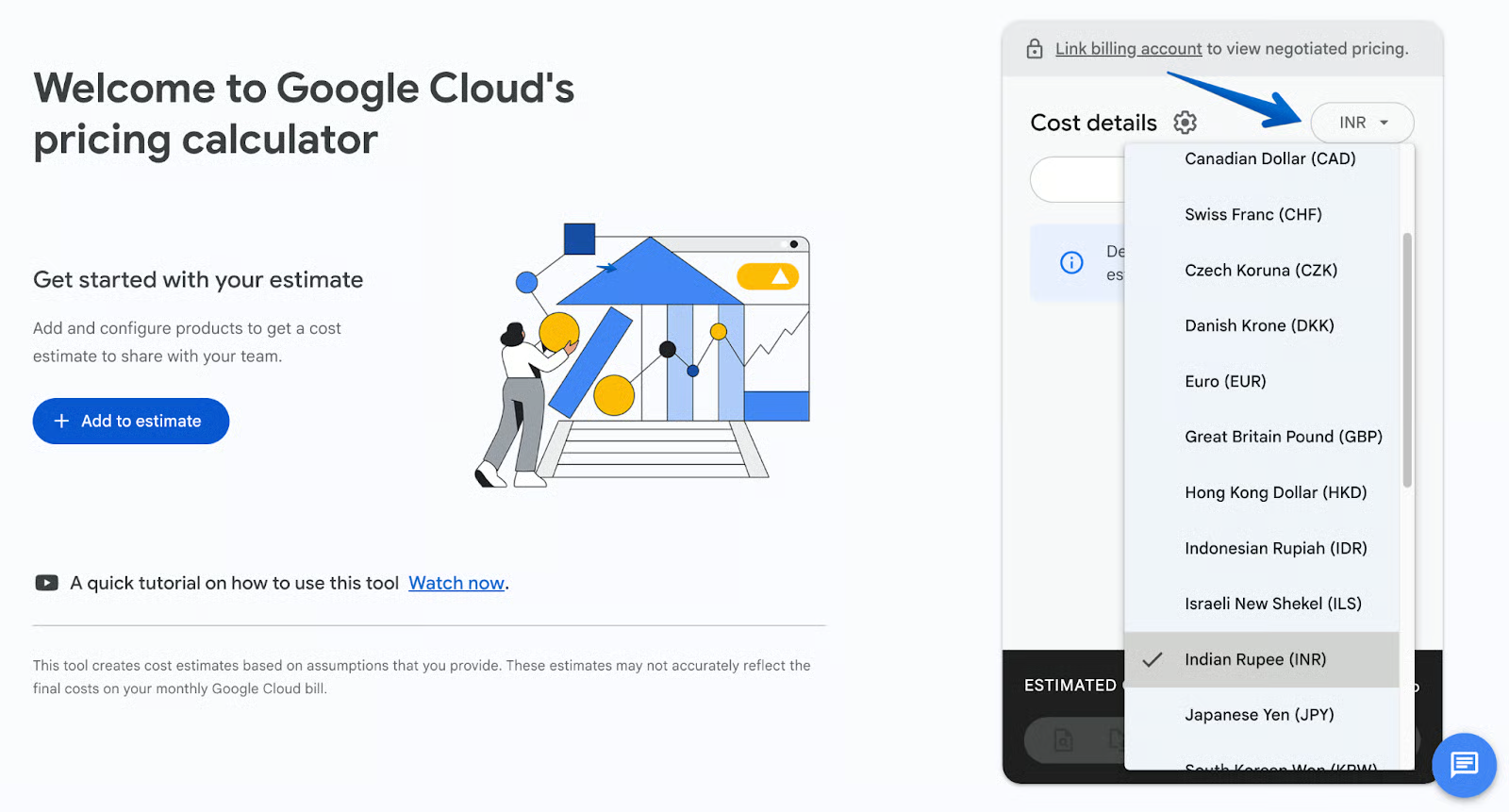
Once you have established your environment, the real work begins. The modern GCP Pricing Calculator treats your infrastructure like a bill of materials rather than a single price tag.
Now that you understand the major cost drivers, it's time to get hands-on. The GCP Pricing Calculator has a clean, intuitive interface designed for quick iteration: a service catalog on the left, a live estimate panel on the right, and tools to refine, duplicate, and share your models.
With the calculator open, the left side features a search bar and categorized service icons (e.g., Compute, Storage, Databases, Networking). The right side is your estimate panel or "cart," where added items appear with cost breakdowns. As you build, the tool automatically organizes items into high-level categories like COMPUTE for virtual machines or STORAGE for buckets.
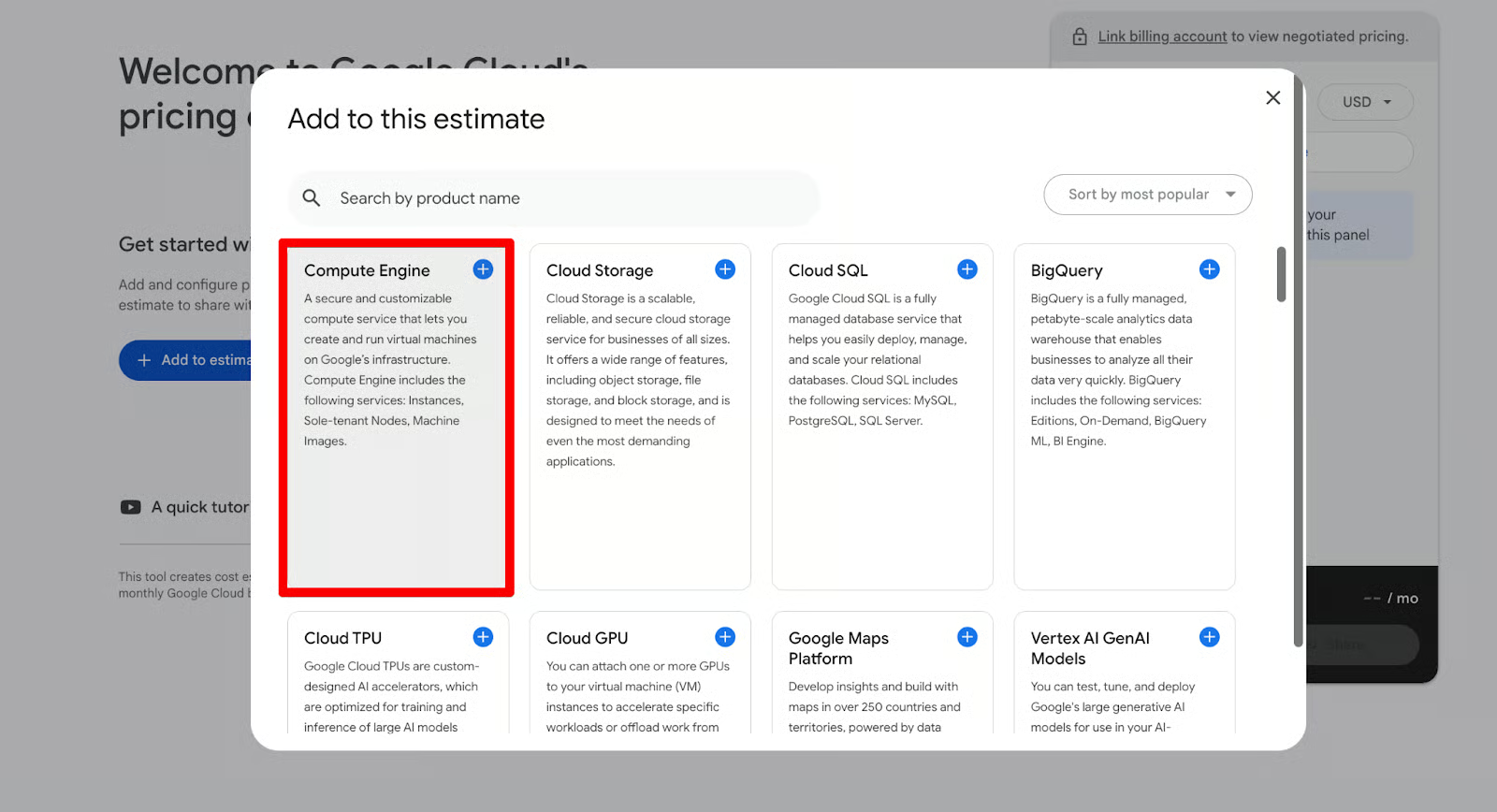
Start by searching for a service in the top search bar (e.g., type "Compute Engine" or "Cloud Storage") or browse the icons/categories.
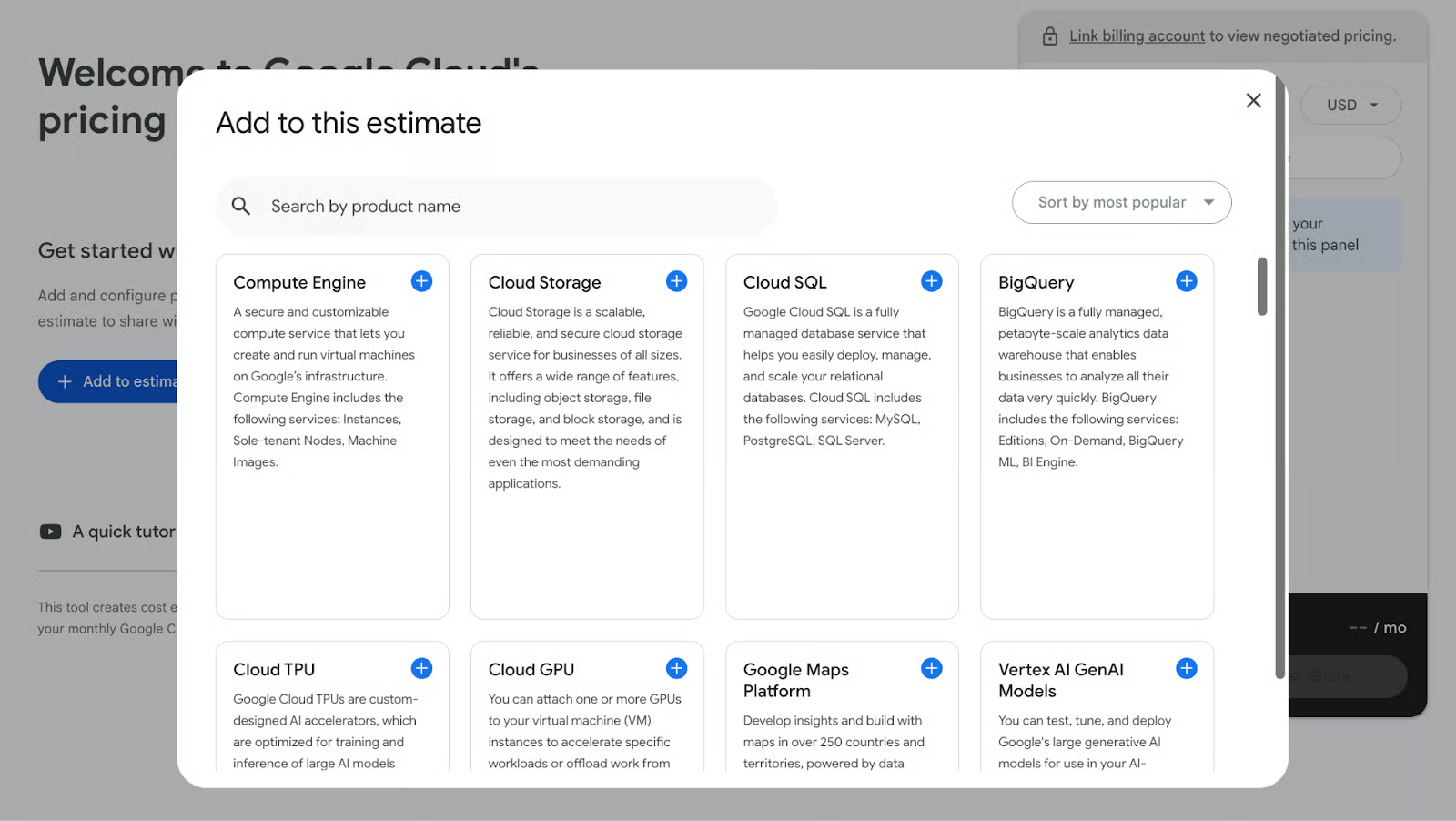
Click on the desired product. It opens a configuration panel on the left with dropdowns and fields for details like region, machine type, storage amount, or usage volume.
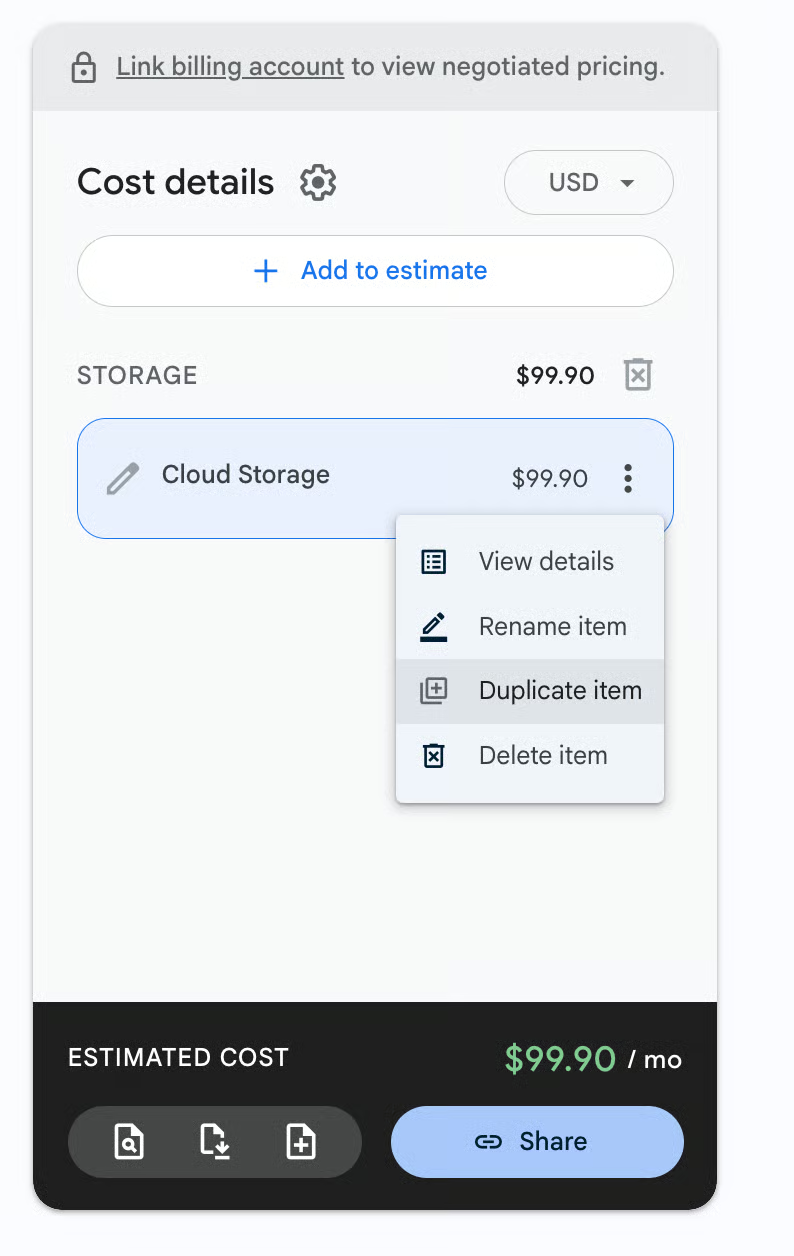
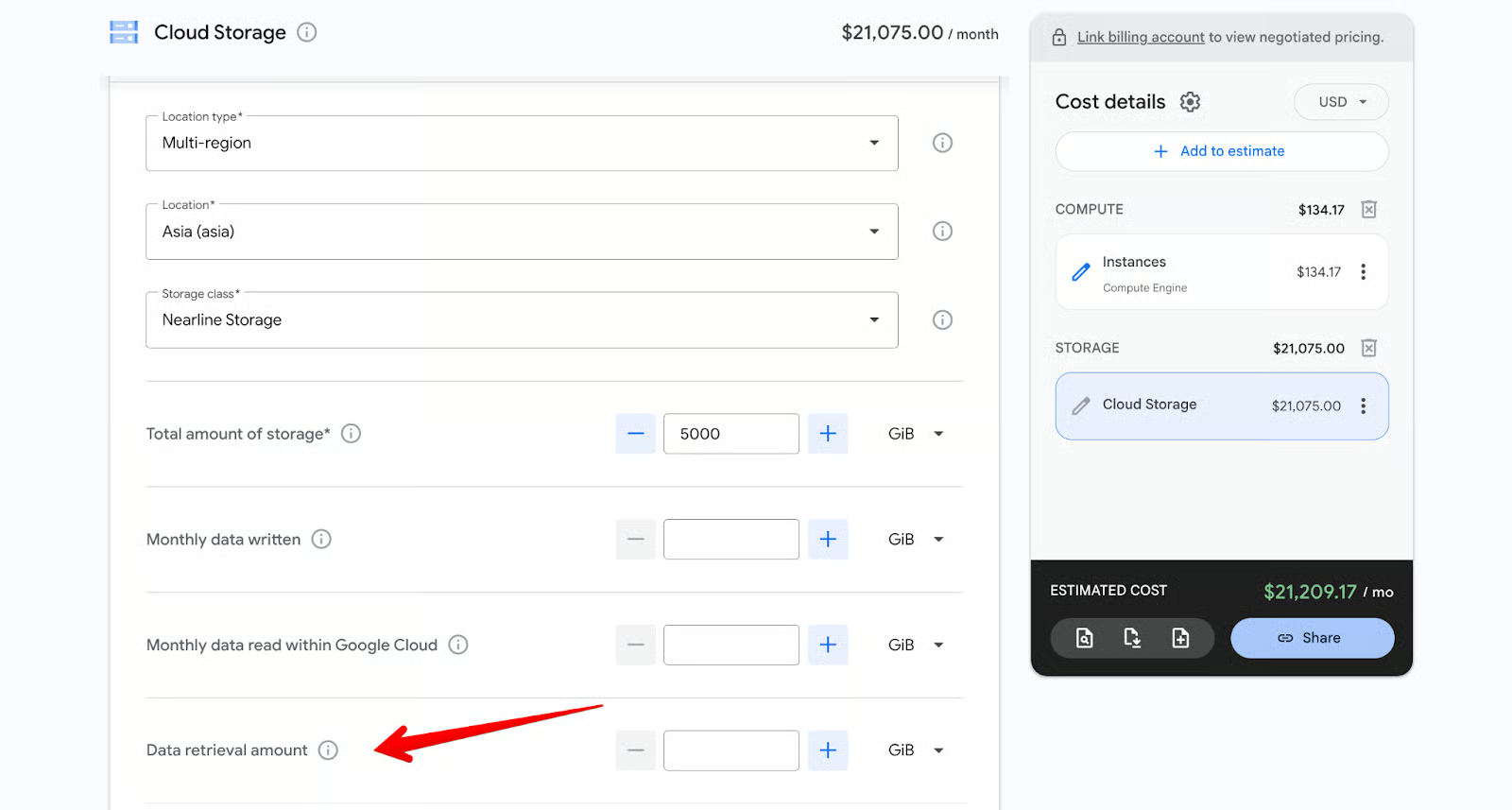
Fill in your specs (e.g., for Cloud Storage: select Iowa (us-central1) as region, Standard as storage class, and 5000 GiB as total storage). The item instantly appears in the right panel under its automatic category (e.g., STORAGE for Cloud Storage, with a sub-line like Cloud Storage $99.90).
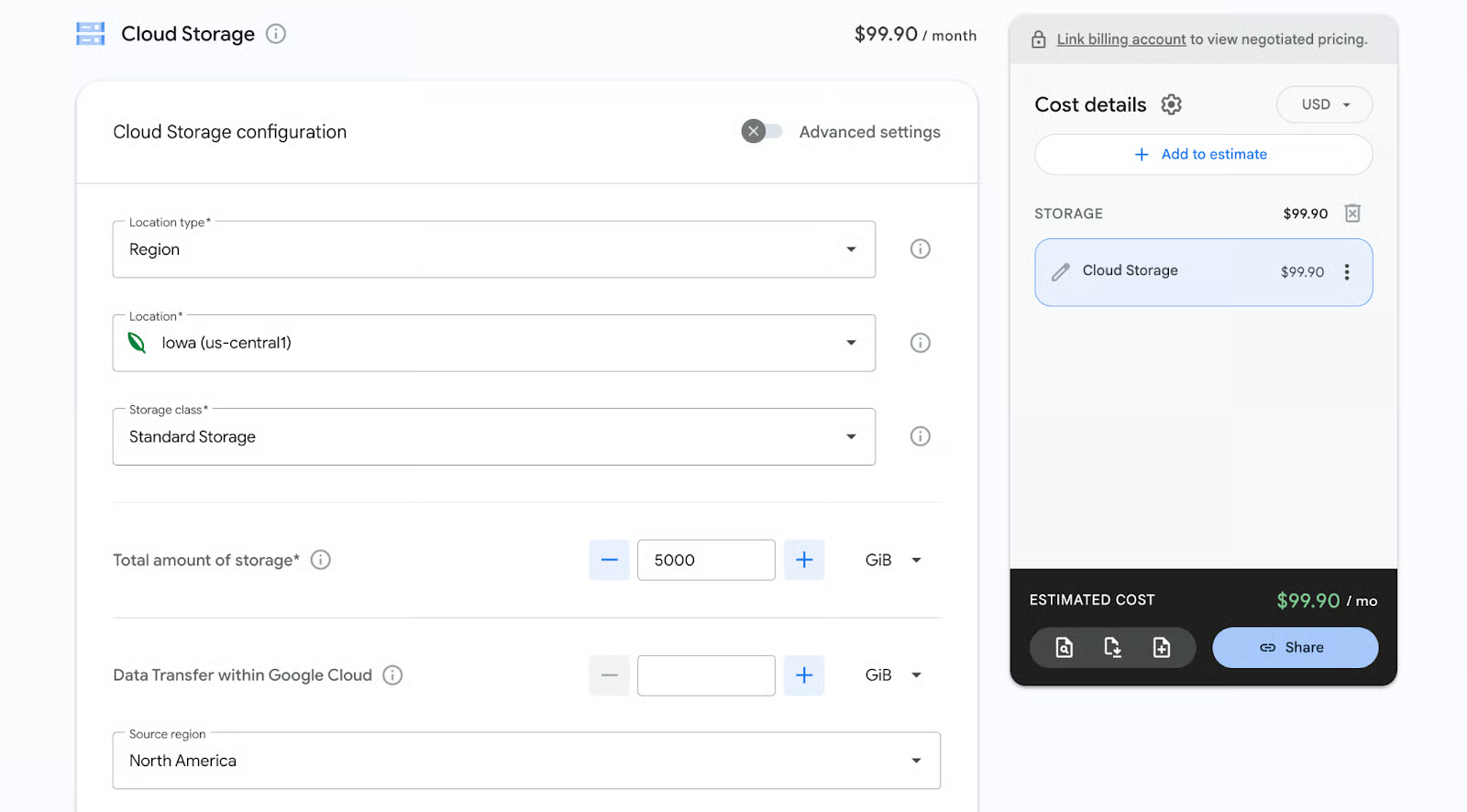
When adding multiple services, just repeat the same process. The bottom of the panel shows the running estimated cost, which updates live.
The calculator automatically groups by service type (e.g., all compute-related items under COMPUTE vs. storage under STORAGE), which naturally separates things like a Web Server Group (compute VMs) from a Database Cluster (managed DBs).
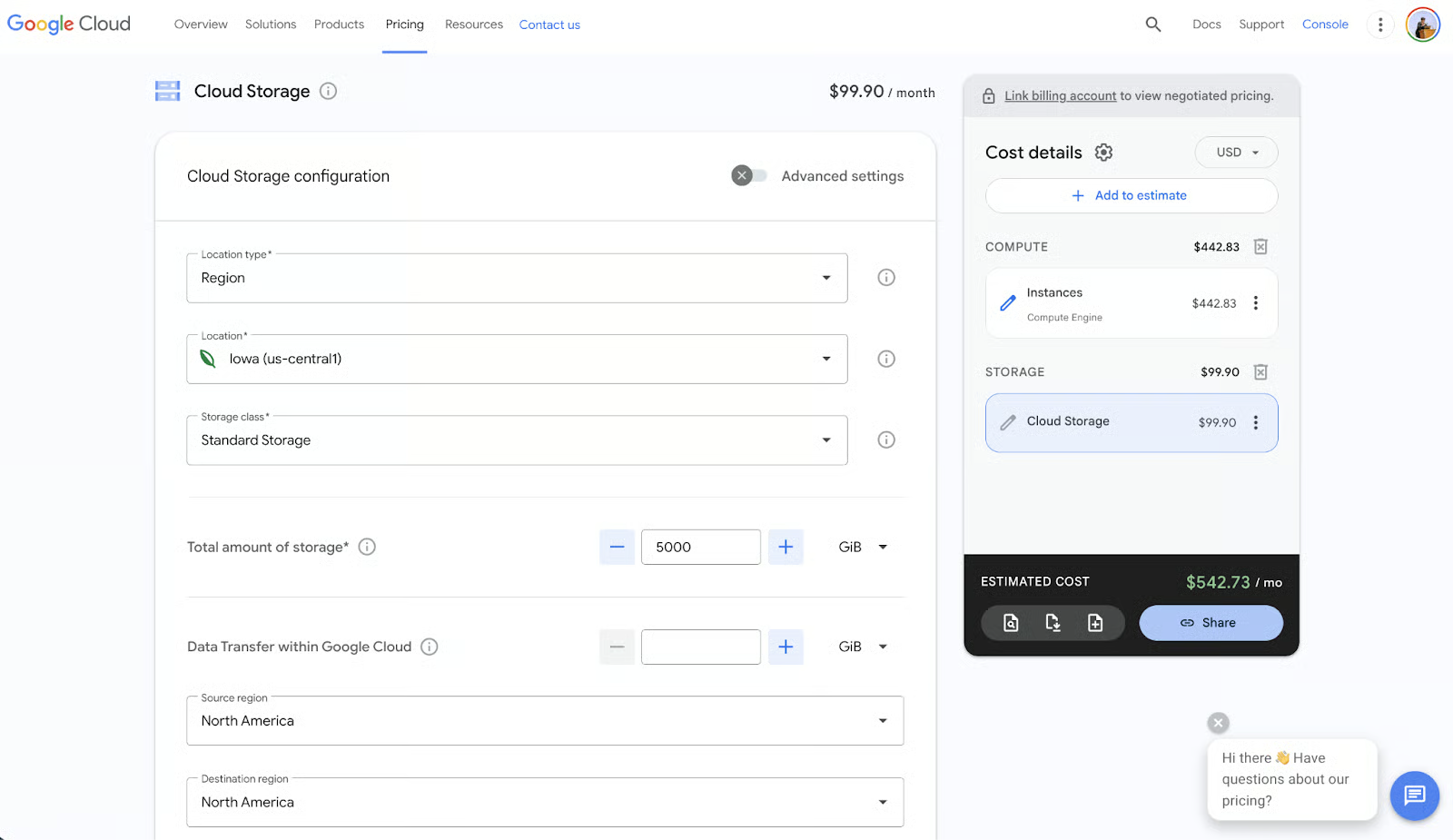
For added clarity, rename individual line items: in the estimate panel, click the pencil icon (edit) next to an item's name (e.g., change default instances to Frontend Web Server or Production Database Cluster).
This doesn't create new categories but makes the breakdown more readable, especially in complex stacks with multiple similar items. You can also drag items to reorder within their auto-group for logical flow.
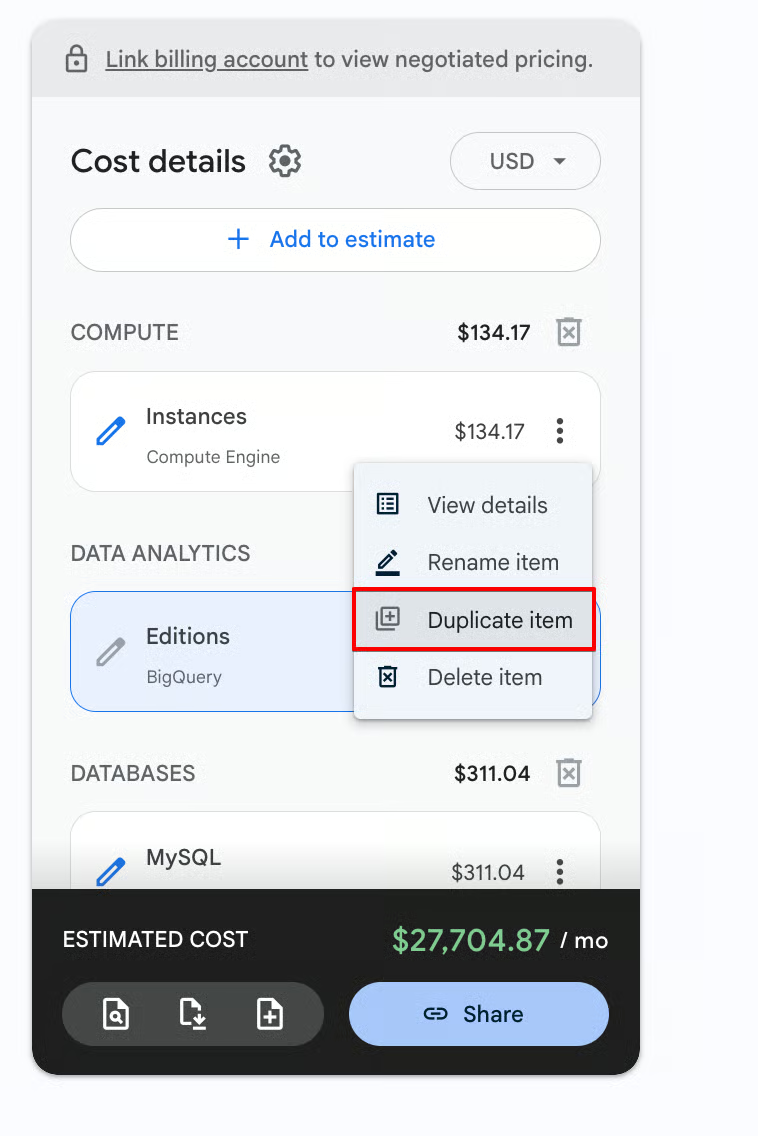
To duplicate a configuration without starting over, select an item in the estimate panel (click it or hover to reveal options), then click Duplicate Item. This creates an exact copy below, which you can modify independently (e.g., change the cloned VM's region from us-central1 to europe-west1 or toggle a discount).
Once you understand how to stack and organize your products, you are ready to dive into the specific configurations for the core services you'll be using every day.
This section provides guided walkthroughs for estimating GCP's most common building blocks: virtual machines via Compute Engine, data storage/networking, and managed databases.
Each builds on the Add to estimate workflow: search/add a service, configure specs, input usage, and watch costs update. We'll use practical examples (e.g., a small web app setup) to illustrate, but adapt to your workloads.
If you're new to data engineering pipelines involving these, check our Introduction to Data Engineering course for context.
Compute Engine allows you to create and run virtual machines with full control over the operating system, machine configuration, and attached storage. Because pricing varies significantly based on machine family, region, disks, and licensing, the calculator is especially useful here for comparing options before deployment.
To begin, open the GCP Pricing Calculator, search for Compute Engine, select instances, and the configuration panel will appear below.
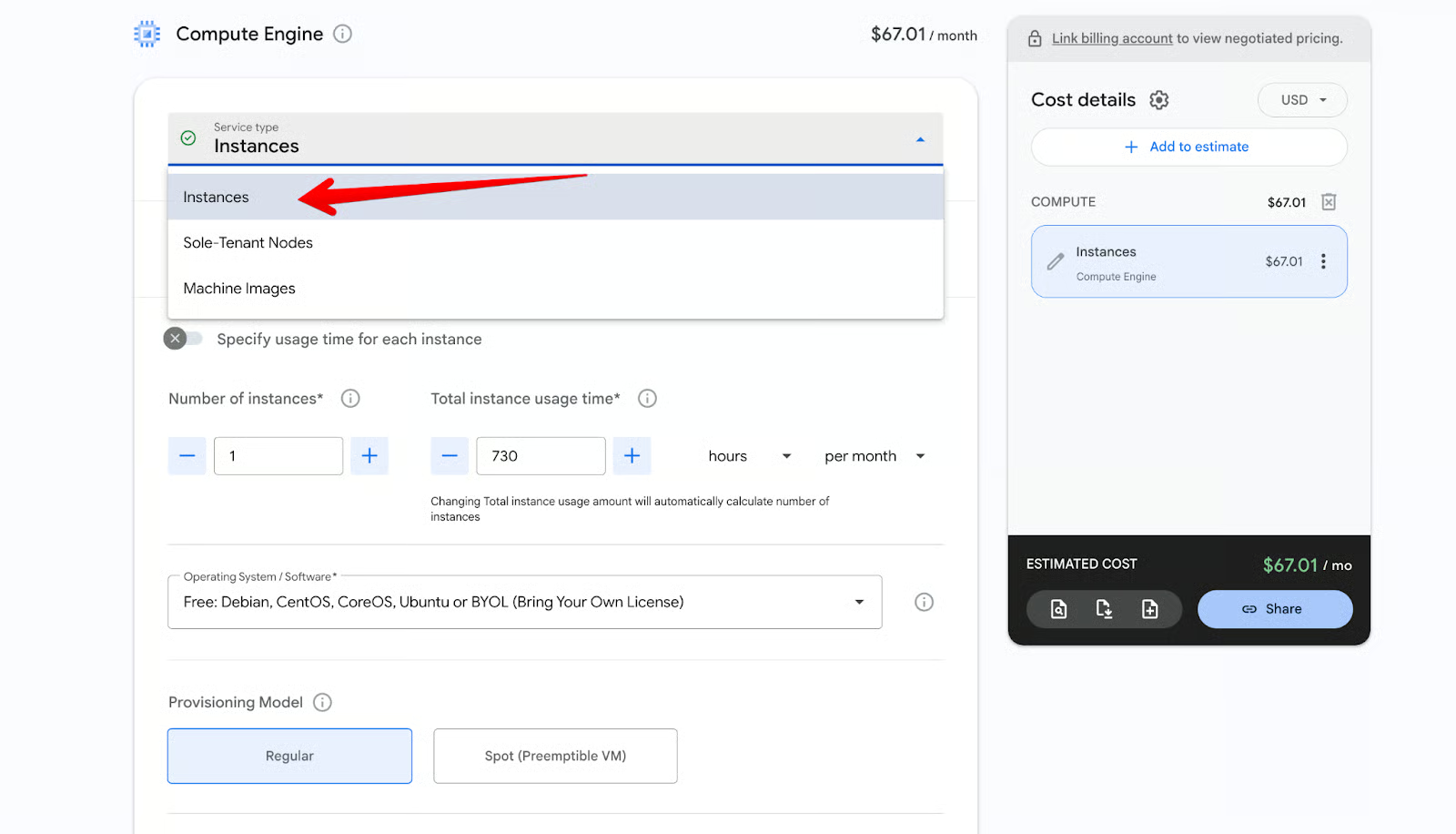
At the top of the panel, click the Service type dropdown and make sure Instances is selected. This is the correct choice for standard virtual machines.
Choose your Provisioning Model (Regular for On-Demand or Spot for lower cost). Then select the Machine Family:
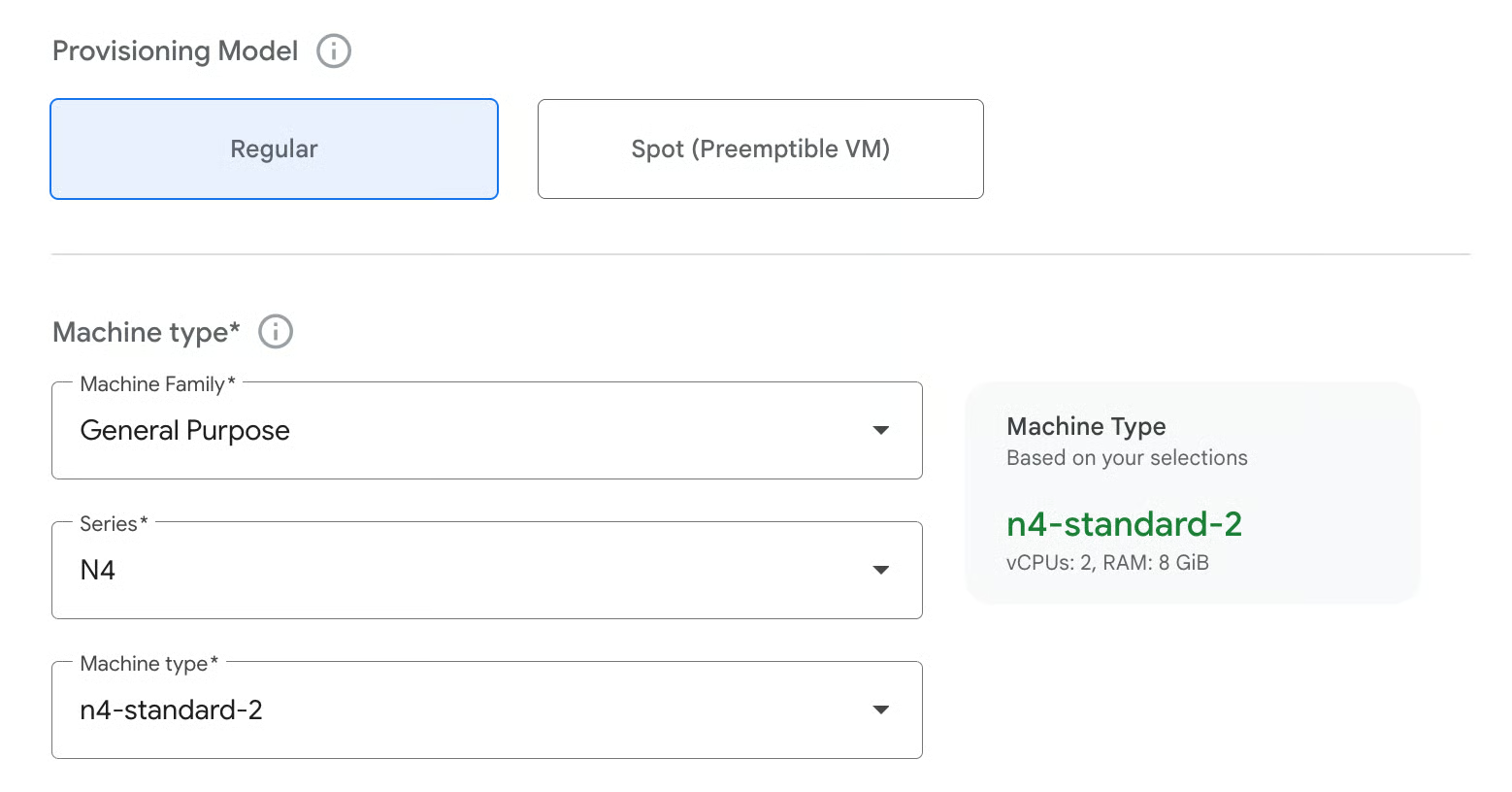
After choosing the family:
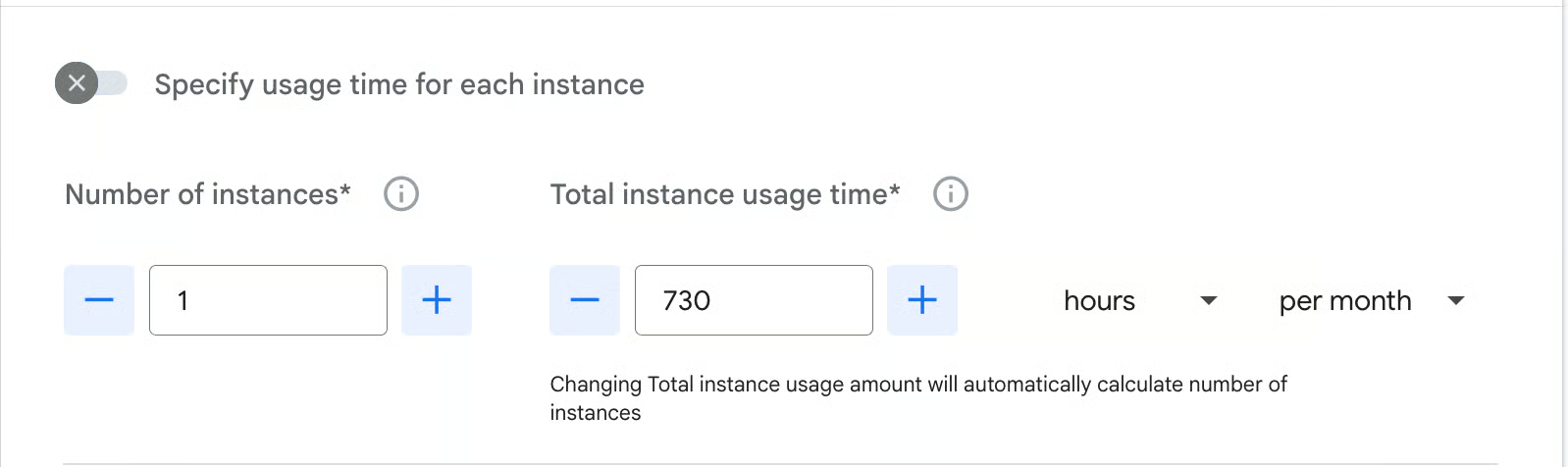
Scroll down to the disk section.
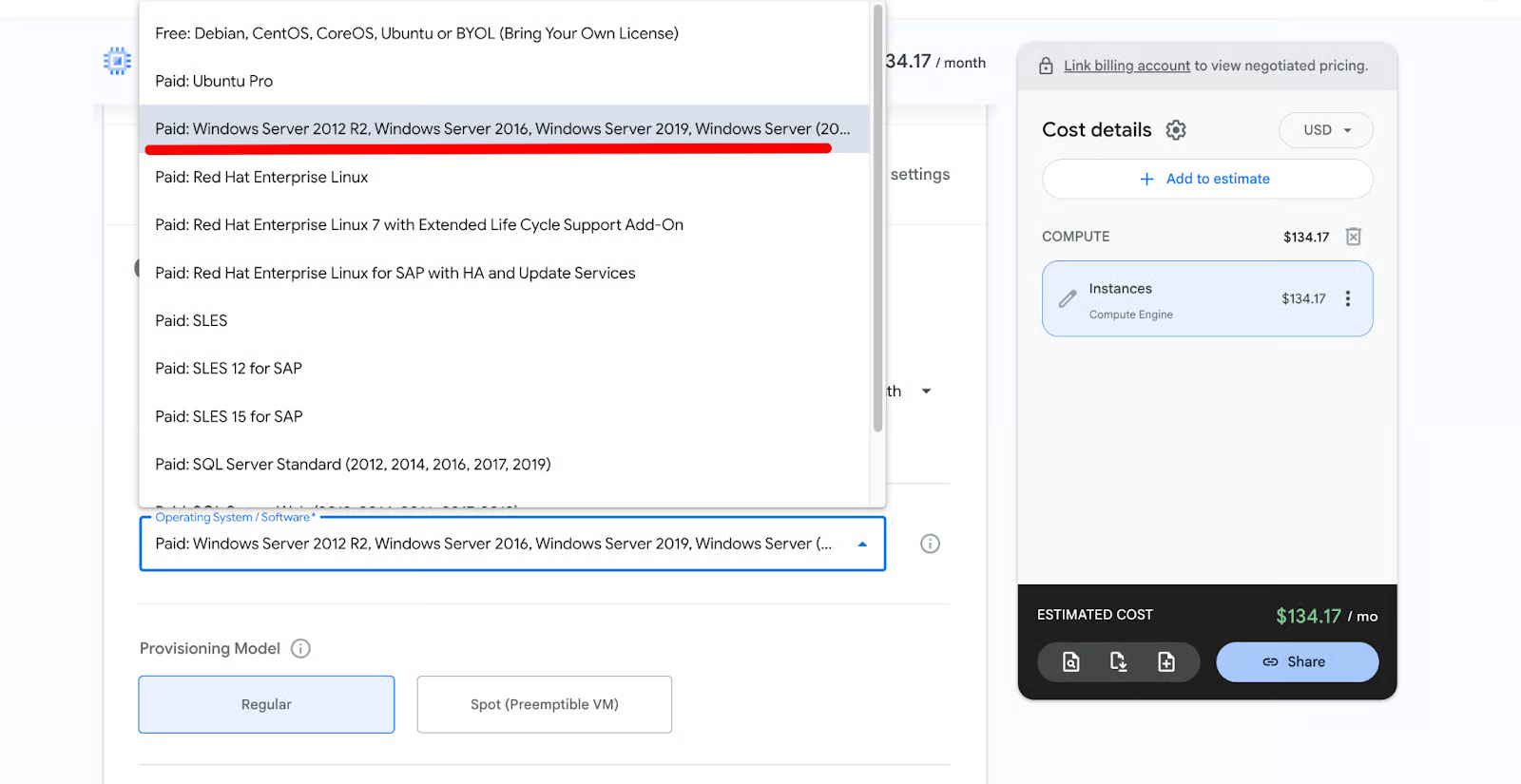
In the Operating System / Software dropdown:
Once everything is configured, the instance will appear in the right panel under COMPUTE. Click the three dots next to the Instances total and then select View Details to see a more detailed view of the instance.
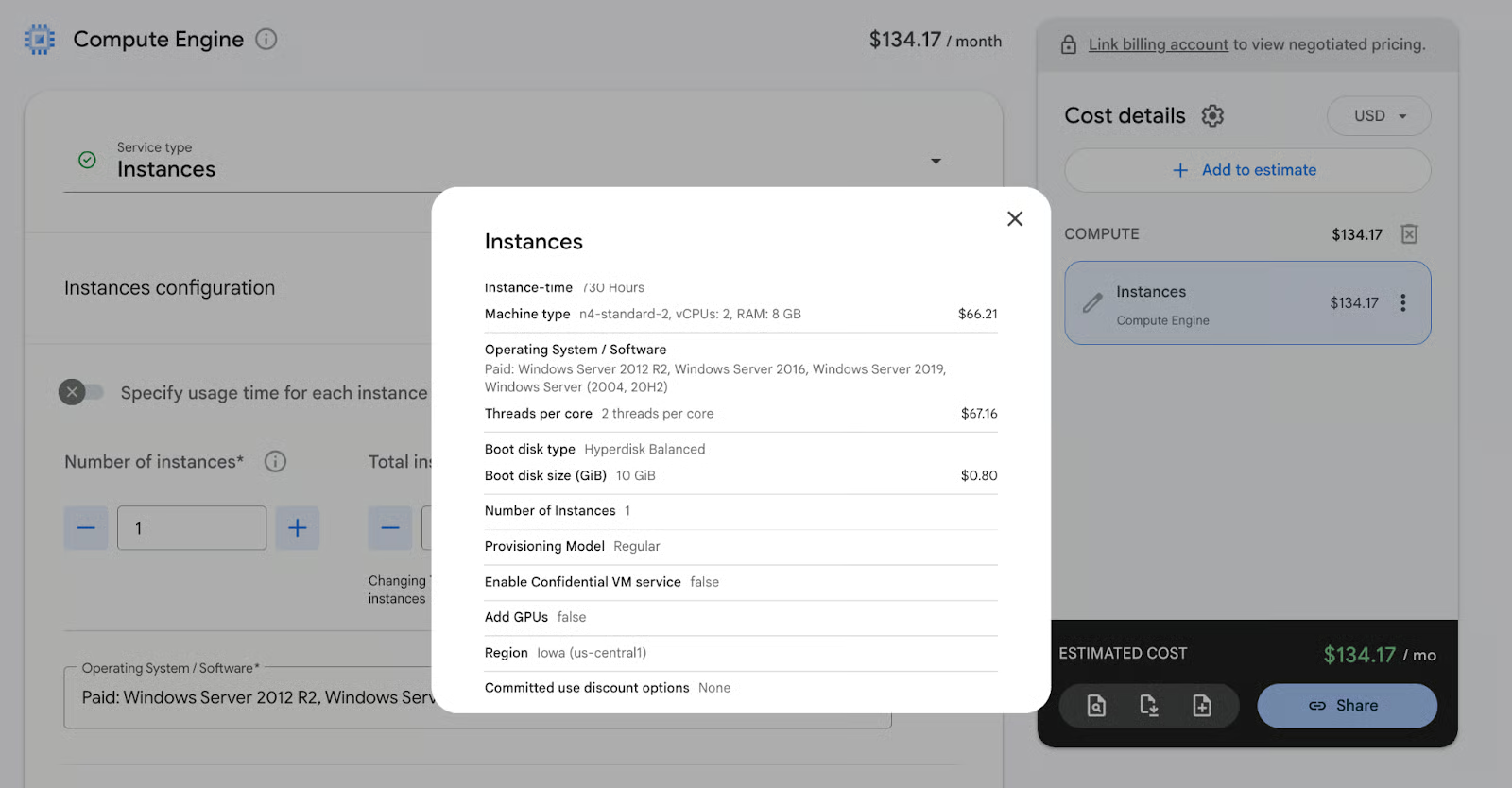
This approach gives you a very accurate picture of your VM costs. You can now easily clone this configuration to test different options.
Cloud Storage and networking costs often surprise teams because they depend on how much data you store, how often you read/write it, and how much traffic leaves Google’s network. The calculator makes these hidden costs visible before you deploy. Click on the Add to estimate button and search for Cloud Storage in the service catalog.
In the configuration panel, first select the Service type as Cloud Storage (it’s usually pre-selected).
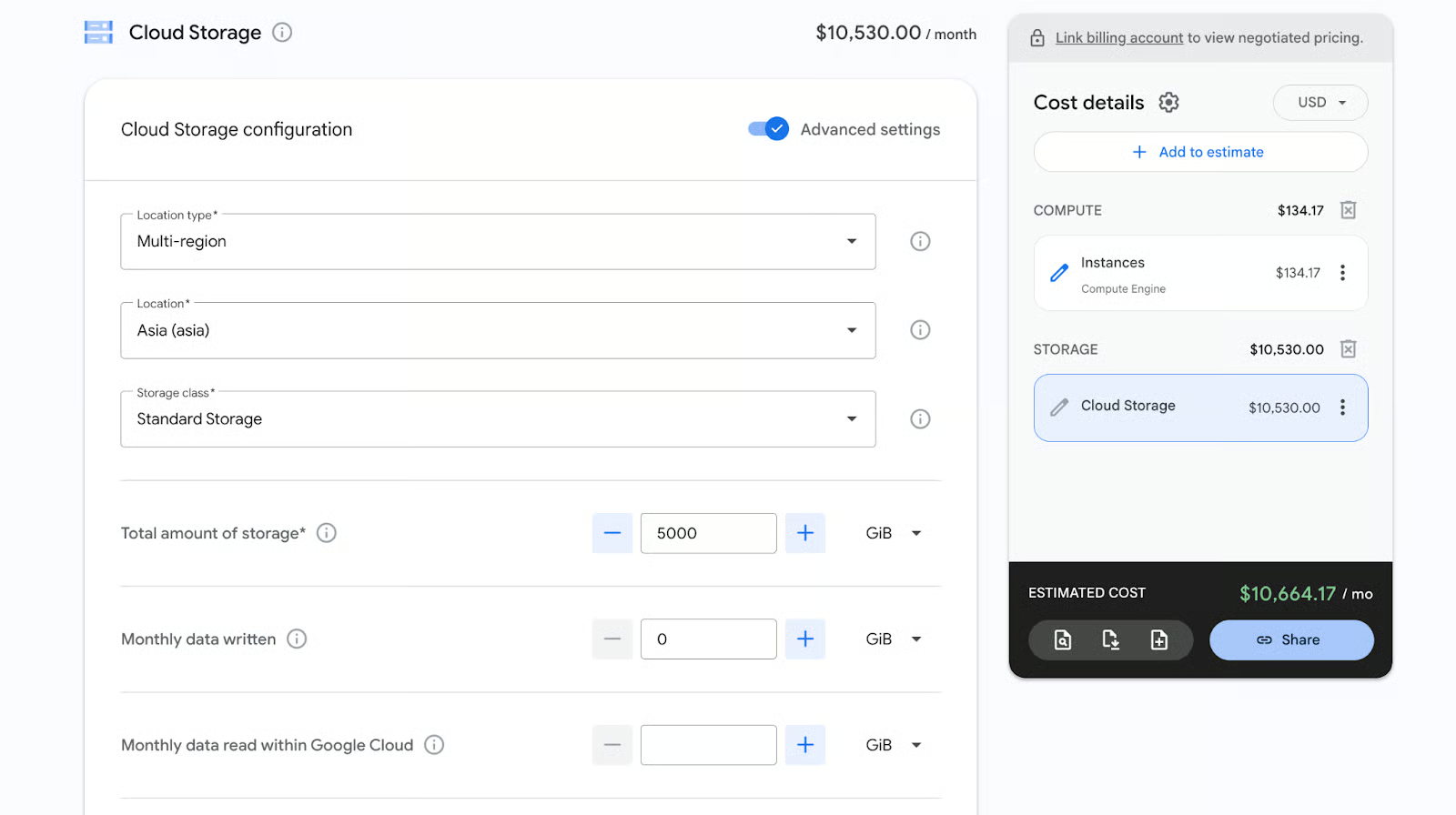
If you are using Nearline, Coldline, or Archive, you also have to enter the expected Data retrieval amount. The reason is that these classes charge extra for data access.
Now search for Networking in the catalog and click to open its configuration.
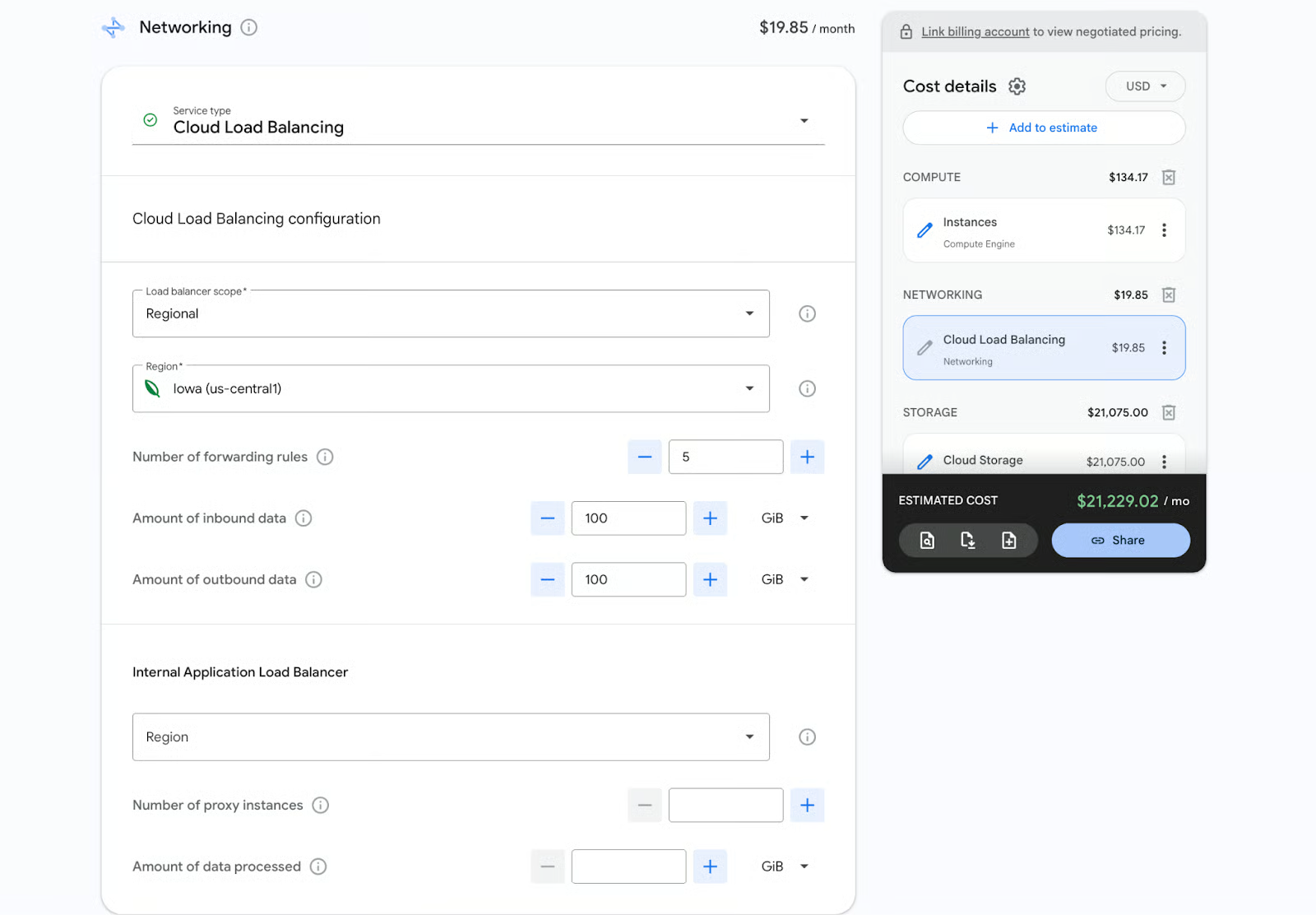
These fields together determine the processed data volume cost for the load balancer.
Managed databases are a major cost driver in GCP because they combine compute, storage, backups, and high-availability features in one billable service. The calculator lets you model both Cloud SQL (for traditional relational databases) and Spanner (for globally distributed, highly scalable workloads) with precise inputs.
Search for Cloud SQL in the service catalog to open the configuration panel.
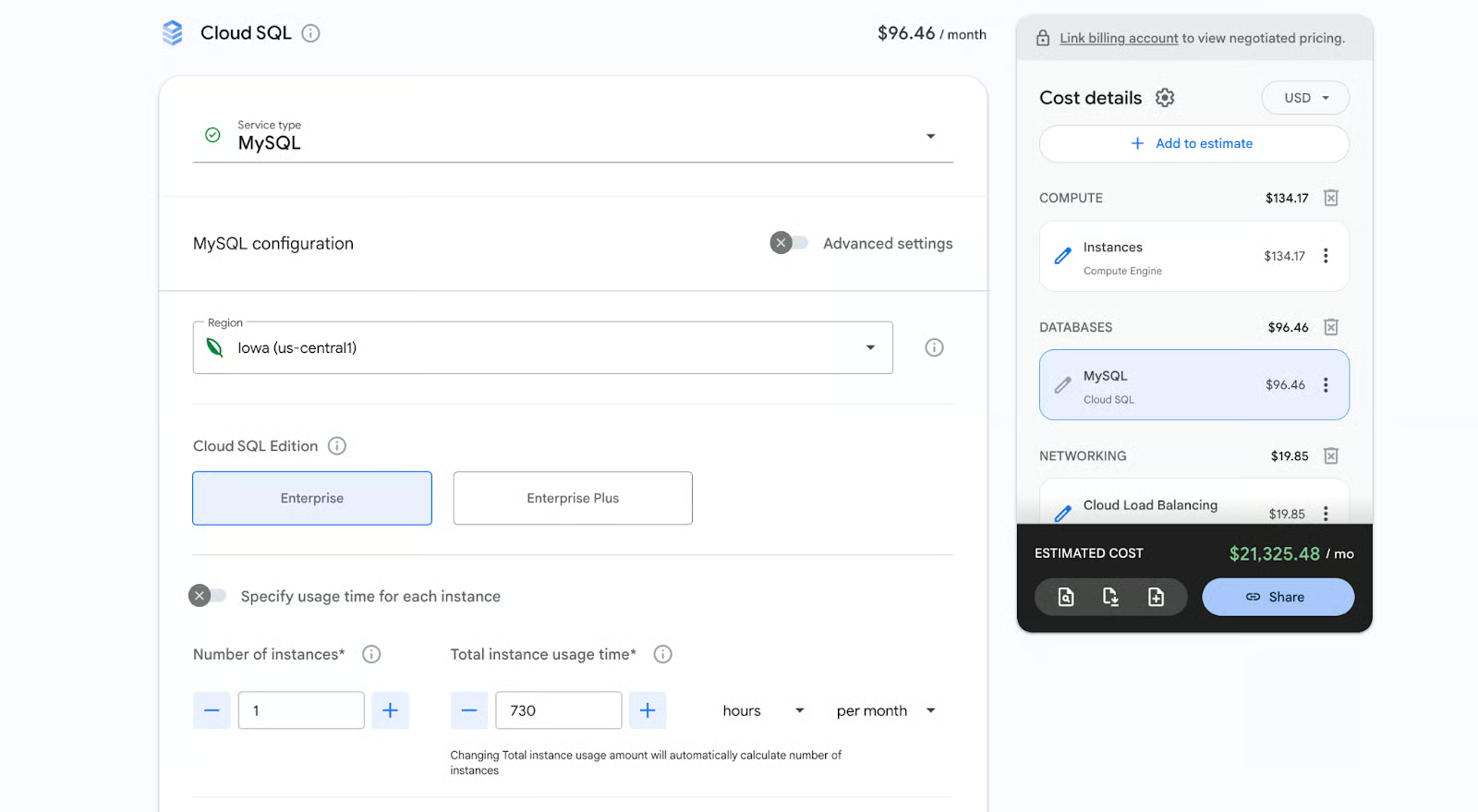
At the top of the panel, click the Service type dropdown and choose your database engine:
Immediately below, select the Cloud SQL Edition:
Choose your Region (e.g., Iowa (us-central1)) next. The preview cost starts updating as soon as you make these selections.
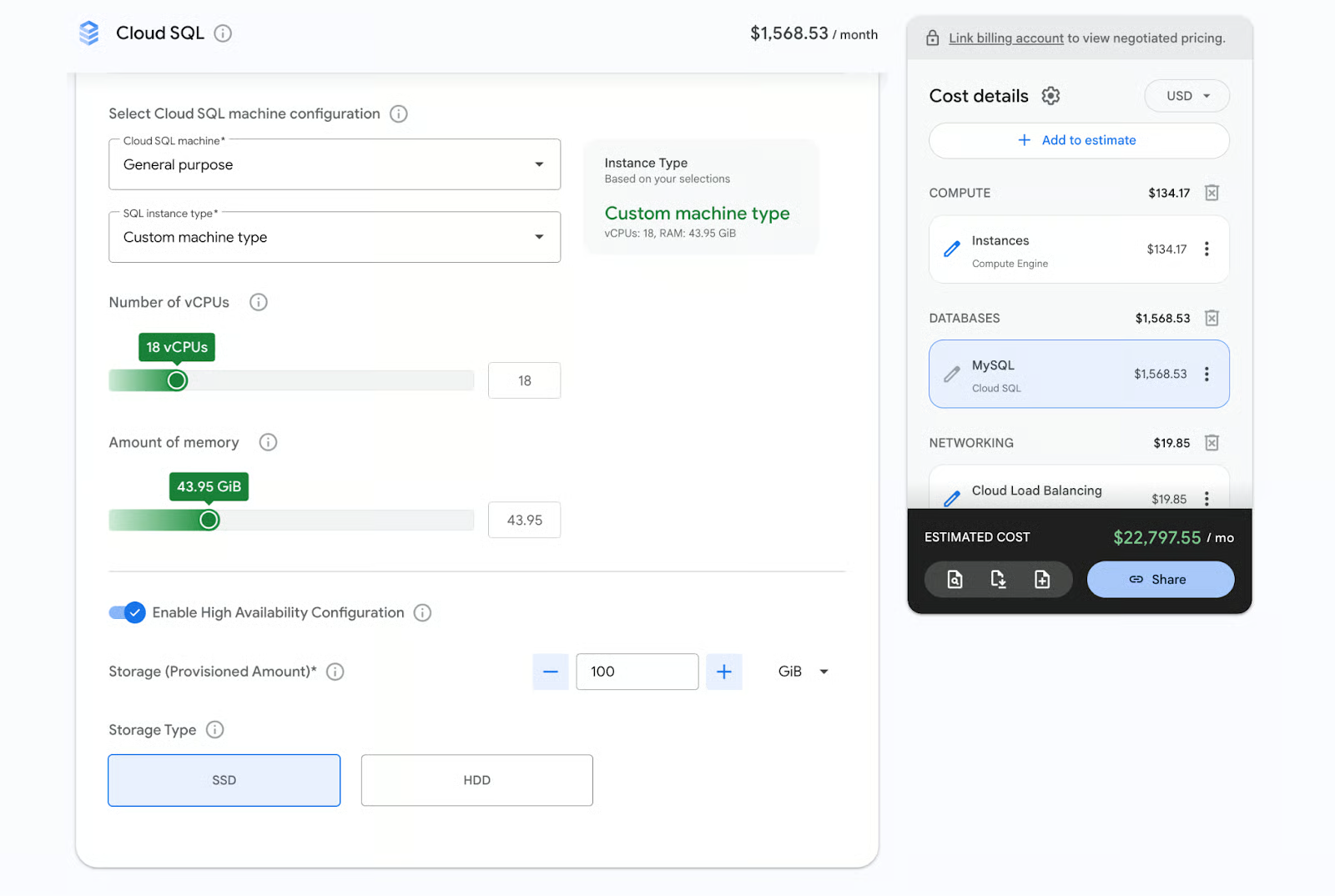
Enabling HA automatically provisions a standby replica in another zone, which roughly doubles both compute and storage requirements. The calculator instantly reflects this increase in the live preview.
Cloud Spanner is Google’s fully managed relational database built for global scale. It combines the familiar structure of standard SQL with the massive scalability typically reserved for NoSQL. It gives you both rock-solid ACID transactions and automatic, synchronous replication anywhere in the world.
For Spanner, search for it separately. High availability is built in, and you model costs using processing units or nodes instead of vCPUs.
To highlight backup storage costs and the impact of retained transaction logs, open Advanced settings (toggle at the top of the panel). Here you configure:
The longer you retain backups or transaction logs, the higher these extra costs become.
The database appears under the DATABASES category in the right panel. With managed databases now modeled, you have a realistic picture of a production workload.
You now have a solid base estimate. The real power of the GCP Pricing Calculator comes when you start using its advanced features, such as layering in discounts, running side-by-side comparisons, and sharing results with your team.
Discounts can reduce your GCP bill by 30–70% or more, and the calculator makes it easy to see the impact instantly.
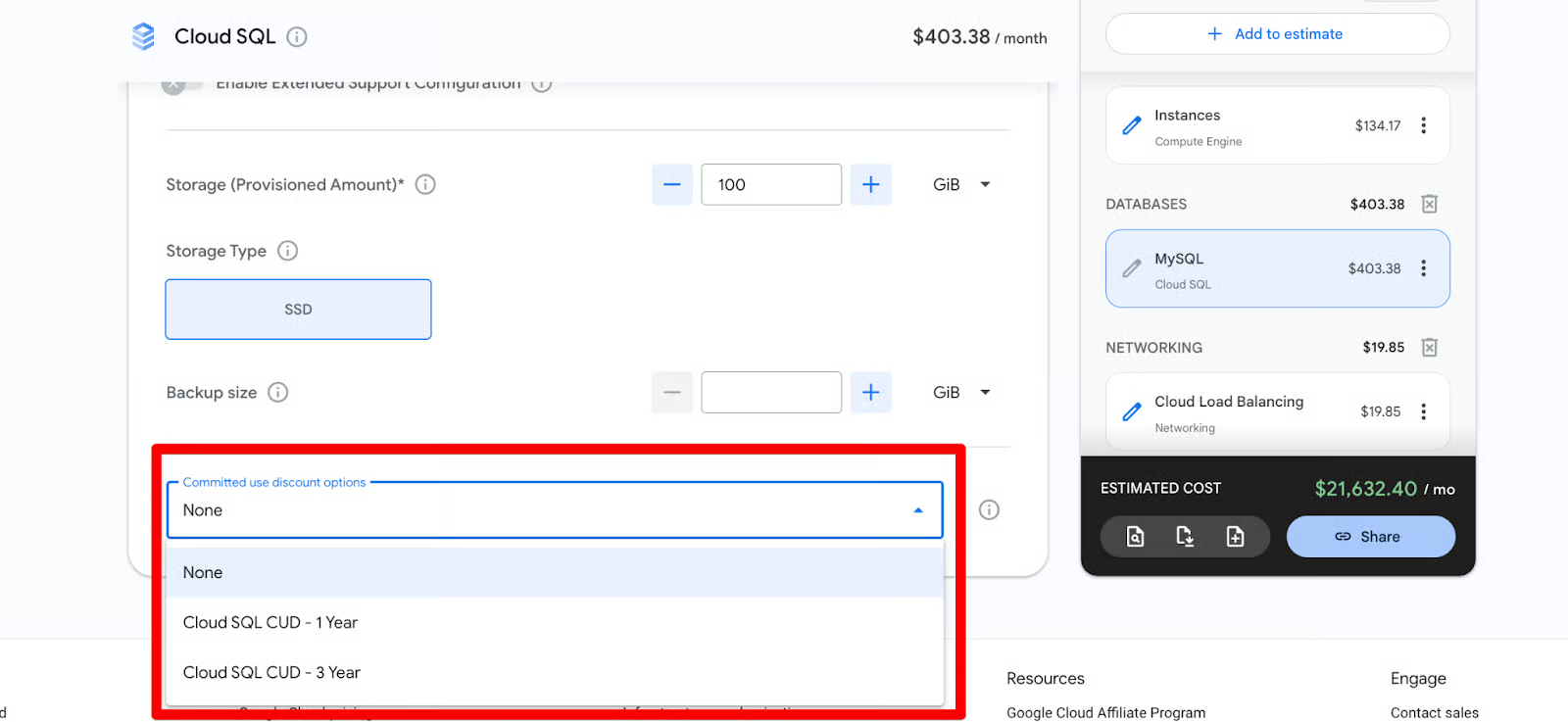
After adding a Compute Engine instance (or other eligible resource), scroll to the Committed use discount options dropdown (or the dedicated discount section).
The entire estimate updates live, showing your monthly savings and the break-even point. This is the fastest way to decide whether a commitment makes financial sense for your workload.
BigQuery no longer offers the old flat-rate slot commitments for new customers (discontinued in 2023). Instead, it uses BigQuery Editions (Standard, Enterprise, and Enterprise Plus), which are slot-based capacity models.
Search for BigQuery in the catalog and open its configuration:
While the Google Cloud Pricing Calculator is an excellent tool for forecasting production workloads, it has some frustrating blind spots when it comes to Google’s Always Free Tier.
If you are building a small proof-of-concept, running a low-traffic application, or just exploring the platform, relying strictly on the calculator can lead to an artificially inflated estimate.
The GCP Pricing Calculator shines brightest when you use the Clone feature to compare architecture options side-by-side. This turns abstract discussions into concrete cost numbers.
How to clone: After building a base estimate, select any resource (or the whole estimate) in the right panel and click the Duplicate item option. This creates an identical copy you can modify independently. You can now view both versions side-by-side and see the exact monthly cost difference.
Here are three practical, real-world examples with complete step-by-step instructions:
Use case: You are building an e-commerce web application that must survive a full regional outage (RPO < 1 hour, RTO < 15 minutes).
Step-by-step in the calculator:
First, build your single-region baseline:
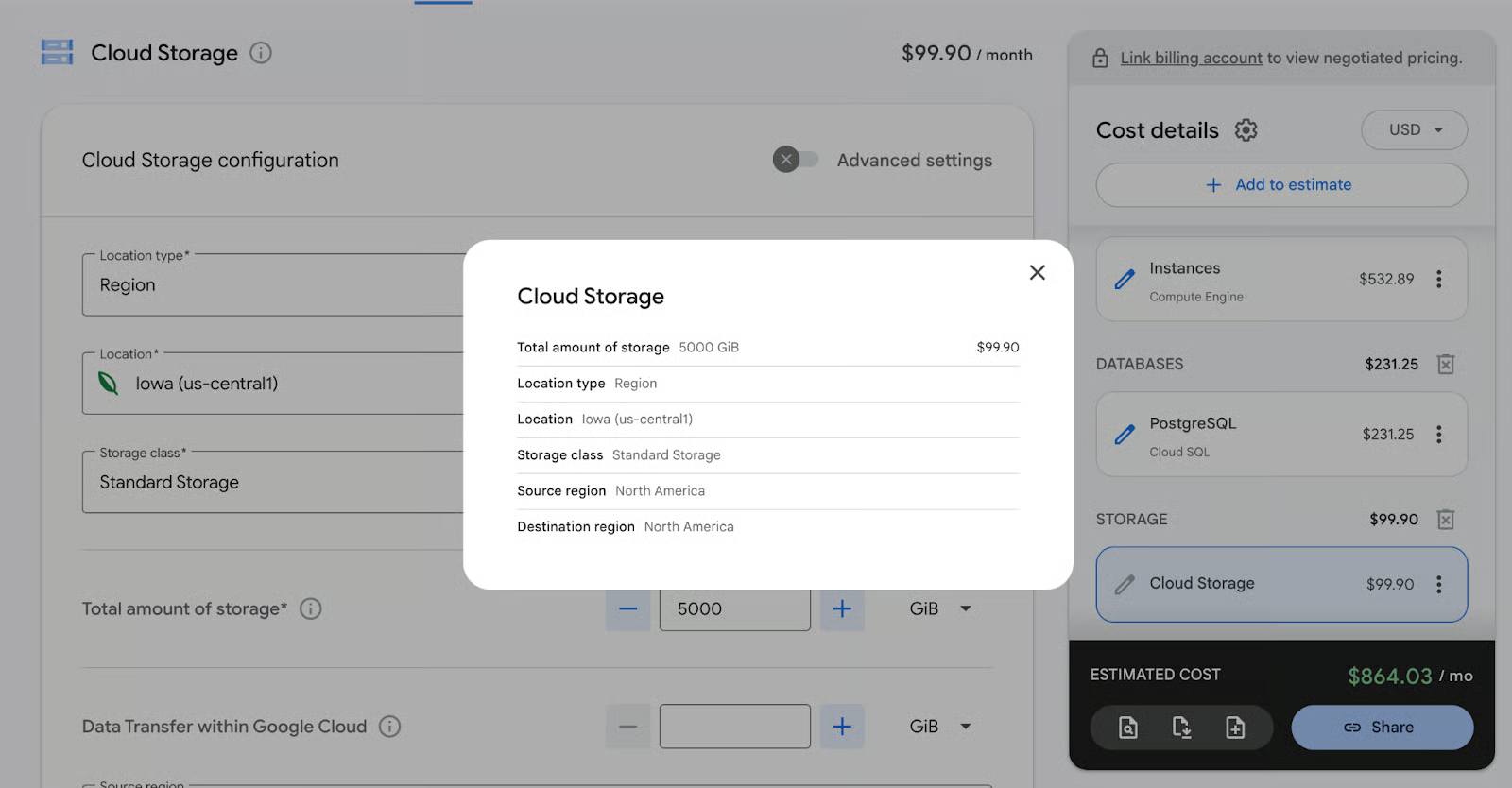
For every service, now click the Duplicate item button to generate a second version.
In the cloned version, transform it into a multi-region DR setup:
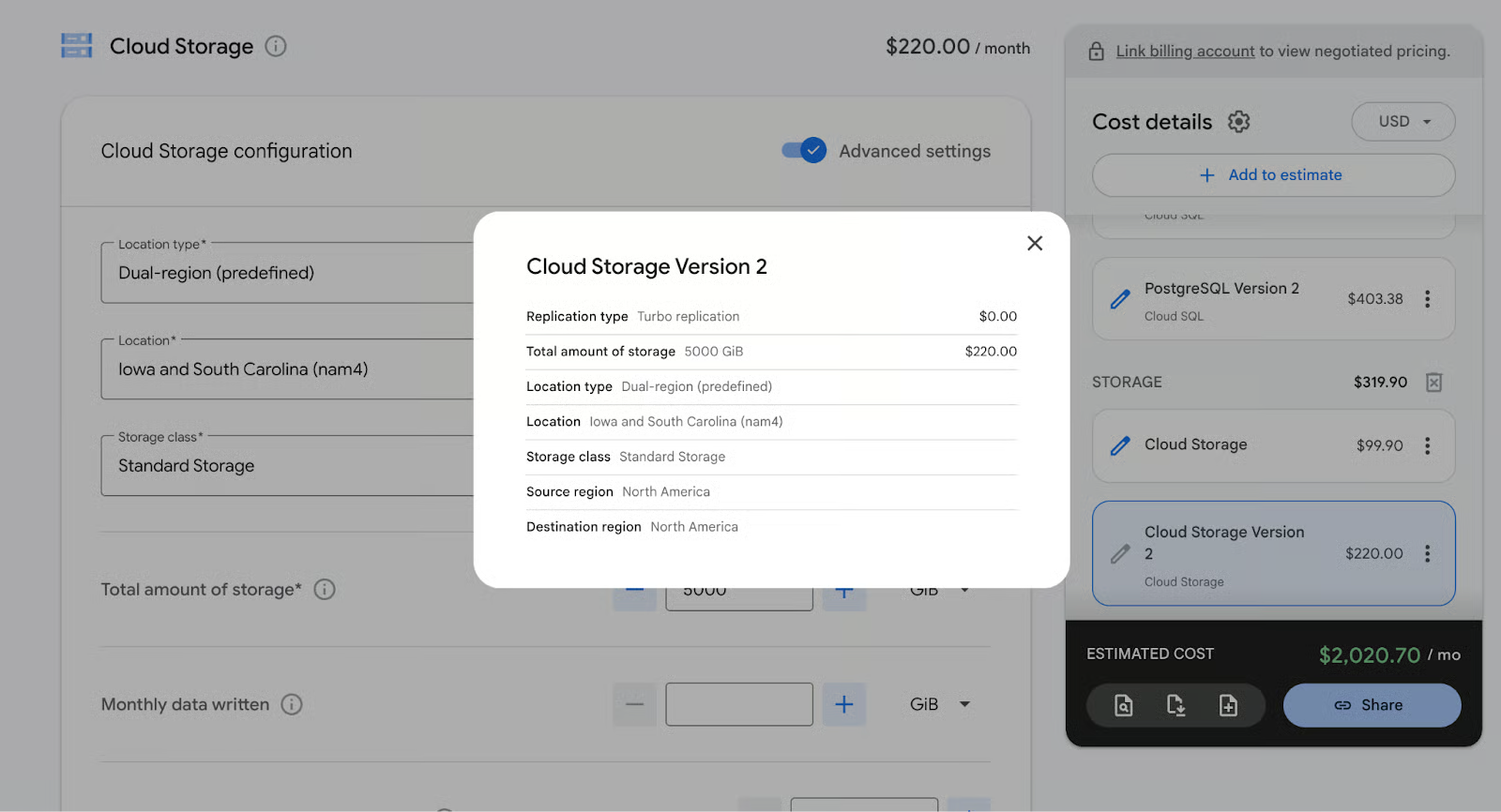
Expected outcome: The multi-region DR version usually costs more per month. The biggest drivers are duplicated compute and dual-region storage replication fees. This comparison clearly shows the real price of high availability.
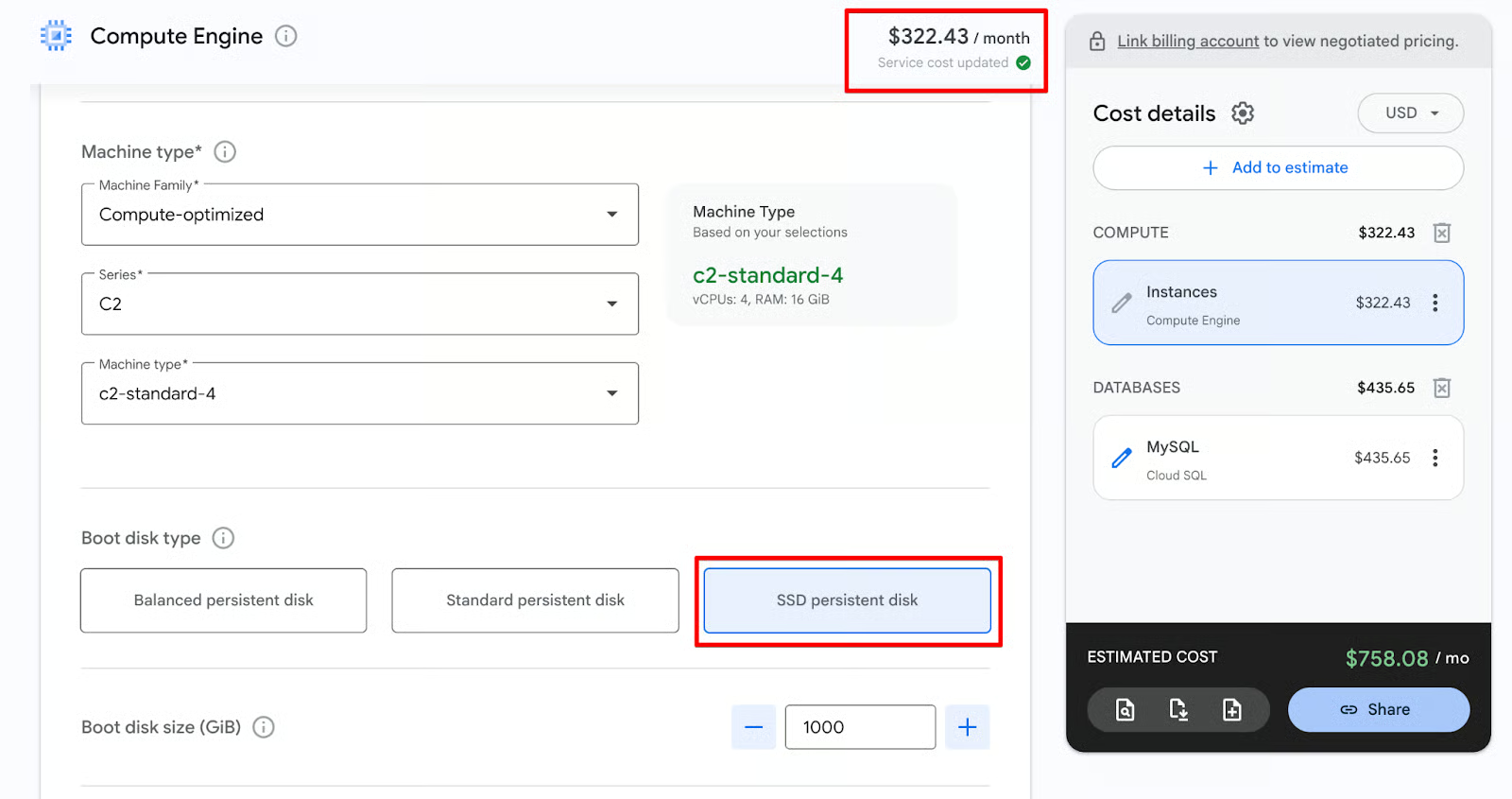
Use case: You are provisioning a high-traffic database VM and need to decide if the raw IOPS of an SSD are worth the premium over Google’s default Balanced persistent disk.
How to model the comparison: In the Pricing Calculator interface, your available storage options are tethered to your chosen VM. You have to configure the machine family first to unlock the right disk options.

You’ve now built detailed estimates, simulated discounts, and run powerful what-if comparisons. Before you share your final numbers with stakeholders, let’s take a look at the calculator’s limitations and a few proven best practices.
No matter how perfectly you configure your estimate, the Pricing Calculator is not a crystal ball. To avoid billing surprises, keep these realities in mind:
Ultimately, the GCP Pricing Calculator is more than just a budgeting utility; it is the bridge between your technical architecture and its financial feasibility. A well-designed cloud environment isn't just highly available and performant, but it also has to make financial sense.
The real value comes from iteration. Start simple, clone and tweak configurations, apply discounts, run what-if scenarios, and refine until you identify the most cost-efficient architecture. Treat the calculator as a living document rather than a one-time exercise.
To get the most out of this process, stop treating cost estimation as an afterthought. Make the Pricing Calculator a mandatory step in your engineering lifecycle by requiring an exported estimate link as part of your official project approval workflows. It forces teams to prioritize unit economics from day one, entirely eliminating sticker shock when the first invoice arrives.
Start experimenting today. Master this tool, and you’ll turn unpredictable cloud bills into strategic, forecastable investments. If you truly want to master the GCP toolset, I recommend enrolling in our Google Cloud Digital Leader skill track.
Google Cloud Courses
course
track
course
blog
Jana Barth
13 min
blog
Marie Fayard
8 min
blog
Kurtis Pykes
13 min
blog
Tim Lu
8 min
tutorial
Marie Fayard
9 min
tutorial
Josep Ferrer
15 min


