




Curso
Git intermedio
2 h
44K
Practica y programa tu progreso.
Continuar Con Googlegit stash es un comando de Git que aparca temporalmente tus cambios no confirmados para que vuelvas a un directorio de trabajo limpio sin crear un commit de Git. Así te resulta fácil cambiar de rama o atender trabajo urgente sin perder avances.
Los stashes se guardan en una pila LIFO (último en entrar, primero en salir). El más reciente siempre es stash@{0}, seguido de stash@{1}, y así sucesivamente.
Por defecto, git stash guarda archivos rastreados modificados y cambios preparados (del índice). Sin embargo, no incluye archivos nuevos no rastreados ni ignorados como los de .gitignore.
En esta sección, te explico tres maneras habituales de hacer stash. Usaremos un mismo escenario: estás trabajando en un proyecto de canalización de datos con los archivos data_pipeline.py, config.yaml y tests/test_pipeline.py.
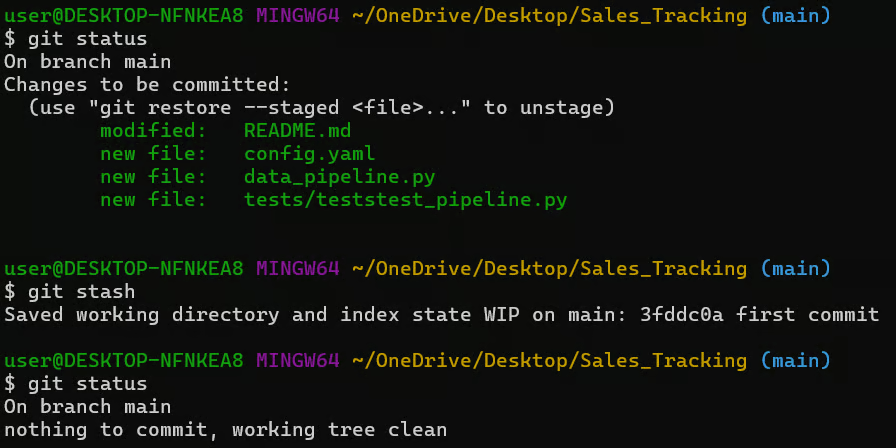
Como git stash guarda cambios modificados o preparados, ejecuta git status para comprobar el estado de los archivos en tu directorio de trabajo. Tras ejecutar git stash, se guardan los cambios rastreados tanto preparados como sin preparar, dejándote un directorio de trabajo limpio.
Por defecto, git stash ignora archivos que nunca se han añadido al repositorio. Si has creado un archivo de prueba nuevo, un stash estándar lo dejará en tu directorio, lo que puede dar problemas al cambiar de rama.

Si ejecutas git stash, ese archivo seguirá ahí. Para incluirlo, usa el comando -u o --include-untracked:
git stash -u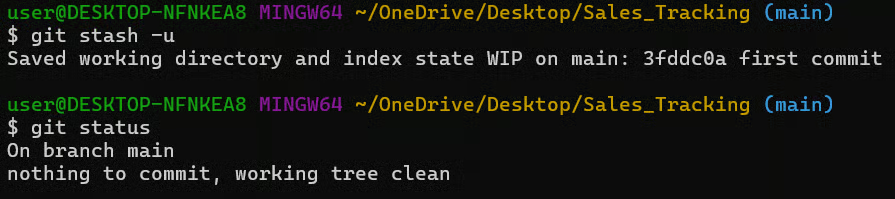
Para incluir absolutamente todo, incluidos los archivos ignorados explícitamente en tu .gitignore, puedes usar git stash --all o -a. Eso sí, ten cuidado: puedes arrastrar sin querer archivos como logs o artefactos de build.
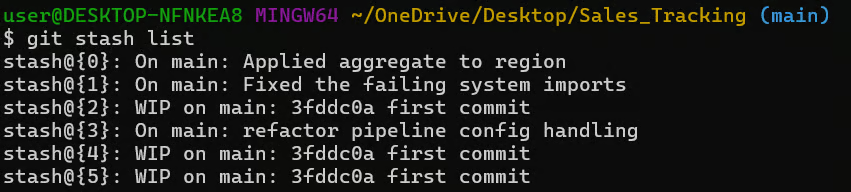
Cuando usas git stash, mensajes por defecto como WIP on main se vuelven confusos si tienes varios stashes. Para evitarlo, añade siempre un mensaje descriptivo cuando quieras push de los stashes.
git stash push -m "refactor pipeline config handling."Puedes usar el comando git stash list para ver y comparar la lista de stashes. Fíjate en la diferencia entre el stash con nombre y los stashes por defecto.
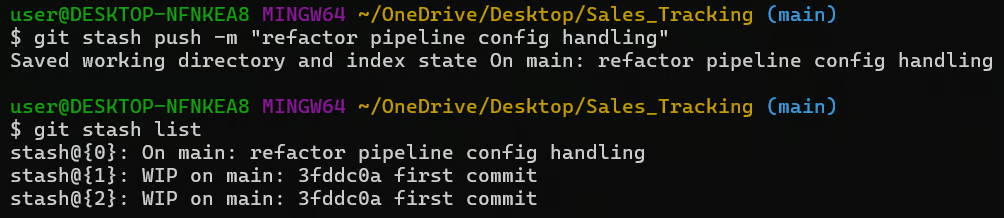
Usar mensajes claros facilita mucho identificar el stash correcto después, sobre todo cuando alternas varias tareas o colaboras en equipo.
Te recomiendo probar nuestros itinerarios de habilidades GitHub Foundations y Git Fundamentals para aprender control de versiones con Git desde lo básico hasta flujos avanzados: seguimiento de cambios, gestión de repos y colaboración eficiente.
Antes de aplicar un stash a ciegas, conviene verificar qué contiene. Este paso suele saltarse, pero ayuda a evitar confusiones o sobrescrituras accidentales.
Usa el siguiente comando para ver tu pila de stashes:
git stash list
Ya sabes que los stashes siguen un orden LIFO (last-in, first-out). El más reciente es siempre stash@{0}, y cada nuevo stash empuja los anteriores hacia abajo en la pila.
Para un resumen rápido de los cambios de un stash, puedes usar el comando show sobre un stash concreto. Por ejemplo, el siguiente comando muestra los cambios del último stash:
git stash show stash@{0}
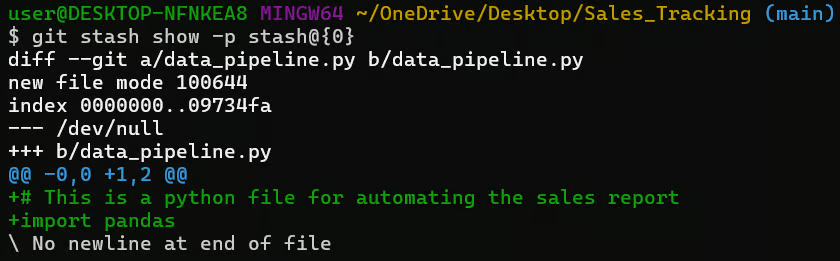
Para ver los cambios reales de código (el diff completo), usa el siguiente comando para mostrar todas las modificaciones línea a línea guardadas en ese stash.
git stash show -p stash@{0}
Como buena práctica, inspecciona siempre un stash antes de aplicarlo, especialmente si tiene días o no recuerdas qué contiene.
Una vez que has guardado tu trabajo con git stash, necesitarás recuperarlo. Hay dos métodos principales para restaurar stashes, incluido cómo apuntar a uno concreto por su índice.
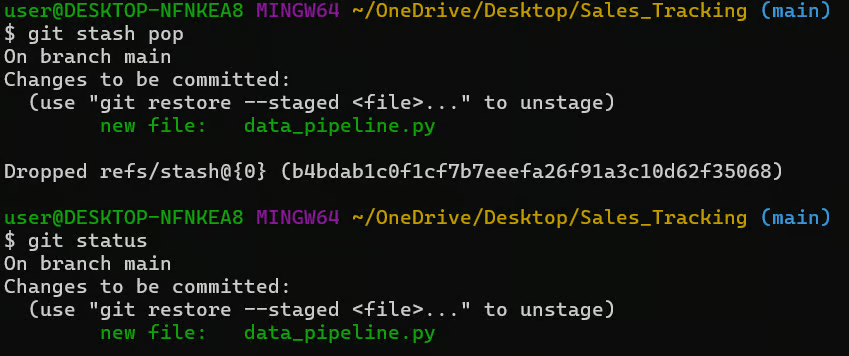
Es la forma más común de restaurar un stash. Toma el de arriba (stash@{0}), aplica los cambios a tu rama actual y después elimina ese stash de la pila.
git stash pop
Tras ejecutar pop, se restauran tus cambios y el stash se borra. Úsalo cuando tengas claro que ya no necesitas ese estado guardado y quieras mantener tu lista de stashes ordenada.
Para profundizar en el comando pop, te recomiendo nuestro tutorial Git Stash Pop para aprender a guardar trabajo no confirmado al cambiar de rama en tu repo.
Si quieres restaurar cambios pero conservar el stash para reutilizarlo, usa el comando apply así:
git stash apply stash@{1}
Fíjate en que referenciar un stash por índice stash@{1} apunta a ese stash concreto para restaurar. Este método es útil cuando quieres aplicar los mismos cambios en varias ramas, como un ajuste de configuración que debe ir a main y staging.
Puedes usar git stash list para confirmar que el stash sigue ahí después de usar apply.
En proyectos reales, los cambios suelen mezclarse. En esos casos, puede que quieras guardar solo una parte de tu trabajo y mantener el resto disponible. Git ofrece dos métodos para un control más fino.
Si sabes exactamente qué archivos necesitas apartar, puedes guardar solo los seleccionados indicando sus rutas:
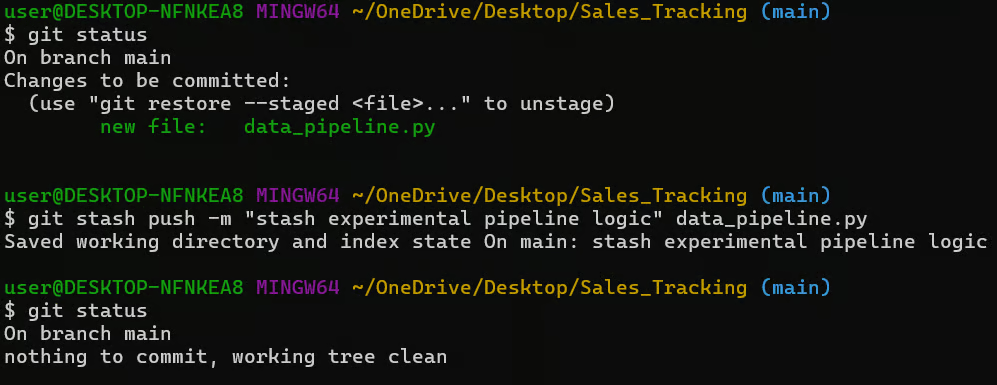
Por ejemplo, el siguiente comando guarda únicamente el archivo data_pipeline.py. Es útil cuando quieres pausar una función experimental mientras mantienes un arreglo de bug preparado y listo para hacer commit.
git stash push -m "stash experimental pipeline logic" data_pipeline.pyPara comprobar si el comando se ejecutó correctamente, usa git status para ver el antes y el después de tu repo.
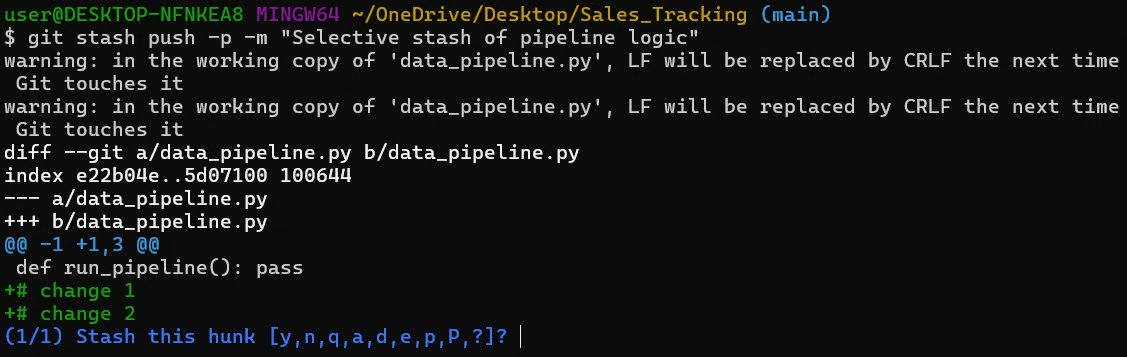
A veces, el código "bueno" y el "WIP" están en el mismo archivo. En ese caso, usa la opción -p o --patch para activar una sesión interactiva. Te permitirá elegir fragmentos concretos (“hunks”) de cambios dentro de un archivo.
git stash push -p -m "Selective stash of pipeline logic"
Verás la salida "Stash this hunk" con estas opciones:
y: Sí, guardar este hunk
n: No, omitir este hunk
q: Salir; no guardar este hunk ni los restantes.
a: Todos; guardar este hunk y todos los siguientes del archivo.
d: Borrar; no guardar este hunk ni los siguientes del archivo.
?: ayuda
Este flujo es muy parecido a git add -p. Es útil cuando los cambios dentro del mismo archivo no están relacionados y hay que gestionarlos por separado.
Los stashes deben ser de corta duración. Si los acumulas, te costará más encontrar el adecuado después y aumenta el riesgo de conflictos cuando por fin los apliques.
Para quitar un solo stash, usa git stash drop con su índice. Por ejemplo, el siguiente comando elimina el cuarto stash de la lista.
git stash drop stash@{3}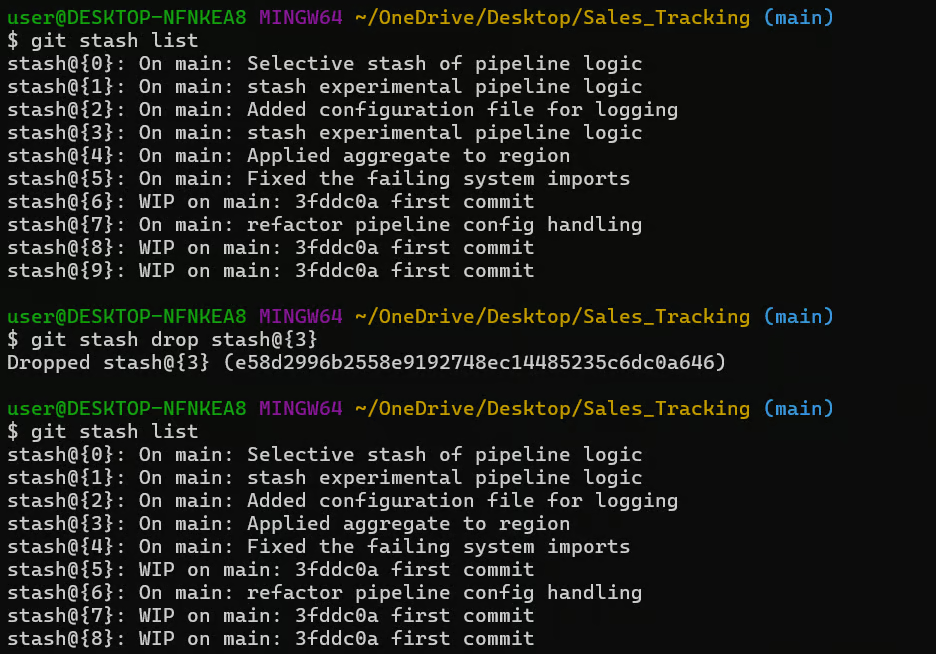
Como ves arriba, la lista de stashes se reduce y los restantes se reindexan tras el borrado.
Para eliminar todos los stashes de una vez, usa:
git stash clearEste comando no muestra salida si tiene éxito, y puedes verificarlo con git stash list.
Te recomiendo extremar la precaución con git stash clear, ya que esta acción es permanente y no hay deshacer integrado. Ejecútalo solo cuando tengas claro que no necesitas ningún trabajo guardado.
Si tu rama actual ha divergido mucho desde que creaste el stash, al aplicarlo pueden aparecer conflictos de fusión. En ese caso, puedes crear una rama nueva directamente desde el stash:
git stash branch pipeline-fix stash@{1}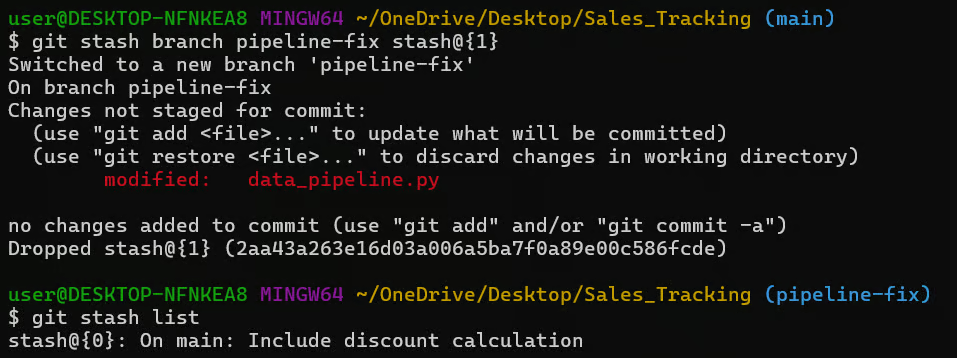
Este comando hace lo siguiente:
Te recomiendo nuestro tutorial Git Branch para aprender más sobre la gestión de ramas y mejorar el desarrollo y la colaboración.
Más allá de los flujos habituales, estos son algunos comandos avanzados de git stash que conviene tener en el radar:
git stash create: crea un objeto stash sin añadirlo a la lista de stashes
git stash store: guarda un stash creado con create
git stash export: exporta un stash a una referencia o lo imprime
git stash import: importa un stash desde un commit existente
Aunque git stash es sencillo, hay algunos problemas típicos que pueden darte guerra. Aquí tienes varios errores que me he encontrado y cómo reconocerlos y resolverlos rápido.
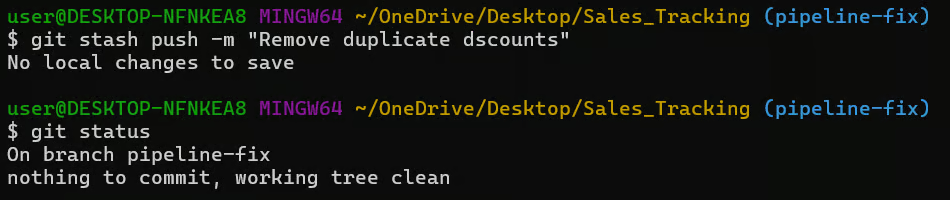
Es el "no error" más frecuente. Ocurre cuando ejecutas git stash en un directorio de trabajo limpio, donde no hay archivos rastreados modificados ni preparados.
Para solucionarlo, ejecuta git status, y si no aparece nada, no hay nada que guardar.
Los conflictos suceden cuando la rama en la que estás ha cambiado las mismas líneas de código que existen en tu stash. Por ejemplo, si ejecutas git stash pop en la nueva rama después de modificar el archivo, probablemente verás un mensaje de error:
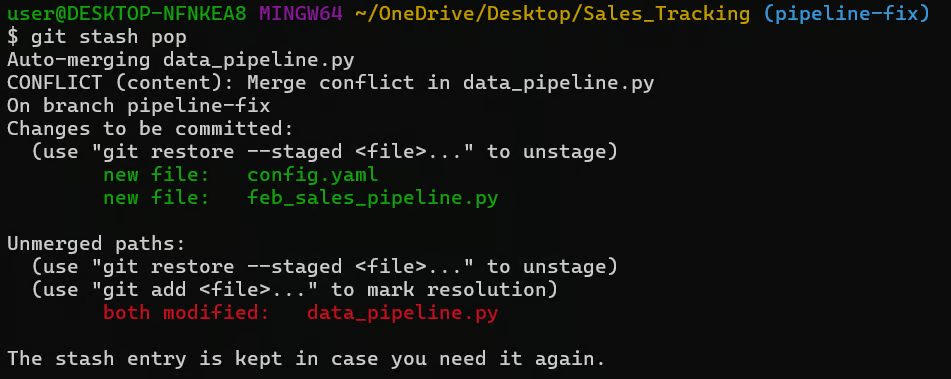
Después, puede que veas marcadores de conflicto dentro del archivo:
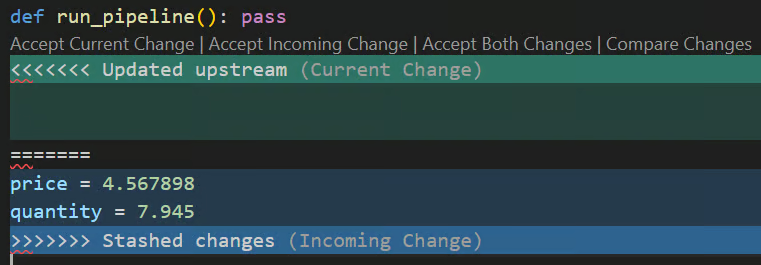
Para resolverlo, puedes hacer cualquiera de lo siguiente:
git add data_pipeline.pygit stash drop (si NO se elimina automáticamente al haber conflicto)Si los conflictos son demasiado liosos, usa el siguiente comando para aplicar los cambios en una base limpia.
git stash branch recovery-branch stash@{0}A veces puedes ejecutar git stash sin revisar tu directorio de trabajo y darte cuenta después de que has ocultado un arreglo que sí querías commitear.
Para evitarlo, sé siempre explícito con los archivos a guardar. Por ejemplo, el siguiente comando guardará solo data_pipeline.py en lugar de todo el directorio de trabajo.
git stash push data_pipeline.pyTambién puedes usar git stash -p para ejecutar el modo interactivo (patch) y guardar selectivamente partes de cambios dentro de archivos, no archivos completos.
Como medida preventiva, comprueba siempre git status antes de hacer stash.
Como regla general, mantén los stashes de corta duración y usa siempre mensajes descriptivos. Si no vas a retomar el trabajo en el día, crear una rama WIP es una opción más segura: puedes hacer push al remoto y no se perderá.
Para reforzar tus habilidades con Git, te recomiendo nuestro curso Intermediate Git sobre colaboración en Git. También te recomiendo Advanced Git para aprender a trabajar con Git en proyectos grandes y manejar escenarios complejos de control de versiones y problemas en el desarrollo de canalizaciones de datos.
Aprende Git con DataCamp
Curso
Programa
Practica y programa tu progreso.
Continuar Con GoogleTutorial
Zoumana Keita
10 min
Tutorial
Tutorial
Tutorial
Abid Ali Awan
9 min
Tutorial
Olivia Smith
13 min
Tutorial

