Przejdź do głównej treści

Microsoft Copilot Cowork: What It Is and How to Use It

Learn what Microsoft Copilot Cowork is, how it works, what business tasks it can handle, where it helps, and what risks to consider before using it.
10 cze 2026  · 15 min Czytać

Microsoft Copilot Cowork is an agent inside Microsoft 365 Copilot that can send emails, schedule meetings, create documents, post in Teams, and search across your organization. You describe what you need. It builds a plan, works through it in steps, and asks for your approval before taking actions that affect real communications, files, or schedules.

Cowork launched in March 2026 and is currently part of Microsoft's Frontier program, an early-access channel for preview features. It is not generally available. That means its capabilities, UI, and documentation are still changing, and it should be treated as a supervised assistant, not a production-stable system.

Whether it is worth piloting right now depends on your stack and how much of your day goes to coordination. I will get to my honest take at the end. The short version is that an agent that acts on your behalf is only as useful as the review you put around it, and that tension runs through the whole piece.

What Is Microsoft Copilot Cowork?

Copilot Cowork is an agent inside the Microsoft 365 Copilot app. It is not a standalone product. You find it in the Agent Store and select Add. Once added, it sits in your Copilot rail alongside agents like Researcher and Analyst.

The main difference between Cowork and Copilot Chat is execution. Copilot Chat helps you draft, summarize, search, and analyze within a conversation. Cowork carries out actions: it sends the email, schedules the meeting, creates the document, and posts the Teams message. Microsoft describes this shift as moving from "AI assistance" to "AI execution."

Cowork is built on the technology behind Anthropic's Claude Cowork and uses Anthropic's Claude models, Sonnet 4.6, Opus 4.8, and Fable 5, as a subprocessor inside Microsoft's infrastructure. Inside a task you can pick the model or leave it on auto, where Sonnet runs faster and Opus does the deeper reasoning. The enterprise context layer behind it is called Work IQ, which draws on your email, calendar, files, Teams conversations, SharePoint, and the rest of Microsoft 365. It runs in an isolated cloud environment, not locally on your machine, so all activity is observable and auditable through Microsoft Purview.

Access takes three things: an active Microsoft 365 Copilot license, your tenant enrolled in the Frontier program, and Anthropic enabled as a subprocessor. I walk through the admin setup, including the EU data boundary caveat, later on.

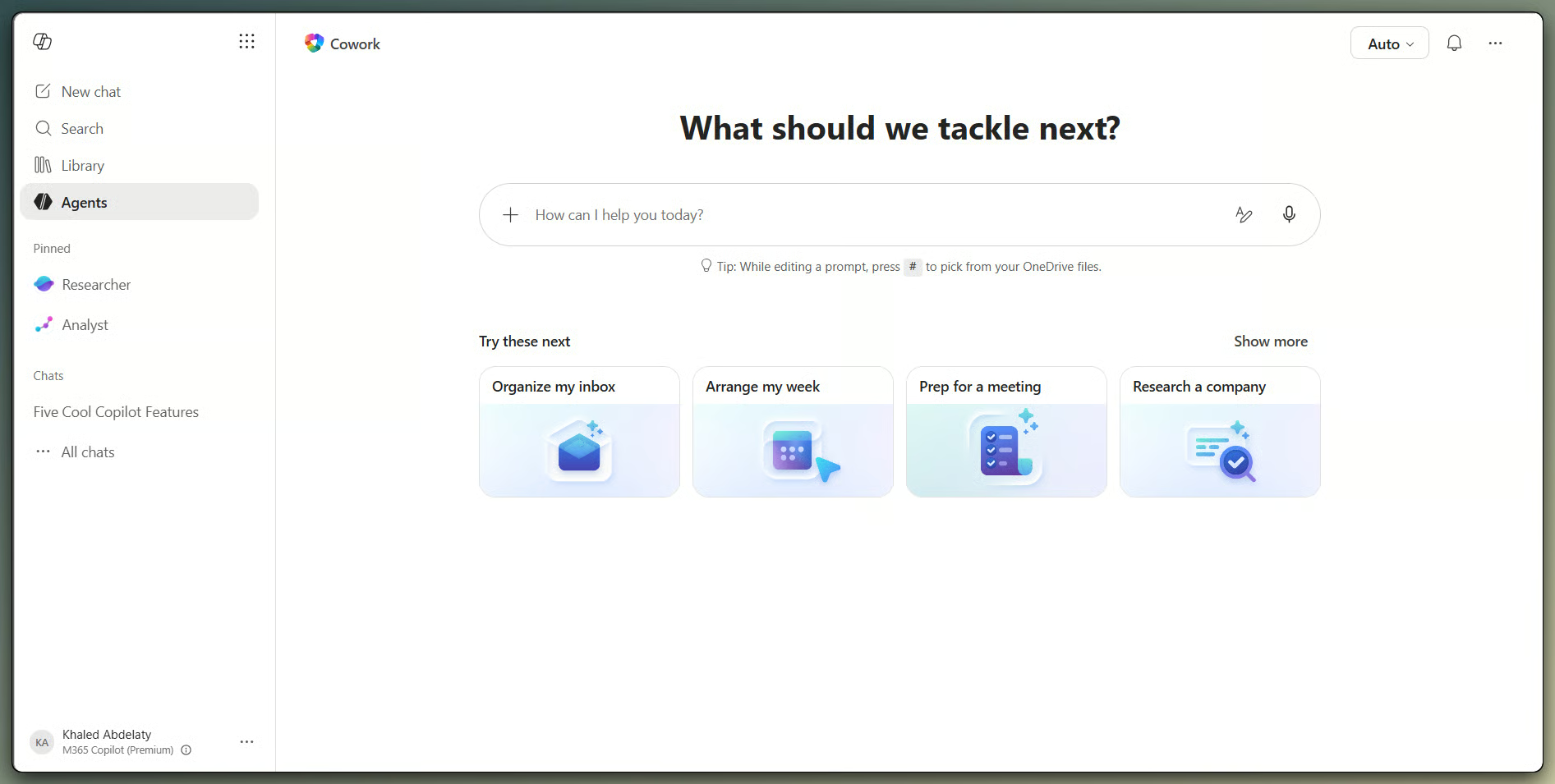
Copilot Cowork home page inside Microsoft 365 Copilot showing the chat input field and suggested prompts such as Organize my inbox, Arrange my week, Prep for a meeting, and Research a company

Cowork home page inside Microsoft 365. Image by Author.

How Microsoft Copilot Cowork Works

The interaction pattern is not prompt-and-response. It is closer to delegating a task to a colleague and reviewing what they produce before anything goes out.

From request to plan

You give Cowork a natural language request describing the goal, not a step-by-step procedure. It breaks the goal into steps and works through them one at a time, with a running log in the side panel. The input field accepts up to 250,000 characters, up from 16,000 earlier in the preview, and you can attach files by drag-and-drop or the file picker.

You can also send new instructions while a task is running. Cowork queues them and adjusts without making you stop and restart.

Cowork task side panel in progress. Video by Author.

Using Microsoft 365 context

Cowork draws on Work IQ when building a response. It can pull from Outlook emails, Teams messages, SharePoint files, OneDrive documents, calendar events, and meeting transcripts. The quality of output depends on the data it can reach, so poorly named files, duplicated content, outdated documents, and messy permissions all limit what it produces.

Review and approval

Before Cowork takes any sensitive action, like sending an email, posting in Teams, or scheduling a meeting, it stops and asks for your approval. The prompt shows the specific action and a risk level indicator for medium and high-risk steps. You can approve it once, skip future prompts for similar actions in the same conversation with the "Don't ask again" option, or cancel entirely.

An approved action executes immediately, so the review you do at this prompt is the one that counts.

Approval dialog for a calendar change. Video by Author.

Long-running and scheduled work

Cowork runs in the cloud, so a task keeps running after you step away, and you can pick it up later in the Microsoft 365 Copilot app on Windows, Mac, iOS, or Android. Delegate something in the morning, sit in two meetings, and come back to a finished document. Tasks run from a few minutes to half an hour depending on scope.

You can also set up scheduled prompts for recurring tasks, such as a Monday summary of the week ahead. Scheduled prompts appear in the Tasks view and can be paused, edited, or deleted. Microsoft currently supports up to five scheduled prompts per user.

What Can Copilot Cowork Do?

Cowork has 13 built-in skills: Word, Excel, PowerPoint, PDF, Email, Scheduling, Calendar Management, Meetings, Daily Briefing, Enterprise Search, Communications, Deep Research, and Adaptive Cards.

Cowork also supports plugins from the Microsoft 365 App Store that connect it to systems like Dynamics 365 and Fabric IQ. The plugin ecosystem is still early-stage, and specific connector availability changes regularly. Verify which plugins are GA before building a workflow around any particular one.

Here is what those built-in skills handle, grouped by the kind of work they cover.

Manage email workflows

Cowork can draft, reply to, forward, and send emails through Outlook. It can sort emails into folders, delete emails, respond inline, and create HTML newsletters. The most common uses are drafting follow-ups after meetings and turning long email threads into stakeholder summaries.

Schedule and manage meetings

Cowork can schedule meetings using natural language, move events, decline meetings with a message to the organizer, and create focus time blocks. It can prepare daily briefings and meeting intelligence for upcoming conversations. Calendar changes affect other people's schedules, so reviewing proposed changes before approving is not a formality.

Create and edit documents

Cowork can build Word documents, Excel spreadsheets, PowerPoint presentations, and PDFs from scratch, and it can revise a file you share with it. Either way, it saves the result as a new file in your OneDrive Cowork folder instead of changing the original in place. That is annoying if you expected in-place editing, but it is by design, not a bug.

Post and coordinate in Teams

Cowork posts to Teams channels and sends 1:1 or group direct messages, including formatted cards with structured data. Review messages before posting, especially in channels with external participants.

Search and organize work context

Cowork searches across your organization through Enterprise Search and pulls together information from multiple sources with the Deep Research skill. It can browse OneDrive and SharePoint folders and reorganize files into new or existing folders. One firm limit: Cowork cannot delete files or folders by design.

Copilot Cowork vs. Copilot Chat: Key Differences

Cowork sits inside a product map that now has several layers: Copilot Chat (included at no additional cost with eligible M365 plans), Copilot in individual apps, prebuilt agents like Researcher and Analyst, and Frontier agents like Cowork.

The clearest comparison is Cowork versus Copilot Chat, which is what most people mean by "standard Copilot." The table below shows where they differ.

Dimension

Copilot Chat

Copilot Cowork

What it is

Drafting, summarizing, answering questions

Agentic AI that completes multi-step work across M365

Primary mode

Prompt and response

Describe, plan, approve, execute

Task span

Usually one app at a time

Across multiple M365 apps in one task

Background execution

No

Yes, runs while you do other work

Scheduling

No

Yes, up to five scheduled prompts

Human approval

Not needed (user acts manually)

Required before sensitive actions

Task duration

Seconds to minutes

Minutes to hours for complex tasks

Models used

Primarily OpenAI GPT

Mainly Anthropic Claude (Sonnet and Opus)

Access requirement

Included with eligible M365 plans

M365 Copilot license + Frontier + Anthropic enabled

Availability

Generally available

Frontier preview only as of June 2026

Copilot Chat is still the right tool for contained, single-session tasks. Cowork is useful when work is multi-step and scattered across apps.

Copilot Cowork Use Cases by Role

Microsoft's documented launch scenarios focus on coordination-heavy work. The roles that fit best involve a lot of switching between Outlook, Teams, files, and calendar to prepare, communicate, and follow up.

Sales and customer success

A customer success manager can ask Cowork to prepare a briefing before a renewal meeting using recent emails, open action items, and related files, then draft a follow-up afterward with decisions and next steps. With the Dynamics 365 Sales plugin enabled, Cowork can also pull in account and pipeline context. Customer-facing messages should always be reviewed before sending, particularly for tone and relationship context that Cowork cannot read.

Project management

Cowork can turn Teams discussions, meeting notes, and project files into status updates and summaries. Without a dedicated PM plugin (monday.com is announced but not GA at the time of writing), it relies on native M365 data. Verify owners, deadlines, and project status before sharing any update that reaches leadership. A wrong deadline in a status report is the kind of thing Cowork will not catch on its own.

Operations and admin work

Recurring coordination is where Cowork helps most. Scheduling meetings, sending internal updates, organizing documents: these tasks repeat constantly. Scheduled prompts are built for exactly this. Set one up for a Friday morning status report and you have one less thing to remember each week.

HR and onboarding

Cowork can help draft onboarding documents, schedule training sessions, and organize policy materials. Sensitive HR decisions, legal wording, and policy interpretation need to stay with a human. There is no HR-specific plugin as of mid-2026.

Finance and reporting

Cowork can draft monthly updates, prepare basic spreadsheets, and organize budget-related documents. With the Dynamics 365 ERP plugin (when the right licenses are in place), it can pull financial data from the ERP system. Microsoft's documentation explicitly states that Cowork outputs should not be the sole basis for financial decisions. Anything touching external reporting or regulatory obligations needs careful human review before it leaves the building.

Executive assistance

Daily briefings, calendar management, meeting preparation, and follow-up communication are the clearest fit. Cowork handles the scheduling and drafting. Relationship management and judgment calls are still yours.

When Copilot Cowork Works Best

Organizations already deep in Microsoft 365 get the most out of this. Teams that route daily work through Outlook, Teams, and SharePoint are the natural fit. Teams on a mix of Notion, Slack, and non-Microsoft tools will see less until the plugin ecosystem catches up.

A few conditions where Cowork tends to perform well:

  • The work is repetitive and follows a clear pattern, like meeting prep, weekly updates, or calendar cleanup.
  • The task pulls from multiple M365 sources, where manual app-switching is the real bottleneck.
  • The output is quick to review, like a draft email or internal summary, so the approval step adds little friction.

Copilot Cowork Limitations and Known Gaps

Cowork has documented limitations worth knowing before you build anything around it.

The design limits are official and stable. Cowork cannot access local files on your device. It cannot delete files or folders in OneDrive or SharePoint. It cannot read encrypted files, even if you have access to them. Attached files must be under 200 MB. These are deliberate constraints.

A few things will also degrade output quality in practice:

  • Vague instructions produce generic results. Writing specific prompts is the fix, and I cover that in the best practices section.
  • Outdated or disorganized data limits what Cowork can find. As I noted earlier, weak workspace hygiene shows up directly in the output.
  • Poor permission setup can block data Cowork needs, or allow it to act on data that should be restricted. Cowork operates strictly within your existing M365 permissions and does not create new access paths.
  • Tasks requiring judgment about organizational politics, legal exposure, relationship nuance, or financial risk are outside what Cowork should handle unsupervised.
  • Preview instability is real. Frontier features change, and UI or behavior can shift without much warning.

As I mentioned in the documents section, Cowork creates new files instead of editing in place, so the OneDrive Cowork folder is worth tidying up now and then.

On the security side: in May 2026, the security firm PromptArmor disclosed a way to exfiltrate files through a malicious custom skill. A poisoned SKILL.md could use indirect prompt injection to slip past the approval step and pull OneDrive or SharePoint files out, and it worked even against the Claude Opus model Cowork was running. Microsoft had not published a formal advisory at the time of writing. Since Microsoft does not validate custom skills, the practical defense is not to load skills from sources you do not trust, and to check your /Documents/Cowork/skills/ folder now and then.

Copilot Cowork: Governance, Security, and Admin Setup

This section is mainly for IT administrators and decision-makers evaluating deployment. If you are exploring Cowork on your own, skip ahead to the best practices section.

Setting up Cowork involves several required steps. The Microsoft 365 Copilot license needs to be active for target users. An admin with AI Admin, Security Admin, or Office Apps Admin rights enrolls the tenant in the Frontier program through the M365 Admin Center at Copilot > Settings > Frontier. Anthropic then needs to be enabled as a subprocessor at Copilot > Settings > View all > AI providers > Anthropic.

M365 Admin Center Frontier and Anthropic. Video by Author.

For EU, EFTA, and UK tenants, Anthropic is off by default and enabling it means LLM inferencing may occur outside the EU data boundary. A related setting called Flex Routing has been on by default for EU and EFTA tenants since April 2026, and it can send some processing outside that boundary during peak demand, so check it before you deploy. Organizations in GCC, GCC High, and DoD environments cannot currently use Cowork because the Anthropic subprocessor lacks FedRAMP certification.

Once setup is complete, admins can also pre-deploy and pre-pin Cowork for specific users or the whole organization. Three availability settings exist: all licensed users (the default), specific users or groups, or blocked entirely. The security group approach works best for phased rollouts, since region-based scoping is not a supported admin option.

Cowork operates within Microsoft's Enterprise Data Protection framework. Organizational data is not used to train Anthropic or OpenAI models. All activity is logged through Microsoft Purview, and responses display the most restrictive sensitivity label from whatever data Cowork used. For larger rollouts, Agent 365 (generally available May 1, 2026) adds enterprise observability and governance.

There is no separate price for Cowork. It is included with the Microsoft 365 Copilot license covered above, which is a paid add-on to a qualifying plan, so that license is the only line item. The Microsoft 365 E7 suite bundles it with other tools, but that is one way to get Cowork, not a requirement.

Before any broad rollout, run a structured pilot with a focused group. Project managers, executive assistants, operations teams, and sales operations tend to have the clearest coordination workloads to measure against. Track time saved, actions that needed corrections, and any governance or permission issues that surface.

How to Use Copilot Cowork Effectively

The biggest factor in output quality is specificity. Think of it as briefing a colleague rather than typing into a search box.

Start with low-risk tasks

Internal summaries, calendar suggestions, draft emails, and meeting prep are the right starting point. Leave sensitive external communication, legal content, and finance approvals for later, after you have seen how Cowork performs in your environment.

Write outcome-focused prompts

The same principles behind good prompt engineering apply here. A prompt that works well specifies the outcome, the sources, the constraints, and the approval rule in one go:

Prepare a one-page briefing for tomorrow's customer meeting using recent emails, related files, and open action items. Do not send or share anything until I approve it.

The approval instruction at the end is the part most people leave out. It does not change Cowork's behavior, since it will ask anyway, but stating it explicitly tends to produce tighter, more bounded outputs.

Use custom skills for recurring work

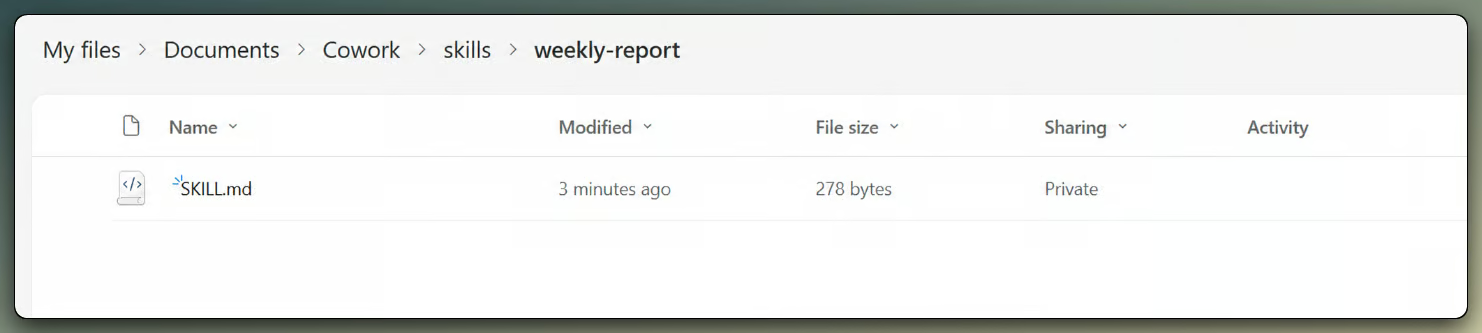
Custom skills let you define reusable instructions that Cowork loads automatically when a task matches the description. A skill for weekly status updates, one for customer follow-ups, one for internal reports. You can create up to 50 per user, stored in OneDrive at /Documents/Cowork/skills/[skill-name]/SKILL.md.

The folder path is case-sensitive: skills must be lowercase and SKILL.md must be uppercase. A newly created skill can take around 30 seconds to sync. If it does not appear in the slash command menu, prompt Cowork to resync. Since Microsoft does not validate custom skills, review any shared skill before loading it.

OneDrive file tree showing the Documents/Cowork/skills/ folder path with a custom skill subfolder named weekly-report containing a SKILL.md file

Custom skill folder structure in OneDrive. Image by Author.

Review before approving

If this sounds repetitive, that is on purpose. Before approving any action, check names, dates, file references, recipients, and tone, especially for anything going outside your team or any change that affects other people's time.

Example Prompts for Copilot Cowork

The prompts below give Cowork clear outcomes, named sources, and explicit approval constraints. Use them as starting points.

Meeting preparation:

Prepare a briefing for my next customer meeting. Use recent emails, related Teams messages, and relevant files. Include key discussion points, open questions, risks, and suggested next steps. Show me the draft before sharing it.

Follow-up email:

Draft a follow-up email for the meeting I just had. Include decisions, action items, owners, and deadlines. Keep the tone professional and concise. Do not send it until I approve.

Project status update:

Create a weekly project status update using recent Teams messages and related files. Include progress, blockers, owners, and next steps. Highlight anything that needs leadership attention.

Calendar management:

Review my calendar for this week and suggest changes that would create two focus blocks. Do not reschedule anything until I approve.

Scheduled daily briefing:

Send me a daily briefing every morning at 9 AM. Summarize my email, today's calendar, and any open action items from recent meetings.

They share one structure: name the sources, describe the format, set an approval boundary. That, more than the exact wording, is what produces usable results.

Is Copilot Cowork Worth It for Your Business?

The case for Cowork is specific. If your team loses hours each week to email prep, meeting management, status updates, and document creation, and you run on Microsoft 365, Cowork targets a real coordination problem.

The case for caution is equally specific, and I have touched on most of it already. Cowork is a preview feature, its behavior can change, the plugin ecosystem is still thin, and the approval step only works if users actually read what Cowork is about to do before confirming.

My read: the most sensible starting point is a structured pilot with a small group on low-risk workflows, tracking the same measures I listed in the governance section. Expand only when you understand where Cowork helps and where it introduces risk.

Treating it as a supervised execution layer, where it handles the coordination mechanics and humans stay accountable for outcomes, is the right posture. Treating it as an autonomous coworker is how you end up with emails you did not mean to send.

Conclusion

Copilot Cowork is an early example of workplace AI moving from content assistance to action. For Microsoft 365-heavy organizations, it targets a real source of daily friction: the coordination work that fills the gap between knowing what needs to happen and actually making it happen.

The honest takeaway: Cowork can cut down that coordination work for the right workflows, but it needs clear instructions, careful review, and governance. Used with those safeguards, it is worth piloting. Used without them, it is a faster way to make mistakes. It is also moving fast, so treat whatever you learn from a pilot now as a snapshot, not a final verdict.

If you want to get more hands-on with the wider Copilot family, our Introduction to Microsoft Copilot course covers prompting and working with Copilot across Microsoft 365, and our Microsoft Copilot Studio tutorial walks through building agents step by step.


Khalid Abdelaty's photo
Author
Khalid Abdelaty
LinkedIn

I’m a data engineer and community builder who works across data pipelines, cloud, and AI tooling while writing practical, high-impact tutorials for DataCamp and emerging developers.

FAQs

Is Copilot Cowork the same thing as Anthropic's Claude Cowork?

No, and this one trips people up. Copilot Cowork lives inside Microsoft 365 Copilot, runs in Microsoft's cloud, and works with your M365 data across OneDrive, SharePoint, Outlook, and Teams. Anthropic's Claude Cowork is a separate desktop app that runs on your own machine and reaches local files directly. Microsoft built its version on the same underlying technology through the Anthropic partnership, but they are different products with different pricing and access.

Can I stop Cowork once it is off and running?

Yes. You can pause it and let it finish the current step first, or do a hard pause that stops it on the spot, then resume where it left off or cancel the task for good. It is the control I reach for most the moment I can see it heading down the wrong path.

What happens if I close my laptop or my connection drops mid-task?

Nothing breaks. The work runs in the cloud, so Cowork keeps going and reconnects when you are back, with the progress so far preserved. Coming from normal chat tools, where closing the tab means starting over, this still takes me a second to get used to.

Can Cowork undo an action it has already taken?

No. Once you approve something it is done: a sent email is sent, a booked meeting is on the calendar. There is no undo button, which is exactly why the approval prompt is worth slowing down for instead of clicking through.

Does Cowork stop to ask me things, or does it just run with my prompt?

It asks when it needs to. If your request is missing a detail, Cowork pauses with a short question and a few options, and the task shows a "Needs user input" status until you respond. You can pick an option, type your own answer, or skip and let it continue. So a vague prompt does not fail quietly; it just earns you a follow-up question.

Tematy

Learn with DataCamp

course

Wprowadzenie do Microsoft Copilot

1 godz.
33.7K
Poznaj Microsoft Copilot i 365 Copilot, aby zwiększyć produktywność, usprawnić procesy i podejmować trafne decyzje oparte na danych w firmie.
Zobacz szczegółyRight Arrow
Rozpocznij kurs
Zobacz więcejRight Arrow
Powiązany

blog

Copilot in Excel: A Full Review With Real Examples

Learn how to use Copilot in Excel to analyze data, automate formulas, and generate insights using natural language—all within your spreadsheet.
Josef Waples's photo

Josef Waples

10 min

cheat-sheet

Microsoft Copilot in Excel Cheat Sheet

Use Microsoft Copilot in Excel to analyze data, write formulas, and build reports with plain English. This cheat sheet covers the Copilot modes, prompting principles, =COPILOT() function, and core actions across analysis, formatting, and reporting.
DataCamp Team's photo

DataCamp Team

cheat-sheet

Microsoft Copilot in Power BI Cheat Sheet

Use Microsoft Copilot in Power BI to chat with your data, build reports, write DAX, and generate summaries. This cheat sheet covers setup, the four places Copilot appears, model preparation, prompting principles, and core actions for business users, report authors, and data model owners.
DataCamp Team's photo

DataCamp Team

Tutorial

Microsoft Copilot Studio: A Guide to Building Enterprise AI Agents

Learn how to build and deploy powerful AI agents in Microsoft Copilot Studio. Answer questions using RAG, SharePoint integration, LLM reasoning, and tool calls.
Josep Ferrer's photo

Josep Ferrer

Tutorial

How to Use Power BI Copilot in Microsoft Fabric

Explore how Power BI Copilot works. Learn about its features, pricing, and practical applications.
Laiba Siddiqui's photo

Laiba Siddiqui

Tutorial

Copilot in Word: A Step-by-Step Tutorial with Real Examples

Master Microsoft Word’s AI assistant, from setup to drafting, editing, summarizing, formatting, and prompt strategies.
Laiba Siddiqui's photo

Laiba Siddiqui

Zobacz więcejZobacz więcej