
One week. 700+ courses for $0. No credit card needed.
Start Now
Creating an Azure SQL Database involves several steps, all of which can be done through the Azure Portal. Below is a detailed guide to help you set up your SQL database.
1. In the Azure Portal, click the “Create a resource” button in the homepage's upper left corner. In the new resource page, type “SQL Database’ in the search box and select it from the list of services.
2. Configure the database settings as follows:
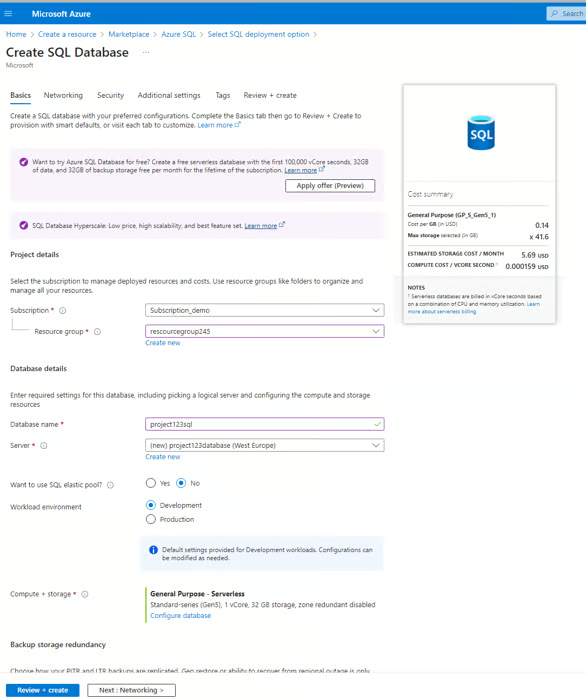
“Create a SQL database” screen in Azure with a cost summary on the right. Image by author
3. If you already have a SQL Server, click "Use existing" and select the server from the list. If you do not have an existing SQL Server, click "Create new" to set one up. You’ll need to configure the following settings.
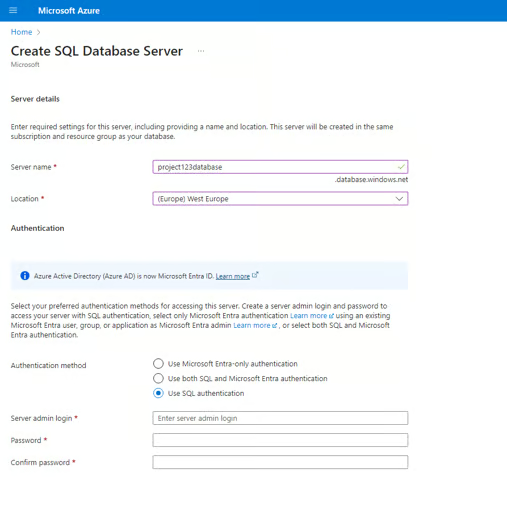
Creating a new SQL Database Server in Azure. Image by author
4. Next, set up the authentication method and the server admin login:
5. Some additional settings to consider:
6. Finally, review all the configuration settings to ensure everything is set up as desired. Click the "Review + create" button. After the validation process, click "Create" to deploy your SQL database.
If you’re interested in more in-depth knowledge about Azure, check out the Azure Architecture and Services course.
Various tools and methods can be used to connect to an Azure SQL Database. This section covers the primary tools for connection and explains the use of connection strings and authentication methods.
Follow these steps to connect to your SQL database and run queries directly in Azure:
1. Open the Azure Portal and go to your SQL database resource. Click the "Query editor (preview)" in the left-hand menu.
2. Enter the server admin login and password to use SQL authentication, or if configured, use Microsoft Entra ID (previously Azure Active Directory) authentication.
3. You can directly run SQL queries against your database within the Azure Portal’s query editor.
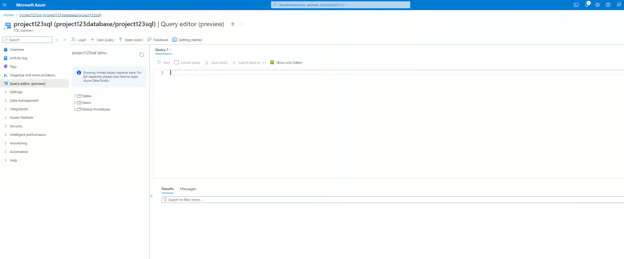
The Azure Portal query editor. Image by author
SQL Server Management Studio (SSMS) is a comprehensive, integrated environment for managing SQL Server infrastructure, allowing you to configure, monitor, and administer instances of SQL Server databases.
Azure Data Studio is a cross-platform data management tool for managing SQL Server databases on-premises or in multi-cloud environments.
Connection strings are essential for applications to connect to your Azure SQL Database. They contain the server name, database name, authentication credentials, and other parameters.
Example connection string for SQL authentication:
Server=tcp:your_server_name.database.windows.net,1433;Initial Catalog=your_database_name;Persist Security Info=False;User ID=your_username;Password=your_password;MultipleActiveResultSets=False;Encrypt=True;TrustServerCertificate=False;Connection Timeout=30;In SSMS or Azure Data Studio, connect to your Azure SQL Database and run SQL scripts to create new users and assign roles. Include the username and password in your connection string for authentication.
CREATE LOGIN mylogin WITH PASSWORD = 'StrongPassword!';
CREATE USER myuser FOR LOGIN mylogin;
ALTER ROLE db_datareader ADD MEMBER myuser;Follow these steps to configure the Entra ID admin and assign users/roles:
1. In the Azure Portal, navigate to your SQL Server resource and select "Active Directory admin" to set an Entra ID user or group as the administrator.
2. Use SQL scripts to create users and assign them roles. This requires SSMS or Azure Data Studio with Entra ID authentication enabled. For example:
CREATE USER [aad_user@domain.com] FROM EXTERNAL PROVIDER;
ALTER ROLE db_datareader ADD MEMBER [aad_user@domain.com];
3. Modify your connection string to include Entra ID credentials. This often involves setting up token-based authentication:
Server=tcp:your_server_name.database.windows.net,1433;Initial Catalog=your_database_name;Persist Security Info=False;User ID=aad_user@domain.com;Authentication="Active Directory Password";Password=your_password;MultipleActiveResultSets=False;Encrypt=True;TrustServerCertificate=False;Connection Timeout=30;
Managing and using an Azure SQL Database involves basic database operations and leveraging advanced features to optimize performance, scalability, and availability. Below are detailed steps and methods for both basic and advanced database management.
Connect to your database using SSMS, Azure Data Studio, or the Azure Portal query editor, and run the following SQL command to create a table:
CREATE TABLE Employees (
    EmployeeID INT PRIMARY KEY,
    FirstName NVARCHAR(50),
    LastName NVARCHAR(50),
    Email NVARCHAR(100),
    HireDate DATE
);Insert data into the newly created table using the following SQL code:
INSERT INTO Employees (EmployeeID, FirstName, LastName, Email, HireDate)
VALUES (1, 'John', 'Doe', '[email protected]', '2022-01-01');You can retrieve data from the table with a simple SELECT query. For example, to get all data from the Employees table:
T-SQL (Transact-SQL) is an extension of SQL from Microsoft used for managing and manipulating relational databases. It allows you to perform a variety of tasks, including creating and altering tables, managing data, and implementing complex logic through stored procedures and triggers.
CREATE PROCEDURE GetEmployeeByID
	@EmployeeID INT
AS
BEGIN
    SELECT * FROM Employees WHERE EmployeeID = @EmployeeID;
END;In this example, the stored procedure takes an employee ID as an input parameter and returns all the columns for the employee with that specific ID from the ‘Employees’ table.
Here’s how you can execute the stored procedure you just created:
Now, let’s look at more sophisticated features you can use in your Azure SQL Database, particularly in production environments.
Elastic pools in Azure SQL Database enable you to manage and scale multiple databases with varying and unpredictable usage demands. They provide cost efficiency by sharing resources among databases within the pool. Follow these steps to create an elastic pool:
1. Navigate to the Azure Portal, select your SQL Database server, and click "Create new" under Elastic Pool.
2. Configure the pool by setting the number of DTUs (Database Transaction Units) and adding databases.
Azure SQL Database provides several high availability and disaster recovery options to ensure your database remains operational and data is protected:
When working with data, security is of utmost importance. This section discusses the main security features of the Azure SQL Database service.
To help protect your Azure SQL Database from unauthorized access and ensure secure, private connectivity within your Azure environment, you can implement these best practices:
To help protect your data in Azure SQL databases, consider these advanced configurations:
To further support your SQL database's security and data protection, you can set up auditing processes to track database activities and store logs in an Azure Storage account, Log Analytics workspace, or Event Hub.
You can also use Azure Monitor to track performance and security metrics and set up alerts for specific conditions.
If you’d like to learn more about data governance in Azure, check out DataCamp’s Azure Management and Governance course.
Azure SQL Database pricing can be complex due to the different configuration options that influence it. In this section, we’ll discuss the main factors affecting costs.
Each tier (Basic, Standard, and Premium) offers different performance levels and features. The choice of service tier impacts the cost, with Basic being the least expensive and Premium being the most expensive.
You can choose between DTU-based pricing or vCore-based pricing:
The amount of data stored in the database affects the cost. Storage is billed based on the provisioned storage size, not the used space.
The amount of storage used for automated backups (up to a specific retention period) is included. Additional backup storage for longer retention periods incurs additional costs.
Depending on your deployment option, costs can vary:
Features like zone-redundant configuration or premium-tier offerings with higher availability guarantees can increase costs.
Data transferred from Azure SQL Database (e.g., to external clients or other Azure regions) incurs egress charges. Internal data transfer within the same Azure region is typically free.
Here are some tips to help you optimize costs for Azure SQL databases:
Setting up and managing an effective Azure SQL Database involves setting up robust authentication and connection tools. Using advanced security features and leveraging Azure's monitoring tools ensures the database remains secure and efficient. Understanding the pricing tiers and factors affecting costs helps make informed decisions to optimize expenses.
Following the guidelines in this tutorial, you can maintain a secure, high-performing, and cost-effective Azure SQL Database environment.
Want to learn more about Azure? Check out the Datacamp’s Azure Fundamentals track.
To optimize query performance, regularly analyze and optimize your queries using the Query Performance Insights tool. Additionally, ensure proper indexing, use parameterized queries to prevent SQL injection, and consider using database scaling options such as elastic pools for handling variable workloads.
Azure SQL Database automatically handles backups, including full, differential, and transaction log backups stored in geo-redundant storage. You can configure the backup retention period in the Azure Portal under the database’s "Configure" settings, ensuring your data is backed up according to your business needs.
Azure SQL Database is a fully managed service designed for cloud-native applications, offering automated backups, patching, and scaling. SQL Server on Azure VMs provides full control over the SQL Server environment, allowing for custom configurations and high-performance requirements, but it requires more hands-on management and maintenance.
Single databases are independent databases optimized for single-tenant applications. Each database has its own set of resources.
Elastic pools are a collection of databases sharing resources (eDTUs or vCores). Ideal for multi-tenant applications where resource demands vary across databases, providing cost savings and resource efficiency.
To protect sensitive data, enable Transparent Data Encryption (TDE) to encrypt data at rest, and Always Encrypted to protect data in transit and at rest. Use Azure’s built-in Advanced Threat Protection (ATP) to detect and respond to potential threats, and enforce strong authentication and authorization practices with Azure Active Directory (AAD).
Anneleen is a data scientist with a background in statistics and social sciences. She currently works as a freelance data scientist in finance and is studying a postgraduate degree in Applied AI. Anneleen is the instructor of four DataCamp courses including 'Azure Management and Governance'.

blogg
 Laiba Siddiqui• 15 min

Handledning
 Anneleen Rummens• 11 min

Handledning
 Florin Angelescu• 8 min
Learn more about Azure and cloud computing with these courses!
Kurs
Lär dig kraften i Microsoft Azure och molnbaserad programvara för att förbättra dina färdigheter inom data engineering.
Kurs
Den här kursen går djupare in i Azures ryggrad med ämnen som containers, virtuella datorer och mycket mer.
Kurs
Bemästra Azure Management och Governance med vår omfattande kurs, perfekt för dataexperter som vill ha molnkompetens.


SQL databases play an important role in modern data applications by providing a structured way to store, manage, and retrieve data. These databases use SQL to perform tasks ranging from simple queries to complex data transactions.
Azure SQL databases offer high availability and scalability, ensuring reliable performance for data projects. As a fully managed service, it reduces administrative overhead by handling maintenance tasks like updates and backups. Integration with other Azure services simplifies the development and deployment of your data solutions.
Azure offers a suite of SQL services that cater to diverse database needs. In this tutorial, we will explore those services but focus mainly on Azure SQL Database and go in-depth into its configuration, usage, and management.
Understanding Azure SQL Services
Microsoft Azure provides three primary SQL database services tailored to specific use cases and requirements: Azure SQL Database, Azure SQL Managed Instance, and SQL Server on Azure Virtual Machines (VMs).
1. Azure SQL Database
Azure SQL Database is a fully managed Platform as a Service (PaaS) offering. It abstracts the underlying infrastructure, enabling developers to focus on building and deploying applications without worrying about database maintenance tasks.
2. Azure SQL Managed Instance
Azure SQL Managed Instance is a managed service that offers near 100% compatibility with SQL Server on-premises, making it easier to migrate existing SQL Server applications to the cloud. It combines the benefits of PaaS with greater control over the database environment.
3. SQL Server on Azure Virtual Machines
SQL Server on Azure VMs is an Infrastructure as a Service (IaaS) offering that allows users to run full SQL Server installations on Azure VMs. This option provides complete control over the SQL Server instance and the underlying operating system, similar to on-premises deployments.
Choosing the right service for your needs
Selecting the appropriate Azure SQL service depends on your specific requirements and constraints. Here are some considerations to help you make an informed decision:
Consideration
Azure SQL Database
Azure SQL Managed Instance
SQL Server on Azure VMs
Application compatibility
Best for modern cloud-native applications.
Ideal for near-complete compatibility with on-premises SQL Server features.
It provides full control and is suitable for legacy applications requiring custom configurations.
Management overhead
Minimal, with automated maintenance.
Minimal, with automated maintenance.
High, requires more hands-on management.
Scalability needs
Seamless scalability for fluctuating workloads.
Seamless scalability for fluctuating workloads.
Scalable but may require more manual intervention.
Security and compliance
Extensive built-in security and certifications.
Extensive built-in security and certifications.
Robust security, but compliance depends on custom configurations.
Performance requirements
Suitable for most applications with cloud performance.
Good performance with SQL Server compatibility.
Ideal for high-performance needs with full customization.
In summary, Azure SQL Database is best for cloud-native applications with minimal management overhead, Azure SQL Managed Instance suits legacy applications needing SQL Server compatibility, and SQL Server on Azure VMs offers the most control for custom and high-performance workloads.
Now, let’s focus on the Azure SQL Database service.