
Courses
Giới thiệu về Git
2 giờ
98.4K
You're working on a data analysis project and need to include a shared utilities library that your team maintains in another repository. You could copy-paste the code, but then you'd lose the update path. You could use Git submodules, but you've heard they're complicated. There's a third option: git subtree.
git subtree lets you embed one Git repository inside another as a subdirectory, keeping the full history and an easy path for updates.
This guide covers when to use git subtree, how it works, and practical examples for common workflows. We'll use realistic scenarios you'd actually encounter in data science projects.
Git subtree includes another Git repository under a specific folder in your project while keeping its entire commit history. Unlike copying code or using symbolic links, subtree maintains a connection to the original repository so you can pull updates and push changes back.
Here's what makes it different from just copying code:
Copy-pasting code:
Git subtree:
The key difference from Git submodules: subtree content is committed directly into your main repository. When someone clones your project, they get everything in one checkout with no extra setup steps.
All this amounts to simpler onboarding and fewer "works on my machine" issues.
When you add a subtree, Git does something clever: it merges another repository's history into a subdirectory of your project. Here's what happens:
Your repository contains actual files and full commit history from the subtree, not just a pointer or reference. When someone clones your project or checks out a branch, they immediately have all the code. There's no separate "initialize submodules" step.
The tradeoff: your repository grows because it contains both your code and the subtree's code plus its full history. Is it worth it? Depends on your situation, but for most data science teams, I would think so.
Now that you understand what subtree does, let's walk through the most common operations. We'll use a realistic scenario where you're building a data analysis project and need to include a shared utilities library.
Example setup:
Main project: data-pipeline
Shared library: shared-utils (exists at https://github.com/yourteam/shared-utils.git)
You want to include it under libs/shared-utils/ in your project
The add command includes another repository into your project for the first time.
The basic syntax, for reference, looks like this:
git subtree add --prefix=<directory> <remote-url> <branch> --squashReal example:
# Add the shared-utils repo under libs/shared-utils
git subtree add --prefix=libs/shared-utils \
  https://github.com/yourteam/shared-utils.git \
  main \
  --squash
What this does:
Understanding the flags:
--prefix=libs/shared-utils: Where the subtree lives in your project. You must use the exact same prefix for all future operations. Change it once and you'll be searching Stack Overflow at 2 AM trying to figure out why things broke.
--squash: Combines all the subtree's commit history into a single commit in your project. This keeps your project's history cleaner. Without --squash, you'd see every commit from the original repo in your project's history, which can be overwhelming.
When to squash: Use --squash unless you need to preserve detailed commit attribution from the original repo. For most data projects with shared utilities, squashed history is cleaner and easier to work with. I always use it.
After running this, you'll see a new commit in your project with a message like "Add 'libs/shared-utils/' from commit 'abc123'". The directory libs/shared-utils now contains all the files, and you can use them immediately.
The pull command updates your subtree with changes from the original repository. If the shared library team fixes a bug or adds a feature, this is how you get those updates.
Basic syntax:
git subtree pull --prefix=<directory> <remote-url> <branch> --squashReal example:
# Pull latest changes from shared-utils
git subtree pull --prefix=libs/shared-utils \
  https://github.com/yourteam/shared-utils.git \
  main \
  --squash
What this does:
The prefix must match exactly. If you used libs/shared-utils during add, you must use libs/shared-utils for pull. Using a different prefix won't work. Trust me on this one.
Squash consistency: If you used --squash during add, you should use --squash for every pull. Mixing squashed and non-squashed updates creates confusing history. I learned this the hard way.
Handling conflicts: If you've modified files in libs/shared-utils and those same files changed upstream, you'll get merge conflicts. Resolve them the same way you'd resolve any Git merge conflict—edit the files, stage them, and complete the merge.
Document in your team's README whether you're using --squash or not, so everyone stays consistent.
The push command sends changes you've made in the subtree folder back to the original repository.
Basic syntax:
git subtree push --prefix=<directory> <remote-url> <branch>Real example:
# Push changes from libs/shared-utils back to the original repo
git subtree push --prefix=libs/shared-utils \
  https://github.com/yourteam/shared-utils.git \
  main
What this does:
When to use this: You're maintaining a shared library inside your application repository and want to contribute improvements back. Say you added a useful data validation function to shared-utils while working on your data-pipeline project, and other projects should benefit from it.
Think of push as the reverse of pull. Pull brings changes in; push sends changes out. Git extracts only the relevant history and translates it back to the original repository's structure. Pretty clever.
You need write access to the original repository. If you don't have permission, you'd need to fork the repo, push to your fork, and create a pull request.
The split command extracts a subdirectory's history into its own branch.
Basic syntax:
git subtree split --prefix=<directory> -b <new-branch-name>Here is a real example:
# Extract libs/shared-utils into its own branch
git subtree split --prefix=libs/shared-utils -b shared-utils-extracted
What this does:
Common use cases:
Carving a library out of a monorepo: Your data processing pipeline has grown large, and you want to extract a reusable component as a standalone library. Split creates a branch with just that component's history, which you can then push to a new repository.
Publishing a subdirectory as its own project: You've built a useful data visualization module inside your analysis project and want to share it as a standalone package. Split extracts it with full history intact.
Example workflow creating a new standalone repo:
# Extract the subdirectory
git subtree split --prefix=libs/shared-utils -b shared-utils-standalone

# Create a new repo and push to it
git remote add shared-utils-origin https://github.com/yourteam/shared-utils-new.git
git push shared-utils-origin shared-utils-standalone:main
Now shared-utils-new is a complete repository with full history of just that subdirectory.
Here's the thing people always ask: subtree versus submodule.
They both let you include external code in your repository, but there are differences. If you need exact version pinning, or if the repo size is constrained, use submodule. If your team has mixed Git skills and you want simplicity, use subtree. Otherwise, either works.
|
Aspect |
git subtree |
git submodule |
|
Setup complexity |
Medium (straightforward commands) |
High (separate |
|
Clone experience |
Simple (one clone, everything works) |
Complex ( |
|
Repository size |
Larger (includes full subtree content + history) |
Smaller (just a pointer to another repo) |
|
Developer onboarding |
Easy (everything works after clone) |
Harder (must understand submodule workflow) |
|
CI/CD complexity |
Simple (clone and go) |
More complex (must initialize submodules) |
|
Version pinning |
Less precise (merges the latest or specific commit) |
Precise (exact commit hash) |
|
Update workflow |
|
|
|
"Works on my machine" risk |
Lower (everything is committed) |
Higher (submodule state can diverge) |
|
Pushing changes back |
|
Normal git push inside submodule |
|
Separation of concerns |
Mixed (code lives in main repo) |
Clear (submodule is separate repo) |
Use git submodule when you need:
Use git subtree when you want:
Neither is always better. The choice depends on whether you value simplicity over strict version control. My take: For data science teams where most people focus on analysis rather than Git internals, subtree often reduces friction. For platform teams managing services with dependency requirements, submodules make sense.
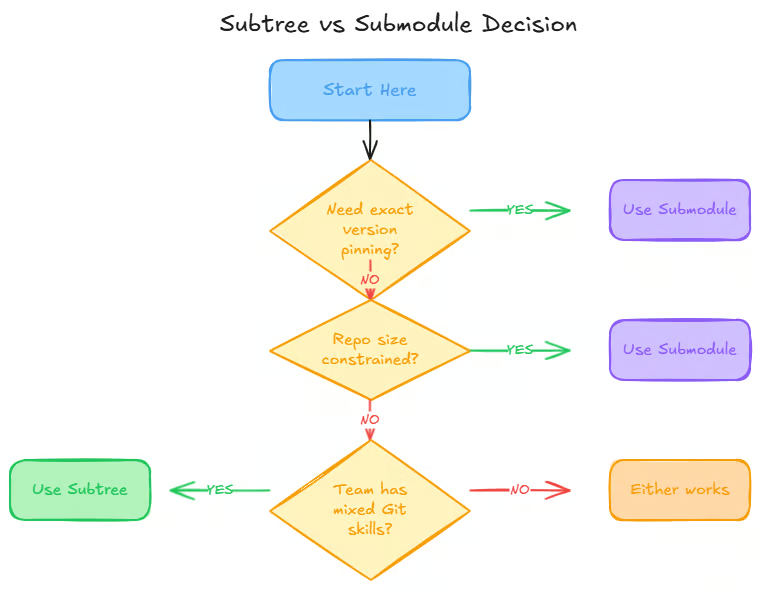
Don't use git subtree when repository size is a hard constraint. Subtree inflates your repo size because it includes full content and history. If you're near Git platform limits or if network speed matters a lot, submodules are lighter.
Also, don't use git subtree if you need strict version pinning. You must use exactly version 2.3.1 of the library and nothing else. Submodules pin to exact commits; subtree merges ranges of commits.
Don't use git subtree if the external repo changes frequently. The subtree is updated daily with significant changes. Constantly pulling updates creates a messy merge history. Consider whether you actually need it embedded or if a package manager would be cleaner.
Finally, don't use git subtree if organizational separation is required. The subtree content has different access controls, licensing, or ownership. Keeping them in separate repositories makes boundaries clearer.
Single repository clone experience: Run git clone, and you're done. Everything you need is there. This reduces onboarding friction for teams where not everyone is a Git expert.
Fewer moving parts than submodules: No separate initialization step. No detached HEAD states to explain. No "your submodule is out of sync" confusion. The workflow is closer to standard Git operations (add, pull, push).
CI/CD simplicity: Your continuous integration scripts are simpler. With subtree, you clone and run tests. With submodules, you clone, initialize recursively, then run tests. That extra step breaks builds when forgotten.
Works well for teams with mixed Git comfort: Junior data practitioners don't need to understand submodule mechanics. They use familiar Git commands and everything works.
Good for vendoring with occasional updates: You include version 1.2 of a library. Six months later, version 1.3 has a bug fix you want. Pull it in with one command. You're not stuck with unmaintained copied code, but you're also not constantly tracking upstream changes.
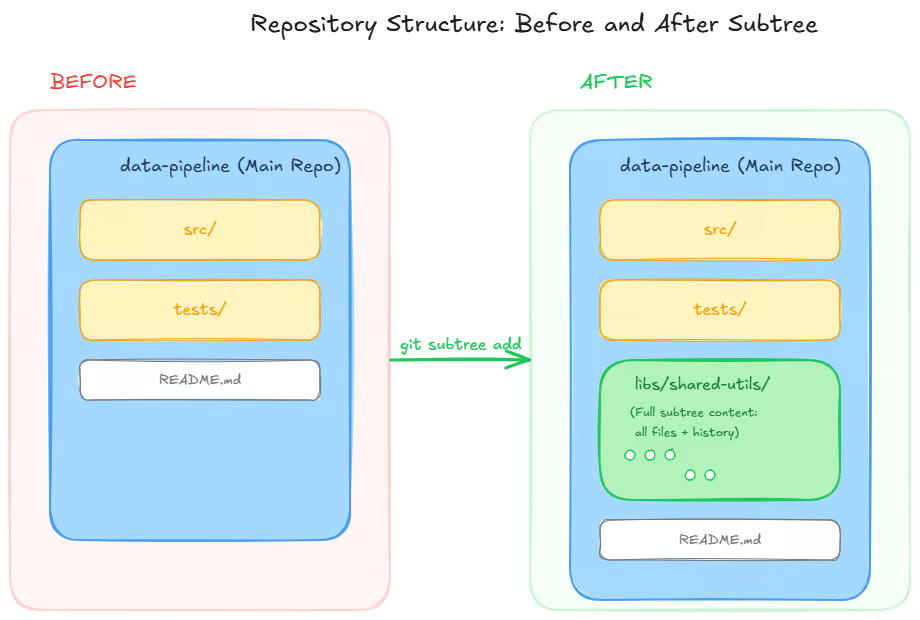
Repository grows significantly: Your repo contains both your code and the subtree's code plus its full commit history (unless you use --squash, which helps). A 50MB subtree adds ~50MB to your repo size.
For large subtrees or multiple subtrees, this adds up. Consider whether the convenience is worth the disk space and clone time.
History graph complexity: Even with --squash, merge commits for subtree updates add complexity to your Git history. If you pull subtree updates frequently, your commit graph gets messy.
Upstream divergence confusion: If you modify subtree files and upstream also changes them, merge conflicts happen. Resolving conflicts in a subtree can be confusing because you're merging someone else's repo into a subdirectory of yours.
Push workflow has gotchas: git subtree push needs to rewrite history, which can be slow for large subtrees. If you've made many commits in the subtree folder, push might take a while. Be patient.
Merge conflicts still happen: If you and upstream both modify the same file, you'll need to resolve conflicts. This isn't subtree-specific, but subtree doesn't magically prevent Git conflicts.
Discipline required: Using different --prefix values or inconsistent --squash flags creates problems. The team needs to document and follow the same workflow.
These limitations aren't dealbreakers, but they're worth knowing upfront. The tradeoff is: simpler workflow in exchange for larger repo size and potential history complexity.
As you start using git subtree, watch out for these common issues. They're easy to avoid once you know about them.
You used --squash when adding the subtree but forgot it during git subtree pull. Now your history has both squashed and non-squashed commits from the subtree, making it confusing.
The fix is to document things in your project README. Write notes like, "Always use --squash with shared-utils subtree."
You added the subtree with --prefix=libs/shared-utils but later tried to pull with --prefix=libs/utils. This doesn't work because Git can't find the subtree.
The fix is to use the exact same prefix every time. Consider documenting it in a script, like this:
# scripts/update-subtree.sh
#!/bin/bash
git subtree pull --prefix=libs/shared-utils \
  https://github.com/yourteam/shared-utils.git \
  main \
--squashYou thought you could cd libs/shared-utils && git checkout to switch versions. That doesn't work because subtree content is just files in your repo, not a separate Git repository.
The fix is to understand that subtree merges specific commits. To "downgrade" a subtree, you'd need to find and merge an older commit or revert the subtree update commits.
Team members don't know whether to use --squash, what remote URL to use, or when to push changes back. If or when everyone does it differently, it would create an inconsistent history.
The fix is to add a section to your README:
## Updating shared-utils

## To pull latest changes:
git subtree pull --prefix=libs/shared-utils https://github.com/yourteam/shared-utils.git main --squash

## To push changes back:
git subtree push --prefix=libs/shared-utils https://github.com/yourteam/shared-utils.git mainYou edit files in libs/shared-utils for your specific project, but never push back. Six months later, you pull updates and get conflicts because your changes and upstream changes collide.
The fix is this: If you modify subtree files, either push changes back to shared-utils if they're useful for everyone, or accept you'll need to manage conflicts during updates.
Git subtree trades repository size and history complexity for workflow simplicity. For data science teams where most people focus on analysis rather than Git internals, subtree reduces friction. New team members clone the repo and start working right away.
For learning more about Git workflows, explore our Introduction to Git course.
Learn Git with DataCamp
Courses
Courses
Tracks
blogs
Srujana Maddula
15 phút
Tutorials
Mark Pedigo
15 phút
Tutorials
François Aubry
8 phút
Tutorials
Mark Pedigo
11 phút
Tutorials
François Aubry
7 phút
Tutorials
Bexruz (Bex) Tuychiev
12 phút


