
Khóa học
Software Development with Claude Code
4 giờ
9K
Bạn đã bao giờ muốn chạy một quy trình kiểu Claude Code từ một script Python, nơi mô hình có thể làm việc trong một môi trường được quản lý với quyền truy cập vào công cụ, tệp, kỹ năng và hướng dẫn chưa?
Claude Managed Agents được thiết kế cho kiểu quy trình này, giúp bạn xây dựng các agent có thể thực hiện các tác vụ nhiều bước trong một môi trường kiểm soát.
Trong hướng dẫn này, tôi sẽ chỉ cho bạn cách sử dụng Claude Sonnet 5, một mô hình gần đây của Anthropic dành cho các tác vụ suy luận nâng cao, lập trình và phân tích dữ liệu. Nó cung cấp khả năng cho agent kiểm tra dữ liệu, dùng công cụ, viết và thực thi mã, và tạo đầu ra có cấu trúc.
Bạn sẽ tạo một Managed Agent, cấu hình môi trường của nó, tải lên một tệp CSV và cấp cho agent quyền truy cập vào các công cụ và một kỹ năng XLSX.
Agent sẽ phân tích dữ liệu, tạo ra các tệp Python, JSON và Excel, xác minh kết quả và cung cấp các đầu ra hoàn chỉnh để tải xuống.
Nếu bạn hoàn toàn mới với Claude, tôi khuyên bạn nên xem trước khóa học Claude Code 101.
Claude Managed Agents là khung được quản lý của Anthropic để chạy Claude như một agent tự động.
Thay vì tự viết vòng lặp để gửi prompt, thực thi lệnh gọi công cụ, lưu kết quả và quản lý runtime, bạn định nghĩa agent và để Anthropic xử lý hạ tầng đó.
Nó được thiết kế cho các tác vụ dài, nhiều bước, nơi mô hình có thể cần sử dụng nhiều công cụ trước khi hoàn thành công việc.
Managed Agents được xây dựng quanh bốn phần chính:
Để theo dõi hướng dẫn này, hãy cài đặt Python 3.12 trở lên và Jupyter Notebook trên máy tính của bạn. Chúng ta sẽ dùng Jupyter Notebook để tạo, chạy và kiểm tra Managed Agent từng bước.
Bạn cũng sẽ cần một tài khoản Anthropic Console.
Tạo một API key mới trong Console, nạp ít nhất $5 tín dụng API, và lưu khóa một cách an toàn.
Managed Agents có thể thực hiện nhiều lệnh gọi mô hình và công cụ trong một phiên, vì vậy chi phí có thể cao hơn một yêu cầu API tiêu chuẩn.
Lưu khóa dưới dạng biến môi trường ANTHROPIC_API_KEY thay vì thêm trực tiếp vào notebook hoặc commit lên GitHub.
Trên macOS, Linux, hoặc WSL, chạy lệnh này trong terminal:
export ANTHROPIC_API_KEY="your-api-key-here"Với Windows PowerShell, dùng:
$env:ANTHROPIC_API_KEY="your-api-key-here"Trước khi tạo Managed Agent, hãy cài đặt Anthropic Python SDK chính thức và import các module cần cho notebook này.
SDK cung cấp client Anthropic, bạn sẽ dùng để tạo agent, môi trường, tệp và phiên.
%pip install -q --upgrade anthropicTiếp theo, nạp Anthropic API key từ biến môi trường.
Giữ khóa bên ngoài notebook an toàn hơn so với đặt trực tiếp trong mã, đặc biệt nếu bạn dự định chia sẻ dự án hoặc đẩy lên GitHub.
import os
from anthropic import Anthropic

api_key = os.environ.get("ANTHROPIC_API_KEY")
assert api_key, "Set ANTHROPIC_API_KEY in your environment or in a local .env file."
Hiện tại Managed Agents được truy cập qua beta API của Anthropic. Cờ beta managed-agents-2026-04-01 bật tính năng này, dù SDK chính thức tự động gửi header beta cần thiết cho các yêu cầu Managed Agents.
Chúng ta giữ cờ này trong notebook vì sau đó cần khi liệt kê và tải xuống tệp của phiên.
BETA_FLAG = "managed-agents-2026-04-01"

client = Anthropic(api_key=api_key)
Cuối cùng, tạo một dictionary để lưu ID của mọi tài nguyên được tạo trong suốt hướng dẫn.
Bao gồm agent, môi trường, tệp đã tải lên và phiên. Lưu các ID này giúp việc dọn dẹp dễ dàng hơn ở cuối, ngay cả khi một bước sau đó thất bại.
created = {"agent": None, "environment": None, "file": None, "session": None}
print("✓ Anthropic client initialized.")
Client đã sẵn sàng.
Managed Agent là cấu hình có thể tái sử dụng cho quy trình của bạn.
Khi tạo, bạn chọn mô hình Claude, viết system prompt xác định vai trò và hướng dẫn của nó, và đính kèm các công cụ và kỹ năng mà nó có thể dùng.
Sau đó, bạn có thể tái sử dụng cùng agent qua nhiều phiên thay vì tạo lại cấu hình mỗi lần.
Chúng ta sẽ đặt tên agent là Sonnet 5 Data Analyst và dùng claude-sonnet-5.
System prompt yêu cầu nó hành xử như một nhà phân tích dữ liệu cẩn trọng: kiểm tra các tệp được gắn tại /workspace, dùng thực thi mã cho phân tích, giữ kết quả ngắn gọn, và lưu tệp cuối cùng vào /mnt/session/outputs.
agent = client.beta.agents.create(
    name="Sonnet 5 Data Analyst",
    model="claude-sonnet-5",
    system=(
        "You are a meticulous data analyst. When asked about data, always read the "
        "file mounted at /workspace, analyse it with the code execution tool, and "
        "report concise, numeric results. Use the XLSX skill for spreadsheet work. "
        "Save final artifacts to /mnt/session/outputs."
    ),
    tools=[
        {"type": "agent_toolset_20260401"},
    ],
    skills=[{"type": "anthropic", "skill_id": "xlsx"}],
)
agent_toolset_20260401 cung cấp cho agent quyền truy cập vào các công cụ tích hợp của Anthropic trong một phiên, trong khi kỹ năng xlsx mang lại hướng dẫn theo tác vụ để tạo và phân tích workbook Excel.
Anthropic cũng cung cấp các kỹ năng dựng sẵn cho quy trình PowerPoint, Word và PDF.
Cuối cùng, lưu ID của agent.
Bạn sẽ dùng nó khi tạo một phiên sau này, và nó cũng cho phép phần dọn dẹp lưu trữ (archive) agent sau khi hoàn tất hướng dẫn.
created["agent"] = agent.id
print(f"✓ Created agent: {agent.id}")
Bạn sẽ thấy kết quả tương tự như:
✓ Created agent: agent_01EVcgvQsAkLxNnJFp6aynwmTiếp theo, chúng ta sẽ tạo môi trường nơi Managed Agent chạy trong một phiên.
Một môi trường hoạt động như một sandbox an toàn, cung cấp cho agent không gian làm việc riêng để đọc các tệp được gắn, viết mã và chạy lệnh.
Chúng ta sẽ dùng môi trường đám mây của Anthropic với mạng hạn chế. Agent sẽ dùng sandbox này để phân tích tệp CSV đã tải lên bằng Python.
environment = client.beta.environments.create(
    name="code-exec-sandbox",
    config={"type": "cloud", "networking": {"type": "limited"}},
)

created["environment"] = environment.id
print(f"✓ Created environment: {environment.id}")
Sau khi chạy ô lệnh, bạn sẽ thấy một ID môi trường tương tự:
✓ Created environment: env_01FzWACEf9UJDL65ovBPA1zfTiếp theo, chúng ta sẽ tải lên bộ dữ liệu mà agent sẽ phân tích.
Managed Agents sử dụng Anthropic’s Files API để tải tệp cục bộ, sau đó có thể được gắn trong môi trường phiên.
Trong hướng dẫn này, chúng ta dùng bộ dữ liệu ví dụ 12 dòng có tên sales_data.csv.
Trước khi tải, chúng ta kiểm tra tệp tồn tại và xác nhận nó chứa số dòng dữ liệu như mong đợi.
from pathlib import Path

csv_path = Path("sales_data.csv")
assert csv_path.exists(), f"Missing input file: {csv_path.resolve()}"

row_count = sum(1 for _ in csv_path.open(encoding="utf-8")) - 1
assert row_count == 12, f"Expected 12 data rows, found {row_count}"
Sau đó, chúng ta tải tệp và lưu ID của nó để dọn dẹp sau này.
uploaded = client.beta.files.upload(file=csv_path)

created["file"] = uploaded.id
print(f"✓ Uploaded {csv_path}: {uploaded.id} ({row_count} rows)")
Sau khi chạy ô lệnh, bạn sẽ thấy kết quả tương tự:
✓ Uploaded sales_data.csv: file_011Cch3EubJkswPdo3gMBvM2 (12 rows)Bây giờ, chúng ta sẽ tạo một phiên.
Một phiên kết nối agent, môi trường và tài nguyên nó cần cho một tác vụ cụ thể. Ở đây, chúng ta gắn tệp CSV đã tải lên tại /workspace/sales_data.csv, để agent có thể truy cập từ bên trong sandbox.
session = client.beta.sessions.create(
    agent=agent.id,
    environment_id=environment.id,
    resources=[
        {
            "type": "file",
            "file_id": uploaded.id,
            "mount_path": "/workspace/sales_data.csv",
        },
    ],
)

created["session"] = session.id
print(f"✓ Created session: {session.id}")
Bạn sẽ thấy một ID phiên tương tự:
✓ Created session: sesn_015mNhrKhqqfe7u8VP6GuFdrBây giờ, chúng ta sẽ gửi tác vụ đến phiên và stream hoạt động của agent khi nó làm việc.
Tạo một phiên chỉ chuẩn bị agent và sandbox; agent bắt đầu làm việc sau khi nhận được sự kiện user.message.
Luồng sự kiện cho phép chúng ta thấy thông điệp, lệnh gọi công cụ và trạng thái cuối cùng của phiên theo thời gian thực.
Prompt yêu cầu agent phân tích tệp CSV đã gắn, viết và chạy một script Python, tạo JSON tóm tắt và xây dựng báo cáo Excel.
Chúng ta cũng tạo ba biến để thu thập văn bản của agent, ghi lại các công cụ nó dùng và xác nhận phiên có hoàn tất thành công hay không.
agent_text_parts = []
tools_used = []
final_status = None

with client.beta.sessions.events.stream(session.id) as stream:
    # Send the user message once the stream is open.
    client.beta.sessions.events.send(
        session.id,
        events=[
            {
                "type": "user.message",
                "content": [
                    {
                        "type": "text",
                        "text": (
                            "Use the XLSX skill and analyze /workspace/sales_data.csv. "
                            "Write /mnt/session/outputs/analyze_sales.py, run that Python "
                            "script, and have it create /mnt/session/outputs/summary.json. "
                            "Also create /mnt/session/outputs/sales_report.xlsx with the "
                            "source data, monthly profit, and a summary sheet."
                        ),
                    }
                ],
            }
        ],
    )

    for event in stream:
        etype = getattr(event, "type", None)

        if etype == "agent.message":
            for block in event.content:
                txt = getattr(block, "text", None)
                if txt:
                    print(txt, end="")
                    agent_text_parts.append(txt)

        elif etype == "agent.tool_use":
            name = getattr(event, "name", "<tool>")
            print(f"\n[tool_use] {name}")
            tools_used.append(name)

        elif etype == "session.status_idle":
            final_status = "idle"
            print("\n\n✓ Agent finished; session is idle.")
            break

        elif etype == "session.status_error":
            final_status = "error"
            print("\n✗ Session reported an error.")
            break

print("Tools used:", tools_used)
Trong khi chạy, bạn sẽ thấy các sự kiện công cụ như read, bash, write và edit.
Điều này cho thấy agent đang kiểm tra hướng dẫn và tệp hiện có, viết script phân tích, chạy nó trong sandbox và sửa các vấn đề phát hiện được.
Một phiên chuyển sang trạng thái nhàn rỗi khi agent không còn việc để làm. Trong ví dụ này, session.status_idle cho biết tác vụ đã hoàn tất, vì vậy chúng ta dừng lắng nghe luồng.
Anthropic quản lý việc thực thi các công cụ tích hợp trong sandbox; bạn chỉ cần tự xử lý kết quả công cụ khi dùng công cụ tùy chỉnh.
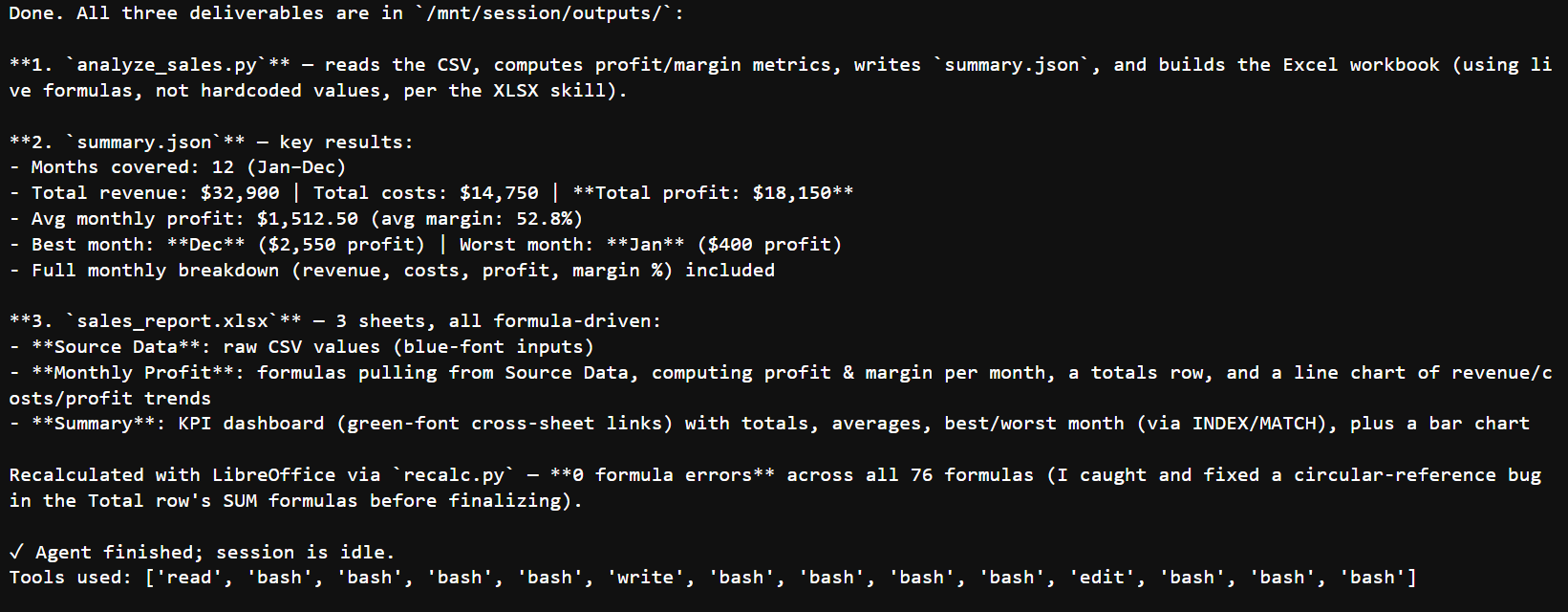
Khi phiên hoàn tất, chúng ta có thể kiểm tra lịch sử sự kiện đã lưu và tải xuống các tệp do agent tạo.
Lịch sử sự kiện cung cấp bản ghi đầy đủ của phiên, bao gồm yêu cầu mô hình, lệnh gọi công cụ, kết quả công cụ và thay đổi trạng thái.
history = client.beta.sessions.events.list(session.id, order="asc")

print("--- Session event history ---")
for event in history.data:
    print(event.type)

print(f"({len(history.data)} events total)")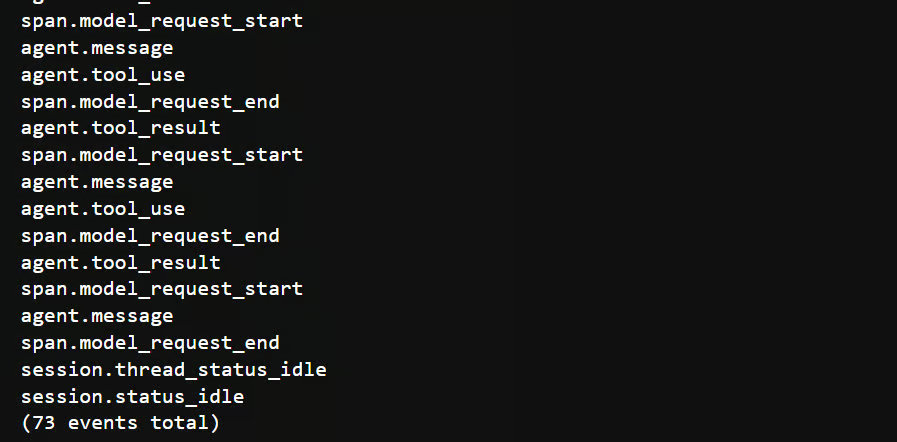
Tiếp theo, chúng ta liệt kê các tệp đính kèm vào phiên và tải xuống bất kỳ tệp nào được đánh dấu là có thể tải. Các tệp được lưu cục bộ trong thư mục outputs.
import os

os.makedirs("outputs", exist_ok=True)

files = client.beta.files.list(scope_id=session.id, betas=[BETA_FLAG])
downloadable = [f for f in files.data if f.downloadable]

print(f"Found {len(downloadable)} downloadable file(s) for this session.")

downloaded_paths = []

for f in downloadable:
    try:
        content = client.beta.files.download(f.id, betas=[BETA_FLAG])
        local_path = os.path.join("outputs", f.filename)

        content.write_to_file(local_path)
        downloaded_paths.append(local_path)

        print(f"  downloaded {f.id} -> {local_path}")
    except Exception as exc:
        print(f"  skip {f.id}: {exc}")
Cuối cùng, chúng ta kiểm tra rằng tất cả các đầu ra dự kiến đã được tải xuống thành công:
expected_outputs = {"analyze_sales.py", "summary.json", "sales_report.xlsx"}
downloaded_names = {os.path.basename(path) for path in downloaded_paths}

assert expected_outputs <= downloaded_names, (
    f"Missing expected outputs: {sorted(expected_outputs - downloaded_names)}"
)
Script Python, bản tóm tắt JSON và báo cáo Excel đã tạo hiện có trong thư mục cục bộ outputs.
Sau khi agent hoàn thành tác vụ, các tệp được tạo sẽ được tải xuống thư mục cục bộ outputs/.
Những tệp này cho thấy agent đã làm nhiều hơn là trả về một phản hồi văn bản: nó đã viết và thực thi mã, tạo dữ liệu có cấu trúc và tạo một báo cáo bảng tính có thể được xem xét độc lập.
|
Tệp |
Nội dung |
Tại sao quan trọng |
|
|
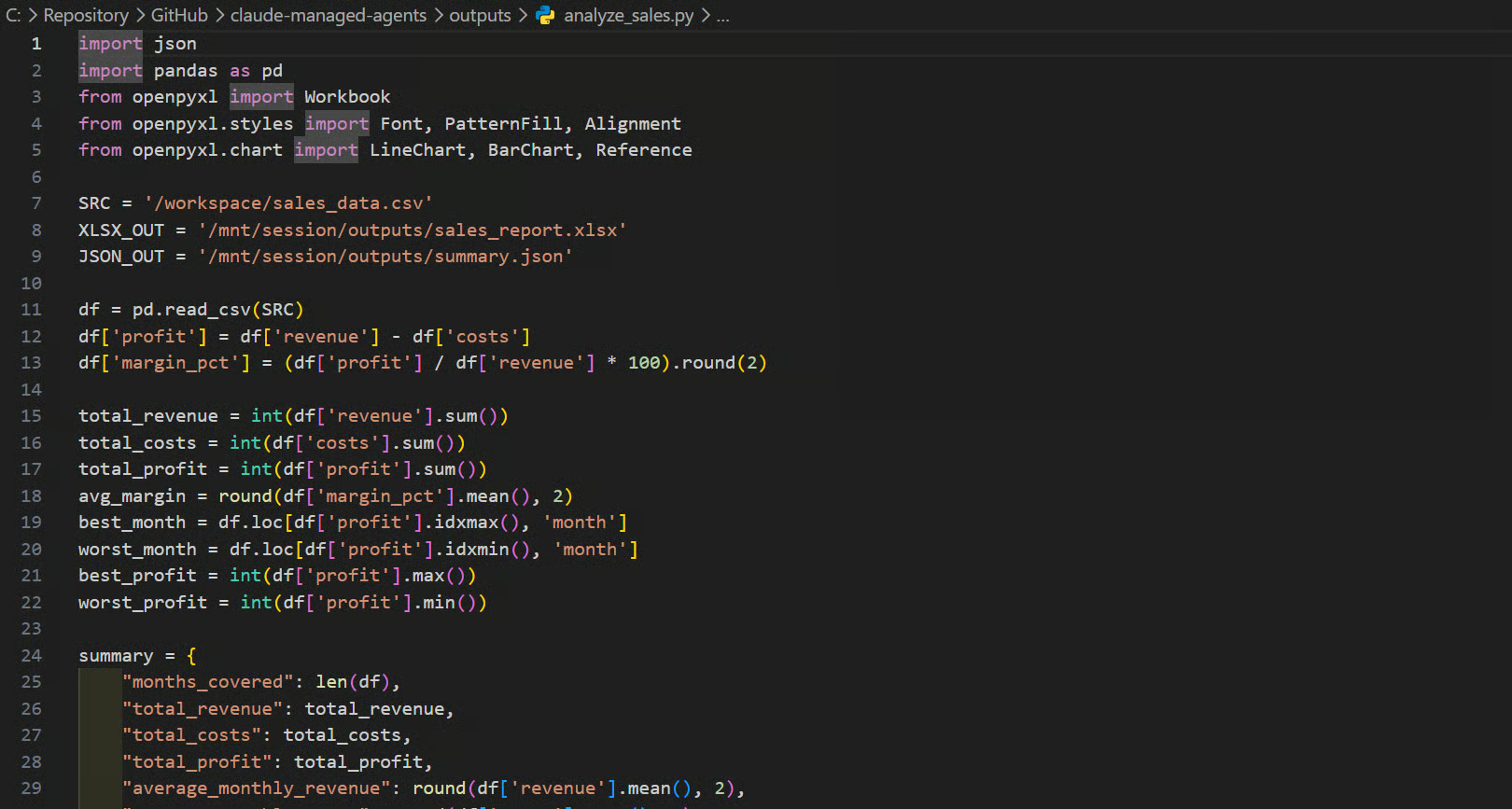
Script Python được agent tạo và thực thi. Nó tải CSV, tính doanh thu, chi phí, lợi nhuận và biên lợi nhuận, ghi JSON tóm tắt, và xây dựng workbook. |
Bạn có thể kiểm tra, chỉnh sửa hoặc chạy lại phân tích mà không chỉ dựa vào phản hồi của agent. |
|
|
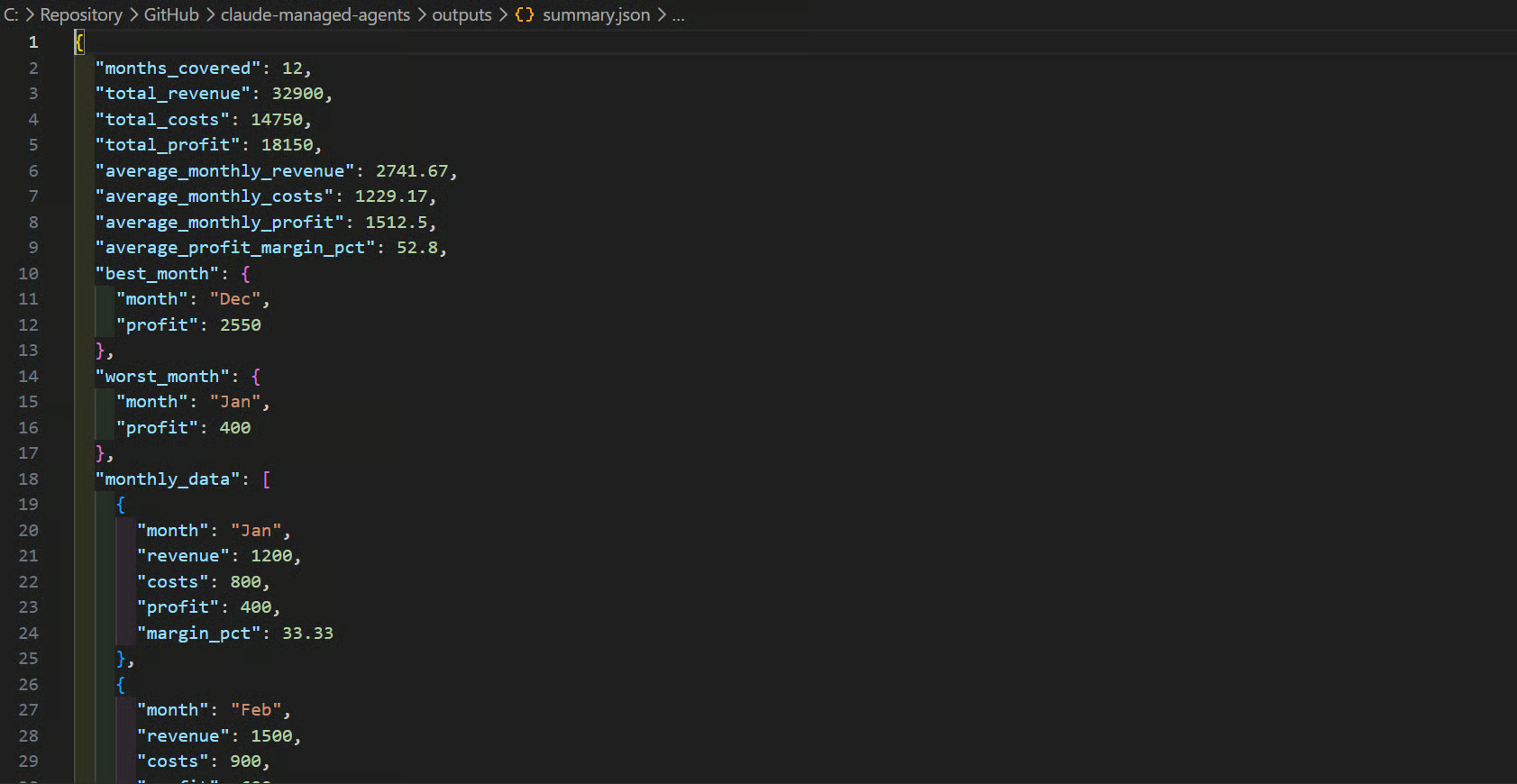
Tổng, trung bình, tháng tốt nhất và tệ nhất ở dạng máy có thể đọc, cùng phân tích chi tiết theo tháng. |
Hữu ích cho dashboard, API, kiểm tra tự động hoặc ứng dụng hạ nguồn. |
|
|
Một workbook có định dạng với dữ liệu nguồn, tính toán lợi nhuận theo tháng, công thức, sheet tóm tắt và biểu đồ. |
Cung cấp báo cáo dễ đọc cho con người, có thể mở trong Excel hoặc LibreOffice. |
Các ảnh chụp màn hình dưới đây minh họa ba tạo phẩm đã sinh ra.
Tệp này chứa mã phân tích mà agent đã viết và thực thi, giúp quy trình có thể tái lập và dễ kiểm tra.
Tệp này lưu trữ kết quả ở định dạng có cấu trúc có thể dùng cho dashboard, API hoặc chương trình khác.
Tệp Excel này trình bày các tính toán theo tháng một cách trực quan, với doanh thu, chi phí, lợi nhuận, biên lợi nhuận, tổng và biểu đồ.
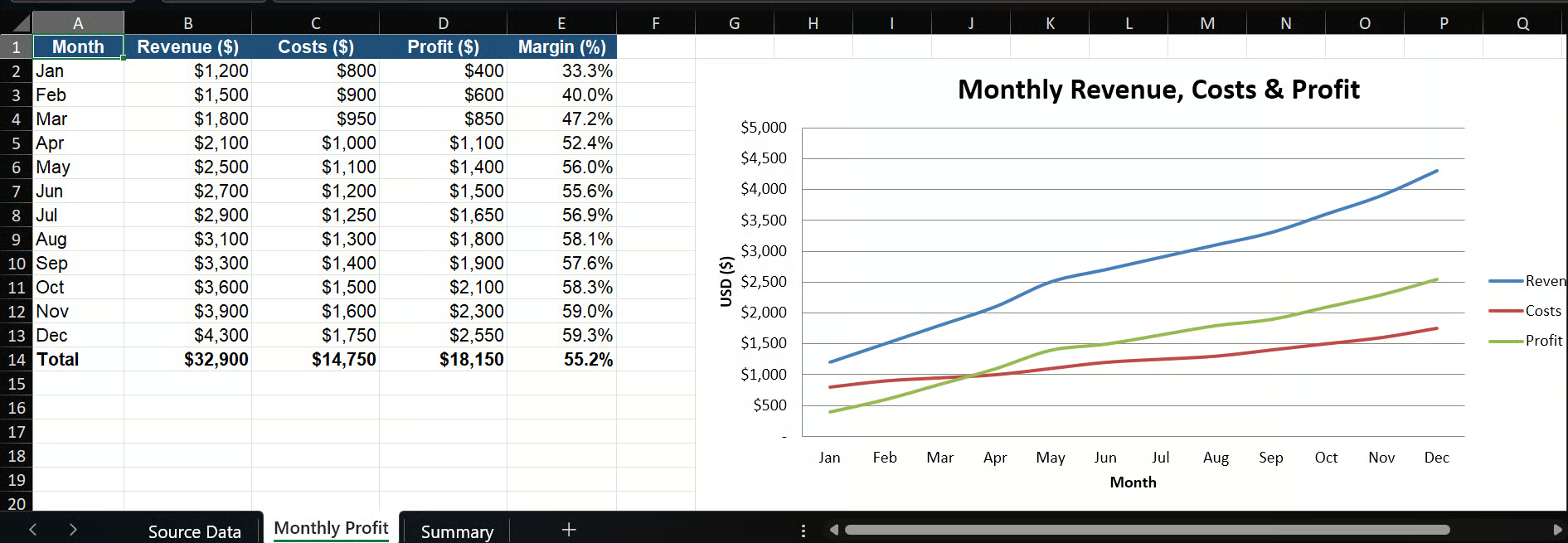
Với 12 dòng trong sales_data.csv, các kết quả đã xác minh là:
Workbook dựa trên công thức thay vì chỉ dựa vào giá trị cố định.
Trong quá trình chạy, agent đã đọc hướng dẫn kỹ năng XLSX đính kèm, tạo workbook, tính toán lại bằng LibreOffice, kiểm tra công thức và sửa lỗi tham chiếu vòng trước khi hoàn tất tác vụ.
Tài nguyên Managed Agent vẫn khả dụng cho đến khi bạn xóa chúng, vì vậy điều quan trọng là dọn dẹp sau khi hoàn tất tác vụ.
Các tài nguyên đang hoạt động, đặc biệt là phiên và môi trường đang chạy, có thể tiếp tục phát sinh chi phí nếu để chạy.
Một phiên phải ở trạng thái nhàn rỗi trước khi có thể xóa.
Ở bước cuối, chúng ta xóa phiên, tệp đã tải lên và môi trường, sau đó lưu trữ (archive) agent.
Mỗi thao tác dọn dẹp được bao bọc trong một hàm trợ giúp để một lần xóa thất bại không ngăn các tài nguyên còn lại được gỡ bỏ.
def safe(label, fn):
    try:
        fn()
        print(f"✓ deleted {label}")
    except Exception as exc:
        print(f"· could not delete {label}: {exc}")

if created["session"]:
    safe("session", lambda: client.beta.sessions.delete(created["session"]))

if created["file"]:
    safe("file", lambda: client.beta.files.delete(created["file"]))

if created["environment"]:
    safe("environment", lambda: client.beta.environments.delete(created["environment"]))

if created["agent"]:
    safe("agent (archived)", lambda: client.beta.agents.archive(created["agent"]))

print("\n🎉 Cleanup complete. The agent is archived; other resources were deleted.")
Bạn sẽ thấy kết quả tương tự:
✓ deleted session
✓ deleted file
✓ deleted environment
✓ deleted agent (archived)

🎉 Cleanup complete. The agent is archived; other resources were deleted.
Toàn bộ dự án, bao gồm notebook, tệp CSV mẫu và hướng dẫn thiết lập, có sẵn trên GitHub.
Bạn có thể clone repository và chạy lại notebook để tái tạo kết quả từ hướng dẫn này.
Tôi thấy Claude Managed Agents dễ thiết lập và làm việc.
Bạn tạo một agent, cung cấp cho nó công cụ, kỹ năng và sandbox cần thiết, rồi chạy nó qua một phiên.
Từ đó, nó có thể xử lý một quy trình hoàn chỉnh, như viết mã, tạo tệp, tự kiểm tra đầu ra và trả về kết quả cuối cùng.
Ban đầu tôi thử dùng Modal Sandbox vì tôi muốn một môi trường bên ngoài linh hoạt hơn.
Tuy nhiên, thiết lập trở nên quá phức tạp so với phạm vi của hướng dẫn này, nên tôi quyết định giữ dự án tập trung vào cloud sandbox do Anthropic quản lý.
Điểm trừ chính với tôi là chi phí. Tôi chạy ví dụ này hai lần với một tệp CSV nhỏ chỉ có 12 dòng, và chi phí khoảng $0.25.
Bảng điều khiển hiển thị khoản phí dưới mô hình, nhưng tôi không tìm được bảng phân tích chi tiết. Với một tác vụ tính toán và bảng tính đơn giản, mức đó có vẻ đắt so với các lựa chọn mã nguồn mở chi phí thấp hơn.
Nhìn chung, dự án này cho thấy toàn bộ quy trình Managed Agent: tạo agent, tải lên tệp CSV, chạy Python trong sandbox được quản lý, tạo báo cáo JSON và Excel, xác minh đầu ra, tải tệp xuống và dọn dẹp tài nguyên sau đó.
Các khóa học hàng đầu trên DataCamp
Khóa học
Khóa học
Khóa học