
Kurs
Feinabstimmung mit Llama 3
2 Std.
4K
In diesem Tutorial lernst du, wie du das Bildgenerierungsmodell FLUX.2 lokal ausführst. Wir richten die GPU-Umgebung ein, laden eine quantisierte Version von FLUX.2, laden sie effizient in GPU- und RAM-Speicher, führen Inferenz aus und probieren anschließend verschiedene Konfigurationsoptionen aus.
Ein Modell dieser Größe auf einer RTX 3090 zu betreiben, kann herausfordernd sein. Dieses Tutorial zeigt den einfachsten und pragmatischsten Weg, FLUX.2 lokal ohne unnötige Komplexität zum Laufen zu bringen.
Wenn dich fortgeschrittene Techniken für Modellmanagement und -optimierung interessieren, einschließlich Pruning, Quantisierung und Logging, empfehle ich den Kurs Scalable AI Models with PyTorch Lightning.
FLUX.2 ist ein Bildgenerierungsmodell, das für echte kreative Arbeit entwickelt wurde – nicht nur für Experimente. Es erzeugt hochwertige, realistische Bilder und hält dabei Charaktere, Stile und Produkte über mehrere Referenzbilder hinweg konsistent. Aufbauend auf dem ursprünglichen FLUX-Modell folgt es Prompts sehr genau, rendert Text klar und kommt mit Lichtstimmungen, Layouts und Branding sehr gut zurecht.
FLUX.2 unterstützt außerdem Bildbearbeitung in hoher Auflösung und ist sowohl als sofort nutzbare APIs als auch als offene Modelle verfügbar, die du lokal ausführen kannst – praxisnah, flexibel und leicht in echte Produktionsabläufe integrierbar.
FLUX.2 gibt es in vier Hauptvarianten:
Jede Variante ist auf unterschiedliche Anforderungen an Kontrolle, Performance und Deployment zugeschnitten.
In breiteren Leaderboard-Vergleichen liegen alle drei FLUX.2-Varianten unter den Top 10 der Bildbearbeitungsmodelle auf dem Artificial Analysis Leaderboard. FLUX.2 [max] und FLUX.2 [pro] übertreffen dabei Modelle wie GPT-5 und die Vorgänger-Varianten FLUX.1 Kontext.
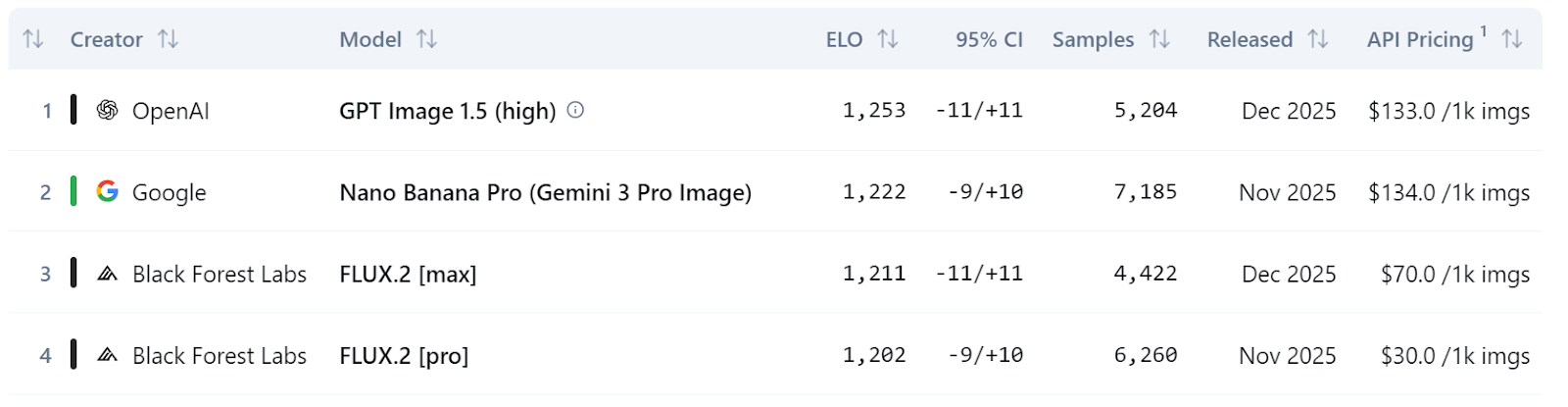
Quelle: Text to Image Leaderboard | Artificial Analysis
In den folgenden Schritten zeige ich dir alles, was du brauchst, um FLUX.2 lokal mit einer RTX 3090 auszuführen.
Bevor du FLUX.2 lokal startest, stelle sicher, dass dein System für GPU-Inferenz korrekt eingerichtet ist.
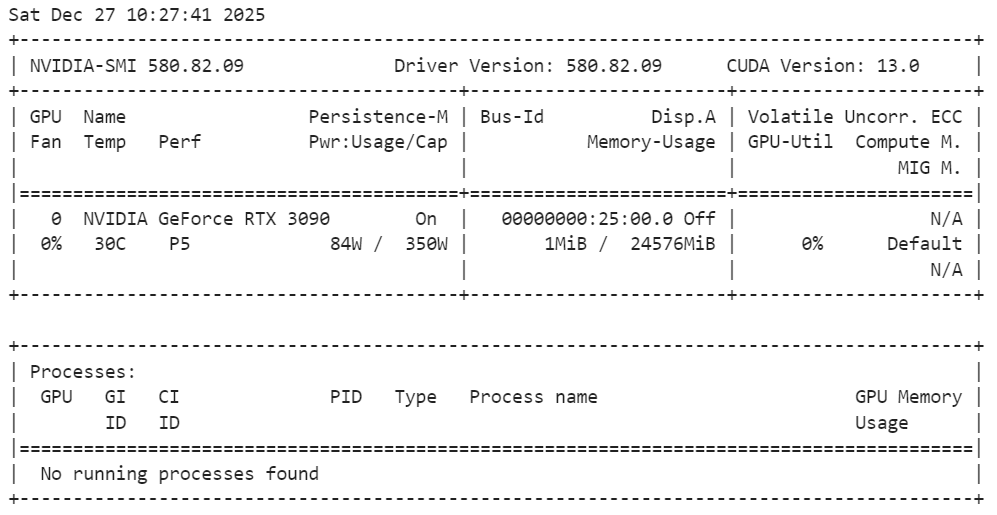
Führe folgenden Befehl im Terminal aus, um die Installation zu prüfen:
nvidia-smiWie du siehst, ist eine RTX 3090 mit CUDA Version 13 vorhanden.
pip install jupyterlab notebookHinweis: Wir nutzen Jupyter Notebook als Entwicklungsumgebung. So kannst du einfacher experimentieren, die Inferenz schrittweise ausführen sowie Bilder direkt im Notebook erzeugen und bearbeiten.
In diesem Schritt installieren wir PyTorch mit CUDA-Unterstützung, damit die Inferenz auf der GPU statt auf der CPU läuft. Der folgende Befehl installiert PyTorch, TorchVision und TorchAudio mit vorkompilierten CUDA-Binaries, sodass kein CUDA-Build from Source nötig ist.
!pip install torch torchvision torchaudio --index-url https://download.pytorch.org/whl/cu130Nach der Installation nutzt PyTorch automatisch die GPU, sofern sie verfügbar und korrekt konfiguriert ist.
Als Nächstes installieren wir die Kernbibliotheken, die benötigt werden, um FLUX.2 lokal auszuführen. Diese Pakete kümmern sich um Modellenladen, Inferenz, GPU-Beschleunigung, Quantisierung und effiziente Datenübertragung.
!pip install -q diffusers transformers accelerate bitsandbytes huggingface_hub protobuf sentencepiece hf_transferSobald alles installiert ist, ist deine Umgebung bereit, FLUX.2 zu laden und mit der Bildgenerierung und -bearbeitung zu starten.
Bevor wir FLUX.2 laden, prüfen wir, ob PyTorch die GPU erkennt und ob 4-Bit-Quantisierung unterstützt wird. Dieser Schritt ist wichtig, damit das Modell innerhalb der Speicherkapazität einer RTX 3090 effizient laufen kann.
import torch
import bitsandbytes as bnb

print(f"PyTorch Version: {torch.__version__}")
print(f"CUDA Version: {torch.version.cuda}")
print(f"Is CUDA available? {torch.cuda.is_available()}")
print(f"GPU Name: {torch.cuda.get_device_name(0)}")

# Check if 4-bit quantization is supported (Ampere 3090 supports this natively)
try:
    print(f"BitsAndBytes Version: {bnb.__version__}")
    print("4-bit quantization check: PASSED")
except ImportError:
    print("BitsAndBytes not installed correctly.")
Die Ausgabe bestätigt, dass PyTorch mit CUDA-Unterstützung korrekt installiert ist, deine RTX 3090 erkannt wird und bitsandbytes mit aktivierter 4-Bit-Quantisierung funktioniert. Das System ist also bereit für effiziente GPU-Inferenz.
PyTorch Version: 2.8.0+cu128
CUDA Version: 12.8
Is CUDA available? True
GPU Name: NVIDIA GeForce RTX 3090
BitsAndBytes Version: 0.49.0
4-bit quantization check: PASSEDIn diesem Schritt laden wir FLUX.2 [dev] mit einem 4-Bit-quantisierten Checkpoint, um den GPU-Speicherverbrauch zu reduzieren und gleichzeitig die Bildqualität hoch zu halten. Das ist essenziell, um ein großes Modell wie FLUX.2 auf einer RTX 3090 zu betreiben.
Wir beginnen mit dem Import der benötigten Bibliotheken und definieren ein paar zentrale Einstellungen.
repo_id verweist auf den 4-Bit-FLUX.2 dev-Checkpoint.device wählt deine GPU (erstes CUDA-Gerät).torch_dtype setzt die Rechengenauigkeit während der Inferenz. bfloat16 ist gängig, da es Speicher spart und die Geschwindigkeit erhöhen kann, ohne die Stabilität der Ergebnisse zu beeinträchtigen.import torch
from transformers import Mistral3ForConditionalGeneration
from diffusers import Flux2Pipeline, Flux2Transformer2DModel
repo_id = "diffusers/FLUX.2-dev-bnb-4bit"
device = "cuda:0"
torch_dtype = torch.bfloat16Als Nächstes laden wir das FLUX.2 Image-Transformer-Backbone (die Hauptkomponente zur Generierung der Bildlatents) zunächst auf die CPU. So wird der VRAM beim Initial-Laden nicht voll und die Pipeline kann Module nur bei Bedarf auf die GPU verschieben.
transformer = Flux2Transformer2DModel.from_pretrained(
  repo_id, subfolder="transformer", torch_dtype=torch_dtype, device_map="cpu"
)
Dann laden wir auch den Text-Encoder auf die CPU. Er wandelt deinen Prompt in Embeddings um, die die Bildgenerierung steuern. Ihn während des Setups auf der CPU zu halten, lässt mehr GPU-Speicher für die rechenintensiven Teile des Generierungsprozesses frei.
text_encoder = Mistral3ForConditionalGeneration.from_pretrained(
  repo_id, subfolder="text_encoder", dtype=torch_dtype, device_map="cpu"
)
Abschließend bauen wir die vollständige Diffusers-Pipeline zusammen, indem wir den geladenen Transformer und den Text-Encoder einsetzen.
Der entscheidende Aufruf ist enable_model_cpu_offload(): Er aktiviert automatisches CPU ↔ GPU Offloading. Die Pipeline verschiebt Modellteile nur dann auf die GPU, wenn sie gerade benötigt werden, und danach zurück auf die CPU. Das ist einer der einfachsten Wege, große Modelle auf Consumer-GPUs zu betreiben, ohne das Geräte-Mapping manuell zu verwalten.
pipe = Flux2Pipeline.from_pretrained(
  repo_id, transformer=transformer, text_encoder=text_encoder, torch_dtype=torch_dtype
)
pipe.enable_model_cpu_offload()Jetzt sind wir bereit, unser erstes Bild mit FLUX.2 zu erzeugen. Zur Vereinfachung starten wir mit einem einzelnen Text-Prompt, der eine hyperrealistische Makroaufnahme eines Marienkäfers beschreibt.
prompt = (
    "Realistic macro photo of a ladybug perched on the edge of a dew-covered rose petal, "
    "early morning mist, soft natural light, shallow depth of field, crisp detail, creamy bokeh."
)
Anschließend übergeben wir den Prompt an die Pipeline und starten die Inferenz.
image = pipe(
  prompt=prompt,
  generator=torch.Generator(device=device).manual_seed(42),
  num_inference_steps=28,
  guidance_scale=4,
).images[0]
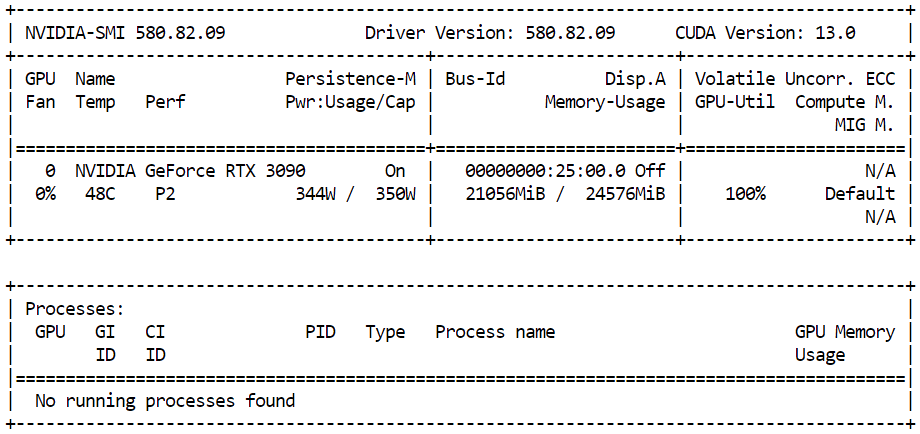
Um die GPU-Speichernutzung während der Inferenz zu beobachten, öffne ein Terminal und führe aus:
nvidia-smiDu solltest rund 21 GB belegten VRAM bei hoher GPU-Auslastung sehen. Das zeigt, dass das Modell die verfügbaren Ressourcen effizient nutzt und auf der RTX 3090 mit voller Leistung läuft.
Sobald die Inferenz abgeschlossen ist, kannst du das erzeugte Bild direkt im Jupyter Notebook anzeigen, indem du einfach das Bildobjekt ausgibst:
imageDas Ergebnis ist äußerst detailreich und realistisch. Das Modell folgt dem Prompt sehr genau und ergänzt zugleich subtile Details wie Licht und Textur, die nicht explizit genannt waren.

Zum Schluss speichern wir das erzeugte Bild lokal:
output_path = "flux2_local_full.png"
image.save(output_path)
print(f"Image saved to {output_path}")
Ausgabe:
Image saved to flux2_local_full.pngFLUX.2 unterstützt fortgeschrittene Prompting-Techniken, die über reinen Text hinausgehen und eine deutlich feinere Kontrolle über das Endbild erlauben. Mit strukturierten JSON-Prompts kannst du Szenenlayout, Subjekte, Licht, Kameraeinstellungen, Stimmung und sogar Farbpaletten mit exakten Hex-Codes präzise definieren.
In diesem Abschnitt verwenden wir einen strukturierten JSON-Prompt, um die Szene detailliert zu beschreiben. Statt eines einzelnen Satzes definieren wir Umgebung, Subjekte, Stil, Farben, Licht, Kameraeigenschaften und negative Vorgaben in einem klaren, organisierten Format.
So versteht FLUX.2 komplexe Anweisungen besser und liefert vorhersehbarere, hochwertige Ergebnisse.
advanced_prompt = """
{
  "scene": "New Year's Eve night on a rooftop overlooking a glowing city skyline",
  "subjects": [
    {
      "description": "Group of close friends including men and women in winter clothing, natural facial proportions, diverse appearances",
      "position": "center and slightly spread across the frame",
      "action": "standing together in a loose circle, some smiling softly, others quietly reflective, sharing the moment before midnight"
    }
  ],
  "style": "Cinematic semi-realistic illustration with grounded realism, subtle painterly softness",
  "color_palette": ["#0B132B", "#1C2541", "#EAEAEA", "#F4D35E"],
  "lighting": "Soft moonlight as ambient key light, warm glow from sparklers and nearby string lights illuminating faces, gentle contrast",
  "mood": "Warm, intimate, reflective, hopeful",
  "background": "Out-of-focus city skyline with distant fireworks softly lighting the sky, minimal visual noise",
  "composition": "Wide medium shot, balanced framing, friends forming a natural arc, negative space above for sky and fireworks",
  "camera": {
    "angle": "eye-level",
    "lens": "50mm cinematic look",
    "depth_of_field": "sharp focus on group, gentle background blur"
  },
  "details": [
    "subtle breath vapor in cold air",
    "soft fabric textures on coats and scarves",
    "sparklers emitting warm golden particles",
    "natural body language and expressions",
    "no exaggerated poses or faces"
  ],
  "negative_prompt": [
    "cartoon style",
    "emote proportions",
    "chibi",
    "oversized heads",
    "text",
    "watermark",
    "logo",
    "overcrowded scene",
    "harsh neon lighting",
    "over-saturation",
    "extra limbs",
    "distorted faces"
  ]
}
"""
Dann führen wir die Inferenz mit einer höheren Schrittzahl aus, um mehr Details einzufangen, während die Guidance Scale moderat bleibt, damit es natürlich wirkt.
image_2 = pipe(
  prompt=advanced_prompt,
  generator=torch.Generator(device=device).manual_seed(42),
  num_inference_steps=50,
  guidance_scale=4,
).images[0]
Um das erzeugte Bild im Jupyter Notebook anzuzeigen:
image_2Das resultierende Bild folgt dem strukturierten Prompt sehr genau und trifft Szene, Stimmung, Licht und Komposition wie spezifiziert.

FLUX.2 unterstützt auch Bildbearbeitung, bei der ein Referenzbild als Basis dient und das Modell Änderungen per Text-Prompt umsetzt. Das ist besonders nützlich, wenn Identität, Gesichtsmerkmale und Hautton erhalten bleiben sollen, während Szene, Stimmung oder Umgebung verändert werden.
Für dieses Beispiel verwenden wir ein Foto einer indischen Frau von Pexels.com als Referenzbild:

Foto von cottonbro studio: https://www.pexels.com/photo/a-woman-with-a-nose-piercing-9317190/
Wir formulieren den Prompt so, dass das Gesicht der Frau und ihre natürlichen Hauttöne erhalten bleiben, während Setting, Licht und Gefühlsausdruck geändert werden. Ziel ist eine Bearbeitung, ohne ihre Identität zu verändern.
from diffusers.utils import load_image

prompt = (
    "Using the provided reference image, generate a realistic photograph of a woman with a similar face, "
    "standing at night and looking up at the sky with stars with a subtle, sad expression. "
    "Natural skin tones, soft moonlight, gentle shadows, shallow depth of field, "
    "with blurred city lights in the background."
)
Als Nächstes laden wir das Referenzbild und übergeben es an die Pipeline. FLUX.2 unterstützt mehrere Referenzbilder, hier verwenden wir ein einzelnes Bild zur Steuerung der Bearbeitung.
indian_woman = load_image("https://images.pexels.com/photos/9317190/pexels-photo-9317190.jpeg")
image_3 = pipe(
    prompt=prompt,
    image=[indian_woman],
    generator=torch.Generator(device=device).manual_seed(42),
    num_inference_steps=28,
    guidance_scale=4,
).images[0]
Um das bearbeitete Ergebnis im Jupyter Notebook anzuzeigen:
image_3Die Ausgabe ist sehr realistisch. Das Modell bewahrt die Gesichtsstruktur und den Hautton der Frau und platziert sie natürlich in eine neue Szene mit anderem Licht, anderer Stimmung und neuem Hintergrund.
Das Ergebnis wirkt weniger wie eine KI-Bearbeitung und mehr wie ein Foto einer Profi-Fotografin in anderer Umgebung und zu einem anderen Zeitpunkt.

Nach meiner Erfahrung wurde der lokale Betrieb von FLUX.2 erst zuverlässig, nachdem ich auf das 4-Bit-quantisierte Modell umgestiegen bin und einen Code-First-Ansatz mit Transformers und Diffusers genutzt habe.
Zuvor bekam ich auf einer RTX 3090 mit 24 GB häufig Out-of-Memory-Fehler, wenn ich zu viel direkt auf CUDA geladen habe.
UI-Tools wie Stable Diffusion WebUI und ComfyUI stoßen ebenfalls schneller an Speichergrenzen, da sie oft zusätzliche Zwischenpuffer, Previews und Workflow-States im Speicher halten – es sei denn, du passt ihre Low-VRAM-Optionen sorgfältig an.
VRAM-Optimierungstipps (das hat mir wirklich geholfen):
device_map="cpu") und nicht alles upfront auf CUDA schieben.pipe.enable_model_cpu_offload()), damit nur aktive Teile auf der GPU liegen.nvidia-smi beobachten und andere GPU-hungrige Anwendungen schließen.Wenn du trotz dieser Schritte weiterhin Out-of-Memory-Probleme hast, sieh dir dieses DataLab-Notebook für zusätzliche Troubleshooting- und Speicheroptimierungsbeispiele an.
Ich bin ehrlich beeindruckt, wie weit Open-Source-Modelle für Bildgenerierung inzwischen sind.
Modelle wie FLUX.2 sind proprietären Systemen in puncto Bildqualität und Prompt-Verständnis inzwischen klar ebenbürtig. Mit dem richtigen Setup, etwas Experimentieren und ein wenig Speicheroptimierung lassen sich hochwertige, realistische Bilder lokal und kostenlos generieren – selbst auf Consumer-GPUs.
Am meisten sticht die Kontrolle hervor. Fortgeschrittenes Prompting, strukturiertes JSON, Multi-Referenz-Bearbeitung und Image-to-Image-Workflows ermöglichen weit mehr als einfache Generierungen.
Du kannst kinoreife Szenen kreieren, Bilder fürs Storytelling weiterentwickeln, Bildbearbeitung auf Profiniveau durchführen und schnell iterieren – ohne auf geschlossene Plattformen angewiesen zu sein.
Für Kreative, Forschende und Entwickler eröffnet das enorme Freiheit und macht High-End-Bildgenerierung so zugänglich wie nie.
Top DataCamp Courses
Kurs
Kurs
Kurs