
Curso
Introducción a GCP
2 h
7.9K
Practica y programa tu progreso.
Continuar Con GoogleEl mayor obstáculo hoy para crear agentes de IA sofisticados no es el modelo, sino la integración. Si quieres que un agente acceda a diez herramientas de empresa, normalmente tienes que escribir diez envoltorios de API distintos. En mi experiencia, esto genera fatiga de envoltorios y una enorme carga de mantenimiento. Cada vez que cambia una API, tu agente se rompe.
La solución está en la colaboración entre el Google Agent Development Kit (ADK) y el Model Context Protocol (MCP). Si pensamos en la IA como en una persona trabajadora, el ADK es el "cerebro" (orquesta la lógica y la memoria), mientras que MCP son las "manos" (una forma estandarizada de coger y usar cualquier herramienta).
En este tutorial, vamos a crear un agente real de recuperación logística usando ADK. El agente hará lo siguiente:
Todo esto sucede sin escribir ni una sola línea de código API a medida. El agente descubre y usa las herramientas automáticamente.
¿Eres nuevo en Google Cloud? Te recomiendo empezar por el curso gratuito Introduction to GCP para repasar facturación, proyectos y servicios básicos.
El Google Agent Development Kit (ADK) es el framework open‑source de Google, orientado a código, para crear, probar y desplegar agentes de IA. Mientras que frameworks como LangChain se centran en cadenas, ADK está pensado para la ejecución. Proporciona una estructura estándar sobre cómo piensan los agentes, cómo usan conjuntos de herramientas y cómo operan en producción.
Conceptos clave:
Este enfoque code‑first nos permite usar control de versiones, pruebas y CI/CD igual que en el software tradicional. Además, ofrece una integración profunda con Google, lo que implica que los servidores MCP gestionados apenas requieren despliegue para BigQuery o Maps.
Para comparar los tres grandes proveedores cloud y sus servicios, no te pierdas nuestra guía AWS vs. Azure vs. Google Cloud.
Nuestro agente de recuperación logística sigue un razonamiento claro para resolver un problema de negocio. Entender el flujo te ayudará cuando redactes las instrucciones del prompt más adelante.
El bucle de razonamiento sigue estos pasos:
El agente llama al MCP de BigQuery para encontrar filas donde status='Delayed' y priority='High'.
Para cada pedido devuelto, el agente extrae las direcciones del almacén y del cliente.
El agente llama al MCP de Google Maps para cada pedido y calcula la distancia por carretera.
El agente aplica la lógica de negocio (p. ej., más de 500 millas implica envío aéreo) y presenta una tabla en Markdown con las recomendaciones.
Antes de empezar a programar, necesitamos preparar la infraestructura cloud subyacente y dejar listos los servidores MCP. En mi experiencia, ajustar bien los permisos de IAM es la parte más importante de esta fase.
Asegúrate primero de tener instalada la Google Cloud CLI. Abre tu terminal y ejecuta el siguiente comando para vincular tu entorno local con tu cuenta de Google:
gcloud initAl ejecutarlo, se abrirá automáticamente una ventana del navegador. Inicia sesión con tu cuenta de Google. Después, haz clic en Allow para dar permiso a la CLI para gestionar tus recursos.
De vuelta en la terminal, el asistente te pedirá seleccionar un proyecto por defecto. Si ya tienes uno, elige su ID, o crea un proyecto nuevo desde la terminal.
Para usar los servicios de API, debes configurar la facturación. Dicho esto, Google Cloud te da 300 $ de crédito gratuito durante 90 días para probar servicios como Compute, GKE y Maps, más que suficiente para el ejemplo de este tutorial. Solo pagarás si activas el pago por uso o prepago. Para configurar la facturación:
Ve a la página de facturación de Google Console y accede con la cuenta que usas en gcloud.
Crea una cuenta de facturación si no la tienes (deberás añadir un método de pago, pero se aplica primero el crédito gratuito).
Vincula la cuenta de facturación a tu proyecto: Billing → Link a project → selecciona tu proyecto, o ejecuta:
gcloud billing projects link YOUR_PROJECT_ID --billing-account=BILLING_ACCOUNT_IDA continuación, habilitamos las APIs principales del producto. Permiten que el agente acceda a los servicios de datos como BigQuery y Maps.
gcloud services enable bigquery.googleapis.com
gcloud services enable compute.googleapis.com
gcloud services enable container.googleapis.com
gcloud services enable mapstools.googleapis.com
Ahora debemos habilitar los Managed MCP Endpoints. Piensa en ellos como las interfaces traductoras que se sitúan sobre las APIs normales.
Primero, guardemos tu ID de proyecto y el correo de tu cuenta en variables de entorno. Así evitamos teclearlas en cada comando posterior:
export PROJECT_ID=$(gcloud config get-value project)
export USER_EMAIL=$(gcloud config get-value account)
Con esas variables listas, ejecuta los siguientes comandos para activar las funciones beta de MCP en tu proyecto. Indican a Google que prepare los endpoints MCP remotos para que tu agente los llame:
gcloud beta services mcp enable bigquery.googleapis.com --project=$PROJECT_ID
gcloud beta services mcp enable mapstools.googleapis.com --project=$PROJECT_ID
gcloud beta services mcp enable container.googleapis.com --project=$PROJECT_ID
gcloud beta services mcp enable compute.googleapis.com --project=$PROJECT_IDMCP usa un modelo de seguridad de "doble capa". Necesitas permiso para hablar con el propio servidor MCP y, por separado, permiso para acceder a los datos reales (como las filas de una tabla). Puedes hacerlo con la CLI de gcloud o con la interfaz de Google Cloud Console.
Para conceder a tu cuenta permiso para usar MCP e interactuar con BigQuery, ejecuta estos tres comandos:
# Permiso para hablar con el traductor MCP
gcloud projects add-iam-policy-binding $PROJECT_ID --member="user:$USER_EMAIL" --role="roles/mcp.toolUser"

# Permisos para ejecutar jobs de BigQuery y ver datos
gcloud projects add-iam-policy-binding $PROJECT_ID --member="user:$USER_EMAIL" --role="roles/bigquery.jobUser"
gcloud projects add-iam-policy-binding $PROJECT_ID --member="user:$USER_EMAIL" --role="roles/bigquery.dataViewer"Si prefieres una interfaz visual, sigue estos pasos en el navegador:
Por último, crea una clave de la API de Maps. A diferencia de BigQuery, que usa tus credenciales de inicio de sesión, el servidor MCP de Maps usa esta clave para facturación y seguimiento de cuota:
gcloud alpha services api-keys create --display-name="Maps-MCP-Key"Antes de escribir nuestro código en Python, conviene hacer una comprobación rápida con MCP Inspector. Usaremos el comando npx, una herramienta que viene con Node.js.
Sirve para ejecutar al momento un paquete (como el inspector) sin instalarlo permanentemente en tu equipo. Ejecuta esto en tu terminal:
npx @modelcontextprotocol/inspectorSe abrirá una interfaz web en tu navegador (normalmente en http://localhost:3000). He elegido opciones concretas en la configuración para asegurarnos de probar la versión remota gestionada de los servidores de Google, no un mock local:
Transport type: Streamable HTTP. Lo elegimos porque es el protocolo estándar de producción que usa Google para servidores cloud gestionados.
URL: Introduce https://mapstools.googleapis.com/mcp. Es la puerta de entrada directa al MCP de Maps de Google.
Connection Type: via Proxy. Esta elección es clave. Al seleccionar "Proxy", el inspector usará tu inicio de sesión local de gcloud para gestionar automáticamente los intercambios de seguridad.
Custom Headers: Añade X-Goog-Api-Key y pega tu clave del Paso 3.
Haz clic en Connect.
Ahora deberías ver el estado Connected en verde. Haz clic en el botón List Tools para ver todas las capacidades que ofrece el servidor. Si ves compute_routes en esa lista, tu infraestructura está perfectamente configurada.
Para entender mejor cómo usar BigQuery, Maps y otros servicios de Google con tus agentes, echa un vistazo a este tutorial sobre Google MCP Servers.
Con la infraestructura lista, pasamos al entorno de desarrollo local. Empezaremos organizando los archivos del proyecto.
Crea una carpeta para tu proyecto y prepara un entorno virtual.
mkdir my-agents
cd my-agents
python -m venv .venv
source .venv/bin/activate
El último comando es para macOS o Linux; si usas Windows, utiliza .venv\Scripts\activate.
Ahora instala el paquete google-adk junto con sus librerías de soporte.
pip install google-adk google-generativeai python-dotenv httpx google-authUn paso más: crea un archivo .env en la carpeta raíz para guardar tu PROJECT_ID y la MAPS_API_KEY que generaste antes.
En un script llamado tools.py, no escribimos código para "obtener datos". En su lugar, escribimos código para conectar con un servidor que sabe cómo obtenerlos.
Separar las herramientas de la lógica hace que el proyecto sea mucho más fácil de depurar. Como hablamos con endpoints remotos de Google Cloud, usamos StreamableHTTPConnectionParams para gestionar las cabeceras de autenticación.
import os
import google.auth
import google.auth.transport.requests
from google.adk.tools.mcp_tool.mcp_toolset import MCPToolset
from google.adk.tools.mcp_tool.mcp_session_manager import StreamableHTTPConnectionParams

# --- BigQuery Toolset ---
def get_bigquery_mcp_toolset():
    credentials, project_id = google.auth.default(
        scopes=["https://www.googleapis.com/auth/bigquery"]
    )
    credentials.refresh(google.auth.transport.requests.Request())

    return MCPToolset(
        connection_params=StreamableHTTPConnectionParams(
            url="https://bigquery.googleapis.com/mcp",
            headers={
                "Authorization": f"Bearer {credentials.token}",
                # 'x-goog-user-project' is vital for BigQuery billing
                "x-goog-user-project": project_id,
                "Content-Type": "application/json"
            }
        )
    )

# --- Maps Toolset ---
def get_maps_mcp_toolset():
    maps_api_key = os.getenv('MAPS_API_KEY')

    return MCPToolset(
        connection_params=StreamableHTTPConnectionParams(
            url="https://mapstools.googleapis.com/mcp",
            headers={
                "X-Goog-Api-Key": maps_api_key,
                "Content-Type": "application/json"
            }
        )
)Ahora construimos el "cerebro". En mi experiencia, usar uno de los modelos Gemini Flash es la mejor opción aquí porque son rapidísimos llamando a herramientas.
Le damos al agente un procedimiento operativo estándar mediante las instrucciones en el archivo agent.py. Fíjate en cómo usamos una canalización clara de cuatro pasos para evitar confusiones.
from .tools import get_maps_mcp_toolset, get_bigquery_mcp_toolset
from google.adk.agents import LlmAgent

# We're giving the agent a very structured 'Instruction' set.
# Think of this as the SOP (Standard Operating Procedure) for your agent.
root_agent = LlmAgent(
    model='gemini-2.0-flash',
    name='logistics_recovery_agent',
    instruction="""
      You are an expert Retail Operations Recovery Agent.
      Your job is to find high-priority problems and solve them using the tools provided.

      Step 1: Use 'execute_sql' to find orders where status is 'Delayed' and priority is 'High'.
      Step 2: For every result, pull the warehouse and customer addresses.
      Step 3: Call the Maps 'compute_routes' tool to find the exact drive distance.
      Step 4: Use this logic: If distance > 500 miles, recommend 'Air Shipping'.
            Otherwise, recommend 'Regional Express Ground'.

      Output the final result as a clean Markdown table.
    """,
    # We simply drop our toolsets here.
    # ADK handles the complexity of deciding which tool to call when.
    tools=[get_maps_mcp_toolset(), get_bigquery_mcp_toolset()]
)Para ejecutar el agente, usamos el runner. Este componente lleva el control del estado de la conversación para que el agente sepa qué ha hecho ya y qué tiene que hacer después.
from google.adk.runners import Runner
from google.genai import types

async def main():
    # The Runner acts as the host for our agent.
    runner = Runner(app_name="logistics_app", agent=root_agent)

    # Wrap the user input in the standard GenAI Content format
    user_input = "Identify high-priority delayed orders and suggest recovery shipping methods."
    content = types.Content(role="user", parts=[types.Part(text=user_input)])

    print("--- Starting Smart Logistics Agent ---")

    # We use run_async to stream the 'events' (Thoughts and Tool Calls)
    async for event in runner.run_async(user_id="admin_user", new_message=content):
        # We only want to print the text part of the response to the console
        if hasattr(event, 'content') and event.content.parts:
print(event.content.parts[0].text)Cuando llamas a runner.run_async, el ADK inicia un bucle iterativo:
Gemini piensa: "Primero necesito ver los pedidos retrasados".
ADK actúa: llama a la herramienta execute_sql de tu conjunto MCP de BigQuery.
Observación: la herramienta devuelve los datos del pedido.
Gemini piensa: "Ahora necesito las distancias de estos dos pedidos".
ADK actúa: llama dos veces al MCP de Maps.
Respuesta final: Gemini ve todos los datos, aplica tu lógica de "500 millas" y formatea la tabla.
Aunque la terminal es estupenda para logs, ADK incluye una consola web que visualiza el razonamiento interno del agente. Es la herramienta más útil para depurar.
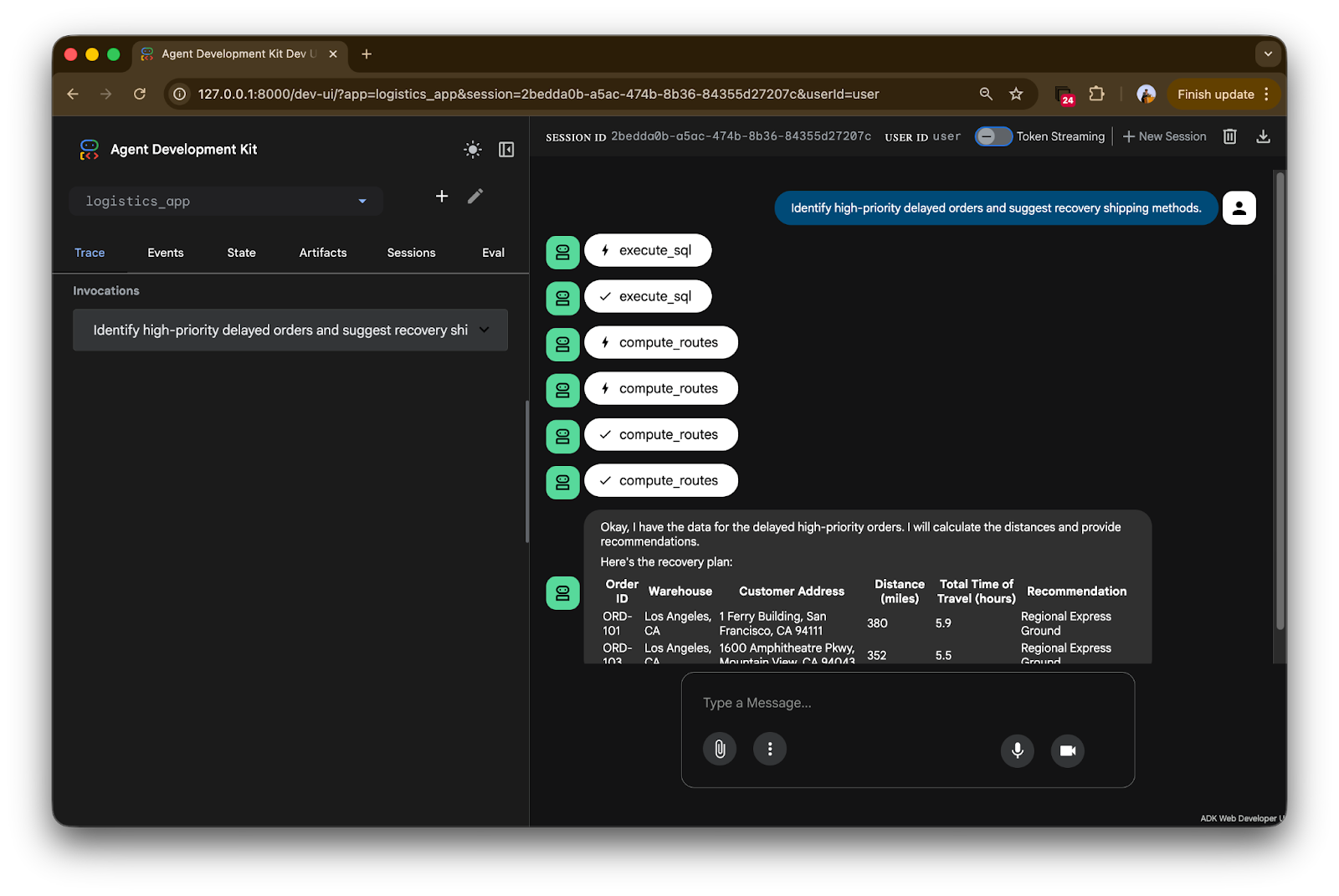
Lanza la interfaz con adk web. Una vez arranque el servidor, abre el navegador en http://127.0.0.1:8000. Verás una interfaz limpia tipo chat donde puedes enviar la orden: "Identify high-priority delayed orders and suggest recovery shipping methods."
La consola de ADK ofrece una traza transparente de cómo interactúa el agente con tu infraestructura cloud.
Vamos a desglosarlo paso a paso:
Handshakes con herramientas: Fíjate en los iconos etiquetados como execute_sql y compute_routes. En la traza, el rayo indica una invocación de herramienta. El agente no "adivinó"; contactó realmente con el servidor MCP de BigQuery para ejecutar una consulta SQL específica sobre tu tabla de pedidos.
Lógica secuencial: La traza muestra un orden claro de operaciones. Primero obtiene los datos vía BigQuery (primer check). Cuando ya tiene las direcciones de almacén y cliente, verás múltiples llamadas a compute_routes. El agente recorre de forma inteligente los pedidos retrasados para obtener distancias reales desde el servidor MCP de Maps.
Síntesis final: Al final de la traza aparece la respuesta final.
Observa los datos:
Como le dimos al agente la lógica: "Si la distancia > 500 millas, recomienda Air Shipping; en caso contrario, Regional Express Ground", el agente aplicó correctamente esta regla de negocio a ambos pedidos y los formateó en una tabla Markdown impecable.
Acabamos de crear un agente logístico funcional sin escribir ni una sola línea de código API a medida para BigQuery o Google Maps. Usando ADK y MCP, hemos creado una arquitectura modular, segura y pensada para desarrolladores.
El futuro de la IA no va solo de chatbots que hablan, sino de agentes que actúan. Con estas herramientas, por fin nos acercamos a esa realidad.
Este tutorial puede ser un gran punto de partida para que experimentes con Google ADK y los servidores MCP:
Si quieres profundizar en la orquestación de agentes, te recomiendo inscribirte en nuestro itinerario profesional Associate AI Engineer for Developers.
Cursos de GCP y agentes de IA
Curso
Programa
Practica y programa tu progreso.
Continuar Con Googleblog
Abid Ali Awan
10 min
blog
Matt Crabtree
12 min
blog
Abid Ali Awan
8 min
Tutorial
Abid Ali Awan
12 min
Tutorial
Matt Crabtree
6 min
Tutorial