
Kurs
Einführung in GCP
2 Std.
7.9K
Üben und Lernpfad deinen Fortschritt.
Weiter Mit GoogleDie größte Hürde beim Aufbau anspruchsvoller KI-Agenten ist heute nicht das Modell, sondern die Integration. Wenn ein Agent auf zehn verschiedene Enterprise-Tools zugreifen soll, musst du meist zehn unterschiedliche API-Wrapper schreiben. Aus meiner Erfahrung führt das zu Wrapper-Müdigkeit und einem enormen Wartungsaufwand. Jedes Mal, wenn sich eine API ändert, bricht dein Agent.
Die Lösung liegt in der Partnerschaft zwischen dem Google Agent Development Kit (ADK) und dem Model Context Protocol (MCP). Wenn wir die KI als Mitarbeitenden betrachten, ist das ADK das "Gehirn" (orchestriert Logik und Gedächtnis), während MCP die "Hände" repräsentiert (ein standardisierter Weg, jedes Tool aufzunehmen und zu nutzen).
In diesem Tutorial bauen wir mit ADK einen echten Logistik-Recovery-Agenten. Der Agent wird:
All das passiert, ohne eine einzige Zeile eigenen API-Codes zu schreiben. Der Agent entdeckt und nutzt die Tools automatisch.
Neu bei Google Cloud? Ich empfehle dir, mit dem kostenlosen Kurs Introduction to GCP zu starten, um Abrechnung, Projekte und Basisdienste abzudecken.
Das Google Agent Development Kit (ADK) ist Googles Open-Source-, Code-First-Framework zum Entwickeln, Testen und Bereitstellen von KI-Agenten. Während Frameworks wie LangChain sich auf Chains konzentrieren, ist ADK für die Ausführung gebaut. Es stellt eine standardisierte Struktur bereit, wie Agenten denken, Toolsets nutzen und in Produktionsumgebungen laufen.
Die wichtigsten Konzepte:
Dieser Code-First-Ansatz erlaubt uns, Versionskontrolle, Tests und CI/CD wie bei normaler Software zu nutzen. Er bietet zudem eine tiefe Google-Integration, sodass verwaltete MCP-Server für BigQuery oder Maps kaum Bereitstellung benötigen.
Für einen Vergleich der „großen drei“ Cloud-Anbieter und ihrer Services schau dir unseren Guide zu AWS vs. Azure vs. Google Cloud an.
Unser Logistik-Recovery-Agent folgt einem klaren Gedankengang, um ein Geschäftsproblem zu lösen. Das Verständnis des Flusses hilft dir später beim Formulieren der Prompt-Instruktionen.
Die Reasoning-Schleife folgt diesen Schritten:
Der Agent ruft das BigQuery-MCP auf, um Zeilen zu finden, bei denen status='Delayed' und priority='High' ist.
Für jede zurückgegebene Bestellung extrahiert der Agent die Adressen von Lager und Kunde.
Der Agent ruft für jede Bestellung das Google-Maps-MCP auf, um die Fahrstrecke zu berechnen.
Der Agent wendet Business-Logik an (z. B. bei mehr als 500 Meilen: Luftfracht) und präsentiert eine Markdown-Tabelle mit Empfehlungen.
Bevor wir mit dem Coden starten, bereiten wir die zugrunde liegende Cloud-Infrastruktur vor und machen die MCP-Server startklar. Aus meiner Erfahrung ist es in dieser Phase am wichtigsten, die IAM-Berechtigungen korrekt zu setzen.
Stelle sicher, dass die Google Cloud CLI installiert ist. Öffne dein Terminal und führe den folgenden Befehl aus, um deine lokale Umgebung mit deinem Google-Konto zu verknüpfen:
gcloud initSobald du das ausführst, öffnet sich automatisch ein Browserfenster. Du wirst aufgefordert, dich mit deinem Google-Konto anzumelden. Nach der Anmeldung klicke auf Allow, um der CLI die Berechtigung zu geben, deine Ressourcen zu verwalten.
Zurück im Terminal wirst du aufgefordert, ein Standardprojekt auszuwählen. Wenn du bereits eines erstellt hast, wähle die Projekt-ID aus oder erstelle im Terminal ein neues Projekt.
Um die API-Services zu nutzen, musst du die Abrechnung einrichten. Google Cloud gibt dir 300 $ Startguthaben für 90 Tage, um Services wie Compute, GKE und Maps auszuprobieren, und dieses Guthaben reicht für das Beispiel in diesem Tutorial locker aus. Es entstehen nur Kosten, wenn du nutzungsbasiert abrechnest oder Guthaben vorab zahlst. So richtest du die Abrechnung ein:
Gehe zur Billing-Seite der Google Console und melde dich mit dem Konto an, das du für gcloud verwendest.
Erstelle ein Abrechnungskonto, falls noch nicht vorhanden (eine Zahlungsmethode ist erforderlich, aber das Startguthaben wird zuerst genutzt).
Verknüpfe das Abrechnungskonto mit deinem Projekt: Billing → Link a project → Wähle dein Projekt, oder führe aus:
gcloud billing projects link YOUR_PROJECT_ID --billing-account=BILLING_ACCOUNT_IDAls Nächstes aktivieren wir die wichtigsten Produkt-APIs. Damit kann der Agent auf die Rohdaten-Services wie BigQuery und Maps zugreifen.
gcloud services enable bigquery.googleapis.com
gcloud services enable compute.googleapis.com
gcloud services enable container.googleapis.com
gcloud services enable mapstools.googleapis.com
Jetzt müssen wir die Managed MCP Endpoints aktivieren. Man kann sie sich als Übersetzerschnittstellen vorstellen, die auf den regulären APIs aufsetzen.
Speichere zunächst deine Projekt-ID und Account-E-Mail in Umgebungsvariablen. So müssen wir sie nicht bei jedem Befehl eintippen:
export PROJECT_ID=$(gcloud config get-value project)
export USER_EMAIL=$(gcloud config get-value account)
Mit diesen Variablen aktivierst du die Beta-MCP-Features für dein Projekt. Diese Befehle bereiten die Remote-MCP-Endpunkte vor, die dein Agent aufrufen wird:
gcloud beta services mcp enable bigquery.googleapis.com --project=$PROJECT_ID
gcloud beta services mcp enable mapstools.googleapis.com --project=$PROJECT_ID
gcloud beta services mcp enable container.googleapis.com --project=$PROJECT_ID
gcloud beta services mcp enable compute.googleapis.com --project=$PROJECT_IDMCP nutzt ein "zweistufiges" Sicherheitsmodell. Du brauchst Berechtigungen, um mit dem MCP-Server zu sprechen, und separate Berechtigungen für den Zugriff auf die eigentlichen Daten (z. B. Zeilen in einer Tabelle). Du kannst das per gcloud CLI oder über die Google Cloud Console UI erledigen.
Um deinem Konto die Berechtigungen für MCP und die Interaktion mit BigQuery zu geben, führe diese drei Befehle aus:
# Berechtigung für den MCP Translator
gcloud projects add-iam-policy-binding $PROJECT_ID --member="user:$USER_EMAIL" --role="roles/mcp.toolUser"

# Berechtigungen zum Ausführen von BigQuery-Jobs und zum Anzeigen von Daten
gcloud projects add-iam-policy-binding $PROJECT_ID --member="user:$USER_EMAIL" --role="roles/bigquery.jobUser"
gcloud projects add-iam-policy-binding $PROJECT_ID --member="user:$USER_EMAIL" --role="roles/bigquery.dataViewer"Wenn du lieber visuell arbeitest, kannst du diese Schritte im Browser ausführen:
Erstelle zum Schluss einen Maps-API-Schlüssel. Im Gegensatz zu BigQuery, das deine Login-Daten nutzt, verwendet der Maps-MCP-Server diesen Schlüssel für Abrechnung und Quoten-Tracking:
gcloud alpha services api-keys create --display-name="Maps-MCP-Key"Bevor wir Python-Code schreiben, sollten wir mit dem MCP Inspector einen Quick-Check machen. Wir nutzen den npx-Befehl, der mit Node.js kommt.
Er dient dazu, ein Paket (wie den Inspector) sofort auszuführen, ohne es dauerhaft zu installieren. Führe Folgendes im Terminal aus:
npx @modelcontextprotocol/inspectorDadurch startet ein Web-Interface im Browser (meist unter http://localhost:3000). Ich habe in der folgenden Setup-Liste bewusst Einstellungen gewählt, um die Remote Managed Version von Googles Servern zu testen, nicht ein lokales Mock:
Transporttyp: Streamable HTTP. Das ist das produktive Standardprotokoll, das Google für verwaltete Cloud-Server nutzt.
URL: Gib https://mapstools.googleapis.com/mcp ein. Das ist die direkte Eingangstür zum Maps-MCP von Google.
Connection Type: via Proxy. Diese Wahl ist entscheidend. Mit "Proxy" nutzt der Inspector dein lokales gcloud-Login, um alle komplexen Security-Handshakes automatisch zu handhaben.
Custom Headers: Füge X-Goog-Api-Key hinzu und füge deinen Schlüssel aus Schritt 3 ein.
Klicke auf Connect.
Du solltest nun einen grünen Connected-Status sehen. Klicke auf List Tools, um alle Fähigkeiten des Servers zu sehen. Wenn compute_routes in der Liste erscheint, ist deine Infrastruktur perfekt konfiguriert.
Für ein tieferes Verständnis, wie du BigQuery, Maps und andere Google-Services für deine Agenten nutzt, sieh dir dieses Tutorial zu Google MCP Servers an.
Mit der vorbereiteten Infrastruktur wechseln wir nun in die lokale Entwicklungsumgebung. Wir starten mit der Organisation der Projektdateien.
Erstelle einen Ordner für dein Projekt und richte eine virtuelle Umgebung ein.
mkdir my-agents
cd my-agents
python -m venv .venv
source .venv/bin/activate
Der letzte Befehl ist für macOS oder Linux; unter Windows nutzt du stattdessen .venv\Scripts\activate.
Als Nächstes installierst du das Paket google-adk samt unterstützender Bibliotheken.
pip install google-adk google-generativeai python-dotenv httpx google-authLege außerdem eine .env-Datei im Projektstamm an, um deine PROJECT_ID und den MAPS_API_KEY aus dem vorherigen Schritt zu speichern.
In einem Skript namens tools.py schreiben wir keinen Code, um "Daten zu holen". Stattdessen verbinden wir uns mit einem Server, der weiß, wie man Daten holt.
Die Trennung von Tools und Logik erleichtert das Debuggen erheblich. Da wir mit entfernten Google-Cloud-Endpunkten sprechen, nutzen wir StreamableHTTPConnectionParams, um die Authentifizierungsheader zu handhaben.
import os
import google.auth
import google.auth.transport.requests
from google.adk.tools.mcp_tool.mcp_toolset import MCPToolset
from google.adk.tools.mcp_tool.mcp_session_manager import StreamableHTTPConnectionParams

# --- BigQuery Toolset ---
def get_bigquery_mcp_toolset():
    credentials, project_id = google.auth.default(
        scopes=["https://www.googleapis.com/auth/bigquery"]
    )
    credentials.refresh(google.auth.transport.requests.Request())

    return MCPToolset(
        connection_params=StreamableHTTPConnectionParams(
            url="https://bigquery.googleapis.com/mcp",
            headers={
                "Authorization": f"Bearer {credentials.token}",
                # 'x-goog-user-project' is vital for BigQuery billing
                "x-goog-user-project": project_id,
                "Content-Type": "application/json"
            }
        )
    )

# --- Maps Toolset ---
def get_maps_mcp_toolset():
    maps_api_key = os.getenv('MAPS_API_KEY')

    return MCPToolset(
        connection_params=StreamableHTTPConnectionParams(
            url="https://mapstools.googleapis.com/mcp",
            headers={
                "X-Goog-Api-Key": maps_api_key,
                "Content-Type": "application/json"
            }
        )
)Jetzt bauen wir das "Gehirn". Aus meiner Erfahrung ist eines der Gemini-Flash-Modelle hier die beste Wahl, weil sie extrem schnell beim Tool-Calling sind.
Wir geben dem Agenten per Instruktionen in der Datei agent.py eine Standardarbeitsanweisung. Beachte, wie wir eine klare Vier-Schritte-Pipeline nutzen, damit der Agent nicht durcheinanderkommt.
from .tools import get_maps_mcp_toolset, get_bigquery_mcp_toolset
from google.adk.agents import LlmAgent

# We're giving the agent a very structured 'Instruction' set.
# Think of this as the SOP (Standard Operating Procedure) for your agent.
root_agent = LlmAgent(
    model='gemini-2.0-flash',
    name='logistics_recovery_agent',
    instruction="""
      You are an expert Retail Operations Recovery Agent.
      Your job is to find high-priority problems and solve them using the tools provided.

      Step 1: Use 'execute_sql' to find orders where status is 'Delayed' and priority is 'High'.
      Step 2: For every result, pull the warehouse and customer addresses.
      Step 3: Call the Maps 'compute_routes' tool to find the exact drive distance.
      Step 4: Use this logic: If distance > 500 miles, recommend 'Air Shipping'.
            Otherwise, recommend 'Regional Express Ground'.

      Output the final result as a clean Markdown table.
    """,
    # We simply drop our toolsets here.
    # ADK handles the complexity of deciding which tool to call when.
    tools=[get_maps_mcp_toolset(), get_bigquery_mcp_toolset()]
)Zum Ausführen des Agenten verwenden wir den Runner. Diese Komponente behält den Konversationszustand im Blick, damit der Agent weiß, was bereits erledigt ist und was als Nächstes ansteht.
from google.adk.runners import Runner
from google.genai import types

async def main():
    # The Runner acts as the host for our agent.
    runner = Runner(app_name="logistics_app", agent=root_agent)

    # Wrap the user input in the standard GenAI Content format
    user_input = "Identify high-priority delayed orders and suggest recovery shipping methods."
    content = types.Content(role="user", parts=[types.Part(text=user_input)])

    print("--- Starting Smart Logistics Agent ---")

    # We use run_async to stream the 'events' (Thoughts and Tool Calls)
    async for event in runner.run_async(user_id="admin_user", new_message=content):
        # We only want to print the text part of the response to the console
        if hasattr(event, 'content') and event.content.parts:
print(event.content.parts[0].text)Wenn du runner.run_async aufrufst, startet das ADK eine iterative Schleife:
Gemini denkt: "Ich muss zuerst die verspäteten Bestellungen sehen."
ADK handelt: Es ruft das Tool execute_sql aus deinem BigQuery-MCP-Toolset auf.
Beobachtung: Das Tool gibt die Bestelldaten zurück.
Gemini denkt: "Jetzt brauche ich die Distanzen für diese beiden Bestellungen."
ADK handelt: Es ruft zweimal das Maps-MCP-Tool auf.
Finale Antwort: Gemini sieht alle Daten, wendet deine "500-Meilen"-Logik an und formatiert die Tabelle.
Das Terminal ist super für Logs, aber ADK bringt eine integrierte Webkonsole mit, die das interne Denken des Agenten visualisiert. Fürs Debugging ist das enorm hilfreich.
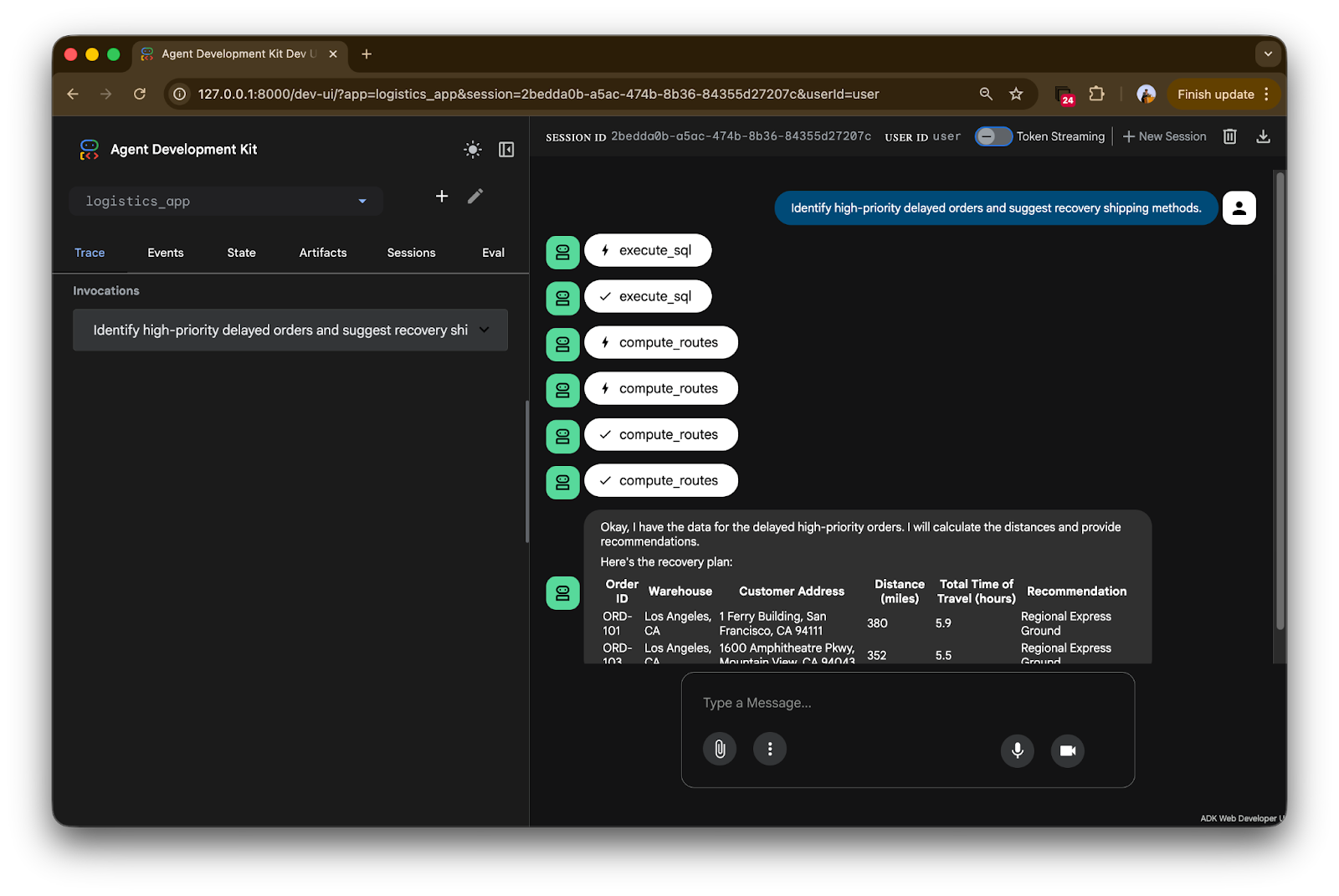
Starte das Interface mit adk web. Sobald der Server läuft, öffne im Browser http://127.0.0.1:8000. Du siehst eine saubere Chat-Oberfläche, in der du den Befehl senden kannst: "Identify high-priority delayed orders and suggest recovery shipping methods."
Die ADK-Konsole liefert einen transparenten "Trace" dessen, wie der Agent mit deiner Cloud-Infrastruktur interagiert.
Schauen wir uns das Schritt für Schritt an:
Tool-Handshakes: Beachte die Icons mit execute_sql und compute_routes. Der Blitz im Trace zeigt einen Toolaufruf an. Der Agent hat nicht geraten, sondern tatsächlich den BigQuery-MCP-Server kontaktiert, um eine konkrete SQL-Abfrage gegen deine Orders-Tabelle auszuführen.
Sequenzielle Logik: Der Trace zeigt eine klare Reihenfolge. Zuerst werden die Daten über BigQuery geholt (das erste Häkchen). Sobald Lager- und Kundenadressen vorliegen, siehst du mehrere compute_routes-Aufrufe. Der Agent „loopt“ intelligent durch die verspäteten Bestellungen, um Real-World-Distanzen vom Maps-MCP-Server zu holen.
Finale Synthese: Am Ende des Trace siehst du die finale Antwort.
Die Daten im Blick:
Weil wir die Logik vorgegeben haben: "Wenn Distanz > 500 Meilen, empfehle Air Shipping, sonst Regional Express Ground", hat der Agent diese Geschäftsregel korrekt auf beide Bestellungen angewandt und sie in einer sauberen Markdown-Tabelle formatiert.
Wir haben soeben einen funktionsfähigen Logistikagenten gebaut, ohne eine einzige Zeile eigenen API-Codes für BigQuery oder Google Maps zu schreiben. Mit ADK und MCP haben wir eine Architektur geschaffen, die modular, sicher und entwicklerfreundlich ist.
Die Zukunft der KI dreht sich nicht nur um sprechende Chatbots, sondern um Agenten, die handeln. Mit diesen Tools kommen wir diesem Ziel endlich näher.
Dieses Tutorial ist ein idealer Startpunkt für deine Experimente mit dem Google ADK und MCP-Servern:
Wenn du mehr über Agentenorchestrierung lernen willst, empfehle ich dir sehr, dich für unseren Associate AI Engineer for Developers-Karrierepfad einzuschreiben.
GCP- und KI-Agent-Kurse
Kurs
Lernpfad
Üben und Lernpfad deinen Fortschritt.
Weiter Mit GoogleBlog
Blog
Hesam Sheikh Hassani
15 Min.
Blog
Zoumana Keita
15 Min.
Blog
Nathaniel Taylor-Leach
4 Min.
Tutorial
Sejal Jaiswal
24 Min.
Tutorial
Kurtis Pykes
15 Min.