Course
Introduction to GCP
2 hr
7.8K
Large language models (LLMs) have revolutionized how we interact with AI, but they're still largely trapped in chat interfaces. Asking an AI to analyze your latest sales data in BigQuery or check cluster health in GKE typically requires writing glue code for every tool, every model, and every workflow.
Enter Google's managed MCP servers: the enterprise solution that connects AI agents to powerful Google Cloud infrastructure like BigQuery, Google Maps, Compute Engine (GCE), and Kubernetes Engine (GKE) with zero custom connectors.
Built on the open Model Context Protocol (MCP) standard from Anthropic, these fully-managed remote servers provide secure, standardized access, letting any MCP-compliant client (like Gemini CLI or Claude Desktop) turn AI into a proactive operator.
In this guide, I will show you the practical architecture of MCP and Google’s server portfolio, and walk through the exact steps to deploy a production-ready MCP server. Whether you're grounding AI in enterprise data or automating DevOps tasks, you'll be up and running in minutes.
New to Google Cloud? I recommend starting with the free Introduction to GCP course to cover billing, projects, and basic services.
The Model Context Protocol (MCP) is an open-source standard introduced by Anthropic in November 2024. It acts as a universal interface—often described as the "USB-C for AI"—that standardizes how AI models and agents connect to external data sources, tools, and systems.
Before MCP, integrating an AI agent with tools like databases, APIs, or cloud services required building custom connectors for each AI model (e.g., separate code for Claude, Gemini, or GPT). This created an explosion of fragmented integrations.
MCP solves this by defining a single, consistent protocol: developers implement a tool or data source once as an MCP server, and any MCP-compliant AI client (such as Claude Desktop, Gemini CLI, or custom agents) can discover and use it seamlessly.
The core benefit is interoperability and reduced duplication. Write an MCP server for BigQuery once, and it works across all supported AI models without additional adapters. This accelerates the development of agentic AI systems, where agents don't just respond to queries but actively reason, query data, and execute actions in the real world.
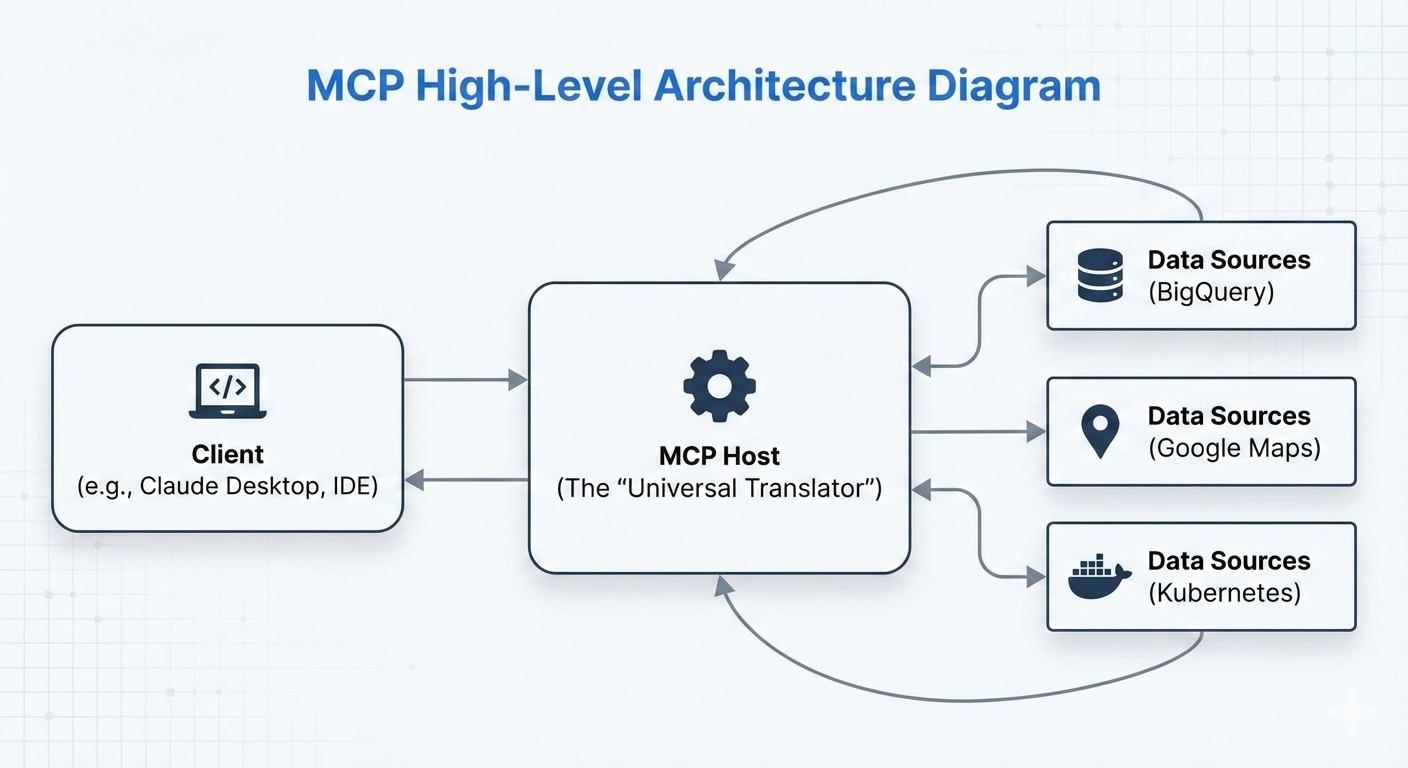
The client discovers available tools from connected servers, the LLM decides which to call, and results flow back for further reasoning, all standardized via MCP's JSON-RPC-based protocol.
This "universal translator" design is why Google (and others) have rapidly adopted MCP: their managed servers slot directly into this ecosystem, making Google Cloud services instantly accessible to any MCP client.
Google MCP Servers are Google's fully-managed, remote implementations of the Model Context Protocol (MCP). Launched in December 2025, these enterprise-grade servers expose powerful Google Cloud services, starting with BigQuery, Google Maps, GCE, and GKE, as standardized, discoverable tools that any MCP-compliant AI client can use instantly.
Unlike community or open-source MCP servers that require self-hosting, maintenance, scaling, and custom security hardening, Google's managed servers run on Google's infrastructure. They provide:
This technology unlocks agentic workflows. Instead of an AI simply explaining how a SQL query works, it can actually execute the query in BigQuery, analyze the results, and suggest the next business move.
While these agents can act autonomously, Google’s implementation supports "human-in-the-loop" configurations, ensuring a human can review and approve critical infrastructure changes before they happen.
If you're interested in AI-powered browser automation, I recommend checking out our Chrome DevTools MCP tutorial.
Google provides a growing set of fully-managed MCP servers that make key cloud services instantly available as tools for AI agents. These servers are categorized by function, allowing agents to handle everything from data analysis to infrastructure management without custom code.
The ecosystem groups servers into two main categories:
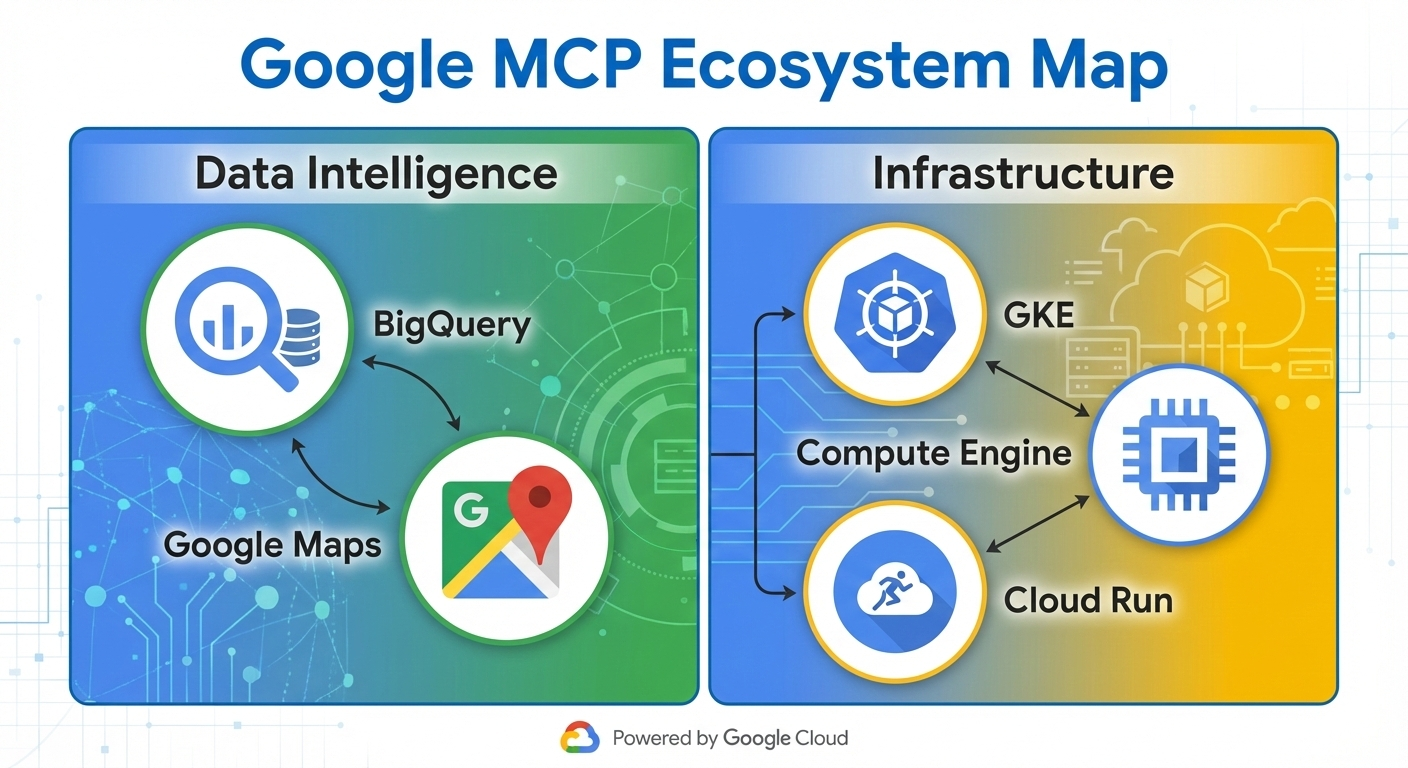
The BigQuery and Maps MCP servers offer exciting opportunities for including data in your workflow.
The BigQuery MCP server allows agents to:
This enables agents to perform complex data analysis, generate reports, or forecast trends autonomously.
The Google Maps MCP server is powered by Grounding Lite and the Places API, and supports:
Use Case: Real-time business intelligence and logistics optimization. An agent can query sales data in BigQuery, cross-reference with Maps for geographic insights, and recommend delivery route optimizations, all in a single reasoning loop.
On the infrastructure side, you can use the Kubernetes Engine (GKE) and Compute Engine (GCE) MCP servers.
The GKE MCP server exposes operations such as:
The GCE MCP server enables:
Use Case: Automated troubleshooting and "ChatOps" for DevOps teams. An agent can detect a pod crash via GKE tools, correlate with VM metrics from GCE, and initiate remediation steps—reducing mean-time-to-resolution from hours to minutes.
Google continues to expand this portfolio (with services like Cloud Storage and AlloyDB in preview as of early 2026), making more of Google Cloud natively agent-accessible.
The power of MCP lies in its flexible yet standardized communication layers, allowing seamless connections whether you’re prototyping locally or running production ready agents at scale. Google’s managed MCP servers primarily use remote streamable HTTP for enterprise deployments, while local development leverages stdio.
The stdio (standard input/output) transport is the simplest way to run an MCP server. Here, the MCP client (e.g., Claude Desktop or a custom agent) launches the server as a subprocess on the same machine, communicating via direct pipes and without any network involved.
Pros:
Cons:
This mode is perfect for experimenting with custom MCP servers or testing connections before going remote.
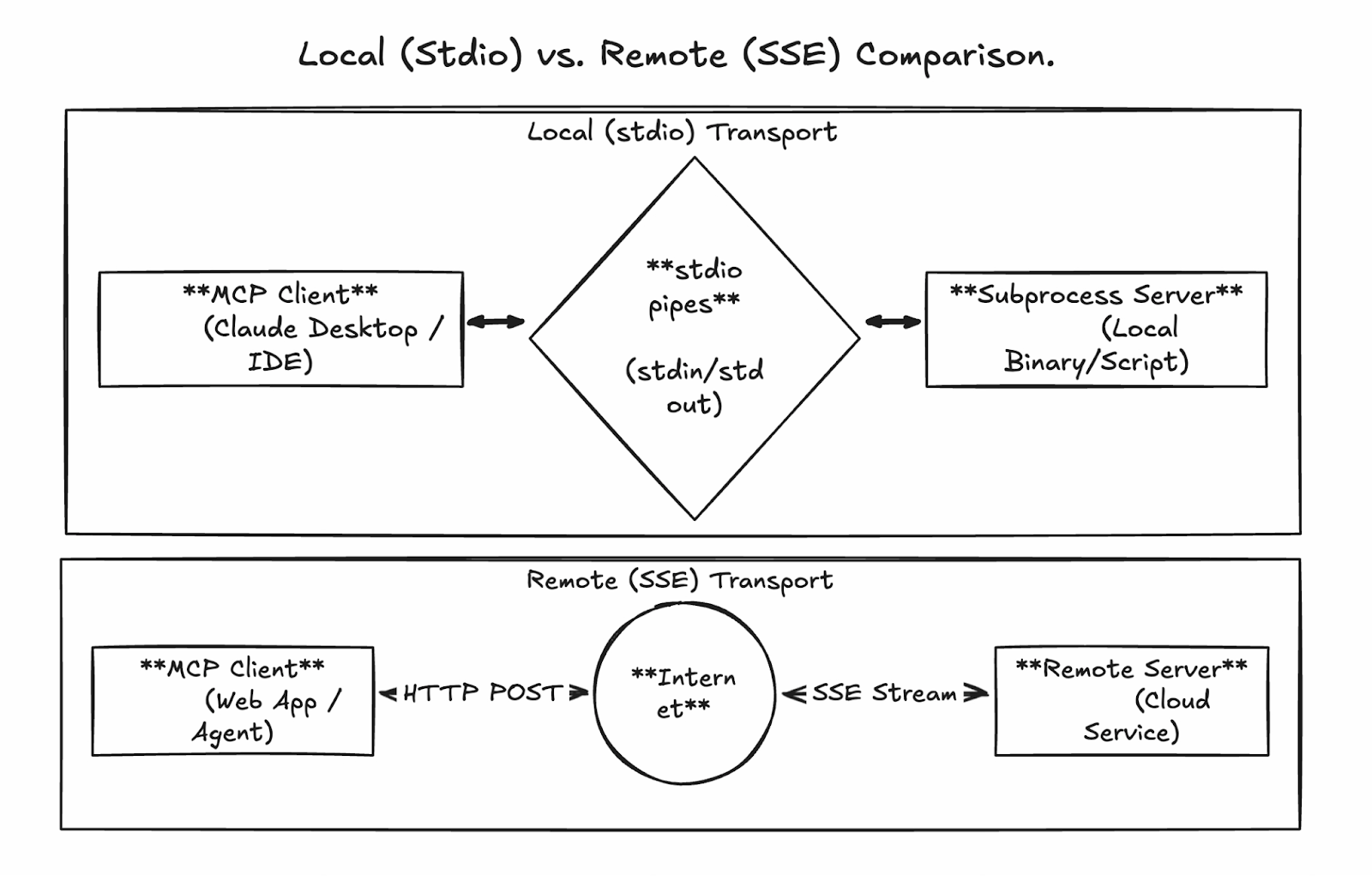
For production and enterprise use, Google’s managed servers (and self-hosted custom ones) use streamable HTTP over a single, persistent endpoint. This replaces the earlier Server-Sent Events (SSE) approach with a more robust design supporting:
Google’s managed endpoints follow a consistent pattern, e.g.:
All traffic is secured with Google ID tokens (OAuth2), ensuring calls are authenticated and authorized via IAM.
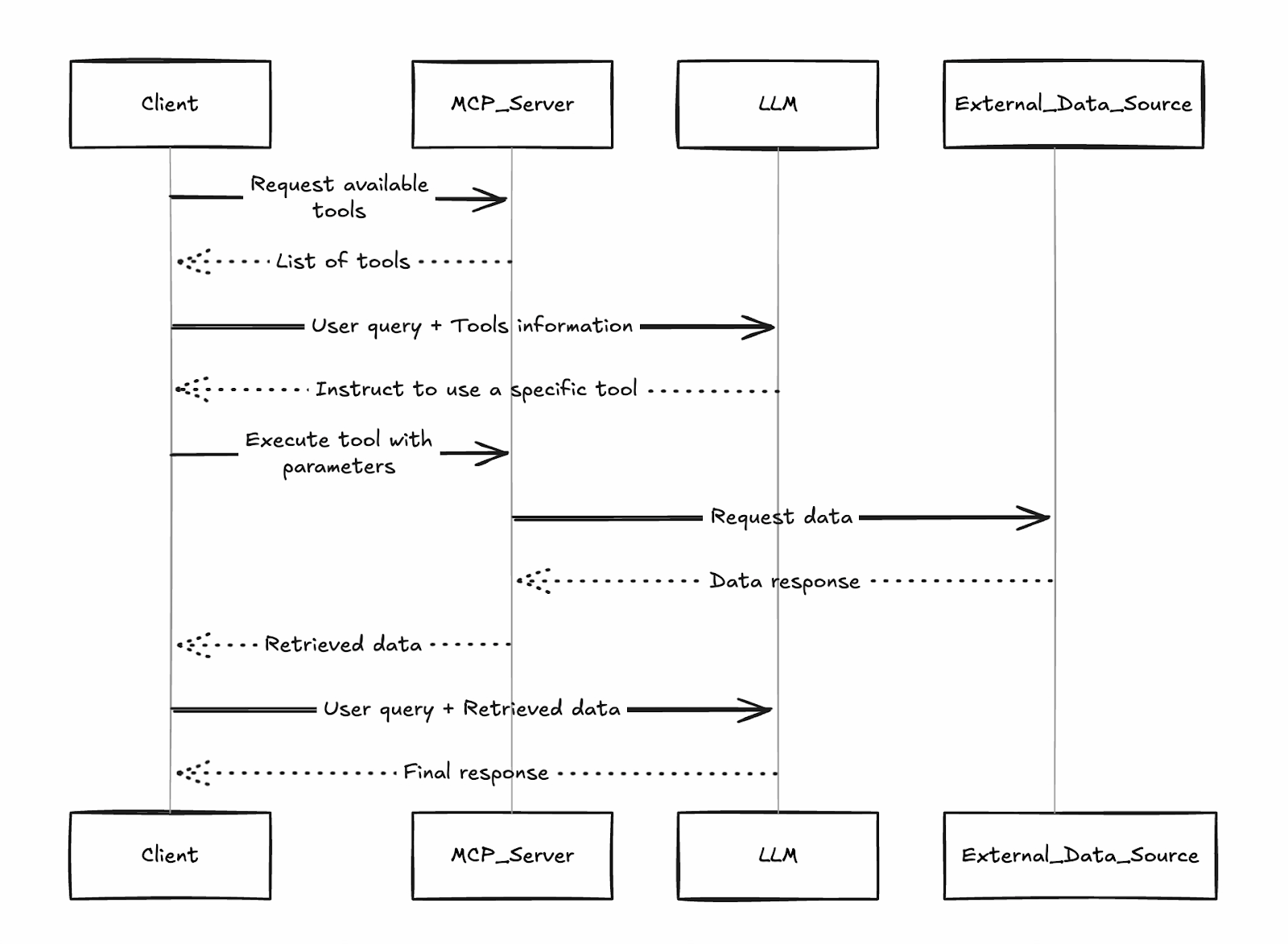
This is how a sequence flow could look like:
Client sends tool discovery/request via POST to /mcp.
Server validates identity and routes to the backend service.
Backend executes (e.g., runs SQL in BigQuery).
Response streams back in chunks (JSON-RPC format) for efficient handling of large outputs.
One of the biggest advantages of Google's MCP servers is how little setup they require compared to self-hosted alternatives. We'll distinguish clearly between managed and custom servers as we go through the steps.
Follow these steps (based on the official tutorial) to enable and prepare managed MCP servers.
A Google Cloud project with billing enabled
Google Cloud Console access and Cloud Shell (or local gcloud CLI)
Your user account is authenticated via gcloud auth login
gcloud auth list  # Verify you're logged in
gcloud config list project  # Check current project
gcloud config set project YOUR_PROJECT_ID  # If needed

gcloud services enable bigquery.googleapis.com \
  compute.googleapis.com \
  container.googleapis.com \
  mapstools.googleapis.com
Note that the Maps MCP requires its own API key for billing and quota. Create one with the following command:
gcloud alpha services api-keys create --display-name="Maps-MCP-Key"Copy the displayed keyString—you'll need it for client configuration.
MCP services require explicit beta enablement:
export PROJECT_ID=$(gcloud config get-value project)
export USER_EMAIL=$(gcloud config get-value account)

gcloud beta services mcp enable bigquery.googleapis.com --project=$PROJECT_ID
gcloud beta services mcp enable mapstools.googleapis.com --project=$PROJECT_ID
gcloud beta services mcp enable compute.googleapis.com --project=$PROJECT_ID
gcloud beta services mcp enable container.googleapis.com --project=$PROJECT_IDGrant the MCP tool a user role to your account:
gcloud projects add-iam-policy-binding $PROJECT_ID \
  --member="user:$USER_EMAIL" \
  --role="roles/mcp.toolUser"
Add service-specific roles for least-privilege access, e.g.:
BigQuery: roles/bigquery.jobUser and roles/bigquery.dataViewer
Compute/GKE: roles/compute.viewer or roles/container.viewer
Managed servers are now ready! Endpoints:
For custom tools beyond Google's managed portfolio, build your own MCP server using libraries like FastMCP (Python) and deploy to Cloud Run for scalability and team sharing. We won't get too much into the details here, but we'll give a high-level overview of the process.
High-Level Steps:
Create a Python project and add FastMCP as a dependency (using tools like uv).
Implement your server code (e.g., server.py) defining custom tools, using transport="streamable-http".
Write a lightweight Dockerfile (based on python:slim) to install dependencies and run the server on $PORT.
Enable required APIs (Cloud Run, Artifact Registry, Cloud Build).
Deploy directly from source or build/push a container.
Secure the service: Require IAM authentication (--no-allow-unauthenticated), grant roles/run.invoker to authorized principals, and use identity tokens for client connections.
gcloud run deploy your-mcp-server \
  --source . \
  --region=us-central1 \
  --no-allow-unauthenticated
This process takes under 10 minutes for simple servers and provides production-grade hosting with auto-scaling.
A deployed (or enabled) MCP server becomes truly powerful when connected to an AI client. This section covers configuring popular clients to use Google's managed MCP servers and building programmatic agents.
The MCP Inspector provides a clean web-based UI to explore any MCP server, including Google's managed ones. It's especially useful for troubleshooting authentication, discovering exact tool names/parameters, and seeing real responses.
The process looks like this:
To launch the Inspector, run this command in your terminal:
npx @modelcontextprotocol/inspectorThis starts a local web server and opens the Inspector UI in your default browser.
Next, we connect to a Google MCP Server. Let’s start with Google Maps as an example.
In the Inspector UI, on the left side, we are going to configure the MCP Inspector to connect to our Google Maps MCP Server. Please follow along and enter the specific instructions and values:
Transport Type: Select Streamable HTTP
URL: Enter https://mapstools.googleapis.com/mcp
Connection Type: Choose via Proxy (this handles Google authentication securely using your logged-in gcloud credentials).
Custom Headers: Add one header
Key: X-Goog-Api-Key
Value: Your Maps API key (the keyString from earlier setup).
Click Connect.
If all goes well, you should see the MCP Inspector connecting successfully to the Server. In the right panel, you will be able to get the tools supported by the Google Maps MCP Server by clicking on List Tools.
Let’s explore and test the tools:
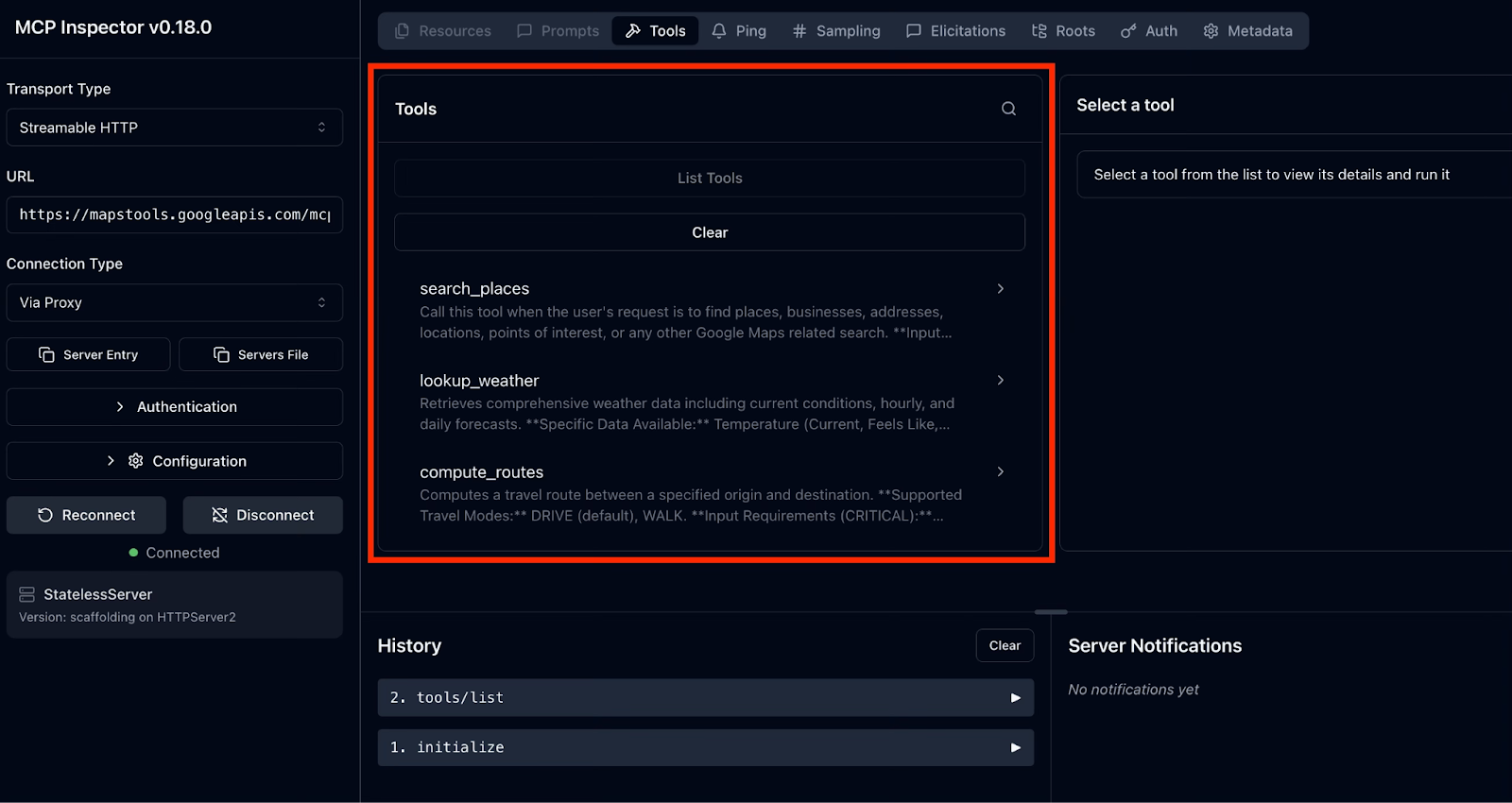
For BigQuery and Compute servers, the process is identical but simpler, since no API key header is needed. Authentication flows automatically through the proxy.
Gemini CLI is Google's official open-source terminal agent with deep, native integration for MCP servers. It’s the smoothest way to start building agentic workflows.
Install the Gemini CLI using the following command:
npm install -g @google/gemini-cli@latestWe’ll use Maps as an example again. To add the Google Maps MCP Server, use the following command and remember to replace YOUR_MAPS_API_KEY with your Maps API key that we created earlier.
gemini mcp add -s user -t http -H 'X-Goog-Api-Key: YOUR_MAPS_API_KEY' maps-grounding-lite-mcp https://mapstools.googleapis.com/mcpIn a new Gemini session, verify the connection with the command /mcp list.
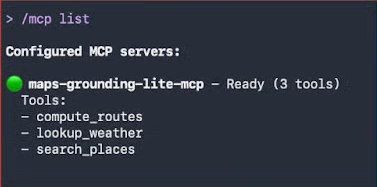
In our first interaction, we ask a simple natural-language question:
“What are some economical breakfast places in New York?”
Gemini automatically selects the Maps tools. Once you accept their execution, it calls them and returns formatted results.
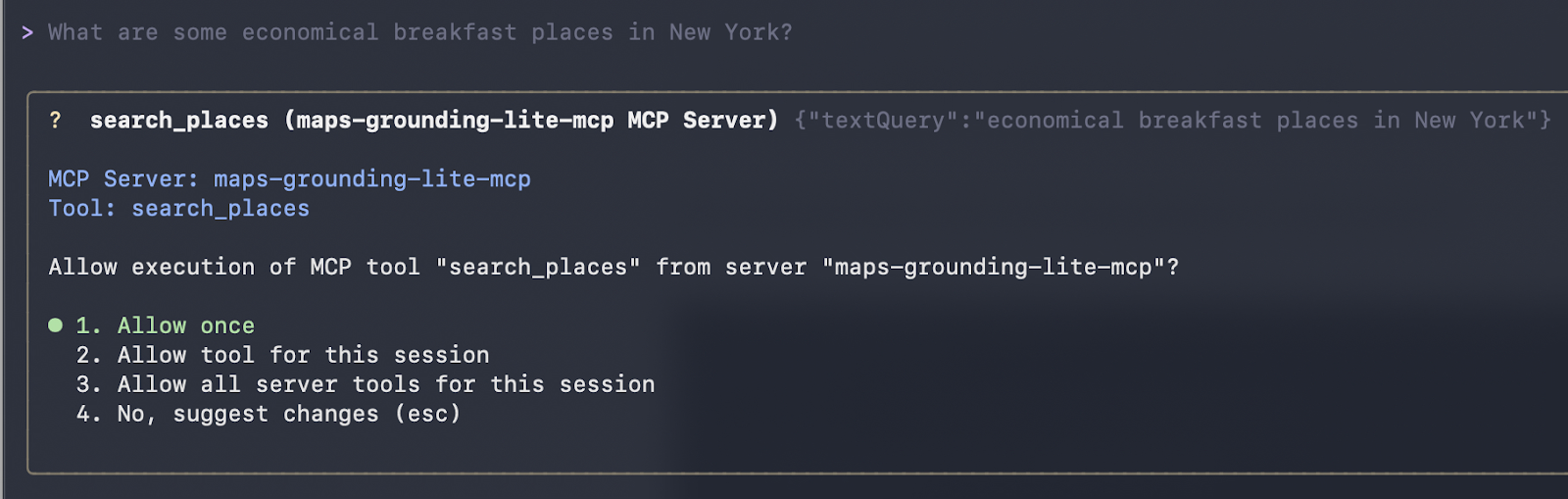
It worked! We got the following response:
Here are some economical breakfast places in New York:
Good Morning Breakfast is a breakfast restaurant located at 1216 Broadway, New York, NY 10001. It is open from 6:00 AM to 12:00 PM on weekdays and 6:30 AM to 12:30 PM on Saturdays. They serve breakfast and lunch and have vegetarian options. The price range is $1-$10.
Andrews NYC Diner is a diner located at 463 7th Ave, New York, NY 10018. They are open from 6:00 AM to 10:00 PM on weekdays, 6:00 AM to 11:00 PM on Fridays and Saturdays, and 7:00 AM to 11:00 PM on Sundays.
They serve breakfast, lunch, and dinner, and have outdoor seating and a children's menu.
The price range is $10-$20.
George's is an American restaurant located at 89 Greenwich St, New York, NY 10006. They are open from 7:00 AM to 6:00 PM daily. They serve breakfast, lunch, and dinner, and have outdoor seating and a children's menu. The price range is $10-$20.
New York Luncheonette is an American restaurant located at 135 E 50th St, New York, NY 10022. They are open from 7:00 AM to 10:00 PM daily. They serve breakfast, lunch, and dinner, and have a children's menu.
The price range is $10-$20.
The classic "Hello World" moment in Gemini CLI: clean tool listing after adding servers, followed by natural-language queries triggering real Maps tool calls.
To test more advanced reasoning skills in combination with the Maps data, we are passing in the following prompt:
"Plan a driving route from Mumbai to Goa with a scenic stop for lunch halfway. Suggest a good restaurant there."
When you send this prompt, the AI agent (Gemini or Claude) performs a sophisticated multi-step reasoning loop using only the Google Maps MCP tools:
Computing the full route: The agent calls compute_routes with origin "Mumbai" and destination "Goa". It returns a distance of about ~566 km with a duration of ~11 hours 41 minutes (traffic-aware).
Reasoning about the halfway point: The agent calculates that halfway (~280–300 km) falls around the Konkan region, specifically near Chiplun, which is famous for its river views, ghats, and scenic beauty.
Searching for scenic restaurants: It uses search_places with queries biased toward Chiplun/Ratnagiri, filtering for high ratings, outdoor/scenic views, and lunch availability.
Selecting and describing the best option: Finally, it picks a standout spot (in your case, The Riverview Restaurant in Chiplun) and highlights its outdoor seating and relaxing ambiance.
This response is generated live. The route duration comes directly from the compute_routes tool call you saw in the debug output, and the restaurant recommendation is grounded in real Places API data: no hardcoded facts, no hallucinations, but just secure, up-to-date tool usage.
This is how the Gemini CLI calls the tool and outputs its recommendation:
compute_routes (maps-grounding-lite-mcp MCP Server) {"destination": {"address": "Goa"}, "origin": {"address": "Mumbai" }}
{
  "routes": [
    {
      "distanceMeters": 566414,
      "duration": "42095s"
    }
  ]
}
* A great place to stop for a scenic lunch on your drive from Mumbai to Goa is Chiplun, which is roughly halfway. I recommend The Riverview Restaurant in Chiplun. It offers outdoor seating and is a great spot to relax and enjoy a meal with a view.
The drive from Mumbai to Goa is approximately 566 km and will take about 11 hours and 40 minutes without stops. Enjoy your tripBeyond interactive clients like Gemini CLI or Claude Desktop, the true power of Google’s managed MCP servers shines when you build custom, production-ready AI agents in code. The open-source LangChain ecosystem makes this straightforward with the langchain-mcp-adapters package, which turns any remote MCP server into standard LangChain tools.
This approach gives you complete visibility into tool discovery, authentication, and invocation: perfect for debugging, building custom tool routers, or integrating into existing async workflows.
To give you a better understanding, let’s showcase this in an example. The following complete, runnable script demonstrates how to:
Authenticate with Google Cloud using Application Default Credentials
Connect to the managed BigQuery MCP endpoint via streamable HTTP
Discover all available tools
Invoke a specific tool (list_dataset_ids) and print real results
import asyncio
import google.auth
import google.auth.transport.requests
import httpx

from mcp import ClientSession
from mcp.client.streamable_http import streamable_http_client
from langchain_mcp_adapters.tools import load_mcp_tools

async def list_and_invoke_bigquery():
    # 1. Authenticate with Google Cloud (run: gcloud auth application-default login)
    credentials, project_id = google.auth.default(
        scopes=["https://www.googleapis.com/auth/cloud-platform"]
    )
    auth_request = google.auth.transport.requests.Request()
    credentials.refresh(auth_request)

    url = "https://bigquery.googleapis.com/mcp"
    print(f"Connecting to: {url}...")

    # 2. Setup authenticated HTTP client
    async with httpx.AsyncClient(headers={
        "Authorization": f"Bearer {credentials.token}",
        "x-goog-user-project": project_id,
        "Content-Type": "application/json"
    }) as http_client:

        # 3. Establish streamable HTTP transport and MCP session
        async with streamable_http_client(url, http_client=http_client) as (read, write, _):
            async with ClientSession(read, write) as session:
                await session.initialize()

                # 4. Discover all tools exposed by Google's BigQuery MCP server
                tools = await load_mcp_tools(session)

                print(f"\n--- DISCOVERY: Found {len(tools)} tools ---")
                for tool in tools:
                    print(f"Tool: {tool.name}")

                # 5. Invoke a specific tool: list_dataset_ids
                print(f"\n--- INVOCATION: Fetching datasets for project '{project_id}' ---")

                dataset_tool = next((t for t in tools if t.name == "list_dataset_ids"), None)
                if dataset_tool:
                    try:
                        result = await dataset_tool.ainvoke({"project_id": project_id})
                        print("SUCCESS! Datasets in your project:")
                        print(result)
                    except Exception as e:
                        print(f"Error invoking tool: {e}")
                else:
                    print("Tool 'list_dataset_ids' not found.")

if __name__ == "__main__":
    asyncio.run(list_and_invoke_bigquery())
When executed in a properly configured GCP project, this script produces output like:
Connecting to: https://bigquery.googleapis.com/mcp…

--- DISCOVERY: Found 5 tools ---
Tool: list_dataset_ids
Tool: get_dataset_info
Tool: list_table_ids
Tool: get_table_info
Tool: execute_sql

--- INVOCATION: Fetching datasets for ‘project’ ---
SUCCESS! Output from BigQuery: (...)
This confirms:
This low-level pattern is invaluable when:
Once you’ve verified connectivity this way, you can confidently scale up to higher-level frameworks like LangGraph agents (as shown in previous examples) or feed these tools into any LangChain-compatible system.
With this foundation, Google MCP servers become a secure, production-ready extension of your Python AI stack, without any custom glue code required.
Security is not an afterthought with Google’s managed MCP servers. Instead, it’s built in from the ground up. By running on Google’s infrastructure and deeply integrating with Google Cloud’s identity and access management, these servers provide enterprise-grade protections that far surpass those of self-hosted or experimental alternatives.
Google Cloud uses its robust IAM (Identity and Access Management) framework to govern who (or what) can call your MCP tools.
Under Role-Based Access Control (RBAC), every AI agent should have its own dedicated service account. This control relies on two distinct layers of authorization:
Gateway role: To use any Google MCP tool, the identity must have the roles/mcp.toolUser role.
Service-specific permissions: Since mcp.toolUser only allows the connection, you still need to grant specific permissions for the action. For example, if the AI needs to query data, it needs roles/bigquery.jobUser. Conversely, if it only needs to see VM status, you should give it roles/compute.viewer, not roles/compute.admin.
Model Armor is a Google Cloud service designed to enhance the security and safety of your AI applications. It works by proactively screening LLM prompts and responses, protecting against various risks and ensuring responsible AI practices.
Whether you are deploying AI in Google Cloud or other cloud providers, Model Armor can help you prevent malicious input, verify content safety, protect sensitive data, maintain compliance, and enforce your AI safety and security policies consistently across your AI applications.
Model Armor acts as a specialized Web Application Firewall (WAF) for AI:
Every tool call made via a Google MCP server is a documented event.
No more fragile custom connectors for every model or tool: Google’s managed MCP servers mark a turning point for agentic AI on Google Cloud. By adopting the open MCP standard and delivering fully-hosted, enterprise-grade implementations for BigQuery, Google Maps, Compute Engine, and GKE, Google has eliminated the biggest barriers to building reliable, action-taking agents.
As we've explored in this guide, this standardized architecture eliminates the "glue code" nightmare and allows you to scale from local prototypes to Cloud Run deployments without rewriting tools for every client. Additionally, with Google Cloud IAM and Model Armor, your agents are natively protected against modern AI threats.
The progression from "Chatbot" to "Agent" is happening now. By mastering Google MCP Servers, you aren't just building an AI that answers questions—you're building a digital teammate capable of operating your cloud at the speed of thought.
Ready to turn everything you’ve learned in this guide into career-level expertise? Enroll in our Associate AI Engineer for Developers career track.
AI Engineering Courses
Course
Track
Course
blog
Abid Ali Awan
15 min
blog
Abid Ali Awan
6 min
Tutorial
Aryan Irani
10 min
Tutorial
Aashi Dutt
12 min
Tutorial
Abid Ali Awan
7 min
Tutorial
Josep Ferrer
14 min