Claude Code Channels memungkinkan Anda menghubungkan sesi Claude Code yang aktif ke platform pesan seperti Discord, Telegram, atau iMessage, sehingga Anda dapat mengirim prompt melalui bot dan menerima respons langsung di obrolan.
Alih-alih terus berada di terminal, Anda dapat berinteraksi dengan alur kerja Claude Code yang sedang berjalan dari antarmuka pesan yang familiar. Sementara Claude Cowork Dispatch menangani tugas otomatis sekali jalan, Claude Code Routines menjalankan agen sesuai jadwal di cloud, dan Remote Control menyediakan pengawasan aktif atas sesi lokal. Channels memberikan koneksi dua arah yang persisten yang dibutuhkan untuk alur kerja percakapan.
Dalam tutorial ini, saya memandu Anda menghubungkan Discord ke Claude Code Channels, mulai dari memasang Claude Code hingga membuat dan memasangkan bot Discord Anda. Di akhir, Anda akan memiliki setelan yang berfungsi untuk menelusuri web, membangun aplikasi, menjadwalkan tugas, dan berinteraksi dengan sistem operasi lokal Anda melalui Discord.
Ringkasnya
- Claude Code Channels adalah plugin berbasis MCP yang menjembatani sesi Claude Code aktif ke platform pesan (Discord, Telegram, iMessage)
- Kode Anda tetap lokal—aplikasi pesan hanya antarmuka jarak jauh ke sesi terminal yang sedang berjalan
- Penyiapan sekitar 10 menit: buat bot Discord, pasang plugin, konfigurasi token, pasangkan akun Anda
- Channels hanya berfungsi saat sesi Claude Code Anda berjalan—tutup sesi dan bot akan offline
- Memerlukan Claude Code v2.1.80+, langganan Claude.ai Pro atau Max, dan runtime Bun
Apa Itu Claude Code Channels?
Claude Code Channels adalah plugin berbasis MCP yang memungkinkan aplikasi eksternal mengirim pesan ke sesi Claude Code yang aktif. Mereka bertindak sebagai jembatan antara Claude Code dan alat seperti Discord, Telegram, iMessage, peringatan, atau webhook.
Claude menerima pesan di dalam sesi yang berjalan, memprosesnya, dan dapat mengirim balasan kembali melalui channel yang sama.
Channels diluncurkan sebagai pratinjau riset pada 20 Maret 2026. Fitur ini memerlukan Claude Code v2.1.80 atau lebih baru, login Claude.ai, dan tidak berfungsi dengan autentikasi konsol atau kunci API.
Untuk akun Team dan Enterprise, fitur ini juga harus diaktifkan oleh organisasi.
Channels hanya berfungsi saat sesi Claude Code Anda terbuka dan berjalan. Jika Anda menutup Claude Code, pesan masuk dari Discord atau Telegram tidak akan ditangani.
Jika Anda ingin setelan tetap tersedia setiap saat, Anda perlu menjalankan Claude Code di terminal yang persisten atau lingkungan latar belakang.
Channels vs. Remote Control vs. Web Sessions
Claude Code kini memiliki tiga cara untuk berinteraksi dengan sesi dari jarak jauh. Masing-masing menyelesaikan masalah yang berbeda:
| Aspect | Channels | Remote Control | Web Sessions |
|---|---|---|---|
| Interface | Discord, Telegram, iMessage | claude.ai/code, aplikasi iOS/Android | Browser claude.ai/code |
| Session location | Mesin Anda (lokal) | Mesin Anda (lokal) | Cloud Anthropic |
| Setup time | ~10 menit (pembuatan bot + pairing) | 1 perintah (claude remote-control) |
Tidak ada |
| Best for | Pesan asinkron, mobile-first, channel tim | Melanjutkan sesi terminal dari ponsel | Tugas cepat tanpa setelan lokal |
| Local tool access | Penuh (filesystem, MCP, git) | Penuh (filesystem, MCP, git) | Hanya sandbox cloud |
| Notifications | Push native (Discord/Telegram/iMessage) | Harus membuka claude.ai atau aplikasi | Harus membuka claude.ai |
Gunakan Channels saat Anda menginginkan notifikasi push native, alur kerja asinkron fire-and-forget, atau akses tim melalui server Discord. Gunakan Remote Control saat Anda lebih menyukai antarmuka claude.ai lengkap dengan setelan minimal. Keduanya menjaga sesi Anda tetap lokal—tidak ada yang merutekan kode Anda melalui server Anthropic.
Claude Code Channels: Prasyarat
Sebelum memulai, pastikan Anda memiliki:
- Claude Code v2.1.80 atau lebih baru
- Akun Claude.ai yang masuk melalui Claude Code
- Paket Pro atau Max
- Bun terpasang, karena plugin channel memerlukannya
- Akun Discord
- Akses ke server Discord tempat Anda dapat menambahkan dan mengelola bot
Claude Code Channels tidak berfungsi dengan kunci API atau login hanya-konsol.
Untuk menggunakan Channels, Anda harus masuk dengan akun Claude.ai Anda. Pengguna Team dan Enterprise mungkin juga perlu admin mereka mengaktifkan Channels terlebih dahulu.
Langkah 1: Pasang Claude Code
Kunjungi situs web resmi Claude Code dan buka panduan pemasangan. Anthropic menyediakan perintah pemasangan untuk berbagai platform, termasuk Windows, macOS, Linux, dan WSL. Untuk tutorial ini, kita menggunakan Windows PowerShell.
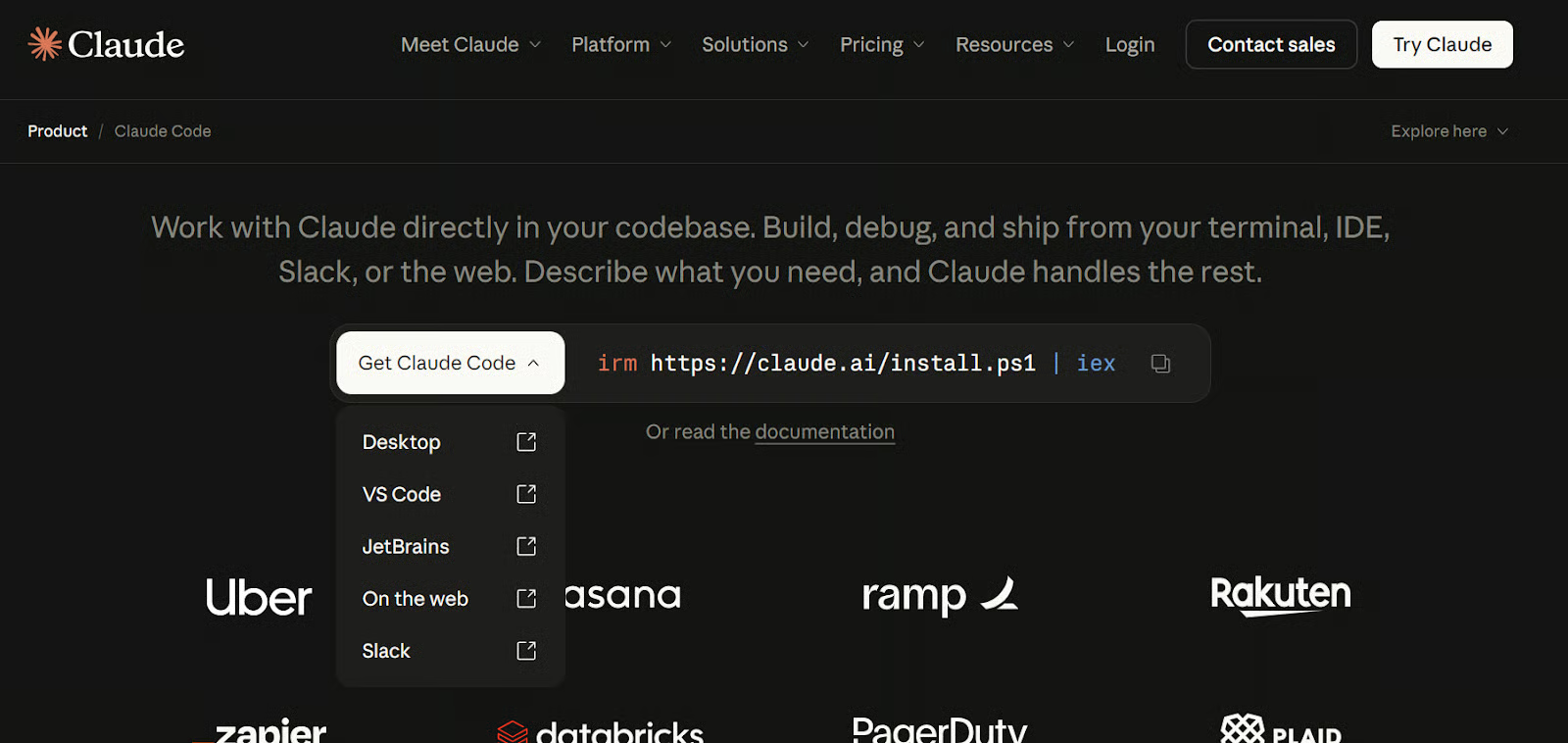
Sumber: Claude Code by Anthropic | AI Coding Agent, Terminal, IDE
Jalankan perintah berikut di PowerShell untuk memasang Claude Code:
irm https://claude.ai/install.ps1 | iexSetelah pemasangan selesai, buat folder baru untuk proyek ini, masuk ke dalamnya, lalu mulai Claude Code:
mkdir cc-channels
cd cc-channels
claude
Claude Code akan terbuka di terminal dan memulai sesi lokal. Ini menjadi dasar untuk sisa penyiapan, karena Channels hanya berfungsi di dalam sesi Claude Code yang aktif. Untuk panduan lebih mendalam tentang fitur Claude Code, lihat panduan Claude Code 2.1 kami.
Langkah 2: Masuk dengan Akun Claude.ai Anda
Selanjutnya, masuk ke Claude Code dengan akun Claude.ai Anda. Dalam banyak kasus, Claude Code akan meminta Anda masuk saat pertama kali dibuka. Jika tidak, jalankan perintah ini di dalam Claude Code:
/login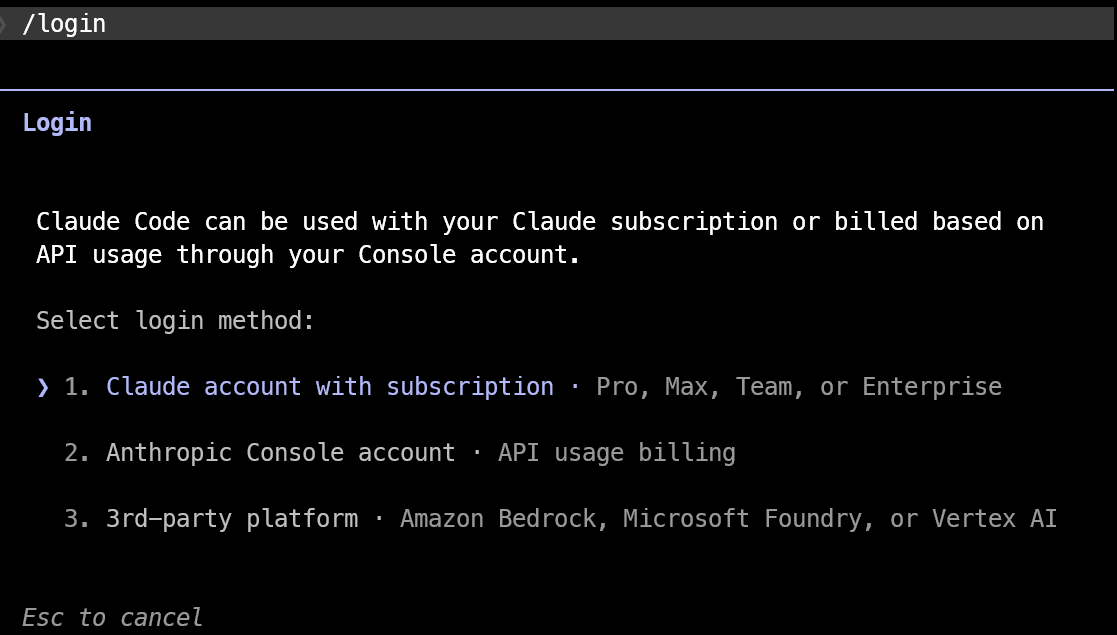
Channels hanya berfungsi dengan login Claude.ai. Fitur ini tidak mendukung login konsol atau autentikasi kunci API, jadi meskipun Claude Code berfungsi dalam mode penagihan lain, Channels tidak akan tersedia hingga Anda masuk dengan akun Claude.ai Anda.
Langkah 3: Pasang Bun untuk Plugin Discord
Plugin channel resmi Claude Code menggunakan Bun, jadi Anda perlu memasangnya sebelum menyiapkan Discord. Jika Anda belum memasang Bun, di Windows bisa dilakukan dengan perintah PowerShell ini:
irm bun.sh/install.ps1 | iexSetelah pemasangan selesai, periksa apakah Bun berfungsi dengan menjalankan:
bun --versionJika Bun terpasang dengan benar, PowerShell akan menampilkan nomor versinya.
Langkah 4: Tambahkan Plugin Discord Resmi
Sebelum memasang plugin Discord, pastikan marketplace plugin resmi Claude Code sudah ditambahkan dan mutakhir. Jalankan perintah ini di dalam Claude Code:
/plugin marketplace add anthropics/claude-plugins-official
/plugin marketplace update claude-plugins-official
Claude Code tidak akan menemukan plugin Discord jika marketplace hilang atau kedaluwarsa. Jika Anda melihat galat seperti “plugin not found in any marketplace,” perintah ini biasanya memperbaikinya.
Setelah marketplace siap, pasang plugin Discord:
/plugin install discord@claude-plugins-official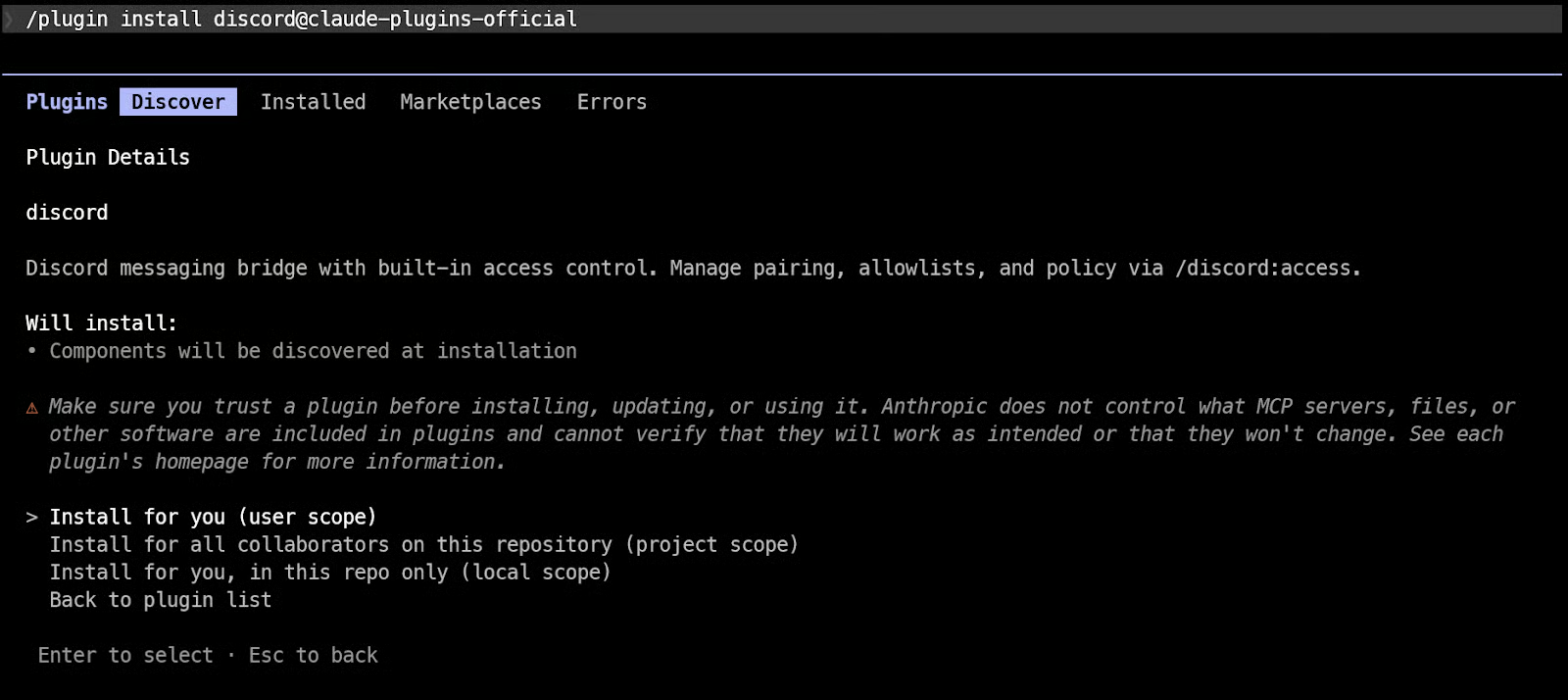
Setelah itu, muat ulang plugin agar Claude Code dapat mengaktifkan perintah plugin baru di sesi Anda saat ini:
/reload-pluginsClaude Code tidak akan mengenali perintah plugin baru sampai Anda memuat ulang.
Langkah 5: Buat Bot Discord
Buka Discord Developer Portal lalu klik New Application. Beri nama aplikasi Anda, misalnya CC-Bot, lalu buat. Anda juga dapat menambahkan deskripsi dan gambar profil dari halaman General Information jika diinginkan.
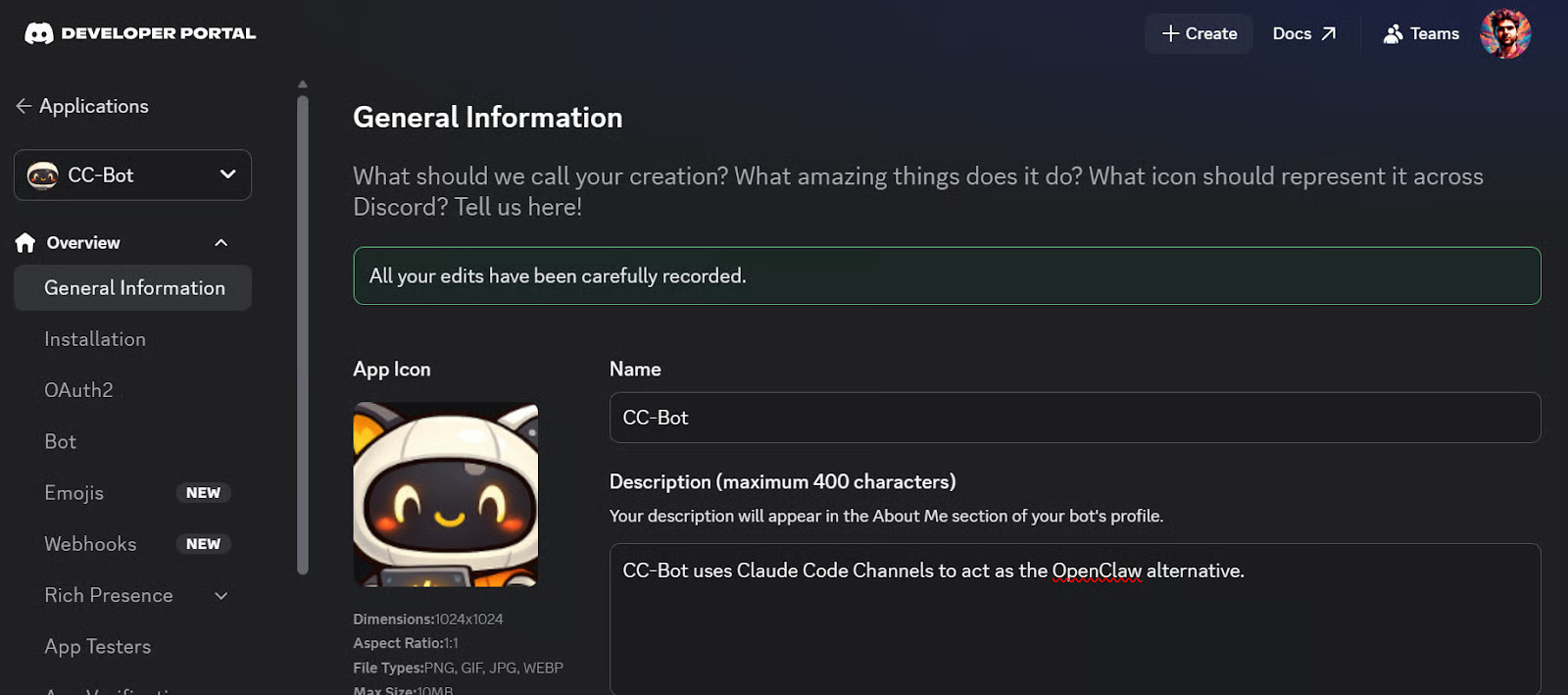
Lalu:
- Buka bagian Bot
- Klik Reset Token
- Salin token bot yang baru
- Simpan token tersebut dengan aman untuk langkah berikutnya
Token inilah yang memungkinkan Claude Code menghubungkan bot Discord Anda ke sesi Claude Code lokal Anda.
Sebelum meninggalkan Developer Portal, aktifkan Message Content Intent di pengaturan bot.
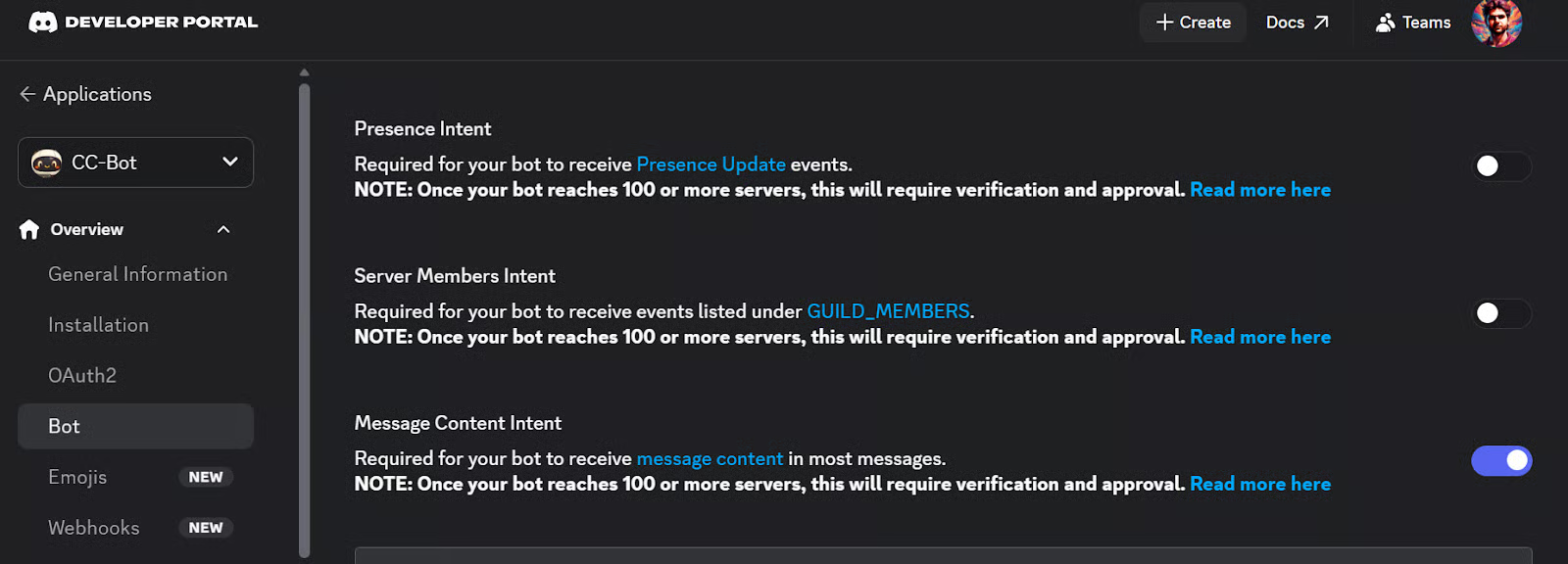
Penyiapan Discord di Claude Code memerlukan bot untuk membaca teks pesan masuk, dan Discord mensyaratkan intent ini untuk itu.
Langkah 6: Undang Bot ke Server Discord Anda
Selanjutnya, tambahkan bot ke server Discord Anda. Di Discord Developer Portal, buka tab OAuth2 dan gulir ke OAuth2 URL Generator. Centang bot di bawah scopes.
Setelah itu, Discord akan otomatis menampilkan bagian Bot Permissions tempat Anda dapat memilih izin untuk bot Anda.
Pilih izin berikut:
- View Channels
- Send Messages
- Send Messages in Threads
- Read Message History
- Attach Files
- Add Reactions
- Send Voice Messages
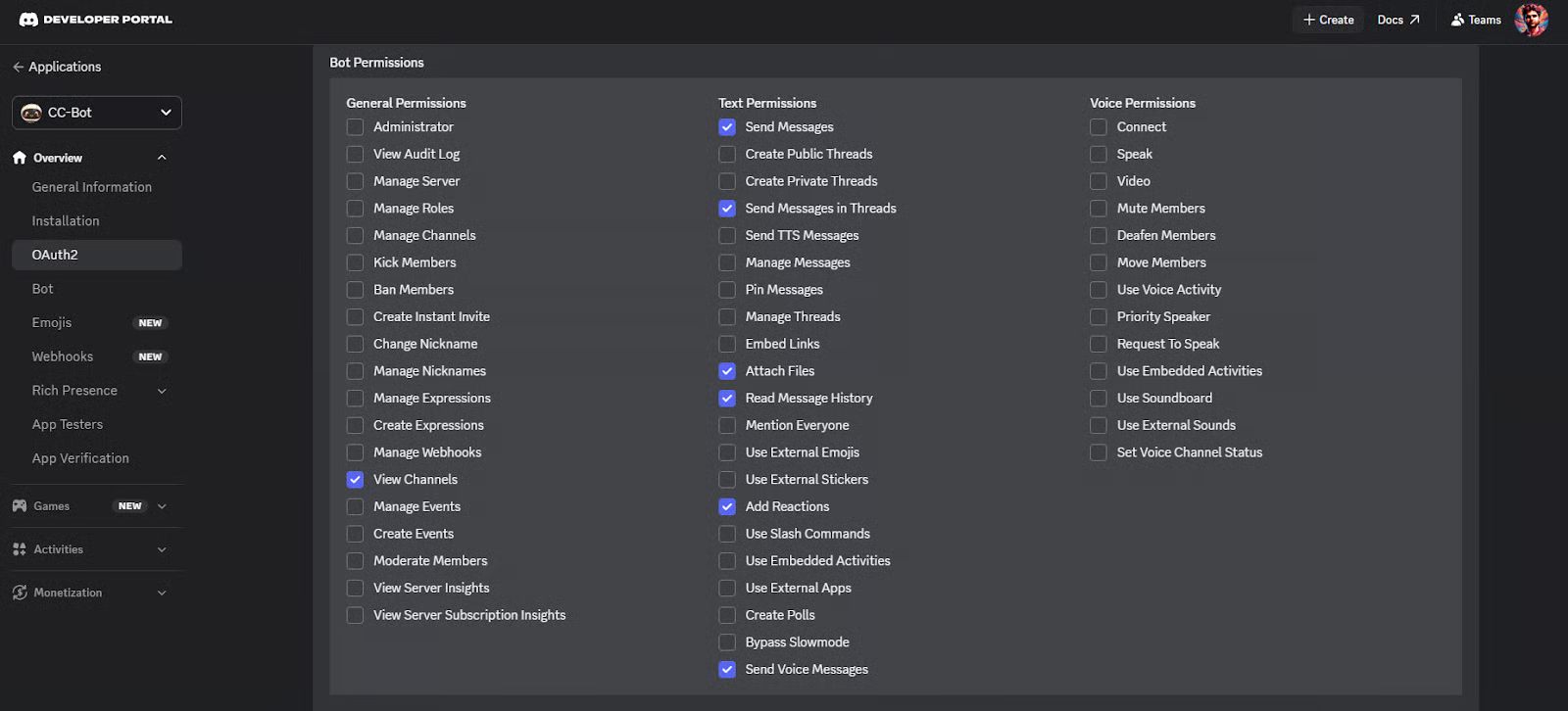
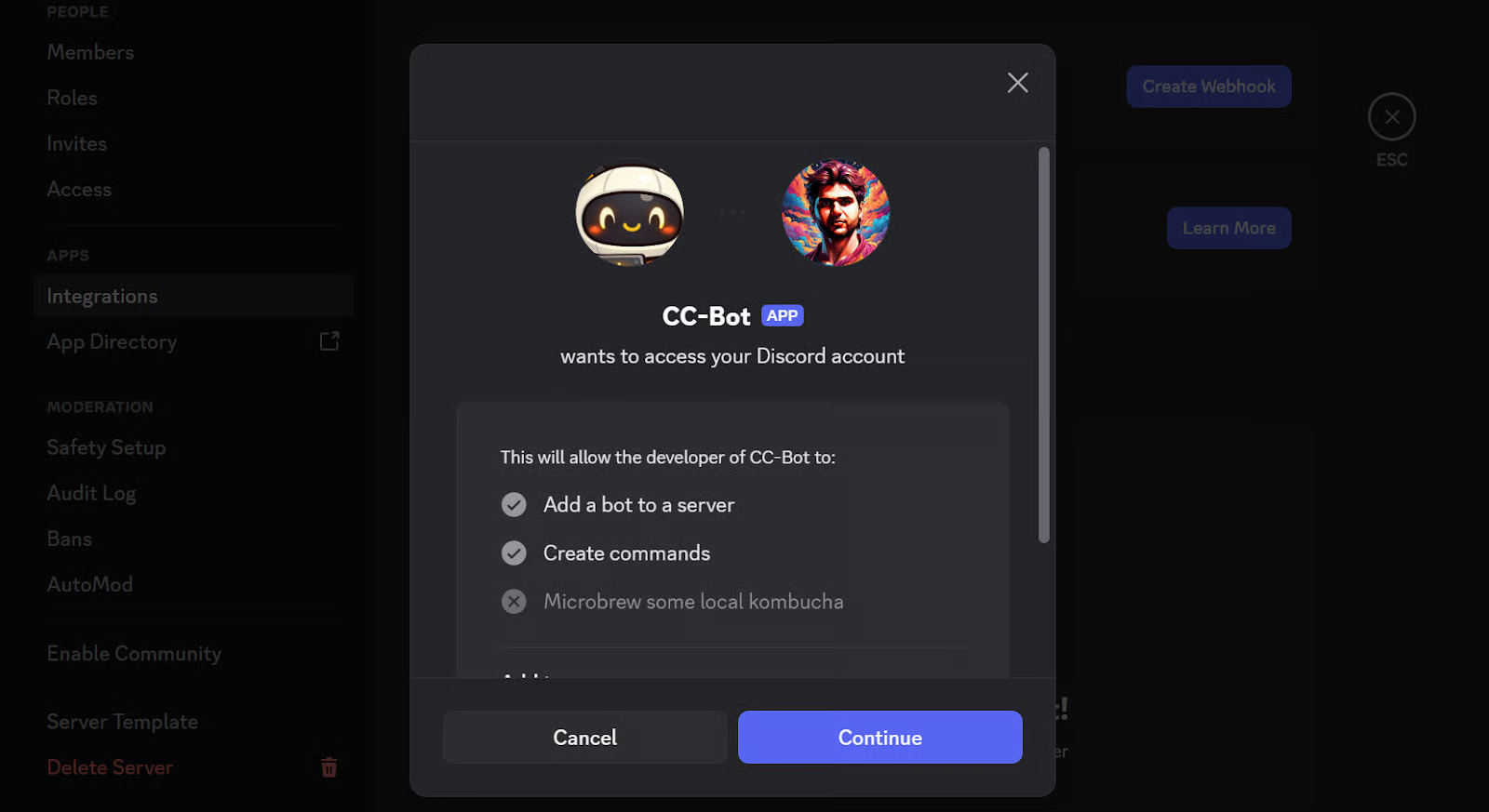
Setelah memilih izin, Discord akan menghasilkan URL undangan untuk bot. Salin URL ini dan tempel ke browser Anda. Ini akan membuka aplikasi desktop Discord atau situs web Discord, tergantung setelan Anda.
Dari sana, pilih server tempat Anda ingin menambahkan bot lalu klik Authorize. Setelah selesai, bot seharusnya muncul di server Discord Anda dan siap untuk langkah berikutnya.
Langkah 7: Konfigurasikan Token Bot di Claude Code
Sekarang kembali ke Claude Code dan hubungkan ke bot Discord Anda dengan menjalankan perintah ini:
/discord:configure YOUR_DISCORD_BOT_TOKENGanti YOUR_DISCORD_BOT_TOKEN dengan token bot yang Anda salin dari Discord Developer Portal.
Claude Code akan menyimpannya secara otomatis, jadi Anda tidak perlu membuat file konfigurasi secara manual.
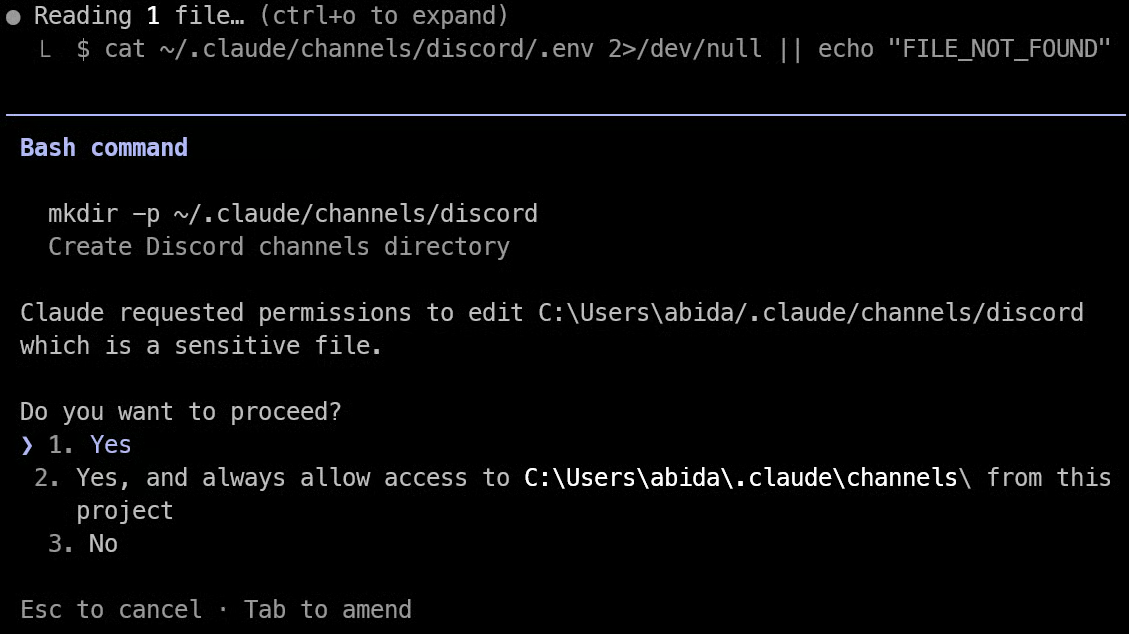
Secara bawaan, Claude Code menyimpan token di file ini:
~/.claude/channels/discord/.envAnda juga dapat menetapkan variabel lingkungan DISCORD_BOT_TOKEN sendiri sebelum memulai Claude Code, tetapi perintah /discord:configure biasanya merupakan opsi termudah bagi kebanyakan orang.
Catatan: Jika perintah ini tidak berfungsi pada percobaan pertama, tutup terminal Anda dan buka kembali. Lalu kembali ke folder proyek Claude Code Anda dan jalankan lagi Claude Code. Karena Channels hanya berfungsi di dalam sesi Claude Code yang aktif dan berjalan, memulai ulang terminal dan membuka kembali Claude Code dapat membantu menyegarkan sesi dan memuat setelan Discord dengan benar.
Langkah 8: Mulai Claude Code dengan Channels Diaktifkan
Pada titik ini, bot Discord Anda sudah disiapkan, tetapi tidak akan berfungsi hingga Claude Code dijalankan dengan channel Discord diaktifkan.
Keluar dari sesi Claude Code saat ini, lalu mulai lagi dengan:
claude --channels plugin:discord@claude-plugins-official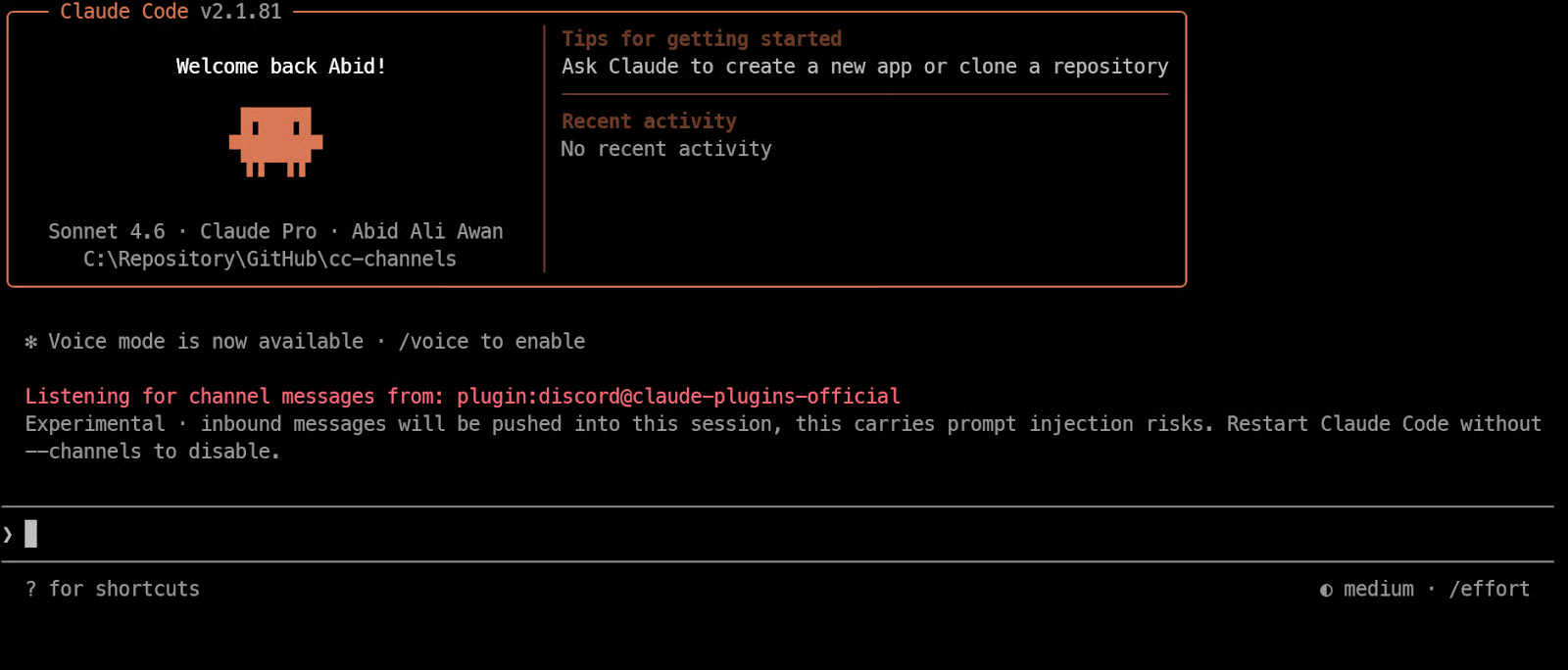
Perintah ini meluncurkan Claude Code dan memuat plugin channel Discord pada saat yang sama.
Setelah berjalan, bot Anda dapat online dan mulai menerima pesan dari Discord di sesi Claude Code yang aktif itu. Channels hanya berfungsi saat sesi terbuka, jadi jika Anda menutup Claude Code, bot akan berhenti merespons hingga Anda meluncurkannya kembali.
Langkah 9: Pasangkan Akun Discord Anda
Setelah Claude Code berjalan dengan channel Discord diaktifkan, buka Discord dan kirim pesan langsung ke bot Anda. Bot akan membalas dengan kode pairing. Ini hanya berfungsi saat Claude Code berjalan dengan flag --channels, jadi jika bot tidak merespons, periksa apakah sesi Claude Code Anda masih aktif.
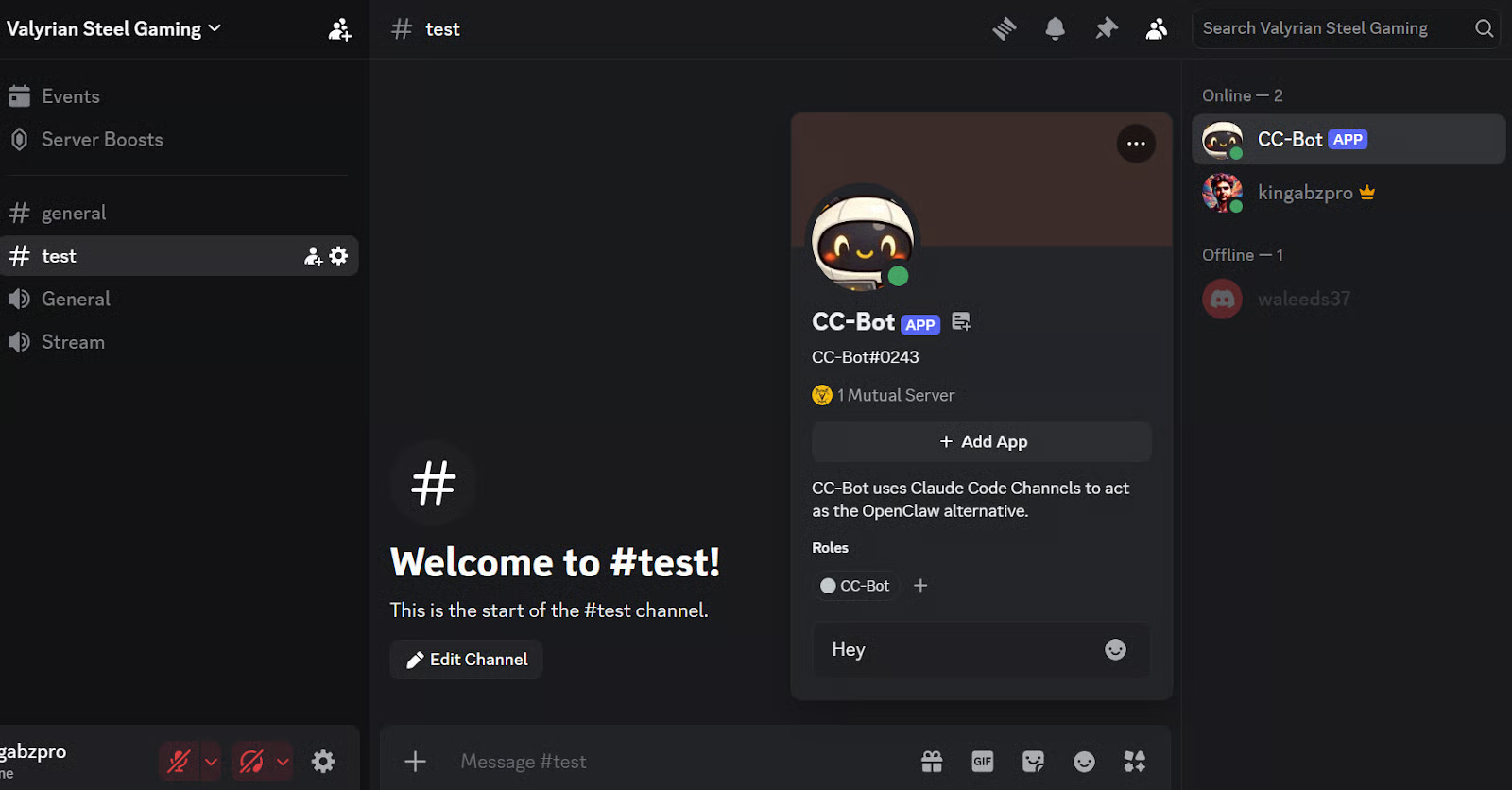
Lalu kembali ke Claude Code dan jalankan:
/discord:access pair YOUR_PAIRING_CODEGanti YOUR_PAIRING_CODE dengan kode yang dikirim bot kepada Anda. Ini menyetujui akun Discord Anda dan menambahkannya ke daftar pengirim yang diizinkan untuk sesi Claude Code tersebut.
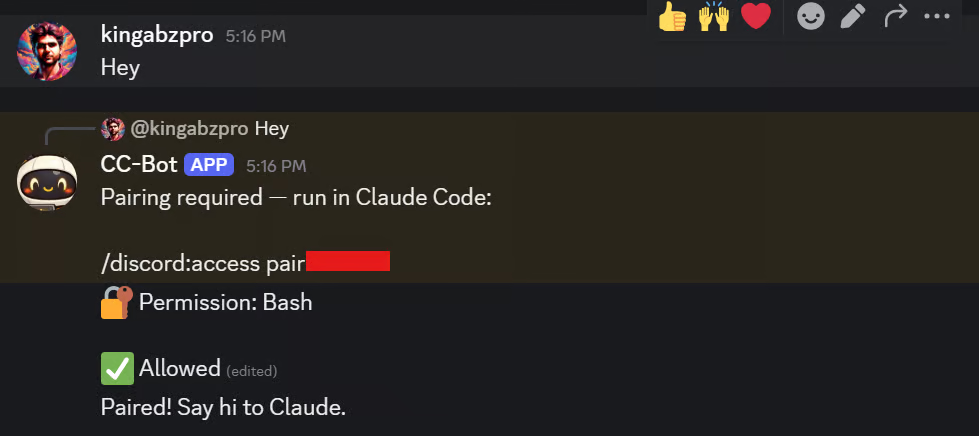
Setelah pairing, kunci akses agar hanya pengirim yang disetujui yang dapat mengirim pesan ke sesi Anda:
/discord:access policy allowlistClaude Code Channels menggunakan model allowlist: hanya pengguna Discord yang disetujui yang dapat mengirim pesan ke sesi Anda yang sedang berjalan. Yang lainnya akan diabaikan secara senyap.
Langkah 10: Uji Claude Code Channels di Discord
Sekarang Anda dapat mulai menggunakan bot di Discord seperti saat menggunakan Claude Code di terminal. Kirim pesan, minta untuk melakukan sesuatu, dan bot akan membalas di obrolan sambil menggunakan sesi Claude Code aktif Anda di latar belakang.
Misalnya, Anda dapat memintanya memeriksa cuaca, membuat pengingat, atau membangun situs web sederhana.
Channels bekerja dengan mengirim pesan Discord Anda ke sesi Claude Code yang sedang berjalan, lalu mengembalikan responsnya ke Discord.
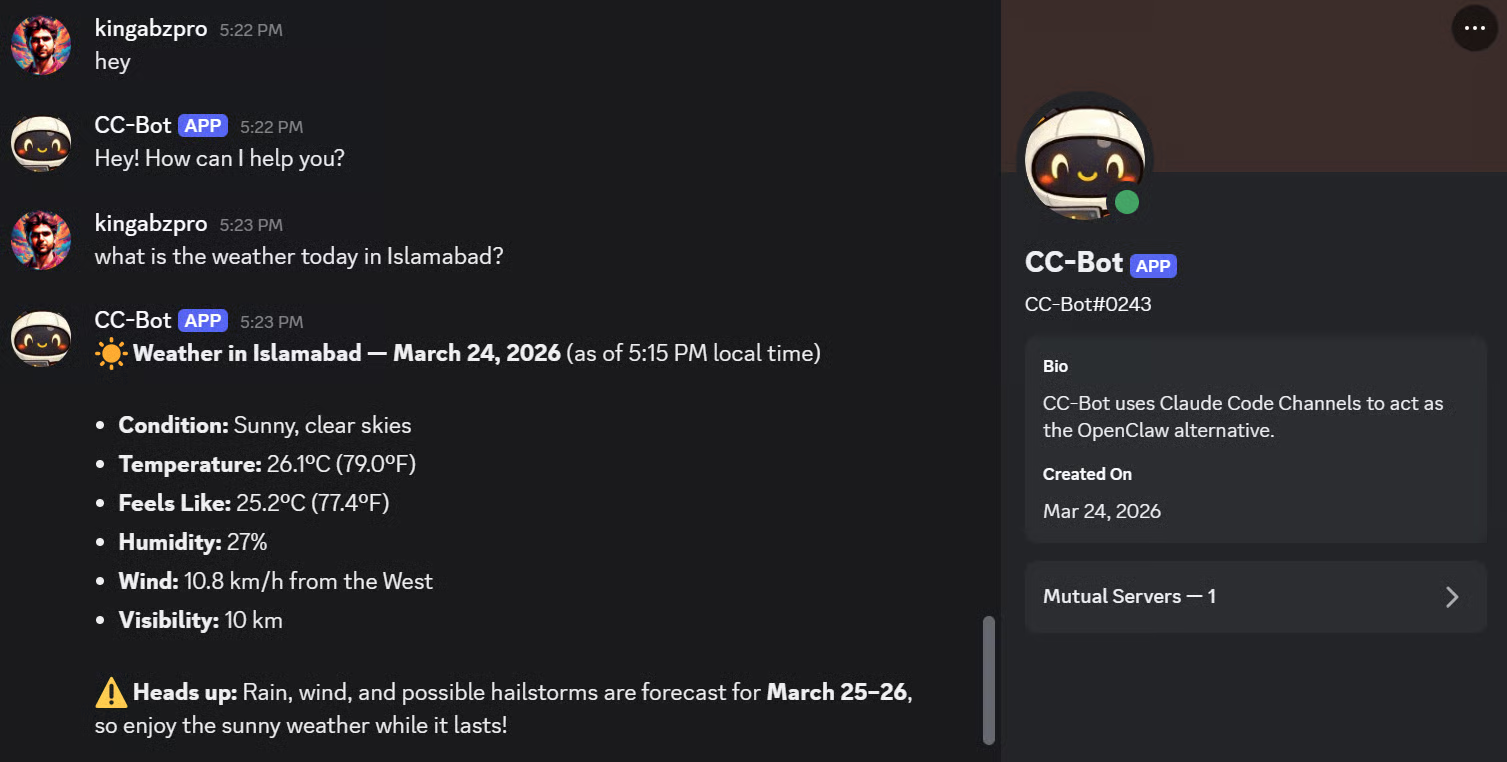
Satu hal yang mungkin Anda perhatikan adalah Claude Code dapat berhenti dan meminta izin sebelum menggunakan alat tertentu. Ini normal. Claude Code dirancang untuk meminta persetujuan sebelum melakukan tindakan seperti menjalankan perintah atau membuat perubahan, dan prompt izin dapat menghentikan sesi hingga Anda menyetujuinya.
Anda dapat mengelola aturan ini dengan /permissions, atau gunakan mode izin lain jika Anda menginginkan lebih sedikit interupsi.
Untuk pengujian, beberapa orang memulai Claude Code dengan perintah ini:
claude --dangerously-skip-permissions --channels
plugin:discord@claude-plugins-official
Ini melewati prompt izin, sehingga bot Discord dapat terus bekerja tanpa meminta Anda menyetujui tiap tindakan. Namun, dokumentasi resmi merekomendasikan untuk menggunakannya hanya di lingkungan yang benar-benar Anda percayai, karena ini menghapus pemeriksaan keamanan penting.
Setelah itu, Anda bisa mencoba beberapa tugas sederhana. Misalnya, Anda dapat meminta bot untuk membuat pengingat. Claude Code dapat membaca permintaan Anda, menalar, dan merespons di dalam Discord.
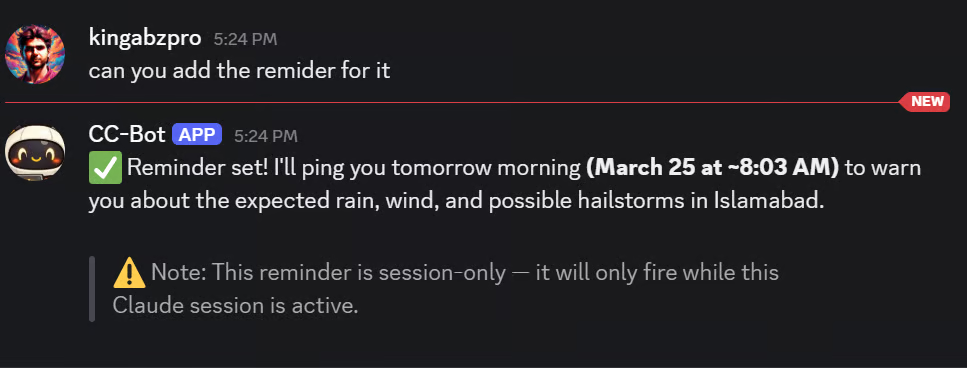
Saya memintanya membangun situs web portofolio sederhana. Ia menghasilkan file dan memberi respons cepat di dalam Discord.
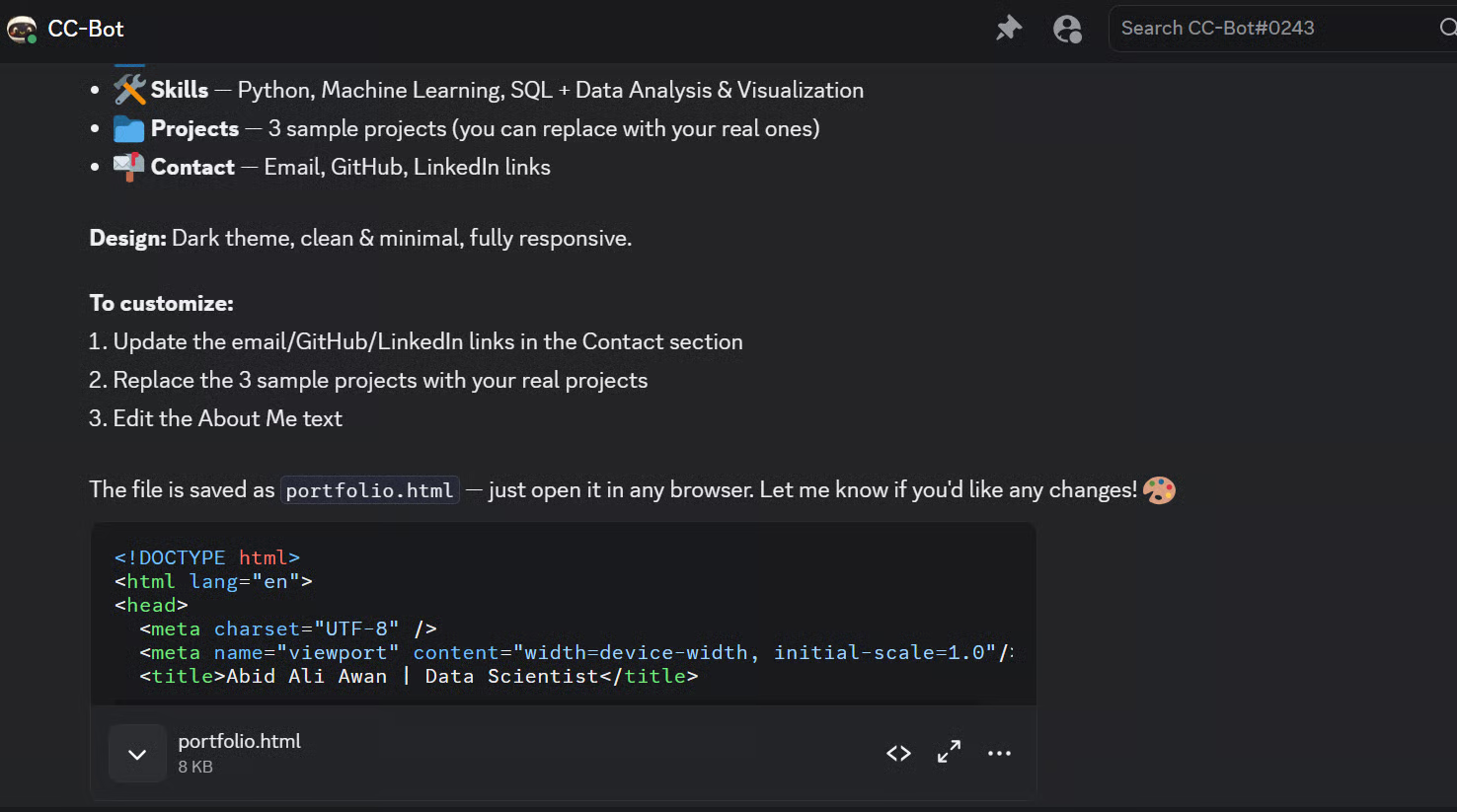
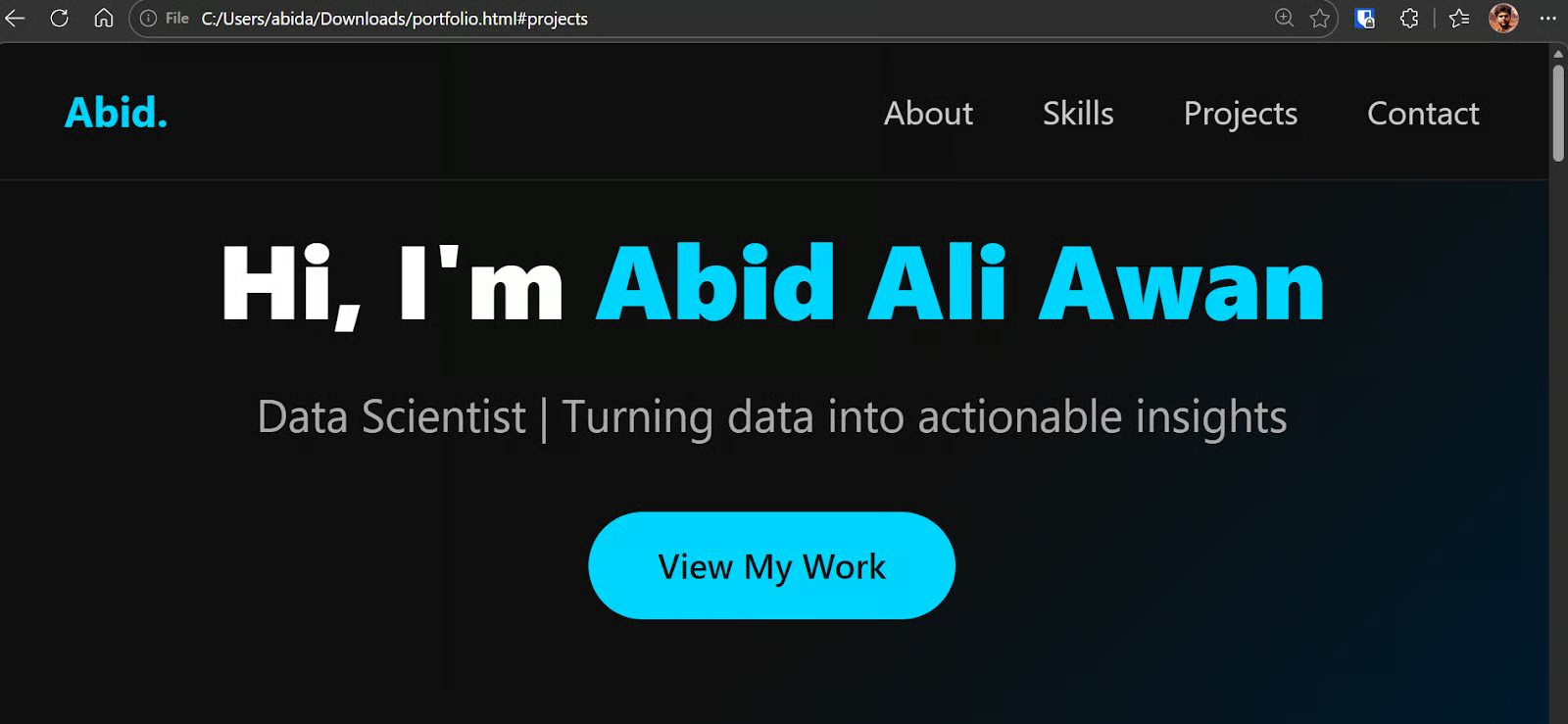
Saya kemudian membuka hasilnya di browser, dan untuk versi cepat pertama, tampilannya sudah bagus.
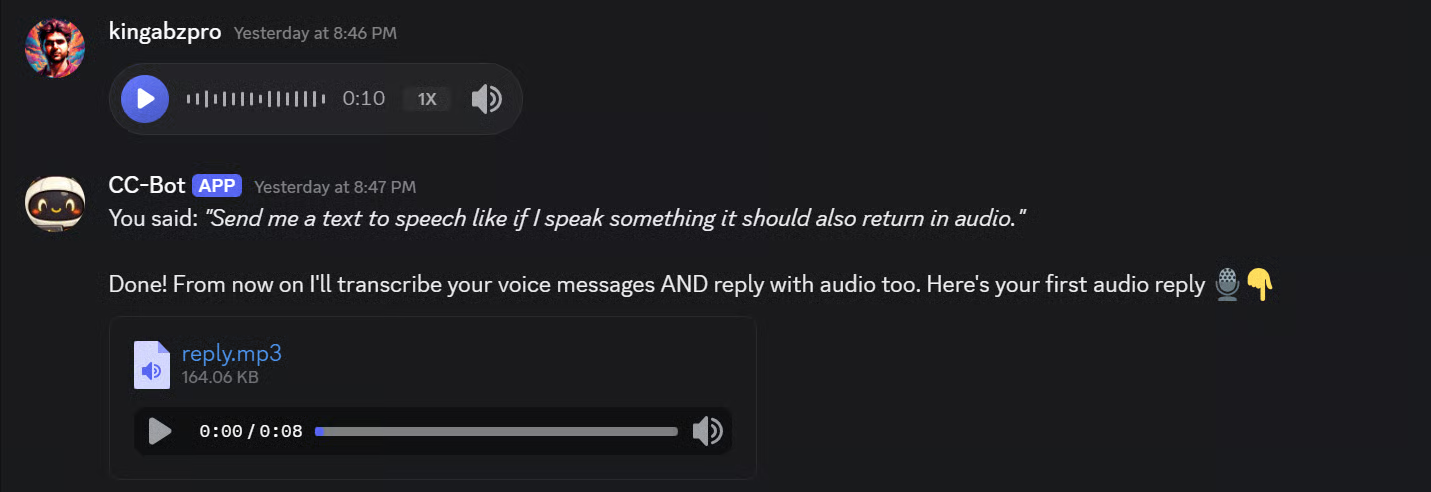
Setelah itu, saya bahkan mengubah perilaku bot sehingga saya bisa mengirim catatan suara dan mendapatkan balasan catatan suara. Ini membuat interaksi terasa jauh lebih natural, hampir seperti percakapan sungguhan.
Pemecahan Masalah Claude Code Channels
Mari lihat apa yang harus dilakukan saat terjadi kendala.
Menggunakan plugin fakechat untuk investigasi
Sebelum masuk ke masalah umum, ada baiknya mengetahui plugin fakechat—sebuah channel uji lokal yang menjalankan UI chat di localhost tanpa layanan eksternal untuk dikonfigurasi. Jika Anda mengalami masalah dengan Discord, fakechat membantu mengisolasi apakah masalahnya ada pada Channels itu sendiri atau pada setelan bot Discord Anda:
/plugin install fakechat@claude-plugins-official
claude --channels fakechat
Ini akan membuka chat berbasis browser di http://localhost:3000 yang mengirim pesan langsung ke sesi Claude Code Anda. Jika fakechat berfungsi tetapi Discord tidak, masalahnya ada pada konfigurasi bot Anda, bukan pada Channels.
Masalah umum dan cara mengatasinya
Berikut masalah yang paling umum saat menyiapkan Discord dengan Claude Code Channels serta cara memperbaikinya.
Jika Claude Code tidak dapat menemukan plugin Discord, biasanya masalahnya pada marketplace resmi. Tambahkan atau perbarui kembali marketplace claude-plugins-official, lalu pasang ulang plugin Discord. Dalam pratinjau Channels saat ini, plugin yang disetujui berasal dari marketplace resmi.
Jika /discord:configure tidak berfungsi, plugin mungkin terpasang tetapi belum dimuat ke sesi saat ini. Jalankan /reload-plugins, dan jika belum membantu, tutup terminal, kembali ke folder proyek Anda, lalu luncurkan Claude Code lagi.
Jika bot Anda terlihat offline di Discord, periksa hal-hal dasar: pastikan token bot benar, pastikan Claude Code dijalankan dengan claude --channels plugin:discord@claude-plugins-official, dan pastikan sesi Claude Code masih terbuka. Channels hanya berfungsi saat sesi lokal berjalan.
Jika bot online tetapi tidak membaca pesan masuk dengan benar, buka Discord Developer Portal dan pastikan Message Content Intent telah diaktifkan. Dokumen Discord menyebutkan bahwa aplikasi tanpa intent ini dapat menerima field konten pesan kosong.
Jika pairing gagal, kirim DM ke bot lagi dan pastikan Claude Code masih berjalan dengan Channels diaktifkan. Alur pairing bergantung pada plugin lokal yang aktif untuk membalas dengan kode pairing.
Terakhir, jika Anda menggunakan Claude Pro atau Max sebagai individu, Anda dapat mengaktifkan Channels per sesi dengan flag --channels. Jika Anda berada di Team atau Enterprise, admin Anda mungkin perlu mengaktifkan Channels terlebih dahulu di pengaturan organisasi. Channels juga memerlukan login Claude.ai, jadi tidak akan berfungsi jika Anda masuk dengan autentikasi hanya kunci API.
Membangun channel kustom
Jika Discord dan Telegram tidak sesuai alur kerja Anda, Anda dapat membangun plugin channel sendiri. Anthropic menyediakan referensi Channels dengan spesifikasi server MCP. Channel kustom dapat meneruskan webhook, pesan Slack, SMS, atau sumber kejadian lain ke dalam sesi Claude Code Anda.
Penutup
Claude Code Channels memberi Anda jalur langsung ke sesi Claude Code yang aktif dari Discord. Setelah penyiapan awal, bot Anda menjadi antarmuka jarak jauh untuk mengirim prompt, menerima respons, dan mengelola tugas—tanpa harus terpaku di terminal.
Saya membahas penyiapan lengkap dari nol: memasang Claude Code, masuk dengan akun Claude.ai Anda, memasang Bun, menambahkan marketplace plugin resmi, menyiapkan dan mengundang bot Discord, mengonfigurasi token bot, meluncurkan Claude Code dengan Channels diaktifkan, memasangkan akun Anda, dan menguji di Discord.
Setelah terhubung, bot dapat menangani pertanyaan cepat, pengingat, perubahan kode, dan alur kerja proyek yang lebih panjang melalui obrolan. Satu kendala yang perlu diingat: Channels bergantung pada sesi Claude Code yang aktif, jadi bot hanya berfungsi saat Claude Code berjalan.
Jika Anda ingin mendalami Claude Code, saya merekomendasikan tutorial praktik terbaik Claude Code kami atau kursus Introduction to Claude Models.