
Corso
Analisi dei dati in Excel
3 h
151.1K
Una volta ho ricevuto un foglio di calcolo con oltre 500 record che a prima vista sembrava a posto, ma che non calcolava correttamente i totali. Non capivo il motivo, poi ho scoperto che gli spazi nascosti stavano creando ogni tipo di problema. Se lavori con i dati in Excel, probabilmente ti è già capitato. Questi spazi spesso compaiono quando importi dati da altre fonti.
In questa guida ti mostro diversi metodi per rimuovere gli spazi indesiderati in Excel. Troverai istruzioni passo passo ed esempi pratici per ogni metodo, così da evitarti i mal di testa che ho avuto io. Se però stai iniziando ora, dai un'occhiata al nostro corso Data Analysis in Excel o al percorso di competenze Excel Fundamentals.
=TRIM(CLEAN(SUBSTITUTE(A1,CHAR(160)," "))) — la soluzione tutto-in-uno.Prima di rimuovere gli spazi, vediamo quali tipi di spazi potrebbero annidarsi nei tuoi dati:
Questi spazi possono infilarsi nei tuoi dati tramite importazione di file, errori di inserimento manuale, formattazione incoerente o copia e incolla da altre fonti.
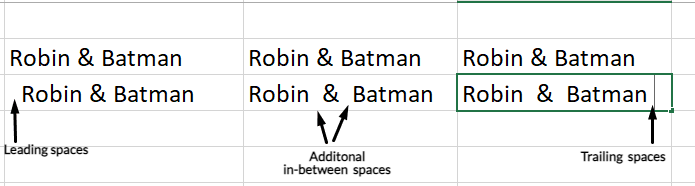
Tipi di spazi. Immagine dell'autore.
Anche se gli spazi possono sembrare dettagli minori, possono creare grossi problemi. Le formule potrebbero non funzionare, i confronti fallire e i calcoli risultare errati. Prima di passare alle soluzioni, ti consiglio quanto segue:
Ora vediamo i metodi migliori per rimuovere gli spazi in Excel.
La funzione TRIM() rimuove gli spazi non necessari, come gli spazi iniziali, finali e i multipli tra le parole, tranne il singolo spazio. Per un riferimento completo, vedi la nostra guida alla funzione TRIM() in Excel. Ecco come usarla:
Crea una colonna di supporto accanto ai tuoi dati.
Nella prima cella della colonna di supporto, inserisci la formula: =TRIM(A2).
Premi Invio e trascina la formula verso il basso per applicarla a tutte le righe.
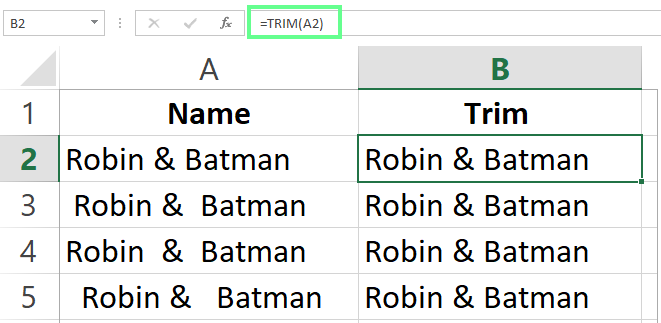
Usa TRIM() per rimuovere gli spazi. Immagine dell'autore.
Consiglio — sostituisci i dati originali: Dopo aver applicato TRIM() nella colonna di supporto, copia le celle ripulite, poi fai clic con il tasto destro sulla colonna originale e seleziona Incolla speciale > Solo valori (scorciatoia: Alt+E+S+V o Ctrl+Shift+V su Mac). Incollerai solo i valori puliti, così potrai eliminare la colonna di supporto.
La funzione SUBSTITUTE() rimuove ogni spazio (inclusi quelli tra le parole) da una cella e sostituisce qualsiasi carattere, inclusi gli spazi, con qualcos'altro. È utile per pulire i dati numerici, ad esempio rimuovendo gli spazi che separano le cifre.
La sua sintassi di base è:
=SUBSTITUTE(text, old_text, new_text, [instance_num])Ecco come applicarla e rimuovere tutti gli spazi:
Crea una colonna di supporto.
Inserisci la formula: =SUBSTITUTE(A2," ","").
Premi Invio e trascina verso il basso per applicarla a tutte le righe.
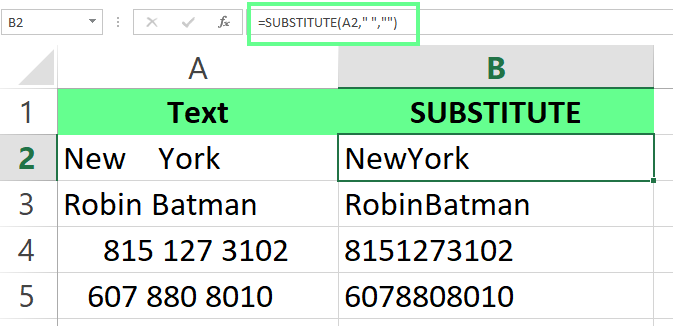
Uso della funzione SUBSTITUTE(). Immagine dell'autore.
Se vuoi una soluzione rapida e semplice, ti consiglio lo strumento Trova e sostituisci di Excel — può gestire gli spazi extra tra le parole. Ecco come fare:
Seleziona l'intervallo di dati.
Premi Ctrl+H per aprire la finestra Trova e sostituisci.
Nel campo Trova cosa, inserisci due spazi.
Nel campo Sostituisci con inserisci un solo spazio.
Fai clic su Sostituisci tutto.
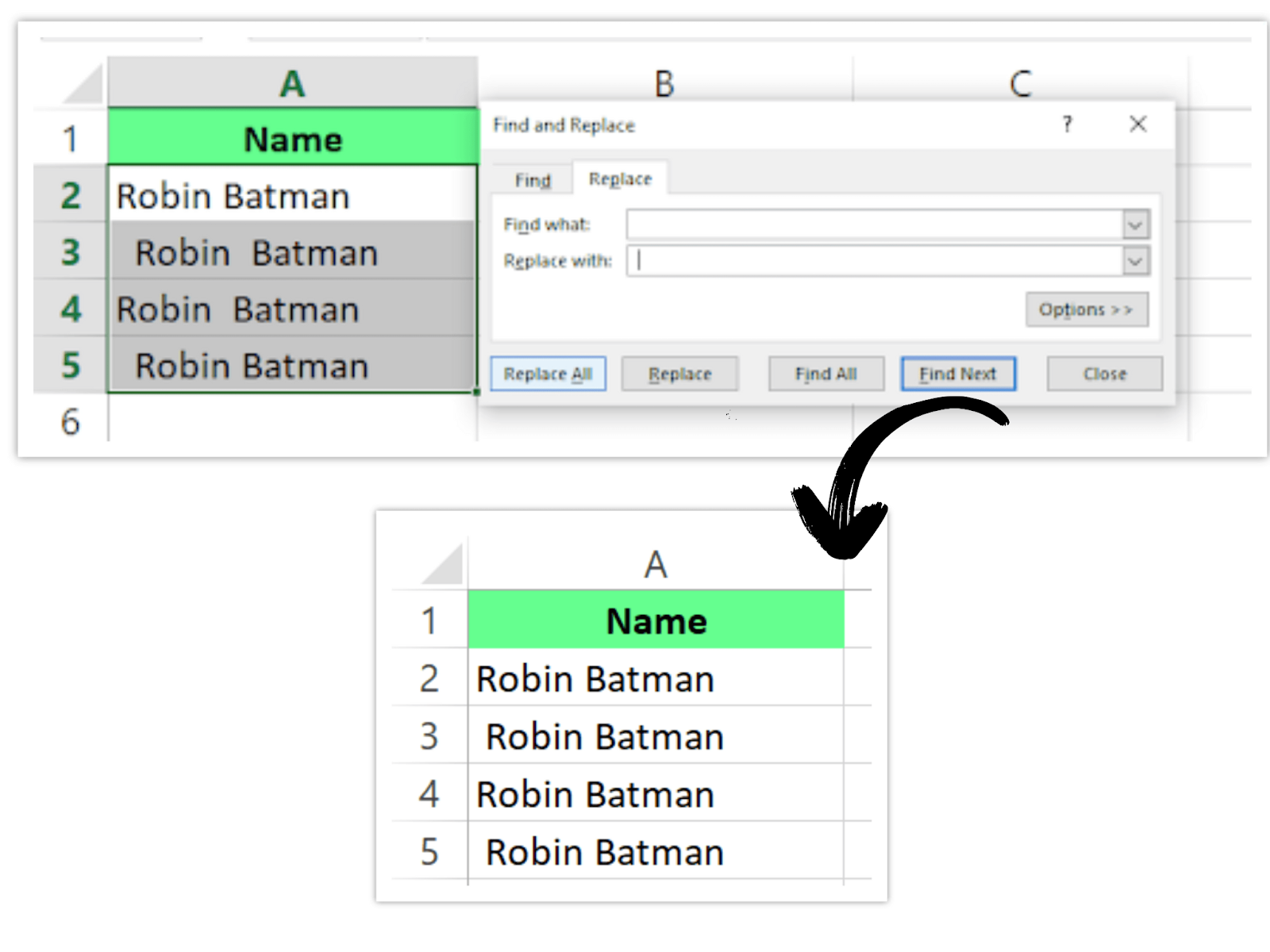
Pulizia degli spazi con Trova e sostituisci. Immagine dell'autore.
Ripeti i passaggi finché Excel non mostra il messaggio Non è stato possibile trovare elementi da sostituire. Nota che questo metodo riduce gli spazi iniziali e finali a un solo spazio ma non li rimuove completamente. Agisce solo sugli spazi tra le parole.
Quando importiamo o copiamo dati da fonti esterne, spesso otteniamo caratteri non stampabili che possono compromettere le operazioni sui dati. Puoi usare la funzione CLEAN() per rimuoverli o, ancora meglio, combinarla con TRIM() per eliminare anche gli spazi superflui.
Ecco come fare:
Inserisci la formula: =TRIM(CLEAN(A2)) in una colonna di supporto.
Premi Invio e trascina la formula verso il basso.
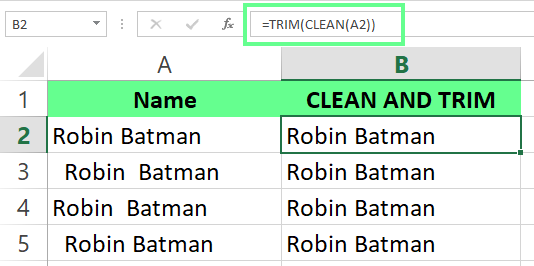
Combina TRIM() e CLEAN() per rimuovere gli spazi. Immagine dell'autore.
Puoi usare il componente aggiuntivo di terze parti Ablebits Ultimate Suite for Excel. Il suo strumento Trim Spaces pulisce i dati rapidamente. Con un clic, si occupa di tutto: spazi iniziali e finali, interruzioni di riga, spazi extra tra le parole e spazi non separabili. Quindi, se come me lavori spesso con dataset grandi, può farti risparmiare un sacco di tempo.
Ecco come usarlo:
Seleziona l'intervallo di celle da pulire.
Apri la scheda Ablebits Data e fai clic su Trim Spaces.
Dall'area delle opzioni, seleziona cosa vuoi rimuovere e fai clic su Trim.
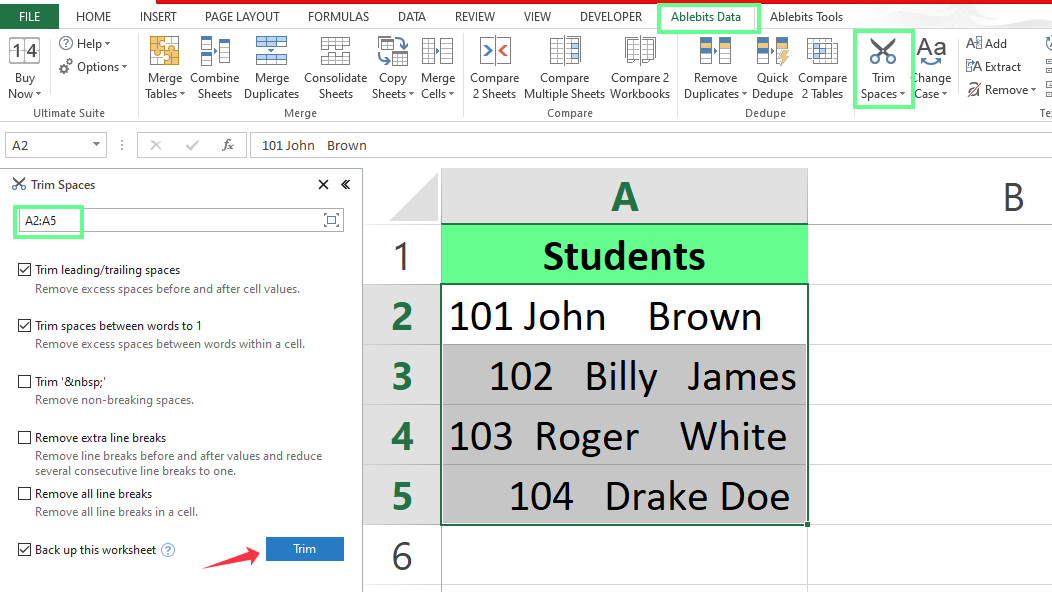
Taglia gli spazi con il componente aggiuntivo di Excel. Immagine dell'autore.
Vediamo ora alcuni scenari comuni in cui potresti imbatterti e come risolverli rapidamente.
Gli spazi extra possono rendere i dati disordinati e difficili da gestire. Puoi usare la funzione TRIM() per ripulirli mantenendo un solo spazio tra le parole. Per esempio, ho alcune voci con spaziatura incoerente. Per sistemarle, ho inserito la seguente formula nella cella B2 e l'ho applicata a tutte le righe:
=TRIM(A2)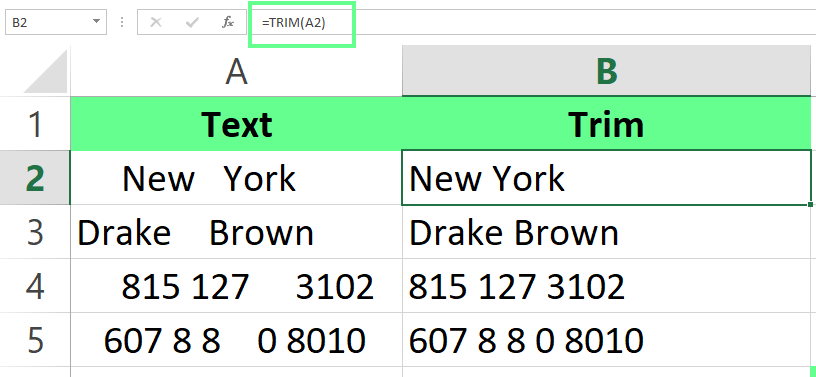
Usa TRIM() per rimuovere gli spazi extra. Immagine dell'autore.
A volte dobbiamo mantenere più spazi tra le parole per rendere i dati più leggibili, ma rimuovere quelli iniziali. La funzione TRIM() funziona bene ma rimuove tutti gli spazi nel testo. Quindi, se vuoi rimuovere solo gli spazi iniziali mantenendo intatto il resto, usa questa formula avanzata:
=MID(A2,FIND(MID(TRIM(A2),1,1),A2),LEN(A2))Come funziona: individua il primo carattere non-spazio e mantiene tutto da quel punto in avanti. In questo modo conserva gli spazi tra le parole e taglia solo all'inizio della cella (spazi iniziali).
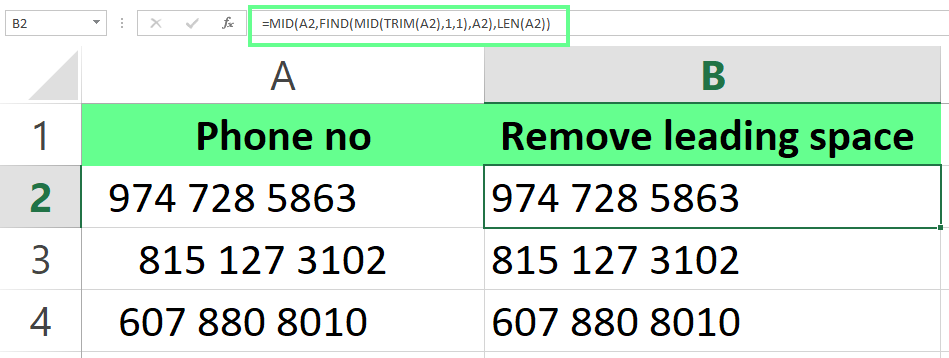
Rimuovi solo gli spazi iniziali. Immagine dell'autore.
Gli spazi finali sono spazi extra che compaiono dopo il testo o i numeri in una cella. Questi caratteri invisibili possono causare problemi come errori nelle formule, in cui celle che sembrano identiche non coincidono in funzioni come VLOOKUP() o MATCH(). Per evitarlo, usa la funzione TRIM(). Per esempio, ho inserito questa formula in B2 e poi l'ho applicata a tutte le righe per rimuovere gli spazi extra dai miei dati.
=TRIM(A2)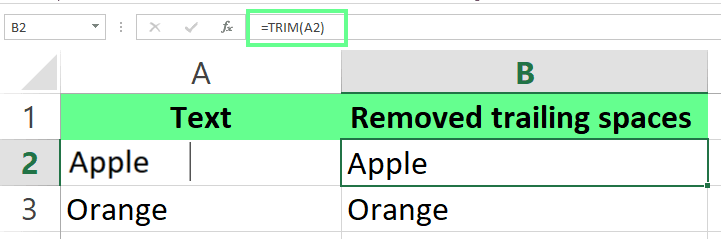
Rimozione degli spazi finali. Immagine dell'autore.
Sebbene TRIM() sia ottima per ripulire gli spazi nel testo, potresti avere problemi usandola con dati numerici. Ecco cosa succede:
=TRIM(A2)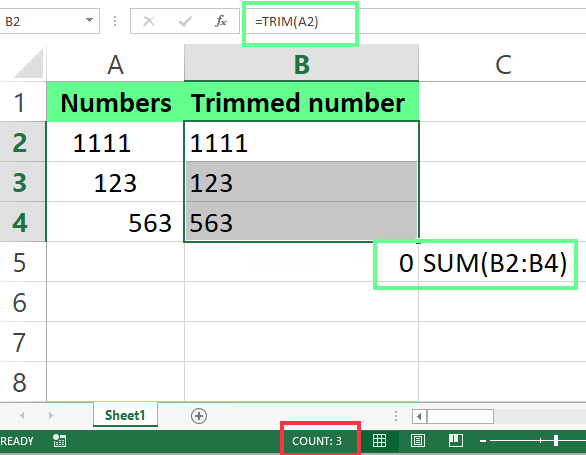
La funzione TRIM() non rimuove correttamente gli spazi. Immagine dell'autore.
Come vedi, TRIM() ha rimosso gli spazi prima di un numero, ma Excel non tratta più il risultato come numero — lo considera testo. Ecco come accorgersene:
I dati sono allineati a sinistra invece che a destra.
Guarda la barra di stato: mostra solo quante celle hai selezionato (CONTA), non il totale.
Se provi a sommare queste celle con SUM(), otterrai zero.
Per risolvere, devi riconvertire il testo in numero. Puoi farlo moltiplicando per 1 oppure usando questa formula:
=VALUE(TRIM(A2))Questo rimuove gli spazi e fa sì che Excel tratti i dati come numeri.
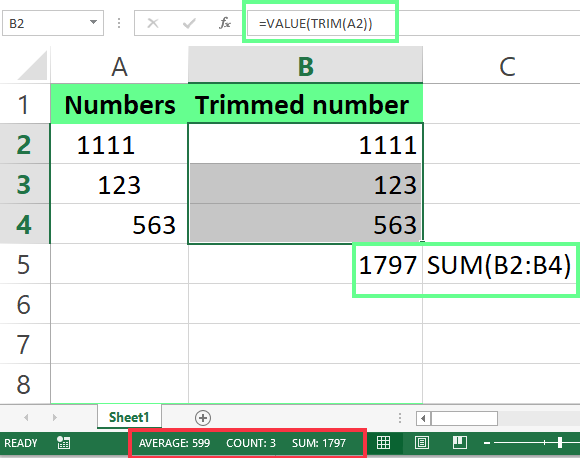
Combina VALUE() e TRIM() per rimuovere gli spazi prima dei numeri. Immagine dell'autore.
Se vuoi rimuovere tutti gli spazi, inclusi quelli tra le parole, usa la funzione SUBSTITUTE():
=SUBSTITUTE(A2, " ", "")La formula elimina ogni spazio dalla stringa.
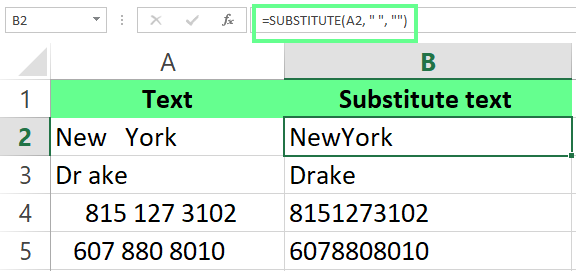
Rimuovi gli spazi con la funzione SUBSTITUTE(). Immagine dell'autore.
SUBSTITUTE() è ottima quando vuoi rimuovere caratteri specifici dal testo. Ma puoi abbinarla a TRIM() per ripulire in un colpo solo caratteri speciali e spazi. Per esempio, se voglio rimuovere & e ripulire gli spazi, uso questa formula:
=TRIM(SUBSTITUTE(A2, "&", ""))Ecco come funzionano insieme TRIM() e SUBSTITUTE() rispetto a SUBSTITUTE() da sola.
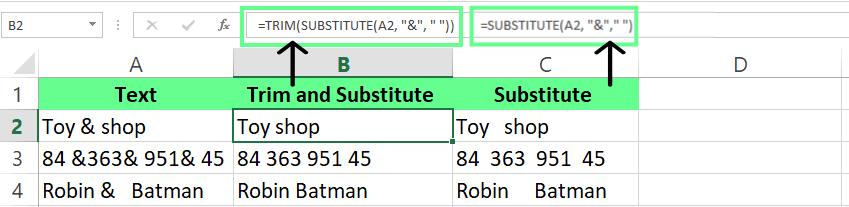
Combina TRIM() e SUBSTITUTE() per ripulire gli spazi. Immagine dell'autore.
A volte i dati incollati dal web o da altre fonti contengono interruzioni di riga (caratteri Alt+Invio, CHAR(10)) che sembrano spazi extra. La funzione TRIM() non le intercetta. Per rimuoverle:
Seleziona le celle da pulire.
Premi Ctrl+H per aprire Trova e sostituisci.
Nel campo Trova cosa, premi Ctrl+J (compare un cursore lampeggiante — è il carattere di interruzione di riga).
Lascia vuoto il campo Sostituisci con (oppure digita uno spazio per evitare di unire le parole).
Fai clic su Sostituisci tutto.
In alternativa, usa la formula: =TRIM(CLEAN(A1)) — la funzione CLEAN() elimina interruzioni di riga (CHAR(10)) e altri caratteri non stampabili (ASCII 1–31) in un solo passaggio.
A volte, quando copio o importo dati da altre fonti, compaiono molti spazi non separabili e caratteri strani. Ecco come li gestisco:
La funzione TRIM() rimuove gli spazi extra, ma non funziona con gli spazi non separabili (codice carattere 160). Questi compaiono spesso nei dati dalle pagine web o da fonti formattate. Per risolvere, uso:
=TRIM(SUBSTITUTE(A1, CHAR(160), ""))Questa formula rimuove completamente gli spazi non separabili. Se vuoi prima sostituirli con spazi normali (così TRIM() può poi eliminare gli extra), usa: =TRIM(CLEAN(SUBSTITUTE(A1,CHAR(160)," "))) — la formula di riferimento per rimuovere tutti i tipi di spazio in una volta sola.
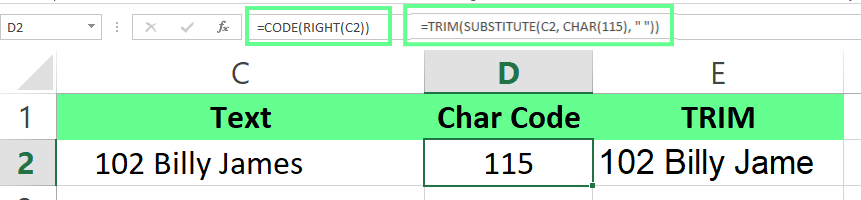
A volte si insinuano altri caratteri nascosti, come tabulazioni o interruzioni di riga. Per individuarli, uso CODE() per controllare la posizione del carattere:
Primo carattere: =CODE(LEFT(A1,1))
Ultimo carattere: =CODE(RIGHT(A1,1))
Posizione specifica: =CODE(MID(A1, n, 1)) (Sostituisci n con il numero di posizione.)
Questa è la formula che uso:
=CODE(RIGHT(C2,1))Una volta noto il codice, lo rimuovo con TRIM() e SUBSTITUTE(). Per esempio, per rimuovere le tabulazioni (codice 115), uso:
(SUBSTITUTE(C2, CHAR(115), “ “))
Usa CODE(), TRIM() e SUBSTITUTE() per rimuovere gli spazi. Immagine dell'autore.
Non sai quale metodo usare? Questa tabella collega ogni scenario allo strumento giusto:
| Scenario | Metodo migliore | Formula / Scorciatoia |
|---|---|---|
| Rimuovere spazi iniziali e finali | TRIM() | =TRIM(A1) |
| Rimuovere TUTTI gli spazi (anche tra le parole) | SUBSTITUTE() | =SUBSTITUTE(A1," ","") |
| Pulizia rapida in loco, senza formule | Trova e sostituisci | Ctrl+H |
| Dati importati dal web o da altre app | TRIM() + CLEAN() | =TRIM(CLEAN(A1)) |
| Spazi non separabili (CHAR(160)) da pagine web | TRIM + CLEAN + SUBSTITUTE | =TRIM(CLEAN(SUBSTITUTE(A1,CHAR(160)," "))) |
| Spazi mescolati a dati numerici | VALUE() + TRIM() | =VALUE(TRIM(A1)) |
| Rimuovere le interruzioni di riga | Trova e sostituisci o CLEAN() | Ctrl+H → Ctrl+J oppure =TRIM(CLEAN(A1)) |
| Dataset grande, pulizie frequenti | Componente aggiuntivo Excel (Ablebits) | Ablebits Data > Trim Spaces |
In questa guida ti ho mostrato metodi come TRIM() per le correzioni semplici, SUBSTITUTE() per i problemi più complessi e i componenti aggiuntivi nel caso in cui tu debba rimuovere spesso gli spazi e voglia un processo diverso. Ogni metodo si adatta a tipi di dati diversi, quindi scegli quello più adatto alle tue esigenze. Per una panoramica più ampia su come mantenere puliti i tuoi fogli di calcolo, consulta la nostra guida alla pulizia dei dati in Excel.
Se vuoi rafforzare ulteriormente le tue competenze, dai un'occhiata al percorso di competenze DataCamp Data Analysis with Excel Power Tools. Offre lezioni passo passo per aiutarti a padroneggiare Excel e migliorare le tue tecniche di pulizia dei dati.
Impara Excel con DataCamp
Corso
Corso
Corso
blog
Abid Ali Awan
10 min
blog
Tim Lu
12 min
blog
Abid Ali Awan
15 min