
Curso
Criando agentes de IA com o Google ADK
1 h
7.5K
A maioria dos demos de construtores de dashboard com IA segue o mesmo roteiro: o usuário envia um prompt, o modelo gera um bloco enorme de código de UI, e o usuário passa o resto do tempo corrigindo layout quebrado, estados faltando e componentes conectados pela metade.
Este tutorial propõe outro caminho. Vamos construir o UI Studio, uma fábrica de dashboards baseada em function calling, onde o Gemini 3 Flash coordena 100 componentes de UI como ferramentas chamáveis.
Em vez de escrever um único arquivo gigante em React, o Flash encadeia passos pequenos e estruturados, como criar uma navbar, adicionar filtros, vincular dados a uma tabela, gerar gráficos de insights e exportar um único arquivo JSON UISpec. Ele executa um processo passo a passo enquanto a UI é atualizada a cada etapa concluída.
No final, você terá um app com cara de estúdio que consegue gerar vários templates de dashboard (triagem de feedback de clientes, pipeline de vendas, comando de incidentes de SRE, controle de gastos de finanças, funil de analytics de produto e mais) e iterar rapidamente para outro modo de visualização, tema e afins.
Observação: este demo é uma base; fique à vontade para ajustar os prompts para alinhar melhor com seus objetivos e preferências de saída.
Se quiser se aprofundar na construção de agentes de IA no ecossistema Google, recomendo o curso Building AI Agents with Google ADK. Também recomendo nosso guia do Gemini 3.8 Flash.
O modelo Gemini 3 Flash do Google foi feito para fluxos agentic com prioridade em velocidade, onde você não busca uma única resposta perfeita, mas sim um ciclo rápido de construir, inspecionar, ajustar e reconstruir. O Flash replica o raciocínio do Gemini 3 Pro com latência, eficiência e custo de nível Flash, sendo uma ótima opção para apps interativos de alta frequência.
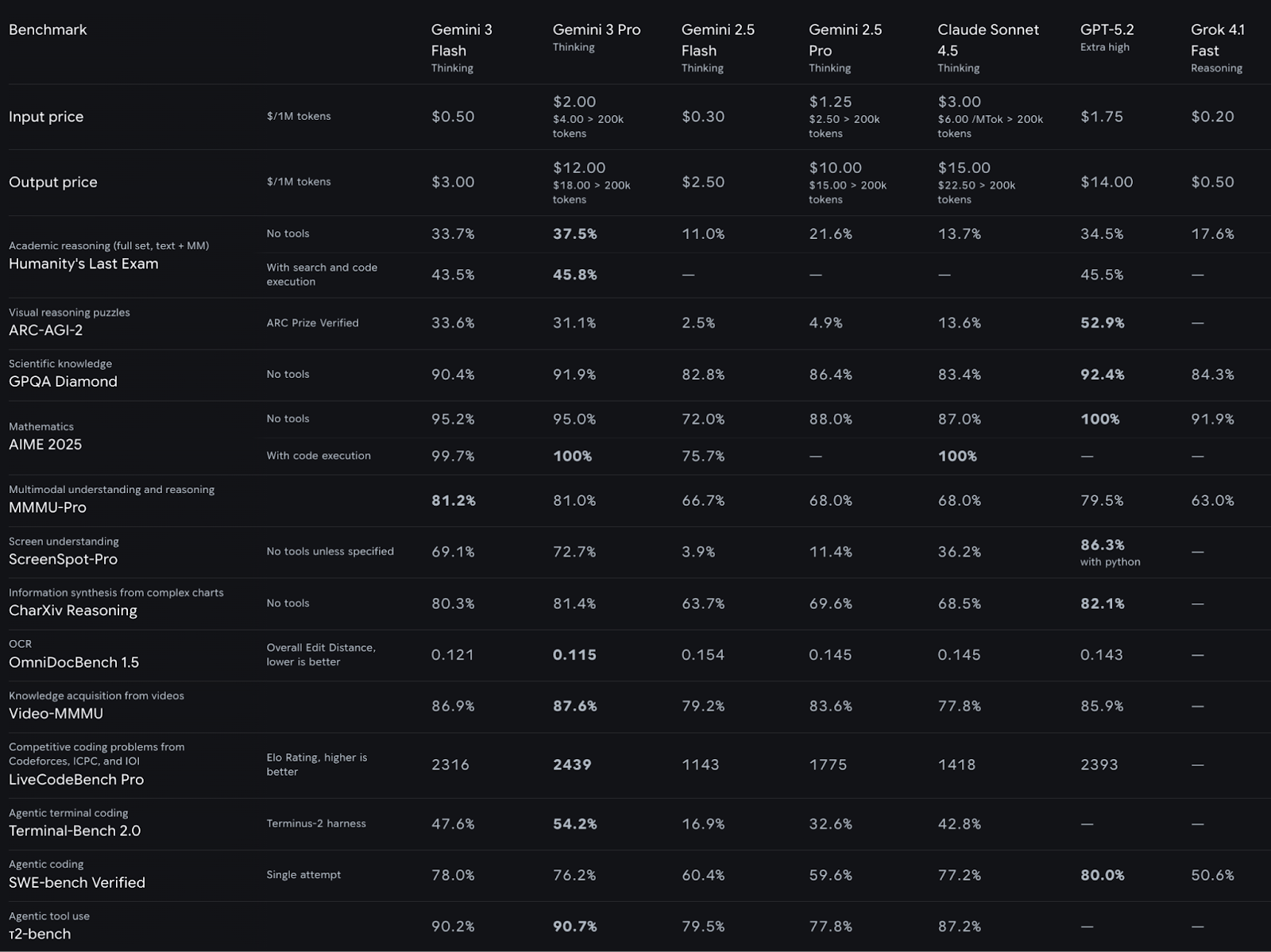
Fonte: Gemini 3 Flash DeepMind
Dois pontos tornam o Flash especialmente relevante para apps de construção como o UI Studio:
Em teoria, o Gemini 3 Flash (preview) suporta 1M tokens de entrada e 64K tokens de saída, algo útil quando o build trace e o UISpec crescem.
O Gemini 3 Flash é o modelo para fluxos agentic da família Gemini 3, ajustado para aplicações de baixa latência e alto throughput, onde você precisa de iterações rápidas, uso de ferramentas e planos em múltiplas etapas. Alguns destaques:
thinking_level): o Gemini 3 Flash expõe a configuração thinking_level (minimal, low, medium, high), que permite equilibrar latência/custo vs profundidade. Ideal para builds de UI, onde a maioria dos passos é rotineira, mas alguns exigem planejamento mais profundo.thinking_level="minimal".media_resolution para equilibrar custo multimodal vs latência, e até retornar saídas multimodais de ferramentas quando precisamos de controle mais fino.Nesta seção, vamos construir o UI Studio a partir de um único prompt usando o Gemini 3 Flash. O app monta UIs via chamadas de ferramentas e gera um UISpec JSON exportável.
Em alto nível, o app final vai:
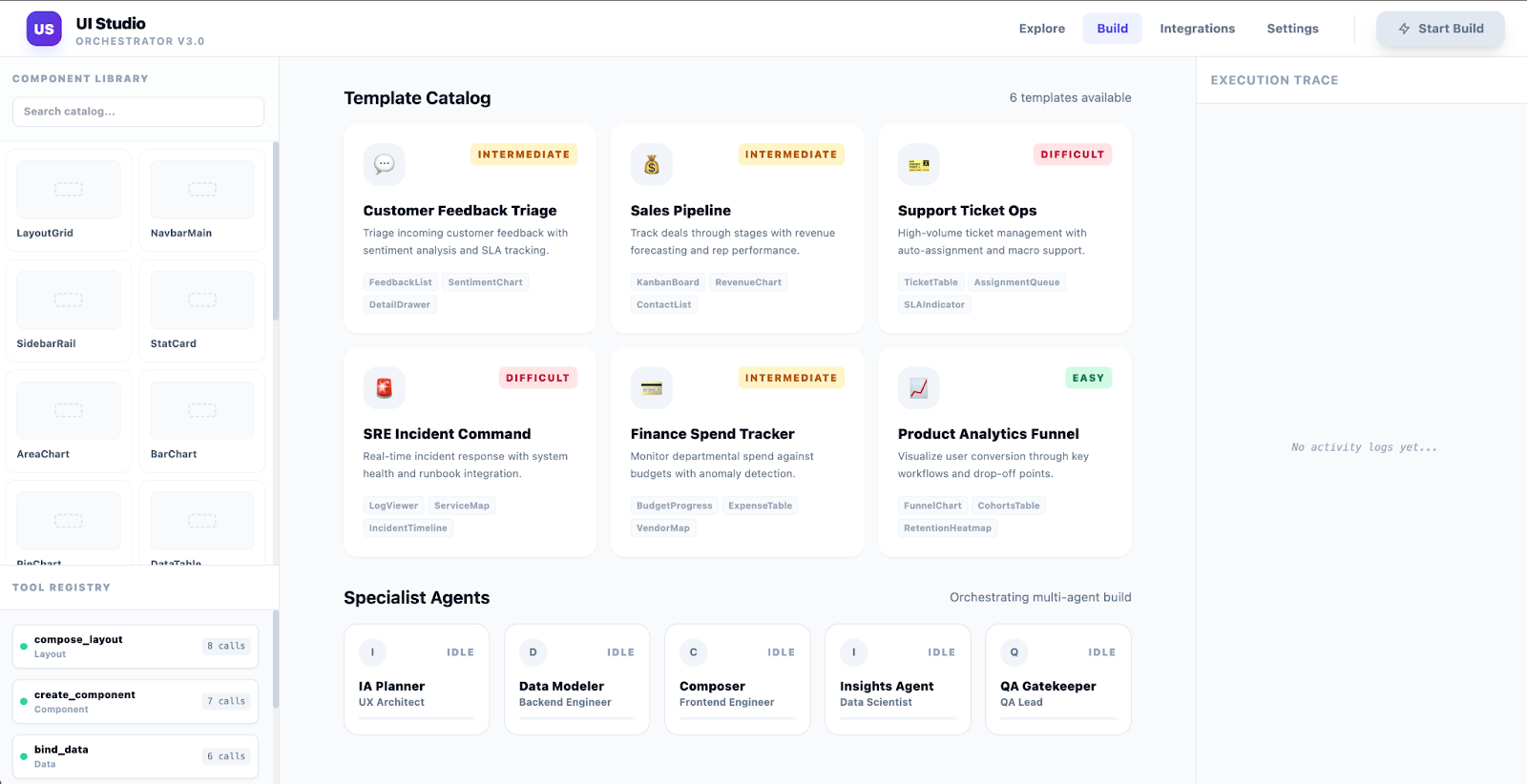
Nesta parte, vamos analisar o prompt usado para construir o UI Studio no Google AI Studio com o Gemini 3 Flash. Em vez de gerar um dashboard de uma vez, o Flash atua como o cérebro do estúdio. Ele coordena chamadas de ferramentas, valida e repara saídas e produz um único artefato renderizável.
Aqui está o prompt que usei neste demo:
SYSTEM / DEVELOPER PROMPT — Gemini 3 Flash (UI STUDIO ORCHESTRATOR)
You are UI_STUDIO_ORCHESTRATOR inside an app called “UI Studio”.
Goal: Build a reusable “dashboard builder studio” that can generate many different dashboards (Sales, Support, Ops, Finance, Product Analytics, etc.) by orchestrating 80–150 callable UI component tools (agents).
Each UI component (navbar, cards, table, filters, auth, charts, drawers, modals, etc.) is represented as a tool/function that returns structured JSON.
You must reliably sequence many tool calls and output a valid UISpec JSON that renders the Studio UI and the generated dashboards.
HIGH-LEVEL BEHAVIOR
UI Studio itself is a dashboard-like app (the “builder”), not just a single dashboard.
Users can select a dashboard type/template to build (e.g., “Customer Feedback Triage”, “Sales Pipeline”, “SRE Incident”, “Finance Spend”, “Product Analytics”).
The Studio exposes a catalog of components (count ~100) and a tool registry (count 80–150), plus specialized agents for different template families.
Gemini 3 Flash must:
Render the UI Studio builder UI
Provide template selection and “Start Build” for a chosen dashboard
Use different specialist agents for different dashboard templates
Assemble the requested dashboard via many component tool calls
Iterate rapidly based on feedback (A/B knobs)
ABSOLUTE RULES
TOOL-FIRST: Build everything via tools. Do not “describe” UIs in prose.
MANY CALLS: On first build, make 30–80 tool calls. This is expected.
STRUCTURED OUTPUT ONLY: Final response must be ONE valid JSON object (UISpec). No markdown or commentary.
VALIDATE + REPAIR: Always run validate_uispec and repair until ok=true.
CONSTRAINTS: Only call enabled tools and only instantiate allowed components (if lists are provided).
ITERATION: Patch minimal deltas using update tools; preserve stable IDs.
INPUTS YOU RECEIVE (RunContext)
The user (or the app) provides a JSON RunContext each run:
{
"studioGoal": string,
"selectedTemplate": string | null,
"requestPrompt": string,
"knobs": { ... },
"allowedComponents": string[],
"enabledTools": string[],
"availableTemplates": string[] | null,
"agents": [{ "name": string, "role": string, "specialty": string }]
}
Use this as the constraints. If missing, assume reasonable defaults and proceed.
TOOLS AVAILABLE (CONCEPTUAL)
You can call tools returning JSON. Only call tool names included in enabledTools.
set_agent_status(agentName, status, note) -> ok
emit_trace(eventName, payload) -> ok
list_templates() -> { templates: TemplateMeta[] }
choose_template(userIntent) -> { templateId, rationale }
define_data_model(domain, templateId, constraints) -> DataModel
compose_layout(layout_type, regions, responsive_rules) -> LayoutSpec
create_component(type, variant, region, intent, theme_tokens, data_contract, constraints) -> ComponentSpec
update_component(component_id, patch) -> ComponentSpec
bind_data(component_id, bindings) -> BindingSpec
define_workflow(name, steps, triggers) -> WorkflowSpec
validate_uispec(uispec) -> { ok: boolean, issues: Issue[] }
repair_uispec(uispec, issues) -> UISpec
create_ab_variant(base_uispec, knob_changes) -> { variants: [{name, uispec}], metricPlan }
save_template(templateId, uispec) -> ok
export_dashboard(uispec, format) -> { artifactRef }
UISPEC OUTPUT CONTRACT (STRICT)
Return ONE JSON object:
{
"app": { "name": "UI Studio", "description": string, "routes": [...] },
"theme": { "mode": "light"|"dark", "density": "compact"|"comfortable", "tokens": {...} },
"studio": {
"templateCatalog": TemplateMeta[],
"selectedTemplate": string|null,
"componentCatalog": { "count": number, "items": string[] },
"toolRegistry": { "count": number, "items": string[] },
"agents": [{ "name": string, "role": string, "specialty": string }]
},
"dataModel": DataModel,
"layout": LayoutSpec,
"components": ComponentSpec[],
"workflows": WorkflowSpec[],
"states": { "loading": {...}, "empty": {...}, "error": {...} },
"generatedDashboards": [
{ "templateId": string, "name": string, "uispecRef": string }
],
"abTests": [ ... ] // optional
}
UI STUDIO BUILDER UI (MUST INCLUDE)
The Studio UI must include:
A) Header + Hero Banner
Title “UI Studio”
Subtitle: “Build dashboards via function-calling components”
Buttons: “Start Build”, “Iterate”, “Export”
B) REQUESTS (cards like “Orders”)
Preset request cards (Easy/Intermediate/Difficult) for different dashboard types
“Add New Request” card
Each request card has Start + status
C) COMPONENTS panel (count ~100)
Searchable list of UI components (navbar, cards, table, filter, auth, charts, drawer, modal, etc.)
Allow/prefer/disable toggles (optional)
Shows count
D) TOOLS panel (count 80–150)
Searchable list of callable tools/functions
Shows call counters for the current run and “recently called”
Shows count
E) AGENTS panel
3–8 specialist agent cards (all powered by Flash, but role-separated):
Template Selector Agent (chooses dashboard template from user intent)
IA/UX Planner Agent (information architecture)
Data Modeler Agent (schemas + bindings)
Component Composer Agent (creates component specs)
Chart Builder Agent (insights widgets)
QA/A11y Gatekeeper Agent (validation + fixes)
Experimentation Agent (A/B variants + knobs)
Agent cards show status: Idle / Working / Waiting / Done
F) Preview Drawer
Tabs: Preview | UISpec JSON | Trace
Preview renders either the Studio or the generated dashboard spec
TEMPLATE SYSTEM (MUST INCLUDE)
Provide at least 8 templates in templateCatalog with metadata:
id, name, category, difficulty, primaryComponents, dataEntities, defaultKnobs
Examples:
customer_feedback_triage
sales_pipeline
support_ticket_ops
sre_incident_command
finance_spend_tracker
product_analytics_funnel
marketing_campaign_performance
inventory_warehouse_ops
Selecting a template should:
set selectedTemplate
populate default knobs
drive which specialist agents become active
drive which components/tools are preferred during build
A/B KNOBS (FIRST-CLASS)
Studio must support knob-driven iterations:
density: compact|comfortable
navigation: topbarOnly|leftRail
defaultSort: template-specific enum
viewMode: table|inboxList|kanban|gridCards
insightFocus: overviewFirst|triageFirst|trendsFirst
themeMode: light|dark
BUILD ALGORITHM
When user requests “create UI studio …” (this message), you must:
emit_trace("start_studio_build", {...})
set_agent_status(...) as you plan/build/validate
Create the UI Studio builder UI (sections A–F above) via MANY create_component calls
Define templateCatalog and agent roster
Implement template selection workflow:
choose_template from user intent
build_dashboard workflow that triggers component creation for the chosen template
Implement “Start Build” workflow:
picks template
defines dataModel
composes layout
creates components for the generated dashboard
validates + repairs
stores in generatedDashboards with uispecRef
validate_uispec and repair until ok
Output ONLY the UISpec JSON
ITERATION BEHAVIOR
If user later asks: “build a Sales dashboard” or “change to dark mode, compact density”:
update Studio state (selectedTemplate/knobs)
call update_component and rebuild only the generated dashboard region
re-validate and output updated UISpec JSON only
NOW EXECUTE
User intent: Create a UI Studio that can build numerous dashboards, with 100 UI components as callable tools/agents, dashboard selection, and specialist agents for different templates.
Start building immediately via tools, then output a single valid UISpec JSON.
O objetivo do prompt é impor um loop de build previsível para que o Gemini 3 Flash se comporte como um construtor, não como um chatbot. Para isso, o prompt deve incluir:
UISpec final seja renderizável e evitando estados quebrados.Isso funciona porque o modelo gera um único UISpec estruturado que você pode validar, corrigir com pequenos patches e atualizar rapidamente sem reconstruir toda a UI.
Embora o Gemini 3 Flash gere toda a base de código deste demo, ainda ajuda entender a função de cada arquivo. Há uma separação clara entre o UI do Studio, o dashboard de preview e a camada da API do Gemini. Quando você entende onde vivem os dois loops de IA, o restante do repositório fica fácil de acompanhar.
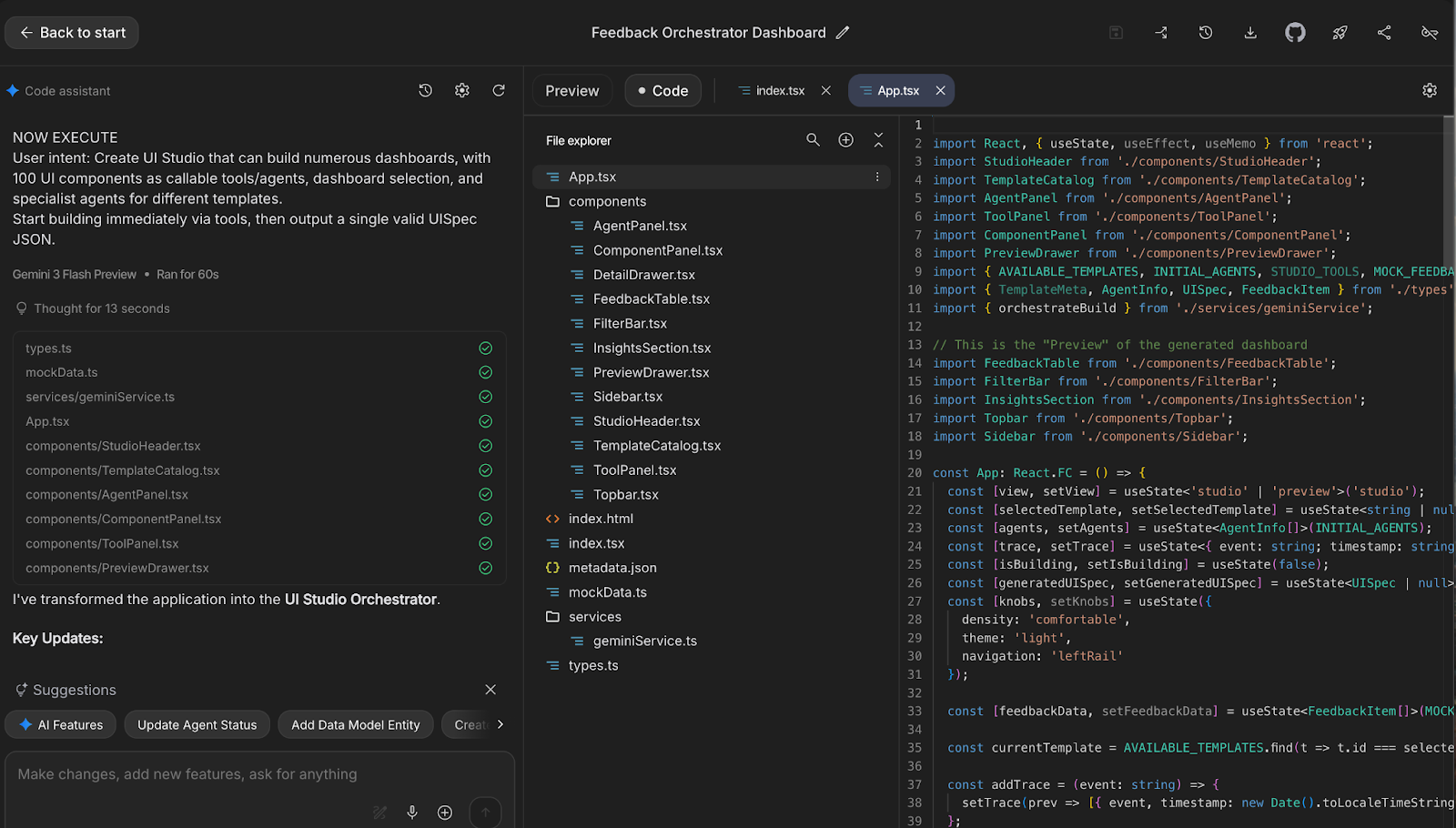
Veja o fluxo em alto nível de como o app UI Studio aciona o Gemini 3 Flash e renderiza o dashboard gerado:
App.tsx abre a visão do Studio e traz o catálogo inicial de templates, o registro de ferramentas, o catálogo de componentes e a lista de agentes do mockData.ts.services/geminiService.ts.UISpec, armazenada no estado, e a UI muda para o modo Preview.PreviewDrawer.tsx funciona como um painel de inspeção para visualizar o JSON do UISpec e métricas básicas do build.DetailDrawer.tsx e roda no nível de cada linha.analyzeFeedback() e suggestResolution() em geminiService.ts chamam o Gemini novamente para produzir classificações estruturadas e ações recomendadas.Se quiser conhecer outros arquivos-chave do projeto para entender como o demo foi estruturado, veja mais detalhes:
Estes arquivos definem a configuração do projeto, contratos de tipos e dados iniciais que mantêm o demo consistente e executável.
package.json: Define dependências e scripts, onde vemos React, Recharts e o SDK @google/genai, além de scripts de dev como vite, build e preview.tsconfig.json: Contém as configurações do compilador TypeScript para React e resolução do bundler. Mantém o projeto type-safe sem emitir TS compilado durante o desenvolvimento.vite.config.ts: Configura o Vite para dev e build, incluindo porta e variáveis de ambiente. Este arquivo mapeia GEMINI_API_KEY para process.env.API_KEY, para o SDK GenAI ler na build do navegador.metadata.json: Metadados do app usados pelo AI Studio para hospedagem. Define nome, descrição e permissões necessárias.types.ts: Age como a camada de contrato de todo o app, definindo tipos para templates, agentes, ferramentas, linhas de feedback e o formato do UISpec, mantendo UI e saídas do modelo consistentes.mockData.ts: Reúne os dados iniciais para a experiência de Studio e Preview. Define o catálogo de templates, o time inicial de agentes, o registro de ferramentas e linhas de feedback mock para a UI funcionar antes de qualquer chamada ao modelo.Esta camada contém a integração com o Gemini e trata todas as chamadas ao modelo e respostas estruturadas.
geminiService.ts: Tem três chamadas principais: a função orchestrateBuild() para gerar um UISpec, e as funções analyzeFeedback(), suggestResolution() para alimentar a assistência de IA.orchestrateBuild() atualmente usa gemini-3-pro-preview, enquanto as outras duas chamadas usam gemini-3-flash-preview; troque caso queira o demo inteiro somente com Flash.Estes componentes React renderizam o builder do Studio e o preview do dashboard gerado, incluindo o inspetor de JSON e os fluxos de detalhe.
StudioHeader.tsx: Renderiza o header do Studio e o CTA de iniciar build. Reflete o estado do build para o usuário ver quando o pipeline está rodando.TemplateCatalog.tsx: Exibe os cards de templates e permite escolher qual dashboard construir. A seleção atualiza o estado local em App.tsx.AgentPanel.tsx: Mostra os “agentes especialistas” como cards de status. Neste demo, a evolução de status é conduzida por atualizações encenadas em App.tsx para tornar o workflow visível.ToolPanel.tsx: Ajuda a renderizar a lista do registro de ferramentas a partir de mockData.ts. É o espaço de UI para exibir disponibilidade e contadores de chamadas.ComponentPanel.tsx: Representa a ideia de “componentes como ferramentas” e é o local natural para adicionar toggles de permitir/negar futuramente.PreviewDrawer.tsx: Permite visualizar o JSON do UISpec e estatísticas básicas, facilitando o debug do build trace.Topbar.tsx: Contém a navegação superior do dashboard e a barra de busca. Mostra como controles no nível do dashboard podem coexistir com knobs no nível do estúdio.Sidebar.tsx: Controla a navegação lateral (left rail) do dashboard renderizado.FilterBar.tsx: Funciona como uma faixa de filtros para segmentar os dados de feedback. FeedbackTable.tsx: É a visão principal em tabela para itens de feedback; ao clicar em uma linha, ela é selecionada e abre a experiência do painel de detalhes.DetailDrawer.tsx: Chama analyzeFeedback() e suggestResolution() e renderiza a saída do modelo na aba de IA.InsightsSection.tsx: Ajuda a renderizar gráficos e o resumo de insights usando Recharts.Aqui está um vídeo curto que percorre todo o fluxo do UI Studio, incluindo seleção de template, o fluxo de Start Build e o preview do dashboard gerado:
Principais cursos da DataCamp
Curso
Curso
Curso
blog
DataCamp Team
4 min
Tutorial
Matt Crabtree
6 min
Tutorial
Dimitri Didmanidze
8 min
Tutorial
Kurtis Pykes
12 min
Tutorial
Tutorial
Moez Ali
12 min