Building with AI models usually means juggling API keys, reading documentation, and writing boilerplate code before you can test a single prompt. Google AI Studio skips that setup and drops you straight into a browser-based playground where you can chat with Gemini models, generate media, and prototype applications without touching code.
This tutorial covers Google AI Studio’s main features: Chat mode for prompt testing, Stream mode for voice and video interactions, Build mode for creating apps with natural language, and the media generation tools for images, videos, and audio.
You'll learn which Gemini models to use for different tasks and how to export your prototypes to production-ready code. For the latest on Google's AI announcements this year, see our guides on Gemini 3.5 Flash and Nano Banana 2, or our Google Antigravity CLI tutorial. You can also learn how to build AI Agents with Google ADK.
TL;DR
- Google AI Studio is a free, browser-based platform for prototyping with Gemini models across text, images, video, and audio
- Chat mode tests prompts, Build mode creates full React and Android apps from natural language, and Stream mode enables voice/video conversations
- Gemini 3.5 Flash (released May 2026 at Google I/O 2026) is the new flagship model with 1M context window and 65K output tokens
- Build mode is now powered by the Antigravity Agent and supports native Android app development with Kotlin and Jetpack Compose
- Free tier uses compute-based usage limits that refresh every five hours, with all Gemini 3 models accessible
What is Google AI Studio?
Google AI Studio is a free, browser-based platform for prototyping with Gemini AI models. It offers Chat mode for testing prompts, Build mode for creating React apps from natural language, and Stream mode for voice and video interactions, all without writing setup code.
Getting Started With Google AI Studio
Getting started with Google AI Studio takes less than a minute. Head to aistudio.google.com and sign in with any Google account. There's no installation, no credit card requirement, and no waiting period. The platform runs entirely in your browser.
The interface uses a left sidebar for navigation with five main sections: Home, Playground, Build, Dashboard, and Documentation. The homepage presents three action cards for quick access to common tasks like chatting with models or building applications. At the bottom of the sidebar, you'll find links to "Get API key" and "Settings" for managing your account.
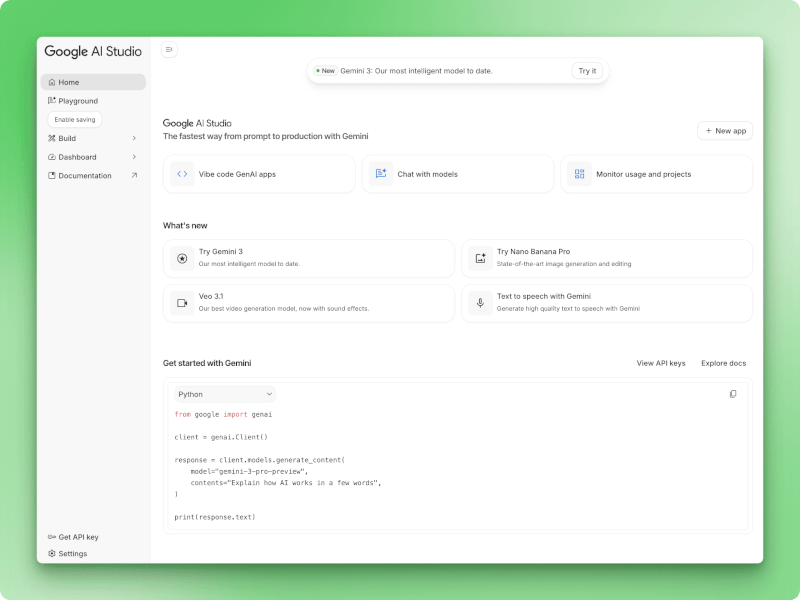
Google AI Studio homepage
To start using the Gemini API in your own applications, click "Get API key" at the bottom of the left sidebar. This opens the API Keys management page, where you can create new keys with the "Create API key" button.
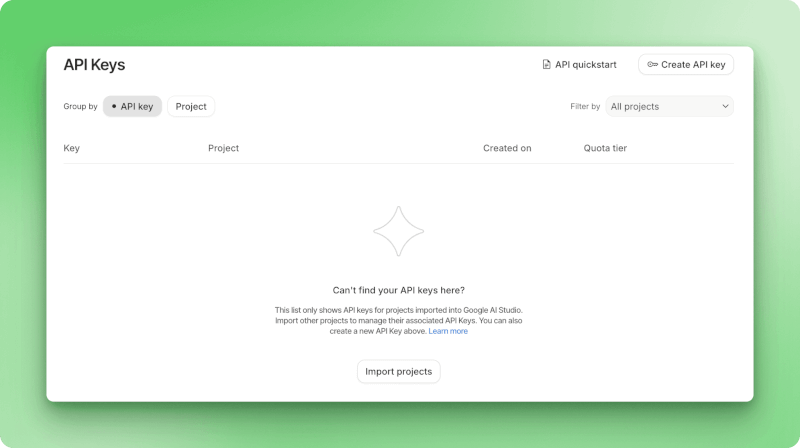
API Keys management page
Keep your API key secure and avoid committing it to public repositories.
Before you start experimenting, you'll want to understand which Gemini model fits your task. AI Studio gives you access to several options, each with different strengths.
What Models are Available in Google AI Studio?
You'll find multiple Gemini models in AI Studio, each built for different tasks. Your choice depends on whether you're optimizing for reasoning power, speed, cost, or specialized features like image generation.
Gemini 3 Series
The gemini-3-pro model handles complex reasoning tasks where you need deep analysis. It scored 1501 on the Elo leaderboard at launch. However, gemini-3-pro was deprecated and shut down in March 2026. Its successor, gemini-3.1-pro-preview, improves coding and agentic performance. For the latest flagship, see Gemini 3.5 Flash below.
With a 1 million token context window, you can feed it entire codebases or research papers and get up to 65,000 tokens back.
The model includes a thinking_level parameter that lets you dial reasoning depth up or down depending on your task. For a deep dive into Gemini 3's features and benchmarks, check out DataCamp's Gemini 3 guide.
For image generation, gemini-3-pro-image (nicknamed Nano Banana Pro) can create 2K and 4K images with readable text inside them. Most image models fail at text rendering, but this one handles it well. You get 65,000 input tokens and 32,000 output tokens to work with.
One thing to note: Google Maps grounding isn't available in Gemini 3 models. If you need location features, you'll want Gemini 2.5 Pro instead.
Gemini 2.5 Series
The gemini-2.5-pro model takes a thinking-first approach, spending more time on complex analytical work before responding. It matches Gemini 3 Pro's 1M context and 65K output capacity, and it's the only model that supports Google Maps grounding.
The Flash variants trade some reasoning depth for speed and cost:
-
gemini-2.5-flash: Faster responses than Pro models while keeping the 1M context window. Good default for general tasks -
gemini-2.5-flash-lite: Built for high-volume work where you're running simple queries at scale
Gemini 3.5 series (May 2026)
At Google I/O 2026, Google launched gemini-3.5-flash, the new default model across Gemini products. It outperforms Gemini 3.1 Pro on coding and agentic benchmarks: 76.2% on Terminal-Bench 2.1, 83.6% on MCP Atlas, and 1656 Elo on GDPval-AA. It keeps the 1 million token context window and 65,536 output tokens, and runs at roughly 289 tokens per second.
The model was co-optimized with the Antigravity agent harness, making it the go-to choice for agentic workflows that require multi-step tool use. API pricing sits at $1.50 per million input tokens and $9.00 per million output tokens, with a 90% discount for cached inputs.
gemini-3.5-pro is in internal testing and expected to roll out in June 2026.
How to choose the right model in Google AI Studio
-
Start with
gemini-3.5-flashif you're working on coding problems, mathematical analysis, or anything requiring step-by-step reasoning. -
Switch to
gemini-2.5-prowhen you need Maps grounding or want the thinking-focused approach. -
For most everyday tasks,
gemini-2.5-flashgives you solid performance without the cost. -
Use
gemini-2.5-flash-litewhen you're processing high volumes of simpler requests. -
And reach for
nano-banana-prowhen you need images with text that people can actually read.
Free tier access is available for all Gemini models, including Gemini 3 Flash and Gemini 3 Pro, with usage limits that refresh every five hours. As of I/O 2026, Google moved from per-minute rate limits to compute-based usage caps, where lighter queries consume less of your allowance than complex coding or video requests.
Now that you know which model to use, let's explore how to interact with them through Chat mode, where you can test prompts and refine your approach before writing any code.
AI Studio Chat Mode and Playground
The Playground lets you test prompts with visual controls for every setting. You can tweak parameters, toggle tools on and off, and export the whole configuration as working code when you find something that works.
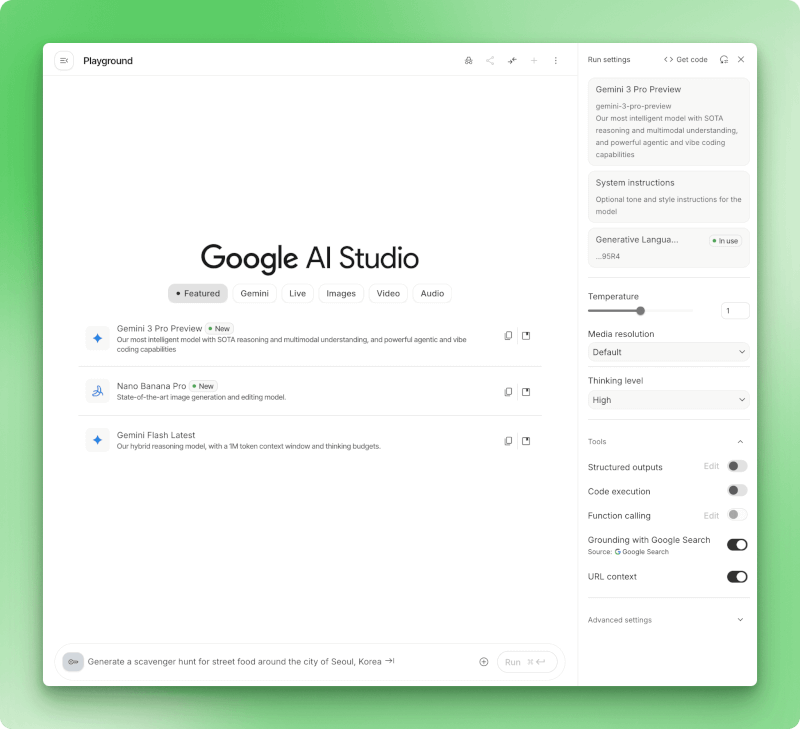
Google AI Studio Playground interface showing system instructions, model parameters like temperature and thinking level, and tools including code execution and Google Search grounding
System instructions set the model's behavior for your entire conversation, so you don't repeat the same context in every prompt. Temperature controls how random responses get: lower values around 0.3 give you consistent formatting, while higher values around 1.5 work better for creative writing. The thinking level dropdown on Gemini 3 models lets you trade reasoning depth for speed.
Switch the model to Nano Banana Pro from the top dropdown if you want to generate images instead of text. The same parameter controls apply, but you'll get 2K or 4K images with readable text rendering.
Beyond images, Chat mode handles other media too. Veo 3.1 generates videos with native audio, lip sync, native 9:16 vertical output, and 1080p/4K upscaling.
Google also introduced Gemini Omni Flash at I/O 2026, a new multimodal model that generates and edits videos from text, images, and video inputs combined.
For audio, you can use text-to-speech or Lyria 3 for music generation (Lyria 3 Pro creates full songs up to 3 minutes, while Lyria 3 Clip handles 30-second clips). Lyria RealTime adds interactive music creation where the model responds to your inputs in real time.
Tools like Grounding with Google Search pull in current information when the model's training data falls short.
Code execution runs Python directly for calculations or data work. The other toggles connect to your own APIs, enforce JSON schemas, or feed URLs into the conversation.
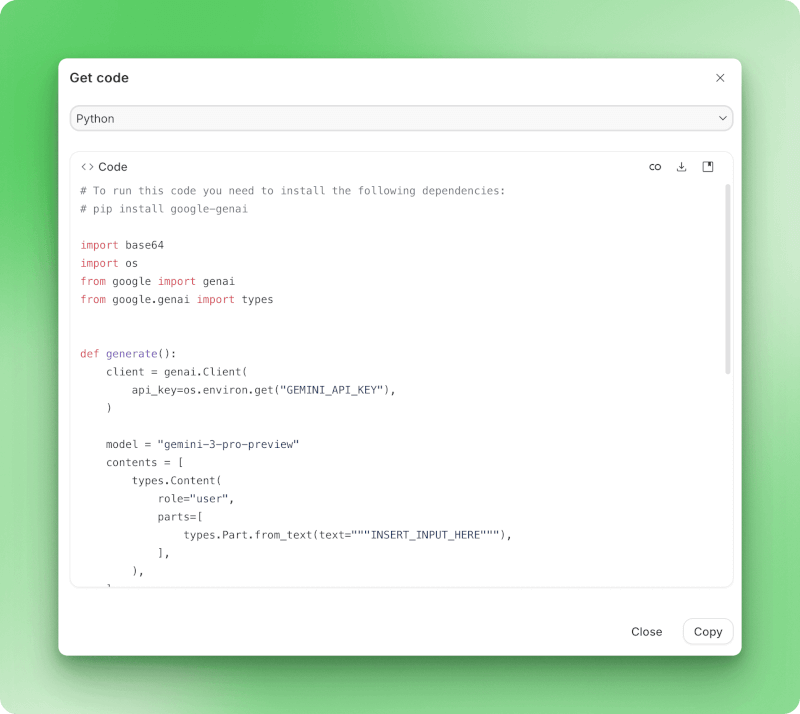
Get code dialog in Google AI Studio showing Python code export with Gemini API implementation
When you're ready to move from testing to production, "Get code" exports everything as implementation code.
Stream mode takes this further by adding voice and video interactions.
AI Studio Stream Mode (Live API)
Stream mode turns text-based prompts into conversations where Gemini can see and hear you. You talk to the model through your microphone, show your screen, and get spoken responses back in real time without typing.
To access stream mode, you can go to https://aistudio.google.com/live.
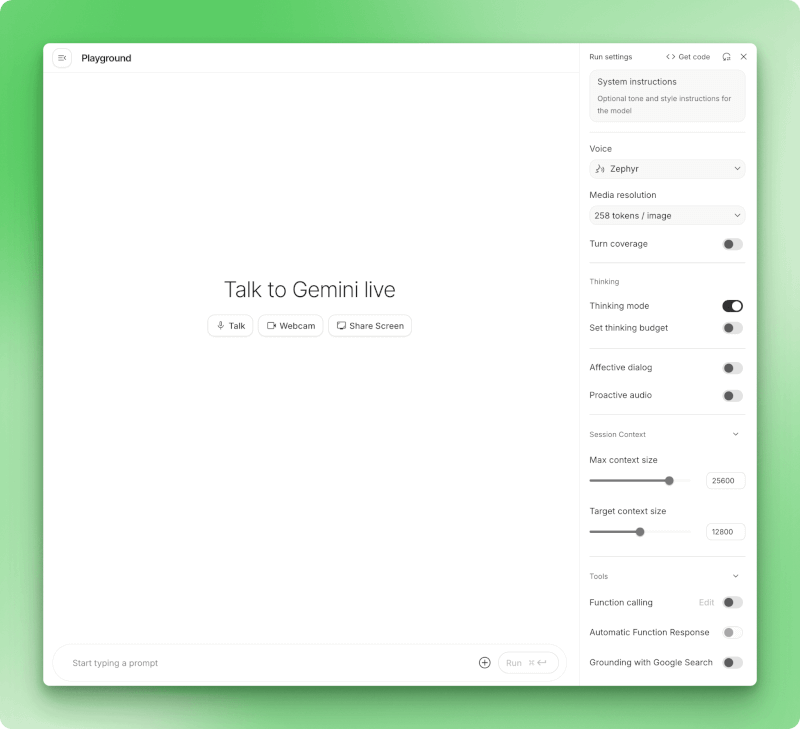
Google AI Studio Stream mode interface showing Talk, Webcam, and Share Screen buttons with voice settings and configuration options in the sidebar
The interface gives you three options: Talk for voice-only interaction, Webcam to include video of yourself, or Share Screen to show what's on your display.
Voice activity detection runs automatically. Gemini waits for you to pause before responding, so you can think through your explanation without clicking anything between turns. The model processes your voice, any video from your webcam, and whatever you're showing all at once.
You can even choose different voices for the model's responses, like the "Zephyr" voice shown in the settings. The model's internal reasoning appears in expandable Thoughts sections, letting you see how it arrived at each response.
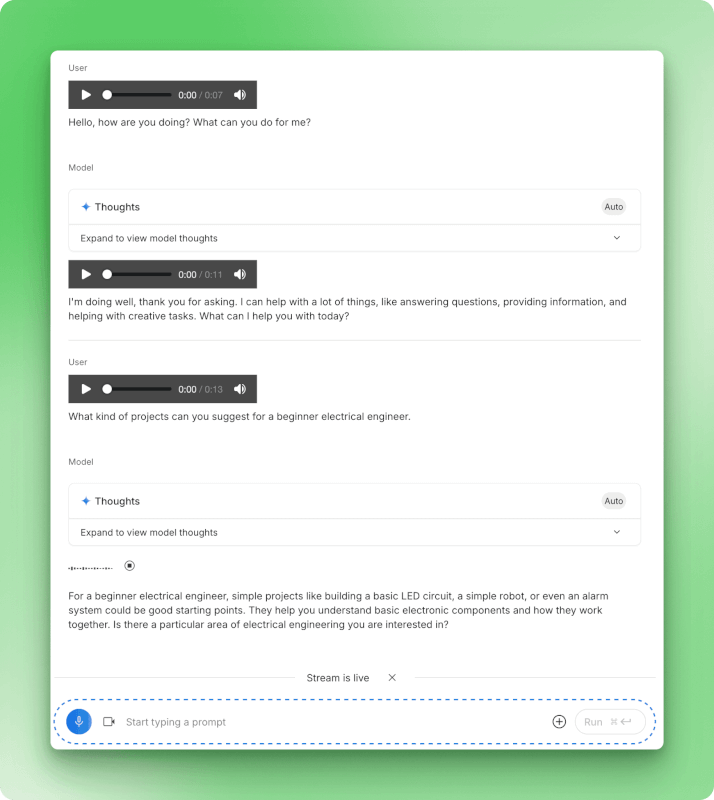
Stream mode conversation showing voice interaction with audio waveforms, model thoughts, and real-time responses between user and Gemini
The hands-free interaction works well for live tutoring sessions where you need to show your work and get verbal guidance in the moment.
You can walk through a math problem while explaining your thinking out loud, and Gemini can spot where your logic breaks down. Debugging gets faster when you can show your IDE and describe the error you're seeing. Your screen appears in picture-in-picture mode, so Gemini can see exactly what you're referencing.
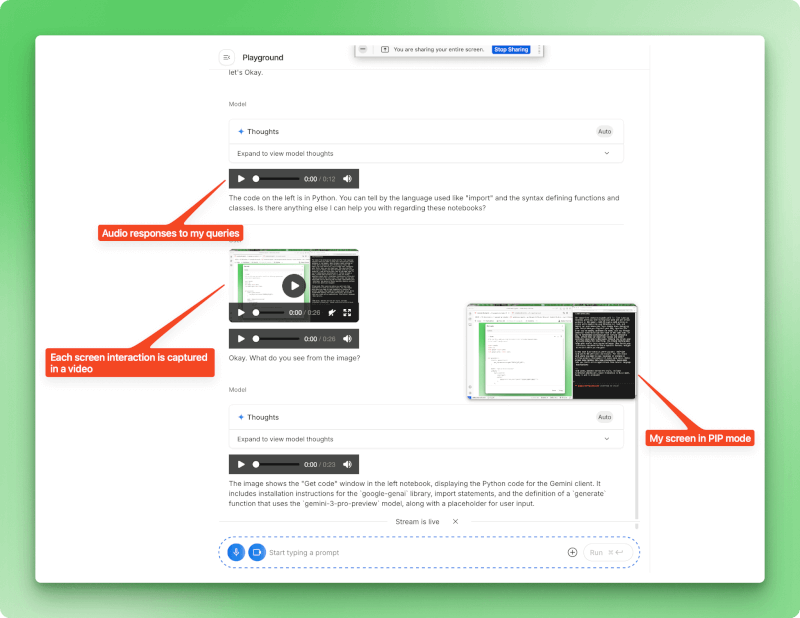
Stream mode with screen sharing active, showing picture-in-picture view of shared screen and audio responses while Gemini analyzes displayed content
If you're rehearsing a presentation or running through a demo, Stream mode can watch your slides and answer questions about the content. This also helps when you're learning new software. You can show Gemini your interface, ask where to find a specific feature, and get directions as you navigate.
Stream mode fits scenarios where you want real-time back-and-forth with voice and visuals. For text-heavy work where you need to copy responses or iterate on written prompts, Chat mode still makes more sense. While Stream mode handles real-time interaction, Build mode lets you create entire applications from natural language descriptions.
AI Studio Build Mode (Vibe Coding)
Build mode turns descriptions into working apps. You type what you want, and the Antigravity Agent writes the code. Google calls this "vibe coding," and since I/O 2026 it goes well beyond React web apps. You can now build native Android apps with Kotlin and Jetpack Compose, preview them in a browser-based Android emulator, test on a physical device via ADB, and even publish directly to Google Play's Internal Test Track.
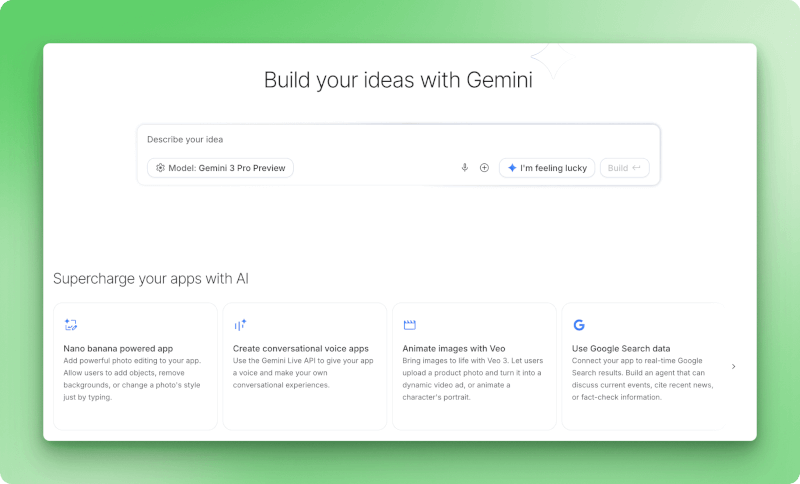
Build mode landing page showing prompt input box with Gemini 3 Pro Preview model selector, I'm feeling lucky button, and AI Chips section displaying options for Nano Banana powered app, conversational voice apps, Veo video animation, and Google Search data integration
I browsed the starter gallery first. Apps like Shader Pilot show what's possible - interactive 3D visualizations, landing pages with custom typography, even small games. You can fork any example and modify the code through the assistant panel.
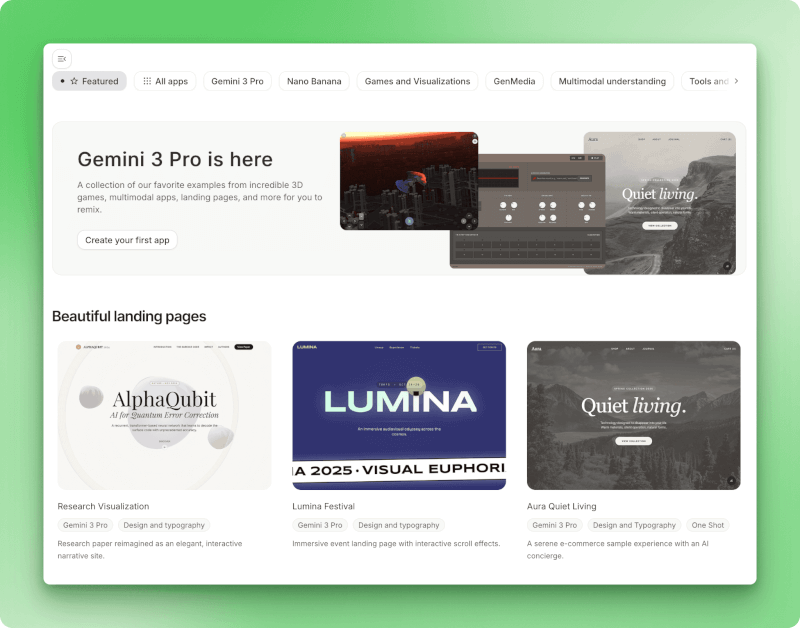
Starter apps gallery showcasing Gemini 3 Pro featured examples including 3D games, multimodal apps, and beautiful landing pages section with AlphaQubit research visualization, Lumina Festival event page, and Aura Quiet Living e-commerce demo
I wanted to build from scratch, so I typed: "a minimalistic and yet visually striking application that allows me to visualize any equation of up to 3 variables in polar coordinates."
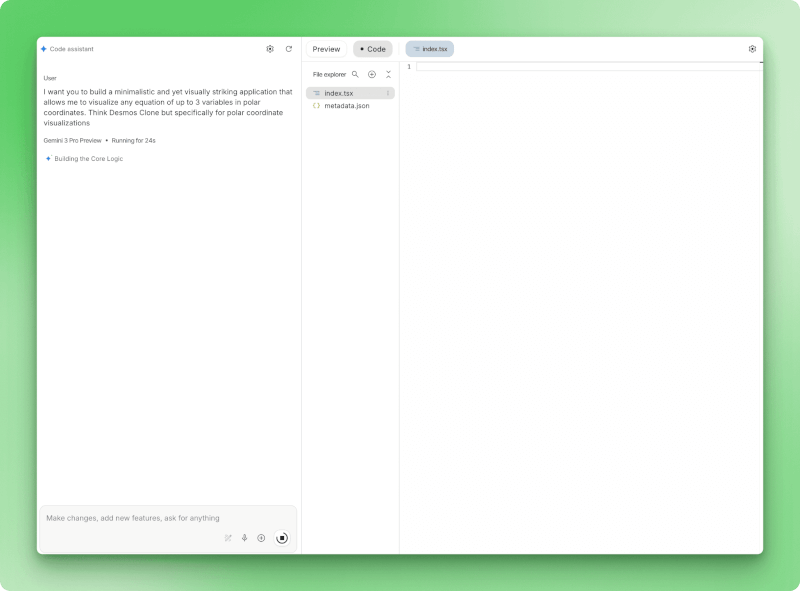
Polar.ai being built showing user prompt requesting polar coordinate equation visualizer, Gemini 3 Pro Preview status indicator displaying Running for 24s with Building the Core Logic progress message, and file explorer panel showing generated index.tsx and metadata.json files
About 60 seconds later, Polar.ai appeared. The model generated React files (index.tsx, metadata.json), built an equation parser, and set up variable sliders. I typed "a heart" and watched it draw the polar curve. Switching to "bat" produced a different shape.
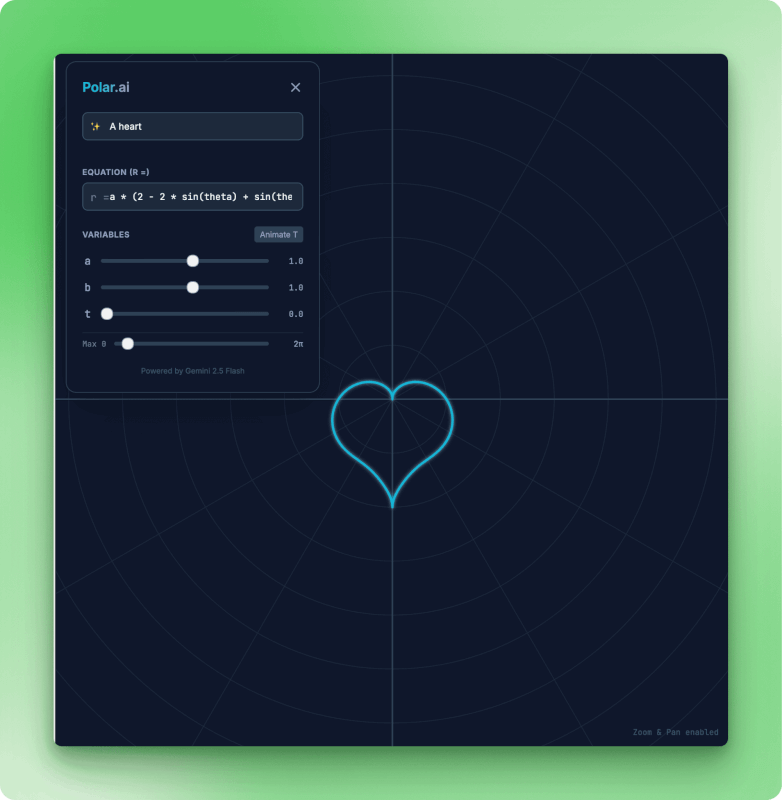
Polar.ai app displaying heart-shaped polar curve rendered in cyan on dark grid background, with equation editor showing r equals a times sine formula, variable sliders for a, b, t set to 1.0, Max theta at 2 pi, Animate T button, and Powered by Gemini 2.5 Flash credit
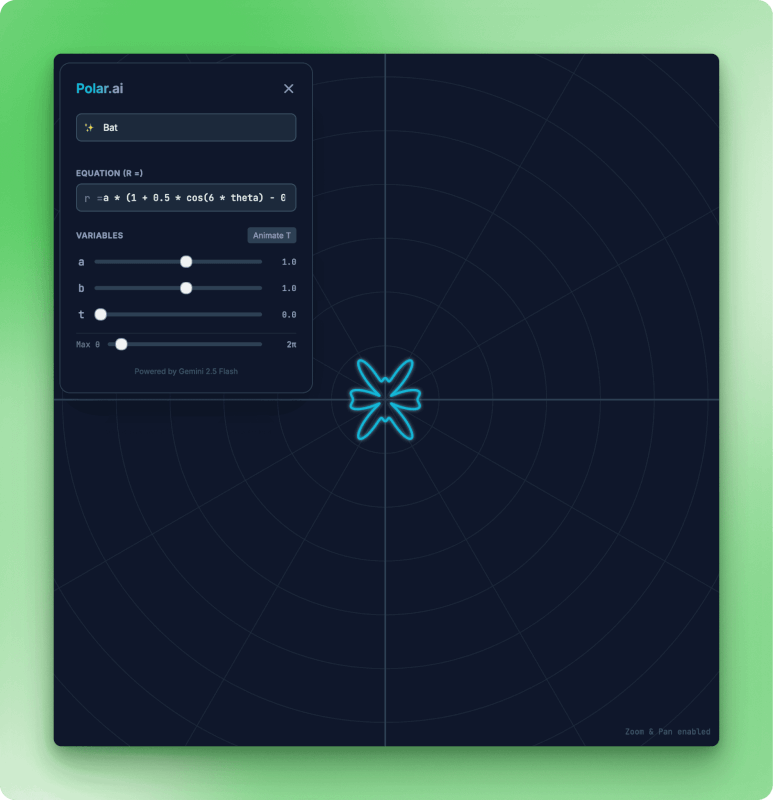
Polar.ai app showing bat-shaped polar visualization with six-lobed symmetric pattern in cyan, equation editor displaying modified cosine formula with variable controls for adjusting curve parameters a set to 1.0, b at 1.0, t at 0.0, and Max theta slider
When the bat coordinates vanished mid-curve, I described the problem in the chat. The model diagnosed it (imaginary numbers breaking the renderer), explained the fix, and created a checkpoint with "View diff" so I could see what changed.
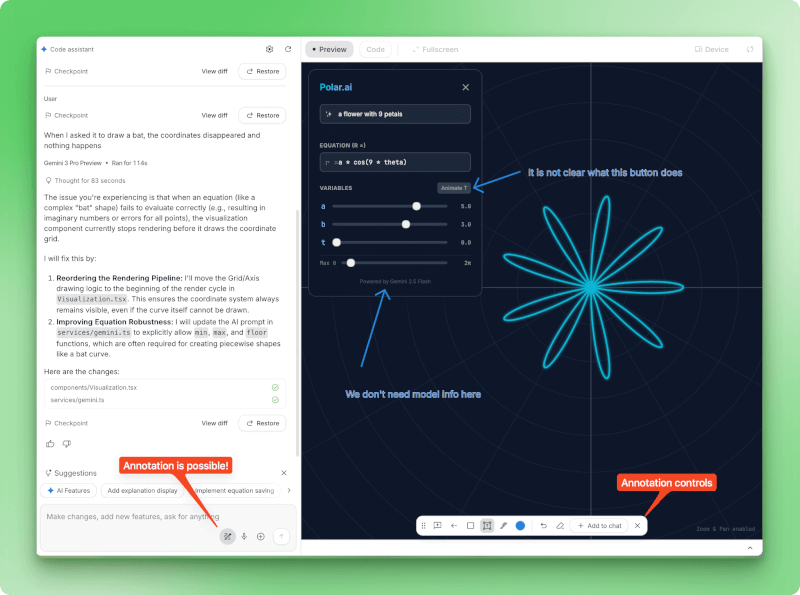
Polar.ai debugging session showing left panel with user bug report about bat coordinates disappearing, model response analyzing imaginary number issue in equation evaluation with 83-second thinking time, detailed fix plan for reordering rendering pipeline, checkpoint controls with View diff and Restore buttons, and right panel displaying live preview with annotation toolbar at bottom showing drawing tools and Add to chat option
The annotation toolbar lets you click interface elements to request visual changes. Once your app works, export it as a ZIP download, push to GitHub, or deploy to cloud hosting. The generated code uses standard React patterns, though you'll likely need to refine it before deploying to production.
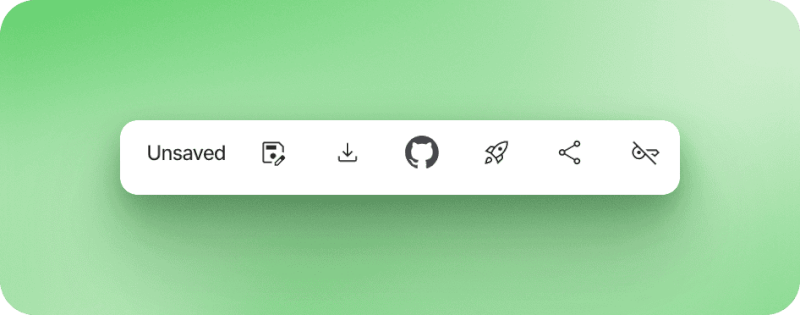
Export toolbar displaying Unsaved status with six action icons for saving project to Google Drive, downloading as ZIP file, pushing to GitHub repository, deploying to cloud hosting, sharing via link, and project management options
At Google I/O 2026, Build mode gained several capabilities. Google Workspace integration lets you connect Drive, Sheets, and Docs directly to your apps. One-click deploy to Cloud Run with Firebase backend support handles authentication and database storage. You can also export your entire project to Google Antigravity's desktop app for local development, carrying over conversation history and project files.
Google AI Studio vs Alternatives
Update (May 2026): Google I/O 2026 brought major changes to AI Studio and its competitors. The comparison below reflects the landscape at the time of the original article. Key changes:
- AI Studio now builds Android apps
- Gemini 3.5 Flash is the new default model
- Google moved from per-minute rate limits to compute-based usage caps
When you're ready to take AI work beyond Google's platform, you'll find different trade-offs with competing services. ChatGPT's extensive plugin library and cross-session memory have made it the default for many users.
Claude targets developers with Artifacts that turn conversations into persistent apps, hooking into Slack or Asana through MCP connections.
Grok connects to X's real-time feed but lags behind on complex reasoning tasks. For more on Gemini's coding capabilities, see our Gemini 3.1 Pro coding agent tutorial. For a detailed comparison of Gemini and ChatGPT performance across different benchmarks, check out our Gemini vs ChatGPT head-to-head analysis.
|
Platform |
Free Tier |
Paid Tier |
Key Strengths |
Best For |
|
Google AI Studio |
Limited (5-15 RPM, premium models paid) |
Pay-as-you-go |
Build mode (React + Android), Stream mode, Video (Veo 3.1, Gemini Omni), Maps grounding |
Multimodal prototyping, experimenting with Gemini |
|
ChatGPT |
10-60 msgs/5hr (GPT-4o) |
$20/mo |
Memory, plugins, mature ecosystem |
General tasks, established workflows |
|
Claude |
20-40 msgs/day |
$20/mo |
Artifacts, Projects (200K), strong at coding |
App prototyping, coding assistance |
|
Grok |
2-10 prompts/2hr |
$40/mo |
Real-time X data, Aurora images |
X integration, lightweight use |
The free tier situation varies widely across platforms:
- AI Studio: Compute-based limits with 5-hour refresh windows. All Gemini 3 models accessible on free tier.
- ChatGPT: 10-60 GPT-4o messages every 5 hours before switching to mini.
- Claude: Around 20-40 daily messages with 5-hour reset windows.
- Grok: 2-10 prompts every 2 hours.
ChatGPT and Claude ask $20 monthly for full web access. Grok doubled that to $40. For API work, though, Grok wins at $0.20 per million tokens versus $5 for GPT-4o or $3 for Claude Sonnet.
Budget and priorities shape this decision differently for everyone. If you're prototyping multimodal apps, AI Studio's Build mode and video generation can justify its tighter rate limits.
The ChatGPT ecosystem has momentum: plugins, memory, and established workflows make switching costs high. Claude's 200K-token Projects appeal to developers who need large context windows for code. Grok found its niche in cheap API access ($0.20 per million tokens) and real-time X integration, accepting the reasoning performance trade-off.
Final Thoughts
In this tutorial, I've shown how Google AI Studio handles three different workflows: testing prompts in Chat mode, building apps through natural language in Build mode, and talking through problems with voice and video in Stream mode. The platform works best when you need to prototype with Gemini models without writing setup code.
The free tier's compute-based usage limits suit initial testing. Once you're ready to integrate Gemini into production applications, I recommend checking out the Gemini API tutorial, which covers authentication, error handling, and optimization patterns. You can also explore Gemini Deep Think for advanced reasoning or learn how to use the Gemini CLI.
AI Studio's strength is rapid prototyping. You can test an idea in Chat mode, build it out in Build mode, then export the code when it works. The browser-based interface removes the usual friction, but you'll still need proper API integration for production use.


