Course
Understanding Artificial Intelligence
2 hr
423.1K
Adobe Photoshop is the best AI photo editor overall in 2026. It holds one of the highest user satisfaction scores in the category — a 4.6 out of 5 on G2, based on roughly 13,000 reviews — more than any other tool in this guide.
However, what's best for you depends on your needs. A casual user editing phone photos and a professional retouching client aren't looking for the same thing.
In this guide, we compare the top AI photo editors, show where each one is strong, and point you to the right tool for your use case.
A good AI photo editor is the one that has these qualities:
Each tool below is measured against these seven points.
Here's how the top 10 AI photo editors compare before we look at each one in detail.
| Tool | Best For | Platforms | Free Plan | Key AI Features |
|---|---|---|---|---|
| Adobe Photoshop | Professional and layered editing | Desktop, Web, iPhone, Android | Trial only | Generative Fill, Harmonize, Firefly, Gemini 3, FLUX.2 Pro |
| Adobe Lightroom | Managing and editing large photo libraries | Desktop, Web, iPhone, Android | Trial only | AI masking, Denoise, Generative Remove, Adaptive Presets |
| Canva | Fast and beginner-friendly edits | Desktop, Mobile, Web | Yes | Magic Edit, Magic Grab, Background Generator, Image Upscaler |
| Luminar Neo | Landscape and portrait enhancement | Desktop, Mobile, Web (coming soon) | Trial only | SkyAI replacement, GenErase, GenExpand, GenSwap, Relight AI |
| Photopea | Free browser-based Photoshop alternative | Web, Desktop, Android | Yes | Layer-based editing, PSD support, Background remover, Generative Fill |
| Google Magic Editor | Everyday phone photo fixes | Mobile | Yes (limited) | Magic Eraser, Reposition, Sky replacement, Background replacement |
| Photoroom | E-commerce and product catalogs | Web, iOS, Android | Yes (limited) | Background removal, AI Shadows, Product Staging, Ghost Mannequin |
| Pixelcut | Product photography and social content | Web, iOS, Android | Yes | Background removal, Uncrop, AI image generation, AI video generation |
| Fotor | Beginner-friendly, all-in-one editing | Web, Windows, Mac, iOS, Android | Yes (limited) | Background removal, Object removal, AI Hairstyle Changer, Batch editing |
| Pixlr | Casual, browser-based editing | Web, iOS, Android | Yes (limited) | Background removal, Generative Fill, Generative Expand, Face Swap, AI Instruct Editor |
Let’s now look at the 10 AI photo editors in detail.
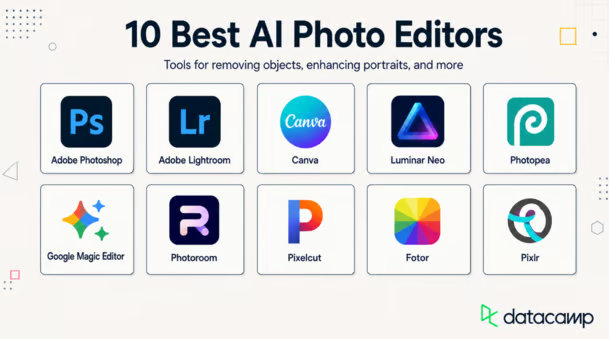
AI photo editors. Image by Author
Photoshop remains the standard for professional AI photo editing, and in 2026, that lead comes from running three AI models side by side — Adobe's own Firefly, Google's Gemini 3, and Black Forest Labs' FLUX.2 Pro — inside a full layer-based workflow with strong RAW support.
What sets it apart from lighter tools on this list is precision: its new Harmonize feature automatically matches lighting and shadows when you drop a generated element into a photo, so composites hold up under close inspection.
But that depth comes at a cost, though, both in price and in the time it takes to learn the tool, which makes Photoshop the right fit for professionals and serious hobbyists.
Photoshop's cost depends on which plan you choose:
All plans include a 7-day free trial, and there's no permanent free tier, but you can test any plan before paying.
Professionals and anyone doing close, layered edits who's willing to put in the time to learn the tool.
Where Photoshop is built for deep, individual edits, Lightroom is built for bulk editing. It pairs editing with library management, so photographers can cull, sort, and touch up an entire shoot without switching tools.
Its Adaptive Presets suggest edits based on what's in the frame, Generative Remove clears distractions in a click, and Denoise cleans up low-light shots that would otherwise need manual correction.
The disadvantage is that it isn't built for heavier compositing or object manipulation, so photographers who need that level of control still prefer Photoshop alongside it.
Same plans as Adobe Photoshop, except the standalone Photoshop plan.
Photographers managing large photo libraries who need to sort and edit fast. It's less built for the heavier compositing or object work Photoshop handles.
Canva AI photo editor works inside its template-driven design tool rather than a standalone editor, which is exactly why it's the fastest way on this list to get a usable result.
Most edits, driven by Google's Nano Banana model, take a click or a short text prompt. Magic Edit changes part of a photo on command, Magic Grab separates subject from background so each can be repositioned independently, and Background Generator builds a new backdrop from a description.
That speed makes it perfect for people who want a decent result fast far more than anyone doing professional retouching.
Canva's pricing plans range from free to enterprise:
People who want a fast, no-fuss result and don't need pixel-level control. It's less suited to detailed photo manipulation or professional retouching.
Luminar Neo takes the opposite approach from a general-purpose editor like Canva or Photoshop. It focuses on landscape and portrait work through single-purpose AI tools like sky replacement, relighting, and skin retouching.
It's also structurally different from the rest of the list: it's a one-time purchase rather than a subscription, and it works either standalone or as a plugin inside Photoshop or Lightroom Classic.
This plugin compatibility is really its differentiator because that makes it a specialist add-on for photographers who already use them and want stronger landscape and portrait capabilities than either offers natively.
Luminar Neo's pricing is a one-time purchase, not a subscription:
After the first year, the AI tools and asset library renew through a paid Luminar Prime subscription, but the desktop app itself stays yours regardless.
People who already use Photoshop or Lightroom Classic, since Luminar Neo works as a plugin as well as a standalone app.
Photopea is a free, browser-based editor that behaves like a simple Photoshop, right down to native PSD support and compatibility with more than 40 file formats.
Because it runs entirely in the browser with nothing to install and no account required, it's become a go-to for anyone who wants layer-based, professional-style editing without paying for it — students, small business owners, and freelancers alike.
But its limitation is scale: the generative tools are lighter than a paid suite's, but for anyone who mainly needs layers, masks, and precise manual control, that rarely matters.
Photopea's pricing plans include:
Social media users touching up photos before posting, students and educators building visuals for projects, small business owners editing product photos without paying for expensive software, and graphic designers or freelancers who need professional-quality output.
Magic Editor is built directly into Google Photos, so there's no separate app to download. You describe the edit you want, and the AI, which processes in the cloud rather than on-device, makes it happen across virtually any phone. That makes it the easiest tool on this list to use.
Its features like Magic Eraser, Photo Unblur, and Portrait Light are free for everyone with no save limit. The only downside is that it's mobile-only and shallow on precise control, which makes it better suited to quick everyday fixes than any kind of deliberate editing work.
Google Magic Editor's pricing depends on whether you own a Pixel phone:
People who want quick, everyday phone photo fixes without installing anything extra, since Magic Editor is already built into Google Photos.
Photoroom is built specifically for product and e-commerce photography, and its background remover, trusted by more than 80 million users, is precise enough to handle everything from a single product shot to a full catalog.
What differentiates it from a general cutout tool is AI Shadows, which adds a natural-looking shadow so a product doesn't look pasted onto its new background.
You can also directly integrate it with Shopify and other marketplaces so edited images are published without manual re-uploading. That makes it the strongest option here for online sellers, particularly ones managing catalogs.
Photoroom's pricing plans run monthly, billed yearly:
A free plan is available to start, and Pro and Max plans include a free trial.
Online sellers and product photographers, especially those managing large catalogs.
Pixelcut covers similar ground to Photoroom — background removal, shadows, batch editing for product photos — but positions itself closer to a content creation tool than a pure editor.
Thanks to built-in AI image and video generator, it keeps persona consistent across a set of shots. This broader scope, combined with a genuinely usable free tier, makes it a perfect choice for sellers and social content creators who want product-photo tools without committing to Photoroom's catalog-scale pricing.
Pixelcut's pricing plans include:
Yearly billing saves 20% on either paid plan.
Sellers who want a free, straightforward tool for everyday product photos. It also works well for social content creators.
Fotor covers the everyday editing basics every tool on this list has, but its real differentiator is a set of tools built for playful transformation rather than realism — AI Hairstyle Changer, AI Age Progression, AI Change Clothes, and one-click Photo to Anime, Cartoon, or Sketch conversions.
This combo of practical and stylized tools sets it apart, making it a strong fit for social content creators who want to generate eye-catching, stylized posts.
Fotor's pricing plans scale up with credits and generation limits:
AI generation features also draw from separate credit packs on top of the plan's built-in credits, which can be purchased if you run out before your next billing cycle.
Social media content creators who want to generate cartoon-based stories.
Pixlr started as a free Photoshop alternative and has since grown well past that. It now bundles a full AI image, video, and audio generator into the same platform, drawing on models like Flux, Kling, Recraft, and Google Veo.
That range — generative fill and expand, face swap, an AI Instruct Editor that applies plain-language edits directly, and multi-format generation all in one place — makes it one of the most feature-packed free tools available. Still, it’s simple enough for a casual user who only wants a quick edit without installing software.
Pixlr's pricing plans range from a fully free tier up to unlimited generations:
Casual users who want quick edits without installing software.
Let's now see which tool is perfect for you depending on your needs.
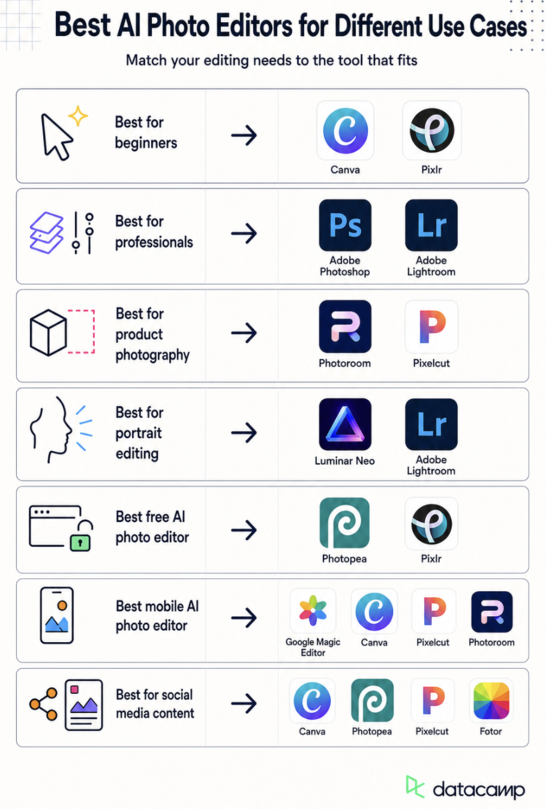
The right AI photo editor for different use cases. Image by Author
Canva is the easiest starting point. Its Magic Studio tools work in a couple of clicks, and nothing about the interface requires prior editing experience.
Pixlr is a solid free alternative if you don't want to create an account. Its simple mode, Pixlr Express, matches Canva for ease, though the full editor adds more complexity if you go looking for it.
Adobe Photoshop has the deepest AI toolset here, with full layer-based editing and RAW support, and it's still the standard most creative teams build their workflow around.
Adobe Lightroom is the better choice for photographers managing large shoots, since it pairs editing with fast organizing and culling tools Photoshop doesn't have.
Photoroom is purpose-built for this, with clean cutouts, AI Shadows, Product Staging, and direct integration with marketplaces like Shopify.
Pixelcut is a free alternative for lower photo volume, with the same core background removal and shadow tools but a simpler, no-cost starting point.
Luminar Neo goes furthest here, with Relight AI, Portrait Bokeh, and Studio Light built specifically for reshaping light and depth on a face.
Adobe Lightroom is a good option too, especially its people-masking tools and Quick Actions for skin retouching and blemish removal.
Photopea is free with no watermark, no forced account, and no feature-limited tier, and it still supports full layers, masks, and PSD files.
Pixlr is another strong free pick, with a wider set of AI generation tools included at no cost, though it does need an account to save your work.
Google Magic Editor is built into Google Photos, so there's nothing extra to download, and tools like Magic Eraser, Photo Unblur, and Portrait Light are free for everyone.
Canva, Pixelcut, and Photoroom are also strong mobile-first options, especially for anyone editing product photos on the go.
Canva is the clear choice, since it's also a full design tool built around templates sized for Instagram, TikTok, and other platforms.
Photopea and Pixelcut are worth considering too. Photopea is perfect for anyone who wants free, layer-based control over a post's design, and Pixelcut for its quick background removal and image generation tools when putting together social content on the go.
Fotor is another option, with style filters like Photo to Anime and Photo to Cartoon that suit more playful social posts.
When you're choosing a photo editor, look for these AI features:
Free plans work fine for basic edits, but paid plans offer a higher level of quality and control. Here's what usually changes between the two.
|
Free |
Paid |
|
|
Editing limits |
Capped number of edits, exports, or AI generations per month |
Higher caps, or no cap at all |
|
Export quality |
Often capped resolution or file size |
Usually unlocks full-resolution downloads |
|
Watermarking |
Present on most free tools |
Removed on nearly every paid plan |
|
AI credits |
A small amount to try tools like generative fill, upscaling, and background generation |
A far larger monthly allowance, even though it's still a separate credit system |
|
Advanced tools |
Batch editing, brand kits, and team accounts are usually locked |
Unlocked, typically from the first paid tier |
|
Subscription pricing |
$0 |
Mostly $5–$25 a month; tools built for teams or heavy AI use, like Photoshop or Photoroom's higher tiers, cost more |
If you're deciding whether to upgrade, it comes down to how much you edit. A few edits a month rarely need more than a free plan. But if you're editing often, working in batches, or keep hitting export limits, a paid plan will likely save you time and money.
Based on everything covered in this guide:
Photopea is the strongest free choice, since it gives you full layers, masks, and PSD support with no watermark and no forced upgrade.
For paid, Adobe Photoshop still leads, with the deepest AI toolset and the most professional-grade control of any editor here, though it also comes at the highest price.
Choose one or two tools from this guide and try their free plans on the same photo. A background removal test on Photoroom versus Pixelcut, or a portrait edit on Lightroom versus Luminar Neo, will tell you more in ten minutes than any spec sheet.
Once you know which tool handles your most common edit best, that's the one worth paying for.
For a more general look at how tools like Magic Edit or Generative Expand generate new pixels in the first place, the Generative AI Concepts course is a good non-technical starting point.
Learn prompt engineering next. Our Understanding Prompt Engineering course covers it in more depth if you want to stop guessing and get the right results on the first or second try.
Learn AI with DataCamp
Course
Course
Course
blog
Laiba Siddiqui
15 min
blog
Rajesh Kumar
15 min
blog
Josef Waples
7 min
blog
Javier Canales Luna
9 min
blog
Matt Crabtree
15 min
blog
Bexruz (Bex) Tuychiev
15 min