
Cursus
Introductie tot Claude-modellen
3 Hr
14.5K
A Claude Code session normally runs entirely inside your terminal. You can assign it a task, and it will edit files, run commands, and stop for approvals. But once you walk away, that session becomes inaccessible because it lives only in that local process.
Until recently, there was no built-in way to connect that same session from another device. Web and mobile interfaces existed, but they started fresh cloud sessions with no access to your local files or tools.
Claude Code Remote Control creates a live bridge between your running local session and claude.ai or the Claude mobile app. The process continues running on your machine, and your browser or phone simply becomes another interface to it.
In this article, I’ll explain how Remote Control works, how to install Claude Code from scratch, and how to set up and connect to a Remote session step by step. By the end, you’ll be able to start a session locally and continue it remotely from another device while everything still runs on your machine. I also recommend reading our guides on Claude Code Channels and Claude Cowork Dispatch.
Claude Code is Anthropic’s terminal-native AI coding assistant. Unlike browser chatbots or IDE extensions, it runs directly inside your terminal and operates on your local files.
Remote Control extends that model by adding a synchronization layer between your running local session and the Claude mobile app or any web browser. The session you start on your machine can stay live and controllable from another device, without moving the execution environment to the cloud.
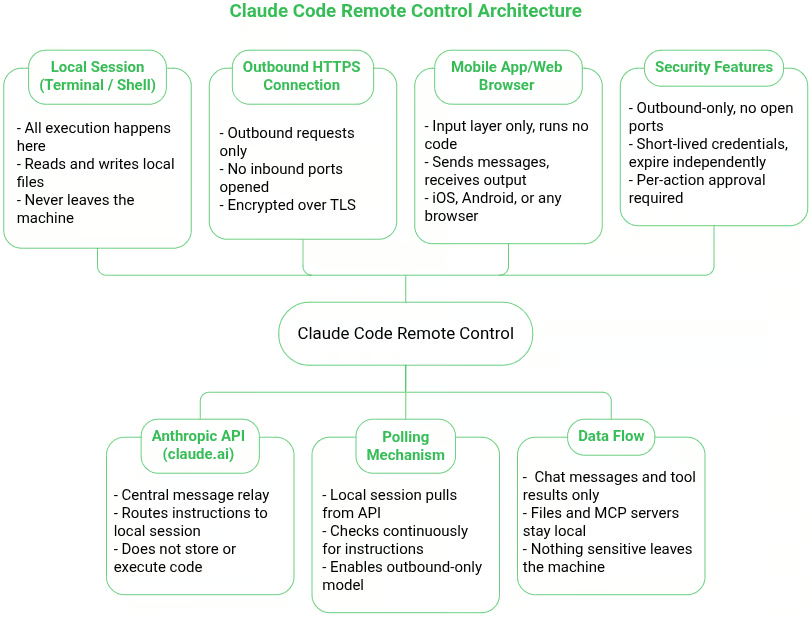
Remote Control architecture overview: Made with Napkin AI
Understanding this architecture matters because it explains most of the behavior you will encounter. When Remote Control starts, your local Claude Code process establishes an outbound HTTPS connection to the Anthropic API and registers the session. It then polls that API for incoming instructions rather than opening any listening ports on your machine.
If you send a message from your phone or browser, that request goes to the API first, which relays it back to your local process over the existing connection. The response returns through the same relay path.
This design means your machine never opens inbound ports or exposes services to the internet. All communication is initiated from the local Claude Code process itself.
Equally important is what does not travel through that connection.
Your phone or browser does not execute code and does not access your files directly. It simply renders the conversation and sends prompts. The actual execution, reading files, running commands, accessing MCP servers, and using your local configuration continues to happen entirely on your machine.
This is the key distinction from Claude Code on the web. A cloud session runs inside Anthropic’s sandboxed infrastructure and starts without your local environment. Remote Control keeps the entire development context on your machine, with the same filesystem, tools, and configuration already in place.
OpenClaw is currently the most starred personal autonomous AI assistant project on GitHub raking over 320K stars in just four months and becoming one of the fastest growing open source repositories in history.
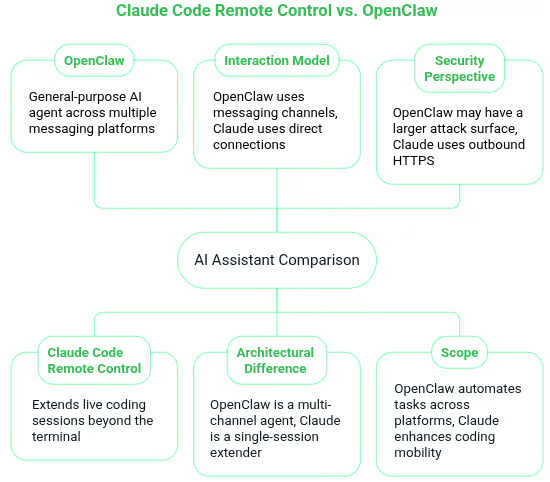
Claude Code Remote Control versus OpenClaw: Made with Napkin AI
OpenClaw approaches remote interaction very differently from Claude Code Remote Control.
Instead of connecting directly to a running development session, OpenClaw exposes an AI agent through messaging channels such as WhatsApp, Telegram, Discord, and Slack. You interact with the assistant through those platforms, and the agent executes tasks on your behalf.
Claude Code Remote Control follows a different model. Rather than routing commands through messaging platforms, it connects your browser or phone directly to your local Claude Code session. The remote device becomes a live interface to that running terminal session instead of a messaging layer that triggers actions indirectly.
That architectural difference leads to different capabilities. OpenClaw behaves like a general-purpose personal AI agent designed to operate across multiple communication channels. Claude Code Remote Control, by contrast, focuses on extending a single live development session, giving you visibility and control over a terminal process already running on your machine.
The two models also differ in their security perspective. Remote Control depends on outbound HTTPS connections initiated by the local Claude Code process, which means your machine does not need to expose inbound ports for the session to work.
Systems like OpenClaw often run as persistent services that integrate with external platforms and plugins, which can expand the attack surface depending on how they are deployed.
The distinction comes down to scope. OpenClaw acts as a multi-channel AI assistant capable of automating tasks across messaging platforms and external services. Claude Code Remote Control extends a live coding session beyond the terminal, giving you mobility without moving your development environment to the cloud.
If you want a deeper comparison of tools in this space, our guides on OpenCode versus Claude Code and Codex versus Claude Code.
Before using Claude Code Remote Control, you need a working Claude Code installation. If you are new to the tool, our Claude Code walkthrough covers installation, configuration, and real-world workflows such as refactoring and debugging.
Once you are comfortable with the basics, the Claude Code 2.1 guide is worth reading next. It dives into agents, hooks, and skills to make your Claude Code powerful well beyond basic code editing.
However, I will walk through a quick installation process so you can start using Remote Control immediately. If you already have Claude Code installed and running sessions locally, feel free to skip ahead.
You need a terminal, a code project to work in, and a paid claude.ai account, which is required for Remote control to work, but we will cover that later.
Install with the native installer, which is faster than the legacy npm method since it requires no Node.js dependency, and auto-updates in the background.
On macOS or Linux, open your terminal and run:
curl -fsSL https://claude.ai/install.sh | bash
On Windows, open PowerShell and run:
irm https://claude.ai/install.ps1 | iex
After installation, you will see a confirmation message with the Claude Code version along with the installation path.
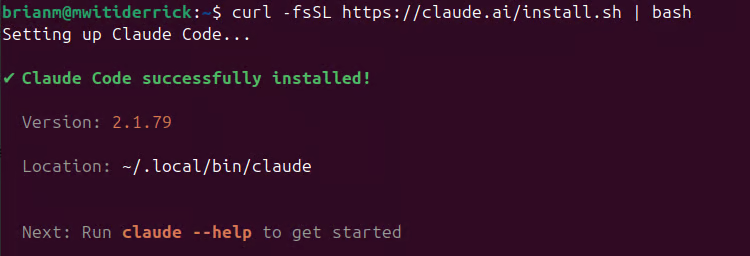
Successful installation of Claude Code
Now that you have Claude code installed, I will take you through how to get started with Claude Code Remote Control.
With Claude Code installed, there are three checks to clear before Remote Control will work reliably.
Remote Control requires Claude Code v2.1.51 or later. To confirm, run:
claude --version
Check Claude Code version
If you’ve had Claude Code installed for a while and it’s still below v2.1.51, which can happen if auto-updates haven’t applied yet, you can update it with:
claude updateRemote Control is currently available for claude.ai Pro and Max subscribers. Pro starts at $20 per month and covers Claude Code access for most developers. The Max plan at $100 per month offers significantly higher usage limits, which becomes important if you run long or frequent sessions. The free plan does not include Claude Code.
For Team and Enterprise deployments, an administrator must enable the Remote Control toggle in the Claude Code admin settings before users can access the feature
API-key-only setups are not supported. Remote Control relies on a signed-in Claude account to establish the session bridge between your local CLI and the web or mobile interface.
To verify that your CLI is authenticated with the correct subscription, you must log in in with your claude.ai account.
If this is your first time running Claude Code, navigate to a project directory and run claude.
cd ~/your-project
claude
This opens a browser window for a one-time OAuth sign-in with your Claude account.
If you already use Claude Code and are unsure which plan your CLI is authenticated with, run /status:
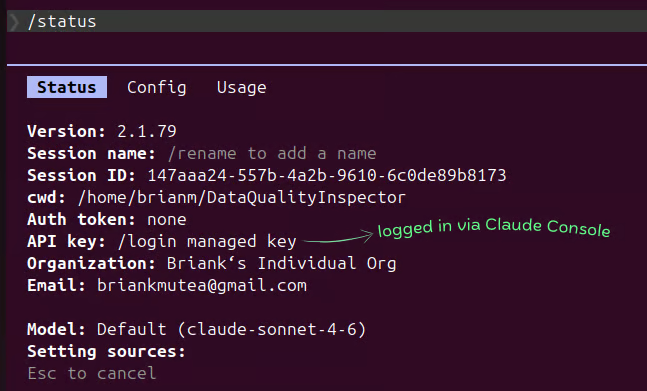
Check login status
If you are not signed in via your Claude account, run /login to change.
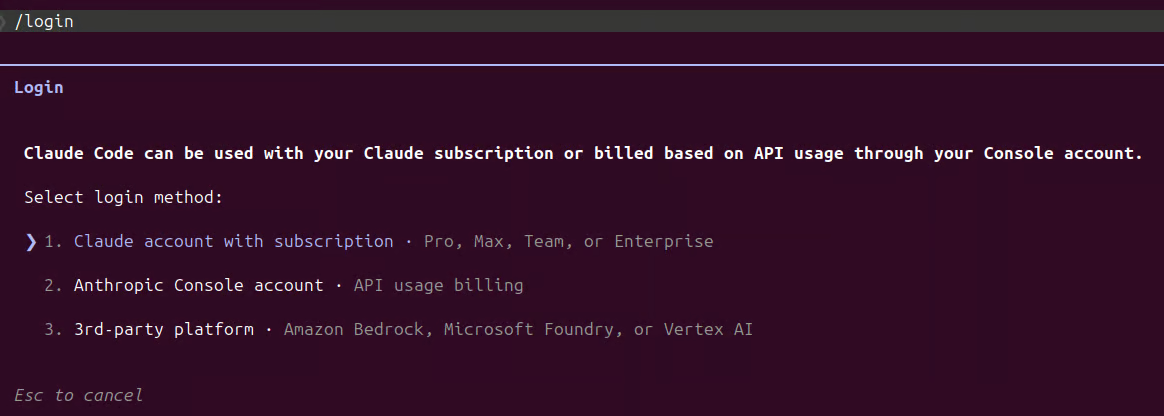
Change login plan
Run /status again to confirm you are logged in on your Claude account.
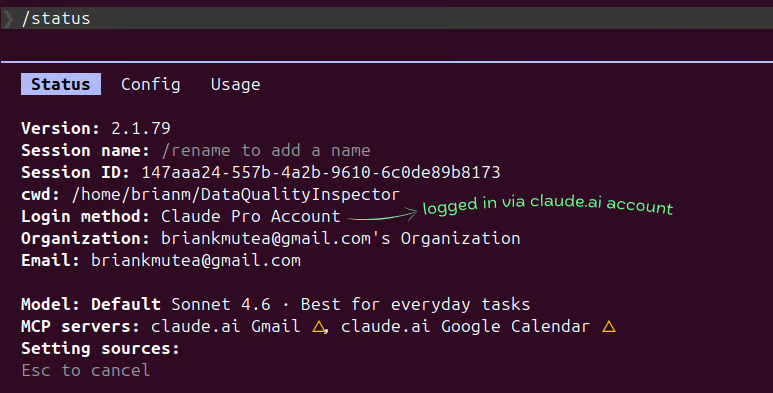
Logged in with your claude.ai account
When you run claude in a project for the first time, Claude Code does not immediately start reading or editing files. Instead, it pauses and asks whether you trust the workspace.
This prompt acts as a safety checkpoint. Claude Code can read, write, and execute files inside the directory you launch it in, so running it in an unfamiliar repository could expose you to malicious scripts, configuration files, or hooks designed to run automatically.
The trust prompt ensures you explicitly confirm that the project is safe before operating on it.
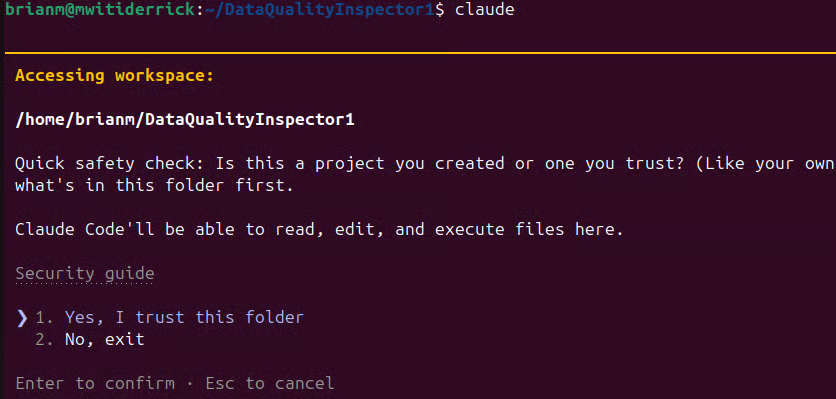
Approve Claude Code access on a new project that you trust
This step also matters when using Remote Control. In theory, someone could point Claude Code at a directory it should not interact with, including one that contains sensitive files. The trust dialog ensures you explicitly approve access before the session begins.
Claude Code follows a permission-based security model, where potentially sensitive operations require user approval before the tool can interact with files or execute commands
Remote Control does not launch without accepting this dialog, otherwise you will get a warning:

Error if no trust of project is established
Once you accept the workspace, Claude Code remembers it and does not ask again for that directory. It is only a gotcha when you try to enable Remote Control in a brand new project where Claude Code has never been launched before.
There are three ways to initialize a Remote Control session, and knowing which to reach for saves real friction.
Server mode is the right choice when you want to dedicate a terminal process entirely to serving remote connections with no local interaction.
Run this from your project directory:
claude remote-control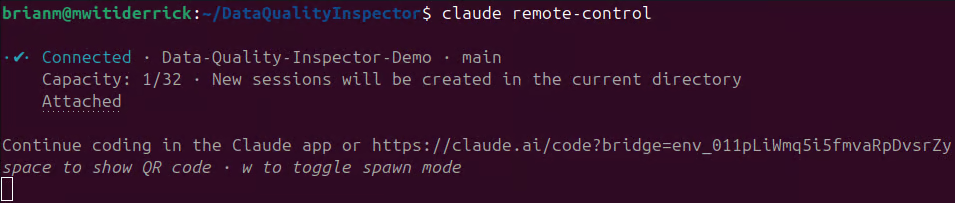
Run Remote Control in server mode
The process stays running in your terminal, displaying a session URL immediately. Pressing the Spacebar generates a QR code for quick phone access. You can name the session to make it easier to identify across devices:
claude remote-control --name "your-session-name"This method works best when you want to leave a machine running at your desk and pick up from your phone later, with nothing left to type locally.
If you want to keep working in the terminal while making the session accessible from another device, start Claude Code with the --remote-control flag (or the shorthand --rc). This gives you a full interactive terminal session that is simultaneously open to remote connections.
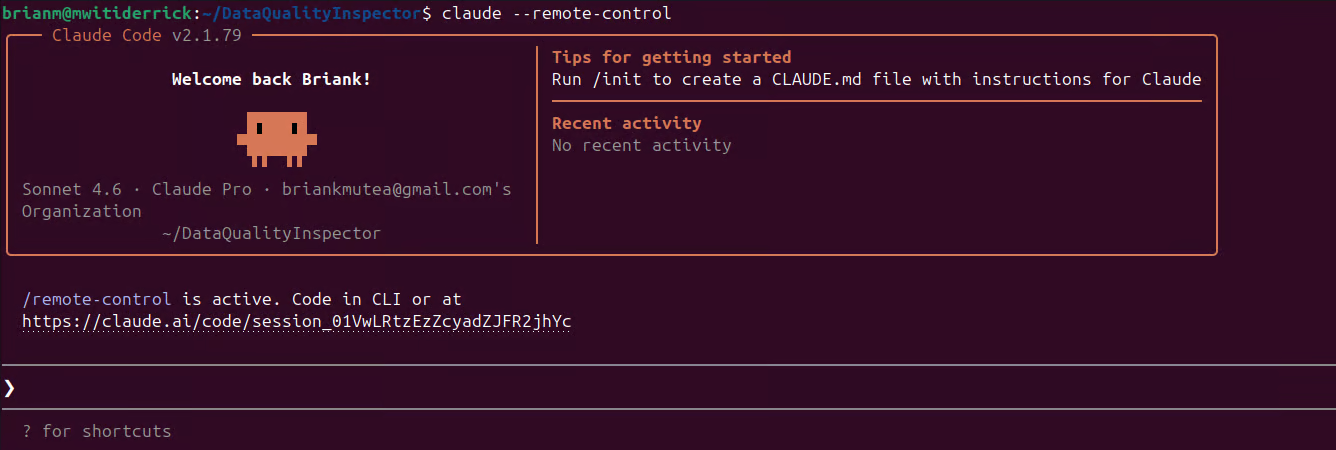
Run Remote Control in interactive mode
Unlike server mode, you can type messages locally while your phone watches or contributes to the same session. It is the method to use when you want both views live at once.
The most useful method in practice is the one you reach for when you are already deep into a session and suddenly need to step away. Instead of restarting anything or losing context, you can enable Remote Control on the fly.
Simply type /remote-control (or the shorthand /rc) inside the running session. Claude Code converts the active conversation into a Remote session.
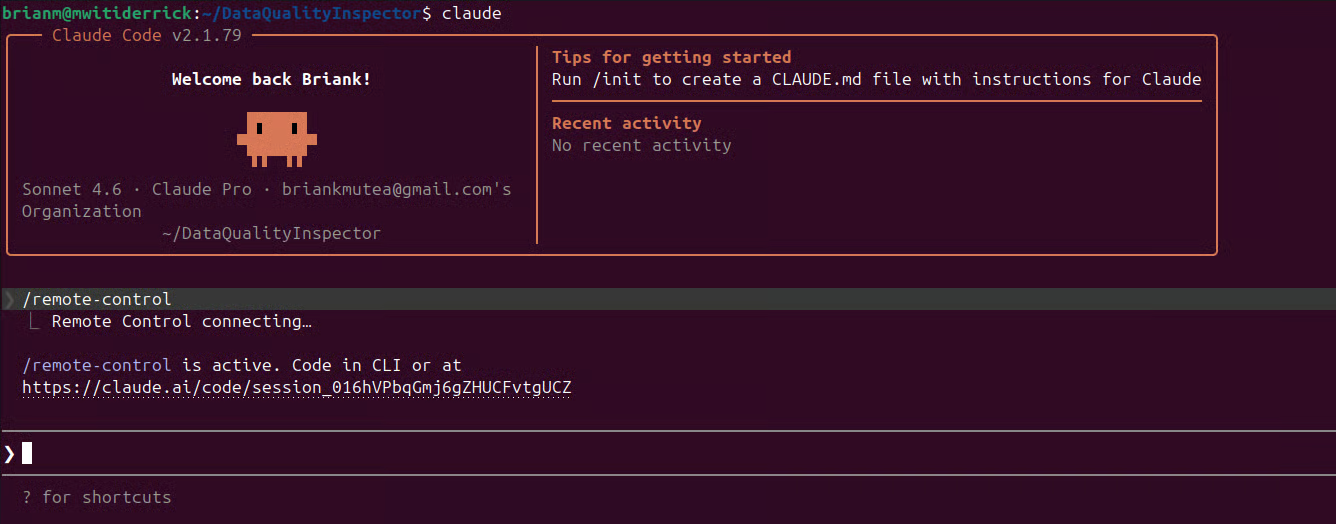
Launching Remote Control on already running Claude Code session
Claude converts the session instantly and keeps the full conversation history intact. Your full conversation history carries over intact, and the session appears in the Claude app's Code tab named after your last message or whatever you set.
You can use /rename your-session-name to rename your session while already in the Claude Code session.
Running /rename before /rc is a habit worth building. A session called something like "sure, go ahead" is nearly impossible to find quickly from a phone when you need to reconnect in a hurry.
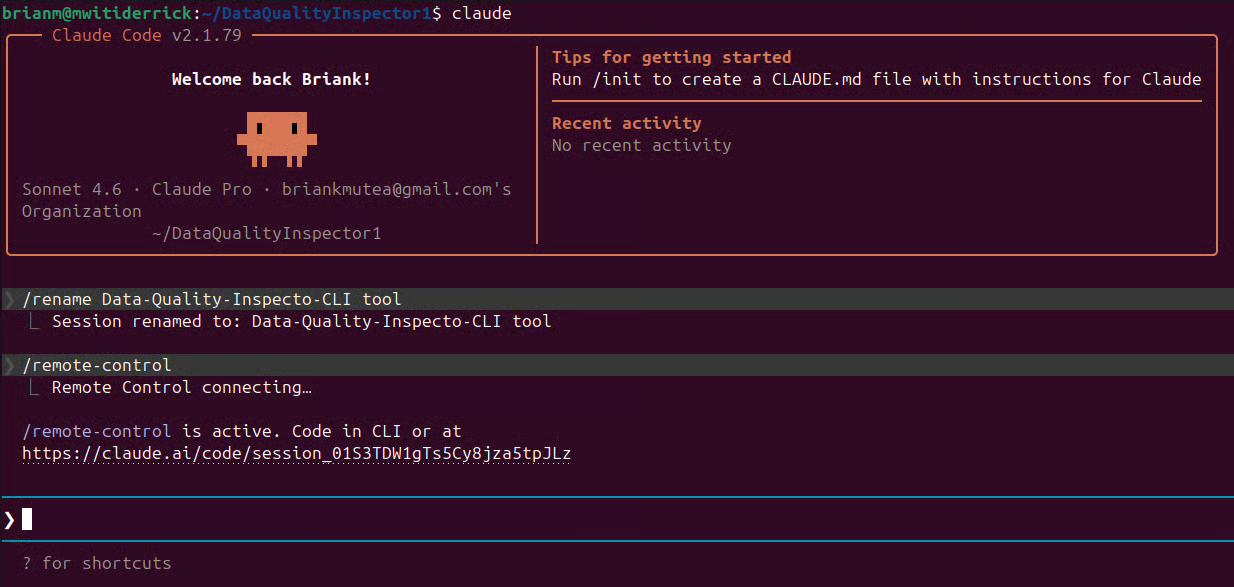
Rename Claude Code session in interactive mode
Once a Remote Control session is active, connecting from another device takes under a minute by either of these paths.
As soon as you start Remote Control in your terminal, Claude Code prints a session URL there. You can copy that URL and open it in any browser to land directly inside the same live session at claude.ai/code.
For example, I launched Remote Control in interactive mode inside one of my project directories. As shown in the screenshot, Claude prints a session URL directly in the terminal.
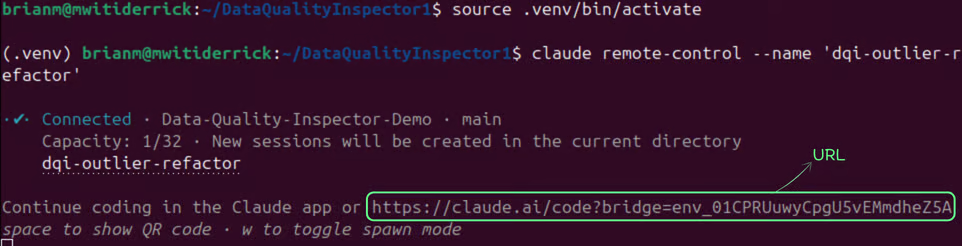
Session URL linking to your browser Remote session
From there, opening it in a browser on a different device took me straight into the session, with the conversation and context exactly as they were in my terminal.
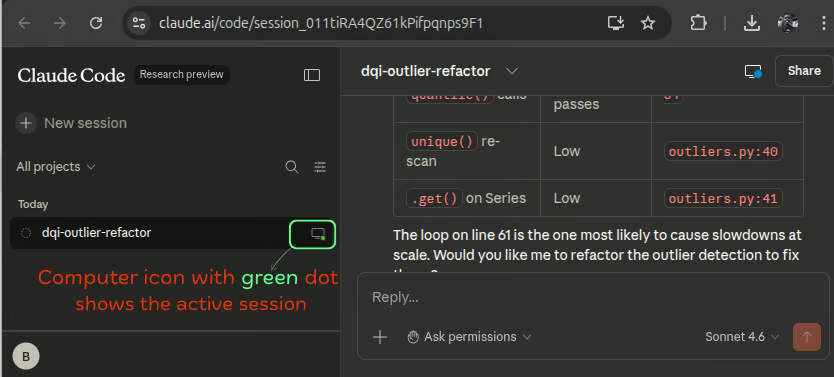
Live Remote session on browser
At that point, the browser is simply another interface into the session running on your machine. Once connected, you can send prompts, review tool activity, and continue your workflow remotely while the actual execution still happens locally. The conversation stays in sync across devices so you can pause on one screen and pick up on another.
Active Remote Control sessions show a computer icon with a green status dot when online, as indicated in the image above.
Using the browser is often the most reliable option when you are on a device without the Claude app installed, or when you want a colleague to observe or contribute to your session from their own screen. You don’t need anything special beyond a modern browser and the session URL.
For phone access, scanning a QR code is the fastest route. In the terminal where your Remote Control session is running in server mode, press the Spacebar to display the QR code, then scan it with your phone.
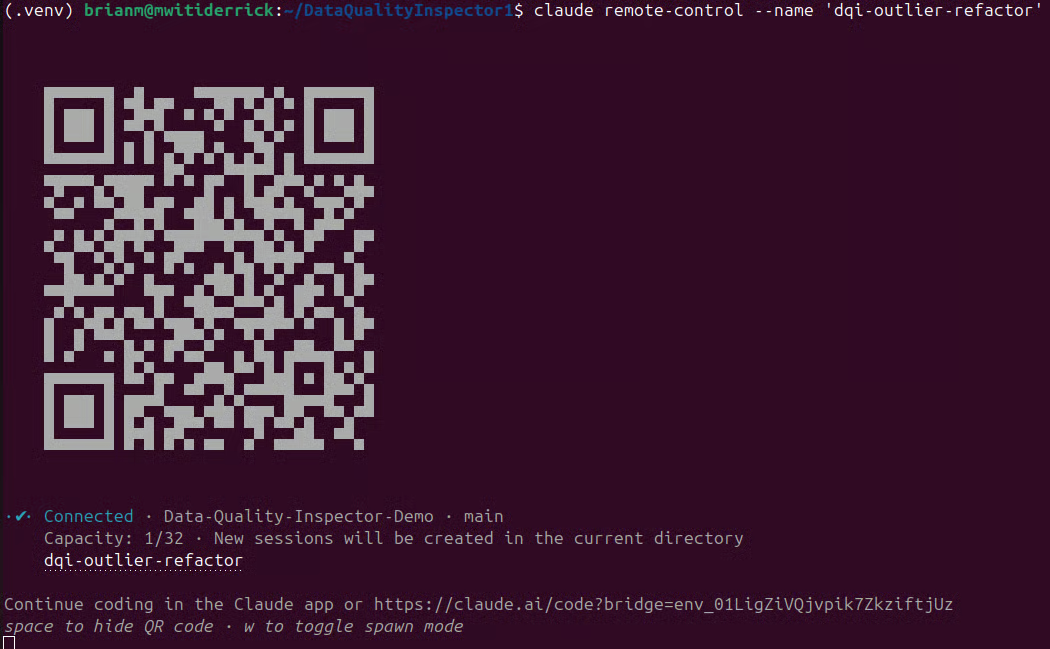
QR code that links you to you live Remote session from your phone
Once scanned, the session opens directly in the Claude mobile app on iOS or Android, taking you straight into the same live session you started in the terminal.
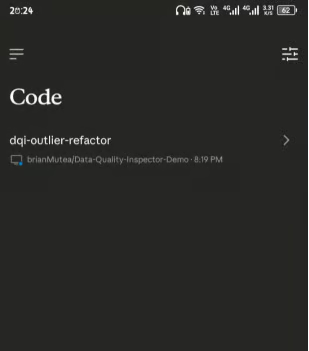
Remote session on phone
Note: QR code is currently available only in server mode. If you started Remote Control from an interactive session using --rc or /rc, open the Claude mobile app, go to the Code tab, and locate your session by name in the session list.
If you do not have the Claude app yet, run /mobile inside Claude Code, and it will generate a QR code that links you to the App Store or Google Play so you can download it first.
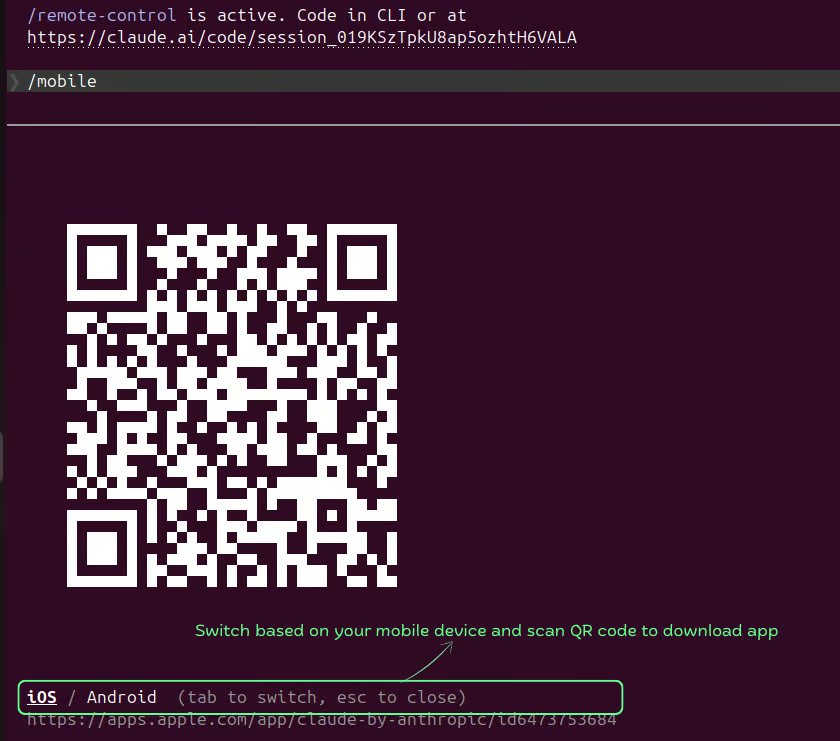
Scan QR code from interactive session to download Claude Code app
The easiest way to make the architecture tangible is to run a quick end-to-end test from your phone. In this short exercise, we will verify that your phone is truly controlling the Claude Code session running on your local machine, not a cloud environment somewhere else.
First, open the Claude mobile app or the browser session you connected earlier. I find it helpful to start Remote Control in interactive mode (claude --remote‑control or /rc) so we can watch the file creation process in the terminal and on the remote interface at the same time.
From there, send Claude the following instruction:
Create a new file called remote-test.txt in the current directory.
Write "Remote Control verified" as its contents.Now switch back to the terminal where your Claude Code is running.
You should see the file-write tool call appear and execute in real time, streaming through the terminal exactly as it would if you had typed the instruction locally. The prompt originated from your phone, but the work itself is happening in the Claude Code session running on your machine.
Remote Control simply relays the instruction and streams the results back to your device.
The process should look similar to the example shown below:
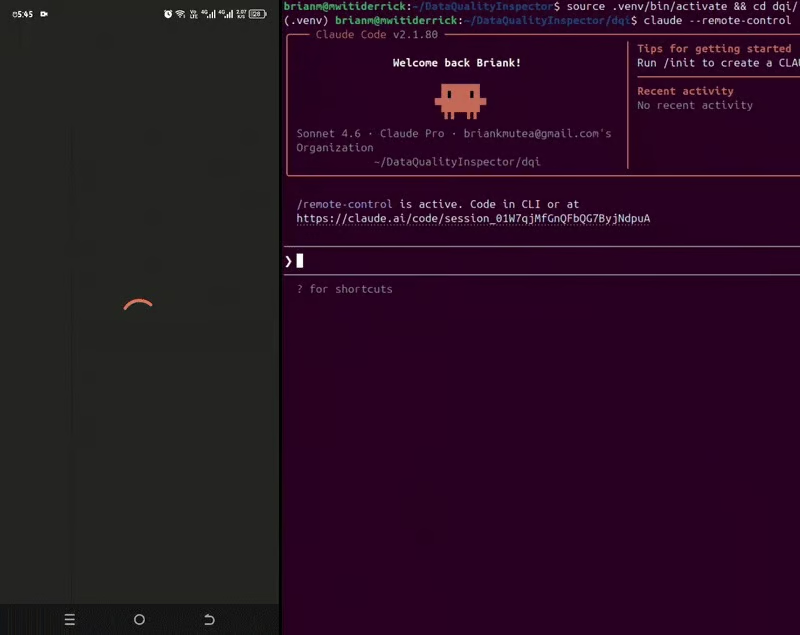
Phone interacting with Claude Code remotely
Finally, confirm that the file was actually created on your machine:
Run:
cat remote-test.txtYou should see:
Remote Control verified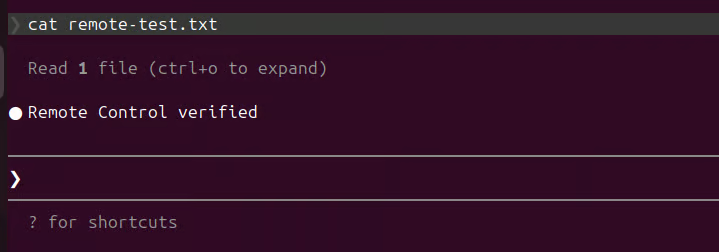
File created locally successfully from via Phone remote connection
You can also find the file in your local system:
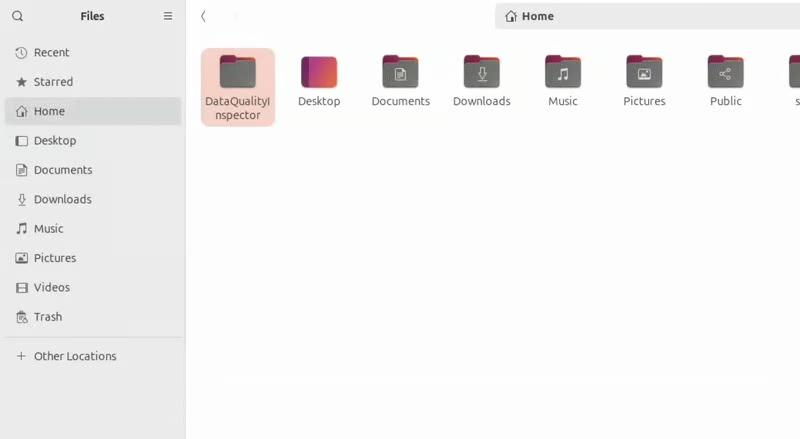
File created locally successfully
That file now exists on your local filesystem. Nothing was uploaded to a cloud environment, and no remote machine executed the command. Your phone simply sent the instruction, Claude Code executed it in the local session, and the result was written to disk on your machine.
This illustrates the core idea behind Remote Control. Only prompts and tool outputs pass through the relay infrastructure, while your files, environment variables, databases, and local services remain on your system.
In practice, this means a Remote Control session can safely interact with resources that never leave your machine, such as .env files, local databases, or private MCP servers, while still allowing you to monitor and guide the session from another device.
Now try deleting the file from your project on your phone. Tell Claude:
Delete remote-test.txt fileOnce the basics are working, a few configuration choices make the difference between a setup that holds up in daily use and one that breaks when it matters.
If you want Remote Control available by default for every session, run /config inside Claude Code and set "Enable Remote Control for all sessions" to true.
With this setting on, each interactive Claude Code process automatically registers one Remote session. If you run multiple instances, each gets its own environment and URL.
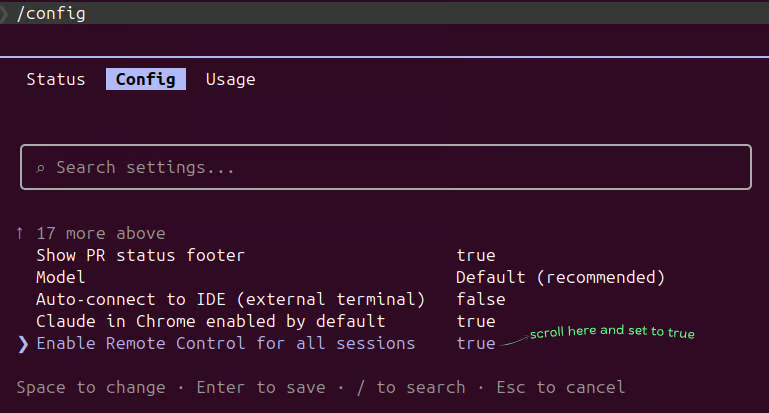
Set Remote Control for all Remote sessions
By default, one Claude Code process serves one remote connection. If you are running parallel tasks against the same codebase, that becomes a constraint quickly.
The --spawn worktree flag in server mode solves this, but your project needs to be a Git repository for this to work since it relies on Git worktrees under the hood.
From your project directory, run:
claude remote-control --name "your-session-name" --spawn worktreeFor instance, in my project, I wanted to do two major refactors concurrently so I would not have to wait for one to finish and then do another refactor. So I started two different sessions:
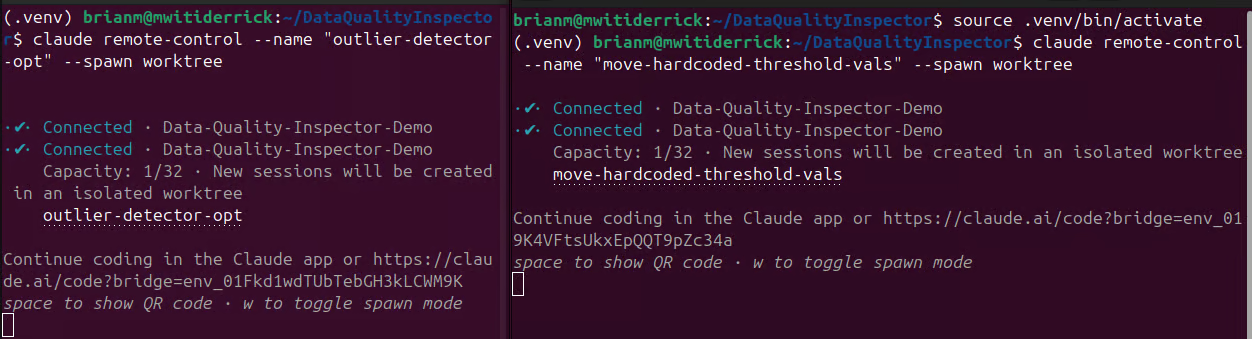
Launching concurrent Remote sessions
Worktrees are not provisioned upfront. They are created on demand the moment a remote device connects.
A snapshot of the live sessions:
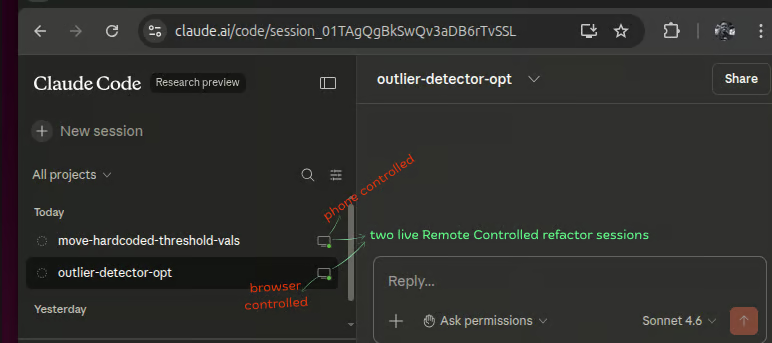
Concurrent Remote sessions
Here is a snapshot of two concurrent Remote sessions in progress. One controlled from the phone and the other from a browser, both working on different tasks in the same project directory:
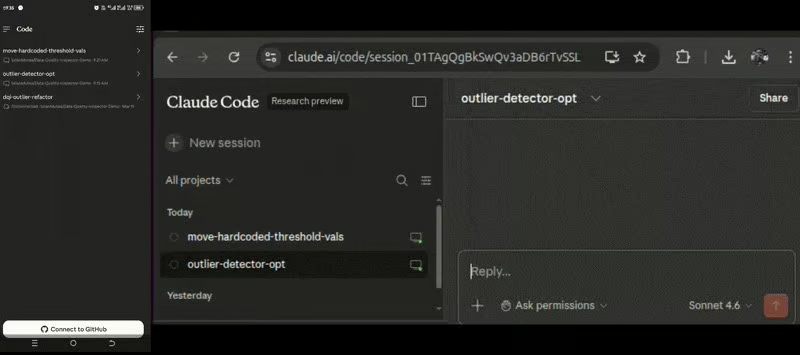
Two concurrent Claude Remote sessions in action
The remote device that connects gets its own isolated working directory under .claude/worktrees/ on its own branch. A second device connecting to the same session name gets an entirely separate worktree.
To see this, run:
git worktree list
Git Worktree list
You will see your main worktree plus one entry per active remote connection, each with its own path and branch.
To run multiple concurrent sessions from a single process, use server mode with --spawn instead. However, all sessions launched this way will share the same directory and you might end up editing the same files with your team. Claude Code supports up to 32 concurrent sessions.
Cleanup is handled automatically. When a session ends without changes, Claude removes the worktree.
Keep the terminal alive. Remote Control is a local process. If the terminal window closes or the claude process exits, the Remote session ends immediately with no warning. The practical fix is running your Remote Control session inside tmux, so the process survives accidental window closures:
#install tmux
sudo apt install tmux

# run tmux
tmux new-session -s rc-session

#start Remote session on your project dir
claude remote-control --name "long-running-task"
Network timeouts have a hard cutoff. If your machine is awake but unable to reach the network for more than 10 minutes, the session times out and the process exits. Laptop sleep does not kill the session because it reconnects automatically on wake, but a sustained network outage while awake does.
Every tool call needs manual approval. The --dangerously-skip-permissions flag does not extend to Remote Control sessions. Even if you pass it at startup, it has no effect, and every tool call requires manual approval from your phone. The practical workaround is front-loading your instructions heavily before walking away, covering the edge cases and decision branches Claude would otherwise pause on.
Our guide on Claude Code best practices covers this kind of upfront planning in depth, along with context transfer techniques and test-driven development approaches that you can pair with your Remote Control workflows.
While Claude Code Remote Control is perfect for extending your local terminal session, it is just one piece of the automation puzzle. When automating tasks with Claude Code, Dispatch is ideal for triggering asynchronous, one-off tasks, whereas Channels provide a persistent, two-way connection for real-time, multi-turn interactions. For workflows requiring active oversight, Remote Control allows human operators or external systems to observe, pause, or steer a live agent mid-execution.
Claude Code sessions are getting longer. When Sonnet 4.5 launched in September 2025, Anthropic demonstrated its coding autonomy for over 30 hours straight. Around the same time, METR began tracking the complexity ceiling. Specifically, measuring how difficult a task is for an AI by comparing it to how long a human expert would take to complete the same task.
By February 2026, they put Opus 4.6 at 14.5 hours, their highest figure yet. Between raw endurance and rising task complexity, the sessions Claude Code can handle are no longer short. When that work is running on your local machine, staying at your desk for the whole thing might not be realistic. Remote Control is the answer to that problem.
When you think about Remote Control through that lens, it stops looking like a "check your session from the back of an Uber" feature, but more like picking up a walkie-talkie to talk to someone already working at your desk.
The main constraint I have seen while using Claude Code or any other AI agent is the need for approvals. For instance, Claude Code is intentionally permission-gated, meaning actions like file edits or shell commands often require confirmation.
That means Remote sessions are not completely hands-off yet. If Claude hits a decision point, it pauses and waits. If you leave vague instructions, the session will pause constantly, waiting for input.
The fix is to front-load everything before you leave. The more context, edge cases, and decision branches I provide upfront, the fewer times the agent stops to ask.
For power users looking to take Claude Code further:
Top DataCamp Courses
Cursus
Cursus
Cursus
Tutorial
Derrick Mwiti
10 min
Tutorial
Bexruz (Bex) Tuychiev
14 min
Tutorial
Abid Ali Awan
11 min
Tutorial
Vikash Singh
10 min
Tutorial
François Aubry
12 min
Tutorial
Tim Lu
15 min


