Track
AI Engineering with LangChain
21 hr
Autonomous AI coding agents are powerful. They navigate your filesystem, execute shell commands, make commits, and modify files, all without you typing a single line of code. That power, though, comes with a real question: what happens if something goes wrong? What if the agent modifies a config file it shouldn't touch, or installs a package that conflicts with your system?
The answer most production-minded developers land on is Docker, and it's the same answer I kept coming back to after one particular session where Claude Code helpfully "cleaned up" my project's .env file because it looked unused. (It was not unused.)
Containers give you a hard boundary between the agent and your host machine, and that boundary is what makes unattended agent runs feel safe rather than anxious.
In this tutorial, I'll walk you through running Claude Code inside Docker: from building a minimal baseline image to orchestrating a multi-service application with Docker Compose. By the end, you'll have a repeatable, secure workflow you can use on any project.
For those of you who are interested in the newest Anthropic models, I recommend reading our guides on Claude Opus 4.6 and Claude Sonnet 4.6.
To understand why Docker is such a natural fit for Claude Code, it helps to briefly understand what each tool actually does.
Claude Code is Anthropic's command-line agentic coding tool, released for general availability in May 2025. It lives in your terminal, reads your codebase, and carries out tasks (refactoring code, writing tests, managing git workflows) via natural language prompts. Our comprehensive Claude Code 2.1 Tutorial covers everything you need to know.
Docker is a platform for packaging and running applications in lightweight, isolated containers that share the host OS kernel but maintain strict process and filesystem boundaries. If you are completely new to Docker, I recommend checking out our guide on the free Play with Docker platform and experimenting there.
Claude Code needs an environment to run. Docker provides a reproducible, disposable one. That combination is powerful, but getting the most out of it means understanding the execution model, the security defaults, and which deployment approach fits your situation.
Let's start with how a containerized Claude Code session actually works at the request level.
The key distinction here is between the ephemeral state and the persisted state. Anything written to the container but outside the mounted volume is deleted during cleanup. Your workspace, which lives on the host and is mounted in, persists.
This means temporary dependencies, build artifacts, and tool installations all vanish, but your actual project files remain exactly as Claude left them. I find this separation genuinely reassuring: before I understood it, I used to sit nervously and watch agent sessions. Now I start a task and go make coffee.
With the execution flow in mind, it's worth being explicit about what Docker's isolation actually protects, and what it doesn't.
Filesystem isolation is the main security win. Claude Code can only read and write files in paths you explicitly mount. If you don’t mount them into the container, your SSH keys, ~/.aws credentials, host environment variables, and system configuration files are invisible to the agent unless you deliberately expose them. However, that protection only holds if you configure your mounts carefully.
One critical rule: never mount the host Docker socket (/var/run/docker.sock) into the Claude Code container. If the agent can talk to the Docker daemon on your host, it can potentially spin up privileged containers, escape the sandbox entirely, and gain root-level access to your machine.
This is a well-known privilege escalation path with no good justification. I've seen this suggested in a few community Dockerfiles as a way to let the agent "manage containers," and every time I see it, I want to send the author a strongly worded message.
Security defaults aside, there's one more decision to make before writing any code: which deployment model fits your use case? There are three main options, and they aren't interchangeable.
|
Deployment Method |
Best For |
Key Tradeoff |
|
Docker sandbox (single container) |
Isolated, one-off agent tasks |
No service-to-service networking |
|
Docker Compose |
Multi-service apps in development |
More setup, broader attack surface |
|
Devcontainers |
Team-wide standardized environments |
Requires VS Code or a compatible IDE |
For most tasks (running the agent against a single repo, debugging a script, refactoring a module), a plain Docker sandbox is the safest default.
Docker Compose makes sense when Claude Code needs to interact with a running database, API, or frontend service.
Devcontainers are the right call for team-wide standardized environments with pre-configured IDE extensions. Notably, the official Anthropic reference devcontainer includes a built-in firewall that restricts outbound connections to a trusted allowlist, and that isolation is what makes it safe to run Claude Code with --dangerously-skip-permissions for fully unattended operation.
For this tutorial, we'll cover both the single-container sandbox and a Compose setup.
Now that the architecture and deployment options are clear, let's make sure the environment is properly configured before writing any code. I've seen this step skipped more times than I can count, and it's the most common reason tutorials like this one fail partway through.
Here's everything you need in place before the first docker build:
Docker Desktop (macOS or Windows) or Docker Engine (Linux), with the daemon actively running. On macOS and Windows, virtualization must be enabled in your BIOS/firmware settings. On Linux, add your user to the docker group with sudo usermod -aG docker $USER, or prefix every Docker command with sudo.
Node.js v18 or later on your host machine, since the Claude Code CLI is an npm package. Confirm with node --version.
An Anthropic API key, which you can generate in the Claude Console.
Verify Docker itself is healthy with a quick sanity check before going further:
docker run --rm hello-worldIf you see Hello from Docker!, your daemon is responding correctly, and you're good to move on.
With the daemon confirmed healthy, the next thing to get right is credentials. Injecting your Anthropic API key as a runtime environment variable is substantially safer than logging in interactively inside the container.
I learned this the hard way: interactive logins can bake credentials into container layers or shell history files that persist on disk long after you've forgotten about them.
The correct pattern is to pass the key at runtime using -e:
docker run --rm -e ANTHROPIC_API_KEY="$ANTHROPIC_API_KEY" my-claude-imageNotice I'm referencing $ANTHROPIC_API_KEY from my host shell. The key is never written into the Dockerfile, never committed to version control, and never appears in any image layer. Set it once in your shell profile (~/.zshrc or ~/.bashrc), and it flows cleanly into every container run from that point forward.
With authentication sorted, the last setup step is creating a clean workspace. I always create a dedicated directory for each agent session rather than pointing Claude at an existing project, since it eliminates the risk of the agent wandering into adjacent code you didn't intend it to touch.
mkdir ~/claude-docker-tutorial
cd ~/claude-docker-tutorial
echo "# My Project" > README.md
echo "def hello(): return 'world'" > app.py
Keep this directory clean. Don't copy your real .env file or any credentials into it. The workspace should contain only the code you want the agent to work on, and nothing else. With that in place, we're ready to build.
With the environment configured and the concepts clear, it's time to build. This section walks through the steps: first, a minimal single-container image, then a working sandbox session, and finally a full multi-service Compose stack. Each step builds on the last, so I'd recommend following them in order rather than jumping ahead.
Everything in this section builds on the security principles we discussed earlier. Here's a minimal Dockerfile that puts those principles into practice, installing the Claude Code CLI on top of a slim Node.js base image:
FROM node:20-slim

# Create a non-root user for safer execution
RUN useradd -m -u 1001 claude

# Install Claude Code CLI globally
RUN npm install -g @anthropic-ai/claude-code

# Set the working directory
WORKDIR /workspace

# Switch to non-root user
USER claude

ENTRYPOINT ["claude"]
A few design decisions are worth explaining here. I'm using node:20-slim rather than node:20-alpine because Alpine uses the musl libc library, which occasionally causes compatibility issues with native npm packages.
I hit this exact issue on my first attempt with Alpine: the Claude Code CLI installed fine, but crashed on first run with a cryptic linker error that took me an hour to trace back to musl.
The slim variant is based on Debian: lightweight and reliable, with none of that drama. Additionally, I'm creating a dedicated claude user and switching to it before the entrypoint, which means the agent process runs without root privileges and limits what it can do even inside the container.
Build the image with:
docker build -t claude-code:latest .On the first build, Docker pulls the base image and installs the CLI. On subsequent builds with no Dockerfile changes, you'll see “CACHED” next to each layer, making rebuilds nearly instant once the base is established.
With the image ready, it's time to run the first real session.
For read-only tasks like listing or summarizing files, the basic command is enough:
docker run --rm \
  -e ANTHROPIC_API_KEY="$ANTHROPIC_API_KEY" \
  -v $(pwd):/workspace \
  claude-code:latest \
  "List the files in this workspace and describe what each one does."
The -v $(pwd):/workspace mounts your current directory into the container, so the command works from any project directory. The --rm flag removes the container automatically after it exits.
Write operations require two additional flags.
The -u $(id -u):$(id -g) flag passes your host user's UID and GID into the container, giving the claude process permission to write to your mounted files. Without it, you'll get a read-only filesystem error because the container's claude user doesn't match your host file ownership.
The --dangerously-skip-permissions flag skips Claude Code's interactive approval prompts, which are necessary when running non-interactively inside a container. The Docker boundary itself is what makes this safe.
docker run --rm \
  -e ANTHROPIC_API_KEY="$ANTHROPIC_API_KEY" \
  -v $(pwd):/workspace \
  -u $(id -u):$(id -g) \
  claude-code:latest \
  --dangerously-skip-permissions \
  "Add a docstring to the hello function in app.py."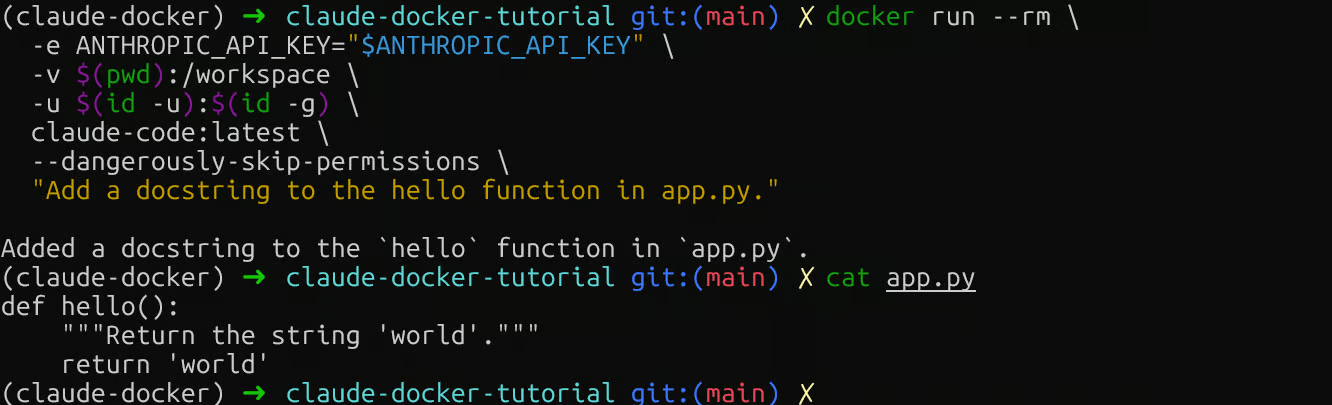
Claude Code Docker write operation
Then check your local file: cat app.py. If you see the docstring, the volume mount is working in both directions, and you're ready to scale up to a multi-service setup.
The single-container sandbox works well for isolated tasks, but real development often involves multiple services running simultaneously. Here's where Docker Compose earns its place.
The configuration below links the Claude Code agent with a web service and a PostgreSQL database, a representative setup for many backend projects:
services:
  claude:
    build: .
    environment:
      - ANTHROPIC_API_KEY=${ANTHROPIC_API_KEY}
    volumes:
      - ./workspace:/workspace
    depends_on:
      db:
        condition: service_healthy
    networks:
      - app-network

  web:
    image: python:3.12-slim
    working_dir: /app
    volumes:
      - ./workspace:/app
    command: python -m http.server 8080
    ports:
      - "8080:8080"
    networks:
      - app-network

  db:
    image: postgres:16-alpine
    environment:
      POSTGRES_DB: appdb
      POSTGRES_USER: user
      POSTGRES_PASSWORD: password
    healthcheck:
      test: ["CMD-SHELL", "pg_isready -U user -d appdb"]
      interval: 5s
      timeout: 3s
      retries: 5
    networks:
      - app-network

networks:
  app-network:
    driver: bridge
Note that version is omitted, since it's obsolete in modern Docker Compose and will trigger a warning if included.
Two other details are worth pointing out:
First, the claude service mounts .:/workspace (the current directory) rather than a subdirectory. Using ./workspace would require a separate subfolder to exist, and the agent would see an empty workspace.
Second, DATABASE_URL is passed explicitly so the agent knows how to reach Postgres. Without it, Claude has no connection string and will ask you for one.
The user: "${UID}:${GID}" line applies the same host UID/GID override we used in the standalone docker run commands, so file writes work correctly. Export both before running:
export UID=$(id -u) GID=$(id -g)The claude service has no persistent command, so unlike web and db, it's not meant to run continuously. Start the supporting services first, then invoke Claude on demand with docker compose run:
# Start the database and web service
docker compose up -d web db

# Run a one-off Claude task
docker compose run --rm \
  claude \
  --dangerously-skip-permissions \
  "Check the database connection and summarize the schema in README.md."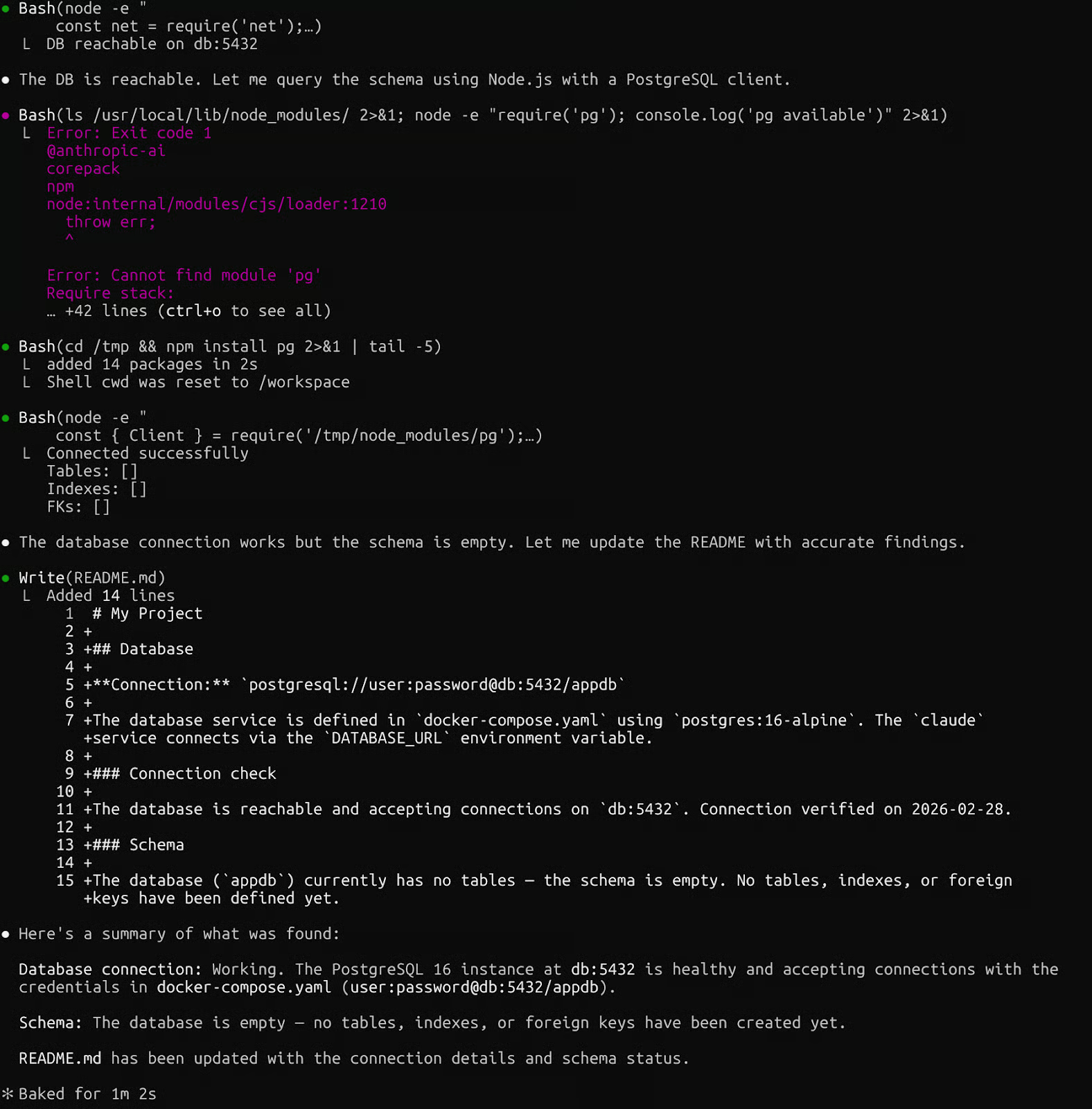
Claude Code with Docker Compose
Start the supporting services first with docker compose up -d web db, then watch their logs with docker compose logs -f. Notice the depends_on with condition: service_healthy.
I skipped this on an early project and spent 20 minutes chasing database connection errors before realizing Claude had started before Postgres was ready. The health check costs nothing and saves that exact headache.
Once your session is complete, cleanup is just as important as setup. Orphaned containers consume memory and interfere with future runs, and in my experience, this is the step most developers skip until something starts behaving strangely.
Here are the commands you'll use most, and when to reach for each:
|
Command |
What it does |
When to use it |
|
|
Stops and removes all containers in the stack |
After every Compose session |
|
|
Removes all stopped containers |
If you forgot --rm on a standalone run |
|
|
Removes containers, networks, and named volumes |
Full reset, wipes database state |
|
|
Lists running containers |
Confirm nothing is still active |
The -v flag on docker compose down is the one to be careful with. It deletes named volumes, meaning any database data you've accumulated in Postgres will be gone. I only use it when I genuinely want a clean slate. Otherwise docker compose down alone is enough.
With the core workflow running cleanly, let's look at how to extend it and how to debug it when something breaks.
Claude Code supports redirecting inference to any Anthropic-compatible local endpoint via ANTHROPIC_BASE_URL. Docker Model Runner, built into Docker Desktop, exposes exactly such an API, making the integration native to the Docker ecosystem.
Pull a model and point Claude Code at the local endpoint:
docker model pull ai/smollm2
ANTHROPIC_BASE_URL=http://localhost:12434 claude --model ai/smollm2 "List the files of the repository."
This is a different pattern from the sandboxed container approach covered earlier. Here, Claude Code runs on your host, and inference stays local via Docker Model Runner, so no API call leaves your machine.
Beyond local models, you can extend Claude Code's reach through MCP (Model Context Protocol) servers. If you aren't familiar with it, our MCP Guide is a great resource to get started.
Docker's MCP Toolkit provides over 200 pre-built, containerized MCP servers covering GitHub, Jira, Supabase, and more, giving Claude Code permissioned access to those tools without exposing raw API credentials.
Together, these two extension points give you meaningful control over both where inference happens and what external services the agent can reach.
As your Dockerfile grows, build time can become a bottleneck. Multi-stage builds fix this by separating installation from the runtime image:
# Build stage
FROM node:20-slim AS builder
RUN npm install -g @anthropic-ai/claude-code

# Runtime stage
FROM node:20-slim
COPY --from=builder /usr/local/lib/node_modules /usr/local/lib/node_modules
COPY --from=builder /usr/local/bin/claude /usr/local/bin/claude
RUN useradd -m -u 1001 claude
USER claude
WORKDIR /workspace
ENTRYPOINT ["claude"]
Layer order matters just as much as structure, and this is something I got wrong for longer than I'd like to admit.
Rarely-changing instructions (like installing system packages) go near the top. Frequently-changing ones (like copying source files) go near the bottom. This maximizes cache hits and turns 30-second rebuilds into near-instant ones.
Even with a well-structured setup, things break. Here's a repeatable debugging loop for the issues I hit most often. Symptom first, then the command to run:
Blocked network egress: Claude Code can't reach the Anthropic API. Run docker run --rm alpine wget -qO- https://api.anthropic.com to verify outbound access. If this fails, check docker network inspect bridge for proxy settings.
Incorrect volume mounts: Claude Code reports that it can't find files. Run docker run --rm -v $(pwd):/workspace alpine ls /workspace. An empty listing means your path is wrong. Confirm the directory exists before anything else.
Stale build cache: You've updated your Dockerfile, but the behavior hasn't changed. Force a full rebuild with docker build --no-cache -t claude-code:latest ..
Service-to-service connection failures in Compose: One service can't reach another. Services communicate via their service names (db, web), not localhost. Run docker compose exec web ping db to test reachability. A failed ping means the services aren't on the same network.
Running Claude Code inside Docker gives you something genuinely valuable: the freedom to let an autonomous agent work freely, knowing that what it can touch is strictly bounded.
In this tutorial, I walked through building a minimal non-root container image, managing workspace volumes, orchestrating multi-service applications with Docker Compose, and diagnosing the most common integration failures.
The setup took me about an afternoon to get right, and it completely changed how I approach agent-assisted development. I delegate whole tasks rather than watching every step, and the Docker boundary is what makes that possible.
From here, two directions are worth exploring:
First, look into devcontainer templates for your team. The Claude Code reference devcontainer on GitHub includes a pre-configured firewall restricting outbound connections to trusted domains. Second, experiment with Docker MCP Toolkit to give Claude Code structured access to your existing tools: GitHub, databases, project management systems, and more.
Finally, set a reminder to update your base images periodically. Docker images accumulate vulnerabilities over time, and a quick docker pull node:20-slim followed by a rebuild takes only minutes.
If you’re interested in developing AI applications, I highly recommend enrolling in our AI Engineering with LangChain skill track. The courses it includes are AI-native, so you’ll get a personal teacher who picks you up on your exact level and helps you reach your goals at your own pace.
Top AI Courses
Track
Course
Course
Tutorial
Tim Lu
15 min
Tutorial
Aashi Dutt
10 min
Tutorial
Bexruz (Bex) Tuychiev
Tutorial
Vikash Singh
10 min
Tutorial
Dario Radečić
15 min
Tutorial
Bexruz (Bex) Tuychiev
12 min