
Cours
Introduction aux modèles Claude
3 h
14.4K
Une session Claude Code s’exécute normalement intégralement dans votre terminal. Vous lui assignez une tâche, il modifie des fichiers, exécute des commandes, puis s’arrête pour demander des validations. Mais dès que vous vous éloignez, la session devient inaccessible car elle n’existe que dans ce processus local.
Jusqu’à récemment, il n’y avait aucun moyen intégré de se reconnecter à cette même session depuis un autre appareil. Des interfaces web et mobiles existaient, mais elles démarraient de nouvelles sessions cloud sans accès à vos fichiers ou outils locaux.
Claude Code Remote Control crée un pont en direct entre votre session locale en cours et claude.ai ou l’application mobile Claude. Le processus continue de tourner sur votre machine, et votre navigateur ou votre téléphone devient simplement une autre interface.
Dans cet article, j’explique le fonctionnement de Remote Control, comment installer Claude Code de zéro, puis comment configurer et rejoindre une session à distance pas à pas. À la fin, vous saurez démarrer une session localement et la poursuivre à distance depuis un autre appareil tout en gardant l’exécution sur votre machine. Je vous recommande aussi de lire nos guides sur Claude Code Channels et Claude Cowork Dispatch.
Claude Code est l’assistant de codage IA d’Anthropic, conçu pour le terminal. Contrairement aux chatbots dans le navigateur ou aux extensions d’IDE, il s’exécute directement dans votre terminal et opère sur vos fichiers locaux.
Remote Control étend ce modèle en ajoutant une couche de synchronisation entre votre session locale en cours et l’application mobile Claude ou tout navigateur web. La session lancée sur votre machine reste active et pilotable depuis un autre appareil, sans déplacer l’environnement d’exécution dans le cloud.
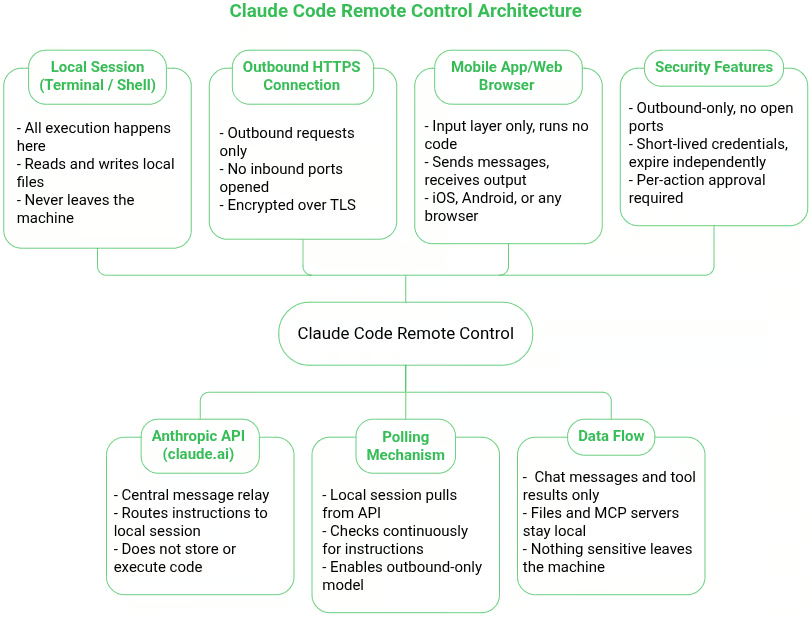
Aperçu de l’architecture Remote Control : réalisé avec Napkin AI
Comprendre cette architecture est important car elle explique la plupart des comportements que vous observerez. Au démarrage de Remote Control, votre processus local Claude Code établit une connexion HTTPS sortante vers l’API Anthropic et enregistre la session. Il interroge ensuite l’API pour recevoir des instructions, sans ouvrir de port à l’écoute sur votre machine.
Si vous envoyez un message depuis votre téléphone ou votre navigateur, la requête va d’abord à l’API, qui la relaie vers votre processus local via la connexion existante. La réponse suit le même chemin de relais en sens inverse.
Ce design implique que votre machine n’ouvre jamais de ports entrants ni n’expose de services à Internet. Toutes les communications sont initiées par le processus local Claude Code lui-même.
Il est tout aussi important de savoir ce qui ne transite pas par cette connexion.
Votre téléphone ou navigateur n’exécute pas le code et n’accède pas directement à vos fichiers. Il affiche simplement la conversation et envoie des invites. L’exécution, la lecture de fichiers, l’exécution de commandes, l’accès aux serveurs MCP et l’utilisation de votre configuration locale se font entièrement sur votre machine.
C’est la différence clé avec Claude Code sur le web. Une session cloud s’exécute dans l’infrastructure cloisonnée d’Anthropic et démarre sans votre environnement local. Remote Control conserve l’ensemble du contexte de développement sur votre machine, avec le même système de fichiers, les mêmes outils et la même configuration.
OpenClaw est actuellement le projet d’assistant IA autonome personnel le plus étoilé sur GitHub : plus de 320 000 étoiles en seulement quatre mois, devenant l’un des dépôts open source à la croissance la plus rapide de l’histoire.
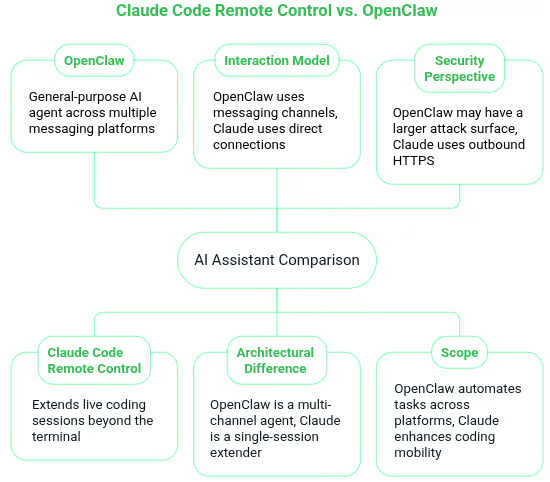
Claude Code Remote Control versus OpenClaw : réalisé avec Napkin AI
OpenClaw aborde l’interaction à distance de façon très différente de Claude Code Remote Control.
Au lieu de se connecter directement à une session de développement en cours, OpenClaw expose un agent IA via des canaux de messagerie comme WhatsApp, Telegram, Discord et Slack. Vous interagissez avec l’assistant sur ces plateformes, et l’agent exécute des tâches pour vous.
Claude Code Remote Control suit un autre modèle. Plutôt que d’acheminer des commandes via des plateformes de messagerie, il connecte directement votre navigateur ou votre téléphone à votre session Claude Code locale. L’appareil à distance devient une interface en direct vers cette session de terminal en cours, au lieu d’une couche de messagerie qui déclenche des actions indirectement.
Cette différence architecturale entraîne des capacités différentes. OpenClaw se comporte comme un agent IA polyvalent conçu pour opérer sur plusieurs canaux de communication. Claude Code Remote Control, à l’inverse, se concentre sur l’extension d’une unique session de développement en direct, vous donnant visibilité et contrôle sur un processus terminal déjà en cours sur votre machine.
Les deux modèles diffèrent aussi par leur approche sécurité. Remote Control repose sur des connexions HTTPS sortantes initiées par le processus local Claude Code, ce qui évite d’exposer des ports entrants sur votre machine.
Des systèmes comme OpenClaw s’exécutent souvent comme des services persistants intégrés à des plateformes et plugins externes, ce qui peut élargir la surface d’attaque selon le déploiement.
En résumé, c’est une question de périmètre. OpenClaw agit comme un assistant IA multi‑canal capable d’automatiser des tâches à travers des plateformes de messagerie et des services externes. Claude Code Remote Control étend une session de codage en direct au-delà du terminal, vous offrant de la mobilité sans déplacer votre environnement de développement vers le cloud.
Pour une comparaison plus étendue des outils du marché, consultez nos guides OpenCode versus Claude Code et Codex versus Claude Code.
Avant d’utiliser Claude Code Remote Control, vous devez disposer d’une installation fonctionnelle de Claude Code. Si vous découvrez l’outil, notre parcours d’installation Claude Code couvre l’installation, la configuration et des workflows concrets comme le refactoring et le débogage.
Une fois les bases acquises, lisez le guide Claude Code 2.1. Il traite des agents, hooks et compétences pour rendre Claude Code bien plus puissant qu’un simple éditeur de code.
Je vais toutefois passer par un processus d’installation rapide pour que vous puissiez utiliser Remote Control immédiatement. Si vous avez déjà Claude Code installé et des sessions locales actives, vous pouvez passer à la suite.
Vous avez besoin d’un terminal, d’un projet de code sur lequel travailler, et d’un compte claude.ai payant, nécessaire pour Remote Control — nous y reviendrons plus loin.
Installez-le via l’installeur natif, plus rapide que la méthode npm historique car il ne dépend pas de Node.js et se met à jour automatiquement en arrière-plan.
Sur macOS ou Linux, ouvrez votre terminal et exécutez :
curl -fsSL https://claude.ai/install.sh | bash
Sous Windows, ouvrez PowerShell et exécutez :
irm https://claude.ai/install.ps1 | iex
Après l’installation, un message de confirmation affiche la version de Claude Code ainsi que le chemin d’installation.
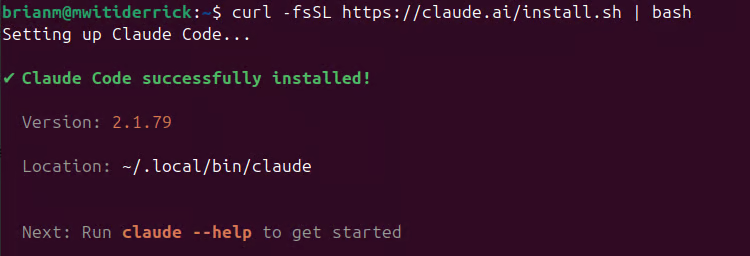
Installation de Claude Code réussie
Maintenant que Claude Code est installé, voici comment bien démarrer avec Claude Code Remote Control.
Avec Claude Code installé, trois vérifications sont à effectuer pour que Remote Control fonctionne de manière fiable.
Remote Control nécessite Claude Code v2.1.51 ou supérieur. Pour confirmer, exécutez :
claude --version
Vérifier la version de Claude Code
Si votre installation date et qu’elle est encore en dessous de v2.1.51 — cela peut arriver si les mises à jour automatiques ne se sont pas appliquées — vous pouvez la mettre à jour avec :
claude updateRemote Control est actuellement disponible pour les abonnés Pro et Max de claude.ai. Pro débute à 20 $ par mois et couvre l’accès à Claude Code pour la plupart des développeurs. Le plan Max à 100 $ par mois offre des limites d’usage nettement plus élevées, utile si vous lancez des sessions longues ou fréquentes. L’offre gratuite n’inclut pas Claude Code.
Pour les déploiements Team et Enterprise, un administrateur doit activer l’option Remote Control dans les paramètres d’administration de Claude Code avant que les utilisateurs puissent y accéder
Les configurations reposant uniquement sur une clé API ne sont pas prises en charge. Remote Control requiert une connexion à un compte Claude pour établir le pont entre votre CLI locale et l’interface web ou mobile.
Pour vérifier que votre CLI est authentifiée avec l’abonnement approprié, vous devez vous connecter avec votre compte claude.ai.
Si c’est votre première utilisation de Claude Code, placez-vous dans le répertoire d’un projet et lancez claude.
cd ~/your-project
claude
Cela ouvre une fenêtre de navigateur pour une connexion OAuth unique avec votre compte Claude.
Si vous utilisez déjà Claude Code et n’êtes pas sûr du plan associé à votre CLI, exécutez /status :
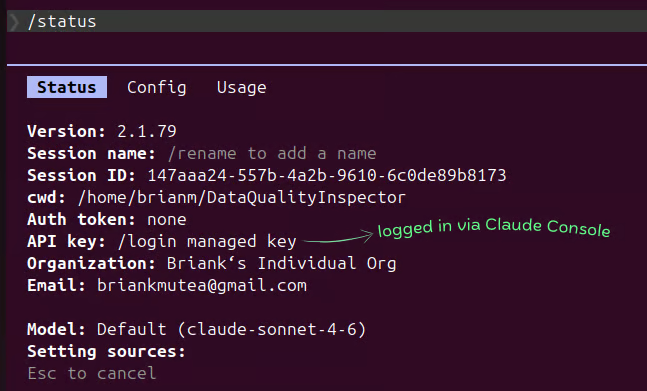
Vérifier l’état de connexion
Si vous n’êtes pas connecté avec votre compte Claude, lancez /login pour changer.
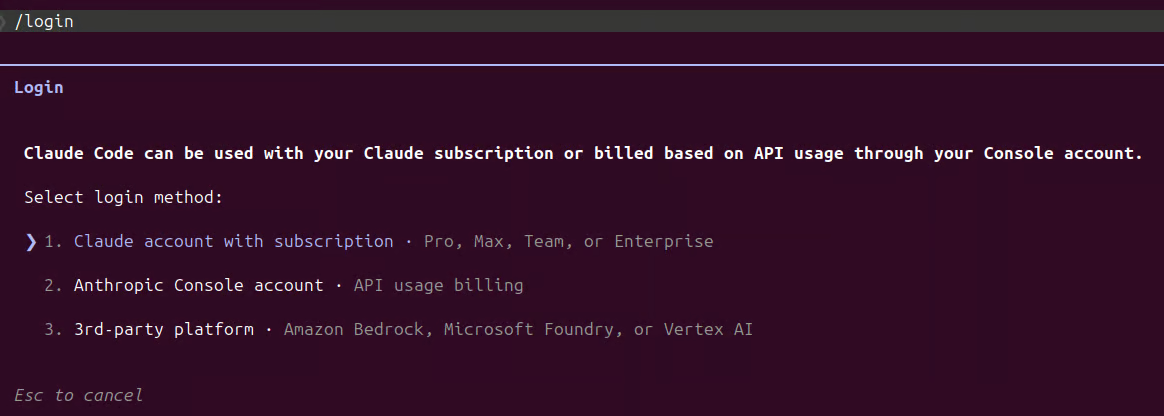
Modifier le plan de connexion
Relancez /status pour confirmer que vous êtes connecté avec votre compte claude.ai.
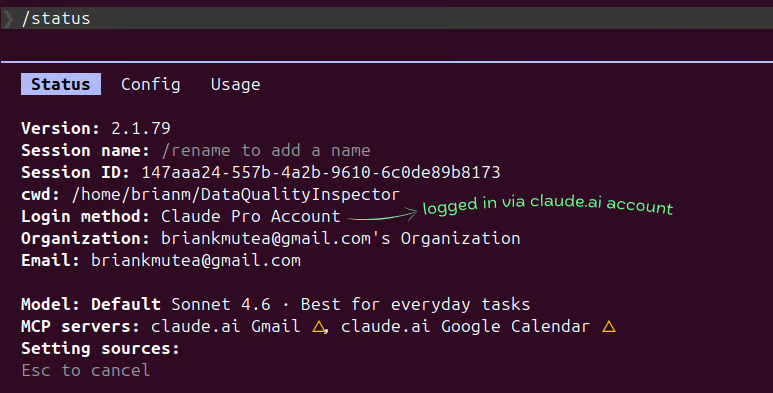
Connecté avec votre compte claude.ai
Lorsque vous lancez claude dans un projet pour la première fois, Claude Code ne commence pas immédiatement à lire ou à modifier des fichiers. Il s’interrompt et vous demande si vous faites confiance à l’espace de travail.
Cette invite sert de point de contrôle sécurité. Claude Code peut lire, écrire et exécuter des fichiers dans le répertoire où vous le lancez ; l’utiliser dans un dépôt inconnu peut vous exposer à des scripts malveillants, fichiers de configuration ou hooks exécutés automatiquement.
Le dialogue de confiance garantit que vous confirmez explicitement que le projet est sûr avant d’agir dessus.
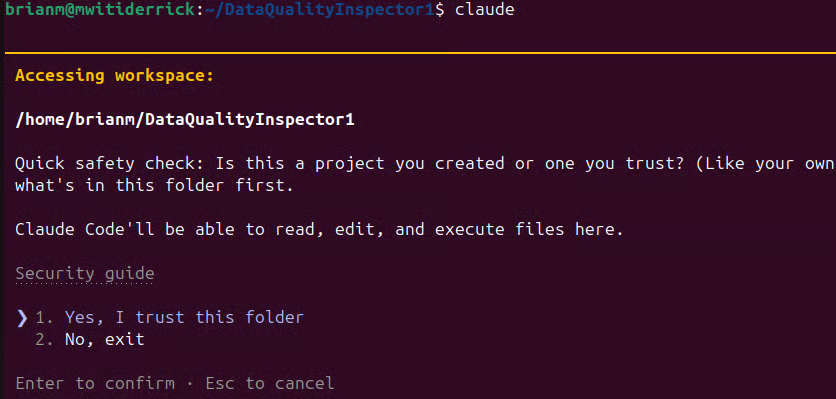
Autorisez l’accès de Claude Code à un nouveau projet digne de confiance
Cette étape compte aussi pour Remote Control. En théorie, quelqu’un pourrait pointer Claude Code vers un répertoire où il ne devrait pas intervenir, y compris contenant des fichiers sensibles. La boîte de dialogue de confiance garantit une approbation explicite avant de démarrer la session.
Claude Code suit un modèle de sécurité à base d’autorisations : les opérations potentiellement sensibles requièrent une validation avant que l’outil puisse interagir avec des fichiers ou exécuter des commandes
Remote Control ne se lance pas sans cette acceptation ; sinon, vous obtiendrez un avertissement :

Erreur si aucune relation de confiance n’est établie pour le projet
Une fois l’espace validé, Claude Code s’en souvient et ne redemande pas pour ce répertoire. Ce n’est un piège que lorsque vous tentez d’activer Remote Control sur un tout nouveau projet où Claude Code n’a jamais été lancé.
Il existe trois façons d’initialiser une session Remote Control, et choisir la bonne évite bien des frictions.
Le mode serveur est idéal si vous souhaitez dédier un processus terminal aux connexions distantes, sans interaction locale.
Exécutez ceci depuis le répertoire de votre projet :
claude remote-control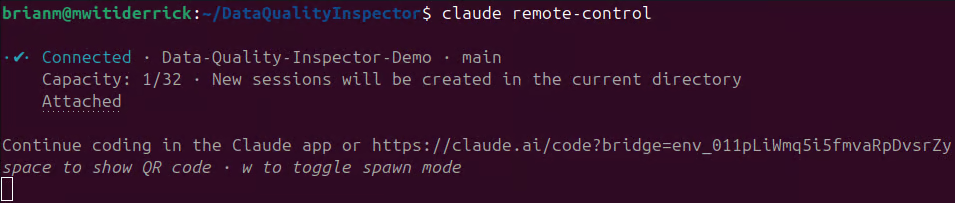
Exécuter Remote Control en mode serveur
Le processus reste actif dans le terminal et affiche immédiatement une URL de session. En appuyant sur la barre d’espace, vous générez un QR code pour un accès mobile rapide. Vous pouvez nommer la session pour la retrouver facilement sur vos appareils :
claude remote-control --name "your-session-name"Cette méthode est parfaite si vous laissez une machine tourner à votre bureau et souhaitez reprendre sur votre téléphone plus tard, sans rien taper en local.
Si vous voulez continuer à travailler dans le terminal tout en rendant la session accessible depuis un autre appareil, lancez Claude Code avec l’option --remote-control (ou le raccourci --rc). Vous obtenez une session terminal interactive, ouverte en même temps aux connexions distantes.
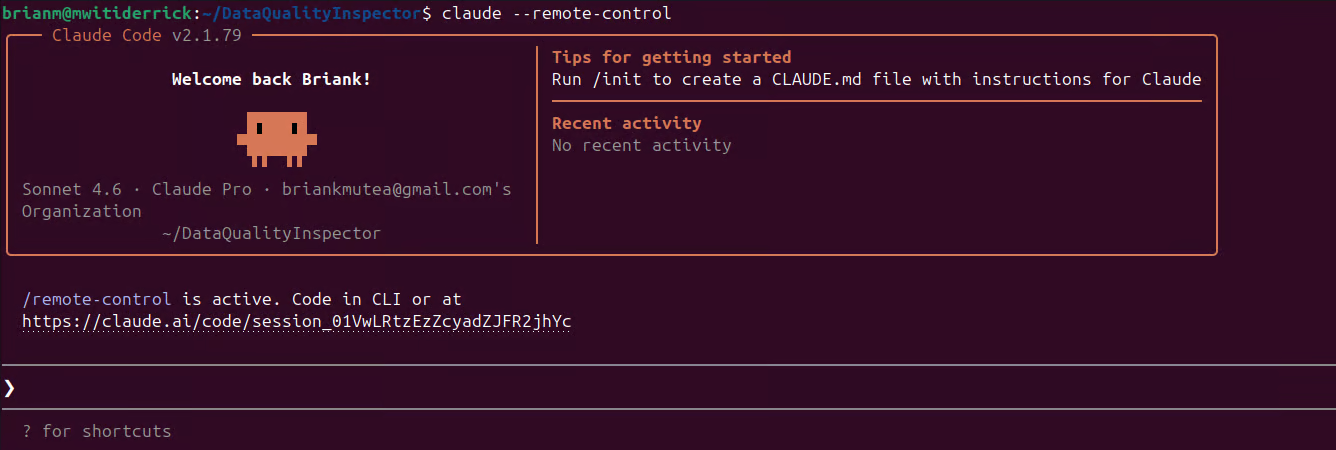
Exécuter Remote Control en mode interactif
Contrairement au mode serveur, vous pouvez taper vos messages localement pendant que votre téléphone observe ou contribue à la même session. C’est la méthode à privilégier si vous voulez les deux vues en direct simultanément.
En pratique, c’est souvent la plus utile : vous êtes déjà plongé dans une session et devez soudain vous absenter. Pas besoin de tout redémarrer ni de perdre le contexte : vous pouvez activer Remote Control à la volée.
Tapez simplement /remote-control (ou le raccourci /rc) dans la session en cours. Claude Code convertit la conversation active en session à distance.
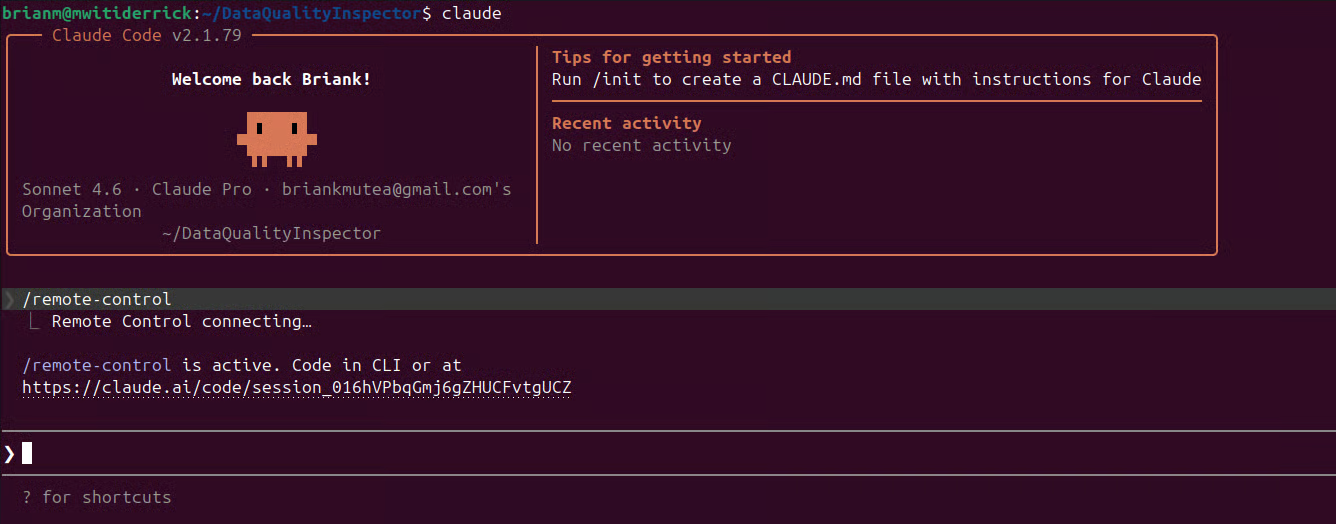
Activer Remote Control sur une session Claude Code déjà en cours
La conversion est instantanée et l’historique reste intact. Il apparaît dans l’onglet Code de l’application Claude, nommé d’après votre dernier message ou le nom que vous avez défini.
Vous pouvez renommer votre session en cours avec /rename your-session-name.
Prendre l’habitude de lancer /rename avant /rc vaut la peine. Une session appelée "d’accord, vas-y" est introuvable en urgence depuis un téléphone.
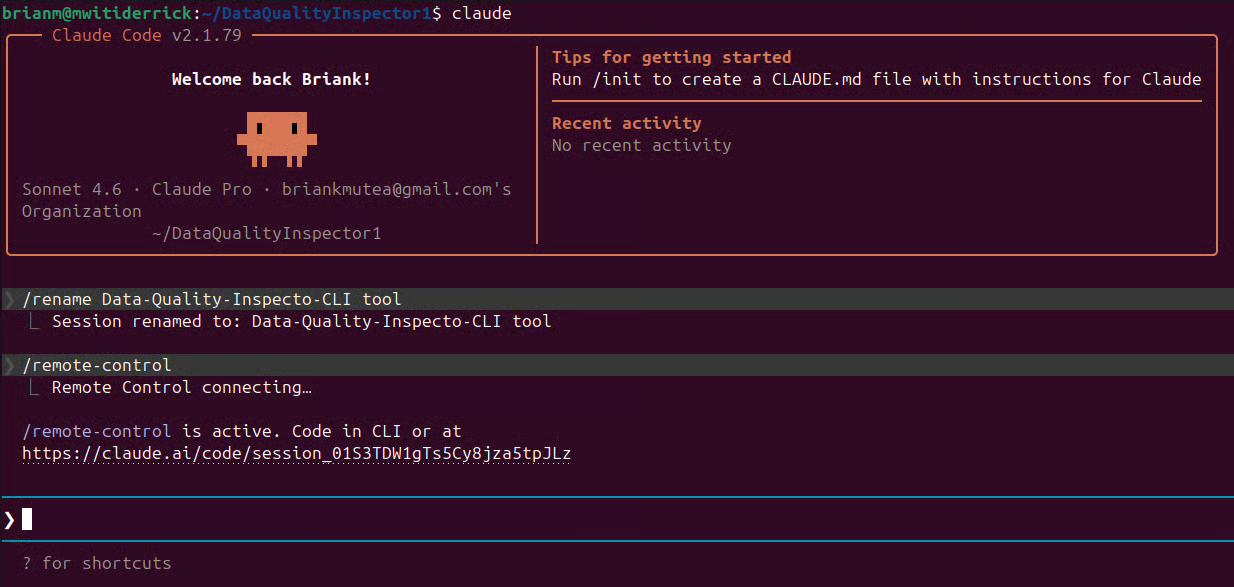
Renommer une session Claude Code en mode interactif
Une fois une session à distance active, la connexion depuis un autre appareil prend moins d’une minute via l’une de ces voies.
Dès que vous lancez Remote Control dans le terminal, Claude Code affiche une URL de session. Copiez-la et ouvrez-la dans n’importe quel navigateur pour rejoindre directement la même session en direct sur claude.ai/code.
Par exemple, j’ai lancé Remote Control en mode interactif dans un de mes répertoires de projet. Comme le montre la capture, Claude affiche l’URL de session directement dans le terminal.
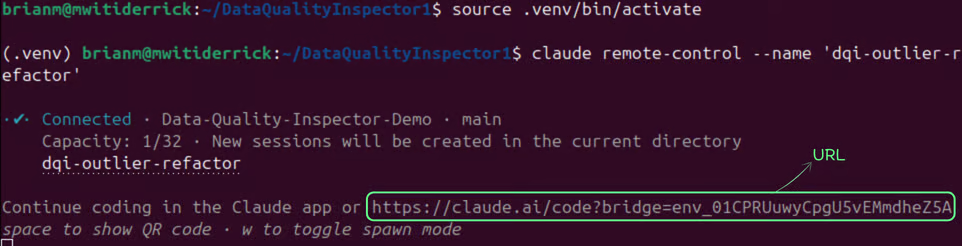
URL de session vers votre session à distance dans le navigateur
En l’ouvrant sur un autre appareil, j’accède instantanément à la session avec la conversation et le contexte exactement comme dans mon terminal.
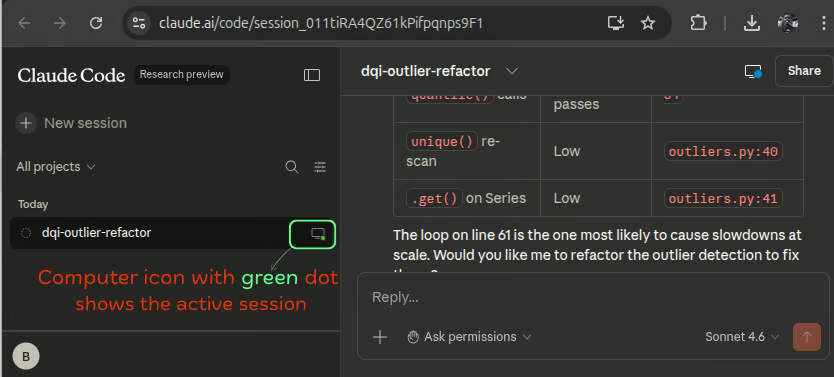
Session à distance en direct dans le navigateur
Le navigateur n’est alors qu’une autre interface vers la session tournant sur votre machine. Une fois connecté, vous pouvez envoyer des invites, consulter l’activité des outils et poursuivre votre travail à distance, tandis que l’exécution reste locale. La conversation se synchronise entre appareils pour reprendre d’un écran à l’autre.
Les sessions à distance actives affichent une icône d’ordinateur avec un point vert lorsqu’elles sont en ligne, comme indiqué ci-dessus.
Le navigateur est souvent l’option la plus fiable si vous êtes sur un appareil sans l’application Claude, ou si vous souhaitez qu’un collègue observe ou contribue depuis son propre écran. Aucun prérequis, hormis un navigateur moderne et l’URL de session.
Pour l’accès sur téléphone, le plus rapide est de scanner un QR code. Dans le terminal où votre session Remote Control tourne en mode serveur, appuyez sur la barre d’espace pour afficher le QR code, puis scannez-le avec votre téléphone.
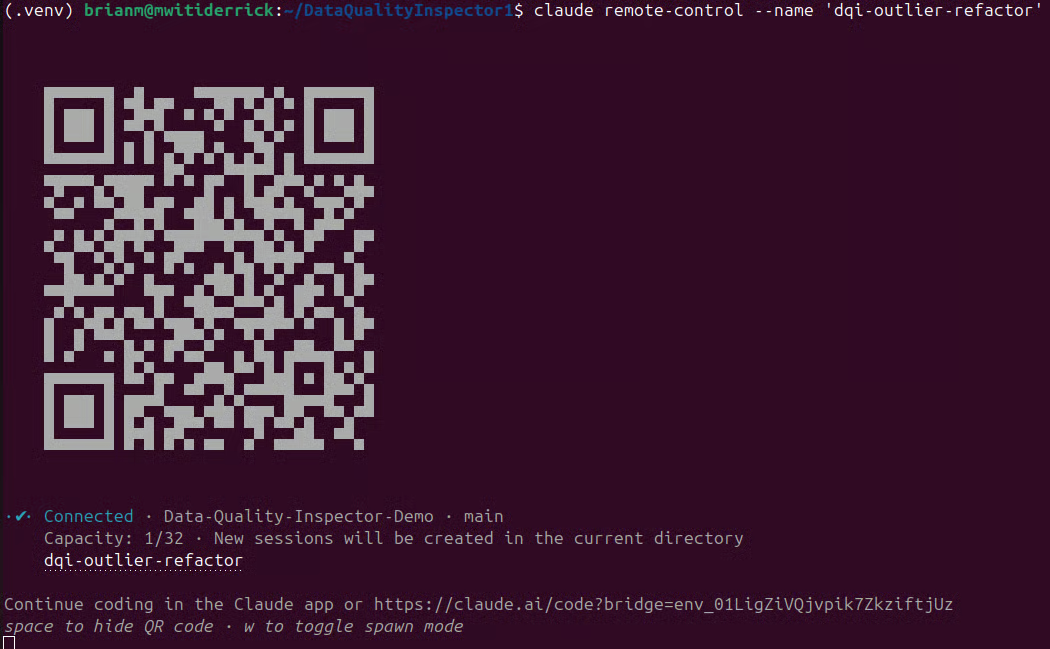
QR code liant votre téléphone à la session à distance en direct
Une fois scanné, la session s’ouvre directement dans l’application mobile Claude sur iOS ou Android, et vous accédez à la même session en direct que celle du terminal.
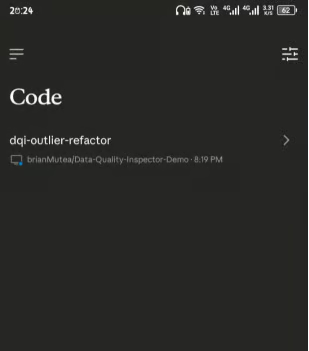
Session à distance sur téléphone
Remarque : le QR code est actuellement disponible uniquement en mode serveur. Si vous avez démarré Remote Control depuis une session interactive avec --rc ou /rc, ouvrez l’application mobile Claude, allez dans l’onglet Code et retrouvez votre session par son nom dans la liste.
Si vous n’avez pas encore l’application Claude, exécutez /mobile dans Claude Code : il génèrera un QR code vers l’App Store ou Google Play pour la télécharger d’abord.
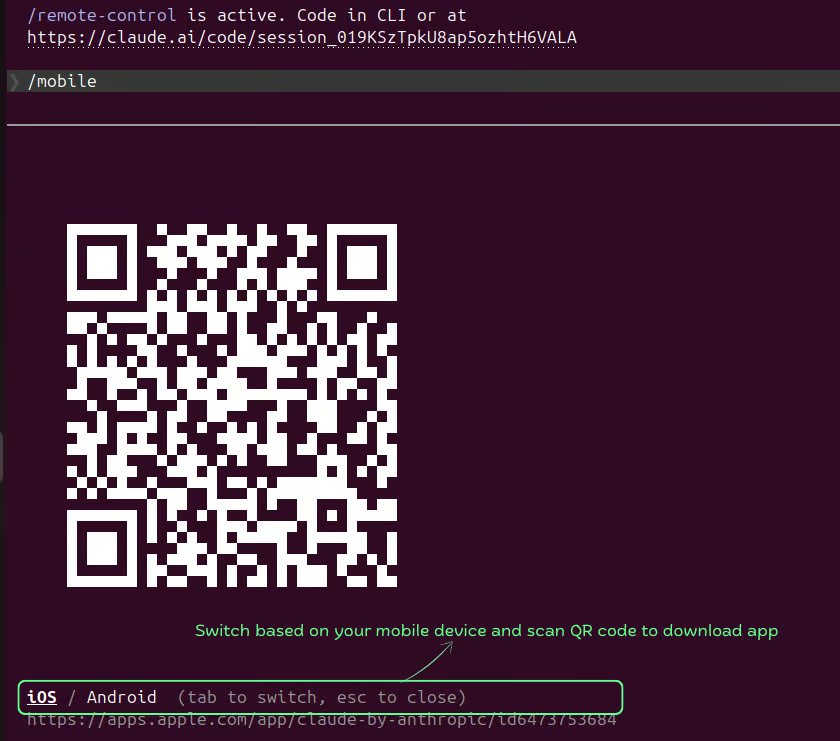
Scanner un QR code depuis une session interactive pour télécharger l’app Claude Code
Le plus simple pour rendre l’architecture concrète est de faire un test de bout en bout depuis votre téléphone. Dans ce court exercice, nous allons vérifier que votre téléphone pilote bien la session Claude Code sur votre machine locale, et non un environnement cloud ailleurs.
Ouvrez l’application mobile Claude ou la session navigateur connectée. Je recommande de lancer Remote Control en mode interactif (claude --remote‑control ou /rc) pour observer la création du fichier à la fois dans le terminal et sur l’interface distante.
Envoyez ensuite à Claude l’instruction suivante :
Create a new file called remote-test.txt in the current directory.
Write "Remote Control verified" as its contents.Revenez au terminal où Claude Code s’exécute.
Vous devriez voir l’appel de l’outil d’écriture de fichier apparaître et s’exécuter en temps réel, diffusé dans le terminal comme si vous aviez tapé l’instruction localement. L’invite vient de votre téléphone, mais le travail se fait dans la session Claude Code tournant sur votre machine.
Remote Control ne fait que relayer l’instruction et renvoyer le résultat vers votre appareil.
Le processus devrait ressembler à l’exemple ci-dessous :
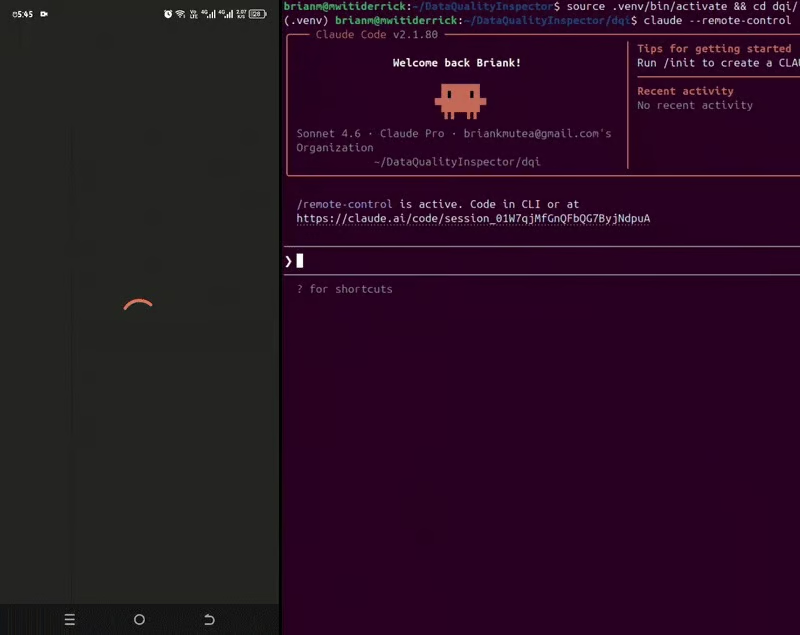
Interaction téléphone → Claude Code à distance
Enfin, confirmez que le fichier a bien été créé sur votre machine :
Exécutez :
cat remote-test.txtVous devriez voir :
Remote Control verified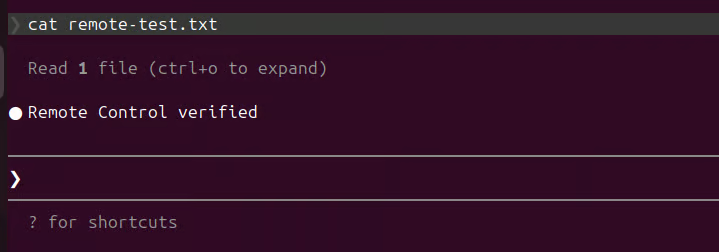
Fichier créé localement via la connexion à distance sur téléphone
Vous pouvez également retrouver le fichier sur votre système local :
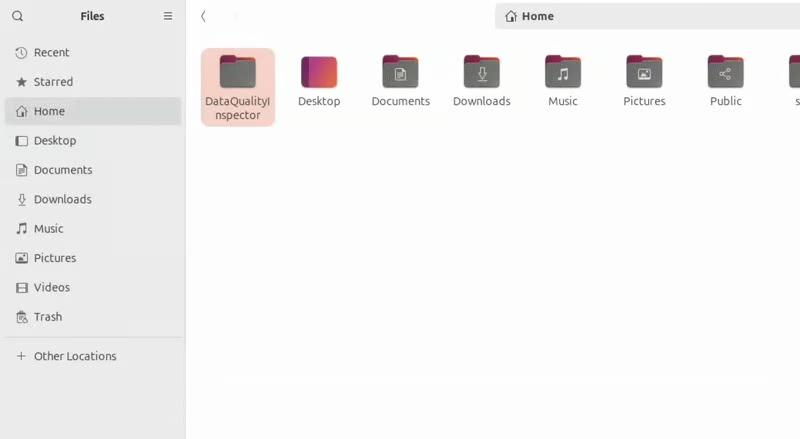
Fichier créé localement avec succès
Ce fichier existe maintenant sur votre système de fichiers local. Rien n’a été téléversé dans le cloud et aucune machine distante n’a exécuté la commande. Votre téléphone a simplement envoyé l’instruction, Claude Code l’a exécutée dans la session locale et le résultat a été écrit sur votre disque.
C’est l’idée centrale de Remote Control : seuls les invites et les sorties d’outils transitent par l’infrastructure de relais, tandis que vos fichiers, variables d’environnement, bases de données et services locaux restent sur votre système.
En pratique, cela signifie qu’une session à distance peut interagir en toute sécurité avec des ressources qui ne quittent jamais votre machine, comme des fichiers .env, des bases locales ou des serveurs MCP privés, tout en vous permettant de suivre et guider la session depuis un autre appareil.
Essayez maintenant de supprimer le fichier depuis votre téléphone. Dites à Claude :
Delete remote-test.txt fileUne fois les bases en place, quelques choix de configuration font la différence entre un setup fiable au quotidien et un autre qui flanche au mauvais moment.
Si vous souhaitez activer Remote Control par défaut pour chaque session, lancez /config dans Claude Code et réglez "Enable Remote Control for all sessions" sur true.
Avec ce réglage, chaque processus interactif Claude Code enregistre automatiquement une session à distance. Si vous lancez plusieurs instances, chacune aura son environnement et son URL.
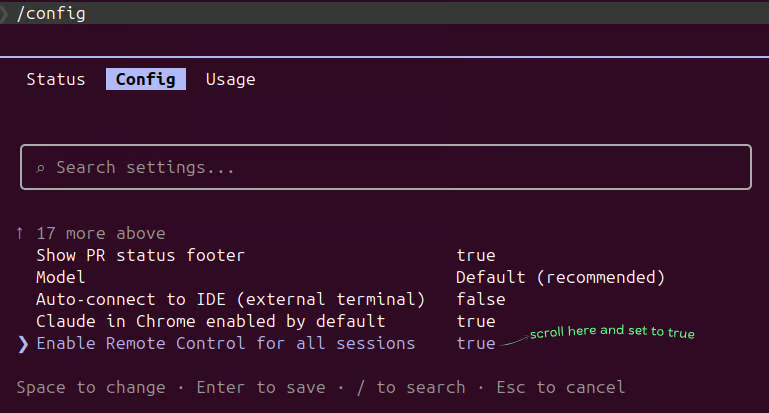
Activer Remote Control pour toutes les sessions
Par défaut, un processus Claude Code dessert une connexion distante. Si vous exécutez des tâches parallèles sur la même base de code, cela devient vite limitant.
L’option --spawn worktree en mode serveur résout ce point, mais votre projet doit être un dépôt Git car elle s’appuie sur les worktrees Git.
Depuis le répertoire de votre projet, exécutez :
claude remote-control --name "your-session-name" --spawn worktreePar exemple, dans mon projet, je voulais lancer deux gros refactorings en parallèle pour ne pas attendre la fin de l’un pour démarrer l’autre. J’ai donc démarré deux sessions différentes :
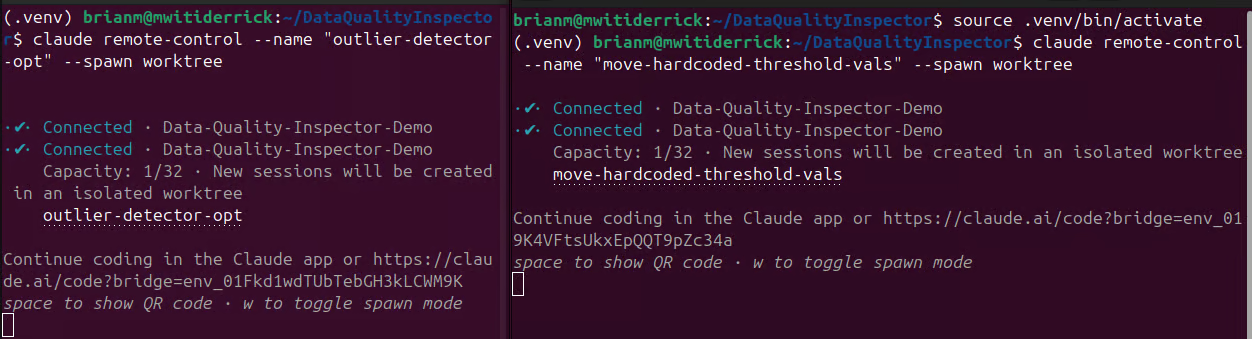
Lancement de sessions à distance concurrentes
Les worktrees ne sont pas provisionnés à l’avance : ils sont créés à la demande au moment où un appareil distant se connecte.
Aperçu des sessions actives :
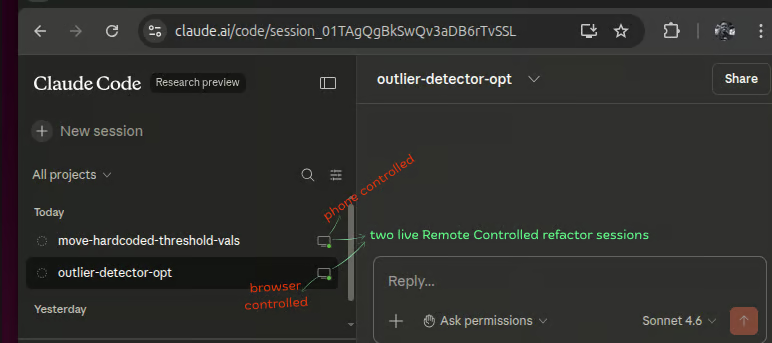
Sessions à distance concurrentes
Voici un aperçu de deux sessions à distance en parallèle : l’une pilotée depuis le téléphone et l’autre depuis un navigateur, travaillant sur des tâches différentes dans le même répertoire de projet :
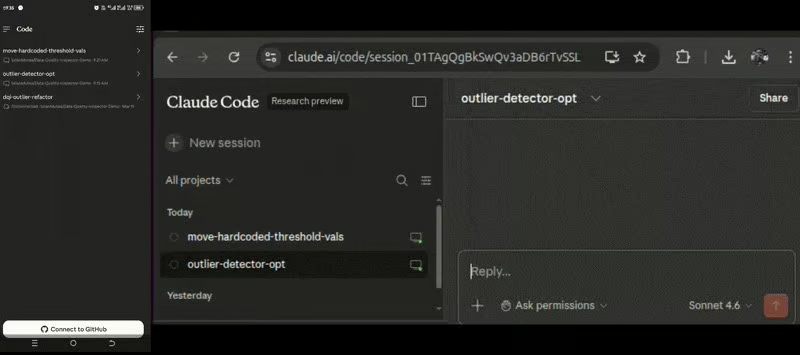
Deux sessions à distance Claude en action
L’appareil distant connecté obtient son propre répertoire de travail isolé sous .claude/worktrees/ sur sa propre branche. Un second appareil se connectant au même nom de session reçoit un worktree totalement distinct.
Pour le voir, exécutez :
git worktree list
Liste des worktrees Git
Vous verrez votre worktree principal plus une entrée par connexion distante active, chacune avec son chemin et sa branche.
Pour exécuter plusieurs sessions concurrentes depuis un seul processus, utilisez le mode serveur avec --spawn. Toutefois, toutes les sessions ainsi lancées partageront le même répertoire et vous pourriez éditer les mêmes fichiers en équipe. Claude Code prend en charge jusqu’à 32 sessions concurrentes.
Le nettoyage est automatique : quand une session se termine sans changements, Claude supprime le worktree.
Gardez le terminal actif. Remote Control est un processus local. Si la fenêtre du terminal se ferme ou si le processus claude s’arrête, la session à distance se coupe immédiatement sans avertissement. La parade pratique est d’exécuter votre session à distance dans tmux pour que le processus survive à une fermeture accidentelle de fenêtre :
#install tmux
sudo apt install tmux

# run tmux
tmux new-session -s rc-session

#start Remote session on your project dir
claude remote-control --name "long-running-task"
Les timeouts réseau ont une limite stricte. Si votre machine est réveillée mais sans accès réseau plus de 10 minutes, la session expire et le processus s’arrête. La mise en veille du portable ne tue pas la session, car la reconnexion est automatique au réveil, mais une coupure réseau prolongée à l’état éveillé oui.
Chaque appel d’outil exige une approbation manuelle. L’option --dangerously-skip-permissions ne s’applique pas aux sessions à distance. Même si vous la passez au démarrage, elle n’a aucun effet : chaque appel d’outil requiert une validation manuelle depuis votre téléphone. La solution pratique consiste à anticiper un maximum d’instructions avant de vous absenter, en couvrant les cas limites et choix décisionnels où Claude marquerait autrement une pause.
Notre guide sur les bonnes pratiques Claude Code détaille ce travail préparatoire, ainsi que des techniques de transfert de contexte et des approches TDD à associer à vos workflows à distance.
Si Claude Code Remote Control est idéal pour étendre votre session terminal locale, ce n’est qu’une pièce du puzzle de l’automatisation. Pour automatiser avec Claude Code, Dispatch est parfait pour déclencher des tâches asynchrones ponctuelles, tandis que Channels offrent une connexion persistante et bidirectionnelle pour des interactions temps réel multi-tours. Pour les workflows nécessitant une supervision active, Remote Control permet à des opérateurs humains ou systèmes externes d’observer, de mettre en pause ou de guider un agent en direct en cours d’exécution.
Les sessions Claude Code s’allongent. Lors du lancement de Sonnet 4.5 en septembre 2025, Anthropic a démontré une autonomie de codage pendant plus de 30 heures d’affilée. Au même moment, METR commençait à suivre le plafond de complexité, en mesurant la difficulté des tâches pour une IA en la comparant au temps nécessaire à un expert humain pour les réaliser.
En février 2026, ils ont placé Opus 4.6 à 14,5 heures, leur chiffre le plus élevé. Entre l’endurance brute et la complexité croissante, les sessions gérées par Claude Code ne sont plus courtes. Si ce travail tourne sur votre machine locale, rester vissé à votre bureau n’est pas toujours réaliste. Remote Control répond à ce besoin.
Vu sous cet angle, Remote Control cesse d’être un simple "je jette un œil à ma session depuis l’arrière d’un Uber", pour ressembler plutôt à prendre un talkie-walkie pour parler à quelqu’un qui travaille déjà à votre bureau.
La principale contrainte que j’ai observée avec Claude Code (ou tout autre agent IA) est la nécessité d’approbations. Claude Code est volontairement gouverné par des permissions : éditions de fichiers et commandes shell exigent souvent une confirmation.
Conséquence : les sessions à distance ne sont pas encore totalement en pilotage automatique. Dès que Claude rencontre un point de décision, il met en pause et attend. Si vos instructions sont vagues, la session s’arrêtera sans cesse.
La solution est d’anticiper au maximum avant de partir. Plus je fournis de contexte, cas limites et branches de décision dès le début, moins l’agent s’arrête pour demander.
Pour aller plus loin avec Claude Code :
Meilleures formations DataCamp
Cours
Cours
Cours