Course
Введение в модели Claude
3 ч
14.2K
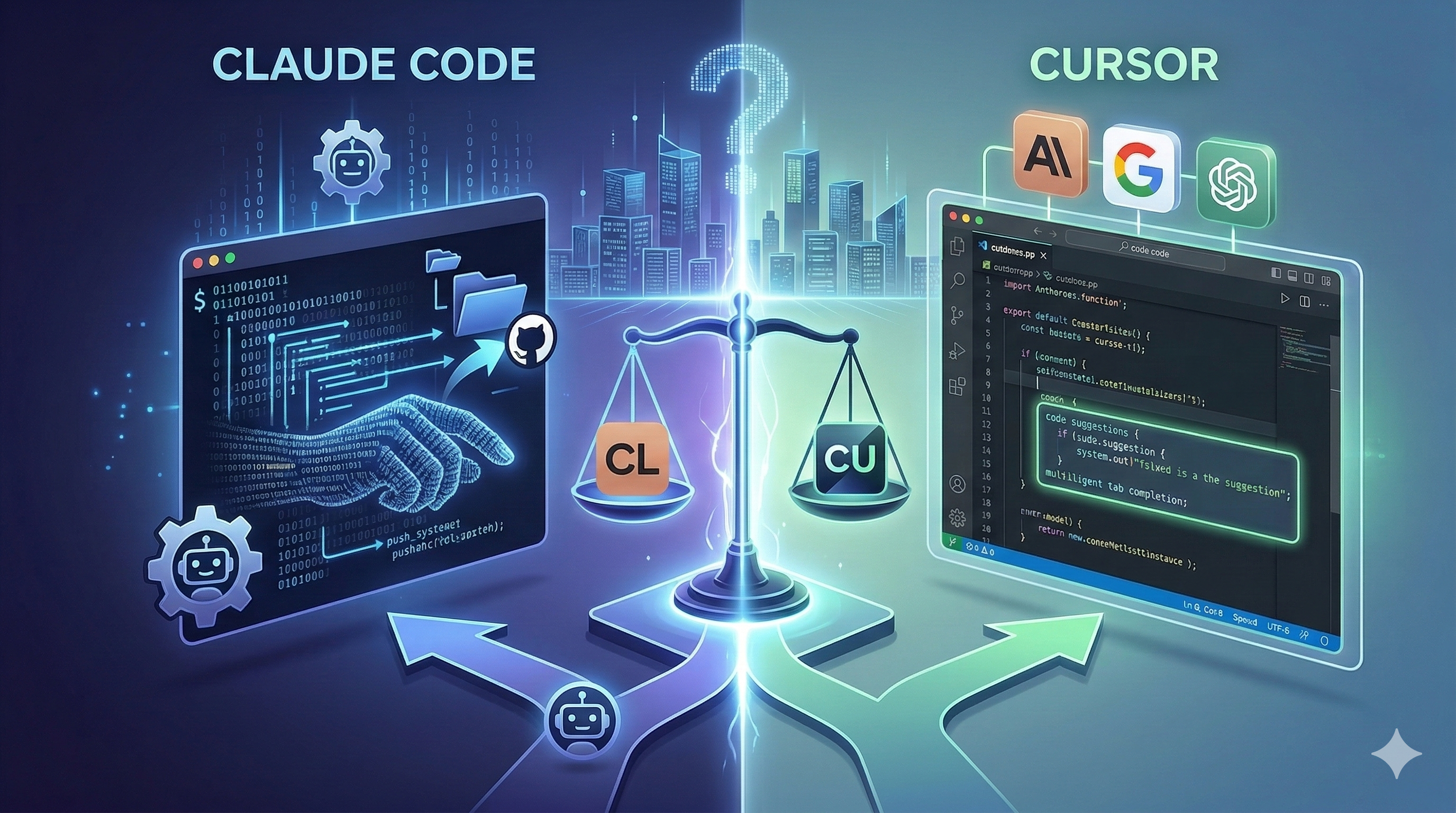
Cursor already ships with its own AI agent. It can edit files, run commands, and work across your codebase. So why would you install a second agent inside the same editor?
Claude Code is Anthropic's agentic coding tool: it reads your codebase, plans changes, edits files, runs tests, and hands you back a diff to review. The VS Code extension brings that workflow into Cursor, which is built on the same VS Code foundation. The result is two separate AI systems sitting in the same window, each with its own context, its own billing, and its own way of working. Whether that's useful depends on what you're building.
Before we go further: "Claude Code in Cursor" can mean two different things right now. There is the Claude Code extension (what this article covers), and there is selecting Claude models through Cursor's built-in model picker (a completely separate product that just uses Claude as a backend). I'll come back to that distinction in its own section. If what you want instead is a head-to-head comparison of the two tools as standalone products, we have a separate Claude Code vs. Cursor article for that.
Claude Code is Anthropic's agentic coding tool. It reads codebases, edits files, runs terminal commands, manages git workflows, and connects to external services via MCP (Model Context Protocol). It's available as a CLI, a VS Code extension, a desktop app, and on the web.
Cursor is built on a VS Code-derived environment, and the Claude Code VS Code extension is officially supported for it. Anthropic's documentation lists "Install for Cursor" as a direct install path, separate from the standard VS Code install. This isn't a community workaround.
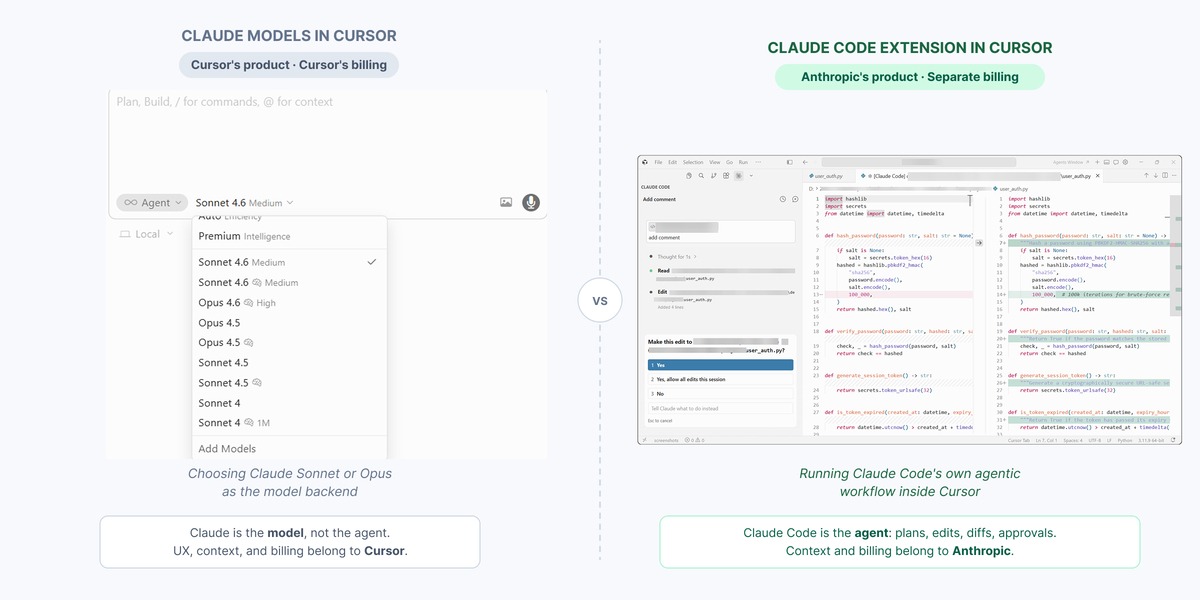
Two AI workflows inside one editor. Image by Author.
Here's what trips people up: when someone says "Claude Code in Cursor," they might mean running Claude Code's own extension or CLI inside Cursor, which gives you Anthropic's full agentic workflow with its own panel, permissions model, and session history. Or they might mean using Claude models as the backend for Cursor's own native AI. These are related, but they're not the same product, and they don't behave the same way.
Here's what each one actually means.
Cursor has a model picker that lets you choose between Claude Sonnet, Claude Opus, GPT, Gemini, and others. In "auto" mode, Cursor selects the model automatically. When you use Claude Sonnet in Cursor's chat or agent mode, you're using Cursor's product: its UX, its billing, its context management. The model is Claude, but the experience belongs to Cursor.
Installing the Claude Code extension in Cursor gives you its own panel, its own context window, and billing tied to your Anthropic subscription or API key. The two can run in the same editor window, but they don't share context. Claude Code has no awareness of what Cursor's native agent is doing.
Selecting "Claude Sonnet" in Cursor's model picker is not the same as installing Claude Code. If you want Claude Code's plan-and-execute workflow and CLAUDE.md project memory, you need the extension or the CLI. A phrase from the developer community captures the difference well: "Cursor is an IDE with AI features. Claude Code is an AI agent with IDE access."
Setting up Claude Code in Cursor is a choice between three paths, and which one makes sense depends on your situation.
Before anything else: Claude Code requires a paid Anthropic plan. The free tier on Claude.ai doesn't include it. The minimum is the Pro plan at $20 per month. You'll also need Cursor running on VS Code engine version 1.98.0 or higher.
The three paths are:
If Claude Code is already installed on your machine, skip ahead to Path 2.
Open Cursor's Extensions panel with Cmd+Shift+X on Mac or Ctrl+Shift+X on Windows and Linux. Search for "Claude Code" and install the extension published by Anthropic. The extension ID is anthropic.claude-code.
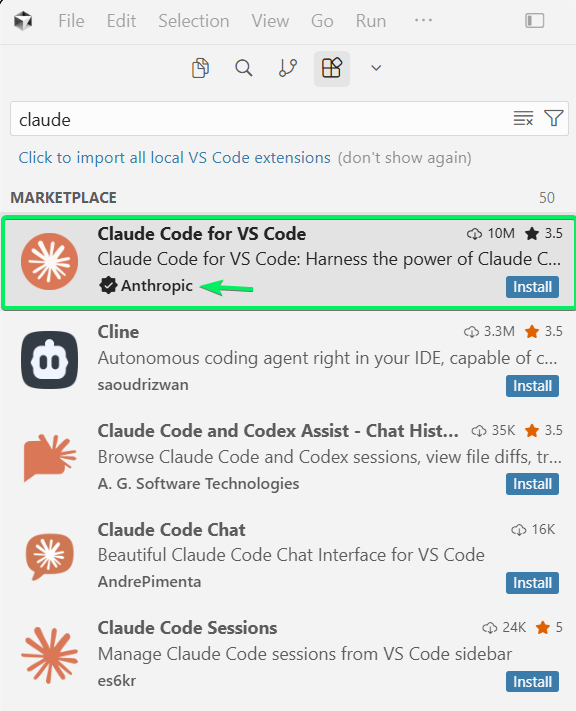
Searching for Claude Code in Cursor. Image by Author.
One thing to know upfront: the extension sometimes doesn't show up in Cursor's marketplace search. It happens often enough that I'd prepare for it before you start. If it doesn't show up, Anthropic's VS Code documentation has an "Install for Cursor" button that triggers the cursor:extension/anthropic.claude-code URI directly. If that also fails, the same page has instructions for manual VSIX installation.
Once installed, a Spark icon appears in the editor toolbar when you have a file open, not just a folder. It also appears in the Activity Bar on the left sidebar and the Status Bar at the bottom-right, both of which are visible without a file open. Click any of them, then click Sign in on your first session to authenticate via browser.
A few things worth checking if something looks off:
If the icon doesn't appear after installation, run "Developer: Reload Window" from the Command Palette
If you have ANTHROPIC_API_KEY in your shell but still see the sign-in prompt, launch Cursor from a terminal with cursor . so it inherits your environment
If Claude Code is already installed on your machine, skip the extension entirely. Open Cursor's integrated terminal with `Ctrl+`` and type claude`. Claude Code runs an interactive session in the terminal while your editor stays open alongside it. This avoids extension compatibility issues entirely.
If Claude Code isn't installed yet, the native installer is the recommended method. It's self-contained, doesn't require Node.js, and auto-updates in the background:
# macOS, Linux, or WSL
curl -fsSL https://claude.ai/install.sh | bash
# Windows PowerShell (requires Git for Windows)
irm https://claude.ai/install.ps1 | iexThe npm method (npm install -g @anthropic-ai/claude-code) still works but is now legacy.
If you're setting up for personal use, skip this.
For teams building multi-tool MCP environments, you can run Claude Code as a local MCP server and connect to it through Cursor's MCP settings by adding this to your mcp.json:
{
  "mcpServers": {
    "claude-code": {
      "type": "stdio",
      "command": "claude",
      "args": ["--mcp"]
    }
  }
}
This exposes Claude Code's tools alongside any other MCP servers you've configured. It works with Cursor. Most individual developers won't need it.
Claude Code handles a wider range of tasks than most people expect from a chat-based tool. Here's what you get inside Cursor:
The @-mention syntax is worth knowing. Type @ followed by a file or folder name to pull it into context. Claude Code supports fuzzy matching, so partial names work. If you select code in the editor, Claude sees it automatically.
Place a CLAUDE.md file in your project root and Claude reads it at the start of every session. Think of it as the README you'd want on day one of any project. Use it for build commands, architecture decisions, coding conventions, preferred libraries: anything you'd otherwise re-explain each time. Run /init in the Claude panel to auto-generate a starter file from your codebase. For personal overrides that shouldn't be committed, create a CLAUDE.local.md alongside it.
Claude also builds auto memory: notes it writes to itself based on corrections and patterns across your sessions. No manual management needed.
When Claude Code works across multiple files, it walks the directory tree, reads the relevant code, and holds task context across all of it in a single session. In the extension, this appears as a series of proposed diffs, each one presenting what Claude wants to change before you decide.
As a session grows, context accumulates. Claude compacts automatically when needed. Anything you want Claude to carry through a long session should go in CLAUDE.md, not the conversation.
Checkpoints are available in both the extension and the CLI. Hover over any message in the Claude panel to rewind: you can roll back file changes, the conversation, or both. This matters most in auto-accept mode, where edits apply immediately.
As covered earlier, both paths run the same underlying Claude models. What changes is which features are available and how you interact with the output.
The extension shows proposed changes side by side in Cursor's diff viewer: you accept or reject directly from the editor. The terminal gives you text-based diffs and the full command surface. Here's where they actually differ:
|
Feature |
Extension |
Terminal CLI |
|
Diff review |
Visual side-by-side with accept/reject |
Text-based diffs |
|
File references |
@-mentions with fuzzy matching and line ranges |
Manual paths |
|
Plan review |
Opens as a full markdown document in the editor |
Text output in terminal |
|
Checkpoints |
Yes, via hover buttons |
Yes |
|
! bash shortcut |
No |
Yes |
|
Tab completion |
No |
Yes |
|
Slash commands |
Subset available |
Full set |
|
Scripting and automation |
Not suited |
Works with pipes and CI |
The extension suits developers who want to stay in the editor and review changes visually.
For automation, CI pipelines, and workflows that need the full command set, the terminal is better.
Most developers who use both don't choose between them. They use them for different things, sometimes in the same session. That said, the overlap is real. Both can edit files, both can run tasks, and it's not always obvious which to reach for.
Cursor's AI has expanded well beyond inline editing. There's tab autocomplete, an agent mode that reads files and runs commands, and the Agents Window introduced in Cursor 3 (released April 2, 2026). The Agents Window lets you run multiple agents in parallel across local workspaces, isolated git worktrees, cloud VMs, and remote environments. Cursor also released Composer 2, a frontier-level coding model, in March 2026.
Framing Cursor as primarily an autocomplete tool is now out of date. It's moved into autonomous territory.
Claude Code approaches tasks differently. It plans before acting, shows you the plan for approval, then executes.
Here's where the two differ on decisions that actually matter day to day:
|
Dimension |
Cursor Native AI |
Claude Code Extension |
|
Model access |
Multi-model (Claude, GPT, Gemini, Composer) |
Claude only |
|
Tab autocomplete |
Yes |
No |
|
Permission model |
Terminal commands require approval by default |
Explicit per-action modes |
|
Persistent project memory |
Cursor Rules file |
CLAUDE.md and auto memory |
|
Billing |
Cursor subscription |
Separate Anthropic subscription |
|
Context window |
Varies by model selected |
Up to 1M tokens with Opus (beta) |
|
Parallel agents |
Yes, via Agents Window |
Yes, via git worktrees |
In practice: Cursor handles daily editing speed and tab completion. Claude Code handles tasks that benefit from more deliberate execution: longer autonomous runs or anything where you want a plan before files change. Running both agents on the same files simultaneously can cause conflicts, so most developers assign one to a task at a time.
Claude Code's permission model works differently from Cursor's native agent.
By default (the mode I'd keep until you know the scope of what you're running), Claude asks for approval before each file edit and each terminal command. Click the mode indicator at the bottom of the prompt box to switch. For most day-to-day use, default and plan are the two you'll actually reach for:
default: Reads files freely, prompts before edits and commands
plan: Reads and proposes a plan; takes no action until you approve
acceptEdits: Auto-approves file edits and common filesystem commands; bash commands still prompt
auto: Approves routine actions automatically and flags potentially harmful ones; requires opt-in to appear in the selector
bypassPermissions: Skips all prompts; only for sandboxes with no internet access (I almost left this one out; most people will never use it)
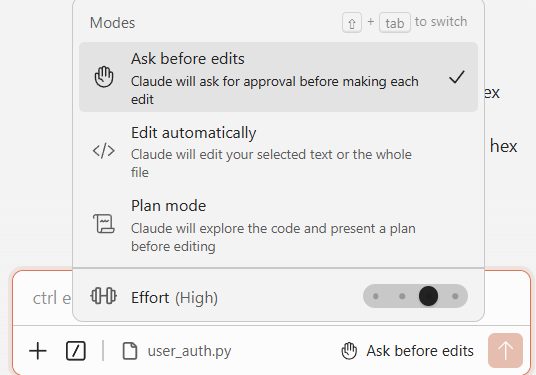
Permission modes control how much Claude acts autonomously. Image by Author.
auto, introduced earlier in 2026, reduces how often you're prompted without removing oversight. It flags anything it's unsure about.
Checkpoints, as mentioned earlier, act as a safety net on top of whichever mode you're in: you can rewind file state to any earlier point, even in auto-accept mode. If you're unsure about a task's scope, start with plan.
On data: Claude Code does not use your code to train models.
Here's what the Claude Code extension inside Cursor doesn't do.
No inline tab completion; suggestions as you type come from Cursor's native AI, not the Claude panel.
Diffs are accepted or rejected as a whole; there's no per-line selection. If you like being selective about which lines go in, that's a real gap.
The ! bash shortcut, tab completion, and some slash commands aren't in the extension. For those, run claude in Cursor's integrated terminal.
Cursor updates have broken the Claude Code extension repeatedly between mid-2025 and early 2026, causing lost panel placement or the need for manual reinstallation. It's the biggest ongoing issue with this setup.
On cost: Claude Code requires a separate Anthropic subscription. If you're already on Cursor Pro at $20 per month, that's at least another $20 on top. Heavy agentic sessions can exhaust the Pro plan quickly; most power users end up on the Max plan at $100 or $200 per month.
Claude Code in Cursor is not a better version of Cursor's native agent. It is a different tool doing a different job, and the extension is built around making that job reviewable. Plan mode, checkpoints, and the separate panel are all there because the hardest part of using an autonomous coding agent is not asking it to do something. It is reading what it actually did.
Cursor's native agent is not going away, and for fast iteration, inline edits, and UI work it remains the right surface. But for large refactors, test generation, or tasks that span multiple files, the Claude Code extension is the better fit, inside Cursor or anywhere else.
Worth noting: both tools ship updates often enough that parts of this article will date quickly. The official changelog tracks Claude Code weekly releases. If something described here does not match what you are seeing, that is probably why.
Learn with DataCamp
Course
Course
Course
blog
Derrick Mwiti
10 мин
Tutorial
Aashi Dutt
10 мин
Tutorial
Khalid Abdelaty
13 мин
Tutorial
Bex Tuychiev
8 мин
Tutorial
Vikash Singh
10 мин
Tutorial
Brian Mutea
15 мин