Kurs
Agentische Systeme mit LangChain entwerfen
3 Std.
14.5K
GLM-Image ist Z.ai’s Text-zu-Bild-Modell (bereitgestellt über die glm-image-Model-ID), das speziell für wissensdichte, layoutkritische Generierung wie Poster, PPT-ähnliche Visuals und wissenschaftliche Diagramme entwickelt wurde.
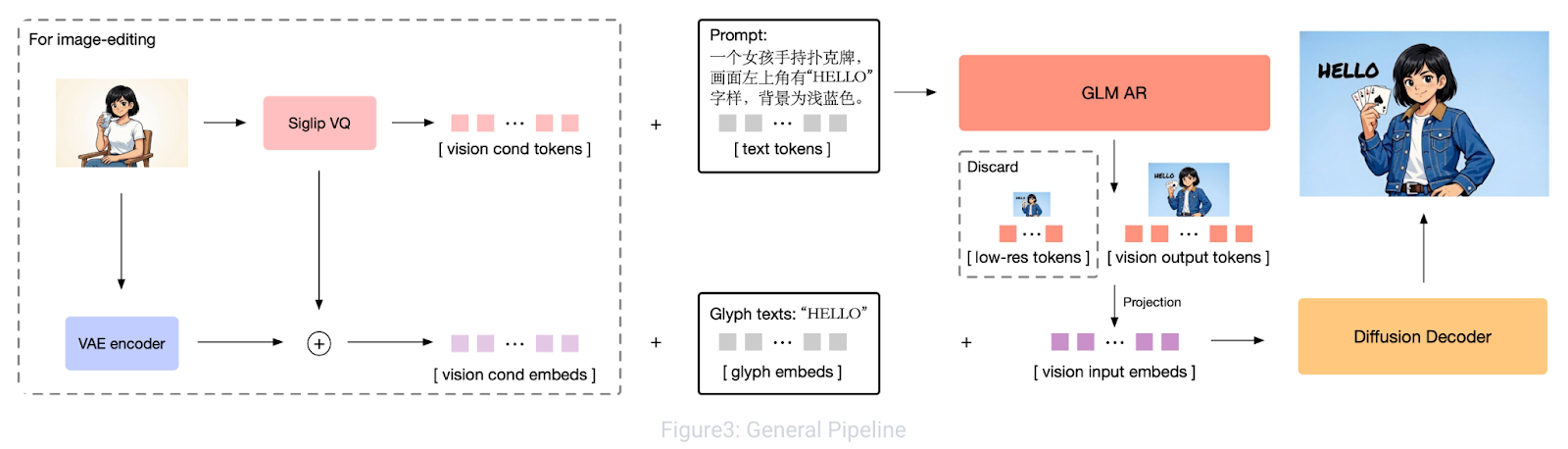
Abbildung: GLM-Image: Auto-regressiv für wissensdichte und hochqualitative Bildgenerierung
Unter der Haube nutzt es ein hybrides Design aus autoregressivem und Diffusions-Decoder: Das autoregressive Backbone fokussiert Anweisungsverständnis und globales Layout, während der Diffusions-Decoder hochfrequente Details (inklusive schärferer Textkanten) verfeinert. Dieses Hybrid-Setup ist ein Hauptgrund, warum GLM-Image für textlastige Visuals oft zuverlässiger ist als viele reine Diffusionsgeneratoren.
In diesem Tutorial dient GLM-Image als Rendering-Engine für jede Folie. Statt vager Prompts geben wir strikte, layoutbewusste Vorgaben vor, die Folgendes festzurren:
Hinweis: GLM-Image liefert eine Bild-URL zurück, unterstützt gängige Präsentationsformate wie 16:9 und arbeitet am besten mit empfohlenen Größen wie 1728×960.
In diesem Abschnitt erstellen wir eine Prompt-zu-Infografik-Slidedeck-Pipeline mit Gemini 2.5 Flash und GLM-Image, verpackt in einer Streamlit-App. Auf hoher Ebene erledigt die App drei Kernaufgaben:
Hinter den Kulissen wird der Workflow von zwei Phasen getragen:
research_topic(topic) nutzt Gemini 2.5 Flash mit aktivierter Websuche, um eine datenreiche, themenspezifische Recherche-Zusammenfassung zu erzeugen.structure_slides() wandelt die Recherche in ein JSON-Deck, das anschließend in detaillierte GLM-Image-Prompts überführt und Folie für Folie gerendert wird.Bevor wir den Infografik-Generator bauen, benötigen wir Zugriff auf zwei externe Dienste, die die Pipeline antreiben:
Diese Trennung ist beabsichtigt. Das Textmodell übernimmt Datensammlung und Planung, während GLM-Image sich ausschließlich auf die visuelle Generierung konzentriert.
OpenRouter fungiert als einheitliches Gateway, das dir mit einem einzigen Key Zugriff auf mehrere Modelle (Gemini, OpenAI, Claude und andere) gibt.
In diesem Tutorial nutzen wir Gemini 2.5 Flash, da es Websuche unterstützt. So kann die App aktuelle Daten und Statistiken abrufen, anstatt nur auf Trainingswissen zu setzen. Du kannst auch ein anderes unterstütztes Modell verwenden.
Erstelle als Nächstes ein Konto bei Z.ai, um Zugriff auf das GLM-Image-Modell zu erhalten.
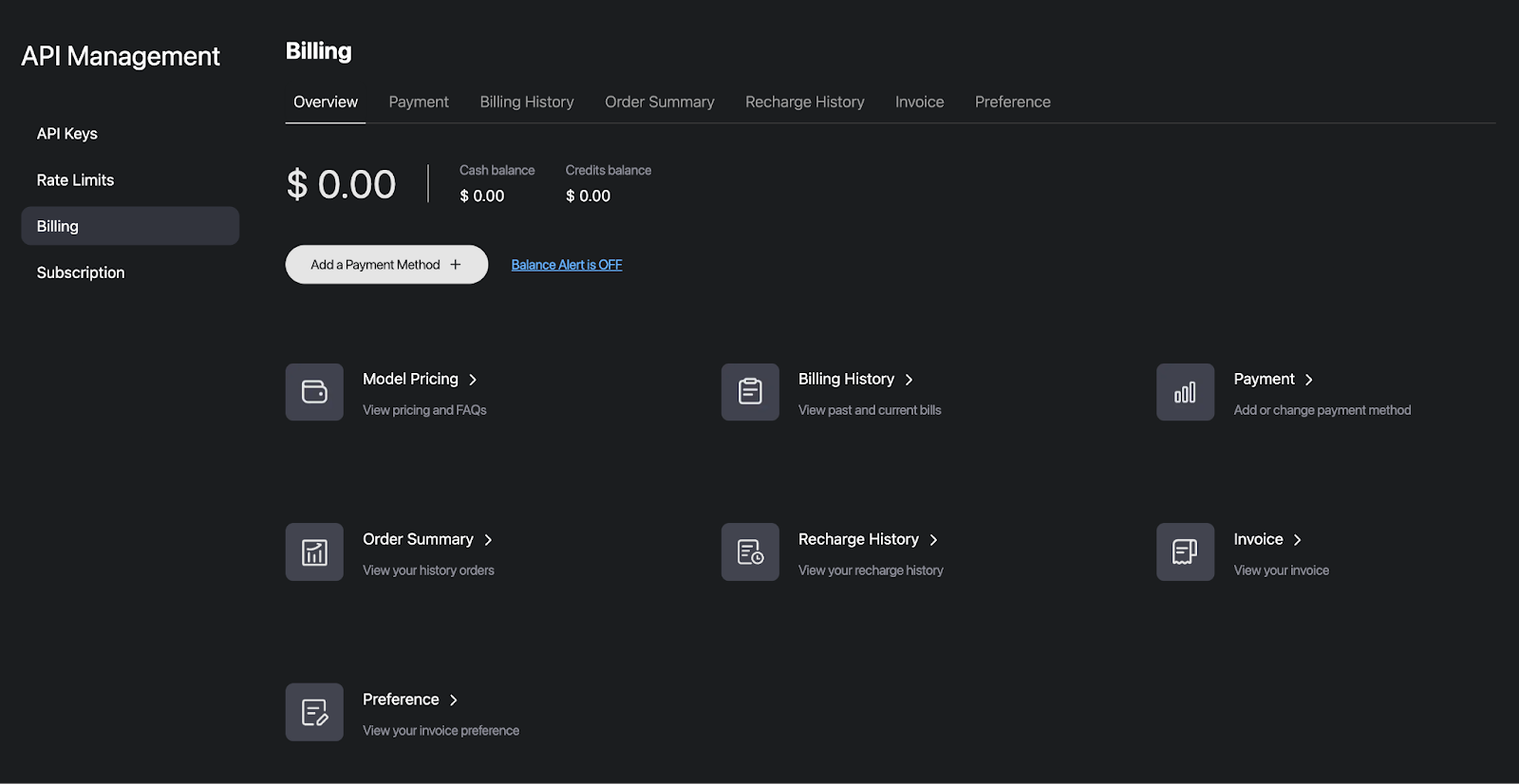
Diesen Key verwendest du, um das glm-image-Modell für das Rendering jeder Folie aufzurufen.
Sobald beide Keys erstellt sind, speichere sie als Umgebungsvariablen mit den folgenden Befehlen:
export OPENROUTER_API_KEY="Your_OpenRouter_API_Key"
export ZAI_API_KEY="Your_ZAI_API_Key"
Diese Umgebungsvariablen halten Zugangsdaten aus dem Code heraus und erleichtern das Deployment auf Streamlit Cloud, Docker oder anderen Umgebungen.
Als Nächstes installieren wir die benötigten Pakete und beginnen mit dem Aufbau der Streamlit-App.
pip install streamlit requests PillowNachdem die Pakete installiert sind, importieren wir die Standardbibliotheken für die App sowie Konstanten für die beiden API-Endpoints.
import streamlit as st
import json
import time
import requests
import os
import io
import re
import zipfile
from datetime import date
from PIL import Image
from typing import Optional, List, Dict
OPENROUTER_API_URL = "https://openrouter.ai/api/v1/chat/completions"
OPENROUTER_MODEL = "google/gemini-2.5-flash"
GLM_IMAGE_API_URL = "https://api.z.ai/api/paas/v4/images/generations"
GLM_IMAGE_MODEL = "glm-image"
Diese Bibliotheken bilden die Laufzeitbasis der Anwendung. Streamlit liefert das interaktive Webinterface, Requests übernimmt API-Calls an OpenRouter (Gemini 2.5 Flash) und Z.ai (GLM-Image), und Pillow lädt und zeigt die generierten Bilder. Weitere Standardbibliotheken kümmern sich um JSON-Parsing, Umgebungsvariablen, Timing und den Export als ZIP-Datei.
Außerdem definieren wir Konstanten für die OpenRouter- und GLM-Image-Endpoints, damit die App weiß, wohin Research-, Strukturierungs- und Bildgenerierungsanfragen gesendet werden. So bleibt die Umgebung schlank, während die Rechenarbeit über APIs läuft.
In diesem Schritt definieren wir einige Auflösungspresets und eine Theme-Bibliothek, die Hintergrundfarbe, Akzentfarbe, Typografie-Charakter und die Infografik-Stilformulierung steuert, die wir jedem GLM-Image-Prompt voranstellen.
RESOLUTIONS = {
    "16:9 Landscape (1728×960)": "1728x960",
    "3:2 Landscape (1568×1056)": "1568x1056",
    "1:1 Square (1280×1280)": "1280x1280",
    "2:3 Portrait (1056×1568)": "1056x1568",
}
THEMES = {
    "Corporate Navy": {
        "desc": "Professionelle dunkelblaue Palette, klare Sans-Serif, datengetrieben",
        "colors": {"bg": "#0F172A", "accent": "#38BDF8", "text": "#F1F5F9"},
        "style": (
            "professional corporate infographic, dark navy blue (#0F172A) background, "
            "cyan (#38BDF8) accent color, clean white (#F1F5F9) text, "
            "modern sans-serif typography, clean grid layout, subtle geometric decorations, "
            "professional data visualization elements, business presentation quality"
        ),
    },
    "Neon Noir": {
        "desc": "Dark Mode mit kräftigen Neon-Pink-Akzenten, tech-forward Ästhetik",
        "colors": {"bg": "#1A1A2E", "accent": "#E94560", "text": "#EAEAEA"},
        "style": (
            "dark mode tech infographic, deep dark (#1A1A2E) background, "
            "vivid neon pink (#E94560) accent color, light gray (#EAEAEA) text, "
            "bold modern typography with sharp edges, neon glow effects, "
            "futuristic layout with geometric shapes, startup pitch deck aesthetic"
        ),
    },
    "Warm Paper": {
        "desc": "Cremige, texturierte Hintergründe, Burnt-Orange-Akzente, editorialer Look",
        "colors": {"bg": "#F8F5F0", "accent": "#D4641A", "text": "#1C1917"},
        "style": (
            "warm editorial infographic on cream (#F8F5F0) textured paper background, "
            "burnt orange (#D4641A) accent color, dark brown (#1C1917) text, "
            "elegant serif typography mixed with clean sans-serif, "
            "magazine editorial layout, hand-drawn illustration elements, "
            "warm earth tones, scholarly professional design"
        ),
    },
    "Cyber Teal": {
        "desc": "Schwarze Hintergründe, elektrisches Türkis, Terminal-inspiriert",
        "colors": {"bg": "#0C0A09", "accent": "#22D3EE", "text": "#FAFAF9"},
        "style": (
            "cyberpunk infographic, black (#0C0A09) background, "
            "electric teal (#22D3EE) accent color, white (#FAFAF9) text, "
            "monospace and tech typography, terminal-inspired layout elements, "
            "circuit board patterns, data stream visuals, hacker aesthetic, "
            "sharp angular design elements"
        ),
    },
    "Indigo Dream": {
        "desc": "Tiefes Violett mit sanften Fliederakzenten, Premium-Feeling",
        "colors": {"bg": "#1E1B4B", "accent": "#A78BFA", "text": "#EDE9FE"},
        "style": (
            "premium luxury infographic, deep indigo (#1E1B4B) background, "
            "soft violet (#A78BFA) accent color, lavender (#EDE9FE) text, "
            "elegant modern typography, gradient overlays, "
            "smooth rounded shapes, glassmorphism effects, "
            "high-end presentation quality with subtle glow effects"
        ),
    },
    "Solar Gold": {
        "desc": "Warme Creme mit goldenen Akzenten, selbstbewusst und markant",
        "colors": {"bg": "#FEFCE8", "accent": "#A16207", "text": "#1C1917"},
        "style": (
            "premium golden infographic, warm cream (#FEFCE8) background, "
            "rich gold (#A16207) accent color, dark (#1C1917) text, "
            "bold confident typography, art deco inspired geometric patterns, "
            "luxury brand aesthetic, clean information hierarchy, "
            "warm highlights and gold foil style embellishments"
        ),
    },
    "Forest Green": {
        "desc": "Dunkelgrüne Palette, naturinspiriert, beruhigendes Datenstorytelling",
        "colors": {"bg": "#052E16", "accent": "#4ADE80", "text": "#F0FDF4"},
        "style": (
            "nature-inspired infographic, deep forest green (#052E16) background, "
            "bright green (#4ADE80) accent color, light mint (#F0FDF4) text, "
            "organic flowing typography, leaf and nature motif decorations, "
            "sustainability report aesthetic, calming visual design, "
            "clean environmental data presentation"
        ),
    },
    "Crimson Bold": {
        "desc": "Hoher Kontrast: Rot auf Dunkel, plakativer Poster-Stil",
        "colors": {"bg": "#1C1917", "accent": "#EF4444", "text": "#FAFAF9"},
        "style": (
            "bold poster-style infographic, dark charcoal (#1C1917) background, "
            "vivid crimson red (#EF4444) accent color, white (#FAFAF9) text, "
            "oversized impactful numbers, bold condensed typography, "
            "high contrast design, attention-grabbing layout, "
            "social media optimized visual hierarchy"
        ),
    },
}
EXAMPLE_TOPICS = [
    "AI Industry Market Trends January 2026",
    "Global Electric Vehicle Sales 2025",
    "SpaceX Starship Progress 2025-2026",
    "State of Remote Work 2026",
    "Bitcoin & Crypto Market February 2026",
    "Climate Change Key Metrics 2025",
]
Das RESOLUTIONS-Dictionary ordnet einem Label die exakte WxH-Zeichenkette zu, die der Z.ai-Endpoint für Bildgenerierung erwartet. Vorteil: Vorhersehbarkeit – du kannst Formate wechseln (breite Slides vs. quadratische Social-Assets vs. Portrait), ohne Prompt-Logik anzupassen. Die Seitenverhältnisse:
Wir definieren außerdem THEMES; jedes Theme ist ein kompaktes Designsystem mit drei Bestandteilen:
desc: Kurze UI-Beschreibung in der Sidebarcolors: Strikte Palette (Hintergrund, Akzent, Text)style: Promptbarer Stil-Block, der GLM-Image zu konsistentem Layout, Typografie und Dekor führtPraktisch dient dieses Theme-Objekt als wiederverwendbares „Prompt-Präfix“ für jede Folie, damit das Deck wie ein Produkt wirkt – nicht wie 7 zufällige Bilder.
Bevor wir Folien generieren, brauchen wir aktuelle Daten zum Thema. Statt auf statisches Modellwissen zu setzen, nutzt dieser Schritt Gemini 2.5 Flash via OpenRouter mit aktivierter Websuche, um frische Statistiken, Timelines und Kernerkenntnisse zu sammeln.
def call_openrouter(
    messages: List[Dict],
    api_key: str,
    use_web_search: bool = False,
    temperature: float = 0.7,
    max_tokens: int = 4096,
) -> str:
    headers = {
        "Authorization": f"Bearer {api_key}",
        "Content-Type": "application/json",
        "HTTP-Referer": "https://glm-image-infographic-demo.streamlit.app",
        "X-Title": "GLM-Image Infographic Generator",
    }

    payload = {
        "model": OPENROUTER_MODEL,
        "messages": messages,
        "temperature": temperature,
        "max_tokens": max_tokens,
    }
    if use_web_search:
        today = date.today().strftime("%B %d, %Y")
        payload["plugins"] = [{
            "id": "web",
            "max_results": 10,
            "search_prompt": (
                f"Use these recent web search results (searched on {today}) to answer "
                f"with the most up-to-date information available:"
            ),
        }]

    resp = requests.post(OPENROUTER_API_URL, headers=headers, json=payload, timeout=120)
    resp.raise_for_status()
    data = resp.json()
    content = data.get("choices", [{}])[0].get("message", {}).get("content", "")
    if not content:
        raise ValueError(f"Empty response from OpenRouter: {json.dumps(data, indent=2)[:500]}")
    return content
def research_topic(topic: str, api_key: str) -> str:
    today = date.today().strftime("%B %d, %Y")  # e.g. "February 13, 2026"
    current_year = date.today().year

    messages = [
        {
            "role": "system",
            "content": (
                f"You are a focused research analyst. Today's date is {today}. "
                f"CRITICAL: You must research ONLY the specific topic provided. Do NOT include "
                f"information about unrelated topics, industries, or subjects. If web search returns "
                f"irrelevant results, ignore them completely. "
                f"Your training data may be outdated. Rely primarily on the web search results "
                f"provided to you for current data. Prioritize sources from {current_year} and "
                f"late {current_year - 1}. If a data point comes from an older source, note the year. "
                f"Compile comprehensive, data-rich research on the given topic. Include specific "
                f"numbers, percentages, dollar amounts, growth rates, timelines, and key players. "
                f"Provide data suitable for multiple visualization formats: charts, comparisons, "
                f"timelines, and processes. Be thorough but concise. Stay strictly on topic."
            ),
        },
        {
            "role": "user",
            "content": (
                f"Research ONLY this specific topic and provide a data-rich summary:\n\n"
                f"**{topic}**\n\n"
                f"CRITICAL INSTRUCTIONS:\n"
                f"1. Research EXCLUSIVELY about '{topic}' - nothing else\n"
                f"2. Ignore any web search results not directly related to '{topic}'\n"
                f"3. Do NOT include data about semiconductors, smartphones, grooming products, or other "
                f"unrelated industries unless they are directly part of '{topic}'\n"
                f"4. Search for the most recent data available as of {today}\n"
                f"5. Prefer sources published in {current_year}\n\n"
                f"For '{topic}' specifically, include:\n"
                f"- Key statistics with specific numbers, percentages, or dollar amounts\n"
                f"- Comparison data directly relevant to '{topic}'\n"
                f"- Timeline or chronological events related to '{topic}'\n"
                f"- Process or methodology descriptions relevant to '{topic}'\n"
                f"- Market sizes, growth rates, and future outlook for '{topic}'\n"
                f"- Major players/entities involved in '{topic}'\n\n"
                f"Structure the data so it can be visualized as bar charts, pie charts, "
                f"timelines, comparison tables, and process diagrams - all focused on '{topic}'."
            ),
        },
    ]
    return call_openrouter(messages, api_key, use_web_search=True, temperature=0.5)
Der obige Code definiert zwei zentrale Helferfunktionen, die die Research-Schicht der Pipeline bilden.
call_openrouter() ist das Interface für Chat-Anfragen an OpenRouter mit dem Gemini 2.5 Flash Modell. Sie baut das Request-Payload mit Modellname, Messages, Temperature und Tokenlimit und regelt die Authentifizierung über den API-Key. use_web_search=True ist, aktiviert die Funktion das Web-Plugin und injiziert einen Suchprompt, damit das Modell neueste Informationen priorisiert. Nach dem Request prüft sie die Antwort und extrahiert den generierten Text, damit die Pipeline nicht mit leeren oder fehlerhaften Outputs fortfährt.research_topic() erzeugt einen themenscharfen Research-Prompt für Infografiken. Sie fordert explizit quantitative Infos wie Statistiken, Wachstumsraten, Marktgrößen, Timelines, Vergleiche und Schlüsselakteure an, damit sie später als Charts, Tabellen oder Diagramme visualisiert werden können. Der Call an call_openrouter() nutzt eine niedrige Temperature für faktenorientierte, strukturierte Ergebnisse.Du kannst mit Parametern wie Temperature, Anzahl der Webresultate oder Strenge der Research-Instruktionen experimentieren, um Breite, Aktualität und Präzision auszutarieren.
Im nächsten Schritt verwandeln wir diese Rohrecherche in ein strukturiertes Slide-Schema (JSON), um Layout, Kennzahlen und visuelle Elemente für jede Folie festzulegen, bevor wir sie an das GLM-Image-Modell senden.
Sobald die Recherche steht, transformieren wir sie in einen strukturierten Bauplan, den GLM-Image konsistent rendern kann. Statt Fließtext erzeugen wir einen strengen JSON-Plan, in dem jede Folie Layout, Kerntexte und optionale Chart-Daten definiert.
def structure_slides(topic: str, research: str, num_slides: int, api_key: str) -> List[Dict]:
    system_prompt = f"""You create structured infographic slide decks. Return ONLY a valid JSON array with exactly {num_slides} slide objects. No markdown backticks. No explanation. Just the JSON.
SLIDE FORMATS:
Slide 1 — Title:
{{"type":"title","slide_number":1,"headline":"Bold Title (max 8 words)","subheadline":"One-liner with a key stat","tag":"CATEGORY LABEL","visual_elements":"2-3 topic-relevant decorative motifs (e.g. globe icon, circuit pattern for tech topics)"}}
Slides 2 to {num_slides-1} — Content (pick ONE layout per slide):
Layout "stat" — Use when there is one standout number to feature:
{{"type":"content","slide_number":N,"layout":"stat","headline":"Section Title (max 6 words)","key_stat":"$4.2T or +340%","key_stat_label":"What the stat means","bullets":["3-4 bullets with specific numbers"],"visual_elements":"2-3 topic-relevant icons","chart_data":{{"type":"bar|pie|line","title":"Chart title","data":[{{"label":"Category","value":"123"}}]}},"bottom_note":"Source"}}
Layout "comparison" — Use for side-by-side comparisons:
{{"type":"content","slide_number":N,"layout":"comparison","headline":"Section Title","items":[{{"label":"Item A","points":["fact 1 with number","fact 2 with number"]}},{{"label":"Item B","points":["fact 1","fact 2"]}}],"visual_elements":"topic-relevant icons","bottom_note":"Source"}}
Layout "timeline" — Use for chronological progressions:
{{"type":"content","slide_number":N,"layout":"timeline","headline":"Section Title","milestones":[{{"date":"2020","event":"Event description with metric"}},{{"date":"2023","event":"Another event"}}],"visual_elements":"topic-relevant icons","bottom_note":"Source"}}
Layout "process" — Use for step-by-step flows:
{{"type":"content","slide_number":N,"layout":"process","headline":"Section Title","steps":[{{"step":"1","title":"Step Name","detail":"Description with metric"}},{{"step":"2","title":"Next Step","detail":"Description"}}],"visual_elements":"topic-relevant icons","bottom_note":"Source"}}
Layout "list" — Use for data-rich bullets without a dominant stat:
{{"type":"content","slide_number":N,"layout":"list","headline":"Section Title","bullets":["4-5 bullets each with a specific number/metric"],"visual_elements":"topic-relevant icons","chart_data":{{"type":"bar|pie|line","title":"Chart title","data":[{{"label":"Category","value":"123"}}]}},"bottom_note":"Source"}}
Slide {num_slides} — Summary:
{{"type":"summary","slide_number":{num_slides},"headline":"Key Takeaways","takeaways":["4-5 punchy takeaway lines with data"],"outlook":"One sentence future outlook","visual_elements":"topic-relevant closing motif"}}
RULES:
- Every bullet MUST contain a specific number, percentage, or dollar amount
- Use a MIX of layouts across the deck. Do NOT use "stat" for every slide. Choose the layout that best fits the content. At most half of content slides should use "stat" layout.
- key_stat is ONLY used with "stat" layout. Other layouts do NOT have key_stat.
- visual_elements MUST be topic-specific (e.g. for EV topic: "electric car silhouette, battery icon, charging station"; for AI topic: "neural network diagram, robot icon, chip illustration"; for climate: "globe, thermometer, polar bear"). NEVER use generic shapes.
- chart_data is OPTIONAL. Include it when the slide's data naturally fits a chart. Fields:
  * type: "bar", "pie", or "line"
  * title: short chart title
  * data: array of {{"label":"...","value":"..."}} with real numbers from the research
  * axis_label: (optional) label for the value axis
  Not every slide needs chart_data. Use it for stat and list layouts when data is quantitative.
- Each slide covers a distinct aspect — no repetition
- Ensure logical narrative flow across slides"""
    messages = [
        {"role": "system", "content": system_prompt},
        {
            "role": "user",
            "content": (
                f"Create a {num_slides}-slide infographic deck about:\n\n"
                f"**{topic}**\n\n"
                f"RESEARCH DATA:\n{research}\n\n"
                f"Return ONLY the JSON array."
            ),
        },
    ]
    raw = call_openrouter(messages, api_key, use_web_search=False, temperature=0.2)
    raw = re.sub(r"^```(?:json)?\s*", "", raw.strip())
    raw = re.sub(r"\s*```$", "", raw.strip())
    return json.loads(raw)
def _build_chart_instruction(chart_data: Dict, accent_hex: str) -> str:
    if not chart_data or not chart_data.get("type"):
        return ""
    chart_type = chart_data["type"]
    title = chart_data.get("title", "Chart")
    data = chart_data.get("data", [])
    axis_label = chart_data.get("axis_label", "")
    if not data:
        return ""
    if chart_type == "bar":
        bars = ", ".join([f"'{d['label']}': {d['value']}" for d in data])
        axis_part = f" Y-axis label: '{axis_label}'." if axis_label else ""
        return (
            f"Draw a vertical bar chart titled '{title}' in the lower-right area of the slide, "
            f"taking up about 40% of the slide width. "
            f"Bars: [{bars}]. Label each bar clearly below it with its category name. "
            f"Display the value on top of each bar.{axis_part} "
            f"Use {accent_hex} color for the bars with slight shade variation between them. "
        )
    elif chart_type == "pie":
        segments = ", ".join([f"'{d['label']}': {d['value']}%" for d in data])
        return (
            f"Draw a pie chart titled '{title}' in the lower-right area of the slide, "
            f"taking up about 35% of the slide width. "
            f"Segments: [{segments}]. Label each segment with its name and percentage value. "
            f"Use {accent_hex} as the primary segment color with contrasting shades for other segments. "
        )
    elif chart_type == "line":
        points = ", ".join([f"({d['label']}, {d['value']})" for d in data])
        axis_part = f" Y-axis: '{axis_label}'." if axis_label else ""
        return (
            f"Draw a line chart titled '{title}' in the lower-right area of the slide, "
            f"taking up about 40% of the slide width. "
            f"Data points: [{points}]. Mark each data point with a dot and label its value. "
            f"Connect points with a smooth line in {accent_hex} color.{axis_part} "
        )
    elif chart_type == "table":
        rows = " | ".join([f"{d['label']}: {d['value']}" for d in data])
        return (
            f"Draw a data table titled '{title}' in the lower portion of the slide. "
            f"Data: [{rows}]. Use alternating row shading with {accent_hex} colored header row. "
            f"Keep text small but legible. "
        )
    return ""
In Phase 2 definieren wir zwei Hauptfunktionen: eine zur Strukturierung der Slides und eine, um Anweisungen für Charts/Diagramme zu erzeugen. Dazu gehören:
structure_slides()-Funktion: Diese Funktion nutzt Gemini (ohne Websuche) als Strukturierungs-Engine. Sie baut einen Systemprompt, der das Modell zwingt, ausschließlich ein valides JSON-Array mit exakt der geforderten Folienanzahl zurückzugeben. Jedes Deck folgt einem festen Ablauf: Titelfolie, mehrere Content-Folien und eine finale Zusammenfassung. Content-Folien können Layouts wie Statistik, Vergleich, Timeline, Prozess oder Liste verwenden. Der Prompt erzwingt u. a.:chart_data wird einbezogen, wenn sich die Daten natürlich für ein Chart eignencall_openrouter() mit niedriger Temperature für stabile Outputs auf, entfernt ggf. Markdown-Hüllen und parsed die Antwort in ein Python-Dictionary für die Weiterverarbeitung._build_chart_instruction()-Funktion: Dieser Helfer wandelt optionales chart_data aus dem JSON in Zeichenanweisungen für GLM-Image. Abhängig vom Chart-Typ (Balken, Torte, Linie oder Tabelle) erzeugt er klare Vorgaben zu Platzierung, Beschriftung, Größe und Farbe basierend auf der Akzentfarbe des Themes. Am Ende dieses Schritts liegt eine saubere Spezifikation auf Folienebene vor, die sowohl den narrativen Fluss als auch die visuelle Struktur des Decks definiert.
In diesem Schritt übersetzen wir jedes Slide-Objekt in einen stark eingeschränkten Prompt, der dem Bildmodell genau vorgibt, was zu zeichnen ist, wo es platziert wird und wie es zu stylen ist.
def build_glm_prompt(slide: Dict, theme: Dict, total: int, topic: str) -> str:
    style = theme["style"]
    colors = theme["colors"]
    bg_hex = colors["bg"]
    accent_hex = colors["accent"]
    text_hex = colors["text"]
    bg_anchor = (
        f"BACKGROUND: Use a solid, uniform {bg_hex} background across the entire image. "
        f"Do not add gradients, varying tones, or alternate background colors. "
        f"The background must be exactly {bg_hex}. "
    )
    common_footer = (
        f"Typography hierarchy: Headlines in bold large font, subheadings in semibold medium font, "
        f"body text in regular smaller font, footnotes in small font. "
        f"All text must be {text_hex} color unless it is an accent element using {accent_hex}. "
        f"In the bottom-right corner, display '{slide.get('slide_number', 1)} / {total}' in small text using {text_hex} at 50% opacity. "
        f"The overall design should be a single cohesive infographic slide image, "
        f"high resolution, crisp text rendering, professional quality. "
        f"All text in the image must be clearly legible and accurately spelled."
    )
    visual_elements = slide.get("visual_elements", "")
    visual_elements_instruction = (
        f"Include these topic-relevant visual elements as subtle icons or illustrations: {visual_elements}. "
        if visual_elements else ""
    )
    if slide["type"] == "title":
        return (
            f"{bg_anchor}"
            f"Create a professional infographic title slide. {style}. "
            f"Display these text elements in the image:\n"
            f"- Small uppercase tag at the top-center: '{slide.get('tag', 'REPORT')}'\n"
            f"- Large bold headline centered in the middle of the slide: '{slide['headline']}'\n"
            f"- Smaller subtitle centered below the headline: '{slide['subheadline']}'\n\n"
            f"The headline should be the dominant visual element. "
            f"{visual_elements_instruction}"
            f"{common_footer}"
        )
    elif slide["type"] == "summary":
        items = "\n".join(
            [f"  {i+1}. '{t}'" for i, t in enumerate(slide.get("takeaways", []))]
        )
        return (
            f"{bg_anchor}"
            f"Create a professional infographic summary slide. {style}. "
            f"Display these text elements in the image:\n"
            f"- Header at top-left: '{slide['headline']}'\n"
            f"- Numbered takeaway list in the center area:\n{items}\n"
            f"- Italic footer outlook at bottom-left: '{slide.get('outlook', '')}'\n\n"
            f"Use numbered circles in {accent_hex} color or checkmarks for each takeaway. "
            f"Make the layout clean and conclusive. "
            f"{visual_elements_instruction}"
            f"{common_footer}"
        )
    else:
        layout = slide.get("layout", "stat")
        chart_instruction = _build_chart_instruction(slide.get("chart_data", {}), accent_hex)
        if layout == "stat":
            bullets_text = "\n".join([f"  • '{b}'" for b in slide.get("bullets", [])])
            has_chart = bool(chart_instruction)
            bullet_position = "in the left half of the slide" if has_chart else "below the statistic"
            return (
                f"{bg_anchor}"
                f"Create a professional infographic content slide. {style}. "
                f"Display these text elements in the image:\n"
                f"- Section header at top-left: '{slide['headline']}'\n"
                f"- One large featured statistic displayed very prominently in the center: '{slide.get('key_stat', '')}'\n"
                f"- Label below the stat in smaller text: '{slide.get('key_stat_label', '')}'\n"
                f"- Bullet points with data {bullet_position}:\n{bullets_text}\n"
                f"- Footer at bottom: '{slide.get('bottom_note', '')}'\n\n"
                f"The key statistic should be the most visually dominant element — "
                f"displayed in a very large, bold font in {accent_hex} color inside a highlight box. "
                f"Bullets should use small {accent_hex} colored icons or dot indicators. "
                f"{chart_instruction}"
                f"{visual_elements_instruction}"
                f"{common_footer}"
            )
        elif layout == "comparison":
            items = slide.get("items", [])
            items_text = ""
            for idx, item in enumerate(items):
                label = item.get("label", f"Item {idx+1}")
                points = item.get("points", [])
                points_text = "\n".join([f"    - '{p}'" for p in points])
                col_pos = "left column" if idx == 0 else "right column"
                items_text += f"  [{col_pos}] '{label}':\n{points_text}\n"
            return (
                f"{bg_anchor}"
                f"Create a professional infographic comparison slide. {style}. "
                f"Display these text elements in the image:\n"
                f"- Section header at top-left: '{slide['headline']}'\n"
                f"- Side-by-side comparison layout with a vertical divider line in {accent_hex}:\n{items_text}"
                f"- Footer at bottom: '{slide.get('bottom_note', '')}'\n\n"
                f"Use a clean two-column layout. Each column header should be bold and in {accent_hex}. "
                f"Bullet points under each column should have small icons. "
                f"Add a 'VS' or divider element between the columns. "
                f"{visual_elements_instruction}"
                f"{common_footer}"
            )
        elif layout == "timeline":
            milestones = slide.get("milestones", [])
            milestones_text = "\n".join(
                [f"  [{m.get('date', '')}] → '{m.get('event', '')}'" for m in milestones]
            )
            return (
                f"{bg_anchor}"
                f"Create a professional infographic timeline slide. {style}. "
                f"Display these text elements in the image:\n"
                f"- Section header at top-left: '{slide['headline']}'\n"
                f"- Horizontal timeline with these milestones connected by a line:\n{milestones_text}\n"
                f"- Footer at bottom: '{slide.get('bottom_note', '')}'\n\n"
                f"Draw a horizontal timeline line in {accent_hex} running across the center of the slide. "
                f"Place milestone dates above the line and event descriptions below, connected by vertical dots. "
                f"Each milestone dot should be a circle in {accent_hex}. "
                f"{visual_elements_instruction}"
                f"{common_footer}"
            )
        elif layout == "process":
            steps = slide.get("steps", [])
            steps_text = "\n".join(
                [f"  Step {s.get('step', idx+1)}: '{s.get('title', '')}' — {s.get('detail', '')}" for idx, s in enumerate(steps)]
            )
            return (
                f"{bg_anchor}"
                f"Create a professional infographic process flow slide. {style}. "
                f"Display these text elements in the image:\n"
                f"- Section header at top-left: '{slide['headline']}'\n"
                f"- Process flow with numbered steps connected by arrows:\n{steps_text}\n"
                f"- Footer at bottom: '{slide.get('bottom_note', '')}'\n\n"
                f"Arrange steps horizontally or in a flow diagram with arrows between them. "
                f"Each step should have a numbered circle in {accent_hex} with the step title in bold below it "
                f"and the detail text in smaller font underneath. "
                f"Connect steps with directional arrows in {accent_hex}. "
                f"{visual_elements_instruction}"
                f"{common_footer}"
            )
        else:
            bullets_text = "\n".join([f"  • '{b}'" for b in slide.get("bullets", [])])
            has_chart = bool(chart_instruction)
            bullet_position = "in the left half of the slide" if has_chart else "in the center area"
            return (
                f"{bg_anchor}"
                f"Create a professional infographic content slide. {style}. "
                f"Display these text elements in the image:\n"
                f"- Section header at top-left: '{slide['headline']}'\n"
                f"- Data-rich bullet points {bullet_position}:\n{bullets_text}\n"
                f"- Footer at bottom: '{slide.get('bottom_note', '')}'\n\n"
                f"Bullets should use small {accent_hex} colored icons or numbered indicators. "
                f"Focus on clean information hierarchy and data-rich visual presentation. "
                f"{chart_instruction}"
                f"{visual_elements_instruction}"
                f"{common_footer}"
            )
Die Funktion build_glm_prompt() verwandelt ein Slide-JSON-Objekt in einen GLM-Image-Prompt. Das geschieht in drei Ebenen:
style und Farbpalette des Themes zu und verankert einen strikten Hintergrund. So bleibt die Folie einfarbig ohne Verläufe oder Variationen.N / total, damit jede Grafik wie eine Seite eines Decks wirkt.stat hebt eine große Kennzahl hervor, comparison nutzt zwei Spalten, timeline und process visualisieren zeitliche Abläufe, während list datenreiche Bullets optional mit Chart kombiniert.Wenn chart_data vorhanden ist, wandelt _build_chart_instruction() diese in explizite Zeichenanweisungen um. Das erhöht die Zuverlässigkeit, weil das Modell genau weiß, was wo zu zeichnen ist.
Im letzten Schritt rendern wir die oben erzeugten Prompts als Infografik-Bilder.
def generate_glm_image(prompt: str, api_key: str, size: str = "1728x960") -> Optional[Image.Image]:
    headers = {
        "Authorization": f"Bearer {api_key}",
        "Content-Type": "application/json",
    }
    payload = {
        "model": GLM_IMAGE_MODEL,
        "prompt": prompt,
        "size": size,
    }
    try:
        resp = requests.post(GLM_IMAGE_API_URL, headers=headers, json=payload, timeout=180)
        resp.raise_for_status()
        data = resp.json()
        url = data.get("data", [{}])[0].get("url")
        if not url:
            st.error(f"GLM-Image returned no URL. Response: {json.dumps(data)[:300]}")
            return None
        img_resp = requests.get(url, timeout=60)
        img_resp.raise_for_status()
        return Image.open(io.BytesIO(img_resp.content)).convert("RGB")
    except requests.exceptions.Timeout:
        st.error("GLM-Image request timed out (180s). The model may be under heavy load.")
        return None
    except requests.exceptions.HTTPError as e:
        st.error(f"GLM-Image HTTP error: {e} — {e.response.text[:300] if e.response else ''}")
        return None
    except Exception as e:
        st.error(f"GLM-Image error: {e}")
        return None
So verarbeitet die Funktion den vollständigen GLM-Image-Generierungsablauf:
generate_glm_image() ist der Einstieg pro Folie. Sie baut das Request-Payload mit Feldern wie dem glm-image-Modell, dem Slide-Prompt (mit Layout-, Text-, Theme- und Chart-Anweisungen) und der Zielauflösung, z. B. 1728x960. requests.post() mit verlängertem Timeout, da Bildgenerierung länger braucht als Text.requests.get(), validiert die Antwort und wandelt sie in ein RGB-PIL.Image-Objekt um. Du kannst mit verschiedenen Auflösungen experimentieren, um den Trade-off zwischen Qualität und Latenz zu verstehen und zu sehen, wie die Ausgabengröße die Generierungszeit und Schärfe beeinflusst.
Zum Schluss integrieren wir alle Funktionen in den Streamlit-Workflow, generieren die Folien nacheinander, tracken den Fortschritt und packen das finale Deck zum Download.
def render_theme_preview(name: str, theme: Dict):
    c = theme["colors"]
    return (
        f'<div style="display:inline-flex;align-items:center;gap:6px;">'
        f'<span style="display:inline-block;width:14px;height:14px;border-radius:3px;background:{c["bg"]};border:1px solid #555;"></span>'
        f'<span style="display:inline-block;width:14px;height:14px;border-radius:3px;background:{c["accent"]};"></span>'
        f'<span style="display:inline-block;width:14px;height:14px;border-radius:3px;background:{c["text"]};border:1px solid #555;"></span>'
        f'<span style="">{name}</span>'
        f'</div>'
    )
def main():
    st.set_page_config(
        page_title="GLM-Image Infografik-Generator",
        page_icon="📊",
        layout="wide",
        initial_sidebar_state="expanded",
    )
    st.markdown("""
    <style>
    @import url('https://fonts.googleapis.com/css2?family=DM+Sans:wght@400;500;600;700;800&display=swap');
    @import url('https://fonts.googleapis.com/css2?family=JetBrains+Mono:wght@400;600&display=swap');
    .stApp {}
    .hero-banner {
        background: linear-gradient(135deg, #0F172A 0%, #1E293B 50%, #0F172A 100%);

        border-radius: 16px;

        border: 1px solid #334155;
        position: relative;
        overflow: hidden;
    }
    .hero-banner::before {
        content: '';
        position: absolute;
        top: -50%;
        right: -20%;
        width: 400px;
        height: 400px;
        background: radial-gradient(circle, rgba(56,189,248,0.08) 0%, transparent 70%);
        border-radius: 50%;
    }
    .hero-banner h1 {


        font-weight: 800;

        letter-spacing: -0.5px;
    }
    .hero-banner .subtitle {

        font-size: 0.95rem;

    }
    .pipeline-tag {
        display: inline-block;

        background: rgba(56,189,248,0.1);


        border-radius: 20px;

        font-weight: 600;

        letter-spacing: 0.3px;
        border: 1px solid rgba(56,189,248,0.2);
    }
    .phase-header {


        letter-spacing: 1px;

        text-transform: uppercase;

    }
    .cost-card {
        background: #1E293B;
        border: 1px solid #334155;
        border-radius: 10px;


    }
    .cost-card .total {

        font-weight: 800;

    }
    .slide-nav-btn {
        background: #1E293B;
        border: 1px solid #334155;


        border-radius: 8px;
        cursor: pointer;
        font-weight: 600;
    }
    #MainMenu {visibility: hidden;}
    footer {visibility: hidden;}
    </style>
    """, unsafe_allow_html=True)
    st.markdown("""
    <div class="hero-banner">
        <h1>GLM-Image Infografik-Generator</h1>
        <p class="subtitle">Beliebiges Thema eingeben → KI recherchiert im Web → GLM-Image generiert ein komplettes Infografik-Slidedeck</p>
        <div class="pipeline-tag">GEMINI 2.5 FLASH and GLM-IMAGE </div>
    </div>
    """, unsafe_allow_html=True)
    with st.sidebar:
        openrouter_key = os.environ.get("OPENROUTER_API_KEY", "")
        zai_key = os.environ.get("ZAI_API_KEY", "")
        st.markdown("#### Visuelles Theme")
        theme_name = st.selectbox(
            "Theme auswählen",
            list(THEMES.keys()),
            index=0,
        )
        theme = THEMES[theme_name]
        st.caption(theme["desc"])
        c = theme["colors"]
        st.markdown(
            f'<div style="display:flex;gap:8px;">'
            f'<div style="flex:1;height:32px;border-radius:6px;background:{c["bg"]};border:1px solid #555;" title="Background"></div>'
            f'<div style="flex:1;height:32px;border-radius:6px;background:{c["accent"]};" title="Accent"></div>'
            f'<div style="flex:1;height:32px;border-radius:6px;background:{c["text"]};border:1px solid #555;" title="Text"></div>'
            f'</div>',
            unsafe_allow_html=True,
        )
        st.markdown("#### Slide-Einstellungen")
        resolution = st.selectbox("Auflösung", list(RESOLUTIONS.keys()), index=0)
        num_slides = st.slider("Anzahl Folien", 4, 10, 5)
        st.divider()
    if "selected_example" in st.session_state:
        default_topic = st.session_state.pop("selected_example")
    else:
        default_topic = ""
    topic = st.text_input(
        "Thema zum Recherchieren und Visualisieren eingeben",
        value=default_topic,
        placeholder="z. B. AI Industry Market Trends January 2026",
    )
    st.markdown("**Schnellbeispiele:**")
    cols = st.columns(3)
    for i, ex in enumerate(EXAMPLE_TOPICS):
        with cols[i % 3]:
            if st.button(ex, key=f"ex_{i}", use_container_width=True):
                st.session_state["selected_example"] = ex
                st.rerun()
    st.markdown("---")
    generate = st.button(
        "Infografik-Deck generieren",
        type="primary",
        use_container_width=True,
        disabled=(not topic or not openrouter_key or not zai_key),
    )
    if generate:
        if not openrouter_key:
            st.error("Bitte gib deinen **OpenRouter API Key** in der Sidebar ein.")
            st.stop()
        if not zai_key:
            st.error("Bitte gib deinen **Z.ai API Key** in der Sidebar ein.")
            st.stop()
        size = RESOLUTIONS[resolution]
        st.markdown('<div class="phase-header">Phase 1 — Recherche & Struktur</div>', unsafe_allow_html=True)
        with st.status("Thema wird mit Gemini 2.5 Flash + Websuche recherchiert...", expanded=True) as status:
            st.markdown(f"**Thema:** {topic}")
            st.markdown(f"**Modell:** {OPENROUTER_MODEL}")
            t0 = time.time()
            try:
                research = research_topic(topic, openrouter_key)
                t_research = time.time() - t0
                st.success(f"Recherche abgeschlossen in {t_research:.1f}s")
                status.update(label="Recherche abgeschlossen", state="complete")
            except Exception as e:
                st.error(f"Recherche fehlgeschlagen: {e}")
                status.update(label="Recherche fehlgeschlagen", state="error")
                st.stop()
        with st.status("Slide-Inhalte werden strukturiert...", expanded=False) as status:
            try:
                slides_data = structure_slides(topic, research, num_slides, openrouter_key)
                st.success(f"{len(slides_data)} Folien strukturiert")
                status.update(label=f"{len(slides_data)} Folien strukturiert", state="complete")
            except Exception as e:
                st.error(f"Strukturierung fehlgeschlagen: {e}")
                status.update(label="Strukturierung fehlgeschlagen", state="error")
                st.stop()
        with st.expander("Research-Zusammenfassung", expanded=False):
            st.markdown(research)
        with st.expander("Slide-JSON", expanded=False):
            st.json(slides_data)
        st.markdown("---")
        st.markdown('<div class="phase-header">Phase 2 — GLM-Image-Generierung</div>', unsafe_allow_html=True)
        progress = st.progress(0, text="Bildgenerierung startet...")
        images: List[Optional[Image.Image]] = []
        prompts: List[str] = []
        timings: List[float] = []
        for i, slide in enumerate(slides_data):
            headline = slide.get("headline", f"Slide {i+1}")
            progress.progress(
                i / len(slides_data),
                text=f"Folie {i+1}/{len(slides_data)} wird generiert: {headline}",
            )
            prompt = build_glm_prompt(slide, theme, len(slides_data), topic)
            prompts.append(prompt)
            t0 = time.time()
            img = generate_glm_image(prompt, zai_key, size)
            elapsed = time.time() - t0
            timings.append(elapsed)
            images.append(img)
            if img:
                st.toast(f"Folie {i+1} generiert ({elapsed:.1f}s)")
            else:
                st.toast(f"Folie {i+1} fehlgeschlagen", icon="")
        progress.progress(1.0, text="Alle Folien generiert!")
        time.sleep(0.3)
        progress.empty()
        st.session_state["images"] = images
        st.session_state["slides_data"] = slides_data
        st.session_state["prompts"] = prompts
        st.session_state["timings"] = timings
        st.session_state["research"] = research
        st.session_state["gen_topic"] = topic
        st.session_state["gen_theme"] = theme_name
    if "images" in st.session_state and st.session_state["images"]:
        images = st.session_state["images"]
        slides_data = st.session_state["slides_data"]
        prompts = st.session_state.get("prompts", [])
        timings = st.session_state.get("timings", [])
        st.markdown("---")
        gen_topic = st.session_state.get("gen_topic", "")
        gen_theme = st.session_state.get("gen_theme", "")
        success_count = sum(1 for img in images if img is not None)
        st.markdown(
            f"### Infografik-Deck: *{gen_topic}*\n"
            f"{success_count}/{len(images)} Folien · {gen_theme} Theme · "
            f"{list(RESOLUTIONS.keys())[0]} Auflösung"
        )
        slide_idx = st.select_slider(
            "Slides navigieren",
            options=list(range(1, len(images) + 1)),
            value=1,
            format_func=lambda x: f"Slide {x}: {slides_data[x-1].get('headline', '') if x-1 < len(slides_data) else ''}",
        )
        idx = slide_idx - 1
        col_img, col_meta = st.columns([3, 1])
        with col_img:
            if images[idx] is not None:
                st.image(images[idx], use_container_width=True)
            else:
                st.warning(
                    f"Folie {slide_idx} konnte nicht generiert werden. "
                    "Prüfe deinen Z.ai API-Key und das Kontingent."
                )
        with col_meta:
            slide = slides_data[idx] if idx < len(slides_data) else {}
            st.markdown(f"**Slide {slide_idx} / {len(images)}**")
            slide_type = slide.get('type', 'N/A')
            layout = slide.get('layout', '')
            type_label = f"{slide_type}" + (f" · {layout}" if layout else "")
            st.markdown(f"**Typ:** {type_label}")
            if slide.get("key_stat"):
                tc = THEMES.get(gen_theme, THEMES["Corporate Navy"])["colors"]
                st.markdown(
                    f'<div style="background:{tc["bg"]};border:2px solid {tc["accent"]}; '
                    f'border-radius:12px;text-align:center;">'
                    f'<div style="font-weight:800;color:{tc["accent"]};">'
                    f'{slide["key_stat"]}</div>'
                    f'<div style="color:{tc["text"]};opacity:0.7;">'
                    f'{slide.get("key_stat_label","")}</div></div>',
                    unsafe_allow_html=True,
                )
            if slide.get("bullets"):
                st.markdown("**Datenpunkte:**")
                for b in slide["bullets"]:
                    st.markdown(f"• {b}")
            if slide.get("items"):
                st.markdown("**Vergleich:**")
                for item in slide["items"]:
                    st.markdown(f"**{item.get('label', '')}**")
                    for p in item.get("points", []):
                        st.markdown(f"  • {p}")
            if slide.get("milestones"):
                st.markdown("**Timeline:**")
                for m in slide["milestones"]:
                    st.markdown(f"• **{m.get('date', '')}** — {m.get('event', '')}")
            if slide.get("steps"):
                st.markdown("**Prozess:**")
                for s in slide["steps"]:
                    st.markdown(f"{s.get('step', '')}. **{s.get('title', '')}** — {s.get('detail', '')}")
            if slide.get("takeaways"):
                st.markdown("**Takeaways:**")
                for i, t in enumerate(slide["takeaways"], 1):
                    st.markdown(f"{i}. {t}")
            if idx < len(timings):
                st.caption(f"Generiert in {timings[idx]:.1f}s")
        if idx < len(prompts):
            with st.expander(f"GLM-Image Prompt — Slide {slide_idx}"):
                st.code(prompts[idx], language="text")
        st.markdown("---")
        st.markdown("**Alle Folien:**")
        thumb_cols = st.columns(min(len(images), 8))
        for i, img in enumerate(images):
            with thumb_cols[i % len(thumb_cols)]:
                if img is not None:
                    st.image(img, caption=f"Slide {i+1}", use_container_width=True)
                else:
                    st.caption(f"Slide {i+1}")
        st.markdown("---")
        dl_col1, dl_col2, dl_col3, _ = st.columns([1, 1, 1, 1])
        with dl_col1:
            zip_buf = io.BytesIO()
            with zipfile.ZipFile(zip_buf, "w", zipfile.ZIP_DEFLATED) as zf:
                for i, img in enumerate(images):
                    if img is not None:
                        buf = io.BytesIO()
                        img.save(buf, format="PNG", quality=95)
                        zf.writestr(f"slide_{i+1:02d}.png", buf.getvalue())
                zf.writestr("slide_data.json", json.dumps(slides_data, indent=2, ensure_ascii=False))
                zf.writestr("prompts.json", json.dumps(prompts, indent=2, ensure_ascii=False))
            safe_name = re.sub(r"[^a-zA-Z0-9]+", "_", gen_topic)[:40]
            st.download_button(
                "ZIP herunterladen (alle Folien)",
                data=zip_buf.getvalue(),
                file_name=f"infographic_{safe_name}.zip",
                mime="application/zip",
                use_container_width=True,
            )
        with dl_col2:
            st.download_button(
                "Slide-JSON herunterladen",
                data=json.dumps(slides_data, indent=2, ensure_ascii=False),
                file_name=f"slides_{safe_name}.json",
                mime="application/json",
                use_container_width=True,
            )
    elif "images" not in st.session_state:
        st.markdown(
            '<div style="text-align:center;">'
            '<div style="opacity:0.3;">📊</div>'
            '<p style="max-width:500px;">'
            "Gib oben ein Thema ein. Das System sucht im Web nach den neuesten Daten, "
            "strukturiert sie zu Folien und generiert mit GLM-Image ein komplettes Infografik-Deck."
            "</p></div>",
            unsafe_allow_html=True,
        )
if __name__ == "__main__":
    main()
Der obige Code definiert die komplette Streamlit-Anwendung, die alle Phasen der Pipeline in einen durchgängigen Workflow verbindet.
main() ist der Einstiegspunkt: Sie konfiguriert das Seitenlayout, wendet Custom Styles an und rendert das Banner. Die Sidebar dient als Konfigurationspanel: Theme wählen, Farben ansehen, Auflösung festlegen und die Folienanzahl steuern. Diese Settings beeinflussen Prompt-Konstruktion und Bildgenerierung direkt.st.session_state, damit Ergebnisse über Reruns bestehen bleiben.Probier es selbst: Speichere den Code als app.py und starte:
Streamlit run app.py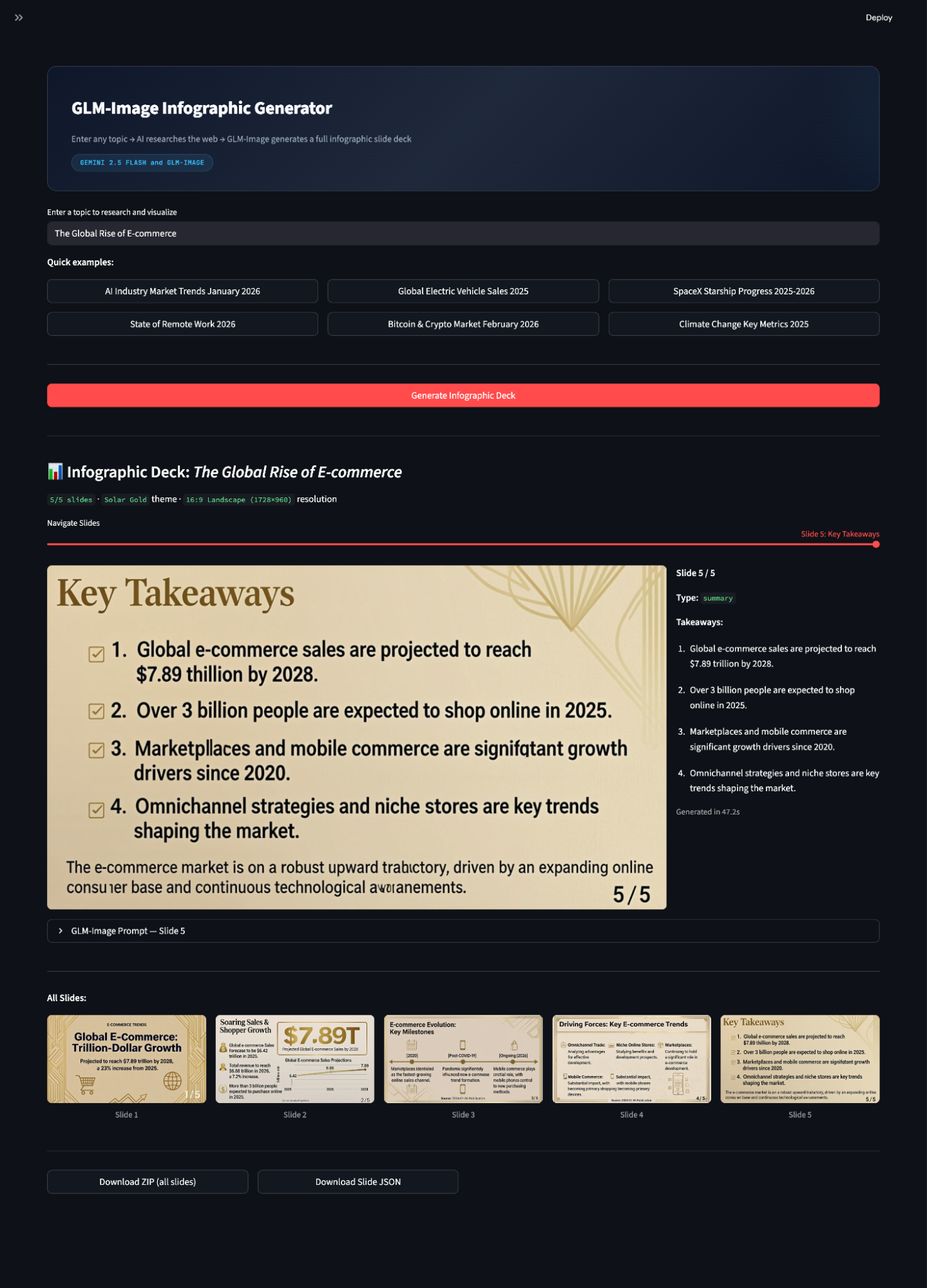
In diesem Tutorial haben wir einen Echtzeit-Generator für Infografik-Decks gebaut: Du gibst ein Thema ein, Gemini 2.5 Flash recherchiert im Web und strukturiert die Inhalte zu einem Slide-Plan, und GLM-Image rendert jede Folie als hochauflösendes Infografikbild. Der Schlüssel ist eine Pipeline, die unstrukturierte Informationen in eine strenge Render-Spezifikation überführt.
Es gibt jedoch noch Verbesserungsbedarf. GLM-Image vertippt sich gelegentlich – ein verbreitetes Problem vieler Bildmodelle, wenn sie lange, dichte Texte in Bildern erzeugen.
Von hier aus kannst du die Demo produktionsreif machen – etwa mit Quellenangaben, Wiederholungsprüfungen und Neugenerierung pro Folie. Schon jetzt zeigt die App überzeugend, wie Bildmodelle als visuelle Rendering-Engines für Datenstorytelling dienen können.
Sieh dir außerdem unseren Guide zu Googles neuem Bildgenerierungsmodell Nano Banana 2 an!
Top DataCamp Courses
Kurs
Kurs
Lernpfad
Blog
Hesam Sheikh Hassani
15 Min.
Blog
Tutorial
DataCamp Team
5 Min.
Tutorial
Sejal Jaiswal
9 Min.
Tutorial
Mark Pedigo
10 Min.
Tutorial
Sejal Jaiswal
24 Min.


