Corso
Fine-tuning con Llama 3
2 ore
4.1K
Pratica and corso your progress.
Continua Con GoogleUnsloth Studio sta rendendo il fine-tuning degli LLM più accessibile a tutti attraverso un’interfaccia locale, basata su browser, che elimina gran parte della configurazione e del codice necessario. È progettato come una web UI no-code che gestisce il caricamento del modello, la formattazione del dataset, l’impostazione degli iperparametri e il monitoraggio dell’addestramento in tempo reale.
In questo tutorial, vedremo l’intero flusso di lavoro per fare fine-tuning di un LLM con Unsloth Studio. Partiremo dalla preparazione del modello e dei dati, eseguiremo il job di fine-tuning, testeremo il modello ottimizzato localmente nell’interfaccia chat e infine lo esporteremo per usi successivi.
Unsloth Studio supporta l’installazione locale su Linux, Windows, macOS e WSL, e i suoi strumenti di esportazione includono formati come GGUF, Safetensors e LoRA per l’utilizzo a valle in strumenti come llama.cpp, Ollama e vLLM.
Per molti flussi di lavoro di fine-tuning piccoli o medi, questo processo può essere completato sorprendentemente in fretta una volta pronto l’ambiente, rendendo Unsloth Studio un’opzione pratica per chi è alle prime armi e vuole un percorso più semplice dai dati a un modello ottimizzato funzionante.
Ti consiglio anche di dare un’occhiata alla mia altra guida su Come eseguire Unsloth Studio in locale per saperne di più.
Nei passaggi qui sotto, ti mostrerò come iniziare a usare Unsloth Studio per il fine-tuning di LLM:
Prima di installare Unsloth Studio, assicurati che la tua macchina supporti l’addestramento. Unsloth Studio può girare su Windows, Linux, WSL e macOS, ma il supporto all’addestramento dipende dall’hardware.
Al momento, il training completo è supportato su GPU NVIDIA e GPU Intel. Su Mac e su sistemi solo CPU, puoi comunque usare Chat e Data Recipes, mentre il supporto all’addestramento MLX è previsto più avanti.
Prerequisiti per l’addestramento su Linux:
Prima di installare Unsloth Studio, vale la pena leggere il tutorial Come eseguire Unsloth Studio in locale: guida passo passo. Offre una spiegazione più dettagliata della configurazione di Runpod, dell’installazione di Unsloth Studio e dell’apertura nel browser.
Per questo tutorial, abbiamo fatto una piccola modifica. Invece di usare un pod A10, abbiamo utilizzato un pod con GPU RTX A6000. Il motivo principale è che la configurazione con A10 può richiedere più tempo per installare le dipendenze e preparare l’ambiente per Unsloth Studio.
Per installare Unsloth Studio, usa l’installer ufficiale in un’unica riga:
curl -fsSL https://unsloth.ai/install.sh | shL’installer configura prima le dipendenze Python richieste utilizzando uv.
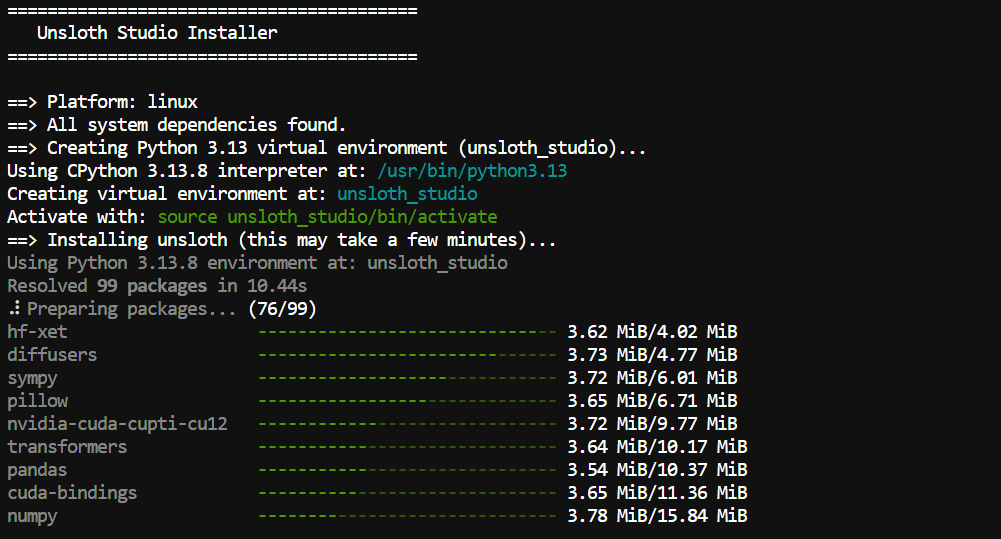
Successivamente, esegue lo script di setup di Unsloth Studio, che installa i file necessari per l’inferenza web locale.
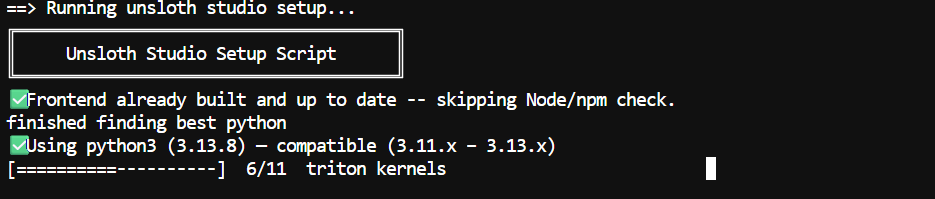
Una volta scaricato e configurato tutto, inclusi i file del frontend e i componenti del modello, Unsloth Studio ti mostrerà i prossimi passaggi per avviare il server e aprire l’interfaccia nel browser.
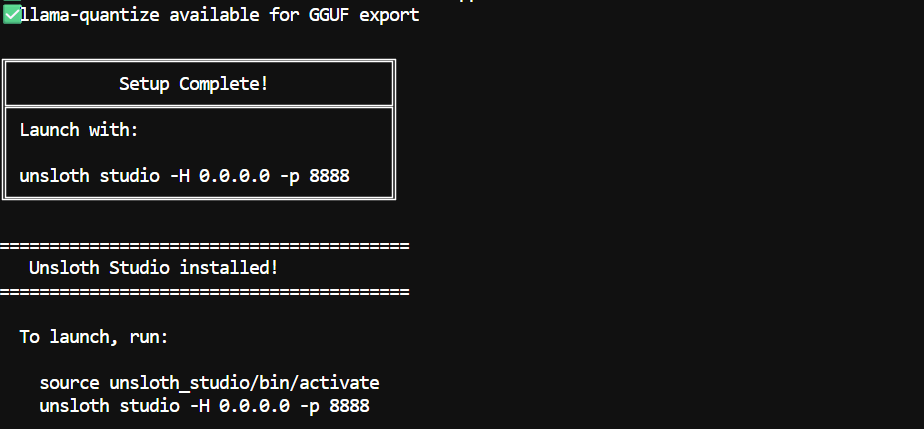
Nota: La prima installazione può richiedere 5–10 minuti perché potrebbe essere necessario compilare alcuni binari di llama.cpp.
Una volta completata l’installazione, puoi avviare Unsloth Studio con i seguenti comandi:
source unsloth_studio/bin/activateunsloth studio -H 0.0.0.0 -p 8910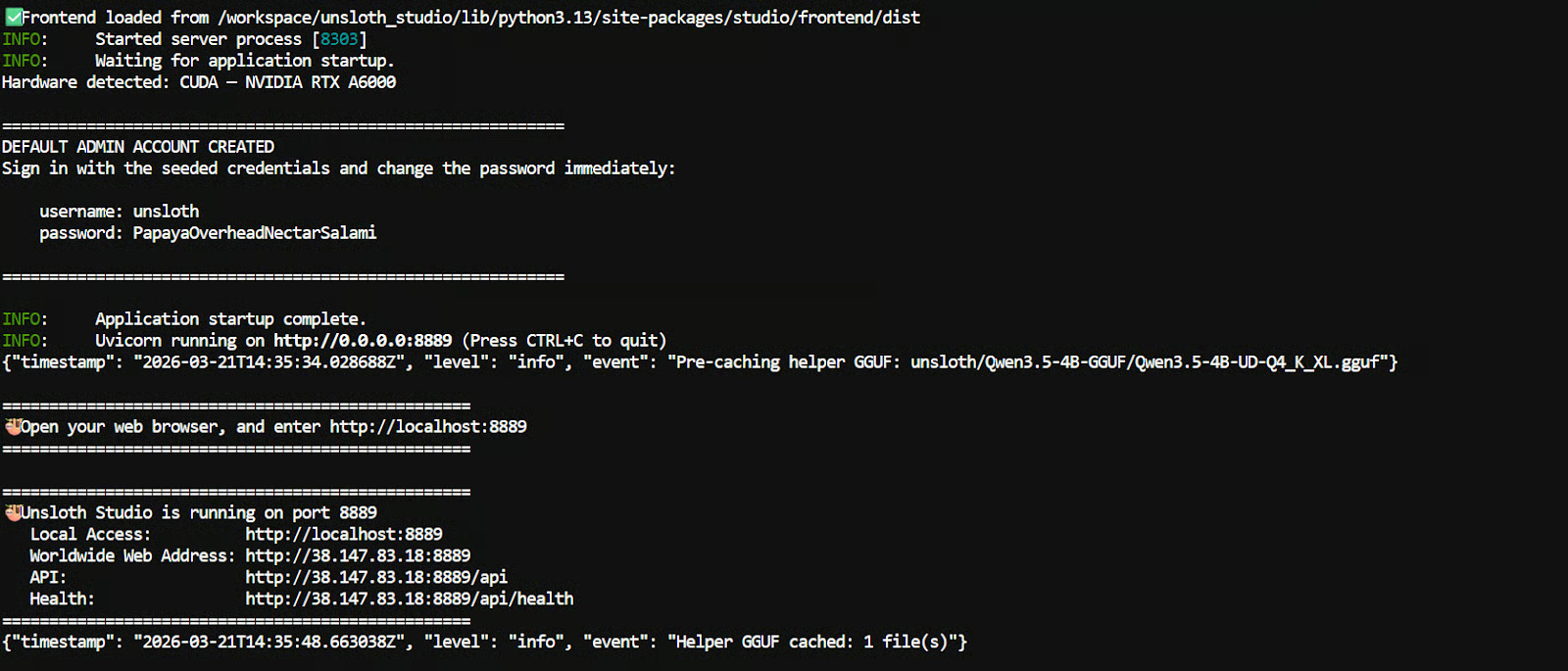
Se lo stai eseguendo sulla tua macchina locale, apri questo link nel browser:
http://localhost:8910Se stai usando Runpod, vai alla dashboard di Runpod, apri la scheda Connect e clicca sul link per la porta 8910.
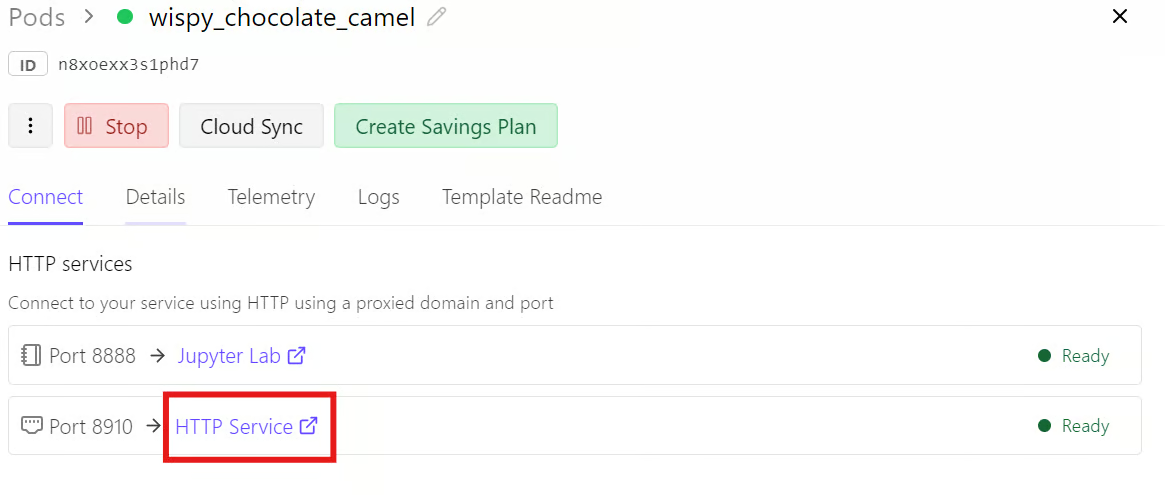
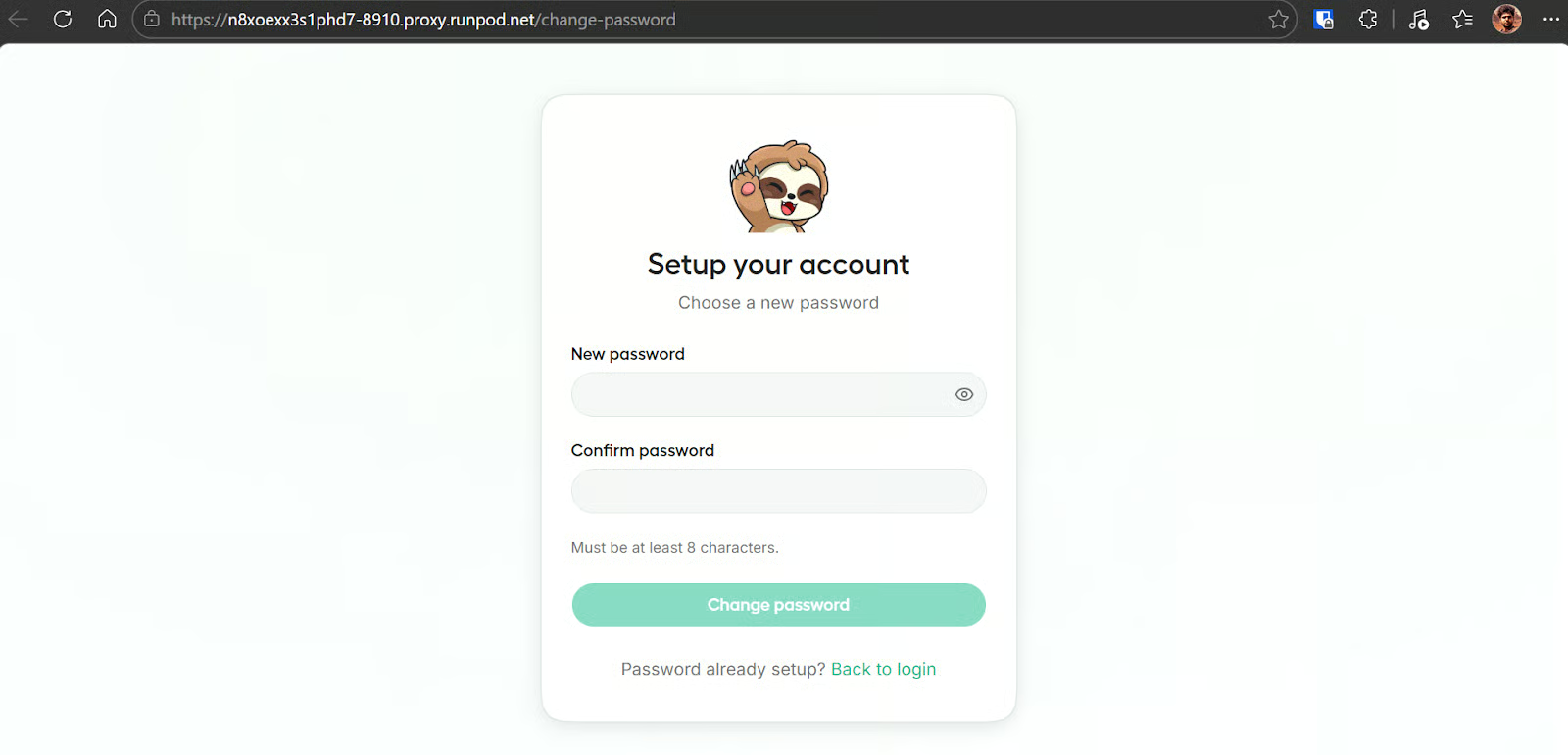
Quando apri Unsloth Studio per la prima volta, ti chiederà di creare una password per la tua istanza. Questo aiuta a proteggere l’accesso, soprattutto quando utilizzi un link pubblico o accessibile esternamente.
Quando Unsloth Studio si apre, la schermata principale è divisa in quattro sezioni: Model, Dataset, Parameters e Training/Config. Insieme coprono l’intero flusso di lavoro del fine-tuning, dalla scelta del modello base all’avvio dell’addestramento e al monitoraggio dei progressi.
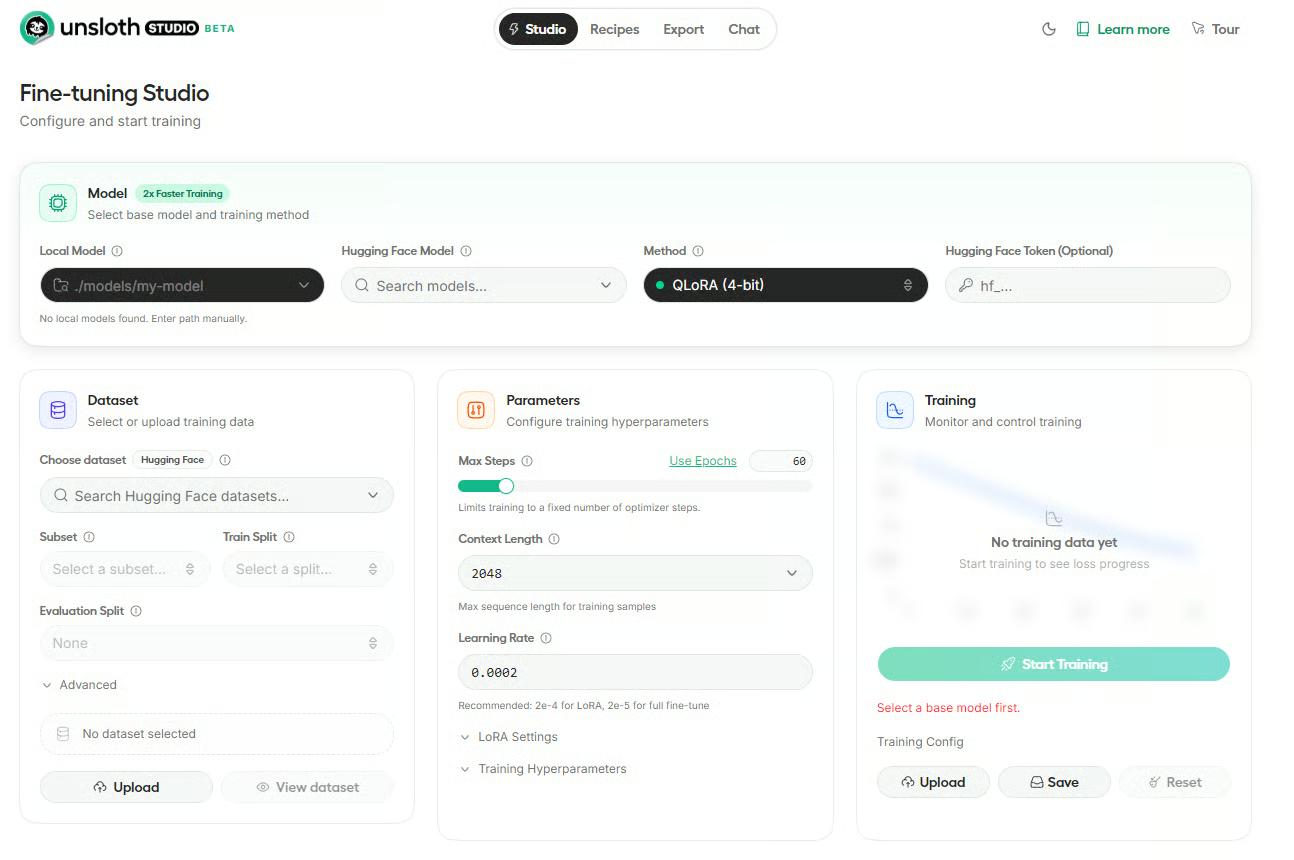
Qui scegli il modello base e il metodo di addestramento. In questa schermata puoi inserire un percorso a un modello locale, cercare un modello su Hugging Face, scegliere il metodo di fine-tuning come QLoRA (4 bit) e, facoltativamente, aggiungere il tuo token di Hugging Face.
Questa sezione serve per selezionare o caricare i dati di addestramento. Puoi scegliere un dataset da Hugging Face, definire subset e split e, se necessario, caricare i tuoi file.
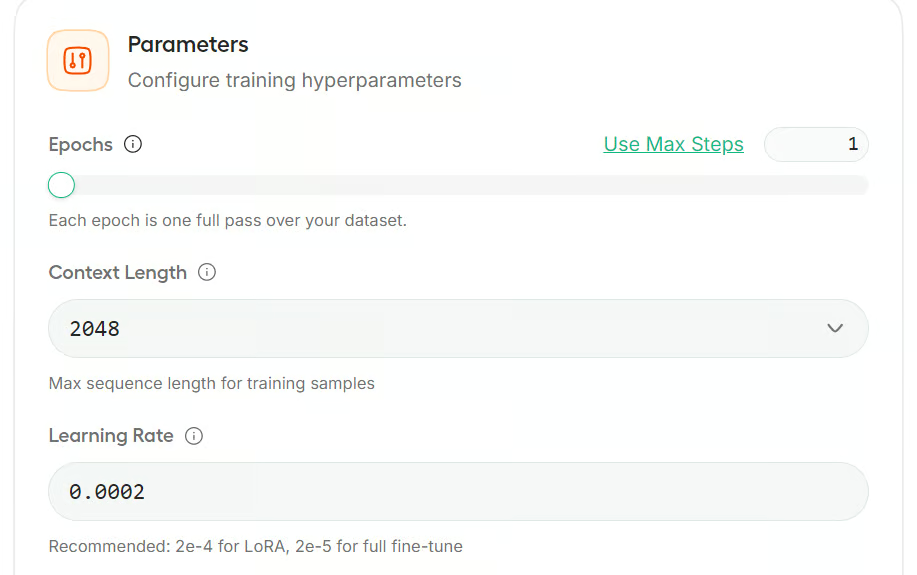
Qui configuri le impostazioni principali di training, come max steps, context length e learning rate. Ci sono anche impostazioni espandibili per LoRA e altri iperparametri di addestramento.
In questa sezione avvii e monitori l’addestramento. Una volta pronti modello e dataset, puoi lanciare l’esecuzione, tracciare i progressi e caricare o salvare la configurazione di training.
Nella sezione Model, puoi cercare un modello da Hugging Face o selezionare un modello locale già disponibile sulla tua macchina. Unsloth Studio supporta la ricerca diretta sull’Hub e anche i modelli locali salvati in ~/.unsloth/studio/models o nella cache di Hugging Face possono comparire nell’elenco.
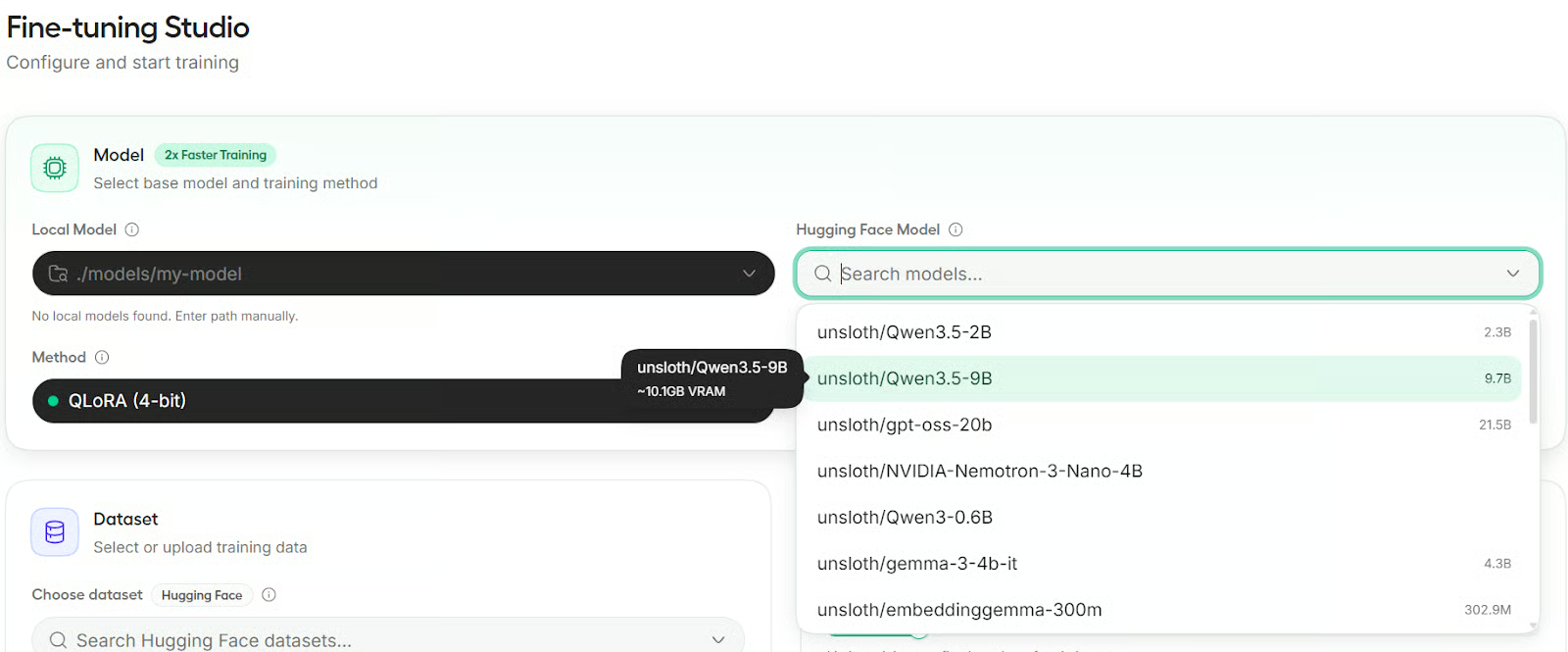
Per questo tutorial useremo Qwen3.5-9B come modello base. È un modello compatto ma capace, che funziona bene per fine-tuning su piccola scala e sperimentazione locale.
Unsloth Studio offre tre metodi di training: QLoRA, LoRA e Full Fine-tuning. QLoRA usa un modello base quantizzato a 4 bit con un adattatore LoRA e richiede meno VRAM.
LoRA mantiene il modello base a piena precisione e aggiunge un adattatore LoRA, quindi usa più memoria. Il Full Fine-tuning aggiorna tutti i pesi del modello e richiede più VRAM.
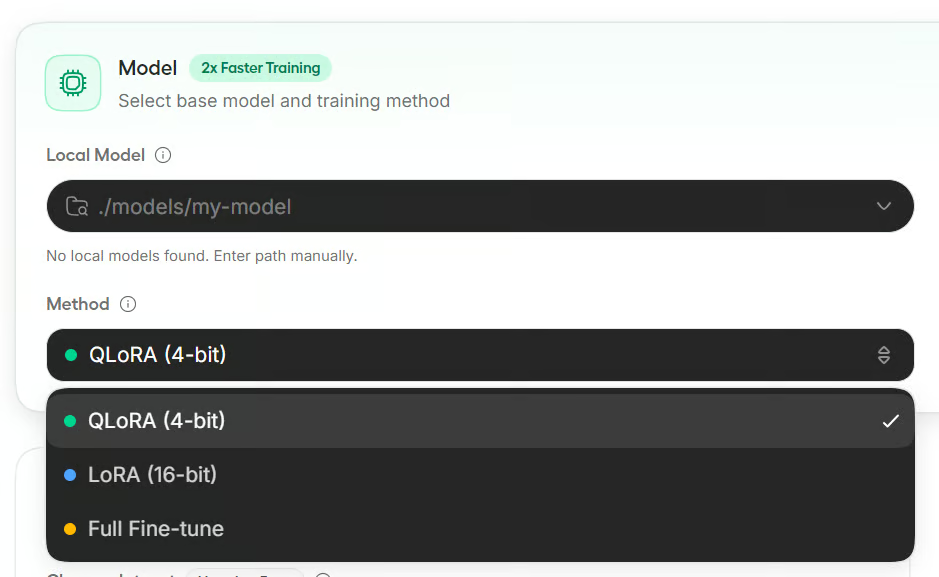
Per questo tutorial useremo QLoRA perché è l’opzione più efficiente in memoria ed è di solito la scelta più semplice per configurazioni GPU più piccole.
Nella sezione Dataset puoi caricare dati da Hugging Face o caricare file locali. Unsloth Studio supporta la formattazione automatica dei dataset e funziona con layout comuni come Alpaca, ChatML e ShareGPT. Include anche strumenti per la selezione degli split, il mapping delle colonne e l’anteprima del dataset.
Qui, scegli il dataset Unsloth Latex OCR, seleziona lo split train e lascia vuoto lo split di valutazione per mantenere l’addestramento più rapido. Terremo anche il formato su Auto così Studio può rilevare la struttura del dataset per noi.
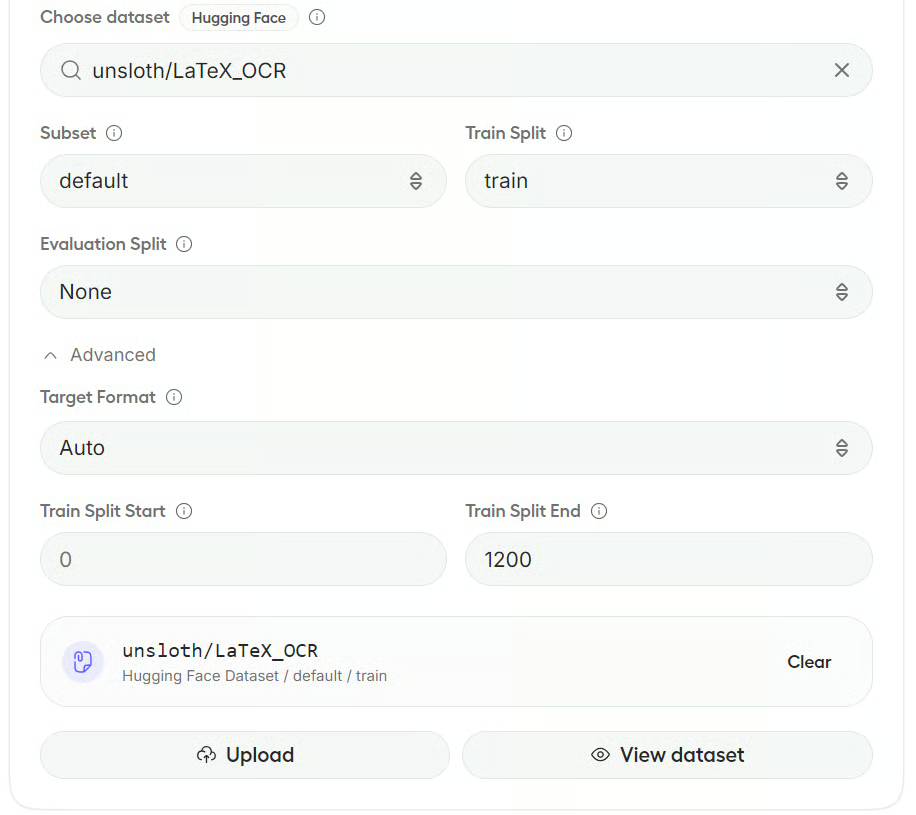
Nota: Se Studio non riesce a rilevare completamente i campi del dataset, apre una finestra di anteprima in cui puoi mappare colonne come instruction, input, output o image. Le mappature suggerite spesso vengono compilate automaticamente.
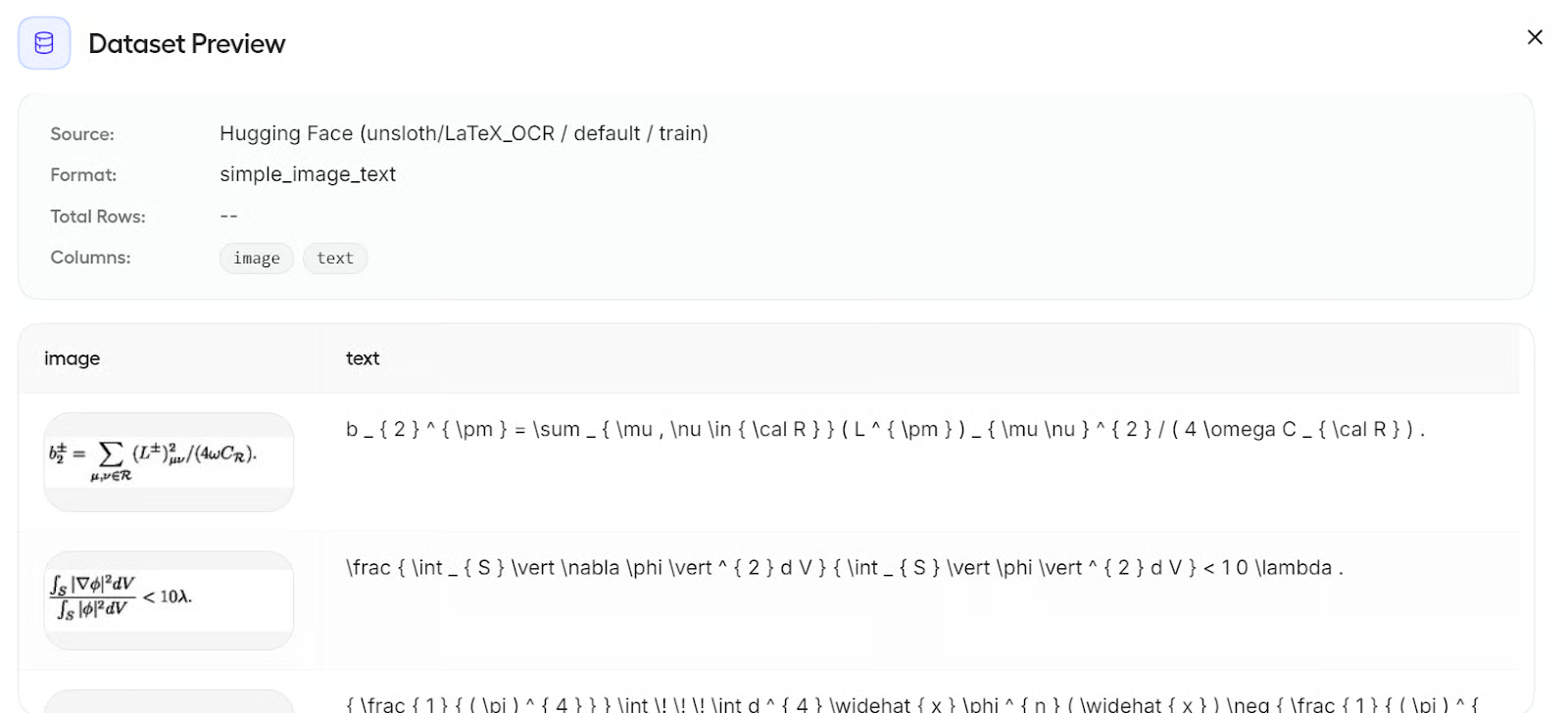
Puoi anche cliccare View dataset per ispezionare i dati prima dell’addestramento. In questo caso, il dataset include colonne di immagine e testo, il che lo rende pronto per il fine-tuning multimodale.
Nella sezione Parameters, Unsloth Studio raggruppa le impostazioni in pannelli comprimibili. Per questo tutorial, terremo le cose semplici e faremo solo poche piccole modifiche.
Per prima cosa, passa il limite di training da steps a epochs e impostalo su 1 epoch. Visto che è una breve esecuzione di esempio, un passaggio completo sul dataset è sufficiente. Lasceremo le altre impostazioni principali ai valori predefiniti:
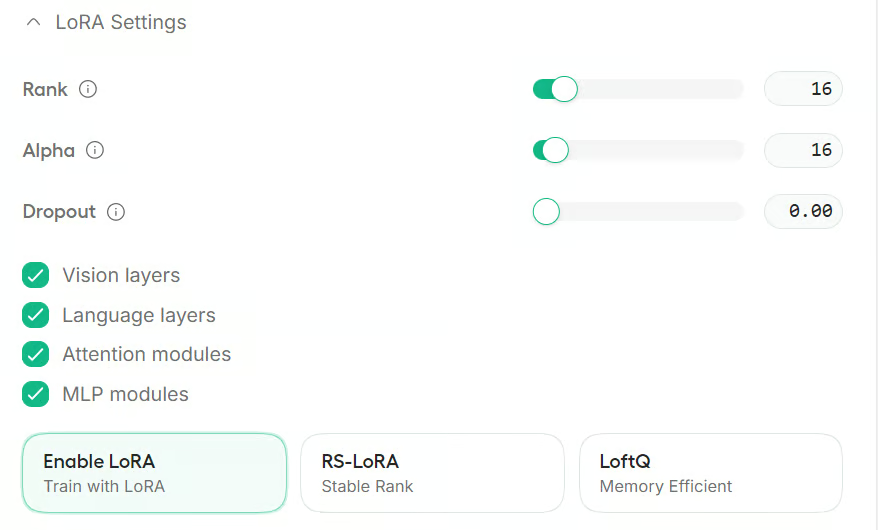
Poi apri la sezione LoRA Settings. Per questa guida, manterremo anche qui i valori predefiniti:
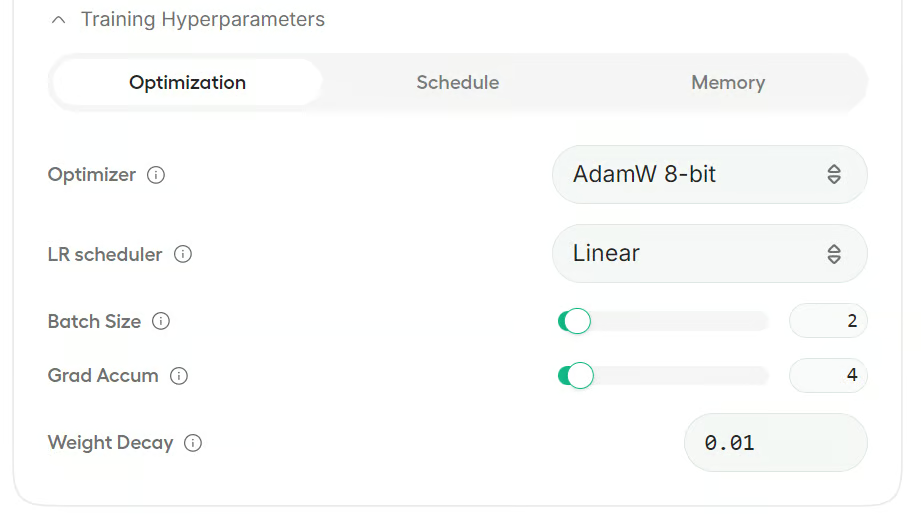
Puoi anche espandere la sezione Training Hyperparameters per regolare opzioni come optimizer, scheduler e impostazioni relative alla memoria.
Per questo esempio, lasceremo tutto il resto invariato e useremo la configurazione predefinita.
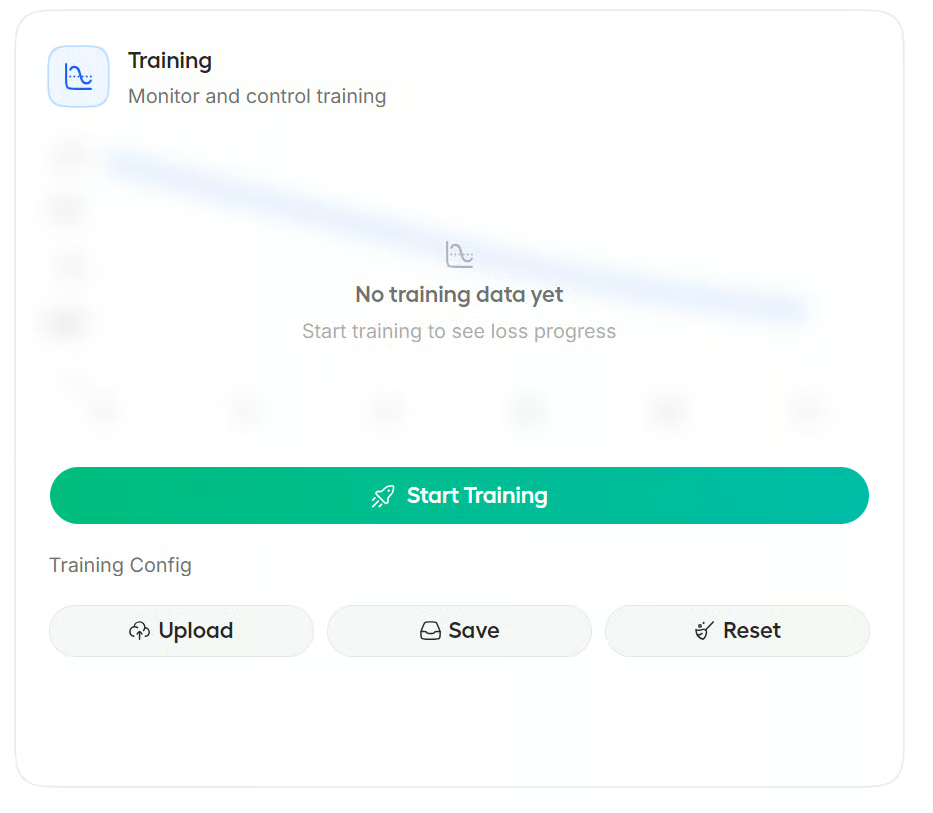
Prima di iniziare l’addestramento, è una buona idea salvare le impostazioni. In questo modo è più semplice ricaricare la stessa configurazione in seguito o condividerla con il team per riprodurre gli stessi risultati.
Quando è tutto pronto, clicca Start Training.
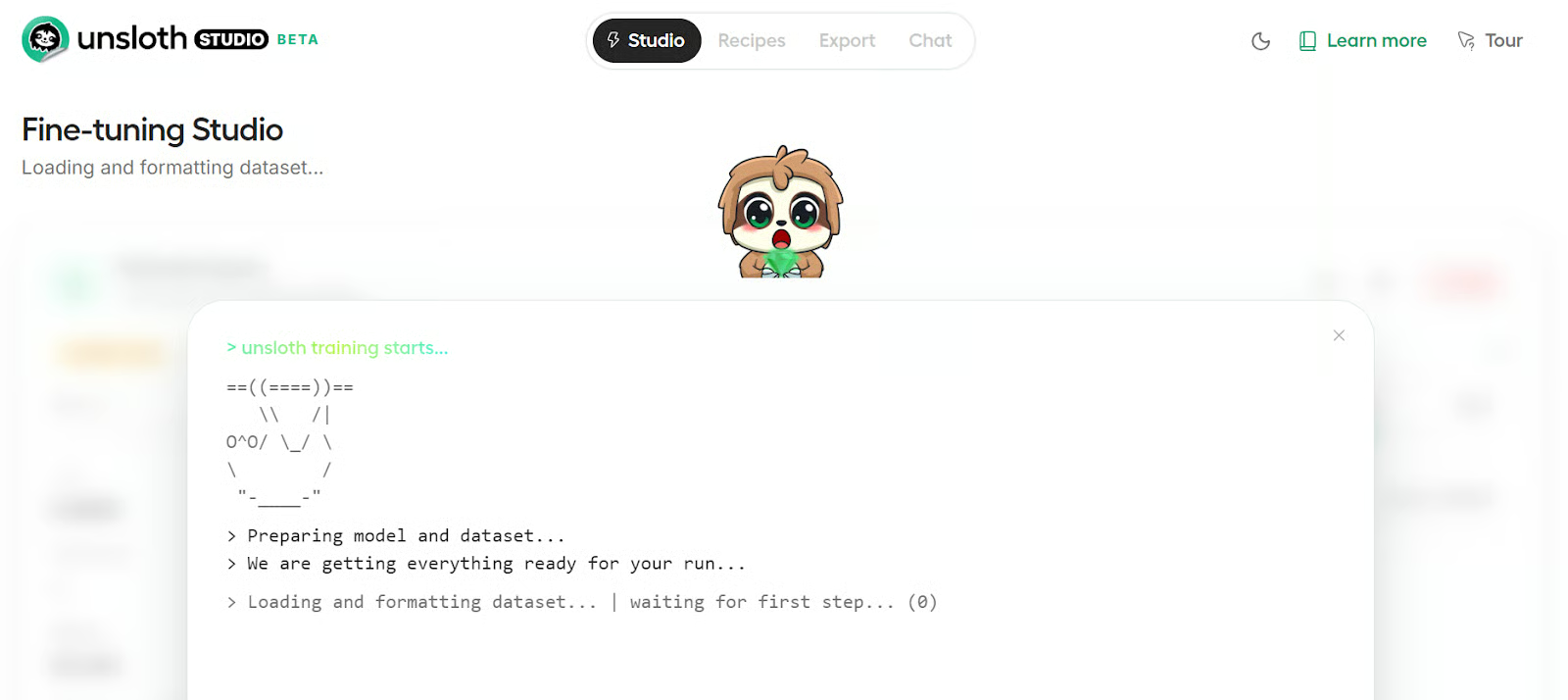
Studio aprirà la vista di training, dove puoi seguire i log mentre l’esecuzione inizia. All’inizio vedrai i consueti passaggi di setup come il caricamento delle librerie Python, la preparazione del dataset e l’inizializzazione della pipeline di fine-tuning.
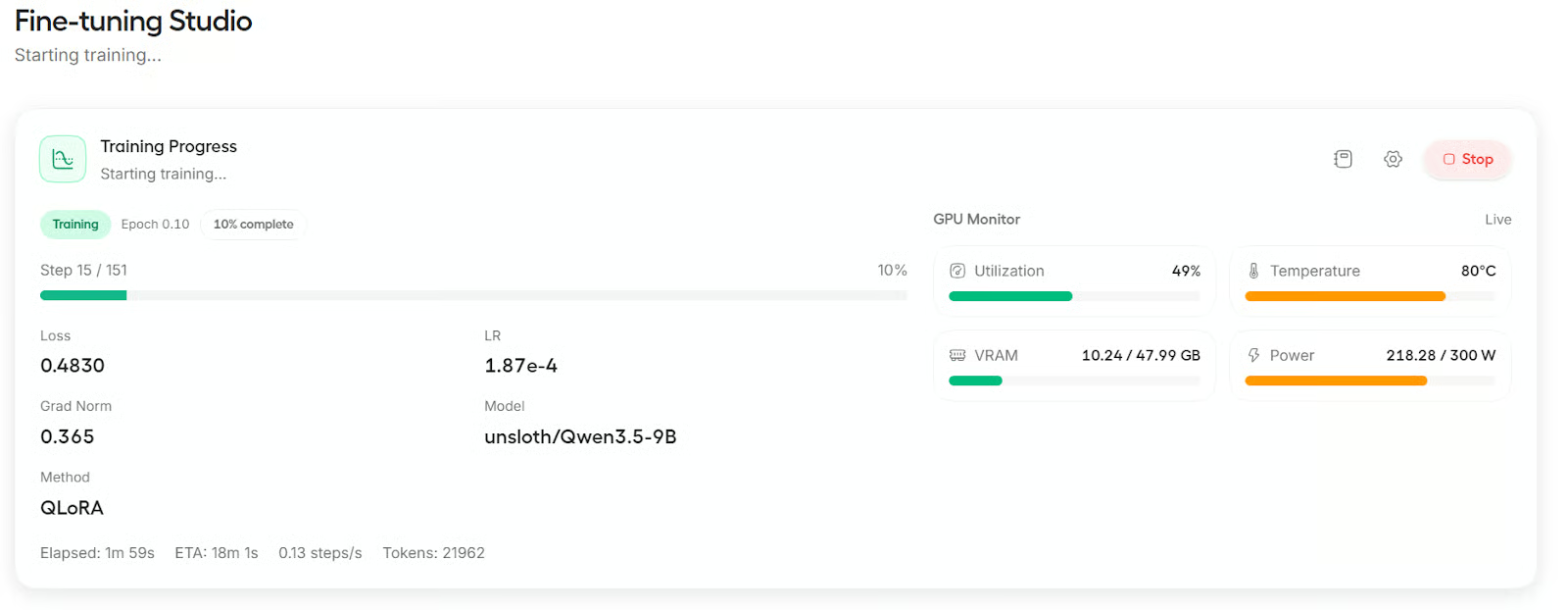
Quando l’addestramento parte, lo schermo si aggiorna per mostrare l’avanzamento in tempo reale, inclusi loss, steps e altri dettagli dell’addestramento.
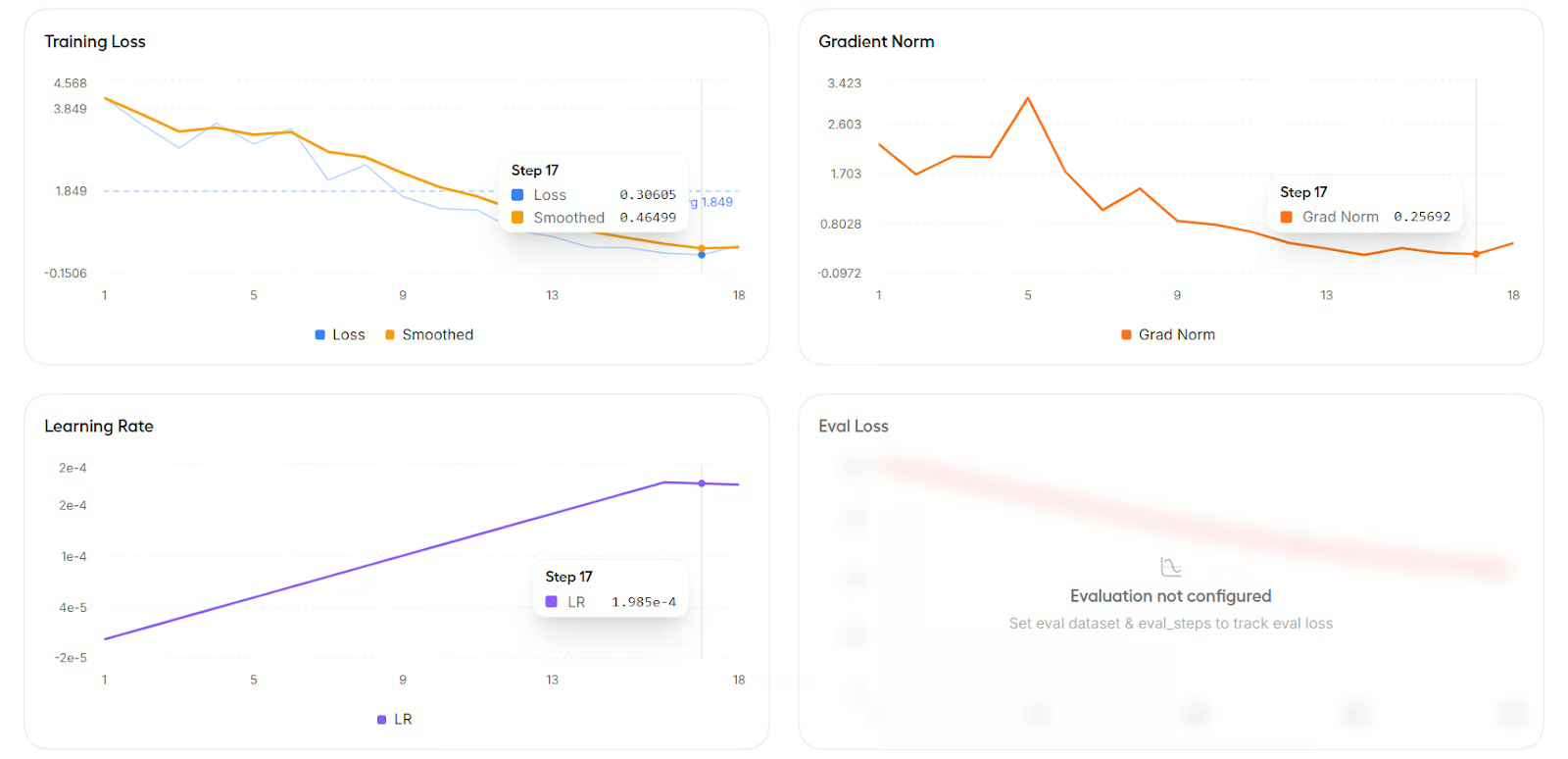
Puoi anche scorrere verso il basso per visualizzare i grafici di metriche come training loss, learning rate e gradient norm.
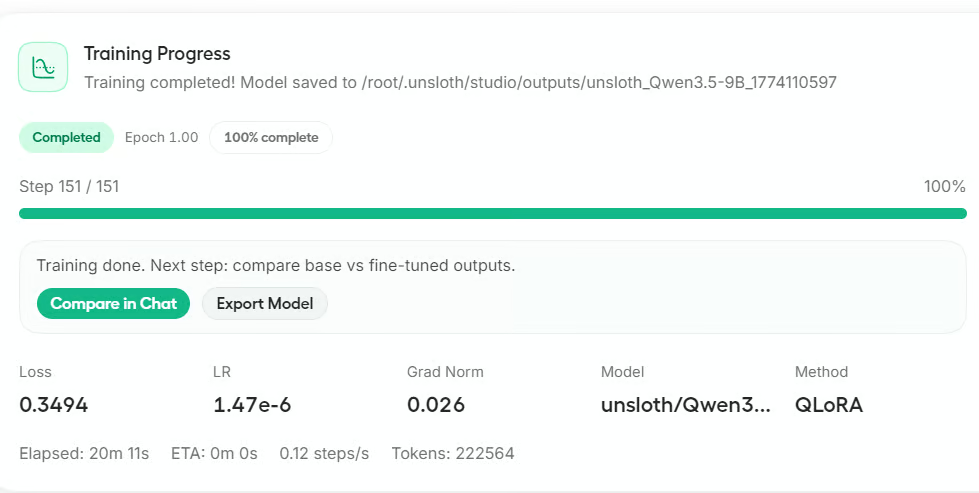
Dopo il termine dell’addestramento, Studio ti dà la possibilità di esportare il modello o di confrontarlo in Chat. Per questo tutorial, clicca Compare in Chat per testare il modello ottimizzato.
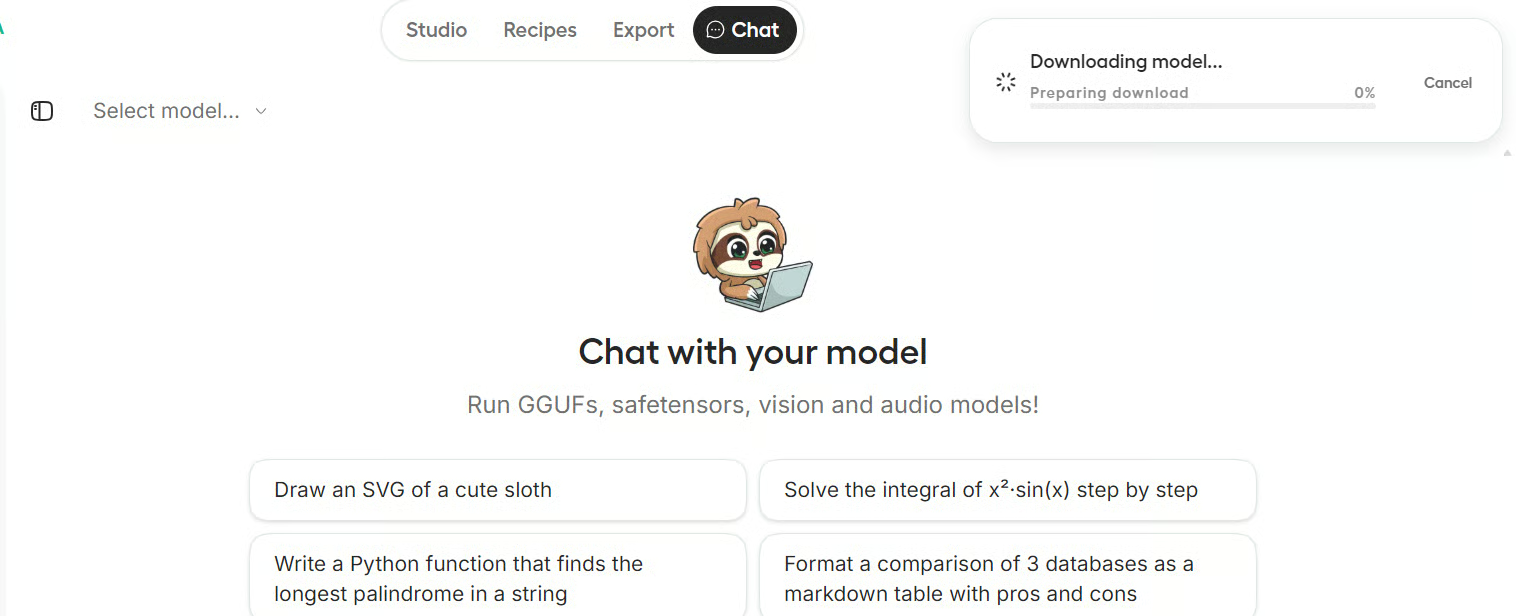
Potrebbero volerci alcuni secondi affinché il modello ottimizzato si carichi nell’interfaccia chat.
Quando è pronto, vedrai il nuovo nome del modello apparire nella sezione Select Model.
Per il test, abbiamo fornito al modello un’immagine di un’equazione LaTeX e ha saputo trascriverla correttamente in testo.
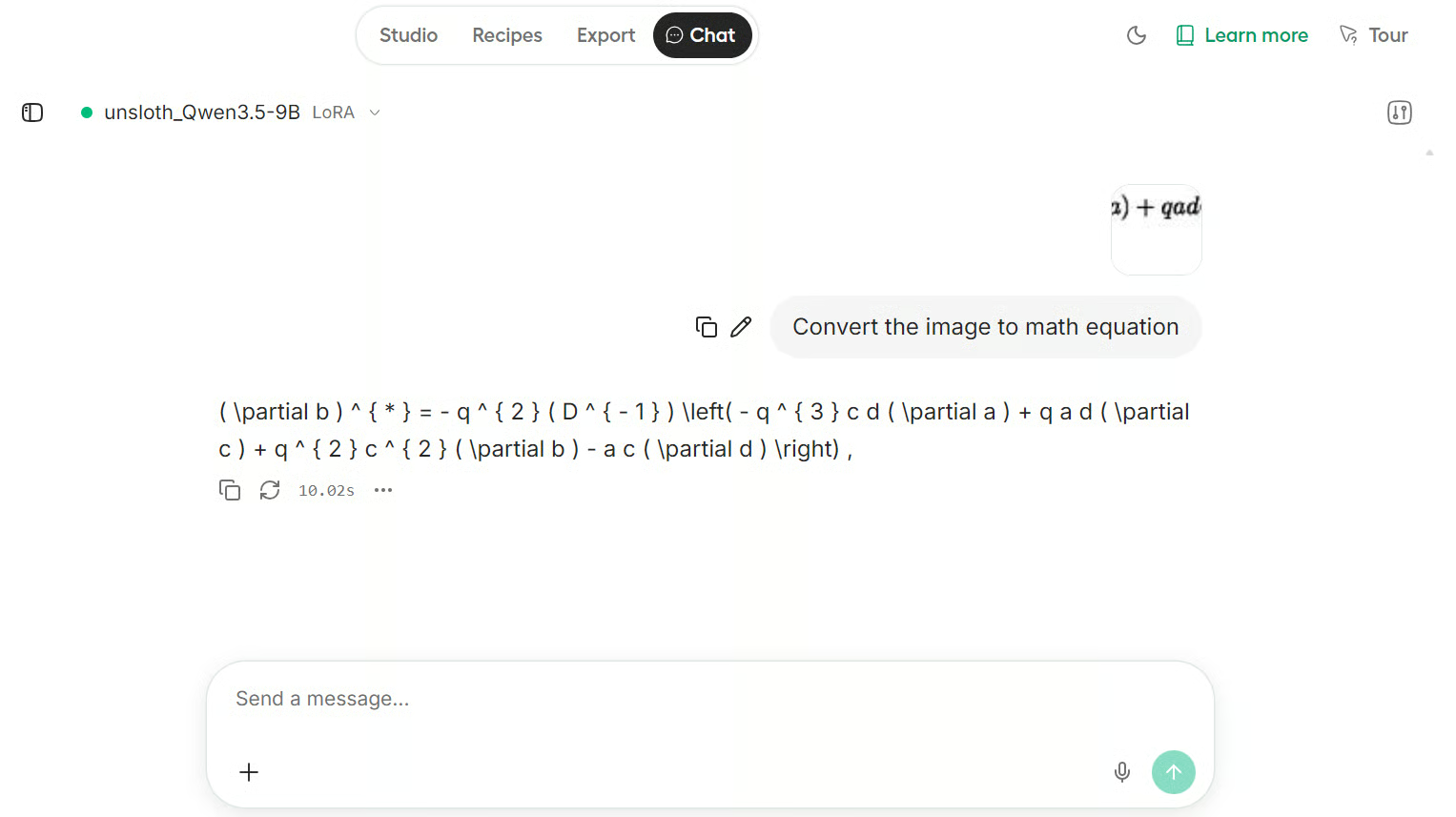
Il risultato è notevole. Anche se si tratta solo di un piccolo dataset di esempio, il modello ottimizzato ha gestito bene l’equazione e ha mostrato ottime prestazioni in questo task di OCR LaTeX.
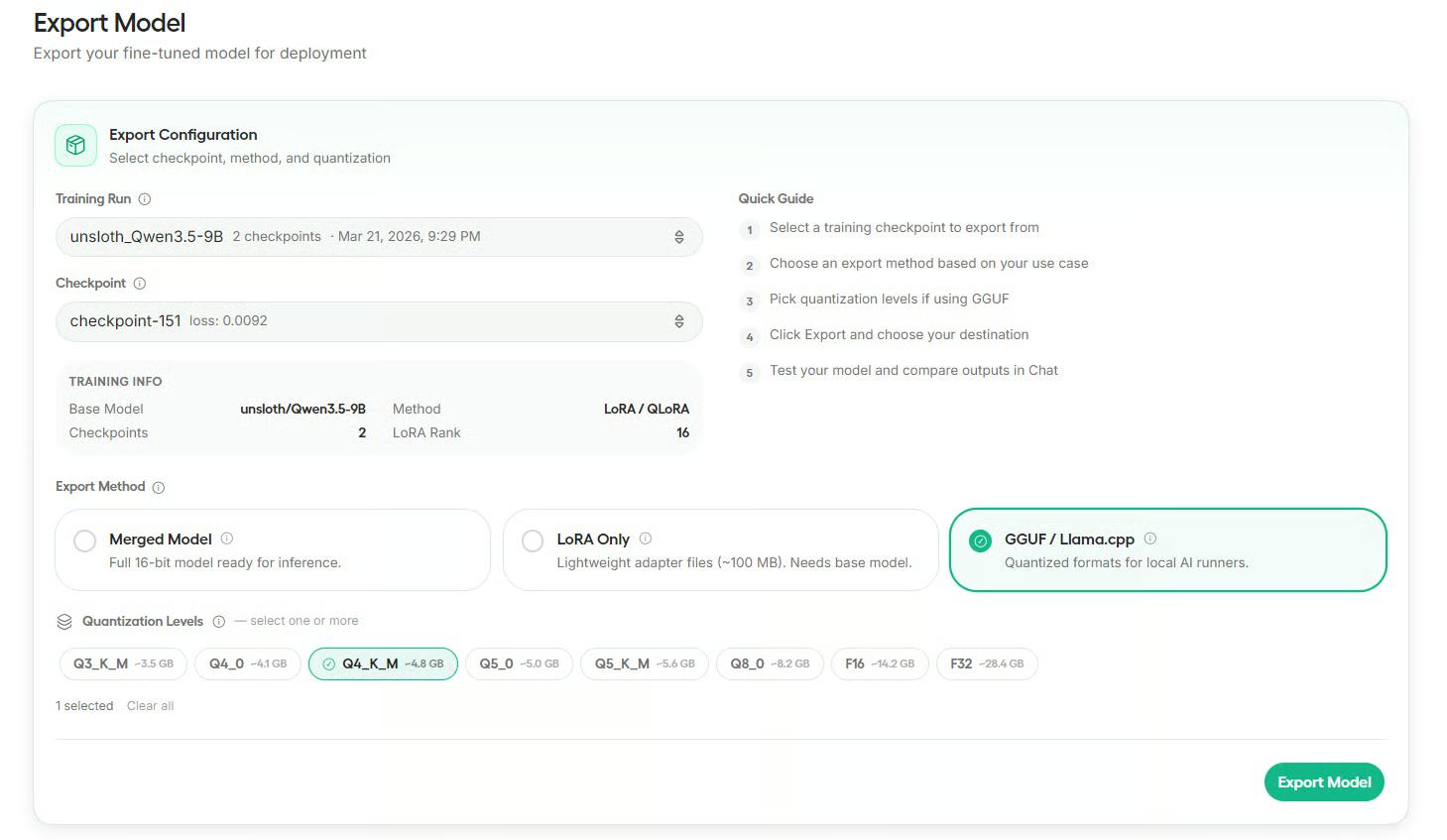
Dopo aver testato il modello ottimizzato, vai alla sezione Export. Qui seleziona la tua esecuzione di training, scegli il checkpoint e quindi seleziona il formato di esportazione desiderato.
Unsloth supporta l’esportazione come modello fuso, solo LoRA o GGUF per gli strumenti di inferenza locale.
Per questo tutorial, esporta il modello in formato GGUF e scegli la quantizzazione Q4_K_M.
È una buona opzione per l’uso locale perché mantiene il modello più piccolo, funzionando comunque bene con strumenti come Ollama, llama.cpp, LM Studio e Jan AI.
Prima dell’esportazione, Studio chiederà se vuoi salvare il modello in locale o pubblicarlo su Hugging Face. In questa guida lo salveremo in locale.
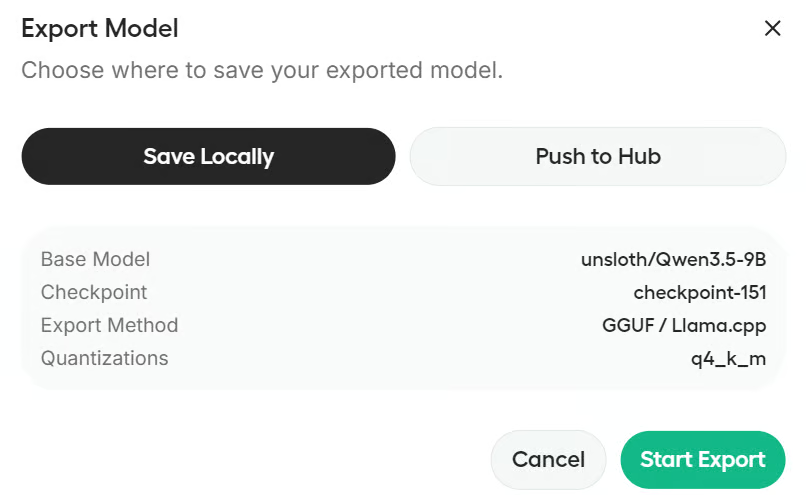
Se vuoi pubblicarlo su Hugging Face, ti servirà la corretta configurazione di autenticazione, come un login Hugging Face con permessi di scrittura o un token.
Unsloth Studio rende il fine-tuning molto più accessibile, soprattutto per chi vuole lavorare con modelli open senza passare ore a configurare una pipeline di training complessa.
Dall’installazione al training, dal test in chat all’esportazione, l’intero flusso di lavoro è organizzato in modo pratico e adatto ai principianti.
In questo tutorial ti ho mostrato il flusso completo di fine-tuning in Unsloth Studio. Abbiamo installato lo studio su una macchina con GPU, avviato l’interfaccia web, selezionato Qwen3.5-9B come modello base, caricato il dataset Latex OCR, configurato le impostazioni principali di training, eseguito il fine-tuning con QLoRA, testato il modello ottimizzato in chat e infine esportato per l’uso locale.
Se sei alle prime armi con il fine-tuning degli LLM, Unsloth Studio è un ottimo punto di partenza. Abbassa la barriera d’ingresso, mantiene il flusso di lavoro chiaro e ti offre un percorso semplice per addestrare ed eseguire modelli in locale. Ti consiglio anche di dare un’occhiata al corso Fine-Tuning With Llama 3, che offre esempi pratici del processo di fine-tuning.
I migliori corsi DataCamp
Corso
Corso
Pratica and corso your progress.
Continua Con Googleblog
Abid Ali Awan
10 min
blog
Abid Ali Awan
15 min
blog
Tim Lu
12 min