Ga naar de hoofdinhoud

Power BI Tutorial for Beginners: A Step-by-Step Guide

Master the basics of Power BI Desktop in this beginner tutorial. Learn data import, Power Query, DAX formulas, and how to build and share interactive reports.
Bijgewerkt 27 feb 2026  · 13 min lezen

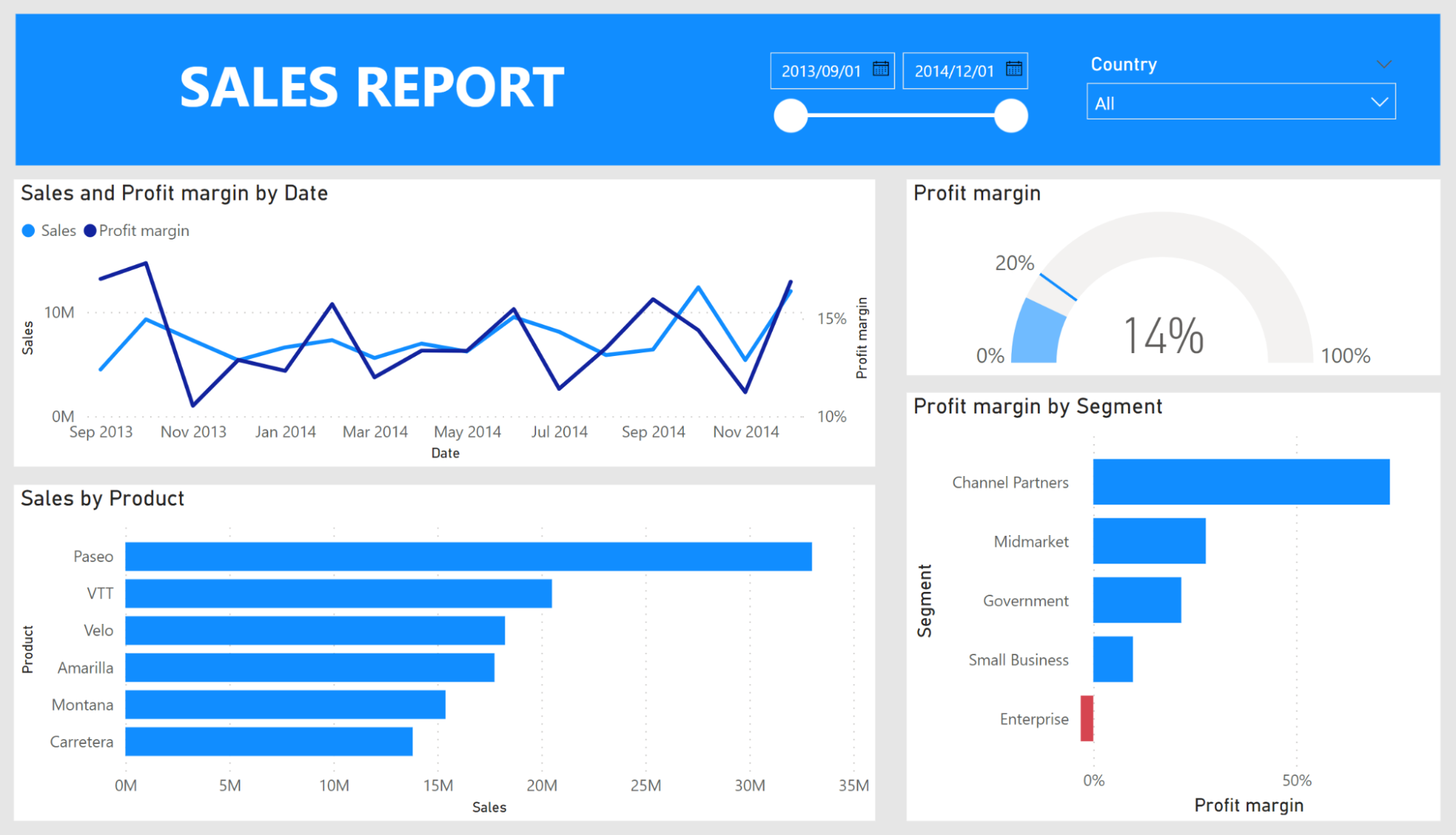
Power BI Desktop report showing interactive data visualizations and dashboards

In this tutorial, I'll walk you through the basics of Power BI step-by-step. I'll demonstrate key concepts using a sample financial dataset, and by the end, you'll have built a complete Power BI report from scratch. You can follow along by downloading the sample financial dataset from Microsoft Learn.

TL;DR

  • Power BI is a free Microsoft tool for connecting to data sources, building interactive reports, and sharing dashboards online.
  • The workflow is: import data in Power BI Desktop → clean it in Power Query → model relationships → add DAX calculations → build visualizations → publish to Power BI Service.
  • DAX (Data Analysis Expressions) is the formula language used to create calculated columns, measures, and KPIs.
  • Power BI Desktop is Windows-only and free; Power BI Service is the online platform for publishing and sharing reports.
  • By the end of this tutorial, you'll have built a financial report with a clustered bar chart, a KPI visual, slicers, and a line chart.

What is Power BI?

Power BI is a business intelligence tool that allows you to connect to various data sources, visualize the data in reports and dashboards, and then share them with anyone you want.

Power BI is made up of 3 main elements:

  1. Power BI Desktop - a free desktop application for building and designing reports.
  2. Power BI Service - the online publishing service for viewing and sharing reports and dashboards.
  3. Power BI mobile apps - for viewing reports and dashboards on the go.

What is Power BI Used For?

The purpose of BI is to track Key Performance Indicators (KPIs) and uncover insights in business data to better inform decision-making across the organization. Power BI is used in different ways depending on the role of the individual, from developers, analysts, managers, and directors to everyone in between.

Why Learn Power BI in 2026?

Power BI is one of the most in-demand business intelligence tools globally. Here's why it's worth adding to your skill set:

  • Career demand: Power BI skills are required for Data Analyst, BI Developer, and Business Intelligence Analyst roles across finance, healthcare, retail, and technology sectors.
  • Microsoft ecosystem integration: Power BI connects natively with Excel, Azure, SharePoint, SQL Server, and the broader Microsoft Fabric platform, making it the natural choice for organizations using Microsoft tools.
  • Copilot AI features: Microsoft's Power BI Copilot is now embedded in Microsoft Fabric, enabling natural language queries and AI-generated report summaries.
  • Free to start: Power BI Desktop is completely free to download and use, lowering the barrier to entry for learners.
  • Wide industry adoption: Power BI is used by hundreds of thousands of organizations worldwide to drive data-driven decision-making.

How Does Power BI Compare to Other Tools Like Tableau and Excel?

Power BI and Tableau are both business intelligence tools and have a lot of overlap in terms of their capabilities. There are 2 key differences between Power BI and Tableau:

  1. Power BI only works on Windows, whereas Tableau supports Windows and MacOS.
  2. Pricing options differ between Power BI and Tableau. However, Tableau is generally the more expensive option.

See the Power BI vs. Tableau article for an in-depth comparison.

Power BI vs Tableau vs Excel: Quick Comparison

FeaturePower BITableauExcel
Primary useInteractive dashboards & BI reportsAdvanced data visualizationSpreadsheet analysis
PlatformWindows (Desktop); browser (Service)Windows & macOSWindows & macOS
Free versionYes (Power BI Desktop)Yes (Tableau Public)No (requires Microsoft 365)
Formula languageDAXLOD expressionsExcel formulas
Best forMicrosoft ecosystem, large datasetsComplex custom visualizationsSmall datasets, quick analysis
Sharing & collaborationPower BI Service (online)Tableau Server / Tableau CloudSharePoint / email

Excel is spreadsheet software. While it contains much of the same core functionality as Power BI, it has limited visualization options and lacks the ability to refresh, share, and view reports and dashboards online. See our Power BI vs Excel article for a full side-by-side comparison.

Master Power BI From Scratch

No experience required—learn to work with data via Power BI.
Start Learning for Free

Prerequisites

Before starting this tutorial, make sure you have the following:

  • A Windows PC: Power BI Desktop is only available on Windows (Windows 10 or later, 64-bit). Mac users can run it via a virtual machine or use Power BI Service in a browser.
  • Basic spreadsheet familiarity: Understanding rows, columns, and basic Excel concepts will help you follow along, though no prior Power BI experience is required.
  • The sample dataset: Download the Microsoft financial sample dataset to follow along with the hands-on examples in this tutorial.

Downloading and Installing Power BI Desktop

Power BI Desktop is one of the core elements of Power BI and it is the main application for designing and building reports.

It is recommended to download Power BI Desktop from the Microsoft Store as there are a few advantages:

  • Windows will automatically update your Power BI Desktop with the latest version. Since Microsoft releases updates for Power BI every month, this can be a big time-saver.
  • Rather than downloading the entire application for each update, Windows will only download the components that changed in the update. This makes updates faster and is useful if you are trying to minimize your data usage.
  • You are not required to have admin privileges on your computer to install or update Power BI Desktop (as is often the case with company-provided computers). This also speeds up the monthly update process since you won't need to contact your IT department whenever you need to update the application.

If you need to download the Power BI Desktop application directly, go to the product page and select 'See download or language options'. This will take you to the Microsoft Download Center, where you can download the latest version of the application.

Keep in mind that you cannot install both the Microsoft Store version and the version from the download center on your computer at the same time. If you do need to switch, be sure to uninstall your current version of the application before installing the next.

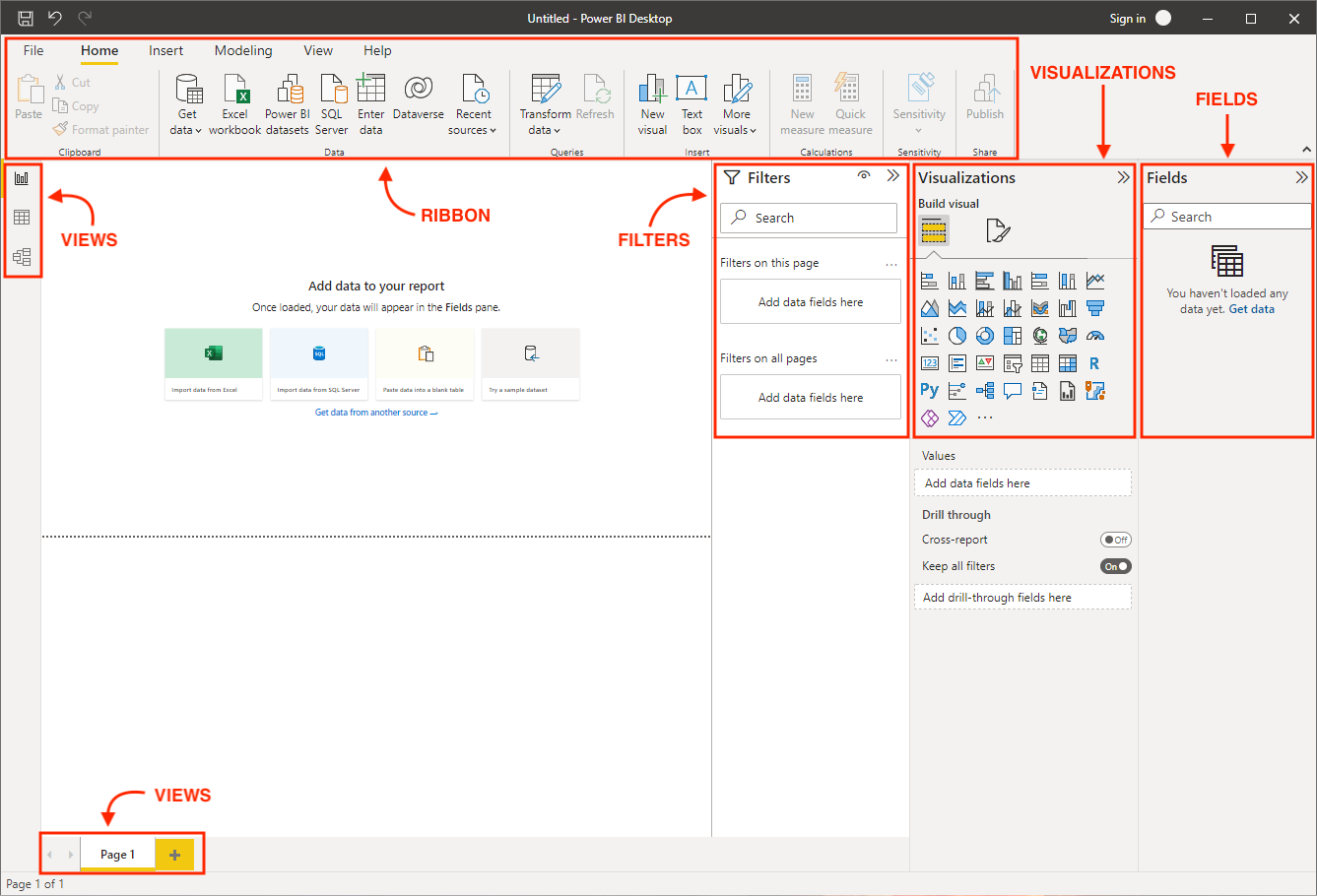
Power BI will start with a blank report when you launch the application. Let's go over the components of the Power BI Desktop:

  • Ribbon - the top ribbon contains most of the controls and options needed for building the report.
  • Views - this is made up of the report view, the data view, and the model view.
  • Canvas - this is the main design area where visualizations and other elements are added.
  • Page selector - for navigation to other pages in the report.
  • Filters - fields can be added here to filter the data.
  • Visualizations - this contains the list of available visualizations.
  • Fields - this section contains the tables and fields that are available in the data model.

Downloading and Installing Power BI Desktop

Importing and Transforming Data in Power BI Desktop

Now, let's get our hands dirty and work with our data in Power BI.

Data sources and connections

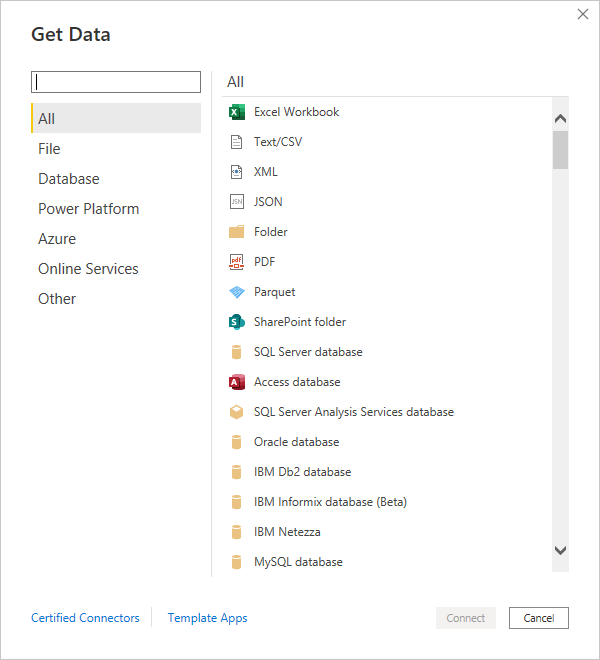
Power BI offers a wide variety of supported data sources and connections, making it incredibly easy to connect to the data source of your choosing. For this tutorial, we will import some sample financial data provided by Microsoft.

Importing and Transforming Data in Power BI Desktop

Importing data

As stated at the beginning of the tutorial, you can download the sample data and import it by selecting the Excel data source.

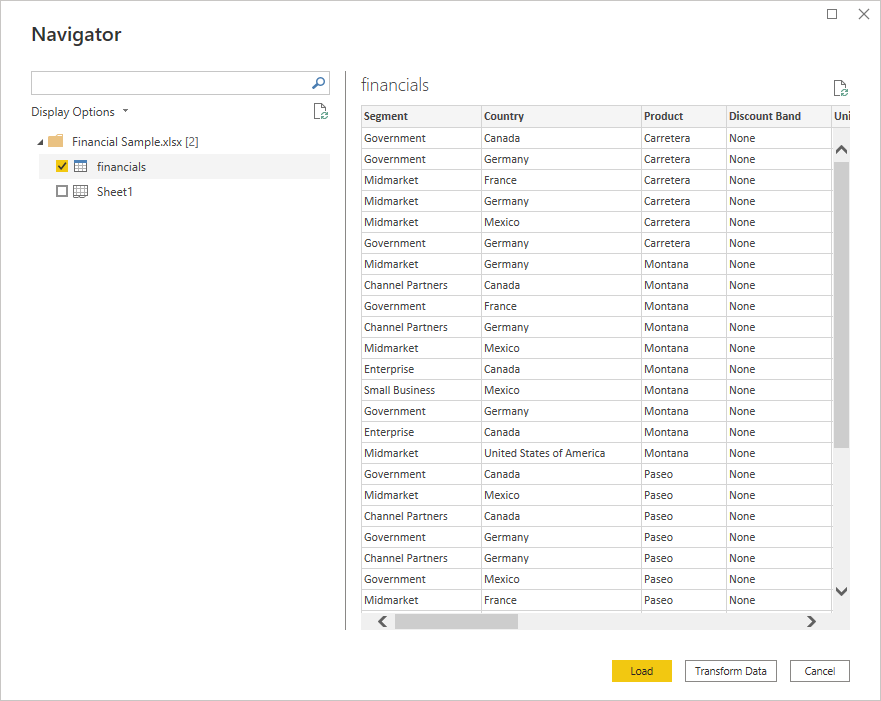
A preview window will pop up where you can select the table or sheet you want to import from the Excel file. Tables and sheets are designated by their respective icons. It is generally better to import tables as they are neatly defined in Excel with strict headers and row boundaries.

Importing Data

Here, you can also choose whether to load the data directly or go straight to the Power Query Editor using the Transform Data option. Transforming your data before loading it in can be advantageous, as there are often small errors and issues that you may want to iron out first. Select Transform Data, and a separate window will open up for the Power Query Editor.

Power Query

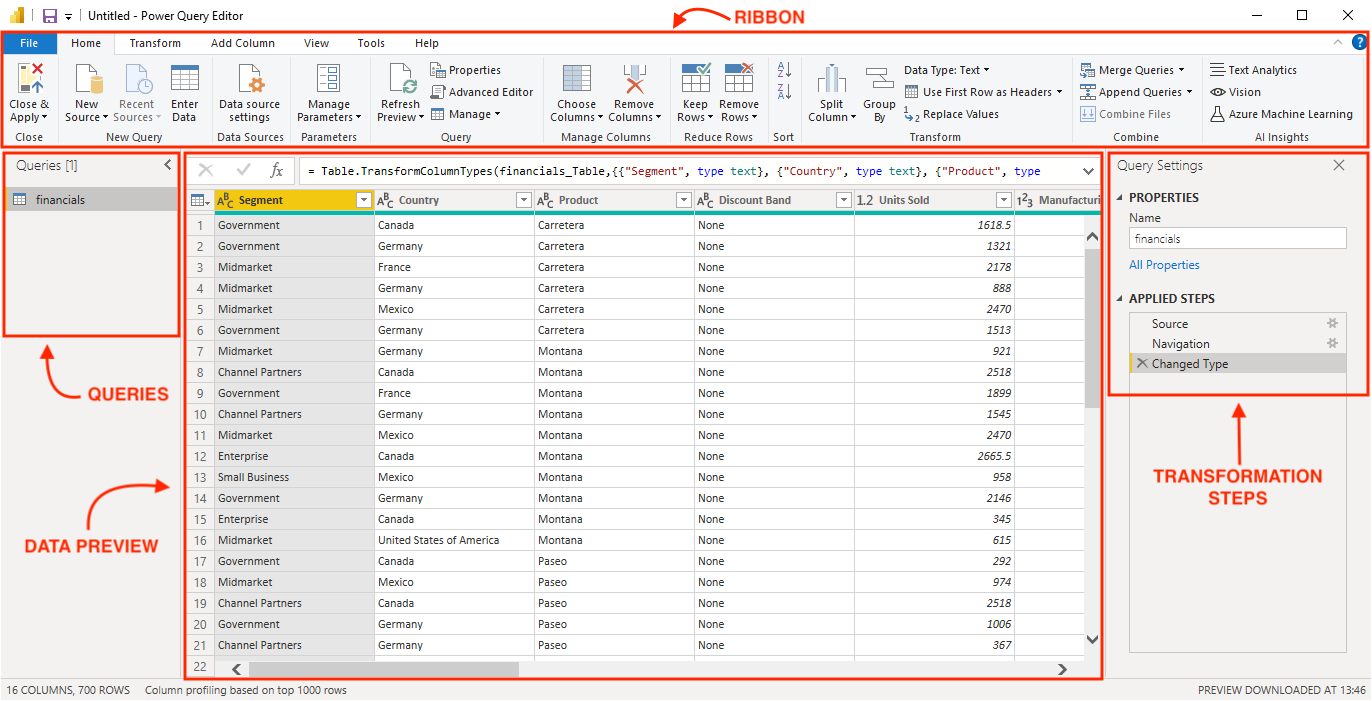
The Power Query Editor can be broken up into 4 main parts:

  • Ribbon - the top ribbon contains almost all of the data transformation options you need to shape your data. We will explore a few common transformations below.
  • Queries - this lists all the queries you have set up for this report. For complex reports, you can organize queries into groups for better navigation and management.
  • Data view - this is the main table containing the data for the selected query as well as a formula bar. A preview of the data is shown with only the first 1000 rows.
  • Transformation steps - the right-hand pane contains each of the transformation steps that have been applied to the selected query. This allows you to keep track of each individual change that has been made to the data. You can insert, delete, and move steps around as needed.

The Power Query Editor

Here, the financial sample data is already very clean, so we have no transformation steps to apply. However, these are some of the most common transformation steps:

  • Removing rows and/or columns - some Excel data can have a lot of blank rows and/or columns inserted for readability and aesthetic purposes, but these are not useful in Power BI and should be removed.
  • Changing data types - data types such as number, date, or text should be specified for each column. Power BI will try to automatically detect the data type, yet it can sometimes be wrong or there can be errors so it is a good idea to always double-check the data types.
  • Combining data with merge and append - similar to join and concatenate in SQL, these transformations allow you to combine queries from multiple sources.
  • Pivot and unpivot - these options allow you to transform your data from a wide to a long format and vice versa. The unpivot option is particularly useful when dealing with Excel files that have information (such as dates) running across the columns of a table rather than as rows.
  • Adding a conditional column - this is a useful transformation that allows you to add a column based on if/then/else logic.

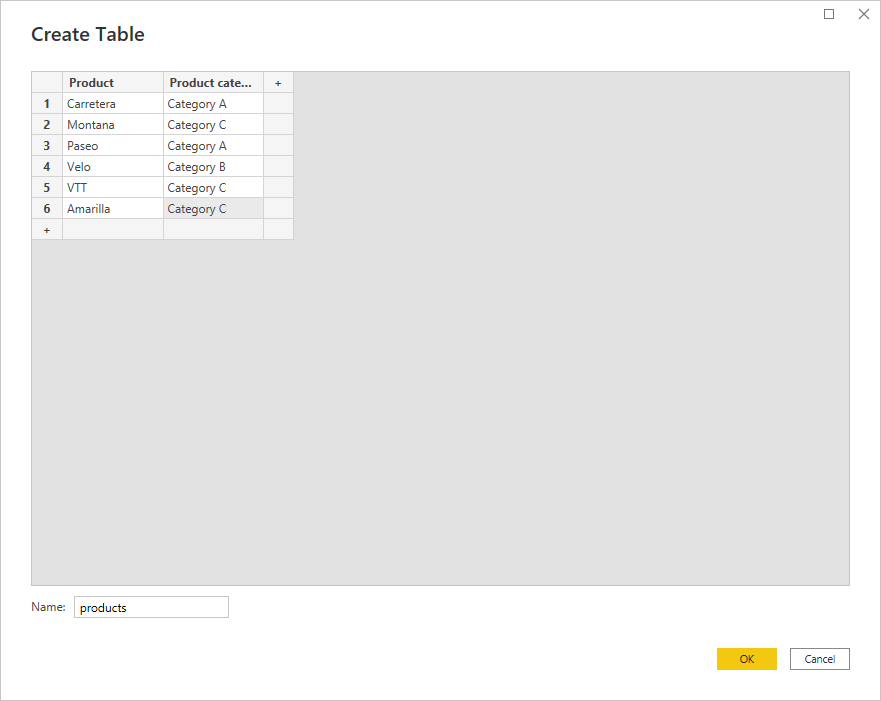
In the example below, we have included an additional table called Products containing some fictitious product categories to demonstrate data modeling later in this tutorial. You can add this table by selecting Enter Data in the ribbon.

Creating a table

Lastly, select Close & Apply from the ribbon to start building and designing the report.

Building and Designing Power BI Reports

We are ready to build our first report. 

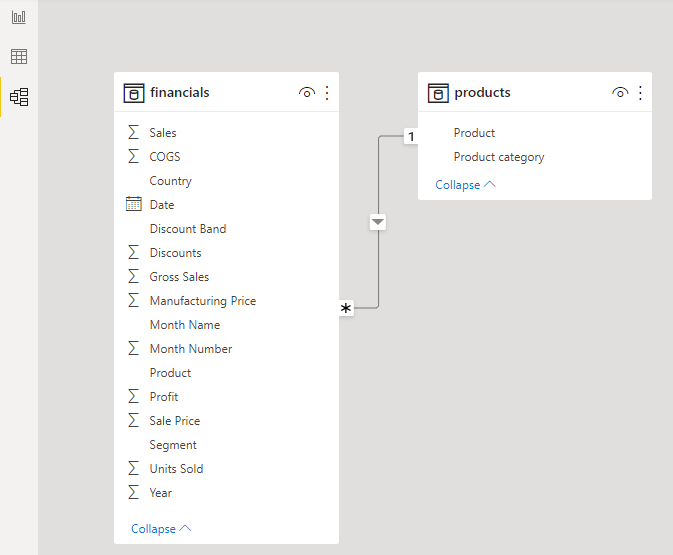
Data model view

Now that we have imported two data tables, we can create relationships between them using the data model view.

Building and Designing Power BI Reports Data Model View

There are two ways you can create a relationship in Power BI:

  1. Select a field from a table and drag it onto the field in the second table with which you want the relationship to form.
  2. Select Manage Relationships from the ribbon and then select New to add a relationship using the same window we will discuss next (except that it will start as "blank").

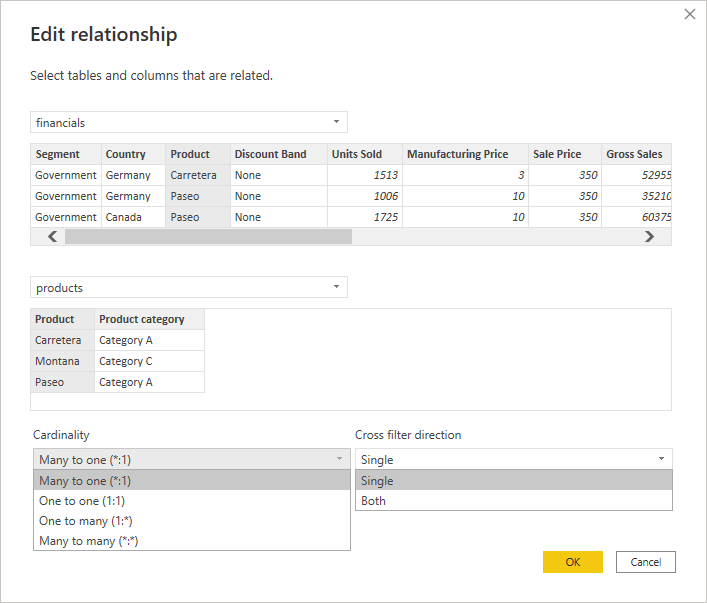
By default, Power BI will try to infer a relationship between tables. It doesn't always get this right, so you may wish to turn this feature off in the settings. To edit the relationship, right-click the connecting line between them and select Properties.

This window offers two interesting options for defining a relationship: cardinality and cross-filter direction. The choices for each option can have a big impact on the resulting report, so choose carefully. Let's break down each of these options:

edit a relationship in Power BI

Cardinality has four choices: many to one, one to one, one to many, or many to many. When creating relationships, it is recommended that the joining field contains unique values in at least one of the tables. Our data shows a relationship between the Financials table and the Products table using the Product field. The Products table has unique values for the Product field (each product only appears once in the table). However, the Financials table can have each product showing up several times by date, country, segment, etc.

Cross-filter direction gives a choice between single and both directions. Relationships flow from the table with unique values to the table with many values. In our case, the relationship flows from the Products table to the Financials table. This means that if the cross-filter direction is set to single, then the Financials table can be filtered by the Product and product Category fields in the Products table, but the Products table cannot be filtered by using the product field in the Financials table.

DAX

Calculations in Power BI are powered by formulas called DAX (Data Analysis Expressions). DAX allows you to create new fields and even new tables in your model. You can perform three types of calculations in Power BI that use DAX formulas:

  1. Calculated tables - these calculations will add an additional table to the report based on a formula.
  2. Calculated columns - these calculations will add an additional column to a table based on a formula. These columns are treated like any other field in the table.
  3. Measures - these calculations will add a summary or aggregated measure to a table based on a formula.

In this report, we will create a single measure called Profit margin with the following formula:

Profit margin = SUM(financials[Profit]) / SUM(financials[Sales])

Visualizations

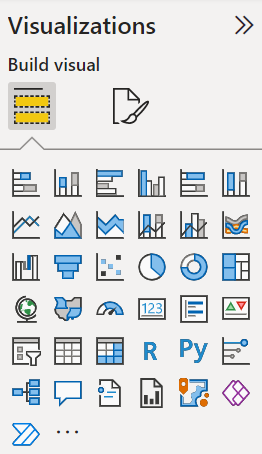
There are a variety of visualizations available in Power BI—bar charts, line charts, pie charts, tables, matrices, simple cards, KPIs, gauges, interactive maps, and much more. On top of that, there are many formatting options that you can play around with, too.

Visualizations in Power BI

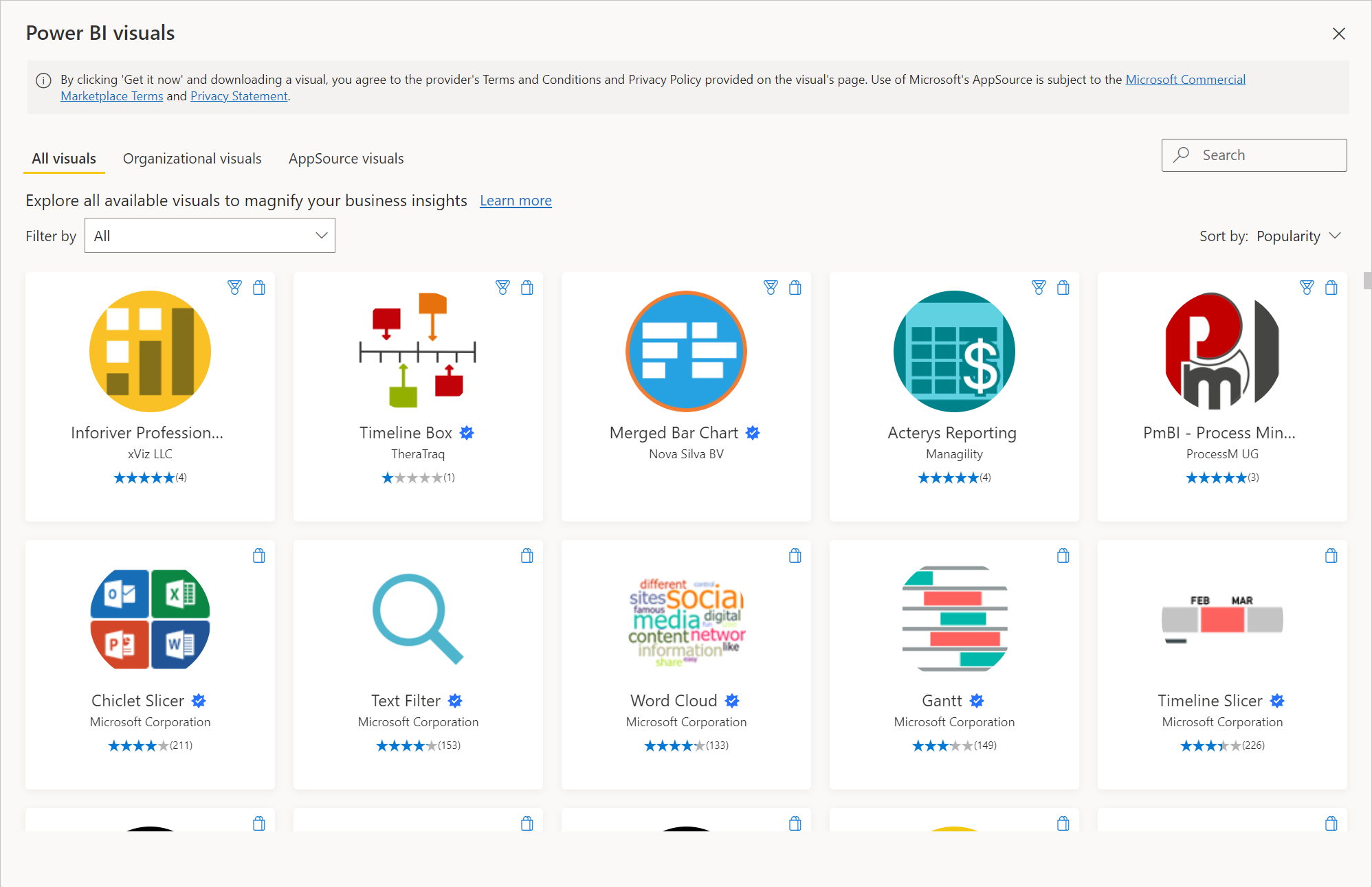
You can also import custom visualizations if your desired visual is not on the list. Simply click the ellipsis, and a window will pop up where you can browse all the available visuals—this is known as Microsoft AppSource. You can even design your own visuals if you have programming experience.

It is recommended that you only download custom visuals from Microsoft AppSource, as they have been tested and approved by Microsoft. Downloading them from anywhere else on the internet can have unintended effects or even be harmful.

Visualizations

In this tutorial, we build a simple report that contains these visuals: slicers, clustered bar charts, a line chart, and a KPI. We will review how the clustered bar chart and the KPI are created. The others should be easy to replicate on your own.

Clustered Bar Chart in Power BI

Clustered bar chart

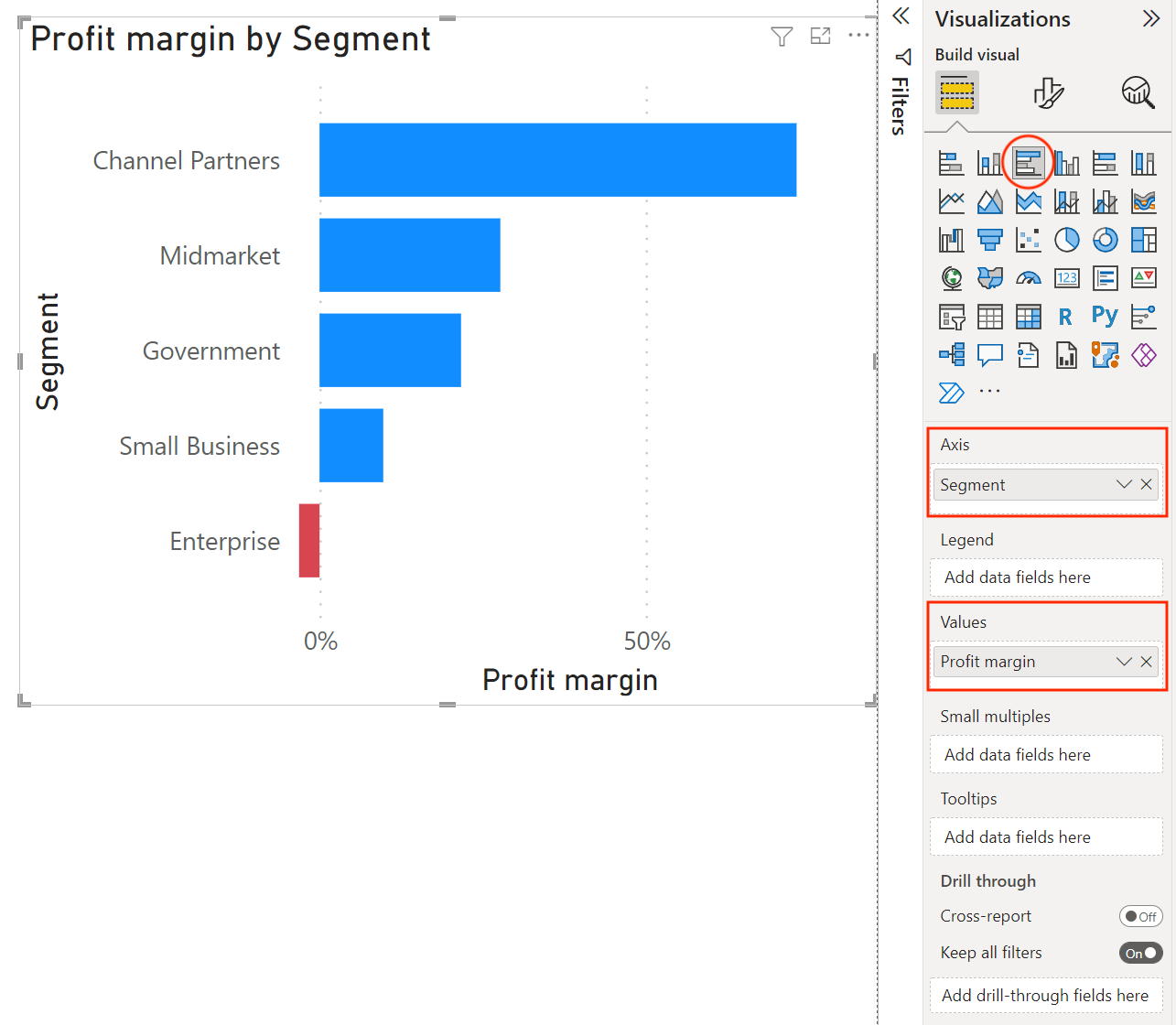
To insert a clustered bar chart, select the icon in the visualization pane, and a blank bar chart visual will appear on the canvas. Drag the Segment field to the Axis, and drag our new measure Profit margin to the Values. A title and all the axis headers are automatically populated for us based on the fields we added to the visual.

Clustered Bar Chart 2 in Power BI

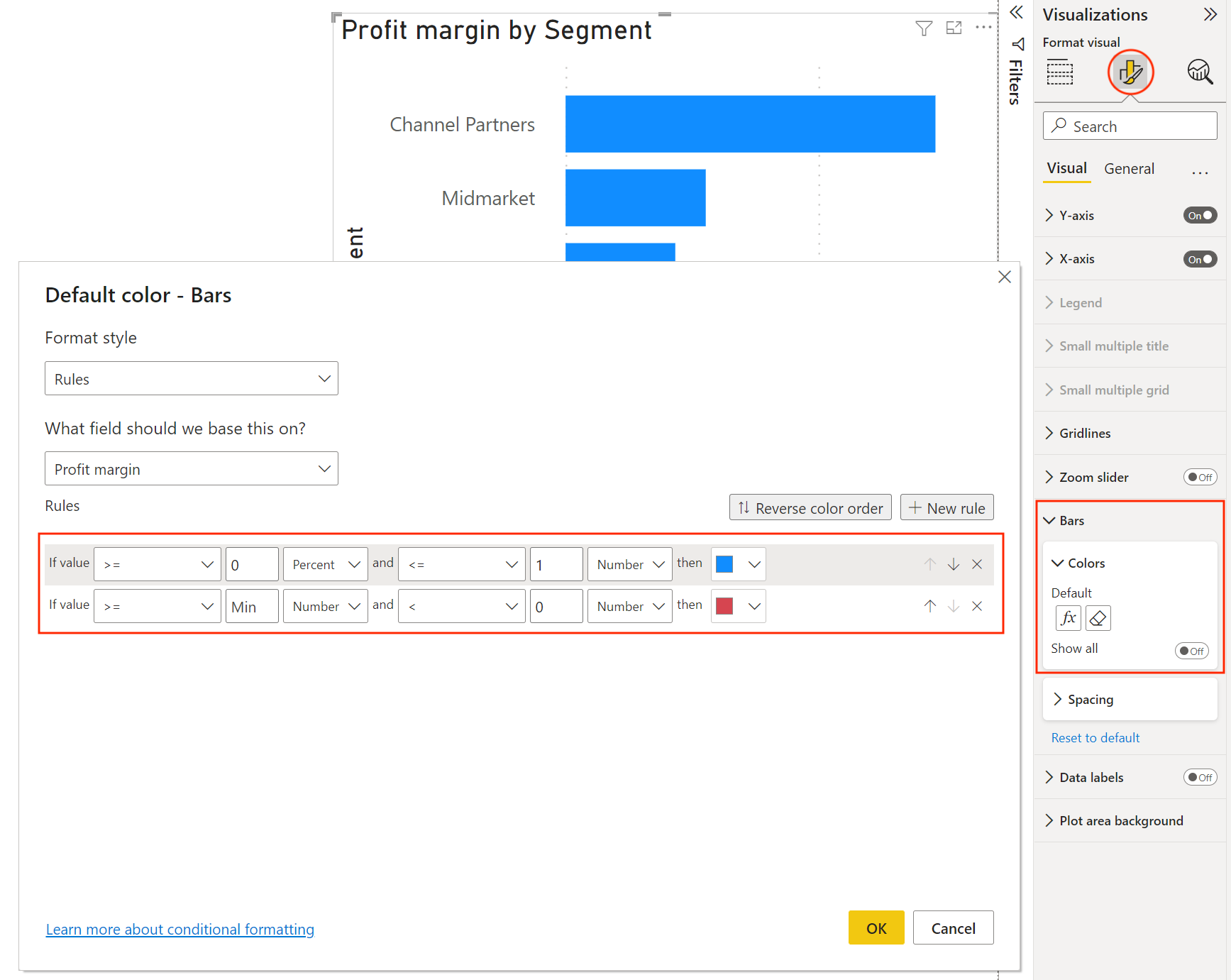
Since the profit margin is negative for one of the segments, we will add some conditional formatting to make that negative value stand out.

Select the formatting icon at the top of the visualization pane and then go down to the Bars options. Here, we can change the colors of the bars. To apply conditional formatting, select the fx symbol, and a window will pop up where you can apply rules based on the value of any field. Here, we select the Profit margin field and specify that the color should be "red" if the number is less than 0.

Changing Power BI Chart Colors

KPI visual

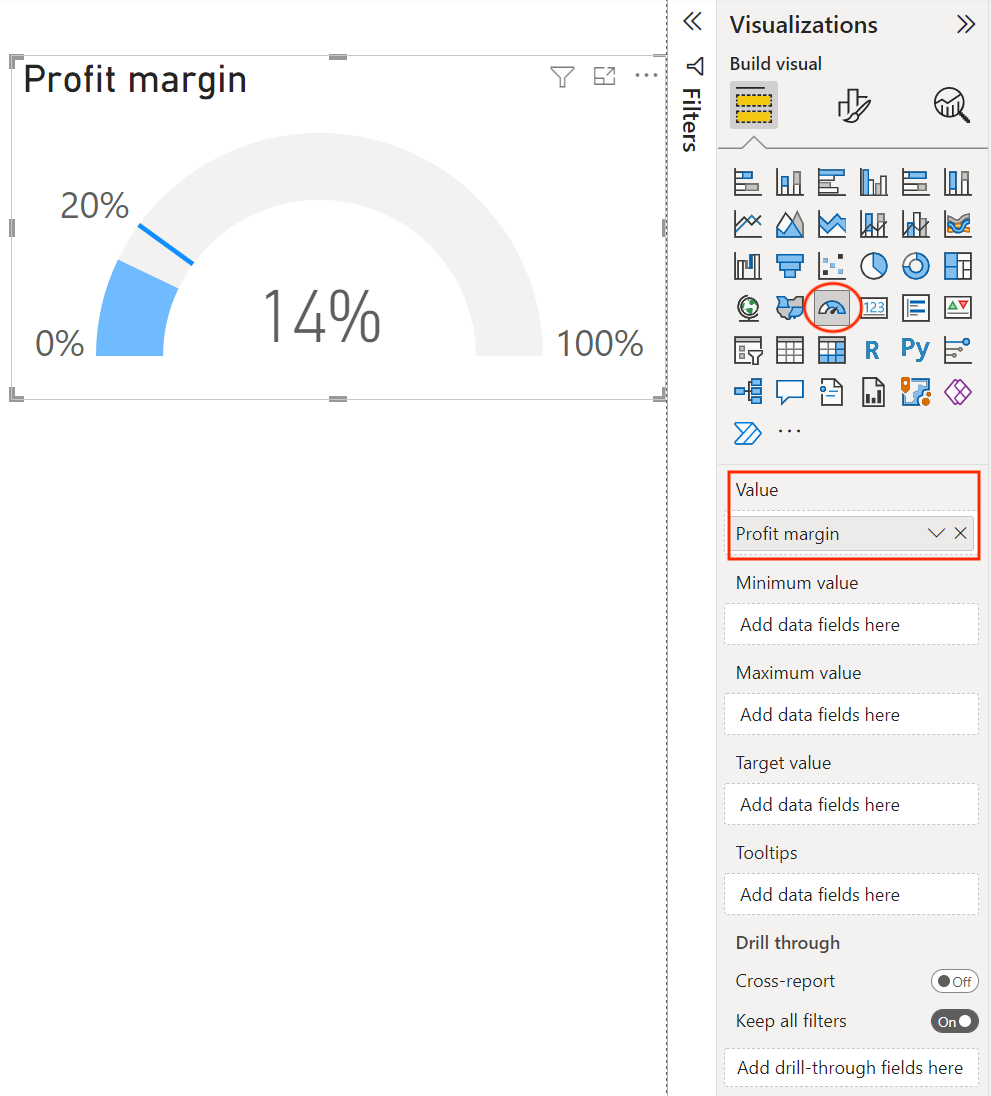
To insert a KPI visual, select the icon in the visualization pane. A blank KPI visual will appear on the canvas. This KPI will be based on the Profit margin measure that we created earlier. Drag the Profit margin field to Value.

KPI Visual in Power BI

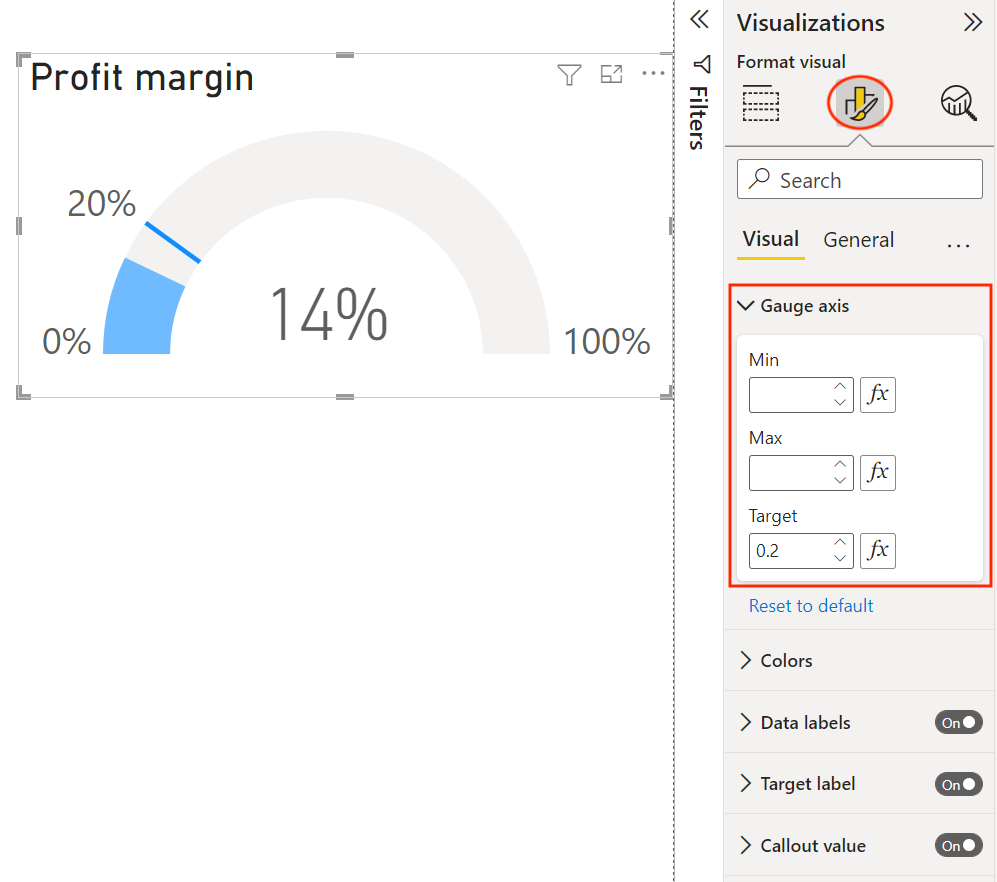
Next, we will add a target of 20% for the KPI. We could add the target by dragging a measure field under the Target value (this is useful if the profit margin target is used in other visuals), but we will instead select the formatting icon and enter the target value under the Gauge axis section.

KPI Visual 2 in Power BI

Publishing Reports to Power BI Service

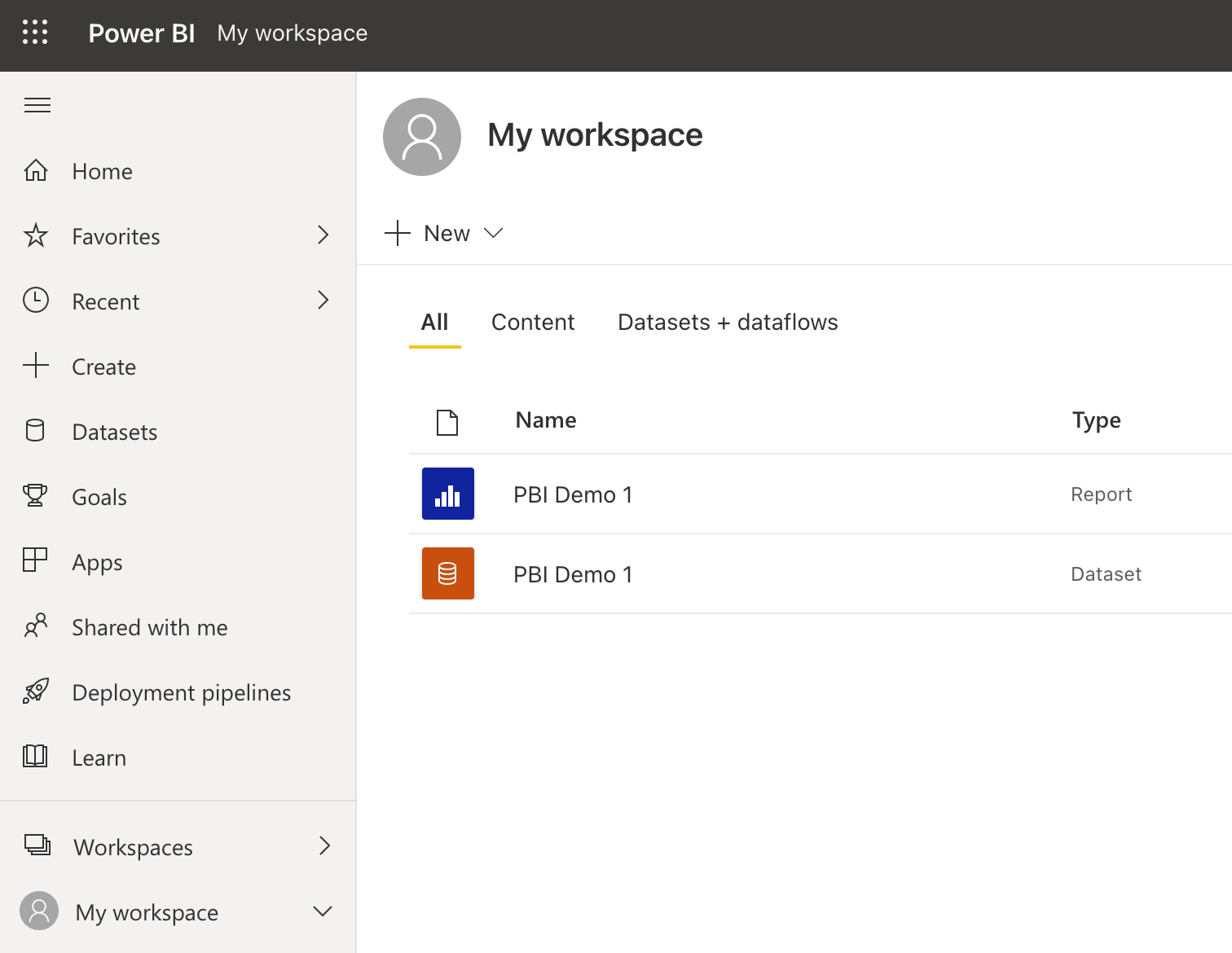
Once you are happy with your report, you can publish it to your Power BI Workspace. To do this, you must sign in to Power BI and then select Publish from the ribbon. Select a workspace, and the report will be published to Power BI Service. Log in to your Power BI account and navigate to the workspace where you published your report.

Publishing Reports to Power BI Service

Data

Publishing a report also publishes the data, which you will see separately in your workspace. You can use this data to create new reports from the Power BI Service. Whenever you republish a report, the data will be overwritten, so watch out for any changes to the data that could break the reports created from this data in the Power BI Service.

Select the data, and you will be brought to a screen where you can see an overview of all the reports that were built using this dataset. From this screen, you can also create a report using this data or share this data with others. If you have a Power BI Gateway set up, you can also refresh the data either manually or on a schedule.

Report

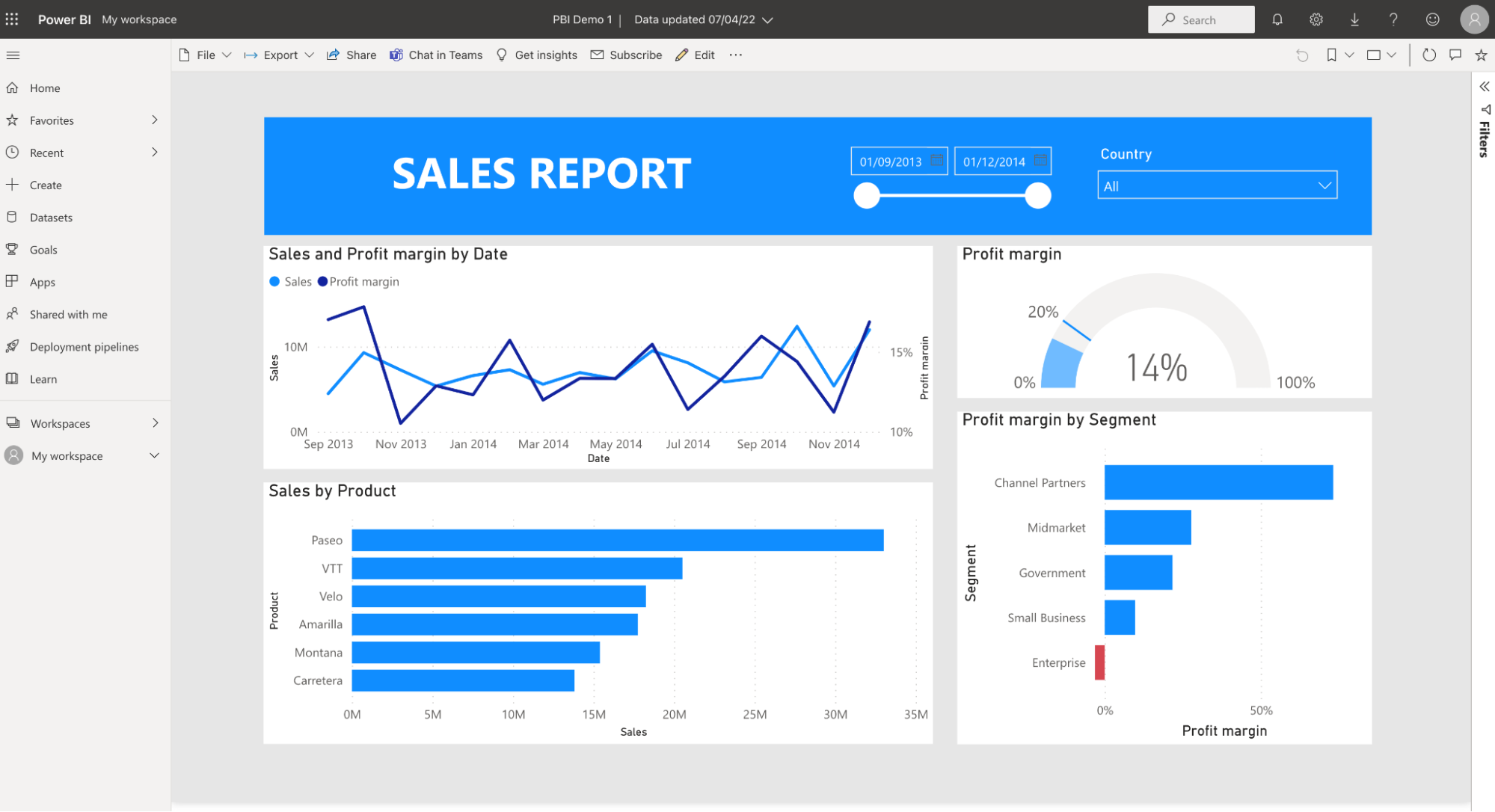
Reports in Power BI

Go back to your workspace and now select the report. From here, you can view and interact with the report, or explore our Power BI Reports tutorial to learn more advanced design techniques. Other useful options include:

  • Export the report as an Excel, PowerPoint, or PDF file for your own data analysis or presentation.
  • Share the report with other people.
  • Subscribe to the report to receive emails on a schedule or when the report is refreshed.

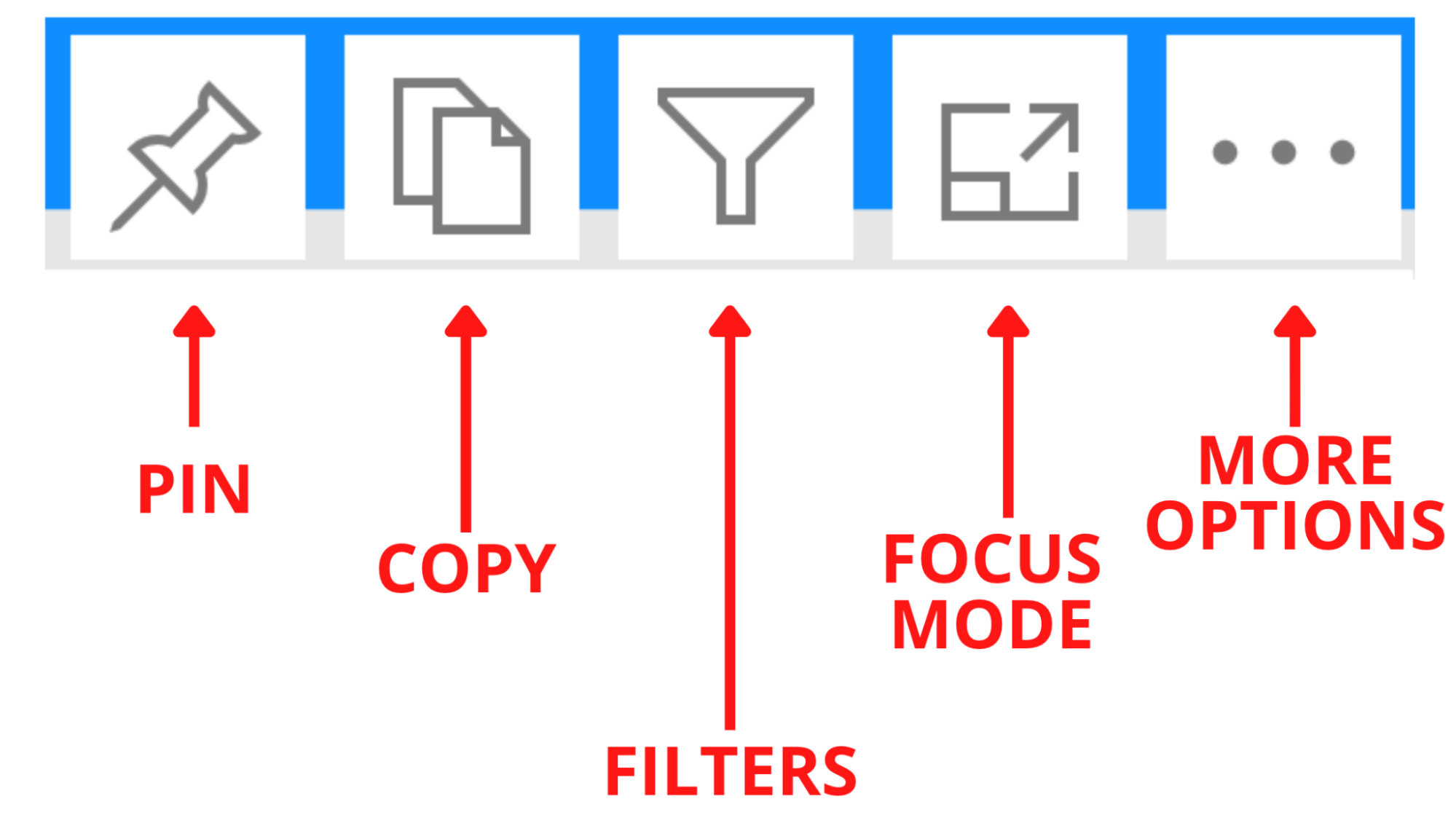
Each visual also has a number of options:

  • Pin the visual to a dashboard.
  • Copy the visual as an image.
  • View the filters or slicers that are affecting the visual.
  • Open the visual in focus mode.
  • Other options include adding a comment or exporting the data to an Excel or CSV file.

Editing Visuals in Power BI

Dashboard

You can pin entire reports or individual visuals to dashboards. The biggest benefit of using dashboards is that they allow you to pin visuals from different reports in your workspace. This way, you can easily keep track of important metrics in one place rather than clicking on each report. For a deeper dive, see our Power BI Dashboard Tutorial.

Next Steps

Now that you've built your first Power BI report, here are the best ways to continue building your skills:

Conclusion

Power BI is a powerful tool for transforming data into actionable insights through interactive dashboards and reports. Whether you're just getting started or looking to deepen your expertise, learning Power BI is a valuable step for anyone in data analytics or business intelligence. For a structured approach, explore Power BI Fundamentals or dive into specific courses like Introduction to Power BI, Introduction to DAX, and Data Visualization in Power BI. Happy learning!

Become a Power BI Data Analyst

Master the world's most popular business intelligence tool.

Start Learning for Free

Power BI FAQs

What is Power BI used for?

Power BI is a business intelligence tool that allows you to track Key Performance Indicators (KPIs) and uncover insights in business data so as to better inform decision-making across the organization. 

What is Power BI Desktop?

Power BI Desktop is a free desktop application for building and designing reports.

How do I update Power BI Desktop?

If you have downloaded Power BI from the Microsoft Store then updates are applied automatically. If you downloaded Power BI from the product page then you will need to re-download the latest version from the same place and install it.

What is DAX in Power BI?

Calculations in Power BI are powered by formulas called DAX (Data Analysis Expressions). DAX allows you to create calculated tables, calculated columns, and measures in your model.

How do I share a Power BI report?

You can share reports from the Power BI Service online or from the mobile app. In the Power BI Service, open a report you would like to share, select ‘“Share” from the top menu and enter the email address of the person you want to share the report with.

What's the best way to learn Power BI?

DataCamp's Introduction to Power BI course is the ideal place to start, as it offers a hands-on, practical method to learn Power BI. From there, you can build on your foundation with more advanced Power BI courses.  For additional reference materials, the Power BI documentation also has some great info and resources. 

How much does Power BI cost?

Power BI has 2 pricing tiers: Power BI Pro at $9.99 per user per month, and Power BI Premium, which starts from $4995 per capacity per month with an additional charge per user. To view the full pricing breakdown please visit the official Power BI pricing page.

How do I create a date table in Power BI?

Date tables can easily be added as calculated tables in a report. Do this by selecting “Create table” from the Modeling tab of the ribbon and entering the following basic DAX formula for date tables:

DateTable =
VAR BASECALENDAR =
    CALENDAR ( DATE ( 2021, 1, 1), EDATE ( TODAY(), 1 ) )
RETURN
    GENERATE (
        BASECALENDAR,
        VAR BASEDATE = [DATE]
        RETURN ROW (
            "Day", BASEDATE
       )

            )

What does BI stand for in Power BI?

Business Intelligence. 

How do I export data from Power BI to CSV?

Each visual has the option to export data. You can find this option by clicking the ellipsis button on the top right-hand corner of a visual and selecting “Export data”. From here you can choose to export to Excel or CSV.

How do I export Power BI to Excel?

Each visual has the option to export data. You can find this option by clicking the ellipsis button on the top right-hand corner of a visual and selecting “Export data”. From here you can choose to export to Excel or CSV.

Alternatively, you can export all the data contained in a report by selecting the Export option at the top of a report and then selecting “Analyze in Excel”.

Is Power BI better than Excel?

Excel is a spreadsheet software, while Power BI is a powerful business intelligence tool. Excel does contain much of the same core functionality as Power BI, but it has limited visualization options and lacks the ability to refresh, share, and view reports and dashboards online.

Onderwerpen

Learn more about Power BI with these courses!

Cursus

Gegevensmodellering in Power BI

3 Hr
88.8K
Bekijk detailsRight Arrow
Begin met de cursus
Meer zienRight Arrow
Gerelateerd

blog

What is Power BI? - Beginner's Guide to Power BI

Learn about the origins and development of this revolutionary business intelligence tool. Discover why industries across the globe rely on Power BI to visualize their data and inform their decision-making.

Wendy Gittleson

12 min

Tutorial

Power BI Dashboard Tutorial

Learn how to create a dashboard in Power BI in this step-by-step tutorial, from loading your dataset to sharing your completed dashboard with your team.
Kafaru Simileoluwa's photo

Kafaru Simileoluwa

Tutorial

Introduction to Power BI Visuals: A Beginner’s Guide

Understand the various Power BI visuals and how to create them in this beginner’s guide.
Austin Chia's photo

Austin Chia

Tutorial

Power BI DAX Tutorial for Beginners

Learn what DAX is and discover the fundamental DAX syntax and functions you'll need to take your Power BI skills to the next level.
Joleen Bothma's photo

Joleen Bothma

Tutorial

Power BI Report Builder: A Guide For Beginners

Learn more about what Power BI Report Builder is and what it can do for your reporting needs.
Austin Chia's photo

Austin Chia

code-along

Getting Started with Data Visualization in Power BI

In this training webinar, you'll learn how to create a variety of plots in Power BI, then customize them and arrange them into a dashboard.
Nick Switzer's photo

Nick Switzer

Meer zienMeer zien