Pular para o conteúdo principal

Google Workspace Studio Tutorial: Build an AI Agent Using Natural Language

Learn how Google Workspace Studio lets you create AI agents to automate workflows in Gmail, Drive, and Sheets with an easy, hands-on beginner tutorial.
24 de dez. de 2025  · 7 min lido

As a Google Workspace user, you likely spend too much time on repetitive tasks like organizing email attachments, logging files, or summarizing incoming data requests. Google Workspace Studio changes that by allowing you to build intelligent AI agents that handle these chores automatically. Launched in December 2025, this tool brings agentic AI to Google Workspace, helping you focus on analysis and insights instead of admin work.

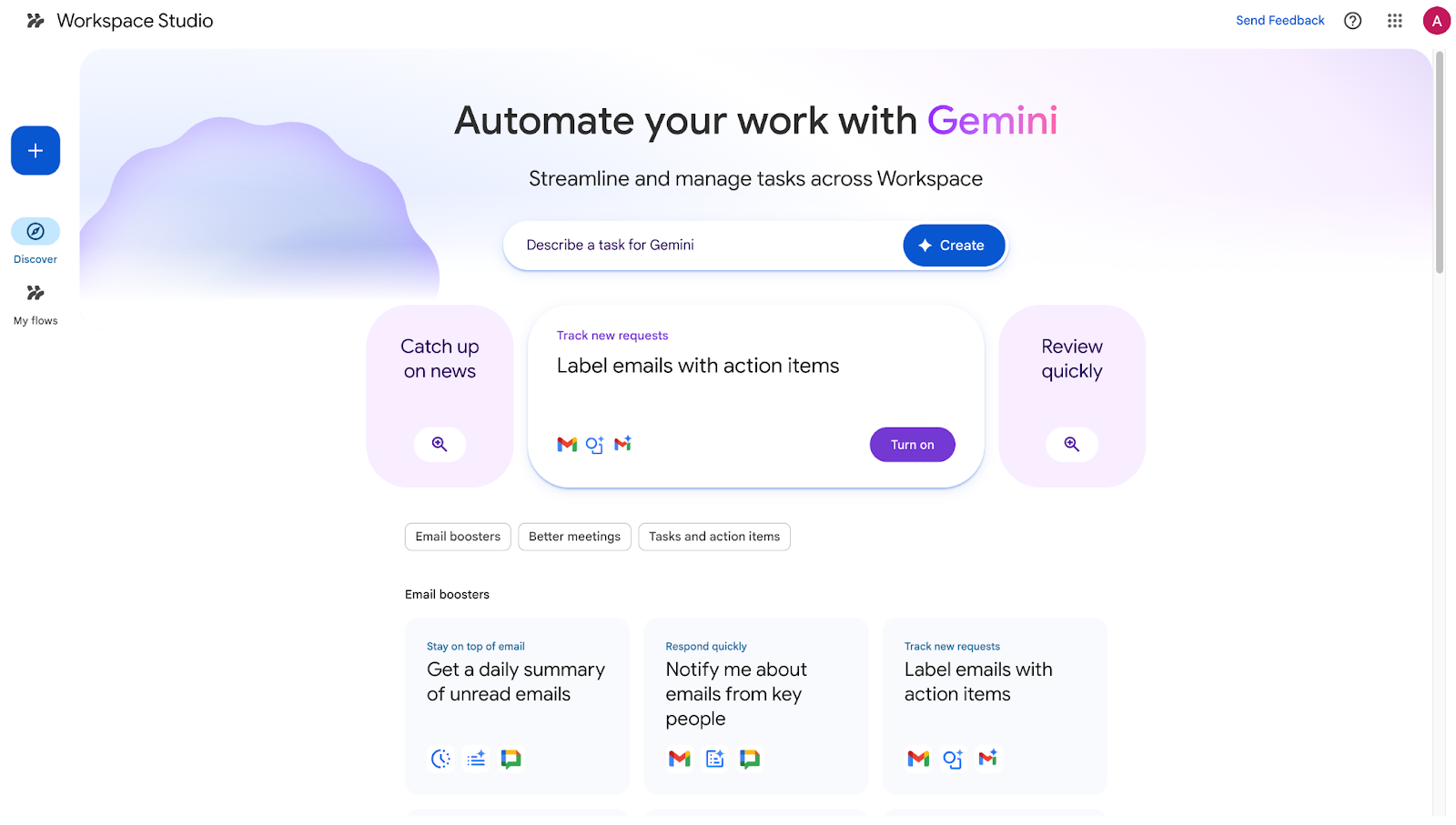
Google Workspace Studio Home screen

In this tutorial, I’ll walk you through the key features of Google Workspace Studio and explore how to build your first AI agent using this powerful tool. If you’d like to learn more about agentic AI, I recommend checking out the AI Agent Fundamentals skill track

What Is Google Workspace Studio?

Google Workspace Studio is a no-code platform for designing, managing, and sharing AI-powered agents in Google Workspace. These agents, powered by Gemini, automate complex workflows across apps like Gmail, Drive, Sheets, and Chat. 

Unlike a generic AI chat, an agent built in Workspace Studio is grounded in your specific business data. It can read your policy documents, analyze your spreadsheets, and interact with your emails, all while adhering to your organization's security protocols. 

As someone who has spent years building Google Workspace automations using Apps Script, APIs, and third-party platforms, Workspace Studio feels like the missing middle-ground tool. It allows non-developers to build meaningful, reliable automation without juggling APIs, Apps Script, and third-party tools. It brings structure and real usability to AI agents inside everyday workflows.

Key Features of Google Workspace Studio

Previously, building meaningful automation required scripting with Apps Script, setting up external automation tools, or relying on IT teams. Now, teams can create agents in minutes using natural language, templates, or custom steps. Here's what makes it so powerful.

Building agents with natural language

Describe your automation in plain English, like “Save data file attachments from emails to a Drive Folder and log details in a Sheet,” and Gemini will build the agent for you. 

Create a new agent in Workspace Studio in natural language

Ready-to-use-templates

Start with pre-built templates for common tasks, such as daily email summaries or file organization, then customize them. 

Seamless workspace integration

Agents work directly in a range of Google tools, including Gmail, Drive, Sheets, Chat, and more, pulling context to perform actions like labeling emails or notifying teams.

Workspace Studio Visual Workflow Editor for email automation

Connect to third-party apps

Workspace Studio isn't limited to the Google ecosystem. It includes built-in connectors for external tools. This means you can create agents that handle complex cross-platform tasks, such as automatically creating a Jira ticket when a client reports a bug via email, or logging a new sales lead directly into Salesforce.

How to Get Started with Google Workspace Studio

Access to Google Workspace Studio is simple with an eligible Google Workspace plan. Here’s what you need to do:

  1. Confirm your edition supports it (most Business, Enterprise, and Education plans do, but check with your admin).
  2. Visit studio.workspace.google.com and sign in.
  3. Explore the Discover page for templates or start creating.

Note: AI features require Gemini to be enabled, and users under 18 on school accounts have restrictions.

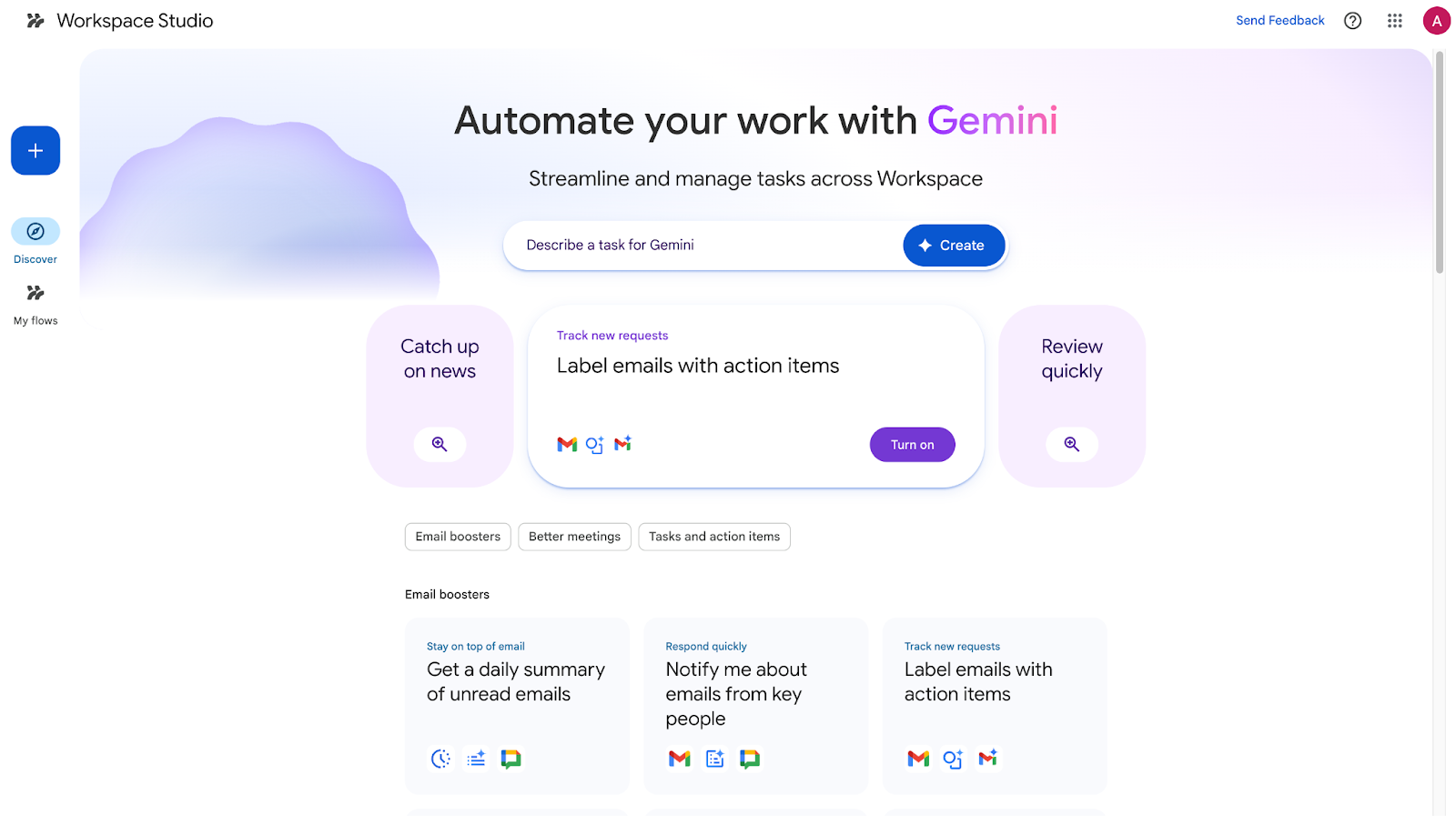
Google Workspace Studio home screen

Google Workspace Studio Demo Project

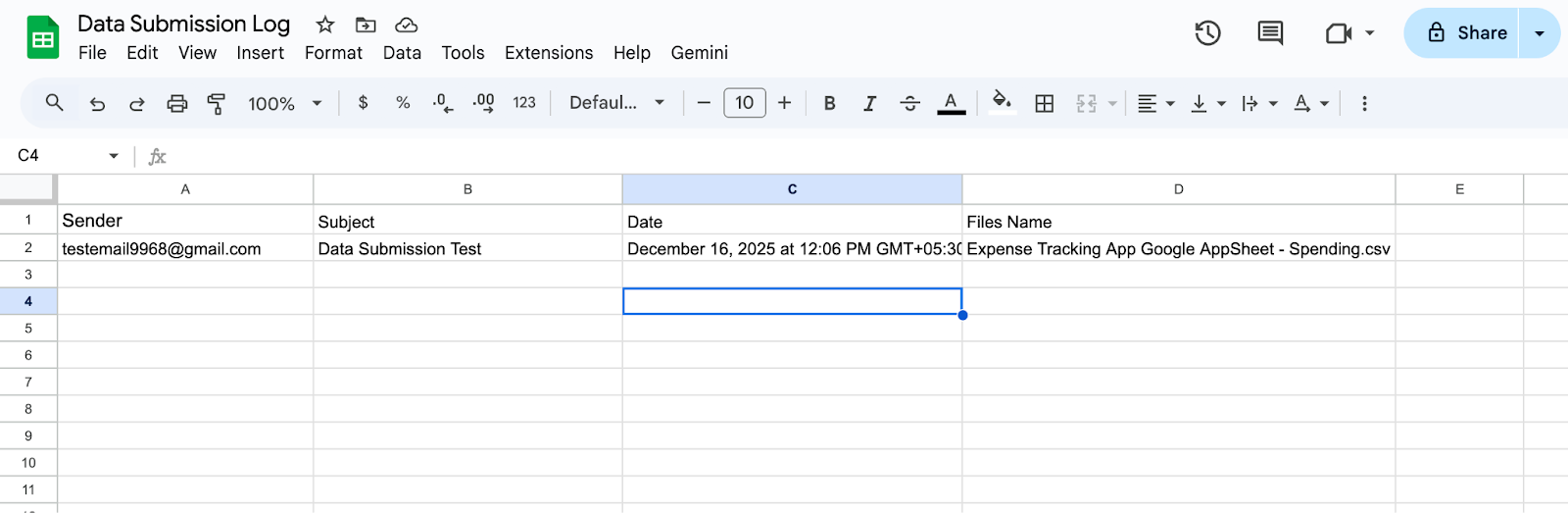
This hands-on section is the core of the tutorial. We'll build a practical agent that automatically detects emails with data submission in the subject, saves any attachments to a dedicated Google Drive folder, and logs metadata (sender, subject, date, and file name) in a Google Sheet.

Why build this?

If you work with data a lot, you’ll no doubt frequently receive datasets, reports, or CSVs via email. Manually downloading, organizing, and logging them wastes time and risks errors. 

This agent automates ingestion, ensures consistency, and creates an audit trail, freeing you for actual analysis. 

Key concepts before diving in: 

  • Starter: The trigger that starts the agent (e.g., a new email arriving or a scheduled time).
  • Steps: Sequential actions or decisions the agent performs, such as saving files, updating sheets, or using Gemini for reasoning. 
  • Variables: Dynamic placeholders (like {{email.sender}}) that pass data between the starter and steps. 

We'll generate an initial version using natural language (the fastest way), then manually refine it step-by-step. This combines Gemini's speed with full control—perfect for learning the builder.

Step 1: Create a new agent

  • Go to studio.workspace.google.com and click Create new.
  • Use Describe a task for Gemini (or start blank for full manual control; we'll cover refinements manually anyway).
  • In the prompt field, enter: 

When a new email arrives with data submission in the subject and attachments, save each attachment to a Google Drive folder called Incoming Data Files, then add a row to a Google Sheet called Data Submission Log with the sender's email, subject, date received, and attachment file names.

Gemini generates a complete flow in seconds. This gives you a strong starting point without building every piece manually.

Step 2: Configure the starter

Open the generated flow. The first block is the starter: here, New email.

  • Click the starter block to edit.
  • Under conditions, ensure:
    • The subject contains data submission.
    • Has attachments (check the box).
  • Optionally, add more filters (e.g., from specific senders).

Why this matters: The starter ensures the agent only activates for relevant emails, preventing unnecessary runs and keeping your workflow efficient.

Visual workflow editor in Google Workspace Studio displaying starter trigger and connected automation steps

Step 3: Refine the action steps

Gemini has added steps for handling attachments and logging. Let’s review and edit them manually:

  • Save attachments step:
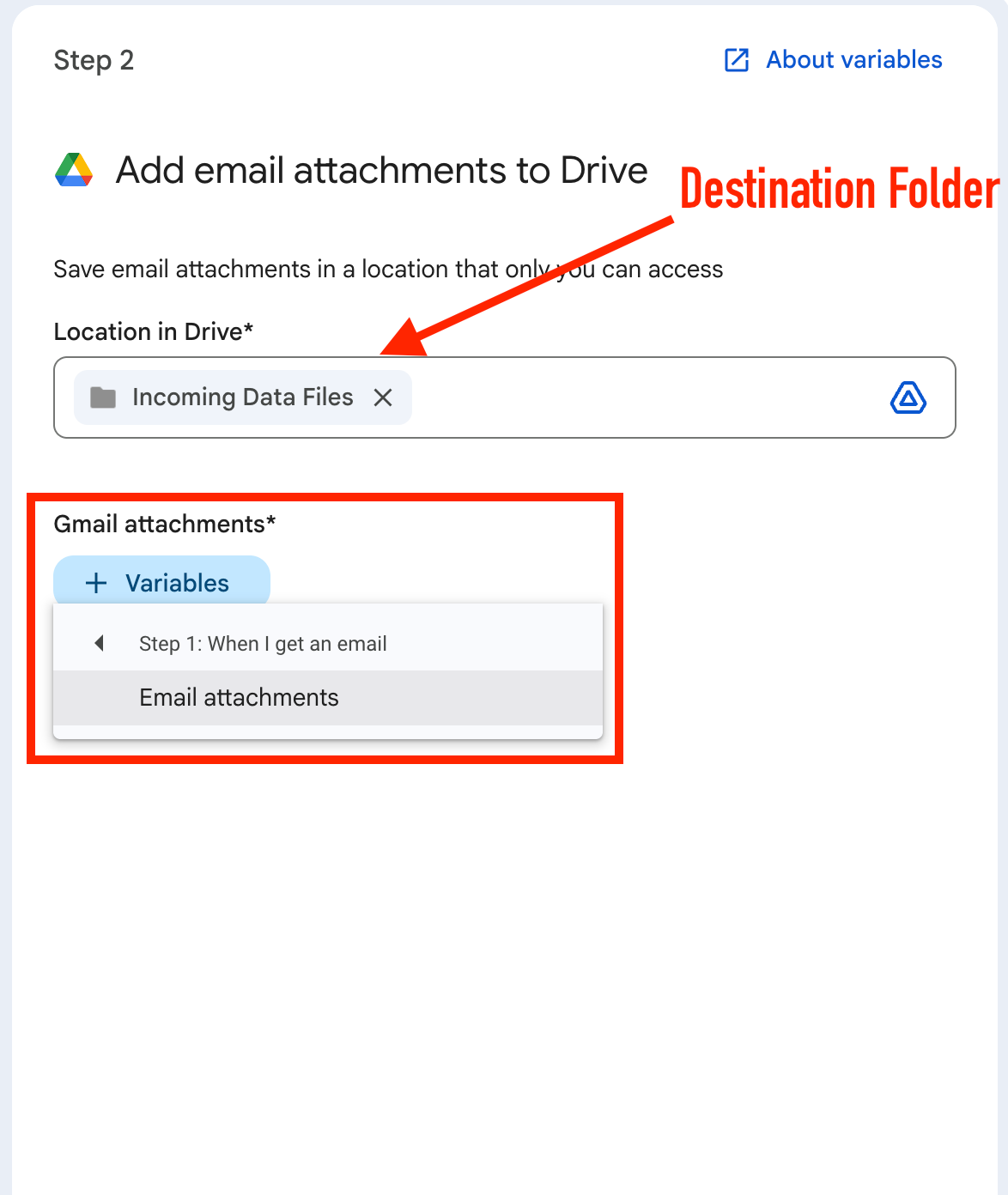
    • Click the block (Step2: Add email Attachments to Drive).
    • Set the destination folder: Search for or create Incoming Data Files in Drive.
    • Map the file by clicking on Variables and selecting Email Attachments.

Workspace Studio Configuration screen

  • Log to Sheets step:
    • Click the block (Step3: Add a row)
    • Select or create your Data Submission Log Sheet.
    • Add columns if needed: Sender, Subject, Date, File Names.
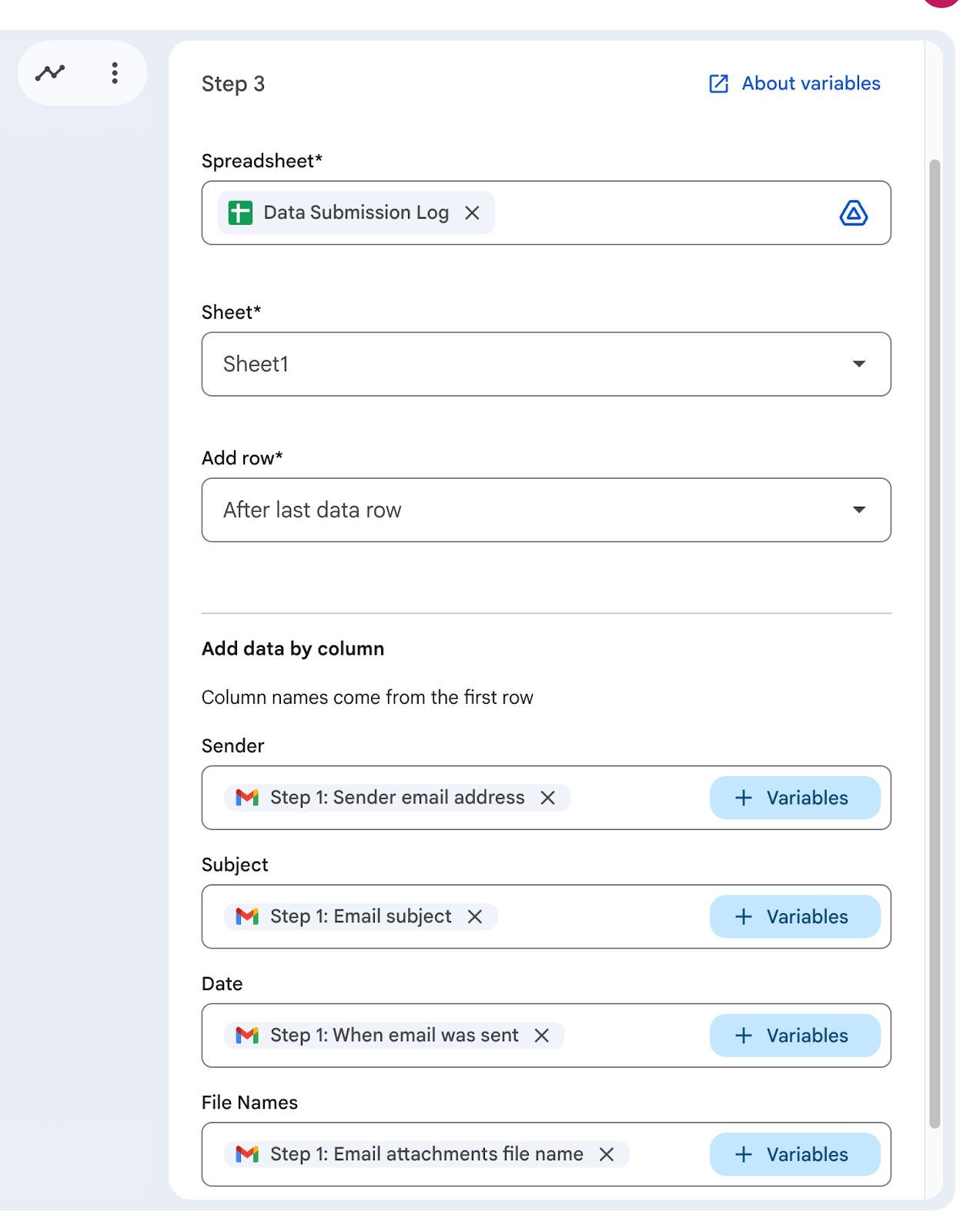
    • On adding your spreadsheet, Workspace Studio automatically identifies the columns in your sheets and allows you to map variables to them. 
    • Map variables:
      • Sender 
      • Subject 
      • Date 
      • File Names

Why variables? They dynamically insert real data from the email/attachment, making the agent adaptable to every incoming message.

Google Workspace Studio configuration screen mapping email variables to Google Sheets columns

Optional enhancement: Add a Gemini step after saving files.

  1. Insert a new step by clicking + Add Step.
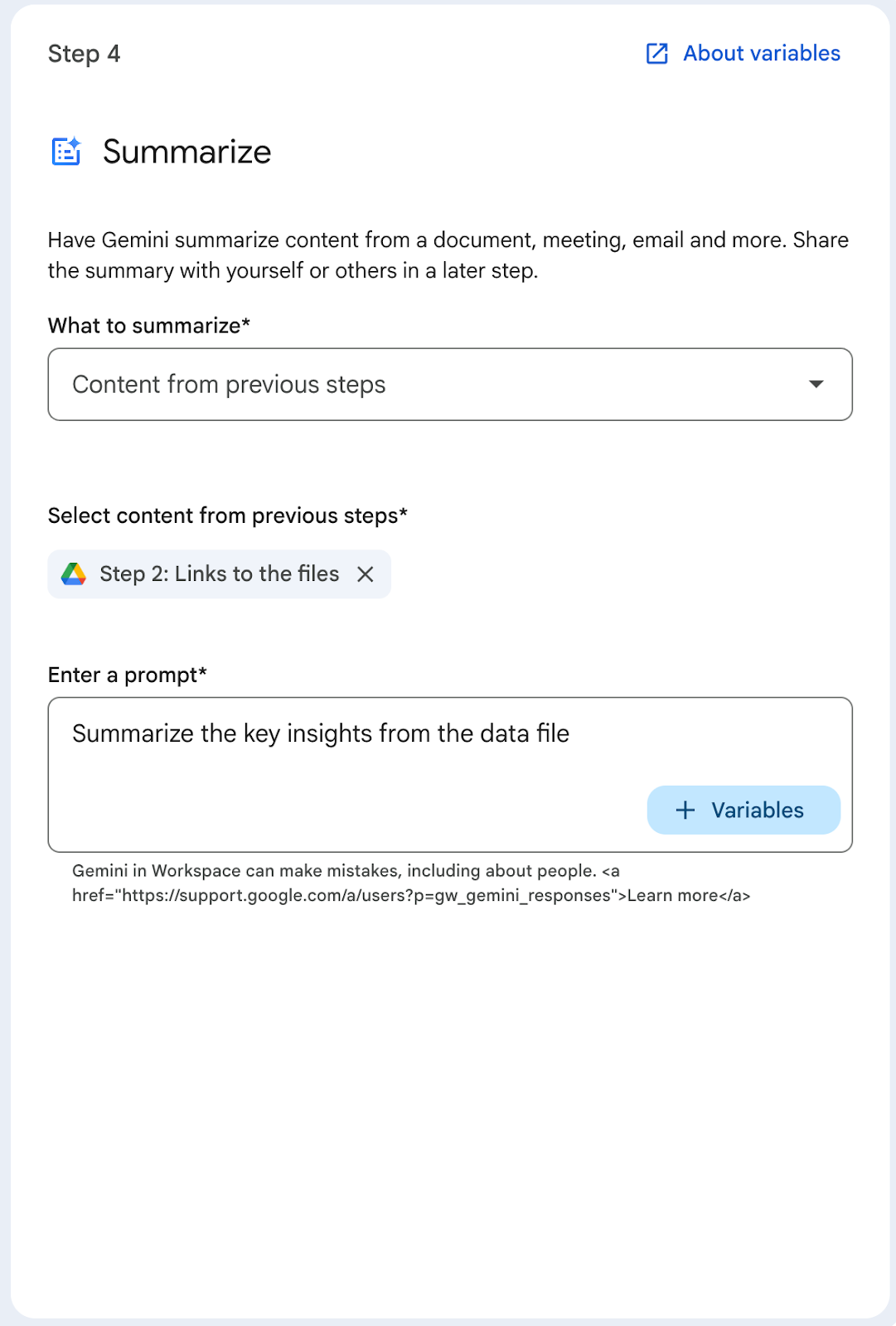
  2. Under AI skills, select the Summarise option.

Workspace Studio AI skills features

  1. For What to summarize, choose Content from the previous steps and then specify the links to the Files from Step 2. 
  2. Set the Prompt to: Summarize the key insights from the data file.

Workspace Studio Gemini powered summarisation

  1. Then add another step that appends the summary to the Sheet row.

This adds intelligence. For example, quick insights from submitted reports.

Step 4: Test the Agent

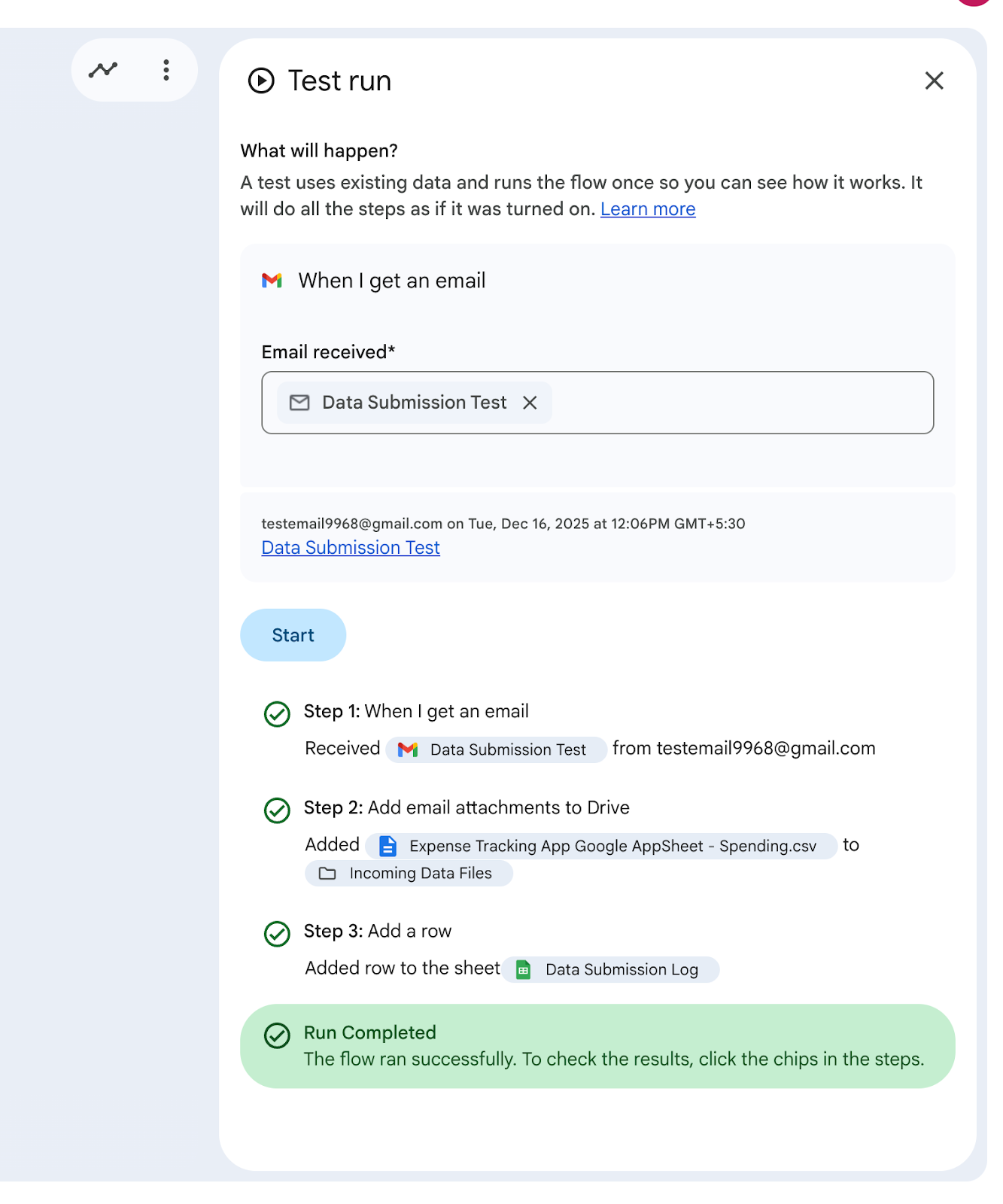
  • Click Test run in the editor.
  • Send yourself a test email matching the criteria (subject: "data submission test", attach a sample CSV).
  • Watch the test run in real-time.

Workspace Studio Test Run configuration

  • Verify: Files appear in Drive, row added to Sheet.

Important: Tests perform real actions (saving files, editing sheets), so always use test folders/sheets first.

Debug any issues directly in the flow editor; logs show exactly where problems occur.

Email Details transferred to sheet

Step 5: Activate and monitor

  • Once satisfied, click Turn on.
  • The agent now runs automatically on new matching emails.
  • Monitor activity from the Studio dashboard, My agents section, or side panels in Gmail.

Your data ingestion agent is live!

Google Workspace Studio Tips and Troubleshooting

If you’re looking for some top tips to get the most out of your agents, check out the advice and troubleshooting hints below: 

  • Start simple: Use templates and test thoroughly; actions like sending emails or editing files happen for real during tests.
  • Leverage variables: They make agents dynamic and reusable.
  • Add AI steps: For smarter automation, include Gemini steps to summarize attachments or extract insights.
  • Troubleshooting: If features are missing, check admin controls or Gemini enablement. For errors, review logs in the editor. Age restrictions apply for AI features on education accounts.

If an agent behaves unexpectedly, refine the goal or narrow its scope rather than adding complexity.

Conclusion

Google Workspace Studio makes it possible to move beyond AI-assisted writing into AI-driven action inside Google Workspace. In this article, we explored what Google Workspace Studio is, its key features, and how to build a practical agent that automates real workflows across Gmail, Drive, and Sheets. 

If you’d like to keep learning, I highly recommend exploring DataCamp’s resources on agent development. Start with the Building AI Agents with Google ADK course to understand the foundation Workspace Studio is built on, then dive deeper with the Agent Development Kit tutorial.

For more advanced experimentation, I can also recommend exploring tutorials on Google Antigravity and Google Opal, which further expand how you can work with Google’s AI ecosystem and agent capabilities. 

Google Workspace Studio FAQs

What is Google Workspace Studio?

Google Workspace Studio is a no-code platform in Google Workspace for creating, managing, and sharing AI agents powered by Gemini to automate complex workflows.

Which plans include Google Workspace Studio?

Google Workspace Studio is included at no extra cost in Business Starter, Standard, and Plus; most Enterprise editions; and select Education plans with Gemini access.

Do I need coding skills to use Google Workspace Studio?

No, you can use natural language descriptions, templates, or the visual editor to build agents.

Is Google Workspace Studio available on personal Gmail accounts?

No, it requires an eligible Google Workspace business, enterprise, or education account.

Are there age restrictions for using AI features?

Yes, users under 18 on school accounts cannot create agents or use AI-powered steps.


Aryan Irani's photo
Author
Aryan Irani
Twitter

I write and create on the internet. Google Developer Expert for Google Workspace, Computer Science graduate from NMIMS, and passionate builder in the automation and Generative AI space.

Tópicos

Top DataCamp Courses

Programa

Fundamentos de agentes de IA

0 min
Descubra como os agentes de IA podem transformar sua forma de trabalhar e gerar valor para sua organização!
Ver detalhesRight Arrow
Iniciar curso
Ver maisRight Arrow
Relacionado

Tutorial

Google AI Studio Tutorial: Complete Guide to Chat, Build, and Stream Modes

Learn how to use Google AI Studio's Chat, Build, and Stream modes to prototype with Gemini models.
Bex Tuychiev's photo

Bex Tuychiev

Tutorial

Firebase Studio: An Honest Review With Examples

Learn about Google's Firebase Studio, an AI-powered development tool for building full-stack apps using natural language prompts.
Marie Fayard's photo

Marie Fayard

Tutorial

LangSmith Agent Builder Tutorial (No-Code): Build an Email Triage Assistant

Learn how to use LangSmith Agent Builder to create an agent that reads Gmail, drafts replies, and logs actions, all without writing code.
Aashi Dutt's photo

Aashi Dutt

Tutorial

Google Opal Tutorial: A Complete Beginner’s Guide to No-Code AI App Development

Learn how Google’s new no-code AI platform enables anyone to build applications using natural language and visual workflows.
Tim Lu's photo

Tim Lu

Tutorial

n8n Workflow Builder Tutorial: Automate Daily Standups

Learn how to use n8n Workflow Builder to automate your daily standups. Connect Google Calendar, summarize with AI, and create daily digests.
Aashi Dutt's photo

Aashi Dutt

Tutorial

OpenAI's Audio API: A Guide With Demo Project

Learn how to build a voice-to-voice assistant using OpenAI's latest audio models and streamline your workflow using the Agents API.
François Aubry's photo

François Aubry

Ver maisVer mais