
Curs
Developing LLM Applications with LangChain
3 ore
51.9K
Alibaba shipped Qwen 3.6 Plus in April 2026. The spec sheet: SWE-bench Verified at 78.8, a 1M-token context window by default, native multimodal inputs, and always-on reasoning. For a Python developer, the interesting part isn't the benchmark table. It's that the model is API-only and works with the plain OpenAI package by swapping the base URL.
In this tutorial, we'll use three of its main features in one project: chain-of-thought reasoning, tool calling for structured output, and vision on scanned invoices. The result is a small invoice-processing pipeline that reads PDFs and JPGs, shows its reasoning, and returns validated JSON you can write to a CSV.
You need Python 3.10 or newer and familiarity with making API calls. No GPU, no model downloads, no self-hosting. We'll access Qwen 3.6 Plus through OpenRouter, so signup takes one form, and the OpenAI SDK works unchanged.
I highly recommend also checking out our tutorial on Fine-Tuning Qwen 3.6, the latest open-weights version of Qwen. If you are interested in competitor models, make sure to read our guides on DeepSeek v4, OpenAI’s GPT-5.5, and Anthropic’s Claude Opus 4.7.
Qwen 3.6 Plus is Alibaba's April 2026 flagship model. The backbone is a hybrid linear-attention plus sparse mixture-of-experts, reasoning runs by default, and text, images, and video all go through the same API.
Function calling uses the OpenAI tool-call protocol. Alibaba positions the release as "towards real-world agents," meaning one model for messy inputs that need reasoning, image reading, and a function call in one step.
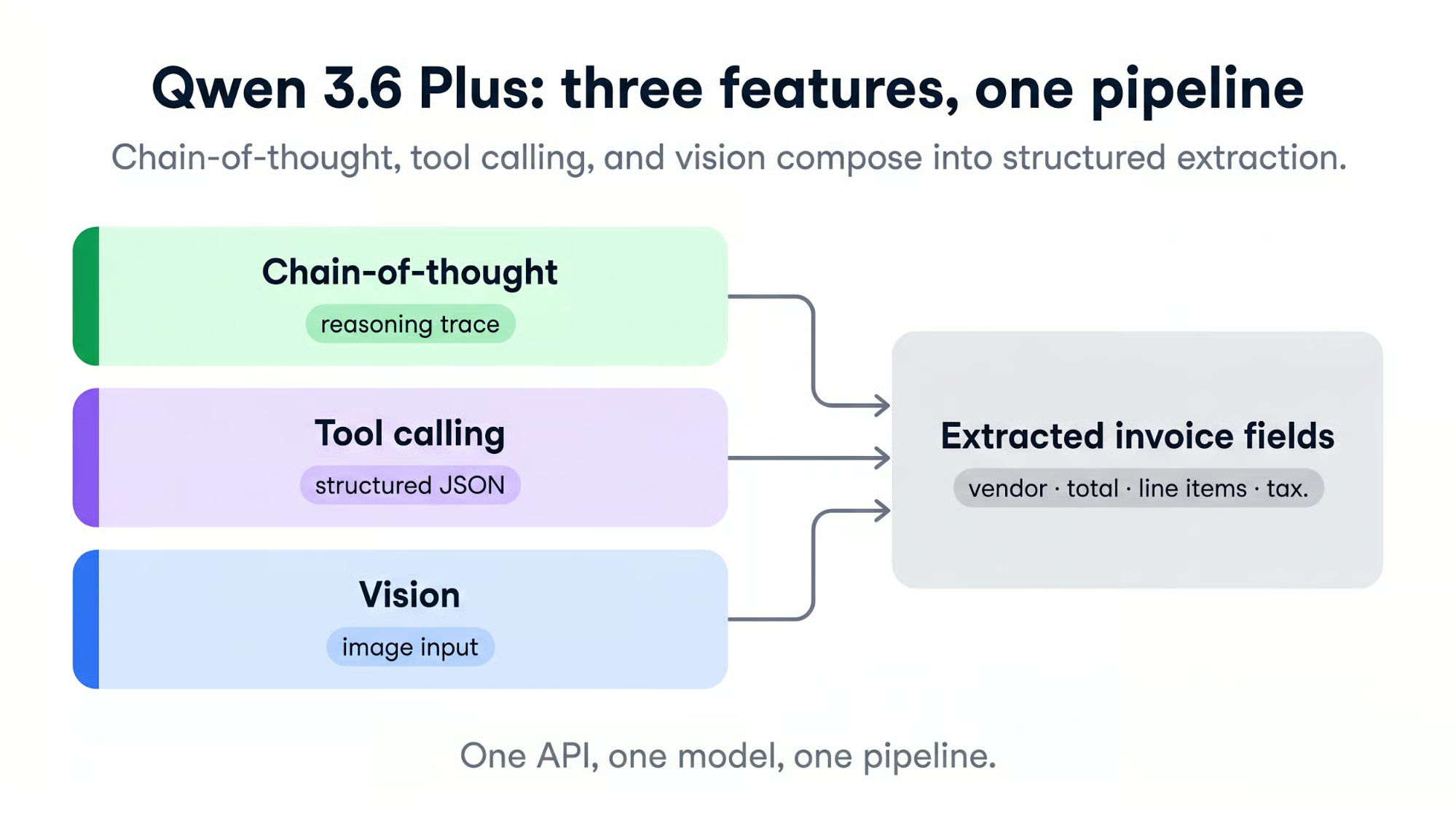
The Plus tier is closed weights. You can't download the checkpoint and run it on your own hardware (the model is too large to run on consumer hardware anyway). Alibaba publishes an open-source Qwen/Qwen3.6-35B-A3B variant with a 262K default context, but that's a separate product. For this tutorial, we're using the hosted API.
Qwen 3.6 Plus takes up to 1M input tokens and returns up to 65,536 output tokens per call. Input modalities include text, image, and video. Tool calling is native through the OpenAI schema. OpenRouter's model page lists pricing, provider latency, and throughput for the routed backends.
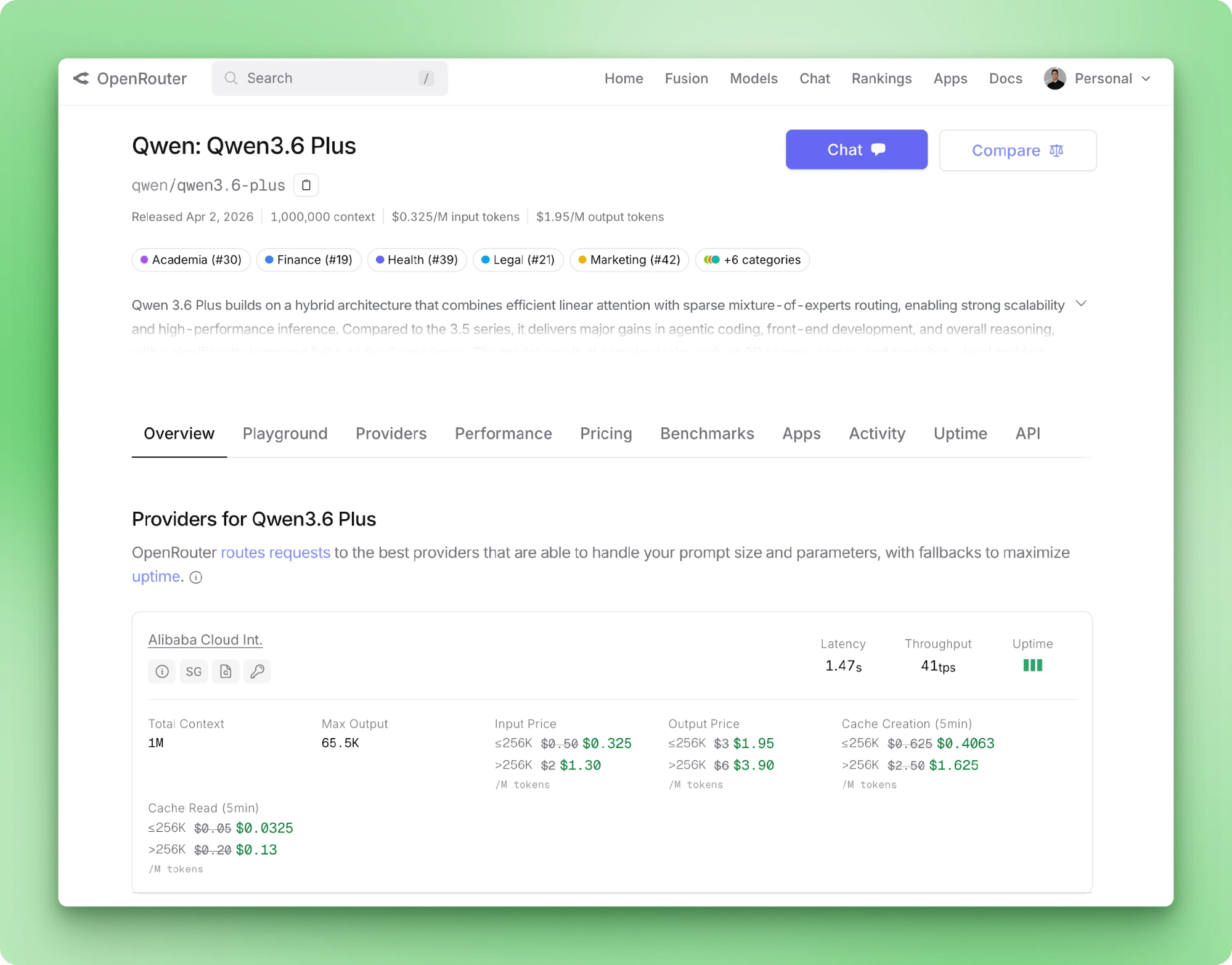
Chain-of-thought runs by default on every call, and the reasoning content streams back on a separate field from the answer. A new 3.6 Plus parameter keeps prior reasoning traces attached to messages across turns.
Alibaba recommends it for agent loops where later turns benefit from earlier chains of thought. For one-shot extraction like ours, preserving the trace wastes tokens, so we disable it.
Three benchmark scores matter for this tutorial:
The first two are why scanned invoices are a reasonable target. The third is why we can expect the model to follow a tool-call protocol without heavy prompt engineering.
The version jump from 3.5 Plus to 3.6 Plus is small on most metrics. Coding and reasoning benchmarks gain a few points. The bigger shift is that reasoning changes from a toggle to the default. OCR and object localization improve the most.
|
Capability |
Qwen 3.5 Plus |
Qwen 3.6 Plus |
|
Reasoning mode |
On by default (possible to disable with |
Always-on CoT |
|
Context window |
Up to 1M tokens |
1M tokens (default) |
|
Multimodal |
Native vision-language |
Native + improved OCR, object localization |
|
SWE-bench Verified |
76.8 |
78.8 |
|
Terminal-Bench 2.0 |
58.0 |
61.6 |
|
GPQA |
90.0 |
90.4 |
|
Reasoning-across-turns |
— |
|
If you've been running 3.5 Plus in production, the upgrade means adopting the new preserve_thinking parameter and noting that thinking is now billed on every call. The main gains are in agent loops and document vision, which is what this tutorial uses.
You can access the model in two ways. The official one is Alibaba Cloud Model Studio, which gives you a direct endpoint at https://dashscope-intl.aliyuncs.com/compatible-mode/v1. The other is OpenRouter, which routes to Alibaba behind a unified billing layer and a simpler signup.
The tutorial uses OpenRouter because the key creation flow is faster and the endpoint quirks are fewer. If you want the direct path, change two lines and continue.
Alibaba Cloud Model Studio works just as well as OpenRouter for this tutorial. The only things that change are the base URL and the environment variable name.
Sign up at openrouter.ai with a Google or GitHub account. The free tier is available without a credit card, which is enough to follow this tutorial end-to-end. If you plan to run larger volumes later, adding credits gives you a higher-throughput tier and removes the per-model rate cap.
Once you're signed in, go to openrouter.ai/settings/keys and create a key. Label it something like qwen-tutorial so you can revoke it later.
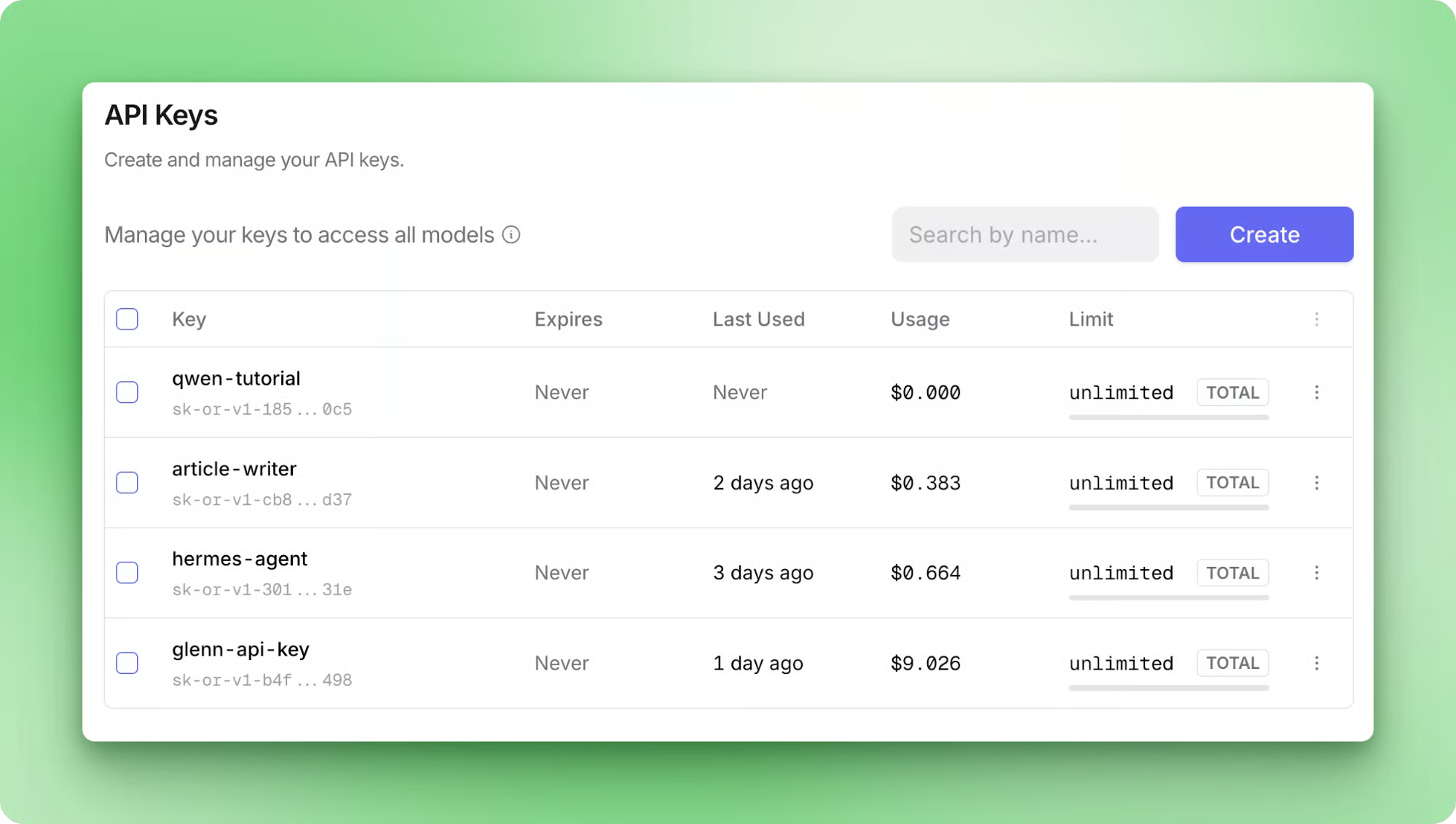
Copy the key value now, because OpenRouter only shows it once. Then save it in a .env file at the root of your project:
OPENROUTER_API_KEY=sk-or-v1-...We'll load it with python-dotenv in the next section. If you'd rather use Alibaba Cloud directly, the key comes from modelstudio.console.alibabacloud.com and goes into DASHSCOPE_API_KEY instead.
Install the two packages we need for the first verification call:
pip install openai python-dotenvThe openai package is the same SDK you'd use with OpenAI's endpoint. Both OpenRouter and Alibaba Cloud Model Studio implement the OpenAI Chat Completions API, so the client code doesn't need to change.
Create a file called hello.py and verify the connection:
import os
from dotenv import load_dotenv
from openai import OpenAI

load_dotenv()

client = OpenAI(
    api_key=os.environ["OPENROUTER_API_KEY"],
    base_url="https://openrouter.ai/api/v1",
)

response = client.chat.completions.create(
    model="qwen/qwen3.6-plus",
    messages=[{"role": "user", "content": "Say hi in five words."}],
)

print(response.choices[0].message.content)
Running python hello.py should print a short reply. First-token latency on the free tier can take a few seconds because the model is building a reasoning trace before generating the visible answer.
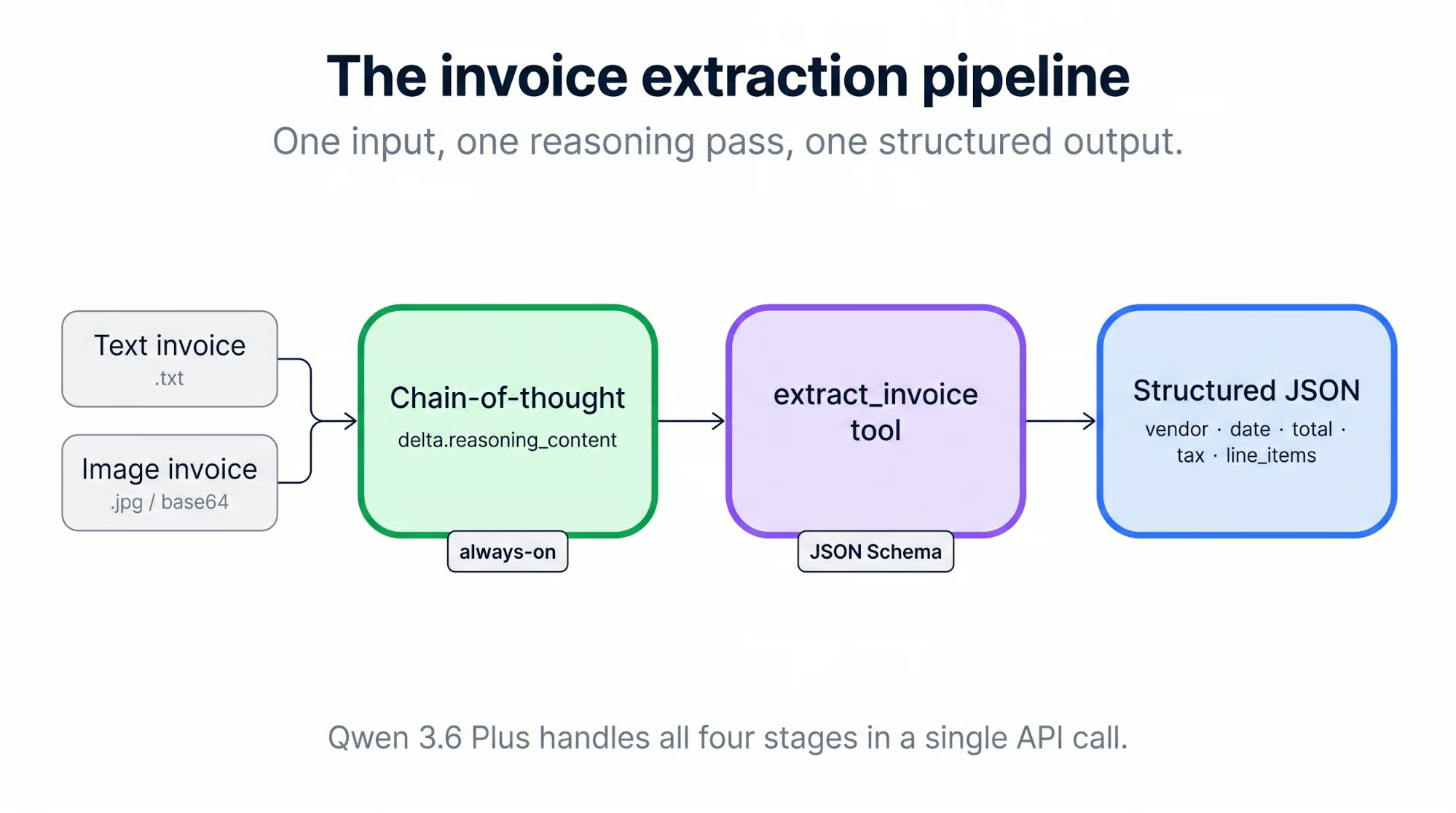
The sample project is an invoice-processing pipeline. It accepts two formats: text PDFs and scanned JPGs. Each invoice runs through Qwen 3.6 Plus with reasoning on, and the extracted fields come back via a tool call. Every invoice moves through four stages:
Decode the input (base64-encode the image, or convert each PDF page to an image first)
Stream the reasoning trace back from the model
Parse the tool call into structured JSON
Write a row to results.csv
All the code for this section lives in bextuychiev/qwen-invoice-pipeline-tutorial. Clone it to follow along, or use it as a reference while you build your own version.
Create an invoice-pipeline/ directory and structure it like this:
invoice-pipeline/
├── .env
├── .env.example
├── client.py
├── tools.py
├── main.py
├── processors/
│   ├── image.py
│   └── pdf.py
├── sample_invoices/
│   ├── invoice_01.pdf
│   ├── invoice_02.pdf
│   ├── invoice_03.pdf
│   ├── invoice_04.jpg
│   ├── invoice_05.jpg
│   └── invoice_06.jpg
└── requirements.txt
The split between client.py and the processors keeps the OpenRouter config in one file. If you later swap to Alibaba Cloud, you edit client.py and nothing else.
client.py wraps the OpenAI client with the right base URL and the model ID:
import os
from dotenv import load_dotenv
from openai import OpenAI

load_dotenv()

MODEL_ID = "qwen/qwen3.6-plus"


def get_client() -> OpenAI:
    return OpenAI(
        api_key=os.environ["OPENROUTER_API_KEY"],
        base_url="https://openrouter.ai/api/v1",
    )
.env.example goes alongside so anyone cloning the repo knows what to fill in:
OPENROUTER_API_KEY=your-openrouter-key

# Optional: Alibaba Cloud Model Studio (direct path)
# DASHSCOPE_API_KEY=your-dashscope-key
# DASHSCOPE_BASE_URL=https://dashscope-intl.aliyuncs.com/compatible-mode/v1
The companion repo ships six sample invoices across three sources:
Real company invoices aren't publicly redistributable because of PII, so we use these instead. Ground-truth totals are listed in the repo README if you want to check the pipeline against them.
If you've used Qwen 3.5, CoT was a per-call toggle: enable_thinking=True inside extra_body. On 3.6 Plus, reasoning runs by default, and the parameter mostly exists to turn it off. Reasoning tokens are always billed when thinking is active, which makes "always-on" a cost decision rather than a free feature.
When you stream a response, delta.reasoning_content arrives first, then delta.content follows (or delta.tool_calls, in our case).
A minimal call that extracts an invoice and prints the reasoning trace as it streams looks like this:
import base64
from pathlib import Path
from client import get_client, MODEL_ID

client = get_client()

image_bytes = Path("sample_invoices/invoice_04.jpg").read_bytes()
data_uri = f"data:image/jpeg;base64,{base64.b64encode(image_bytes).decode()}"

stream = client.chat.completions.create(
    model=MODEL_ID,
    messages=[
        {"role": "system", "content": "Read the invoice and summarize the vendor, date, and total."},
        {"role": "user", "content": [
            {"type": "text", "text": "Here is the invoice:"},
            {"type": "image_url", "image_url": {"url": data_uri}},
        ]},
    ],
    extra_body={"enable_thinking": True},
    stream=True,
)

for chunk in stream:
    delta = chunk.choices[0].delta
    reasoning = getattr(delta, "reasoning_content", None)
    if reasoning:
        print(reasoning, end="", flush=True)
    if delta.content:
        print(delta.content, end="", flush=True)
We read the JPG bytes from disk, base64-encode them, and wrap the result in a data: URI. That format lets the OpenAI content-block protocol accept inline images without a hosted URL. The image_url block takes the URI directly, and the model sees the invoice as if you had passed a link.
extra_body={"enable_thinking": True} forwards the enable_thinking flag to Qwen. The OpenAI SDK doesn't know about the parameter, so extra_body is the way to pass provider-specific options.
When you run it against invoice_04.jpg, the streamed answer comes back as a short summary:
Based on the invoice provided:

*   **Vendor:** Dunn PLC
*   **Date:** 01/23/2019
*   **Total:** $ 3 120,51
Short is what we asked for: the system prompt said "summarize" and nothing more. When the task grows (line items, categories, structured fields), the reasoning trace grows with it. We'll see that in the next section, where the same model on the same image spends most of its output budget thinking before it answers.
Appending /no_think to the user prompt is a soft switch that disables CoT for that call. Useful when you're debugging and want a faster non-thinking response.
Reasoning makes the extraction readable, but the output is still free-form text inside a reasoning trace. To get back structured, parseable JSON every time, we define one tool, extract_invoice, and set tool_choice="auto" with a system prompt that instructs the model to always call the tool.
The schema in tools.py describes six fields. The outer shape follows the standard OpenAI function-tool format:
EXTRACT_INVOICE_TOOL = {
    "type": "function",
    "function": {
        "name": "extract_invoice",
        "description": "Extract structured fields from an invoice image.",
        "parameters": {
            "type": "object",
            "properties": {
                # fields defined below
            },
            "required": ["vendor", "date", "total", "tax", "line_items", "category"],
        },
    },
}
The six fields sit inside parameters.properties. Scalar fields (vendor, date, total, tax) use plain JSON Schema types. category uses an enum so the model picks from a fixed set of four values instead of inventing labels. line_items is the one structured field, an array of objects, each with its own required list:
"line_items": {
    "type": "array",
    "items": {
        "type": "object",
        "properties": {
            "description": {"type": "string"},
            "quantity": {"type": "number"},
            "unit_price": {"type": "number"},
            "amount": {"type": "number"},
        },
        "required": ["description", "amount"],
    },
},
"category": {
    "type": "string",
    "enum": ["software", "services", "hardware", "other"],
},
The schema has two levels of required. The outer list marks which top-level fields must appear in every extraction. The per-item list marks which sub-fields must appear on every line item. The full schema lives in tools.py in the companion repo.
The arguments come back as a JSON-formatted string inside tool_calls[0].function.arguments, not a parsed object, so you call json.loads on them yourself. When streaming, the arguments arrive as a sequence of deltas that you concatenate before parsing.
One gotcha: OpenRouter's Qwen 3.6 Plus endpoint does not support forced tool calls. If you try tool_choice={"type": "function", "function": {"name": "extract_invoice"}}, the request returns an error:
No endpoints found that support the provided 'tool_choice' valueThe practical fix is to use tool_choice="auto" and rely on the system prompt:
SYSTEM_PROMPT = """You are an invoice extraction assistant. Read the invoice
image and respond by calling the extract_invoice tool with the fields you find.
Do not reply in prose, always call the tool. If a field is missing from the
invoice, use a sensible default: empty string for text fields, 0 for numeric
fields, an empty array for line_items."""
Across all six sample invoices in the companion repo, this prompt gets a tool call every time. Production code should still guard against the exception case: check finish_reason, verify tool_calls is populated, and retry with a sharper instruction if it isn't. Qwen's own function-calling docs note the same thing. Tool-call generation isn't guaranteed, and production code needs a fallback.
One side effect: once the prompt asks for structured fields, delta.reasoning_content fills with a long trace. The model parses the table row by row, debates European decimal notation on invoice_04.jpg, and cross-checks line-item amounts against the total. Reasoning tokens can outnumber answer tokens by 10x or more on this kind of prompt.
That's the cost of always-on CoT on structured extraction, which is why preserve_thinking only pays off on multi-turn agent loops where a later turn reads the trace. We're doing one-shot extraction, so the trace streams to the terminal, and we discard it.
For JPGs, the flow is three steps:
Read the image bytes from disk
Base64-encode them
Drop the result into an image_url content block with a data: URI
PDFs need one extra step because Qwen's vision path accepts images rather than PDF files directly. Convert each page to a PIL image with pdf2image, then send the pages as a list of image content blocks in the same message.
Both paths share the same model call, so the call lives in processors/image.py and processors/pdf.py delegates to it. Start with the imports (the SYSTEM_PROMPT above lives in the same module):
# processors/image.py
import base64
import json
from pathlib import Path

from openai import OpenAI
from client import MODEL_ID
from tools import EXTRACT_INVOICE_TOOL

# SYSTEM_PROMPT defined above
The encoder turns a JPG path into the data: URI the API expects:
def _encode_image(image_path: Path) -> str:
    data = image_path.read_bytes()
    b64 = base64.b64encode(data).decode("ascii")
    suffix = image_path.suffix.lower().lstrip(".")
    mime = "jpeg" if suffix in ("jpg", "jpeg") else suffix
    return f"data:image/{mime};base64,{b64}"
The shared helper _call_with_images builds the user-content array (text + one or more images) and sends the streaming request. From the stream, it collects two pieces of data: the reasoning trace and the tool-call arguments. The request setup comes first:
def _call_with_images(client: OpenAI, data_uris: list[str], filename: str) -> dict:
    user_content = [{"type": "text", "text": f"Invoice file: {filename}"}]
    for uri in data_uris:
        user_content.append({"type": "image_url", "image_url": {"url": uri}})

    stream = client.chat.completions.create(
        model=MODEL_ID,
        messages=[
            {"role": "system", "content": SYSTEM_PROMPT},
            {"role": "user", "content": user_content},
        ],
        tools=[EXTRACT_INVOICE_TOOL],
        tool_choice="auto",
        extra_body={"enable_thinking": True},
        stream=True,
    )
Then the stream loop separates reasoning deltas from tool-call argument deltas:
    reasoning_parts: list[str] = []
    tool_args_parts: list[str] = []

    for chunk in stream:
        delta = chunk.choices[0].delta
        reasoning = getattr(delta, "reasoning_content", None)
        if reasoning:
            reasoning_parts.append(reasoning)
        if delta.tool_calls:
            for tc in delta.tool_calls:
                if tc.function and tc.function.arguments:
                    tool_args_parts.append(tc.function.arguments)

    extracted = json.loads("".join(tool_args_parts))
    return {"file": filename, "reasoning": "".join(reasoning_parts), "extracted": extracted}
The public entry point for JPGs is a one-liner that uses those helpers:
def process_image_invoice(client: OpenAI, image_path: Path) -> dict:
    uri = _encode_image(image_path)
return _call_with_images(client, [uri], image_path.name)The PDF processor reuses _call_with_images and only adds the page-to-image conversion:
# processors/pdf.py
import base64
import io
from pathlib import Path

from openai import OpenAI
from pdf2image import convert_from_path
from processors.image import _call_with_images


def _page_to_data_uri(page) -> str:
    buf = io.BytesIO()
    page.save(buf, format="PNG")
    b64 = base64.b64encode(buf.getvalue()).decode("ascii")
    return f"data:image/png;base64,{b64}"


def process_pdf_invoice(client: OpenAI, pdf_path: Path) -> dict:
    pages = convert_from_path(str(pdf_path), dpi=150)
    uris = [_page_to_data_uri(p) for p in pages]
    return _call_with_images(client, uris, pdf_path.name)
pdf2image requires poppler to be installed. Install it with:
# macOS
brew install poppler

# Debian / Ubuntu
apt install poppler-utils
For multi-page PDFs, send every page as its own image block in the same message. Qwen reads them together and produces one extraction, which is what you want for an invoice where the totals appear on page 2.
150 DPI keeps invoice text readable without inflating the payload. Going higher makes the request bigger without improving accuracy in testing against these samples. Alibaba's vision documentation covers supported formats and upper bounds.
main.py walks sample_invoices/, routes each file by extension, calls the right processor, and writes the combined results to a CSV. Imports and constants first:
# main.py
import csv
from pathlib import Path

from client import get_client
from processors.image import process_image_invoice
from processors.pdf import process_pdf_invoice

SAMPLES_DIR = Path(__file__).parent / "sample_invoices"
RESULTS_PATH = Path(__file__).parent / "results.csv"

IMAGE_EXTS = {".jpg", ".jpeg", ".png"}
PDF_EXTS = {".pdf"}
The main loop iterates the samples directory in sorted order, routes by file extension, and flattens each extraction into a CSV-friendly row:
def main() -> None:
    client = get_client()
    results = []

    invoice_paths = sorted(
        p for p in SAMPLES_DIR.iterdir()
        if p.suffix.lower() in IMAGE_EXTS | PDF_EXTS
    )

    for path in invoice_paths:
        if path.suffix.lower() in PDF_EXTS:
            result = process_pdf_invoice(client, path)
        else:
            result = process_image_invoice(client, path)

        extracted = result["extracted"]
        results.append({
            "file": result["file"],
            "vendor": extracted.get("vendor", ""),
            "date": extracted.get("date", ""),
            "total": extracted.get("total", ""),
            "tax": extracted.get("tax", ""),
            "category": extracted.get("category", ""),
            "line_item_count": len(extracted.get("line_items", [])),
        })
Finally, write the rows to disk and log the count:
    with RESULTS_PATH.open("w", newline="") as f:
        writer = csv.DictWriter(f, fieldnames=list(results[0].keys()))
        writer.writeheader()
        writer.writerows(results)

    print(f"\nProcessed {len(results)} invoices → {RESULTS_PATH.name}")


if __name__ == "__main__":
    main()
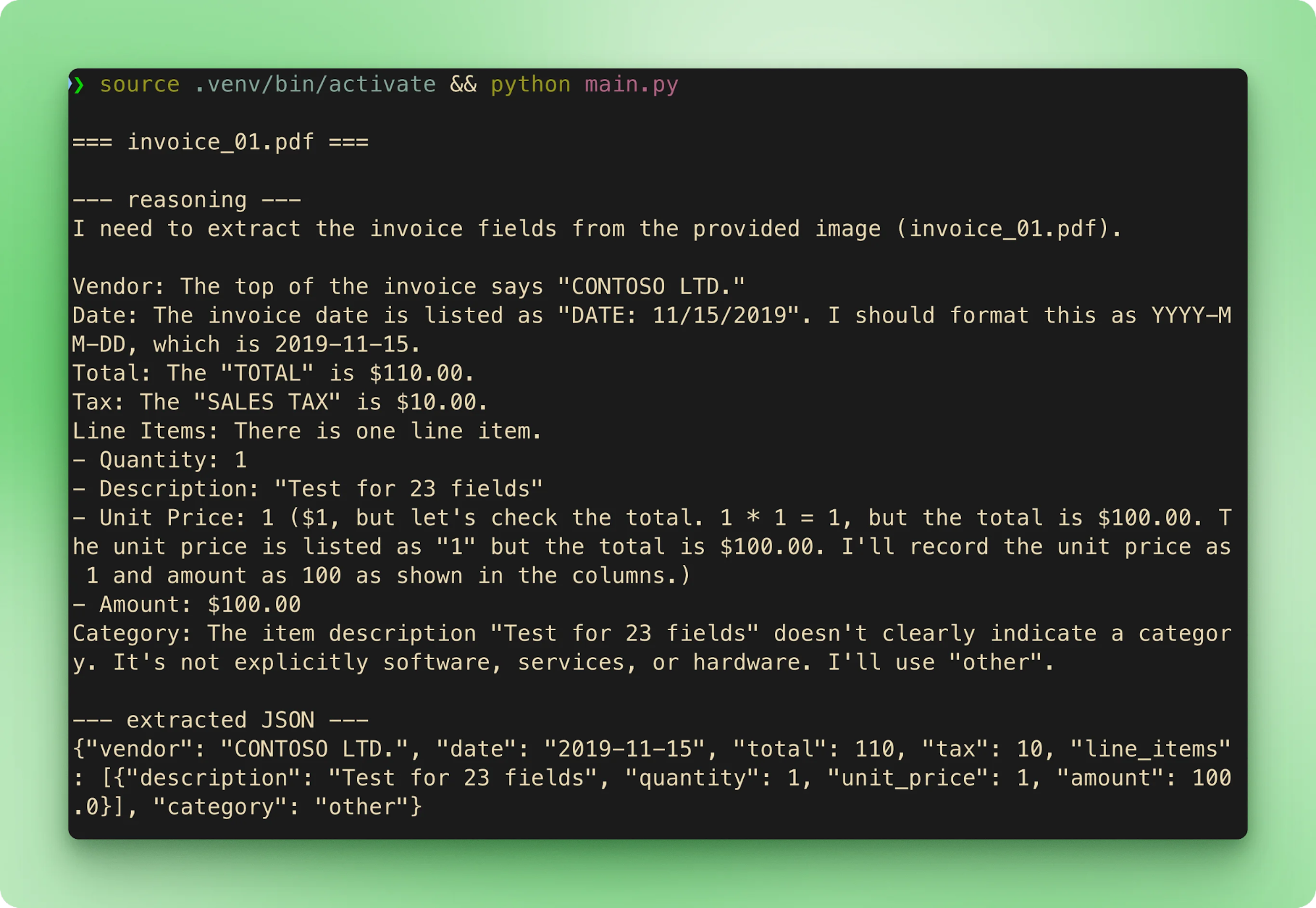
Running python main.py walks the six samples in order. Each invoice streams its filename, then the reasoning trace, then the extracted JSON, before moving to the next one:
results.csv aggregates every extraction into one row per invoice:
|
file |
vendor |
date |
total |
tax |
category |
line_item_count |
|
|
CONTOSO LTD. |
2019-11-15 |
610.00 |
10.00 |
other |
1 |
|
|
Contoso, Ltd. |
2020-09-10 |
10686.25 |
311.25 |
services |
3 |
|
|
ABC Private Limited |
2021-01-01 |
6231.09 |
61.69 |
other |
4 |
|
|
Dunn PLC |
2019-01-23 |
3120.51 |
283.68 |
hardware |
4 |
|
|
Crawford, Acosta and Solomon |
2012-08-22 |
60.45 |
5.50 |
hardware |
1 |
|
|
Paul, Wilson and Gonzalez |
2016-02-25 |
1025.61 |
93.24 |
other |
5 |
Totals match ground truth on all six. Latency on the free tier runs 15 to 40 seconds per invoice. Most of that time is the reasoning phase before the tool call starts streaming.
A few patterns make the difference between a pipeline that works once and one that keeps working on real invoices.
Keep secrets out of code. The .env and python-dotenv pattern we've used throughout is the baseline. Add .env to your .gitignore before the first commit so the key never reaches the repo.
Handle rate limits with exponential backoff. OpenRouter enforces per-provider limits with HTTP 429 responses. The tenacity library gives you a decorator-based implementation, and the OpenAI cookbook pattern for wait_random_exponential works without changes.
Stream whenever responses will be long. Always-on CoT inflates response length by default. Non-streaming calls mean waiting for the entire reasoning block before seeing anything. Streaming gives early feedback, keeps the UI responsive, and lets you abort a request that's clearly going wrong.
Use preserve_thinking only when later turns read earlier reasoning. For one-shot extractors like this pipeline, it's wasted tokens. For multi-turn agent loops (tool-calling chains, planning tasks, debugging workflows), the parameter exists for that cross-turn context. Alibaba's deep thinking documentation also covers thinking_budget, a hard cap on reasoning tokens per call.
Free-tier responses may be logged for training. OpenRouter's free tier routes through providers that can retain prompts. That makes it unsuitable for invoices with real PII, customer names, or payment details. Move to a paid OpenRouter tier (or direct to Alibaba Cloud with a paid account) before real data runs through the pipeline.
No self-hosting on the Plus tier. Deployments that need air-gapping or on-prem can't use the hosted API. The open-source Qwen3.6-35B-A3B variant is a separate option worth considering for those cases.
Time-to-first-token can be slow when reasoning starts. Set timeouts generously, 30 to 60 seconds is reasonable for image input. Make sure your retry logic handles read timeouts separately from 429s.
Output is not deterministic even with always-on CoT. In testing against the companion repo's samples, invoice_01.pdf extracted as $610.00 on most runs. On at least one re-run with identical inputs, it flipped to $110.00. The reasoning trace reached the correct answer both times, but the final tool-call argument differed. Two mitigations: set temperature low (0.1 to 0.2 for pure extraction), and validate against ground truth or use a second pass when accuracy matters enough to justify the extra call.
From here, wrapping the pipeline in an agent framework is a small step. The tool-call loop, the streaming parser, and the CSV writer are the same primitives that an agent framework orchestrates across multiple turns. DataCamp's Developing LLM Applications with LangChain course walks through those patterns with memory, state, and multi-tool routing.
Agentic AI Courses
Curs
Traseu de învățare
Traseu de învățare
Tutorial
Dr Ana Rojo-Echeburúa
10 min.
Tutorial
Aashi Dutt
12 min.
Tutorial
Aashi Dutt
15 min.
Tutorial
Aashi Dutt
8 min.
Tutorial
Abid Ali Awan
6 min.
Tutorial
Aashi Dutt
12 min.