
Last chance! 50% off DataCamp Premium
Sale ends in
Buy Now
You can use the Conditional Formatting feature to highlight duplicates or unique values and decide whether to remove them. To do so:
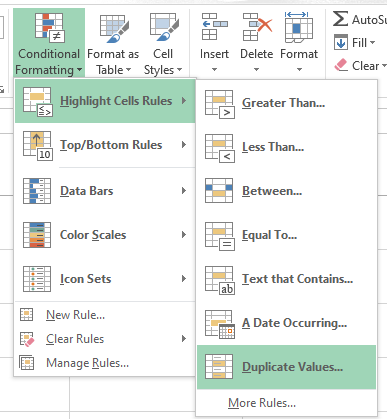
Select the Duplicate Values option. Image by Author.
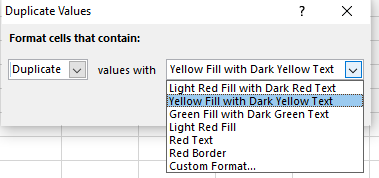
Apply the format. Image by Author.
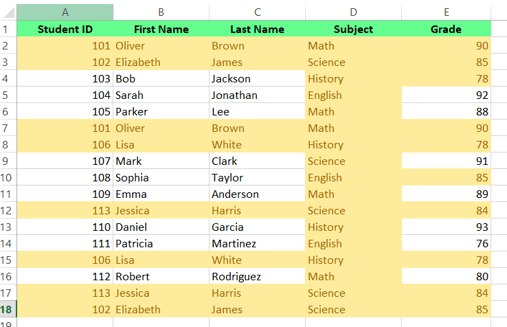
Duplicate values are highlighted. Image by Author.
However, the Conditional Formatting feature is limited — it can't highlight duplicate values within the Values area of a PivotTable report. In that case, you have to use a different method.
Another quick way to remove duplicates is to use the Remove Duplicates feature, a built-in Excel tool that cleans up your data by removing duplicates permanently. To use this method:
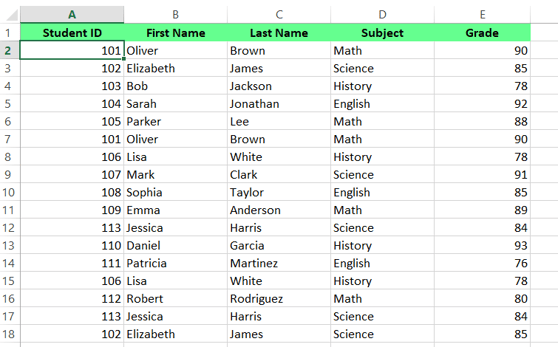
Identifying the range of cells. Image by Author.
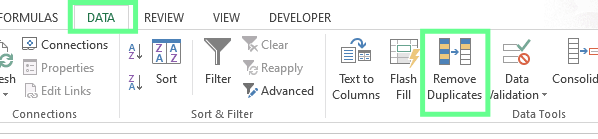
Remove Duplicates feature. Image by Author.
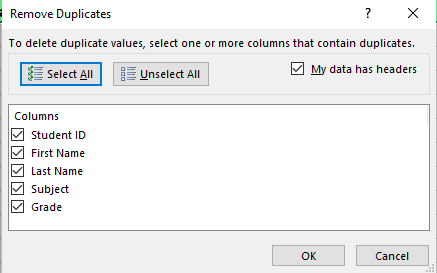
Dialog box for the Remove Duplicates feature. Image by Author.
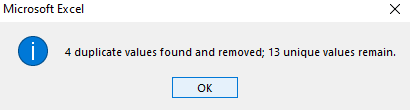
Message box. Image by Author.
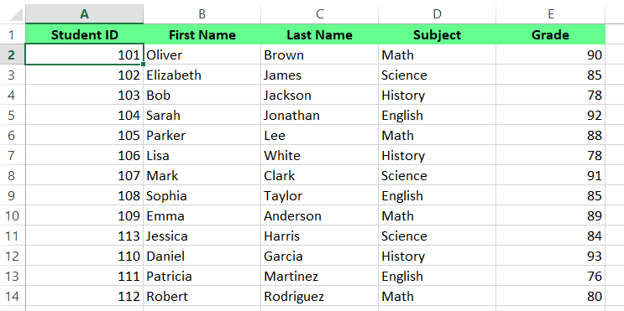
Removed all the duplicate rows. Image by Author.
You can also use the Advanced Filter function in Excel to extract unique values by filtering out duplicates, keeping the original data while showing unique entries. Here's how you can use it:
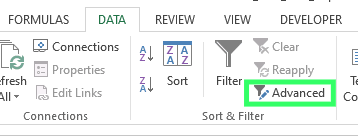
Advanced feature option. Image by Author.
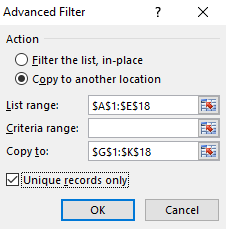
Dialog box for the Advanced Filter. Image by Author.
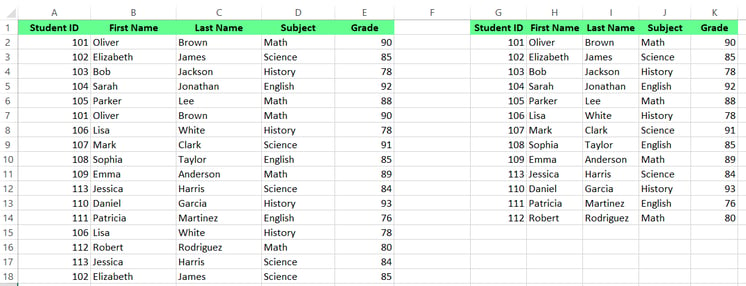
Filter the unique values using Advanced Filter. Image by Author.
Now that you know 3 built-in features for removing duplicates, let's understand some custom functions you can create to achieve the same result. For example, I have a dataset with Name, Subject, and Grade columns.
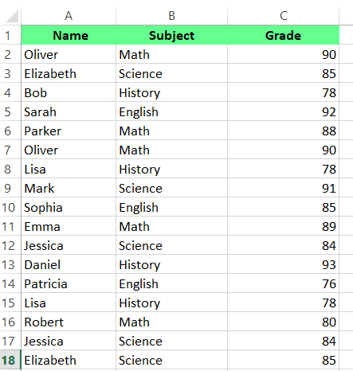
Dataset of students. Image by Author.
To create a formula for filtering out duplicate values:
First, I combine all the columns (A,B,C) in one cell. There are two methods to do this: the CONCATENATE() function or the & operator. Choose whatever you like and the results will be the same. To use & operator, type the following formula:
To use CONCATENATE() function, type the following formula:
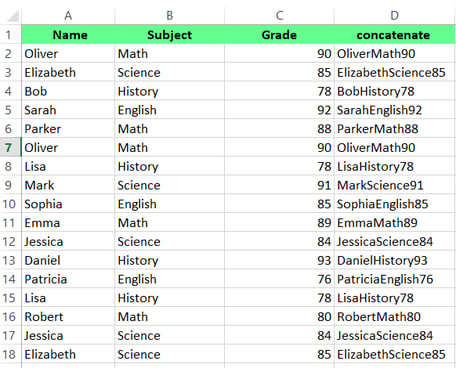
Concatenate the columns. Image by Author.
In the next column, use COUNTIF() to calculate the number of times each value appears in column D:
Here, count 1 means the value is unique, and count 2 or more indicates a duplicate.
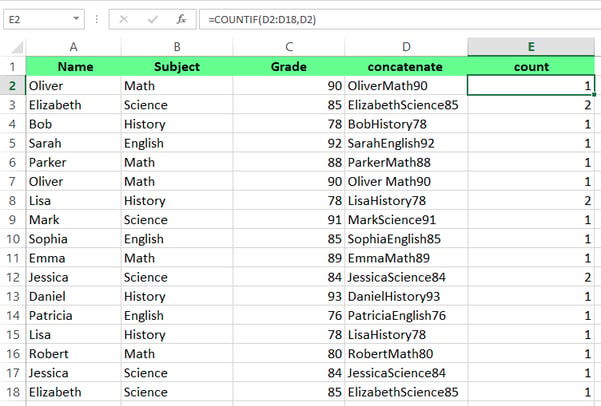
Apply COUNTIF() to count the occurrences. Image by Author.
Next, go to Data tab > Sort & Filter > select Filter to apply a filter to the count column.
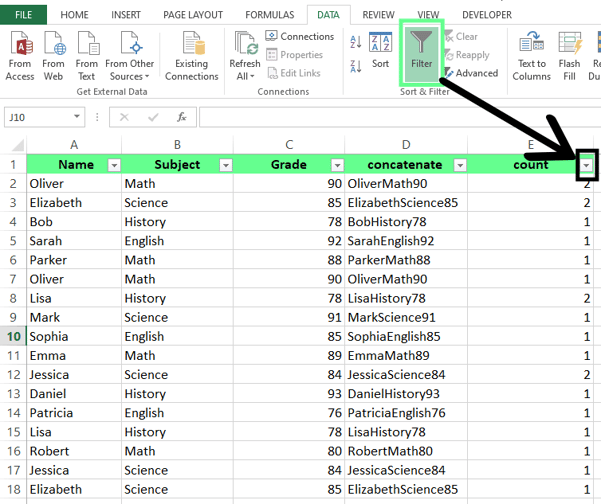
Apply Filter. Image by Author.
Then, open the drop-down menu, select 1 to keep unique values and eliminate duplicates, and hit OK.
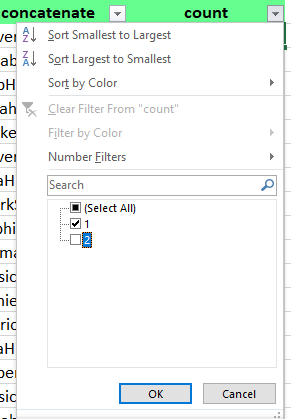
Keep the unique values. Image by Author.
Now you can see all the duplicate values have been removed. This method is more complex but dynamically updates as your data changes, so it’s perfect for those who want ongoing duplicate management.
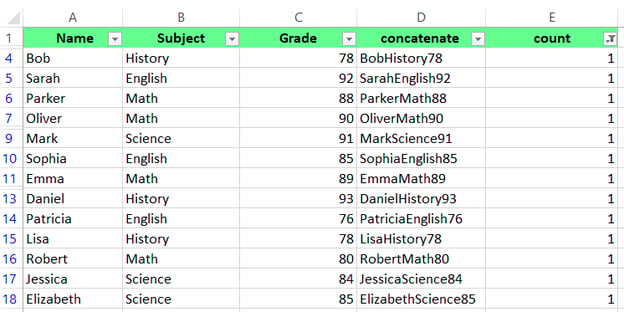
Duplicate values removed using the Filter feature. Image by Author.
You can also use Power Query to clean your data and remove duplicates. Here’s how:
Select a cell or range of cells. Go to the Data tab > Get & Transform Data section and click From Table/Range. A dialog box will appear to create a power query table, and the range of values will be automatically selected. Then hit OK.
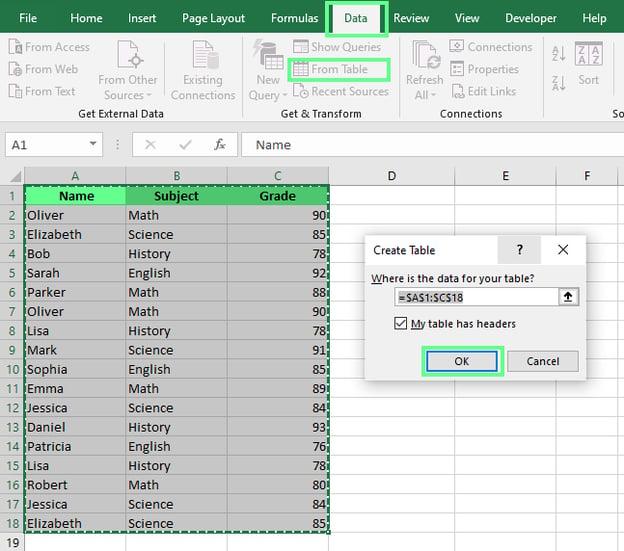
Creating a table. Image by Author.
Now, the Power Query editor window will appear. From there, choose the Remove Duplicates option to select specific columns or the entire table. For the whole table, click on the top left corner button. For a specific column, right-click on the particular header or use CTRL to select more than one column. Once done, click the Close & Load option at the top left corner to load the cleaned data back into Excel.
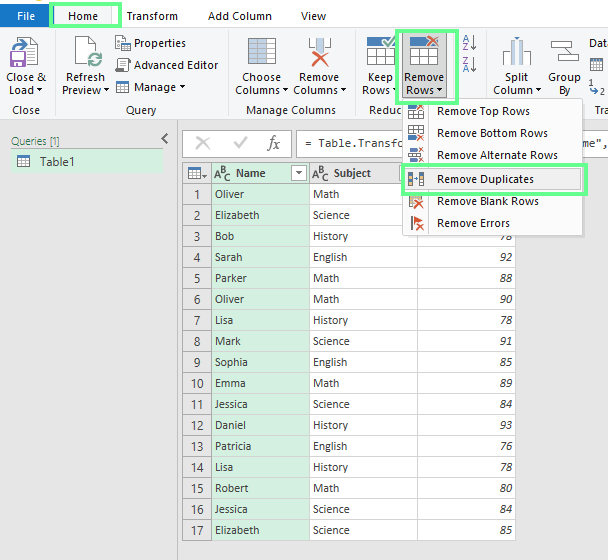
Removing duplicate data. Image by Author.
You can see the modified dataset appears back in Excel. To understand this further, you can select another column, like Subject, from this example, and repeat the steps for practice. This way, only those rows where the student name is duplicated will be removed.
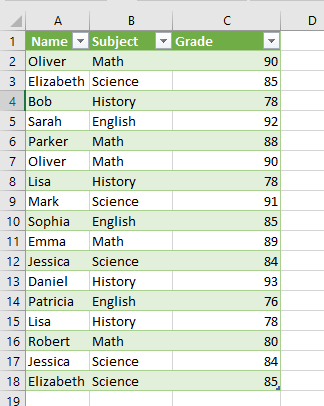
Data loaded in an Excel sheet. Image by Author.
This method is perfect if you work with large datasets or need to automate the duplicate removal process for future data refreshes.
We've seen five different methods to remove duplicates in Excel. Now, I want to help you choose which one is best, but before I do, let's first talk quickly about the two types of duplicate data.
So far, to be clear, I've focused on how to remove duplicate values in a column, and every method I have shown so far works if this is your issue. However, to be clear, in Excel, duplicates can appear in two forms — duplicate values and duplicate rows:
Here's a summary table that shows the specific advantages of each method. Here, I've also added a column to show if the method can be extended to remove duplicate rows as well. Basically, if you want to remove an entire duplicate row, try Conditional Formatting, Advanced Filter, Formulas, or Power Query, but leave the Remove Duplicates Features for simple use cases.
Here are a couple of best practices I recommend when starting any data cleanup project:
Let’s look at the most common problems that you may come across when removing duplicates.
Sometimes, we copy data from websites or external sources — this data usually contains hidden characters or spaces that prevent Excel from identifying duplicate entries. To solve this issue, you can use the TRIM() and CLEAN() functions. The TRIM() function will remove excessive spaces between words, and the CLEAN() function will remove non-printable characters.
If your spreadsheet contains subtotals or outlines, they can interfere with the duplicate removal process. Excel treats these summary rows as unique entries, which can lead to incomplete duplicate removal. To avoid this, remove all subtotals and outlines from your data before removing duplicates.
Here’s how you can do so:
After removing outlines and subtotals, you can proceed with duplicate removal as usual.
Excel considers uppercase and lowercase text as different values when checking for duplicates. For example, Product and PRODUCT would be treated as different entries. To avoid this, use the UPPER(), LOWER() or PROPER() functions to standardize the text case across all your data before starting the removal process.
=UPPER() convert text to uppercase.
=LOWER() converts text to lowercase.
=PROPER() capitalizes the first letter of each word.
Cleaning up duplicates in Excel may seem like a small task, but it can make a big difference in your work. I've covered five ways to do this, from quick built-in features to more advanced techniques. You should try different methods until you find an approach that fits smoothly into your workflow and keeps your data accurate.
If you want to strengthen your Excel skills further, check out our Data Analysis in Excel course and Data Analysis with Excel Power Tools skills track.
I'm a content strategist who loves simplifying complex topics. I’ve helped companies like Splunk, Hackernoon, and Tiiny Host create engaging and informative content for their audiences.
While Excel does not have built-in alerts for duplicates, you can use conditional formatting to highlight duplicates as soon as they are entered.
Yes, you can use the UNIQUE() function in Excel 365 or similar formulas to display unique values in real time as data changes.
Sort your data by the date modified column (descending) before removing duplicates. This way, Excel will keep the first (most recent) occurrence.

Учебное руководство
 Laiba Siddiqui• 6 мин

Учебное руководство
Laiba Siddiqui• 15 мин
Учебное руководство
Laiba Siddiqui• 5 минLearn Excel with DataCamp
Курс
Освойте подготовку данных Excel с помощью логических функций, вложенных формул, функций поиска и сводных таблиц.
Трек
Усильте свои навыки работы в Excel с помощью Excel Power Tools: Освойте Power Query, Power Pivot и динамический язык M.
Трек
Освойте основные навыки, необходимые для работы в Excel: от подготовки данных до написания формул и создания визуализаций. Предварительный опыт не требуется.






Inaccurate data can ruin even the best analysis, and one of the biggest reasons behind inaccurate data is duplicate spreadsheet entries. A single duplicate can skew your results and produce completely wrong conclusions. To avoid all this, you must know how to remove duplicates.
In this article, I’ll share the five best methods to find and remove duplicate data in Microsoft Excel. If you are looking to highlight duplicates without removing them, read my related tutorial, How to Highlight Duplicates in Excel. If you want to familiarize yourself with Excel functions and features before going forward, take our Excel Fundamentals skill track.
How to Remove Duplicates in Excel
Let’s understand the five most preferred methods for removing duplicate data from tables in Excel.