Course
Power Pivot in Excel
3 hr
15.9K
Analyzing large Excel files often leads to sluggish performance.
Power Pivot offers a different approach. It connects tables and handles calculations without compromising performance. Instead of fighting with VLOOKUP() chains and helper columns, you work with a structured system built directly into Excel.
In this guide, you'll learn how to set up data models, create table relationships, write DAX formulas, and build interactive reports using Power Pivot.
Power Pivot is Excel’s built-in data modeling engine. It lets you pull in larger datasets, connect multiple tables, and run complex calculations without the sluggishness you’d get from traditional worksheets.
Instead of storing data directly in a sheet, Power Pivot loads everything into Excel’s internal data model.
A standard worksheet can reach roughly a million rows and usually slows down much earlier. Power Pivot bypasses that limit by compressing data and managing it separately, so you can work with tens of millions of rows while keeping workbook performance intact.
A relational structure instead of VLOOKUP chains
Once your data is in the model, you can relate tables using keys, just like a lightweight database. You don’t have to flatten everything into one giant sheet and use nested VLOOKUP() functions to force tables together. Power Pivot lets you analyze linked tables side by side, cleanly and reliably.
Stronger calculations with DAX
Power Pivot uses DAX (Data Analysis Expressions), a formula language explicitly built for analytical work. You can use this to create measures that go far beyond what a standard PivotTable can handle, from simple sums to time-based metrics, ratios, rolling windows, and other advanced calculations.
Here are two examples of how businesses use Power Pivot in their work operations:
Simply put, Power Pivot gives you a database-style experience inside Excel. If you work with large or multi-table datasets, it can turn your messy reporting workflows into fast, scalable models you can build on.
Let's now see how you can start using Power Pivot in Excel.
You don’t have to download Power Pivot. It’s already present in Excel. To enable it:
Now the Power Pivot will appear on your ribbon.
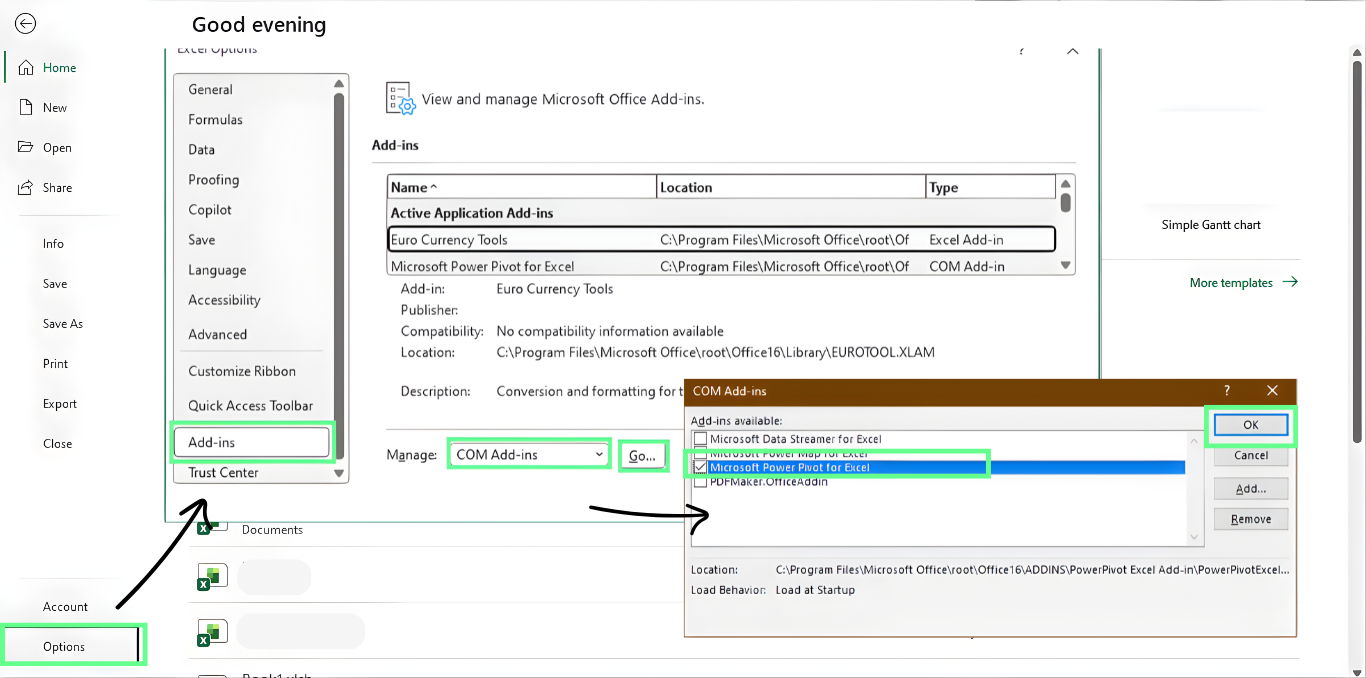
Enable the Power Pivot add-in in Excel. Image by Author.
Note: Power Pivot works only in Excel Professional Plus or Microsoft 365. If you do not see the tab after enabling it, the version of Excel on your computer might not include it.
You can now import data from different resources, such as an Excel file, a CSV file, or even a SQL Server database.
For this example, we have two datasets in an .xlsb file:
sales.xlsb
customer.xlsb
To import them into Power Pivot:
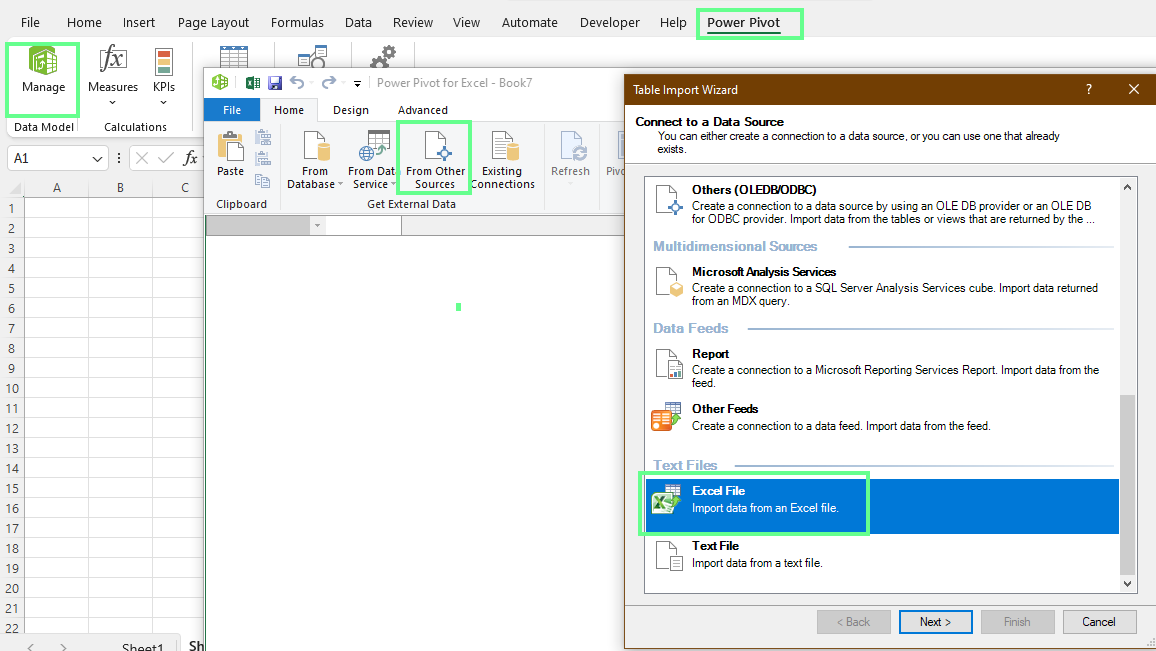
Get the data from other sources. Image by Author.
Now, in the pop-up, click Browse and select the customer.xlsb file
Tick the Use first row as column header box and click Next
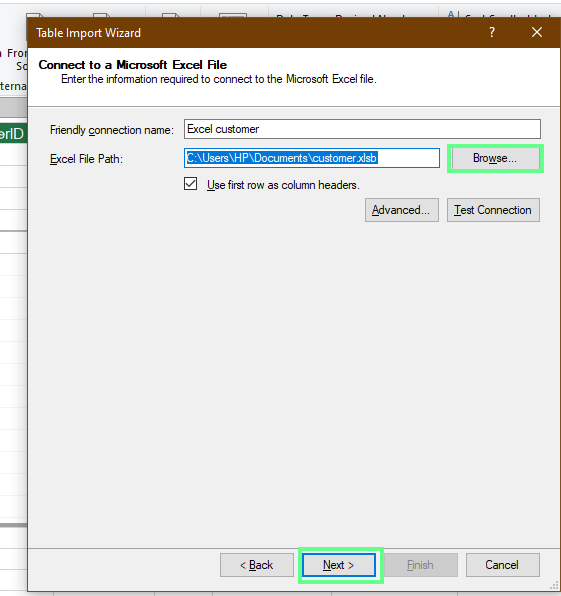
Import the Excel file into Power Pivot. Image by Author.
In the next window, click on Preview & Filter to see how your data will look before importing. Once satisfied, click OK, and it will show all rows have been successfully transferred. Then, click Close.
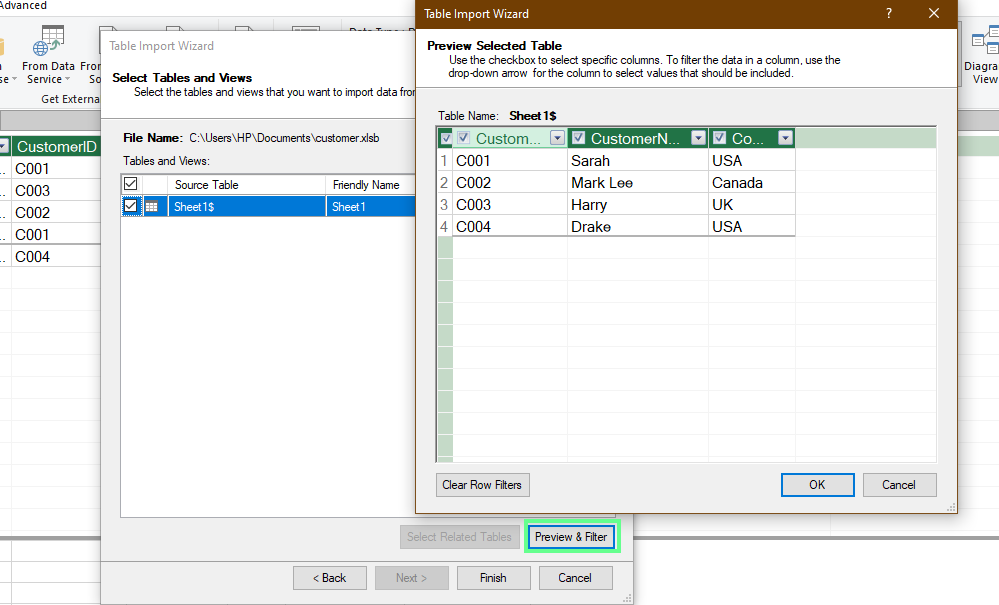
Preview the selected data. Image by Author.
Repeat the same process for the sales.xlsb file. Then, at the bottom of the screen, both files will be shown as imported. Double-click on it and rename it.
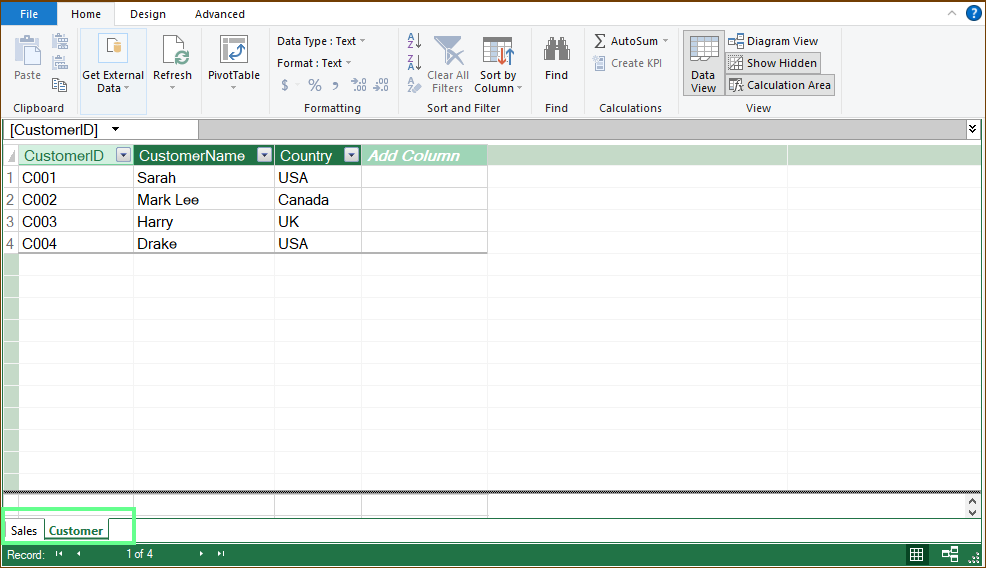
Both files imported. Image by Author.
Now that your data is loaded into Power Pivot, it’s time to link the tables so Excel understands how they connect. This step builds the foundation for all your reports.
To create a relationship between the Sales and Customers table:
Note: If you want to edit the relationship, right-click on the line and click Edit Relationship... In the window, select the columns you want to make the relation with.
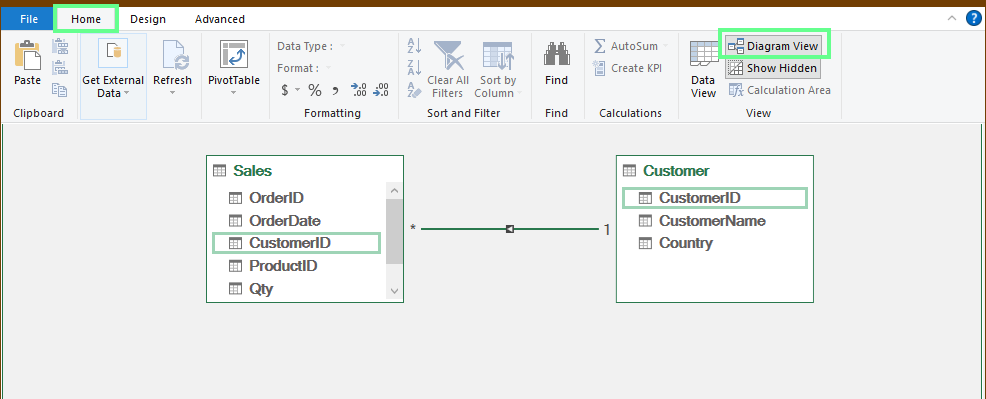
Build a relationship between the tables. Image by Author.
In this relationship, one customer can appear many times in the Sales table, but each customer appears only once in the Customers table. This is a simple one-to-many relationship that lets us use fields from both tables in PivotTables and do calculations without lookup formulas.
A star schema is one of the simplest ways to structure a Power Pivot model. It keeps your tables organized and makes calculations predictable.
First, you’ve to choose the fact table. In this case, Sales serves as the fact table because it holds the transactional records: date, customer, product, quantity, and amount.
Next, identify the dimension tables that describe the data in Sales. Some of its common examples include:
Each dimension table has a primary key. You connect that key to the matching foreign key in the fact table:
Once linked, the Sales table sits at the center with dimension tables radiating around it. That’s your star. This structure keeps the model clear, speeds up calculations, and improves reporting consistency.
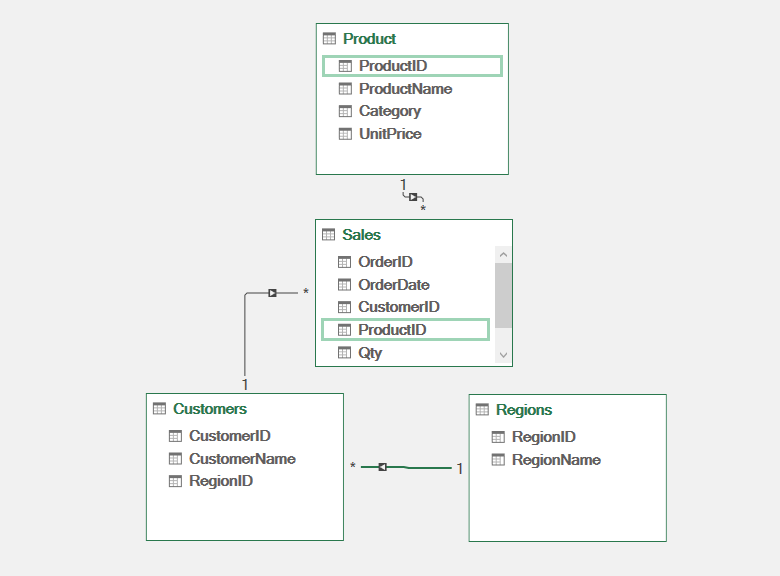
Create a star schema. Image by Author.
With your relationships in place, you can create new fields directly in the data model.
Switch to Data View
Select the empty Add Column field at the end of the table.
Input = [TotalAmount] / [Qty] and press Enter so Excel fills the entire column
Rename the header to PricePerUnit
This way, calculated columns become part of the table itself. They’re stored in the model, refreshed with your data, and stay available for any PivotTable or DAX measure you build later.
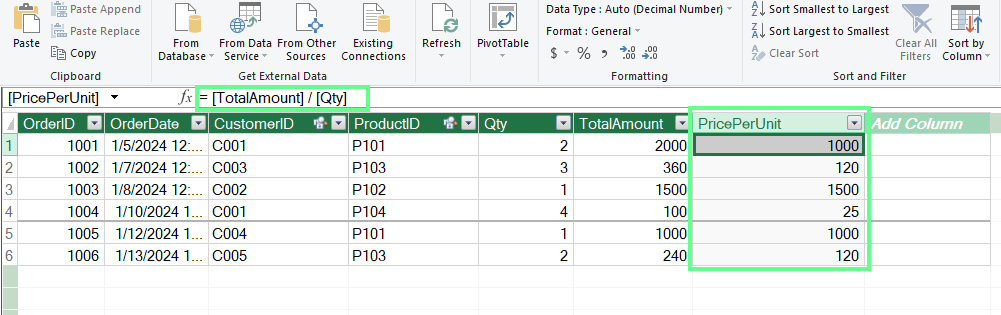
Add an extra calculated column. Image by Author.
You should use measures when you want calculations that refresh automatically inside a PivotTable.
To create a measure:
Open the Power Pivot window
Go to Home > Calculations > New Measure
Enter a formula such as = SUM(Sales[TotalAmount])
Name it Total Sales and select OK
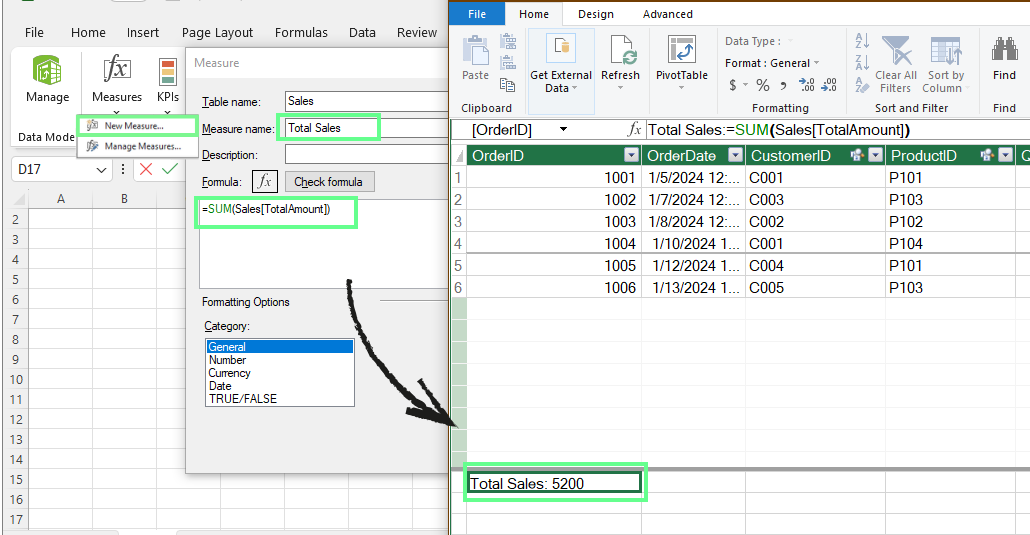
Create measures. Image by Author.
You can also use this formula to add a percent of total measure:
= DIVIDE([Total Sales], CALCULATE([Total Sales], ALL(Regions)))This would show each region’s share of overall revenue.
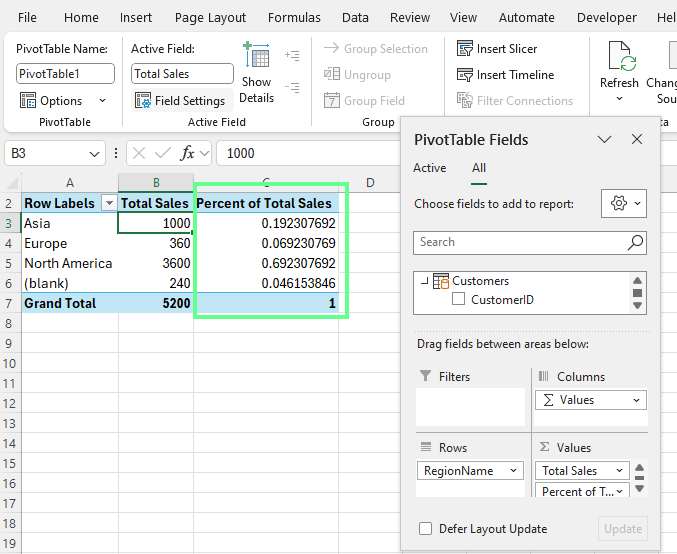
Add a percentage of the total measure. Image by Author.
Time intelligence functions are DAX formulas that understand how data moves across days, months, quarters, and years. They let you calculate year-to-date totals, compare results to prior periods, and evaluate trends without manually adjusting filters.
To see how these functions work in your model, you first need a proper Date table.
To set up the table:
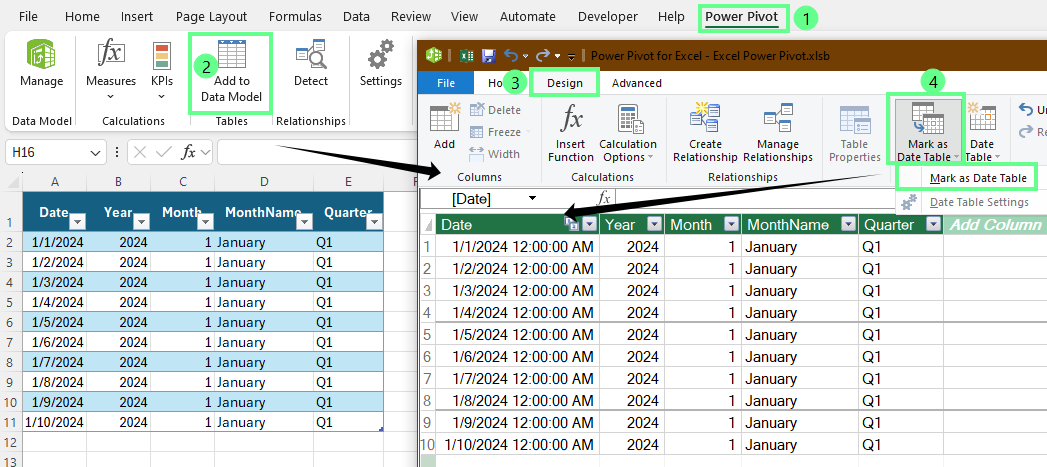
Create a data table. Image by Author.
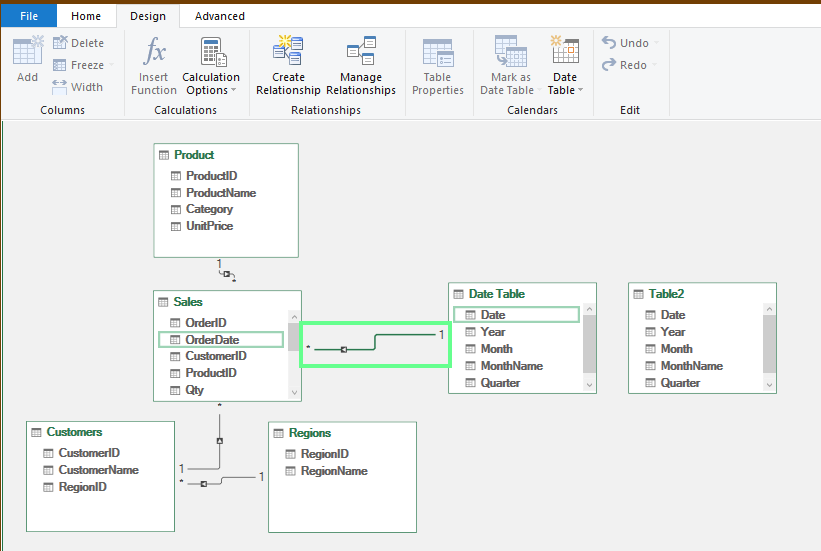
Link the Date Table[Date] to Sales[OrderDate]. Image by Author.
Once the Date table is done, you can build measures that evaluate performance across different periods.
Year-to-date:
Total Sales YTD :=
TOTALYTD([Total Sales], 'Date Table'[Date])
Last-year comparison:
Sales Last Year :=
CALCULATE([Total Sales], SAMEPERIODLASTYEAR('Date Table'[Date]))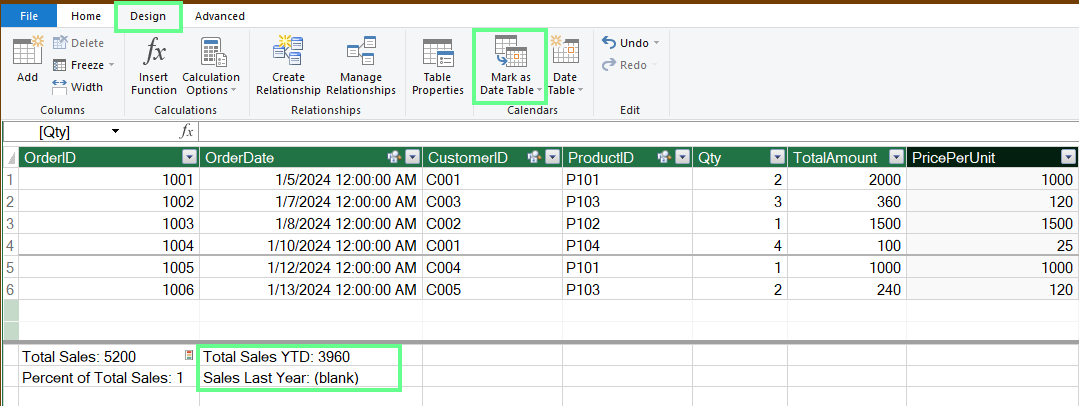
Calculate the time. Image by Author.
With the measures ready, go back to Excel and create a PivotTable using the Data Model. Then, place fields from the Date table in the Rows area and add Total Sales, Total Sales YTD, and Sales Last Year into Values.
This shows how the time intelligence measures work with the Date table inside the model.
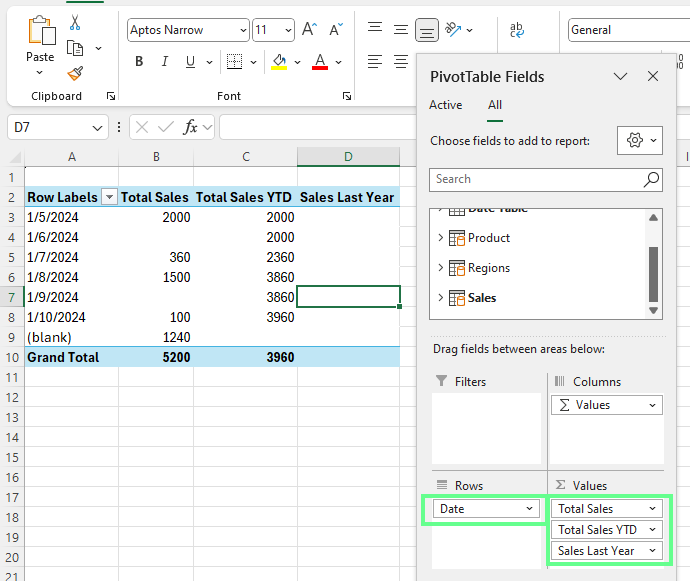
PivotTable showing Total Sales, YTD, and Last Year Date. Image by Author.
Some DAX formulas come up often because they help you break down data quickly and answer common questions. Here are two patterns that work well in many models:
Average per category:
Average Sales Per Category :=
AVERAGE(Sales[TotalAmount])
Running total across dates:
Running Total Sales :=
CALCULATE(
    [Total Sales],
    FILTER(ALL('Date'), 'Date'[Date] <= MAX('Date'[Date]))
)
When creating measures, make these few simple habits:
It makes the model easier to understand when you go back to it later.
Now that the model and measures are done, let’s turn the data into visuals you can explore and adjust in real time.
Here’s how to insert a PivotTable from the data model to work directly with your connected tables:
In the PivotTable Fields pane, you can now pull fields from any table. For example:
Because we built relationships earlier, Excel automatically brings everything together.
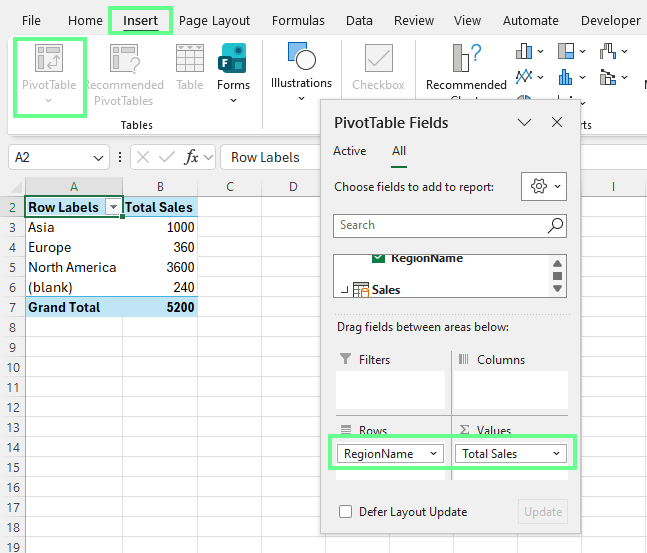
Create a PivotTable using the Power Pivot data. Image by Author.
If you want a visual, click anywhere inside the PivotTable, go to Insert > PivotChart, choose a chart type (like Clustered Column), and confirm. The chart stays linked to the PivotTable, so everything updates together.
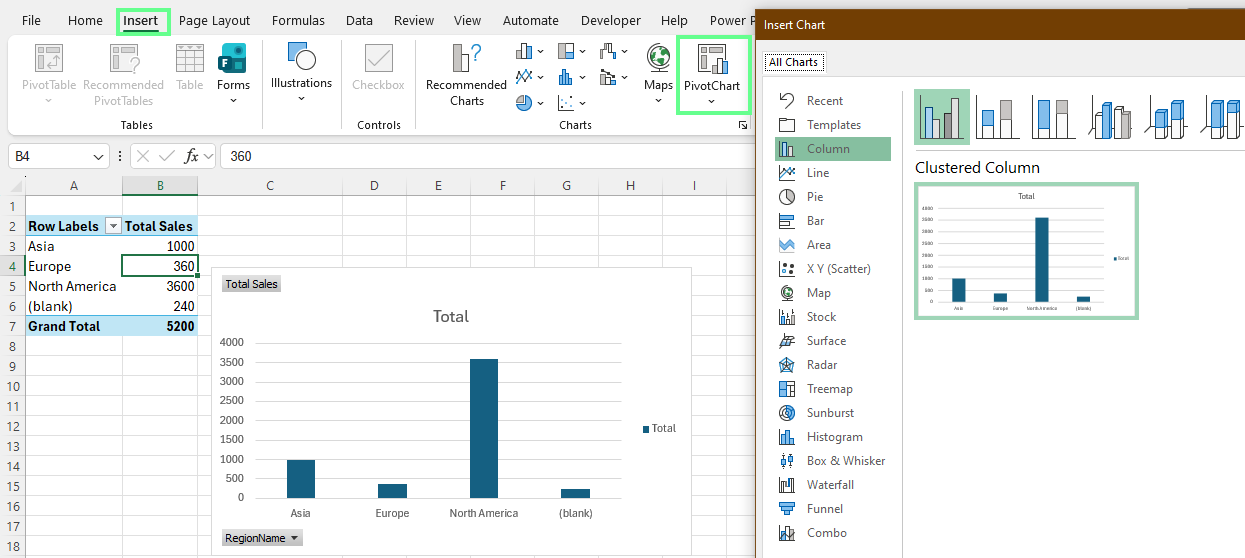
Add PivotChart. Image by Author.
Slicers give you quick, button-style filters that make the report interactive. To add them:
A slicer appears as a box on the sheet. When you click different items, the PivotTable and chart update instantly. If you have multiple PivotTables, you can connect a single slicer to them all for consistent filtering across the page.
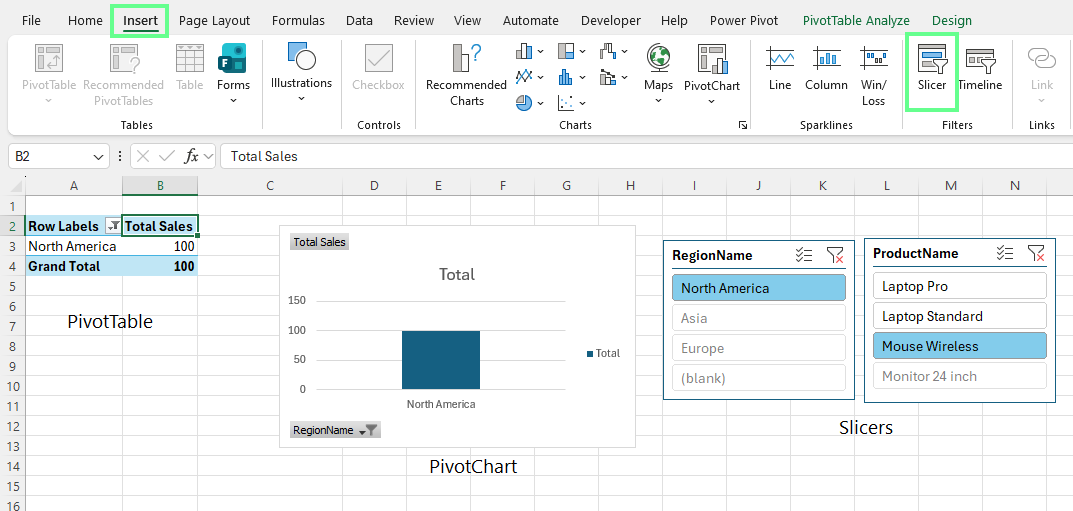
Add Slicers. Image by Author.
KPIs help you see performance against a target without adding extra calculations to the sheet. To build yours:
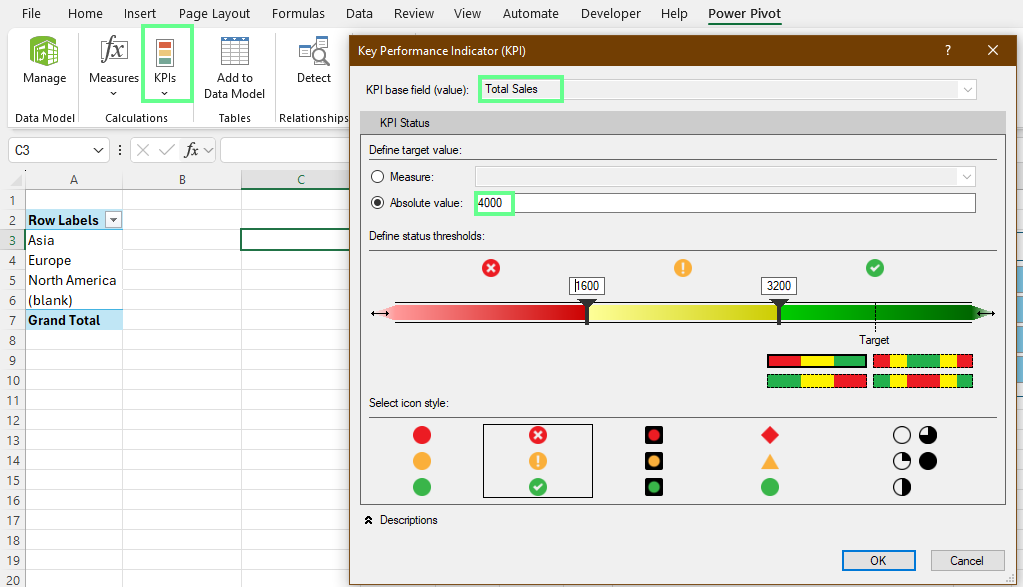
Set the KPI of a measure. Image by Author.
Now you can see the target performance against a threshold.
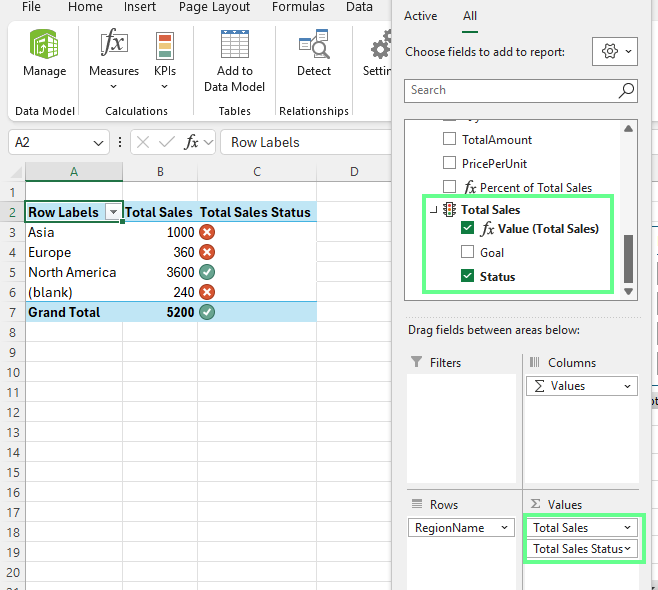
Display the KPI status in an Excel PivotTable. Image by Author.
Once the model is built, we want to keep it fast and easy to work with. Power Pivot can handle large datasets, but a few minor adjustments help the file stay responsive, especially as you add more data over time.
A lighter model runs faster, so remove anything you don’t need.
You can delete unused columns in Data View. Even if a column never appears in a PivotTable, it still takes memory, so trimming them keeps the model clean.
When you bring in new data, use Power Query to filter rows and columns before they enter the model. That way, only the fields you care about are loaded, which keeps everything cleaner.
Try to avoid calculated columns unless they’re required because they store a value for each row, which quickly increases file size. On the contrary, measures are more efficient because they calculate only when a PivotTable needs them.
Power Pivot compresses data differently depending on the data type. If you use the right type, it can make a noticeable difference.
In Data View, select a column and choose the most accurate type under Data Type on the ribbon. For example:
When you choose the correct type, Power Pivot compresses the column better, which reduces size and speeds up calculations.
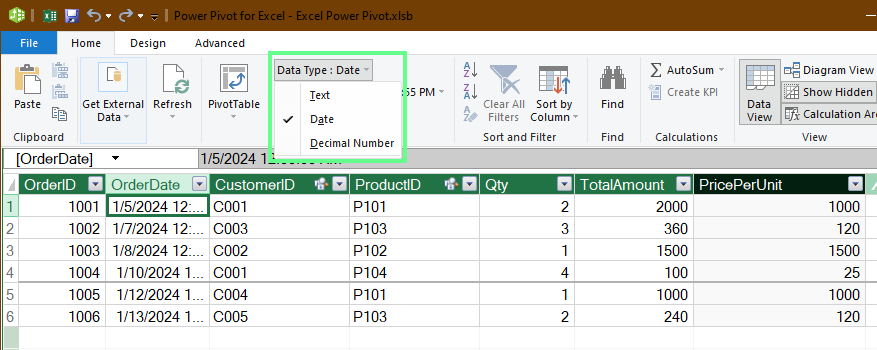
Check and use the correct data type. Image by Author.
If your PivotTables don’t reflect the latest data, go to the Power Pivot tab and click Refresh All. This reloads everything from your source files.
When numbers look off, open Diagram View and check your relationships because a missing or broken relationship can cause totals to jump or filter incorrectly.
If you ever run into a DAX error, especially with more complex measures, it often means the formula is referencing itself indirectly. In this case, rewrite the measure with simpler logic or use VAR blocks to resolve the circular reference.
One of the advantages of Power Pivot is how easily it works with the rest of the Microsoft data stack. We can use Power Query to clean and shape the data before it enters the model, or move the entire model into Power BI when you need interactive dashboards.
Power Query is the best place to prepare your data before loading it into Power Pivot. It lets you clean, filter, and shape everything up front so the model stays organized.
You can open Power Query by going to Data > From Text/CSV > Transform. This brings the data into the editor, where you can:
Power Query records each step on the right side of the window. That means the cleanup runs automatically whenever you refresh the file.
When everything looks right, select Close & Load To, then choose Data Model. The cleaned data loads directly into Power Pivot.
You can also take your Power Pivot model into Power BI when you need richer visuals or shared dashboards. Here’s how:
Power BI imports the tables and relationships exactly as they exist in Power Pivot. From there, you can build dashboards, collaborate with your team, and set up scheduled refreshes so your reports stay up to date without manual steps.
As your model grows, keeping things organized makes it easier for you to update, debug, and build on it later. So, here are a few habits that help the model stay clean and reliable over time:
Clear names make a big difference when you come back to a file after weeks or months. That’s why you should use readable measure names like Total_Sales, Total_Quantity, or Profit_Margin so you always know what each measure represents.
You can also group related measures into Display Folders in the Power Pivot window. When the model gets larger, these folders make it easier to find the calculations you need.
Before you trust the numbers, run a few quick checks:
COUNTROWS() to confirm how many rows are in a table
DISTINCTCOUNT() to verify unique values, such as customers or products
These small tests help you spot missing relationships, incorrect filters, or data issues before they cause bigger problems.
When new data arrives, go to the Power Pivot tab and choose Refresh or Refresh All. As a result, Power Pivot reloads everything from the connected sources.
Before making major structural changes such as adding new relationships or rewriting key measures, save a backup copy of the file. It gives you a safe fallback if something doesn’t go as planned.
Power Pivot brings your data together in one place and helps you build reports that are clear and reliable. Once the model is set up, explore your numbers, create visuals, and update everything with a single refresh.
If you want to learn Excel’s full set of tools, check out our Data Analysis with Excel Power Tools track as well as our (of course) Power Pivot in Excel course.
Learn Excel with DataCamp
Course
Course
Course
Tutorial
Joleen Bothma
12 min
Tutorial
Vikash Singh
13 min
Tutorial
Javier Canales Luna
9 min
Tutorial
DataCamp Team
13 min
Tutorial
Laiba Siddiqui
13 min
Tutorial
Joleen Bothma
9 min