Course
Introduction to Python
4 hr
7M
Type hints make Python code easier to understand and maintain. But here's the catch: hints alone don't catch errors. You need a type checker to verify that your code actually follows the types you've declared.
I've used both Mypy and Pyright in production. Pyright's speed advantage is most apparent during development. Type errors appear as you type rather than after saving. In large codebases, this faster feedback loop makes an actual difference.
This tutorial covers everything you need to start using Pyright effectively. I'll show you how to install it, configure it for your project, and integrate it with VS Code. I'll also tease out the differences between Pyright and Mypy.
Pyright is a static type checker for Python developed by Microsoft. It reads your code, analyzes type annotations, and reports errors when types don't match. Unlike runtime checks that catch errors when code executes, static analysis catches them before you run anything.

While most Python tools are written in Python, Pyright is written in TypeScript and runs on Node.js. Odd choice for a Python tool, right? But it's the reason Pyright is so fast. The V8 JavaScript engine executes much faster than CPython would.
You'll encounter Pyright in two ways. You can run it as a command-line tool in CI/CD pipelines to catch type errors before doing merges. Or you might already be using it without knowing. It powers Pylance, Microsoft's Python extension for VS Code. Those red squiggles under type errors? That's Pyright working behind the scenes.
The tool ships with bundled type stubs for the Python standard library and common packages. You don't need to install anything extra to check code that uses os, json, or typing. For third-party packages, Pyright uses community-maintained stubs from typeshed or package-specific stubs you install separately.
Now let's get Pyright running on your system. You have two installation options: npm (the native approach) or pip (the Python wrapper).
The recommended installation uses npm because Pyright runs on Node.js. You'll need Node.js version 14.0.0 or higher.
# Global installation
npm install -g pyright

# Run without installing globally
npx pyright

# Local project installation
npm install --save-dev pyright
I use the global installation for quick checks and local installation for projects where I want to pin the version. The npx approach is useful for one-offs without adding to your global packages.
If your team works exclusively in Python and doesn't want Node.js in the toolchain, a PyPI wrapper exists:
# Standard installation
pip install pyright

# Recommended: includes Node.js automatically
pip install pyright[nodejs]
The wrapper checks for Node.js on your system. If it's missing, the wrapper downloads a standalone version automatically. The [nodejs] extra uses a more reliable download method than the default.
Keep in mind there are tradeoffs. The first run takes longer while dependencies download. CI environments with restricted network access might fail. And the PyPI version sometimes lags behind npm releases by a few days.
For most Python teams, the wrapper works fine. But if you run into issues, fall back to the npm installation. It's more reliable.
Once installed, running Pyright is simple. Navigate to your project directory and run:
pyrightThat's it, really. Pyright scans for Python files, analyzes them, and reports any type errors it finds. No complex setup required.
What does Pyright look for? Without any configuration, it performs several checks. It validates type annotations that match actual usage. It catches undefined variables and unreachable code. It verifies imports correctly. It flags obvious type mismatches like passing a string where an integer is expected.
Here's example output from a project with errors:
/src/utils.py:12:15 - error: Argument of type "str" cannot be assigned
   to parameter "count" of type "int" in function "process_items"
   "str" is not assignable to "int" (reportArgumentType)
/src/main.py:45:9 - error: "user" is possibly unbound (reportPossiblyUnbound)
2 errors, 0 warnings, 0 informations
Each error shows the file path, line number, column, and a description. The rule name in parentheses (like reportArgumentType) tells you exactly which check triggered the error. This matters when you want to suppress specific rules. We'll cover that shortly.
Pyright returns different exit codes depending on the result:
|
Exit Code |
Meaning |
|
0 |
No errors found |
|
1 |
Type errors found |
|
2 |
Fatal error (crash, out of memory) |
|
3 |
Configuration file error |
|
4 |
Invalid command-line arguments |
In CI pipelines, you typically want the build to fail on exit code 1. Exit codes 2-4 indicate something went wrong with the tool itself, not your code.
While Pyright works out of the box, real projects need customization. You'll want to specify which files to check, which Python version to target, and how strict the analysis should be. Let's look at the key configuration options.
Pyright offers four strictness levels. The mode you choose determines how many rules are enabled.
|
Mode |
Behavior |
|
off |
No type checking; only syntax errors reported |
|
basic |
Fundamental checks; most lenient analysis |
|
standard |
Complete checking; the default in 2026 |
|
strict |
Maximum safety; requires complete annotations |
Which mode should you choose? For new projects, start with standard mode. It catches real bugs without overwhelming you with errors. Working with legacy code? Basic mode works better when you're adopting typing gradually. Save strict mode for libraries and critical infrastructure where you want maximum safety.
Fair warning: the jump from standard to strict is significant. Strict mode enables about 30 additional rules, including requirements for type annotations on all function parameters and return values. Expect a 10x increase in reported errors when switching. I learned this the hard way.
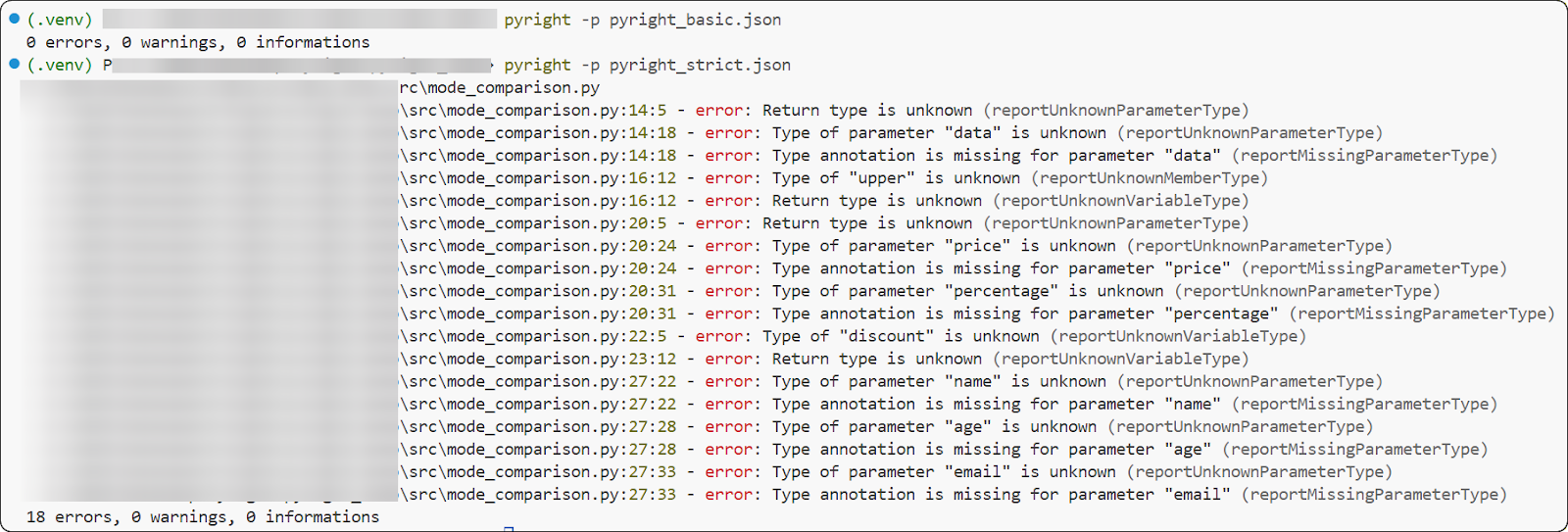
Strict mode requires complete type annotations. Image by Author
Pyright reads configuration from pyrightconfig.json or pyproject.toml. If both exist, pyrightconfig.json takes precedence.
Here's a minimal pyrightconfig.json:
{
  "include": ["src"],
  "exclude": ["**/node_modules", "**/__pycache__", "**/.venv"],
  "pythonVersion": "3.12",
  "typeCheckingMode": "standard"
}
The equivalent in pyproject.toml:
[tool.pyright]
include = ["src"]
exclude = ["**/node_modules", "**/__pycache__", "**/.venv"]
pythonVersion = "3.12"
typeCheckingMode = "standard"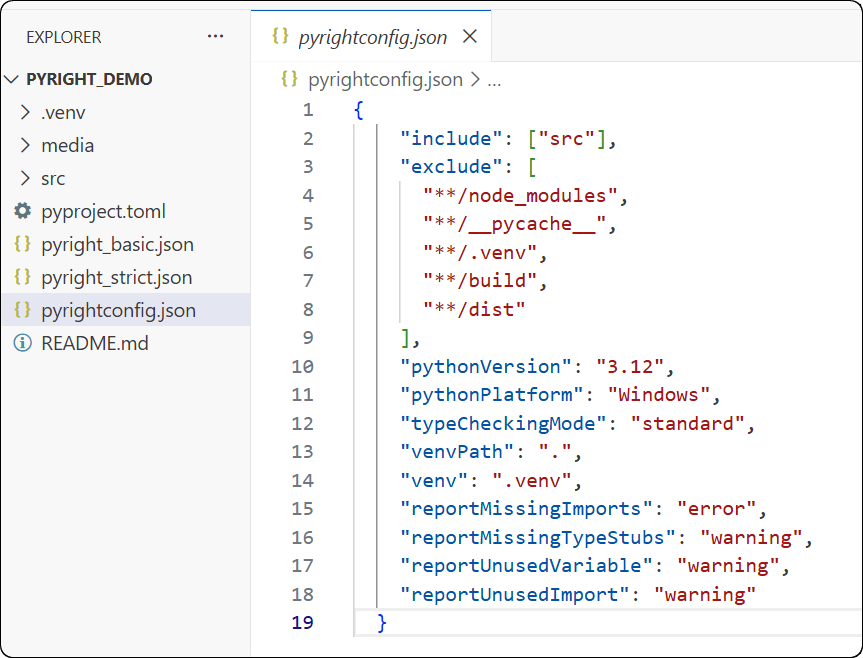
Configuration file controls Pyright behavior. Image by Author.
Here's a critical detail that catches many people: if you define exclude manually, it replaces the defaults entirely. Always include node_modules, __pycache__, and your virtual environment in custom exclude patterns. Otherwise, Pyright tries to analyze your dependencies, causing massive slowdowns. Trust me, you don't want to wait 10 minutes for a type check.
How does Pyright find your installed packages? You need to tell it where to look. Configure this with venvPath and venv:
{
  "venvPath": ".",
  "venv": ".venv"
}
This tells Pyright to look for packages in ./.venv. If you use a different virtual environment location, adjust accordingly. Without this, Pyright can't find your installed dependencies and reports missing import errors for everything.
Sometimes Pyright is technically correct but you need to silence specific errors anyway. Maybe you're working with legacy code, or you know better than the type checker in a specific case. You can suppress errors at three levels.
Disable rules globally:
{
  "reportMissingTypeStubs": "none",
  "reportUnusedVariable": "warning"
}Add a comment at the top of the file:
# pyright: basic
# pyright: reportPrivateUsage=falseSuppress a single line:
x: int = "hello"  # type: ignore
x: int = "hello"  # pyright: ignore
x: int = "hello"  # pyright: ignore[reportAssignmentType]
The specific rule syntax ([reportAssignmentType]) is useful when you want to silence one check without disabling others on the same line.
With configuration covered, let's see how Pyright integrates with your development environment.
If you're like most Python developers, you'll experience Pyright through Pylance rather than the command line. Understanding this relationship helps you configure your editor correctly and avoid common pitfalls.
Pylance is Microsoft's VS Code extension that bundles Pyright's type checking engine. When you install Pylance, you get Pyright automatically. But Pylance adds features that aren't in the open-source Pyright:
These features are closed-source and only available in VS Code. If you use Neovim, Emacs, or another editor, you get the core Pyright functionality but not these extras.
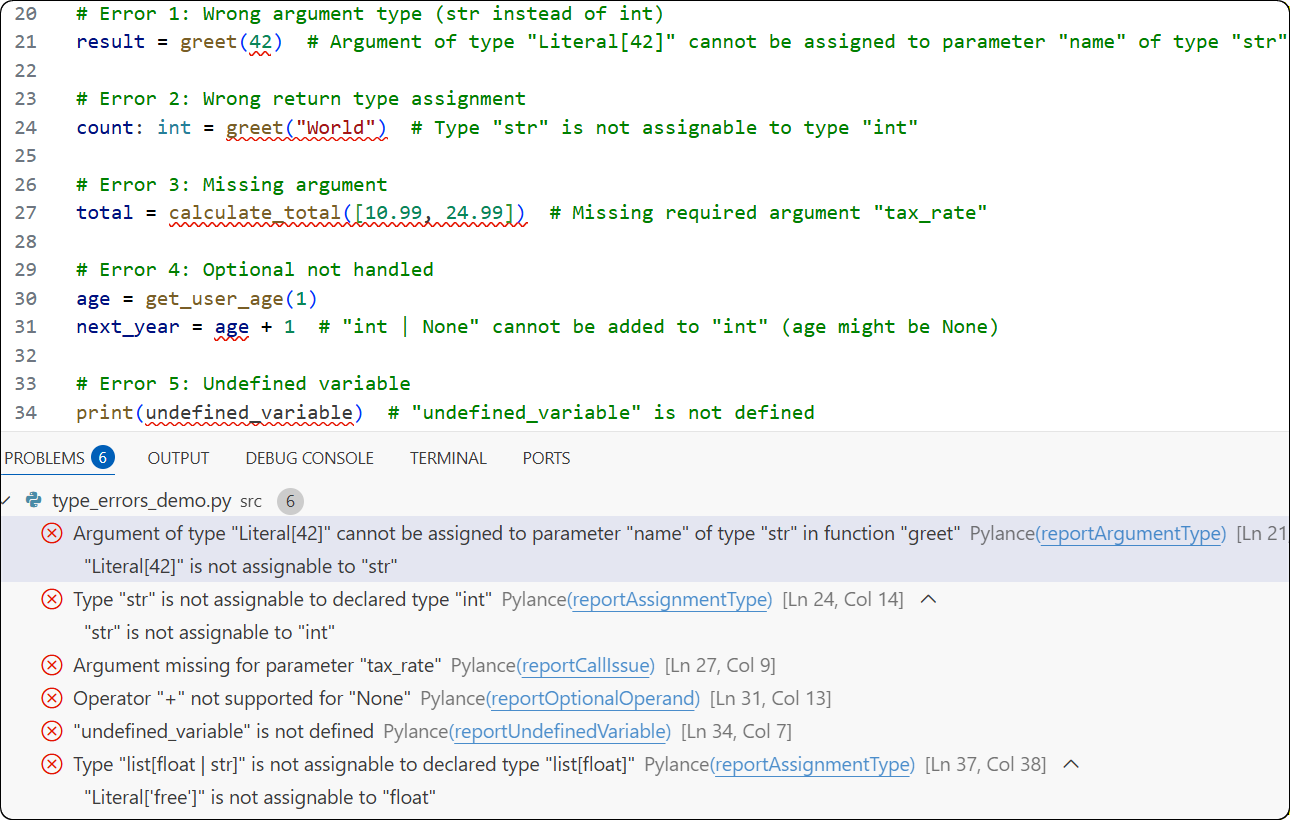
Pylance highlights type errors in editor. Image by Author.
Configure Pylance through VS Code's settings:
{
  "python.languageServer": "Pylance",
  "python.analysis.typeCheckingMode": "standard",
  "python.analysis.diagnosticMode": "openFilesOnly"
}
The diagnosticMode setting affects performance. "openFilesOnly" analyzes only files you have open. "workspace" analyzes everything but uses more memory and CPU.
Interpreter selection matters. Pylance uses your selected Python interpreter to find installed packages. If errors suddenly appear for packages you know are installed, check that the correct interpreter is selected in the VS Code status bar.
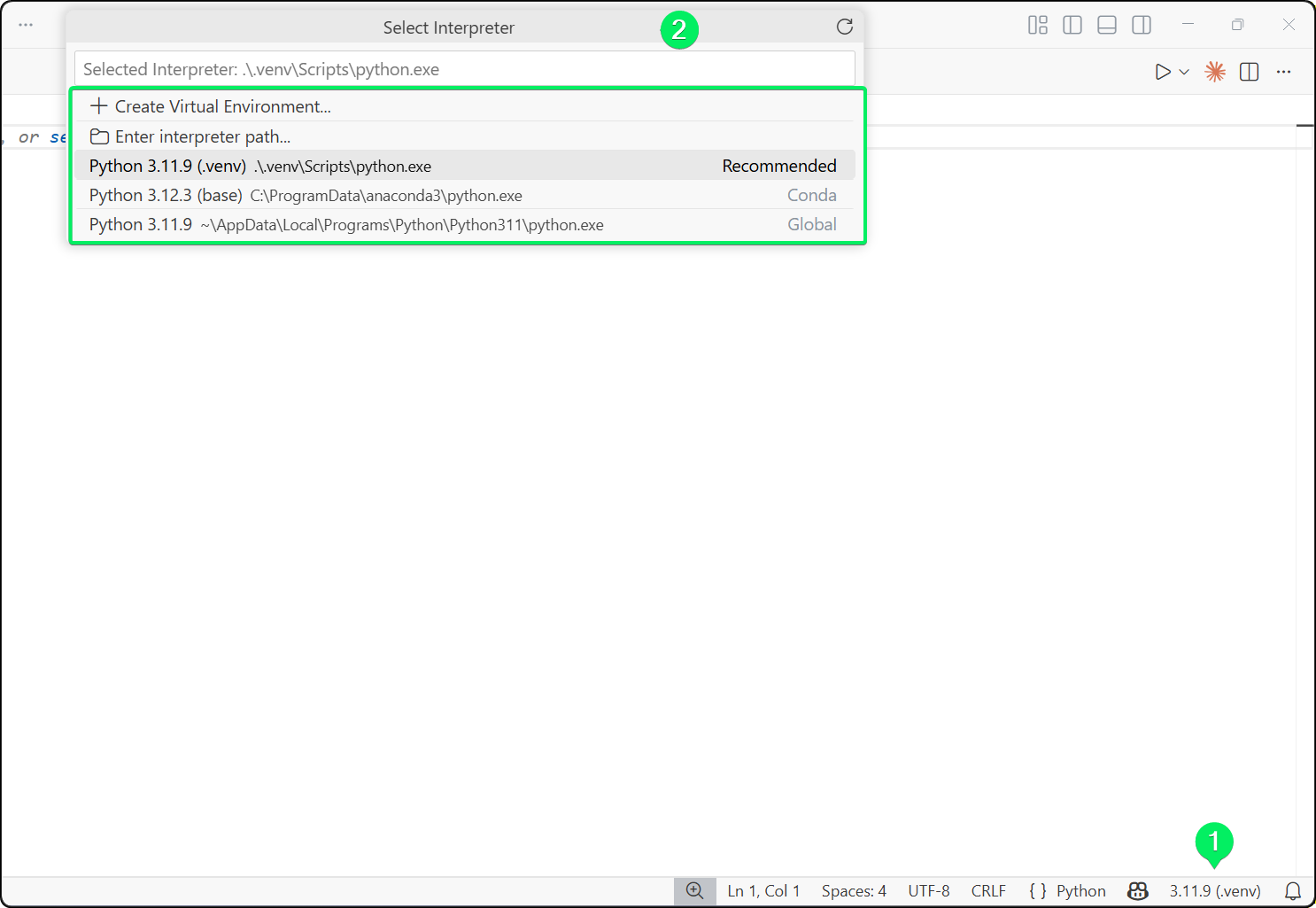
Interpreter selection affects package discovery paths. Image by Author.
CLI and Pylance defaults differ. Pylance defaults typeCheckingMode to "off" while the CLI defaults to "standard". Pylance also automatically adds src to search paths; the CLI doesn't. For consistent behavior between your editor and CI, explicitly set all options in pyproject.toml.
The "grayed out code" phenomenon. Pylance grays out unreachable code based on type analysis. If code appears grayed out unexpectedly, check the function called immediately before it. A function typed as returning NoReturn causes everything after it to appear unreachable.
You might be wondering: should I use Pyright or stick with Mypy? Both tools are production-ready, and your choice depends on your workflow and requirements. Let me break down the key differences.
Pyright is approximately 3-5x faster than Mypy for full project scans and essentially instant for incremental checks. This matters most during development when you want immediate feedback.
Mypy has a daemon mode (dmypy) that improves performance, but it's still slower and occasionally has caching issues that require restarts.
Here's where things get interesting. The tools infer types differently. Consider this code:
coordinates = (10, 20)Pyright infers tuple[Literal[10], Literal[20]], preserving the exact values because tuples are immutable. Mypy infers tuple[int, int], widening to general types.
Pyright's approach catches more errors but occasionally causes friction when functions expect general types. This rarely matters in practice because Literal[10] is a valid subtype of int.
This is the biggest practical difference, and it's a game-changer for legacy codebases. Mypy skips unannotated functions by default. Pyright analyzes them anyway, catching obvious errors even without type hints.
For legacy codebases with sparse annotations, Pyright acts as a powerful linter that catches undefined variables and impossible method calls. Mypy treats those functions as "dynamic" and ignores them.
Mypy supports plugins for frameworks like Django and SQLAlchemy. These plugins understand ORM magic and provide accurate types for dynamically generated attributes.
Pyright has no plugin system. It relies entirely on type stubs. In 2026, most major libraries have high-quality stubs, so this matters less than it used to. But if you use a framework with heavy metaprogramming, check whether good stubs exist before committing to Pyright.
|
Aspect |
Pyright |
Mypy |
|
Speed |
3-5x faster |
Slower |
|
Unannotated code |
Analyzed by default |
Skipped by default |
|
IDE integration |
Powers VS Code/Pylance |
Requires separate setup |
|
Plugin system |
None |
Django, SQLAlchemy, etc. |
Use Pylance (Pyright) during development for instant feedback, and consider running both Pyright and Mypy in CI if your project uses framework plugins.
When Pyright reports unexpected errors, the cause is usually one of these issues.
Ever seen this error? Pyright complains when it can't find type information for a package:
Import "requests" could not be resolved (reportMissingImports)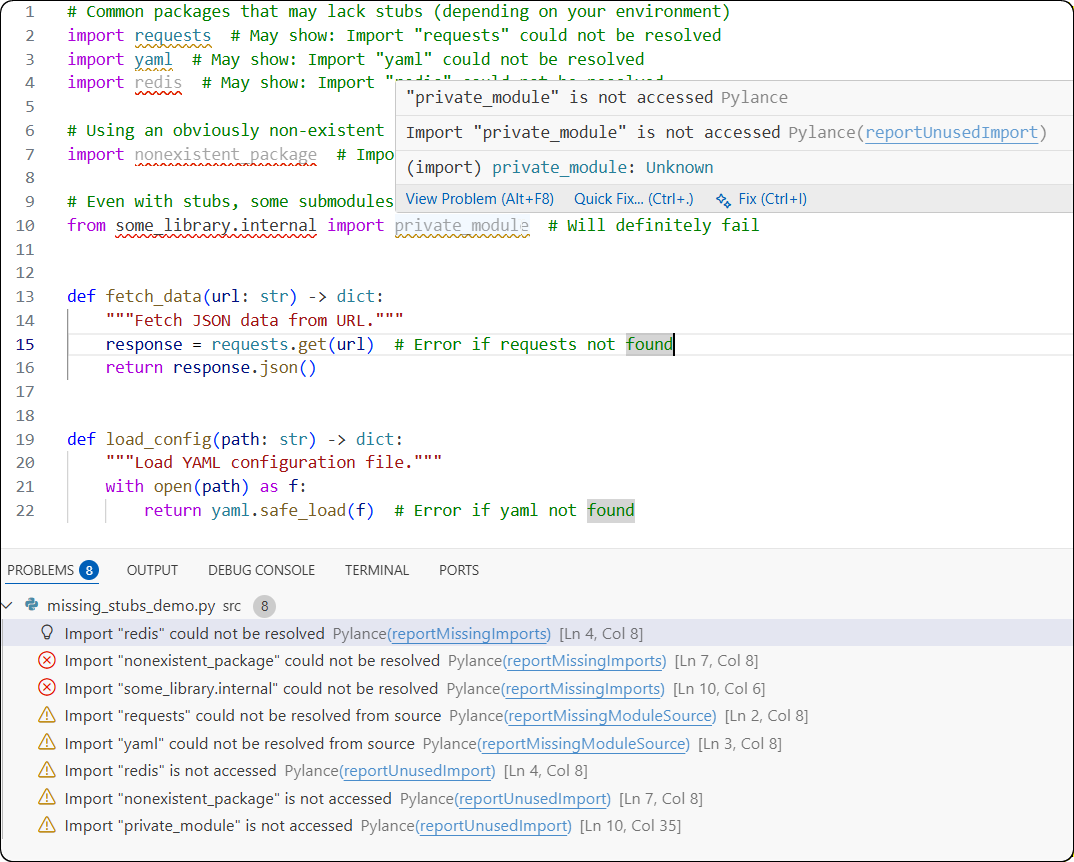
Missing stubs trigger import warning errors. Image by Author.
First, check that the package is installed in your virtual environment and that Pyright knows where to find it (using the venvPath and venv settings covered earlier).
If the package is installed but lacks type information, install community stubs:
pip install types-requests types-PyYAML types-redisFor packages without available stubs, you have two options. You can disable the warning with "reportMissingTypeStubs": "none" in your config. Or generate draft stubs yourself:
pyright --createstub some_packageThis creates a skeleton .pyi file you can fill in with the methods you actually use.
Does Pyright work locally but fail in pre-commit hooks? The issue is usually environment isolation. Pre-commit runs hooks in isolated environments that can't see your project's installed packages.
Fix this by pointing the hook to your virtual environment:
repos:
  - repo: https://github.com/RobertCraigie/pyright-python
    rev: v1.1.408
    hooks:
      - id: pyright
args: ["--venvpath", ".", "--venv", ".venv"]Enabled strict mode and suddenly seeing thousands of errors? Don't panic. This is normal. Strict mode requires complete type annotations. Start with basic or standard mode, add annotations incrementally, and only enable strict on fully typed modules.
Use per-file comments to keep legacy code on a lenient mode:
# pyright: basicThis lets you enforce strict checking on new code while gradually migrating old code.
Beyond troubleshooting, here are some strategies that will make your Pyright experience smoother from the start.
After working with Pyright across different projects, I've learned a few things that make adoption smoother. Adopting these coding best practices ensures your type checking remains a help, not a hindrance.
Start with standard mode. As discussed earlier, it catches real bugs without requiring complete annotations. You can always tighten the rules later.
Pin your Pyright version. Pyright releases frequently, and new versions sometimes flag previously passing code. In CI, an unpinned pip install pyright can cause Monday morning build failures from weekend releases. I've been there. It's not fun.
[tool.pyright]
# In pyproject.toml
pythonVersion = "3.12"
# In requirements-dev.txt
pyright==1.1.408Fix errors incrementally. Don't try to eliminate 10,000 errors at once. Use the strict array to enforce strict checking only on specific directories:
{
  "typeCheckingMode": "standard",
  "strict": ["src/core", "src/api"]
}
Use configuration files early. Even for small projects, explicit configuration prevents surprises. Take five minutes to document your Python version, virtual environment path, and chosen strictness level. Your future self will thank you.
Don't aim for perfection immediately. Use # pyright: ignore liberally at first. This marks technical debt visibly so you can clean it up over time rather than blocking progress. Perfect is the enemy of good, especially when adopting new tooling.
Learn with DataCamp
Course
Course
Course
blog
Javier Canales Luna
13 min
Tutorial
Olivia Smith
7 min
Tutorial
Abid Ali Awan
13 min
Tutorial
Allan Ouko
10 min
Tutorial
J. Andrés Pizarro
15 min
Tutorial
Moez Ali
13 min