
Khóa học
Làm sạch dữ liệu với Generative AI
1 giờ
16.2K
GPT-5.2 là một mô hình mạnh cho việc tạo quy trình và các pipeline nhiều bước đòi hỏi độ tin cậy, cấu trúc, và ít ảo giác hơn. OpenAI nhấn mạnh cải tiến trong xử lý ngữ cảnh dài và hiệu năng vượt trội hơn nữa với các tác vụ kiểu bảng tính.
Trong hướng dẫn này, chúng ta sẽ xây dựng một ứng dụng Streamlit hoạt động như một nhà phân tích tập sự:
Điểm mấu chốt là GPT-5.2 không trực tiếp “làm slide”. Nó tạo ra một kế hoạch chặt chẽ để mã của bạn thực thi một cách quyết định.
Ngoài ra, hãy đọc thêm các hướng dẫn về những mô hình mới của OpenAI, GPT-5.5, GPT-5.4, GPT-5.3 Codex và GPT-5.3 Instant
GPT-5.2 là mô hình mới nhất trong dòng GPT-5 của OpenAI với các cải tiến cho các tác vụ end-to-end như tạo bảng tính, xây dựng bài thuyết trình, viết và gỡ lỗi mã, hiểu ngữ cảnh dài và sử dụng công cụ.
Dưới đây là những đặc tính của GPT-5.2 quan trọng nhất cho dự án này:
Trong phần này, chúng ta sẽ xây dựng trình tạo artifacts có cấu trúc (Excel và PowerPoint) dùng mô hình GPT 5.2 bọc trong ứng dụng Streamlit. Ở mức cao, ứng dụng Streamlit cuối cùng sẽ làm:
Đọc CSV và xây dựng một workbook chuẩn
Sau đó, gọi GPT-5.2 qua OpenAI hoặc OpenRouter với Structured Outputs (response_format: json_schema)
Xác thực kế hoạch trả về theo schema
Render biểu đồ vào Excel và định kiểu theo bảng màu thương hiệu của chúng ta
Cuối cùng, tạo PowerPoint với biểu đồ nhúng kèm trích dẫn
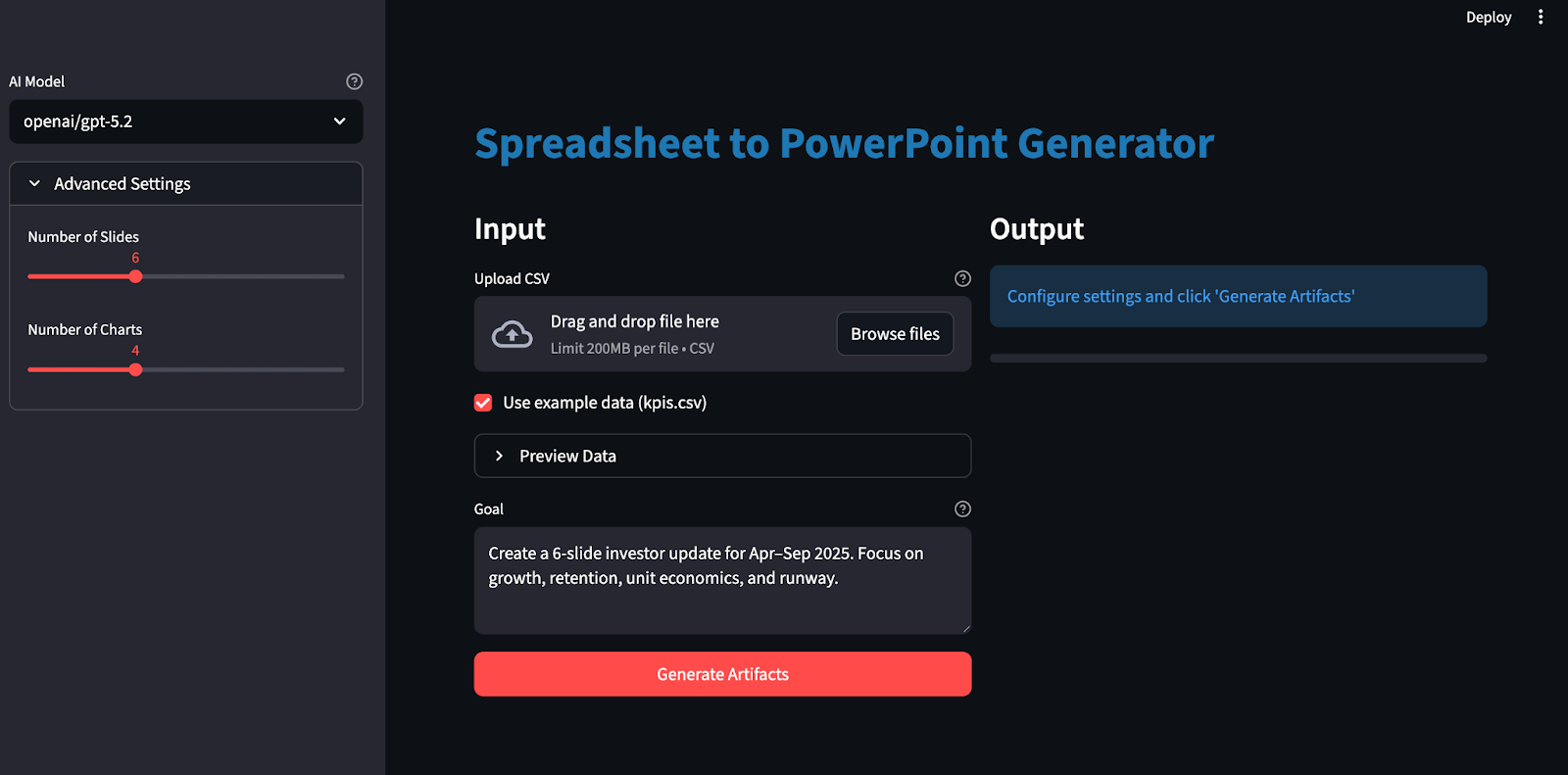
Hãy xây dựng lần lượt từng bước.
Trước khi tạo workbook Excel và bộ slide PowerPoint với GPT-5.2, chúng ta cần thiết lập môi trường cục bộ. Bắt đầu bằng cách cài đặt các thư viện lõi và đặt khóa API dưới dạng biến môi trường.
pip install streamlit pandas pydantic python-dotenv requests openpyxl python-pptxChúng ta sẽ dùng Streamlit để xây dựng giao diện web tương tác, Pandas để tải và chuẩn bị CSV, Pydantic để xác thực kế hoạch JSON khóa theo schema của GPT-5.2. Chúng ta cũng dùng python-dotenv để tải an toàn các khóa như OPENROUTER_API_KEY/OPENAI_API_KEY từ tệp .env. Thư viện requests gọi endpoint tương thích OpenRouter/OpenAI, trong khi openpyxl tạo workbook Excel và biểu đồ, còn python-pptx tạo bộ slide PowerPoint với biểu đồ gốc (có thể chỉnh sửa).
Tiếp theo, đặt khóa API:
export OPENAI_API_KEY="your_key"
export OPENROUTER_API_KEY="your_key"
Lưu ý rằng GPT 5.2 có thể truy cập qua nhiều dịch vụ, bao gồm API chính thức của OpenAI cũng như các dịch vụ như OpenRouter và hơn thế nữa.
Khuyến nghị dùng tệp .env để lưu khóa API cục bộ:
Trong tệp .env, lưu các dòng sau:
OPENROUTER_API_KEY="your_key"
OPENAI_API_KEY="your_key"
Sau đó tải các khóa API này bằng thư viện load_dotenv:
from dotenv import load_dotenv
load_dotenv()
Tại thời điểm này, môi trường của chúng ta đã sẵn sàng để xác thực với OpenAI API.
Tiếp theo, chúng ta định nghĩa một kế hoạch artifact khóa theo schema gồm một bản thiết kế JSON chặt chẽ, chỉ rõ cho GPT-5.2 biết chính xác cần tạo biểu đồ nào và cấu trúc slide ra sao, để đầu ra của mô hình có thể được giải mã và xác thực bằng Structured Outputs qua response_format: { type: "json_schema", strict: true } thay vì văn bản tự do.
import os
import io
import re
import json
import math
import tempfile
from dataclasses import dataclass
from pathlib import Path
from typing import Dict, List, Literal, Optional, Tuple
import requests
import pandas as pd
import numpy as np
import streamlit as st
import openpyxl
from dotenv import load_dotenv
from pydantic import BaseModel, Field, ValidationError
from openpyxl import Workbook, load_workbook
from openpyxl.styles import Font, Alignment, PatternFill
from openpyxl.utils import get_column_letter
from openpyxl.chart import LineChart, BarChart, Reference
from openpyxl.chart.series import SeriesLabel
from pptx import Presentation
from pptx.util import Inches, Pt
from pptx.chart.data import CategoryChartData
from pptx.enum.chart import XL_CHART_TYPE, XL_LEGEND_POSITION
ChartKind = Literal["line", "bar"]
def safe_float(x) -> float:
    try:
        if x is None:
            return 0.0
        if isinstance(x, (int, float)):
            return float(x)
        return float(str(x).replace(",", "").replace("$", ""))
    except Exception:
        return 0.0
def fmt_money(v: float) -> str:
    sign = "-" if v < 0 else ""
    v = abs(v)
    if v >= 1_000_000:
        return f"{sign}${v/1_000_000:.2f}M"
    if v >= 1_000:
        return f"{sign}${v/1_000:.1f}K"
    return f"{sign}${v:.0f}"
def fmt_pct(v: float) -> str:
    if v is None or (isinstance(v, float) and (math.isnan(v) or math.isinf(v))):
        return "n/a"
    return f"{v*100:.1f}%"
class ChartSeriesSpec(BaseModel):
    name: str
    metric: str
class ChartSpec(BaseModel):
    id: str
    kind: ChartKind
    title: str
    x_metric: str
    series: List[ChartSeriesSpec]
    anchor: str
class SlideBullet(BaseModel):
    text: str
    citations: List[str] = Field(min_length=1, max_length=4)
class SlideSpec(BaseModel):
    title: str
    chart_id: Optional[str] = None
    bullets: List[SlideBullet] = Field(min_length=2, max_length=4)
class ArtifactPlan(BaseModel):
    charts: List[ChartSpec] = Field(min_length=3, max_length=6)
    slides: List[SlideSpec] = Field(min_length=4, max_length=10)
Đoạn mã trên định nghĩa kế hoạch bằng các mô hình Pydantic, thực hiện ba việc quan trọng:
Cấu trúc kế hoạch: ChartKind = Literal["line", "bar"] giới hạn kiểu biểu đồ trong một enum nhỏ, ChartSpec mô tả đầy đủ hợp đồng biểu đồ, và SlideSpec định nghĩa bố cục slide đồng thời tùy chọn liên kết slide với biểu đồ qua chart_id.
Tự động đảm bảo chất lượng: Các ràng buộc như Field() đảm bảo luôn có đủ biểu đồ/slide, mỗi slide có đủ gạch đầu dòng, và mỗi gạch đầu dòng có trích dẫn.
Lập kế hoạch và render: GPT-5.2 chỉ tạo bản thiết kế, tức là biểu đồ, slide và trích dẫn, dưới dạng JSON có cấu trúc, còn phần còn lại của mã xử lý thực thi, định dạng Excel, render biểu đồ và bố cục deck.
Với schema này, GPT-5.2 trở thành một nhà lập kế hoạch tạo ra bản thiết kế JSON được xác thực.
Khi đã định nghĩa schema cho kế hoạch, bước tiếp theo là gọi GPT-5.2 ở “chế độ schema”—để nó trả về một bản thiết kế JSON mà bạn có thể xác thực và thực thi. Thay vì hy vọng mô hình “cư xử đúng”, chúng ta yêu cầu API giải mã trực tiếp vào JSON Schema của bạn bằng response_format: { type: "json_schema", ... strict: true }, đúng với mục đích của Structured Outputs.
def chat_json_schema(
    model: str,
    messages: list,
    json_schema: dict,
    api_key: str,
    temperature: float = 0.2,
    max_tokens: int = 6000,
    timeout_s: int = 120,
    api_provider: Optional[str] = None,
) -> dict:
    if api_provider is None:
        if "/" in model:
            api_provider = "openrouter"
        elif os.getenv("OPENAI_API_KEY") and api_key == os.getenv("OPENAI_API_KEY"):
            api_provider = "openai"
        elif os.getenv("OPENROUTER_API_KEY") and api_key == os.getenv("OPENROUTER_API_KEY"):
            api_provider = "openrouter"
        else:
            api_provider = "openrouter"
    if api_provider == "openai":
        url = "https://api.openai.com/v1/chat/completions"
        headers = {
            "Authorization": f"Bearer {api_key}",
            "Content-Type": "application/json",
        }
        if "/" in model:
            model = model.split("/", 1)[1]
    else:
        url = "https://openrouter.ai/api/v1/chat/completions"
        headers = {
            "Authorization": f"Bearer {api_key}",
            "Content-Type": "application/json",
        }
        if os.getenv("OPENROUTER_SITE_URL"):
            headers["HTTP-Referer"] = os.getenv("OPENROUTER_SITE_URL")
        if os.getenv("OPENROUTER_APP_NAME"):
            headers["X-Title"] = os.getenv("OPENROUTER_APP_NAME")
    payload = {
        "model": model,
        "messages": messages,
        "temperature": temperature,
        "max_tokens": max_tokens,
        "response_format": {
            "type": "json_schema",
            "json_schema": {
                "name": "artifact_plan",
                "strict": True,
                "schema": json_schema,
            },
        },
    }
    r = requests.post(url, headers=headers, data=json.dumps(payload), timeout=timeout_s)
    r.raise_for_status()
    data = r.json()
    if "error" in data:
        provider_name = "OpenAI" if api_provider == "openai" else "OpenRouter"
        raise RuntimeError(f"{provider_name} error: {data['error']}")
    finish_reason = data["choices"][0].get("finish_reason")
    if finish_reason == "length":
        raise RuntimeError("Model output truncated (max_tokens). Increase max_tokens or reduce schema size.")
    content = data["choices"][0]["message"]["content"]
    if isinstance(content, dict):
        return content
    try:
        return json.loads(content)
    except json.JSONDecodeError as e:
        preview = (content or "")[:800]
        raise RuntimeError(f"Failed to parse JSON. Preview:\n{preview}") from e
Hàm chat_json_schema() là cổng duy nhất biến prompt thành một kế hoạch đã xác thực:
Định tuyến nhà cung cấp (OpenRouter vs OpenAI): Nếu tên mô hình có namespace (openai/gpt-5.2), mặc định dùng OpenRouter vì đó là định dạng OpenRouter dùng để định tuyến mô hình. Nếu bạn đặt rõ api_provider="openai", bạn sẽ gửi payload Chat Completions tương tự đến endpoint của OpenAI. Hoàn toàn có thể bỏ qua OpenRouter.
Thiết lập endpoint: Với OpenAI, gọi endpoint https://api.openai.com/v1/chat/completions với xác thực Bearer chuẩn. Với OpenRouter, gọi endpoint https://openrouter.ai/api/v1/chat/completions và tùy chọn thêm các header gán nguồn như HTTP-Referer và X-Title, được OpenRouter khuyến nghị.
Giải mã theo schema qua response_format: Khối payload then chốt là response_format: { type: "json_schema", json_schema: { strict: true, schema: ... } }, hướng dẫn mô hình tạo đầu ra bị ràng buộc bởi JSON Schema của chúng ta.
Tiếp theo, chúng ta sẽ xác thực kế hoạch JSON của mô hình bằng Pydantic, và chỉ khi vượt qua các kiểm tra giới hạn, mới tiến hành render biểu đồ Excel và tạo deck PowerPoint.
Trước khi render bất kỳ thứ gì, chúng ta cần một lớp nhỏ để khiến mọi CSV tải lên đều an toàn cho phân tích và tham chiếu nhất quán. Các hàm trợ giúp này làm bốn việc: tải và làm sạch CSV, tạo bảng mô hình dẫn xuất, tính một tập thông tin gọn cho prompt, và làm cho đầu ra Excel dễ đọc với việc tự động chỉnh độ rộng cột.
GPT 5.2 không thể lập kế hoạch biểu đồ và slide đáng tin nếu bảng đầu vào trống hoặc các trường số được lưu dưới dạng chuỗi. Hàm này chuẩn hóa tập dữ liệu để các bước sau không phải đoán.
def load_and_validate_csv(csv_path: str) -> pd.DataFrame:
    df = pd.read_csv(csv_path)
    if len(df) == 0:
        raise ValueError("CSV is empty")
    if len(df.columns) == 0:
        raise ValueError("CSV has no columns")
    date_cols = [c for c in df.columns if any(x in c.lower() for x in ['date', 'time', 'month', 'year', 'period', 'week'])]
    if date_cols:
        date_col = date_cols[0]
        df[date_col] = df[date_col].astype(str)
    for col in df.columns:
        if col not in date_cols:
            try:
                df[col] = pd.to_numeric(df[col])
                if df[col].dtype in ['float64', 'int64']:
                    df[col] = df[col].fillna(0)
            except (ValueError, TypeError):
                pass
    return df
Hàm trên:
pd.read_csv.pd.to_numeric, và điền giá trị số bị thiếu bằng 0 để tránh lan truyền NaN về sau. Kết thúc bước này, bạn có một DataFrame không rỗng và có các cột số.
CSV thô khá lộn xộn và không nhất quán giữa các lĩnh vực. Trang mô hình đóng vai trò lớp chuẩn hóa nơi chúng ta thêm các chỉ số dẫn xuất hữu ích cho việc vẽ biểu đồ, không yêu cầu người dùng tự tính.
def compute_model_df(raw_df: pd.DataFrame) -> pd.DataFrame:
    df = raw_df.copy()
    numeric_cols = df.select_dtypes(include=[np.number]).columns.tolist()
    if "new_mrr" in df.columns and "churned_mrr" in df.columns:
        df["net_new_mrr"] = df["new_mrr"] - df["churned_mrr"]
    revenue_cols = [c for c in df.columns if any(x in c.lower() for x in ['revenue', 'mrr', 'income', 'sales'])]
    cost_cols = [c for c in df.columns if any(x in c.lower() for x in ['cost', 'cogs', 'expense'])]
    if revenue_cols and cost_cols:
        revenue = df[revenue_cols[0]]
        cost = df[cost_cols[0]]
        df["gross_margin"] = ((revenue - cost) / revenue.replace(0, pd.NA)).fillna(0)
    for col in numeric_cols[:5]:
        if col not in df.columns:
            continue
        df[f"{col}_change"] = df[col].pct_change().fillna(0)
    return df
Hàm compute_model_df() làm hai việc hữu ích chung:
Tìm một cột giá trị đầu ra chính và một cột đầu vào phụ để tính tỷ lệ đơn giản, phản ánh mức tín hiệu chính còn lại sau khi tính đến tín hiệu phụ.
Với một vài cột số, hàm tính pct_change() — mặc định trả về mức thay đổi theo hàng liền trước — làm nền tảng dễ dàng để nắm bắt biến động của bất cứ chỉ số chuỗi thời gian nào.
Ngay cả với Structured Outputs, chúng ta vẫn muốn đưa cho GPT-5.2 một bản tóm tắt gọn về những gì đã thay đổi trong giai đoạn. Các “fact” này cũng hoạt động như prompt mà mô hình có thể tái sử dụng trong gạch đầu dòng trên slide.
def compute_facts(model_df: pd.DataFrame) -> Dict[str, str]:
    def delta(a: float, b: float) -> float:
        return 0.0 if a == 0 else (b - a) / a
    if len(model_df) == 0:
        return {"error": "No data"}
    first = model_df.iloc[0]
    last = model_df.iloc[-1]
    date_cols = [c for c in model_df.columns if any(x in c.lower() for x in ['date', 'time', 'month', 'year', 'period', 'week'])]
    period_col = date_cols[0] if date_cols else model_df.columns[0]
    facts = {
        "period": f"{first[period_col]} → {last[period_col]}",
        "row_count": len(model_df),
        "column_count": len(model_df.columns),
    }
    numeric_cols = model_df.select_dtypes(include=[np.number]).columns.tolist()
    for i, col in enumerate(numeric_cols[:5]):
        if col in first.index and col in last.index:
            start_val = safe_float(first[col])
            end_val = safe_float(last[col])
            avg_val = safe_float(model_df[col].mean())
            facts[f"{col}_start"] = fmt_money(start_val) if start_val >= 100 else f"{start_val:.2f}"
            facts[f"{col}_end"] = fmt_money(end_val) if end_val >= 100 else f"{end_val:.2f}"
            facts[f"{col}_change_pct"] = fmt_pct(delta(start_val, end_val))
            facts[f"{col}_avg"] = fmt_money(avg_val) if avg_val >= 100 else f"{avg_val:.2f}"
    return facts
Trước tiên, chúng ta lấy hàng đầu và cuối để xác định cửa sổ kỳ hạn. Sau đó chọn một cột (date, month, week, period) để báo cáo dễ đọc cho con người.
Với một tập nhỏ cột số, ta tính ảnh chụp gồm giá trị bắt đầu, kết thúc, trung bình, và phần trăm thay đổi từ đầu đến cuối. Điều này tạo một từ điển tín hiệu nhẹ giúp mô hình viết gạch đầu dòng cho slide.
Độ rộng cột mặc định của Excel khiến các workbook sinh ra trông thô. Tự động chỉnh là bước đánh bóng đơn giản giúp tăng khả năng sử dụng ngay lập tức.
def autosize_columns(ws, max_width: int = 45):
    for col in ws.columns:
        max_len = 0
        col_letter = get_column_letter(col[0].column)
        for cell in col:
            if cell.value is None:
                continue
            max_len = max(max_len, len(str(cell.value)))
        ws.column_dimensions[col_letter].width = min(max_len + 2, max_width)
Hàm autosize_columns() quét từng cột, tìm độ dài chuỗi tối đa và đặt ws.column_dimensions[col_letter].width. Thư viện OpenPyXL cung cấp column_dimensions và thuộc tính width để kiểm soát kích thước hiển thị cột trong Excel.
Tiếp theo, chúng ta đưa bảng mô hình đã sạch và các “fact” vào prompt lập kế hoạch với GPT-5.2, xác thực kế hoạch trả về, rồi render biểu đồ và slide.
Dùng bảng mô hình đã làm sạch và bản tóm tắt nhẹ ở bước trước, giờ ta tạo một workbook Excel có tính quyết định bằng openpyxl.
def build_workbook_base(raw_df: pd.DataFrame, model_df: pd.DataFrame, out_xlsx: str) -> Tuple[str, int]:
    wb = Workbook()
    wb.remove(wb.active)
    header_fill = PatternFill("solid", fgColor="F2F2F2")
    header_font = Font(bold=True)
    ws_raw = wb.create_sheet("Raw")
    for j, col in enumerate(raw_df.columns, start=1):
        c = ws_raw.cell(row=1, column=j, value=col)
        c.font = header_font
        c.fill = header_fill
        c.alignment = Alignment(horizontal="center", vertical="center")
    for i, row in enumerate(raw_df.itertuples(index=False), start=2):
        for j, val in enumerate(row, start=1):
            ws_raw.cell(row=i, column=j, value=val)
    ws_raw.freeze_panes = "A2"
    autosize_columns(ws_raw)
    row_end = 1 + len(raw_df)
    ws_model = wb.create_sheet("Model")
    for j, col in enumerate(model_df.columns, start=1):
        c = ws_model.cell(row=1, column=j, value=col)
        c.font = header_font
        c.fill = header_fill
        c.alignment = Alignment(horizontal="center", vertical="center")
    for i, row in enumerate(model_df.itertuples(index=False), start=2):
        for j, val in enumerate(row, start=1):
            ws_model.cell(row=i, column=j, value=val)
    ws_model.freeze_panes = "A2"
    autosize_columns(ws_model)
    col_index = {name: idx + 1 for idx, name in enumerate(model_df.columns)}
    money_keywords = ['mrr', 'revenue', 'income', 'sales', 'cost', 'expense', 'cash', 'balance', 'burn', 'price', 'amount', 'fee']
    pct_keywords = ['margin', 'rate', 'ratio', 'pct', 'percent', 'change', 'growth']
    for col_name, col_idx in col_index.items():
        col_lower = col_name.lower()
        is_money = any(kw in col_lower for kw in money_keywords)
        is_pct = any(kw in col_lower for kw in pct_keywords) or 'margin' in col_lower
        is_large_number = False
        if col_name in model_df.columns:
            sample_vals = model_df[col_name].dropna()
            if len(sample_vals) > 0 and pd.api.types.is_numeric_dtype(sample_vals):
                max_val = abs(sample_vals.max())
                is_large_number = max_val > 1000
        for r in range(2, row_end + 1):
            if is_money or is_large_number:
                ws_model.cell(row=r, column=col_idx).number_format = "$#,##0"
            elif is_pct:
                ws_model.cell(row=r, column=col_idx).number_format = "0.0%"
            elif pd.api.types.is_numeric_dtype(model_df[col_name]):
                ws_model.cell(row=r, column=col_idx).number_format = "0.0"
    ws_charts = wb.create_sheet("Charts")
    ws_charts["A1"] = "Charts"
    ws_charts["A1"].font = Font(bold=True)
    wb.save(out_xlsx)
    return out_xlsx, row_end
Trình dựng workbook này đang làm những việc sau:
Tạo khung sườn workbook: Workbook() khởi tạo workbook mới, sau đó wb.remove(wb.active) bỏ trang mặc định để ta toàn quyền sắp xếp thứ tự trang. Các trang mới được thêm rõ ràng bằng wb.create_sheet("Raw"), wb.create_sheet("Model") và wb.create_sheet("Charts").
Ghi trang Raw: Ghi hàng tiêu đề dùng Font, PatternFill và Alignment, rồi thêm từng hàng từ raw_df. Hàm autosize_columns(ws_raw) giúp dễ đọc mà không cần chỉnh tay.
Tính biên: Dùng row_end = 1 + len(raw_df), cho ta hàng cuối ổn định để an toàn tạo các dải như A2:A{row_end} cho danh mục biểu đồ và trích dẫn.
Áp dụng heuristic định dạng số: Tiếp theo, thiết lập cell.number_format dựa trên từ khóa tên cột và dtype để Excel hiển thị dạng tiền tệ, phần trăm, hoặc số thường.
Tạo trang Charts: Lệnh wb.create_sheet("Charts") cung cấp một canvas ổn định cho điểm neo biểu đồ. Điều này khớp với quy trình biểu đồ của openpyxl, nơi ta tạo LineChart hoặc BarChart, liên kết dải qua Reference, đặt danh mục bằng set_categories, rồi đặt vào trang bằng ws.add_chart().
Sau bước này, bạn có một tệp Excel nhất quán để giai đoạn tiếp theo tham chiếu chính xác theo dải ô.
Bước 6: Render biểu đồ
Giờ khi cấu trúc workbook đã cố định, ta có thể render biểu đồ vào trang Charts và áp dụng diện mạo thương hiệu thống nhất. Tôi áp dụng bảng màu của DataCamp với:
def add_charts_to_workbook(xlsx_path: str, charts: List[ChartSpec], metric_to_range: Dict[str, str]):
    wb = load_workbook(xlsx_path)
    ws_model = wb["Model"]
    ws_charts = wb["Charts"]
    header_map = {ws_model.cell(1, c).value: c for c in range(1, ws_model.max_column + 1)}
    def ref_from_metric(metric: str, row_start: int, row_end: int) -> Reference:
        if metric not in header_map:
            raise ValueError(f"Unknown metric in Model sheet: {metric}")
        col = header_map[metric]
        return Reference(ws_model, min_col=col, min_row=row_start, max_col=col, max_row=row_end)
    for ch in charts:
        chart = LineChart() if ch.kind == "line" else BarChart()
        chart.title = ch.title
        x_metric = ch.x_metric
        if x_metric not in header_map:
            date_keywords = ['date', 'time', 'month', 'year', 'period', 'week']
            date_cols = [col for col in header_map.keys() if col and any(kw in str(col).lower() for kw in date_keywords)]
            if date_cols:
                x_metric = date_cols[0]
            else:
                x_metric = list(header_map.keys())[0] if header_map else "month"
        x_ref = ref_from_metric(x_metric, 2, ws_model.max_row)
        chart.set_categories(x_ref)
        chart_colors = ["01EF63", "203147"]
        for i, s in enumerate(ch.series):
            y_ref = ref_from_metric(s.metric, 2, ws_model.max_row)
            chart.add_data(y_ref, titles_from_data=False)
            chart.series[-1].title = SeriesLabel(v=s.name)
            series = chart.series[-1]
            color_hex = chart_colors[i % len(chart_colors)]
            try:
                if ch.kind == "line":
                    series.graphicalProperties.line.solidFill = color_hex
                    series.graphicalProperties.line.width = 30000
                else:
                    series.graphicalProperties.solidFill = color_hex
            except AttributeError:
                pass
        anchor = ch.anchor.strip()
        if "!" in anchor:
            anchor = anchor.split("!")[-1]
        if anchor and anchor.isalpha():
            anchor = f"{anchor}2"
        if not re.match(r'^[A-Z]+[0-9]+
Hàm add_charts_to_workbook() là động cơ render biểu đồ, biến kế hoạch theo schema thành hình ảnh Excel mang thương hiệu.
Tải workbook: Bắt đầu bằng mở tệp Excel đã tạo với load_workbook(xlsx_path). Tiếp theo xây header_map từ hàng đầu, ánh xạ mỗi tên cột tới chỉ số cột Excel.
Xây tham chiếu dải ô: Hàm Reference() định nghĩa dải chính xác để vẽ, và chart.set_categories(x_ref) nối danh mục trục X. Mẫu chuẩn là tạo đối tượng tham chiếu, thêm dữ liệu rồi đặt danh mục.
Khởi tạo loại biểu đồ: Với mỗi đặc tả biểu đồ, tạo LineChart() hoặc BarChart(), và đặt chart.title.
Thêm bảng màu thương hiệu: Với mỗi series trong đặc tả, liên kết dải Y bằng chart.add_data(), rồi đặt nhãn hiển thị bằng SeriesLabel().
Cuối cùng, hàm ws_charts.add_chart() đặt mỗi biểu đồ tại một ô góc trên-trái cụ thể.
Đây là bước kế hoạch trở thành bộ slide thực sự. Chúng ta tạo PowerPoint, bố trí tiêu đề và gạch đầu dòng, nhúng biểu đồ xây từ cùng bảng đã dùng cho Excel, và thêm chân trang giữ nguyên các trích dẫn dải ô của kế hoạch.
def build_pptx(out_pptx: str, model_df: pd.DataFrame, plan: ArtifactPlan):
    prs = Presentation()
    blank = prs.slide_layouts[6]
    chart_by_id = {c.id: c for c in plan.charts}
    def add_title(slide, title: str):
        box = slide.shapes.add_textbox(Inches(0.5), Inches(0.2), Inches(9.0), Inches(0.6))
        tf = box.text_frame
        tf.clear()
        p = tf.paragraphs[0]
        p.text = title
        p.font.size = Pt(32)
        p.font.bold = True
    def add_bullets(slide, bullets: List[SlideBullet], left, top, width, height):
        box = slide.shapes.add_textbox(left, top, width, height)
        tf = box.text_frame
        tf.word_wrap = True
        tf.clear()
        for i, b in enumerate(bullets):
            p = tf.paragraphs[0] if i == 0 else tf.add_paragraph()
            p.text = b.text
            p.font.size = Pt(18)
            p.level = 0
            p.space_before = Pt(4)
            p.space_after = Pt(8)
    def add_sources_footer(slide, bullets: List[SlideBullet]):
        sources = []
        seen = set()
        for b in bullets:
            for c in b.citations:
                if c not in seen:
                    seen.add(c)
                    sources.append(c)
        if not sources:
            return
        text = "Sources: " + "; ".join(sources)
        box = slide.shapes.add_textbox(Inches(0.5), Inches(6.8), Inches(0.4))
        tf = box.text_frame
        tf.clear()
        p = tf.paragraphs[0]
        p.text = text
        p.font.size = Pt(9)
        p.font.italic = True
    def add_chart(slide, chart_spec: ChartSpec, left, top, width, height):
        date_cols = [c for c in model_df.columns if any(x in c.lower() for x in ['date', 'time', 'month', 'year', 'period', 'week'])]
        x_col = date_cols[0] if date_cols else model_df.columns[0]
        categories = model_df[x_col].astype(str).tolist()
        chart_data = CategoryChartData()
        chart_data.categories = categories
        chart_colors = ["01EF63", "203147"]
        for i, s in enumerate(chart_spec.series):
            values = model_df[s.metric].apply(safe_float).tolist()
            chart_data.add_series(s.name, values)
        chart_type = XL_CHART_TYPE.LINE if chart_spec.kind == "line" else XL_CHART_TYPE.COLUMN_CLUSTERED
        graphic_frame = slide.shapes.add_chart(chart_type, left, top, width, height, chart_data)
        chart = graphic_frame.chart
        chart.has_title = True
        chart.chart_title.text_frame.text = chart_spec.title
        chart.has_legend = True
        chart.legend.position = XL_LEGEND_POSITION.BOTTOM
        chart.legend.include_in_layout = False
        from pptx.dml.color import RGBColor
        for i, series in enumerate(chart.series):
            color_hex = chart_colors[i % len(chart_colors)]
            color_rgb = RGBColor(
                int(color_hex[0:2], 16),
                int(color_hex[2:4], 16),
                int(color_hex[4:6], 16)
            )
            fill = series.format.fill
            fill.solid()
            fill.fore_color.rgb = color_rgb
            if chart_spec.kind == "line":
                line = series.format.line
                line.color.rgb = color_rgb
                line.width = Pt(3)
    for s in plan.slides:
        slide = prs.slides.add_slide(blank)
        add_title(slide, s.title)
        has_chart = bool(s.chart_id and s.chart_id in chart_by_id)
        if has_chart:
            add_bullets(
                slide,
                s.bullets,
                left=Inches(0.5),
                top=Inches(1.0),
                width=Inches(4.5),
                height=Inches(5.5),
            )
            add_chart(
                slide,
                chart_by_id[s.chart_id],
                left=Inches(5.2),
                top=Inches(1.0),
                width=Inches(4.5),
                height=Inches(5.5),
            )
        else:
            add_bullets(
                slide,
                s.bullets,
                left=Inches(0.5),
                top=Inches(1.0),
                width=Inches(9.0),
                height=Inches(5.5),
            )
        add_sources_footer(slide, s.bullets)
    prs.save(out_pptx)
def build_allowed_ranges(model_df: pd.DataFrame, row_end: int) -> Dict[str, str]:
    ranges = {}
    for i, col in enumerate(model_df.columns, start=1):
        col_letter = get_column_letter(i)
        ranges[col] = f"Model!{col_letter}2:{col_letter}{row_end}"
    return ranges
def validate_plan(plan: ArtifactPlan, allowed_ranges: Dict[str, str]) -> None:
    allowed_set = set(allowed_ranges.values())
    chart_ids = {c.id for c in plan.charts}
    if len(chart_ids) != len(plan.charts):
        raise ValueError("Duplicate chart ids in plan.")
    for s in plan.slides:
        if s.chart_id and s.chart_id not in chart_ids:
            raise ValueError(f"Slide references unknown chart_id: {s.chart_id}")
    for s in plan.slides:
        for b in s.bullets:
            for c in b.citations:
                if c not in allowed_set:
                    raise ValueError(f"Citation not in allowed set: {c}")
    allowed_metrics = set(allowed_ranges.keys())
    for c in plan.charts:
        if c.x_metric not in allowed_metrics:
            pass
        for s in c.series:
            if s.metric not in allowed_metrics:
                raise ValueError(f"Unknown series metric: {s.metric}")
Hãy cùng hiểu mã trên theo từng bước:
Tạo deck và lập chỉ mục biểu đồ: prs = Presentation() bắt đầu một PPTX mới, còn blank = prs.slide_layouts[6] cho một canvas trống để đặt vị trí chính xác.
Tiêu đề và gạch đầu dòng: Hàm add_title() ghi vào textbox text_frame, và add_bullets() thêm mỗi đoạn cho một gạch đầu dòng, đồng thời điều khiển cỡ chữ và khoảng cách qua định dạng đoạn.
Chân trang trích dẫn: Hàm add_sources_footer() loại trùng các trích dẫn giữa các gạch đầu dòng và render một dòng gọn “Sources:” ở dưới cùng để duy trì khả năng truy vết mà không làm rối slide.
Nhúng biểu đồ: add_chart() dựng đối tượng CategoryChartData() dùng một cột giống thời gian cho trục X và các giá trị series theo kế hoạch, rồi chèn bằng slide.shapes.add_chart(), trả về một GraphicFrame.
Phong cách thương hiệu: Cuối cùng, chuyển hex sang RGBColor và áp dụng cho từng series.
Quy tắc bố cục và rào chắn: Nếu slide có chart_id hợp lệ, dùng bố cục hai cột; nếu không, dùng gạch đầu dòng toàn chiều rộng. Hàm build_allowed_ranges() tạo danh sách cho phép các dải được trích dẫn, và validate_plan() đảm bảo ID biểu đồ duy nhất, tham chiếu hợp lệ, trích dẫn được phép, và chỉ số hợp lệ để mô hình không thể bịa field.
Tới thời điểm này, chúng ta đã có dữ liệu dạng bảng sạch, sẽ chuyển thành kế hoạch dựng theo schema (biểu đồ, slide và trích dẫn) để bộ render thực thi.
def generate_plan_with_llm(
    api_key: str,
    model: str,
    goal: str,
    allowed_ranges: Dict[str, str],
    facts: Dict[str, str],
    num_slides: int = 6,
    num_charts: int = 4,
) -> ArtifactPlan:
    plan_schema = {
        "type": "object",
        "properties": {
            "charts": {
                "type": "array",
                "minItems": 3,
                "maxItems": 6,
                "items": {
                    "type": "object",
                    "properties": {
                        "id": {"type": "string"},
                        "kind": {"type": "string", "enum": ["line", "bar"]},
                        "title": {"type": "string"},
                        "x_metric": {"type": "string"},
                        "series": {
                            "type": "array",
                            "minItems": 1,
                            "maxItems": 3,
                            "items": {
                                "type": "object",
                                "properties": {
                                    "name": {"type": "string"},
                                    "metric": {"type": "string"},
                                },
                                "required": ["name", "metric"],
                                "additionalProperties": False,
                            },
                        },
                        "anchor": {"type": "string"},
                    },
                    "required": ["id", "kind", "title", "x_metric", "series", "anchor"],
                    "additionalProperties": False,
                },
            },
            "slides": {
                "type": "array",
                "minItems": 4,
                "maxItems": 10,
                "items": {
                    "type": "object",
                    "properties": {
                        "title": {"type": "string"},
                        "chart_id": {"type": ["string", "null"]},
                        "bullets": {
                            "type": "array",
                            "minItems": 2,
                            "maxItems": 4,
                            "items": {
                                "type": "object",
                                "properties": {
                                    "text": {"type": "string"},
                                    "citations": {
                                        "type": "array",
                                        "minItems": 1,
                                        "maxItems": 4,
                                        "items": {"type": "string"},
                                    },
                                },
                                "required": ["text", "citations"],
                                "additionalProperties": False,
                            },
                        },
                    },
                    "required": ["title", "chart_id", "bullets"],
                    "additionalProperties": False,
                },
            },
        },
        "required": ["charts", "slides"],
        "additionalProperties": False,
    }
    system = (
        "You produce investor-grade slides with traceability.\n"
        "Output MUST match the JSON schema exactly.\n"
        "Rules:\n"
        "1) Use ONLY the allowed citation ranges (exact strings).\n"
        "2) No generic filler. Every bullet must contain at least ONE number (e.g., $X, X%, X mo).\n"
        "3) Keep bullets short: <= 12 words.\n"
        "4) Prefer trends (start→end) or averages; avoid speculation.\n"
        "5) Provide exactly the requested number of charts and slides.\n"
        "6) Use chart_id to attach the correct chart to each slide.\n"
        "7) Chart anchors: Use cell references ONLY (e.g., 'A2', 'A20', 'A38'). Do NOT include sheet name like 'CHARTS!A'.\n"
    )
    user = (
        f"Goal: {goal}\n"
        f"Requested: {num_charts} charts and {num_slides} slides.\n\n"
        f"Facts (use these; do not invent):\n{json.dumps(facts, indent=2)}\n\n"
        f"Allowed citation ranges (use exact values only):\n{json.dumps(list(allowed_ranges.values()), indent=2)}\n\n"
        "Metric keys available for charts:\n"
        f"{json.dumps(list(allowed_ranges.keys()), indent=2)}\n\n"
        "Chart requirements:\n"
        "- x_metric: Use a date/time column (e.g., 'month', 'date', 'period', 'week') for the X-axis.\n"
        "  If no date column exists, use the first column from the available metrics.\n"
        "- Create meaningful charts based on available metrics in the data.\n"
        "- Focus on trends, comparisons, and key business metrics.\n"
        "- Chart colors: Use these specific shades for all chart series:\n"
        "  * Primary color: #01ef63 (bright green)\n"
        "  * Secondary color: #203147 (dark blue/navy)\n"
        "  * Alternate between these two colors for multiple series in the same chart.\n"
        "Slide requirements:\n"
        "- Create slides that tell a story with the available data.\n"
        "- Suggested structure: Overview, Key Metrics, Trends, Analysis, Summary, Next Steps.\n"
        "- Adapt slide titles and content to match the data domain (e.g., sales, marketing, operations, finance).\n"
    )
    messages = [{"role": "system", "content": system}, {"role": "user", "content": user}]
    plan_json = chat_json_schema(
        model=model,
        messages=messages,
        json_schema=plan_schema,
        api_key=api_key,
        temperature=0.2,
        max_tokens=6000,
    )
    try:
        plan = ArtifactPlan.model_validate(plan_json)
        validate_plan(plan, allowed_ranges)
        if len(plan.slides) != num_slides:
            raise ValueError(f"Expected {num_slides} slides, got {len(plan.slides)}")
        if len(plan.charts) != num_charts:
            raise ValueError(f"Expected {num_charts} charts, got {len(plan.charts)}")
        return plan
    except (ValidationError, ValueError) as e:
        repair = messages + [
            {"role": "assistant", "content": json.dumps(plan_json)},
            {"role": "user", "content": f"Fix JSON to satisfy schema + rules. Error:\n{str(e)}"},
        ]
        plan_json = chat_json_schema(
            model=model,
            messages=repair,
            json_schema=plan_schema,
            api_key=api_key,
            temperature=0.0,
            max_tokens=6000,
        )
        plan = ArtifactPlan.model_validate(plan_json)
        validate_plan(plan, allowed_ranges)
        if len(plan.slides) != num_slides or len(plan.charts) != num_charts:
            raise RuntimeError("Plan repaired but counts still wrong. Tighten prompt or increase max_tokens.")
        return plan
Hàm generate_plan_with_llm() là “bộ não” của bản demo. Cách chúng ta đưa nó vào pipeline:
JSON Schema rõ ràng: plan_schema định nghĩa hình dạng phản hồi duy nhất mà mô hình được phép tạo, charts[] và slides[], với các trường bắt buộc và enum.
Hàng rào system prompt: Chúng ta cố định các điều không thể thương lượng để đảm bảo kế hoạch có thể render và kiểm toán. Ta cũng giới hạn vị trí biểu đồ ở ô thuần để bố cục biểu đồ vẫn quyết định thay vì do mô hình ứng biến. Kiểu kiểm soát nhiều bước này chính là sở trường của GPT-5.2.
Thông điệp người dùng: Thông điệp người dùng cung cấp mục tiêu, số lượng yêu cầu, các “fact” đã tính và khóa chỉ số cho phép. Vì mô hình không thấy gì khác, nó ít có cơ hội bịa cột, dải hoặc tuyên bố không được hỗ trợ.
Giải mã tuân thủ schema: Gọi chat_json_schema() với response_format là json_schema và strict: true, ép tuân thủ schema trong quá trình giải mã.
Xác thực hai lớp: Đầu tiên, hàm ArtifactPlan.model_validate(plan_json) xác nhận phản hồi khớp các mô hình Pydantic. Sau đó, validate_plan() áp dụng các ràng buộc miền.
Cuối cùng, chúng ta nối các phần: tải CSV, tạo Excel, lập kế hoạch bằng LLM, render biểu đồ, và xuất PPTX cuối cùng, rồi trả về các đường dẫn đầu ra.
@dataclass
class RunOutputs:
    xlsx_path: str
    pptx_path: str
    plan_path: str
    logs: str
def run_pipeline(csv_path: str, goal: str, outdir: str, model: str, num_slides: int, num_charts: int) -> RunOutputs:
    load_dotenv()
    openai_key = os.getenv("OPENAI_API_KEY")
    openrouter_key = os.getenv("OPENROUTER_API_KEY")
    if "/" in model or openrouter_key:
        api_key = openrouter_key
        if not api_key:
            raise RuntimeError("Missing OPENROUTER_API_KEY (required for OpenRouter models)")
    elif openai_key:
        api_key = openai_key
    else:
        raise RuntimeError("Missing API key. Set either OPENAI_API_KEY or OPENROUTER_API_KEY")
    out = Path(outdir)
    out.mkdir(parents=True, exist_ok=True)
    xlsx_path = str(out / "investor_update.xlsx")
    pptx_path = str(out / "investor_update.pptx")
    plan_path = str(out / "plan.json")
    raw_df = load_and_validate_csv(csv_path)
    model_df = compute_model_df(raw_df)
    xlsx_path, row_end = build_workbook_base(raw_df, model_df, xlsx_path)
    allowed_ranges = build_allowed_ranges(model_df, row_end)
    facts = compute_facts(model_df)
    plan = generate_plan_with_llm(
        api_key=api_key,
        model=model,
        goal=goal,
        allowed_ranges=allowed_ranges,
        facts=facts,
        num_slides=num_slides,
        num_charts=num_charts,
    )
    with open(plan_path, "w", encoding="utf-8") as f:
        json.dump(plan.model_dump(), f, indent=2)
    add_charts_to_workbook(xlsx_path, plan.charts, allowed_ranges)
    build_pptx(pptx_path, model_df, plan)
    logs = (
        f"CSV rows: {len(raw_df)}\n"
        f"Excel: {xlsx_path}\n"
        f"PPTX:  {pptx_path}\n"
        f"Plan:  {plan_path}\n"
        f"Facts used: {facts}\n"
    )
    return RunOutputs(xlsx_path=xlsx_path, pptx_path=pptx_path, plan_path=plan_path, logs=logs)
Hãy ghép các thành phần của pipeline theo từng bước:
@dataclass tạo một vùng chứa nhẹ cho xlsx_path, pptx_path, plan_path và logs, để UI Streamlit có thể coi kết quả pipeline là một giá trị có cấu trúc thay vì loay hoay với tuple hay biến toàn cục.load_dotenv() tải tệp .env vào biến môi trường để OPENAI_API_KEY và OPENROUTER_API_KEY có thể đọc qua os.getenv(). Sau đó chọn khóa nhà cung cấp theo quy tắc đơn giản: nếu có OPENROUTER_API_KEY thì dùng OpenRouter; nếu không thì rơi về OpenAI nếu có.build_workbook_base(). Hàm generate_plan_with_llm() trả về một ArtifactPlan được lưu JSON bằng json.dump() để dễ kiểm tra và gỡ lỗi.build_pptx() xây deck slide từ kế hoạch và bảng dữ liệu.Sau bước này, ứng dụng Streamlit của chúng ta có thể gọi run_pipeline(), hiển thị logs, và cung cấp ba đầu ra quyết định để tải xuống, gồm workbook Excel, deck PPTX và kế hoạch JSON.
Khi pipeline lõi đã sẵn sàng, bước cuối là bọc nó trong một ứng dụng Streamlit để bất kỳ ai cũng có thể tải tệp, đặt mục tiêu, chọn mô hình và tải về artifacts đã tạo.
load_dotenv()
st.set_page_config(
    page_title="GPT-5.2 PPT and Excel Generator",
    page_icon="",
    layout="wide",
    initial_sidebar_state="expanded"
)
st.markdown("""
<style>
    .main-header {
        font-size: 2.5rem;
        font-weight: 700;
        color: #1f77b4;
        margin-bottom: 1rem;
    }
    .sub-header {
        font-size: 1.2rem;
        color: #666;
        margin-bottom: 2rem;
    }
    .success-box {
        padding: 1rem;
        background-color: #d4edda;
        border-left: 4px solid #28a745;
        margin: 1rem 0;
    }
    .error-box {
        padding: 1rem;
        background-color: #f8d7da;
        border-left: 4px solid #dc3545;
        margin: 1rem 0;
    }
    .info-box {
        padding: 1rem;
        background-color: #d1ecf1;
        border-left: 4px solid #17a2b8;
        margin: 1rem 0;
    }
    .slide-preview {
        border: 2px solid #ddd;
        border-radius: 8px;
        padding: 10px;
        margin: 10px 0;
        background: white;
        box-shadow: 0 2px 4px rgba(0,0,0,0.1);
    }
</style>
""", unsafe_allow_html=True)

def main():
    try:
        if 'outputs' not in st.session_state:
            st.session_state.outputs = None
        if 'generated' not in st.session_state:
            st.session_state.generated = False
        st.markdown('<div class="main-header">Spreadsheet to PowerPoint Generator</div>', unsafe_allow_html=True)
        with st.sidebar:
            # API Provider selection
            api_provider = st.selectbox(
                "API Provider",
                ["OpenAI", "OpenRouter"],
                help="Select which API to use. Make sure the corresponding API key is set in your .env file"
            )

            # Model selection based on provider
            if api_provider == "OpenAI":
                model = st.selectbox(
                    "AI Model",
                    [
                        "gpt-4o",
                        "gpt-4-turbo",
                        "gpt-4",
                        "gpt-3.5-turbo",
                    ],
                    help="OpenAI models. Requires OPENAI_API_KEY in .env file"
                )
            else:  # OpenRouter
                model = st.selectbox(
                    "AI Model",
                    [
                        "openai/gpt-5.2",
                        "openai/gpt-4-turbo",
                        "openai/gpt-4o",
                        "anthropic/claude-3-opus",
                        "anthropic/claude-3-sonnet",
                    ],
                    help="OpenRouter models. Requires OPENROUTER_API_KEY in .env file"
                )
            with st.expander("Advanced Settings"):
                num_slides = st.slider("Number of Slides", 4, 10, 6)
                num_charts = st.slider("Number of Charts", 3, 6, 4)
        col1, col2 = st.columns([1, 1])
        with col1:
            st.markdown("### Input")
            uploaded_file = st.file_uploader(
                "Upload CSV",
                type=['csv'],
                help="Upload any CSV file. The app will automatically detect columns and create appropriate charts and slides."
            )
            use_example = st.checkbox("Use example data (kpis.csv)", value=True if not uploaded_file else False)
            if uploaded_file or use_example:
                if use_example:
                    csv_path = "kpis.csv"
                    df = pd.read_csv(csv_path)
                else:
                    df = pd.read_csv(uploaded_file)
                    with tempfile.NamedTemporaryFile(delete=False, suffix='.csv', mode='w') as f:
                        df.to_csv(f, index=False)
                        csv_path = f.name
                with st.expander(" Preview Data", expanded=False):
                    try:
                        st.dataframe(df, width='stretch')
                    except Exception as e:
                        st.write("**Data Preview:**")
                        st.table(df.head(20))
                        if len(df) > 20:
                            st.caption(f"Showing first 20 of {len(df)} rows")
                    st.caption(f"Rows: {len(df)} | Columns: {len(df.columns)}")
            else:
                csv_path = None
                st.info("Upload a CSV or use example data to continue")
            goal = st.text_area(
                "Goal",
                value="Create a 6-slide investor update for Apr–Sep 2025. Focus on growth, retention, unit economics, and runway.",
                height=100,
                help="Describe what you want the AI to create"
            )
            generate_btn = st.button("Generate Artifacts", type="primary", use_container_width=True)
        with col2:
            st.markdown("### Output")
            status_container = st.empty()
            progress_bar = st.progress(0)

            if not generate_btn:
                status_container.info("Configure settings and click 'Generate Artifacts'")
        if generate_btn:
            if not csv_path:
                st.error("Please upload a CSV or select 'Use example data'")
                st.stop()
            try:
                status_container.info("Processing... This may take 30-60 seconds")
                progress_bar.progress(10)
                output_dir = Path("out")
                output_dir.mkdir(exist_ok=True)
                progress_bar.progress(20)
                with st.spinner("Generating artifacts..."):
                    outputs: RunOutputs = run_pipeline(
                        csv_path=csv_path,
                        goal=goal,
                        outdir=str(output_dir),
                        model=model,
                        num_slides=num_slides,
                        num_charts=num_charts
                    )
                st.session_state.outputs = outputs
                st.session_state.generated = True
                progress_bar.progress(100)
            except Exception as e:
                status_container.markdown(
                    f'<div class="error-box"> <b>Error:</b> {str(e)}</div>',
                    unsafe_allow_html=True
                )
                st.exception(e)
                st.session_state.generated = False
        if st.session_state.generated and st.session_state.outputs:
            outputs = st.session_state.outputs
            try:
                if "Error" not in outputs.logs:
                    status_container.markdown(
                        '<div class="success-box"><b>Success!</b> Artifacts generated successfully</div>',
                        unsafe_allow_html=True
                    )
                    tab1, tab2, tab3, tab4 = st.tabs(["PowerPoint", "Excel", "JSON Plan", "Logs"])
                    with tab1:
                        st.markdown("### PowerPoint Slides")
                        pptx_path = Path(outputs.pptx_path)
                        if pptx_path.exists():
                            try:
                                prs = Presentation(str(pptx_path))
                                slide_count = len(prs.slides)
                            except:
                                slide_count = "unknown"
                            with open(pptx_path, "rb") as f:
                                st.download_button(
                                    label="Download PowerPoint",
                                    data=f.read(),
                                    file_name="investor_update.pptx",
                                    mime="application/vnd.openxmlformats-officedocument.presentationml.presentation",
                                    width='stretch',
                                    key="pptx_download"
                                )
                            st.markdown("---")
                            col_info1, col_info2 = st.columns(2)
                            with col_info1:
                                st.metric("Slides", slide_count)
                            with col_info2:
                                file_size = pptx_path.stat().st_size / 1024  # KB
                                st.metric("File Size", f"{file_size:.1f} KB")
                        else:
                            st.error("PowerPoint file not found")
                    with tab2:
                        st.markdown("### Excel Workbook")
                        xlsx_path = Path(outputs.xlsx_path)
                        if xlsx_path.exists():
                            with open(xlsx_path, "rb") as f:
                                st.download_button(
                                    label="Download Excel",
                                    data=f.read(),
                                    file_name="investor_update.xlsx",                               mime="application/vnd.openxmlformats-officedocument.spreadsheetml.sheet",
                                    width='stretch',
                                    key="xlsx_download"
                                )
                            wb = openpyxl.load_workbook(xlsx_path)
                            st.markdown("#### Data Preview")
                            ws = wb["Model"]
                            data = []
                            headers = [cell.value for cell in ws[1]]
                            for row in ws.iter_rows(min_row=2, values_only=True):
                                data.append(row)
                            df_preview = pd.DataFrame(data, columns=headers)
                            try:
                                st.dataframe(df_preview.head(10), width='stretch')
                            except Exception:
                                st.table(df_preview.head(10))
                            if len(df_preview) > 10:
                                st.caption(f"Showing first 10 of {len[df_preview]} rows")
                        else:
                            st.error("Excel file not found")
                    with tab3:
                        st.markdown("### Schema-Locked JSON Plan")
                        plan_path = Path(outputs.plan_path)
                        if plan_path.exists():
                            with open(plan_path, "r") as f:
                                plan_data = json.load(f)
                            st.download_button(
                                label="Download JSON",
                                data=json.dumps(plan_data, indent=2),
                                file_name="plan.json",
                                mime="application/json",
                                key="json_download"
                            )
                            st.markdown("---")
                            st.json(plan_data)
                            col_a, col_b = st.columns(2)
                            with col_a:
                                st.metric("Charts Generated", len(plan_data.get("charts", [])))
                            with col_b:
                                st.metric("Slides Generated", len(plan_data.get("slides", [])))
                        else:
                            st.error("JSON plan not found")
                    with tab4:
                        st.markdown("### Generation Logs")
                        st.code(outputs.logs, language="text")
                else:
                    status_container.markdown(
                        f'<div class="error-box"> <b>Error occurred</b><br>{outputs.logs}</div>',
                        unsafe_allow_html=True
                    )
            except Exception as e:
                st.error(f"Error displaying results: {str(e)}")
                st.exception(e)
    except Exception as e:
        st.error(f"Fatal Error: {str(e)}")
        st.exception(e)
        st.info("Try installing dependencies: pip install -r requirements.txt")

if __name__ == "__main__":
    try:
        main()
    except Exception as e:
        import sys
        print(f"Fatal error: {e}", file=sys.stderr)
        import traceback
        traceback.print_exc()
Trong lớp Streamlit, chúng ta thiết lập khung ứng dụng với st.set_page_config( layout="wide"), rồi chia màn hình bằng st.columns() để bên trái thu thập đầu vào còn bên phải hiển thị điều khiển chạy và đầu ra. Pipeline chỉ chạy khi người dùng bấm st.button(), nơi ta kiểm tra chống thiếu tệp tải lên, bọc st.spinner() để UI không trông như bị treo, rồi trả artifacts về cho người dùng bằng st.download_button() cho Excel, PowerPoint và tệp kế hoạch.
Hoàn tất bước này, lưu tất cả dưới tên app.py và khởi chạy trải nghiệm đầy đủ bằng:
streamlit run app.pyHọc với DataCamp
Khóa học
Khóa học
Khóa học
blog
Matt Crabtree
10 phút
