Curso
Introducción a MongoDB en Python
3 h
24.4K
Practica y programa tu progreso.
Continuar Con GoogleLa búsqueda por palabras clave funciona bien para consultas sencillas, pero se queda corta cuando nos importa el significado y no el texto exacto. Si un documento menciona “mejorar los tiempos de respuesta” y otro habla de “mejorar el rendimiento”, un buscador tradicional los trata como no relacionados, aunque hablen de lo mismo. Perdemos las relaciones semánticas solo porque cambia la forma de expresarlo.
La búsqueda vectorial soluciona esta limitación representando texto e imágenes como embeddings: vectores numéricos generados por modelos de aprendizaje automático que capturan contexto, intención y similitud semántica. Una vez almacenamos estos embeddings en MongoDB, podemos consultarlos para encontrar elementos realmente relacionados, independientemente de los términos exactos utilizados.
En este tutorial, construiremos un ejemplo práctico de este flujo de trabajo de principio a fin usando FastAPI y MongoDB Atlas Vector Search. Generaremos embeddings de texto con SentenceTransformers y embeddings de imagen con un modelo basado en CLIP, los almacenaremos en MongoDB y ejecutaremos búsquedas por similitud. Al final, tendrás una base funcional para búsqueda semántica de artículos, recomendaciones de productos, herramientas de similitud visual y muchas otras aplicaciones reales.
Dicho esto, vamos al lío.
Antes de ponernos a construir, necesitamos tener algunas cosas preparadas. Este tutorial asume cierta familiaridad básica con Python, FastAPI y MongoDB, pero no dependeremos de nada avanzado: iremos presentando todo sobre la marcha.
Esto es lo que vamos a necesitar:
Las instalaremos durante la configuración:
Con estas herramientas podremos generar embeddings, guardarlos en MongoDB y consultarlos de forma eficiente con búsqueda vectorial.
Antes de escribir código, conviene entender qué ocurre bajo el capó. La búsqueda vectorial no es complicada si la desglosamos, y conocer los fundamentos hará que el resto del tutorial sea mucho más fácil de seguir.
Un embedding es, simplemente, una lista de números (un vector) que representa el significado de un dato.
En texto, el embedding captura cosas como el contexto y la intención. En imágenes, captura patrones y rasgos visuales.
Un ejemplo muy simplificado de un embedding sería así:
[0.21, -0.17, 0.89, ...]Dos elementos semánticamente similares —por ejemplo, dos frases que describen la misma idea o dos imágenes con objetos parecidos— tendrán vectores matemáticamente cercanos entre sí. La búsqueda vectorial funciona midiendo esa cercanía.
MongoDB en sí no genera embeddings. En su lugar, se centra en lo que mejor hace:
En otras palabras, nuestros modelos generan los embeddings y MongoDB se encarga de la búsqueda.
Esta separación clara hace que el sistema sea flexible y escalable.
Podemos elegir cualquier modelo de embeddings que genere un vector numérico. Distintos modelos se especializan en distintos tipos de datos:
|
Tipo de dato |
Modelo de ejemplo |
Notas |
|
Texto |
|
Ligero y muy usado en PLN |
|
Imagen |
CLIP/OpenCLIP |
Convierte imágenes en vectores semánticos |
|
Multimodal |
Multimodal |
Trabajan texto e imagen juntos |
Este es el flujo que implementaremos con FastAPI y MongoDB Atlas.
Una vez configurado, podremos buscar texto e imágenes por significado, algo que la búsqueda por palabras clave no puede hacer.
Antes de construir la aplicación FastAPI, necesitamos un lugar donde almacenar y consultar nuestros embeddings. MongoDB Atlas lo pone fácil, y crear índices vectoriales lleva solo unos minutos.
Si aún no tienes uno, crea un clúster nuevo en MongoDB Atlas. Un clúster de nivel gratuito (M0) es perfecto para este tutorial. Consulta la documentación de MongoDB para más detalles sobre cómo crear un clúster.
Dentro del clúster:
vector_db. Para más detalles, revisa la documentación.texts: donde guardaremos documentos de texto y sus embeddingsimages: donde almacenaremos nombres de archivo y embeddings de imagenVisita la documentación para más detalles sobre cómo crear una colección.
Separamos la colección de imágenes y la de texto porque dependen de modelos de embeddings y dimensiones vectoriales diferentes.
MongoDB necesita un índice vectorial para ejecutar búsquedas por similitud rápidas. Crearemos un índice para embeddings de texto y otro para embeddings de imagen.
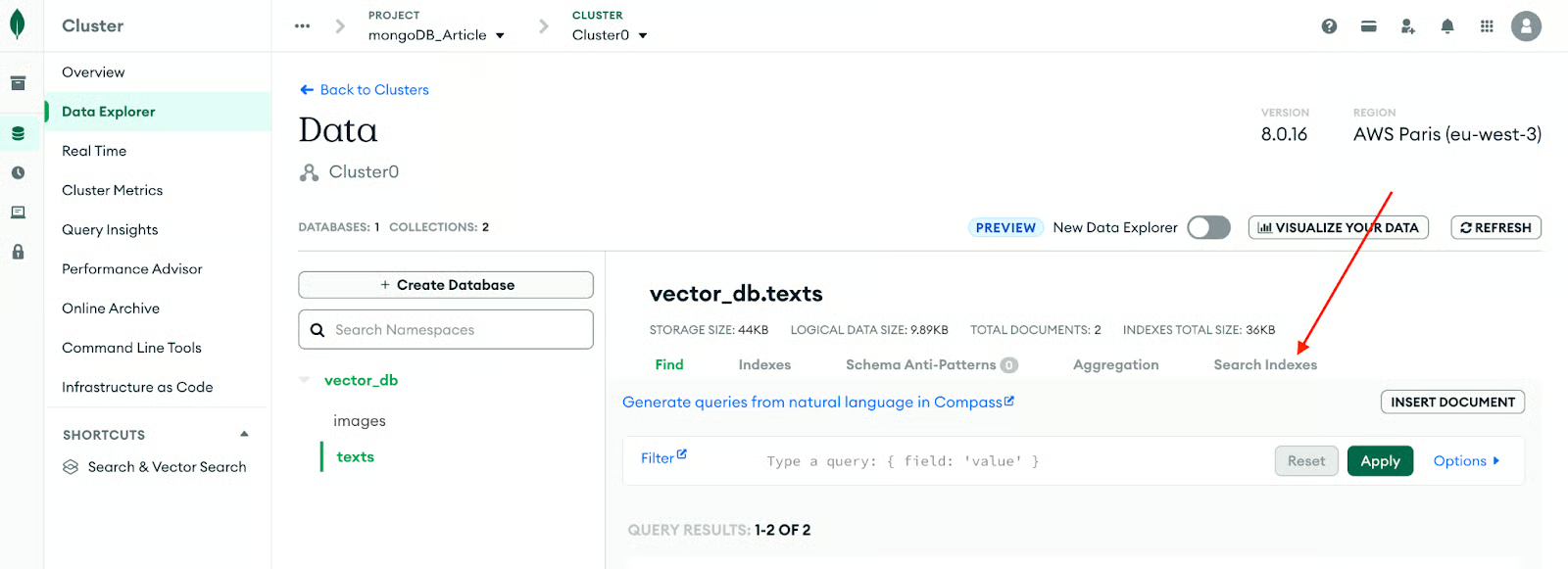
Puedes crearlos en Atlas → Collections → Search Indexes. Empecemos con la colección de texto.
La siguiente imagen explica mejor el proceso.
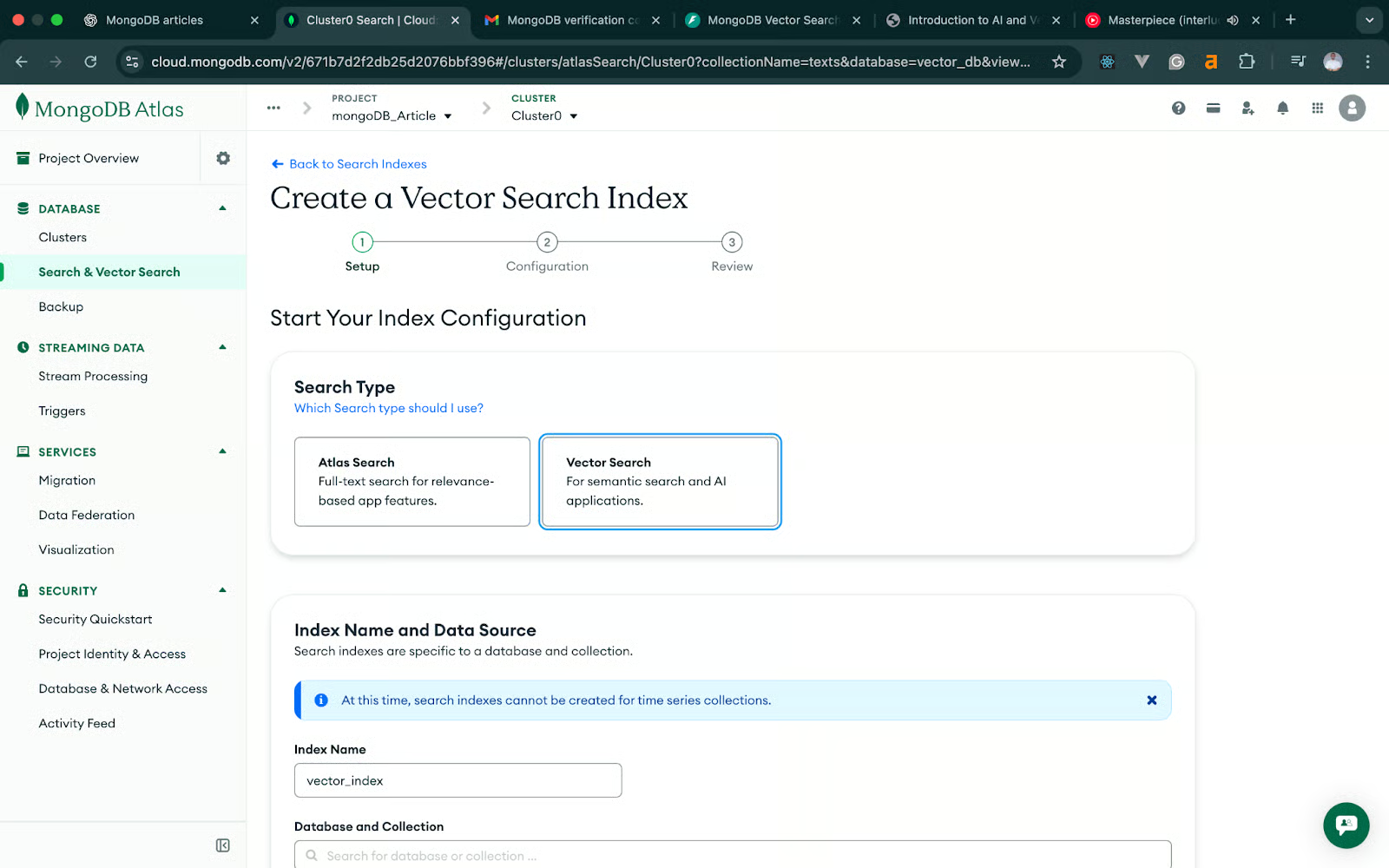
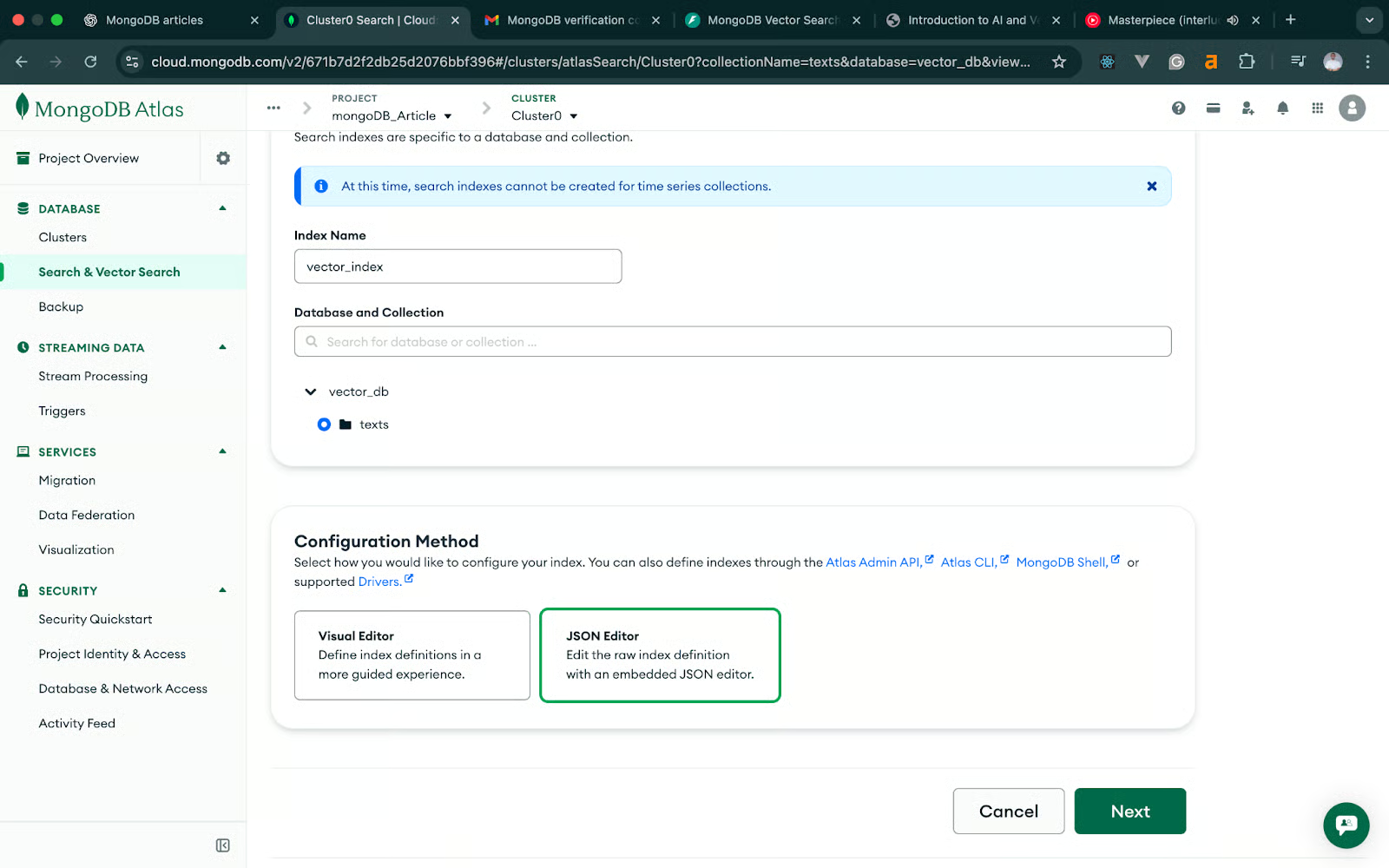
En la siguiente pantalla, haz clic en Vector Search ->JSON Editor -> Next. La imagen siguiente también te ayudará a seguir el proceso.
En el índice de búsqueda vectorial, modifica el JSON para que coincida con nuestro código.
Usaremos el modelo all-MiniLM-L6-v2 para texto, que produce embeddings de 384 dimensiones.
Este es el JSON de definición:
{
  "fields": [
    {
      "type": "vector",
      "path": "embedding",
      "numDimensions": 384,
      "similarity": "cosine"
    }
  ]
}
Ponle a este índice el nombre: vector_texts_search y guarda.
Esto permite a MongoDB realizar búsquedas por similitud coseno en embeddings de texto. La imagen siguiente ilustra el proceso en más detalle.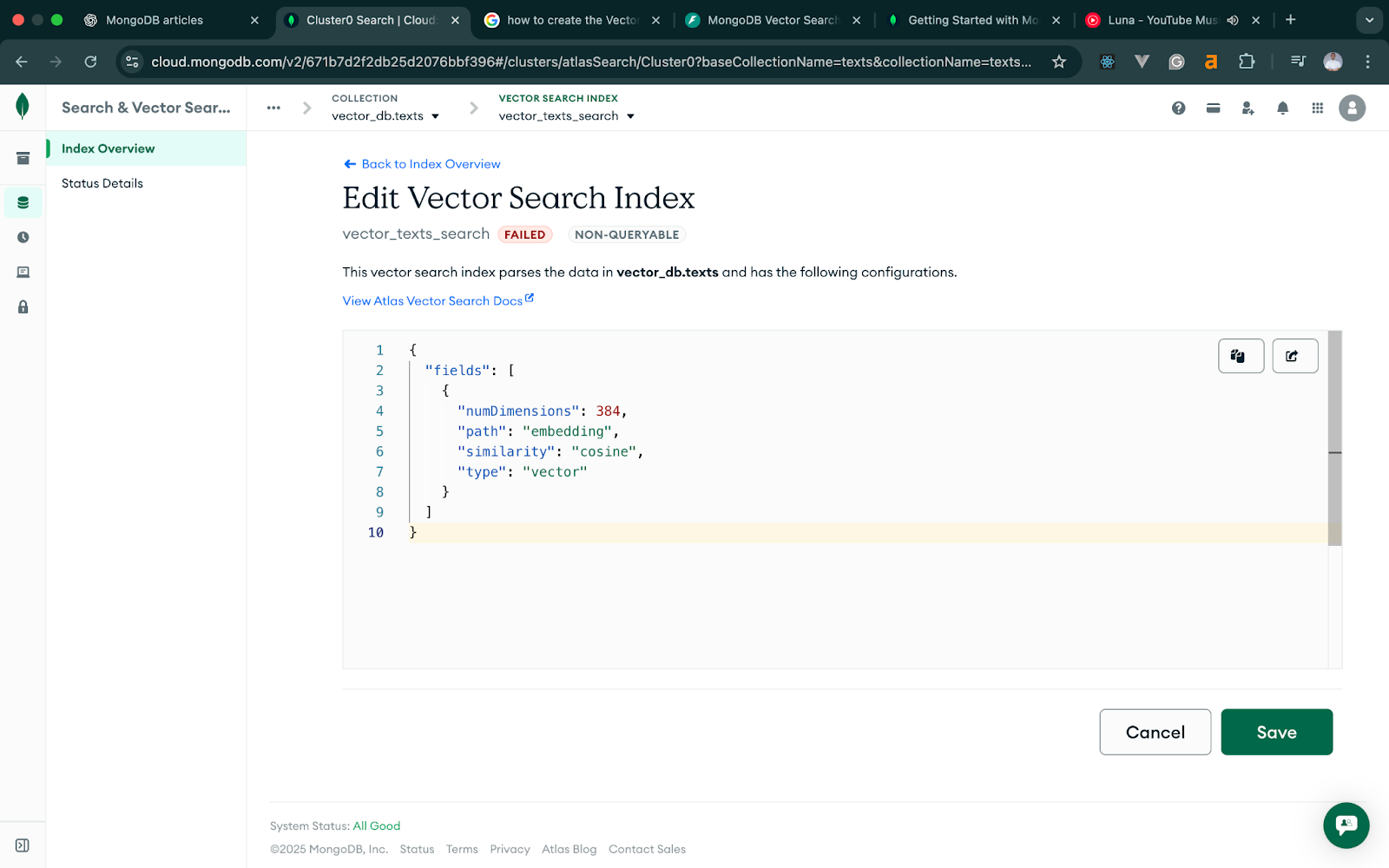
Para imágenes, usamos un modelo basado en CLIP que genera vectores de 512 dimensiones, por lo que el índice de imágenes debe coincidir con esa dimensión. La definición JSON debe coincidir con el código de abajo. Por lo demás, el flujo es el mismo.
{
  "fields": [
    {
      "type": "vector",
      "path": "embedding",
      "numDimensions": 512,
      "similarity": "cosine"
    }
  ]
}
Nombra este índice: vector_images_search.
Cuando ambos índices estén activos, MongoDB Atlas estará listo para consultas de búsqueda vectorial.
Con el clúster de MongoDB Atlas y los índices vectoriales listos, podemos configurar la aplicación FastAPI que generará embeddings y los almacenará en MongoDB. Mantendremos la estructura del proyecto pequeña y enfocada, ya que el objetivo es entender el flujo de trabajo, no construir un servicio en producción.
Instalaremos FastAPI, Uvicorn, el driver de MongoDB para Python y las librerías para generar embeddings de texto e imagen. Ejecuta:
pip install fastapi uvicorn pymongo python-dotenv sentence-transformers torch pillow open_clip_torch python-multipartResumen rápido de por qué las necesitamos:
.envUna vez instaladas, ya podemos definir el proyecto.
Guardaremos todo en un único archivo de Python, y la configuración irá por variables de entorno:
fastapi-mongodb-vector-search/
│── main.py
│── .env
│── venv/
main.py contendrá toda la aplicación: los endpoints de texto e imagen y la conexión con MongoDB.
MONGODB_URI="your connection string"
DB_NAME="vector_db"
TEXT_COLLECTION="texts"
IMAGE_COLLECTION="images"FastAPI cargará estas variables al iniciar la aplicación, manteniendo la configuración separada del código.
Con el proyecto FastAPI listo, empezamos creando el flujo de búsqueda de texto. Aquí introducimos la idea central de la búsqueda vectorial: generamos embeddings del texto, los guardamos en MongoDB y hacemos consultas usando el índice vectorial que creamos antes.
Lo haremos en dos pasos pequeños para facilitar las pruebas y la depuración.
El primer endpoint aceptará un título y contenido. Combinaremos ambos campos en una única cadena, generaremos un embedding con SentenceTransformers y guardaremos el documento junto con el vector.
El código sería así:
# main.py (excerpt)

from fastapi import FastAPI, HTTPException
from pydantic import BaseModel
from pymongo import MongoClient
from sentence_transformers import SentenceTransformer
from dotenv import load_dotenv
import os

load_dotenv()

app = FastAPI()

# --- DB setup ---
client = MongoClient(os.getenv("MONGODB_URI"))
db = client[os.getenv("DB_NAME")]
texts_coll = db[os.getenv("TEXT_COLLECTION")]
Images_coll = db[os.getenv("IMAGE_COLLECTION")]


# --- text embedding model ---
MODEL_NAME = "all-MiniLM-L6-v2"
text_model = SentenceTransformer(MODEL_NAME)

# --- request schema ---
class AddTextRequest(BaseModel):
    title: str
    content: str

@app.post("/add-text")
def add_text(payload: AddTextRequest):
    try:
        # Combine fields for richer embeddings
        text = f"{payload.title}\n\n{payload.content}"

        # Generate text embedding
        embedding = text_model.encode(text).tolist()

        # Store document in MongoDB
        doc = {
            "title": payload.title,
            "content": payload.content,
            "embedding": embedding,
            "model": MODEL_NAME,
        }

        result = texts_coll.insert_one(doc)

        return {
            "inserted_id": str(result.inserted_id),
            "title": payload.title
        }
    except Exception as e:
raise HTTPException(status_code=500, detail=str(e))Puedes usar cURL, Postman u otras herramientas similares para probarlo. En este tutorial usaremos Postman.
También necesitamos exponer nuestro endpoint de FastAPI a Internet para probarlo con Postman en la web. Usaremos Ngrok para esto. Si no conoces Ngrok, visita la documentación.Para probarlo, primero ejecuta FastAPI con el siguiente comando:
uvicorn main:app --reloadLuego, expón tu localhost a Internet con el siguiente comando de Ngrok:
Ngrok http 8000Esto generará una URL para probar, como en la imagen:
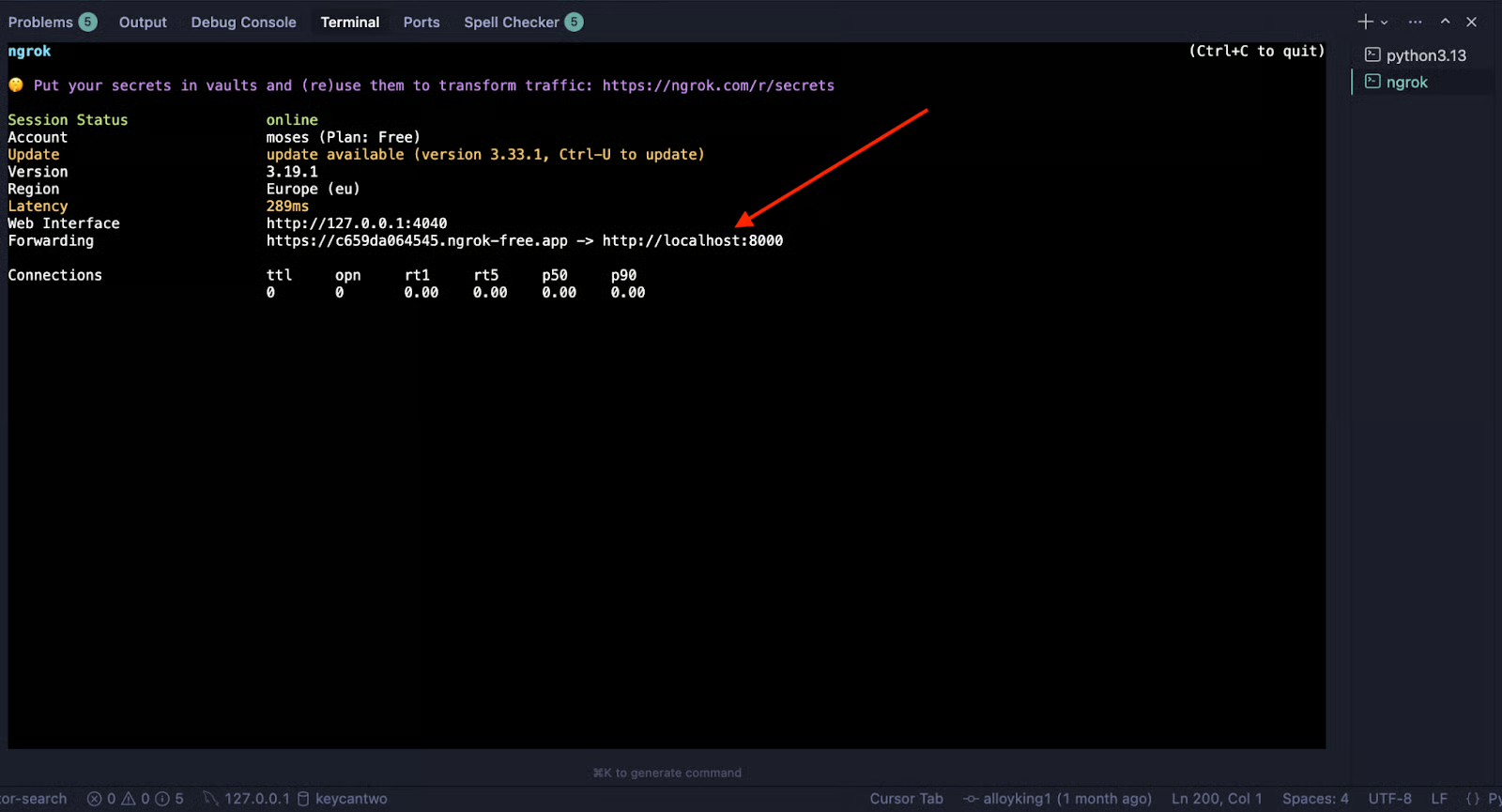
Envía una solicitud POST desde Postman al endpoint add-text. La imagen siguiente ilustra el envío de la solicitud y la respuesta esperada.
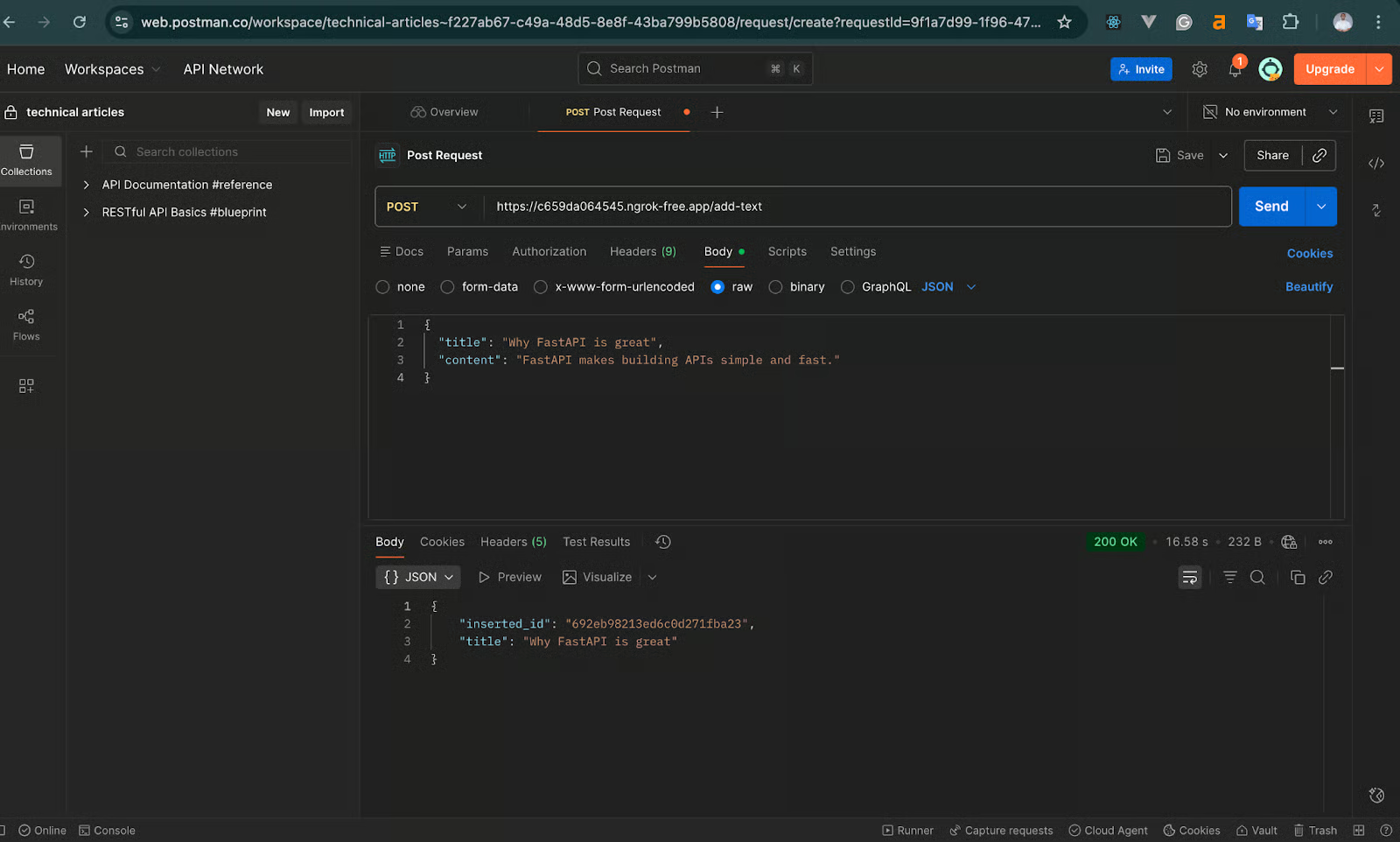
Respuesta esperada:
{
  "inserted_id": "65f...",
  "title": "Why FastAPI is great."
}
Esto confirma que el modelo de embeddings se cargó correctamente y que MongoDB almacenó el vector. Si funciona, tu canal de texto está operativo.
Ahora que podemos añadir texto, el siguiente paso es buscarlo con la etapa $vectorSearch de MongoDB. Aquí:
Añade el siguiente endpoint a main.py:
class SearchTextRequest(BaseModel):
    query: str
    limit: int = 5

@app.post("/search-text")
def search_text(payload: SearchTextRequest):
    try:
        # Convert search query to embedding
        query_vector = text_model.encode(payload.query).tolist()

        # Vector search pipeline
        pipeline = [
            {
                "$vectorSearch": {
                    "queryVector": query_vector,
                    "path": "embedding",
                    "numCandidates": 100,
                    "limit": payload.limit,
                    "index": "vector_texts_search" # field MUST match the index name in Atlas exactly


                }
            },
            {
                "$project": {
                    "title": 1,
                    "content": 1,
                    "score": {"$meta": "vectorSearchScore"},
                    "_id": 0
                }
            }
        ]

        results = list(texts_coll.aggregate(pipeline))
        return {"results": results}

    except Exception as e:
        raise HTTPException(status_code=500, detail=str(e))
> El parámetro numCandidates determina cuántas coincidencias potenciales se evalúan antes de devolver los mejores resultados.
> Valores más altos mejoran la precisión pero aumentan el tiempo de consulta. Como regla general, 10–20× tu límite.
Tras añadir uno o más documentos, realiza una solicitud POST al endpoint /search-text desde Postman usando el enlace generado por Ngrok, como en la imagen:
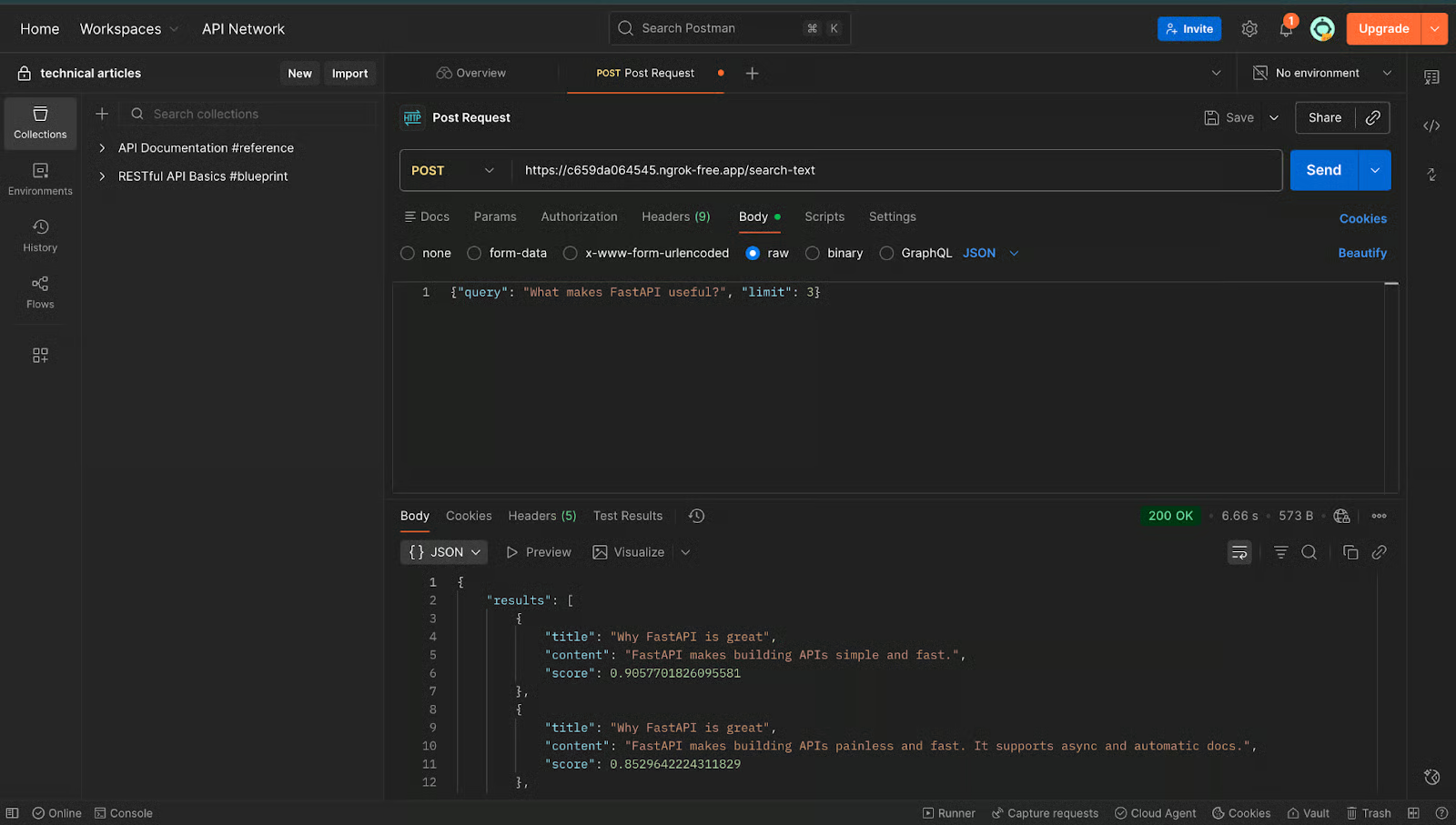
Salida esperada:
{
  "results": [
    {
      "title": "Why FastAPI is great",
      "content": "FastAPI makes building APIs simple and fast.",
      "score": 0.85
    }
  ]
}
Si ves un resultado con puntuación de similitud, tu canal de búsqueda vectorial de texto funciona de extremo a extremo. Cuando esto sea estable, pasamos al flujo de imágenes.
Con el flujo de texto funcionando, extendemos la misma idea a imágenes. El flujo general es similar; la gran diferencia está en cómo generamos los embeddings. En lugar de SentenceTransformers, usaremos un modelo basado en CLIP, diseñado para convertir imágenes en vectores de 512 dimensiones.
Igual que antes, lo implementaremos paso a paso para facilitar las pruebas y la depuración.
Este endpoint acepta un archivo de imagen, lo convierte en un tensor que CLIP entiende, genera un embedding de 512 dimensiones y lo guarda en MongoDB.
El código sería así:
# --- CLIP model setup ---
import torch
import open_clip
from PIL import Image
import io
from fastapi import UploadFile, File

# Load CLIP model once when the app starts
clip_model, _, preprocess = open_clip.create_model_and_transforms(
    "ViT-B-32",
    pretrained="openai"
)
device = "cuda" if torch.cuda.is_available() else "cpu"
clip_model.to(device)

@app.post("/add-image")
async def add_image(file: UploadFile = File(...)):
    """
    Upload an image, generate its CLIP embedding, and store in MongoDB.
    """
    try:
        # Read file contents
        image_bytes = await file.read()
        image = Image.open(io.BytesIO(image_bytes)).convert("RGB")

        # Preprocess for CLIP and encode
        image_tensor = preprocess(image).unsqueeze(0).to(device)
        with torch.no_grad():
            image_embedding = clip_model.encode_image(image_tensor)

        # Normalize the embedding (important for cosine similarity)
        image_embedding /= image_embedding.norm(dim=-1, keepdim=True)
        vector = image_embedding.cpu().numpy().flatten().tolist()

        # Store in MongoDB
        doc = {
            "filename": file.filename,
            "embedding": vector
        }
        result = images_coll.insert_one(doc)

        return {
            "inserted_id": str(result.inserted_id),
            "filename": file.filename
        }

    except Exception as e:
raise HTTPException(status_code=500, detail=str(e))Los embeddings de CLIP funcionan mejor con similitud coseno. Para que las comparaciones sean precisas y estables, normalizamos los vectores:
image_embedding /= image_embedding.norm(dim=-1, keepdim=True)Así nos aseguramos de que la distancia coseno refleje la similitud real.
Para probar esta función en Postman, realiza una solicitud POST al endpoint /add-image. Envía un form-data como cuerpo con cualquier imagen .jpg o .png. La imagen siguiente muestra el proceso.
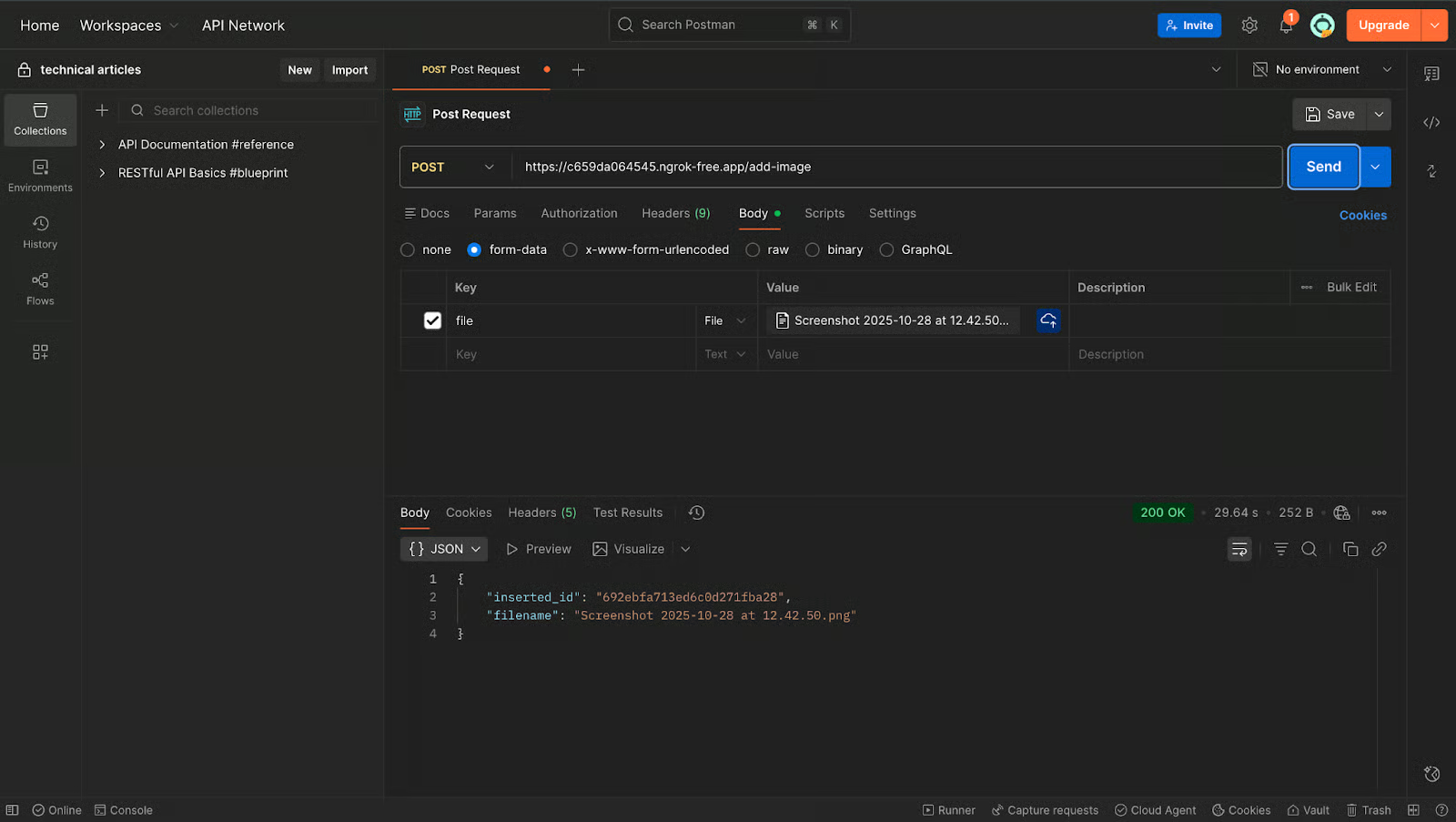
Si todo funciona, deberías ver algo como:
{
  "inserted_id": "692454f6156fbb762ed865a0",
  "filename": "file-name.png"
}
A estas alturas, tus embeddings de imagen ya están guardados en MongoDB.
Ahora podemos crear el endpoint que recibe una imagen de consulta, la convierte en un embedding y encuentra las imágenes almacenadas más cercanas usando nuestro índice vectorial de imágenes.
Añade esto a main.py:
@app.post("/search-image")
async def search_image(file: UploadFile = File(...)):
    """
    Upload an image and find the most visually similar images in MongoDB.
    """
    try:
        # Read the uploaded file
        image_bytes = await file.read()
        image = Image.open(io.BytesIO(image_bytes)).convert("RGB")

        # Generate embedding for the query image
        image_tensor = preprocess(image).unsqueeze(0).to(device)
        with torch.no_grad():
            query_embedding = clip_model.encode_image(image_tensor)

        query_embedding /= query_embedding.norm(dim=-1, keepdim=True)
        query_vector = query_embedding.cpu().numpy().flatten().tolist()

        # Vector search pipeline
        pipeline = [
            {
                "$vectorSearch": {
                    "queryVector": query_vector,
                    "path": "embedding",
                    "numCandidates": 100,
                    "limit": 5,
                    "index": "vector_images_search"
                }
            },
            {
                "$project": {
                    "filename": 1,
                    "score": {"$meta": "vectorSearchScore"},
                    "_id": 0
                }
            }
        ]

        results = list(images_coll.aggregate(pipeline))
        return {"results": results}

    except Exception as e:
raise HTTPException(status_code=500, detail=str(e))Para probarlo en Postman, realiza una solicitud POST al endpoint /search-image. Envía el form-data como cuerpo con una imagen similar a las que guardaste antes. La imagen siguiente muestra el proceso.
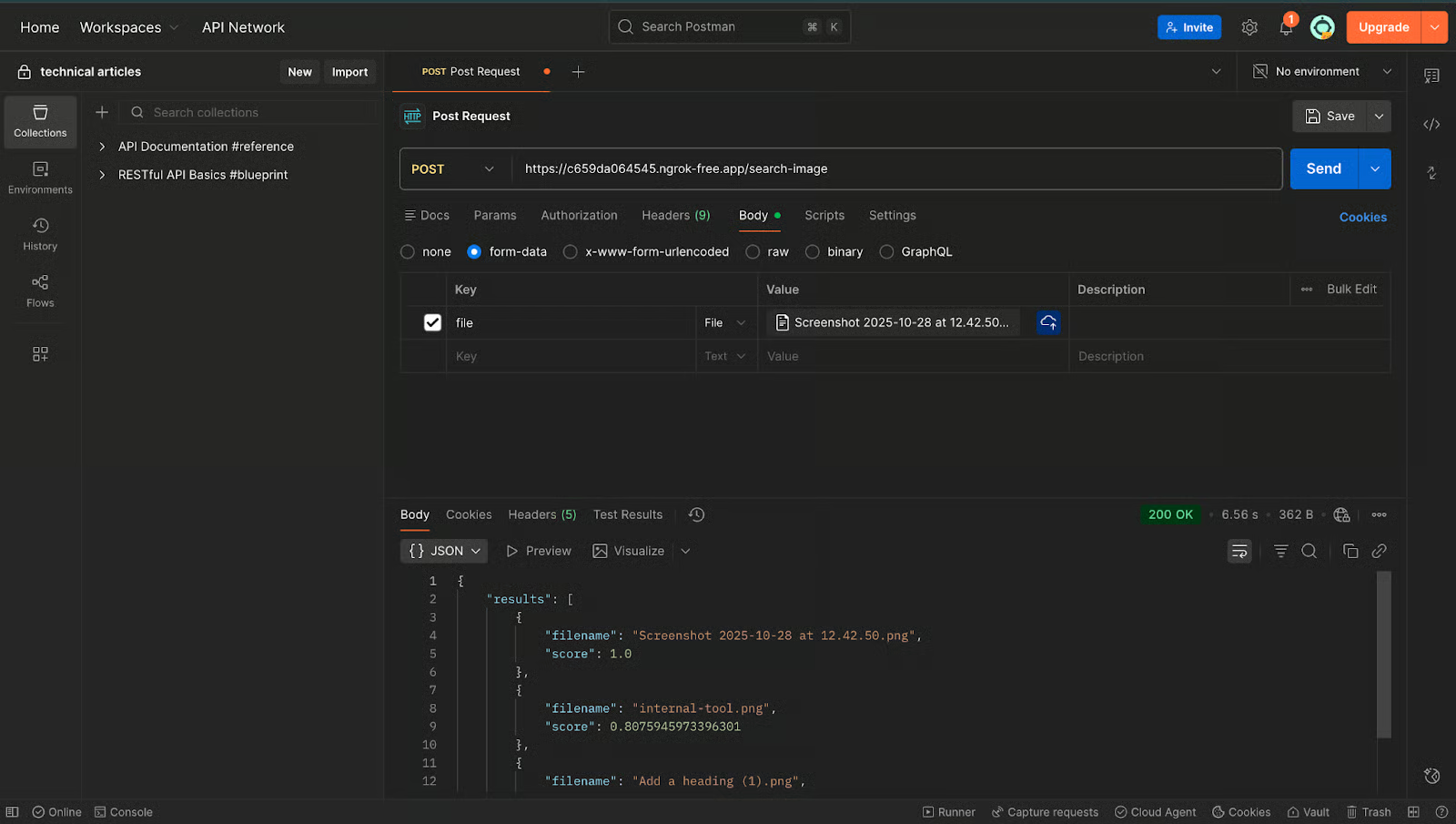
La salida esperada debería ser similar a:
{
  "results": [
    {
      "filename": "image1.png",
      "score": 1.0
    },
    {
      "filename": "image2.png",
      "score": 0.81
    }
  ]
}
Una puntuación de 1.0 significa que coincide con la misma imagen. Cualquier valor cercano (0.7–0.9) indica una fuerte similitud visual.
Si ves un array con resultados, tu búsqueda vectorial de imágenes ya está funcionando.
Llegados a este punto, si todo funciona, tienes un sistema de búsqueda semántica completo para texto e imagen.
En este tutorial hemos creado un flujo completo de búsqueda semántica con FastAPI y MongoDB Atlas. Generamos embeddings de texto con SentenceTransformers, creamos embeddings de imagen con un modelo CLIP, lo guardamos todo en MongoDB y lo consultamos mediante Vector Search y Postman. Este patrón sienta las bases para aplicaciones como búsqueda semántica de documentos, herramientas de similitud de imágenes, sistemas de recomendación y funciones de IA multimodal.
La potencia de esta arquitectura está en su flexibilidad: MongoDB no te ata a modelos concretos. Mientras los embeddings sean vectores numéricos y las dimensiones coincidan con la configuración del índice, puedes enchufar cualquier modelo de texto, imagen o multimodal que tu caso de uso requiera.
Con esta base, puedes ampliar el proyecto: almacenar metadatos, crear lógica de ranking o integrarlo en apps de cara al usuario. El mismo flujo escala sin esfuerzo gracias a los servicios totalmente gestionados de MongoDB Atlas.
Puedes encontrar el proyecto completo en GitHub.
Los mejores cursos de DataCamp
Curso
Curso
Practica y programa tu progreso.
Continuar Con Googleblog
Moez Ali
14 min
blog
Tutorial
Moez Ali
10 min
Tutorial
Nic Raboy
Tutorial
Moez Ali
13 min
Tutorial
Abid Ali Awan
10 min