
Cours
Introduction à MongoDB en Python
3 h
24.4K
S'entraîner et cursus vos progrès.
Continuer Avec GoogleLa recherche par mots-clés fonctionne bien pour des requêtes simples, mais elle atteint vite ses limites dès que l’on s’intéresse au sens plutôt qu’à la tournure exacte. Si un document parle d’« améliorer les temps de réponse » et un autre d’« optimiser les performances », un moteur de recherche classique les considérera comme distincts, alors qu’ils décrivent la même idée. On perd ainsi les relations sémantiques uniquement parce que la formulation diffère.
La recherche vectorielle résout cette limite en représentant textes et images sous forme d’embeddings : des vecteurs numériques générés par des modèles de machine learning qui capturent le contexte, l’intention et la similarité sémantique. Une fois ces embeddings stockés dans MongoDB, nous pouvons les interroger pour retrouver les éléments véritablement liés, quels que soient les termes exacts utilisés.
Dans ce tutoriel, nous allons construire un exemple pratique de bout en bout de ce flux avec FastAPI et MongoDB Atlas Vector Search. Nous générerons des embeddings de texte avec SentenceTransformers et des embeddings d’images avec un modèle basé sur CLIP, stockerons le tout dans MongoDB, puis exécuterons des recherches par similarité. À la fin, vous disposerez d’une base opérationnelle pour la recherche sémantique d’articles, les recommandations de produits, des outils de similarité visuelle, et bien d’autres cas concrets.
Sur ce, commençons.
Avant de construire, il nous faut quelques éléments. Ce tutoriel suppose que vous avez des bases en Python, FastAPI et MongoDB, mais rien d’avancé : nous présenterons chaque outil au fur et à mesure.
Voici ce dont nous aurons besoin :
Nous les installerons lors de la configuration :
Ces outils couvrent tout le nécessaire pour générer des embeddings, les stocker dans MongoDB et les interroger efficacement via la recherche vectorielle.
Avant d’écrire du code, il est utile de comprendre ce qui se passe réellement sous le capot. La recherche vectorielle n’est pas compliquée une fois décomposée, et connaître les fondamentaux facilite grandement la suite du tutoriel.
Un embedding est simplement une liste de nombres (un vecteur) qui représente le sens d’une donnée.
Pour le texte, l’embedding capture le contexte et l’intention. Pour l’image, il capture des motifs et caractéristiques visuelles.
Un exemple très simplifié d’embedding ressemble à ceci :
[0.21, -0.17, 0.89, ...]Deux éléments sémantiquement proches — par exemple deux phrases décrivant la même idée, ou deux images aux objets similaires — auront des vecteurs mathématiquement proches. La recherche vectorielle mesure précisément cette proximité.
MongoDB ne génère pas lui-même les embeddings. Il se concentre sur son cœur de métier :
Autrement dit, nos modèles génèrent les embeddings et MongoDB gère la recherche.
Cette séparation nette rend le système à la fois flexible et scalable.
Nous pouvons choisir n’importe quel modèle d’embedding, du moment qu’il produit un vecteur numérique. Différents modèles sont spécialisés selon le type de données :
|
Type de données |
Modèle exemple |
Remarques |
|
Texte |
|
Léger et largement utilisé en NLP |
|
Image |
CLIP/OpenCLIP |
Convertit les images en vecteurs sémantiques |
|
Multimodal |
Multimodal |
Gère texte et images conjointement |
C’est le flux que nous mettrons en œuvre avec FastAPI et MongoDB Atlas.
Une fois en place, vous pourrez rechercher du texte et des images par le sens — ce qu’une recherche par mots-clés ne sait pas faire.
Avant de développer l’application FastAPI, nous avons besoin d’un endroit pour stocker et interroger nos embeddings. MongoDB Atlas simplifie cette démarche et la création d’index vectoriels prend seulement quelques minutes.
Si vous n’en avez pas déjà un, créez un nouveau cluster dans MongoDB Atlas. Un cluster gratuit (M0) convient parfaitement à ce tutoriel. Consultez la documentation MongoDB pour plus de détails sur la création d’un cluster.
Dans le cluster :
vector_db. Pour plus de détails, consultez la documentation.texts : pour stocker les documents texte et leurs embeddingsimages : pour stocker les noms de fichiers et les embeddings d’imagesConsultez la documentation pour plus d’informations sur la création d’une collection.
Nous séparons les collections d’images et de textes car elles reposent sur des modèles d’embedding et des dimensions de vecteurs différents.
MongoDB a besoin d’un index vectoriel pour exécuter rapidement les recherches par similarité. Nous allons créer un index pour les embeddings texte et un pour les embeddings image.
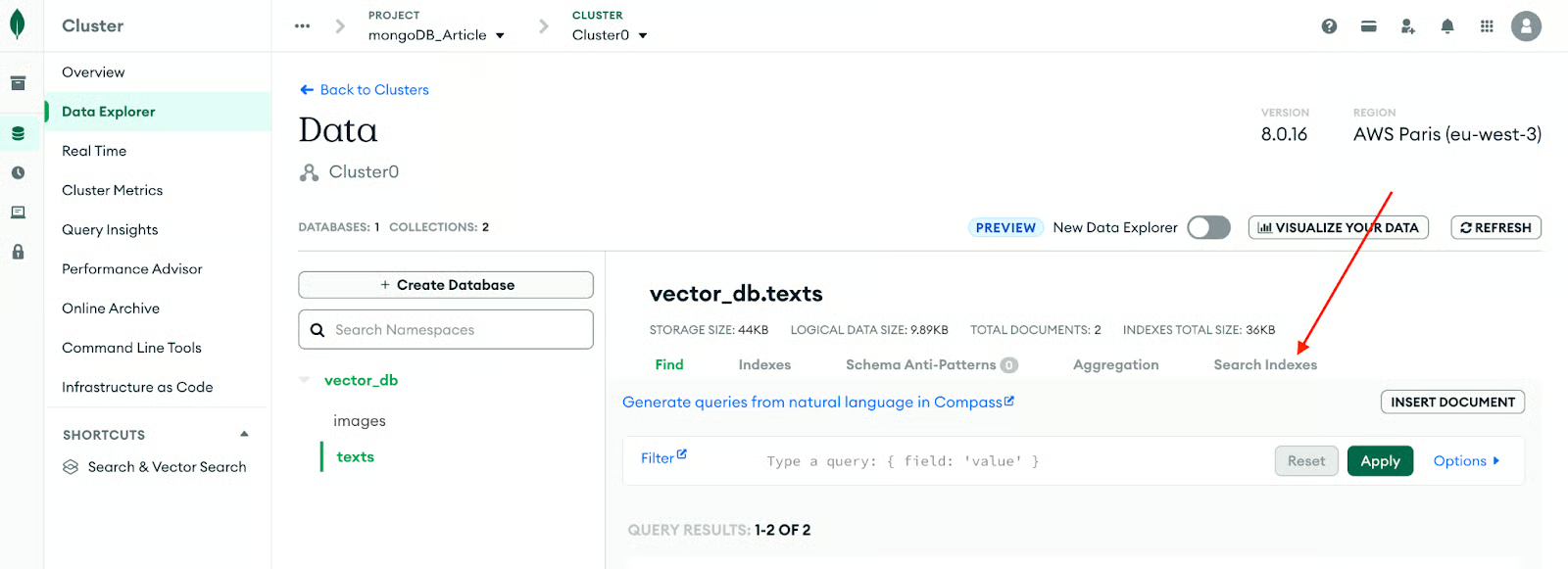
Vous pouvez les créer dans Atlas → Collections → Search Indexes. Commençons par la collection de textes.
L’illustration ci-dessous récapitule le processus.
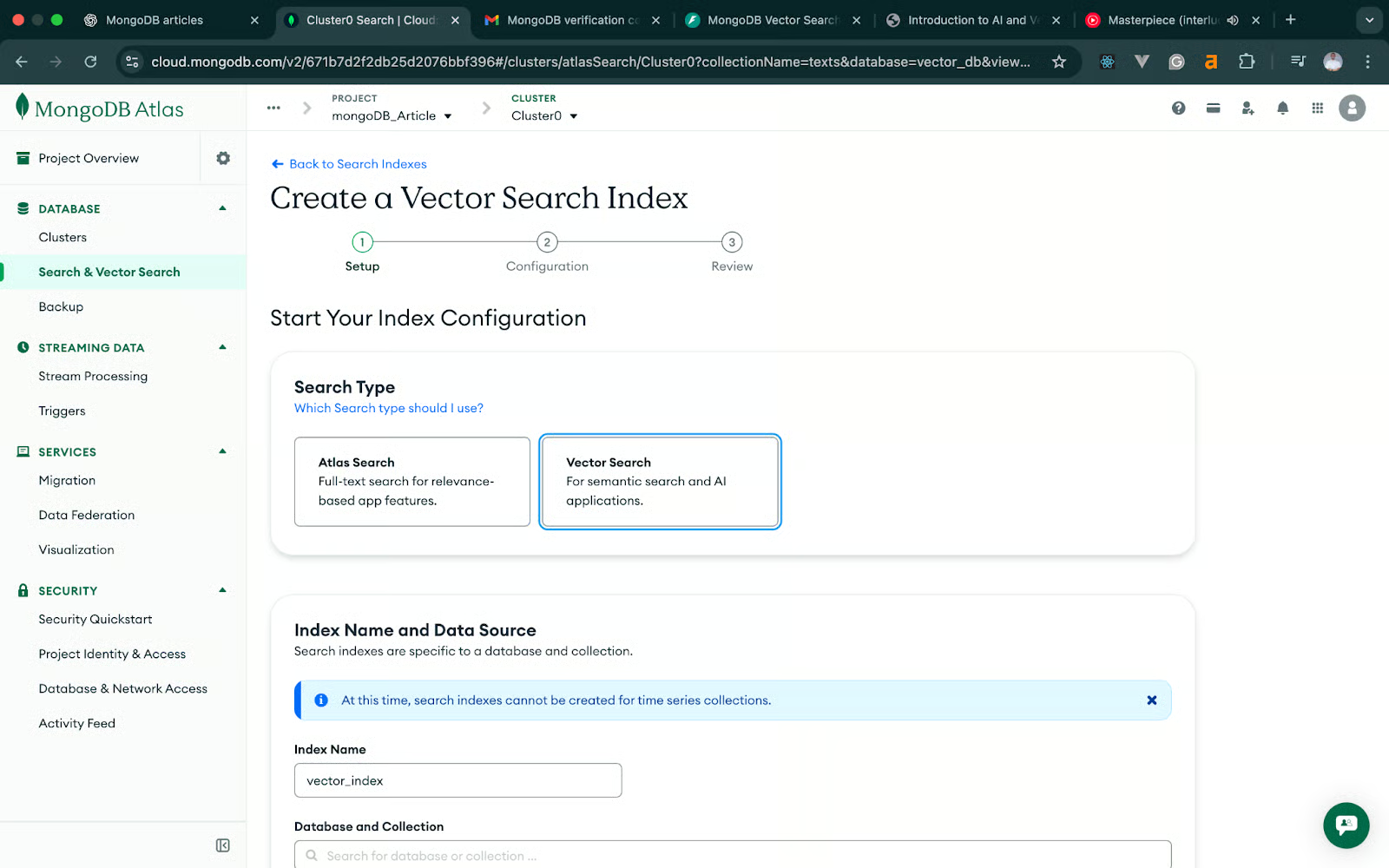
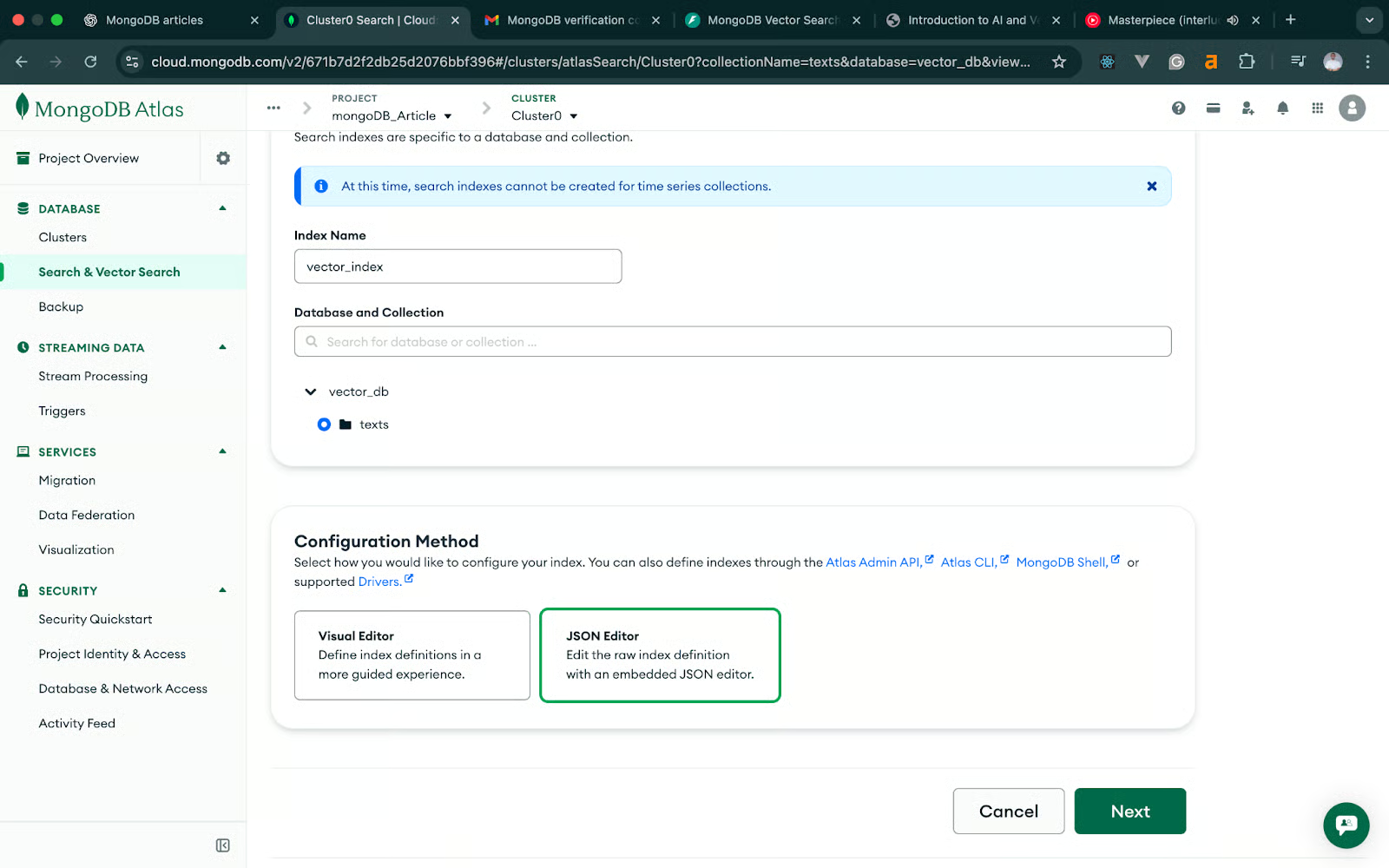
Sur l’écran suivant, cliquez sur Vector Search -> JSON Editor -> Next. L’image suivante vous guide étape par étape.
Dans l’index de recherche vectorielle, modifiez le JSON pour correspondre à notre code.
Nous utilisons le modèle all-MiniLM-L6-v2 pour le texte, qui produit des embeddings en 384 dimensions.
Voici la définition JSON :
{
  "fields": [
    {
      "type": "vector",
      "path": "embedding",
      "numDimensions": 384,
      "similarity": "cosine"
    }
  ]
}
Donnez un nom à cet index : vector_texts_search puis enregistrez.
Cela permet à MongoDB d’effectuer des recherches par similarité cosinus sur les embeddings texte. L’image ci-dessous illustre le processus plus en détail.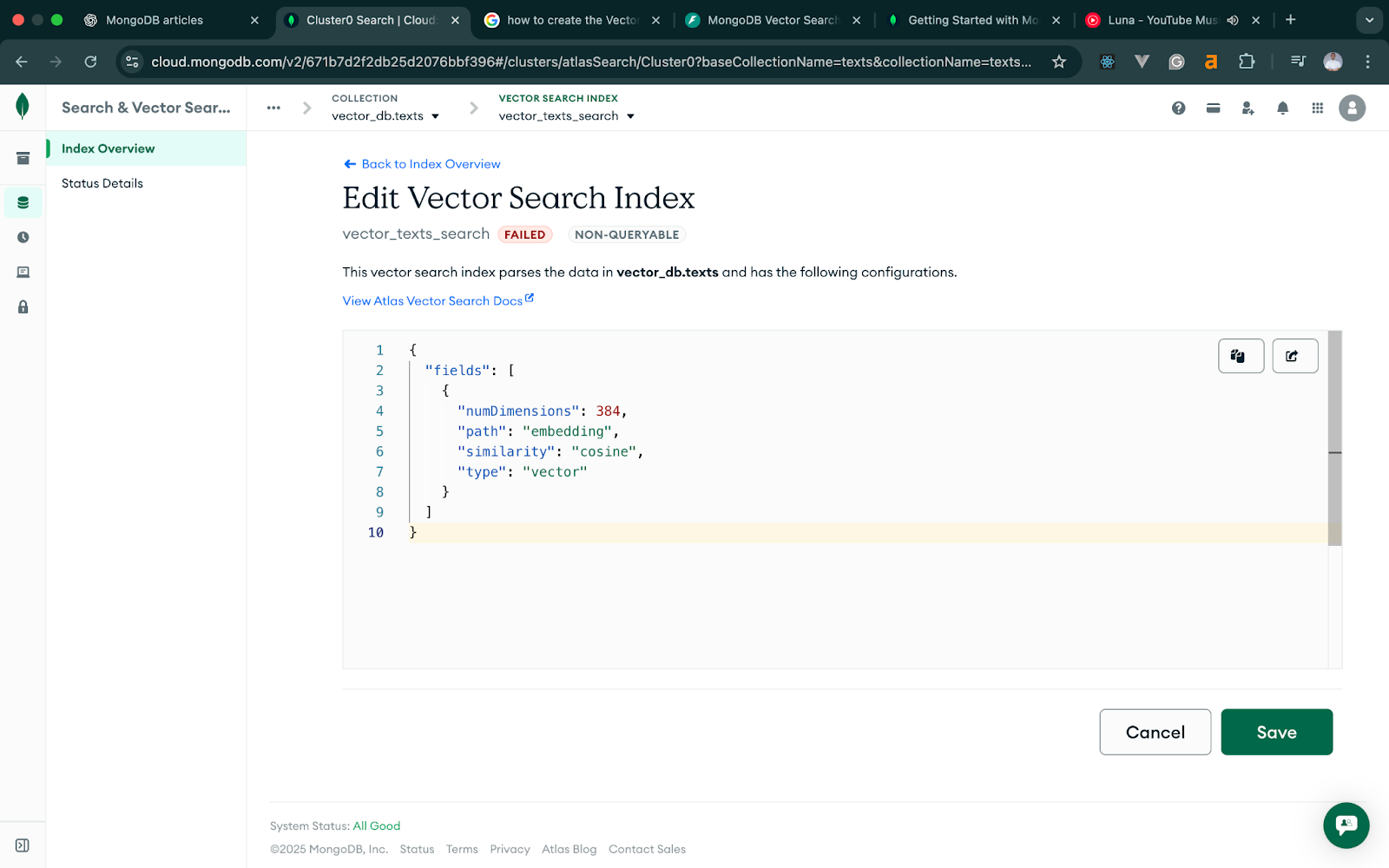
Pour les images, nous utilisons un modèle basé sur CLIP qui produit des vecteurs en 512 dimensions, l’index d’images doit donc refléter cette dimension. La définition JSON doit correspondre au code ci-dessous. Pour le reste, le flux est identique.
{
  "fields": [
    {
      "type": "vector",
      "path": "embedding",
      "numDimensions": 512,
      "similarity": "cosine"
    }
  ]
}
Nommez cet index : vector_images_search.
Une fois les deux index actifs, MongoDB Atlas est prêt pour les requêtes de recherche vectorielle.
Maintenant que notre cluster MongoDB Atlas et nos index vectoriels sont prêts, nous pouvons configurer l’application FastAPI qui générera les embeddings et les stockera dans MongoDB. Nous garderons une structure minimale et ciblée, l’objectif étant de comprendre le flux plutôt que de bâtir un service de production complet.
Nous allons installer FastAPI, Uvicorn, le pilote Python de MongoDB et les bibliothèques nécessaires pour générer les embeddings texte et image. Exécutez :
pip install fastapi uvicorn pymongo python-dotenv sentence-transformers torch pillow open_clip_torch python-multipartPourquoi chacun est utile :
.envUne fois l’installation terminée, nous pouvons poser la structure du projet.
Nous garderons tout dans un seul fichier Python, avec la configuration gérée via des variables d’environnement :
fastapi-mongodb-vector-search/
│── main.py
│── .env
│── venv/
main.py contiendra l’ensemble de l’application : les endpoints texte, les endpoints image et la connexion à MongoDB.
MONGODB_URI="your connection string"
DB_NAME="vector_db"
TEXT_COLLECTION="texts"
IMAGE_COLLECTION="images"FastAPI chargera ces variables au démarrage de l’application, séparant ainsi la configuration du code.
Avec le projet FastAPI en place, commençons par le flux de recherche texte. Cette partie introduit l’idée clé de la recherche vectorielle : nous générons des embeddings pour notre texte, les stockons dans MongoDB, puis les interrogeons via l’index vectoriel créé précédemment.
Nous procéderons en deux petites étapes pour faciliter les tests et le débogage.
Le premier endpoint accepte un titre et un contenu. Nous combinons les deux champs en une seule chaîne, générons un embedding avec SentenceTransformers et enregistrons le document avec son vecteur d’embedding.
Voici le code correspondant :
# main.py (excerpt)

from fastapi import FastAPI, HTTPException
from pydantic import BaseModel
from pymongo import MongoClient
from sentence_transformers import SentenceTransformer
from dotenv import load_dotenv
import os

load_dotenv()

app = FastAPI()

# --- DB setup ---
client = MongoClient(os.getenv("MONGODB_URI"))
db = client[os.getenv("DB_NAME")]
texts_coll = db[os.getenv("TEXT_COLLECTION")]
Images_coll = db[os.getenv("IMAGE_COLLECTION")]


# --- text embedding model ---
MODEL_NAME = "all-MiniLM-L6-v2"
text_model = SentenceTransformer(MODEL_NAME)

# --- request schema ---
class AddTextRequest(BaseModel):
    title: str
    content: str

@app.post("/add-text")
def add_text(payload: AddTextRequest):
    try:
        # Combine fields for richer embeddings
        text = f"{payload.title}\n\n{payload.content}"

        # Generate text embedding
        embedding = text_model.encode(text).tolist()

        # Store document in MongoDB
        doc = {
            "title": payload.title,
            "content": payload.content,
            "embedding": embedding,
            "model": MODEL_NAME,
        }

        result = texts_coll.insert_one(doc)

        return {
            "inserted_id": str(result.inserted_id),
            "title": payload.title
        }
    except Exception as e:
raise HTTPException(status_code=500, detail=str(e))cURL, Postman et autres outils similaires conviennent. Pour ce tutoriel, nous utiliserons Postman.
Nous devons aussi exposer notre endpoint FastAPI sur Internet pour le tester via Postman en ligne. Nous utiliserons Ngrok. Si vous découvrez Ngrok, consultez la documentation. Pour tester, lancez d’abord FastAPI avec la commande ci-dessous :
uvicorn main:app --reloadEnsuite, créez un tunnel de votre localhost vers Internet avec la commande Ngrok suivante :
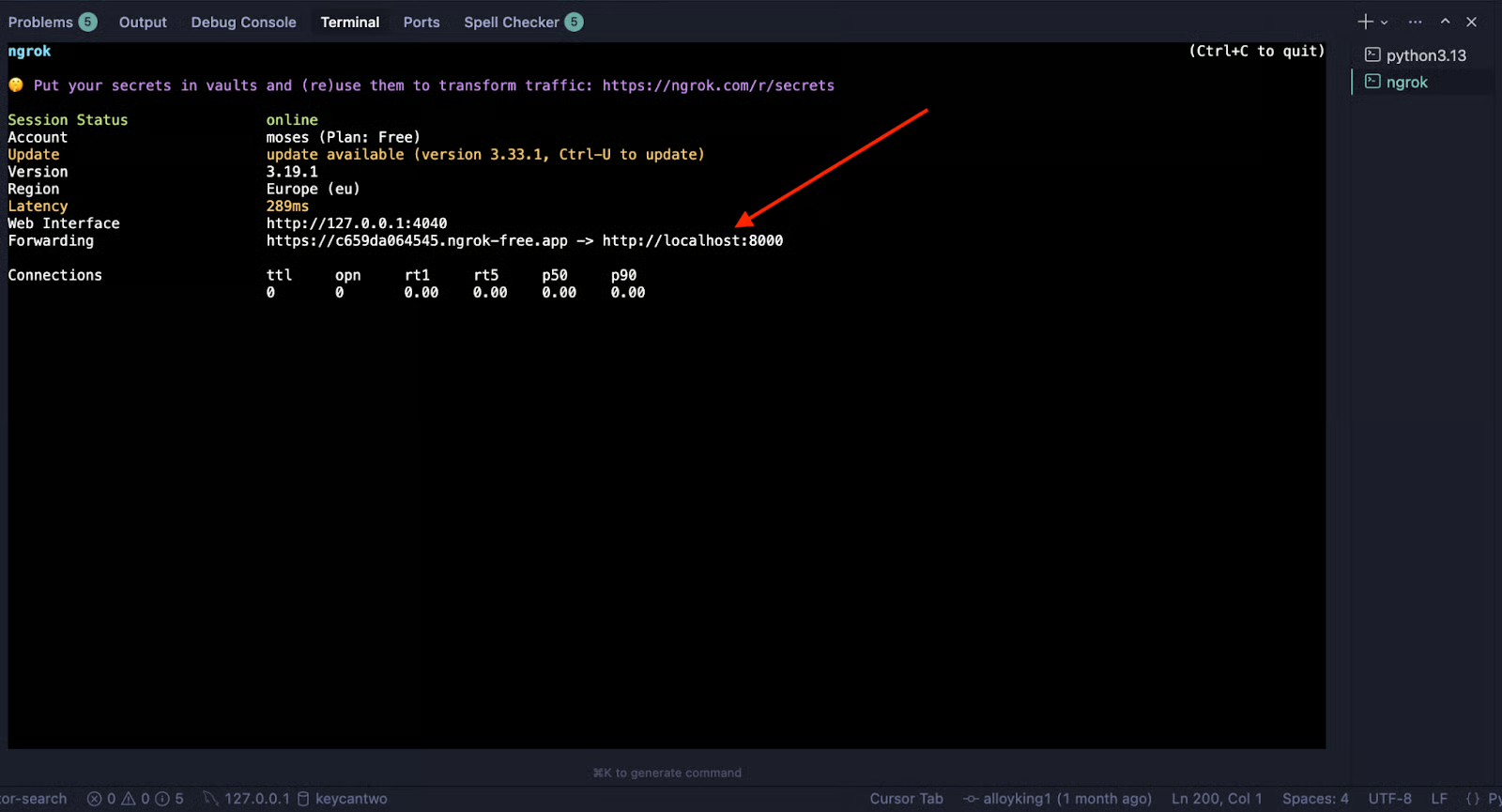
Ngrok http 8000Ngrok génère alors une URL de test, comme ci-dessous :
Envoyez une requête POST avec Postman vers l’endpoint add-text. L’image ci-dessous illustre l’envoi et la réponse attendue.
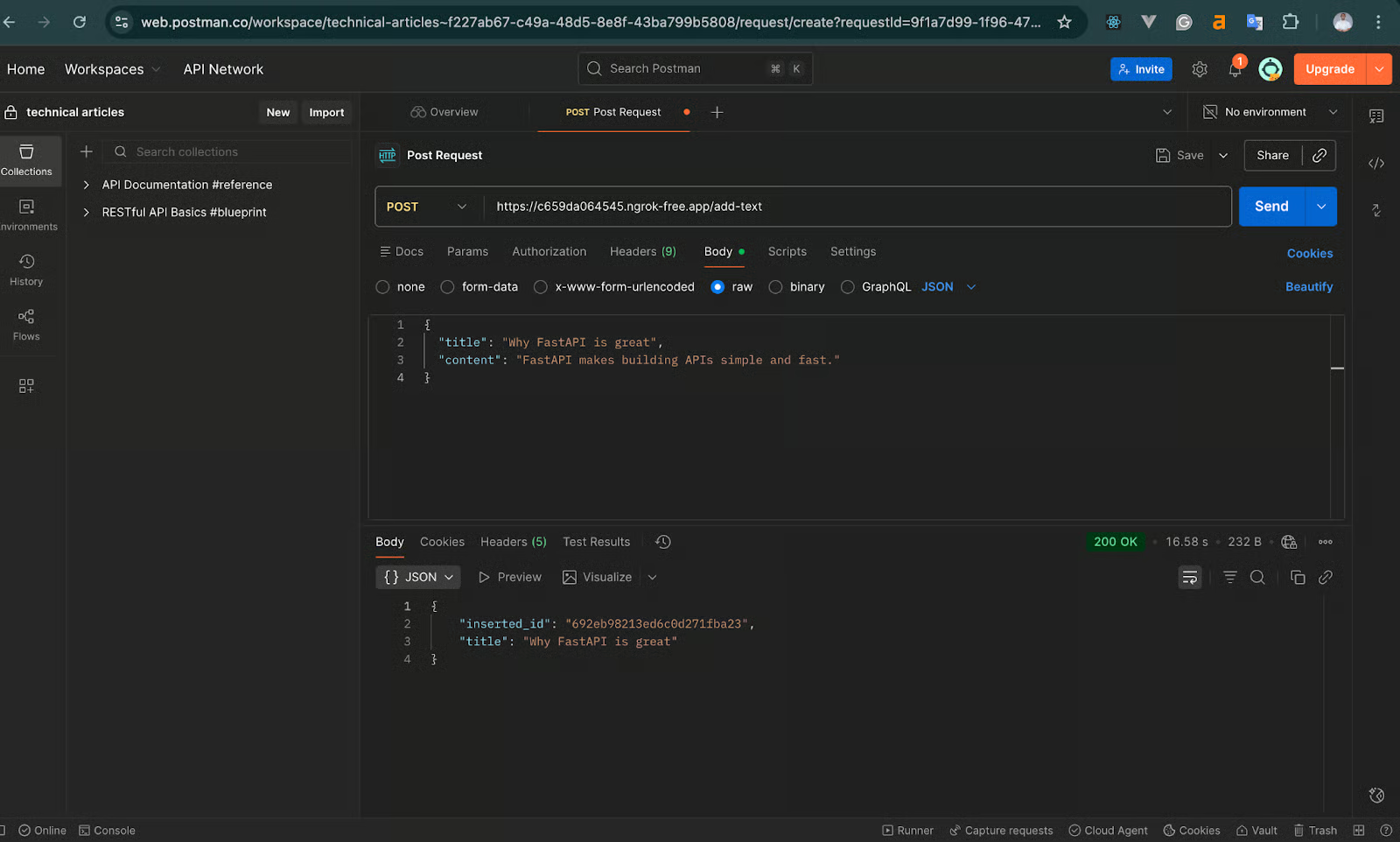
Réponse attendue :
{
  "inserted_id": "65f...",
  "title": "Why FastAPI is great."
}
Cela confirme que votre modèle d’embedding s’est bien chargé et que MongoDB a stocké le vecteur. Si cela fonctionne, votre pipeline texte est opérationnel.
Maintenant que nous pouvons ajouter du texte, passons à la recherche via l’étape $vectorSearch de MongoDB. Nous allons :
Ajoutez l’endpoint suivant dans main.py :
class SearchTextRequest(BaseModel):
    query: str
    limit: int = 5

@app.post("/search-text")
def search_text(payload: SearchTextRequest):
    try:
        # Convert search query to embedding
        query_vector = text_model.encode(payload.query).tolist()

        # Vector search pipeline
        pipeline = [
            {
                "$vectorSearch": {
                    "queryVector": query_vector,
                    "path": "embedding",
                    "numCandidates": 100,
                    "limit": payload.limit,
                    "index": "vector_texts_search" # field MUST match the index name in Atlas exactly


                }
            },
            {
                "$project": {
                    "title": 1,
                    "content": 1,
                    "score": {"$meta": "vectorSearchScore"},
                    "_id": 0
                }
            }
        ]

        results = list(texts_coll.aggregate(pipeline))
        return {"results": results}

    except Exception as e:
        raise HTTPException(status_code=500, detail=str(e))
> Le paramètre numCandidates détermine combien de correspondances potentielles sont évaluées avant de renvoyer le top des résultats.
> Plus il est élevé, meilleure est la précision, au prix d’un temps de requête plus long. Une règle simple : 10 à 20 fois votre limite.
Après avoir ajouté un ou plusieurs documents, effectuez une requête POST vers l’endpoint /search-text via Postman en utilisant le lien généré par Ngrok, comme ci-dessous :
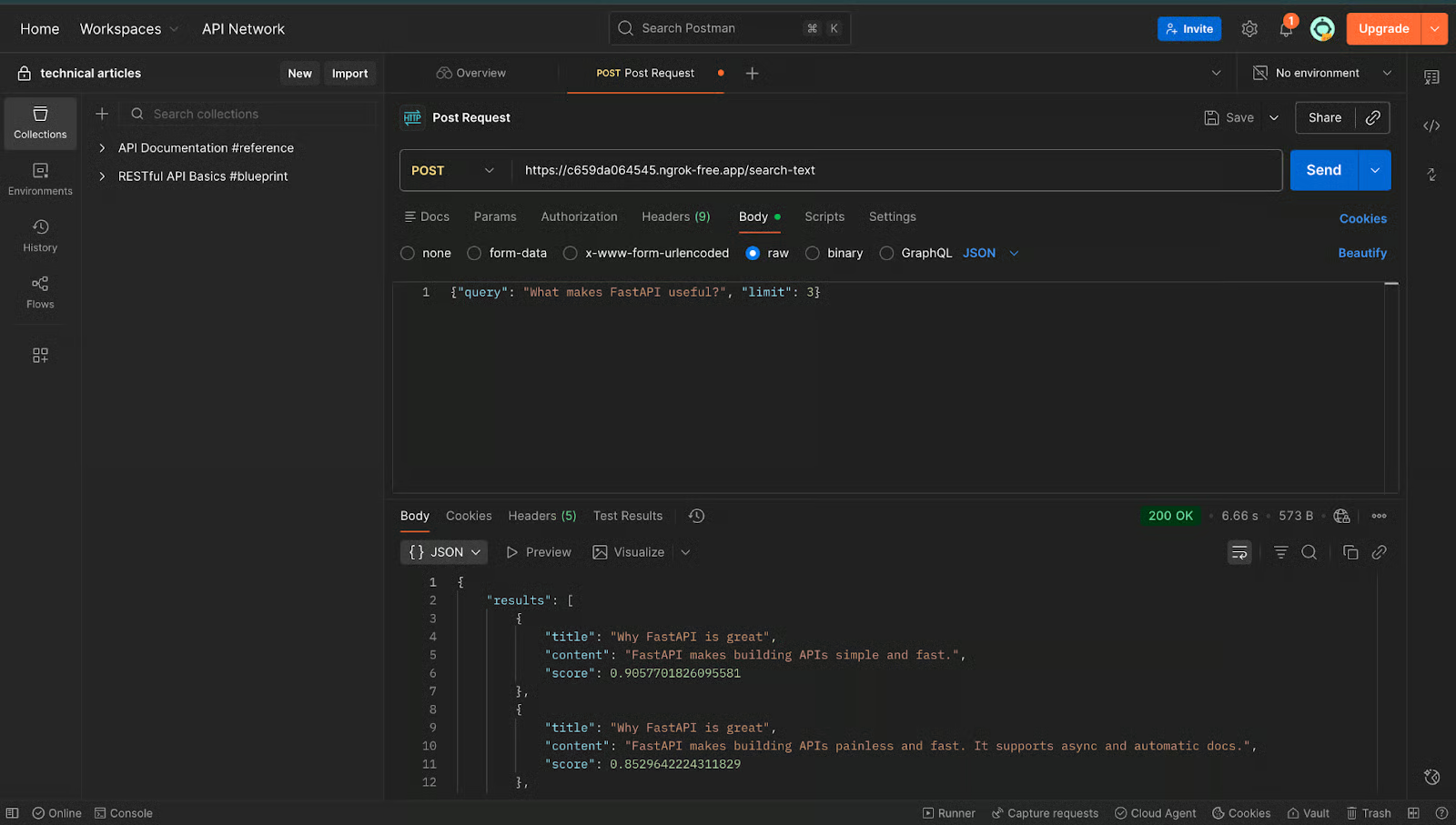
Sortie attendue :
{
  "results": [
    {
      "title": "Why FastAPI is great",
      "content": "FastAPI makes building APIs simple and fast.",
      "score": 0.85
    }
  ]
}
Si vous voyez un résultat avec un score de similarité, alors votre pipeline de recherche vectorielle texte fonctionne de bout en bout. Une fois cette partie fiable, passons au flux image.
Maintenant que le flux texte est fluide, étendons la même logique aux images. Le déroulé général est similaire — la différence majeure réside dans la génération des embeddings. Au lieu de SentenceTransformers, nous utiliserons un modèle basé sur CLIP, conçu pour convertir les images en vecteurs à 512 dimensions.
Comme précédemment, nous procéderons étape par étape pour simplifier les tests et le débogage.
Cet endpoint accepte un fichier image téléversé, le convertit en tenseur compatible CLIP, génère un embedding à 512 dimensions et le stocke dans MongoDB.
Voici le code :
# --- CLIP model setup ---
import torch
import open_clip
from PIL import Image
import io
from fastapi import UploadFile, File

# Load CLIP model once when the app starts
clip_model, _, preprocess = open_clip.create_model_and_transforms(
    "ViT-B-32",
    pretrained="openai"
)
device = "cuda" if torch.cuda.is_available() else "cpu"
clip_model.to(device)

@app.post("/add-image")
async def add_image(file: UploadFile = File(...)):
    """
    Upload an image, generate its CLIP embedding, and store in MongoDB.
    """
    try:
        # Read file contents
        image_bytes = await file.read()
        image = Image.open(io.BytesIO(image_bytes)).convert("RGB")

        # Preprocess for CLIP and encode
        image_tensor = preprocess(image).unsqueeze(0).to(device)
        with torch.no_grad():
            image_embedding = clip_model.encode_image(image_tensor)

        # Normalize the embedding (important for cosine similarity)
        image_embedding /= image_embedding.norm(dim=-1, keepdim=True)
        vector = image_embedding.cpu().numpy().flatten().tolist()

        # Store in MongoDB
        doc = {
            "filename": file.filename,
            "embedding": vector
        }
        result = images_coll.insert_one(doc)

        return {
            "inserted_id": str(result.inserted_id),
            "filename": file.filename
        }

    except Exception as e:
raise HTTPException(status_code=500, detail=str(e))Les embeddings CLIP fonctionnent mieux avec la similarité cosinus. Pour des comparaisons précises et stables, nous normalisons les vecteurs :
image_embedding /= image_embedding.norm(dim=-1, keepdim=True)Cela garantit que la distance cosinus reflète bien la similarité réelle.
Pour tester avec Postman, envoyez une requête POST vers l’endpoint /add-image. Joignez un form-data en corps de requête avec une image .jpg ou .png. L’image ci-dessous illustre la démarche.
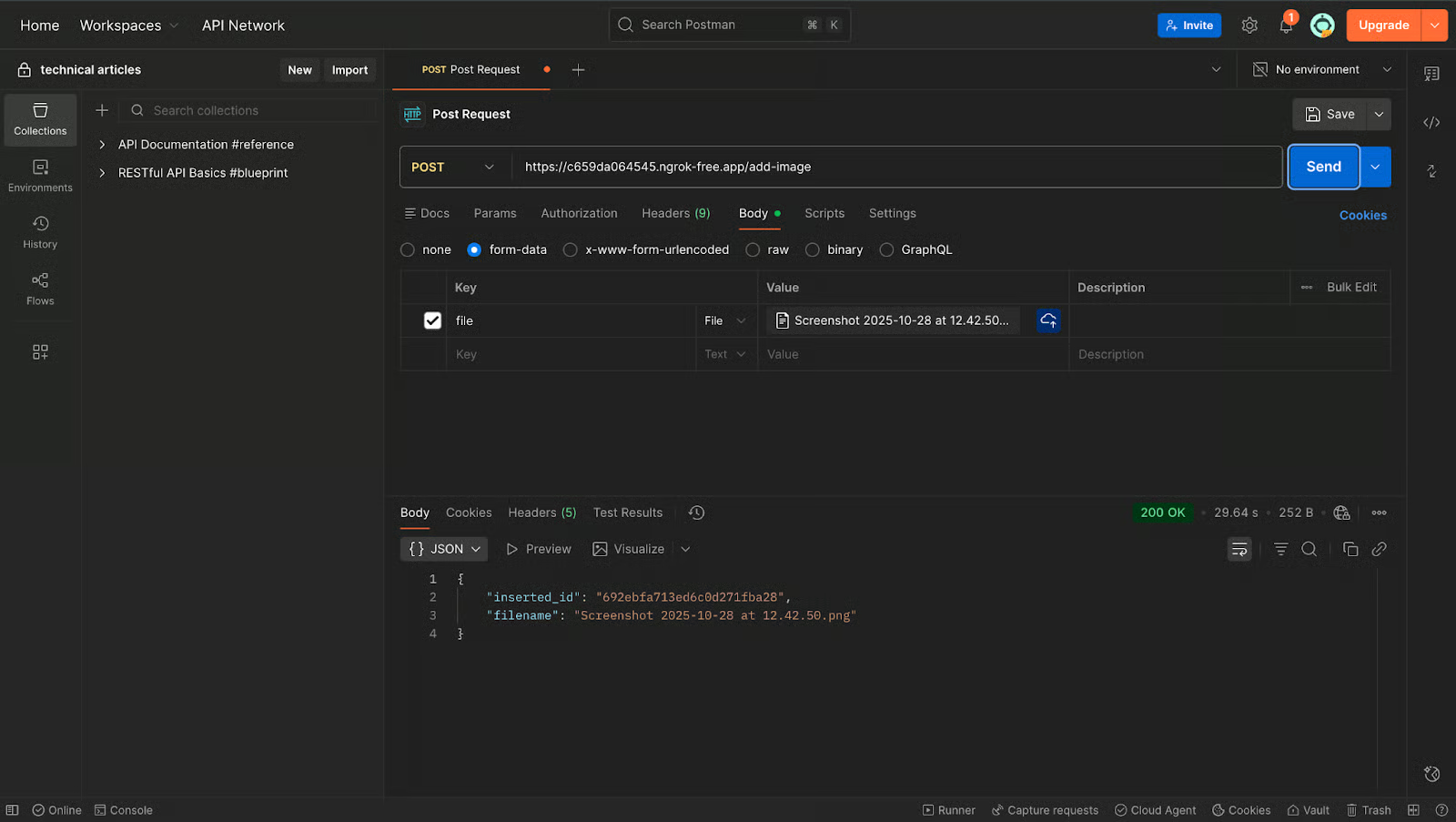
Si tout fonctionne, vous devriez obtenir :
{
  "inserted_id": "692454f6156fbb762ed865a0",
  "filename": "file-name.png"
}
À ce stade, vos embeddings d’images sont correctement stockés dans MongoDB.
Nous pouvons maintenant créer l’endpoint qui prend une image de requête, la convertit en embedding et retrouve les images les plus proches stockées grâce à notre index vectoriel d’images.
Ajoutez ceci à main.py :
@app.post("/search-image")
async def search_image(file: UploadFile = File(...)):
    """
    Upload an image and find the most visually similar images in MongoDB.
    """
    try:
        # Read the uploaded file
        image_bytes = await file.read()
        image = Image.open(io.BytesIO(image_bytes)).convert("RGB")

        # Generate embedding for the query image
        image_tensor = preprocess(image).unsqueeze(0).to(device)
        with torch.no_grad():
            query_embedding = clip_model.encode_image(image_tensor)

        query_embedding /= query_embedding.norm(dim=-1, keepdim=True)
        query_vector = query_embedding.cpu().numpy().flatten().tolist()

        # Vector search pipeline
        pipeline = [
            {
                "$vectorSearch": {
                    "queryVector": query_vector,
                    "path": "embedding",
                    "numCandidates": 100,
                    "limit": 5,
                    "index": "vector_images_search"
                }
            },
            {
                "$project": {
                    "filename": 1,
                    "score": {"$meta": "vectorSearchScore"},
                    "_id": 0
                }
            }
        ]

        results = list(images_coll.aggregate(pipeline))
        return {"results": results}

    except Exception as e:
raise HTTPException(status_code=500, detail=str(e))Pour tester avec Postman, envoyez une requête POST vers l’endpoint /search-image. Joignez le form-data en corps de requête avec une image similaire à celles stockées plus tôt. L’image ci-dessous illustre la démarche.
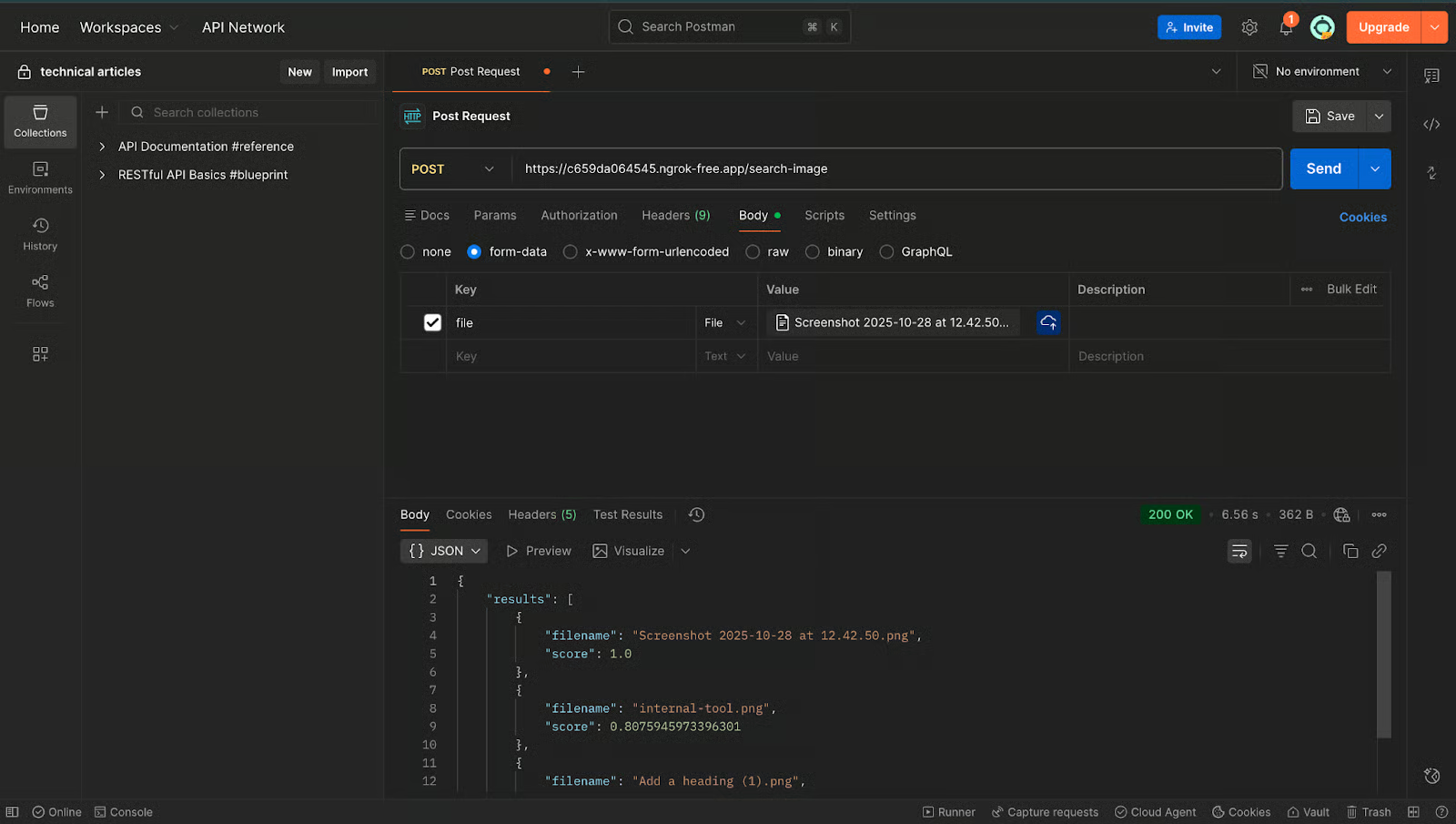
La sortie attendue ressemble à ceci :
{
  "results": [
    {
      "filename": "image1.png",
      "score": 1.0
    },
    {
      "filename": "image2.png",
      "score": 0.81
    }
  ]
}
Un score de 1.0 signifie qu’il s’agit de la même image. Toute valeur proche (0,7–0,9) indique une forte similarité visuelle.
Si vous obtenez un tableau de résultats, votre recherche vectorielle d’images est opérationnelle.
À ce stade, si tout fonctionne, nous disposons d’un système complet de recherche sémantique pour le texte et l’image.
Dans ce tutoriel, nous avons construit un flux de recherche sémantique complet avec FastAPI et MongoDB Atlas. Nous avons généré des embeddings de texte avec SentenceTransformers, créé des embeddings d’images avec un modèle CLIP, tout stocké dans MongoDB et interrogé le tout grâce à Vector Search de MongoDB et Postman. Ce schéma constitue la base d’applications comme la recherche sémantique de documents, la similarité d’images, les systèmes de recommandation et des fonctionnalités d’IA multimodales.
La force de cette architecture réside dans sa flexibilité : MongoDB ne vous impose pas de modèles spécifiques. Tant que les embeddings sont des vecteurs numériques et que leurs dimensions correspondent à la configuration de l’index, vous pouvez brancher n’importe quel modèle texte, image ou multimodal selon votre cas d’usage.
Sur cette base, vous pouvez aller plus loin : stocker des métadonnées, bâtir une logique de classement ou intégrer le tout à des applications orientées utilisateur. Le même flux passe à l’échelle sans effort grâce aux services entièrement gérés de MongoDB Atlas.
Retrouvez le projet complet et fonctionnel sur GitHub.
Les meilleurs cours DataCamp
Cours
Cours
S'entraîner et cursus vos progrès.
Continuer Avec Googleblog
Kurtis Pykes
15 min
Tutoriel
Tutoriel
Moez Ali
6 min
Tutoriel
DataCamp Team
3 min
Tutoriel
Sejal Jaiswal
6 min
Tutoriel
Matt Crabtree
5 min