
Cours
Concepts d'IA générative
2 h
119K
Si vous souhaitez suivre les dernières sorties dans ce domaine, nous vous conseillons notre guide sur les meilleurs modèles de génération vidéo.
Kling AI est une plateforme d'IA générative conçue pour créer des vidéos à partir de textes, d'images ou d'une combinaison des deux. Développée par la société technologique chinoise Kuaishou, elle s'est rapidement imposée parmi les meilleurs modèles pour la cohérence des personnages. Les vidéos générées intègrent un son natif, pour un rendu propre et prêt à l'emploi.
Comme beaucoup de modèles vidéo IA, la tarification de Kling AI repose sur des crédits. On paie un abonnement mensuel donnant accès à un nombre fixe de crédits. D'autres petites fonctionnalités varient selon la formule, mais le principal différenciateur reste le volume de crédits de génération inclus.
Pour rédiger cet article, j'ai utilisé leur offre Pro (32,56 $ par mois), qui inclut 3 000 crédits. Pour plus de détails sur les formules, consultez la page officielle des tarifs Kling AI.
La consommation de crédits dépend principalement de trois facteurs :
En supposant une génération avec audio natif, avec un abonnement Pro, on peut s'attendre à environ 6 minutes de vidéo 720p ou 4 minutes en 1080p par mois.
Les exemples de cette section proviennent du guide utilisateur officiel du modèle Kling 3.0.
La plupart des modèles vidéo IA fonctionnent mieux lorsque le prompt décrit un seul plan ou une seule action. Kling 3.0 comprend un prompt qui décrit plusieurs plans en une seule fois.
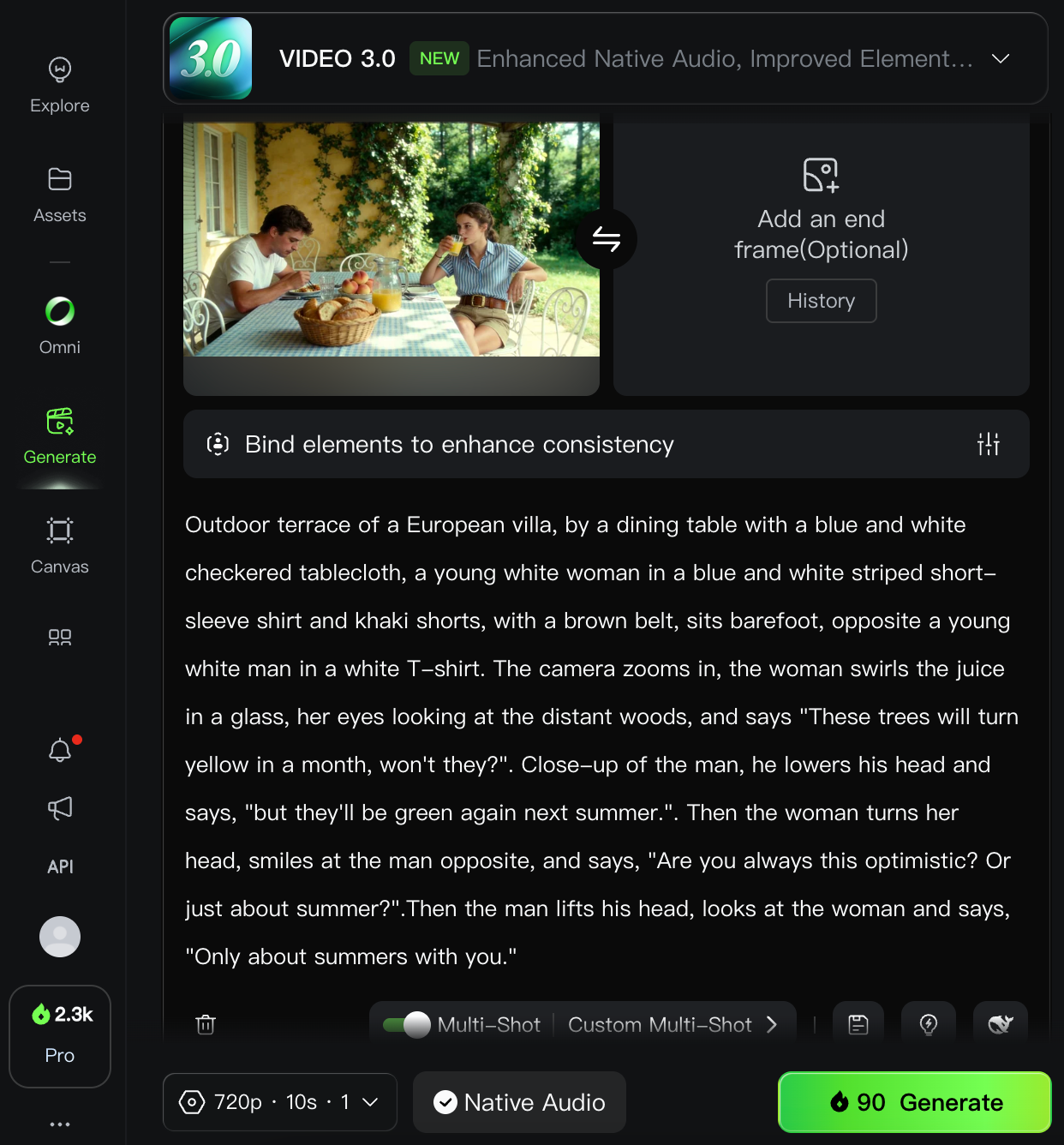
L'exemple ci-dessous présente le décor et quatre plans sans les énumérer explicitement :
Outdoor terrace of a European villa, by a dining table with a blue and white checkered tablecloth, a young white woman in a blue and white striped short-sleeve shirt and khaki shorts, with a brown belt, sits barefoot, opposite a young white man in a white T-shirt.
The camera zooms in, the woman swirls the juice in a glass, her eyes looking at the distant woods, and says, "These trees will turn yellow in a month, won't they?"
Close-up of the man, he lowers his head and says, "But they'll be green again next summer."
Then the woman turns her head, smiles at the man opposite, and says, "Are you always this optimistic? Or just about summer?"
Then the man lifts his head, looks at the woman, and says, "Only about summers with you."
Le prompt était associé à une image, utilisée par le modèle comme premier cadre de la vidéo.
Voici le résultat :
J'ai trouvé cette vidéo très convaincante. L'adhérence au prompt est forte et le rendu me paraît très réaliste.
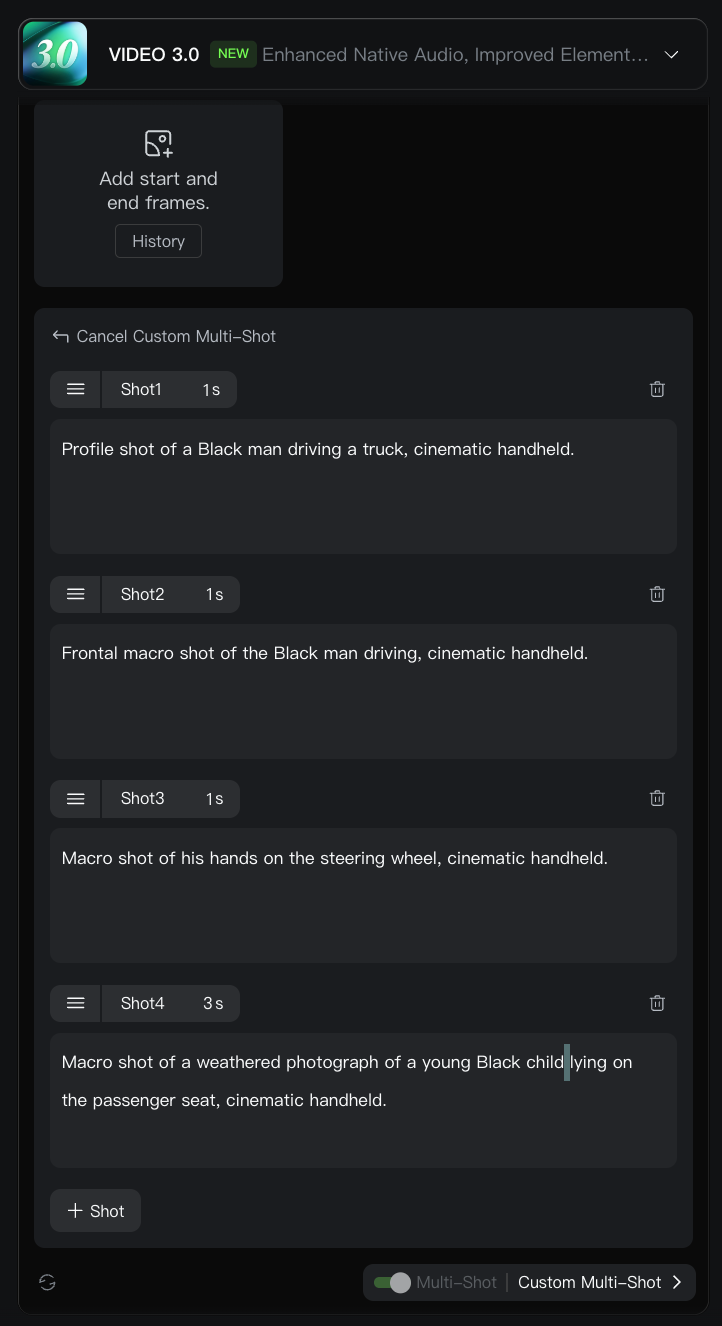
Même si le modèle sait délimiter des plans à partir d'un prompt texte, il n'est pas infaillible et peut interpréter différemment de ce qu'on attendait. On peut imposer la structure d'une scène en mentionnant explicitement les plans dans le prompt.
Shot 1: Profile shot of a Black man driving a truck, cinematic handheld.
Shot 2: Frontal macro shot of the Black man driving, cinematic handheld.
Shot 3: Macro shot of his hands on the steering wheel, cinematic handheld.
Shot 4: Macro shot of a weathered photograph of a young Black child lying on the passenger seat, cinematic handheld.
Pour spécifier chaque plan, cliquez sur le bouton Custom Multi-Shot en bas du champ de prompt. Vous pouvez y définir un prompt et une durée pour chaque plan. Le modèle accepte jusqu'à 6 plans par vidéo.
Voici le résultat de ce prompt multi-plans :
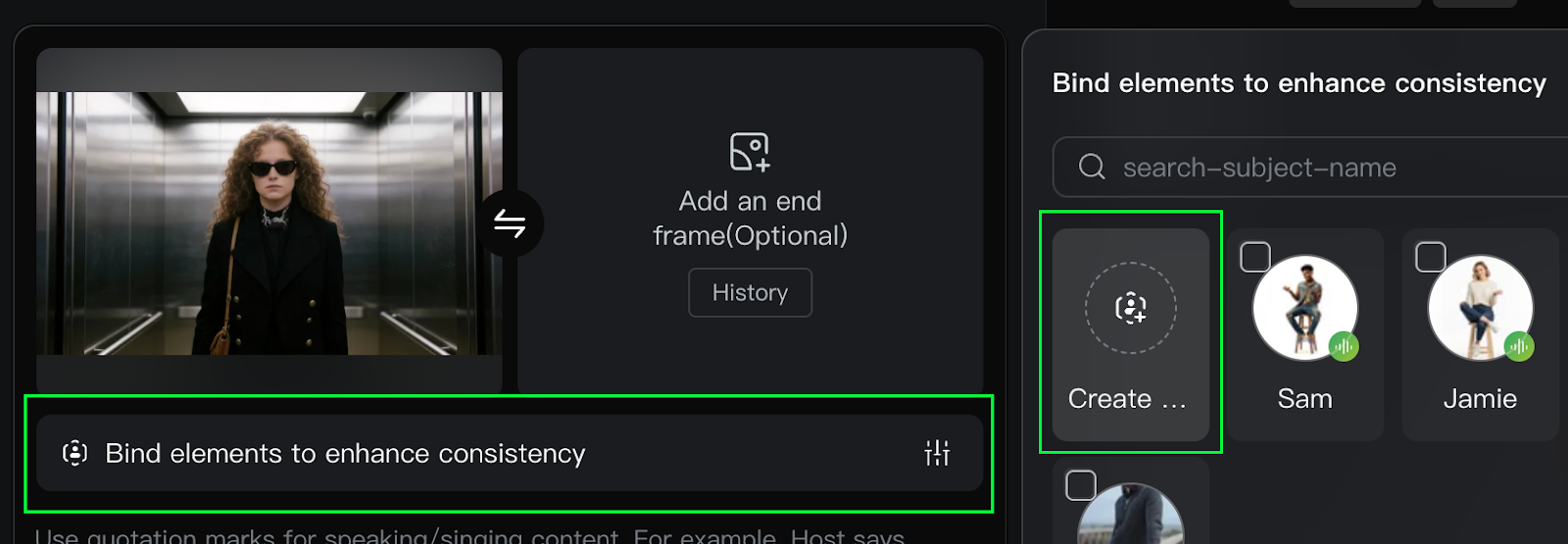
L'ancrage de sujet permet de conserver des personnages ou éléments visuels spécifiques tout au long d'une vidéo générée. En figeant l'apparence et les caractéristiques du sujet, on assure une focalisation stable et reconnaissable, même lors de mouvements de caméra (zoom, panoramique, inclinaison).
Après avoir téléversé une image comme premier cadre, on active cette fonction en sélectionnant l'option Bind elements to enhance Consistency. Le système crée alors une référence pour maintenir la stabilité visuelle et éviter les variations indésirables du sujet pendant la génération.
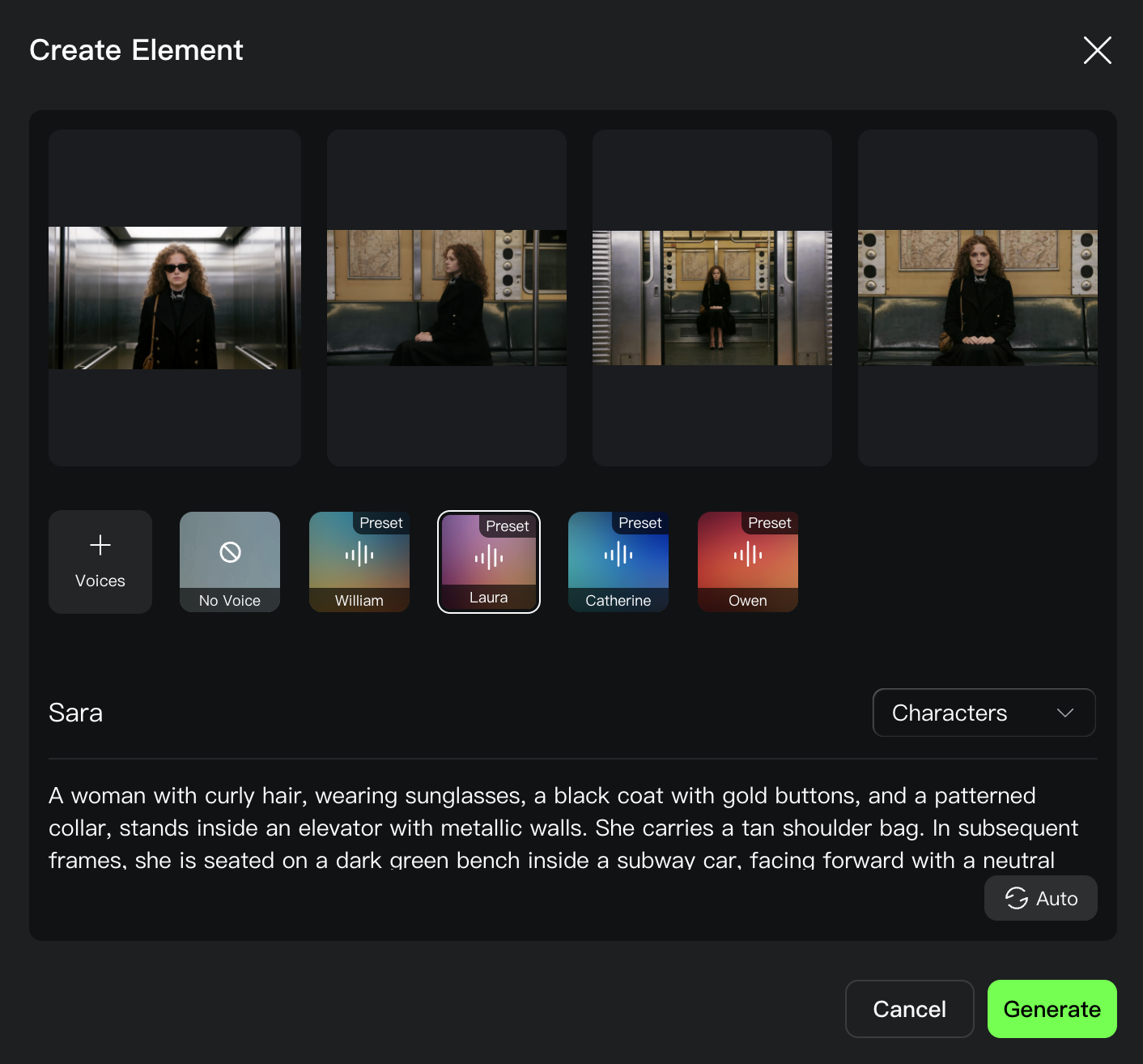
Sans ancrage, le modèle doit deviner les attributs non visibles dans l'image initiale. Par exemple, sur l'image ci-dessus, le sujet porte des lunettes de soleil : il serait utile de fournir un portrait découvert. D'autres poses (regards à gauche et à droite) aident aussi le modèle à ne pas « inventer » l'apparence de la personne.
Lors de la création d'un élément, on peut fournir jusqu'à trois images. On peut aussi choisir une voix et un nom pour le personnage.
Voici le résultat :
Personnellement, je trouve ces fonctions révolutionnaires, car la cohérence des personnages était l'un des aspects les plus frustrants de la génération vidéo par IA : il fallait souvent des prompts très détaillés et de nombreuses itérations pour y arriver.
Le mode Omni de Kling AI réunit toutes les fonctions dans un seul modèle. On peut le voir comme de l'ancrage de sujet sous stéroïdes : il permet de créer des éléments (personnages, décors, objets, etc.) puis de les convoquer dans un même prompt. On peut ainsi générer des scènes très complexes avec une grande précision.
Par exemple, on crée un élément « personnage » à partir d'images de référence, puis un élément « scène », et on place facilement le personnage dans ce décor. On peut aussi créer plusieurs personnages et écrire des dialogues entre eux en les référençant dans le prompt.
En mode Omni, on référence les éléments créés avec @. Une fenêtre surgissante permet alors de sélectionner l'élément voulu.
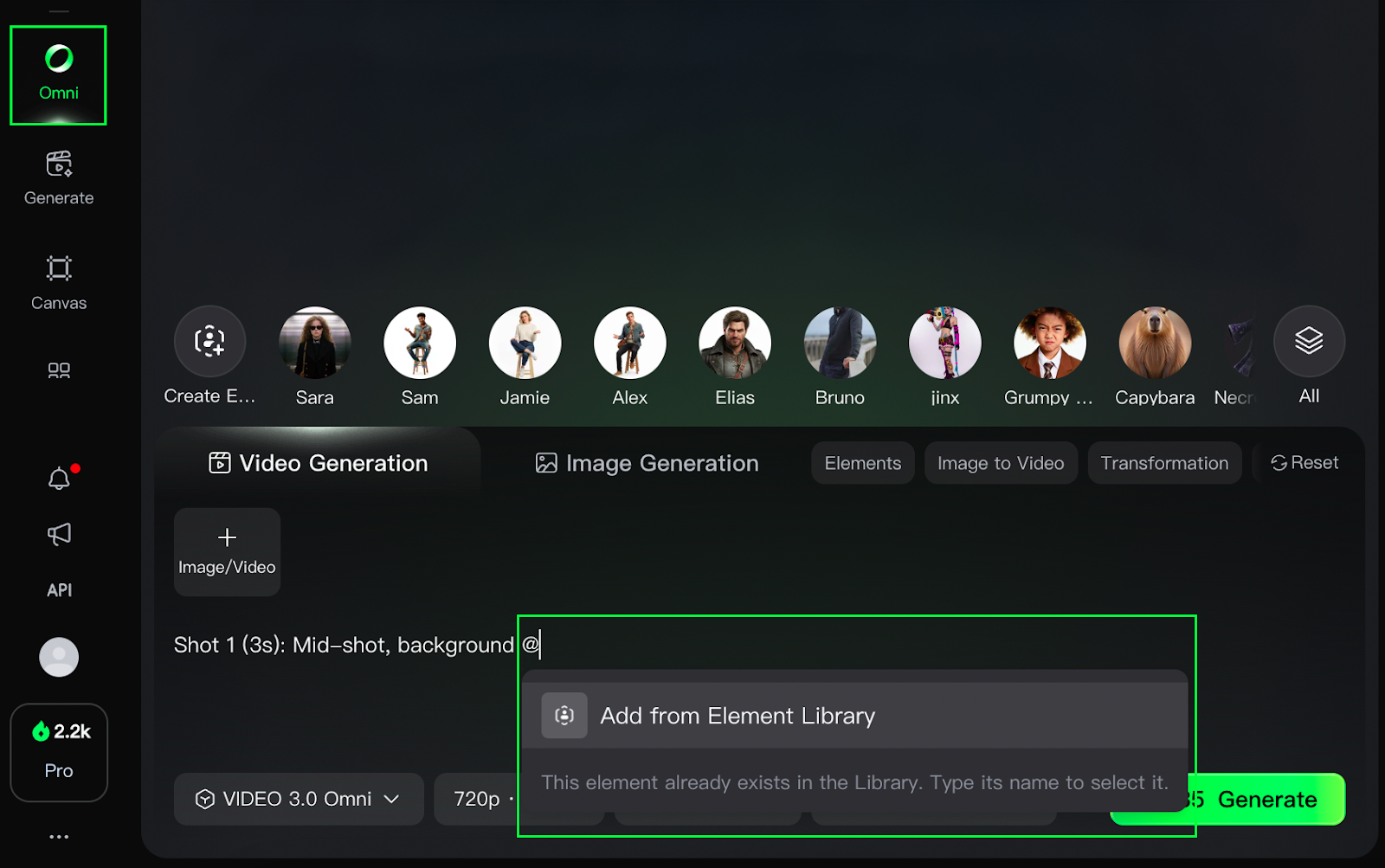
Voici un exemple en trois plans qui illustre la puissance et la polyvalence d'Omni :
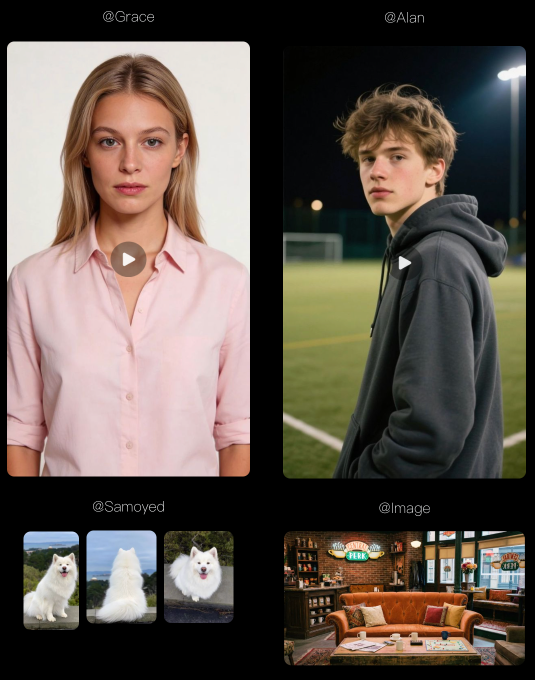
Shot 1 (3s): Mid-shot, background @Image. @Grace sits on the sofa eating cookies as @Alan walks in holding @Samoyed.@Samoyed lunges for the cookie in @Grace's hand. @Grace says, "Hey! Watch your dog!"
Shot 2 (2s): @Alan sits beside her, pulling the leash and lifting @Samoyed. Close-up, @Alan says, "He just likes cookies more than me."
Shot 3 (3s): Close-up, @Grace smiles and says, "Well, he has good taste at least."
Dans cet exemple, @Image, @Grace, @Alan et @Samoyed sont des éléments créés séparément puis utilisés ensemble dans un seul prompt.
Dans la section précédente, nous avons présenté les capacités essentielles de Kling 3.0 avec quelques exemples issus de leur site. Les résultats sont très impressionnants, mais il faut rester prudent : les démos officielles sont souvent triées sur le volet.
Dans cette section, nous faisons nos propres tests sur de nouveaux cas pour vérifier si le modèle tient vraiment ses promesses.
J'ai utilisé l'IA pour créer un personnage de fantasy. J'ai généré une image en pied, puis plusieurs poses différentes : regard à gauche, à droite, expression courroucée.
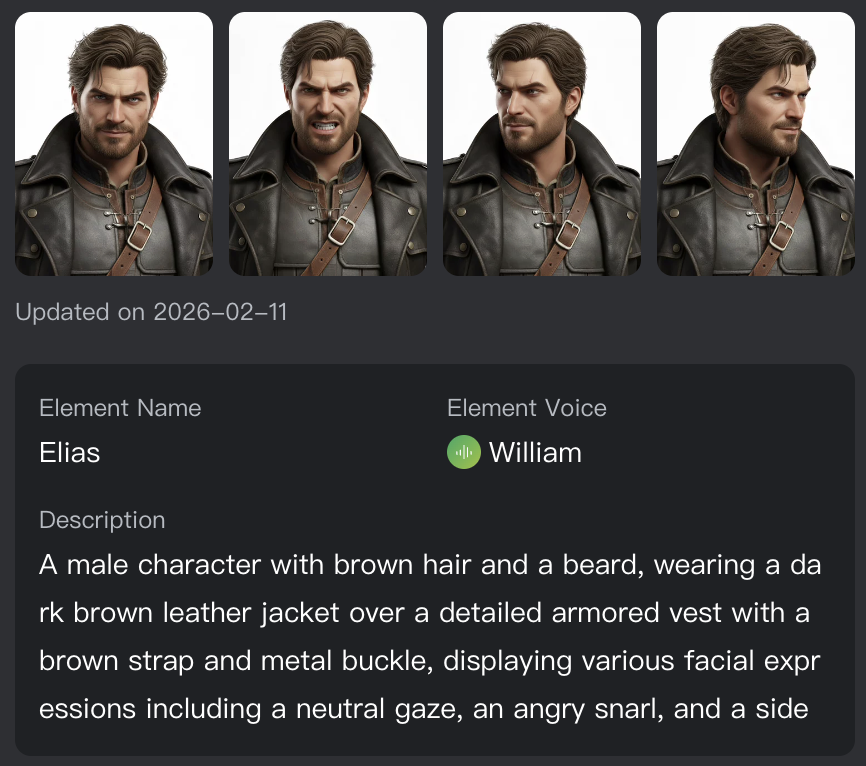
J'ai combiné ces éléments pour créer un personnage nommé Elias. J'ai ensuite généré une image de premier cadre et utilisé l'ancrage de sujet pour lier les deux.

Voici le prompt utilisé :
Elias stands alone in front of the burning village. Elias is breathing heavily, his hands clenched into tight fists at his sides.
Elias looks at something just off-camera, something we cannot see. Elias says, in a low and dangerous voice, "I told you what would happen if you crossed that line."
Elias pauses for a second.
The camera zooms in close to his face. His face burns with anger, and he says, "I gave you my word, and I gave you a choice."
Notez que je n'utilise pas les références @ car je n'ai pas activé le mode Omni pour cette vidéo, seulement l'ancrage de sujet. Voici le résultat
Ici, j'ai cherché à créer une scène de sitcom entre amis. J'ai conçu trois personnages, Alex, Jamie et Sam, via l'IA, en générant là encore plusieurs poses pour chacun.
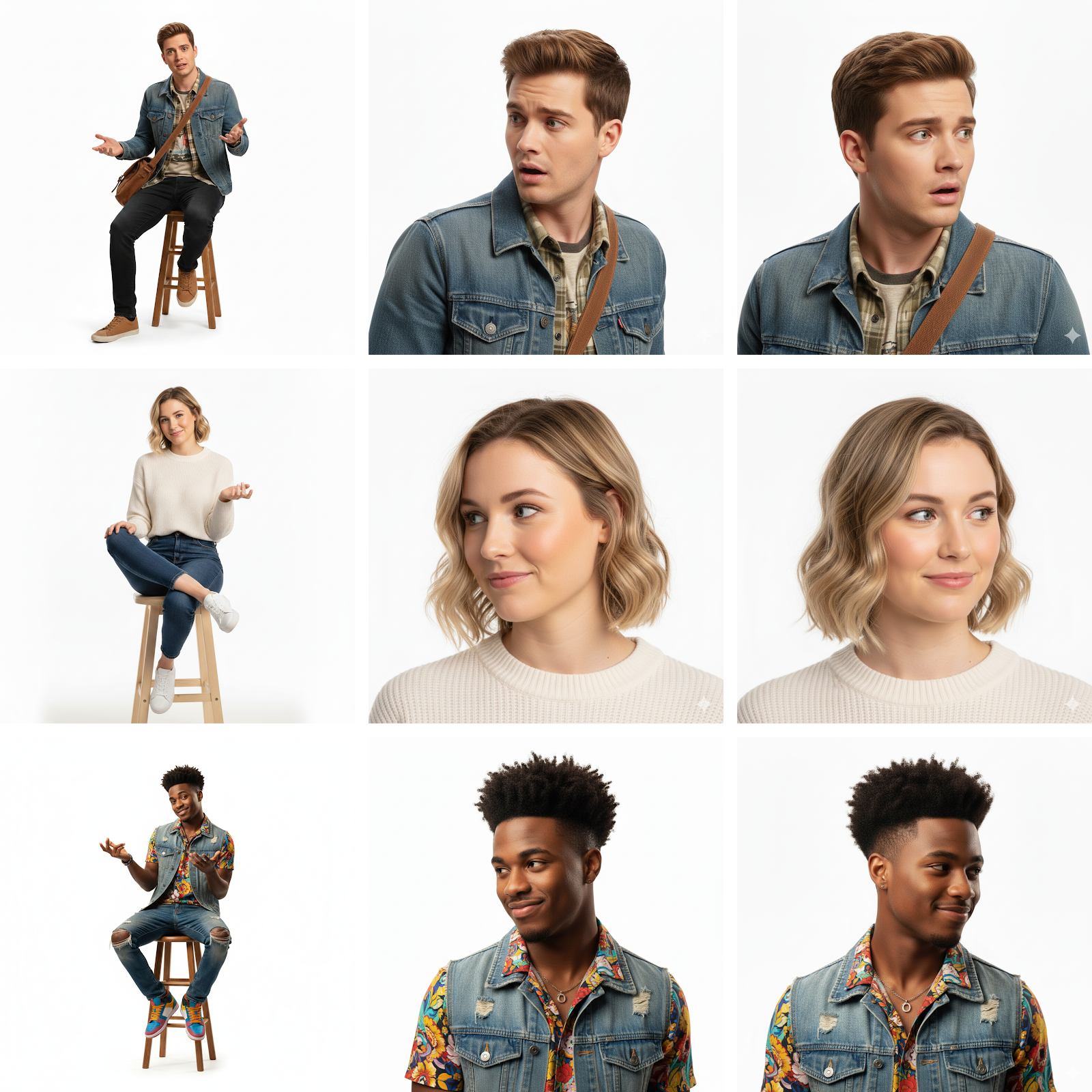
J'ai aussi généré une image de lieu et créé un élément de scène.
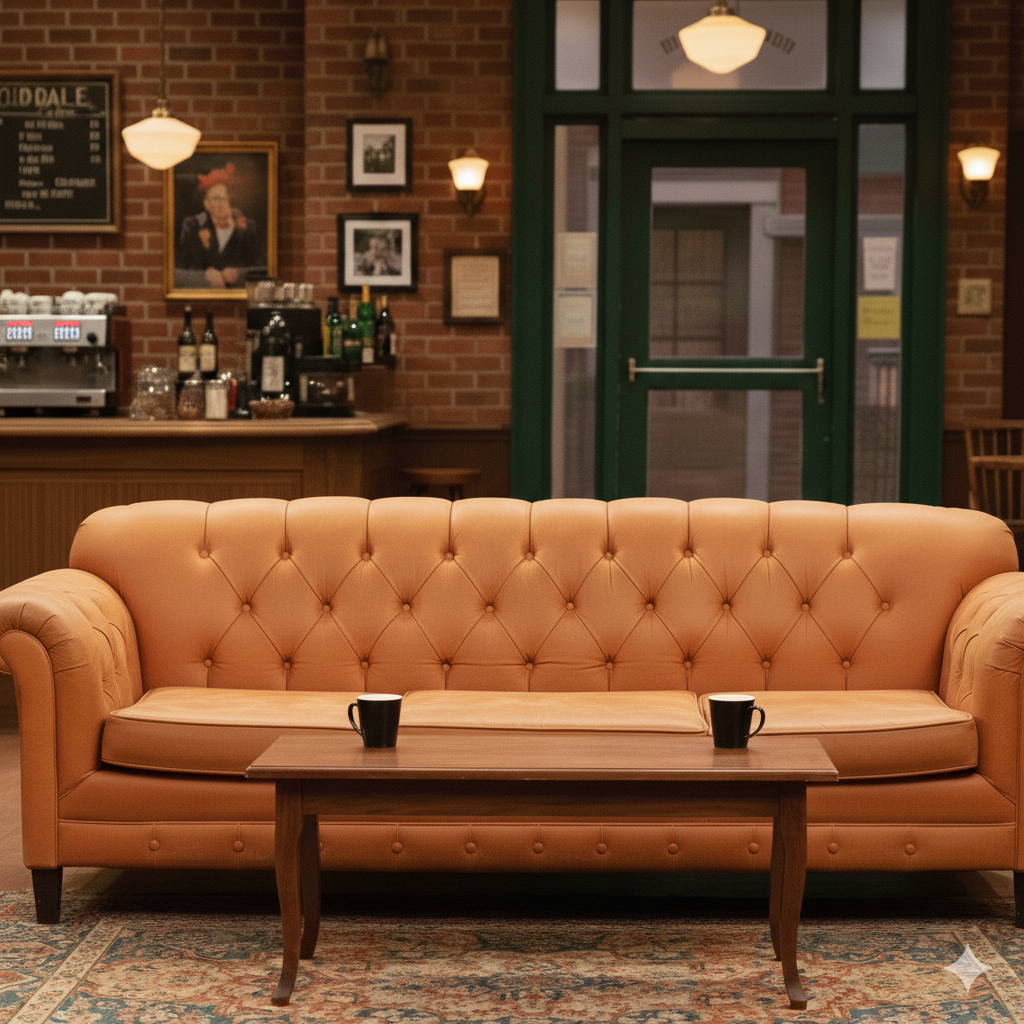
Voici le prompt final utilisé. J'ai décrit les plans en texte plutôt que d'utiliser la fonction multi-plans, car celle-ci limite à six plans. Kling 3.0 s'en sort très bien ainsi aussi.
Shot 1: Mid-shot, background @Image.
Shot 2: @Jamie and @Sam sit on the couch as @Alex rushes into the coffee shop and says, "I just liked my ex’s photo from 2016."
Shot 3: @Jamie turns to @Alex and says, "How bad?"
Shot 4: @Alex replies, "She’s with the guy she left me for."
Shot 5: Camera focuses on @Sam, and he replies, "Delete it, dude!"
Shot 6: @Alex replies, "I did, but what if she saw?"
Shot 7: @Sam says, "Then act confident, like her wedding photo."
Shot 8: @Jamie laughs, and @Alex says, "I need new friends..."
Et voici le résultat :
On remarque quelques imperfections :
Malgré cela, le rendu reste très convaincant : les personnages sont vivants et crédibles, et l'ensemble s'enchaîne plutôt bien.
Dans ce dernier exemple, j'ai réutilisé des personnages dans un contexte différent. L'idée était de jauger leur cohérence entre plusieurs vidéos pour voir si l'on pouvait créer des scènes multiples avec les mêmes personnages. Si l'apparence et le ressenti restent stables, je suis convaincu que Kling 3.0 peut servir à produire des formats longs.
Ici, j'ai utilisé la fonctionnalité multi-plans pour décrire chaque plan. Voici la configuration de la scène :
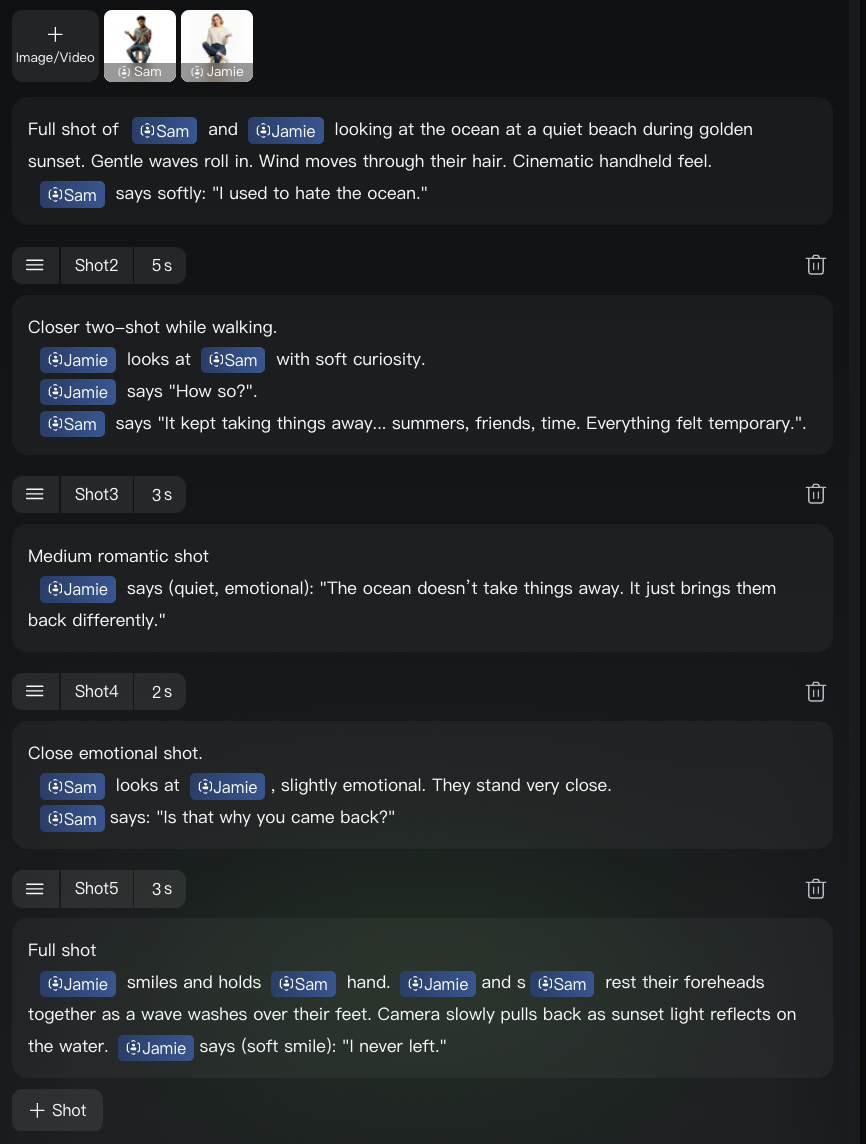
Voici la vidéo générée :
Cours sur l'IA générative
Cours
Cours
Cours
blog
Kurtis Pykes
9 min
blog
blog
Lynn Heidmann
blog
Kurtis Pykes
15 min
Tutoriel
Tutoriel
Laiba Siddiqui
14 min