
Course
Introduction to Google Sheets
2 hr
51.8K
Google Sheets is often where teams store and share data. But once you’re updating the same sheet repeatedly, manual copy-and-paste wastes time.
The Google Sheets API lets you update and manage sheets automatically from your own apps and scripts. You can pull data in, push updates out, and keep reports current without doing it by hand.
In this guide, we’ll walk you through how to set it up, read, write, format, and automate common spreadsheet tasks step by step.
To start using the Google Sheets API, you need a Google Cloud project and a way to authenticate your app. Let’s see how to set this up at a high level.
All Google APIs run inside a Google Cloud project. This project holds your credentials, API settings, and usage limits.
Here’s how to create your first project:
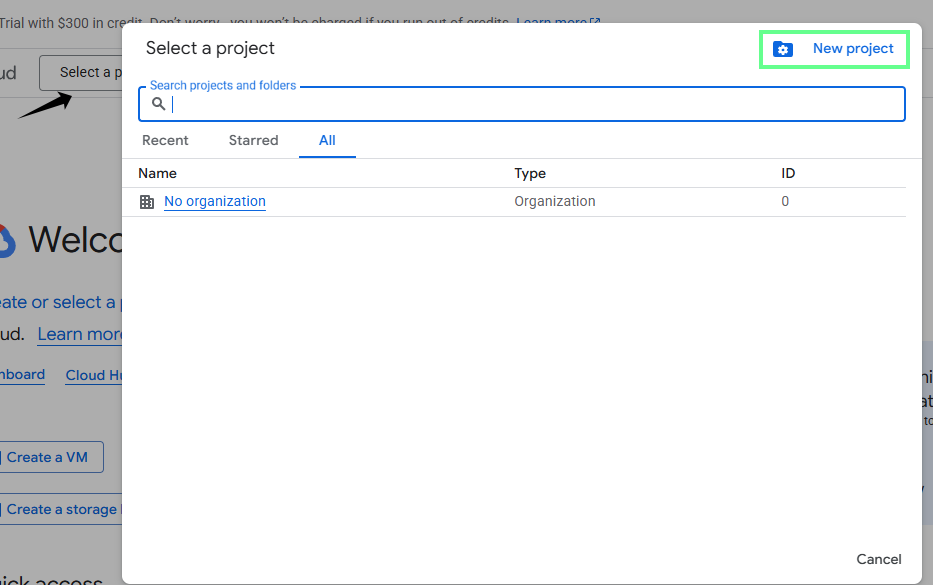
Create a new project in Google Console. Image by Author.
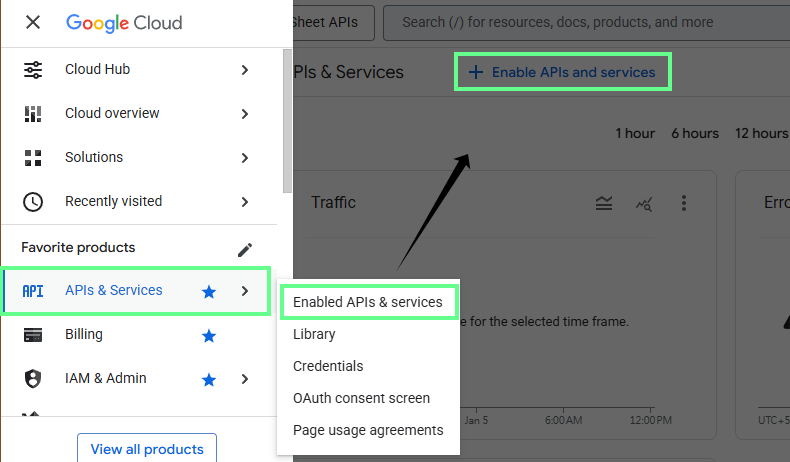
Once the project is ready, enable the required APIs:
Go to Enable APIs & Services to enable the API. Image by Author.
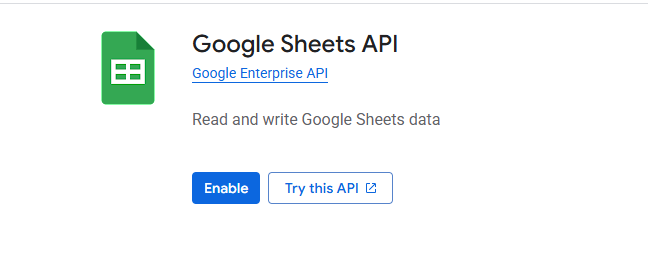
Enable Google Sheets API. Image by Author.
If your application needs to create, move, or manage spreadsheet files, enable the Google Drive API as well:
The Google Sheets API supports three primary authentication methods. Which one you use depends on how your app works.
Use this when real users sign in and work with their own spreadsheets. This allows users to approve access, and your app can only do what they allow.
Suppose you’re building a web app that lets users connect their Google accounts so your app can read or update their personal Sheets. In this case, go for the OAuth 2.0.
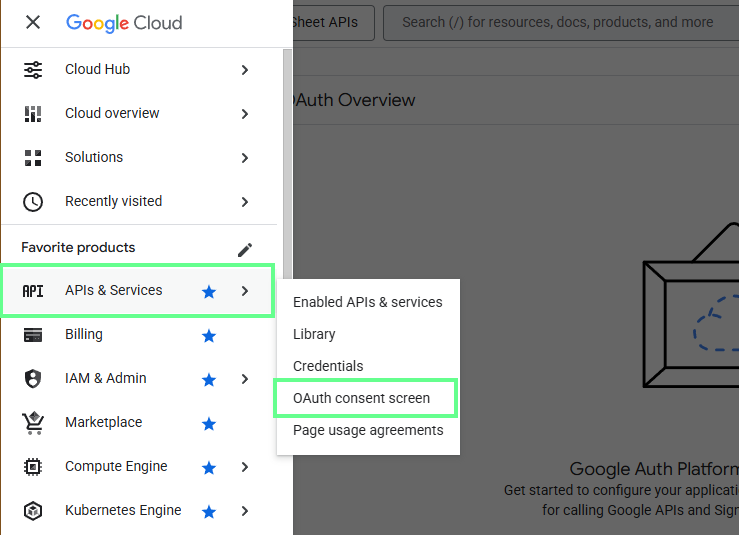
Here’s how to do it:
Go to the OAuth consent screen. Image by Author.
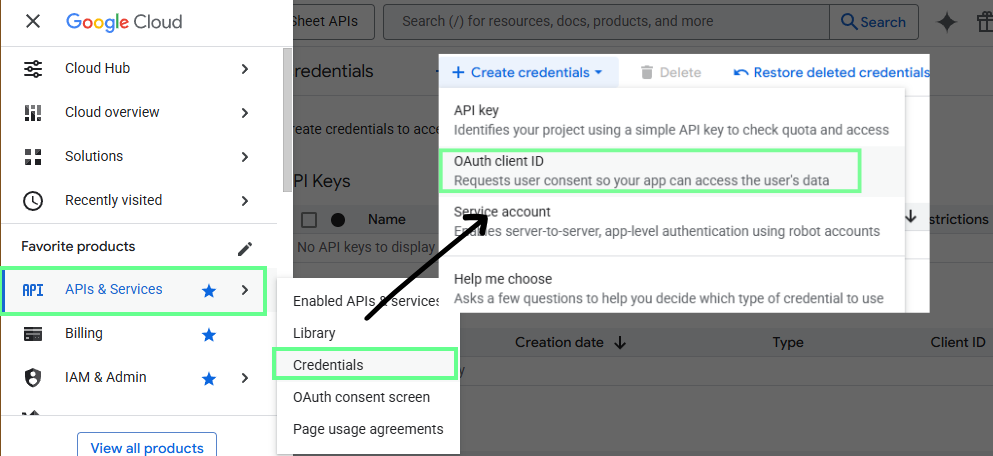
Now, to authenticate end users and access their Google Sheets data, create OAuth 2.0 client credentials. A client ID uniquely identifies your application to Google’s OAuth servers.
Here’s how to do it:
Go to the OAuth client ID. image by Author.
API keys identify your project, not a user. They only work with public spreadsheets and can’t edit private files.
That’s why you should use this only when you want to read data from a public Google Sheet to display it on a website or test a simple script.
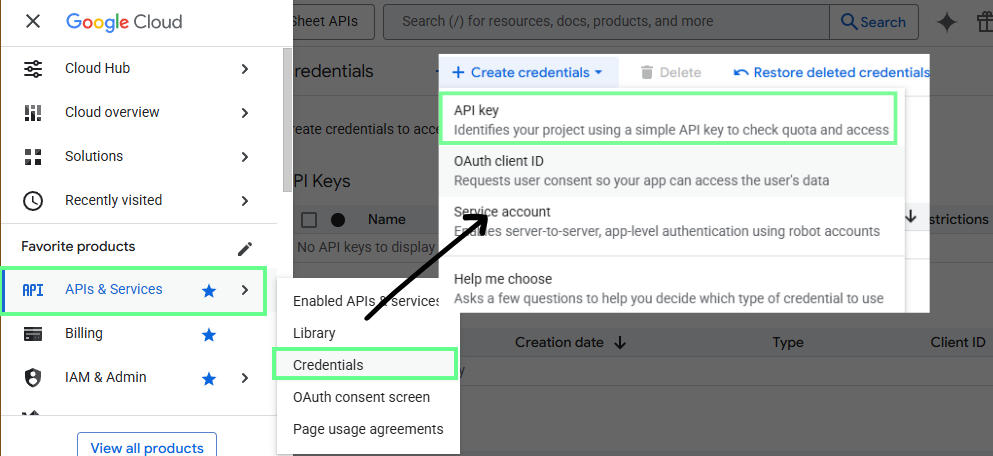
Here’s how to generate your API key:
Go to API Keys. Image by Author.
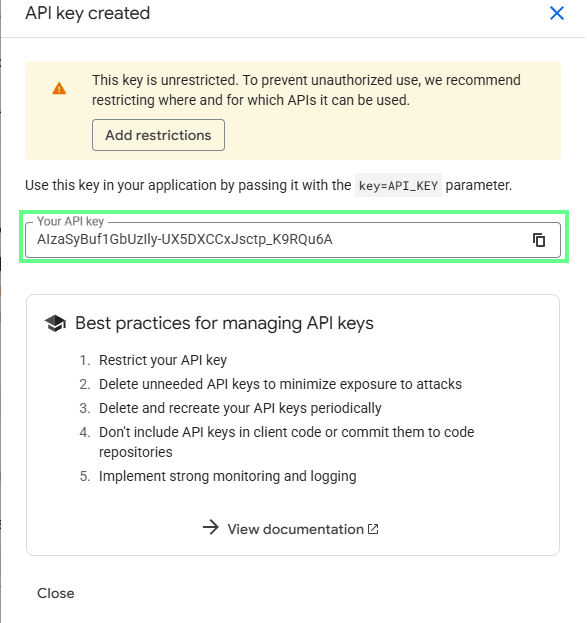
Save the generated API key. Image by Author.
Service accounts let your app run on its own, without user sign-in. You share specific spreadsheets with the service account email and control what it can do.
If you want to run a scheduled script that updates a report every night or syncs data from a database into a shared Google Sheet, service accounts would be the best option.
Let’s see how to create and configure them:
Here’s how to do this:
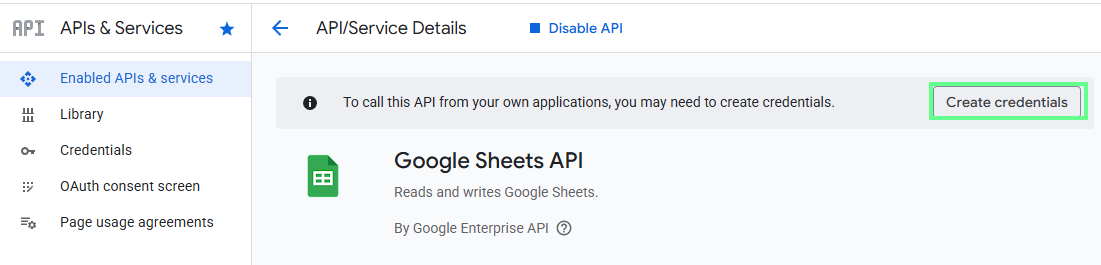
Create Credentials in Google Sheets API. Image by Author.
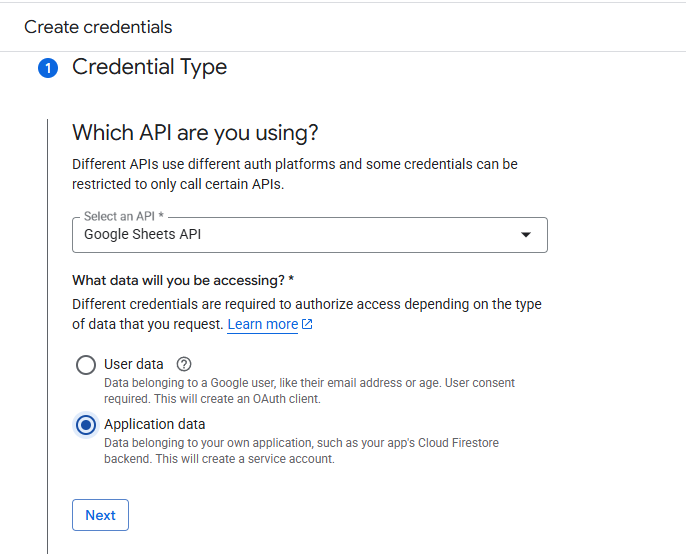
Enter credentials. Image by Author.
A pop-up will appear showing Service account created.
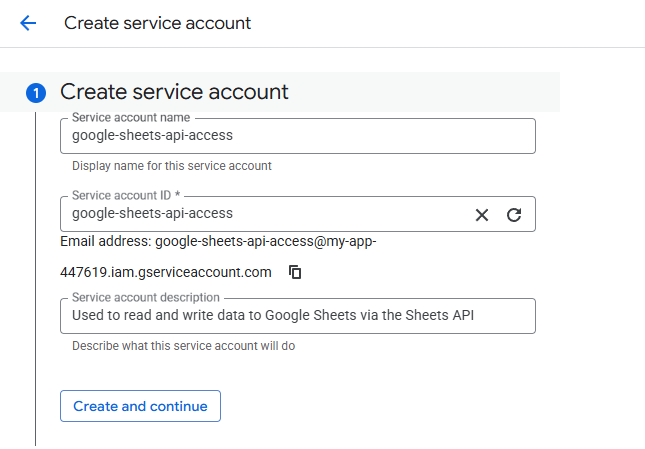
Create a service account in the Google Sheets API. Image by Author.
A service account does not use a login or consent screen. Instead, it authenticates using a private key stored in a JSON key file. This key file enables the application server to prove its identity to Google and automatically request access tokens.
Now, to generate a key file:
Now, the file will start downloading.
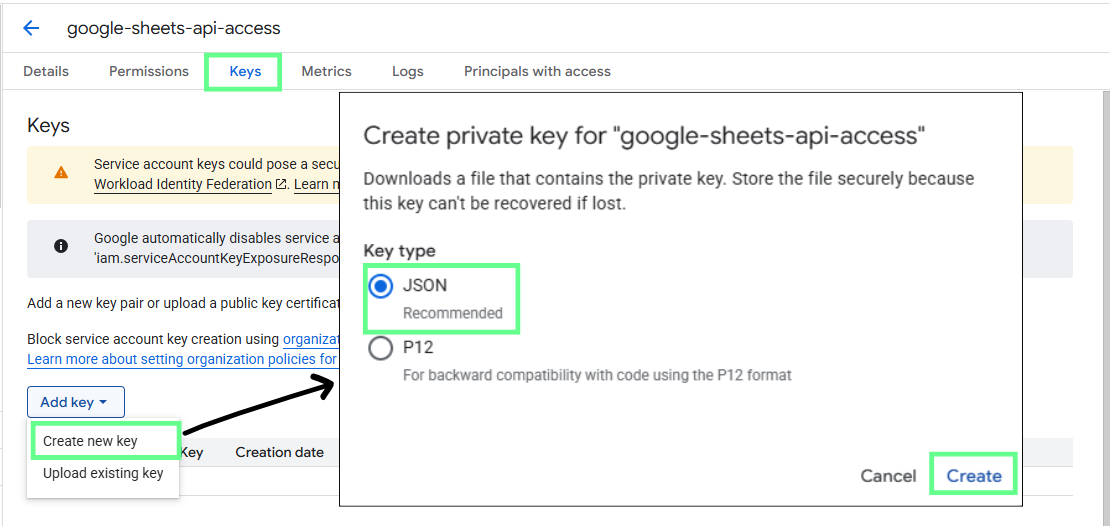
Generate a JSON key file for the Google Sheets API. Image by Author.
Service accounts do not automatically have access to your spreadsheets. You must share each file with the service account email.
To do so:
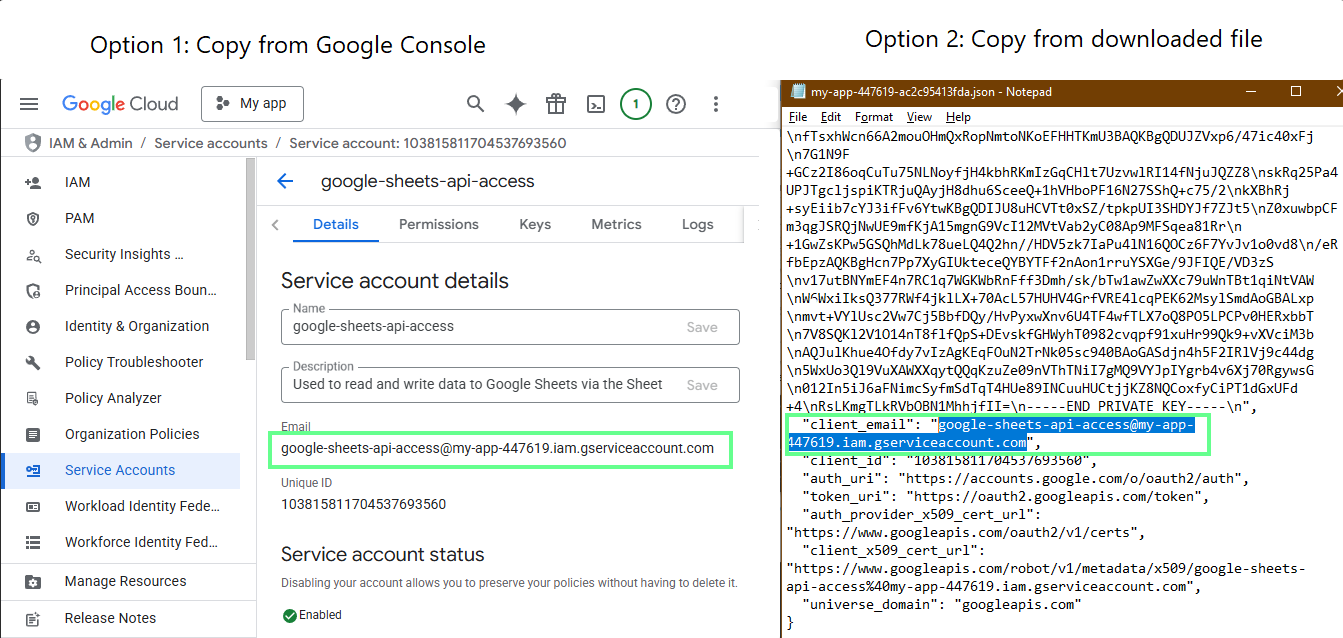
Copy the client email from the JSON key file. Image by Author.
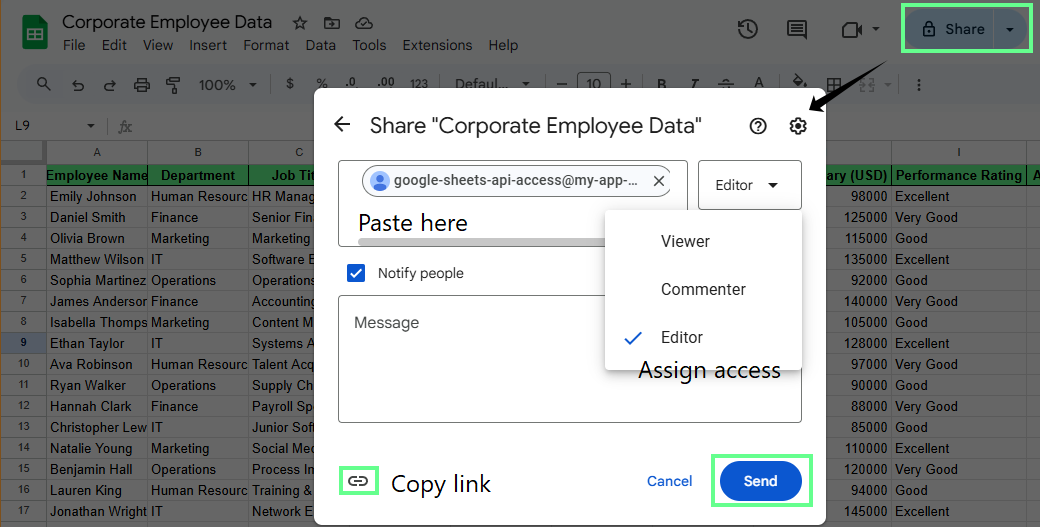
Share the service account access through Google Sheets. Image by Author.
Google provides official client libraries that simplify working with the Sheets API. They handle authentication, request formatting, and retries for you. In fact, this is easier and safer than sending raw HTTP requests.
Here are common installation examples for popular languages:
Python
pip install google-api-python-client google-auth google-auth-oauthlibNode.js
npm install googleapisJava (add the client library using Maven)
<dependency>
  <groupId>com.google.apis</groupId>
  <artifactId>google-api-services-sheets</artifactId>
</dependency>Note: Client libraries save setup time and reduce errors as your project grows.
The Google Sheets API is mainly used to read, write, update, and format spreadsheet data. Let's understand these:
To read data from a Google Sheet, you need two things: the spreadsheet ID and the cell range you want to access.
The spreadsheet ID comes from the Google Sheets URL. It’s the long string between /d/ and /edit. This tells the API which spreadsheet to read from.
For example, if my Sheets URL is: https://docs.google.com/spreadsheets/d/1s4-xSl1ztvdXmCUISe14XZWduQoJ4Ignz_HrgqsExPI/edit?gid=0#gid=0
In this case, the Spreadsheet ID is: 1s4-xSl1ztvdXmCUISe14XZWduQoJ4Ignz_HrgqsExPI

Spreadsheet ID. Image by Author.
The range is written using A1 notation, which describes cells using column letters and row numbers. For example:
A1 reads a single cell
A1:C10 reads a block of cells
Sheet1!A:A reads an entire column
Sheet1!1:1 reads an entire row
To fetch values, the API provides two main methods:
spreadsheets.values.get reads data from a single range. Use it when you know exactly which table or block you need.
spreadsheets.values.batchGet reads data from multiple ranges in one request. Use it when you want data from several places at once, such as totals from one sheet and details from another.
Reading data does not change the spreadsheet. It simply returns values for your app to use elsewhere. So, you can use this for pulling data into dashboards, exporting data for analysis, and generating automated reports.
Writing data works much like reading data. You still need a spreadsheet ID and a range, but this time you also send the values you want to write.
The Google Sheets API provides two main methods for this:
spreadsheets.values.update: Use this when you want to write data to a specific range and overwrite what’s already there. For example, if you want to replace the header row of a table with new column names, update is the right choice. The values you send will replace the existing cells in that range.
spreadsheets.values.append: Use this when you want to add new rows without affecting existing data. This is useful when your data keeps growing, such as logging daily metrics, adding new records, or storing form responses. The API automatically inserts the new values after the last non-empty row.
When writing data, you also need to choose how Google Sheets should treat the values you send. This is controlled by ValueInputOption.
RAW stores the value exactly as you send it
USER_ENTERED treats the value as if it were typed into the sheet
For example, if you send =SUM(1,2):
With RAW, it is stored as plain text
With USER_ENTERED, it is evaluated as a formula
Choosing between update and append depends on how your sheet is structured.
Use update when:
Use append when:
Batch operations let you group multiple changes into a single API request. This reduces the number of calls your app makes and helps you stay within usage limits.
There are two common batching patterns in the Google Sheets API.
For working with values, you can use:
spreadsheets.values.batchGet to read multiple ranges at once
spreadsheets.values.batchUpdate to write to multiple ranges in one request
For structural and formatting changes, use spreadsheets.batchUpdate. This is the most helpful batching method and supports many actions in a single request.
With spreadsheets.batchUpdate, you can combine changes such as:
For example, instead of sending separate requests to rename a spreadsheet and create a new tab, you can do both in one batchUpdate call. This is faster and easier to manage as your workflows grow.
You can use batch operations for setting up reports, applying consistent formatting, or making large updates across a spreadsheet.
Updating data means replacing values in specific cells or ranges. This is usually done when you want to refresh numbers, update KPIs, or overwrite a fixed output area in a sheet.
To update existing values, use spreadsheets.values.update. Here, you specify the target range and send the new values, and the existing data in that range is replaced.
Clearing data and deleting data are not the same thing:
Clearing data removes the values inside cells but keeps the sheet, layout, and formatting intact. Use spreadsheets.values.clear when you want to empty a range without affecting the structure.
Example: Clearing an old report section before writing fresh data into the same cells.
Deleting data removes an entire sheet tab. This is done using spreadsheets.batchUpdate with a deleteSheet request. Deleting a sheet permanently removes its data and structure.
Because deleting a sheet is irreversible, it’s best used sparingly and only when you’re sure the data is no longer needed.
Beyond reading and writing data, the Google Sheets API lets you control how spreadsheets look and behave. This makes it possible to automate formatting and visual rules at scale.
The Google Sheets API lets you apply cell formatting programmatically rather than through the Sheets UI. This includes text styles, colors, number formats, and layout changes.
All formatting changes are sent as JSON requests using spreadsheets.batchUpdate. Each request describes what to change and where to apply it.
Common formatting tasks include:
For example, a formatting request can target the first row of a sheet and make it bold with a light background color. The request uses zero-based indexes, where row 0 represents the first row.
Conditional formatting lets you style cells automatically based on their values. If you want Sheets to highlight important data without manual review, conditional formatting can help.
Using the API, conditional formatting rules are defined in JSON and applied via spreadsheets.batchUpdate.
You can use this for:
For example, you can define a rule that highlights any value below 0 in a specific column. Once applied, the formatting updates automatically as the data changes.
The Google Sheets API can create and update pivot tables through code. Pivot tables summarize large datasets without changing the original data, which helps with reporting and analysis.
All you have to do is define pivot tables using JSON requests and apply them with spreadsheets.batchUpdate. These requests describe how data should be grouped, summarized, and displayed.
Through the API, you can:
For example, you can group rows by keyword and automatically calculate total clicks and impressions. As the underlying data changes, the pivot table updates automatically.
Connected Sheets lets Google Sheets work directly with BigQuery. BigQuery handles large datasets, while Sheets is used for analysis and reporting.
Instead of copying millions of rows into a sheet, Connected Sheets runs queries on BigQuery and displays the results. This keeps spreadsheets fast and responsive, even with very large datasets.
The connection is created from inside Google Sheets. The Google Sheets API is not used to set up the connection itself.
So, here’s how it works:
Once connected, you can build pivot tables, apply formulas, and create reports directly in Sheets.
Access to Connected Sheets is controlled through Google Cloud Identity and Access Management.
The account connecting Sheets to BigQuery must have:
The authentication is handled automatically through the Google Sheets interface.
However, you should be aware of some limits. While the Sheets API can read data from Connected Sheets and apply formatting or build pivot tables, it cannot modify the underlying BigQuery query or write data back to BigQuery-backed ranges.
That’s why connected Sheets work best for analysis and reporting, not for inserting or editing raw data.
Not every workflow requires custom code. Several no-code and low-code tools connect directly to the Google Sheets API and handle the technical details for you. The three most popular options include:
These tools provide visual interfaces for selecting data sources, setting schedules, and sending results to Google Sheets. They handle authentication, API requests, and error handling in the background.
This makes no-code tools a good fit for marketers and analysts who need reliable data pipelines without writing code. They also reduce setup time for common reporting and dashboard use cases.
For most projects, you can use the Google Sheets API for free. The main thing to understand is how usage limits work.
Google does not bill you per request or per spreadsheet action. Instead, usage is controlled by quotas.
As long as your project stays within those limits, you can use the API at no cost. If you exceed them, requests are temporarily blocked until usage drops or limits are increased.
The Google Sheets API imposes limits to maintain performance stability and prevent abuse. These limits usually apply per project and, in some cases, per user.
Most projects run into two main types of limits:
1. Requests per minute: This limit controls how many API calls your project can send in a short time. Too many small requests sent at once may trigger temporary errors.
By default, the Google Sheets API allows:
|
Read requests |
Write requests |
|
300 requests per minute per project |
300 requests per minute per project |
|
60 requests per minute per user |
60 requests per minute per user |
2. Requests per day: For reading and writing data, there is no fixed daily limit on how many requests your project can make. You can keep using the API throughout the day (24-hour period).
Limits mostly apply to how many requests you send per minute, not the total for the day.
To stay within the limits and avoid any issues:
When you automate Google Sheets, performance issues usually come from sending too many requests too quickly. So, it’s important to understand how quotas work.
Google applies quotas to limit how many requests your project can send within a given time. Some limits apply per project, and others apply per user.
These limits directly affect automated workflows. If your script sends too many requests too fast, the API starts returning errors, and the workflow stops. This often happens when scripts:
Monitoring usage helps you catch problems early. In the Google Cloud Console, you can see how close your project is to its limits and spot sudden spikes in activity. Here’s how:
If you notice sudden spikes, that usually signals inefficient request patterns.
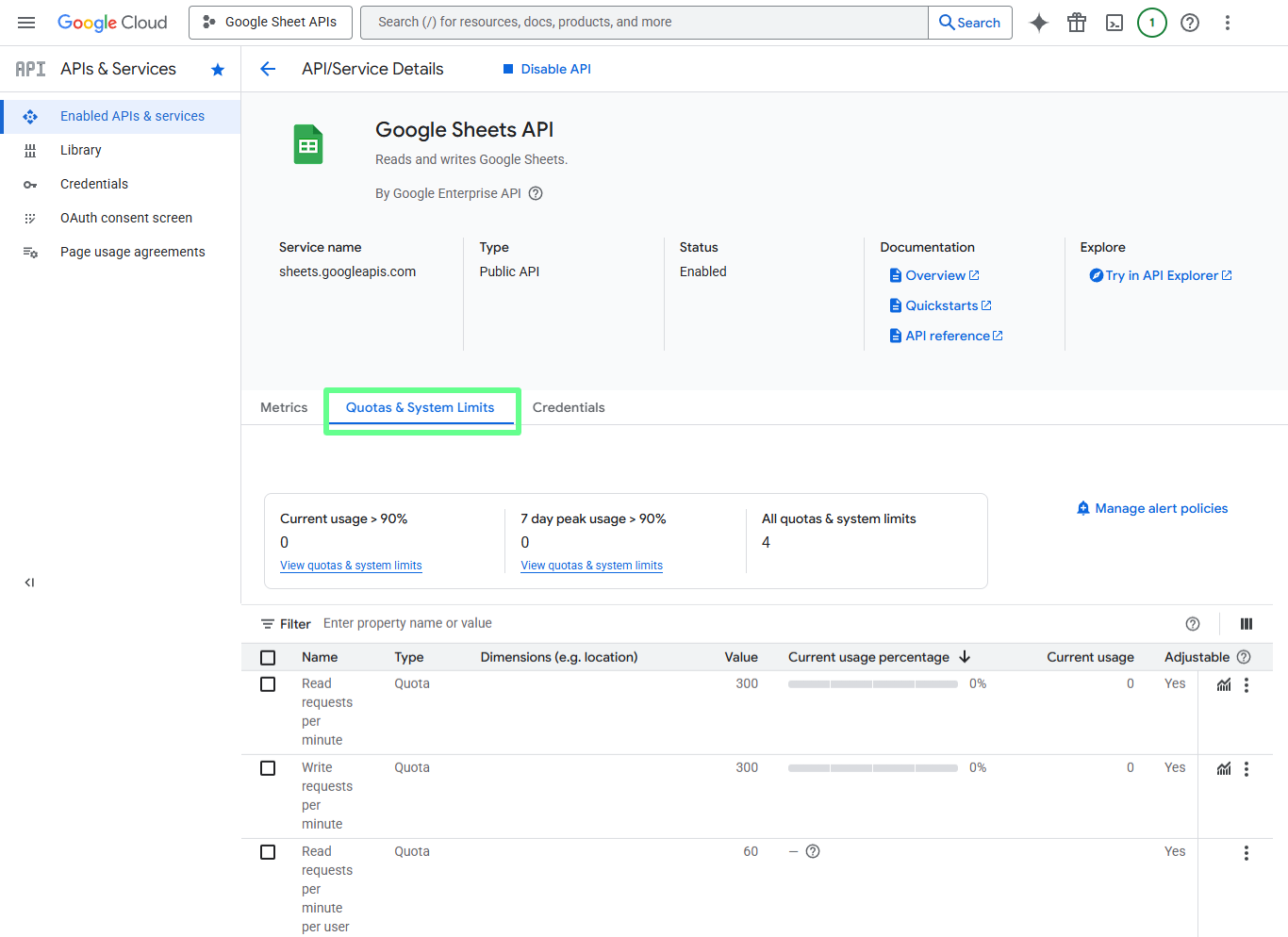
Quotas and system limits. Image by Author.
Even well-written scripts can run into temporary API errors. The most common ones are easy to spot:
These errors often resolve on their own. Retrying the request immediately may make the problem worse.
Exponential backoff is the standard way to retry requests safely. Instead of retrying right away, your script waits before trying again. The wait time increases after each failure.
A simple backoff pattern looks like this:
This approach reduces pressure on the API and improves the chances of a successful retry.
Here’s a simple Python example that retries a request using exponential backoff:
import time
from googleapiclient.errors import HttpError

def run_with_backoff(callable_request, max_retries=5):
    delay = 1

    for attempt in range(max_retries):
        try:
            return callable_request()
        except HttpError as e:
            status = getattr(e.resp, "status", None)

            if status in [429, 500, 502, 503, 504]:
                time.sleep(delay)
                delay = min(delay * 2, 32)
                continue

            raise

    raise RuntimeError("Request failed after retries.")
You can then wrap any API call with this helper:
result = run_with_backoff(
    lambda: service.spreadsheets().values().get(
        spreadsheetId=spreadsheet_id,
        range="Report!A1:E100"
    ).execute()
)
This keeps your script from failing immediately when the issue is temporary, helping your workflows run more reliably.
Performance improves when you send fewer requests and keep payloads small. Most slowdowns occur when scripts do too much work in a single call.
Here are the most effective techniques to prevent slowdowns:
Batch methods like spreadsheets.values.batchGet, spreadsheets.values.batchUpdate, and spreadsheets.batchreadsheets.batchUpdate let you combine many actions into a single request. This delivers the biggest performance gain.
Repeatedly reading the same data wastes time and quota. Fetch spreadsheet metadata or sheet IDs once, then reuse them during the script run.
Some API responses return data in pages. Process one page at a time instead of loading everything at once. This avoids timeouts and memory issues when working with large datasets.
Most Google client libraries and HTTP clients automatically support gzip compression. Compression reduces size when responses are large, such as when reading wide ranges or fetching spreadsheet metadata.
When available, request only the fields you need instead of the complete resource. Smaller responses are faster and use less bandwidth.
Avoid writing one cell at a time. Write full ranges instead. Skip formatting updates if nothing has changed, and don’t resend data unnecessarily.
A simple rule works well here: if a script loops through rows and makes an API call inside that loop, it won’t scale. Batch the work, reduce the number of requests, and keep payloads small.
Errors are part of working with any API. So, let’s explore how to fix issues quickly and keep automation reliable.
Authentication problems are the most common source of errors when getting started with the Google Sheets API. Most of them come from setup issues rather than bugs in your code.
Common problems include:
OAuth issues often happen when scopes don’t match the action you’re trying to perform. For example, read-only scopes won’t allow writes.
Service account issues usually come from missing file sharing. A service account can’t see any spreadsheet unless it’s explicitly shared with its email address.
Request errors usually happen when the data sent doesn’t match what the API expects. The error messages are often descriptive, but they can still be confusing at first.
Common causes include:
Invalid A1 notation: Sheet names are misspelled or ranges don’t exist
Incorrect data structure: Values must be sent as two-dimensional arrays, even for a single row
Type mismatches: Numbers, dates, and formulas behave differently depending on valueInputOption
When troubleshooting, always read the full error response because Google APIs usually point to the exact field that failed validation.
Like any cloud service, the Google Sheets API can occasionally return server errors such as 503 Service Unavailable during high load or temporary outages.
These errors are usually temporary. But don’t retry immediately because that can make things worse.
To handle reliability issues more effectively:
A resilient integration assumes that some requests will fail. Proper retries, batching, and monitoring allow your scripts to recover automatically and continue running without manual intervention.
The Google Sheets API is easy to work with, but long-term reliability depends on how we design and secure our setup.
Google provides official tools and resources to make development safer and easier:
Google maintains official client libraries for the Sheets API. These libraries handle authentication, retries, and request formatting. We can reduce errors and save time with supported libraries. They also adapt better to API updates than custom HTTP code.
The supported languages are Python, JavaScript with Node.js, Java, and Go.
Each library follows the same core API structure, but some offer language-specific helpers. Python and Node.js are often preferred for automation due to their simpler setup and strong community support.
Client libraries also integrate cleanly with other Google APIs, which helps when a workflow involves Drive, BigQuery, or Gmail.
Credentials control access to your data, so handle them correctly by following these best practices:
Never commit key files to version control
Store keys outside public repositories
Use environment variables or secret managers in production
Grant only the permissions required
Prefer narrow roles over broad ones
Limit service account access to specific tasks
Watch for unusual spikes or unknown access patterns
Rotate keys regularly and revoke and replace exposed keys immediately
The best next step is to automate one small task you already do by hand. Pick a spreadsheet you control, read a range, then write or append data to it. Once that works, put it on a schedule and let it run on its own.
That’s where the Google Sheets API starts to pay off.
You don’t need a complex system right away. One reliable workflow is enough to save time, and it makes building the next one much easier. If you want to sharpen those skills alongside automation, check out our Google Sheets Fundamentals track or Introduction to Google Sheets, and Intermediate Google Sheets courses to get more value out of every workflow you automate.
Learn with DataCamp
Course
Course
Course