How to Write a Bash Script: A Complete Bash Scripting Tutorial

Write your first bash script and learn the essentials: variables, functions, loops, and conditionals with working code examples.
Updated Apr 2, 2026  · 5 min read

A shell is a kind of computer program that presents an interface to the operating system. The name shell was derived from the fact that it is the outermost layer around the operating system.

To manage the interaction between users and the operating system, the shell prompts for input and then interprets that input for the operating system before handling any outputs it receives. This input may be provided via a command line interface (CLI) or a graphical user interface (GUI), depending on the operation and the role the computer takes on.

Essentially, a shell enables users and other programs to communicate directly with an operating system’s components.

TL;DR

  • A bash script is a plain text file with a .sh extension containing a sequence of shell commands
  • Every script starts with a shebang line: #!/bin/bash
  • Create a file, add commands, and run it with bash script.sh, or make it executable with chmod +x script.sh and run as ./script.sh
  • Bash supports variables, user input, functions, loops (for/while), and conditionals (if/else)
  • Common use cases: task automation, file manipulation, system administration, and CI/CD pipelines

A Primer on Shell Scripting

Shell scripting is an important part of communicating with a computer’s operating system, and a valuable skill for developers, system administrators, and data engineers alike. By scripting, we are referring to a sequence of shell and operating system commands that are written and then stored in a file: typical operations performed by shell scripts include tasks such as file manipulation, program execution, and printing text.

Learning to perform this simple procedure can save developers a significant amount of development time as certain commands will not have to be manually written repeatedly – it is even possible to schedule scripts to be executed automatically.

There are several different shells available to Unix and Linux users. For the remainder of this tutorial, we will focus specifically on the Bourne Again SHell (bash), which is an enhanced version of the Bourne shell and is one of the most common command line interfaces for Unix-based operating systems (including Linux).

New to the command line? Start with our Introduction to Shell course to build your foundation before diving into bash scripting.

What is a Bash Script?

Bash is a Unix command line interface responsible for interacting with a computer's operating system. Similarly to how movie scripts inform actors of what actions to take, a bash script tells the bash shell what to do. Thus, a bash script is a useful way to group commands to create a program.

Any command you could execute directly from the command line can be put into a bash script, and you could expect it to do the same actions as it would from the command line. Alternatively, any command you enter into your bash script could be run directly from the command line, and the result should be the same. In other words, if you know how to interact with your computer from the command line, you already know a fair bit about bash scripting.

One of the main differences is a bash script is a plain text file that is stored with a .sh extension by convention (they can still run without the .sh extension).

Another distinction of bash scripts is the “shebang” that occurs on the first line of all scripts. Essentially, the shebang is an absolute path to the bash interpreter made up of a combination of bash “#” and bang “!” followed by the bash shell path. It is used to tell the Linux operating system which interpreter to use to parse the file.

Introduction to Bash Scripting

Learn the basics of Bash scripting and creating functions.
Start Learning for Free

Prerequisites

Before following this tutorial, I recommend having:

  • A Unix-based operating system (Linux or macOS), or Windows with Git Bash or Windows Subsystem for Linux (WSL) installed
  • Basic familiarity with navigating the terminal (opening a terminal, listing files with ls, changing directories with cd)
  • A text editor such as nano, vim, or VS Code to write script content

How to Write a Bash Script

We are going to build a simple “Hello World” bash script example to get you started with bash scripting. If you wish to delve deeper into bash scripting, check out Introduction to Bash Scripting course. 

Step 1: Create a new plain text file 

The first step is to create a new plain text file with a .sh extension. On Linux or macOS, run the following from your terminal:

touch hello_world.sh

On Windows, you can use Git Bash or Windows Subsystem for Linux (WSL) — both support the same touch command. Alternatively, create the file in any text editor (VS Code, Notepad, nano) and save it with the .sh extension.

Step 2: Specifying the interpreter

On the first line of our script, we must specify which interpreter we would like to use to parse our script. In this scenario, it is Bash. Thus, we must put the shebang in the first line of our script. 

#!/bin/bash

Step 3: Implement commands

The purpose of our bash script is to print “Hello World!” To perform this task, move to a new line and use the echo command followed by the string we would like to print.

echo "Hello World!" 

Once complete, save the file and open up your Git Bash.  

Note: You can download Git Bash from Git downloads. Simply select the version of Git that corresponds with your operating system. 

Next, run the following command: 

bash hello_world.sh

This should output “Hello World!” as seen in Figure 1. 
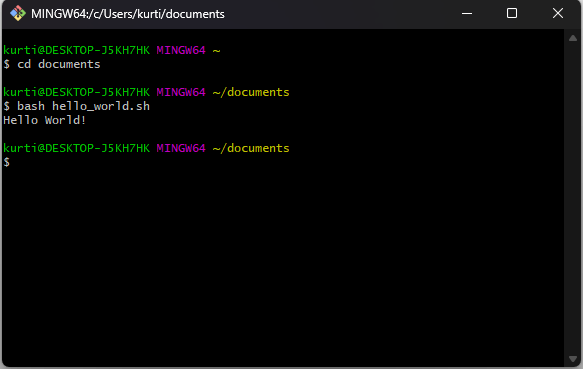
A call to the bash script returns “Hello World!” in the terminal.

Figure 1: The output of our Bash script

Step 4: Make the script executable

Rather than always prefixing scripts with the bash command, you can make a script directly executable using chmod:

chmod +x hello_world.sh
./hello_world.sh

The chmod +x command grants execute permission to the file. The ./ prefix tells the shell to run the script from the current directory. This is the standard way to distribute and run bash scripts in production — most scripts you encounter will be run this way.

How to Capture User Input in Bash Scripts

Now you know how to write a simple “Hello World!” script. Let’s take a look at how we could use bash to write scripts that require input from the user. In this example, we will create an activity generator, which will ask the user for their name and then choose a random activity to invite the user to participate in from an array of activities. 

The steps to create the file are the same as in How to Write a Bash Script – the difference are the commands we enter into our bash script. 

  1. Create a new plain text file from the terminal.
touch generate-activity.sh
  1. Specify the bash interpreter by entering the shebang in the first line of the script.
#!/bin/bash
  1. Write the commands to run the script and then save the file.

Now when we call our bash script from the terminal, we should expect to see the same output as in Figure 2. 

#!/bin/bash

# Greet user and request their name
echo "The activity generator"
read -p "What is your name? " name

# Create an array of activities
activity[0]="Football"
activity[1]="Table Tennis"
activity[2]="8 Ball Pool"
activity[3]="PS5"
activity[4]="Blackjack"

array_length=${#activity[@]} # Store the length of the array
index=$(($RANDOM % $array_length)) # Randomly select an index from 0 to array_length

# Invite the user to join you participate in an activity
echo "Hi" $name, "would you like to play" ${activity[$index]}"?"
read -p "Answer: " answer
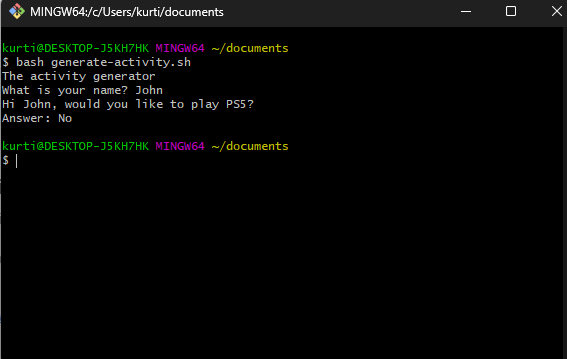
Demonstrating the generate-activitysh scriptFigure 2: Demonstrating the generate-activity.sh script.

Working With Variables in Bash Scripts

Variables store data that can be referenced and reused throughout a script. To define a variable, assign a value with no spaces around the = sign. Access its value by prefixing the name with $:

#!/bin/bash

# Define variables
greeting="Hello"
user_name="Alice"
current_year=$(date +%Y)  # Command substitution

# Use variables
echo "$greeting, $user_name!"
echo "The current year is $current_year."

Key rules for bash variables:

  • Variable names are case-sensitive: name and NAME are different variables
  • No spaces are allowed around the = sign when assigning a value
  • Use $(command) for command substitution to capture the output of a command into a variable
  • Wrap variables in double quotes ("$var") to safely handle values that contain spaces

How to Create a Function in a Bash Script

In programming, functions are used to bundle a set of repeated instructions together – learn more about Functions in Python. The purpose of writing functions is to avoid writing the same code constantly, and it also makes your code more readable. 

A bash function may be considered a typical function: a set of commands that can be called several times. However, bash functions are slightly more limited when compared to the majority of programming languages (i.e., bash functions do not allow you to return a value when called). 

Before we create a bash script using a function, let’s take a look at the syntax for declaring a bash function. We can define a function by writing a function name, followed by parentheses and curly braces for the function's body – this is the most common way to write a bash function. Here is it looks in code: 

# Most common way to write a bash function.
example_function () {
  commands
}

The other way to format a bash function is to begin the line with the reserved bash keyword function, then the function name and curly braces for the function body – we do not need the parentheses. 

# Another way to write a bash function.
function example_function {
  commands
}

Defining the function will not execute the commands. To invoke a bash function, you must call the function name, as follows: 

#!/bin/bash

# A hello world bash function
hello_world () {
  echo "Hello World!"
}

# Invoking the hello_world function
hello_world

Above, we created a  hello_world function that prints “Hello World!” when the bash script is run.

Passing arguments to bash functions

Arguments are variables used in a specific function. In bash, we can not pass arguments to functions like you would in high-level programming languages such as Python, Julia, etc. Instead, bash functions have their own command line argument and we can pass parameters to a function by placing them after a call to the function name – separated by a space if there are multiple arguments.

In essence, function arguments are treated as positional parameters and shell variables ($1, $2, ..., $n) are used to access arguments passed to the function. 

#!/bin/bash
greet () {
  echo "Hello $1 $2"
}

greet "John" "Doe" 

In the bash script above, we passed two arguments, John and Doe,  to our greet function. When the bash script is run now, we should see the following output:

Hello John Doe

Using Loops in Bash Scripts

Loops allow you to repeat a block of commands multiple times. Bash supports for loops and while loops.

For loops

A for loop iterates over a list of items or a numeric range:

#!/bin/bash

# Loop over a list
for fruit in apple banana cherry; do
  echo "I like $fruit"
done

# Loop over a numeric range
for number in {1..5}; do
  echo "Number: $number"
done

While loops

A while loop runs as long as its condition evaluates to true:

#!/bin/bash

count=1
while [ $count -le 5 ]; do
  echo "Count: $count"
  count=$((count + 1))
done

Writing “If” Statements in Bash

“If” statements are conditional statements used in programming languages. If a statement is proven to be true, then a condition would run. This functionality enables us to determine the circumstances under which a certain piece of code shall be executed. 

In bash, we start the conditional with an if statement and end it with fi (if spelled backward). Here is an example bash script with if conditionals: 

#!/bin/bash

read -p "Give me a number: " number
if [ $number -gt 10 ];
then
  echo "Your number is greater than 10."
fi

In the bash script above, the user is asked to provide a number. If the number provided by the user is greater than 10, then “Your number is greater than 10” will be outputted to the terminal, but if it is not, the program will end. Figure 3 is an example of us passing a number larger than 10. 
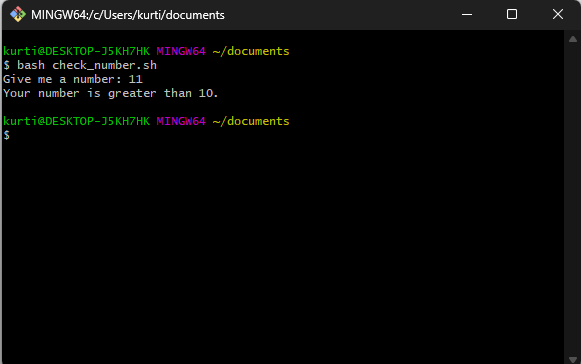
Using if statements in Bash scripts

Figure 3: Using “if” statements in Bash scripts

Conclusion

Bash scripting is a powerful skill for automating tasks, managing systems, and building data pipelines. In this tutorial, I covered the core building blocks: the shebang line, creating and running scripts, capturing user input, working with variables, loops, functions, and conditionals.

To continue your bash scripting journey, explore these next steps:

  • Take the Introduction to Bash Scripting course to deepen your skills with hands-on exercises
  • Learn how to schedule scripts to run automatically using cron
  • Explore string manipulation, file I/O, and error handling with exit codes
  • Practice with real-world automation scripts: backups, log rotation, and system health checks
  • To take your skills to the next level, I recommend taking our Data Processing in Shell course

Build Machine Learning Skills

Elevate your machine learning skills to production level.

Bash Scripting FAQs

What is a bash script?

A bash script is a plain text file containing a sequence of commands for the Bash shell to execute. Stored with a .sh extension by convention, bash scripts start with a shebang line (#!/bin/bash) that tells the operating system which interpreter to use. Scripts are used to automate repetitive tasks, manage files, run programs, and perform system administration.

How do I run a bash script?

There are two ways to run a bash script:

  • Using the bash command: bash script.sh — runs the script directly without needing execute permissions
  • Making it executable: Run chmod +x script.sh once to grant execute permission, then run with ./script.sh

The second method is the standard approach for distributing and running scripts in production environments.

What is the shebang line in a bash script?

The shebang (#!/bin/bash) is the first line of a bash script. It tells the operating system which interpreter to use to execute the file. The #! characters ("hash-bang") are followed by the absolute path to the Bash interpreter (/bin/bash). Without a shebang, your script may still run but will use whatever shell is currently active, which can cause inconsistent behavior across systems.

What is the difference between bash and shell scripting?

Shell scripting is a general term for writing scripts that run in any Unix shell (sh, bash, zsh, ksh, etc.). Bash scripting specifically refers to scripts written for the Bash shell (Bourne Again SHell). Bash is the default shell on most Linux systems and extends the POSIX shell standard with features like arrays, arithmetic expansion, and advanced string manipulation. When people say "shell scripting," they usually mean bash scripting.

How do I declare and use variables in a bash script?

Declare a variable by assigning a value with no spaces around the = sign, then access its value by prefixing the name with $:

name="Alice"
echo "Hello, $name!"

Key rules: variable names are case-sensitive, no spaces around =, and wrap variables in double quotes ("$var") when the value may contain spaces. Use $(command) for command substitution to store a command's output in a variable.

Topics

Bash Scripting Courses

Course

Introduction to Shell

4 hr
153.7K
The Unix command line helps users combine existing programs in new ways, automate repetitive tasks, and run programs on clusters and clouds.
See DetailsRight Arrow
Start Course
See MoreRight Arrow
Related

cheat-sheet

Python For Data Science Cheat Sheet For Beginners

This cheat sheet covers the basics that you need to know to do data science with Python
Karlijn Willems's photo

Karlijn Willems

Tutorial

Julia Programming Tutorial For Beginners

A comprehensive introductory tutorial that will help you master the fundamentals of Julia. Learn about operators, conditional statements, working with DataFrames, and more.
Bekhruz Tuychiev's photo

Bekhruz Tuychiev

Tutorial

Python Tutorial for Beginners

Get a step-by-step guide on how to install Python and use it for basic data science functions.
Matthew Przybyla's photo

Matthew Przybyla

Tutorial

Python Exercises for Beginners: A Hands-On Guide With Answers

Solve beginner‑friendly Python exercises, starting with simple variables and building up to functions, data structures, and guided projects.
Austin Chia's photo

Austin Chia

Tutorial

How to Run Python Scripts Tutorial

Learn how you can execute a Python script from the command line, and also how you can provide command line arguments to your script.
Aditya Sharma's photo

Aditya Sharma

Tutorial

Definitive Guide: Variables in R Tutorial

In this tutorial, you'll learn all about R variables including how to define variables, remove variables, and much more.

Olivia Smith

See MoreSee More