Accéder au contenu principal

GPT-5.4 Computer Use Tutorial: Build a Live News Dashboard

Learn how to use GPT-5.4 computer use to build a live news dashboard that automatically gathers and summarizes news.
19 mars 2026  · 11 min lire

GPT-5.4 introduces computer-use capabilities, enabling models to interact directly with software interfaces instead of relying on application-specific APIs. By reviewing the screenshots and emitting actions such as clicking, typing, and navigating, the model can operate browsers and applications much like a human user.

In this tutorial, we’ll use OpenAI’s Computer-Using Agent (CUA) sample app to explore how GPT-5.4 interacts with real interfaces and then extend the environment to create a live news dashboard that gathers and summarizes the latest stories on a selected topic.

Along the way, we’ll first examine a few built-in computer-use scenarios, such as Kanban automation, canvas drawing, and a booking workflow, to understand how the observe–decide–act loop works in practice. We’ll then apply the same idea to build a small dashboard that retrieves recent news, extracts key information, and renders the results in a structured UI.

By the end of this tutorial, you’ll understand how to:

  • Run the GPT-5.4 Computer Use environment
  • Observe how agents interact with real interfaces
  • Generate new application features using Codex and
  • Build a live news dashboard

To deep dive into the theory behind GPT 5.4, I recommend checking out our GPT-5.4: Native Computer Use, 1M Context Window, Tool Search blog.

What Is GPT-5.4 Computer Use?

GPT-5.4 introduces native computer-use capabilities, allowing models to interact with software interfaces much like a human operator. Instead of relying on application-specific APIs, the model works directly from the visual state of the interface, using screenshots and UI feedback to reason about what actions to take next. This enables agents to interact with real environments such as browsers, dashboards, and productivity tools.

Using computer use, the model can perform actions such as:

  • Navigating webpages
  • Clicking UI elements
  • Typing text into fields
  • Scrolling documents or pages
  • Interacting with dashboards and applications

Since the model reasons over the interface itself, it can complete multi-step workflows across different tools without needing custom integrations. 

For example, a computer-use agent could browse the web for information, extract relevant data, generate a report, and update a dashboard.

Under the hood, the system operates through a simple agent loop that repeatedly observes the interface, decides on an action, and verifies the result. Here is how the workflow runs:

  • Send a request: The developer starts by providing a goal prompt, the computer-use tool, and an initial screenshot of the interface.
  • Model reasoning and action proposal: GPT-5.4 analyzes the screenshot and proposes UI actions such as navigate, click, type, or scroll.
  • Execution: The client or runner executes these actions in the environment.
  • Return updated state: After the action completes, a new screenshot and the current page state are returned to the model.
  • Repeat the loop: The model observes the updated interface and decides the next action until the task is completed.

This cycle is often summarized as: 

observe -> decide -> act -> observe

GPT-5.4 Computer Use Demo: Building a Live News Dashboard (With Additional Examples)

In this section, we’ll build a live news dashboard powered by GPT-5.4 computer use using OpenAI’s CUA sample app. The agent will interact with a real browser environment to gather the latest news on a user-selected topic, summarize the results, and render them in a structured dashboard.

Here’s how the workflow operates:

  • The user selects a topic of interest in the dashboard.
  • The agent navigates trusted news sources in the browser and identifies recent, relevant articles related to the topic.
  • GPT-5.4 extracts the headline, source, and key information from each article.
  • The agent summarizes the findings and produces three concise news summaries.
  • The results are rendered in a dashboard-style layout.

In addition to the news dashboard, we’ll also briefly explore a few smaller prompts that demonstrate how GPT-5.4 computer use can generate interactive applications inside the same environment.

Under the hood, the system runs through the computer use agent loop, where the model observes the environment through screenshots, proposes UI actions (such as navigation or interaction), and receives updated state after each step.

Step 1: Clone and set up the CUA sample app

To get started, we’ll use OpenAI’s CUA sample app and set up the repo locally on our device. Simply, clone the repository and install dependencies as follows:

git clone https://github.com/openai/openai-cua-sample-app.git
cd openai-cua-sample-app
corepack enable
pnpm install
cp .env.example .env

This creates a .env file where we add your OpenAI API key. You can log in to your OpenAI account and navigate to the dashboard to generate a new API key.

If pnpm install prints warnings about optional packages such as sharp or esbuild, these can be ignored for local development. Next, install the Playwright browser runtime:

pnpm playwright:install

On Linux systems you may also need OS dependencies:

pnpm playwright:install:with-deps

Finally, start the development servers:

pnpm dev

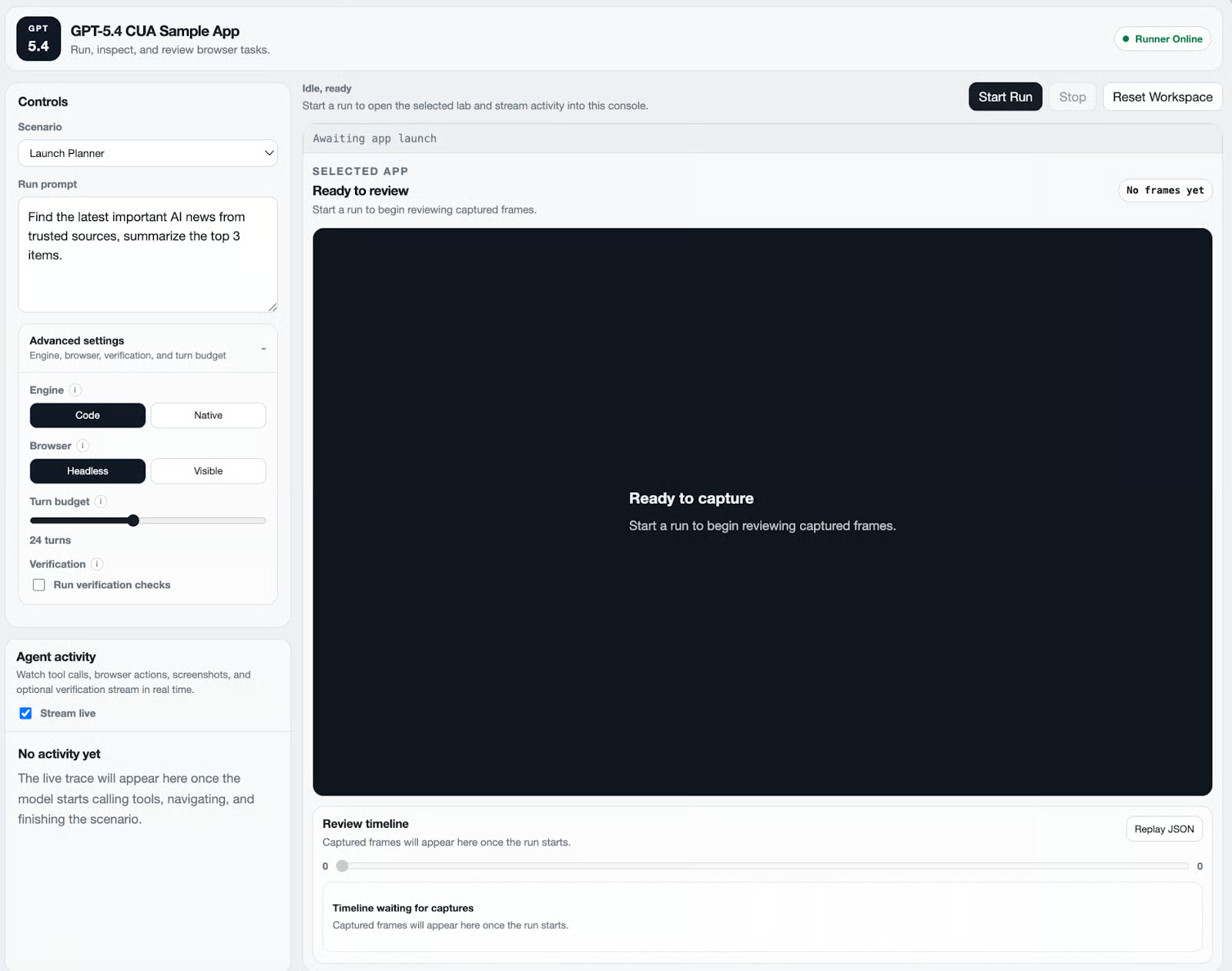
Now you can open the CUA operator console at http://127.0.0.1:3000. This console allows you to launch agent runs and inspect logs and screenshots.

CUA operator console

Step 2: Exploring the built-in computer use scenarios

The sample app includes three sandbox environments designed to demonstrate computer-use behavior. These environments help illustrate how GPT-5.4 interacts with interfaces. 

Kanban board automation

The Kanban board scenario demonstrates how GPT-5.4 computer use can reason about and manipulate structured UI layouts through visual interaction.

In this example, the agent is given a goal such as reorganizing tasks on a Kanban board. Instead of calling any application API, the agent interacts with the interface the same way a human would, i.e., by observing the board, identifying task cards, and performing drag-and-drop operations.

Under the hood, GPT-5.4 runs through the computer use agent loop:

  • The agent receives a screenshot of the Kanban board along with the current URL.
  • The model analyzes the visual layout and determines where task cards and columns are located.
  • GPT-5.4 proposes UI actions such as:
    • moving the cursor to a card
    • clicking and holding
    • dragging the card to another column
  • The runner executes these actions through Playwright pointer events.
  • A new screenshot is captured and sent back to the model so it can verify the updated board state.

The process continues until the board reflects the desired configuration.

What makes this example interesting is that the model does not rely on any internal knowledge of the Kanban application. 

Instead, it reasons entirely from the visual state of the interface, determining where to click, drag, and drop elements based on the screenshot. This demonstrates a key advantage of GPT-5.4 computer use: the developers can automate workflows without building custom integrations or APIs for every tool.

Paint canvas interaction

The Paint scenario handles tasks that depend on visual layout, spatial reasoning, and precise cursor control rather than simple form-filling. In this setup, the agent is given a drawing instruction and must complete it directly inside the browser-based sketch application. 

I prompted the agent to sketch different scenes across the canvas, and GPT-5.4 handled the task by selecting colors, locating the correct drawing area, and filling the grid accordingly.

Unlike the Kanban example, where the core challenge was moving structured cards between columns, this scenario depends much more on interpreting the visual state of the app and making a series of low-level interaction decisions. Here is how computer use did it in this demo:

  • Cursor movement and targeting: GPT-5.4 first interprets the layout of the sketch interface, including the color palette on the left and the blank pixel-style canvas in the center.
  • Tool and color selection: It identifies the available palette options and clicks the appropriate color before drawing. In the captured run, the model switches colors and uses them intentionally to create different regions on the canvas.
  • Canvas interaction: Instead of calling any canvas API, the agent interacts with the app entirely through UI actions by moving the pointer to specific cells and filling them in repeated patterns.
  • State verification: After each batch of actions, the runner captures a fresh screenshot and returns it to the model so it can verify that the expected pattern is appearing on the canvas.

An interesting thing to note is that GPT-5.4 was not just clicking randomly. Instead,  it was using the screenshot feedback loop to reason about where the drawing should go, which color is currently selected, and how the canvas has changed after each action. 

In the later frames, you can clearly see the canvas evolving from a blank grid into a structured composition with large colored regions, showing that the model was maintaining awareness of both progress and layout over multiple turns.

Booking workflow

In this environment, the agent interacts with a simulated booking website and is asked to complete a reservation flow. That means it must move through several UI states in sequence rather than solving a single isolated action.

Here is how computer use is applied in this demo:

  • Interface understanding: GPT-5.4 begins by interpreting the current screen layout, identifying buttons, form fields, calendars, dropdowns, and confirmation controls.
  • Step-by-step navigation: The agent decides which part of the workflow to complete first, such as choosing an option, moving to the next screen, or opening a form element.
  • Form filling: It enters the required values into text boxes and interacts with controls like dropdowns or date selectors.
  • State tracking across turns: After each action, the runner captures a fresh screenshot and returns it to the model, allowing the model to verify which fields are already complete and what remains to be done.
  • Confirmation and completion: Once the required inputs are filled, the agent proceeds to the final confirmation step and checks that the reservation was successfully completed.

While the Kanban, Paint, and Booking scenarios all demonstrate UI control, we need to apply them to more practical applications. 

In the next section, I’ll use that same idea to build a live news dashboard that gathers recent stories, structures the results, and renders them in a usable interface using a no-code workflow inside the Codex application.

Step 3: Creating a live news dashboard with GPT-5.4

In this step, we’ll apply the same computer-use capabilities to build a live news dashboard. The goal is to create a small dashboard where a user can select a topic of interest, such as AI, politics, climate, technology, science, etc and the system will then:

  • Gather recent news stories from trusted sources
  • Extract key information from those articles
  • Generate three concise summaries
  • Render the results in a structured dashboard format

Instead of writing the application manually, we’ll use Codex inside the GPT-5.4 computer use environment and pass it the following prompt to generate the feature directly inside the existing CUA repository. 

Because Codex is connected to the same environment used by the CUA sample app, the agent can analyze the repository, decide where the dashboard should live, and implement the UI and logic automatically.

Prompt: 

Build a live News Dashboard in this repo.
Goal:
Create a dashboard where a user can enter a topic of interest, fetch the latest important news in real time from trusted sources, and render exactly 3 structured results that are meaningful and topic-relevant.
Requirements:
- The dashboard must allow the user to type a topic such as AI, politics, climate, health, science, or tech.
- Fetch live results at request time. Do not hardcode stories.
- Use trusted sources appropriate to the topic. Prefer official or well-known outlets.
- Return exactly 3 items.
- Each item must include:
  - HEADLINE
  - SOURCE
  - SUMMARY
- Summaries must be in your own words, concise, and clearly related to the article and topic.
- Avoid low-quality results such as homepages, category pages, generic aggregator wrappers, or meaningless titles.
- Prefer direct article URLs over search/aggregator wrapper links.
- Keep the UI minimal and consistent with the repo’s existing design language.
- Reuse the existing framework/tooling. Do not add new dependencies unless truly necessary.
Implementation plan:
1. Inspect the repo and place the dashboard in the existing app structure without breaking the current console.
2. Add a topic input UI with a search action and a loading/error state.
3. Add a server-side news fetch path that:
   - maps topics to trusted source sets
   - fetches recent results in real time
   - filters out irrelevant or low-quality matches
   - resolves direct article URLs where possible
   - extracts useful metadata for headline/source/summary
4. Render the dashboard with:
   - page title
   - topic
   - date
   - intro
   - exactly 3 cards/items
   - a structured export block that can be copied into another dashboard
5. Keep the export block in this exact format:
---BEGIN DASHBOARD CONTENT---
TITLE: News Brief — [TOPIC]
DATE: [today's date]
INTRO: Top 3 [TOPIC] updates from trusted sources.
ITEM 1:
HEADLINE: [headline]
SOURCE: [source name or URL]
SUMMARY: [2–4 sentences]
ITEM 2:
HEADLINE: [headline]
SOURCE: [source name or URL]
SUMMARY: [2–4 sentences]
ITEM 3:
HEADLINE: [headline]
SOURCE: [source name or URL]
SUMMARY: [2–4 sentences]
SOURCES_USED: [comma-separated list of sites used]
---END DASHBOARD CONTENT---
Deliverables:
- A working live dashboard route in the app
- Real-time topic search
- Exactly 3 relevant results per search
- Structured export block visible in the UI
- Short run instructions
- Basic tests for parsing/formatting logic if the repo already has a test runner

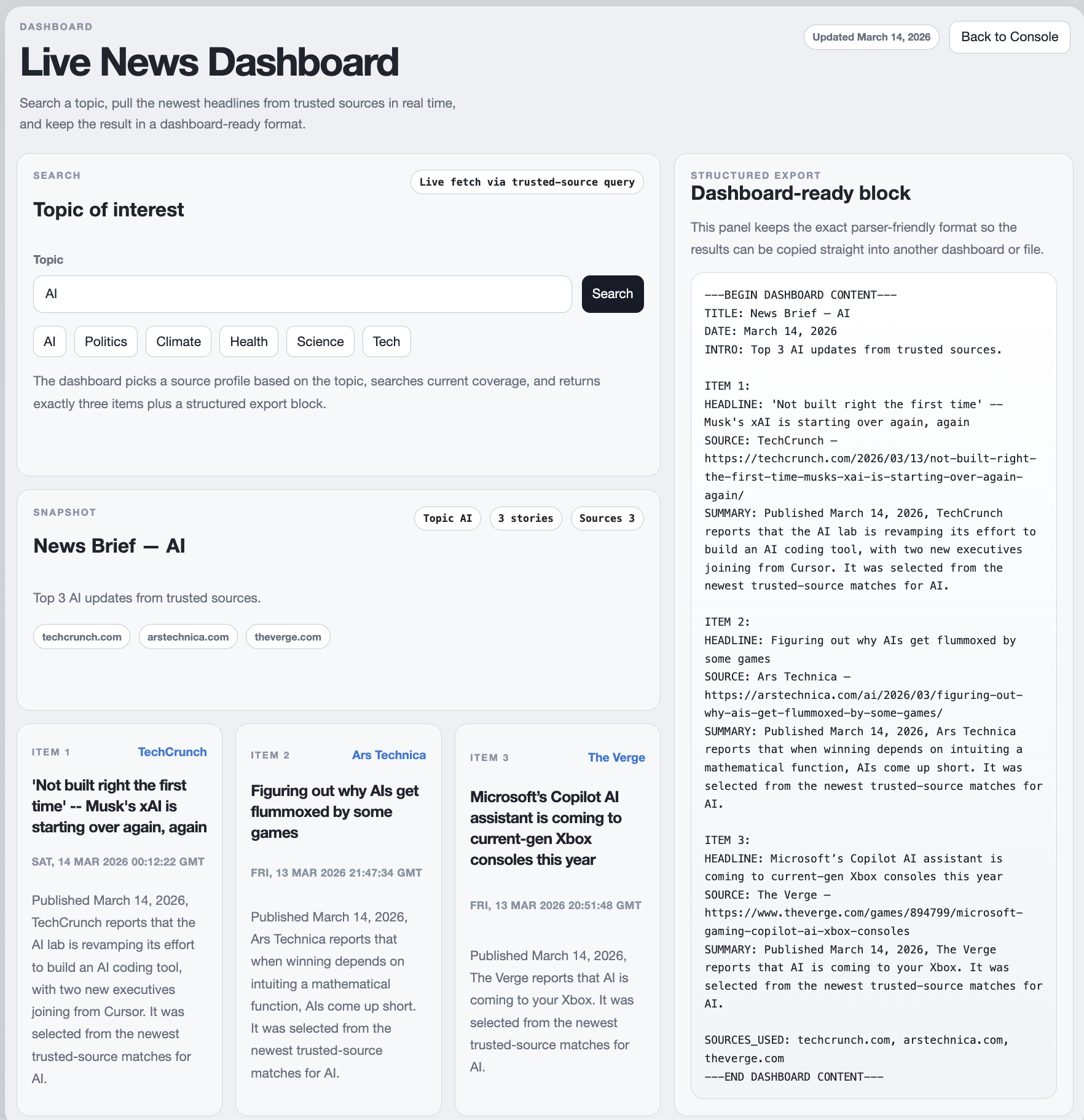
The prompt instructs Codex to build a live news dashboard inside the existing repository by acting as a high-level specification rather than detailed implementation code. 

Codex first inspects the project structure to determine where the dashboard UI and backend logic should be added. It then creates a topic input field, retrieves recent articles from trusted sources in real time, extracts key metadata such as headline, source, and summary, and filters the results to ensure relevance. 

Finally, it renders exactly three news items in a clean, structured layout that can be easily viewed or exported in the dashboard.

image1.png

GPT-5.4 computer use enables this workflow by allowing the model to observe and interact with the development environment while generating the feature. 

Instead of acting purely as a code generator, Codex analyzes the repository, determines where new components should live, and incrementally implements the dashboard while verifying the results.

The workflow involves several key steps:

  • Repository inspection: Codex scans the project structure to identify where the dashboard UI and supporting logic should be added.
  • User interface: It creates a topic input field that allows users to search for subjects such as AI, climate, or technology.
  • Real-time news retrieval: The system gathers recent articles from trusted sources instead of relying on hardcoded examples.
  • Filtering and summarization: GPT-5.4 extracts useful metadata such as the headline, source, and summary, ensuring the results remain relevant to the selected topic.
  • Structured rendering: Finally, the dashboard displays exactly three news items in a card-style layout so the results are easy to scan.

Note: The final dashboard was not generated from a single prompt. It required a few iterations and prompt refinements to get the desired behavior and output format. When running similar experiments, expect some trial-and-error while adjusting the prompt and constraints. Also, ensure that your browser or system does not block automated browser interactions, as such restrictions can interfere with computer-use workflows.

Conclusion

In this tutorial, we explored how GPT-5.4 Computer Use can be used to build agents that interact with real software environments rather than relying on traditional APIs. Using OpenAI’s CUA sample app, we first examined how the computer-use loop works through a few sandbox scenarios, i.e., how the model observes interfaces, proposes actions, and verifies results through screenshots.

We then applied the same concept to build a live news dashboard using Codex inside the CUA environment. Instead of manually writing the application, a prompt acted as a high-level specification, allowing Codex to inspect the repository, generate the UI and logic for the dashboard, retrieve recent news from trusted sources, and render the results in a structured format.

From here, you can extend this idea further by building agents that:

  • Automate internal dashboards or reporting tools
  • Generate research pipelines
  • Track industry trends in real time
  • Prototype new product features directly inside existing repositories

As computer-use models continue to improve, they can become open to more general-purpose development and automation agents capable of interacting with both software interfaces and codebases.

GPT-5.4 Computer Use FAQs

What is GPT-5.4 Computer Use?

GPT-5.4 Computer Use is a capability that allows AI models to interact with software interfaces through screenshots and actions like clicking, typing, and navigation.

What powers the CUA sample app?

The current implementation uses:

  • Playwright for browser automation
  • the OpenAI Responses API
  • a Next.js operator console

Can GPT-5.4 automate real websites?

Yes, but developers need to respect site policies and avoid bypassing CAPTCHAs or security mechanisms.

What kinds of applications can be built with computer use?

Some examples of computer use applications include:

  • research assistants
  • data dashboards
  • automation agents
  • productivity tools

Aashi Dutt's photo
Author
Aashi Dutt
LinkedIn
Twitter

I am a Google Developers Expert in ML(Gen AI), a Kaggle 3x Expert, and a Women Techmakers Ambassador with 3+ years of experience in tech. I co-founded a health-tech startup in 2020 and am pursuing a master's in computer science at Georgia Tech, specializing in machine learning.

Sujets

Top DataCamp Courses

Cours

Retrieval Augmented Generation (RAG) avec LangChain

3 h
15K
Découvrez des méthodes d’intégration de data externes à des LLM à l'aide de la Génération à enrichissement contextuel (RAG) avec LangChain.
Afficher les détailsRight Arrow
Commencer le cours
Voir plusRight Arrow
Contenus associés

blog

GPT-5.4: Native Computer Use, 1M Context Window, Tool Search

OpenAI’s newest release, GPT-5.4, introduces native computer use, expanded context, and a sharper focus on real-world deliverables.
Josef Waples's photo

Josef Waples

15 min

blog

Seven GPT-5 Examples to Try in the Chat

Learn how GPT-5 can be used for various practical applications such as generating business ideas, creating websites, and more.
Aashi Dutt's photo

Aashi Dutt

7 min

gpt-5

blog

GPT-5: New Features, Tests, Benchmarks, and More

Learn about GPT-5's new features, performance benchmarks, and how it consolidates previous OpenAI models into a unified user experience.
Alex Olteanu's photo

Alex Olteanu

8 min

blog

GPT 5.2: Benchmarks, Model Breakdown, and Real-World Performance

Discover how GPT-5.2 improves knowledge work with major upgrades in long-context reasoning, tool calling, coding, vision, and end-to-end workflow execution.
Josef Waples's photo

Josef Waples

10 min

Tutoriel

GPT-4.5 Function Calling Tutorial: Extract Stock Prices and News With AI

Build a multi-function calling AI system for extracting stock prices and news using the most advanced model by OpenAI.
Abid Ali Awan's photo

Abid Ali Awan

Tutoriel

GPT-4 Vision: A Comprehensive Guide for Beginners

This tutorial will introduce you to everything you need to know about GPT-4 Vision, from accessing it to, going hands-on into real-world examples, and the limitations of it.
Arunn Thevapalan's photo

Arunn Thevapalan

Voir plusVoir plus