
Course
Introduction to Git
2 hr
96.7K
Here are the two commands you need:
# Set Git username globally (all repos)
git config --global user.name "Your Name"

# Set Git username for the current repo only
git config user.name "Your Name"
The global config applies to every repository on your machine unless a specific repo overrides it.
The plain git config command (without --global) only affects the repository you're currently in.
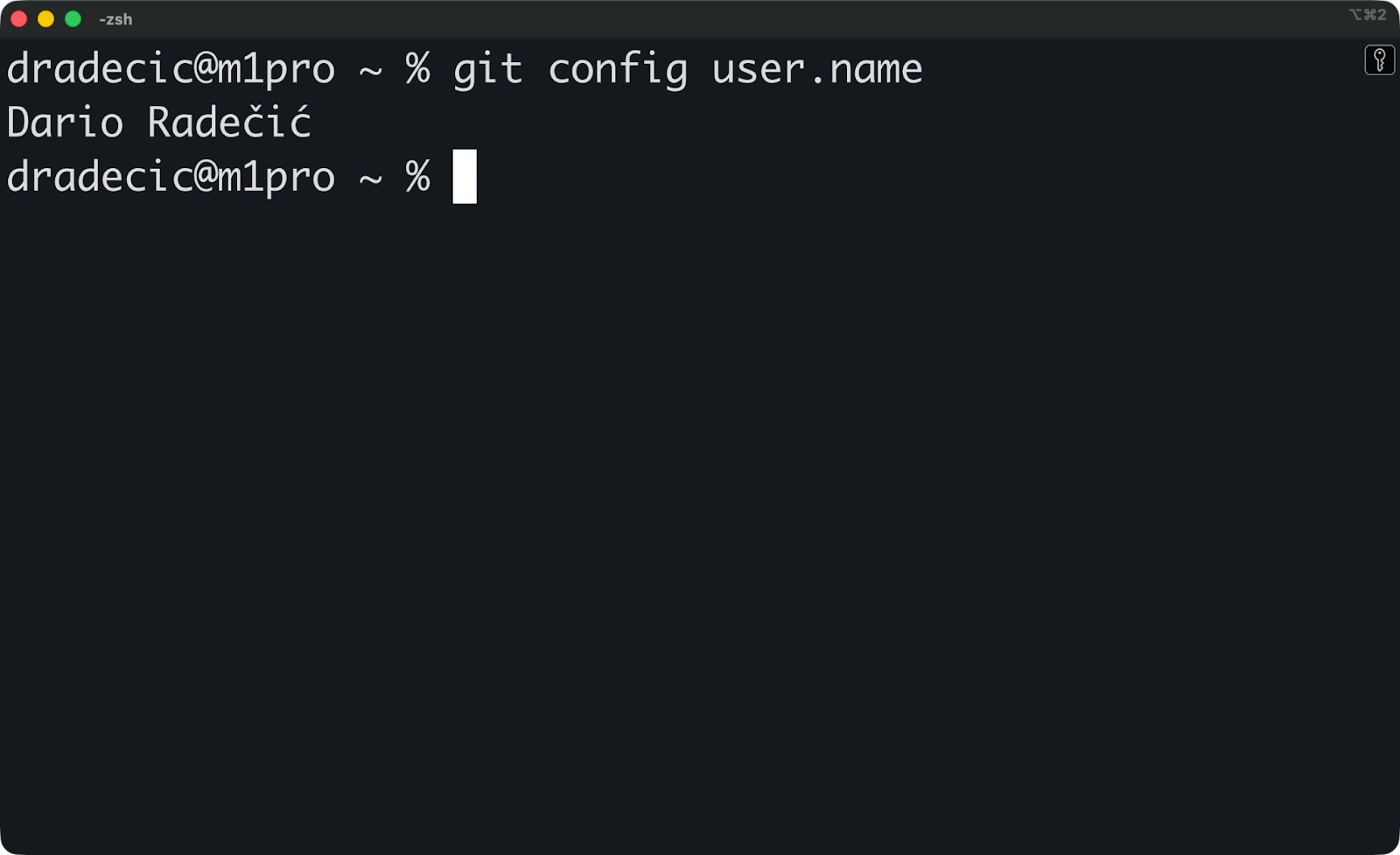
Run this command to check what Git will use for your next commit:
git config user.nameThis shows the active username for your current location - either the local repo setting or the global fallback if no local setting exists.
git config user.nameThis shows the active username for your current location - either the local repo setting or the global fallback if no local setting exists.
Git includes two pieces of information into every commit you make: an author name and an author email.
These come directly from user.name and user.email in your Git config. When you run git commit, Git grabs whatever values are set and stamps them permanently into that commit's metadata. Your teammates see this information in git log, blame views, and pull requests.
Git doesn't validate any of this.
You can set your name to "Batman," "Linus Torvalds," or just your first name with a last initial. Privacy-focused developers often use pseudonyms or handles instead of their full legal names, especially for public open-source work. Git just doesn't care. It only records what you tell it.
The only thing you need to remember is that your Git username isn't the same as your GitHub username.
Your Git username (user.name) is whatever you configure locally. Your GitHub username is your account handle, or the thing that shows up in URLs like github.com/your-handle. They're completely separate systems and don't have to match.
Hosting platforms like GitHub and GitLab use your email address to link commits to your account. The name is just for display. If your commit email matches an email on your GitHub account, GitHub will show your profile picture and link to your account. The name you set in user.name shows up as text, but the email does the real work of tying commits to you.
Changing user.name only affects commits you make going forward. Old commits you've already pushed keep their original author name.
Git stores configuration settings in three different places. I’ll now show you what these are, so you don’t end up with unexpected names.
System-level config (--system) applies to every user on the machine. This is rare in practice and most developers never touch it.
Global config (--global) applies to your OS user account and covers all your repositories.
Local config (--local) lives inside a single repository's .git/config file and only affects that repo.
Git uses precedence rules to decide which value wins.
Local settings override global settings, which override system settings. If you set user.name at all three levels, Git will use the local value when you're inside that repo and ignore the others.
Let's say you have:
System: user.name = "System User"
Global: user.name = "Global User"
Local (inside a specific repo): user.name = "Local User"
When you commit inside that repo, Git uses "Local User" because local is the most specific here. Outside that repo, Git falls back to "Global User" from your global config.
You can see all your config values and where they come from:
git config --list
git config --list --show-origin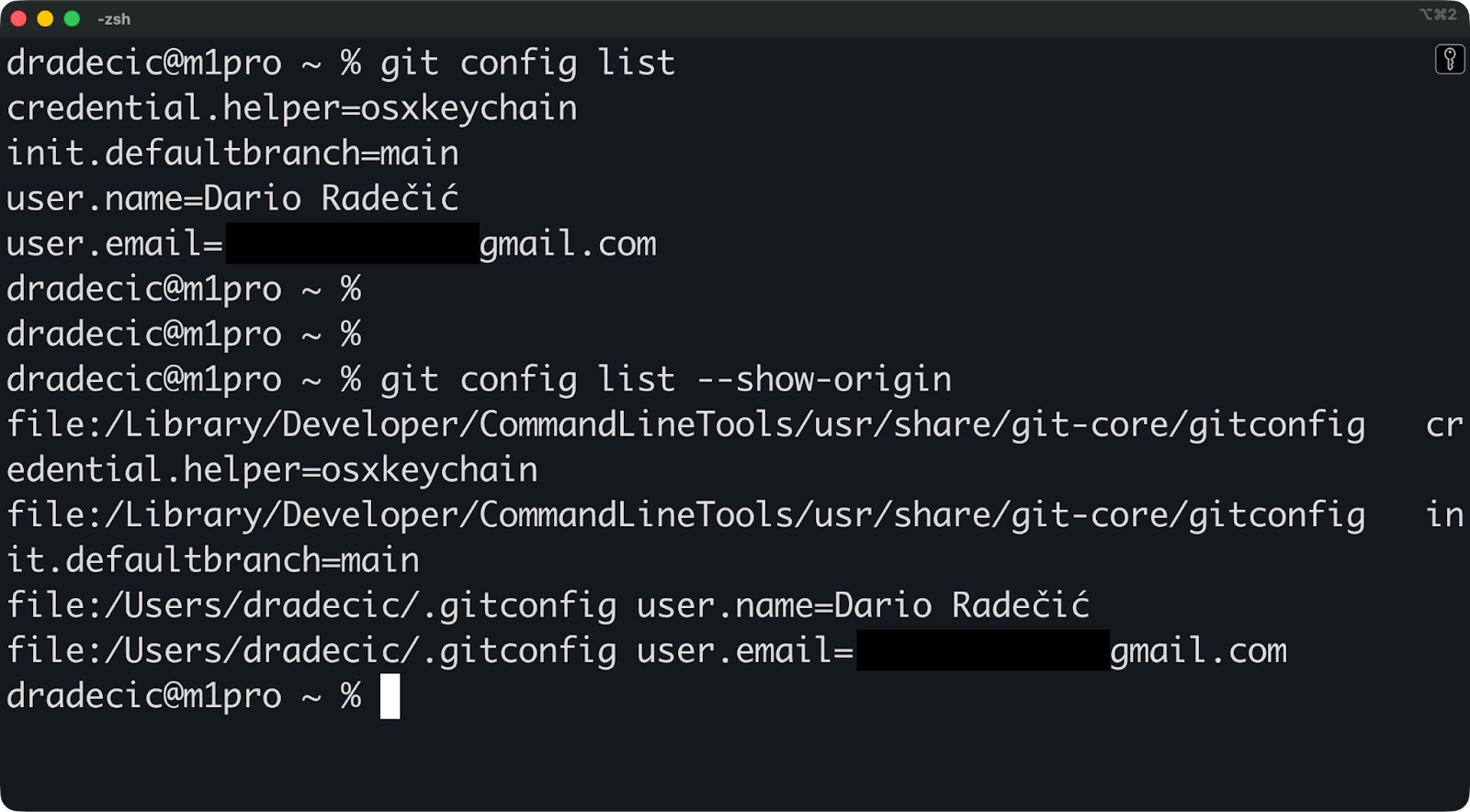
The --show-origin flag prints the file path next to each setting. This is how you debug "why is Git using this name?" - you'll see exactly which config file is setting the value.
These config files live in predictable locations: ~/.gitconfig for global settings and .git/config inside each repository for local settings. System config typically lives in /etc/gitconfig on Linux and macOS.
When you run git config --global user.name "Your Name", Git writes to ~/.gitconfig and that value becomes your default for every repo unless you override it locally.
You need to know what name Git will stamp on your next commit. Let me show you a couple of commands to run.
Here are the commands that show your Git username:
# Show the active user.name for the current repo (or global if outside a repo)
git config user.name

# Show specifically the global username
git config --global user.name

# Show everything and scan for user.name and user.email
git config --list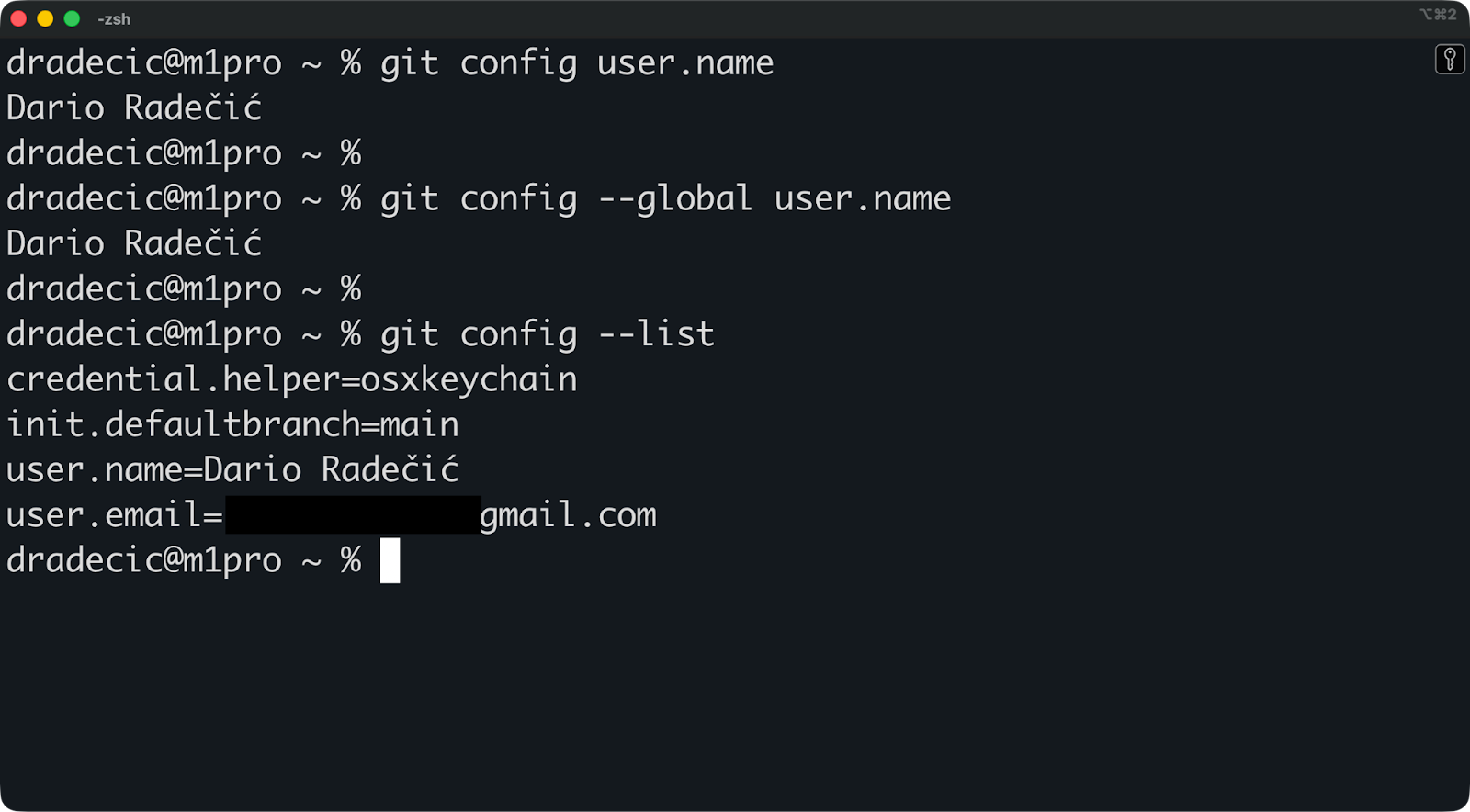
The first command - git config user.name - is what you want most of the time. It shows the value Git will actually use in that repo. If you're inside a repo with a local override, you'll see the local value. If not, you'll see the global fallback.
If you want to filter the full config list, just pipe it through grep:
git config --list | grep user.namegit config --list | grep user.name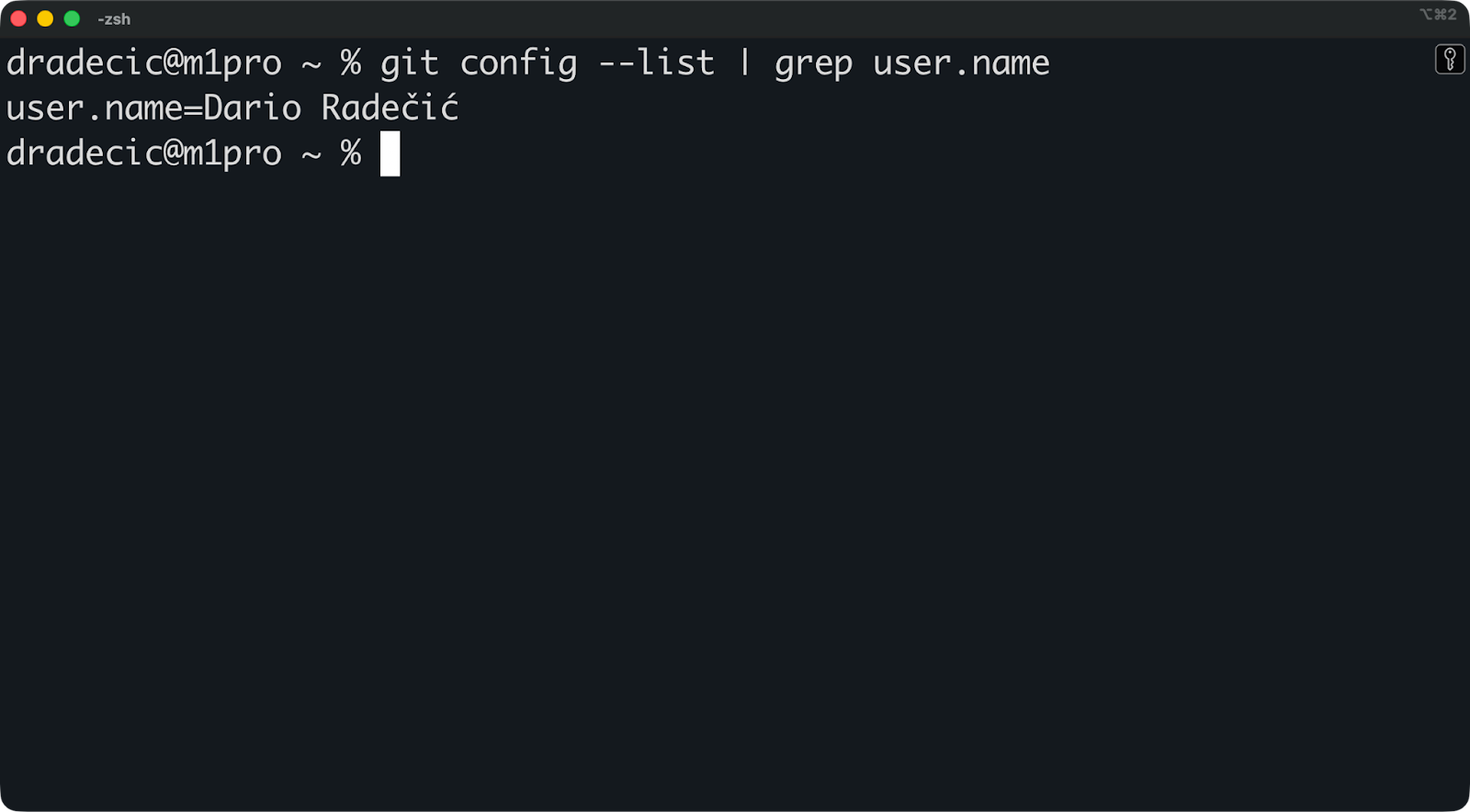
This works on Linux and macOS. On Windows, use findstr instead of grep.
If git config user.name prints a value inside a repo, that's what Git will use when you commit there.
But git config --global user.name might show something different. Git ignores the global value if a local setting exists. This is where people get confused. They change the global config and wonder why commits still show the old name.
Use git config --list --show-origin to debug this:
git config --list --show-origingit config --list --show-origin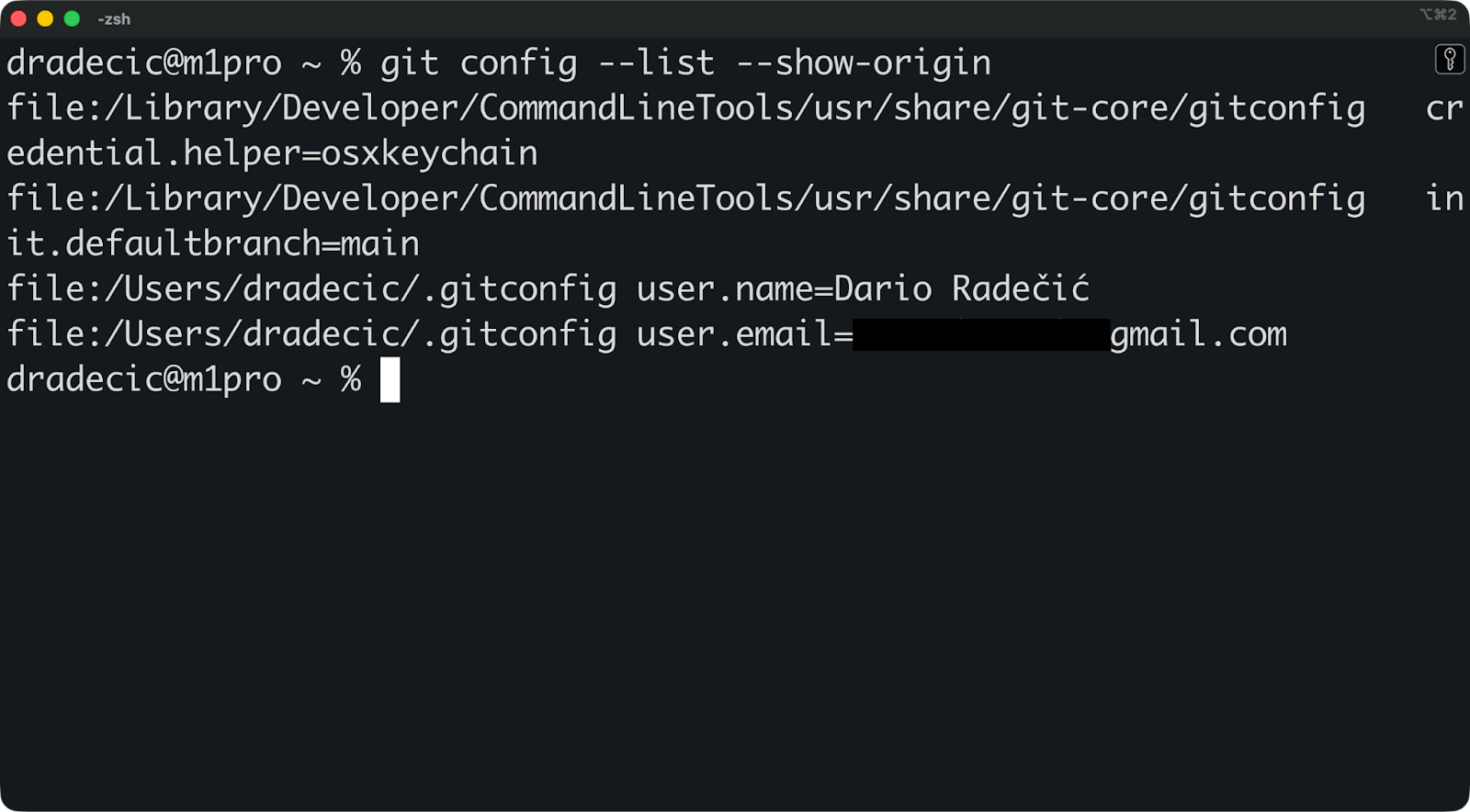
This prints the file path where each setting comes from - gitconfig for local, ~/.gitconfig for global, or /etc/gitconfig for system. Scan for user.name and you'll see exactly which config file is winning.
Most developers set their Git username once and forget about it. However, you can also customize it per project when needed.
This is the one-time setup you do on a new machine.
git config --global user.name "Your Name"3. Verify it worked:
git config --global user.nameGit will now use this name for every commit in every repository on your machine unless you override it locally.
You should also set your email while you're here:
git config --global user.email "your.email@example.com"Both values need to be set for commits to work properly and link up with your GitHub or GitLab account.
git config --global user.email "your.email@example.com"If you need different names for different projects, such as your real name for work repos and a pseudonym for open-source, for example.
Here's how to override the global setting for one repo:
1. Navigate into the repository:
cd /path/to/your/repo2. Set the local username:
git config user.name "Project-Specific Name"3. Verify Git will use it:
git config user.nameThis value lives in .git/config inside that repository and overrides your global user.name for that repo only. Other repos on your machine stay unaffected.
If you work on multiple projects with different identities, say, all repos under ~/work/ use your work name and everything under ~/personal/ uses a pseudonym, you can automate this with includeIf.
Add this to your ~/.gitconfig:
[includeIf "gitdir:~/work/"]
    path = ~/.gitconfig-work

[includeIf "gitdir:~/personal/"]
    path = ~/.gitconfig-personal
Then create separate config files like ~/.gitconfig-work:
[user]
    name = "Work Name"
    email = "work@company.com"
And ~/.gitconfig-personal:
[user]
    name = "Personal Handle"
    email = "personal@email.com"
Git automatically picks the right identity based on where the repo lives. There’s no need to switch manually.
Here's how to handle the most common Git username situations without creating a mess.
Set your personal name globally, then override it for work projects. This way your personal repos default to your preferred identity, and work repos use your professional name.
The cleanest approach is using includeIf to automatically switch identities based on folder:
# In ~/.gitconfig
[user]
    name = "Personal Name"
    email = "personal@email.com"

[includeIf "gitdir:~/work/"]
    path = ~/.gitconfig-work
Then create ~/.gitconfig-work with your work identity. Every repo under ~/work/ gets the work name automatically. I explained this in the previous section.
You can also set local config per repo if you only have a couple of work projects, but includeIf scales better when you're juggling multiple identities across many repos.
Git doesn't care if you use your legal name.
You can set user.name to a handle, a first name with last initial, or whatever works for your privacy preferences. This is common in open-source work where contributors want some anonymity. Just pick something that helps your team identify your commits.
Automated commits should use descriptive names like "CI Bot" or "Deploy Script" so they stand out in history.
git config user.name "CI Bot"
git config user.email "ci@company.com"
With this approach, it’s obvious which commits came from automation versus human developers when you're scanning git log or reviewing blame annotations.
GitHub and GitLab match commits to your account using the email address, not the name. If your commit email matches an email on your GitHub account, GitHub links the commit to your profile and shows your avatar.
The user.name value shows up as text in the UI - in pull requests, blame views, and commit history. Set it to something clear so teammates know who made the change.
If anything regarding git username isn’t working, you’ll likely find the cause and solution here.
You'll see an error like this when you try to commit:
*** Please tell me who you are.

Run
  git config --global user.email "you@example.com"
  git config --global user.name "Your Name"
This means Git doesn't have your user.email set, and sometimes user.name is missing too. Fix it by setting both globally:
git config --global user.name "Your Name"
git config --global user.email "your.email@example.com"
After that, commits will work.
Check what name Git is actually using in that repo:
git config user.nameIf it shows the wrong name, a local override might be set. Fix it with this command:
git config user.name "Correct Name"New commits will use the correct name, but old commits you've already pushed keep their original author name.
Commit metadata gets baked into Git history when you create the commit.
Changing user.name only affects future commits. If you need to change author names on old commits, you'd have to rewrite history using git rebase --interactive or git filter-repo. This is advanced, risky on shared branches, and usually not worth the trouble.
Use includeIf to automatically switch identities based on where the repo lives.
Add this to ~/.gitconfig:
[includeIf "gitdir:~/company/"]
    path = ~/.gitconfig-company

[includeIf "gitdir:~/personal/"]
    path = ~/.gitconfig-personal
Then create ~/.gitconfig-company with your work identity and ~/.gitconfig-personal with your personal identity. Git picks the right one automatically based on the repo's location—no more accidentally committing with the wrong name.
To conclude, setting your Git username right keeps your commit history clean and makes collaboration easier.
When every commit shows the correct author name, your team can track who made changes. Code reviews move faster, blame annotations make sense, and project history stays readable. This matters more as projects grow and more people contribute.
If you're switching between work and personal projects, or using different names for different clients, you don't have to manually switch configs every time. Set it up once with local overrides or includeIf, and Git will pick the right one every time.
If you’re ready to go beyond the basics and remove all points of confusion regarding Git and GitHub, these DataCamp resources are your next best stop:
Learn Git with DataCamp
Course
Course
Course
Tutorial
Khalid Abdelaty
15 min
Tutorial
Mark Pedigo
11 min
Tutorial
Srujana Maddula
15 min
Tutorial
Olivia Smith
7 min
Tutorial
Khalid Abdelaty
15 min
Tutorial
Kurtis Pykes
15 min