Course
Practical AI with Google Gemini and NotebookLM
2 hr
10.3K
Manual data entry is the enemy of productivity. If your team relies on extracting data from operational emails, like invoices, booking confirmations, or customer feedback forms, you are likely familiar with the nightmare of traditional parsing methods.
Historically, developers relied on Regular Expressions (Regex) to extract details like invoice numbers or billing amounts. But Regex is incredibly brittle; the moment a vendor changes their email template or adds a random line break, the entire parser breaks silently.
In this tutorial, I will show you how to build a fully automated, headless pipeline that solves this problem using Generative AI. We will write a lightweight script that reads unread Gmail messages, passes the unstructured text to the Gemini API for intelligent extraction, and logs the perfectly structured JSON data directly into a Google Sheet.
Prerequisites:
Google Apps Script is a cloud-based, rapid application development platform based on JavaScript that allows you to automate, customize, and extend Google Workspace applications like Google Docs, Sheets, Slides, and more.
Because the platform runs directly on Google's servers, there is no need to install software, configure local environments, or manage infrastructure.
Apps Script gives the ability to developers/ low-code developers to interact programmatically with Google Workspace tools like Docs, Sheets, Slides, Drive and more. You can build and run automations through custom menus, button clicks, or time-based schedules, or use the service to build and publish add-ons for the Google Workspace Marketplace.
Google Apps Script abstracts away the heavy lifting of backend configuration and API authentication, allowing you to focus directly on logic and data. It does this with several features:
Before writing the script, let's map out how data moves through this pipeline. The architecture relies on four distinct components working together:
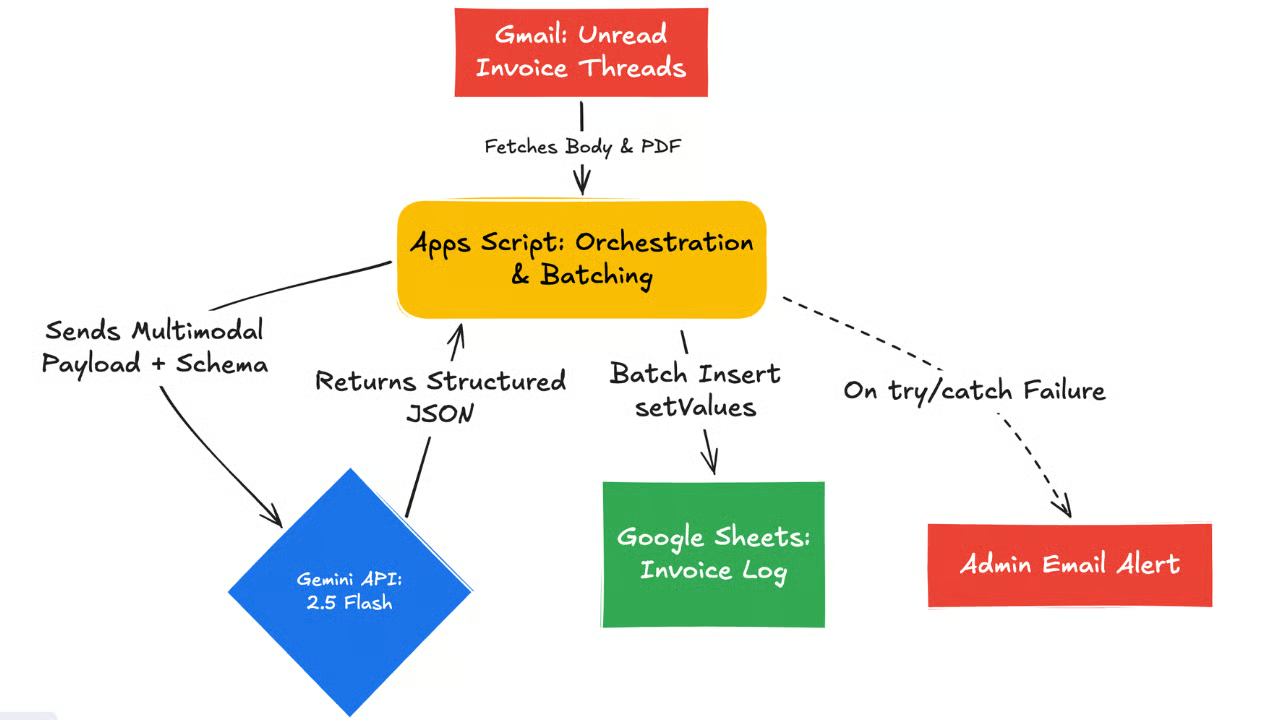
The primary benefit is the complete removal of infrastructure overhead. There is zero server provisioning required, and you do not need to configure Docker containers or set up complicated OAuth flows just to read your emails or write to a spreadsheet.
Because Apps Script natively integrates with services like GmailApp and SpreadsheetApp, Google handles the authentication internally. You simply write the code and connect the endpoints.
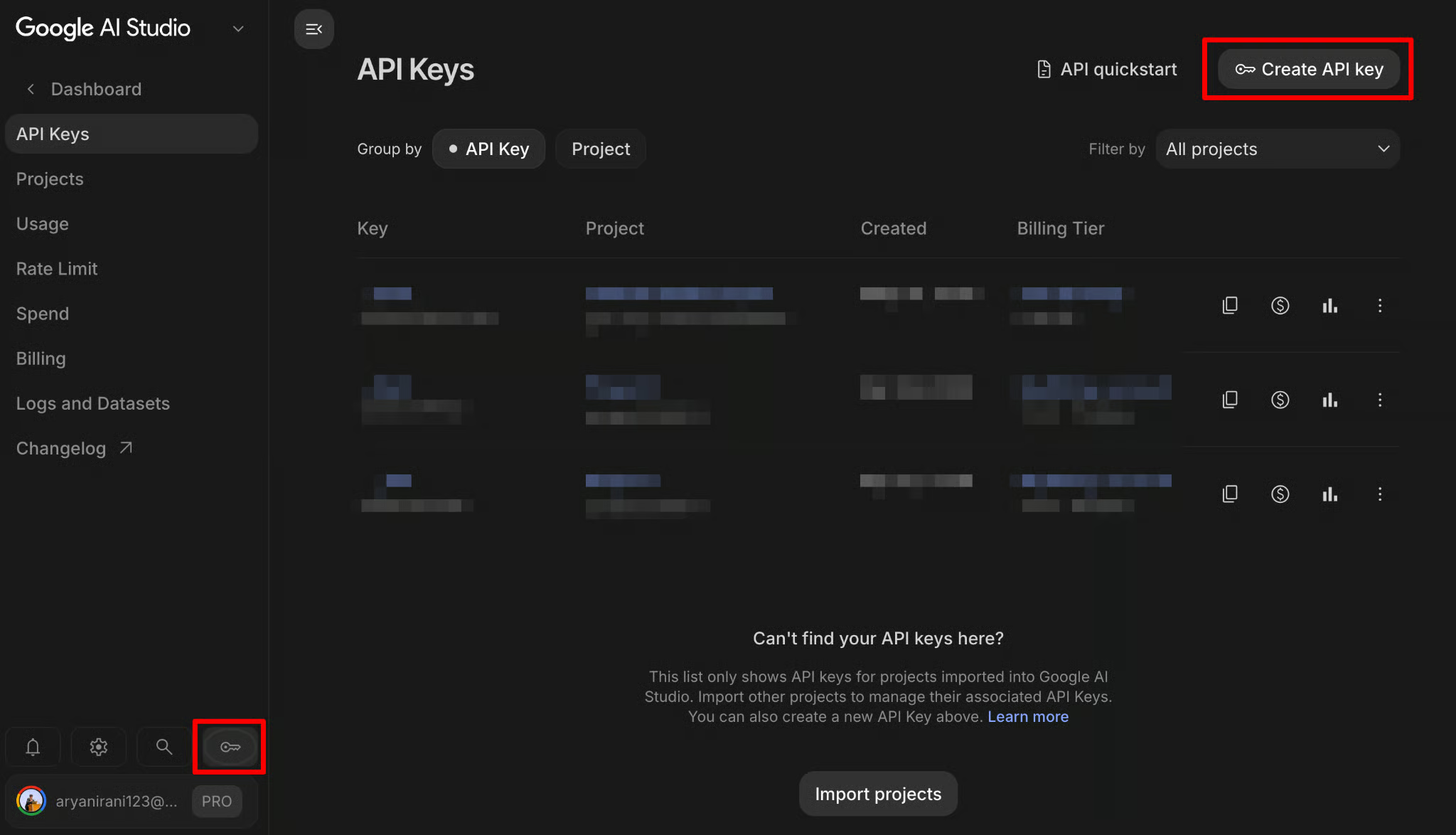
Before we write any code, we need to prepare our external dependencies. This involves securing access to the Gemini API, creating our destination spreadsheet, and configuring our Gmail inbox to properly tag incoming invoices.
To power our intelligent data extraction, we need access to the Gemini API.
Security Best Practice: Do not lose this key, but more importantly, do not plan to hardcode it in plain text within your code. Keep it copied to your clipboard or a secure notepad for now; we will securely lock it away inside our Apps Script environment in the next step.
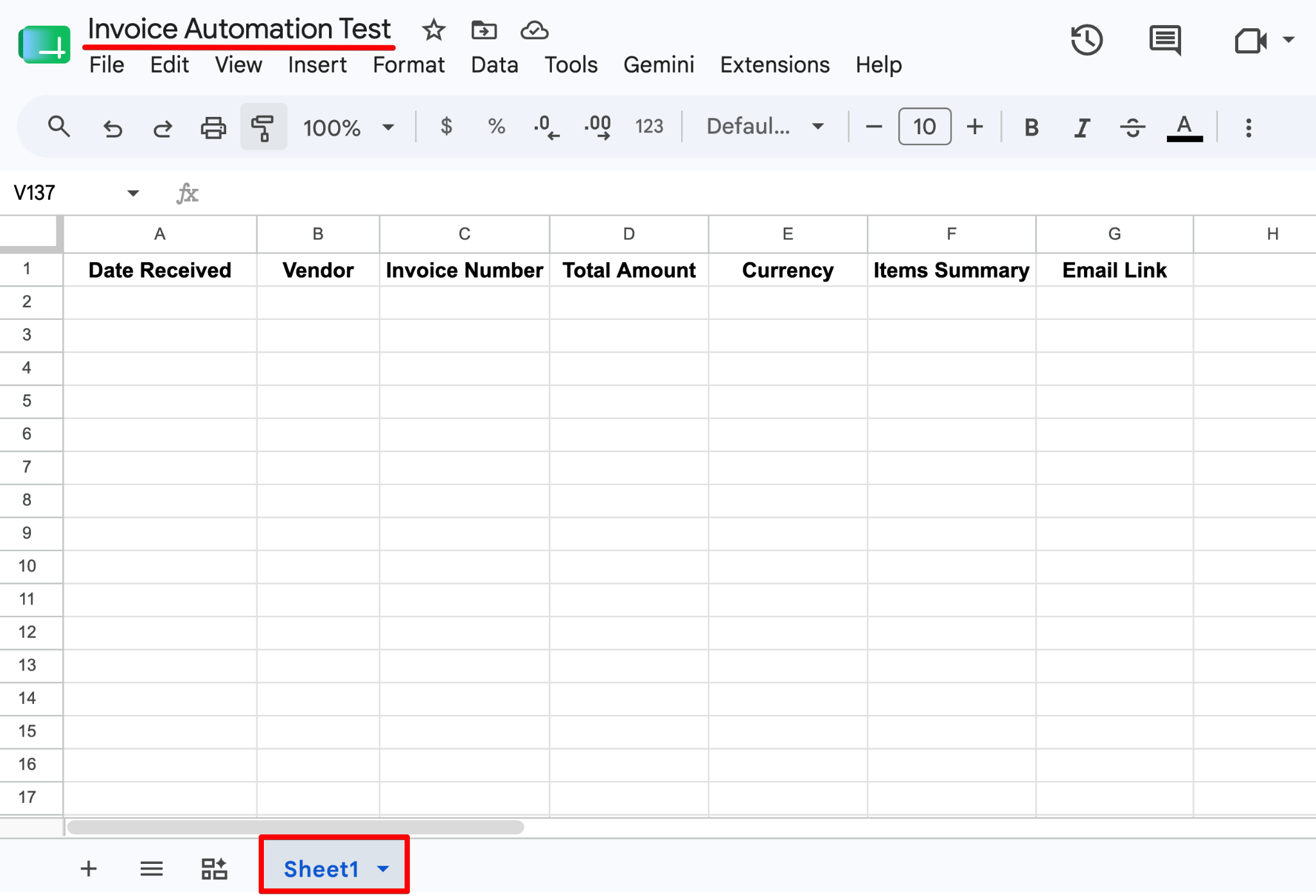
We need a place to store the extracted data. This sheet will also act as the launchpad for our automation script.
Freeze the top row so the headers remain visible as your data grows.
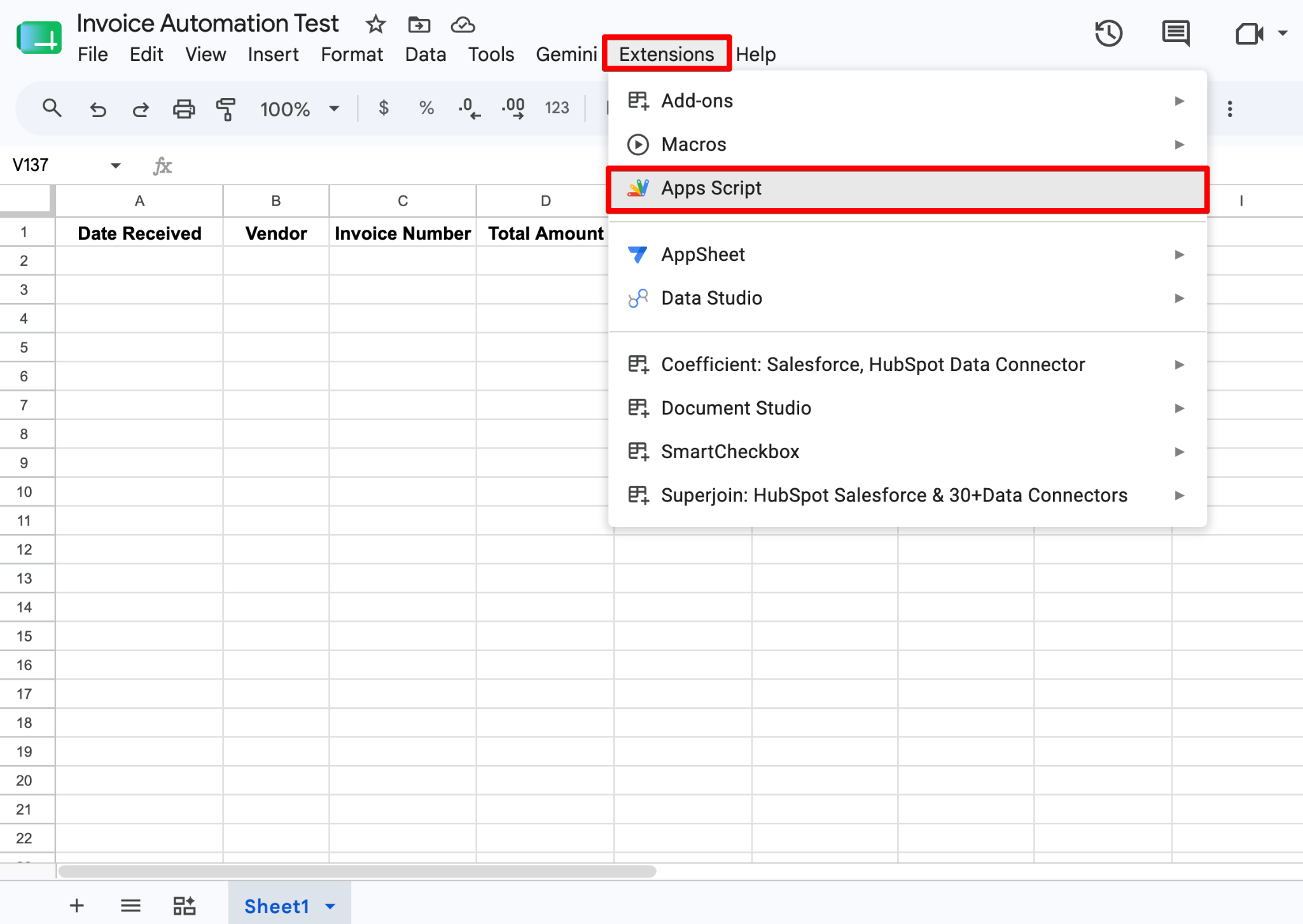
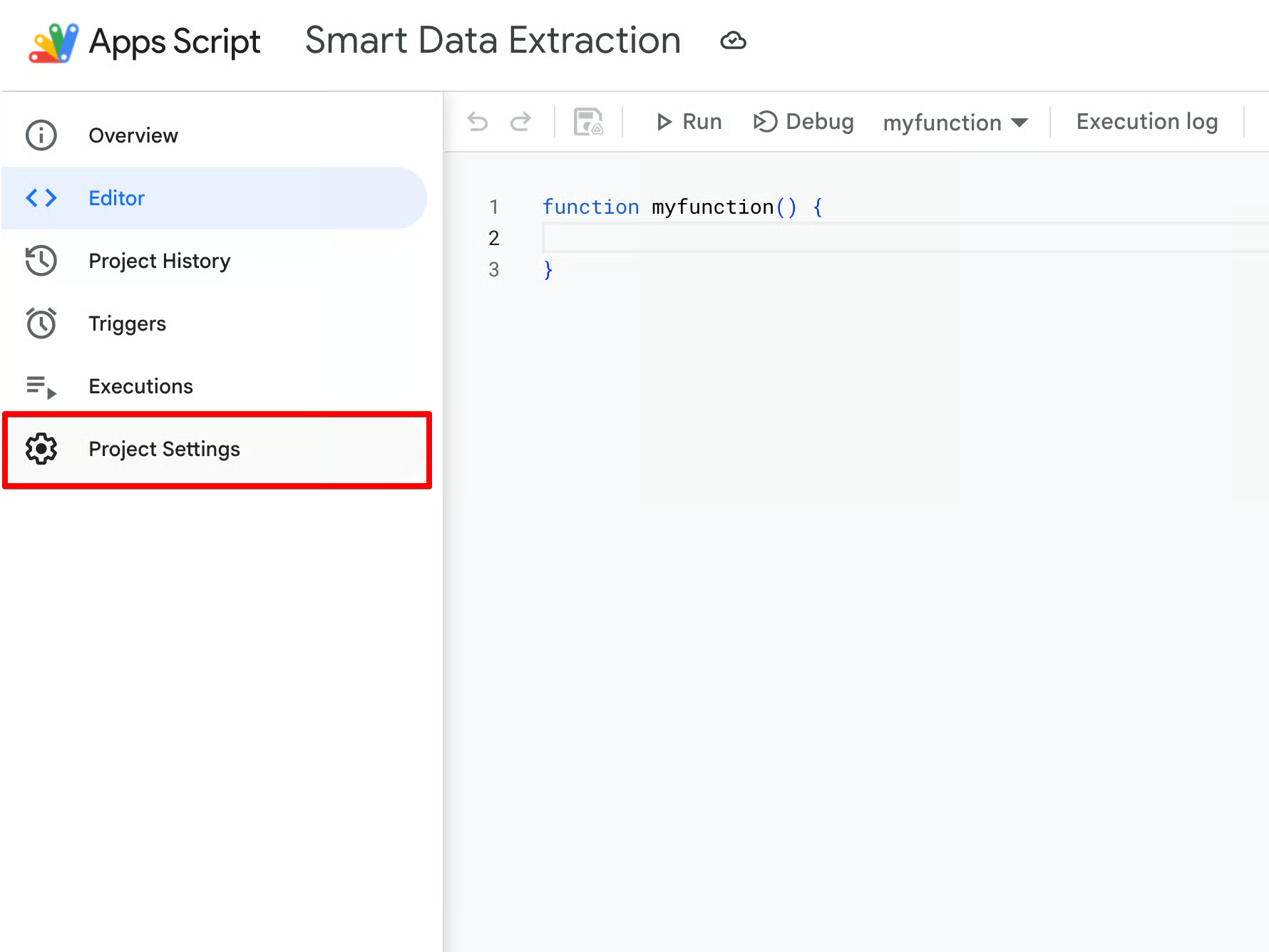
GEMINI_API_KEY.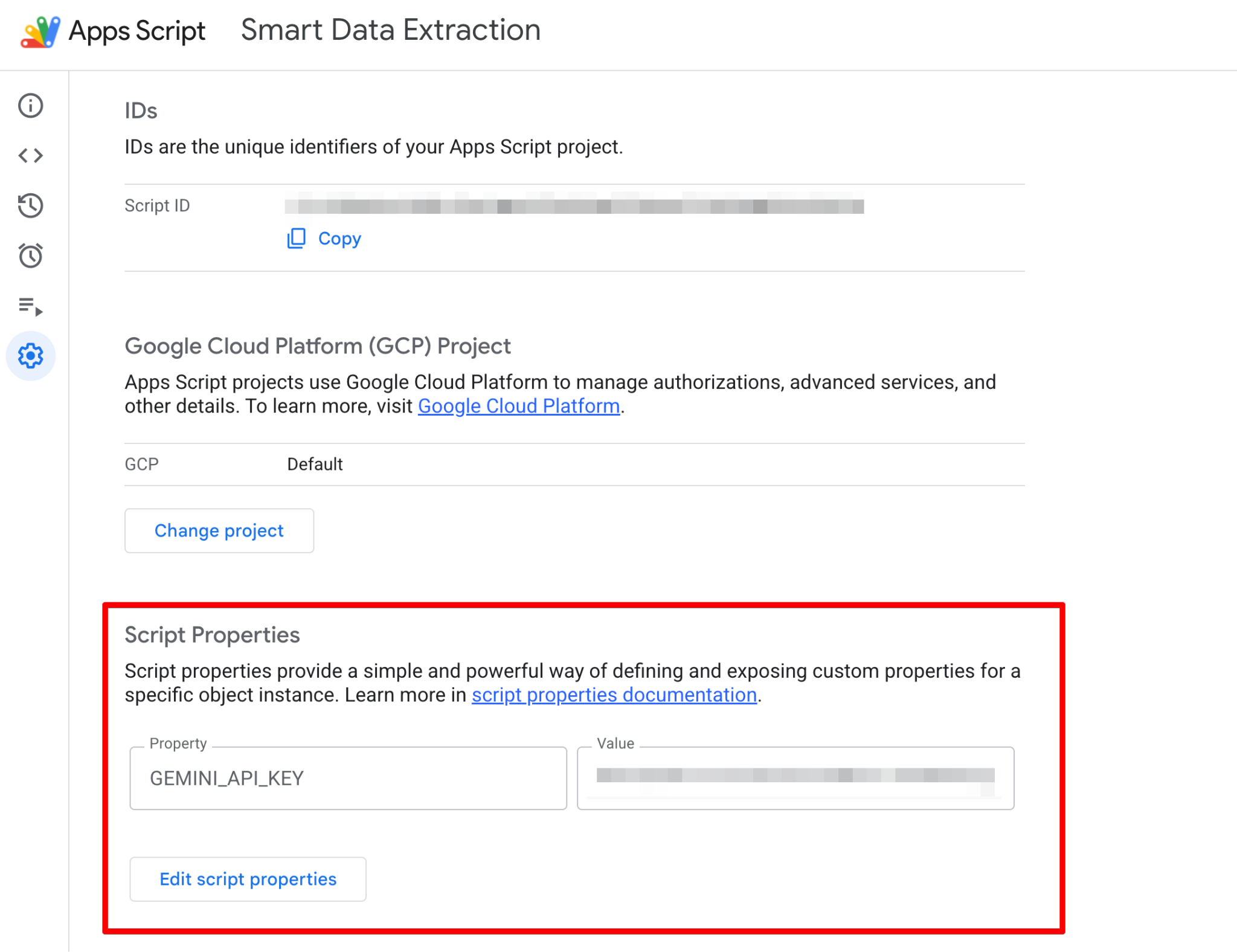
The code we write later will now securely fetch this value at runtime without exposing your credentials.
While you are in your Apps Script editor, go ahead and delete any default code. We will build our automation engine block by block.
We start by defining a global configuration object. This is a clean code best practice that groups all hardcoded variables in one place, so you only ever have to edit this top block.
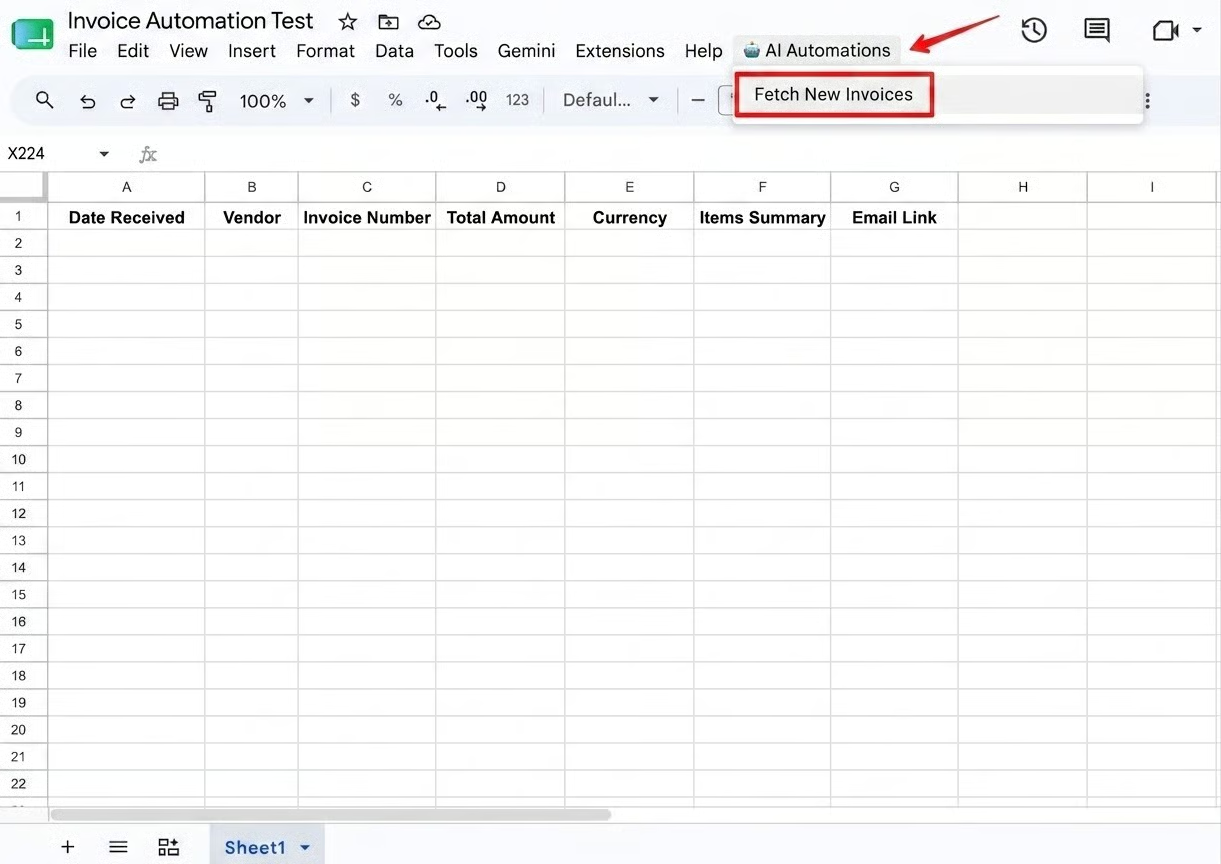
We also add an onOpen() function. This built-in Apps Script trigger automatically creates a custom menu in your Google Sheet, allowing non-technical users to run the script manually without ever opening the code editor.
const CONFIG = {
 searchQuery: "is:unread label:invoices",
 model: "gemini-2.5-flash",
 adminEmail: Session.getActiveUser().getEmail() // Automatically emails the script owner if it crashes
};

/**
* Creates a custom menu in Google Sheets so non-technical users can run the script manually.
*/
function onOpen() {
 const ui = SpreadsheetApp.getUi();
 ui.createMenu('🤖 AI Automations')
   .addItem('Fetch New Invoices', 'processInvoices')
   .addToUi();
}The processInvoices() function acts as the main orchestrator. It starts by securely pulling your API key from the Script Properties we set up earlier.
Then, it uses the built-in GmailApp service to query your inbox.
By calling GmailApp.search(CONFIG.searchQuery), the script retrieves an array of email threads that match our is:unread label:invoices rule.
If it finds matches, it loops through each thread, grabbing the latest message, extracting the plain text body, and isolating any attached PDF files.
function processInvoices() {
  const apiKey = PropertiesService.getScriptProperties().getProperty("GEMINI_API_KEY");
  if (!apiKey) {
    throw new Error("GEMINI_API_KEY is missing! Please set it in Script Properties.");
  }

  const threads = GmailApp.search(CONFIG.searchQuery);
  if (threads.length === 0) return;

  const sheet = SpreadsheetApp.getActiveSpreadsheet().getActiveSheet();
  const batchData = [];
const processedThreads = [];As we loop through the email threads, we grab the latest message. However, invoices rarely arrive as plain text; they are almost always attached as PDFs.
By utilizing Gemini 2.5 Flash, which is natively multimodal, our script loops through latestMessage.getAttachments(), grabs any PDFs, converts them to a Base64 string, and passes them directly to the API payload as inlineData.
Gemini "reads" the PDF visually and extracts the data just as easily as it reads text.
for (let i = 0; i < threads.length; i++) {
   const thread = threads[i];
   const latestMessage = thread.getMessages().pop();

   const emailBody = latestMessage.getPlainBody();
   const emailDate = latestMessage.getDate();
   const emailLink = https://mail.google.com/mail/u/0/#inbox/${thread.getId()};
   const attachments = latestMessage.getAttachments();
   try {
     const geminiParts = [];
     geminiParts.push({ text: "Extract invoice details from this email and any attached documents:\n\n" + emailBody });

     // Add PDF attachments as base64 to the prompt
     for (const attachment of attachments) {
       if (attachment.getContentType() === "application/pdf") {
         geminiParts.push({
           inlineData: {
             mimeType: "application/pdf",
             data: Utilities.base64Encode(attachment.getBytes())
           }
         });
       }
     }
     // Invoke Gemini API
const extractedData = callGeminiAPI(apiKey, geminiParts);To optimize performance, we don't write to the spreadsheet one row at a time.
Instead, we push the extracted JSON data into an array (batchData) and write it all at once at the very end using setValues().
Notice the try...catch block.
If Gemini hallucinates or fails on a specific email, the script doesn't crash entirely. Instead, it gracefully catches the error and uses MailApp.sendEmail() to alert the administrator immediately, ensuring high observability.
 // Push to batch array instead of writing one-by-one
     batchData.push([
       emailDate,
       extractedData.vendor || "Unknown Vendor",
       extractedData.invoiceNumber || "N/A",
       extractedData.totalAmount || 0.00,
       extractedData.currency || "USD",
       extractedData.itemsSummary || "N/A",
       emailLink
     ]);
     processedThreads.push(thread);
   } catch (error) {
     MailApp.sendEmail(CONFIG.adminEmail, "🚨 Invoice Pipeline Error", error.toString());
   }
 }
 // Batch Write to Sheets
 if (batchData.length > 0) {
   const lastRow = Math.max(sheet.getLastRow(), 1);
   sheet.getRange(lastRow + 1, 1, batchData.length, batchData[0].length).setValues(batchData);
 }
 // Mark all processed threads as read so they aren't parsed again
 processedThreads.forEach(t => t.markRead());
}
Finally, the script calls thread.markRead() on every processed email. This ensures that the next time the script runs, it completely ignores these emails and only looks for new ones.
When calling LLMs, developers often use Prompt Engineering like "Return a JSON block". However, models frequently reply with conversational padding (e.g. "Sure, here is your data: [JSON]"), which causes downstream code parsers to crash.
By setting responseMimeType: "application/json" and providing a strict responseSchema, we force the Gemini REST API to reply only with a guaranteed JSON object containing our exact spreadsheet column headers.
function callGeminiAPI(apiKey, partsArray) {
 const url = https://generativelanguage.googleapis.com/v1beta/models/${CONFIG.model}:generateContent?key=${apiKey};
  const responseSchema = {
   type: "OBJECT",
   properties: {
     vendor: { type: "STRING" },
     invoiceNumber: { type: "STRING" },
     totalAmount: { type: "NUMBER" },
     currency: { type: "STRING" },
     itemsSummary: { type: "STRING" }
   },
   required: ["vendor", "totalAmount"]
 };
  const payload = {
   contents: [{ parts: partsArray }],
   generationConfig: {
     responseMimeType: "application/json",
     responseSchema: responseSchema
   }
 };
  const options = {
   method: "POST",
   contentType: "application/json",
   payload: JSON.stringify(payload),
   muteHttpExceptions: true
 };
  const response = UrlFetchApp.fetch(url, options);
 const jsonResponse = JSON.parse(response.getContentText());
  return JSON.parse(jsonResponse.candidates[0].content.parts[0].text);
}Code is only valuable if it makes your life easier.
Google Apps Script provides powerful execution environments ranging from interactive, user-facing buttons to completely headless, background cron jobs.
If you are building this tool for a non-technical accounting team, they probably don't want to open the Apps Script code editor just to process today's invoices.
Because we included the onOpen() function in our code, Apps Script automatically binds a custom menu directly into the Google Sheets interface every time the spreadsheet is opened.
If you want true set it and forget it automation, you can use native Time-Driven Triggers to run the pipeline autonomously in the background.
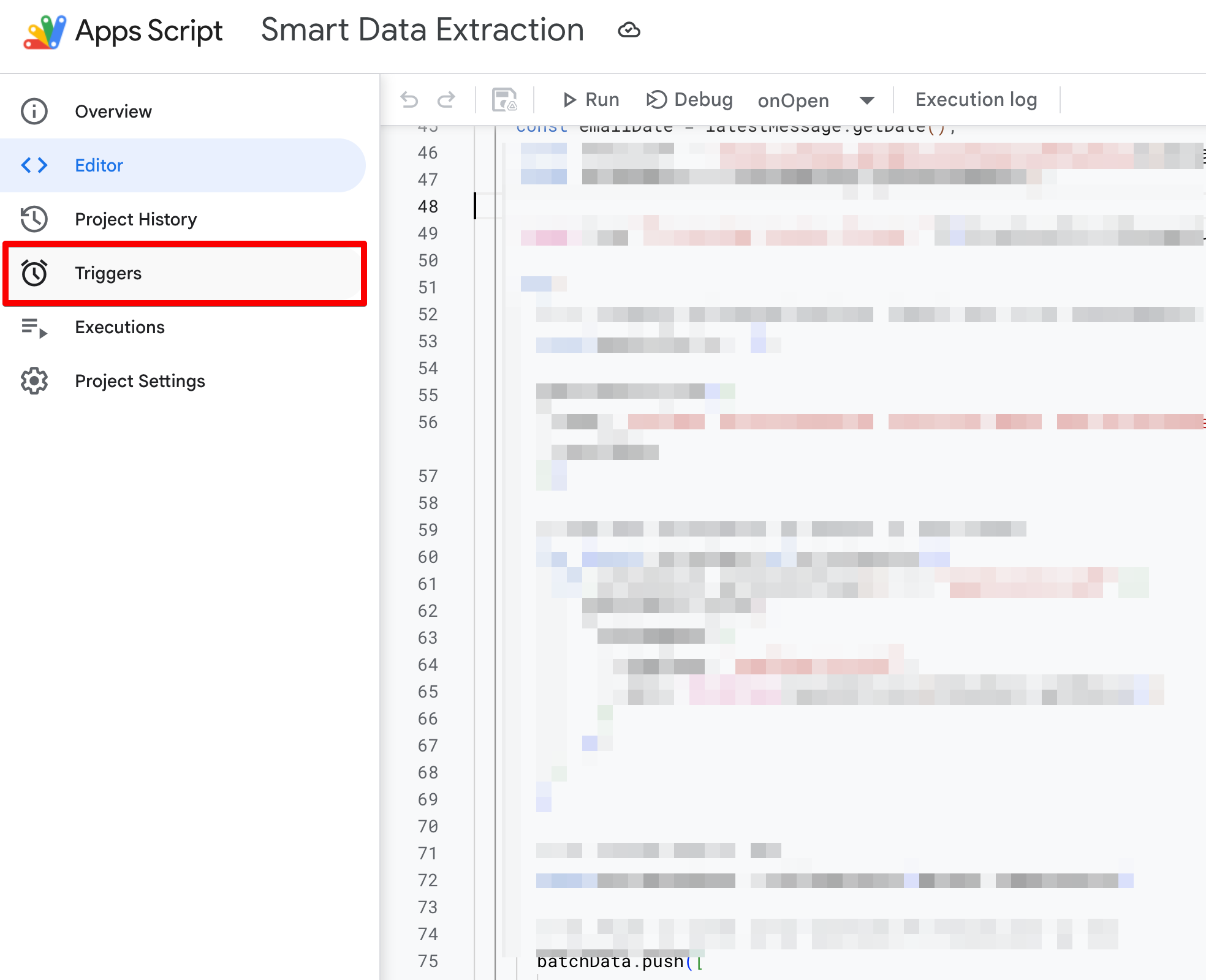
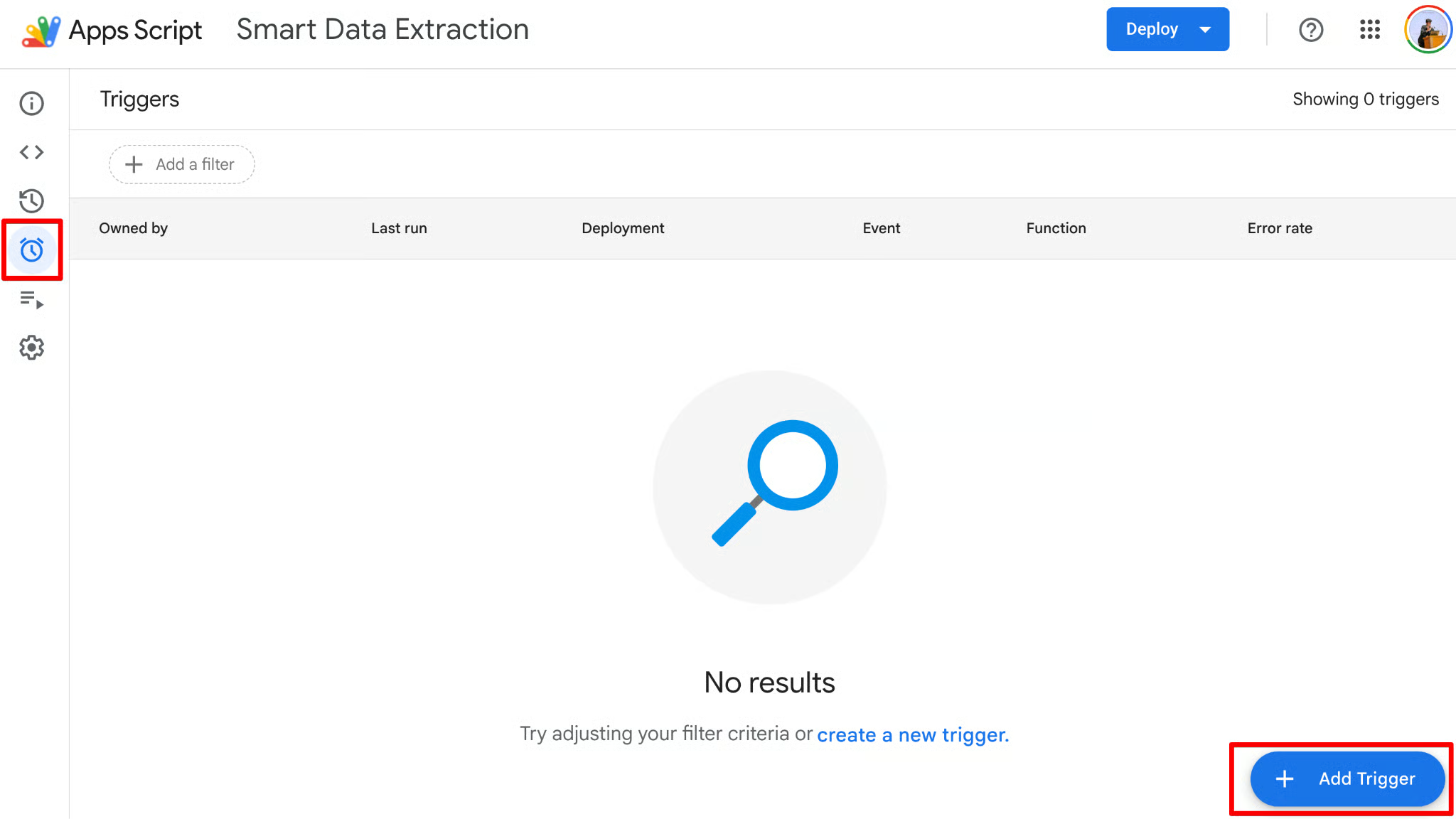
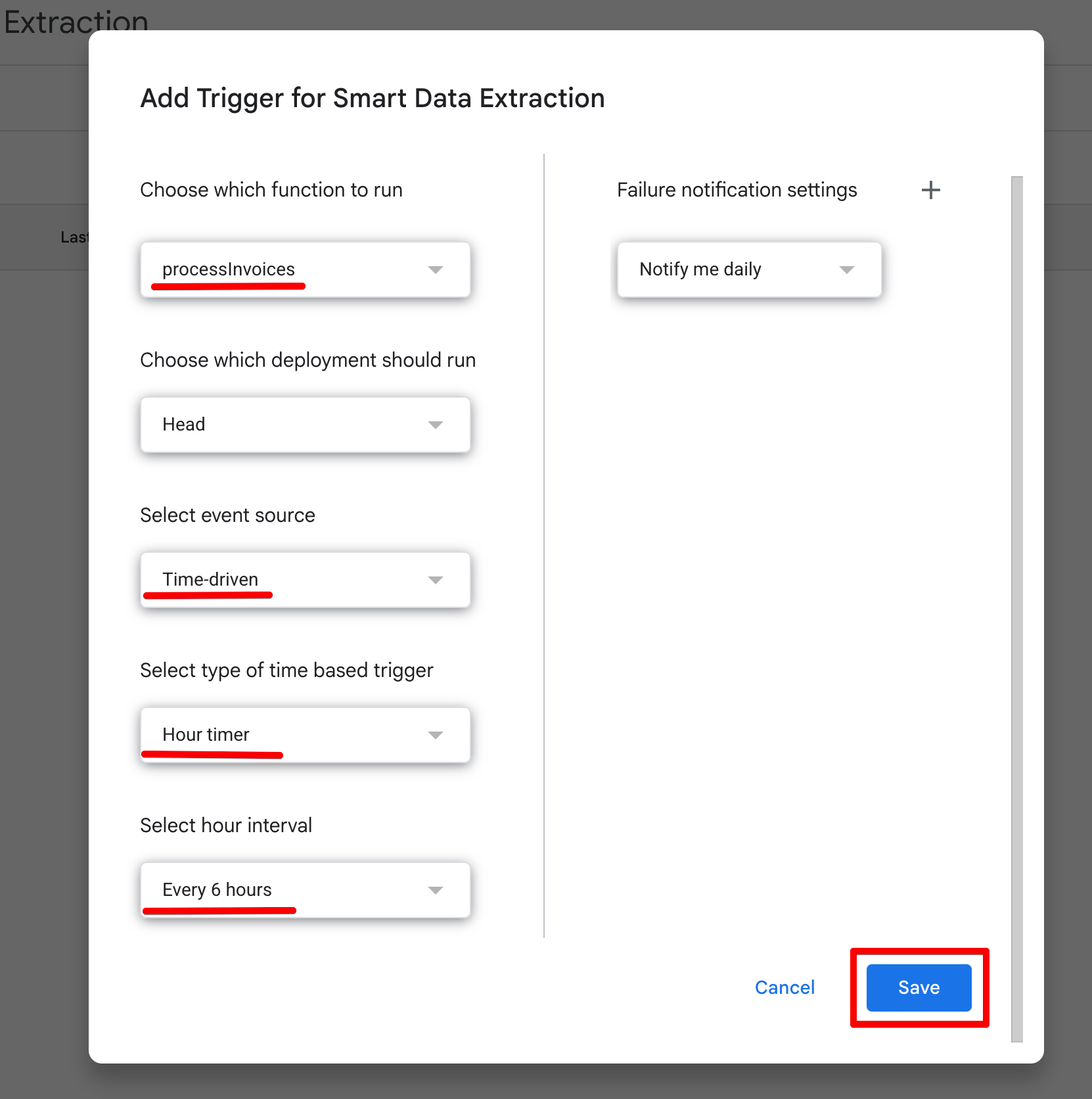
Your headless AI pipeline is now fully autonomous.
Even if your computer is completely turned off, Google's servers will wake up every six hours, scan your inbox, parse the invoices via Gemini, log the data into Sheets, and go back to sleep.
You can monitor the success or failure of these background executions by clicking the Executions tab in the Apps Script editor to view the logs.
Now that the code is in place, we need to test it to ensure the extraction pipeline works as expected.
Let's look at two practical scenarios to see how the Gemini API handles different data formats and what the actual responses look like.
First, we will test an invoice embedded directly in the email body.
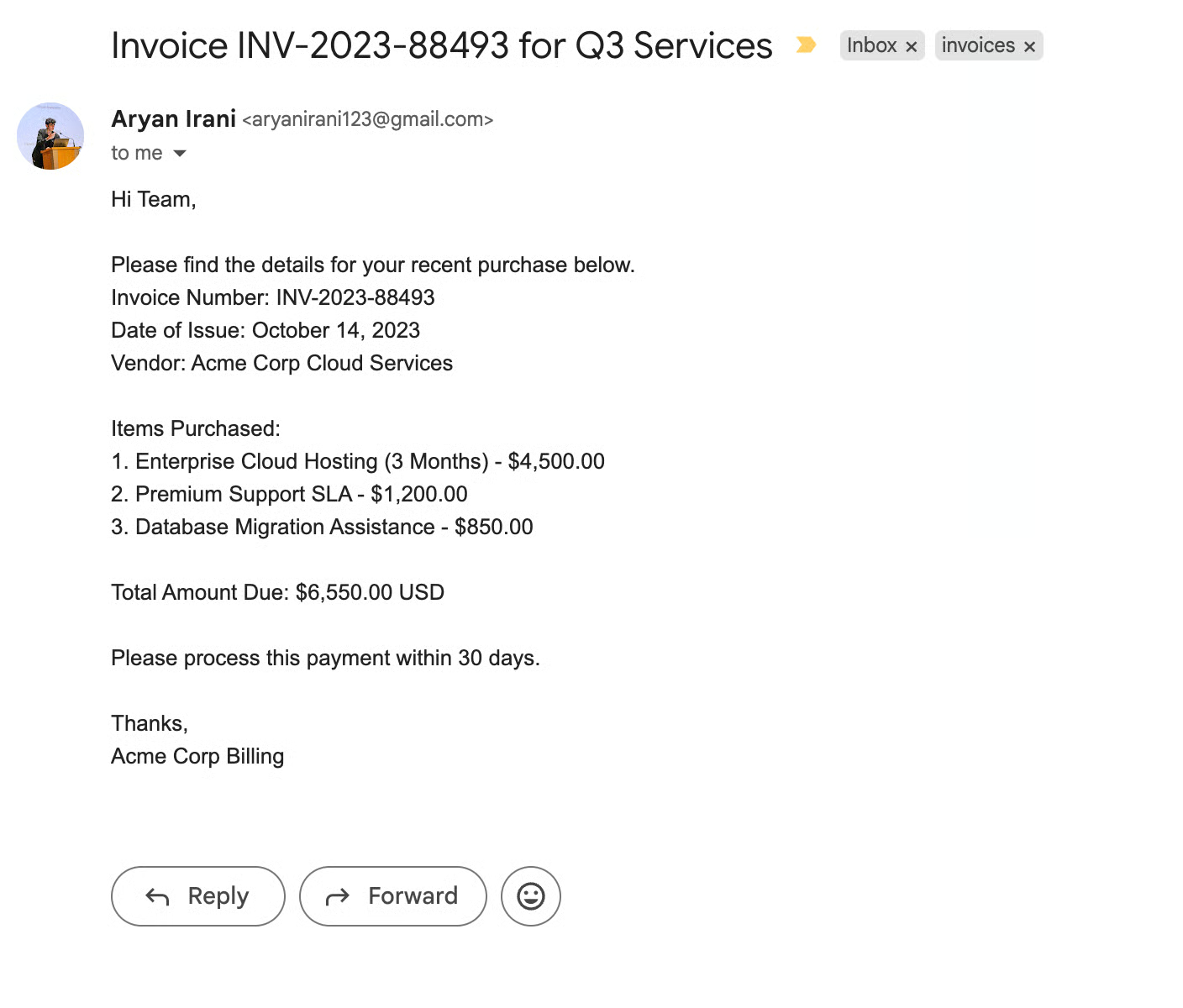
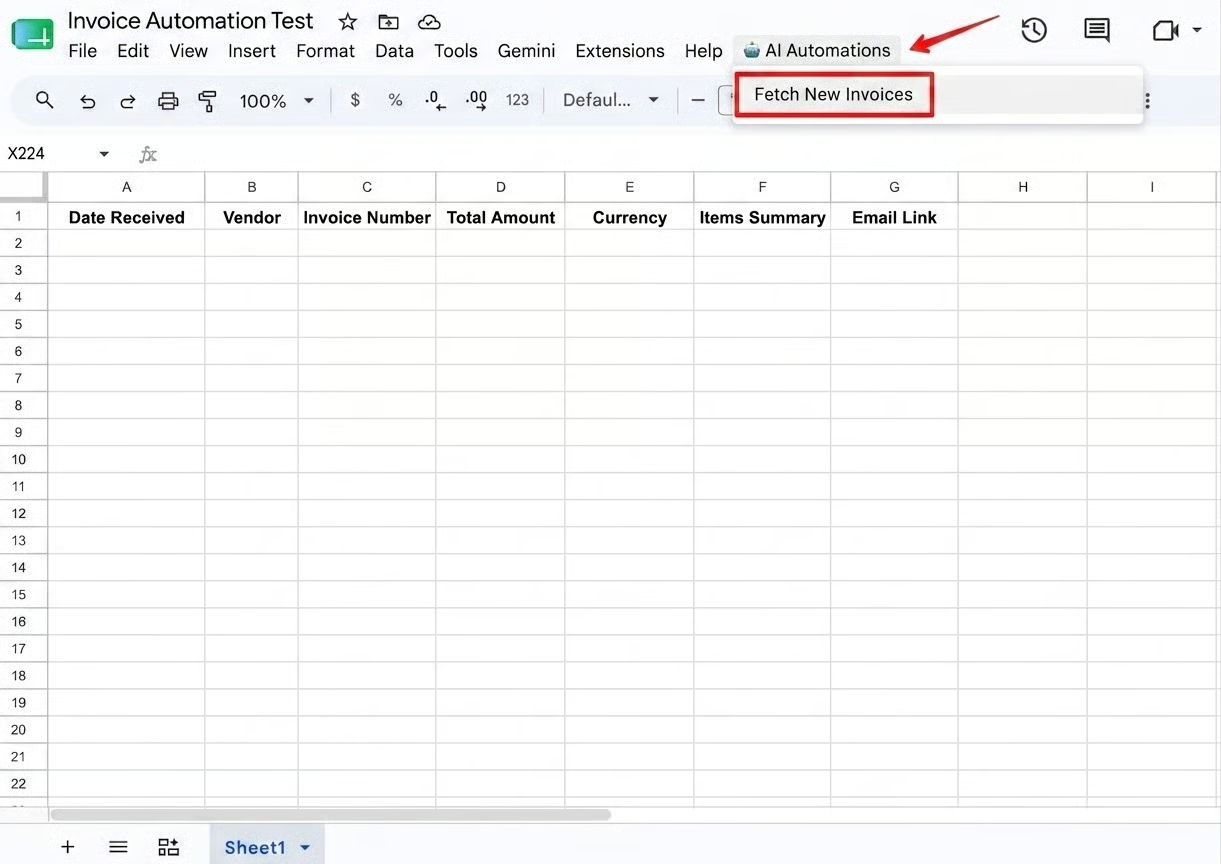
Behind the scenes, Gemini receives this unstructured text and strictly adheres to our JSON schema.
Instead of replying with conversational padding, it returns a raw payload.
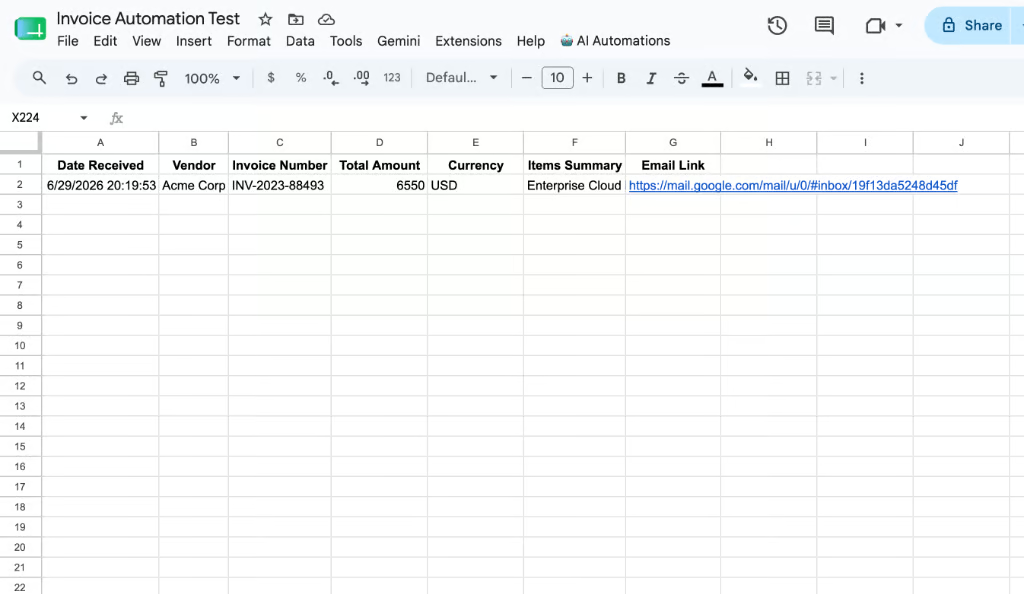
Because the response is perfectly structured JSON, our batchData.push() array seamlessly reads extractedData.totalAmount and logs 6550 straight into the Google Sheet without requiring any complex Regex logic.
Next, let's test the true power of Gemini 2.5 Flash by passing it a PDF document.
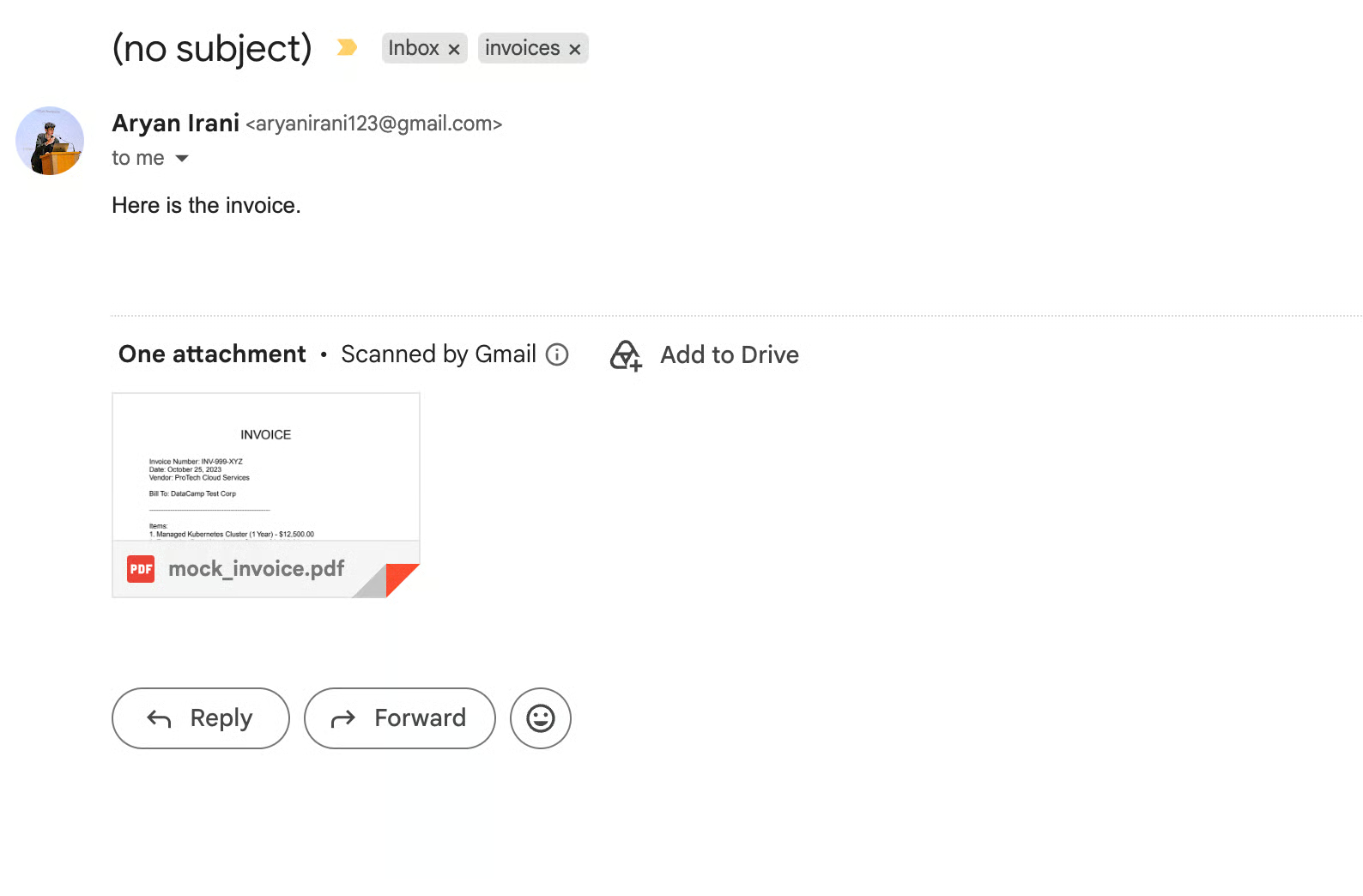
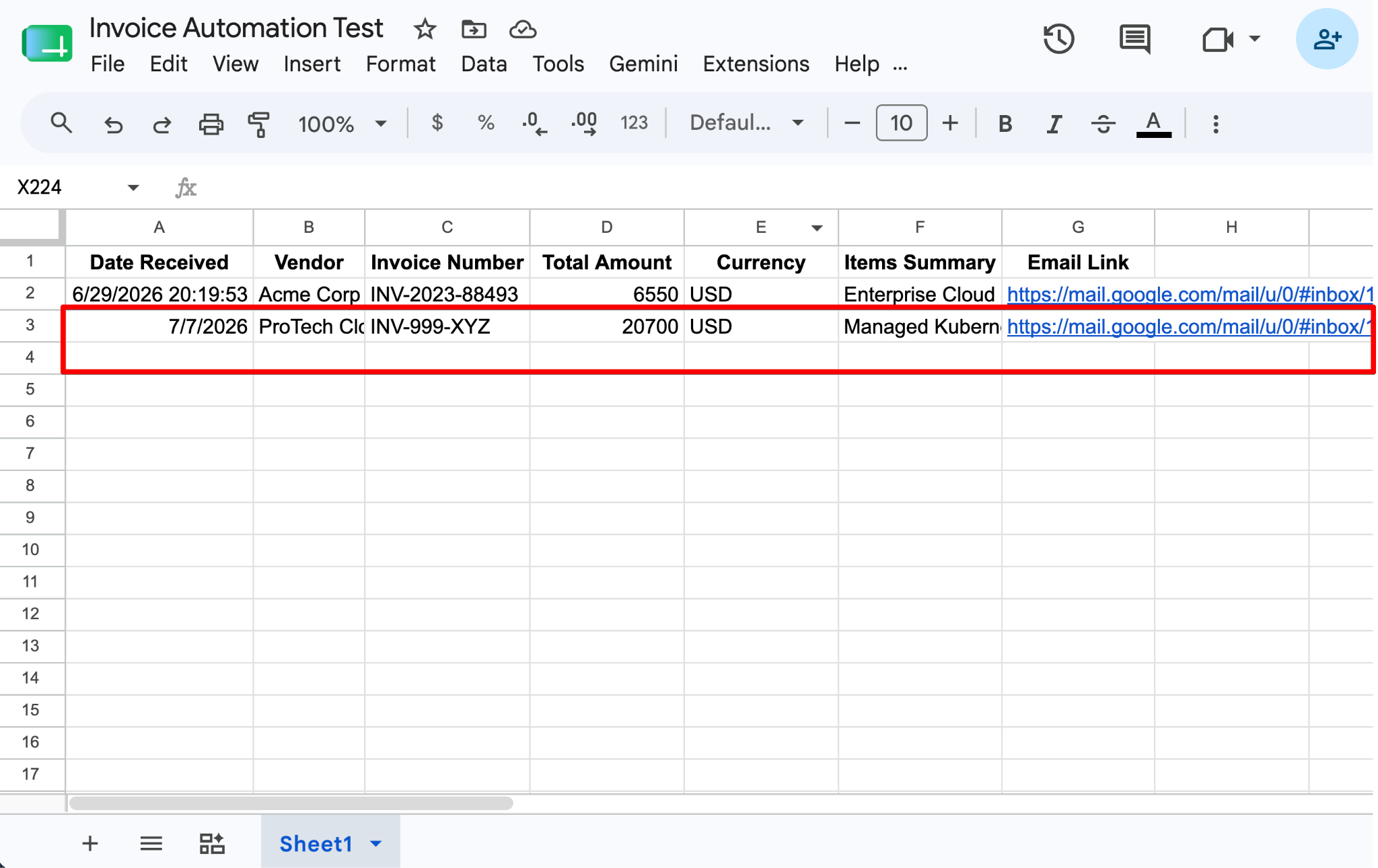
This is where the architecture proves its value.
You didn't have to write custom OCR (Optical Character Recognition) logic, manage a separate PDF parsing library, or write regular expressions to find the total amount.
The LLM handled the unstructured visual data natively.
Automating business workflows doesn't require managing heavy infrastructure or fighting with complex authorization loops.
By pairing Google Apps Script with the Gemini API, we built an intelligent, serverless data pipeline that runs entirely within the cloud ecosystem you already use every day.
The strength of this architecture lies in its simplicity. Instead of provisioning servers, configuring webhooks, or managing secure credential files on an external server, Apps Script handles the context, authentication, and execution natively.
Meanwhile, Gemini eliminates the need for brittle regular expressions or expensive OCR software, transforming messy email bodies and unstructured PDFs into predictable database rows with a single API call.
To take your skills further and explore what else you can build with programmatic access to LLMs, I recommend checking out DataCamp’s Introduction to APIs in Python or diving deep into designing intelligent workflows with the AI Agent Fundamentals course.
Top DataCamp Courses
Course
Course
Course
Tutorial
Abid Ali Awan
10 min
Tutorial
Bexruz (Bex) Tuychiev
14 min
Tutorial
Aashi Dutt
12 min
Tutorial
François Aubry
12 min
Tutorial
François Aubry
12 min
Tutorial
Aryan Irani
7 min