
Course
Data Analysis in Excel
3 hr
151.7K
You might not use matrix multiplication every day in Excel, or even think about how Excel handles linear algebra operations, but when the need for it does come up, MMULT() is the central function to know.
In this article, I'll show you how MMULT() works and I hope you come to appreciate how it's surprisingly helpful for calculating weighted sums, modeling financial outcomes, or working with multidimensional data.
Let’s start with the big picture. The MMULT() function performs matrix multiplication, which is a math operation where you multiply rows of one matrix by columns of another. It’s especially helpful when you're working with things like:
In Excel, MMULT() can help automate and speed up this process without needing separate tools like Python or R. While Python and R are good for this kind of thing, if you are working in Excel, it might be more time-consuming to have to switch back-and-forth.
Here are the MMULT() required arguments. As you'd expect, it takes in two arrays.
=MMULT(array1, array2)array1: The first matrix (range of cells)
array2: The second matrix (range of cells)
The number of columns in array1 must match the number of rows in array2. If this condition isn't met, Excel won’t perform the multiplication and will return an error.
Important note: If you’re using Excel 365 or Excel 2021 (or later), just hit Enter like any normal formula. But if you’re on an older version, you’ll need to use a special key combo:
Select the output range (make sure it’s sized correctly!).
Type in your MMULT() formula.
Press Ctrl + Shift + Enter to enter it as an array formula.
When you do this right, Excel surrounds your formula with curly braces {} to show it’s been entered as an array formula.
Let’s bring this to life with an example.
Say you have the following two matrices:
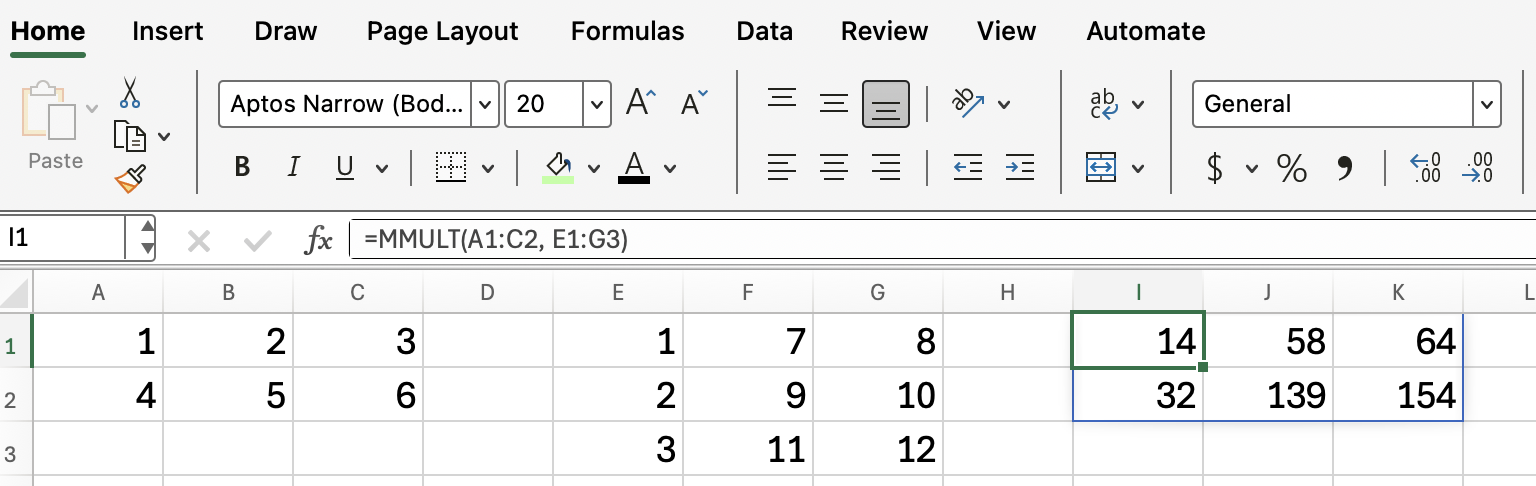
If you want to multiply these two matrices, use:
=MMULT(A1:C2, E1:G3)Here are the operations:
Once entered correctly, Excel will return a new matrix based on the product. Each number in the resulting matrix is the sum of products from rows of array1 and columns of array2. We didn't have to do all the row and column operations that I just showed above; Excel takes care of all the heavy lifting.
Working with MMULT() can trip you up if you’re not careful. Here are some common issues:
Always double-check the size of your input and output ranges before entering the formula.
Here is one idea to help you better see the result: Use color scales to show high vs. low values in your resulting matrix. This can make large or complex results easier to interpret.
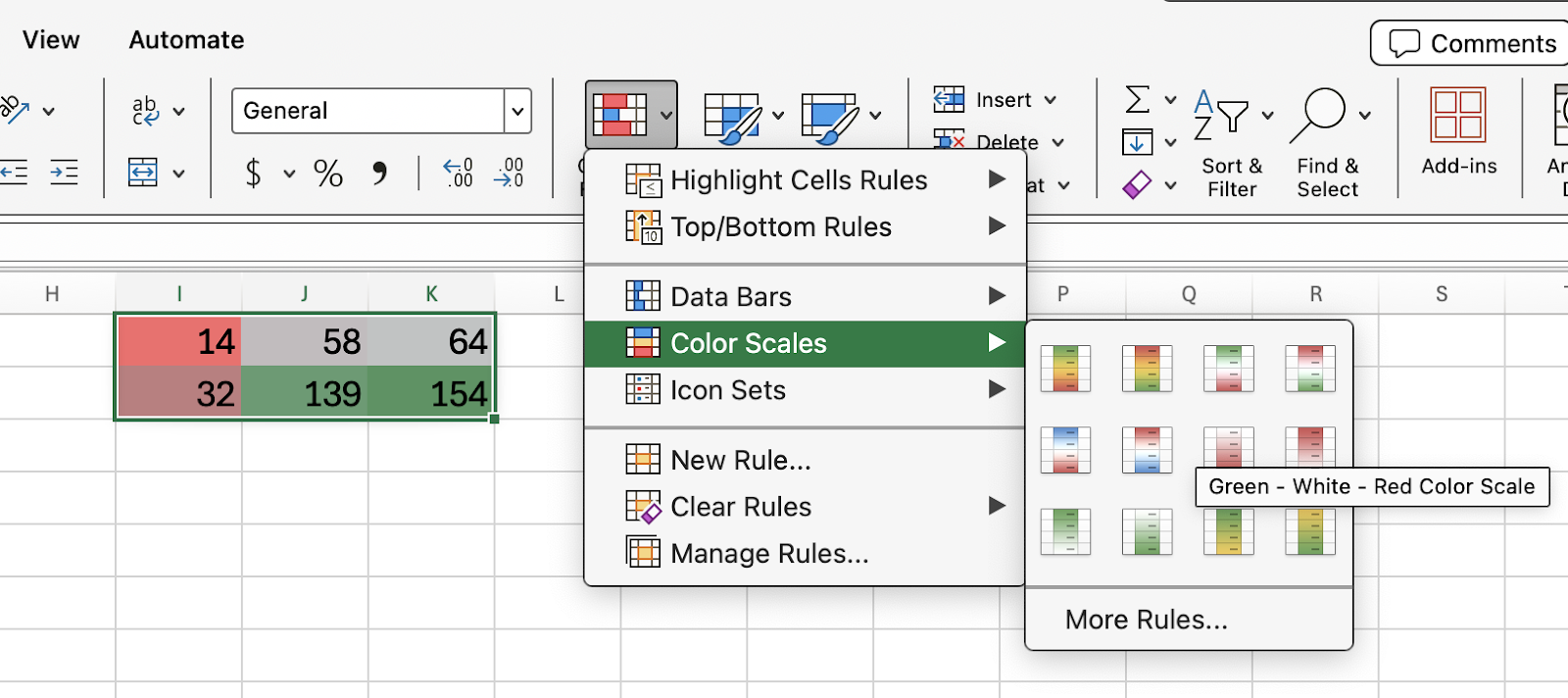
The MMULT() function is a useful function in Excel for handling matrix multiplication which is going to relevant in things like regression and financial analysis. Once you know how to size your arrays and enter the function correctly, it can save you time and reduce errors.
Check out our courses on Data Analysis in Excel and Advanced Excel Functions to keep building your expertise. Financial Modeling in Excel is another great option which includes interesting things like sensitivity analysis and forecasting.
Learn Excel with DataCamp
Course
Course
Course
Tutorial
Laiba Siddiqui
6 min
Tutorial
Aditya Sharma
9 min
Tutorial
Laiba Siddiqui
8 min
Tutorial
Vinod Chugani
9 min
Tutorial
Vinod Chugani
9 min
Tutorial
Elena Kosourova
7 min