
Kurs
Einführung in Docker
4 Std.
51.5K
Du hast Docker am Laufen und kennst die Basics, bist aber genervt davon, Container einzeln zu starten?
Docker Compose ist ein Tool, mit dem du Multi-Container-Anwendungen in einer einzigen YAML-Datei definierst und startest. Verwirrend ist, dass zwei Varianten im Umlauf sind: das alte, eigenständige Binary (v1) und das neuere CLI-Plugin (v2). Viele Anleitungen sagen nicht, welche Version sie nutzen – und du folgst am Ende Schritten, die nicht zu deinem Setup passen.
Docker Compose v2 ist als Plugin in modernen Docker-Installationen enthalten – das vereinfacht Installation, Nutzung und Verifizierung deutlich. Der Prozess ist nicht mehr so manuell wie früher.
In diesem Artikel zeige ich dir, wie du Docker Compose auf Linux, macOS und Windows korrekt installierst – mit v2.
Neu bei Virtualisierung und Containerisierung? Lies unseren aktuellen Docker for Beginners-Artikel für praktische Übungen.
Zuerst brauchst du Docker Engine auf deinem Rechner. Docker Compose läuft nicht allein – es baut auf Docker auf.
Prüfe deine Docker-Version mit:
docker --version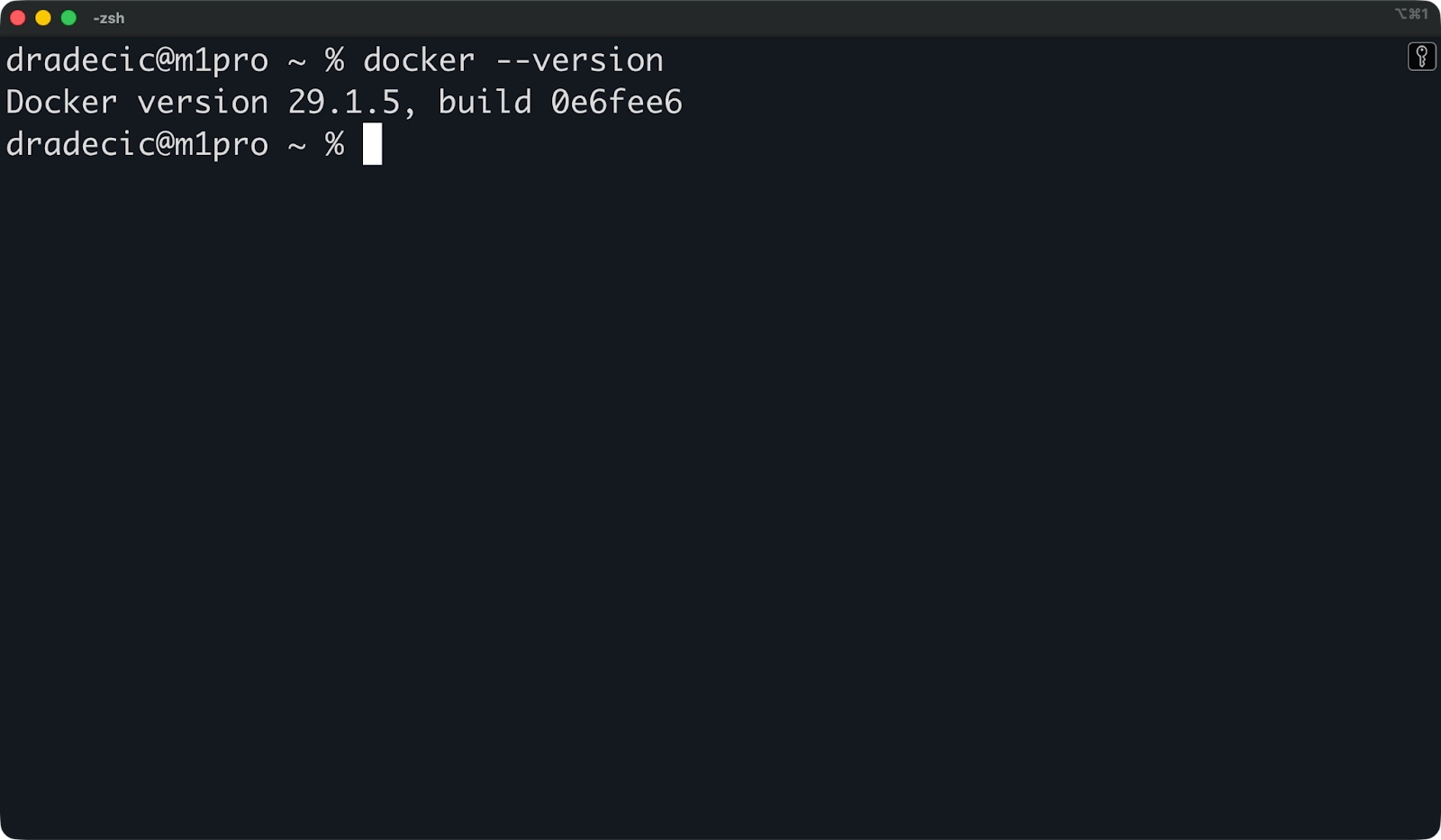
Installierte Docker-Version
Falls Docker nicht installiert ist, halte hier an und installiere es zuerst. Wenn Docker vorhanden ist, kannst du prüfen, ob Compose bereits verfügbar ist:
docker compose version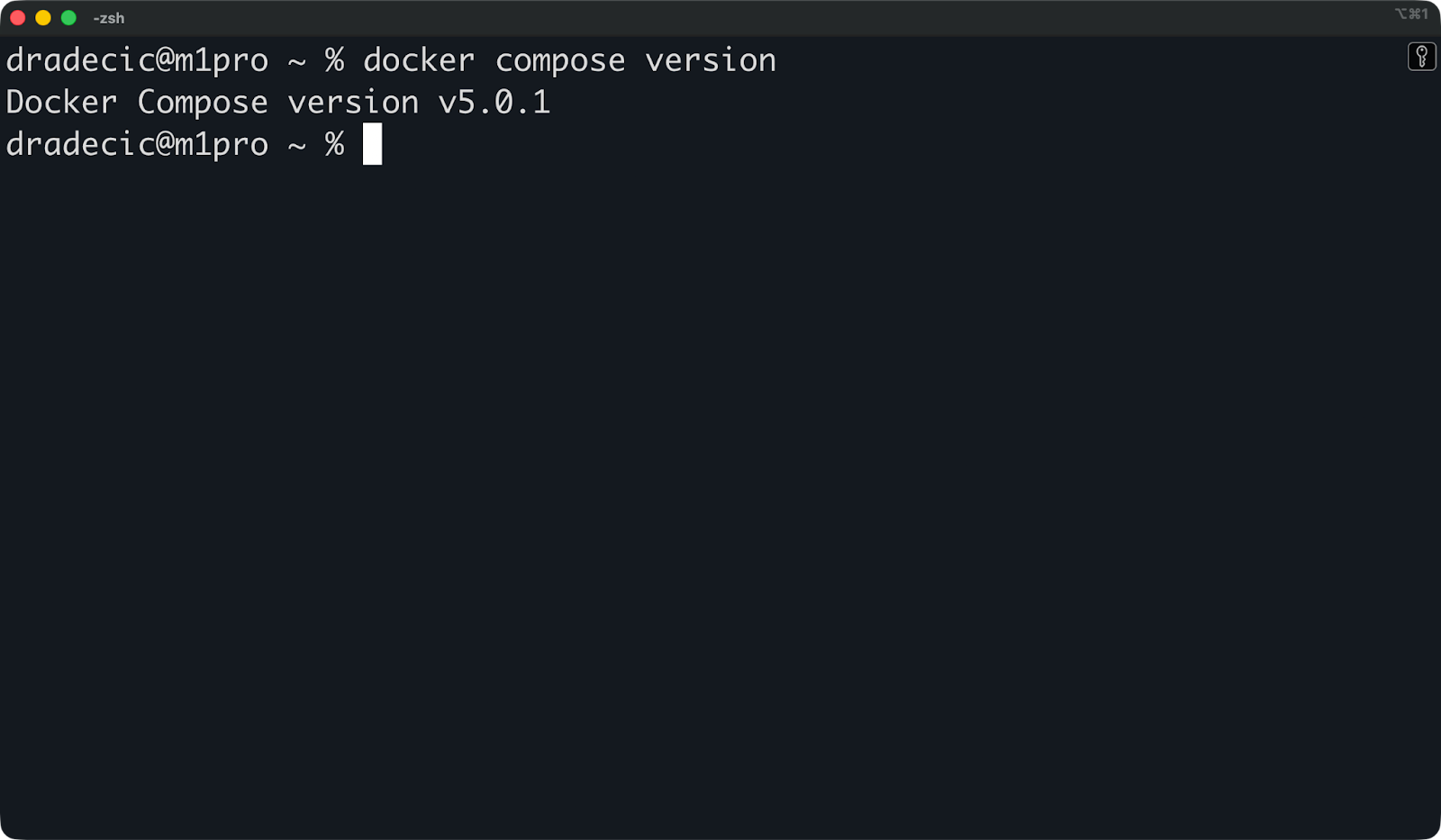
Installierte Docker-Compose-Version
Wenn eine Versionsnummer erscheint, bist du fertig – Compose v2 ist bereits mit deiner Docker-Installation gebündelt. Du kannst direkt zum Verifizierungsteil springen.
Wenn stattdessen „command not found“ oder eine ähnliche Meldung kommt, lies weiter.
Hier ist der entscheidende Unterschied:
Docker Compose v1 ist das veraltete, eigenständige Binary. Du rufst es mit docker-compose (mit Bindestrich) auf. Es ist abgekündigt und wird nicht mehr gepflegt.
Docker Compose v2 ist ein CLI-Plugin, das mit modernen Docker-Versionen ausgeliefert wird. Du rufst es mit docker compose (ohne Bindestrich) auf.
Mit einer aktuellen Docker-Installation hast du v2 so gut wie sicher schon dabei. Der Rest dieses Artikels bezieht sich auf v2.
Unter Linux gibt es zwei Wege, Docker Compose zu bekommen. Der erste nutzt das offizielle Docker-Repository – die empfohlene Methode. Der zweite ist eine manuelle Installation, praktisch wenn du keinen Paketmanager nutzen kannst oder eine bestimmte Version brauchst.
Damit bleibt Compose an deine Docker-Installation gekoppelt und Updates bleiben synchron.
Wenn Docker Engine noch nicht installiert ist, richte zuerst das offizielle apt-Repository von Docker ein:
# Add Docker's GPG key
sudo apt-get update
sudo apt-get install ca-certificates curl
sudo install -m 0755 -d /etc/apt/keyrings
sudo curl -fsSL https://download.docker.com/linux/ubuntu/gpg -o /etc/apt/keyrings/docker.asc
sudo chmod a+r /etc/apt/keyrings/docker.asc

# Add the repository
echo \
  "deb [arch=$(dpkg --print-architecture) signed-by=/etc/apt/keyrings/docker.asc] https://download.docker.com/linux/ubuntu \
  $(. /etc/os-release && echo \"$VERSION_CODENAME\") stable" | \
  sudo tee /etc/apt/sources.list.d/docker.list > /dev/null

sudo apt-get update
Jetzt Docker Engine und das Compose-Plugin zusammen installieren:
sudo apt-get install docker-ce docker-ce-cli containerd.io docker-buildx-plugin docker-compose-pluginDas Paket docker-compose-plugin liefert dir den CLI-Befehl docker compose. Prüfe die Funktion:
docker compose version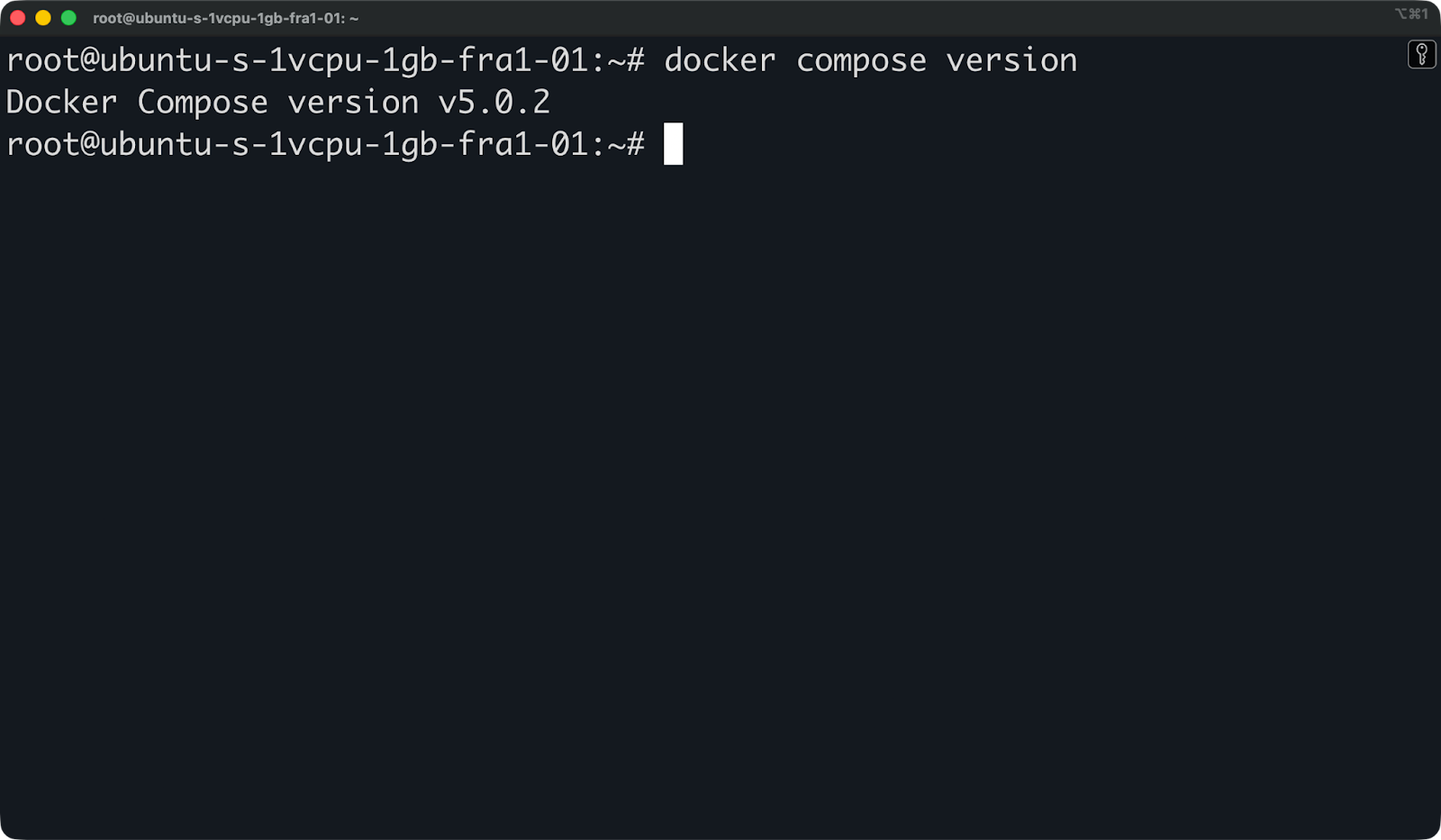
Docker-Compose-Version auf einer Ubuntu-VM
Das war's.
Nutze diese Methode, wenn du eine bestimmte Compose-Version brauchst oder dein Umfeld das Docker-Repository nicht unterstützt.
Lade zuerst das neueste Release direkt von GitHub herunter. Ersetze v5.0.1 durch die gewünschte Version:
DOCKER_CONFIG=${DOCKER_CONFIG:-$HOME/.docker}
mkdir -p $DOCKER_CONFIG/cli-plugins
curl -SL https://github.com/docker/compose/releases/download/v5.0.1/docker-compose-linux-x86_64 -o $DOCKER_CONFIG/cli-plugins/docker-compose
Mache das Binary ausführbar:
chmod +x $DOCKER_CONFIG/cli-plugins/docker-composeUnd prüfe abschließend die Installation:
docker compose version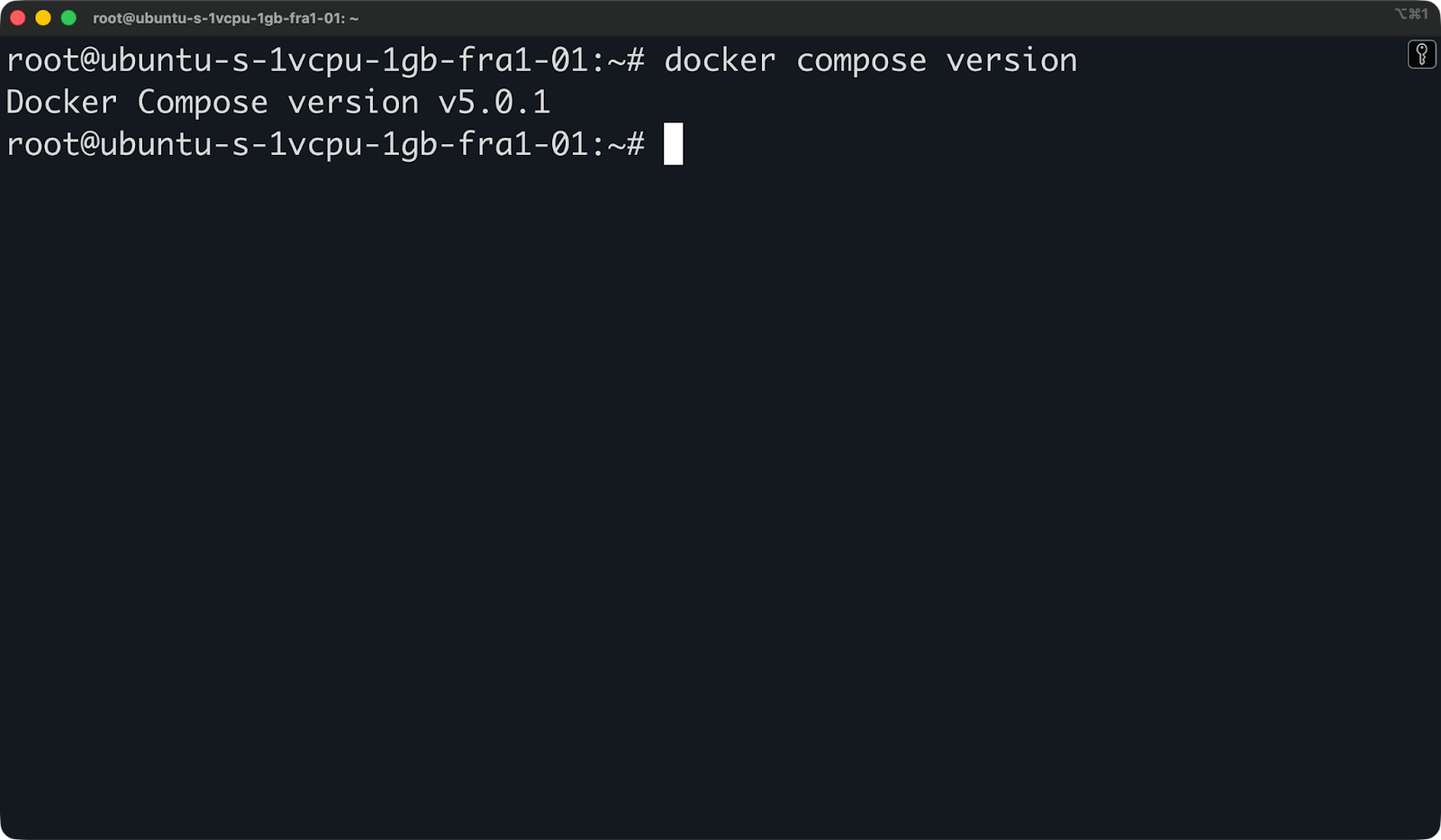
Docker-Compose-Version auf einer Ubuntu-VM
Wichtig: Manuelle Installationen aktualisieren sich nicht automatisch. Wenn du ein Binary installierst und es vergisst, läufst du womöglich mit einer veralteten Version samt bekannter Bugs oder Sicherheitslücken. Wenn du diesen Weg wählst, wirf regelmäßig einen Blick auf die Docker-Compose-Releases.
Unter macOS musst du Docker Compose nicht separat installieren – es ist in Docker Desktop enthalten.
Lade Docker Desktop von Dockers offizieller Website herunter. Achte darauf, die richtige Variante für deinen Chip zu wählen – Apple Silicon (M1–M5) oder Intel.
Nach der Installation starte Docker Desktop und warte, bis es vollständig hochgefahren ist. Prüfe dann mit diesem Befehl, ob Compose verfügbar ist:
docker compose version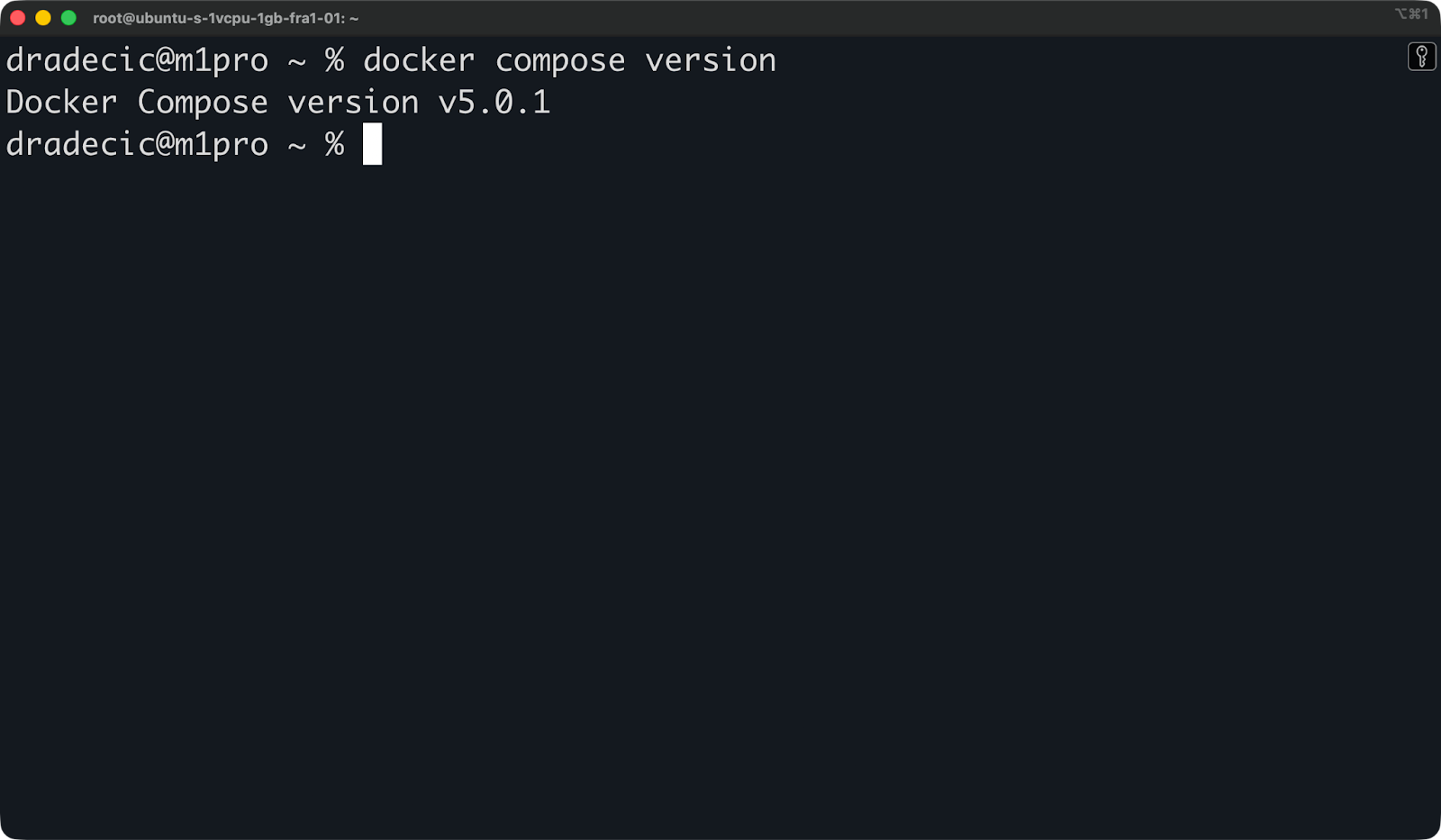
Docker-Compose-Version unter macOS
Fertig. Compose v2 ist einsatzbereit.
Wenn du Tools lieber mit Homebrew verwaltest und keine vollständige Docker-Desktop-GUI möchtest, kannst du Docker und Compose so installieren:
brew install docker
brew install docker-compose
Beachte: Homebrew installiert Docker Engine ohne die Desktop-App. Das ist für die CLI-Nutzung okay, dir fehlen dann aber Features wie das Docker Dashboard und automatische Updates. Für die meisten macOS-User ist Docker Desktop der einfachere Weg.
Wie unter macOS bekommst du Docker Compose unter Windows automatisch mit Docker Desktop. Eine separate Installation ist nicht nötig.
Bevor du Docker Desktop installierst, muss WSL2 (Windows Subsystem for Linux 2) aktiviert sein. WSL2 ermöglicht Docker, unter Windows mit einem echten Linux-Kernel zu arbeiten – so funktionieren Container auf dieser Plattform. Aktiviere es, indem du PowerShell als Administrator öffnest und Folgendes ausführst:
wsl --installStarte den Rechner auf Aufforderung neu. Lade dann Docker Desktop von Dockers offizieller Website herunter und installiere es.
Achte während der Einrichtung darauf, die Option „Use WSL2 instead of Hyper-V“ zu aktivieren. Sobald Docker Desktop läuft, prüfe, ob Compose verfügbar ist – wahlweise in PowerShell oder im WSL-Terminal:
docker compose versionWenn ein „permission denied“-Fehler auftaucht, liegt es meist an einem von zwei Punkten:
docker-Befehle funktionieren.docker hinzufügst:sudo usermod -aG docker $USERMelde dich anschließend in WSL ab und wieder an, damit die Änderung greift.
Sobald Docker Compose installiert ist, prüfe mit diesem Befehl, ob alles funktioniert:
docker compose versionDu solltest eine Ausgabe wie diese sehen:
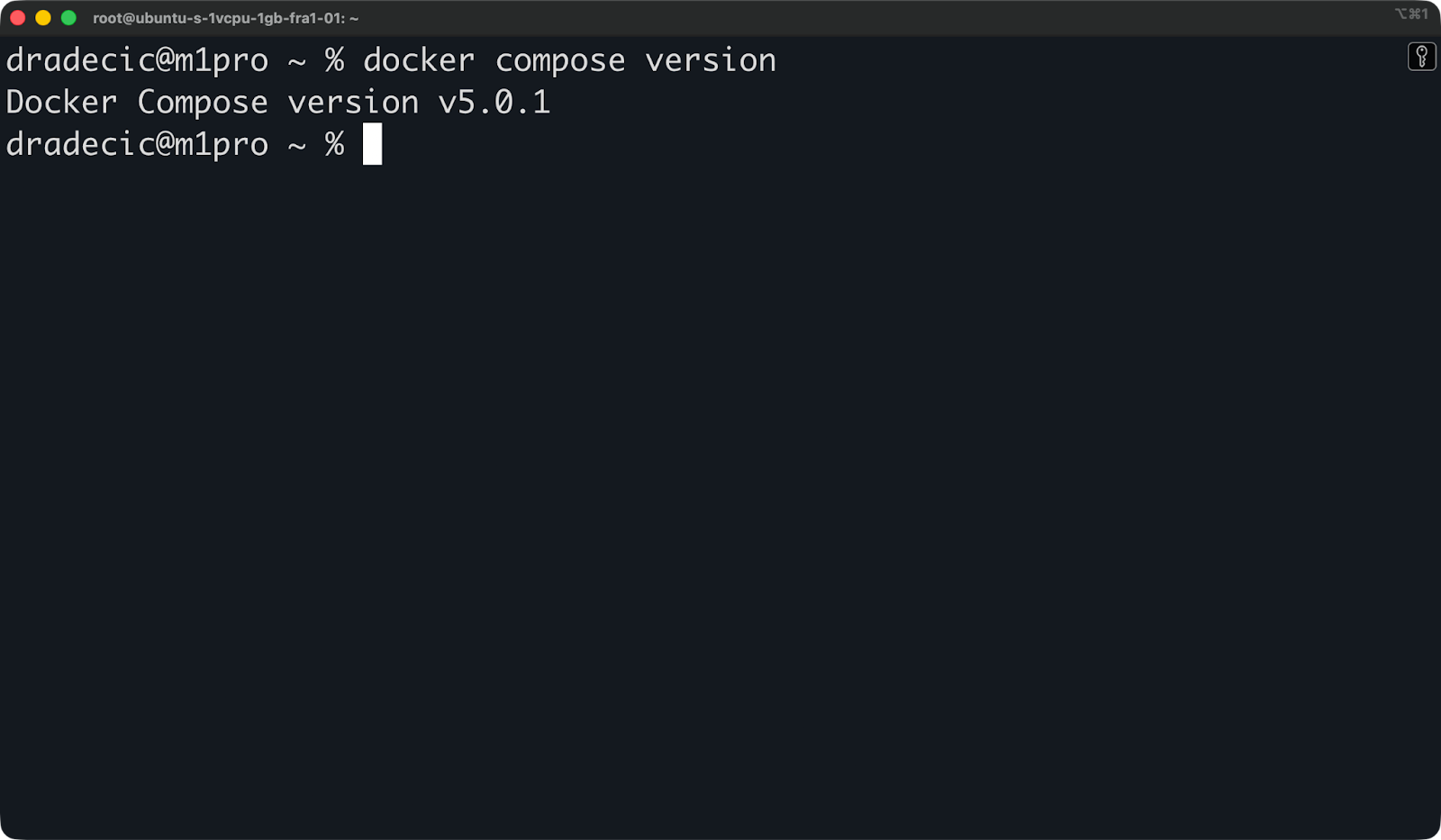
Installierte Compose-Version
Die genaue Versionsnummer hängt vom Zeitpunkt ab, aber sobald du v5.0.1 oder neuer siehst, passt alles.
Wenn du docker compose: command not found siehst, ist Compose nicht installiert oder nicht in deinem PATH. Springe zum Troubleshooting unten.
Du wirst online Artikel sehen, die docker-compose mit Bindestrich nutzen. Der Unterschied:
docker-compose ist der Legacy-v1-Befehl. Es war ein eigenständiges Python-Binary, separat von Docker installiert.
docker compose (ohne Bindestrich) ist das v2-CLI-Plugin, direkt in die Docker-CLI integriert.
Docker hat v1 im Jahr 2023 abgekündigt, docker-compose wird nicht mehr gepflegt. Falls du es noch installiert hast, kannst du prüfen, worauf es zeigt:
docker-compose --versionWenn eine 1.x.x-Version erscheint, nutzt du das alte Binary. Deinstalliere es und verwende künftig docker compose. Die Befehle sind nahezu identisch, aber v2 ist schneller und wird aktiv gepflegt.
Wie du Compose aktualisierst, hängt von der Installation ab.
Unter macOS und Windows übernimmt Docker Desktop alles für dich. Öffne die App, gehe zu Settings > Software Updates und lass bei Bedarf aktualisieren. Compose wird zusammen mit Docker aktualisiert.
Unter Linux mit Paketmanager führst du Folgendes aus:
sudo apt-get update
sudo apt-get upgrade docker-compose-plugin
Damit ziehst du die neueste Version aus dem offiziellen Docker-Repository.
Bei manueller Installation musst du den Download-Schritt mit der neuen Versionsnummer wiederholen. Prüfe die Docker-Compose-Releases für die aktuelle Version und ersetze dann das Binary:
curl -SL https://github.com/docker/compose/releases/download/v5.0.2/docker-compose-linux-x86_64 -o $DOCKER_CONFIG/cli-plugins/docker-compose
chmod +x $DOCKER_CONFIG/cli-plugins/docker-compose
Nach jedem Upgrade prüfst du kurz die aktive Version:
docker compose versionMehr ist nicht nötig.
Die Deinstallation hängt davon ab, wie Compose ursprünglich installiert wurde.
Wenn du über den Paketmanager unter Linux installiert hast, entferne das Plugin mit:
sudo apt-get remove docker-compose-pluginBei manueller Installation lösche einfach das Binary:
rm $DOCKER_CONFIG/cli-plugins/docker-composeFalls das alte v1-Standalone-Binary noch auf deinem System liegt, finde und entferne es mit:
sudo rm /usr/local/bin/docker-composePrüfe nach dem Entfernen mit docker compose version, ob es weg ist. Wenn der Befehl einen Fehler wirft, hat die Deinstallation geklappt.
Die Installation und Deinstallation von Docker Compose ist unkompliziert, aber es kann trotzdem haken. So löst du typische Probleme.
Das heißt, Compose ist entweder nicht installiert oder Docker findet es nicht. Prüfe zuerst, ob Docker selbst läuft:
docker --versionWenn Docker okay ist, Compose aber fehlt, installiere das Plugin einfach nach:
sudo apt-get install docker-compose-pluginWenn bei docker compose ein Permission-Fehler auftaucht, hat dein Nutzer wahrscheinlich keinen Zugriff auf den Docker-Socket. Füge dich der Gruppe docker hinzu:
sudo usermod -aG docker $USERMelde dich ab und wieder an, damit es wirkt. Unter Docker Desktop (macOS/Windows) stelle sicher, dass die App läuft, bevor du Befehle ausführst.
Wenn sich Compose unerwartet verhält, prüfe, welche Version du wirklich nutzt:
docker compose versionBist du auf einer alten Version, folge den Upgrade-Schritten oben. Wenn v1 und v2 parallel installiert sind, ist das wahrscheinlich die Ursache.
Wenn sowohl docker-compose (v1) als auch docker compose (v2) auf einer Maschine liegen, kann es zu Konflikten kommen. Prüfe, ob v1 noch vorhanden ist:
which docker-composeWenn ein Pfad zurückkommt, entferne es:
sudo rm $(which docker-compose)Nutze künftig docker compose (ohne Bindestrich).
Wenn Docker installiert ist, Befehle aber nicht gefunden werden, ist das CLI-Plugin-Verzeichnis eventuell nicht im PATH. Prüfe, wo das Compose-Binary liegt:
ls $DOCKER_CONFIG/cli-plugins/Wenn es dort liegt, aber nicht funktioniert, füge das Verzeichnis deinem PATH in ~/.bashrc oder ~/.zshrc hinzu:
export PATH=$PATH:$HOME/.docker/cli-pluginsLade dann deine Shell neu mit:
source ~/.bashrcWenn du Docker schon länger nutzt, sind dir online sicher beide Formen begegnet: docker-compose und docker compose. Sie sind nicht dasselbe.
Docker Compose v1 war ein eigenständiges Python-Binary, separat von Docker installiert. Der Befehl lautete docker-compose (mit Bindestrich). Docker hat es 2023 abgekündigt; es wird nicht mehr gepflegt oder aktualisiert.
Docker Compose v2 ist ein Go-basiertes CLI-Plugin, direkt in die Docker-CLI integriert. Du rufst es mit docker compose (ohne Bindestrich) auf. Es kommt mit Docker Engine und Docker Desktop, sodass auf modernen Setups keine Zusatzinstallation nötig ist.
Die Befehls-Syntax ist zwischen beiden Versionen nahezu identisch – die meisten docker-compose-Befehle funktionieren mit docker compose genauso. Die Unterschiede liegen unter der Haube: v2 ist schneller, besser in das Docker-Ökosystem integriert und wird aktiv gepflegt.
Hier ein Vergleich:
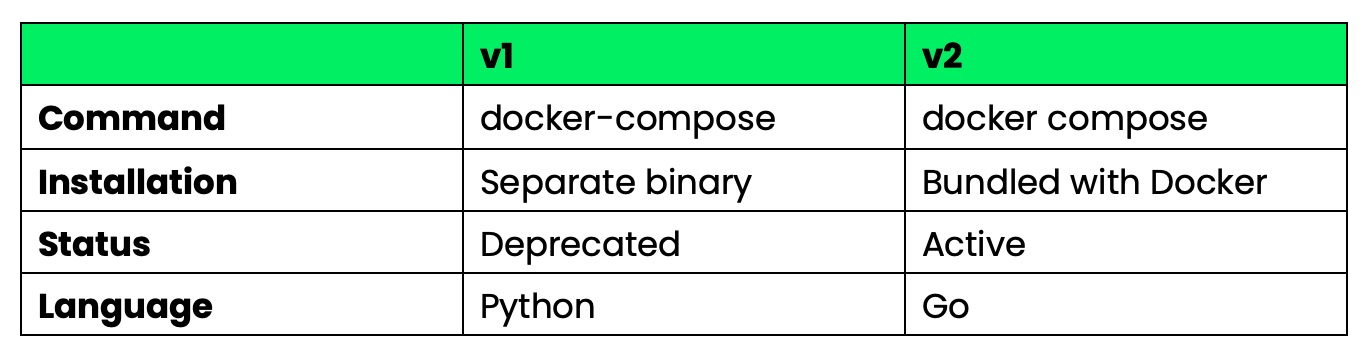
Vergleichstabelle Compose v1 und v2
Im Jahr 2026 bleibst du bei v2. Wenn deine Skripte oder CI-Pipelines noch docker-compose verwenden, ersetze den Bindestrich durch ein Leerzeichen – für die meisten Workflows ist das die einzige Änderung.
Mit einer modernen Docker-Installation hast du Compose v2 bereits an Bord. Zusätzliche Schritte sind nicht nötig. Unter macOS und Windows wird Compose mit der Docker-Desktop-App geliefert. Unter Linux übernimmt das Paket docker-compose-plugin die Bereitstellung.
Bevor du Compose-Dateien schreibst oder ausführst, rufe docker compose version auf, um zu bestätigen, dass alles passt.
Wenn du noch Compose v1 nutzt, ist jetzt Zeit zu wechseln. Streiche den Bindestrich und entferne das alte Binary – mehr musst du nicht tun. Alle bestehenden Compose-Dateien laufen mit v2 unverändert.
Du suchst weitere Docker-Ressourcen? Melde dich für unseren Introduction to Docker-Kurs an und lerne alles über Container, Images und mehr.
Lerne Docker mit DataCamp
Kurs
Kurs
Kurs