course
Claude मॉडलों का परिचय
3 घंटा
14.4K
CLI फ्लैग्स तय करते हैं कि Claude Code कैसे शुरू होगा, कीबोर्ड शॉर्टकट्स रियल-टाइम इंटरप्शन सँभालते हैं, और स्लैश कमांड्स आपको सेशन के अंदर सूक्ष्म नियंत्रण देते हैं।
ये तीनों लेयर इसलिए मौजूद हैं क्योंकि वर्कफ़्लो के अलग-अलग पलों पर अलग ज़रूरतें होती हैं। आप हर सत्र में इन सभी का उपयोग नहीं करेंगे, लेकिन इनके होने का पता होना मतलब सही समय पर सही टूल उठाना।
स्लैश कमांड्स एक सक्रिय सत्र के अंदर सीधे टाइप किए जाते हैं। ये / से शुरू होते हैं (जैसे /compact, /plan, या /clear) और तुरंत चल जाते हैं। ये उसी बातचीत पर नियंत्रण रखते हैं जो अभी चल रही है।
CLI फ्लैग्स टर्मिनल से Claude Code लॉन्च करते समय सेट होते हैं। जैसे claude --model claude-opus-4-6 या claude --continue CLI फ्लैग्स हैं। ये सत्र शुरू होने से पहले कॉन्फ़िगर करते हैं। हमारे Claude Code CLI ट्यूटोरियल में आप फ्लैग्स की पूरी रेंज पढ़ सकते हैं।
कीबोर्ड शॉर्टकट्स UI स्तर पर काम करते हैं। Esc चल रही प्रतिक्रिया को बाधित करता है। Esc को दो बार दबाने से रिवाइंड मेनू खुलता है। Shift+Tab प्लान मोड, स्वीकार संपादन, और ऑटो मोड के बीच टॉगल करता है। ये वे शॉर्टकट्स हैं जिन्हें आप अक्सर करते हैं, तो मसल-मेमोरी बनने चाहिए।
यह लेख स्लैश कमांड्स पर केंद्रित है—वे कमांड्स जिन्हें आप प्रॉम्प्ट्स के बीच उपयोग करते हैं, जहाँ ओवरलैप हो वहाँ कीबोर्ड शॉर्टकट्स का भी उल्लेख है।
नीचे दी गई तालिका 13 सबसे महत्वपूर्ण कमांड्स कवर करती है—इन सभी को इस गाइड में समझाया गया है।
|
कमांड |
उद्देश्य |
|
|
पुराने टर्न्स का सारांश बनाकर संदर्भ विंडो में जगह खाली करें—चाहें तो निर्देश भी दें |
|
|
हार्ड रीसेट—खाली संदर्भ के साथ नई बातचीत शुरू करें |
|
|
वर्तमान संदर्भ विंडो उपयोग को रंगीन ग्रिड के रूप में दिखाएँ |
|
|
फ़ाइल बदलने से पहले केवल-पढ़ने वाले प्लान मोड में जाएँ |
|
|
सत्र से हुए सभी बदलावों को दिखाने वाला इंटरैक्टिव व्यूअर खोलें |
|
|
एक उच्च-स्तरीय उद्देश्य सेट करें, जिसकी ओर Claude कई टर्न्स में काम करता रहे |
|
|
साइड सवाल पूछें—उसे मुख्य बातचीत में जोड़े बिना |
|
|
पिछला सत्र नाम से या पिकर से जारी रखें |
|
|
बातचीत को फोर्क करें और वैकल्पिक तरीका आज़माएँ (उपनाम: /fork) |
|
|
पहले के टर्न पर रोल बैक करें—चाहे कोड, बातचीत, या दोनों |
|
|
/usage का उपनाम — टोकन खर्च या कोटा उपयोग दिखाता है |
|
|
सत्र के बीच में सक्रिय मॉडल बदलें |
|
|
रीजनिंग गहराई low से max तक सेट करें |
ध्यान दें कि /cost अब हाल के Claude Code संस्करणों में /usage का उपनाम है, और /fork /branch का उपनाम है।
अपने Claude सत्र में / टाइप करके आप सभी विकल्प देख सकते हैं।
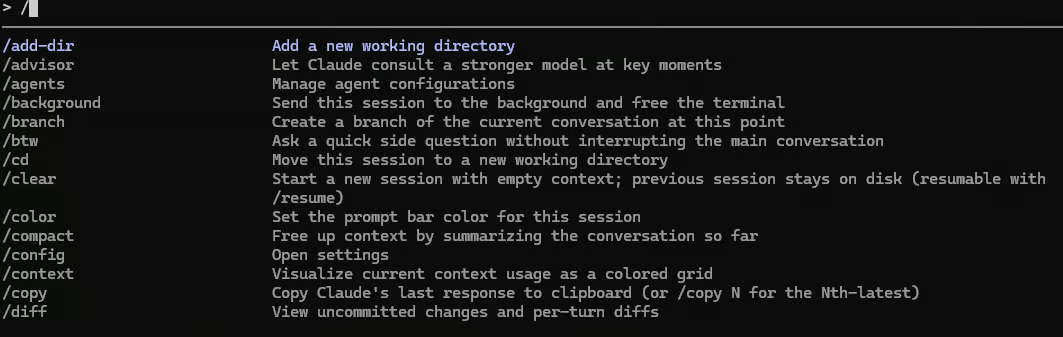
Claude Code में संदर्भ विंडो प्रबंधित करने के लिए—जो किसी भी पावर यूज़र के लिए अहम कौशल है—/compact, /clear, और /context कमांड्स का उपयोग करें।
संदर्भ विंडो आपके सत्र की कार्यशील मेमोरी है। यह बहुत-सी जानकारी रखती है:
जैसे-जैसे यह भरती है, Claude Code सत्र के शुरुआती हिस्सों—जैसे आपने शुरू में बताई फ़ाइल संरचना, आपके बताए constraints, और अन्य अहम जानकारियों—को ट्रैक करना खोने लगता है। सीमा पर पहुँचने से पहले ही गुणवत्ता घटने लगती है, केवल सीमा छूने पर नहीं।
/compact कमांड आपकी बातचीत के पुराने टर्न्स का सारांश बनाकर उन्हें संक्षिप्त संस्करण से बदल देता है—टोकन बजट खाली करते हुए भी Claude को पहले क्या हुआ था उससे अवगत रखता है। इसे जल्दी चलाना और क्या संरक्षित रखना है, यह स्पष्ट बताना सर्वोत्तम अभ्यास है।
बेसिक कॉल बस /compact है। लेकिन अधिक उपयोगी रूप यह है कि आप बताएँ क्या संरक्षित रखना है: जैसे /compact focus on the auth module, या /compact retain the error handling patterns we discussed।
जब आप निर्देश पास करते हैं, Claude जो सारांश बनाता है, वह उन्हीं विषयों को प्राथमिकता देगा। डेटा प्रैक्टिशनर्स के लिए यह ऐसा दिख सकता है: /compact focus on the schema decisions and the pipeline DAG—ताकि उच्च-स्तरीय आर्किटेक्चर केंद्र में रहे, जबकि लाइन-दर-लाइन डिबगिंग विवरण संकुचित हो जाएँ।
समुदाय का एक उपयोगी नियम: संदर्भ उपयोग 80% से अधिक होने से पहले compact करें। पूरी तरह भर जाने तक इंतज़ार करने पर सारांश की गुणवत्ता गिर जाती है, क्योंकि Claude पहले से ही अवनत अवस्था में काम कर रहा होता है।
एक महत्वपूर्ण बात: CLAUDE.md की सामग्री, लोडेड स्किल्स, और मेमोरी फ़ाइलें compaction के दौरान अपने आप संरक्षित रहती हैं—उन्हें अलग से अनुरोध करने की ज़रूरत नहीं।
/clear कमांड बातचीत इतिहास को पूरी तरह मिटाकर नया सत्र शुरू करता है। आपको /clear को टास्क बॉर्डरियों पर उपयोग करना चाहिए।
आप वैकल्पिक रूप से नाम पास कर सकते हैं ताकि क्लियर करने से पहले सत्र लेबल हो जाए: /clear payment-refactor। इससे पुराना सत्र /resume पिकर में लेबल हो जाता है ताकि आप बाद में वहाँ लौट सकें।
जब आप डेटा लोडर की डिबगिंग खत्म कर लें और एकदम असंबंधित विज़ुअलाइज़ेशन मॉड्यूल पर काम शुरू करना हो, तो पुराना संदर्भ आगे ले जाना मदद से ज़्यादा बाधा बनता है। क्लीन स्लेट का मतलब है Claude संदर्भ नहीं मिलाएगा, अप्रासंगिक constraints साथ नहीं लाएगा, और नए काम पर पूरा ध्यान देगा।
उसी काम को संदर्भ बाढ़ के बिना जारी रखना हो तो /compact का उपयोग करें, और पूरी तरह अलग काम पर स्विच करना हो तो /clear का।
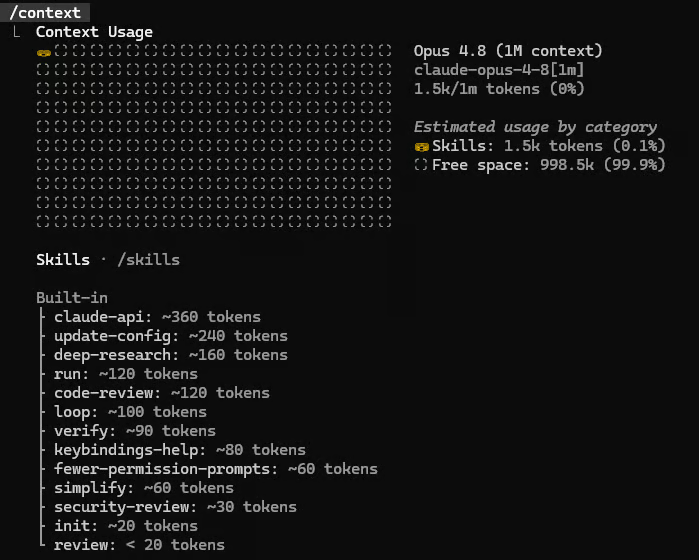
कम्पैक्ट या क्लियर करने का निर्णय लेने से पहले, यह जानना उपयोगी है कि स्थिति क्या है। /context कमांड वर्तमान संदर्भ विंडो उपयोग को रंगीन ग्रिड के रूप में दिखाता है और बताता है कि टोकन्स कहाँ जा रहे हैं।
आप श्रेणियों के हिसाब से ब्रेकडाउन देखेंगे:
अच्छी बात यह है कि यदि कोई आइटम असामान्य रूप से अधिक जगह ले रहा हो तो Claude अनुकूलन सुझाव देता है। पूरे प्रति-आइटम ब्रेकडाउन के लिए all पास करें: /context all
किसी भी बड़े कार्य की शुरुआत से पहले /context चलाने की आदत डालें। अगर विंडो पहले से 60% भरी है और आप बिना पहले compact/clear किए बहु-फ़ाइल रिफैक्टर शुरू कर देते हैं, तो निराशा तय है।
AI वाइब कोडिंग से गड़बड़ी पैदा करने का सबसे तेज़ तरीका है, बिना स्पष्ट प्लान के उसे फ़ाइलें एडिट करने देना। संदिग्ध निर्देशों से असंगत बदलावों को रोकने के लिए /plan और diff उपयोग करें।
/plan का उपयोग Claude को रीड-ओनली मोड में डालता है—वह कोडबेस का विश्लेषण करता है, एक कार्य-योजना प्रस्तावित करता है, और आपकी स्वीकृति के बिना कोई बदलाव नहीं करता।
आप इसे विवरण के साथ भी चला सकते हैं ताकि उसे हेड-स्टार्ट मिले: /plan refactor the feature engineering pipeline to support lazy evaluation। वह तब तक कुछ नहीं लिखेगा/मिटाएगा जब तक आप हरी झंडी न दें। समीक्षा और स्वीकृति के बाद Claude पूरा प्लान लागू करता है।
प्लान मोड टॉगल करने का कीबोर्ड शॉर्टकट Shift+Tab है—यदि आप सत्र के बीच में हैं और तेज़ी से मोड बदलना चाहते हैं, तो यह कमांड टाइप करने से तेज़ है।
प्लान मोड 3 स्थितियों में सबसे मूल्यवान है:
यह कोई भी टास्क हो सकता है—जैसे फीचर स्टोर माइग्रेट करना, ETL लॉजिक रिफैक्टर करना, या वर्षों के एक-ऑफ बदलावों से भरे मॉडल ट्रेनिंग स्क्रिप्ट्स अपडेट करना।
और गहराई में जाने के लिए, हमारी पूरी ट्यूटोरियल पढ़ें: Claude Code Plan Mode: Design Review-First Refactoring Loops।
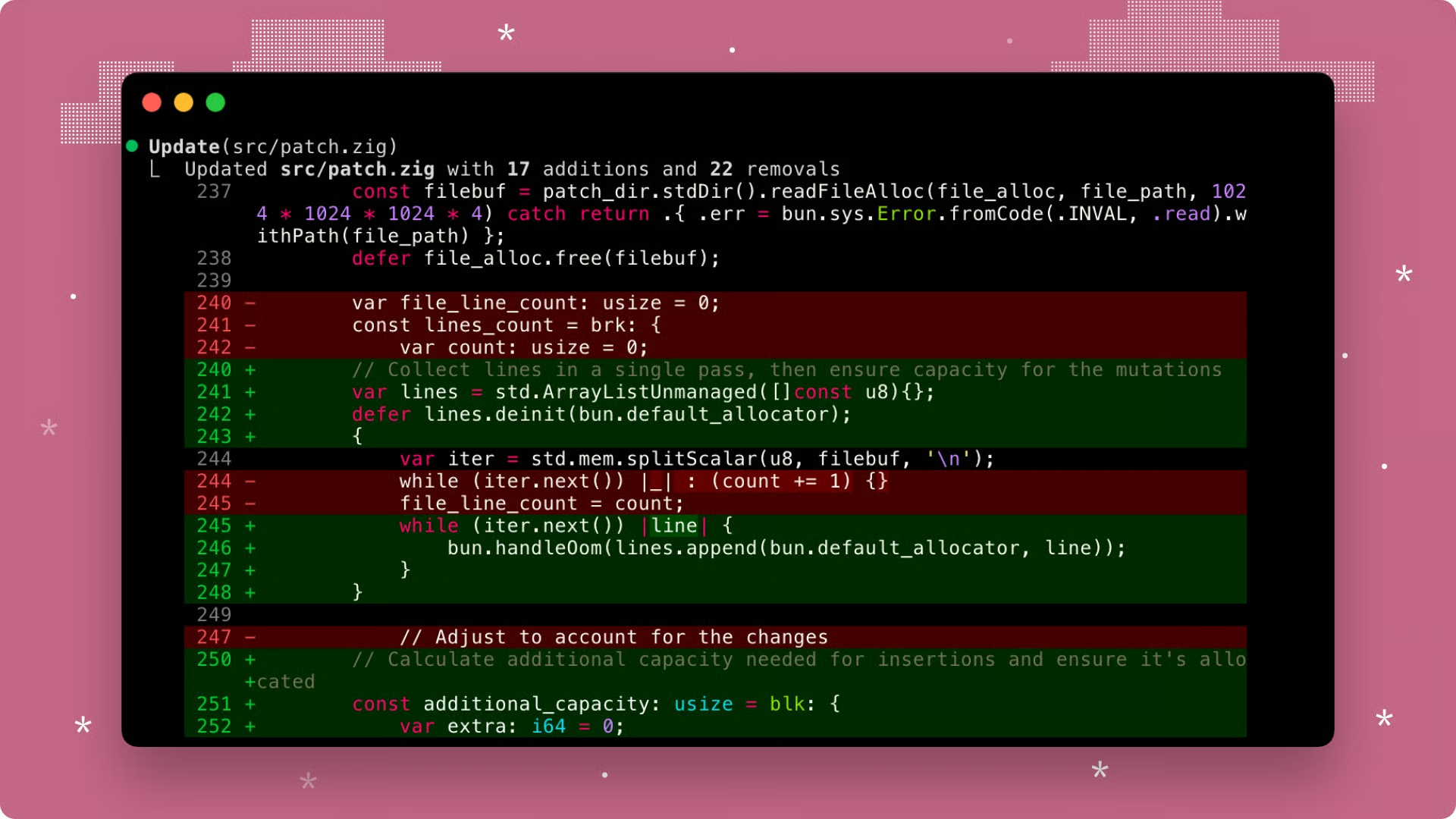
/diff का उपयोग इंटरैक्टिव डिफ़ व्यूअर खोलता है जो वर्तमान सत्र से हुई सभी फ़ाइल परिवर्तनों को दिखाता है।
यह तेज़ी से समीक्षा करने और यह पक्का करने में मददगार है कि कुछ अप्रत्याशित नहीं हुआ—जैसे अनपेक्षित फ़ाइल बदलाव या स्कोप क्रिप। इसे उस अंतिम चेकपॉइंट की तरह समझें जो "Claude ने कुछ चीज़ें कीं" और "मैं निश्चित हूँ कि इस कमिट में क्या गया" के बीच है।
व्यूअर के अंदर, आप एरो कीज़ से नेविगेट करते हैं। लेफ्ट/राइट वर्तमान संचयी git डिफ़ और प्रति-टर्न डिफ़्स के बीच स्विच करते हैं। अप/डाउन व्यू के भीतर फ़ाइलें ब्राउज़ करते हैं। इससे आप सत्र भर में और हर टर्न में क्या हुआ—दोनों देख सकते हैं।
जटिल सत्रों को धागा खोने और संदर्भ को बेतरतीब बातों से दूषित होने से बचाने के लिए /goal और /btw कमांड्स का उपयोग करें।
Claude Code का /goal कमांड एक उच्च-स्तरीय उद्देश्य सेट करता है जो टर्न्स के पार बना रहता है और Claude को परिभाषित परिणाम की ओर काम करते रखता है।
एक बार लक्ष्य सेट हो जाए, Claude आपके बताए कंडीशन पूरी होने तक अपने-आप आगे बढ़ता रहता है। यह लंबी माइग्रेशन्स, बड़े टेस्ट सूट फिक्स, या ऐसे टास्क्स के लिए उपयोगी है जहाँ अन्यथा आपको बार-बार "जारी रखें" प्रॉम्प्ट करना पड़ता।
आप इसे इच्छित परिणाम के साथ उपयोग करते हैं। स्पष्ट, सुव्यवस्थित अंत-स्थिति वाले लक्ष्य लिखना मददगार है, जैसे /goal All tests in the data pipeline are passing with no deprecation warnings।
लक्ष्य सक्रिय रहने पर स्टेटस लाइन में लाइव प्रोग्रेस ओवरले दिखता है—बीता समय, टर्न काउंट, और टोकन उपयोग। लक्ष्य पूरा होने पर Claude रुकता है और समापन रिपोर्ट करता है।
लक्ष्य को बीच में हटाने के लिए: /goal clear।
इसी तरह का पर अलग दृष्टिकोण पढ़ने के लिए हमारा Spec-Driven Development in Claude Code ट्यूटोरियल देखें।
/btw कमांड आपको एक साइड सवाल पूछने देता है जो मुख्य बातचीत थ्रेड का हिस्सा नहीं बनता।
Claude इसका जवाब एक ओवरले में देता है, और मुख्य बातचीत वहीं से चलती रहती है जहाँ थी: /btw what was that config option for SQLAlchemy connection pooling called again?
मेरे साथ यह अक्सर होता है—Claude काम कर रहा होता है और मुझे प्रक्रिया पर एक सवाल आता है। अगर मैं Claude को रोककर पूछता हूँ, तो शोर बढ़ता है और Claude को टास्क फिर से शुरू करना पड़ सकता है। अगर न पूछूँ, तो सवाल खो जाता है। /btw इसे साफ़-सुथरे ढंग से हल करता है।
इसे उस स्टिकी नोट की तरह समझें जो आप खुद को बीच काम में पास करते हैं—वह जवाब जो चाहिए, बिना डिटौर के संदर्भ या समय लागत के।
लंबे प्रोजेक्ट एक ही सत्र में फिट नहीं होते। आपको पुराना काम उठाना होता है, प्रगति नष्ट किए बिना सुरक्षित रूप से प्रयोग करना होता है, और कभी-कभी बिगड़े बदलावों को पूर्ववत करना होता है। /resume, /branch, और /rewind कमांड्स इसमें मदद करते हैं।
/resume का उपयोग कर आप पिछला सत्र जारी रख सकते हैं। बिना आर्ग्युमेंट्स चलाएँ तो हालिया सत्रों का पिकर दिखता है—तारीख के हिसाब से सॉर्टेड और आखिरी प्रॉम्प्ट का मोटा-सा आइडिया। सत्र का नाम या ID पास करें तो सीधे वहीं जाएँ: /resume payment-refactor
आप यह सत्र शुरू करने से पहले कमांड लाइन से भी कर सकते हैं। claude --continue (या claude -c) सबसे हालिया सत्र को फिर से शुरू करता है, और claude --resume <id> सत्र ID से रिज़्यूम करता है। CLI फ्लैग्स और स्लैश कमांड—दोनों एक ही काम करते हैं; सत्र शुरू करने से पहले CLI का, और मध्य सत्र में स्लैश कमांड का उपयोग करें।
Claude Code हर सत्र को लोकली ~/.claude/projects/ में JSONL फ़ाइल के रूप में सेव करता है—हर संदेश, टूल उपयोग, और परिणाम सहित। यही रीज़्यूम, रिवाइंड, और ब्रांचिंग को संभव बनाता है।
/branch कमांड वर्तमान बातचीत की उस समय की प्रतिलिपि बनाता है, आपको नई ब्रांच में स्विच कर देता है, और मूल ब्रांच जैसी की तैसी छोड़ता है। आप ब्रांच के नाम भी रख सकते हैं: /branch try-polars-instead-of-pandas
यह बातचीत का git ब्रांच समकक्ष है। मान लें आप अलग तरीका आज़माना चाहते हैं लेकिन मौजूदा प्रगति नहीं खोना चाहते। ब्रांच करें, विकल्प आज़माएँ—अगर काम न बने तो /resume करके मूल पर लौट आएँ। अगर काम बने, तो बेहतर रास्ता दर्शाती साफ़ ब्रांच आपके पास होगी।
यह तरीका तब भी उपयोगी है जब संदर्भ विंडो भर रही हो और आपके सामने दो अलग मुद्दे हों जो दोनों उसी संदर्भ पर निर्भर करते हों जो सक्रिय चैट में इकट्ठा हुआ है।
/branch /fork के रूप में भी उपलब्ध है—पुराने सामुदायिक स्रोतों और ट्यूटोरियल्स में आप अक्सर /fork देखेंगे। वर्तमान आधिकारिक दस्तावेज़ में मानक नाम /branch है, पर दोनों चलते हैं।
मान लें हम बहुत आगे निकल गए और महसूस हुआ कि कुछ गलतियाँ हो गईं… /rewind सत्र को पहले के टर्न पर ऐसे रोल बैक करता है जैसे सुविधाजनक undo बटन।
सबसे अच्छी बात—आपको इंटरैक्टिव मेनू मिलता है। एरो कीज़ से नेविगेट करें और वह टर्न चुनें जहाँ तक रोल बैक करना है।
कुंजी सुविधा यह चुनना है कि क्या रिवाइंड करें:
कीबोर्ड शॉर्टकट Esc Esc बिना कमांड टाइप किए वही रिवाइंड मेनू खोल देता है।
एक महत्वपूर्ण सावधानी: केवल वे फ़ाइल ऑपरेशन्स ट्रैक व रिवर्सिबल हैं जो Claude ने अपने आधिकारिक टूल्स से किए हों। सत्र के दौरान आपने किसी अलग एडिटर में मैन्युअल रूप से जो बदलाव किए हैं—वे कवर नहीं होते।
Claude Code में लागत-से-प्रदर्शन अनुपात नियंत्रित करने के लिए /cost, /model, और /effort कमांड्स का उपयोग करें।
यदि आप API प्लान पर हैं, तो टोकन खर्च वास्तविक चिंता है। Pro या Max प्लान्स पर हैं, तो उपयोग कोटा में रहना अहम है। हर टास्क पर अधिकतम रीजनिंग गहराई के साथ सबसे शक्तिशाली मॉडल चलाना फिजूलखर्ची है।
/cost /usage का उपनाम है, और अब तक आपने जो खर्च किया है, दिखाता है:
भारी सत्र की शुरुआत में /cost जाँच लेना एक बेसलाइन के लिए अच्छा है—और लंबे रन के दौरान समय-समय पर बजट की खपत की दर देखने के लिए।
यदि लागत अपेक्षा से तेज़ चढ़ रही है, तो अगली दो कमांड्स आपके लीवर हैं।
सत्र के बीच में बिना संदर्भ खोए /model कमांड से सक्रिय मॉडल बदलना—ज़रूरत के बदलते ही—काफ़ी शक्तिशाली हो सकता है।
इसे बिना आर्ग्युमेंट्स चलाने पर इंटरैक्टिव पिकर खुलता है—एरो कीज़ से नेविगेट करें। आप मॉडल का नाम सीधे भी पास कर सकते हैं: /model claude-haiku-4-5।
एक व्यावहारिक रणनीति:
स्केल पर Opus और Haiku के बीच लागत का अंतर लगभग 10 से 20 गुना तक है।
v2.1.153 से, /model से चुना गया मॉडल नए सत्रों के लिए डिफ़ॉल्ट सेव हो जाता है। इंटरैक्टिव पिकर में s दबाकर चयन केवल वर्तमान सत्र पर लागू करें—अपने डिफ़ॉल्ट को बदले बिना।
आप तय कर सकते हैं कि आपका मॉडल कितना /effort लगाए—यानी वर्तमान मॉडल के लिए रीजनिंग गहराई सेट करें। बिना आर्ग्युमेंट्स के, आपको एक इंटरैक्टिव स्लाइडर मिलता है; सीधे भी सेट कर सकते हैं, जैसे /effort low।
उपलब्ध स्तर ये हैं:
low
medium
high
xhigh (अप्रैल 2026)
max (मई 2026)
ultracode (मई 2026)
max और ultracode प्रयास स्तर केवल सत्र-आधारित हैं—इन्हें डिफ़ॉल्ट के रूप में सेव नहीं किया जा सकता। वर्तमान मॉडल डिफ़ॉल्ट पर रीसेट करने के लिए /effort auto उपयोग करें।
ultracode स्तर xhigh रीजनिंग को स्वचालित वर्कफ़्लो ऑर्केस्ट्रेशन के साथ जोड़ता है—सबसे जटिल बहु-चरणीय कार्यों के लिए। सावधान रहें—यह बहुत टोकन जला सकता है, क्योंकि स्वचालित ऑर्केस्ट्रेशन 100 से अधिक एजेंट स्पॉन कर सकता है।
व्यावहारिक नियम:
low या medium—बोइलरप्लेट, सरल कोड जेनरेशन, और सीधे-सादे रिफैक्टर्स के लिए।
high या xhigh—जटिल डिबगिंग, आर्किटेक्चरल निर्णय, और बहु-फ़ाइल विश्लेषण के लिए—जहाँ पहली बार में सही होना आगे-पीछे बचाता है।
ultracode—सिर्फ बड़े रिफैक्टर्स, कोडबेस री-राइट्स, या कई गतिमान हिस्सों वाले कार्यों के लिए।
Effort सीधे गुणवत्ता और टोकन लागत दोनों को प्रभावित करता है—इसे टास्क के अनुरूप कैलिब्रेट करना फायदेमंद है।
बिल्ट-इन कमांड्स संचालन संबंधी बुनियादी बातें कवर करते हैं। Claude Code में कस्टम स्लैश कमांड्स वही जगह हैं जहाँ यह टूल आपको आपका बनाया लगता है।
विचार सरल है: जो भी प्रॉम्प्ट आप खुद को बार-बार टाइप करते हुए पाते हैं, उसे एक कमांड फ़ाइल के रूप में सेव करें और एक /command-name कॉल से चलाएँ। आपकी टीम की मानक कोड रिव्यू चेकलिस्ट, आपके प्रोजेक्ट के डिप्लॉयमेंट वेरिफ़िकेशन स्टेप्स, और टेस्ट जनरेशन के लिए आपका निजी अंदाज़—सब साझा करने योग्य बन जाते हैं।
शुरू में एक बात साफ़ कर दें: Anthropic ने कस्टम कमांड्स को स्किल्स के साथ एकीकृत कर दिया है। .claude/commands/ फ़ॉर्मेट अब लेगेसी माना जाता है। यह अभी भी काम करता है और CLI इसे सपोर्ट करता रहेगा, पर आगे के लिए अनुशंसित फ़ॉर्मेट .claude/skills/<name>/SKILL.md है।
स्किल्स वही /name कॉल सपोर्ट करते हैं, Claude विवरण टास्क से मेल खाने पर उन्हें स्वायत्त रूप से भी चला सकता है, और प्रॉम्प्ट के साथ सपोर्टिंग फ़ाइलें (स्क्रिप्ट्स, टेम्पलेट्स, रेफ़रेंस डॉक्स) भी बंडल कर सकता है।
आप स्किल्स के बारे में और हमारे ट्यूटोरियल Claude Skills में पढ़ सकते हैं।
कस्टम कमांड्स Markdown फ़ाइलें हैं, जो दो स्थानों में से किसी एक में रखी जाती हैं:
प्रोजेक्ट-स्तरीय: आपके प्रोजेक्ट की रूट डायरेक्टरी के अंदर .claude/commands/। ये उसी प्रोजेक्ट तक सीमित हैं, वर्ज़न कंट्रोल में कमिट किए जा सकते हैं, और उसी रेपो पर काम करने वाले सभी के साथ साझा होते हैं।
निजी (ग्लोबल): आपके होम डायरेक्टरी में ~/.claude/commands/। ये आपकी मशीन के हर प्रोजेक्ट में उपलब्ध रहते हैं और निजी होते हैं।
फ़ाइल का नाम बिना .md एक्सटेंशन के कमांड नाम बनता है। .claude/commands/fix-issue.md पर फ़ाइल /fix-issue बनाती है। .claude/commands/frontend/component.md पर फ़ाइल /component बनाती है, एक नेमस्पेस लेबल के साथ जो दिखाता है कि यह frontend सबडायरेक्टरी से आया है।
यदि आप स्किल्स फ़ॉर्मेट का उपयोग करना चाहें, तो समकक्ष पाथ हैं—प्रोजेक्ट-स्तर के लिए .claude/skills/<command-name>/SKILL.md और निजी के लिए ~/.claude/skills/<command-name>/SKILL.md। नीचे वर्णित फ्रंटमैटर और प्रॉम्प्ट बॉडी दोनों में एक जैसी तरह से काम करते हैं।
Markdown फ़ाइल का बॉडी प्रॉम्प्ट टेम्पलेट होता है। आप कमांड कॉल करते हैं, Claude फ़ाइल पढ़ता है, कोई भी सब्स्टीट्यूशन प्रोसेस करता है, और ऐसे ही चलाता है मानो आपने वह प्रॉम्प्ट खुद टाइप किया हो।
यह रहा एक न्यूनतम उदाहरण—फ़ाइल .claude/commands/summarize-pr.md के लिए:
Review the current git diff and write a concise pull request description.
Include: what changed, why it changed, and any important implementation notes.
Format as plain prose, not bullet points.
/summarize-pr चलाएँ, और Claude वर्तमान सत्र के विरुद्ध वह प्रॉम्प्ट निष्पादित करेगा।
किसी कमांड के व्यवहार पर और नियंत्रण के लिए, फ़ाइल के शीर्ष पर YAML फ्रंटमैटर जोड़ें:
description: Generate a PR description from the current diff
allowed-tools: Bash(git diff *), Read
model: claude-sonnet-4-6
फ्रंटमैटर अलग-अलग उद्देश्यों के लिए महत्वपूर्ण है:
description /help लिस्टिंग में दिखता है—ताकि आपको कमांड का काम याद रहे, और ताकि Claude बिना सीधे कमांड/स्किल बुलाए, वर्णन के आधार पर उसे अपने-आप मैच कर सके।
नाम से स्पष्ट—allowed-tools उस समय Claude किन टूल्स का उपयोग कर सकता है, इसे सीमित करता है—स्कोप और संदर्भ सीमित रखने के लिए अच्छा है।
अंत में, model कमांड को विशिष्ट मॉडल पर पिन कर देता है—सत्र में जो भी सक्रिय हो, उससे स्वतंत्र।
$ARGUMENTS प्लेसहोल्डर कस्टम कमांड्स को बहुत लचीला बनाता है। कमांड नाम के बाद आप जो भी टेक्स्ट टाइप करते हैं, वह जहाँ-जहाँ $ARGUMENTS है, वहाँ सब्स्टीट्यूट हो जाता है।
यह रहा एक पूरा उदाहरण। मान लें हम रेपो इश्यूज़ ठीक करने का कमांड बनाते हैं—.claude/commands/fix-issue.md:
---
description: Find and fix a GitHub issue by number
allowed-tools: Read, Edit, Bash(git diff *)
argument-hint: [issue-number]
---

Find and fix issue #$ARGUMENTS in this repository.

Steps:
1. Read the relevant source files to understand the current behavior
2. Identify the root cause
3. Implement the fix with minimal scope — do not change unrelated code
4. Verify the fix does not break anything obvious
5. Write a brief explanation of what changed and why
आप इसे /fix-issue 847 के रूप में कॉल करेंगे—Claude को पूरा प्रॉम्प्ट मिलेगा जिसमें $ARGUMENTS 847 से बदला होगा। बहु-इनपुट वाले कमांड्स के लिए आप पोज़िशनल आर्ग्युमेंट्स $0, $1 आदि भी उपयोग कर सकते हैं।
कमांड्स ! प्रीफिक्स से लाइव शेल आउटपुट इंजेक्ट कर सकते हैं। यह उन कमांड्स के लिए उपयोगी है जिन्हें हमेशा वर्तमान अवस्था पर चलना चाहिए:
allowed-tools: Read, Bash(git *)
description: Review staged changes before committing

Current staged diff:
!git diff --cached

Review these changes and suggest a clear, conventional commit message.
Flag any obvious bugs, missing tests, or incomplete logic before I commit.
जब Claude यह कमांड लोड करता है, वह पहले git diff --cached चलाता है, आउटपुट कैप्चर करता है, और उसे प्रॉम्प्ट में इंजेक्ट करता है। Claude को वास्तविक डिफ़ सामग्री दिखती है—कोई प्लेसहोल्डर नहीं।
$ARGUMENTS, शेल इंजेक्शन, और फ्रंटमैटर का यह संयोजन Claude Code कस्टम कमांड्स को आपकी प्रॉम्प्टिंग तेज़ करने का बढ़िया तरीका बनाता है।
और पैटर्न्स और वास्तविक उदाहरणों के लिए, DataCamp के ट्यूटोरियल्स Claude Code Best Practices और Claude Code Hooks देखें—जो बताते हैं कि ये टूल्स प्रोडक्शन वर्कफ़्लोज़ में साथ कैसे काम करते हैं।
स्लैश कमांड्स पावर यूज़र्स के लिए आरक्षित उन्नत फीचर्स नहीं हैं। वे Claude Code की बुनियादी ऑपरेशनल लेयर हैं—और उन्हें जल्दी सीखना आपकी AI-सहायता प्राप्त डेवलपमेंट अप्रोच बदल देगा।
यदि आप इसमें नए हैं, तो छोटा शुरू करें। /compact, /plan, और /cost अपनाएँ—छोटे पर शक्तिशाली तरीके से अपने सत्रों को अनुकूलित करने के लिए। जब ये स्वाभाविक लगने लगें, तो कमिट्स से पहले /diff जोड़ें और जिन टास्क्स में कुछ से अधिक टर्न लगें, उनके लिए /goal। बाकी ज़रूरत आने पर खुद जुड़ जाएंगे।
कस्टम कमांड विचारों के लिए और प्रेरणा पाने हेतु हमारा Claude Code Terminal ट्यूटोरियल जारी रखें। और यदि आप यह समझने के लिए एक संरचित नींव चाहते हैं कि Claude मॉडल कैसे सोचते हैं और वे किसके लिए बने हैं, तो हमारे Introduction to Claude Models और Claude Code 101 कोर्स वही जगह हैं जहाँ इसे बनाया जा सकता है।
DataCamp के साथ Claude सीखें!
course
course
course