
Curso
Sistemas Multiagentes com LangGraph
2 h 45 min
9K
Pratique e programa seu progresso.
Continuar Com O GoogleO GLM-5-Turbo foi criado para dar suporte a fluxos de trabalho de agentes no mundo real. Ele oferece múltiplos modos de raciocínio, permitindo equilibrar respostas mais rápidas e análises mais profundas conforme a tarefa.
Para aplicações interativas, ele também suporta saída em streaming, entregando respostas token a token para uma experiência mais responsiva.
Uma de suas principais forças é o function calling, que permite ao modelo invocar ferramentas externas com confiabilidade. O modelo também suporta saídas estruturadas como JSON, facilitando a integração com sistemas e camadas de UI a jusante.
Para fluxos mais longos, o GLM-5-Turbo inclui cache de contexto, o que ajuda a manter a performance em interações estendidas sem reprocessar as mesmas informações repetidamente. Ele também suporta integração com sistemas externos via MCP (Model Context Protocol), permitindo a conexão com ferramentas e fontes de dados adicionais.
O GLM-5-Turbo é profundamente otimizado para ambientes em estilo agente, especialmente cenários como OpenClaw, em que as tarefas envolvem várias etapas, ferramentas e longas cadeias de execução.
Essa otimização melhora várias áreas críticas:
Na prática, o GLM-5-Turbo é rápido o suficiente para sistemas interativos e, ao mesmo tempo, confiável em cenários de múltiplas etapas com chamadas de ferramentas — exatamente o que precisamos para criar agentes de navegador.
Neste tutorial, vamos criar um aplicativo em Streamlit que funciona como um assistente de viagem leve. O usuário fornece uma consulta como “Encontre os voos mais baratos de SFO para JFK de sexta a segunda”. O sistema então:
Em alto nível, o sistema tem quatro componentes que trabalham juntos.
llm_client.py), que envia requisições de chat-completion para Z.AI ou OpenRouter. browser_tools.py), que expõe ações como pesquisar, abrir páginas e extrair conteúdo. agent.py), que conecta o modelo e as ferramentas em um fluxo de trabalho multi-etapas. app.py) oferece uma UI para interação e visualização.Código-fonte completo: https://github.com/AashiDutt/GLM5_TURBO
Antes de construir o aplicativo, garanta que você tem:
Instale as bibliotecas necessárias:
pip install streamlit pandas python-dotenv requests playwright
playwright install chromium
O arquivo app.py usa Streamlit, pandas, dotenv e módulos personalizados. Já o browser_tools.py usa requests e Playwright. As chamadas de API são feitas em llm_client.py usando requests.
Agora, execute o comando abaixo para criar um arquivo .env onde ficarão nossas chaves de API:
cp .env.example .envSelecione seu endpoint de API preferido e informe a chave de API:
.env
PROVIDER=zai
# API direta da Z.AI
ZAI_API_KEY=Your Z.AI API key
ZAI_BASE_URL=https://api.z.ai/api/paas/v4/chat/completions
ZAI_MODEL=glm-5-turbo
# OpenRouter
OPENROUTER_API_KEY=Your OpenRouter API key
OPENROUTER_BASE_URL=https://openrouter.ai/api/v1/chat/completions
OPENROUTER_MODEL=z-ai/glm-5-turbo
# Navegador
HEADLESS=true
MAX_STEPS=10
Da mesma forma, o Playwright é iniciado por este construtor em browser_tools.py:
class BrowserTools:
    def __init__(self, headless: bool = True) -> None:
        self.playwright = sync_playwright().start()
        self.browser = self.playwright.chromium.launch(headless=headless)
        self.context = self.browser.new_context(viewport={"width": 1440, "height": 1100})
        self.page = self.context.new_page()
Esse bloco inicializa um ambiente de navegador totalmente controlado usando Playwright, que o agente utiliza para interagir com a web.
Ele inicia o mecanismo do Playwright, abre um navegador Chromium, cria uma sessão isolada e abre uma nova página onde todas as ações acontecem.
Essa configuração permite que o agente navegue em sites reais, observe conteúdo ao vivo e tome decisões com base no que vê.
Em seguida, vamos configurar nosso LLMClient, que suporta tanto o uso direto da Z.AI quanto do OpenRouter com a mesma interface. O endpoint específico do provedor é selecionado no construtor. Como os preços são comparáveis, você pode usar qualquer uma das APIs neste demo, conforme sua preferência.
Veja a configuração principal:
class LLMClient:
    def __init__(
        self,
        provider: str,
        api_key: str,
        model: str,
        app_name: str = "GLM-5 Browser Agent Demo",
        app_url: str = "http://localhost:8501",
    ) -> None:
        self.provider = provider.lower().strip()
        self.api_key = api_key
        self.model = model
        if self.provider == "zai":
            self.url = os.getenv("ZAI_BASE_URL", "https://api.z.ai/api/paas/v4/chat/completions")
        elif self.provider == "openrouter":
            self.url = os.getenv("OPENROUTER_BASE_URL", "https://openrouter.ai/api/v1/chat/completions")
Esse inicializador configura o cliente de LLM selecionando o endpoint de API apropriado (Z.AI ou OpenRouter) e mantendo a interface consistente.
Ele armazena a chave de API, o modelo e a URL do endpoint, permitindo que o restante do sistema chame o modelo sem se preocupar com diferenças específicas do provedor.
Em seguida, create_chat_completion() monta o payload, anexa ferramentas quando necessário e interpreta quaisquer chamadas de ferramenta retornadas.
payload: Dict[str, Any] = {
    "model": self.model,
    "messages": messages,
    "temperature": temperature,
    "max_tokens": max_tokens,
    "stream": False,
}
if tools:
    payload["tools"] = tools
    payload["tool_choice"] = "auto"
O payload acima define a requisição enviada ao modelo, incluindo o contexto da conversa e parâmetros de geração. Ao anexar tools e ativar tool_choice="auto", o modelo pode decidir quando invocar funções externas.
Em agent.py, definimos um esquema de ferramentas que o modelo pode chamar. Incluem search_web, open_url, open_search_result, extract_page, extract_flight_cards, click, type_text e wait_for_text.
Aqui está um exemplo de definição de ferramenta:
{
    "type": "function",
    "function": {
        "name": "search_web",
        "description": "Search the public web for flight result pages or travel aggregators.",
        "parameters": {
            "type": "object",
            "properties": {
                "query": {"type": "string"},
                "max_results": {"type": "integer", "default": 8},
            },
            "required": ["query"],
        },
    },
}
Esse esquema informa ao modelo o que a ferramenta faz, quais entradas espera e como chamá-la. Ao definir ferramentas assim, permitimos que o modelo decida dinamicamente quando pesquisar na web, em vez de codificar o fluxo manualmente.
No lado da execução, essas ferramentas são implementadas em browser_tools.py. Para este demo, usamos o endpoint HTML do DuckDuckGo para armazenar os links atuais de resultados para navegação posterior.
def search_web(self, query: str, max_results: int = 8) -> Dict[str, Any]:
    url = f"https://html.duckduckgo.com/html/?q={quote_plus(query)}"
    headers = {"User-Agent": "Mozilla/5.0"}
    resp = requests.get(url, headers=headers, timeout=30)
    resp.raise_for_status()
    html = resp.text
A função search_web() acima faz uma busca leve na web buscando o HTML bruto dos resultados e fazendo o parsing, evitando a necessidade de uma API paga de busca. Ela também armazena os resultados internamente para que o agente possa navegá-los nas etapas seguintes.
Agora que definimos como o agente pode interagir com a web, o próximo passo é ver como ele usa essas ferramentas para extrair informações de voos via pesquisa.
Quando o modelo encontra uma fonte promissora, ele precisa inspecioná-la. Podemos usar as ferramentas de navegador (do passo 3) para extrair snapshots brutos da página.
Vamos usar a ferramenta open_url() para carregar a página e retornar um snapshot com título, URL e texto visível.
def open_url(self, url: str) -> Dict[str, Any]:
    self.page.goto(url, wait_until="domcontentloaded", timeout=45000)
    self.page.wait_for_timeout(1200)
    return self._page_snapshot()
Para uma extração mais ampla, usaremos a ferramenta extract_page() abaixo, que retorna o snapshot da página e um conjunto de links coletados da página atual.
def extract_page(self, max_chars: int = 7000, link_limit: int = 20) -> Dict[str, Any]:
    snapshot = self._page_snapshot(max_chars=max_chars)
    snapshot["links"] = self._collect_links(limit=link_limit)
    self.current_links = snapshot["links"]
    return snapshot
Isso é útil porque o modelo nem sempre precisa clicar às cegas. Às vezes, ele pode primeiro inspecionar o texto e os links disponíveis e, então, decidir o próximo passo.
Uma parte-chave do demo é a função extract_flight_cards(), que recebe o texto visível da página e usa regex para detectar preços, horários, duração e conexões.
Aqui está o núcleo dessa lógica:
money_pattern = re.compile(r"(?:\$|USD\s?)(\d{2,5})")
time_pattern = re.compile(r"\b\d{1,2}:\d{2}\s?(?:AM|PM|am|pm)?\b")
duration_pattern = re.compile(r"\b\d{1,2}\s?h\s?\d{0,2}\s?m?\b|\b\d{1,2}\s?hr\s?\d{0,2}\s?min?\b", re.I)
stop_pattern = re.compile(r"nonstop|1 stop|2 stops|3 stops", re.I)
Esses padrões de regex funcionam como detectores para sinais comuns relacionados a voos. O money_pattern captura preços em formatos como $299 ou USD 299, enquanto o time_pattern identifica horários de partida e chegada.
Da mesma forma, o duration_pattern extrai a duração da viagem e o stop_pattern detecta se o voo é direto ou tem escalas. Você pode criar padrões semelhantes para qualquer caso de uso.
Com esses sinais definidos, a função varre pequenos trechos de texto e busca combinações significativas. Quando encontra uma correspondência, constrói um cartão de voo estruturado:
card = {
    "snippet": joined[:350],
    "price_usd": int(price_match.group(1)),
    "times": times[:2],
    "duration": duration.group(0) if duration else None,
    "stops": stops.group(0) if stops else None,
}
O bloco acima converte texto bruto em uma representação estruturada de uma opção de voo. Ele extrai o preço, limita os horários aos mais relevantes e trata campos ausentes. Isso preserva o contexto original, útil para depuração.
Com a extração pronta, o agente agora consegue transformar conteúdo não estruturado da página em dados utilizáveis. Em seguida, veremos como esses dados fluem pelo loop do agente para orientar decisões em várias etapas.
O comportamento do agente está na classe BrowserAgent (dentro de agent.py). Essa classe envia o prompt e o esquema de ferramentas para o modelo, verifica se o modelo quer chamar alguma ferramenta, executa a ferramenta, adiciona o resultado de volta na conversa e continua até produzir uma resposta final.
Aqui está o loop principal:
for step in range(1, self.max_steps + 1):
    assistant = self.llm.create_chat_completion(
        messages=messages,
        tools=TOOLS,
        temperature=0.2,
        max_tokens=2200,
        enable_thinking=False,
    )
    if assistant.tool_calls:
        ...
        result = self.tool_runner(tc.name, tc.arguments)
        ...
        continue
    final_content = assistant.content.strip()
    if final_content:
        yield {"type": "final", "step": step, "content": final_content}
        return
Esse loop é o coração do demo.
A cada passo, o modelo recebe o estado atual da conversa e decide o que fazer. Se ele retornar chamadas de ferramentas, elas são executadas com tool_runner, e os resultados são realimentados no loop para a próxima iteração.
Esse processo continua até o modelo produzir uma resposta final em vez de chamar uma ferramenta.
O loop também impõe um limite máximo de etapas para evitar execução infinita e manter tudo sob controle e eficiente.
Em app.py, mapeamos os nomes das ferramentas solicitadas pelo modelo para os métodos reais do navegador. Esse mapeamento é implementado com a função make_tool_runner():
def make_tool_runner(browser: BrowserTools):
    def run(name: str, args: Dict[str, Any]):
        if name == "search_web":
            return browser.search_web(**args)
        if name == "open_url":
            return browser.open_url(**args)
        if name == "open_search_result":
            return browser.open_search_result(**args)
        if name == "extract_page":
            return browser.extract_page(**args)
        if name == "extract_flight_cards":
            return browser.extract_flight_cards(**args)
Essa função atua como um despachante entre o modelo e o navegador. O modelo retorna apenas o nome da ferramenta e os argumentos, e run() traduz isso em uma chamada de função na instância de BrowserTools.
Agora que o agente consegue chamar e executar ferramentas com sucesso, o próximo passo é construir a interface que une tudo.
A interface em Streamlit transforma o agente de navegador em um aplicativo interativo. Ela coleta os detalhes da viagem do usuário, inicia o agente, transmite as etapas intermediárias e, por fim, exibe um resumo junto com uma tabela estruturada das principais opções de voo. Todo esse fluxo de UI está em app.py.
st.set_page_config(page_title="GLM-5 Browser Agent", page_icon="", layout="wide")
st.title("GLM-5-Turbo Real-Time Browser Agent")
st.subheader("Trip Request")
origin = st.text_input("Origin", value="SFO")
destination = st.text_input("Destination", value="JFK")
depart_date = st.date_input("Depart date")
return_date = st.date_input("Return date")
adults = st.number_input("Adults", min_value=1, max_value=9, value=1)
natural_request = st.text_area(
    "Optional natural language request",
    value="Find the cheapest reasonable flight options and summarize the best ones.",
    height=120,
)
user_query = (
    f"Find flight options from {origin} to {destination} for {adults} adult(s). "
    f"Departure date: {depart_date}. Return date: {return_date}. "
    f"User preference: {natural_request}"
)
run = st.button("Run browser agent", type="primary", use_container_width=True)
if run:
    if not api_key:
        st.error("Please enter an API key in the sidebar.")
        st.stop()
    llm = LLMClient(provider=provider, api_key=api_key, model=model)
    event_box = st.container(border=True)
    result_box = st.container(border=True)
    all_events = []
    with managed_browser(headless=headless) as browser:
        agent = BrowserAgent(llm=llm, tool_runner=make_tool_runner(browser), max_steps=max_steps)
for event in agent.stream(user_query):
    all_events.append(event)
    with event_box:
        if event["type"] == "status":
            st.write(f"**Step {event['step']}** — {event['content']}")
        elif event["type"] == "tool_call":
            with st.expander(f"Step {event['step']} • Tool call: {event['tool']}", expanded=False):
                st.json(event["arguments"])
        elif event["type"] == "tool_result":
            with st.expander(f"Step {event['step']} • Tool result: {event['tool']}", expanded=False):
                st.json(event["result"])
        elif event["type"] == "final":
            st.success("Agent finished.")
final_event = next((e for e in reversed(all_events) if e["type"] == "final"), None)
final_text = final_event["content"] if final_event else ""
with result_box:
    st.subheader("Final Answer")
    parsed = parse_final_json(final_text)
    if parsed:
        st.markdown(render_final_markdown(parsed))
        options_df = build_options_dataframe(parsed)
        if not options_df.empty:
            st.subheader("Top options table")
            st.dataframe(
                options_df,
                use_container_width=True,
                column_config={
                    "Link": st.column_config.LinkColumn("Link", display_text="Open source"),
                },
            )
    else:
        st.markdown(final_text)
Veja como a UI do Streamlit integra todos os componentes:
st.set_page_config() e st.title() definem o layout e o título do app, enquanto widgets como st.text_input(), st.date_input(), st.number_input() e st.text_area() coletam os detalhes da viagem. Run browser agent, o app primeiro verifica se há uma chave de API, depois inicializa o LLMClient. Em seguida, cria contêineres separados para logs intermediários do agente e resultados finais e abre uma sessão do Playwright gerenciada. Dentro dessa sessão, o BrowserAgent começa a transmitir eventos, e a UI exibe cada atualização de status, chamada de ferramenta e resultado de ferramenta.render_final_markdown(), enquanto build_options_dataframe() converte as opções de voo estruturadas em uma tabela com links clicáveis para as fontes.Com este passo concluído, você pode salvar tudo como app.py e iniciar o app com:
streamlit run app.py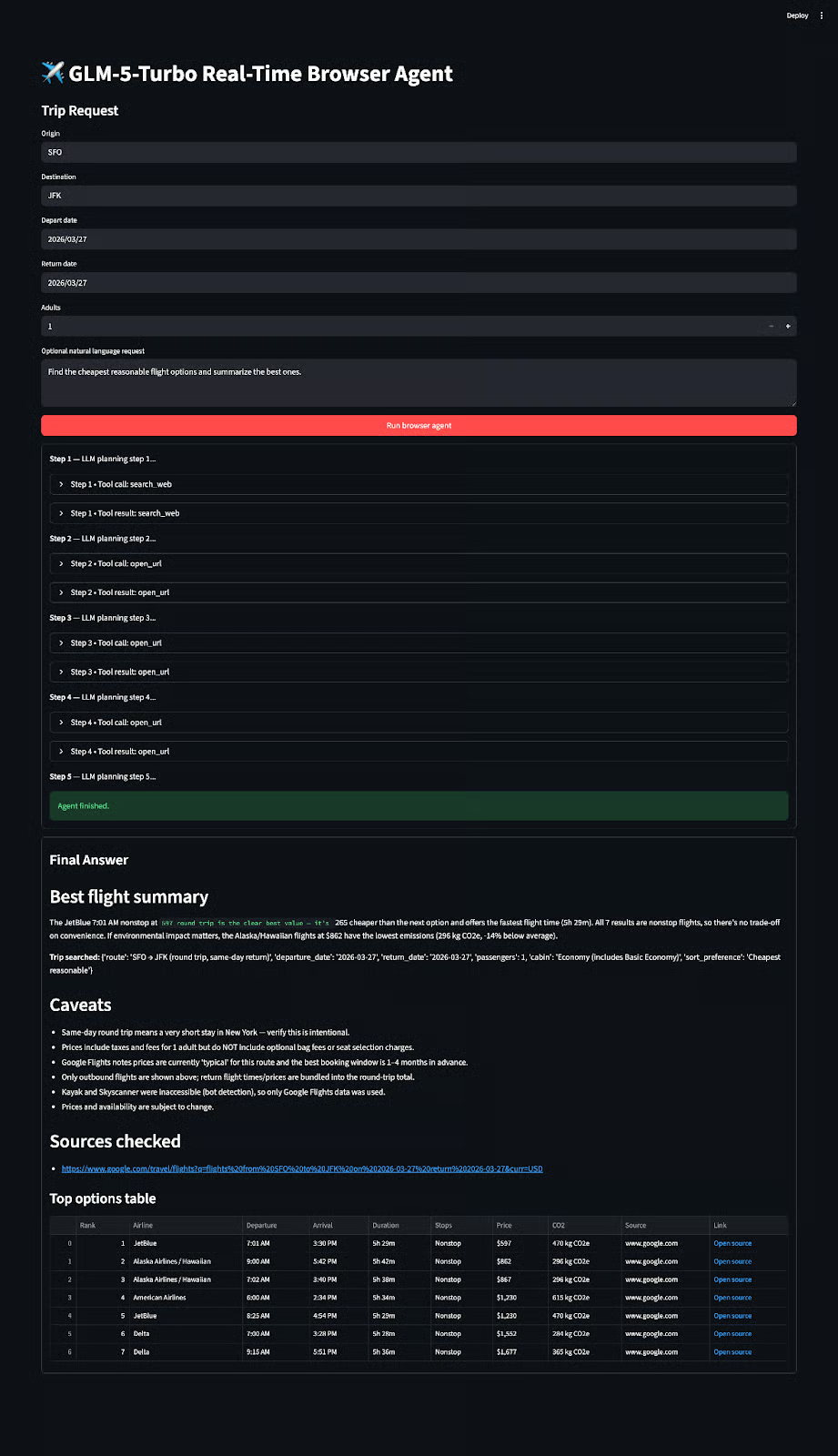
Este projeto funciona bem como um demo real porque usa resultados de busca de navegador e chamadas de ferramentas de verdade. Ao mesmo tempo, ainda é um protótipo. Sites de passagens são dinâmicos, as páginas podem ter ruído e algumas plataformas usam proteções anti-bot.
A lógica de extração atual é propositalmente heurística, o que mantém o sistema simples e fácil de entender.
Mais importante: essa configuração não se limita a voos. Com alguns ajustes — principalmente nos prompts e na lógica de extração — você pode reutilizar a mesma arquitetura para criar agentes de compras, pesquisa, agregação de notícias ou qualquer tarefa que exija navegar e resumir informações ao vivo.
Neste tutorial, construímos um agente de navegador em tempo real com GLM-5-Turbo, Playwright e Streamlit. O modelo atua como planejador, as ferramentas de navegador como camada de execução e a UI transforma os resultados estruturados em um formato amigável.
A principal lição é que o valor não vem só do modelo. Ele surge da combinação do modelo com uma camada de ferramentas controlada e um loop de agente.
Há várias extensões possíveis: melhorar a extração com parsers específicos por site, estender o sistema para hotéis ou roteiros, ou integrar preferências do usuário como voos diretos ou companhias aéreas favoritas. Isso pode ajudar você a transformar este demo em uma extensão de navegador completa.
Principais cursos da DataCamp
Curso
Curso
Pratique e programa seu progresso.
Continuar Com O Googleblog
Richie Cotton
7 min
blog
Adel Nehme
15 min
blog
Dr Ana Rojo-Echeburúa
9 min
Tutorial
Tutorial
Tutorial
Matt Crabtree
6 min