
Kurs
Konzeptuelle Einführung in generative KI
2 Std.
120.4K
BytePlus hat soeben sein neuestes Bildgenerierungsmodell Seedream 4.5 veröffentlicht. Als Enterprise-Technologiesparte von ByteDance bringt das Unternehmen fortschrittliche KI-Funktionen in Unternehmen weltweit – aufgebaut auf der Innovationskraft hinter Plattformen wie TikTok.
In diesem Artikel zeige ich dir, wie du Seedream 4.5 mit Python über die API integrierst, um Bilder programmatisch zu erzeugen.
Als Einstieg in die Technologie hinter Bildmodellen wie Seedream empfehle ich den Kurs Generative AI Concepts. Wenn dich auch andere Bildmodelle interessieren, schau dir unseren Leitfaden zu Googles Nano Banana 2 an.
Seedream 4.5 ist die neueste Iteration von BytePlus’ KI-Bildgenerierungsmodell.
Das Update verbessert die Motivkonsistenz, schärft feine Textdetails und optimiert das Blending mehrerer Bilder. Außerdem versteht es Anweisungen noch besser, löst räumliche Aufgaben sicherer und zieht präzisere logische Schlüsse.
Das Modell erzeugt zudem hochwertige 4K-Bilder – ein willkommenes Upgrade, da viele Konkurrenzmodelle mit hohen Auflösungen ringen. Auch preislich ist es attraktiv: Eine Generierung kostet nur 4 Cent pro Bild.
Lies dir außerdem unseren Artikel zum neuen Videogenerierungsmodell von ByteDance durch: Seedance 2.0.
Legen wir los mit der Seedream 4.5 API.
Um Seedream 4.5 mit Python über die API zu nutzen, brauchen wir zuerst einen API-Schlüssel.
Rufe die offizielle Website auf, klicke unten rechts auf Get API und melde dich an.
Nach dem Login findest du oben rechts den Button Access API. Klicke darauf und erstelle den API-Schlüssel. Dafür musst du deine Telefonnummer verifizieren und Zahlungsdaten angeben. Das ist aber kein Abo – abgerechnet werden nur deine API-Anfragen.
Lege im selben Ordner, in dem du den Python-Code schreibst, eine Datei .env an und füge den Schlüssel im folgenden Format ein:
ARK_API_KEY=<paste_key_here>Bevor du das Modell nutzen kannst, aktiviere es zusätzlich in der BytePlus ModelArk-Konsole. Das ist separat vom API-Schlüssel nötig. So gehst du vor:
Wechsle in der linken Seitenleiste zu Model activation.
Wähle in der Mitte Media als passende Modellkategorie.
Klicke rechts in der Zeile für ByteDance-Seedream-4.5 auf Activate.
Bestätige im Dialogfenster.
Für die Interaktion mit der Seedream 4.5 API installieren wir ein paar Python-Pakete:
byteplussdkarkruntime: Das offizielle Python-Paket für API-Anfragen an Seedream 4.5 als Teil des BytePlus Python SDK.
Einige Helferpakete, um den API-Schlüssel aus der .env-Datei zu laden, asynchrone HTTP-Requests zu senden und Einstellungen zu validieren.
Installiere die Pakete mit folgendem Befehl:
pip install byteplus-python-sdk-v2 python-dotenv httpx requests typing_extensions pydanticStarten wir mit einem einfachen Prompt-to-Image-Beispiel. Wenn du schon unsere anderen Python-KI-API-Tutorials gelesen hast – etwa zu GPT-Image-1 oder Grok Imagine –, kennst du den typischen Ablauf wahrscheinlich bereits:
Pakete importieren.
API-Schlüssel aus der .env-Datei laden.
Client mit dem offiziellen API-Paket erstellen.
API-Anfrage senden.
Seedream 4.5 funktioniert genauso. Hier ist ein Beispielskript zum Generieren eines Bildes.
# 1. Notwendige Pakete importieren
from dotenv import load_dotenv
from byteplussdkarkruntime import Ark
import os
# 2. API-Schlüssel laden
load_dotenv()
# 3. Client erstellen
client = Ark(
    base_url="https://ark.ap-southeast.bytepluses.com/api/v3",
    api_key=os.getenv("ARK_API_KEY"),
)
# 4. API-Anfrage senden
prompt = """
Photorealistic anthropomorphic animals hanging out in a coffee shop with no humans.
"""

imagesResponse = client.images.generate(
    model="seedream-4-5-251128",
    prompt=prompt,
    watermark=False,
)

image_url = imagesResponse.data[0].url
print(image_url)
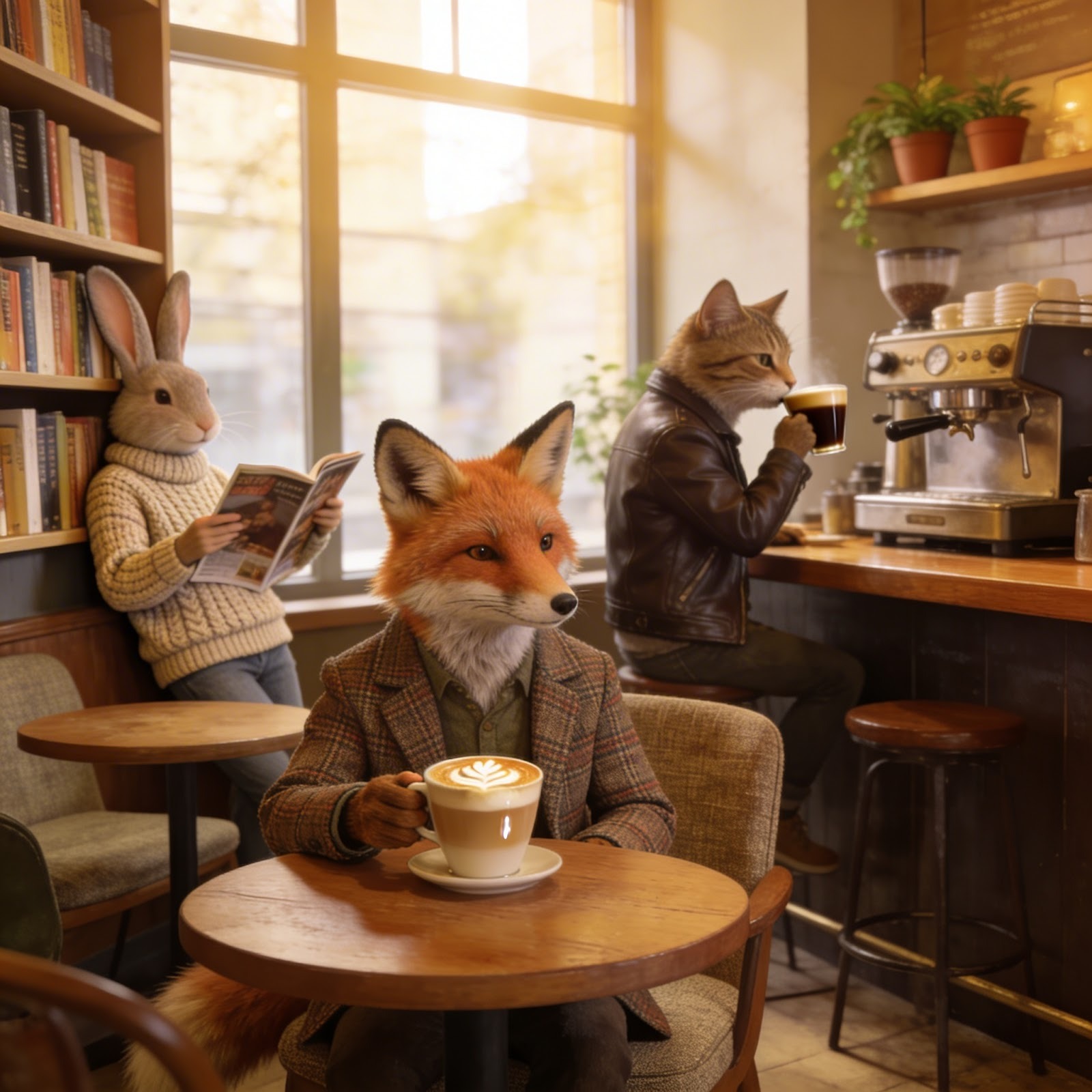
In diesem Beispiel lautete der Prompt:
Photorealistic anthropomorphic animals hanging out in a coffee shop with no humans.Das hat das Modell erzeugt:
Das Script oben gibt die Bild-URL im Terminal aus. Das ist in der Praxis unhandlich. Besser ist eine Funktion, die das Bild lokal speichert.
import requests
from urllib.parse import urlparse
import os
def download_image(url):
    try:
        response = requests.get(url, stream=True)
        response.raise_for_status()
        parsed_url = urlparse(url)
        filename = os.path.basename(parsed_url.path)
        if not filename:
            filename = "downloaded_image"
        with open(filename, "wb") as f:
            for chunk in response.iter_content(1024):
                f.write(chunk)
        print(f"Image saved to: {filename}")
    except Exception as e:
        print(f"Error downloading image: {e}")
Lege am besten eine neue Datei utils.py an und pack diese Funktion dorthin. Im Generierungsskript fügst du dann Folgendes hinzu, um das Bild herunterzuladen:
import utils
utils.download_image(image_url)In den Beispielen oben nutzen wir die Standardparameter von Seedream 4.5 – außer watermark, das wir auf False setzen.
Seedream 4.5 bietet zwei Wege, die Ausgabedimensionen über den Parameter size zu definieren.
Erstens kannst du die Auflösung über "2K" oder "4K" vorgeben und Seitenverhältnis, Format oder Zweck im Prompt natürlichsprachlich beschreiben. Das Modell bestimmt dann Breite und Höhe. Standard ist "2K".
Ein Beispiel:
prompt = """
Portait Instagram image to be used to promote travel to Tokyo, Japan.
"""

imagesResponse = client.images.generate(
    model="seedream-4-5-251128",
    prompt=prompt,
    size="4K",
    watermark=False,
)
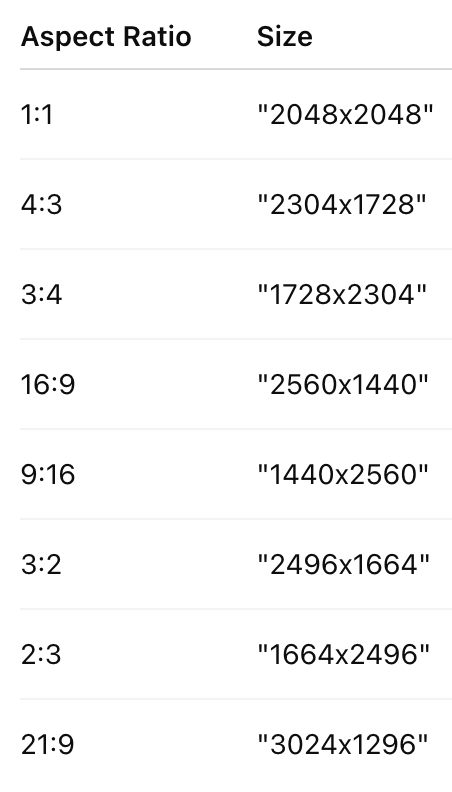
Alternativ kannst du die Größe in Pixeln als String wie "3750x1250" angeben. Dabei gelten zwei Regeln:
Wenn nur eine Regel erfüllt ist, ist die Größe ungültig. Um Rechnen zu vermeiden, nutze am besten die Auflösungsmethode oben oder eine der folgenden gültigen Größen:
Seedream 4.5 bietet einen Batch-Modus, um thematisch zusammenhängende Bildsets zu erzeugen. Praktisch etwa für Storyboards oder visuelle Serien um ein gemeinsames Motiv.
Dafür übergeben wir die Parameter sequential_image_generation und sequential_image_generation_options. Hier ein Beispiel für 4 Bilder:
from byteplussdkarkruntime.types.images.images import SequentialImageGenerationOptions
prompt = """
Generate a series of four visually coherent and stylistically consistent images illustrating these stages of a human life: Child, Adolescent, Adult, and Elderly. Make sure it's the same person in the four images.
"""
imagesResponse = client.images.generate(
    model="seedream-4-5-251128",
    prompt=prompt,
    size="2K",
    sequential_image_generation="auto",
    sequential_image_generation_options=SequentialImageGenerationOptions(max_images=4),
    response_format="url",
    watermark=False
)
Bei der Batch-Generierung kommt die Antwort im Format mit allen Bildern. Wir iterieren darüber und laden sie so herunter:
# Über alle Bilddaten iterieren
for image in imagesResponse.data:
    utils.download_image(image.url)
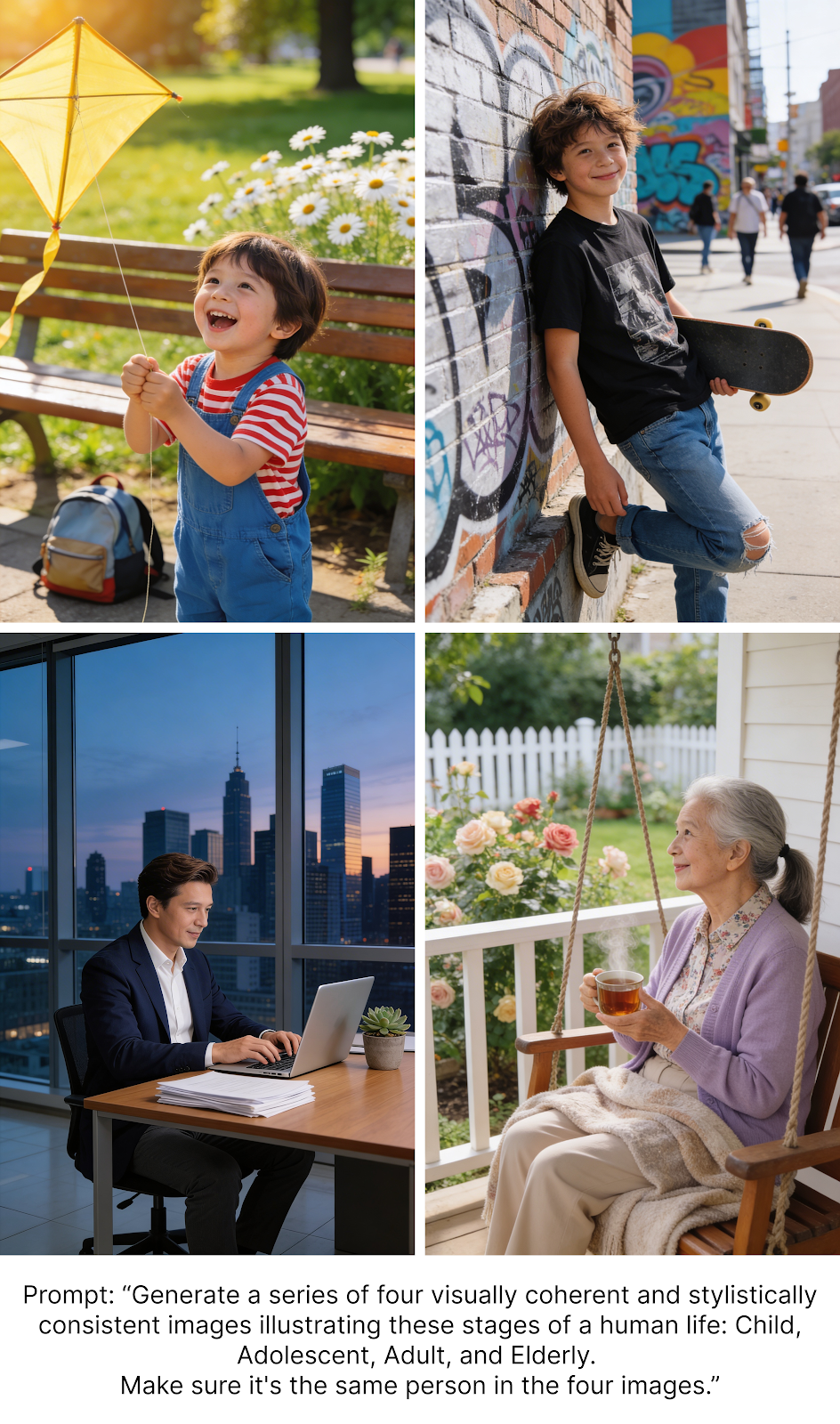
Ich habe es mit folgendem Prompt getestet:
Generate a series of four visually coherent and stylistically consistent images illustrating these stages of a human life: Child, Adolescent, Adult, and Elderly. Make sure it's the same person in the four images.Allerdings brach bei mir das vierte Bild die Konsistenz und zeigte stets eine Frau (mehrfach versucht).
Für eine andere Bildanzahl änderst du einfach max_images in der Anfrage. Erlaubt sind 1 bis 15 (inkl.). Zum Beispiel für 6 Bilder:
imagesResponse = client.images.generate(
    model="seedream-4-5-251128",
    prompt=prompt,
    size="2K",
    sequential_image_generation="auto",
    sequential_image_generation_options=SequentialImageGenerationOptions(max_images=6),
    response_format="url",
    watermark=False
)Testen wir Seedream 4.5 auf seine Textfähigkeit. Ich wollte prüfen, ob es ein Bild mit einem mathematischen Beweis erzeugen kann, ohne den Text explizit vorzugeben. Das testet zugleich das Kontextverständnis.
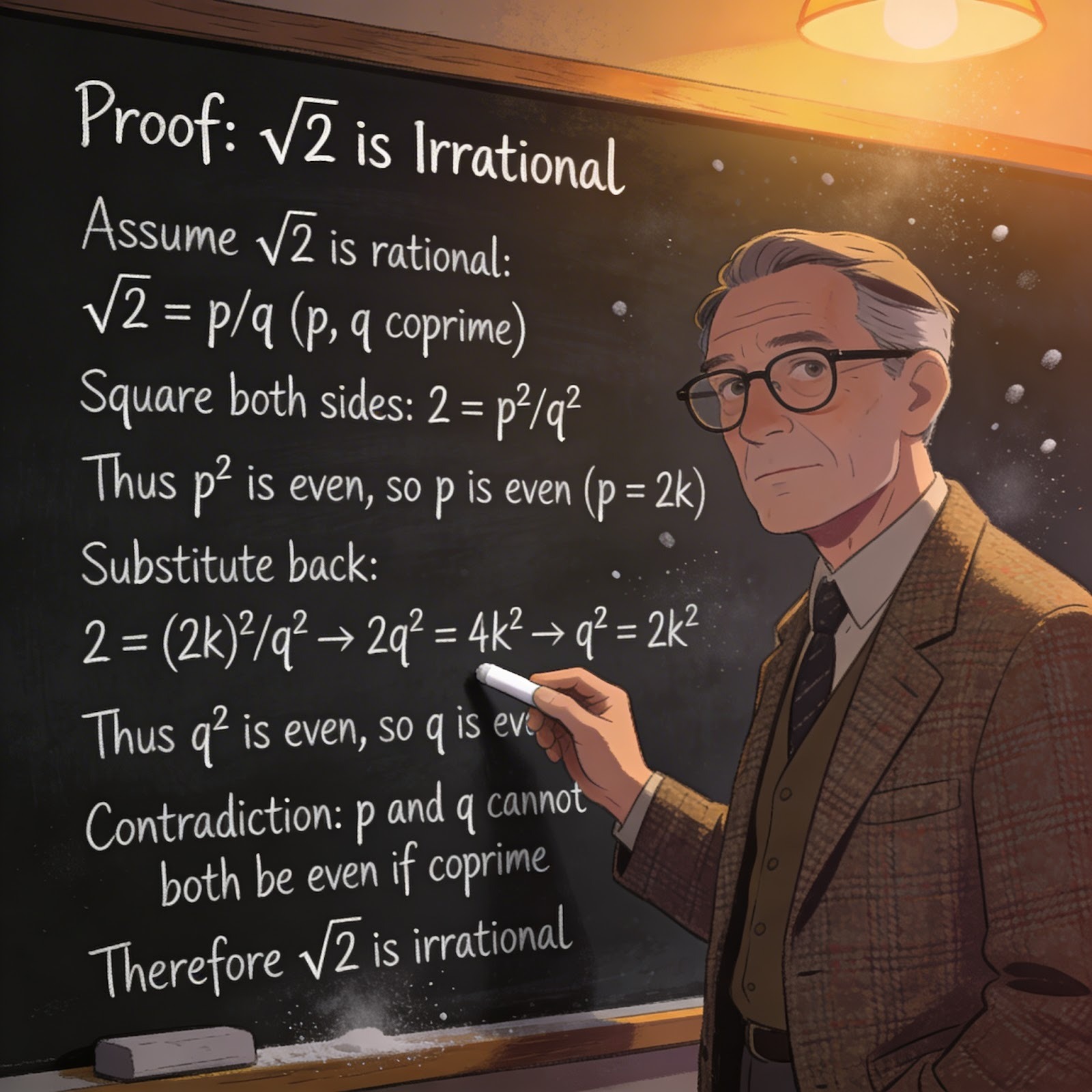
Dieser Prompt kam zum Einsatz:
Generate an image of a math professor standing in front of a blackboard. On the blackboard, there is a written proof that the square root of 2 is irrational.Das Ergebnis:
Ich war positiv überrascht. Der Beweis war korrekt, und das Modell kam gut mit einer größeren Textmenge zurecht.
In diesem Abschnitt bearbeiten wir Bilder. Am einfachsten ist es, die Bild-URL über den Parameter image anzugeben und die gewünschten Änderungen im Prompt zu beschreiben.
Hier ein vollständiges Skript:
from dotenv import load_dotenv
from byteplussdkarkruntime import Ark
import os
import utils
load_dotenv()
client = Ark(
    base_url="https://ark.ap-southeast.bytepluses.com/api/v3",
    api_key=os.getenv('ARK_API_KEY'),
)
image = "https://images.pexels.com/photos/34408249/pexels-photo-34408249.jpeg"
prompt = """
Make in snowy.
"""
imagesResponse = client.images.generate(
    model="seedream-4-5-251128",
    prompt=prompt,
    image=image,
    response_format="url",
    watermark=False,
    size="1664x2496"
)

image_url = imagesResponse.data[0].url
utils.download_image(image_url)
In diesem Beispiel habe ich ein öffentlich verfügbares Foto von Pexels von Michael Fischer genutzt und mit Seedream 4.5 winterlich gemacht.
So sah das Ergebnis aus:
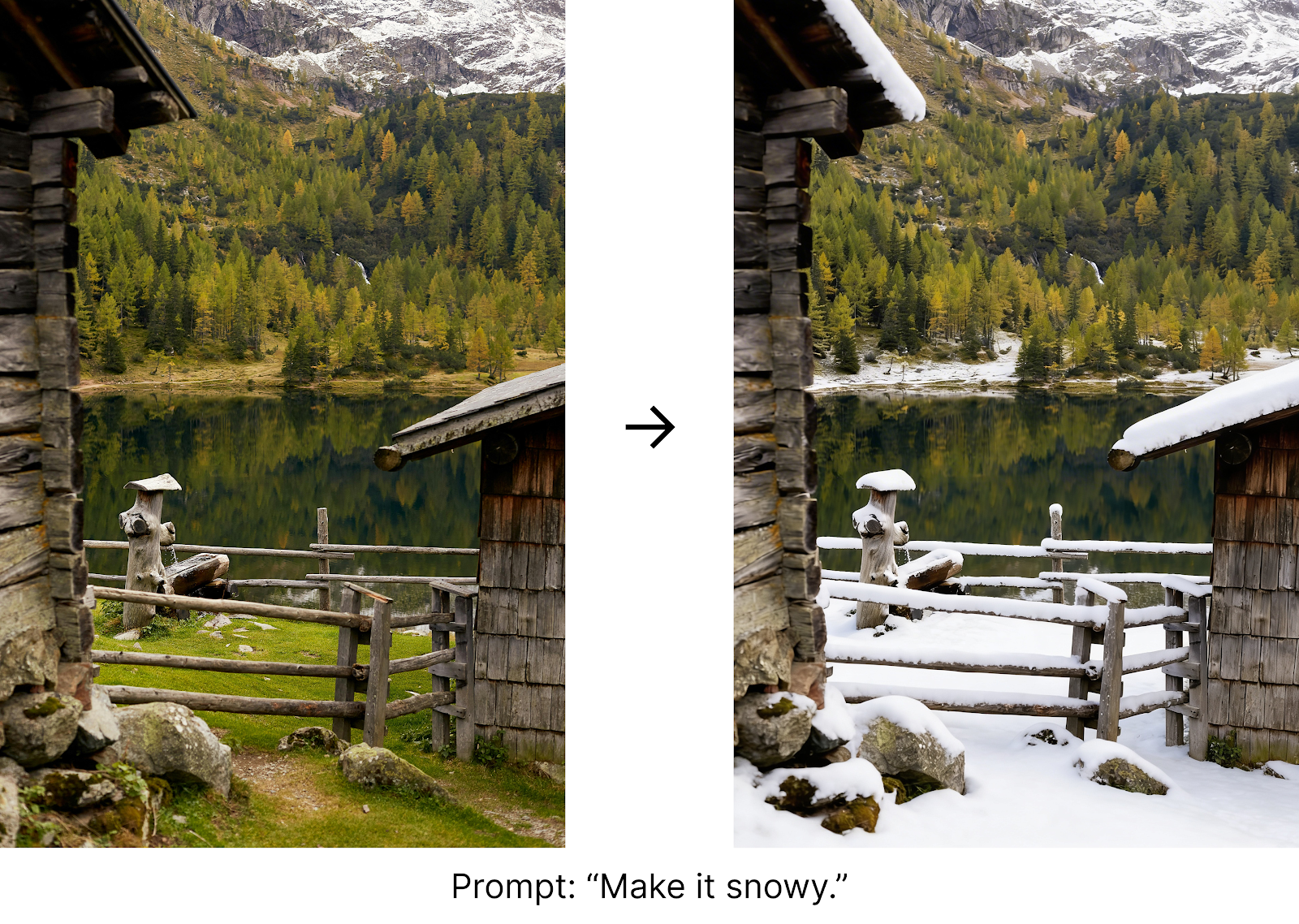
Beachte: Wir haben die Ausgabegröße "1664x2496" explizit gesetzt, um das Seitenverhältnis des Eingangsbilds zu wahren. Anders als viele KI-Modelle übernimmt Seedream 4.5 nicht automatisch die Eingabedimensionen. Ohne size erhielt ich ein quadratisches Bild.
Eine Bild-URL zu nutzen, ist am bequemsten. Ist das Bild jedoch nicht gehostet, wird es umständlich.
Die Seedream-API erlaubt auch lokale Bilder. Dafür laden wir das Bild als Base64. Hier eine Funktion:
import mimetypes
import base64
def load_image_as_base64(file_path):
    mime_type, _ = mimetypes.guess_type(file_path)
if mime_type is None or not mime_type.startswith("image/"):
        raise ValueError("File is not a recognized image type")
with open(file_path, "rb") as f:
        encoded = base64.b64encode(f.read()).decode("utf-8")
return f"data:{mime_type};base64,{encoded}"
Füge sie am besten in die utils.py ein, die schon die Download-Funktion enthält – so kannst du sie direkt im Hauptskript nutzen.
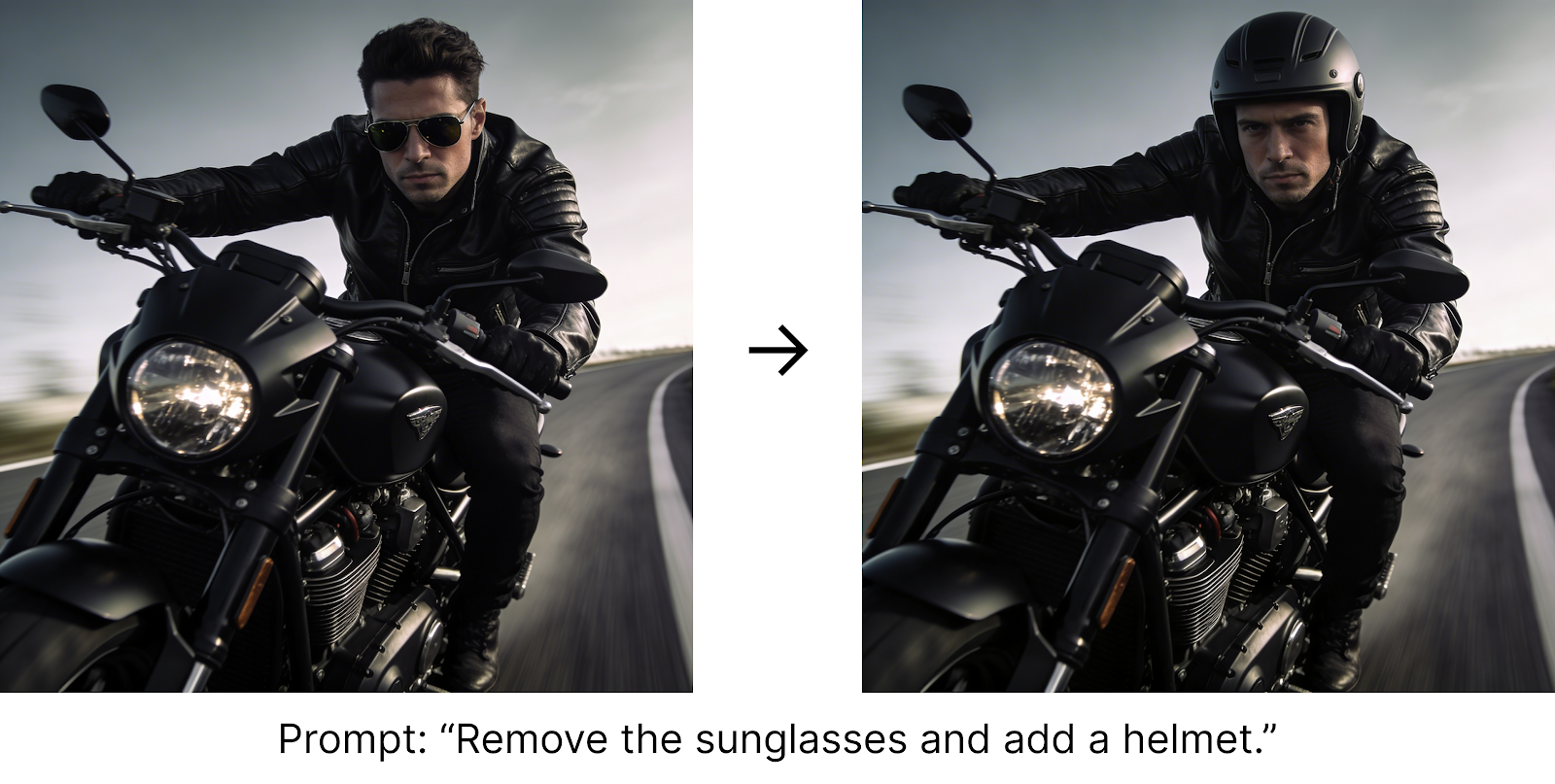
Angenommen, im selben Ordner liegt motard.jpeg. So lädst und bearbeitest du das Bild:
image = utils.load_image_as_base64("motard.jpeg")
prompt = """
Remove the sunglasses and add a helmet.
"""
imagesResponse = client.images.generate(
    model="seedream-4-5-251128",
    prompt=prompt,
    image=image,
    response_format="url",
    watermark=False
) 
Seedream 4.5 unterstützt mehrere Eingabebilder. Damit lassen sich Stile und visuelle Elemente zu einer neuen Komposition verschmelzen.
Mehrere Bilder übergibst du einfach als Liste. Hier ein Beispiel, das eine Person mit einem Outfit kombiniert, sodass die Person das Outfit trägt:
image1 = utils.load_image_as_base64("woman.jpeg")
image2 = utils.load_image_as_base64("outfit.jpeg")
prompt = """
Make the woman from image 1 wear the outfit in image 2.
"""
imagesResponse = client.images.generate(
    model="seedream-4-5-251128",
    prompt=prompt,
    image=[image1, image2],
    response_format="url",
    watermark=False,
)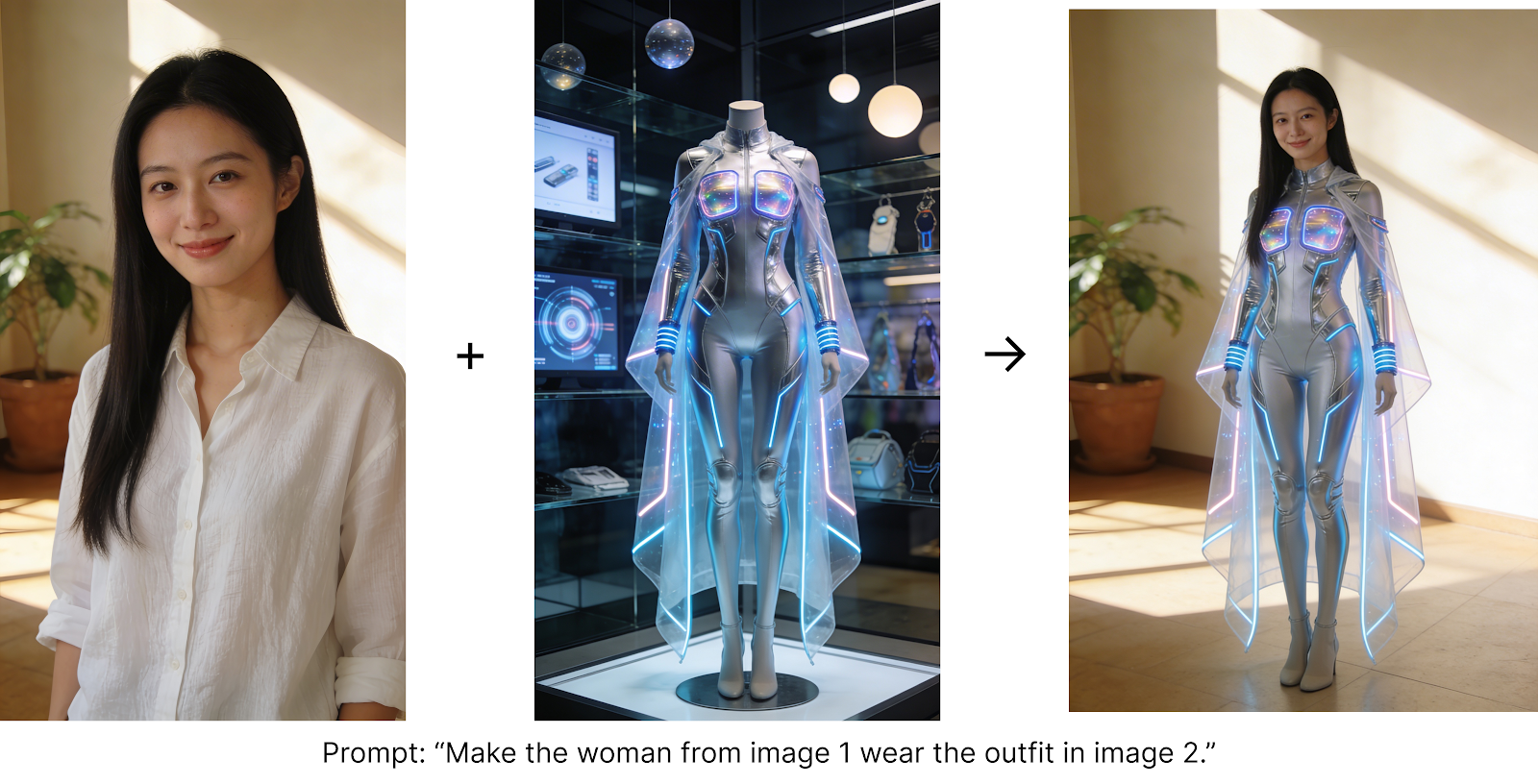
Das Beispiel zeigt, dass Seedream 4.5 Gesichter gut erhält; die Person im Ergebnis ähnelt stark dem Original. Hier schwächeln andere Modelle oft.
Die Batch-Funktionalität gilt auch fürs Editing, wobei die Summe aus Eingabe- und Ausgabebildern 15 nicht überschreiten darf. Ideal, um mehrere Varianten auf Basis eines Visuals zu erzeugen.
Kombiniere dazu einfach den image-Parameter mit den Batch-Parametern. Beispielanfrage:
prompt = """
Use the given logo to create a visual design system for an outdoor hiking brand,
including backpack, hat, and shoes.
"""
image = utils.load_image_as_base64("logo.jpeg")
imagesResponse = client.images.generate(
    model="seedream-4-5-251128",
    prompt=prompt,
    size="2K",
    image=image,
    sequential_image_generation="auto",
    sequential_image_generation_options=SequentialImageGenerationOptions(max_images=3),
    response_format="url",
    watermark=False
) Manche KI-Bildmodelle unterstützen Masking über Schwarz-Weiß-Masken, um gezielt Bereiche zu bearbeiten. Seedream 4.5 hat dafür keine nativen Parameter.
Ich habe es trotzdem probiert, indem ich die Maske als Eingabebild mitsandte und die gewünschte Aktion im Prompt beschrieb – um zu sehen, ob das Modell es sinngemäß umsetzt:
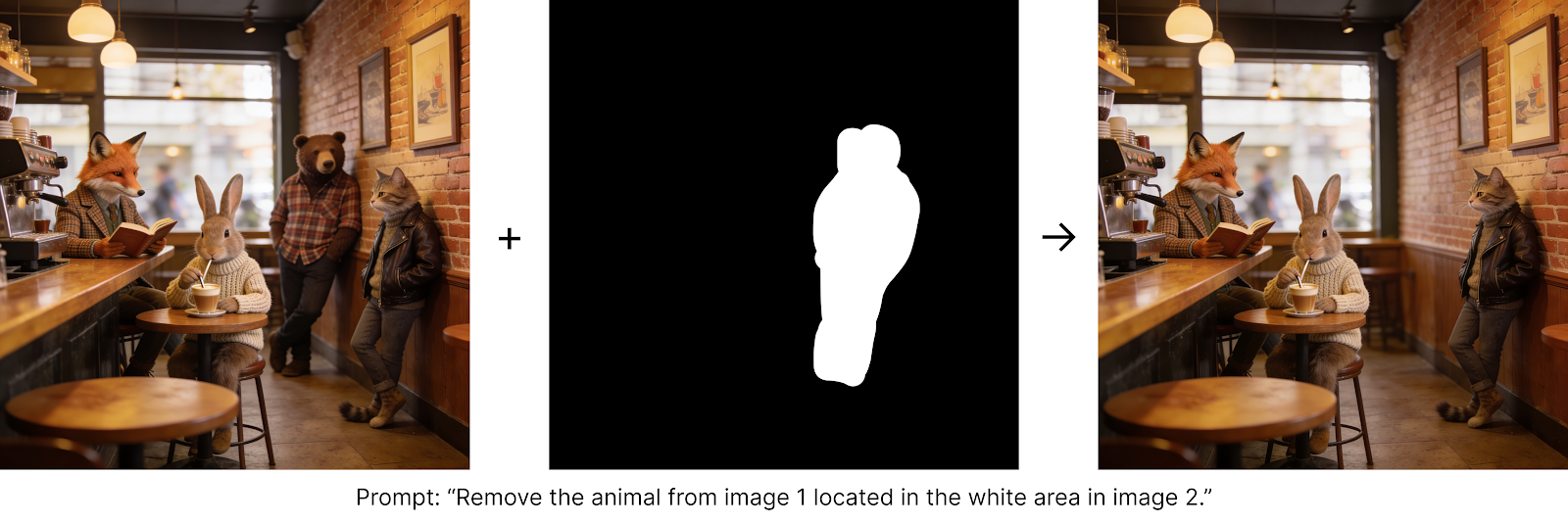
In diesem Beispiel klappte es, doch da es keine Kernfunktion ist, ist das Ergebnis nicht sehr verlässlich. Beim Versuch, einen Hund hinzuzufügen, scheiterte es etwa.
Seedream 4.5 liefert starke Performance und ein paar clevere Features. Um das Optimum herauszuholen, beachte diese Best Practices.
Für beste Ergebnisse beantworte kurz die Fragen: Was willst du? Wofür brauchst du es? In welchem Stil?
Beim Bearbeiten: Formuliere genau, was geändert wird und was unverändert bleiben muss. Nutze diese vier Aktionswörter:
Bei komplexen Szenen helfen visuelle Markierungen (Pfeile, Kästen, Kritzeleien), um Bereiche zu kennzeichnen.
Wenn du ein Referenzbild zur Identitäts-, Stil- oder Produkteigenschafts-Erhaltung verwendest, gib immer an:
Bei mehreren Eingabebildern weise klare Rollen zu:
Obwohl das Modell Parameter für die Zielanzahl hat, solltest du die gewünschte Anzahl zusätzlich im Prompt benennen:
Seedream 4.5 wirkt wie ein ausgereifter, produktionsreifer Bildgenerator auf Augenhöhe mit Top-Modellen wie Nano Banana – vergleichbare Qualität, hohe Anweisungsgenauigkeit und gute Konsistenz über mehrere Bilder hinweg, bei attraktiven Kosten.
Besonders positiv fiel mir die zugängliche API auf: Derselbe Generate-Endpunkt deckt Single-Shot, Edits (per URL oder Base64), Multi-Image-Blends und sequentielle Batches ab – aktiviert jeweils über wenige, klar benannte Parameter.
Allerdings bringt es aus meiner Sicht keine bahnbrechenden Neuerungen: Es ist eine hervorragend umgesetzte Version des inzwischen vertrauten Bildgenerierungs-Werkzeugkastens – kein konzeptioneller Sprung.
Wenn du nach diesem Walkthrough weiter Fahrt aufnehmen willst, stärke die Grundlagen, die Seedream-4.5-Projekte in der Produktion reibungslos machen.
Starte mit dem Kurs Introduction to APIs in Python, um Authentifizierung und Fehlerbehandlung zu meistern, und kombiniere ihn mit Image Processing in Python, um in deinen Pipelines Größenänderung, Compositing und Formatkonvertierung zu handhaben.
Wenn du einen formelleren Einstieg in angewandtes ML und Tooling suchst, bündelt der AI Engineer Career Track alles in Workflows zum Ausrollen zuverlässiger, skalierbarer KI-Features.
Kurse zu Generativer KI
Kurs
Lernpfad
Kurs
Blog
Hesam Sheikh Hassani
15 Min.
Tutorial
Matt Crabtree
5 Min.
Tutorial
DataCamp Team
5 Min.
Tutorial
Satyabrata Pal
15 Min.
Tutorial
Sejal Jaiswal
9 Min.
Tutorial
DataCamp Team
3 Min.


