
Course
Generative AI Concepts
2 hr
120.4K
BytePlus just released their latest image generation model, Seedream 4.5. As the enterprise technology arm of ByteDance, the company brings advanced AI capabilities to businesses worldwide, building on the innovation behind platforms like TikTok.
In this article, I’ll teach you how to use Seedream 4.5 with Python by integrating it through its API to generate images programmatically.
I recommend taking the Generative AI Concepts course as a great primer on the technology behind image generation models like Seedream. If you're interested in other image generation models as well, check out our guide on Google's Nano Banana 2.
Seedream 4.5 is the latest iteration of BytePlus's AI image generation model.
The latest release enhances subject consistency, sharpens small text details, and improves multi-image blending. It also features stronger comprehension of instruction, better spatial reasoning, and more advanced logical inference.
The model can also produce high-quality 4K images, which is a welcome improvement, as competitor models often struggle to generate high-resolution images. It can also compete cost-wise, with generations available at only 4 cents per image.
Make sure to also check out our article on ByteDance’s new video generation model, Seedance 2.0.
Without further ado, let’s get started with the Seedream 4.5 API.
To use Seedream 4.5 with Python via their API, we first need to create an API key.
Navigate to their official website, click the Get API button at the bottom-right corner, and sign in.
Once signed in, there is an Access API button at the top-right corner. Click it and create the API key. Creating an API key requires us to verify our phone number and provide billing information. This isn't a subscription, however, so we won't be charged monthly. Only our API requests are charged.
Create a file named .env in the same folder where we write the Python code and copy the key into it with the following format:
ARK_API_KEY=<paste_key_here>Before the model can be used, make sure to also activate it in the BytePlus ModelArk console. This needs to be done separately from the API key. To do it:
Navigate to Model activation on the left sidebar.
In the center, choose Media for the right model category.
Click Activate on the right side, in the row for the model ByteDance-Seedream-4.5.
Confirm in the opening window.
To interact with the Seedream 4.5 API, we install a few Python packages:
byteplussdkarkruntime: The official Python package that allows us to make API requests to Seedream 4.5, which is part of the BytePlus Python SDK.
A few helper packages for loading the API key from the .env file, for async HTTP requests, and settings validation.
We install these packages using the command:
pip install byteplus-python-sdk-v2 python-dotenv httpx requests typing_extensions pydanticLet's start by learning how to generate an image from a text prompt. If you have read our other Python AI API tutorials, like the ones on GPT-Image-1 or Grok Imagine, you're probably already familiar with the typical workflow:
Import the packages.
Load the API key from the .env file.
Create a client using the official API package.
Send the API request.
Seedream 4.5 works exactly in the same way. Here's a sample script for generating an image.
# 1. Import the necessary packages
from dotenv import load_dotenv
from byteplussdkarkruntime import Ark
import os
# 2. Load the API key
load_dotenv()
# 3. Create the client
client = Ark(
    base_url="https://ark.ap-southeast.bytepluses.com/api/v3",
    api_key=os.getenv("ARK_API_KEY"),
)
# 4. Send the API request
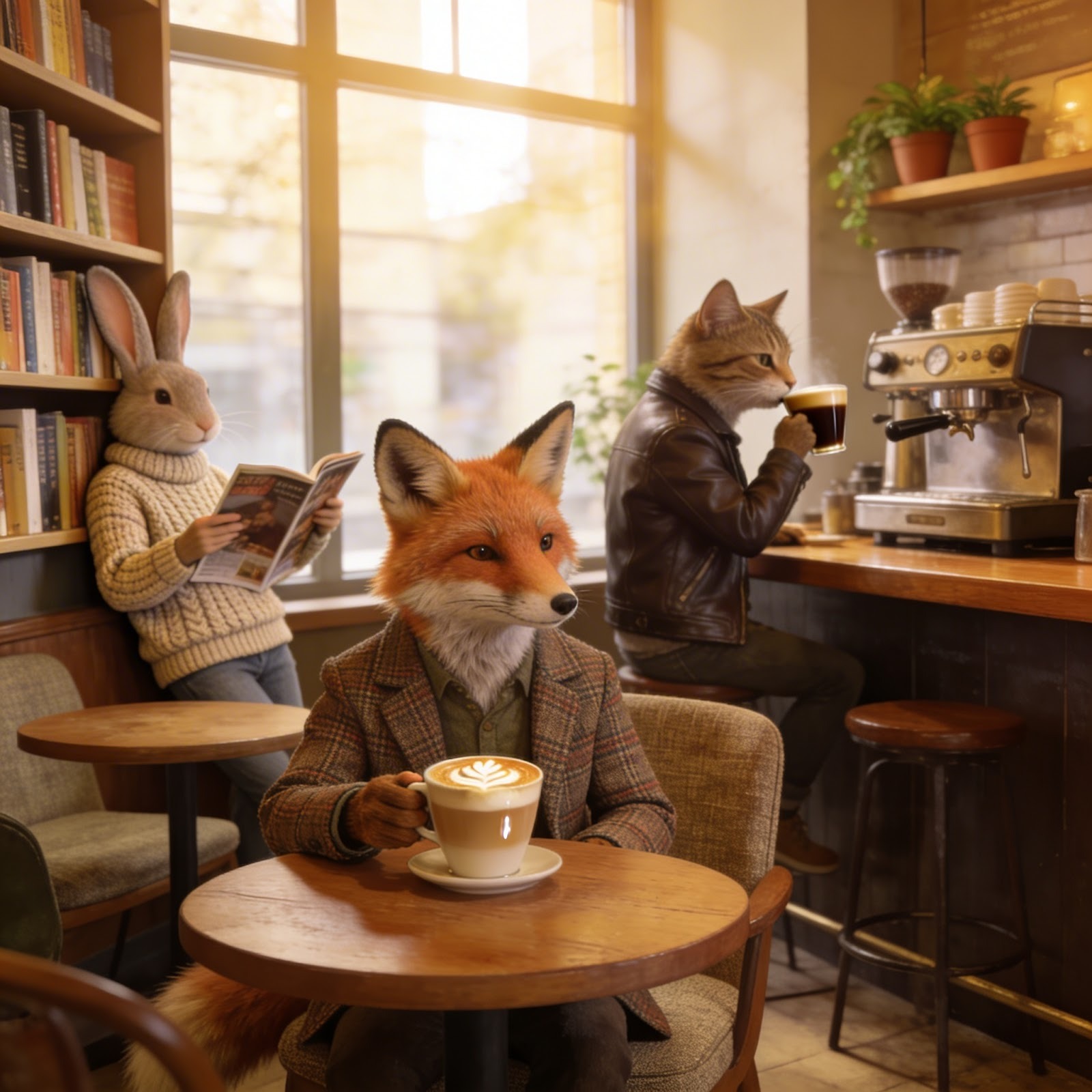
prompt = """
Photorealistic anthropomorphic animals hanging out in a coffee shop with no humans.
"""

imagesResponse = client.images.generate(
    model="seedream-4-5-251128",
    prompt=prompt,
    watermark=False,
)

image_url = imagesResponse.data[0].url
print(image_url)
In this specific example, the prompt we used was:
Photorealistic anthropomorphic animals hanging out in a coffee shop with no humans.This is what the model generated:
The above script will display the URL of the generated image in the terminal. That's not the most convenient workflow. A better alternative is to create a function that downloads the generated image to our local folder.
import requests
from urllib.parse import urlparse
import os
def download_image(url):
    try:
        response = requests.get(url, stream=True)
        response.raise_for_status()
        parsed_url = urlparse(url)
        filename = os.path.basename(parsed_url.path)
        if not filename:
            filename = "downloaded_image"
        with open(filename, "wb") as f:
            for chunk in response.iter_content(1024):
                f.write(chunk)
        print(f"Image saved to: {filename}")
    except Exception as e:
        print(f"Error downloading image: {e}")
I recommend creating a new script named utils.py and putting this function there. Then, in the script that generates the image, we add the following code to download the image:
import utils
utils.download_image(image_url)The previous examples used the default Seedream 4.5 parameters, except for the watermark, which we set to False to hide it.
Seedream 4.5 provides two ways of specifying the dimensions of the output image using the size parameter.
The first way is to specify the resolution of the generated image by setting size to either "2K" or "4K" and describing the aspect ratio, shape, or purpose in the prompt using natural language, and let the model determine the width and height. The default value is "2K".
Here's an example:
prompt = """
Portait Instagram image to be used to promote travel to Tokyo, Japan.
"""

imagesResponse = client.images.generate(
    model="seedream-4-5-251128",
    prompt=prompt,
    size="4K",
    watermark=False,
)
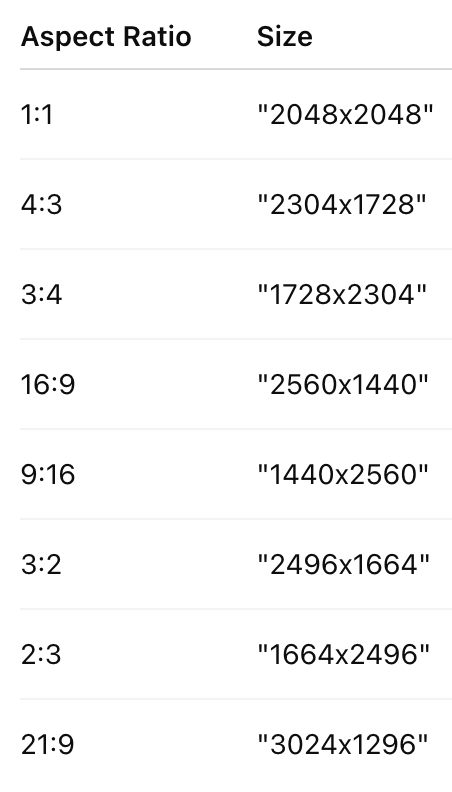
Alternatively, we can specify the size of the image in pixels with a string like "3750x1250", but there are two rules we need to follow:
If only one rule is satisfied, the size is not valid. To avoid having to make these calculations, I recommend either using the resolution method above or one of the following valid sizes:
Seedream 4.5 includes a batch generation mode that can be used to generate a set of thematically related images. This can be useful, for example, to generate a storyboard or visuals centered around a common subject.
To generate a batch of images, we need to provide the sequential_image_generation and sequential_image_generation_options parameters to the API request. Here's an example for generating 4 images:
from byteplussdkarkruntime.types.images.images import SequentialImageGenerationOptions
prompt = """
Generate a series of four visually coherent and stylistically consistent images illustrating these stages of a human life: Child, Adolescent, Adult, and Elderly. Make sure it's the same person in the four images.
"""
imagesResponse = client.images.generate(
    model="seedream-4-5-251128",
    prompt=prompt,
    size="2K",
    sequential_image_generation="auto",
    sequential_image_generation_options=SequentialImageGenerationOptions(max_images=4),
    response_format="url",
    watermark=False
)
When we use batch generation, we get a different response format containing all images. We can iterate over those images and download them like this:
# Iterate through all image data
for image in imagesResponse.data:
    utils.download_image(image.url)
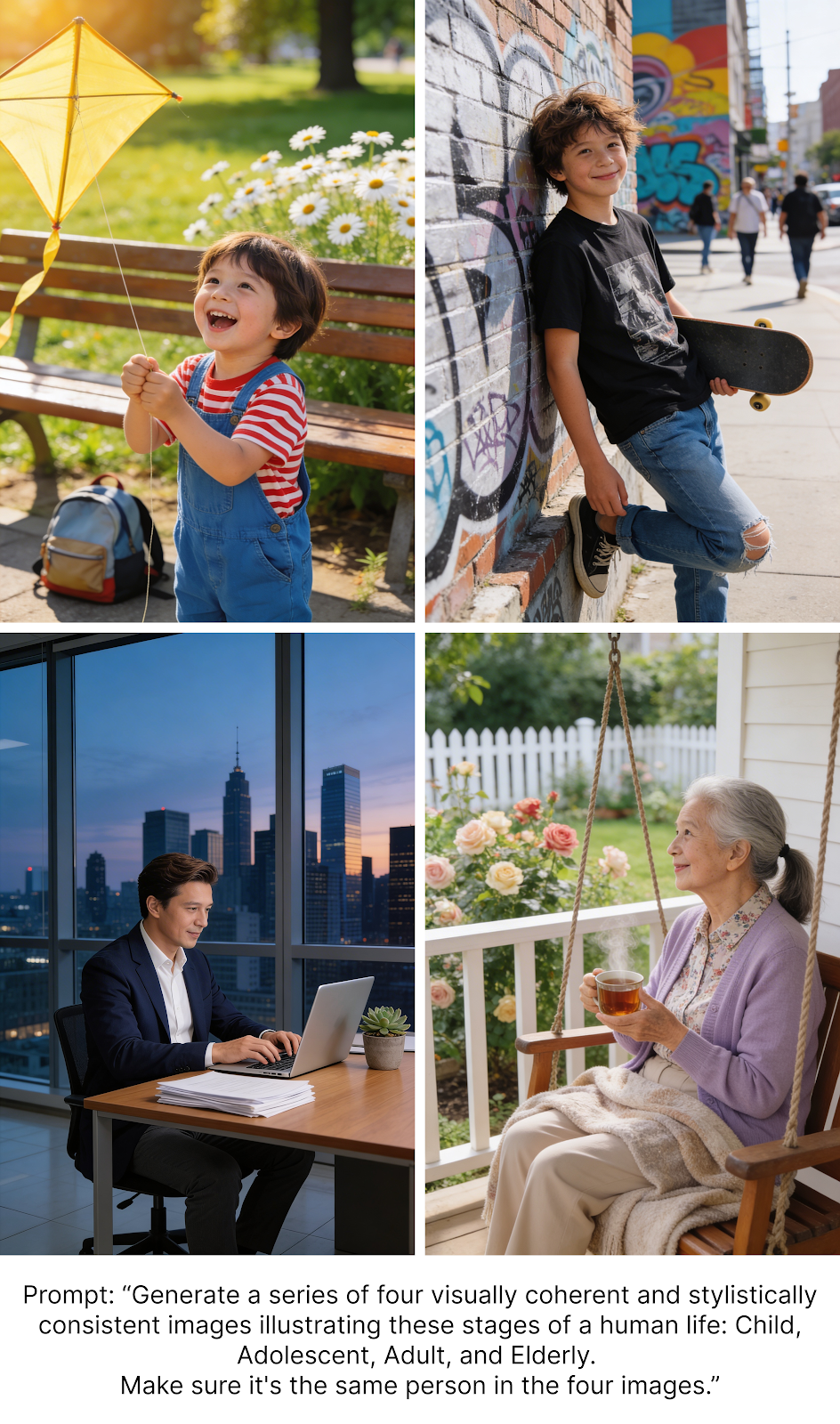
I tried this with the following prompt:
Generate a series of four visually coherent and stylistically consistent images illustrating these stages of a human life: Child, Adolescent, Adult, and Elderly. Make sure it's the same person in the four images.However, for some reason, the fourth image always broke consistency and came out as a woman (I tried multiple times).
To generate a different number of images, we simply change the max_images value in the API request. This number can be any integer between 1 and 15 (inclusive). For example, to generate 6 images, we would do:
imagesResponse = client.images.generate(
    model="seedream-4-5-251128",
    prompt=prompt,
    size="2K",
    sequential_image_generation="auto",
    sequential_image_generation_options=SequentialImageGenerationOptions(max_images=6),
    response_format="url",
    watermark=False
)Let's test Seedream's 4.5 ability to generate text. In testing, I decided to see if it could generate an image with a mathematical proof without explicitly specifying the text I want rendered. This also tests the model's ability to understand context.
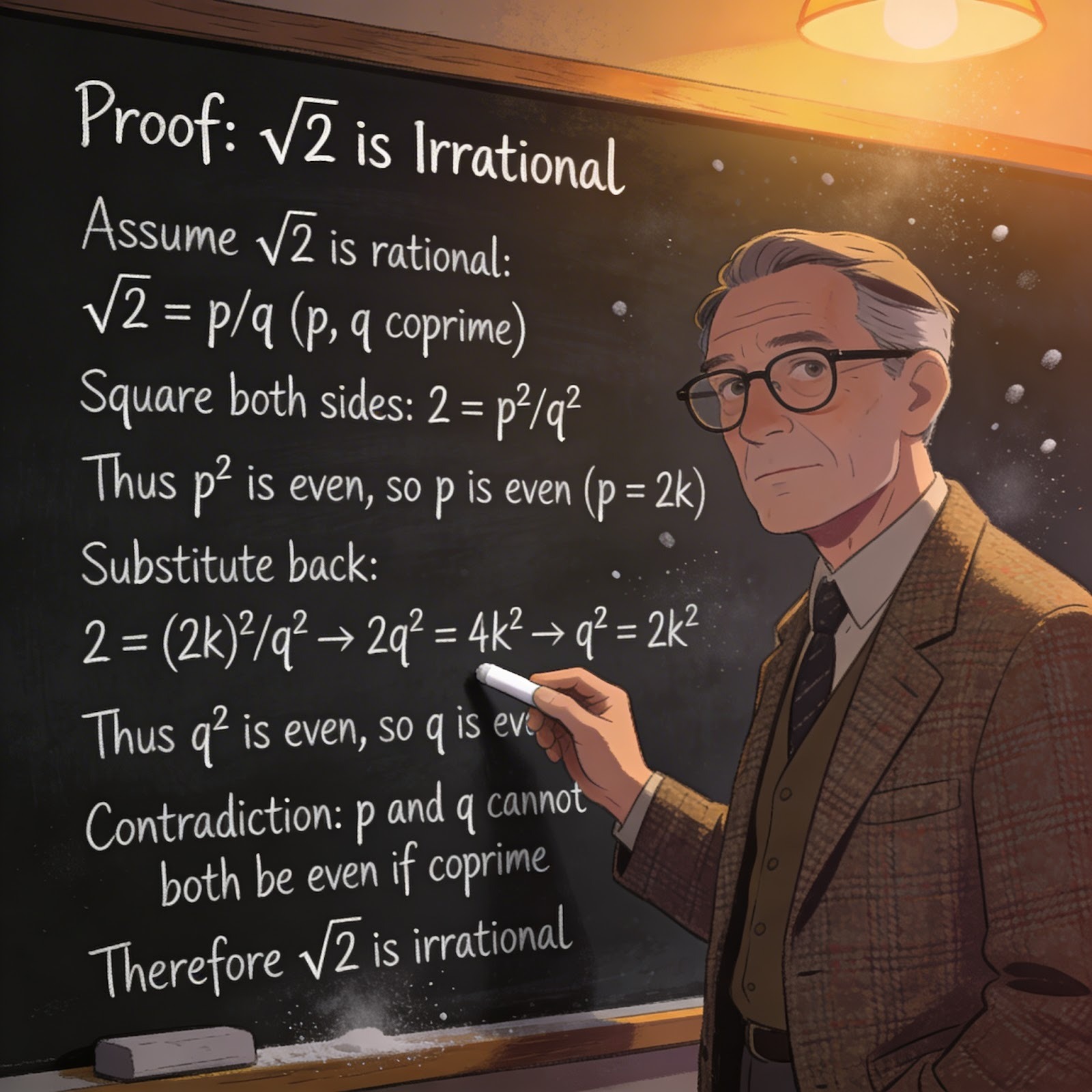
This is the prompt I used:
Generate an image of a math professor standing in front of a blackboard. On the blackboard, there is a written proof that the square root of 2 is irrational.Here's the result:
I was quite pleased with the result. Not only was the proof correct, but the model was able to correctly handle a large amount of text.
In this section, we learn how to edit images. The simpler way to edit an image with Seedream 4.5 is to provide the image URL using the image parameter and describe the changes in the prompt.
Here's a full script example:
from dotenv import load_dotenv
from byteplussdkarkruntime import Ark
import os
import utils
load_dotenv()
client = Ark(
    base_url="https://ark.ap-southeast.bytepluses.com/api/v3",
    api_key=os.getenv('ARK_API_KEY'),
)
image = "https://images.pexels.com/photos/34408249/pexels-photo-34408249.jpeg"
prompt = """
Make in snowy.
"""
imagesResponse = client.images.generate(
    model="seedream-4-5-251128",
    prompt=prompt,
    image=image,
    response_format="url",
    watermark=False,
    size="1664x2496"
)

image_url = imagesResponse.data[0].url
utils.download_image(image_url)
In this example, I used a publicly available photo on Pexels by Michael Fischer and used Seedream 4.5 to make it snowy.
This is what I got:
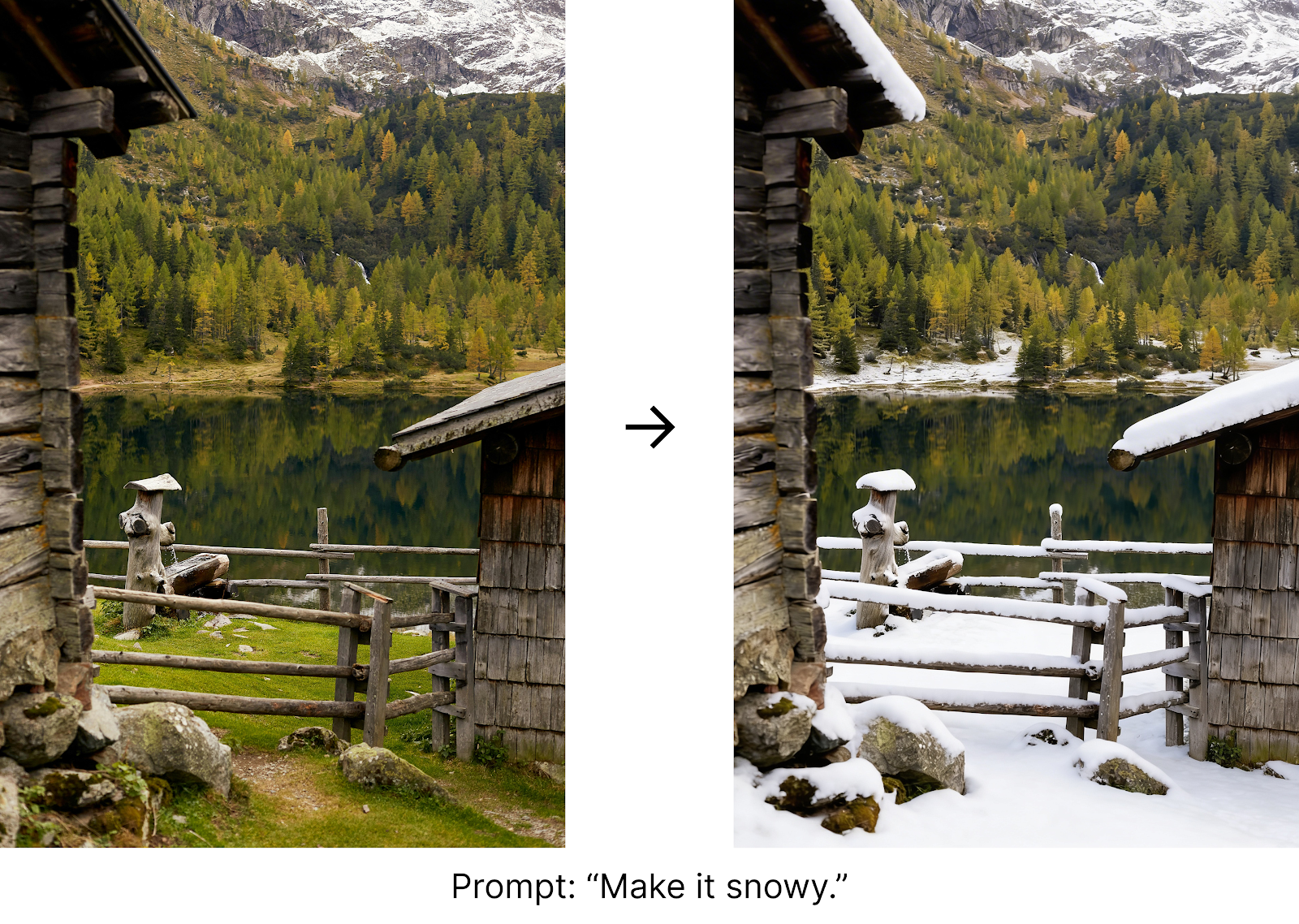
Note that in the example above, we explicitly stated the output size, "1664x2496", to match the input image aspect ratio. Contrary to most AI image models, Seedream 4.5 won't automatically generate an image with the same dimensions as the input. When I omitted the size parameter, the output was a square image.
Using an image URL is the easiest way to provide an image to Seedream 4.5. However, it's cumbersome if the image isn't already hosted somewhere.
The Seedream API also lets us easily use a local image. To do so, we need to load it as a base64 image. Here's a function to do so:
import mimetypes
import base64
def load_image_as_base64(file_path):
    mime_type, _ = mimetypes.guess_type(file_path)
if mime_type is None or not mime_type.startswith("image/"):
        raise ValueError("File is not a recognized image type")
with open(file_path, "rb") as f:
        encoded = base64.b64encode(f.read()).decode("utf-8")
return f"data:{mime_type};base64,{encoded}"
I recommend adding it to the utils.py file that contains the function for downloading an image, so it's easy to use in our main script.
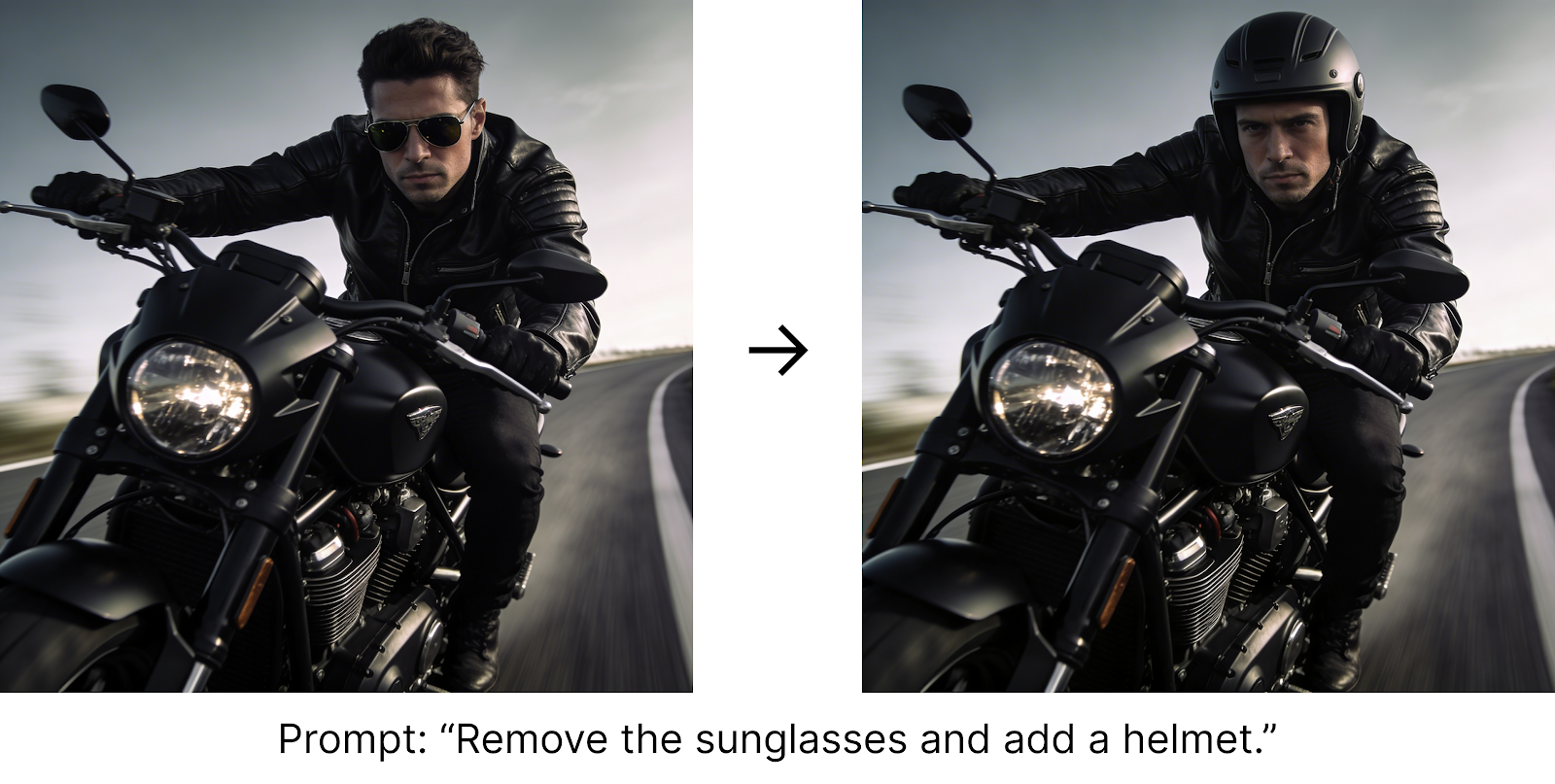
Say we have a local image in the same folder named motard.jpeg. Here's how we can load and edit that image:
image = utils.load_image_as_base64("motard.jpeg")
prompt = """
Remove the sunglasses and add a helmet.
"""
imagesResponse = client.images.generate(
    model="seedream-4-5-251128",
    prompt=prompt,
    image=image,
    response_format="url",
    watermark=False
) 
Seedream 4.5 supports multiple image inputs. These can be used to generate a new image by blending styles and visual elements from those images.
Providing multiple images in an API request is as simple as submitting a list with the images. Here's an example combining an image of a person and an outfit into an image of that person wearing the outfit:
image1 = utils.load_image_as_base64("woman.jpeg")
image2 = utils.load_image_as_base64("outfit.jpeg")
prompt = """
Make the woman from image 1 wear the outfit in image 2.
"""
imagesResponse = client.images.generate(
    model="seedream-4-5-251128",
    prompt=prompt,
    image=[image1, image2],
    response_format="url",
    watermark=False,
)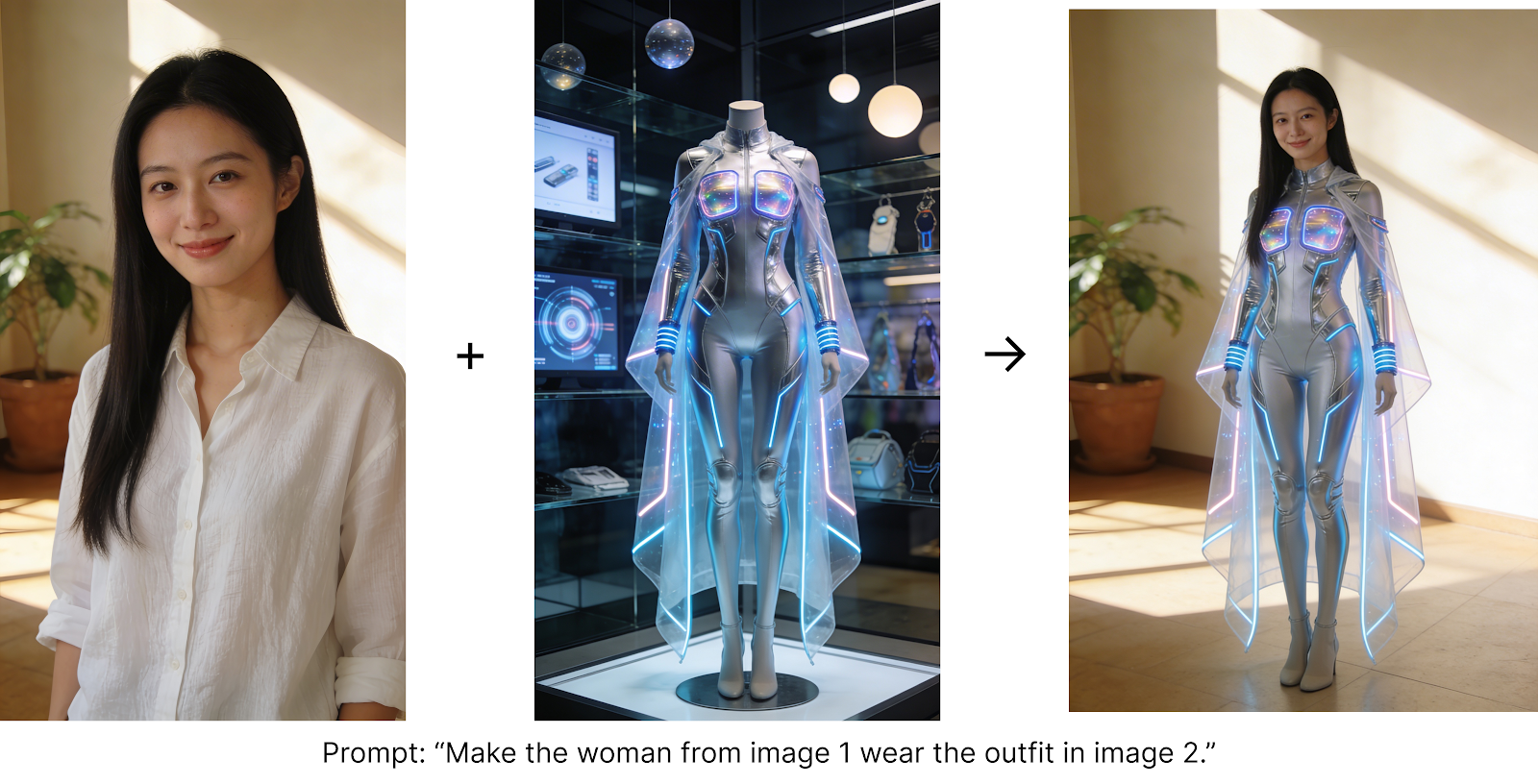
This example shows that the Seedream 4.5 is quite good at preserving faces; the person in the final image still looks very similar to the original one. This is something other models tend to underperform at.
The batching functionality we learned above also works for image editing, where the total number of images (inputs + outputs) cannot exceed 15. This is very useful, for instance, to generate multiple images based on a visual.
To do this, we simply combine the image parameter with the batch generation parameters we learned above. Here's a request example:
prompt = """
Use the given logo to create a visual design system for an outdoor hiking brand,
including backpack, hat, and shoes.
"""
image = utils.load_image_as_base64("logo.jpeg")
imagesResponse = client.images.generate(
    model="seedream-4-5-251128",
    prompt=prompt,
    size="2K",
    image=image,
    sequential_image_generation="auto",
    sequential_image_generation_options=SequentialImageGenerationOptions(max_images=3),
    response_format="url",
    watermark=False
) Some AI image generation models support masking by allowing users to provide a black-and-white image mask to specify the areas of the image they want to edit. However, Seedream 4.5 doesn't natively support masking parameters.
I gave it a try anyway by submitting the mask as an input image and specifying what I wanted in the prompt to see if it could understand and emulate the result:
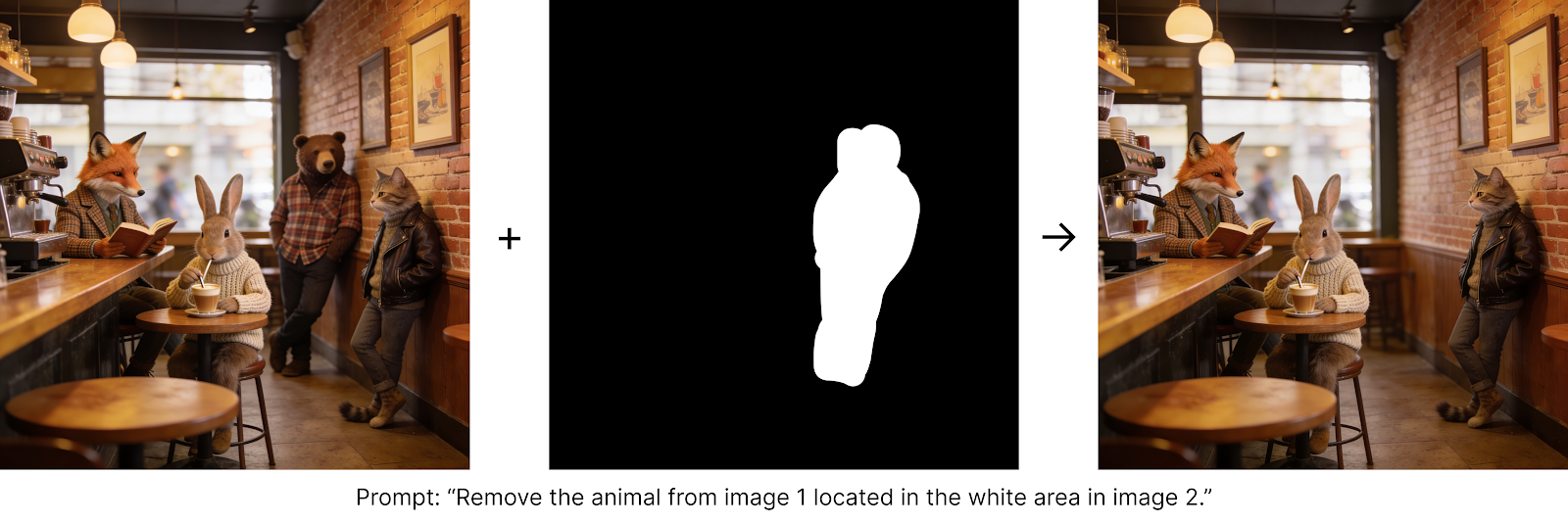
It worked in this example, but because it's not a baked-in feature of the model, it isn't very reliable. For example, when I tried the same to add a dog, it didn't work.
As we have seen, Seedream 4.5 offers good performance and a few cool features. To make the most out of it, keep the following best practices in mind.
For the best image generation results from Seedream’s 4.5, answer the questions of what you want, why you want it, and how the style should be, while keeping it short:
When you’re editing images, state exactly which changes you're making and which must stay unchanged. Use the following four words to specify actions:
If the scene is complex, using visual cues (arrows, boxes, doodles) to mark regions can be helpful for the model.
When you use a reference image to preserve identity, style, or product features, always specify:
When using multiple input images, clearly assign roles:
Despite the model having parameters to specify how many images we want to generate, it's better to make sure to also use the prompt to specify what we want:
Seedream 4.5 comes across as a mature, production-ready image generator that stands shoulder to shoulder with top-tier models like Nano Banana, delivering comparable fidelity, instruction adherence, and cross-image coherence while remaining cost-effective.
What stood out to me is how approachable the API feels in practice: the same generate endpoint handles single-shot creation, edits (via URL or base64), multi-image blends, and sequential batches, and we enable each mode by flipping a small set of clearly named parameters.
That said, I don’t feel it brings any particularly innovations: it’s an excellent, well-executed take on the now-familiar image-generation toolbox rather than a conceptual leap.
If you want to keep building momentum after this walkthrough, consider strengthening the foundations that make Seedream 4.5 projects smooth in production.
Start with the Introduction to APIs in Python course to master authenticated requests and error handling, pair it with Image Processing in Python to handle resizing, compositing, and format conversions in your pipelines.
If you’re eyeing a more formal path into applied ML and tooling, the AI Engineer career track ties it all together with workflows for shipping reliable, scalable AI features.
Generative AI Courses
Course
Track
Course
blog
Tom Farnschläder
15 min
Tutorial
François Aubry
Tutorial
François Aubry
11 min
Tutorial
François Aubry
8 min
Tutorial
François Aubry
11 min
Tutorial
François Aubry
12 min