
Curso
Preparación de datos en Power BI
3 h
92.2K
Puede que hayas oído hablar de Power BI Service durante tu trabajo de análisis sin tener del todo claro qué es. He preparado esta guía para despejar cualquier duda y darte una visión de sus funciones clave, su arquitectura y su papel dentro del ecosistema de la nube de Microsoft.
Power BI Service es el Software como Servicio (SaaS) en la nube del ecosistema Power BI, alojado sobre la infraestructura de Azure. Te permite alojar, gestionar y compartir paneles e informes. Una vez publicas tu informe desde Power BI Desktop, Power BI Service te permite:
Hablemos de las funciones fundamentales de Power BI Service.
La arquitectura de Power BI Service combina servicios en la nube con un componente local, algo que se refleja en sus distintas capas.
Esta capa se encarga de conectar con diferentes orígenes de datos, transformarlos y prepararlos para su análisis en la fase de BI. Power BI Service permite conexiones con más de 100 orígenes de datos distintos.
Una vez conectado un conjunto de datos, la transformación y limpieza de datos se realiza con Power Query, una herramienta de transformación integrada en Power BI. Estos pasos de transformación se guardan como scripts M para que el mismo proceso de limpieza se aplique automáticamente cada vez que se cargan datos nuevos.
Para conjuntos de datos alojados en servidores locales de la organización, Power BI Service utiliza el On-premises Data Gateway para acceder de forma segura a orígenes locales sin exponerlos a internet pública.
Tras la transformación, el conjunto de datos se carga en el motor en memoria xVelocity (VertiPaq) de Power BI, que permite consultas rápidas y una compresión eficiente.
Una vez establecida la conexión con tu conjunto de datos, modelas y estructuras la información para su análisis y visualización. Cuando se publica un informe desde Power BI Desktop, el modelo de datos pasa a ser un modelo semántico (antes denominado dataset) en Power BI Service. Este modelo es reutilizable e incluye tablas, relaciones, medidas y columnas calculadas, normalmente definidas con DAX (Data Analysis Expressions).
Power BI ofrece tres modos de almacenamiento para gestionar rendimiento y escalado:
Para salidas de "píxel perfecto" listas para imprimir, Power BI Service admite informes paginados, creados con Power BI Report Builder y posteriormente publicados en el Service. Para entender bien DAX, consulta el artículo Power BI DAX Tutorial for Beginners y Power BI Paginated Reports para entender cómo crear informes paginados.
En Power BI Service, el entorno colaborativo para crear y gestionar informes y paneles se llama Workspace. Cada usuario dispone de un espacio personal llamado My Workspace para proyectos individuales.
Para la colaboración en equipo, puedes crear Shared Workspaces y asignar roles como Admin, Member, Contributor o Viewer para controlar permisos y accesos.
Una vez que el trabajo está publicado y finalizado, puedes empaquetar paneles e informes en una Power BI App para que un público amplio acceda a ellos fácilmente.
También puedes suscribir a las partes interesadas a informes y paneles para que reciban correos programados con capturas y enlaces, garantizando que estén al día de forma automática.
En Power BI, un informe y un panel no son lo mismo.
Un informe de Power BI es un análisis detallado y en profundidad con varias páginas. Puede incluir filtros, segmentaciones y distintos tipos de visualizaciones para explorar el conjunto de datos desde diferentes ángulos. Puede crearse tanto en Power BI Desktop como en Power BI Service.
Un panel de Power BI, en cambio, es una única página con una vista de alto nivel del conjunto de datos. Se usa para monitorizar métricas clave y mostrar insights resumidos de un vistazo, y solo se crea en Power BI Service. Para saber cómo crear un panel, te vendrá bien el Power BI Dashboard Tutorial, una lectura recomendable.
Como decía antes, un Workspace en Power BI Service es el entorno donde almacenas, gestionas y colaboras en informes y paneles. Es el área donde se guarda todo el contenido de Power BI.
El acceso se controla mediante permisos basados en roles:
Para un gobierno eficaz de los workspaces, conviene usar grupos de seguridad de Microsoft Entra en lugar de asignaciones individuales, separar los entornos (Dev, Test, Prod) y aplicar una convención de nombres clara para mantener el orden y evitar el desorden.
Power BI Service y Power BI Desktop se complementan y trabajan juntos para dar vida a tus datos. Mientras que Power BI Desktop es una aplicación para Windows que se usa para desarrollar informes y construir modelos, el principal uso de Power BI Service, como comentaba, es compartir, colaborar y consumir contenido. Algunas diferencias entre ambos son:
|
Capacidad |
Power BI Desktop |
Power BI Service |
|
Caso de uso principal |
Desarrollo, modelado de datos, creación de informes |
Compartición, colaboración, gobierno, consumo |
|
Modelo de implementación |
Aplicación local para Windows (gratis) |
SaaS en la nube (requiere licencia para compartir) |
|
Modelado de datos |
Avanzado (DAX, relaciones complejas, Power Query) |
Limitado (Dataflows para preparación, sin edición directa del modelo) |
|
Creación de informes |
Completa, con amplias opciones de diseño |
Edición web limitada (ajustes menores) |
|
Compartición y colaboración |
Mínima (compartir archivos .pbix, no recomendado) |
Amplia (Workspaces, Apps, Dashboards, comentarios) |
|
Actualización de datos |
Solo manual |
Programada, automatizada y en streaming en tiempo real |
|
Seguridad |
Básica (archivo local) |
De nivel empresarial (seguridad a nivel de fila, integración con AAD) |
|
Elementos clave |
Archivos .pbix |
Dashboards, Apps, Workspaces, Dataflows |
Para empezar con Power BI Desktop, el curso Introduction to Power BI te será de gran ayuda.
Power BI Service se sincroniza a la perfección con las apps de Microsoft 365, lo que te permite integrar analítica en los flujos de trabajo del día a día.
Admite conectividad con Excel y OneDrive, de modo que puedes obtener conjuntos de datos desde archivos de Excel o CSV almacenados en OneDrive o SharePoint, con actualización automática cuando cambia el origen.
En Teams, puedes incrustar informes de Power BI como pestañas para que el equipo los vea y comente sin salir del canal. También se pueden incrustar informes y paneles en páginas de SharePoint Online para un acceso más amplio.
Además, las suscripciones en Outlook envían capturas de informes y enlaces directamente a tu bandeja de entrada.
Estas integraciones potencian la colaboración y facilitan el acceso al contenido de Power BI en toda la organización.
Puedes crear, ver y editar informes directamente en el Service, algo útil para cambios rápidos o cuando los usuarios no tienen Power BI Desktop instalado. Ofrece una amplia variedad de opciones de visualización y formato.
Los informes se pueden compartir de varias formas: enlaces directos, exportación a PDF, PowerPoint o Excel, y suscripciones por correo programadas. Para datos públicos, también se pueden incrustar en sitios web.
Entre las funciones de colaboración están los workspaces compartidos, los comentarios y los marcadores para guiar a los usuarios por vistas concretas. Aunque Power BI no tiene control de versiones integrado, herramientas externas como Azure DevOps, Git, SharePoint u OneDrive pueden cubrir esa necesidad.
Los informes publicados están disponibles desde cualquier navegador o desde la app móvil de Power BI, que ofrece diseños optimizados y alertas de datos para acceder en movilidad.
Para profundizar en este concepto, explorar el curso Reports in Power BI te será de utilidad.
Power BI ofrece distintas estructuras de licencias que determinan lo que puedes hacer en Power BI Service.
Power BI Service ofrece varios tipos de licencia, como:
Las diferencias clave entre licencias incluyen si los usuarios Free pueden ver contenido (solo en capacidad Premium), límites de tamaño de modelos superiores (de 10 a 400 GB en Premium frente a 1 GB en Pro) y funciones avanzadas como actualización incremental o conectividad local.
Los workspaces de Power BI tienen límites de almacenamiento. Los que no son Premium disponen de hasta 10 GB, mientras que los Premium ofrecen más capacidad. El tamaño de los modelos también varía: hasta 1 GB en Pro y hasta 400 GB en Premium F64.
Power BI está ahora integrado en Microsoft Fabric, lo que alinea las capacidades con los SKU de Fabric (FSKU) y simplifica las licencias. En Fabric, Power BI Free, Pro y PPU se gestionan dentro del mismo marco de capacidad.
Premium también habilita los endpoints XMLA, que permiten acceso de lectura y escritura a modelos semánticos de forma programática con herramientas como SSMS o Azure Functions.
En resumen:
Para una guía más detallada sobre los distintos tipos de licencia de Power BI, echa un visto a nuestro artículo Power BI License Types.
Como comentaba, cuando necesitas salidas imprimibles con diseño fijo, como facturas, estados financieros o listas de inventario, los informes paginados son ideales. Se crean en Power BI Report Builder y suelen alojarse en workspaces Premium de Power BI debido a sus necesidades de procesamiento.
Para escenarios locales o híbridos, Power BI Report Server te permite alojar y gestionar informes en infraestructura local.
La conectividad entre entornos se admite a través del gateway de Power BI, que permite que informes en la nube consulten orígenes de datos locales en tiempo real sin mover los datos a la nube.
Power BI Service admite visualización en tiempo real mediante conjuntos de datos en streaming. Estos permiten enviar datos a Power BI a través de la REST API, Azure Stream Analytics o PubNub y mostrarlos al instante en los paneles.
Ejemplos: telemetría IoT, datos de sensores o flujos de ventas en vivo, que actualizan los paneles en tiempo real conforme ocurren los eventos.
Para implementarlo, creas un conjunto de datos en streaming en el Service y lo conectas a visualizaciones o lo fijas como un mosaico en tiempo real. La REST API también permite envíos de datos programáticos para escenarios de monitorización.
Power BI se integra con servicios de Azure AI, lo que te permite realizar análisis de sentimiento, extracción de palabras clave y análisis de imágenes a través de Text Analytics y Vision.
La función Q&A permite hacer preguntas en lenguaje natural (como «Ventas totales de este trimestre por producto»), y Power BI genera automáticamente visualizaciones basadas en la consulta, acercando los insights a más usuarios.
También puedes ejecutar scripts de Python o R en Power BI Desktop o en el Service (en workspaces Premium) para realizar transformaciones avanzadas o crear visualizaciones personalizadas.
Power BI utiliza Microsoft Entra ID (antes Azure Active Directory) para la autenticación, con compatibilidad con inicio de sesión único (SSO) y autenticación multifactor.
La autorización se gestiona mediante roles de workspace (Admin, Member, Viewer), permisos de apps y Row-Level Security (RLS), que controla el acceso a los datos a nivel de fila según la identidad del usuario.
Los conjuntos de datos se cifran en tránsito y en reposo con TLS y AES-256, y se puede aplicar doble cifrado para mayor seguridad. Los workspaces Premium también admiten Bring Your Own Key (BYOK) para cifrado gestionado por el cliente.
El portal de administración de Power BI permite gestionar accesos, controlar la compartición y la exportación, monitorizar el uso y configurar funciones acorde a las políticas de gobierno de la organización.
Power BI cuenta con certificaciones como ISO 27001, HIPAA, RGPD y FedRAMP, por lo que es adecuado para sectores regulados como sanidad y administración pública.
Todas las actividades en Power BI Service se registran en los registros de auditoría de Microsoft 365, ofreciendo un rastro completo para monitorizar accesos, rastrear comparticiones e investigar posibles incidencias de seguridad.
Para organizaciones con requisitos de soberanía del dato, Power BI admite implementaciones multi-geo, lo que permite que los conjuntos de datos residan en distintas regiones para cumplir con la normativa.
En implementaciones a escala empresarial, gestionar el ciclo de vida del contenido de Power BI requiere adoptar un enfoque similar al desarrollo de software (DevOps).
Power BI Premium admite canalizaciones de implementación (Desarrollo → Pruebas → Producción) para gestionar el ciclo de vida de los proyectos. Los workspaces pueden asignarse a distintas fases y moverse con un solo clic.
Las canalizaciones también ofrecen REST APIs para automatización, lo que permite flujos CI/CD (integración y entrega continuas) completos usando identidades de aplicación en Microsoft Entra ID junto con herramientas como Azure DevOps.
Las organizaciones aplican gobierno en Power BI mediante catalogación de datos, monitorización de uso, flujos de certificación y gestión de cambios. Herramientas como el catálogo de Fabric OneLake ayudan a etiquetar conjuntos de datos de confianza, habilitando etiquetas de certificación en contenido aprobado. Las métricas de uso muestran quién accede a qué informes, mientras que la gestión de cambios garantiza que los nuevos conjuntos de datos e informes cumplan estándares de calidad antes de su publicación.
Los flujos de certificación permiten marcar conjuntos de datos e informes como «certificados», asegurando su fiabilidad. Muchos Centros de Excelencia (CoE) de Power BI establecen convenciones de nombres, políticas de workspaces y programas de formación para mantener la coherencia.
En conjunto, el contenido de Power BI se trata como software dentro de un ciclo de releases, aprovechando canalizaciones DevOps, controles basados en roles y marcos de gobierno para garantizar un uso seguro y consistente.
La app móvil de Power BI está disponible en iOS y Android y te permite ver e interactuar con paneles y acceder a insights en cualquier momento y lugar.
Entre sus funciones clave están las alertas de datos, que te avisan cuando un KPI supera un umbral, y el modo presentación, que recorre páginas del informe o marcadores automáticamente.
Una nueva función de realidad aumentada permite fijar informes a ubicaciones físicas; por ejemplo, una persona responsable de fábrica puede fijar un informe en vivo del rendimiento de una máquina directamente sobre la propia máquina para que otros vean datos en vivo superpuestos en la vista de la cámara.
Power BI también cumple con estándares de accesibilidad como las Web Content Accessibility Guidelines (WCAG) y EN 301 549, garantizando que la app sea usable por personas con discapacidad.
Ahora que ya conoces Power BI Service, es momento de empezar.
Primero, crea una cuenta accediendo a app.powerbi.com en tu navegador y sigue el proceso paso a paso para crear una cuenta gratuita. Asegúrate de registrarte con tu cuenta corporativa, ya que Power BI Service no admite servicios de correo para consumidores ni proveedores de telecomunicaciones (como outlook.com o gmail.com).
Una vez dentro, verás la interfaz principal con áreas clave como:
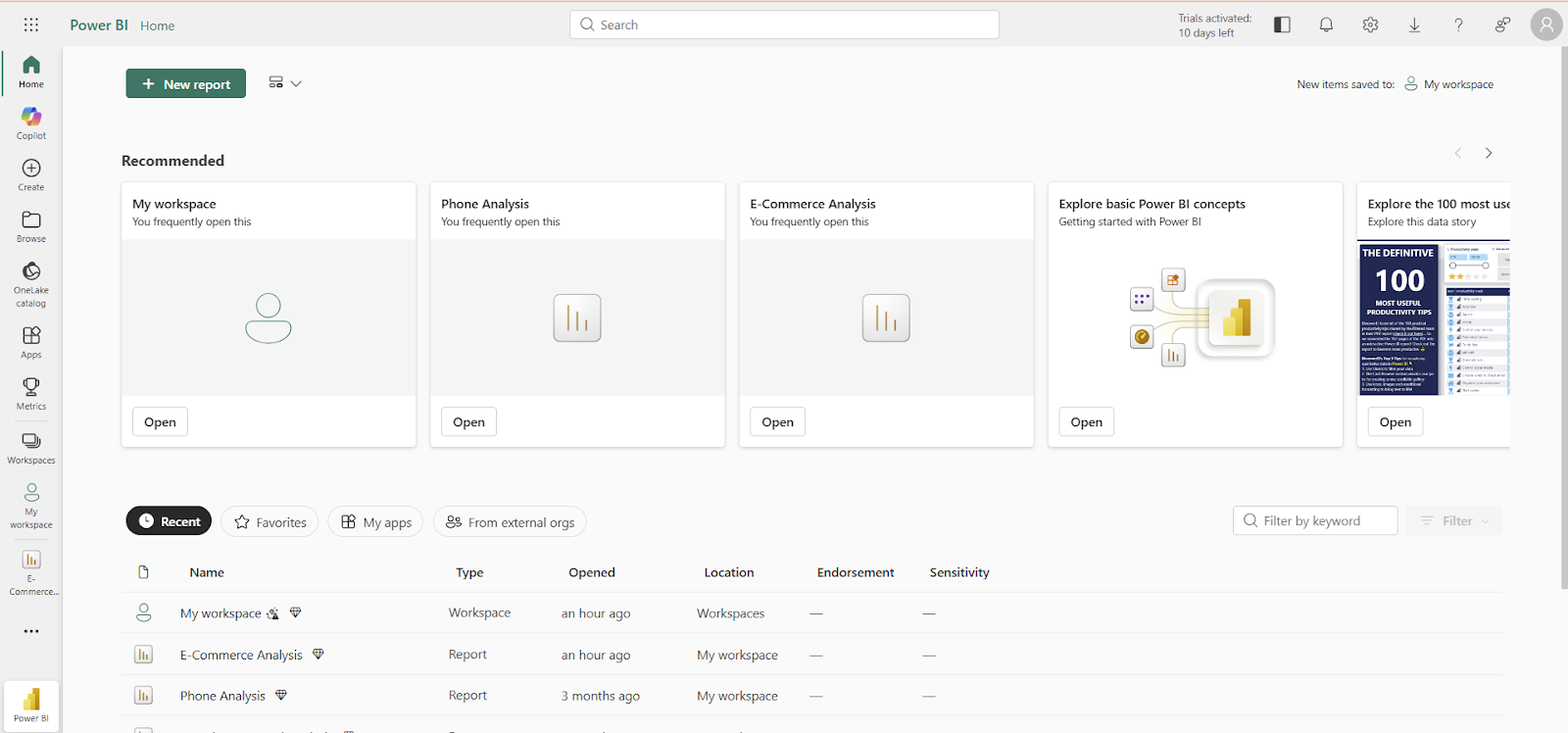
Interfaz de Power BI Service. Imagen del autor
Nuestra certificación Power BI Data Analyst Associate ofrece documentación completa para llevar tus habilidades de nivel inicial a avanzado. Además, el foro de la comunidad de Power BI te permite hacer preguntas y aprender de otros usuarios.
Espero que ahora tengas claro qué es Power BI Service y cómo ayuda a convertir datos en bruto en insights accionables, ofreciendo capacidades de integración de datos, modelado, visualización y compartición.
Para adoptar y escalar Power BI en tu organización, ten en cuenta estas recomendaciones: alinea los informes con necesidades de negocio claras, mantiene conjuntos de datos limpios y modelos optimizados, establece políticas claras de workspaces, construye nuevos informes sobre modelos semánticos existentes siempre que sea posible y forma al equipo para seguir el ritmo de la evolución tecnológica.
Nuestro itinerario Data Analyst in Power BI es un gran punto de partida para prepararte, a ti y a tu equipo, para la certificación PL-300. Además, nuestra guía How to Pass Microsoft Exam PL-300 es un recurso adicional muy útil.
Aprende Power BI con DataCamp
Curso
Curso
blog
Jess Ahmet
8 min
blog
Eugenia Anello
8 min
blog
Shaun Edmond
14 min
blog
Joleen Bothma
7 min
Tutorial
Maarten Van den Broeck
8 min
Tutorial
DataCamp Team
13 min