%22%3E%3Cpath%20d%3D%22m-369%200h408v79h-408z%22%20fill%3D%22%237933ff%22%2F%3E%3Cpath%20d%3D%22m-148%200h306v45h-306z%22%20fill%3D%22%23974dff%22%2F%3E%3C%2Fg%3E%3C%2Fsvg%3E)
%22%2F%3E%3C%2FclipPath%3E%3Cg%20clip-path%3D%22url(%23a)%22%3E%3Cpath%20d%3D%22m76%200h484v36h-484z%22%20fill%3D%22%23974dff%22%2F%3E%3Cpath%20d%3D%22m0%200h384v24h-384z%22%20fill%3D%22%2306bdfc%22%20transform%3D%22matrix(1%200%200%20-1%200%2060)%22%2F%3E%3C%2Fg%3E%3C%2Fsvg%3E)
Customizing the Stacked Bar Chart
Sometimes, we need to customize our charts to meet certain visual standards, such as color blindness and company style, and to improve readability. Some things to consider are changing the color, sorting, and adjusting axes and titles.
Changing colors and labels
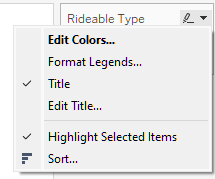
Changing colors in Tableau is straightforward. Go to the legend on the right, click the drop-down menu, then select Edit Colors…. Choose the colors of interest and click Apply -> Ok to change the colors of your chart.
Sometimes, adding labels to our data is interesting. This can be to showcase a particular value of interest or provide additional context for the viewer. To do so, drag any field to the Label icon under the Marks box to populate your chart with labels.
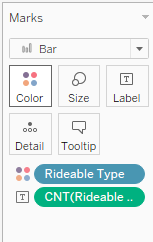
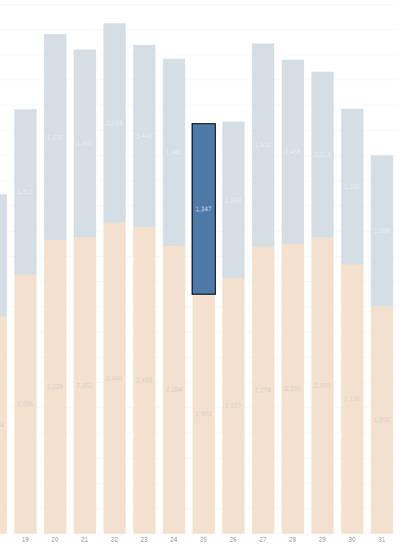
For instance, holding down the Ctrl button on the keyboard and dragging the CNT(Rideable Type) field we created in the Rows field to the Labels will copy those values to the chart.
Sorting and ordering
While our data is currently sorted by date, there may be instances where we need to change the sort or order of our data.
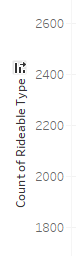
Changing the sort method in Tableau is straightforward. Hover over the y-axis label Count of Rideable Type and click on the little icon that pops up. This will alternate between sorting largest to smallest value, smallest to largest, and alphabetical or numerical order.
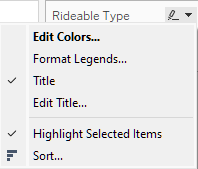
To change the order of the groups themselves, you can go to the legend on the right and click on the dropdown menu and choose the Sort… option. This will provide you with a few choices on how to sort your groups to suit your needs.
Adjusting axes and titles
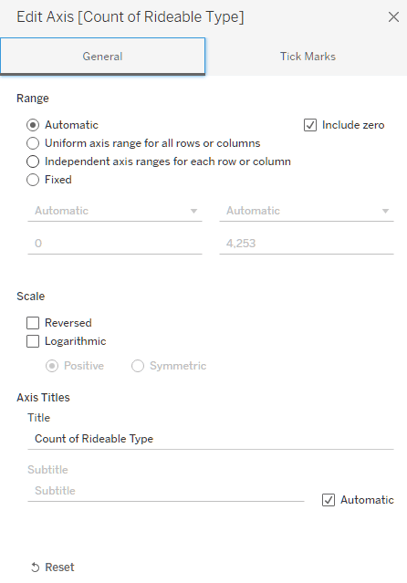
In some instances, we need to change our axes or titles. These can both be done in the same menu. If you right-click on an Axis, you can select Edit Axis… which will pop up a menu that allows you to change various things about the axis, such as the title and range.
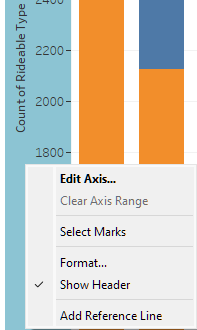
Generally, we want to ensure that our axes are labeled appropriately in a way that makes sense for viewers and that we provide a range that is sensible but not misleading.
If you are not starting your axis at zero or cutting off parts of your range, you should be able to explain your reasoning, such as focusing on a particular subset of the data. These changes should be made clear to minimize misleading the audience.
Advanced Features and Interactivity
Tableau offers great features for things like filters, tooltips, and actions. These can aid in making the visualization more exciting and interactive.
Adding filters
Adding filters is a great way to allow viewers to control the range of interest. To generate a filter, you just drag the field of interest to the Filters box.
For example, we will drag Ended At to that box now and select Range of Dates. We will then right-click on the new Ended At label in our Filters box and select Show Filter.
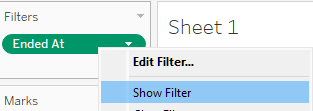
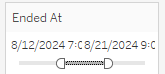
Doing this provides a slider bar that we can use to adjust our dates of interest.
For example, you can limit my data from “08/12/2024” to “08/21/2024” by dragging the filter to those dates:
Using tooltips
Tooltips provide additional context to the chart that may not need to be visualized. Any useful information may be added to the tooltip by dragging the field of interest to the Tooltip icon in the Marks box.
Creating a highlight action
Highlight actions allow us to create interactions with our charts based on other interactions in the dashboard. While in a dashboard, go to the top toolbar, click on Dashboard then Actions. You can then Add actions as needed, such as highlight actions. A default highlight action that exists in Tableau is on Select. When you Select a portion of the chart, it brings it into focus while dimming other portions.
Best Practices for Creating Stacked Bar Charts
Creating effective stacked bar charts requires more than just plotting data; it’s about ensuring clarity and accuracy. By following best practices, you can avoid common pitfalls and make your visualizations more informative and visually appealing.
Let's explore basic guidelines to help you design stacked bar charts that effectively communicate your data insights.
Avoid overcrowding
One key best practice when creating stacked bar charts is to avoid overcrowding. Overcrowding occurs when too many categories or segments are displayed, making the chart cluttered and difficult to interpret.
It’s important to limit the number of categories or segments shown in the chart. As a general rule, try to keep the number of segments within each bar manageable—too many can overwhelm the viewer and obscure the overall message.
Use color wisely
Using color wisely is an important best practice for creating effective stacked bar charts.
Colors should be used strategically to differentiate between segments, making it easy for viewers to distinguish between categories and interpret the data accurately. However, it’s important to ensure that the color choices enhance, rather than hinder, the readability of the chart.
Label clearly
Clear and concise labeling is essential for creating effective stacked bar charts. Proper labels ensure that viewers can quickly and easily understand the data being presented.
Directly labeling each segment on the bars themselves can enhance clarity by providing immediate context without requiring viewers to refer to a legend. This approach is particularly useful for highlighting key data points and making the chart more self-explanatory.
Additionally, it’s important to avoid overly complex legends, which can clutter the chart and detract from its readability. Use simple, straightforward labels and limit the number of legend entries to ensure that the chart remains clean and easy to interpret.
Consider alternatives
When creating a stacked bar chart, it's important to consider whether this type of visualization is the most effective for your data. If a stacked bar chart does not clearly communicate the intended message or if the data becomes too cluttered, exploring alternative chart types might be beneficial.
For example, a grouped bar chart can be a good alternative when you need to compare multiple data series side by side, rather than stacking them. This approach provides a clearer view of individual categories across different groups.
Another option is a 100% stacked bar chart, which shows the percentage contribution of each category to the total, making it easier to compare the relative proportions across groups.
Conclusion
Creating a stacked bar chart in Tableau is fairly straightforward. You obtain a dataset, connect it to Tableau, choose your fields of interest, and add a category as the visualization for your stacked bar. You can even add customizations such as filters, adjusting axes titles, labels, color, and more.
This is just the beginning with Tableau. You can do many more complex visualizations in Tableau and build out a complete dashboard to combine multiple visualizations into a single story. If you want to learn more, consider the following resources from DataCamp:
FAQs
What are some other visualization options available to me in Tableau?
Plenty of visualization options are available in Tableau, including scatter plots, line graphs, and treemaps. Custom visualizations such as Sankey diagrams can even be found.
What are other reasons for using Tableau beyond a stacked bar chart?
Tableau provides a straightforward and clean interface that allows users of all levels to quickly and easily generate visualizations. You can even dive deeper and use Tableau for analysis through calculations and functions.
Are there any recommended projects to help me get started in Tableau?
Absolutely! One of the best ways to get started in Tableau is to find a dataset that interests you and think of creative ways of visualizing that data. If you need help, DataCamp provides guidance in picking Tableau projects like analyzing churn, marketing data, and more.
What are some limitations of Tableau?
The primary limitation of Tableau is your imagination! However, some challenges you may face are when you are trying to join from disparate data sources. At that point, having a great understanding of Tableau’s functionality is helpful.
Is there a certification in Tableau?
There is! Tableau offers formal certification exams to demonstrate a user’s proficiency and competency with the software. The DataCamp Tableau Certification Guide provides full details.

Ik ben een data scientist met ervaring in ruimtelijke analyse, machine learning en datapijplijnen. Ik heb gewerkt met GCP, Hadoop, Hive, Snowflake, Airflow en andere data science- en engineeringprocessen.


Data is vaak complex en lastig te interpreteren. Datavisualisatie helpt dit proces te vereenvoudigen door patronen en inzichten zichtbaar te maken die anders onopgemerkt blijven.
Een populaire methode is het gestapelde staafdiagram, waarmee je relaties tussen verschillende categorieën duidelijk laat zien. Hoewel visualisaties maken uitdagend kan lijken, maken tools zoals Tableau het een stuk makkelijker.
Tableau valt op door zijn krachtige maar gebruiksvriendelijke interface en is daarmee efficiënter dan andere tools zoals Excel voor het creëren van effectieve visualisaties. Of je nu beginner bent of je vaardigheden wilt aanscherpen, met Tableau maak je snel aantrekkelijke visualisaties, waaronder gestapelde staafdiagrammen, met slechts een paar klikken. Naarmate de vraag naar Tableau-expertise groeit, kunnen deze skills een waardevolle troef zijn in je datacarrière.
In deze tutorial leer je gestapelde staafdiagrammen maken en aanpassen in Tableau. Ik behandel een overzicht van hun use-cases, een stapsgewijze handleiding voor het bouwen van een basisdiagram, het aanpassen van kleuren, labels en assen, en geavanceerde functies zoals filters en tooltips. Tot slot bekijken we best practices voor het maken van heldere en overtuigende grafieken.
Wat is een gestapeld staafdiagram?
Een gestapeld staafdiagram is een staafdiagram waarbij elke staaf is opgedeeld in segmenten die op elkaar gestapeld zijn, waarbij elk segment overeenkomt met een andere categorie in de data. Deze gestapelde segmenten maken een duidelijke vergelijking mogelijk van het totaal per categorie en de bijdrage van elke subcategorie aan dat totaal.
Een gestapeld staafdiagram gebruik je het best wanneer je totale waarden en de afzonderlijke componenten die deze totalen vormen wilt vergelijken tussen verschillende groepen. Het is vooral effectief als je wilt laten zien hoe verschillende subcategorieën bijdragen aan een grotere categorie over meerdere groepen, zodat je zowel de deel-tot-geheelrelatie als de relatieve omvang per groep kunt visualiseren.
Gestapelde staafdiagrammen zijn ideaal voor het weergeven van categorische data, waarbij de focus ligt op de verdeling binnen categorieën, terwijl je toch zicht houdt op de totale schaal.
Als je je datavisualisatievaardigheden wilt verbeteren of moeite hebt om je inzichten te laten “landen” bij je stakeholders, dan is de cursus Data Visualization in Tableau iets voor jou.
Een basis-gestapeld staafdiagram maken in Tableau
In dit onderdeel behandelen we kort de stappen die nodig zijn om een gestapeld staafdiagram te maken, te beginnen met het verbinden met je data.
Stap 1: Verbinden met je data
Data verbinden is de eerste stap in elk Tableau-project, omdat je hiermee de data in Tableau importeert.
We gebruiken publieke CitiBike-data van Lyft, met informatie over het CitiBike Bike Share-programma in New York City.
Download een van de datasets—ik gebruik
202408-citibike-tripdata.zip—en sla deze op als CSV-bestand. Open vervolgens Tableau, ga naar Connect en klik op Text File. Er verschijnt een pop-up waarin je het CSV-bestand kunt kiezen.Wil je leren hoe je verschillende databronnen verbindt en de data voorbereidt op analyse in Tableau? Bekijk dan de cursus Connecting Data in Tableau.
Stap 2: Velden slepen en neerzetten
Zodra de data is verbonden, zie je in je Tableau-venster een overzicht van de beschikbare velden. Dit is het moment om te bekijken hoe de data is opgebouwd, wat de datatypes van elke kolom zijn en of er mogelijke problemen in de data zitten.
Als je hebt bevestigd dat de data is geladen, klik dan onderaan op Sheet 1 om naar je werkblad te gaan. Hiermee open je de pagina Tableau Worksheet. Links zie je je kolommen. We beginnen met het maken van een staafdiagram met de data-velden
Rideable TypeenEnded At.Begin met het slepen van het veld
Rideable Typenaar de sectie Rows van je Tableau-werkblad. Klik daarna op het dropdownmenu om deze kolom in te stellen als Measure met de aggregatie Count.Vervolgens slepen we het veld
Ended Atnaar het gebied Columns in het werkblad. Klik daarna op het dropdownmenu en selecteer Day zodat we dit op dagniveau in de data kunnen zien.Je zou nu een vrij eenvoudig staafdiagram moeten hebben dat er ongeveer zo uitziet:
Stap 3: De stapeling toevoegen
Onze laatste stap is een extra variabele toevoegen die ons het “stapel”-element geeft. Dit is doorgaans een categorie die de data opsplitst in twee of meer groepen.
In dit geval gebruiken we de groep
Rideable Typezelf, zodat we de verdeling van de twee soorten voertuigen—elektrische en klassieke fietsen—kunnen zien. We slepenRideable Typenaar het pictogram Color onder Marks. Je grafiek verandert nu van een eenvoudig staafdiagram in een gestapelde staaf!