Tracks
วิศวกร AI ระดับ Associate สำหรับนักพัฒนา
26 ชม.
Gemini 3.8 Live ของ Google คือโมเดลสุนทรพจน์ต่อสุนทรพจน์แบบเนทีฟ ออกแบบมาโดยเฉพาะสำหรับการสตรีมแบบเรียลไทม์และแอปพลิเคชันเสียงเชิงโต้ตอบ Gemini 3.8 Live ประมวลผลอินพุตมัลติโหมดได้โดยตรงผ่านการเชื่อมต่อ WebSocket ถาวร
ความสามารถในการสตรีมสองทางนี้ช่วยให้นักพัฒนาสร้างเอเจนต์สนทนาแบบฟูลดูเพล็กซ์ที่สามารถฟังและพูดพร้อมกัน รองรับคุณสมบัติเช่นการขัดจังหวะแบบเป็นธรรมชาติและการถอดเสียงแบบเรียลไทม์
สำหรับการพัฒนาแอป Gemini 3.8 Live แนะนำการเรียกเครื่องมือแบบอะซิงก์และการให้เหตุผลเบื้องหลัง ทำให้เอเจนต์สามารถเรียกใช้ฟังก์ชันภายนอกหรือดึงข้อมูลระหว่างยังคงสนทนากับผู้ใช้ได้อย่างต่อเนื่อง
สำหรับภาพรวมครบถ้วนของคุณสมบัติ มาตรฐาน และราคา โปรดดู คู่มือ Gemini 3.8 Live.
ก่อนลงมือโค้ด มาทำความเข้าใจการทำงานของผู้ช่วยเสียงแบบเรียลไทม์ภายในกันก่อน
สคริปต์ Python มาตรฐานทำงานทีละบรรทัด: ฟังก์ชัน A จบแล้วค่อยรันฟังก์ชัน B แต่ในบทสนทนาเสียงแบบสด การรอคอยใช้ไม่ได้ผล:
เพื่อให้ทำเช่นนี้โดยไม่ค้าง ใช้ Python asyncio เพื่อรันงานเบา ๆ (“เวิร์กเกอร์”) 4 ตัว ที่สื่อสารกันด้วยบัฟเฟอร์ asyncio.Queue สองตัว (ให้นึกว่าเป็นสายพานลำเลียง):
input_queue):audio_recorder(): ฟังไมโครโฟนอย่างต่อเนื่องและวางชิ้นเสียงลงบนสายพาน
send_audio_loop(): หยิบชิ้นเสียงจากสายพานแล้วสตรีมไปยัง Gemini
audio_queue):receive_loop(): ฟัง Gemini เมื่อมีข้อความก็พิมพ์ออกมา เมื่อมีเสียงก็วางชิ้นเสียงลงบนสายพาน
audio_player(): หยิบชิ้นเสียงจากสายพานแล้วเล่นออกลำโพงหรือหูฟัง
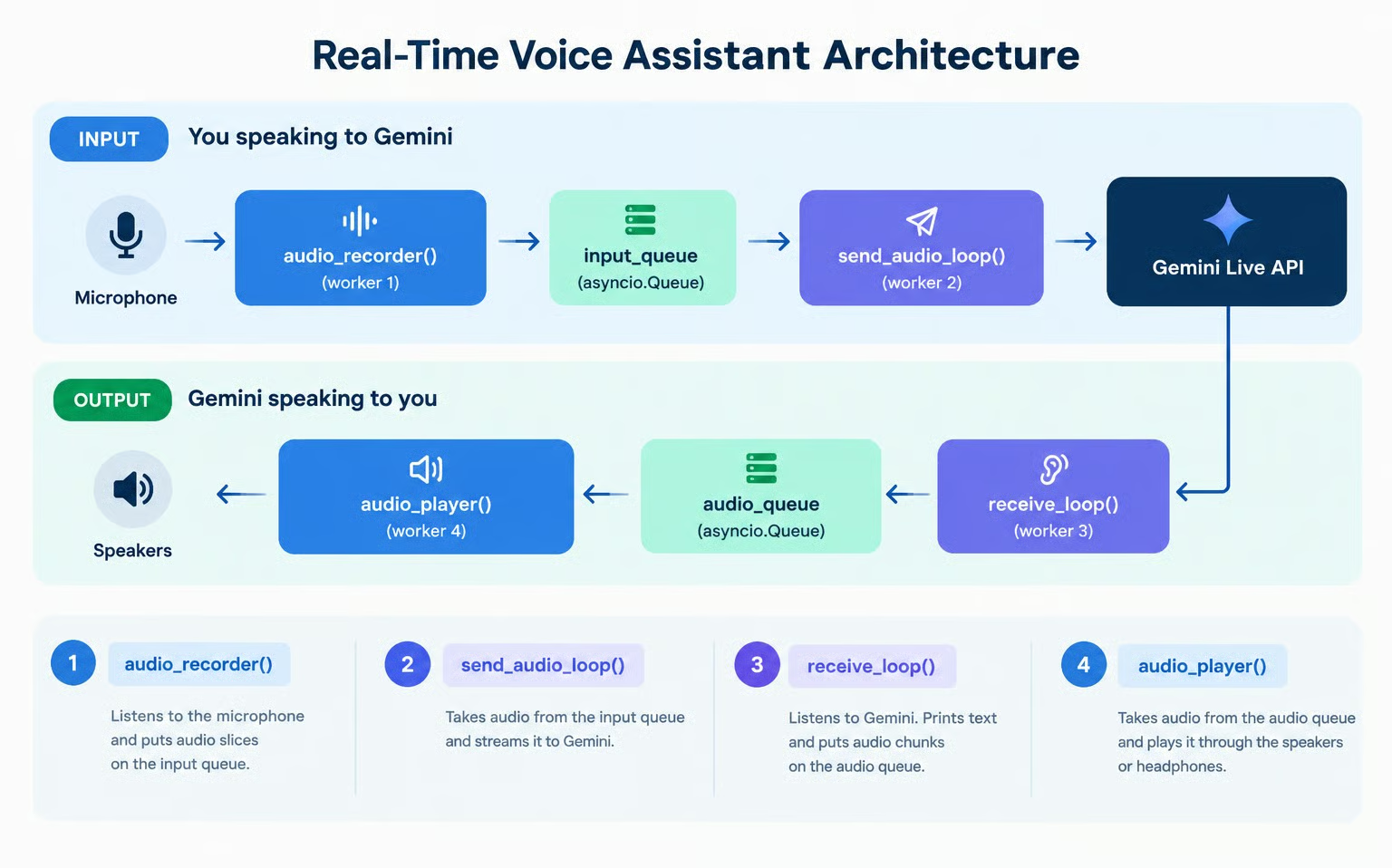
เพราะแต่ละเวิร์กเกอร์โฟกัสงานเล็ก ๆ ของตนเอง ทั้งสี่ตัวจึงสามารถรันพร้อมกันบน event loop ของ Python ได้โดยไม่กวนกัน
โค้ดฉบับเต็มที่ใช้ในบทช่วยสอนนี้มีให้ดู ใน GitHub repo นี้
เพื่อใช้ Gemini API ต้องสร้างและตั้งค่า API key เพื่อให้โค้ดของเราติดต่อกับ API ได้
วิธีง่ายที่สุดคือ:
ไปที่ หน้า API key ของ Google’s AI Studio แล้วล็อกอิน
คลิกปุ่ม Create API key มุมขวาบน
คัดลอก API key ไปใส่ไฟล์ชื่อ .env ในโฟลเดอร์เดียวกับโค้ด Python โดยใช้รูปแบบต่อไปนี้:
GEMINI_API_KEY=replace_with_api_keyโปรดทราบว่าการใช้ API มักมีค่าใช้จ่าย ระดับใช้งานฟรีครอบคลุมการเข้าถึงจำกัดสำหรับทั้งสองโมเดล Gemini 3.8 Live แต่ข้อมูลจากระดับฟรีจะถูกใช้เพื่อพัฒนาผลิตภัณฑ์ของ Google สำหรับงานโปรดักชันหรือเพดานอัตราที่สูงขึ้น ควรตรวจสอบว่ามีวิธีชำระเงินตั้งค่าไว้ในหน้าบิลลิงของ Google’s AI Studio
ขั้นตอนเหล่านี้ออกแบบมาให้รันใน Jupyter notebook บนเครื่อง โดยแต่ละโค้ดสไนเป็ตสอดคล้องกับหนึ่งเซลล์ในโน้ตบุ๊ก เนื่องจากต้องใช้สิทธิ์เข้าถึงไมค์และลำโพง จึงไม่สามารถทำงานได้ทันทีบนโน้ตบุ๊กออนไลน์อย่าง Google Colab
ก่อนอื่น ตรวจสอบให้แน่ใจว่าติดตั้งแพ็กเกจที่ต้องใช้แล้ว:
pip install google-genai sounddevice python-dotenvรายละเอียดหน้าที่ของแต่ละแพ็กเกจ:
google-genai: แพ็กเกจทางการของ Google สำหรับโต้ตอบกับโมเดล Gemini
sounddevice: จัดการฮาร์ดแวร์เสียง บันทึกจากไมโครโฟน และเล่นผ่านลำโพง
python-dotenv: ยูทิลิตีสำหรับโหลด Gemini API key จากไฟล์ .env
ตอนนี้สามารถโหลดตัวแปรแวดล้อม ตรวจสอบ API key และเริ่มต้น genai.Client ได้แล้ว
import asyncio
import os
import sys
from dotenv import load_dotenv
from google import genai
from google.genai import types
import sounddevice as sd

# Load environment variables from .env file
load_dotenv()

api_key = os.getenv("GEMINI_API_KEY")
if not api_key:
    raise ValueError("GEMINI_API_KEY not found. Please set it in your .env file or environment.")

# Initialize the Gemini Client
client = genai.Client(api_key=api_key)
print("Gemini Client initialized successfully!")เริ่มจากทำความเข้าใจวงจรการเชื่อมต่อหลักของ Gemini Live โดยการส่งข้อความหนึ่งรอบและรับคำพูดและการถอดเสียงแบบสตรีม จะส่งพรอมต์เป็นข้อความและรับคำตอบทั้งข้อความและเสียง แต่ตอนนี้จะยังไม่เล่นเสียง โฟกัสที่การเก็บชิ้นเสียงก่อน
Gemini Live API ใช้การเชื่อมต่อ WebSocket ถาวรผ่าน client.aio.live.connect() เพื่อกำหนดเอาต์พุตเสียงและการถอดเสียงแบบเรียลไทม์ ให้ส่งดิกชันนารี config:
# Session configuration
config = {
    "response_modalities": ["AUDIO"],
    "output_audio_transcription": {},
}response_modalities: ใช้ค่า ["AUDIO"] เพื่อให้ Gemini ตอบกลับเป็นเสียงพูด
output_audio_transcription: ค่า {} บอกให้ Gemini สตรีมข้อความถอดเสียงของสิ่งที่กำลังพูดไปพร้อมกัน
ตอนนี้ทดสอบการส่งพรอมต์ข้อความด้วย session.send_client_content() และสตรีมการถอดเสียงที่เข้ามา
print("Connecting to Gemini 3.8 Live API...")
async with client.aio.live.connect(model="gemini-3.8-live", config=config) as session:
    print("Connected! Sending text prompt...")

    await session.send_client_content(
        turns={"role": "user", "parts": [{"text": "Hello! In one short sentence, introduce yourself."}]},
        turn_complete=True,
    )

    print("\n[Gemini Transcription]: ", end="", flush=True)
    audio_chunks_received = 0
    total_audio_bytes = 0

    async for response in session.receive():
        server_content = response.server_content
        if server_content:
            # 1. Print real-time transcription as tokens arrive
            if server_content.output_transcription:
                print(server_content.output_transcription.text, end="", flush=True)

            # 2. Inspect audio chunks
            if server_content.model_turn:
                for part in server_content.model_turn.parts:
                    if part.inline_data and part.inline_data.data:
                        audio_chunks_received += 1
                        total_audio_bytes += len(part.inline_data.data)

    print(f"\n\nReceived {audio_chunks_received} audio chunks ({total_audio_bytes:,} bytes total).")
เมื่อรันโค้ดนี้ ควรเห็นผลลัพธ์ประมาณนี้:
Connecting to Gemini 3.8 Live API...
Connected! Sending text prompt...

[Gemini Transcription]: Hello, I am your helpful AI assistant designed to assist you with various tasks and answer your questions.

Received 22 audio chunks (304,800 bytes total).
โค้ดเก็บชิ้นเสียงไว้แล้ว แต่ยังไม่มีตัวเล่นเสียง จึงยังไม่ได้ยิน ต่อไปเรียนรู้การกำหนดตัวเล่นเสียง
ในขั้นที่ 2 เราได้รับข้อมูลเสียงหลายพันไบต์ แต่ไม่ได้ยินอะไร หากเขียนส่งไปยังฮาร์ดแวร์เสียงโดยตรงภายในลูปรับข้อมูล ความหน่วงเครือข่ายจะทำให้เสียงสะดุด และความหน่วงการเล่นเสียงจะบล็อกการรับข้อมูลเครือข่าย
เพื่อป้องกันการเล่นเสียงไปบล็อกตัวรับเครือข่าย จะสร้างเวิร์กเกอร์ตัวแรก: audio_player()
ไม่ต้องกังวลรายละเอียดระดับต่ำของเสียง แนะนำให้มองว่าเป็นกล่องดำก็พอ
OUTPUT_SAMPLE_RATE = 24000
CHANNELS = 1

async def audio_player(audio_queue: asyncio.Queue):
    """Plays raw 24kHz audio chunks from audio_queue through the speakers."""
    loop = asyncio.get_running_loop()
    with sd.RawOutputStream(
        samplerate=OUTPUT_SAMPLE_RATE, channels=CHANNELS, dtype="int16"
    ) as stream:
        while True:
            chunk = await audio_queue.get()
            if chunk is None:  # Sentinel value signaling end of stream
                audio_queue.task_done()
                break
            await loop.run_in_executor(None, stream.write, chunk)
            audio_queue.task_done()

print("Audio player defined!")
เพื่อทดสอบ จะเชื่อม audio_player() เข้ากับคำขอ คราวนี้จะได้ยิน Gemini พูดออกมาทันทีพร้อมดูการถอดเสียงที่สตรีม:
audio_queue = asyncio.Queue()
player_task = asyncio.create_task(audio_player(audio_queue))

prompt_text = "Hello! In one short sentence, introduce yourself."
print(f"[User]: {prompt_text}")

async with client.aio.live.connect(model="gemini-3.8-live", config=config) as session:
    await session.send_client_content(
        turns={"role": "user", "parts": [{"text": prompt_text}]},
        turn_complete=True,
    )

    print("[Gemini]: ", end="", flush=True)
    async for response in session.receive():
        server_content = response.server_content
        if server_content:
            if server_content.output_transcription:
                print(server_content.output_transcription.text, end="", flush=True)

            if server_content.model_turn:
                for part in server_content.model_turn.parts:
                    if part.inline_data and part.inline_data.data:
                        await audio_queue.put(part.inline_data.data)

print()
# Signal the player to shut down and await completion
await audio_queue.put(None)
await player_task
print("Playback complete!")
เมื่อรันสไนเป็ตนี้ จะได้ยินคำตอบของ Gemini
เพื่อคุยกับ Gemini แบบเรียลไทม์ ต้องบันทึกเสียงจากไมโครโฟนอย่างต่อเนื่อง
เวิร์กเกอร์ตัวที่สองคือ audio_recorder() มันฟังไมโครโฟนเบื้องหลัง หั่นคำพูดที่เข้ามาเป็นชิ้นเล็ก ๆ แล้ววางลงใน input_queue ตั้งค่าอัตราสุ่มตัวอย่างที่ 16 kHz ซึ่งเป็นมาตรฐานเสียงพูดที่ Gemini คาดหวัง
INPUT_SAMPLE_RATE = 16000  # Gemini Live expects 16kHz audio input
CHUNK_SIZE = 1024          # Number of samples per audio chunk

async def audio_recorder(input_queue: asyncio.Queue, stop_event: asyncio.Event):
    """Captures microphone input and puts raw audio chunks into the input queue."""
    loop = asyncio.get_running_loop()

    def record_loop():
        with sd.RawInputStream(
            samplerate=INPUT_SAMPLE_RATE,
            channels=CHANNELS,
            dtype="int16",
            blocksize=CHUNK_SIZE,
        ) as stream:
            while not stop_event.is_set():
                data, _ = stream.read(CHUNK_SIZE)
                loop.call_soon_threadsafe(input_queue.put_nowait, bytes(data))

    await asyncio.to_thread(record_loop)

print("Audio recorder defined!")ในขั้นที่ 2 ใช้ send_client_content() เพื่อส่งรอบสนทนาด้วยข้อความคงที่ สำหรับการสตรีมเสียงต่อเนื่อง Live API มี session.send_realtime_input()
เวิร์กเกอร์ตัวที่สามคือ send_audio_loop() มันเฝ้า input_queue และทันทีที่มีชิ้นเสียงจากไมโครโฟนจะส่งต่อไปยัง Gemini ผ่าน WebSocket ที่เปิดอยู่
สังเกตว่าไม่ต้องบอก Gemini เองว่าเริ่มหรือหยุดพูดเมื่อใด: Gemini ใช้การตรวจจับกิจกรรมเสียง (VAD) ในตัวเพื่อระบุอัตโนมัติว่าเริ่มและหยุดพูดเมื่อใด
async def send_audio_loop(session, input_queue: asyncio.Queue, stop_event: asyncio.Event):
    """Continuously streams microphone chunks from input_queue to Gemini."""
    while not stop_event.is_set():
        try:
            chunk = await asyncio.wait_for(input_queue.get(), timeout=0.1)
            await session.send_realtime_input(
                audio=types.Blob(data=chunk, mime_type=f"audio/pcm;rate={INPUT_SAMPLE_RATE}")
            )
            input_queue.task_done()
        except asyncio.TimeoutError:
            continue

print("send_audio_loop defined!")
เหมือนที่ทดสอบการเล่นเสียงด้วยพรอมต์ข้อความในขั้นที่ 3 ตอนนี้สามารถทดสอบการสตรีมไมโครโฟนแบบ end-to-end ด้วยคำถามที่พูดออกมาเพียงครั้งเดียว
เมื่อรันเซลล์ด้านล่าง ให้พูดคำถามลงไมโครโฟน (เช่น “เมืองหลวงของฝรั่งเศสคืออะไร?”) Gemini จะประมวลผลเสียงโดยตรงและตอบกลับด้วยเสียงสังเคราะห์พร้อมการถอดเสียงแบบเรียลไทม์:
audio_queue = asyncio.Queue()
input_queue = asyncio.Queue()
stop_event = asyncio.Event()

player_task = asyncio.create_task(audio_player(audio_queue))

print("Connecting to Gemini Live API...")
async with client.aio.live.connect(model="gemini-3.8-live", config=config) as session:
    print("Connected! Speak a question into your microphone (e.g. 'What is the capital of France?')...")
    recorder_task = asyncio.create_task(audio_recorder(input_queue, stop_event))
    sender_task = asyncio.create_task(send_audio_loop(session, input_queue, stop_event))

    print("\n[Gemini]: ", end="", flush=True)
    async for response in session.receive():
        server_content = response.server_content
        if server_content:
            # 1. As soon as Gemini starts replying, mute the microphone
            # so speaker audio cannot loop back into the mic and interrupt Gemini
            if not stop_event.is_set() and (server_content.output_transcription or server_content.model_turn):
                stop_event.set()

            # 2. Print transcription text as it streams
            if server_content.output_transcription:
                print(server_content.output_transcription.text, end="", flush=True)

            # 3. Queue audio parts for playback
            if server_content.model_turn:
                for part in server_content.model_turn.parts:
                    if part.inline_data and part.inline_data.data:
                        await audio_queue.put(part.inline_data.data)

            # 4. Turn complete
            if server_content.turn_complete:
                break

    # Clean up mic tasks cleanly
    stop_event.set()
    recorder_task.cancel()
    sender_task.cancel()
    await asyncio.gather(recorder_task, sender_task, return_exceptions=True)

# 5. Wait for playback queue to drain, then allow the soundcard buffer to finish playing
await audio_queue.join()
await asyncio.sleep(0.8)  # Prevents clipping the final syllables
await audio_queue.put(None)
await player_task

print("\nSingle-turn voice test complete!")สังเกตสิ่งที่เกิดขึ้นในการทดสอบข้างบน: เราถามด้วยไมโครโฟน Gemini เข้าใจเสียงของเราโดยตรงและตอบออกมาดัง ๆ อย่างไรก็ตาม หากพยายามถามต่อ เซสชันได้จบลงแล้ว
เพื่อแก้ไข ต้องจัดการสองประเด็นสำคัญของผู้ช่วยเสียงในโลกจริง: การคงสถานะหลายรอบสนทนา และการขัดจังหวะ
ใน SDK google-genai เมธอด session.receive() เป็น async generator สำหรับหนึ่งรอบ เมื่อ Gemini พูดคำตอบจบ session.receive() ก็สิ้นสุด หากไม่ครอบด้วยลูปชั้นนอก ผู้ช่วยจะจบหลังคำตอบแรก
เพื่อรองรับการสนทนาต่อเนื่อง ให้ครอบ session.receive() ด้วยลูป while not stop_event.is_set()::
while not stop_event.is_set():
    async for response in session.receive():
...Gemini 3.8 Live มีการตรวจจับกิจกรรมเสียงและรองรับ barge-in ในตัว หาก Gemini กำลังพูดและคุณเริ่มพูด Gemini จะหยุดสร้างเสียงทันทีและส่งแฟล็กข้อความ: server_content.interrupted == True
แม้ Gemini จะหยุดส่งเสียงใหม่ แต่ audio_queue ฝั่งเราอาจยังมีชิ้นเสียงรอเล่นอยู่ หากไม่ล้างคิวนี้ ลำโพงจะยังเล่นคำตอบก่อนหน้า
ดังนั้นทันทีที่ได้รับ server_content.interrupted ให้ล้างคิวเพื่อหยุดการเล่นทันที:
if server_content.interrupted:
    print("\n[Interrupted!]")
    while not audio_queue.empty():
        audio_queue.get_nowait()
audio_queue.task_done()นี่คือเวิร์กเกอร์ตัวที่สี่และตัวสุดท้าย: receive_loop() ซึ่งรวมการคงสถานะหลายรอบ การถอดเสียงแบบเรียลไทม์ และการขัดจังหวะทันที:
async def receive_loop(session, audio_queue: asyncio.Queue, stop_event: asyncio.Event):
    """Receives transcription and audio output from Gemini across multiple turns."""
    first_chunk_received = False
    try:
        while not stop_event.is_set():
            async for response in session.receive():
                if stop_event.is_set():
                    break

                server_content = response.server_content
                if server_content:
                    # 1. Handle user interruption (barge-in)
                    if server_content.interrupted:
                        print("\n[Interrupted!]")
                        # Flush remaining unplayed audio so speakers go silent immediately
                        while not audio_queue.empty():
                            try:
                                audio_queue.get_nowait()
                                audio_queue.task_done()
                            except asyncio.QueueEmpty:
                                break
                        first_chunk_received = False
                        print("\n[Listening... Speak now]")

                    # 2. Print real-time transcription
                    if server_content.output_transcription:
                        if not first_chunk_received:
                            print("\n[Gemini]: ", end="", flush=True)
                            first_chunk_received = True
                        print(server_content.output_transcription.text, end="", flush=True)

                    # 3. Enqueue synthesized audio for playback
                    if server_content.model_turn:
                        for part in server_content.model_turn.parts:
                            if part.inline_data and part.inline_data.data:
                                await audio_queue.put(part.inline_data.data)

                    # 4. Interaction complete: wait for audio to finish playing before prompt
                    # In Gemini 3.8, interaction_status tracks when the overall exchange is finished
                    is_done = False
                    if server_content.interaction_status is not None:
                        is_done = str(server_content.interaction_status).endswith("IDLE") or server_content.interaction_status == "IDLE"
                    elif server_content.turn_complete:
                        is_done = True

                    if is_done:
                        print()
                        await audio_queue.join()
                        first_chunk_received = False
                        print("\n[Listening... Speak now]")
    except asyncio.CancelledError:
        pass
    except Exception as e:
        print(f"\n[Receive Error]: {e}", file=sys.stderr)
        stop_event.set()

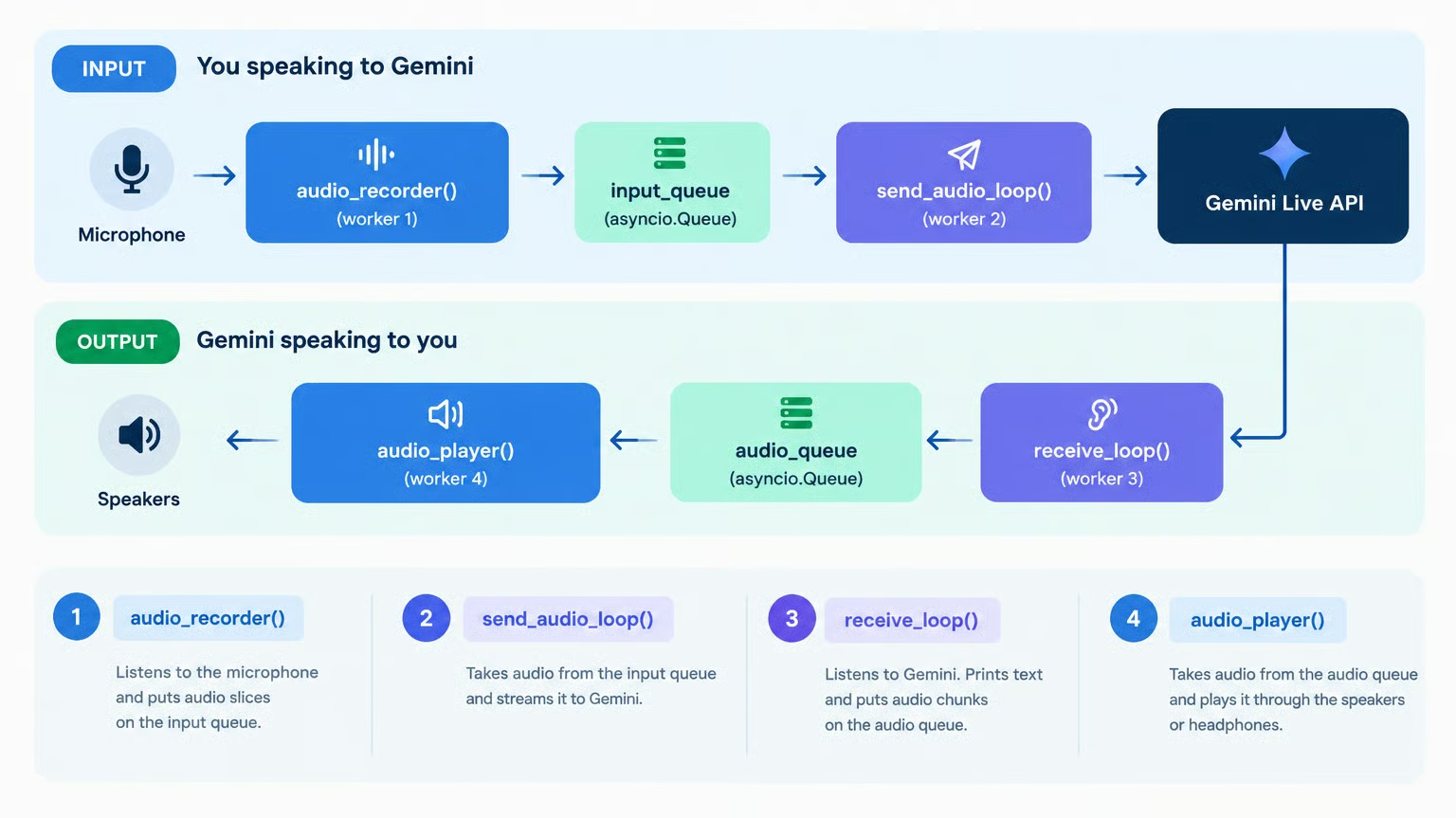
print("receive_loop defined!")ต่อไปจะจัดวางเวิร์กเกอร์ทั้งสี่ที่รันพร้อมกันใน run_voice_assistant:
audio_player(): อ่านจาก audio_queue แล้วเขียนออกลำโพง
audio_recorder(): อ่านจากไมโครโฟนแล้วผลักเสียงเข้าสู่ input_queue
send_audio_loop(): อ่านจาก input_queue แล้วสตรีมไปยัง Gemini ด้วย session.send_realtime_input()
receive_loop(): อ่านเอาต์พุตของ Gemini ด้วย session.receive() พิมพ์การถอดเสียง และผลักเสียงไปยัง audio_queue เพื่อเล่น
async def run_voice_assistant():
    """Runs the full-duplex interactive voice assistant."""
    audio_queue: asyncio.Queue[bytes | None] = asyncio.Queue()
    input_queue: asyncio.Queue[bytes] = asyncio.Queue()
    stop_event = asyncio.Event()

    player_task = asyncio.create_task(audio_player(audio_queue))

    print("Connecting to Gemini Live API...")
    async with client.aio.live.connect(model="gemini-3.8-live", config=config) as session:
        print("[Listening... Speak now]")

        recorder_task = asyncio.create_task(audio_recorder(input_queue, stop_event))
        sender_task = asyncio.create_task(send_audio_loop(session, input_queue, stop_event))
        receiver_task = asyncio.create_task(receive_loop(session, audio_queue, stop_event))

        try:
            while not stop_event.is_set():
                await asyncio.sleep(0.5)
        except (asyncio.CancelledError, KeyboardInterrupt):
            print("\nStopping voice assistant...")
        finally:
            stop_event.set()
            recorder_task.cancel()
            sender_task.cancel()
            receiver_task.cancel()
            await asyncio.gather(recorder_task, sender_task, receiver_task, return_exceptions=True)

    # Terminate player
    await audio_queue.put(None)
    await player_task
    print("\nSession finished cleanly.")

print("run_voice_assistant is ready to run!")วิธีรันผู้ช่วยเสียงในโน้ตบุ๊ก:
await run_voice_assistant()ข้อควรทราบ:
Gemini 3.8 Live มี 2 เวอร์ชัน:
Standard (gemini-3.8-live): ปรับให้เหมาะกับการสนทนาเสียงสู่เสียงที่หน่วงต่ำมาก เมื่อเรียกเครื่องมือ โมเดลจะรอคำตอบของเครื่องมือแบบเงียบ ๆ ก่อนค่อยตอบ
Extended Thinking (gemini-3.8-live-extended-thinking): มีการให้เหตุผลเบื้องหลังและประโยคคั่นบทสนทนาไปพร้อมกัน สามารถพูดอัปเดตตามธรรมชาติ (เช่น "ขอค้นหาก่อนนะ...") ระหว่างเรียกเครื่องมือในฉากหลัง
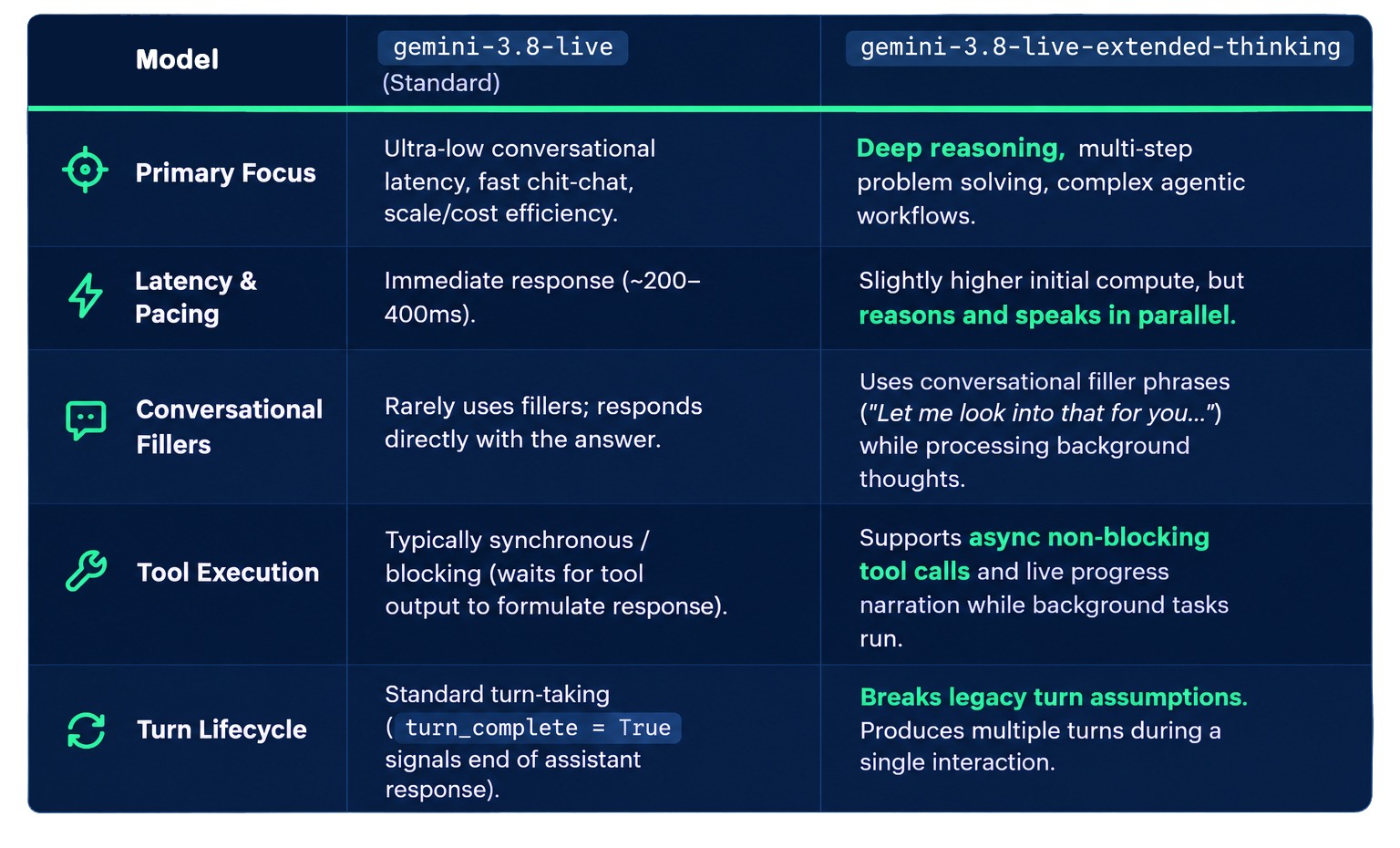
สรุปความแตกต่างของทั้งสองรุ่น:
หากยังไม่แน่ใจว่าจะใช้เวอร์ชันใด นี่คือกรอบการตัดสินใจเมื่อสร้างเอเจนต์สนทนา:
ใช้ gemini-3.8-live สำหรับถาม-ตอบโดยตรงและคำสั่งเสียงที่ต้องการความหน่วงต่ำที่สุดเป็นอันดับแรก
ใช้ gemini-3.8-live-extended-thinking สำหรับผู้ช่วยสนทนาเชิงลึกและเอเจนต์ที่ทำเหตุผลหลายขั้นตอน ดึงข้อมูลภายนอก หรือเรียก API โดยยังคงสนทนาตามธรรมชาติกับผู้ใช้อย่างต่อเนื่อง
จุดแข็งหนึ่งของรุ่น Extended Thinking คือสามารถให้เหตุผลและเรียกใช้เครื่องมือเบื้องหลังขณะยังคงสนทนาได้
ก่อนลงมือโค้ด มาดูการทำงานจริงกัน ตั้งค่าโมเดลพื้นฐานพร้อมเครื่องมือเช็คสภาพอากาศ ต่อไปนี้คือวิดีโอที่ถามสภาพอากาศนิวยอร์ก; สังเกตว่าโมเดลเงียบขณะกำลังคำนวณคำตอบ:
เรียนรู้ AI กับ DataCamp!
Tracks
Courses
Courses